
How to Upload Certificate in Salesforce
Steps to Upload Certificate:
1. Log in to Salesforce and navigate to Setup.
2. In the Quick Find box, type External Client App Manager and select it from the results.
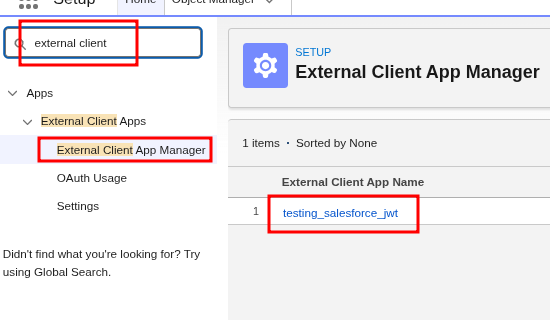
3. Locate and open the relevant External Client App from the list.
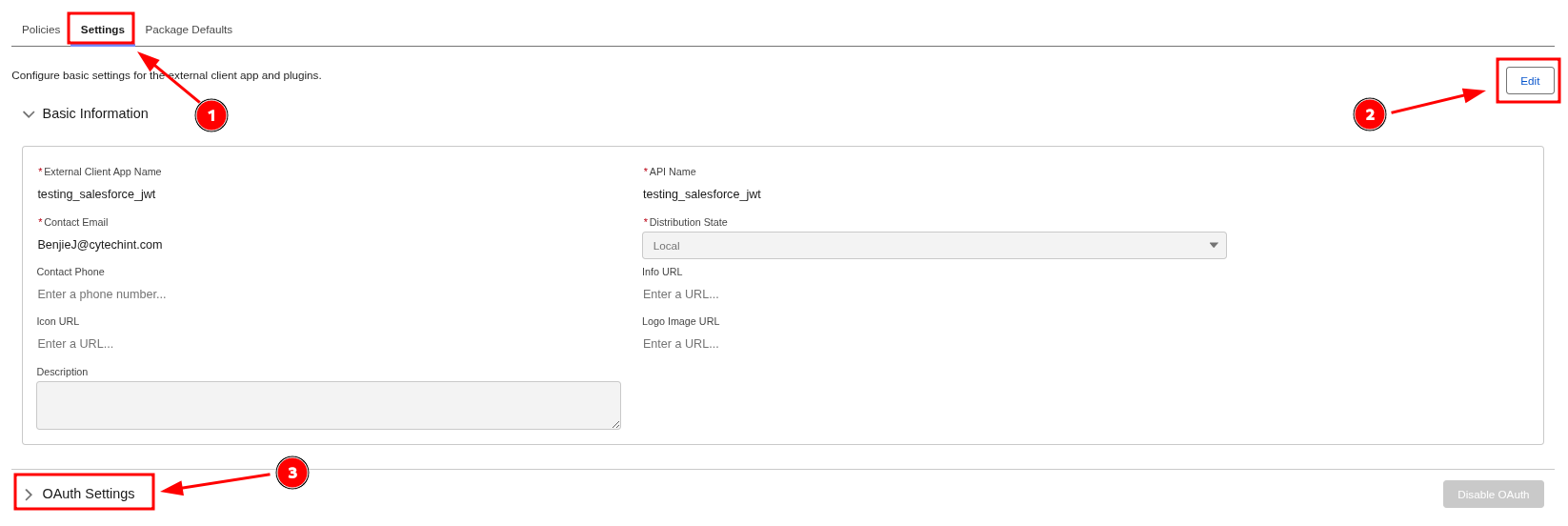
5. Click Upload Files, then browse and select the server.crt file.
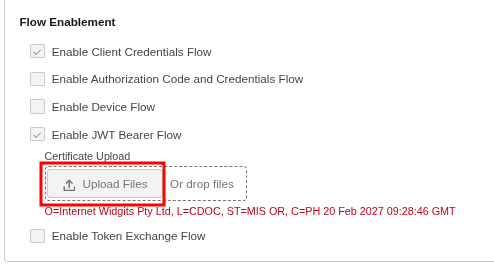
6. Click Save to apply and confirm the certificate upload.
No comments to display
No comments to display