
AQUILA - Zyxel USG Flex 200 SIEM Integration
AQUILA - Zyxel USG Flex 200 Integration
The Zyxel USG Flex 200 is a unified security gateway that provides comprehensive network security and management capabilities. It generates syslog events that can be collected, analyzed, and monitored for security insights and network performance monitoring. This integration enables centralized log collection from Zyxel USG devices for visualization and analysis.
Integration Overview
This integration supports event collection through:
- Syslog messages via UDP from Zyxel USG Flex 200 devices
- File-based log collection from configured syslog servers
Events can be searched, observed, and visualized for security monitoring and network analysis.
Compatibility
- Supports syslog event collection from Zyxel USG Flex 200 devices via UDP on port 514
- Requires syslog-ng service for log collection and filtering
- Compatible with Linux-based log collection servers
Syslog Server Configuration
Installing Syslog-ng:
Install the syslog-ng package on your log collection server:
sudo apt-get install syslog-ng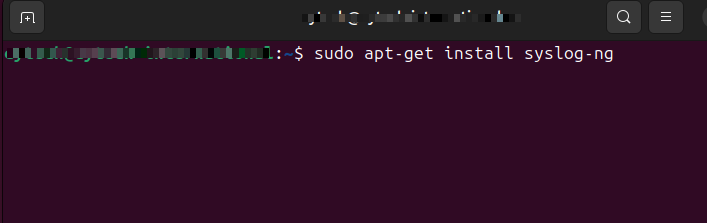
Configuring Syslog-ng:
Edit the syslog-ng configuration file:
sudo nano /etc/syslog-ng/syslog-ng.conf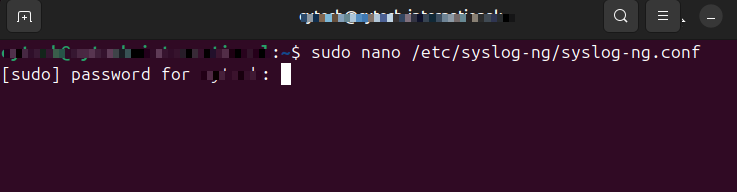
Add the following configuration blocks:
Define the syslog source to listen for UDP traffic on IP address <IP_Address_of_Log_Source_Server> and port 514:
Replace <IP_Address_of_Log_Source_Server> to the actual IP Address of Syslog-ng Server:
source s_net { udp(ip(<IP_Address_of_Log_Source_Server>) port(514)); };Create a filter to match traffic from the Zyxel device (this filter catches all syslog messages from the Zyxel Firewall):
replace <IP_Address_of_Zyxel_Firewall> to the actual IP Address of Zyxel Firewall:
filter f_zyxel { host( "<IP_Address_of_Zyxel_Firewall>" ); };Define a destination file for the syslog messages:
destination df_zyxel { file("/var/log/zyxel.log"); };Bundle the source, filter, and destination rules together with a logging rule:
log { source ( s_net ); filter( f_zyxel ); destination ( df_zyxel ); };Restart the syslog-ng service to apply changes:
sudo /etc/init.d/syslog-ng restart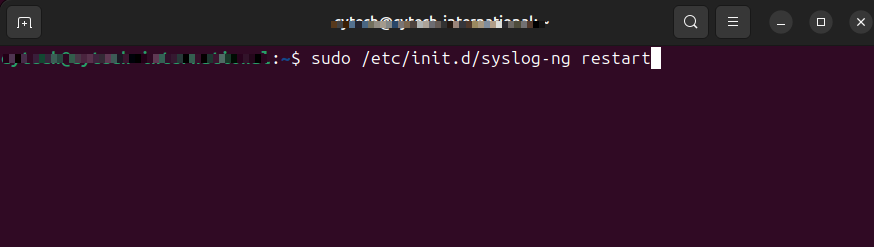
Full code snippet:
source s_net { udp(ip(<IP_Address_of_Log_Source_Server>) port(514)); };
filter f_zyxel { host( "<IP_Address_of_Zyxel_Firewall>" ); };
destination df_zyxel { file("/var/log/zyxel.log"); };
log { source ( s_net ); filter( f_zyxel ); destination ( df_zyxel ); };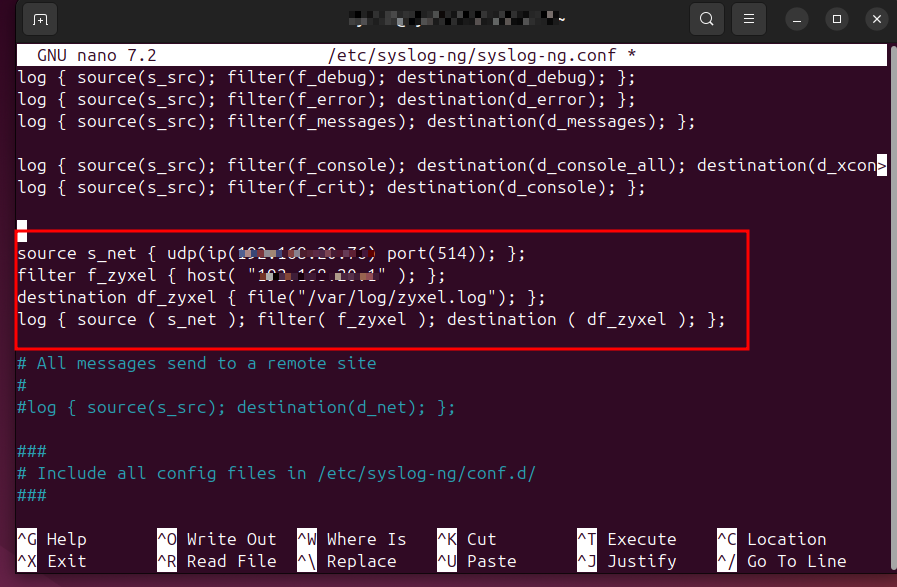
Zyxel USG Flex 200 Device Configuration
Follow these steps to configure the Zyxel USG Flex 200 to send syslog messages to your log collection server:
Step 1: Log in to the Zyxel USG Flex 200 Firewall web interface.
Step 3: Click Edit to configure the remote log server settings.
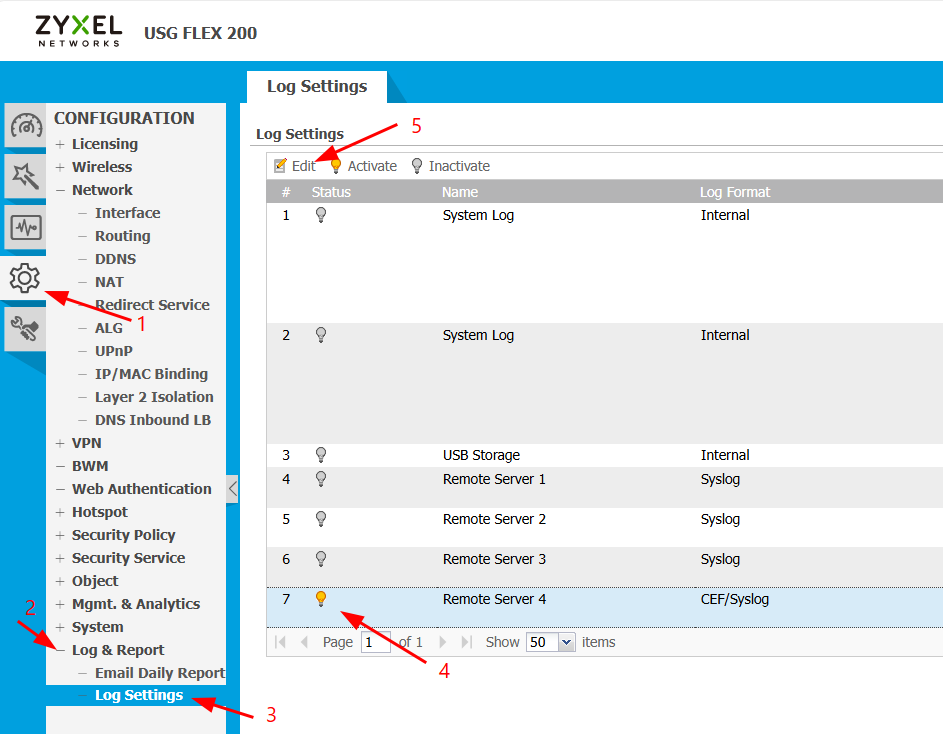
Step 4: Configure the following log settings for Remote Server:
- Active: Check the box to enable remote logging
- Log Format: Select CEF/Syslog from the dropdown menu
- Server Address: Enter the IP address of your syslog-ng server
- Server Port: Enter 514
- Log Facility: Select any available facility from the dropdown menu
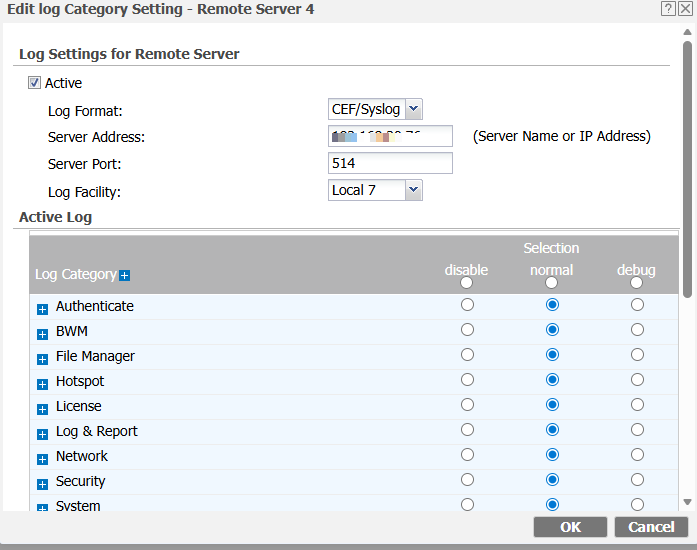
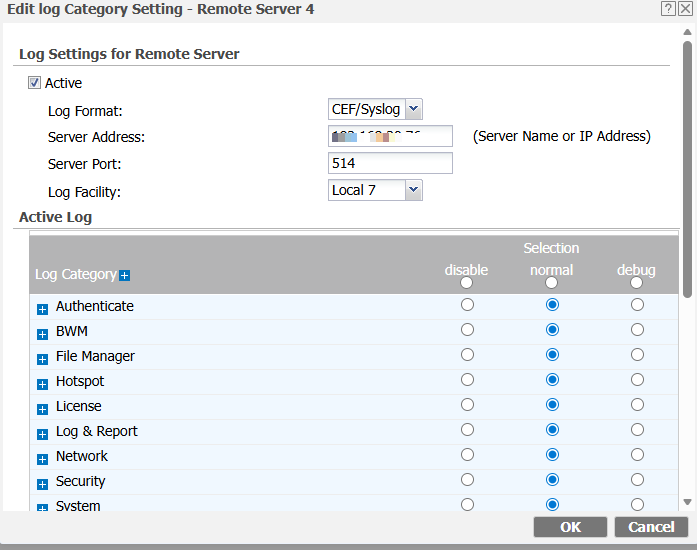
Step 5: Click Apply or Save to apply the configuration changes.
Step 6: Verify that syslog messages are being sent to the remote server by checking the log file on your Syslog server:
sudo tail -f /var/log/zyxel.log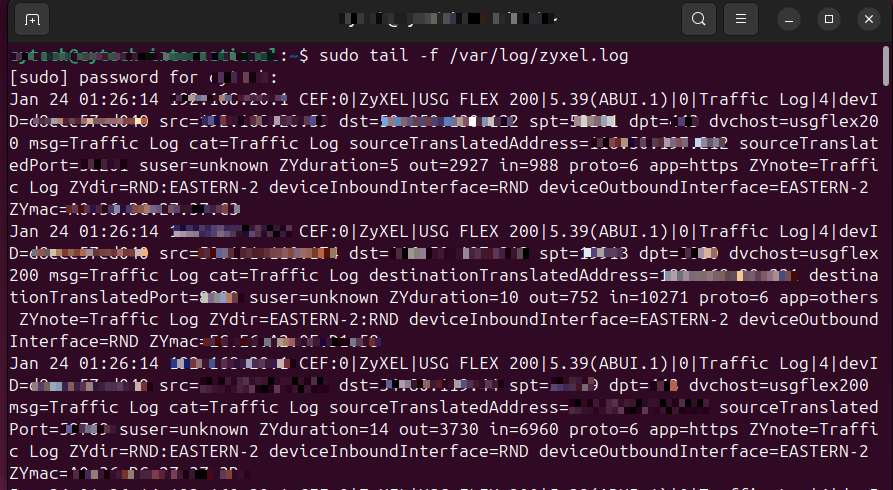
Log Rotation Configuration
To manage log file sizes and prevent disk space issues, configure log rotation for Zyxel logs.
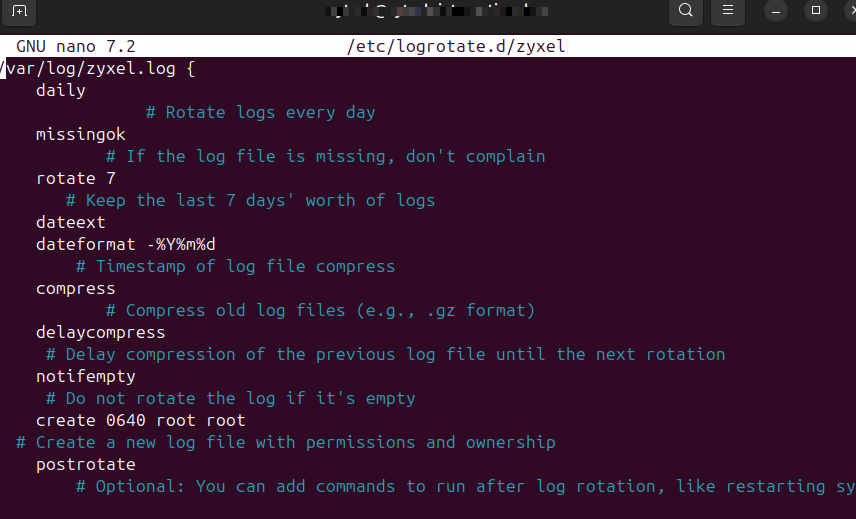
Create a logrotate configuration file:
sudo nano /etc/logrotate.d/zyxelPaste the following configuration to the file:
/var/log/zyxel.log {
    daily               # Rotate logs every day
    missingok           # If the log file is missing, don't complain
    rotate 7            # Keep the last 7 days' worth of logs
    compress            # Compress old log files (e.g., .gz format)
    delaycompress       # Delay compression of the previous log file until the next rotation
    notifempty          # Do not rotate the log if it's empty
    create 0640 root root  # Create a new log file with permissions and ownership
    postrotate
        # Optional: You can add commands to run after log rotation, like restarting syslog
        # For example, to reload syslog:
        # /etc/init.d/syslog-ng reload
        # Or for rsyslog:
        # systemctl reload rsyslog
    endscript
}
Testing Log Rotation:
To verify the log rotation configuration is working correctly:
sudo logrotate --debug /etc/logrotate.d/zyxel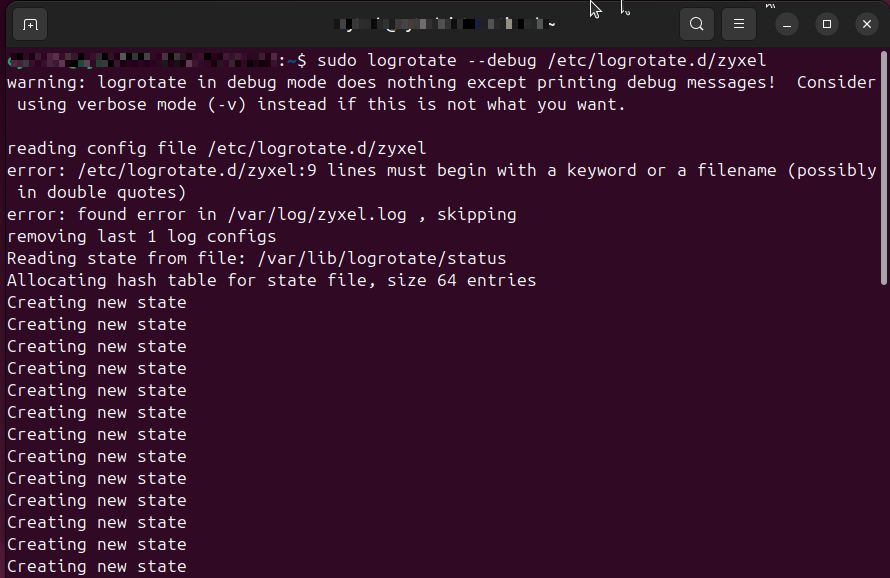
Log Events
Here are the types of events you might find in the event log of a Zyxel UFG Flex 200, categorized by their typical nature:
-
System Events:
-
Boot Events: Records when the device starts up, restarts, or shuts down.
-
Example: "Device started successfully" or "Reboot initiated."
-
-
Configuration Changes: Logs any changes to the system configuration, such as updates to firmware or network settings.
-
Example: "Configuration changed by user admin" or "Firmware updated."
-
-
Service Events: Events related to system services starting or stopping, like the DHCP service, VPN service, etc.
-
Example: "VPN service started" or "DHCP service stopped unexpectedly."
-
-
-
Network Events:
-
Connection Events: Logs events related to device connections, such as establishing or dropping a connection with other network devices.
-
Example: "WAN interface up" or "LAN interface down."
-
-
Traffic Logs: Logs traffic-related information, such as the amount of data sent or received.
-
Example: "Incoming traffic exceeded threshold" or "Traffic dropped due to policy."
-
-
-
Security Events:
-
Authentication and Authorization Events: Logs successful or failed login attempts, user authentications, or permissions changes.
-
Example: "User login from IP address 192.168.1.5" or "Failed login attempt from IP 10.0.0.1."
-
-
Firewall or Intrusion Detection Logs: Captures security-related incidents like firewall rule violations, intrusion attempts, or malware alerts.
-
Example: "Firewall rule blocked access from external IP" or "Intrusion detection alert triggered."
-
-
VPN Events: Logs VPN connections, including successful connections, disconnections, or errors.
-
Example: "VPN tunnel established" or "VPN authentication failure."
-
-
-
Error Events:
-
Hardware or Software Failures: Captures any critical failures of the system’s hardware or software components.
-
Example: "Memory allocation failure" or "Disk error on storage device."
-
-
Network Failures: Logs when the network encounters issues, such as a dropped connection or misconfiguration.
-
Example: "Lost connection to ISP" or "Network interface error."
-
-
-
Warning Events:
-
Thresholds and Limits: Logs warnings when system performance reaches a threshold or limit.
-
Example: "CPU usage exceeded 80%" or "Disk space running low."
-
-
Potential Security Risks: Alerts about actions that might pose a security risk.
-
Example: "Multiple failed login attempts detected" or "Suspicious packet detected."
-
-
-
Informational Events:
-
Status Updates: Logs general information about the device’s operational status.
-
Example: "Device configuration completed" or "Service started successfully."
-
-
Routine Operations: Logs that provide context to everyday network activity.
-
Example: "DHCP lease granted to 192.168.1.10" or "Client connected via wireless."
-
-
Logs Dataset
The zyxel.log dataset contains events collected from the configured syslog-ng server. All Zyxel USG Flex 200 specific syslog fields are available under the /var/log/zyxel.log file for detailed analysis and security monitoring.
sample data logs:
Jan 19 18:45:26 192.168.20.1 CEF:0|ZyXEL|USG FLEX 200|5.39(ABUI.1)|0|Traffic Log|4|devID=d8xxxxx40 src=1xx.1xx.xx.xx dst=4xx.xxx.2xxx.xxx spt=62126 dpt=123 dvchost=usgflex200 msg=Traffic Log cat=Traffic Log sourceTranslatedAddress=1xx.xx.xxxx.xxxx sourceTranslatedPort=6xxxx6 suser=unknown ZYduration=300 out=76 in=76 proto=17 app=others ZYnote=Traffic Log ZYdir=RND:EASTERN-2 deviceInboundInterface=RND deviceOutboundInterface=EASTERN-2 ZYmac=xx:xx:xx:xx:xx:24If you need further assistance, kindly contact our support at support@cytechint.com for prompt assistance and guidance.
No comments to display
No comments to display