# AQUILA - Zyxel USG Flex 200 SIEM Integration

#### <span style="color: rgb(53, 152, 219);">**AQUILA - Zyxel USG Flex 200 Integration**</span>

<span style="color: rgb(0, 0, 0);">The Zyxel USG Flex 200 is a unified security gateway that provides comprehensive network security and management capabilities. It generates syslog events that can be collected, analyzed, and monitored for security insights and network performance monitoring. This integration enables centralized log collection from Zyxel USG devices for visualization and analysis.</span>

---

##### <span style="color: rgb(53, 152, 219);">**Integration Overview**</span>

<span style="color: rgb(0, 0, 0);">This integration supports event collection through:</span>

- <span style="color: rgb(0, 0, 0);">Syslog messages via UDP from Zyxel USG Flex 200 devices</span>
- <span style="color: rgb(0, 0, 0);">File-based log collection from configured syslog servers</span>

<span style="color: rgb(0, 0, 0);">Events can be searched, observed, and visualized for security monitoring and network analysis.</span>

---

**Compatibility**

- <span style="color: rgb(0, 0, 0);">Supports syslog event collection from Zyxel USG Flex 200 devices via UDP on port 514</span>
- <span style="color: rgb(0, 0, 0);">Requires syslog-ng service for log collection and filtering</span>
- <span style="color: rgb(0, 0, 0);">Compatible with Linux-based log collection servers</span>

---

##### <span style="color: rgb(53, 152, 219);">**Syslog Server Configuration**</span>

**Installing Syslog-ng:**

<span style="color: rgb(0, 0, 0);">Install the syslog-ng package on your log collection server:</span>

```
sudo apt-get install syslog-ng
```

[![image.png](https://cytechint-docs-bookstack.s3.amazonaws.com/uploads/images/gallery/2026-01/scaled-1680-/KbrzzpjqEqv6VrTW-image.png)](https://cytechint-docs-bookstack.s3.amazonaws.com/uploads/images/gallery/2026-01/KbrzzpjqEqv6VrTW-image.png)

**Configuring Syslog-ng:**

<span style="color: rgb(0, 0, 0);">Edit the syslog-ng configuration file:</span>

```
sudo nano /etc/syslog-ng/syslog-ng.conf
```

[![image.png](https://cytechint-docs-bookstack.s3.amazonaws.com/uploads/images/gallery/2026-01/scaled-1680-/Uk19BubuNCGmYCTu-image.png)](https://cytechint-docs-bookstack.s3.amazonaws.com/uploads/images/gallery/2026-01/Uk19BubuNCGmYCTu-image.png)

<span style="color: rgb(0, 0, 0);">Add the following configuration blocks:</span>

<span style="color: rgb(0, 0, 0);">Define the syslog source to listen for UDP traffic on IP address **&lt;IP\_Address\_of\_Log\_Source\_Server&gt;** and port 514:</span>

<p class="callout info">Replace **&lt;IP\_Address\_of\_Log\_Source\_Server&gt;** to the actual IP Address of Syslog-ng Server:</p>

```
source s_net { udp(ip(<IP_Address_of_Log_Source_Server>) port(514)); };
```

<span style="color: rgb(0, 0, 0);">Create a filter to match traffic from the Zyxel device (this filter catches all syslog messages from the Zyxel Firewall):</span>

<p class="callout info">replace **&lt;IP\_Address\_of\_Zyxel\_Firewall&gt;** to the actual IP Address of Zyxel Firewall:</p>

```
filter f_zyxel { host( "<IP_Address_of_Zyxel_Firewall>" ); };
```

<span style="color: rgb(0, 0, 0);">Define a destination file for the syslog messages:</span>

```
destination df_zyxel { file("/var/log/zyxel.log"); };
```

<span style="color: rgb(0, 0, 0);">Bundle the source, filter, and destination rules together with a logging rule:</span>

```
log { source ( s_net ); filter( f_zyxel ); destination ( df_zyxel ); };
```

<span style="color: rgb(0, 0, 0);">Restart the syslog-ng service to apply changes:</span>

```
sudo /etc/init.d/syslog-ng restart
```

[![image.png](https://cytechint-docs-bookstack.s3.amazonaws.com/uploads/images/gallery/2026-01/scaled-1680-/fvhTa7WunZmz7WrE-image.png)](https://cytechint-docs-bookstack.s3.amazonaws.com/uploads/images/gallery/2026-01/fvhTa7WunZmz7WrE-image.png)

<p class="callout info">Full code snippet:</p>

```
source s_net { udp(ip(<IP_Address_of_Log_Source_Server>) port(514)); };
filter f_zyxel { host( "<IP_Address_of_Zyxel_Firewall>" ); };
destination df_zyxel { file("/var/log/zyxel.log"); };
log { source ( s_net ); filter( f_zyxel ); destination ( df_zyxel ); };
```

[![image.png](https://cytechint-docs-bookstack.s3.amazonaws.com/uploads/images/gallery/2026-01/scaled-1680-/HUopdNqBzUT0T4C7-image.png)](https://cytechint-docs-bookstack.s3.amazonaws.com/uploads/images/gallery/2026-01/HUopdNqBzUT0T4C7-image.png)

---

##### <span style="color: rgb(53, 152, 219);">**Zyxel USG Flex 200 Device Configuration**</span>

<p class="callout info">Follow these steps to configure the Zyxel USG Flex 200 to send syslog messages to your log collection server:</p>

<span style="color: rgb(0, 0, 0);">**Step 1:** Log in to the Zyxel USG Flex 200 Firewall web interface.</span>

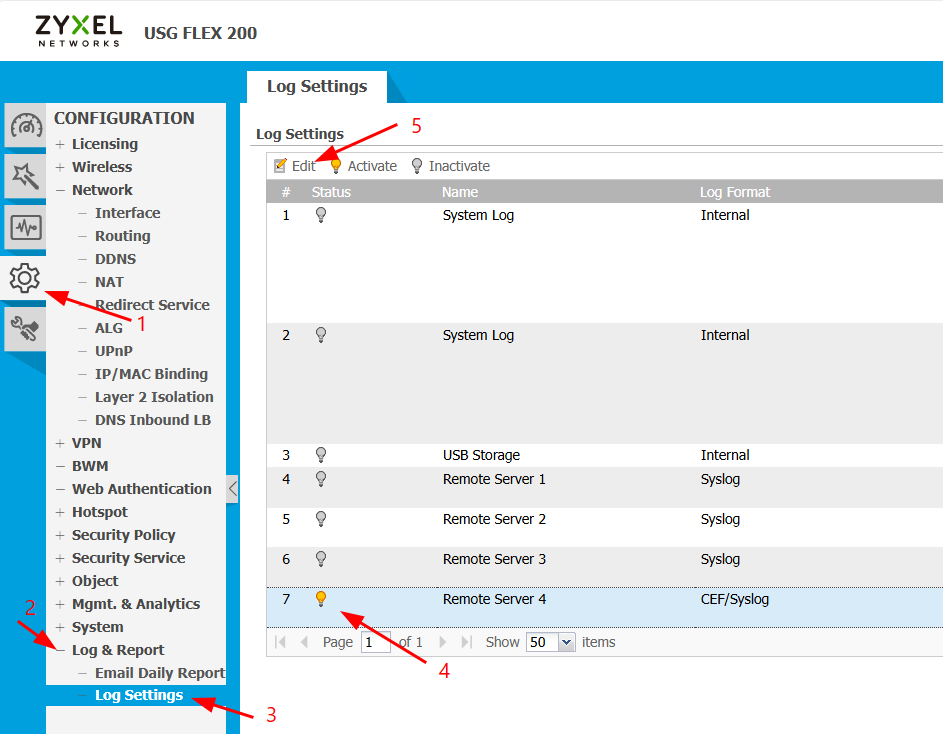
<span style="color: rgb(0, 0, 0);">**Step 2:** Navigate to **Configuration &gt; Log &amp; Report &gt; Log Settings &gt; Remote Server 4**.</span>

<span style="color: rgb(0, 0, 0);">**Step 3:** Click **Edit** to configure the remote log server settings.</span>

[![image.png](https://cytechint-docs-bookstack.s3.amazonaws.com/uploads/images/gallery/2026-01/scaled-1680-/0b6Q3RzhRiVltELN-image.png)](https://cytechint-docs-bookstack.s3.amazonaws.com/uploads/images/gallery/2026-01/0b6Q3RzhRiVltELN-image.png)

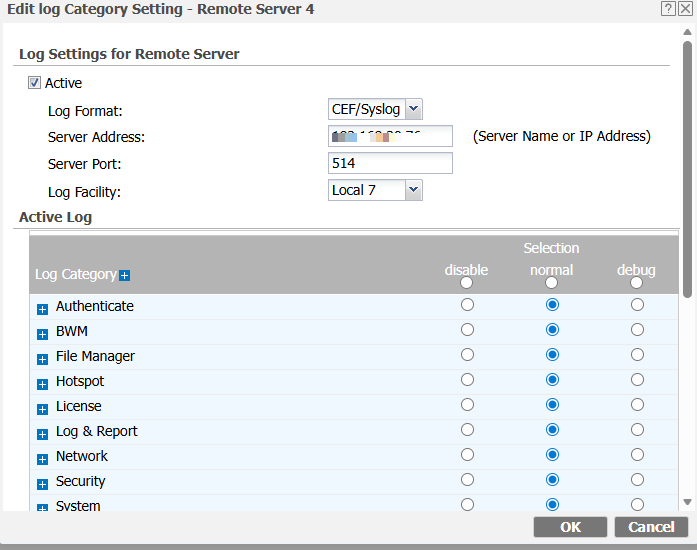
<span style="color: rgb(0, 0, 0);">**Step 4:** Configure the following log settings for Remote Server:</span>

- <span style="color: rgb(0, 0, 0);">**Active**: Check the box to enable remote logging</span>
- <span style="color: rgb(0, 0, 0);">**Log Format**: Select **CEF/Syslog** from the dropdown menu</span>
- <span style="color: rgb(0, 0, 0);">**Server Address**: Enter the IP address of your syslog-ng server</span>
- <span style="color: rgb(0, 0, 0);">**Server Port**: Enter **514**</span>
- <span style="color: rgb(0, 0, 0);">**Log Facility**: Select any available facility from the dropdown menu</span>[![image.png](https://cytechint-docs-bookstack.s3.amazonaws.com/uploads/images/gallery/2026-01/scaled-1680-/7FbKUe8wd4FO2dXn-image.png)](https://cytechint-docs-bookstack.s3.amazonaws.com/uploads/images/gallery/2026-01/7FbKUe8wd4FO2dXn-image.png)

<span style="color: rgb(0, 0, 0);">**Step 5:** Click **Apply** or **Save** to apply the configuration changes.</span>

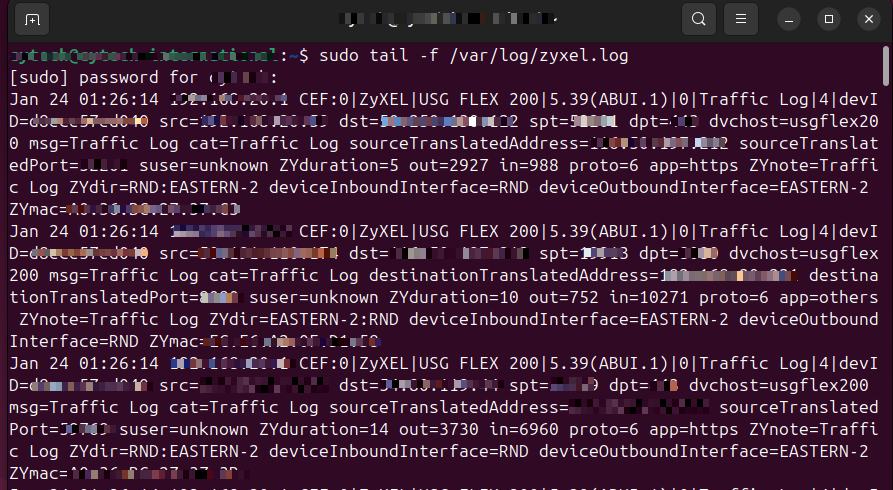
<p class="callout success">**Step 6:** Verify that syslog messages are being sent to the remote server by checking the log file on your Syslog server:</p>

```
sudo tail -f /var/log/zyxel.log
```

[![image.png](https://cytechint-docs-bookstack.s3.amazonaws.com/uploads/images/gallery/2026-01/scaled-1680-/BCMSFf9qeQWqQTkM-image.png)](https://cytechint-docs-bookstack.s3.amazonaws.com/uploads/images/gallery/2026-01/BCMSFf9qeQWqQTkM-image.png)
---

##### <span style="color: rgb(53, 152, 219);">**Log Rotation Configuration**</span>

<p class="callout info">To manage log file sizes and prevent disk space issues, configure log rotation for Zyxel logs.</p>

<span style="color: rgb(0, 0, 0);">Create a logrotate configuration file:</span>

```
sudo nano /etc/logrotate.d/zyxel
```

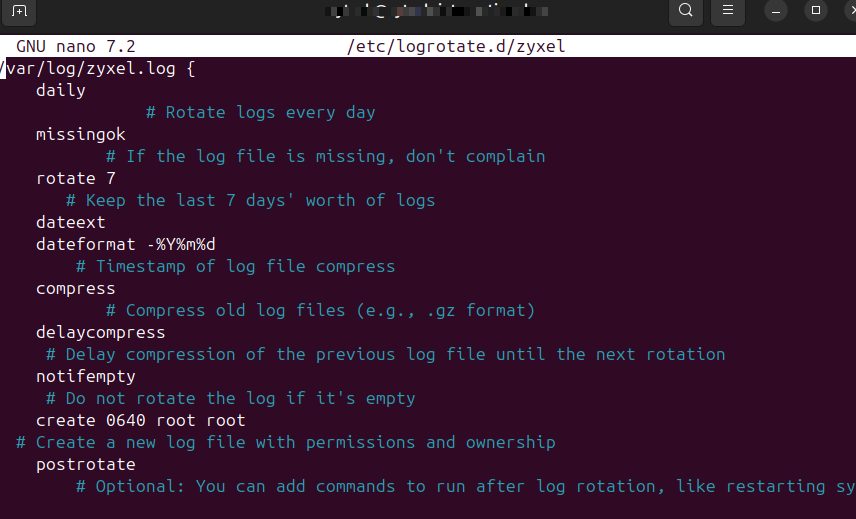
<span style="color: rgb(0, 0, 0);">Paste the following configuration to the file:</span>

```
/var/log/zyxel.log {
    daily               # Rotate logs every day
    missingok           # If the log file is missing, don't complain
    rotate 7            # Keep the last 7 days' worth of logs
    compress            # Compress old log files (e.g., .gz format)
    delaycompress       # Delay compression of the previous log file until the next rotation
    notifempty          # Do not rotate the log if it's empty
    create 0640 root root  # Create a new log file with permissions and ownership
    postrotate
        # Optional: You can add commands to run after log rotation, like restarting syslog
        # For example, to reload syslog:
        # /etc/init.d/syslog-ng reload
        # Or for rsyslog:
        # systemctl reload rsyslog
    endscript
}
```

[![image.png](https://cytechint-docs-bookstack.s3.amazonaws.com/uploads/images/gallery/2026-01/scaled-1680-/bqqeUZjzMay4Ksau-image.png)](https://cytechint-docs-bookstack.s3.amazonaws.com/uploads/images/gallery/2026-01/bqqeUZjzMay4Ksau-image.png)
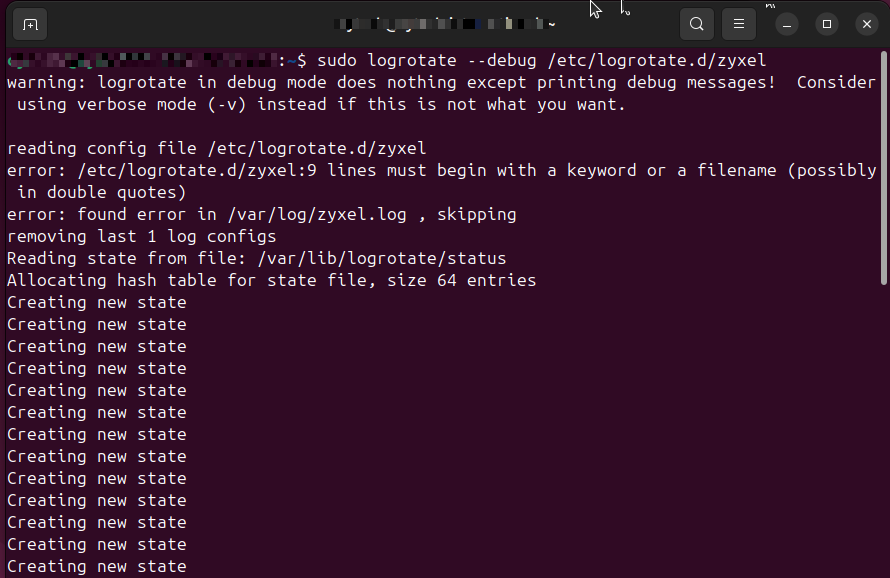
**Testing Log Rotation:**

<p class="callout success">To verify the log rotation configuration is working correctly:</p>

```
sudo logrotate --debug /etc/logrotate.d/zyxel
```

[![image.png](https://cytechint-docs-bookstack.s3.amazonaws.com/uploads/images/gallery/2026-01/scaled-1680-/OBu81Yy0KysucFvg-image.png)](https://cytechint-docs-bookstack.s3.amazonaws.com/uploads/images/gallery/2026-01/OBu81Yy0KysucFvg-image.png)
---

##### <span style="color: rgb(53, 152, 219);">**Log Events**</span>

<p class="callout info"><span style="color: rgb(0, 0, 0);">Here are the types of events you might find in the event log of a Zyxel UFG Flex 200, categorized by their typical nature:</span></p>

- <span style="color: rgb(0, 0, 0);">**System Events**:</span>
    
    
    - <span style="color: rgb(0, 0, 0);">**Boot Events**: Records when the device starts up, restarts, or shuts down.</span>
        
        
        - <span style="color: rgb(0, 0, 0);">Example: "Device started successfully" or "Reboot initiated."</span>
    - <span style="color: rgb(0, 0, 0);">**Configuration Changes**: Logs any changes to the system configuration, such as updates to firmware or network settings.</span>
        
        
        - <span style="color: rgb(0, 0, 0);">Example: "Configuration changed by user admin" or "Firmware updated."</span>
    - <span style="color: rgb(0, 0, 0);">**Service Events**: Events related to system services starting or stopping, like the DHCP service, VPN service, etc.</span>
        
        
        - <span style="color: rgb(0, 0, 0);">Example: "VPN service started" or "DHCP service stopped unexpectedly."</span>
- <span style="color: rgb(0, 0, 0);">**Network Events**:</span>
    
    
    - <span style="color: rgb(0, 0, 0);">**Connection Events**: Logs events related to device connections, such as establishing or dropping a connection with other network devices.</span>
        
        
        - <span style="color: rgb(0, 0, 0);">Example: "WAN interface up" or "LAN interface down."</span>
    - <span style="color: rgb(0, 0, 0);">**Traffic Logs**: Logs traffic-related information, such as the amount of data sent or received.</span>
        
        
        - <span style="color: rgb(0, 0, 0);">Example: "Incoming traffic exceeded threshold" or "Traffic dropped due to policy."</span>
- <span style="color: rgb(0, 0, 0);">**Security Events**:</span>
    
    
    - <span style="color: rgb(0, 0, 0);">**Authentication and Authorization Events**: Logs successful or failed login attempts, user authentications, or permissions changes.</span>
        
        
        - <span style="color: rgb(0, 0, 0);">Example: "User login from IP address 192.168.1.5" or "Failed login attempt from IP 10.0.0.1."</span>
    - <span style="color: rgb(0, 0, 0);">**Firewall or Intrusion Detection Logs**: Captures security-related incidents like firewall rule violations, intrusion attempts, or malware alerts.</span>
        
        
        - <span style="color: rgb(0, 0, 0);">Example: "Firewall rule blocked access from external IP" or "Intrusion detection alert triggered."</span>
    - <span style="color: rgb(0, 0, 0);">**VPN Events**: Logs VPN connections, including successful connections, disconnections, or errors.</span>
        
        
        - <span style="color: rgb(0, 0, 0);">Example: "VPN tunnel established" or "VPN authentication failure."</span>
- <span style="color: rgb(0, 0, 0);">**Error Events**:</span>
    
    
    - <span style="color: rgb(0, 0, 0);">**Hardware or Software Failures**: Captures any critical failures of the system’s hardware or software components.</span>
        
        
        - <span style="color: rgb(0, 0, 0);">Example: "Memory allocation failure" or "Disk error on storage device."</span>
    - <span style="color: rgb(0, 0, 0);">**Network Failures**: Logs when the network encounters issues, such as a dropped connection or misconfiguration.</span>
        
        
        - <span style="color: rgb(0, 0, 0);">Example: "Lost connection to ISP" or "Network interface error."</span>
- <span style="color: rgb(0, 0, 0);">**Warning Events**:</span>
    
    
    - <span style="color: rgb(0, 0, 0);">**Thresholds and Limits**: Logs warnings when system performance reaches a threshold or limit.</span>
        
        
        - <span style="color: rgb(0, 0, 0);">Example: "CPU usage exceeded 80%" or "Disk space running low."</span>
    - <span style="color: rgb(0, 0, 0);">**Potential Security Risks**: Alerts about actions that might pose a security risk.</span>
        
        
        - <span style="color: rgb(0, 0, 0);">Example: "Multiple failed login attempts detected" or "Suspicious packet detected."</span>
- <span style="color: rgb(0, 0, 0);">**Informational Events**:</span>
    
    
    - <span style="color: rgb(0, 0, 0);">**Status Updates**: Logs general information about the device’s operational status.</span>
        
        
        - <span style="color: rgb(0, 0, 0);">Example: "Device configuration completed" or "Service started successfully."</span>
    - <span style="color: rgb(0, 0, 0);">**Routine Operations**: Logs that provide context to everyday network activity.</span>
        
        
        - <span style="color: rgb(0, 0, 0);">Example: "DHCP lease granted to 192.168.1.10" or "Client connected via wireless."</span>

---

##### <span style="color: rgb(0, 0, 0);">**Logs Dataset**</span>

<span style="color: rgb(0, 0, 0);">The zyxel.log dataset contains events collected from the configured syslog-ng server. All Zyxel USG Flex 200 specific syslog fields are available under the /var/log/zyxel.log file for detailed analysis and security monitoring.</span>

<span style="color: rgb(0, 0, 0);">sample data logs:</span>

```
Jan 19 18:45:26 192.168.20.1 CEF:0|ZyXEL|USG FLEX 200|5.39(ABUI.1)|0|Traffic Log|4|devID=d8xxxxx40 src=1xx.1xx.xx.xx dst=4xx.xxx.2xxx.xxx spt=62126 dpt=123 dvchost=usgflex200 msg=Traffic Log cat=Traffic Log sourceTranslatedAddress=1xx.xx.xxxx.xxxx sourceTranslatedPort=6xxxx6 suser=unknown ZYduration=300 out=76 in=76 proto=17 app=others ZYnote=Traffic Log ZYdir=RND:EASTERN-2 deviceInboundInterface=RND deviceOutboundInterface=EASTERN-2 ZYmac=xx:xx:xx:xx:xx:24
```

---

*<span class="NormalTextRun SCXW71272603 BCX0">If you need further </span><span class="NormalTextRun SCXW71272603 BCX0">assistance</span><span class="NormalTextRun SCXW71272603 BCX0">, kindly contact our support at </span><span style="color: rgb(53, 152, 219);">**<span class="TextRun SCXW71272603 BCX0" data-contrast="none" lang="EN-US" xml:lang="EN-US"><span class="NormalTextRun SCXW71272603 BCX0">support@cytechint.com</span></span>**</span><span class="TextRun SCXW71272603 BCX0" data-contrast="auto" lang="EN-US" xml:lang="EN-US"><span class="NormalTextRun SCXW71272603 BCX0"> for prompt </span><span class="NormalTextRun SCXW71272603 BCX0">assistance</span><span class="NormalTextRun SCXW71272603 BCX0"> and guidance.</span></span><span class="EOP SCXW71272603 BCX0" data-ccp-props="{}"> </span>*