
AQUILA - Host Isolation
Overview
Host Isolation Exception allows isolated endpoints to maintain connectivity to specific IP addresses while remaining isolated from the rest of the network. This feature is useful when you need to isolate potentially compromised hosts for security purposes while still allowing them to communicate with specific trusted resources. It is also a key cybersecurity practice used primarily in incident response to segregate a potentially compromised device (such as a laptop, server, or workstation) from the rest of the network. This prevents threats like malware, ransomware, or active intruders from spreading laterally or communicating with command-and-control servers. It creates a controlled "quarantine" state while maintaining a secure forensic channel for remote investigation and remediation.
It works through automated or manual triggers from tools like Endpoint Detection and Response (EDR) platforms. Upon detecting suspicious activity (e.g., via behavioral analysis or signatures), the system enforces isolation using:
Prerequisites
- Administrator permissions
- Access to the Control Panel section
Option 1: Endpoint Detection and Response (EDR) - Endpoints
- Step 1: Log in to CyTech - AQUILA. click here --> usdc.cytechint.io
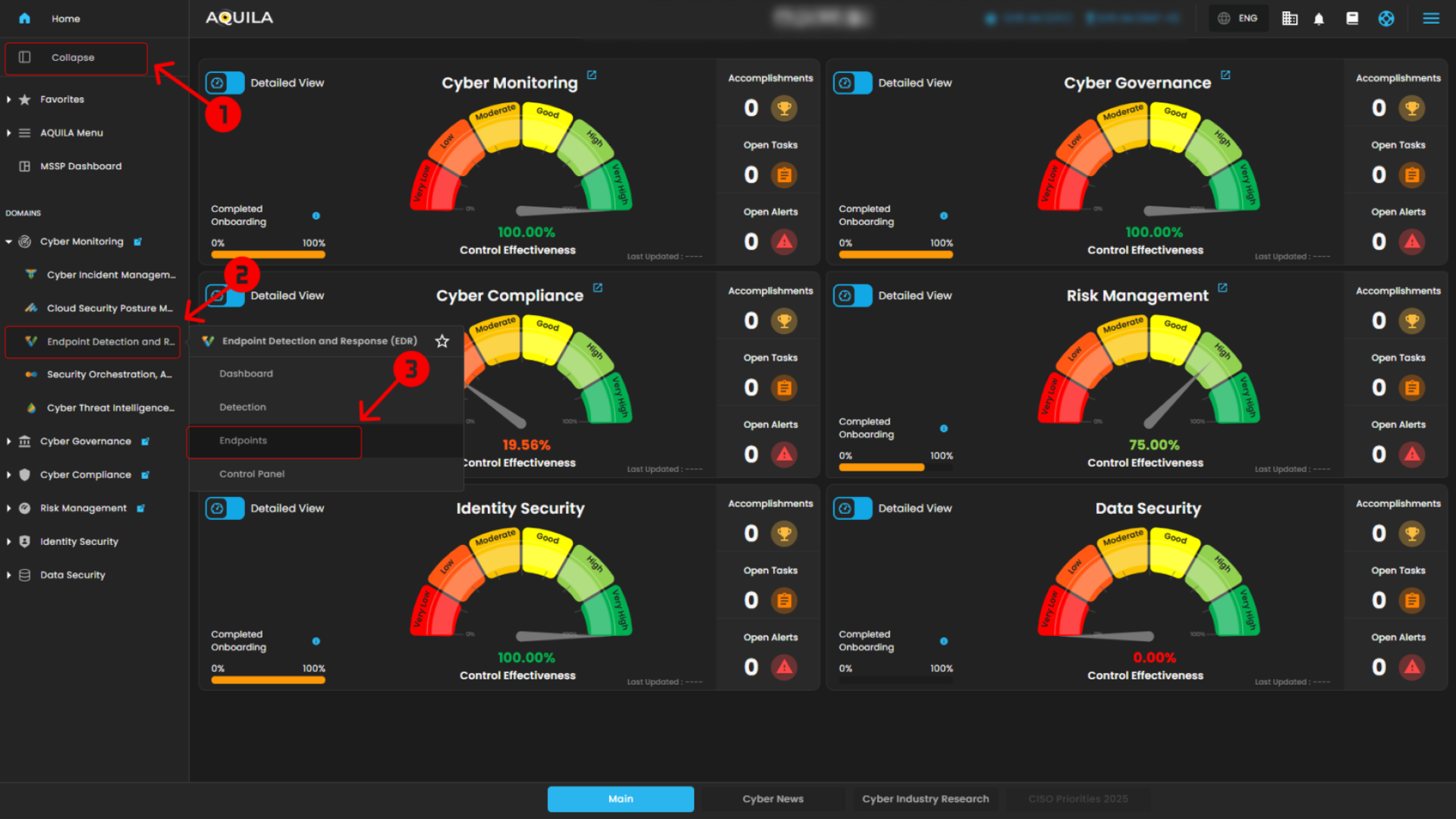
- Step 2: In the left column click Cyber Monitoring -> Endpoint Detection and Response (EDR) -> Dashboard
2. Access the Endpoint Section
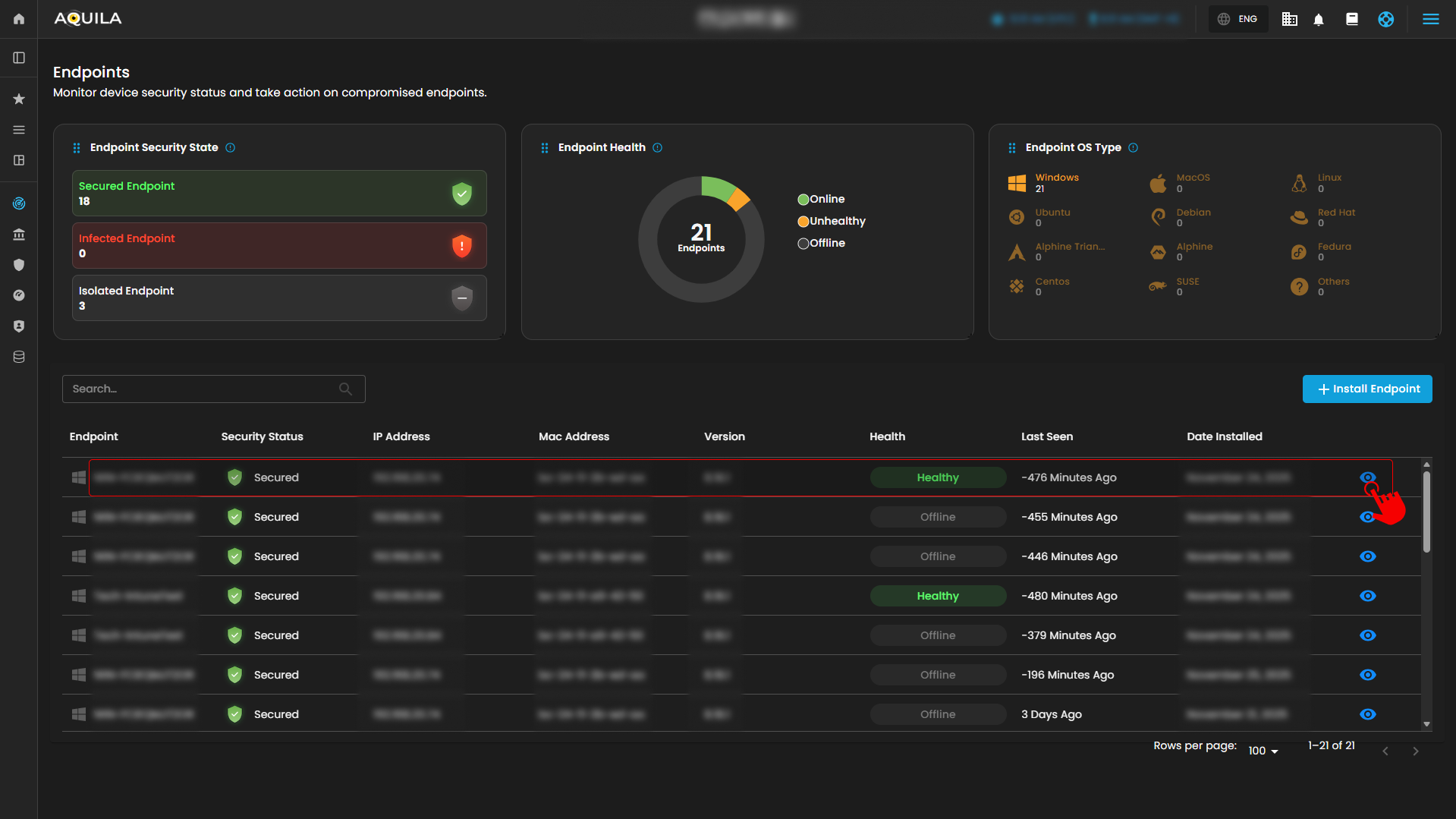
- By pressing the eye icon, it will transfer the user to the Endpoint Section where it shows system details, alert rules, alerts, and events.
3. Isolate Host
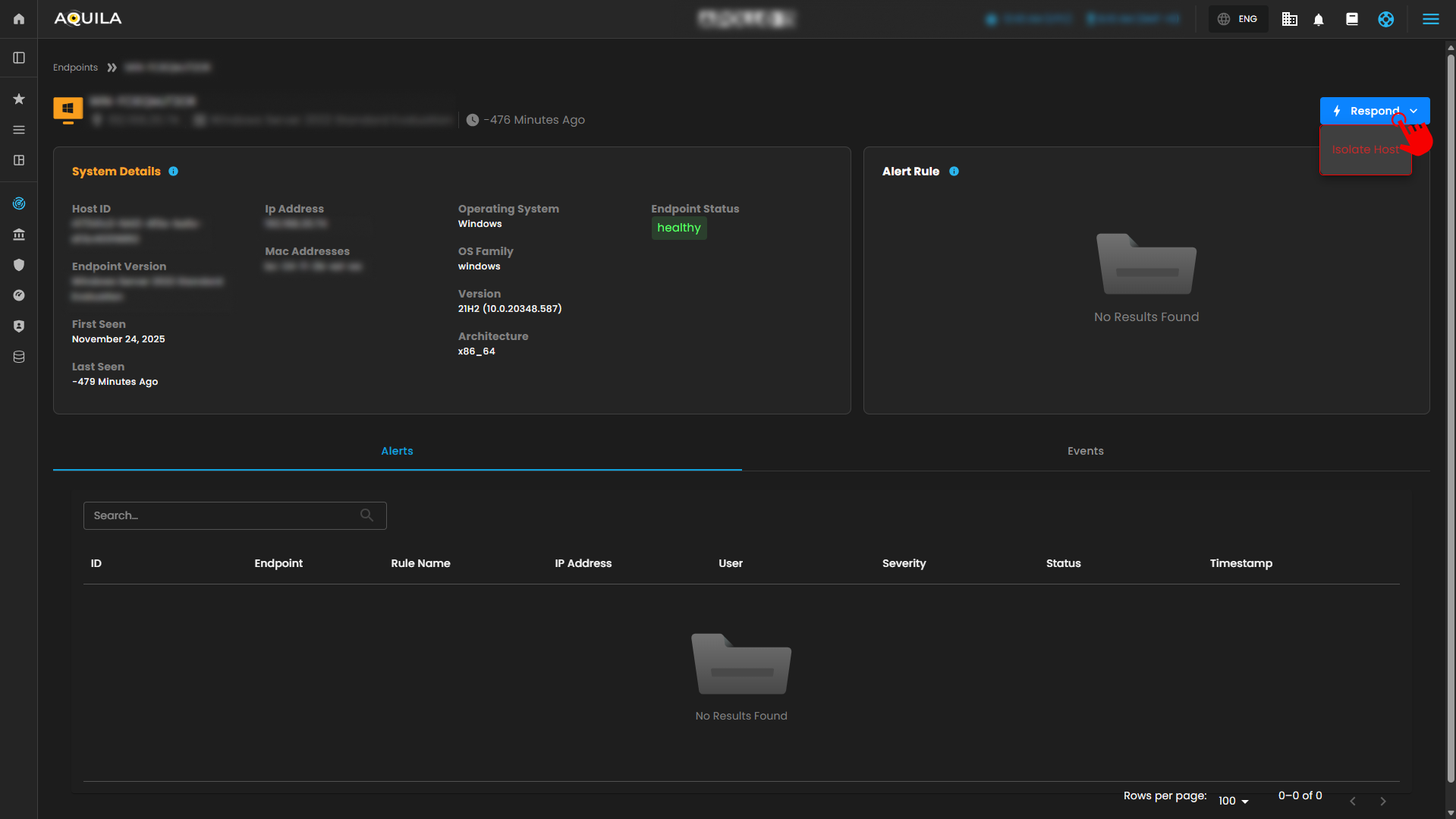
- By Pressing the Respond button, it will show Isolate host where the user can isolate their endpoint or a specific workstation.
4. Isolate Endpoint
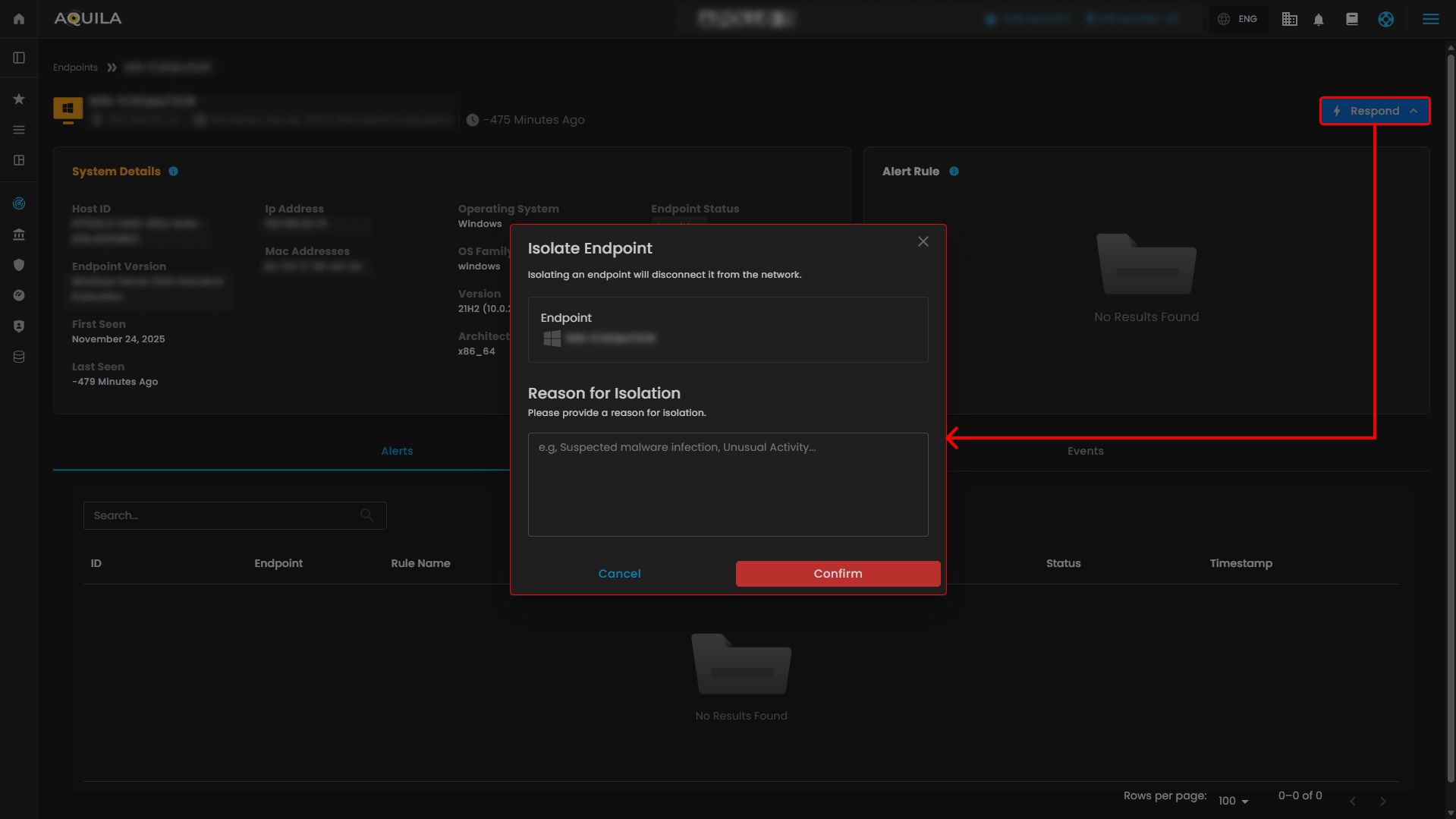
- In this section, the user can disable their endpoint and provide a reason for the isolation.
Option 2: Endpoint Detection and Response (EDR) - Control Panel
1. Navigate to Endpoint Management
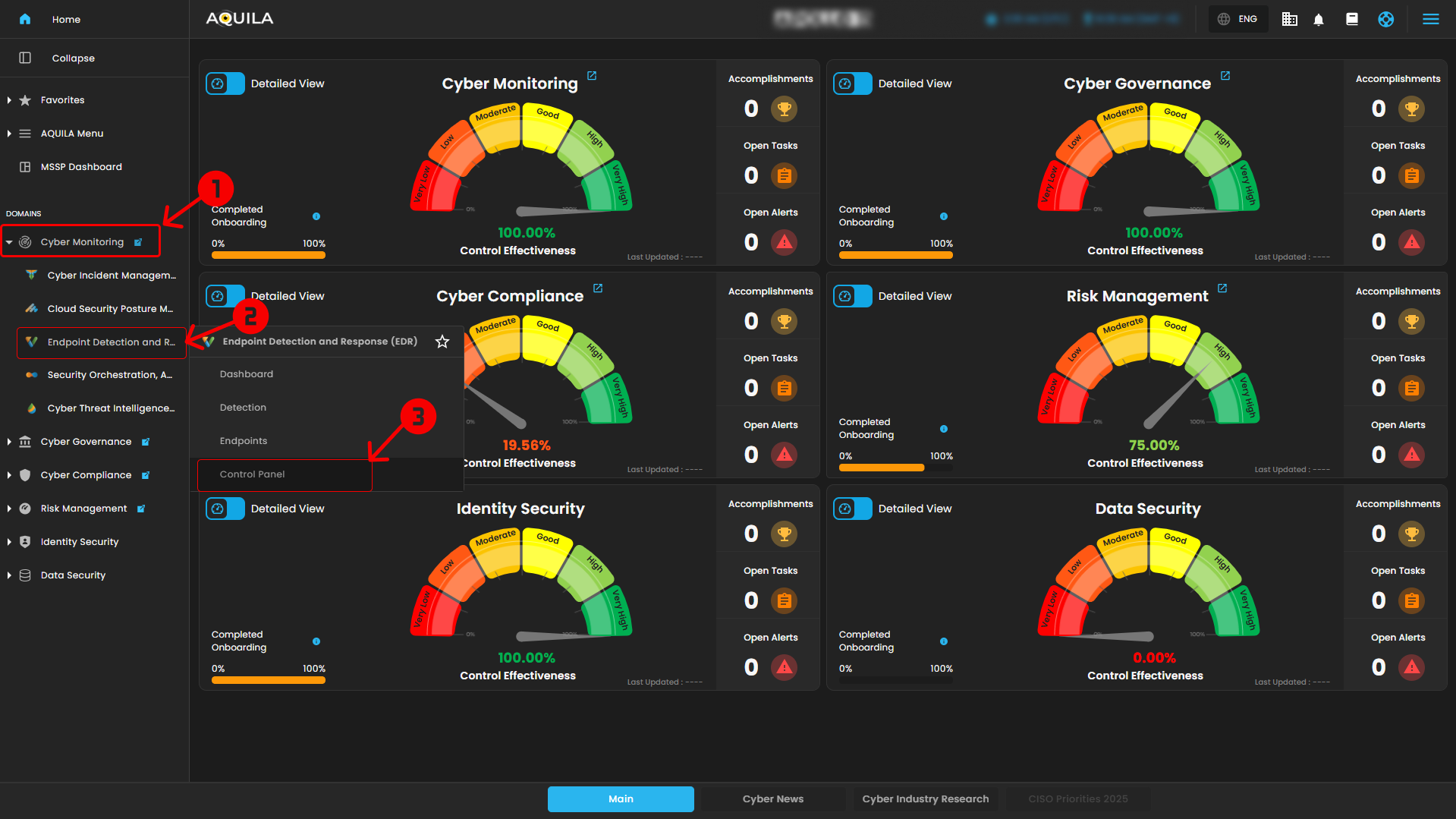
- From the AQUILA main dashboard, locate the left sidebar menu
- Under the DOMAINS section, click on Cyber Monitoring
- Select Endpoint Detection and Response (EDR)
- Click on Control Panel
This will open the endpoint management interface.
2. Access the Manage Endpoints Section
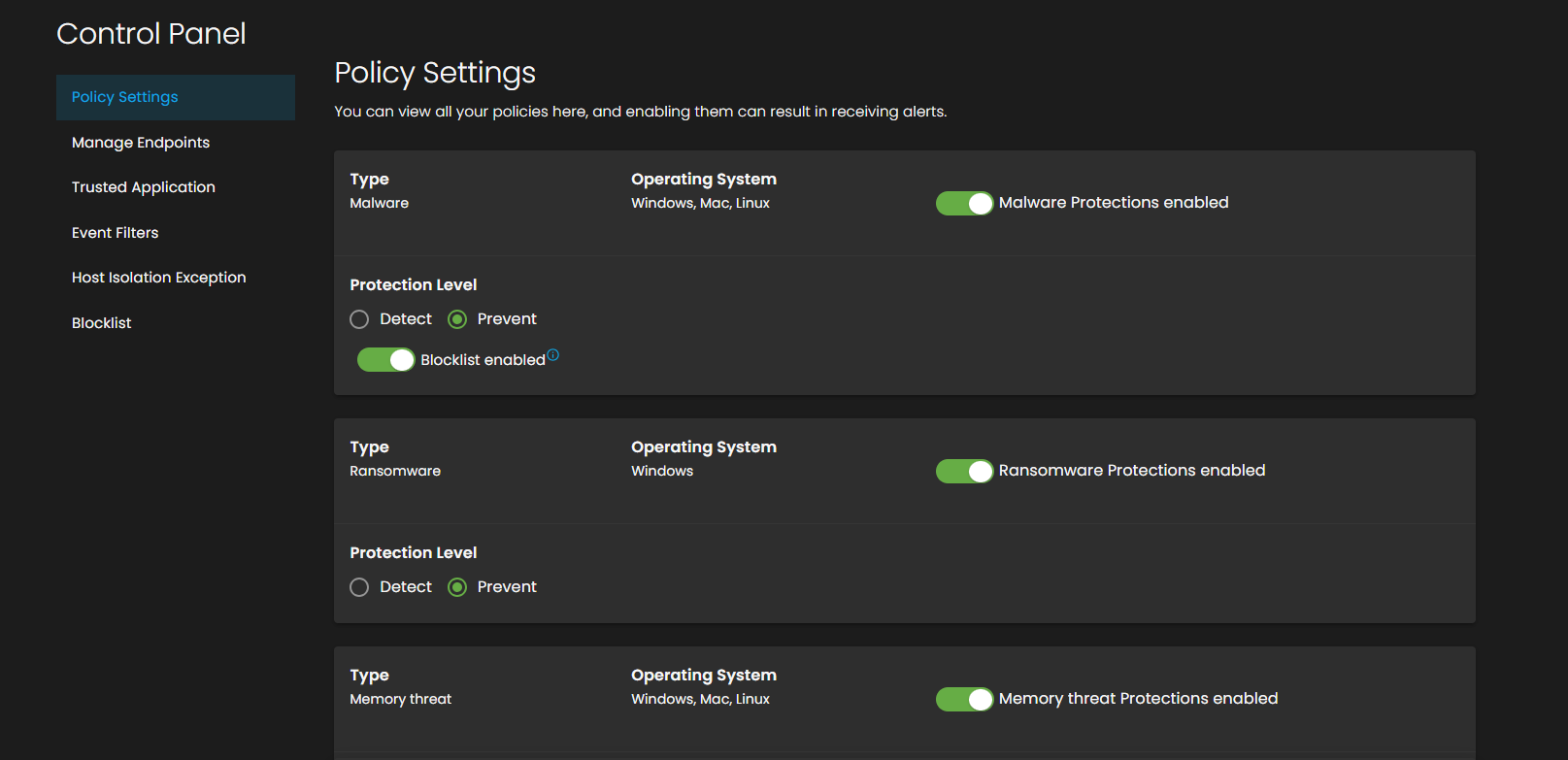
- In the Control Panel, click on Manage Endpoints from the Policy Settings menu.
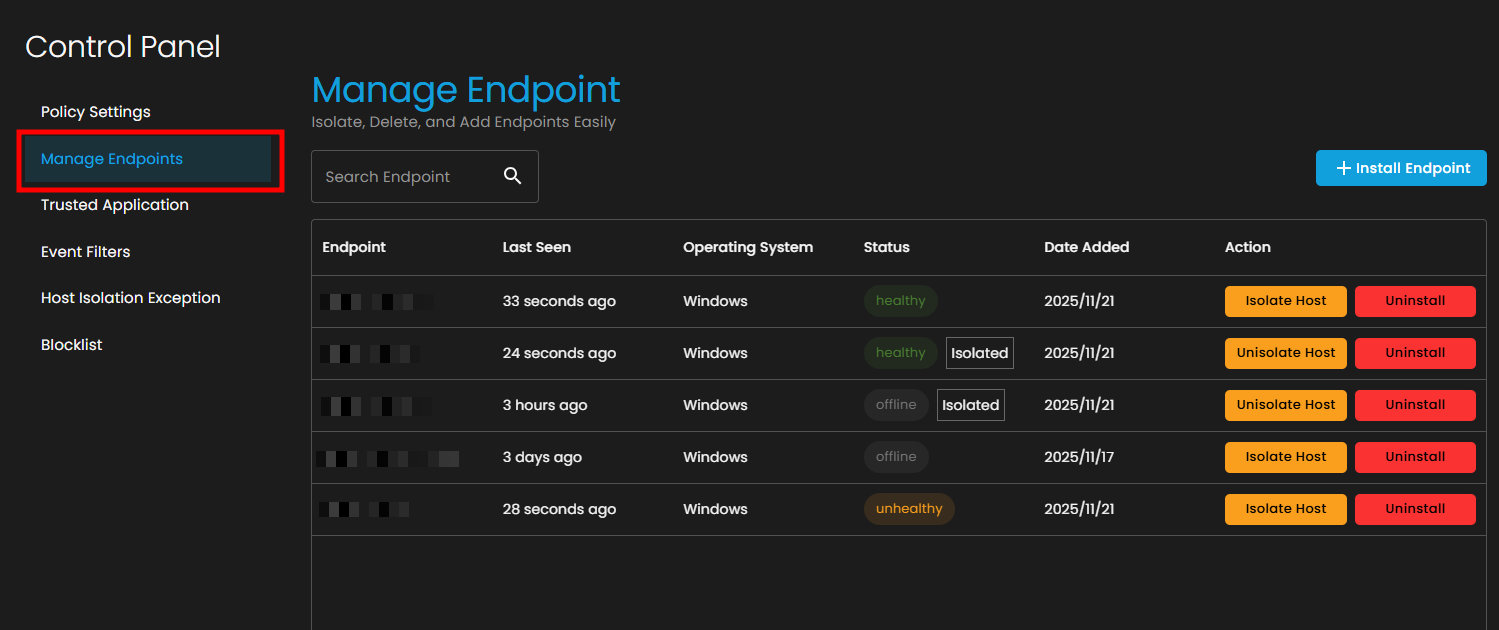
- You'll see a table displaying all registered endpoints with the following information:
- Operating System
- Status (healthy, unhealthy, offline, isolated)
- Date Added
- Available Actions
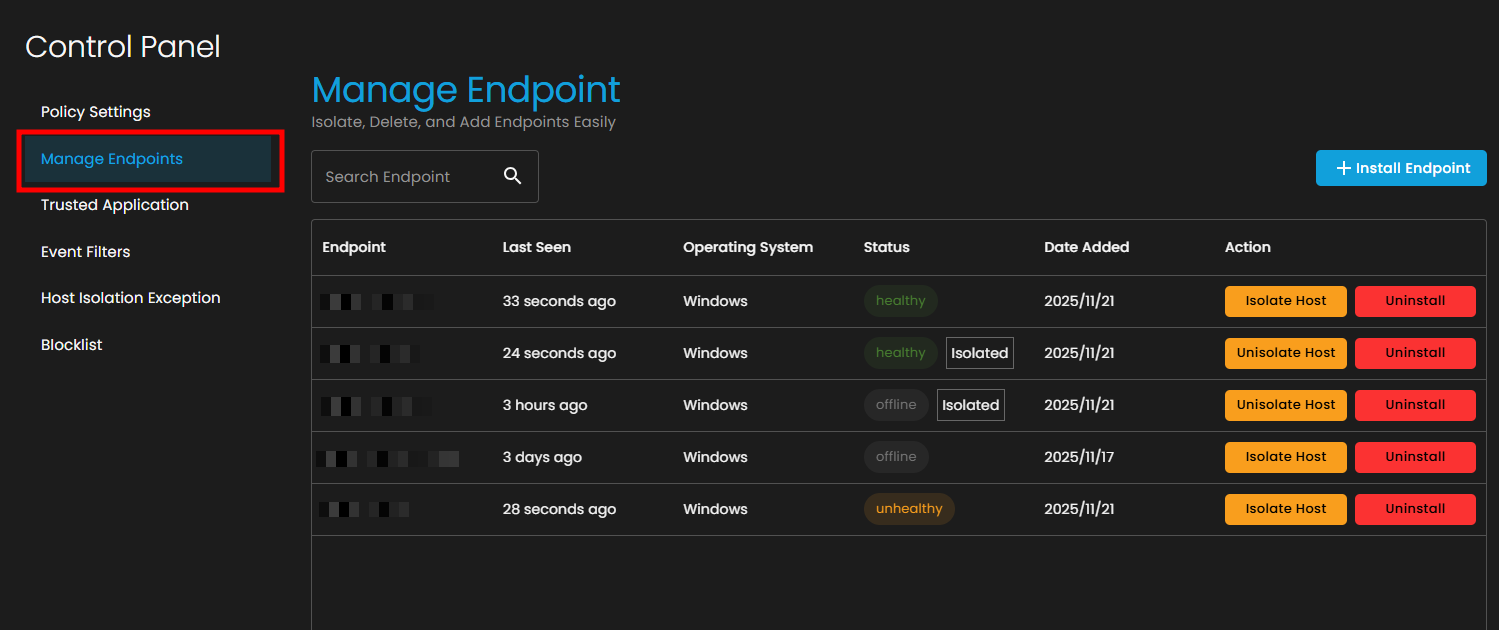
3. Isolate an Endpoint
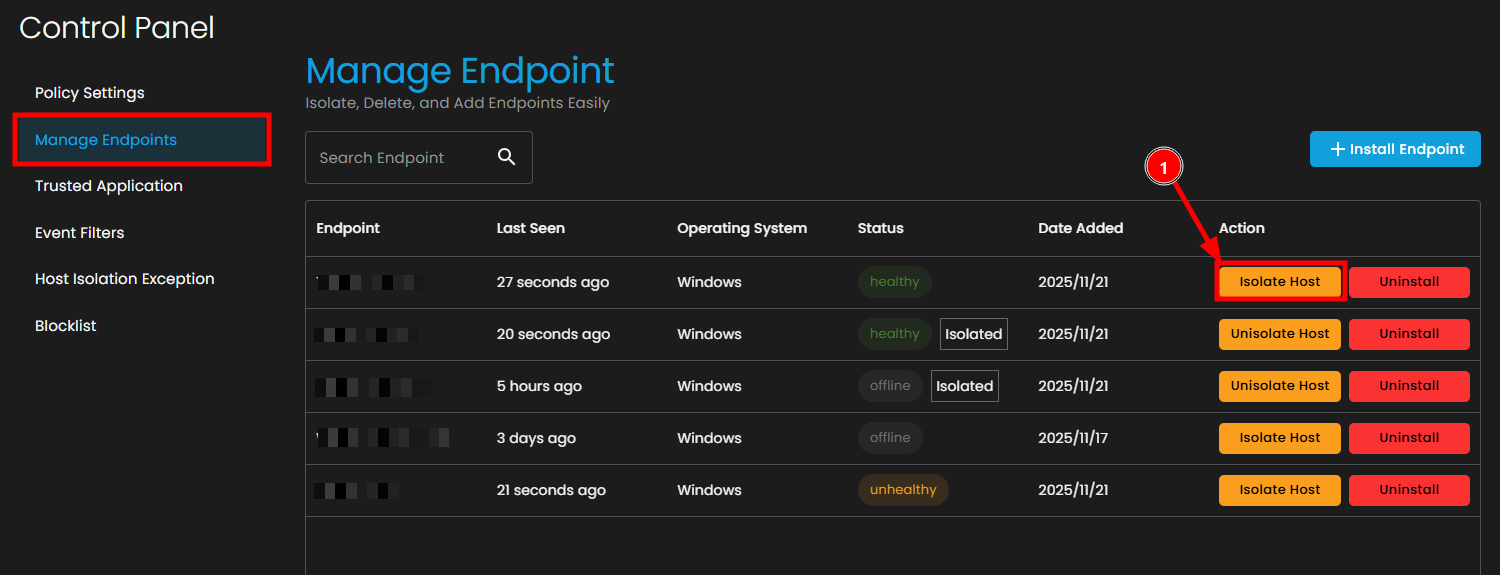
If you need to isolate an endpoint first:
- Locate the target endpoint in the list
- Click the Isolate Host button in the Action column
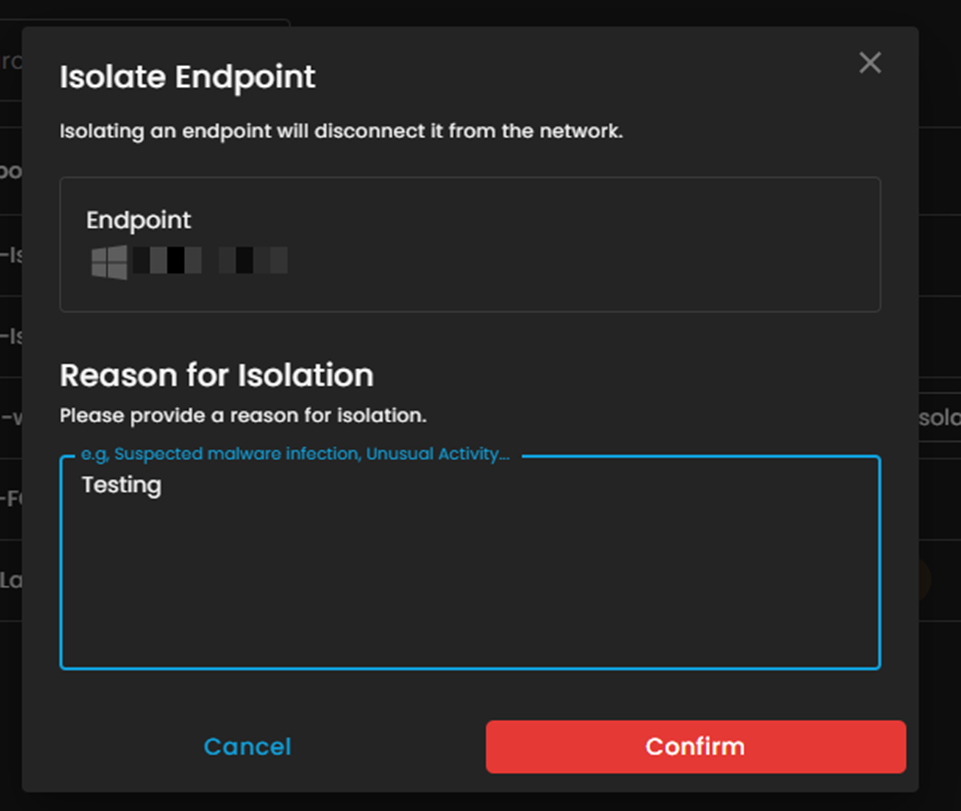
- In the "Isolate Endpoint" dialog box:
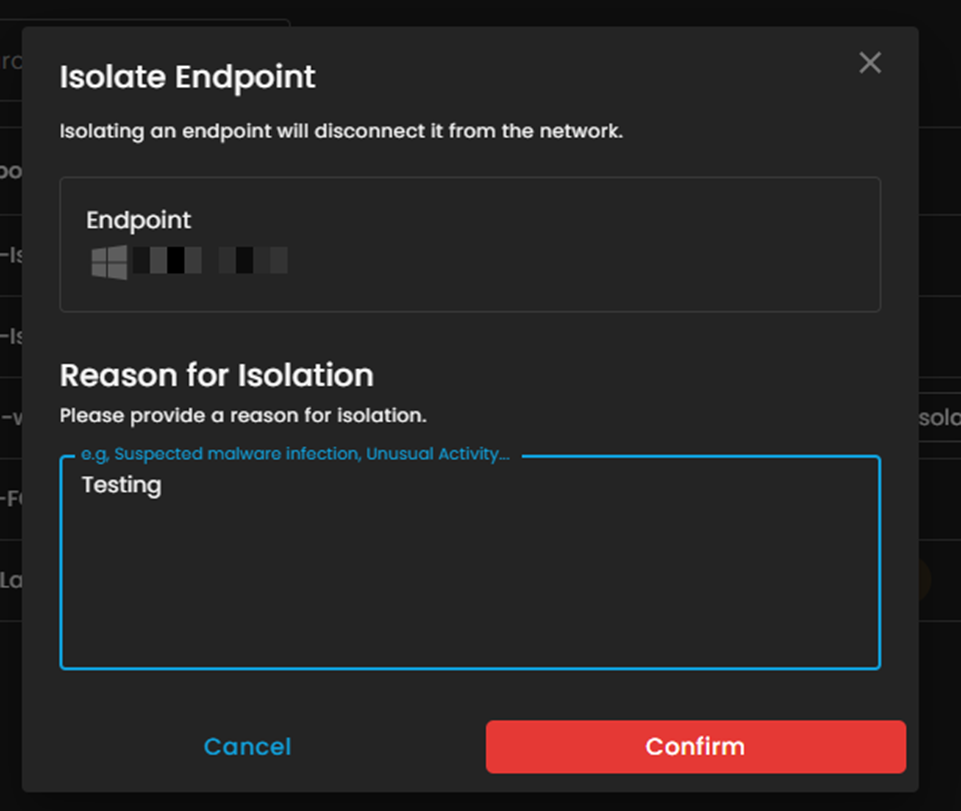
- Click the Confirm button to proceed
- The endpoint status will change to Isolated
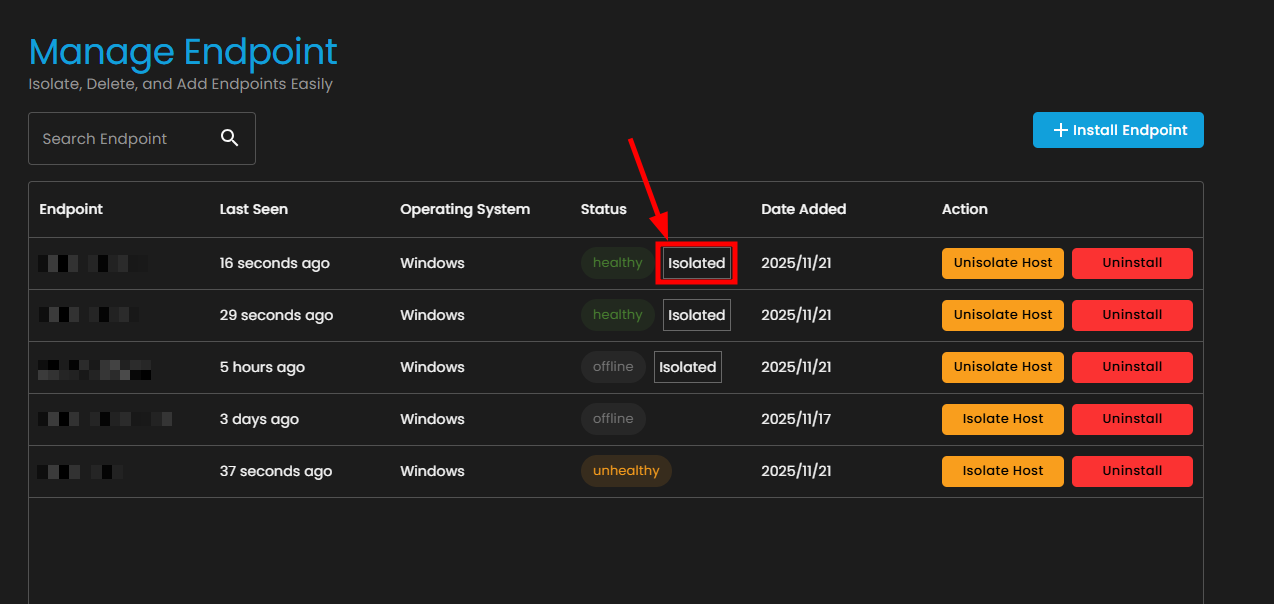
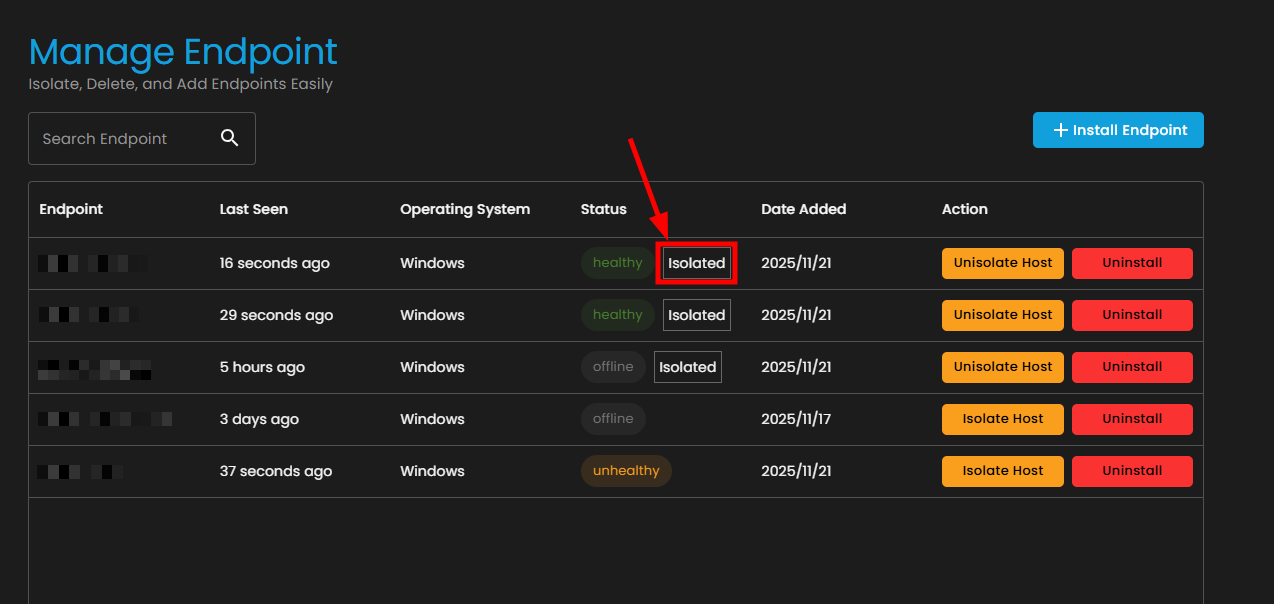
Note: Once isolated, the endpoint will be disconnected from the network and unable to access external resources except those specified in the Host Isolation Exception list.
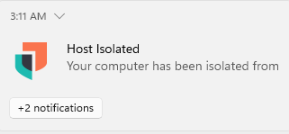
Testing connection status:
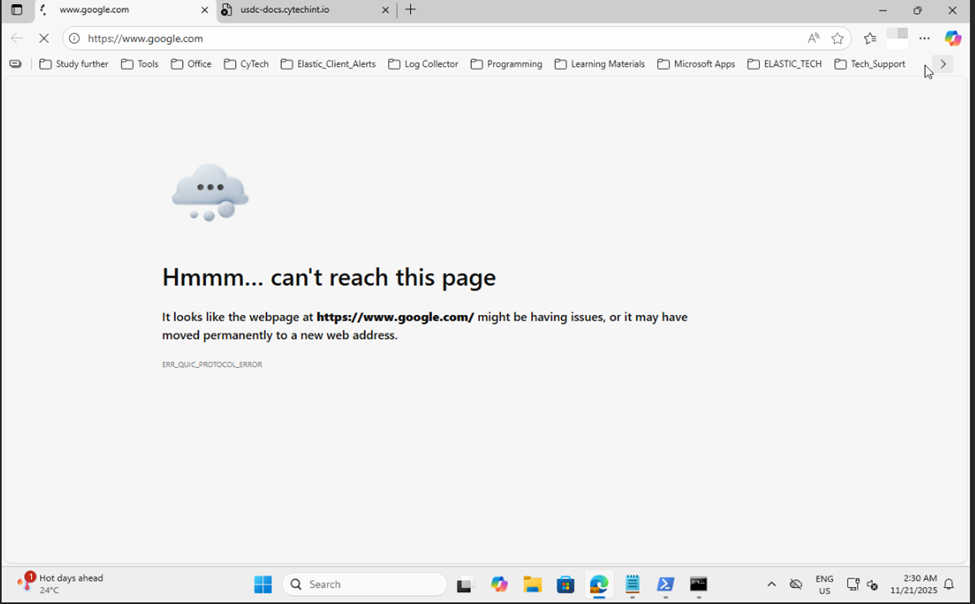

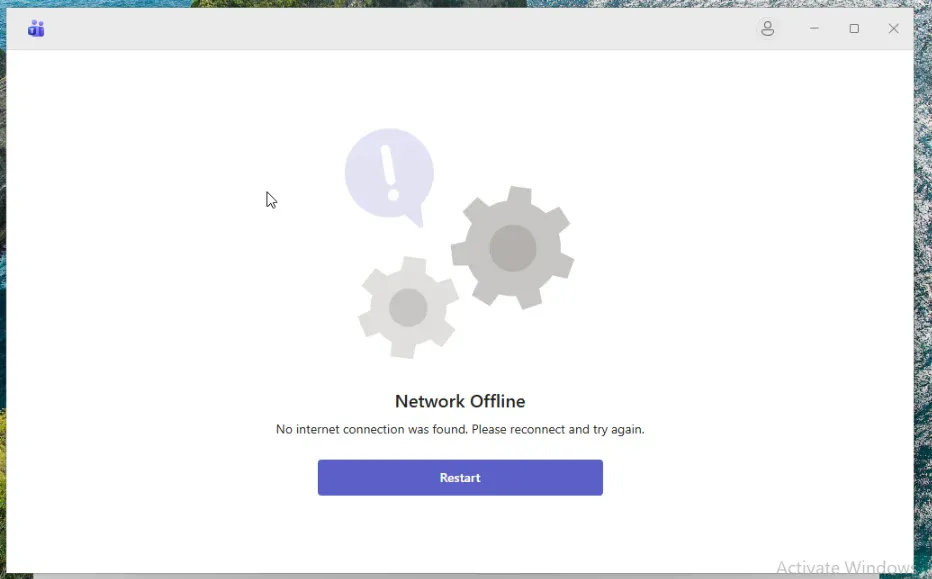
4. Verify Isolation Status
After isolation, you can verify the endpoint's network status:
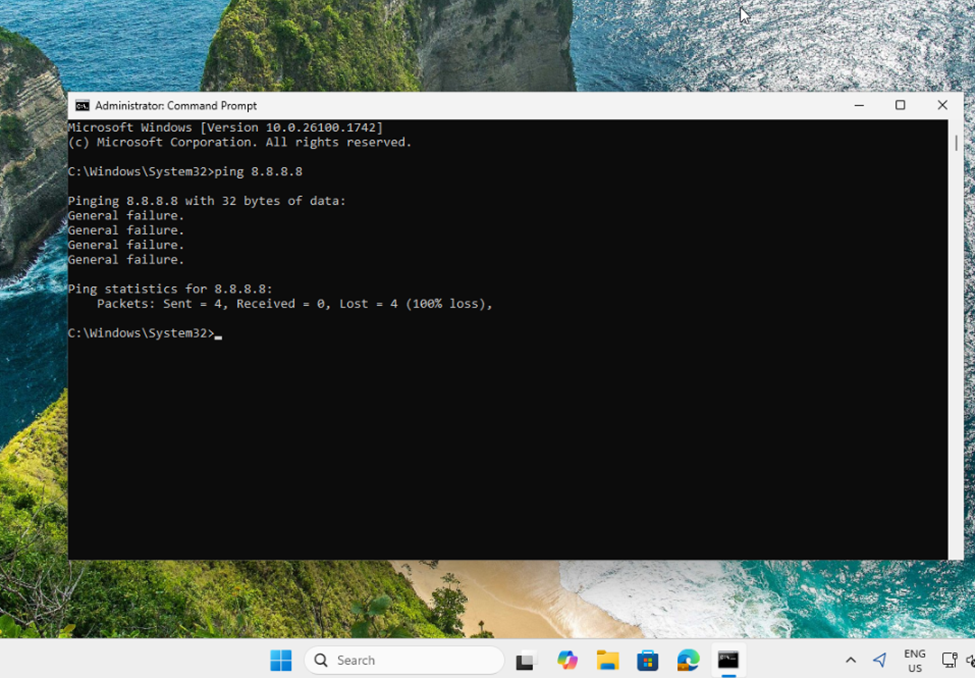
- Open Command Prompt on the isolated endpoint
- Test connectivity by pinging a public IP address:
- You should see General failure messages, confirming the host is isolated
- The ping statistics should show 100% loss
Pros and Cons
| Aspect | Pros | Cons |
|---|---|---|
| Threat Containment | Rapidly halts malware propagation and lateral movement, limiting breach scope to one device and reducing overall network risk. | If the isolating agent (e.g., EDR software) is compromised, it could fail, creating a single point of failure. |
| Response Efficiency | Buys critical time for forensic analysis, remediation, and recovery—especially useful off-hours or in automated setups. Enables precise logging and process termination without physical access. | Manual containment can require human escalation, leading to delays; automation risks over-isolation on false positives, disrupting business-critical systems. |
| Security Posture | Enhances visibility into isolated incidents for better threat hunting; integrates with zero-trust models to enforce granular controls. | Generates potential alert fatigue if tied to detection systems; narrow focus on single hosts may miss multi-device attacks. |
| Operational Impact | Minimizes downtime compared to full network shutdowns; supports staged recovery to restore operations quickly. | Can cause immediate productivity loss (e.g., blocking remote work); resource-intensive on endpoints, potentially slowing performance. |
| Management & Scalability | Cost-effective with open-source tools; flexible for mobile/remote devices across environments. | Complex to deploy and maintain consistently in large networks; high risk of misconfiguration leading to security gaps or unintended blocks. |
Conclusion
In summary, host isolation is a proactive "firebreak" in cybersecurity, excelling in speed and precision for containing incidents but demanding robust testing and policy integration to mitigate its operational trade-offs. For high-stakes environments like enterprises, combining it with tools like EDR or NAC maximizes benefits while addressing limitations.
No comments to display
No comments to display