
AQUILA - Cloudflare Integration
Introduction
Cloudflare logs provide detailed insights into client connections, request paths through the Cloudflare network, and origin server responses. These logs help track activity, identify issues, and support security and performance analysis.
Authentication Options
You can configure log retrieval using the following authentication methods:
-
Auth Email
-
API Token
- Account ID and Zone ID
For detailed information on authentication, refer to the Cloudflare API documentation.
1. Configure Using Auth Email and Auth Key
To set up using this method, you need:
-
Auth Email: The email address associated with your Cloudflare account.
-
Auth Key: Your global API key, available on the My Profile page.
-
Zone ID: The unique identifier of your Cloudflare zone, available in the zone's dashboard.
- Account ID: The unique identifier of your entire Cloudflare account, not just a specific zone (domain).
These credentials must be included in the request headers:
-
X-Auth-Email: Your account email. -
X-Auth-Key: Your global API key.
For more details, refer to Cloudflare’s authentication headers guide.
2. Configure Using API Token
To set up using an API token, you need:
-
API Token: A token with appropriate permissions.
-
Account ID & Zone ID: As noted above, can be found in your Cloudflare zone dashboard.
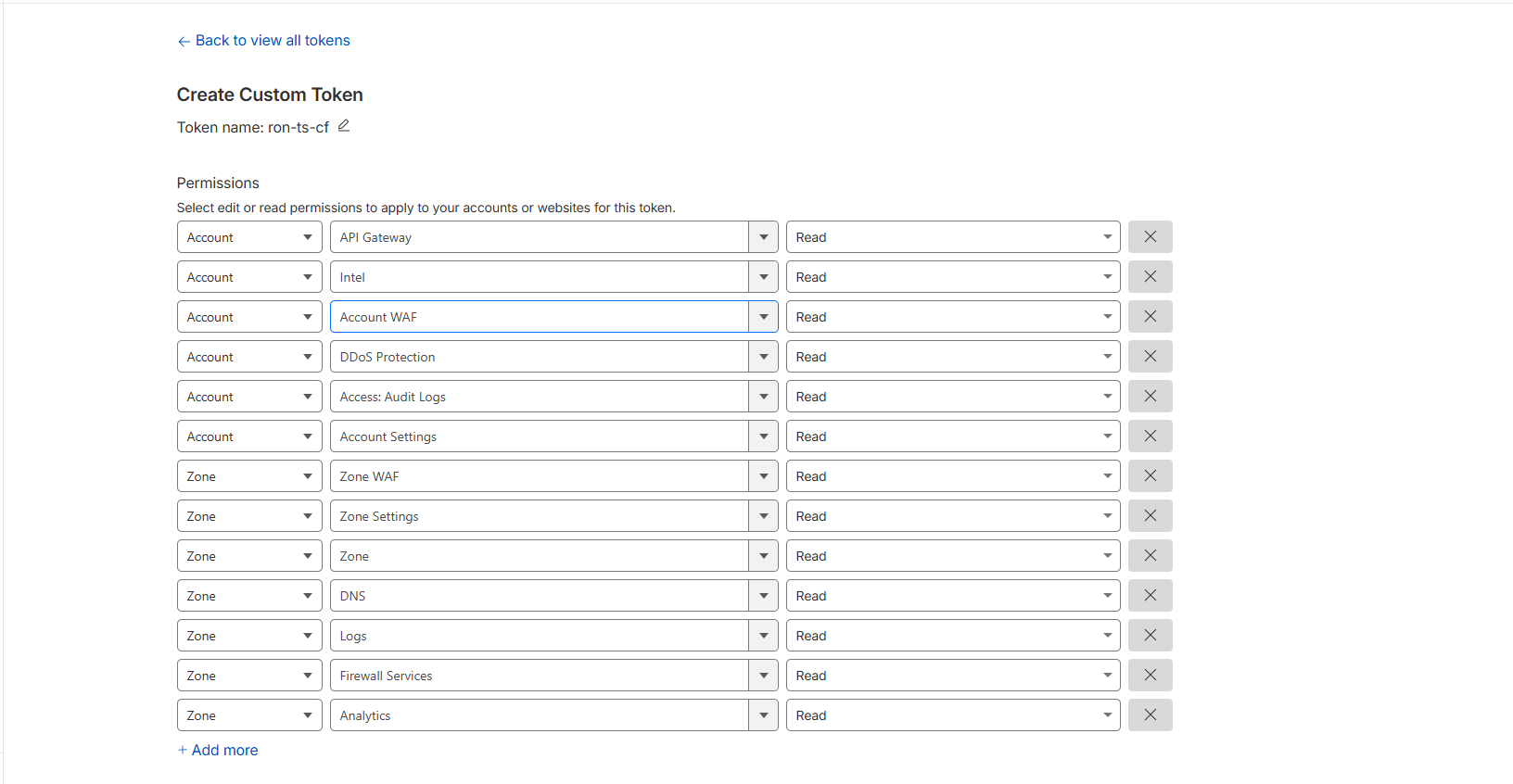
Cloudflare Permissions for the API Token:
-
Account.Access:Audit Logs:Read Account.Account:Settings:ReadAccount WAF – ReadDDoS Protection – ReadIntel – ReadAPI Gateway - ReadDNS - ReadZone Settings - ReadAnalytics - ReadFirewallServices - ReadZone WAF - ReadZone - ReadLogs - Read
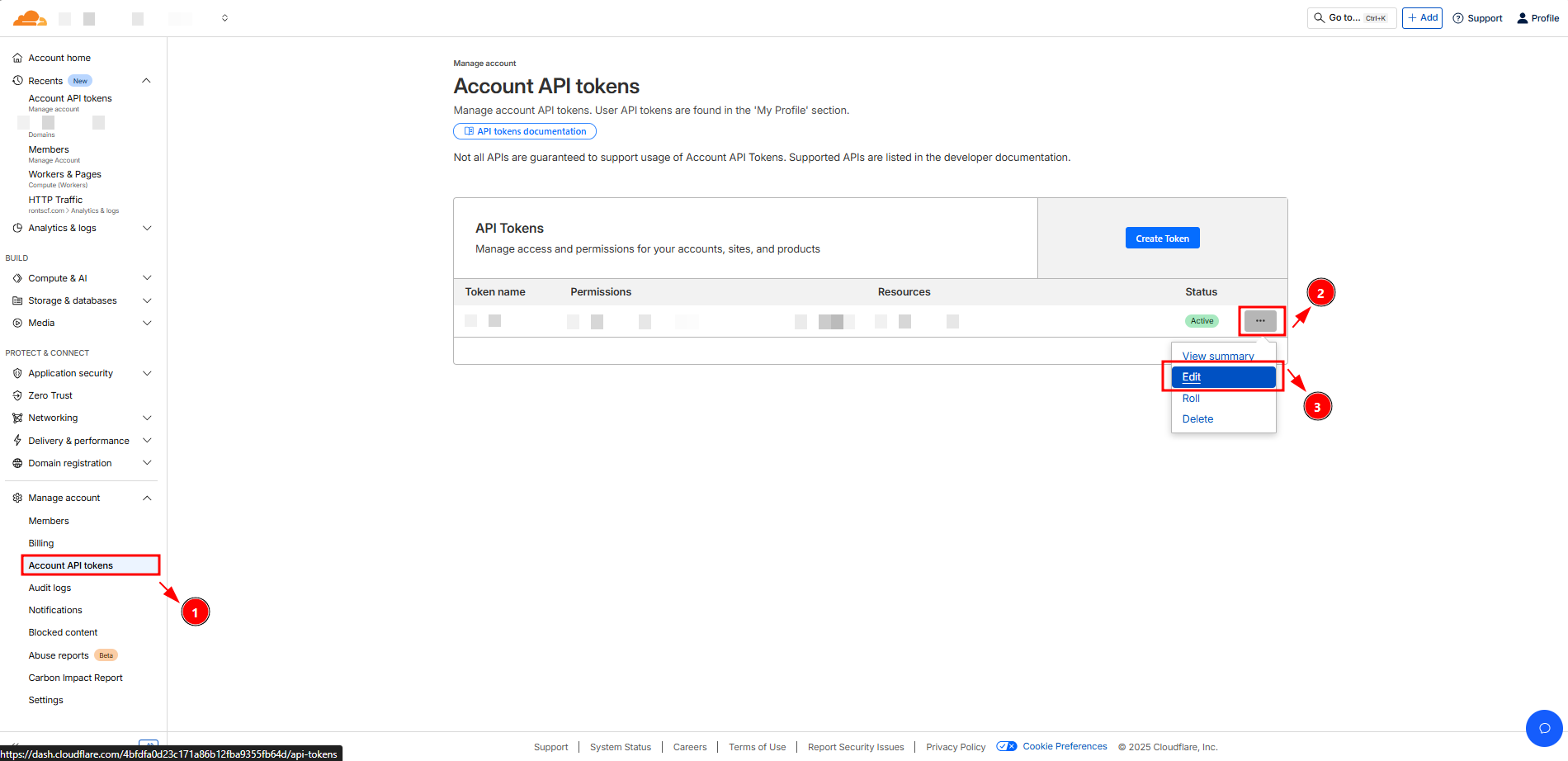
API Tokens are preferred for security as they support fine-grained access control. Create and manage tokens via the API Tokens dashboard.
Manage Account>Account API Tokens>Custom Token>Get Started
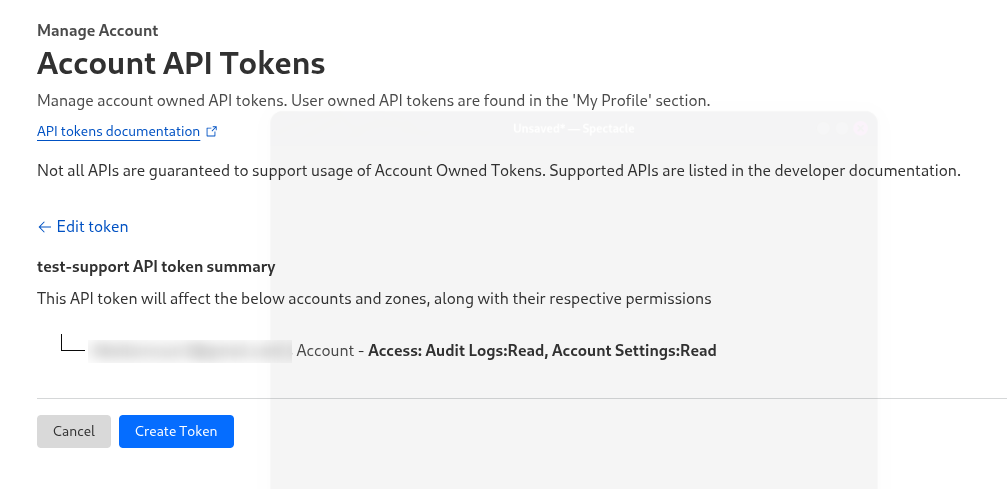
curl -X GET "https://api.cloudflare.com/client/v4/user/tokens/verify" \
  -H "Authorization: Bearer <token>" \
  -H "Content-Type: application/json"

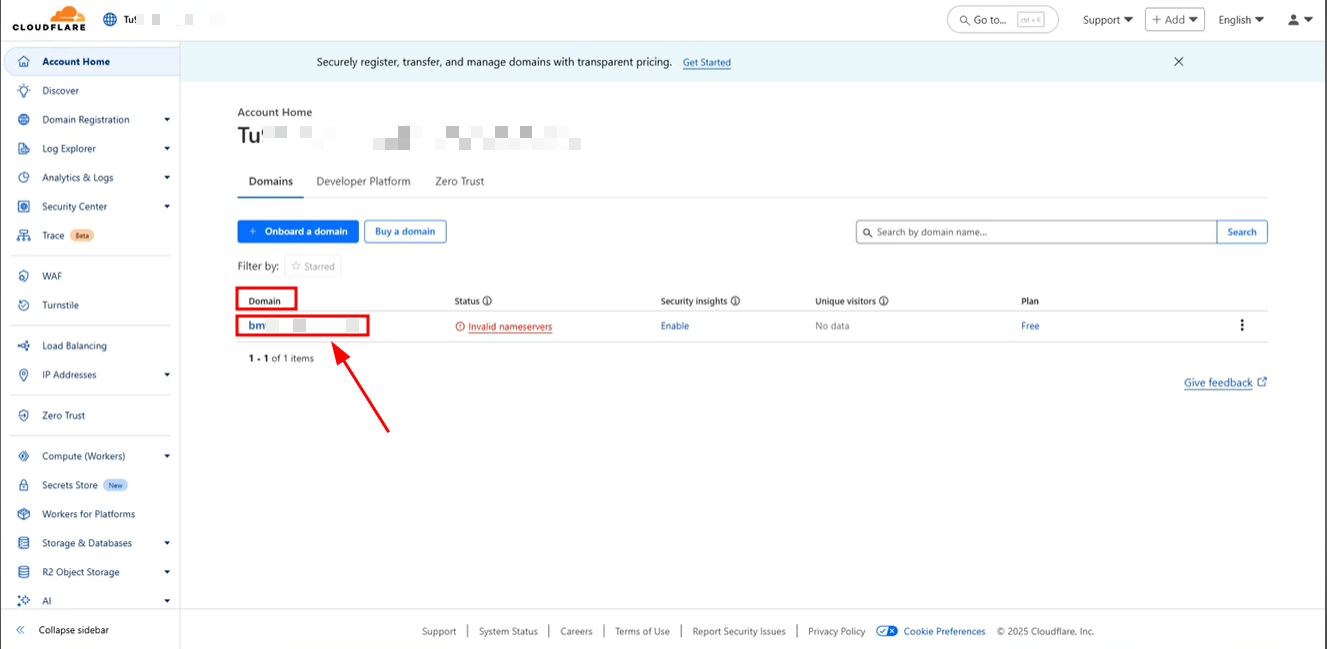
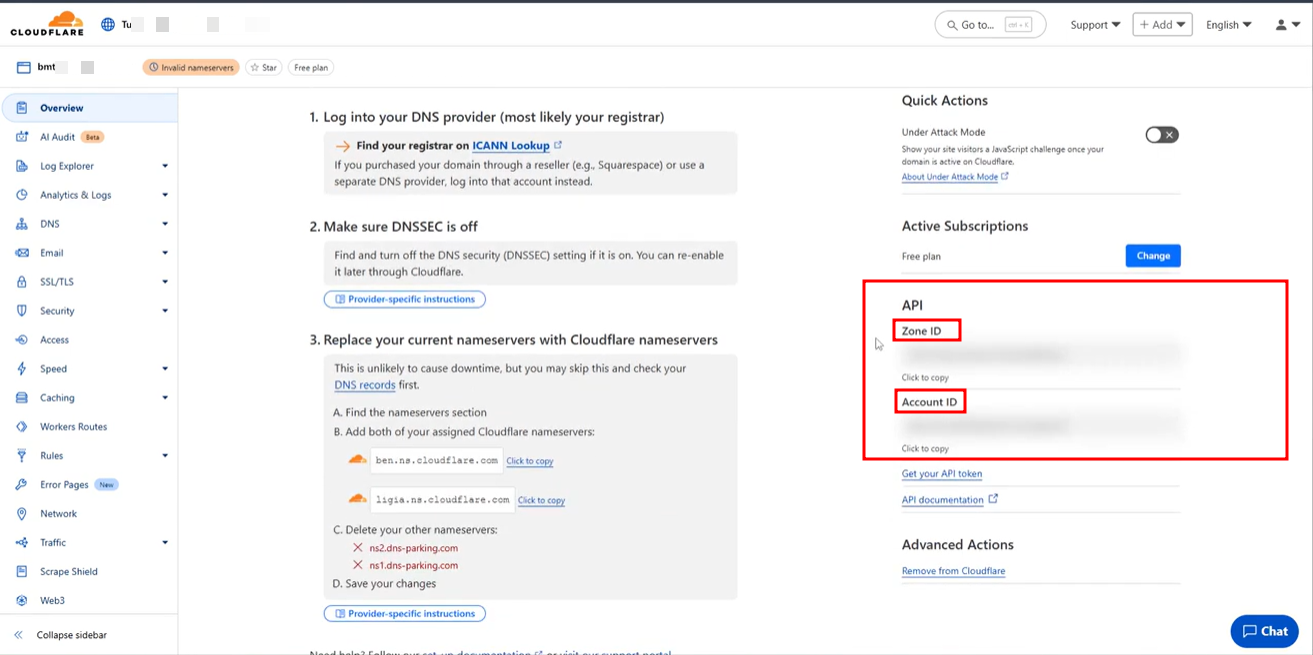
3. How to get the Account ID and Zone ID
2. Head over to your Dashboard https://dash.cloudflare.com/.
Audit Logs
Audit logs provide a record of configuration changes within your Cloudflare account, including:
-
Logins/logouts
-
DNS setting changes
-
Modifications to Firewall, Caching, Page Rules, Speed, Network, and Traffic features
These logs are essential for tracking administrative activity and detecting unusual behavior.
To enable log collection from the Cloudflare API token, provide the following information to CyTech Support:
- Auth Email
- API Token (Auth Key)
- Account ID
- Zone ID
If you need further assistance, kindly contact support@cytechint.com for prompt assistance and guidance.
No comments to display
No comments to display