
How to Use Sniff and Detect
Overview 

AQUILA – SNIFF & Detect is a custom integration app within the AQUILA platform that enables Microsoft 365 environments to deploy advanced malicious email detection capabilities.
The app is packaged as a manifest.xml file and can be added to an organization’s Microsoft 365 tenant via the Integration Apps section in the Microsoft 365 Admin Center.
Key Capabilities & Value 

-
Seamless Integration – Install in Microsoft 365 with just a few clicks, no complex infrastructure required.
-
Permission-Driven Security – Requires admin approval to grant permissions, ensuring a secure deployment process.
-
Centralized Control – Managed via AQUILA and distributed through the AQUILA Store for consistent updates.
-
AI-Enhanced Detection – Uses AQUILA’s AI and Cyber Threat Intelligence to scan and detect malicious emails in real time.
-
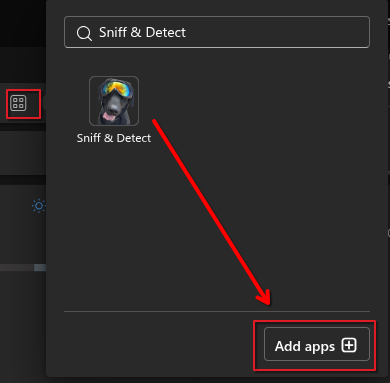
User-Friendly Accessibility – Appears in the “More apps” section for assigned users, making it easy to launch.
-
Minimal Footprint – Only ~6 KiB in size, ensuring fast installation without performance impact.
Simple Step-by-Step Instructions 

-
Access the App
- Open Outlook and check the apps panel to ensure Sniff & Detect is listed and accessible.
-
Users can launch it from More apps in Microsoft 365.
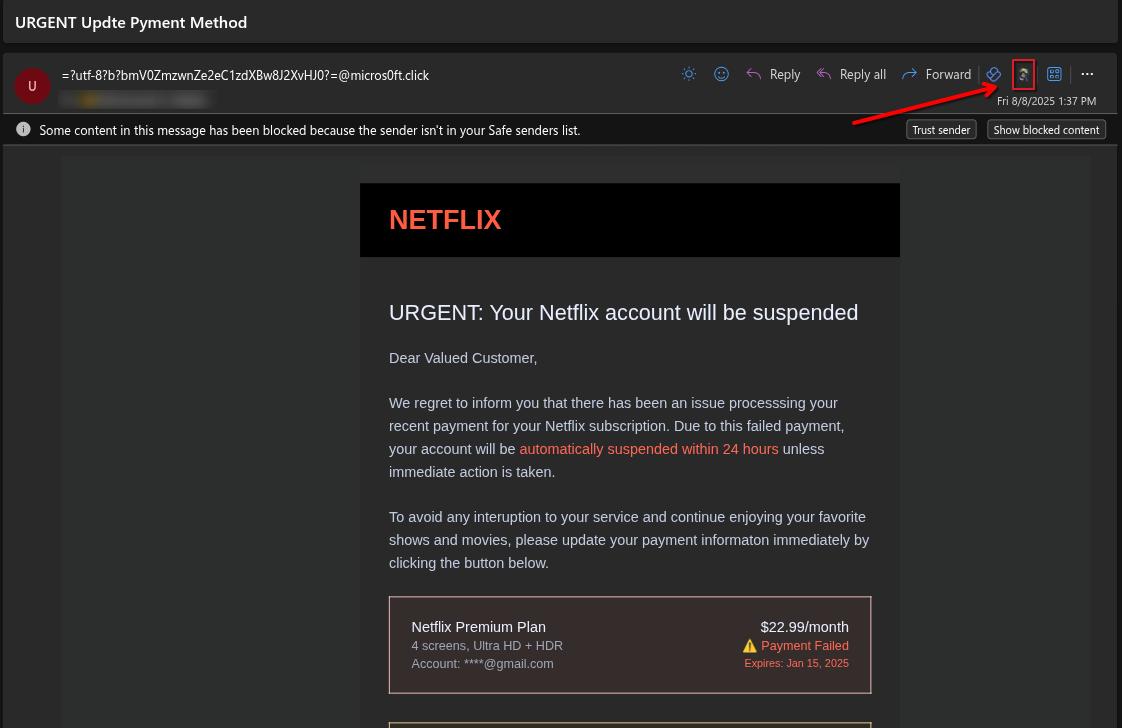
- A phishing email impersonating Netflix. An arrow points to the SNIFF & Detect icon, indicating where to scan or flag the email as suspicious.
-
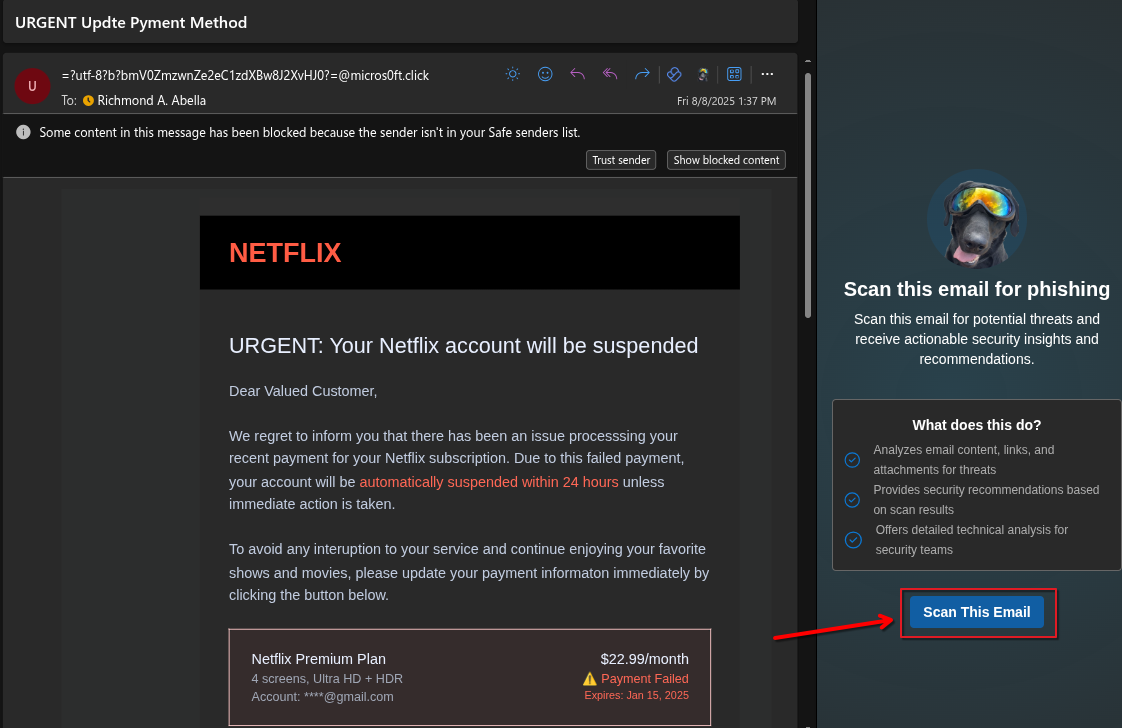
Click the “Scan This Email” button and wait for the scan to complete.
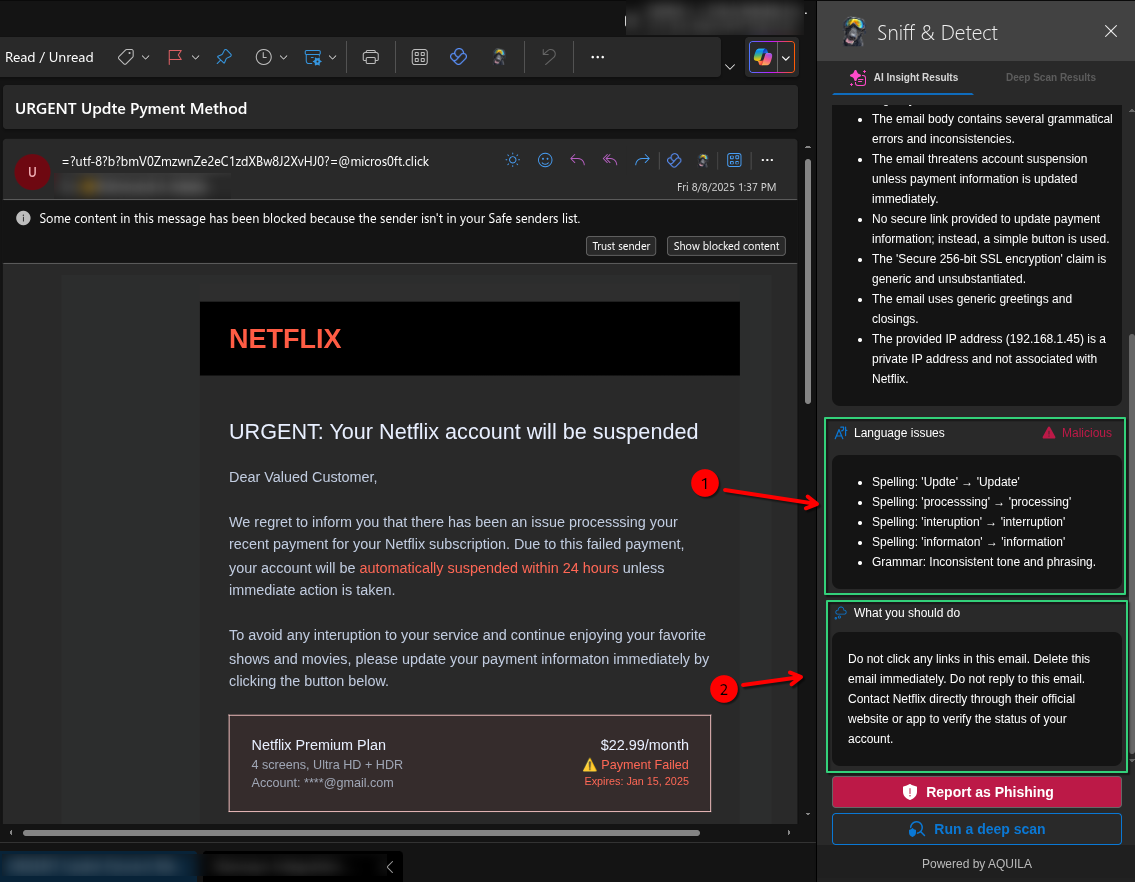
- SNIFF & Detect has scanned the email, highlighting possible errors such as
1. Arrow 1 points to the Language issues section, showing spelling and grammar mistakes found in the phishing email.
2. Arrow 2 points to the What you should do section, giving safety advice on how to handle the suspicious email.
-
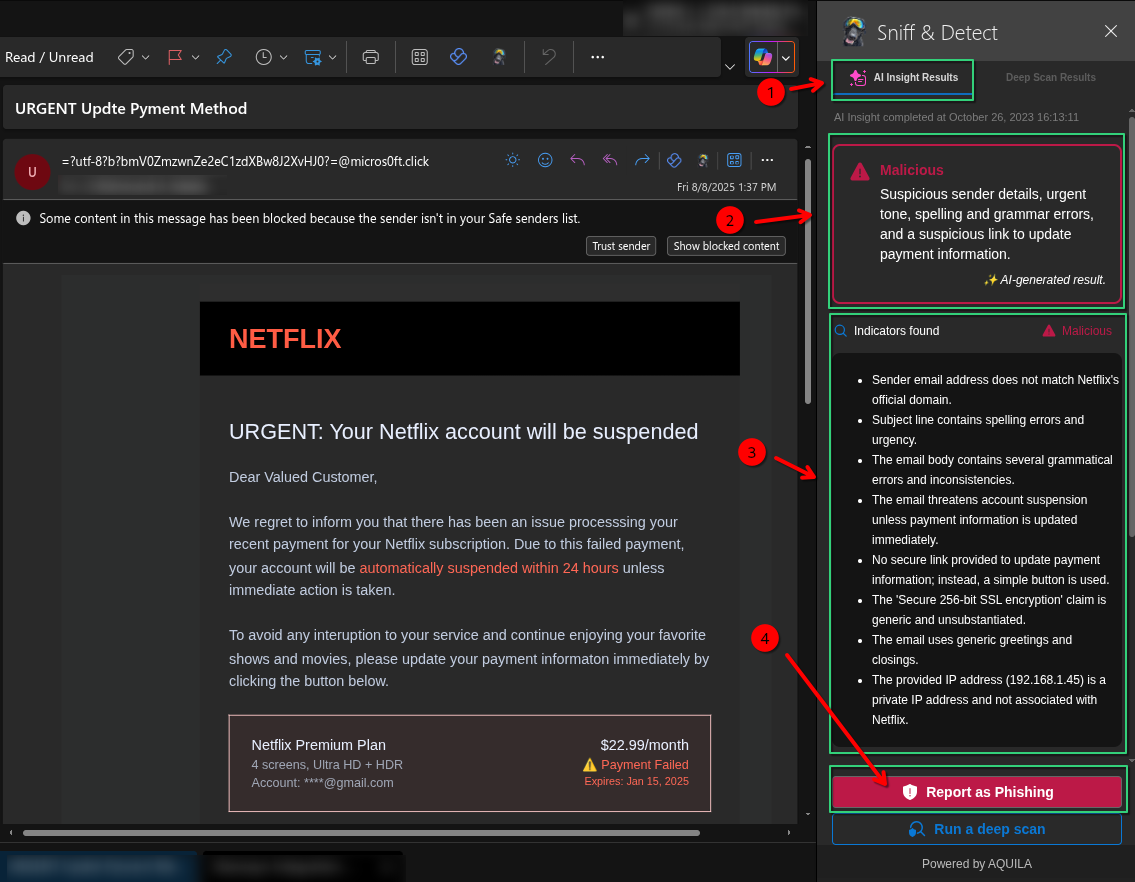
Arrow 1 – Highlights the AI Insight Results tab in SNIFF & Detect, which contains the automated analysis results of the scanned email.
-
Arrow 2 – Points to the Malicious classification summary. This section briefly explains the reasons the email is flagged, such as suspicious sender details, urgent tone, spelling and grammar errors, and suspicious links.
-
Arrow 3 – Directs attention to the actual phishing email content pretending to be from Netflix, warning about a payment failure and urging the user to update their payment information.
-
Arrow 4 – Indicates the Report as Phishing button, which the user can click to formally report the suspicious email to security for further action.
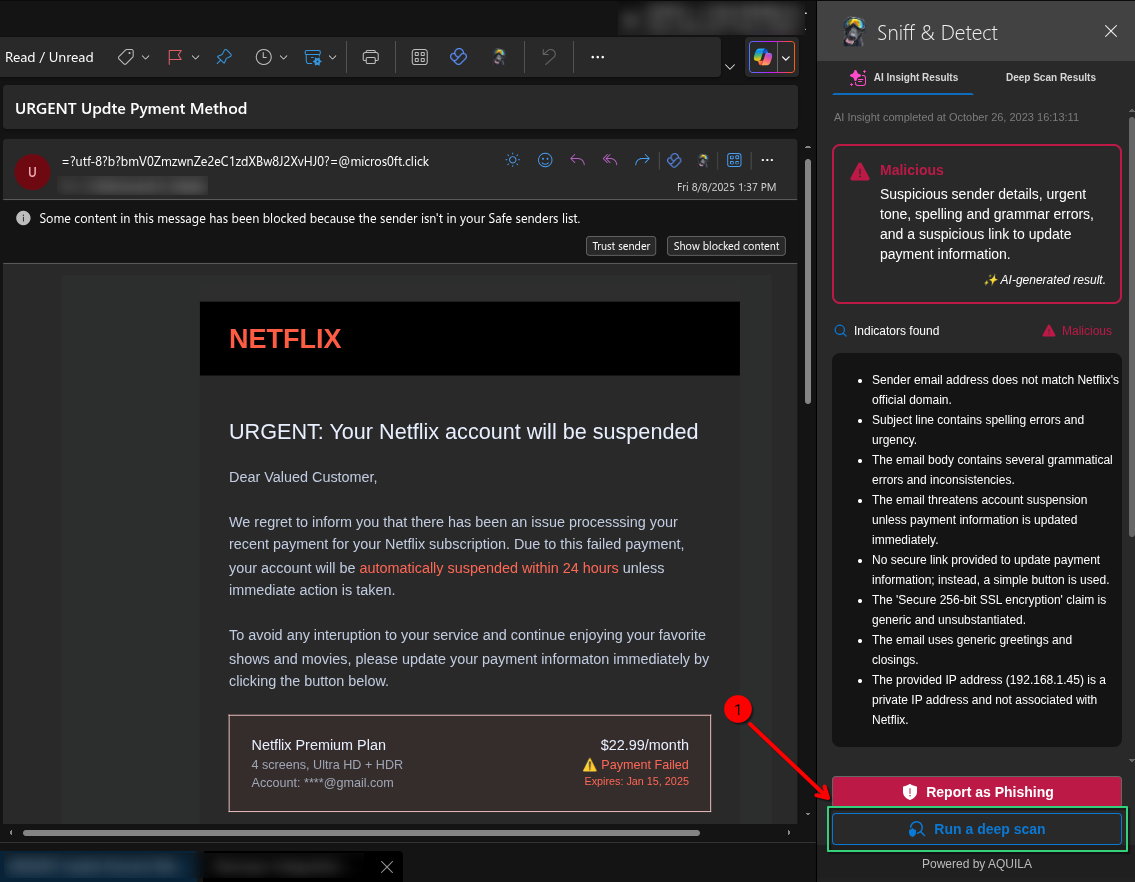
- Click the "Run a deep scan" button, which allows for a more detailed examination of the email to detect hidden threats and malicious indicators.
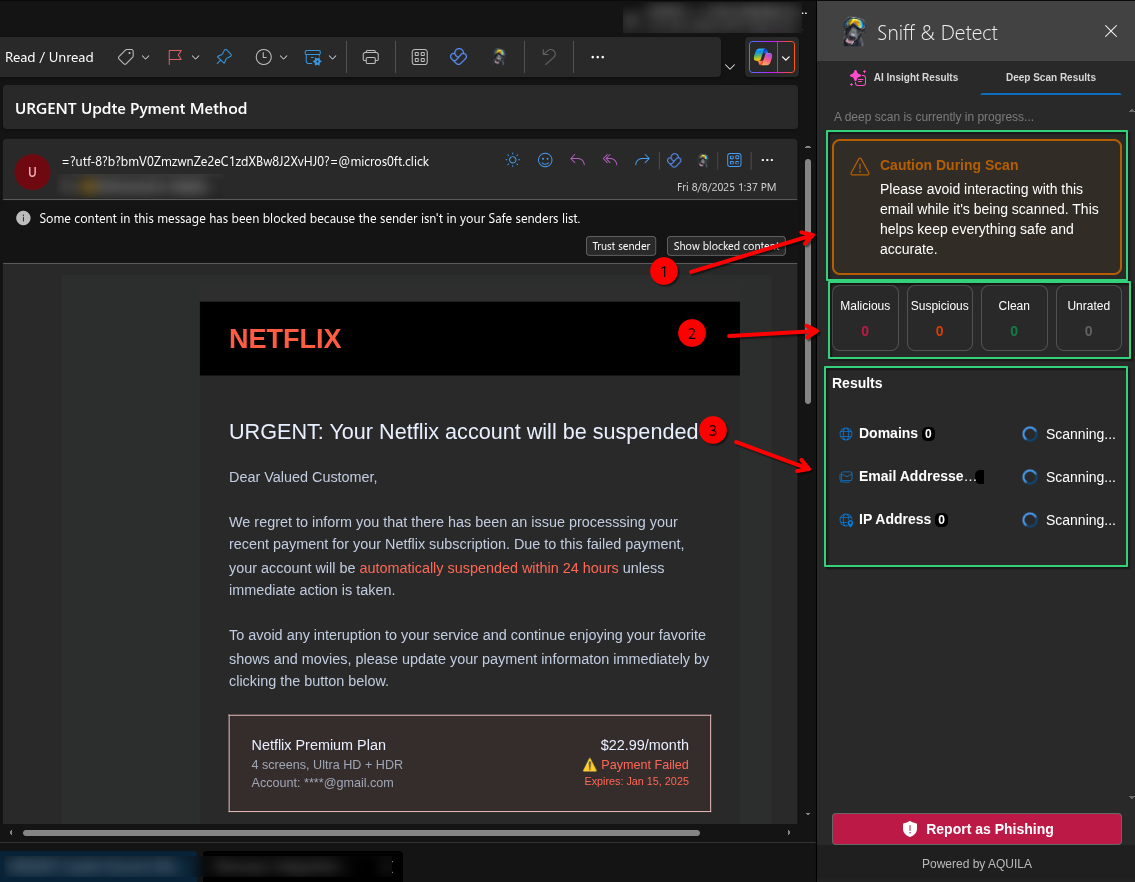
- SNIFF & Detect doing a deep scan on a suspected phishing email pretending to be from Netflix. The scan may take a couple of minutes to finish.
- The scan results are now finished and ready to check.
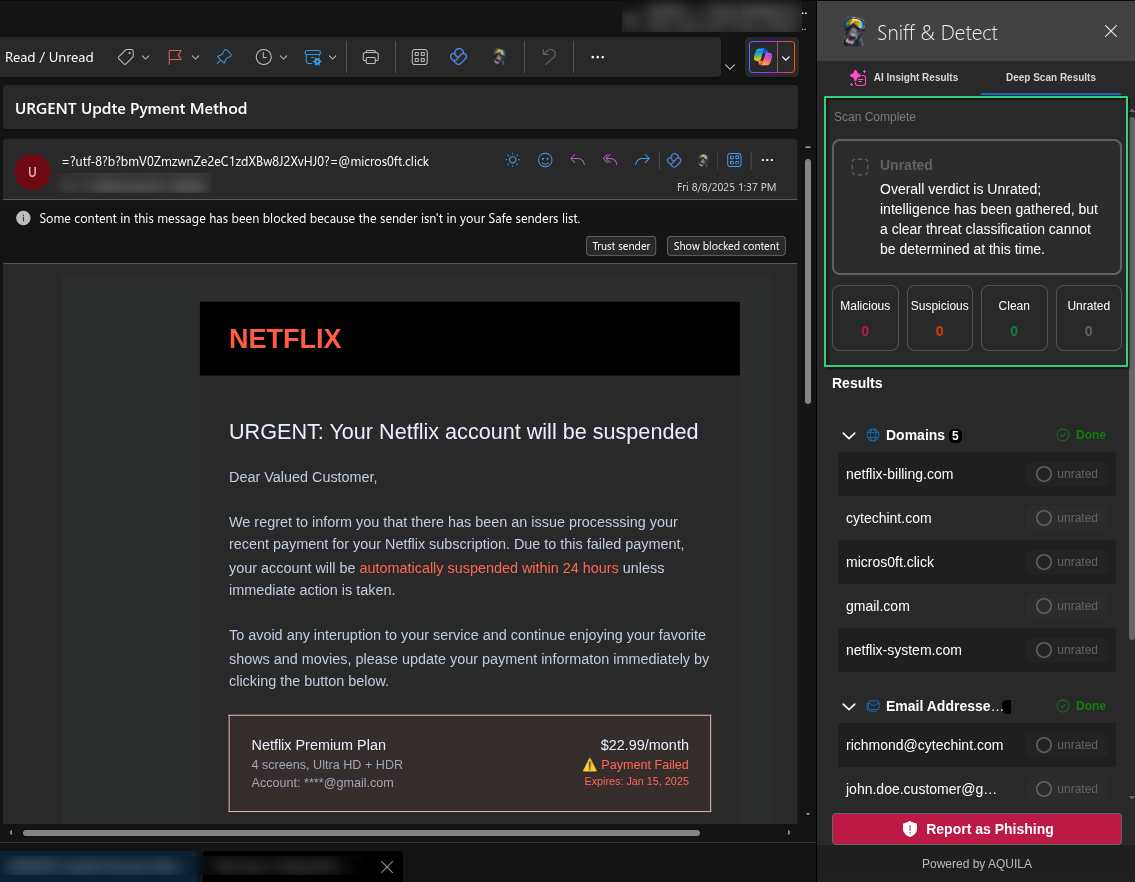
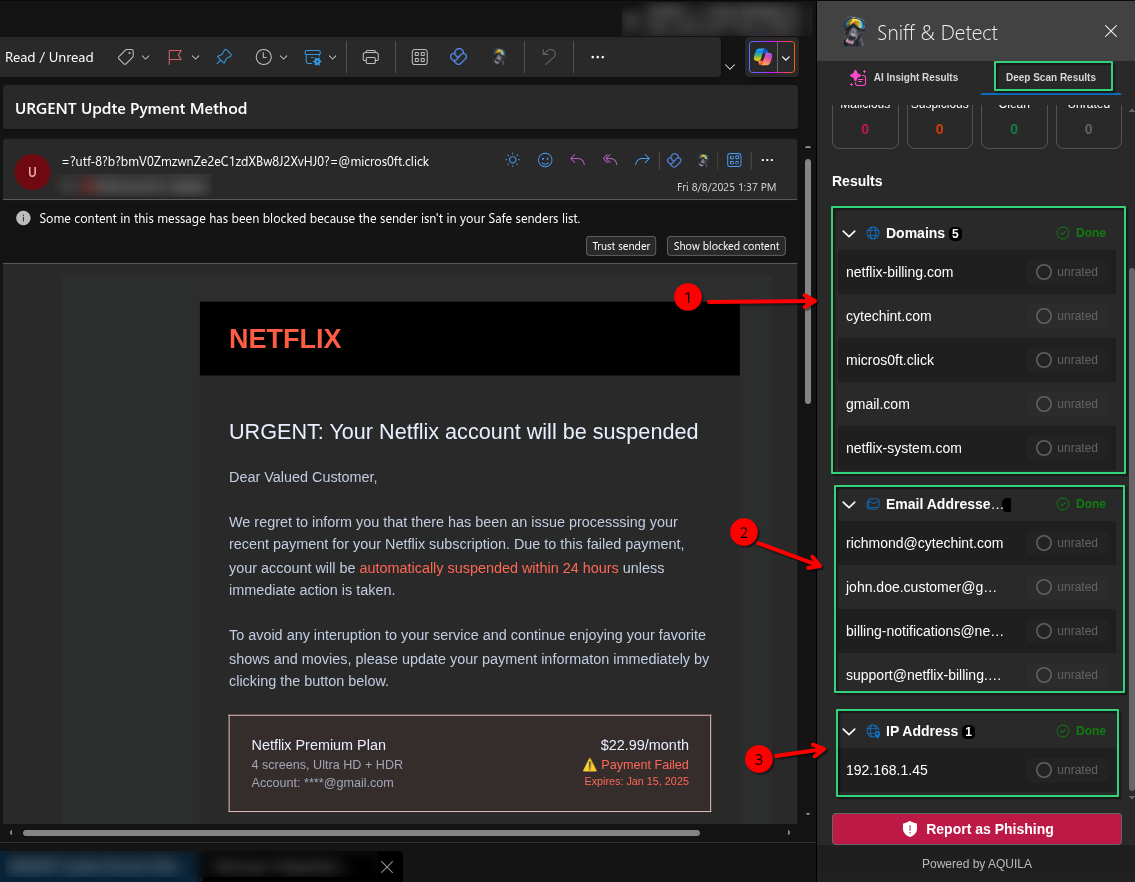
- This is the result of a deep scan conducted by the Sniff & Detect tool on a suspicious email impersonating Netflix.
1. Arrow 1 highlights the domain netflix-billing.com, which is flagged as a spoofed domain used to impersonate Netflix and trick users into entering sensitive information.
2. Arrow 2 lists phishing-related email addresses such as richmond@cytcehint.com and support@netflix-billing.com, which are likely used to send or support the fraudulent email.
3. Arrow 3 shows the IP address 192.168.1.45, flagged as part of the phishing infrastructure. Although it's a private IP, its presence suggests internal spoofing or malicious setup.
If you need further assistance, kindly contact our support at support@cytechint.com for prompt assistance and guidance.
No comments to display
No comments to display