
AQUILA - Varonis (DLP) Integration
Purpose
This document outlines the procedure to integrate Varonis DatAlert or DatAdvantage with a SIEM platform using Syslog (CEF). The integration provides visibility into sensitive data access, permissions changes, and threat alerts.
Prerequisites
-
Admin access to Varonis DatAlert Console
-
IP address and port of your SIEM/syslog collector
-
Network/firewall access from Varonis to SIEM (UDP or TCP port open)
-
(Optional) CEF parsing support in your SIEM
Step 1: Configure Varonis DatAlert for Syslog forwarding
-
Log in to your Varonis UI using admin credentials.
- In Data Advantage, Navigate to:
Tools → DatAlert → Select DatAlert.

3. Now, select Configuration.
4. In Syslog Message Forwarding,
- Syslog Message IP Address: AQUILA log collector IP
- Port: 10514 (if the port has already been used, you can set another one)
- Transport protocol: Choose UDP or TCP (if not already an option; some Varonis versions infer it)
- Facility name: Choose a different facility.
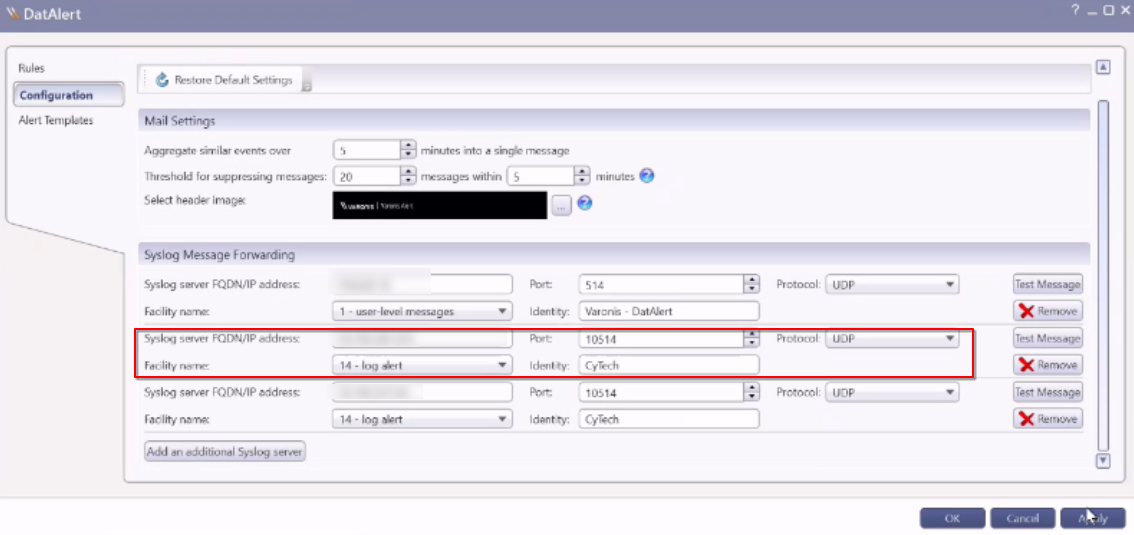
5. Click Apply.
Step 2: Create Alert Template in Varonis DatAlert
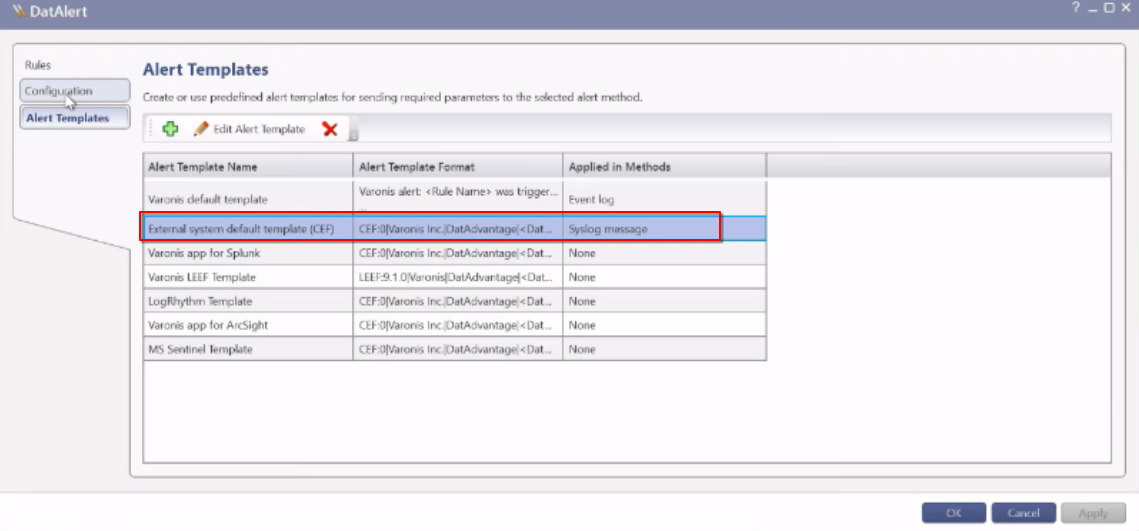
- In DatAlert, select Alert Templates.
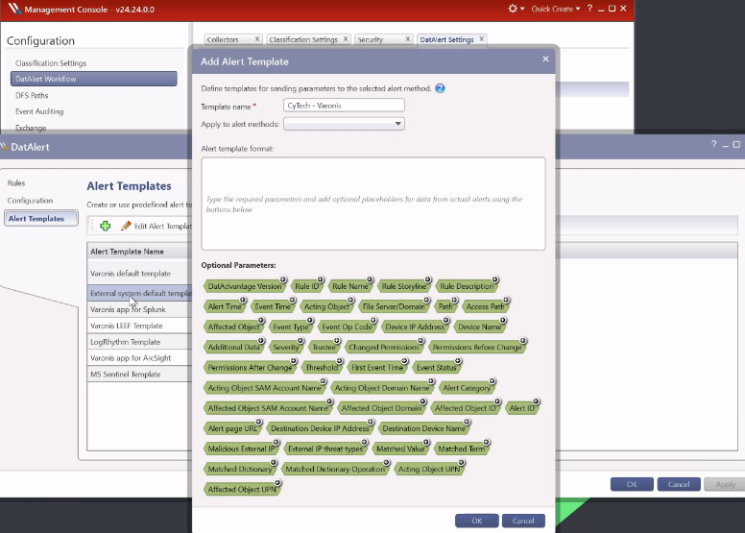
- Click on the Green Plus sign to add a New Alert Template.
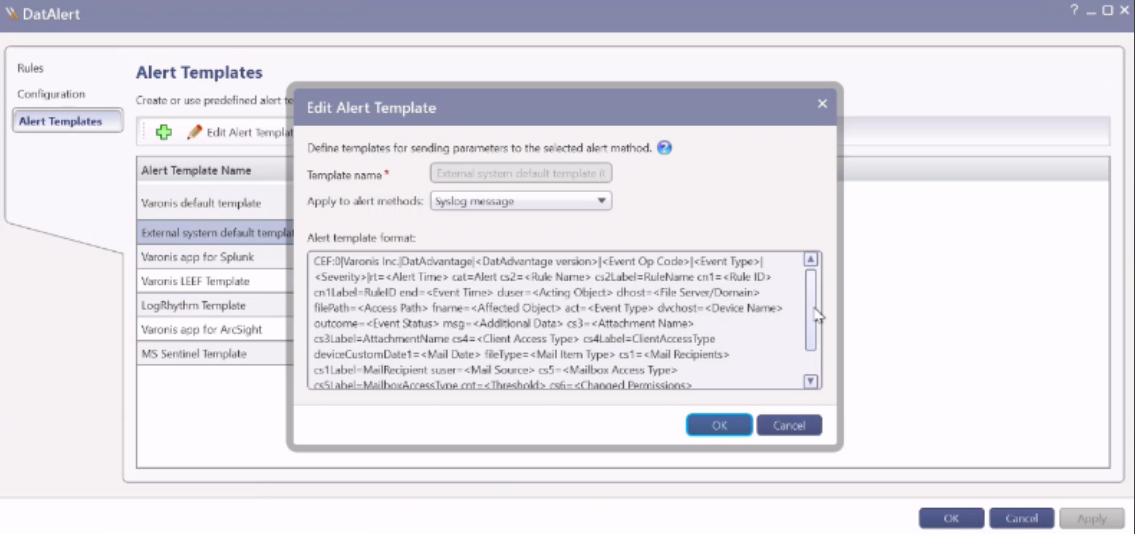
- In the Template name, select the 'External system default template (CEF)'
- In the Apply to alert methods, select the 'Syslog message'
- Click OK.
Step 3: Configuring alerts for single or multiple rules
To select the Syslog alert method for a single rule:
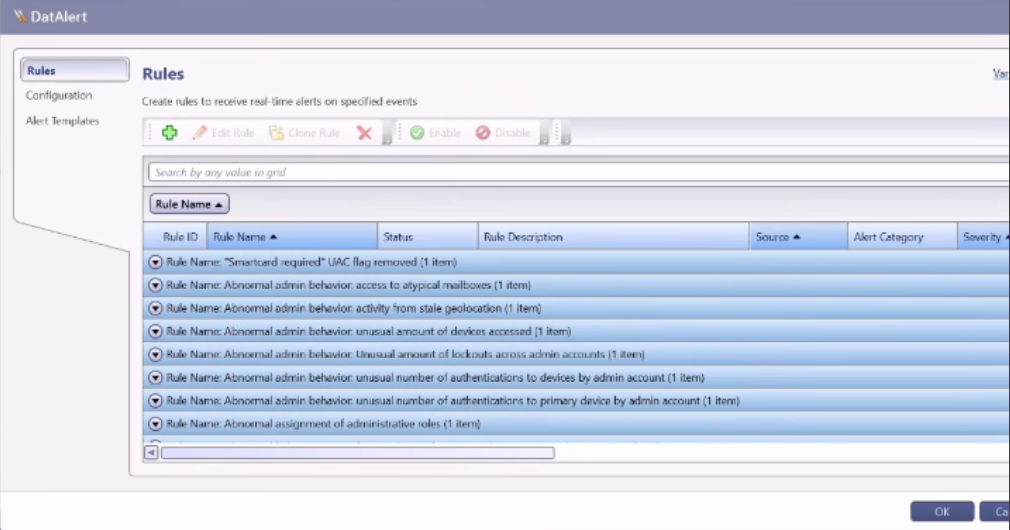
- From the DatAlert rules table, select the rule, then click Edit Rule. The rule editing menu appears.
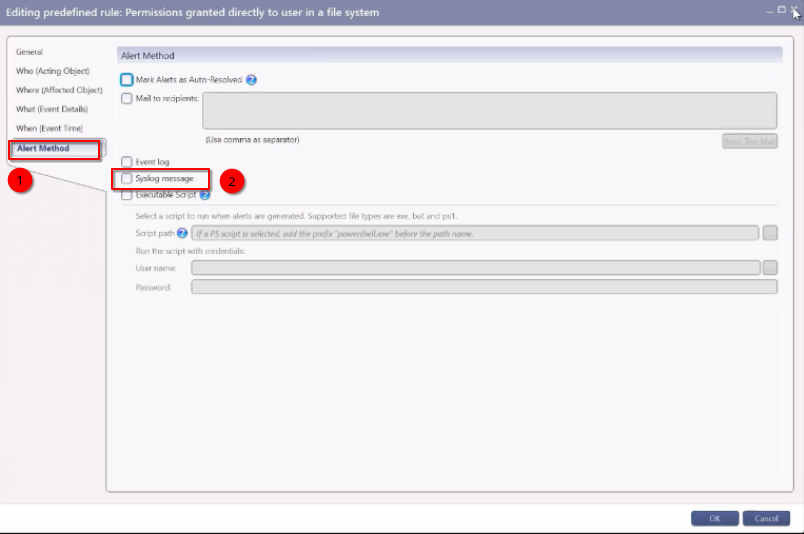
- From the left menu, select Alerts Method. The “Alert Method” window appears.
- Select Syslog message.
- Click OK.
To select the Syslog alert method for multiple rules:
- From the DatAlert rules table, select the rules, then click Edit Rule. The rule editing menu appears and just "control A" to select all rules.
Please provide the following information to CyTech Support:
-
Port Address
-
Protocol (TCP or UDP)
If you need further assistance, kindly contact our support at support@cytechint.com for prompt assistance and guidance.
No comments to display
No comments to display