# AQUILA - Varonis (DLP) Integration
### **Purpose**
This document outlines the procedure to integrate **Varonis DatAlert** or **DatAdvantage** with a SIEM platform using **Syslog (CEF)**. The integration provides visibility into sensitive data access, permissions changes, and threat alerts.
##### **Prerequisites**
- Admin access to **Varonis DatAlert Console**
- IP address and port of your **SIEM/syslog collector**
- Network/firewall access from Varonis to SIEM (UDP or TCP port open)
- (Optional) CEF parsing support in your SIEM
##### **Step 1: Configure Varonis DatAlert for Syslog forwarding**
1. Log in to your **Varonis UI** using admin credentials.
2. In Data Advantage, Navigate to:
**Tools** → **DatAlert** → **Select DatAlert.**
[](https://cytechint-docs-bookstack.s3.amazonaws.com/uploads/images/gallery/2025-10/T1GpiSEOTyEGyjPL-image.png)
3. Now, select **Configuration.**
4\. In **Syslog Message Forwarding**,
- **Syslog Message IP Address:** AQUILA log collector IP
- **Port: 10514** (if the port has already been used, you can set another one)
- **Transport protocol:** Choose **UDP** or **TCP** (if not already an option; some Varonis versions infer it)
- **Facility name:** Choose a different facility.
[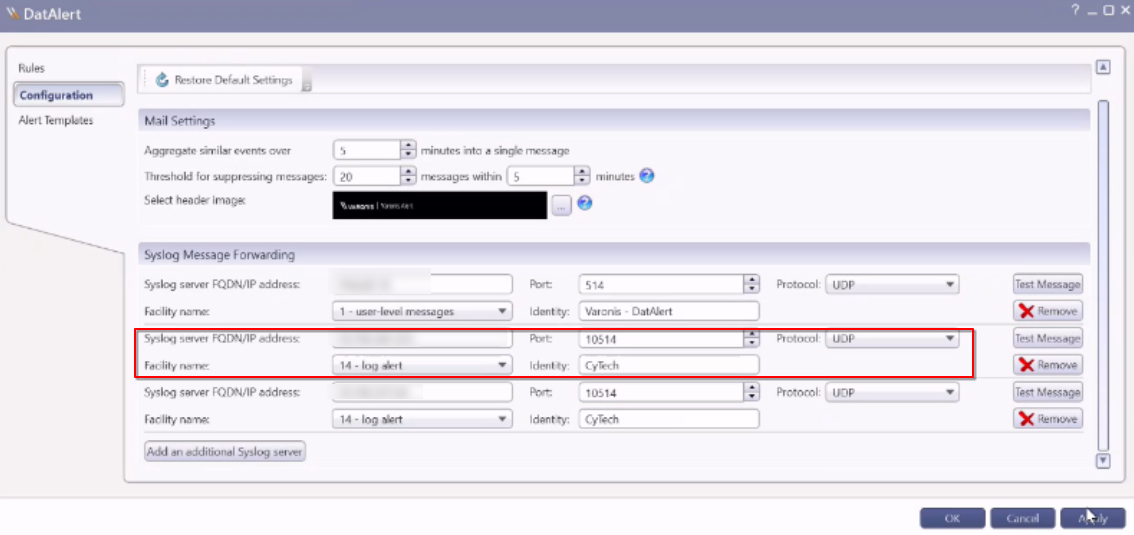](https://cytechint-docs-bookstack.s3.amazonaws.com/uploads/images/gallery/2026-06/H4qC8oP7koYwCy5S-image.png)
5. Click **Apply.**
##### **Step 2: Create Alert Template in Varonis DatAlert**
1. In **DatAlert**, select **Alert Templates**.
2. Click on the **Green Plus** sign to add a New Alert Template.
- In the Template name, select the **'External system default template (CEF)'**
- In the Apply to alert methods, select the **'Syslog message'**
3. Click **OK.**
[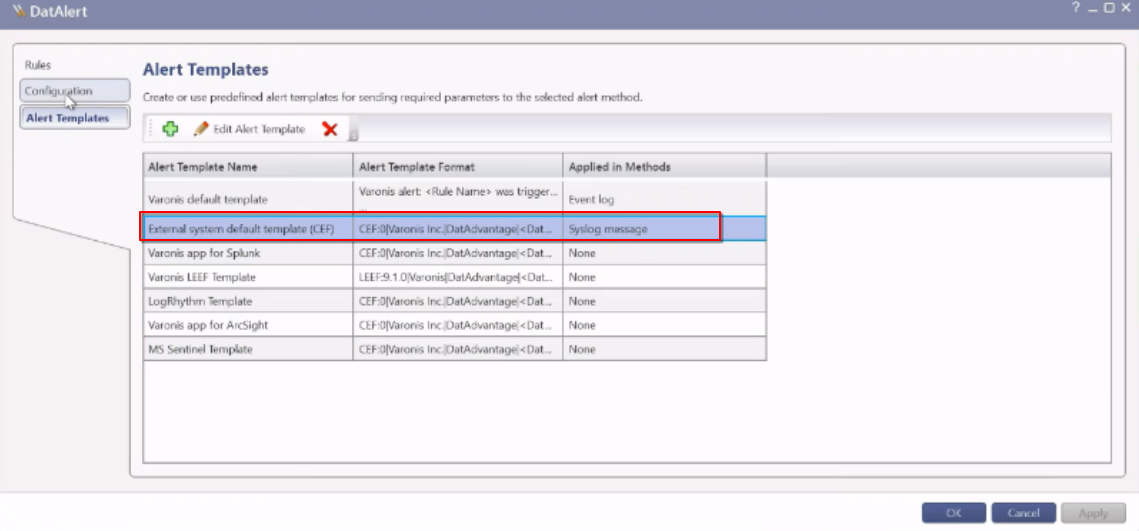](https://cytechint-docs-bookstack.s3.amazonaws.com/uploads/images/gallery/2026-06/aEWJh6P68iLccait-image.png)
[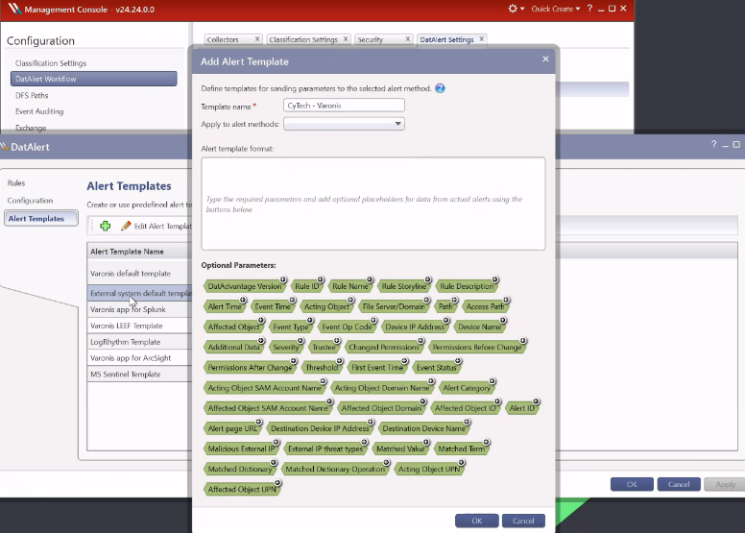](https://cytechint-docs-bookstack.s3.amazonaws.com/uploads/images/gallery/2026-06/AlBqxNaiSiN27ETg-image.png)
[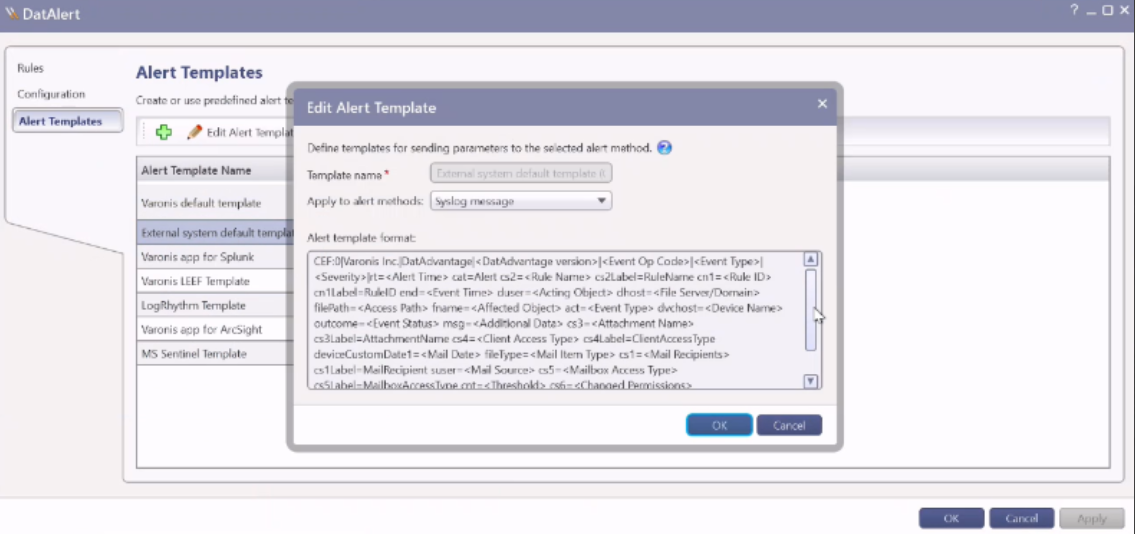](https://cytechint-docs-bookstack.s3.amazonaws.com/uploads/images/gallery/2026-06/HPmTOp9hMqvURY5A-image.png)
##### **Step 3: Configuring alerts for single or multiple rules**
To select the Syslog alert method for a single rule:
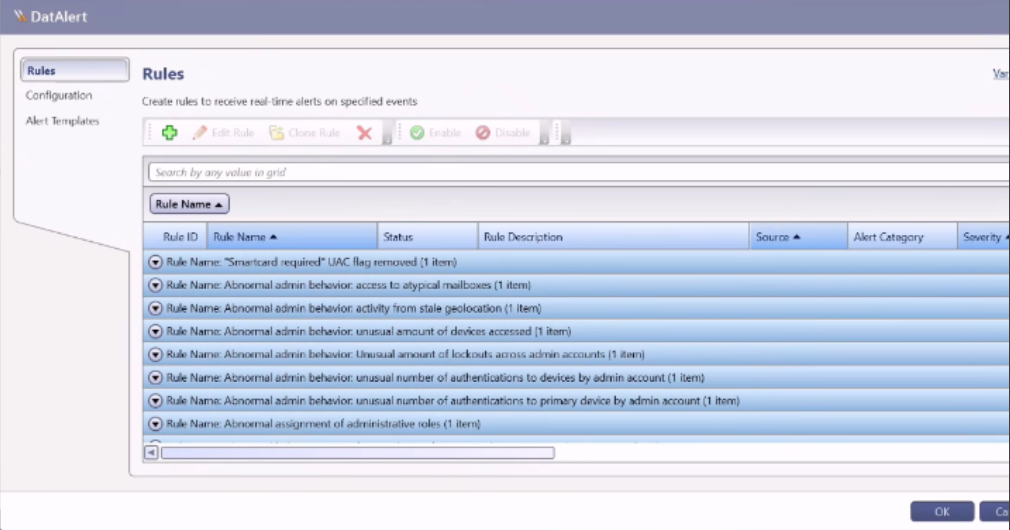
1. From the DatAlert rules table, select the **rule**, then click **Edit Rule**. The rule editing menu appears.
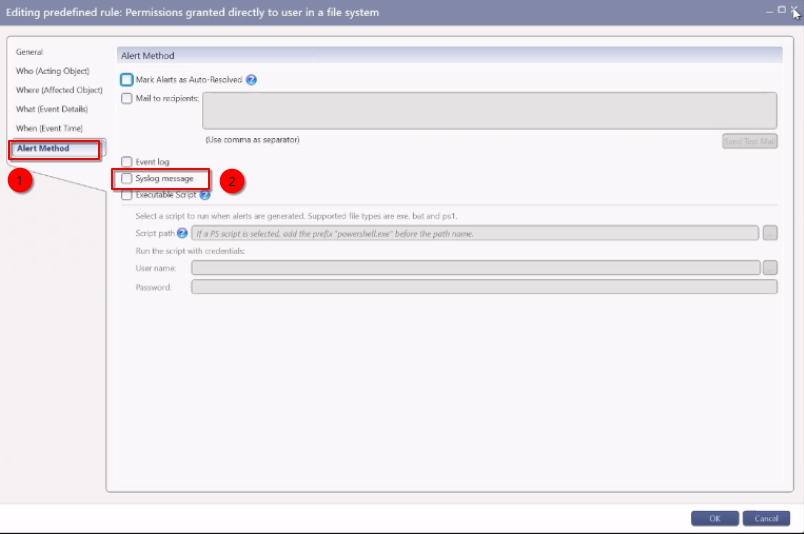
2. From the left menu, select **Alerts Method**. The “**Alert Method**” window appears.
3. Select **Syslog message**.
4. Click **OK**.
To select the Syslog alert method for multiple rules:
1. From the DatAlert rules table, select the **rules**, then click **Edit Rule**. The rule editing menu appears and just "control A" to select all rules.
[](https://cytechint-docs-bookstack.s3.amazonaws.com/uploads/images/gallery/2026-06/PftyRnOYp0u3639o-image.png)
1. From the left menu, select **Alerts Method**. The “**Alert Method**” window appears, and its contents are disabled for selection.
2. Click the **edit** icon for the Syslog message option, then click the checkbox next to **Syslog message**.
3. Click **OK**.
[](https://cytechint-docs-bookstack.s3.amazonaws.com/uploads/images/gallery/2026-06/qxgzGKNqhjnofPTA-image.png)
---
**Please provide the following information to CyTech Support: **
- **Port Address**
- **Protocol (TCP or UDP)**
*If you need further assistance, kindly contact our support at **[support@cytechint.com](mailto:info@cytechint.com)** for prompt assistance and guidance.*