
CyTech AQUILA - Cyber Incident Management (CIM) Module
Overview:
Cyber Incident Management (CIM) is the end-to-end process of preparing for, detecting, analyzing, responding to, and recovering from cybersecurity incidents (such as malware infections, data breaches, insider threats, or DDoS attacks).
The goal is to minimize damage, reduce recovery time, and prevent future incidents.
Key Features:
- Dashboard - Real-time view of alerts, cases, and overall security status.
- Alerts - Notifications when suspicious activity is detected.
- Cases - Track and manage incidents from start to finish.
- Data Explorer - Investigate logs and find root causes.
- Reports - Summaries for management, compliance, and lessons learned.
- Alert Rules - Define what should trigger an alert (custom detection logic).
- Settings - Configure integrations, access, and workflows.
Pre-requisites:
- Access to CyTech - AQUILA
-
Only users assigned the "Owner" or "Admin" role can access the Log Collector installation resources within the platform.
-
Step 1: Log in to CyTech - AQUILA. click here --> usdc.cytechint.io
Step 2: In the left column click Cyber Monitoring -> Cyber Incident Management (CIM) -> Dashboard
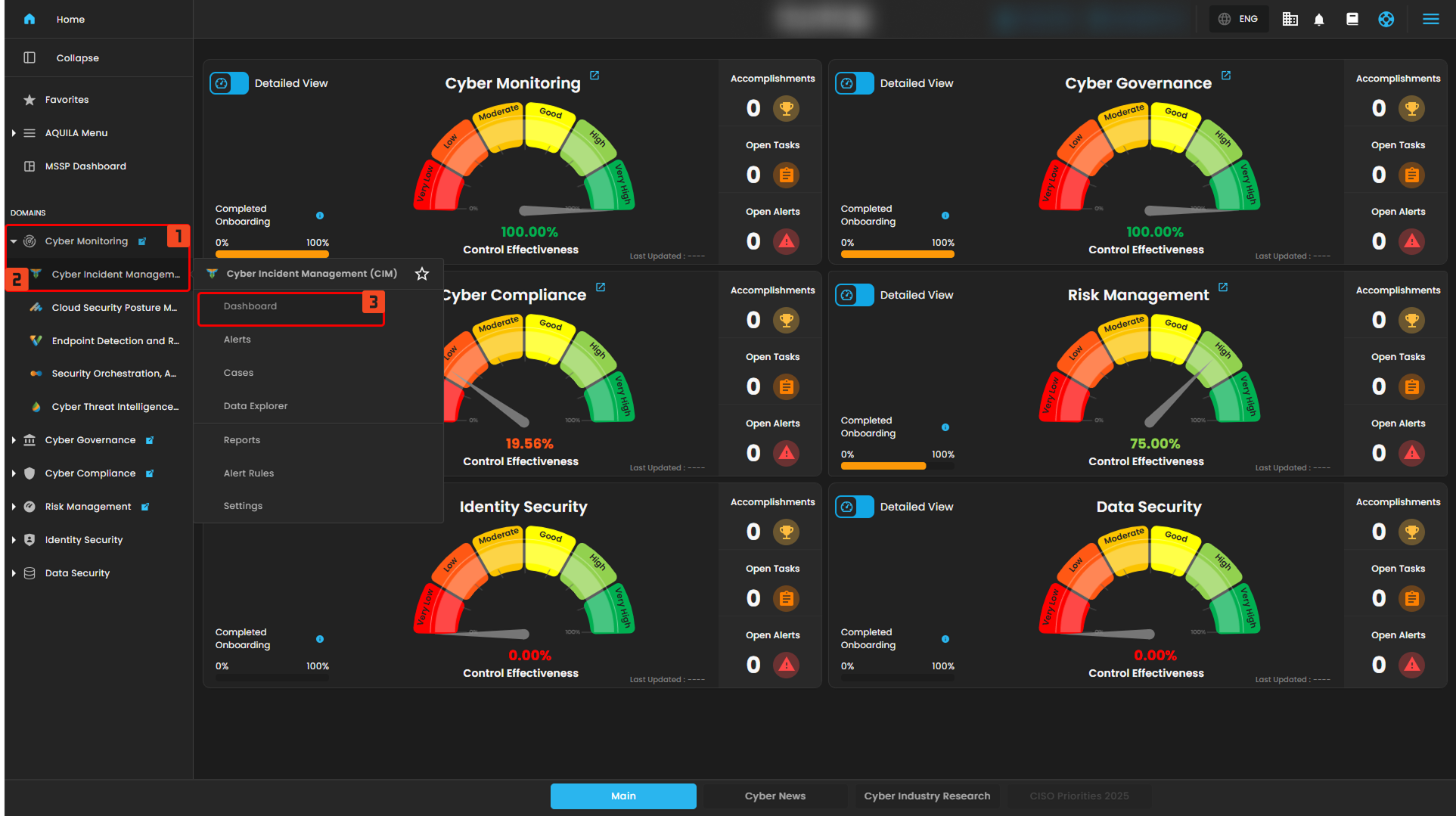
Cyber Incident Management (CIM): Dashboard
The Main Dashboard serves as the central hub for viewing all critical and relevant data associated with this module. It provides a consolidated interface where key metrics, updates, and operational insights are displayed for quick reference and effective monitoring.
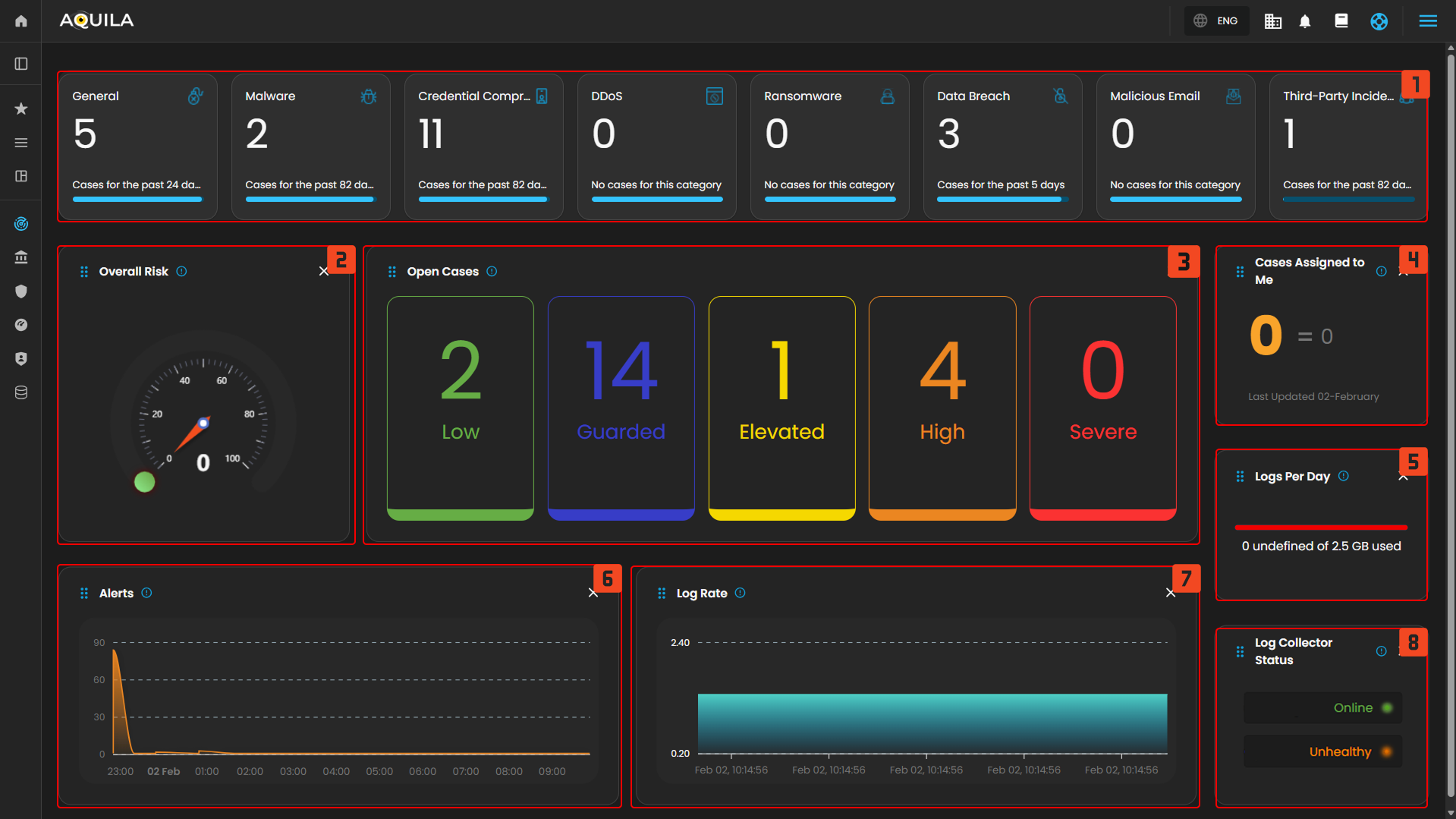
Case Categories
This panel displays and categorizes all cases within your environment that are currently open or in progress. It presents a structured view based on case categories, offering a clear summary of ongoing activity. This allows for efficient tracking, prioritization, and management of active investigations.

Upon selecting a category, a new window will automatically open, displaying all cases associated with the selected category.
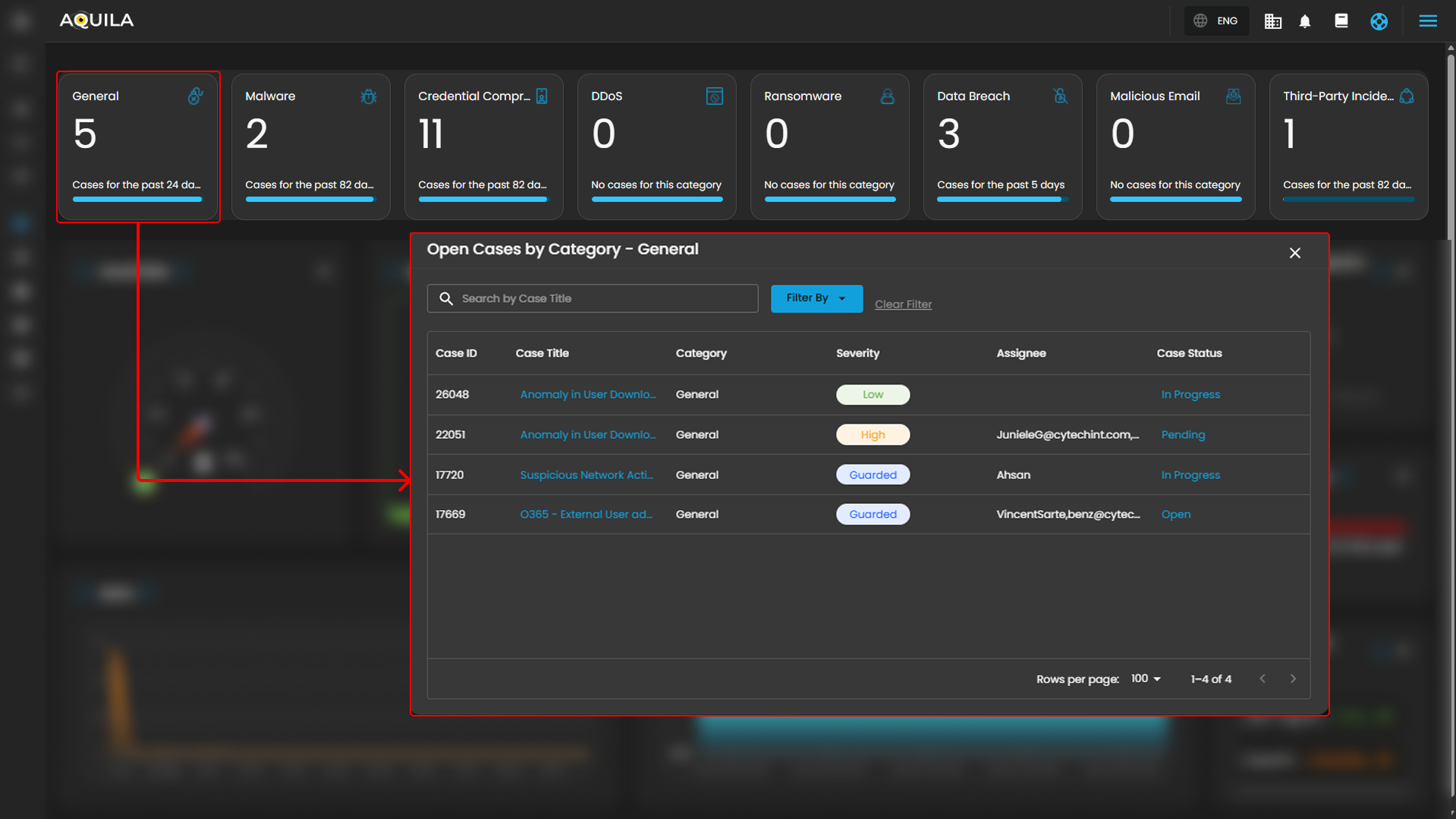
- Search Bar: The search bar enables users to locate a specific case by entering the exact case title. Simply type the desired title into the search field to quickly retrieve relevant results.
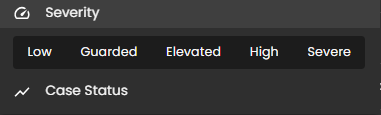
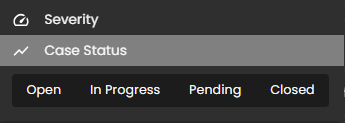
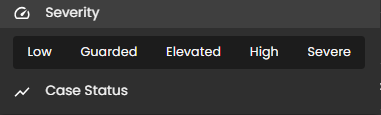
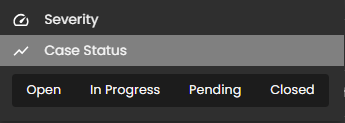
- Filter By & Clear Filter: This feature enables users to refine the list of cases by applying filters based on Severity and Case Status. Use the Filter By option to display only the cases that match specific criteria. To remove all applied filters and return to the full list of cases, use the Clear Filter option.
- Case Details: To access the investigation section of a case, double-click on the case entry. This action will automatically redirect you to the detailed investigation interface for further analysis and review.
Overall Risk
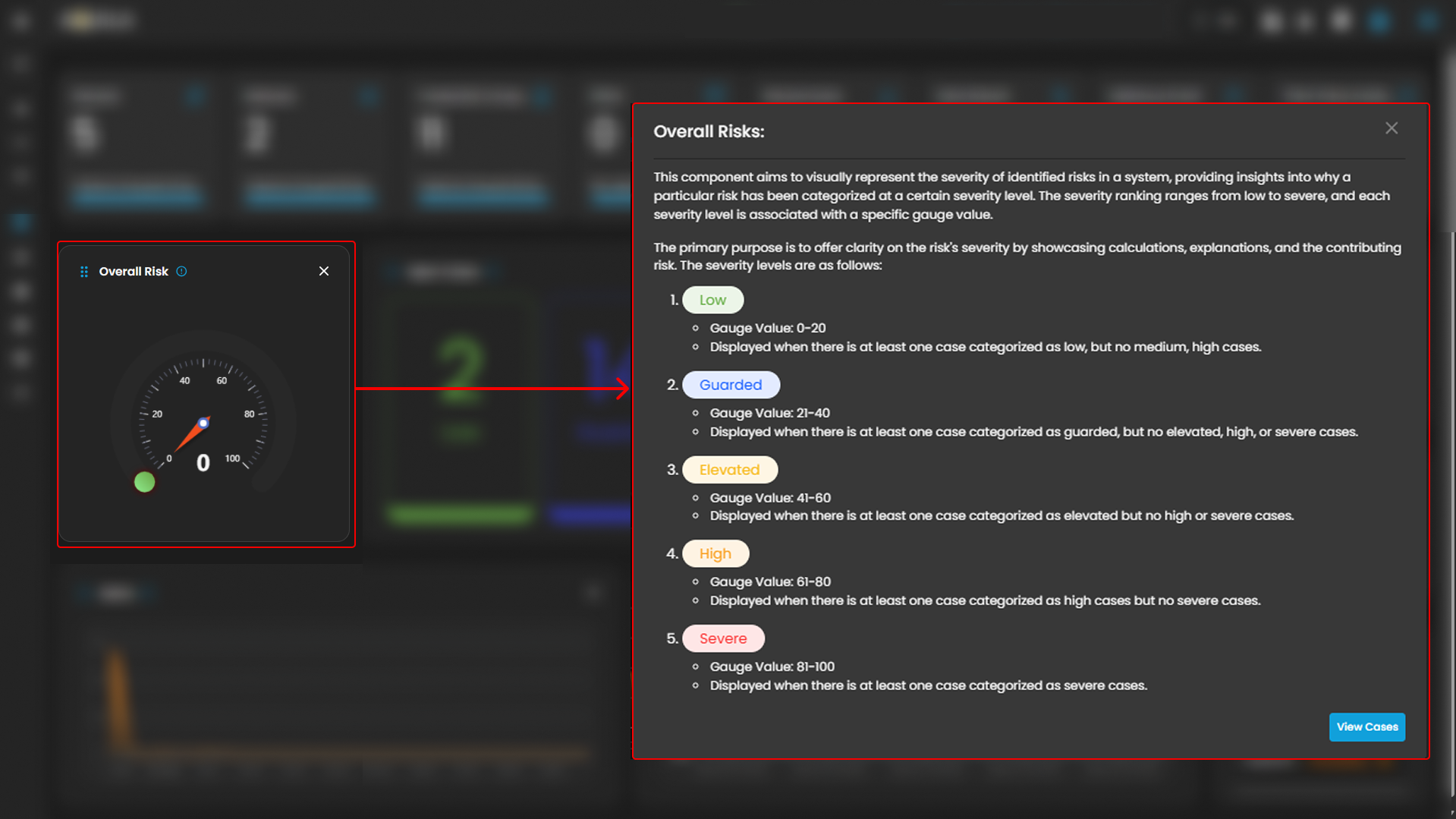
Displays system risk severity levels on a scale from Low to Severe (0 - 100), explaining the rationale behind risk classifications and showing the highest severity level present in the system. Clicking on the gauge allows you to view more details about.
Open Cases
Displays the total number of open cyber incident cases, categorized by severity, that are currently being investigated.
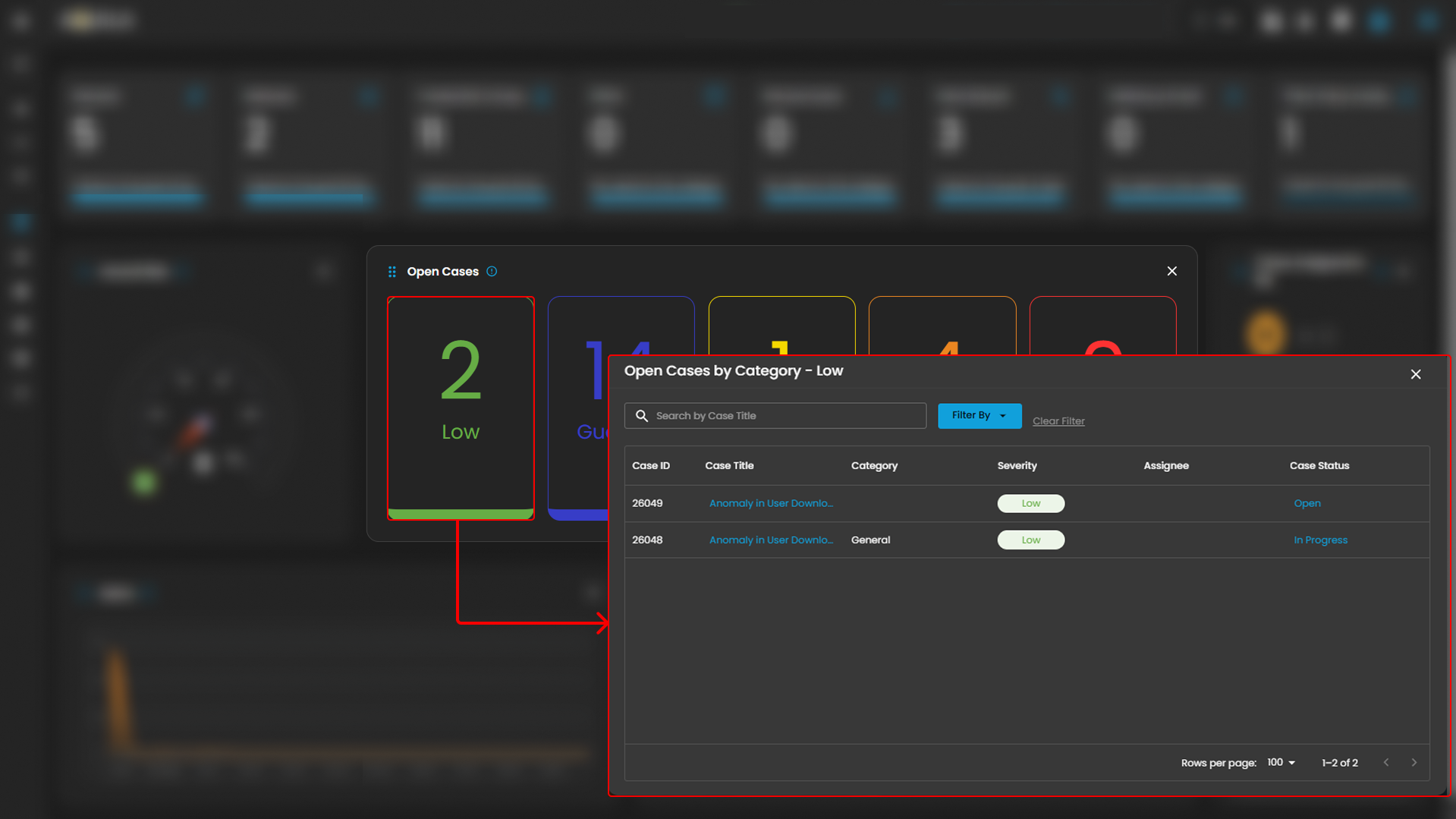
When you click on a category, you will see all the cases that fall under that severity level. For example, as shown in the image above, selecting the “Guarded Severity” category will display all cases labeled as guarded severity.
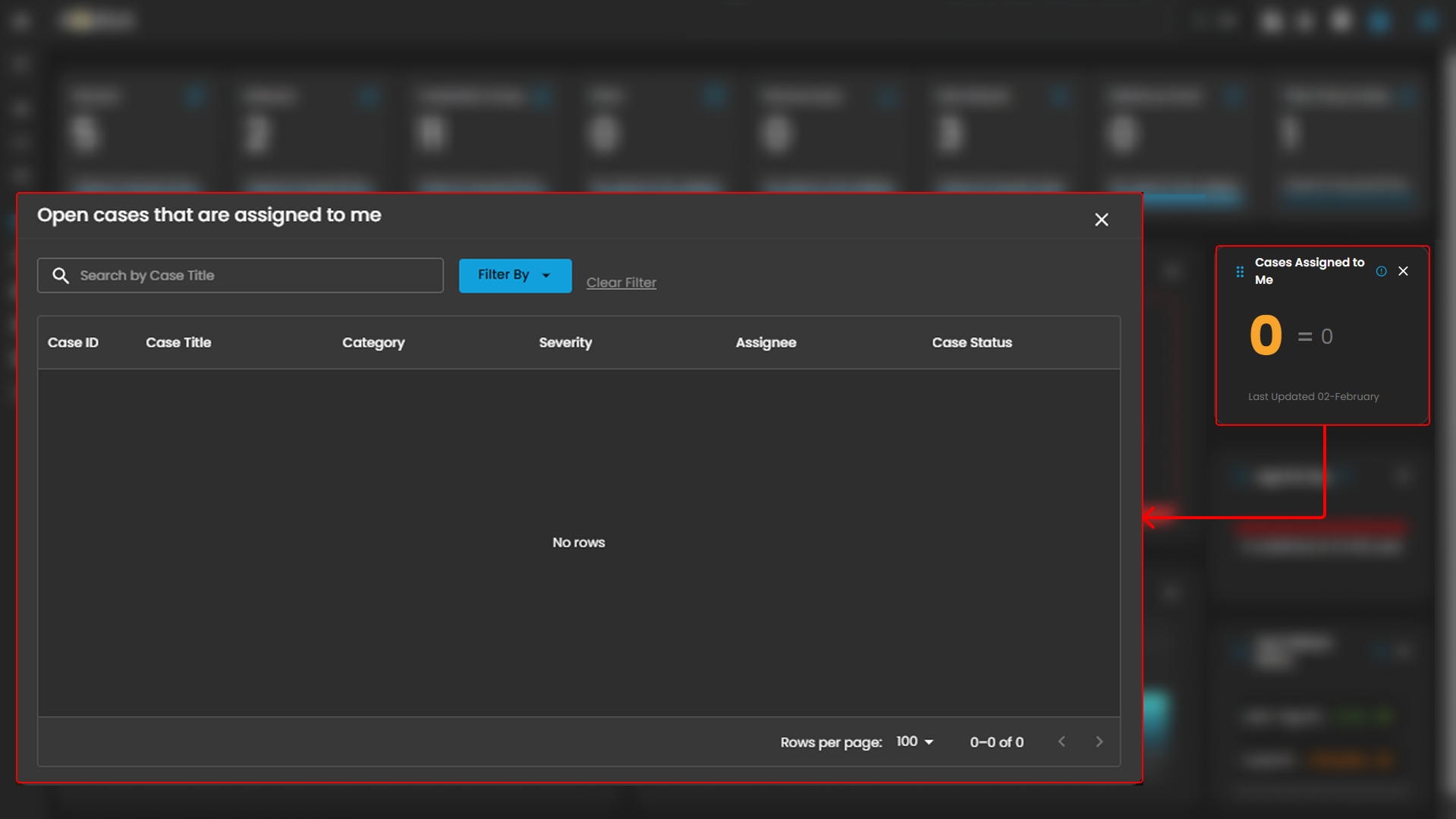
Cases Assigned to Me
Shows the number of cyber incident cases specifically assigned to you for investigation and resolution. Clicking on it will open up a small window that will show all the cases assigned under you.
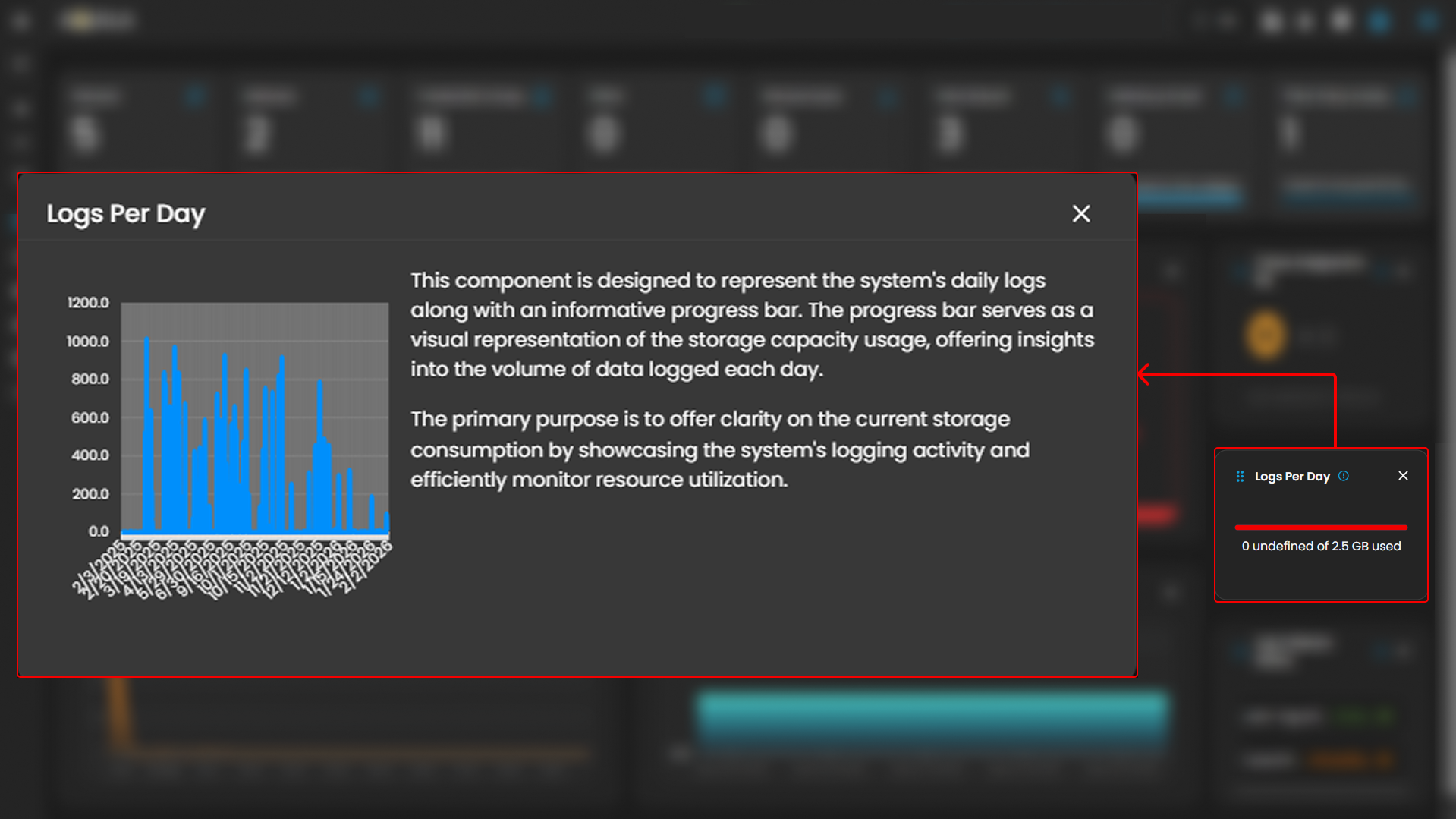
Logs Per Day
Displays daily system logs with a progress bar that tracks storage capacity usage, providing clear insights into daily logging volume and resource consumption.
When you click on it, a small window will appear displaying a graph.
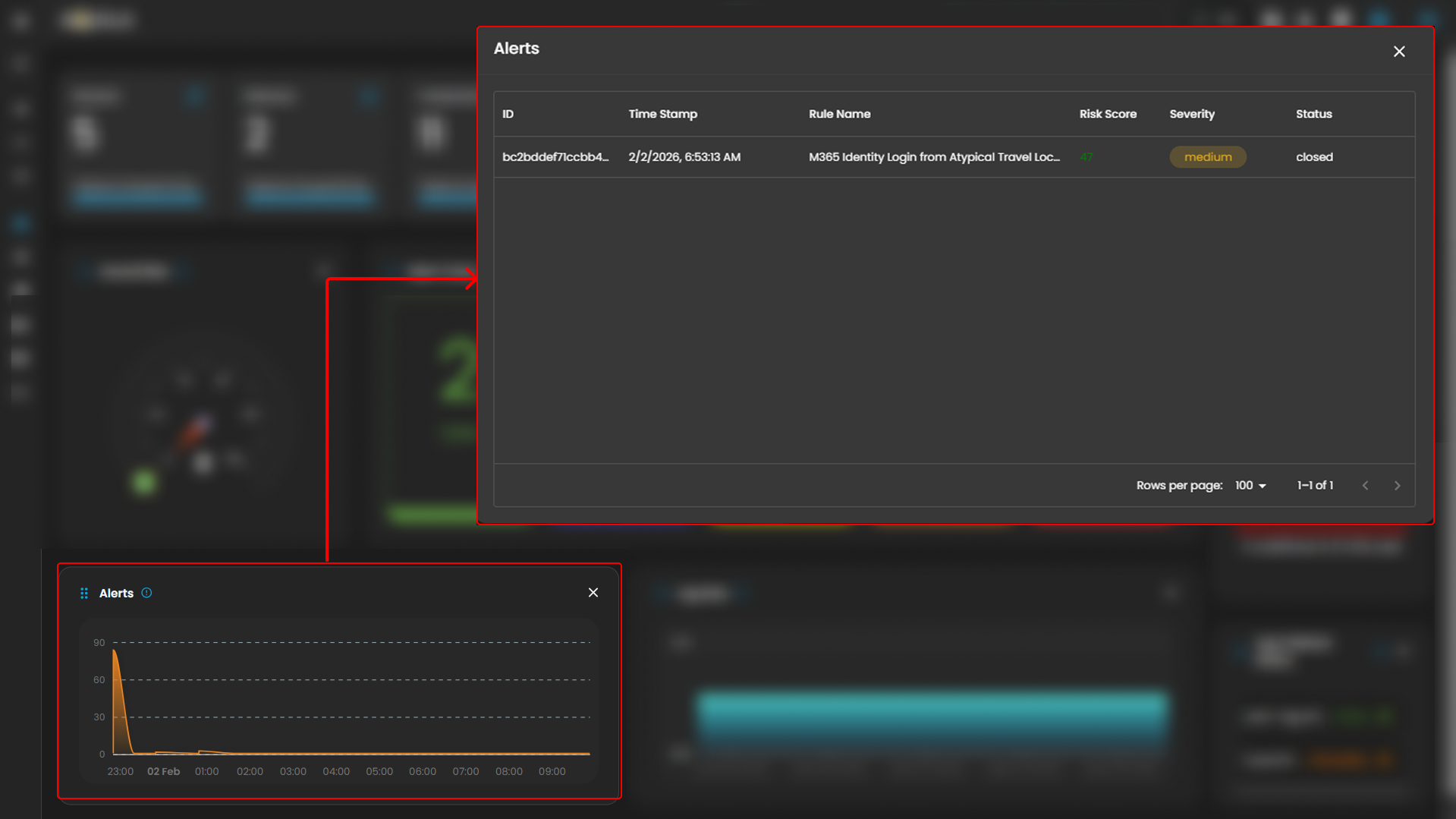
Alerts
Display the trends of the detections generated by the system, highlighting potential security incidents that require immediate attention. Clicking on a timeline will open up a small window that will show all the alerts that was recently triggered.
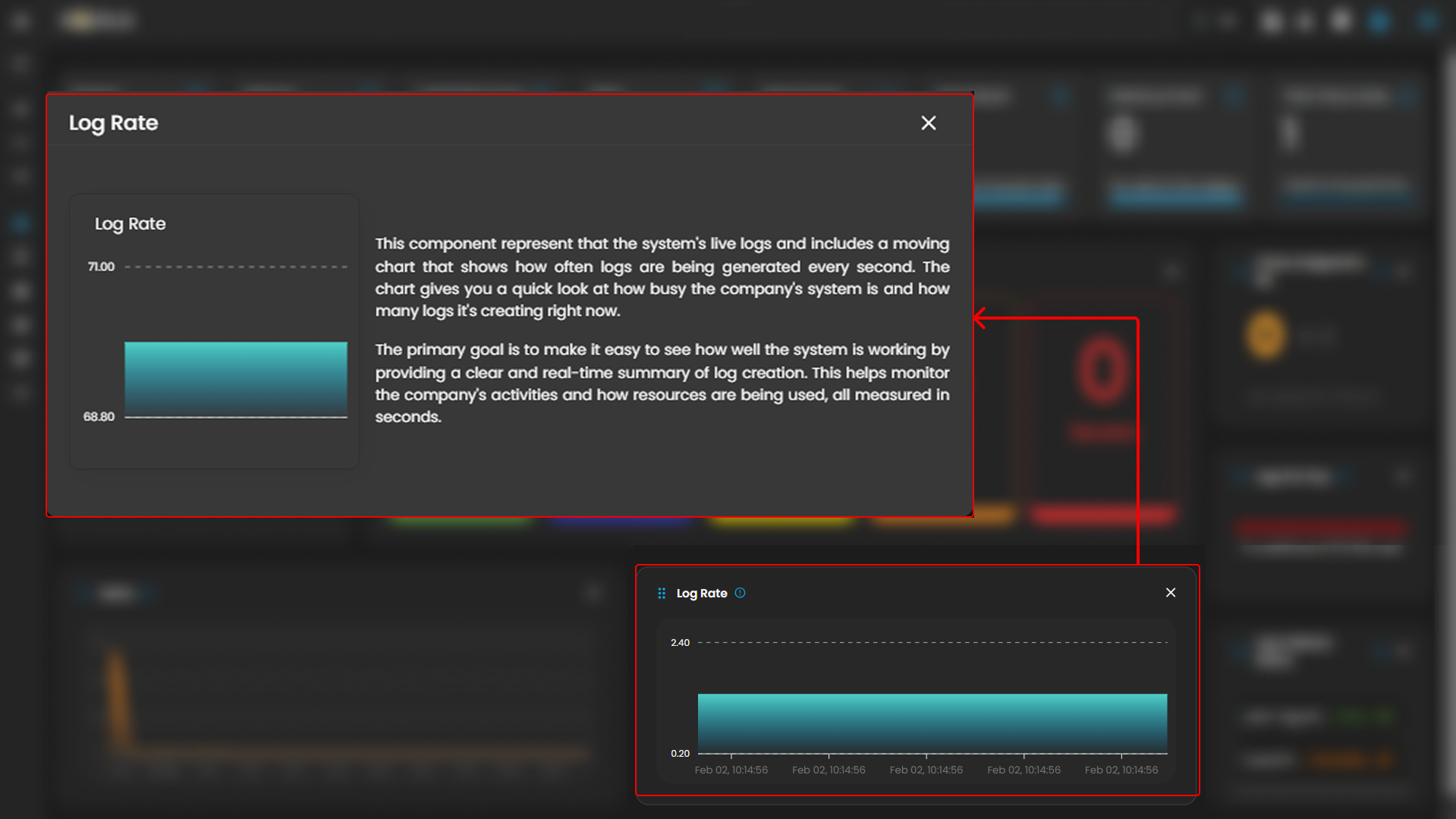
Log Rate
A real-time visualization to display system log generation frequency per second through a dynamic chart, enabling instant monitoring of system activity and resource utilization. Clicking on it will open up a small window that will show the detailed explanation.
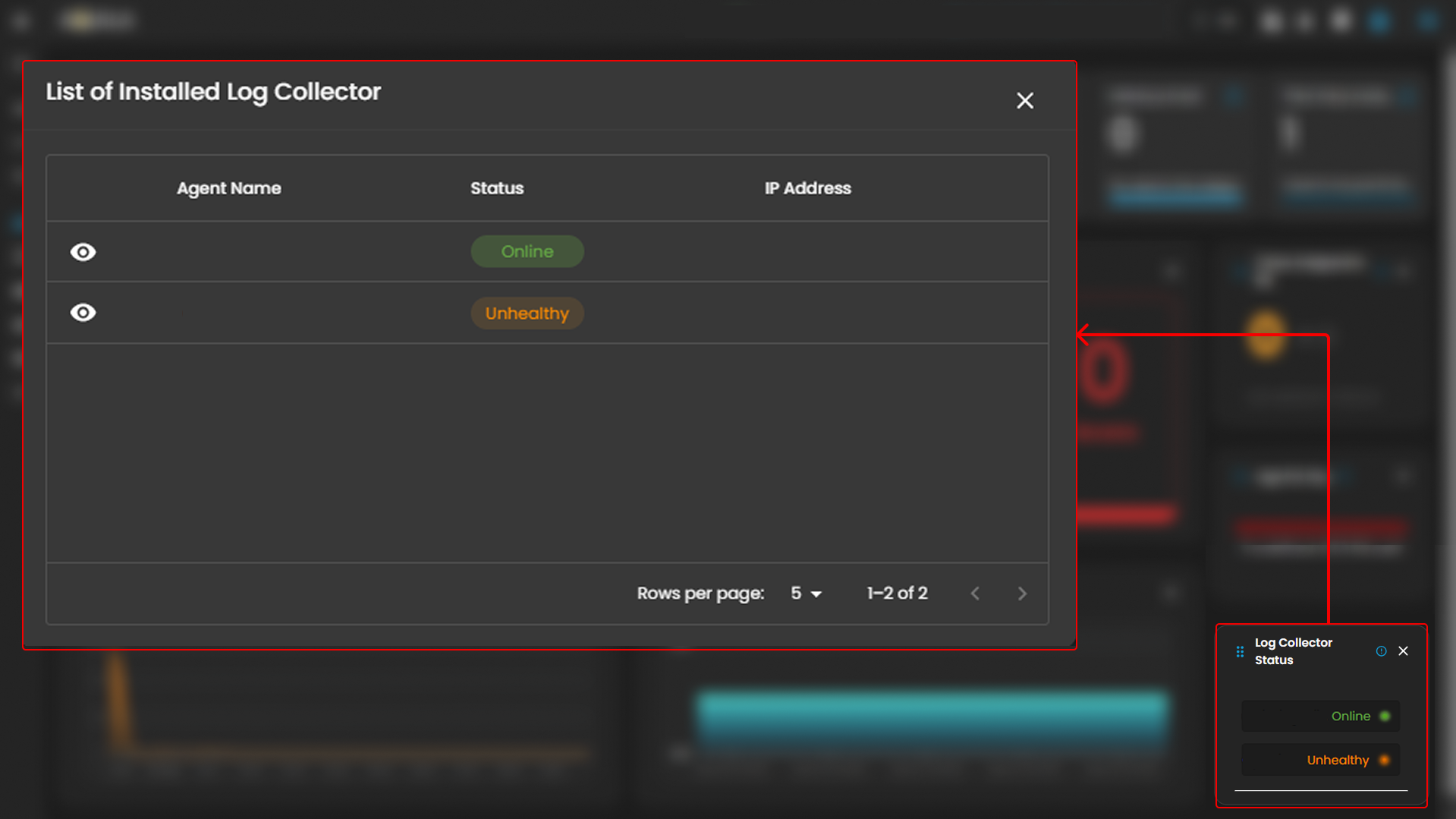
Log Collector Status
Indicates the current status of the log collector, ensuring that logs are being collected and monitored for any suspicious activity.
When you click on it, a small window will appear showing all installed log collectors along with their current status.
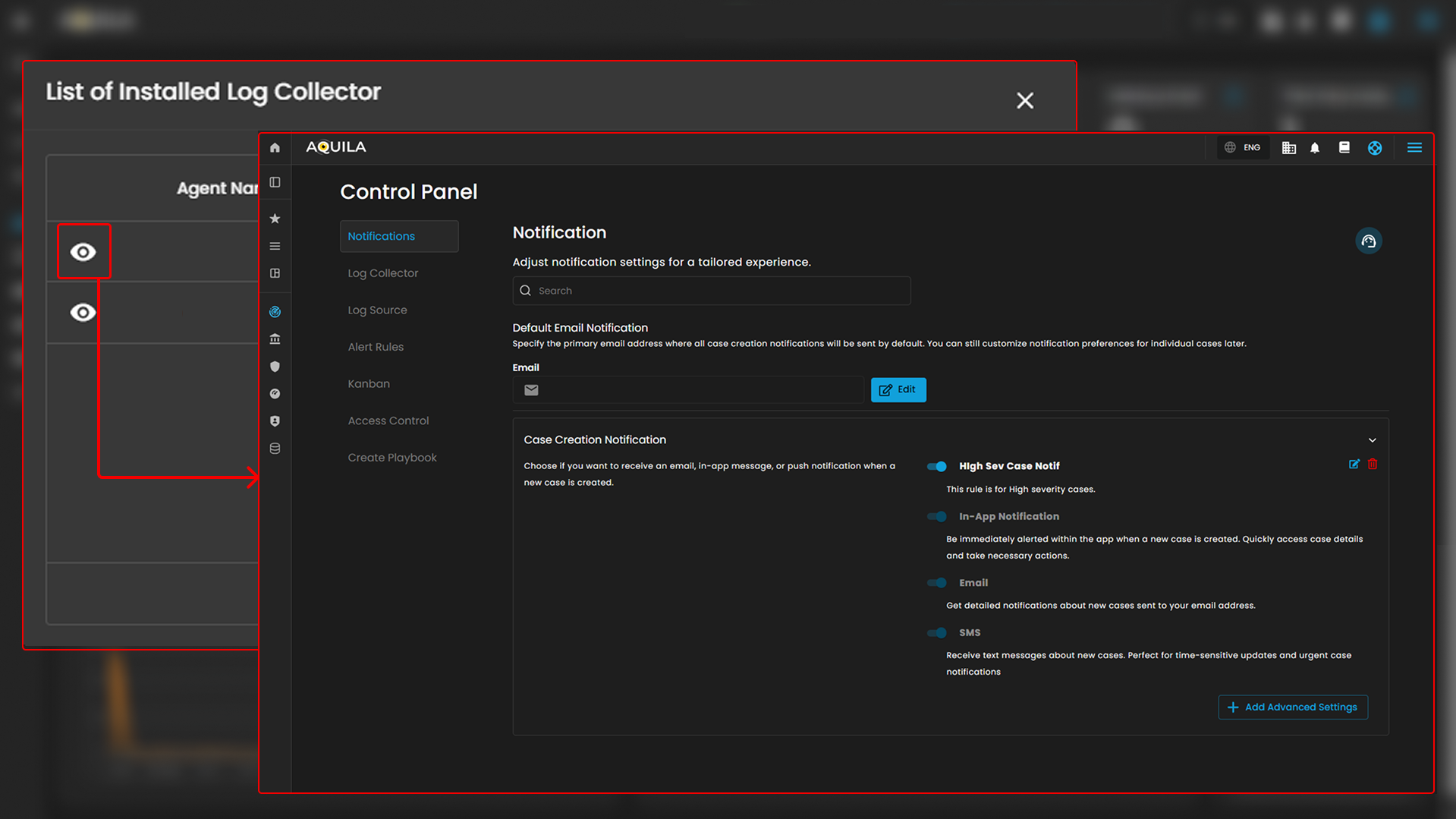
Click the eye icon next to the log collector name to go to the Log Collector List page.
________________________________________________________________________________________________________________________________________________
Cyber Incident Management (CIM): Alerts
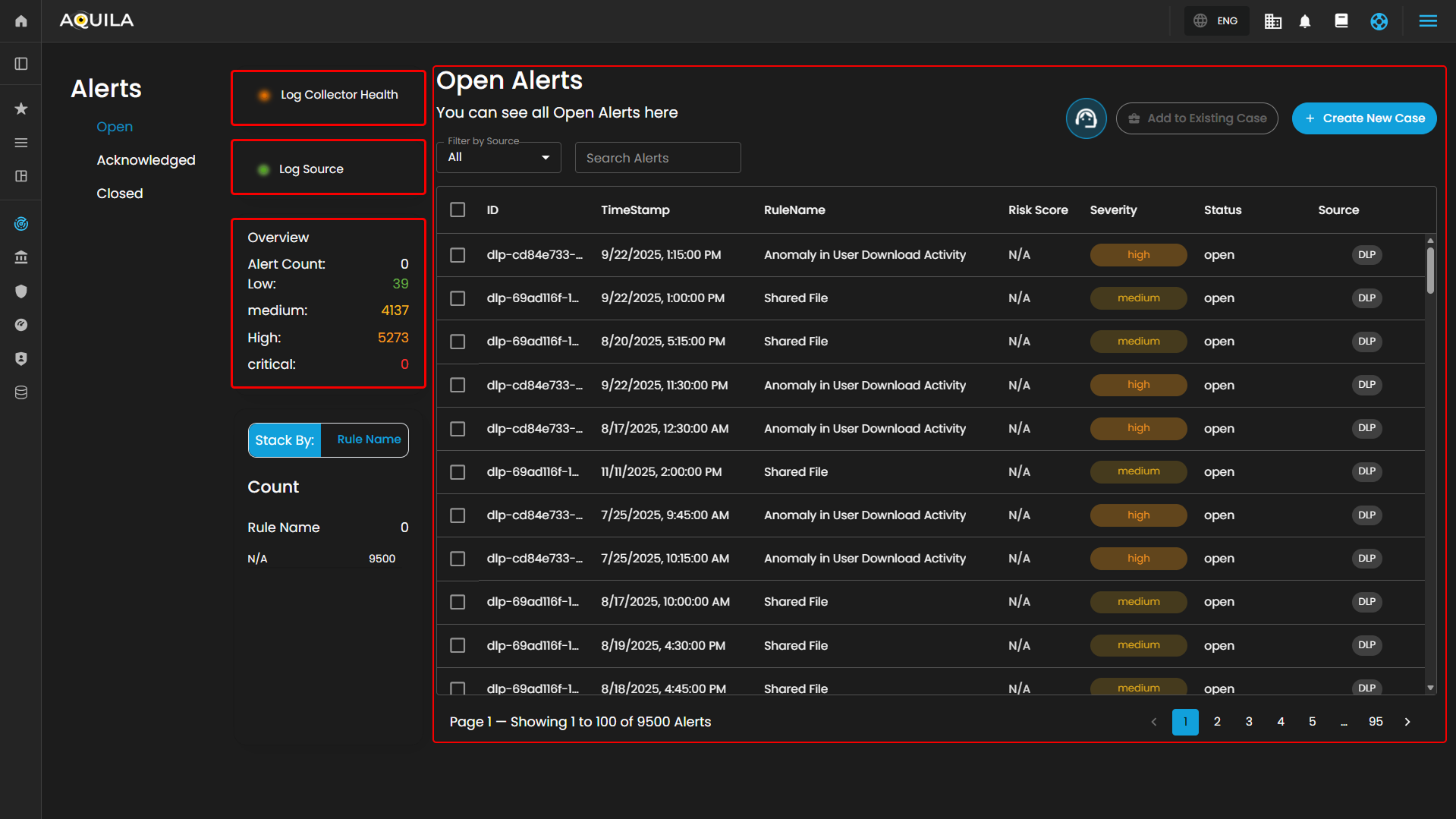
Alerts Dashboard is a tool that provides real-time security alerts and notifications. It provides a unified view of different types of alerts, categorizing them by severity and type, and displays critical details such as the source of the alert, affected assets, and relevant information. This dashboard enables security teams to quickly assess, prioritize, and respond to potential threats by offering comprehensive insights and plays a crucial role in enhancing situational awareness and streamlining the incident response process.
Alerts Status Types
Open Alerts: Alerts awaiting assignment to an analyst for further investigation.
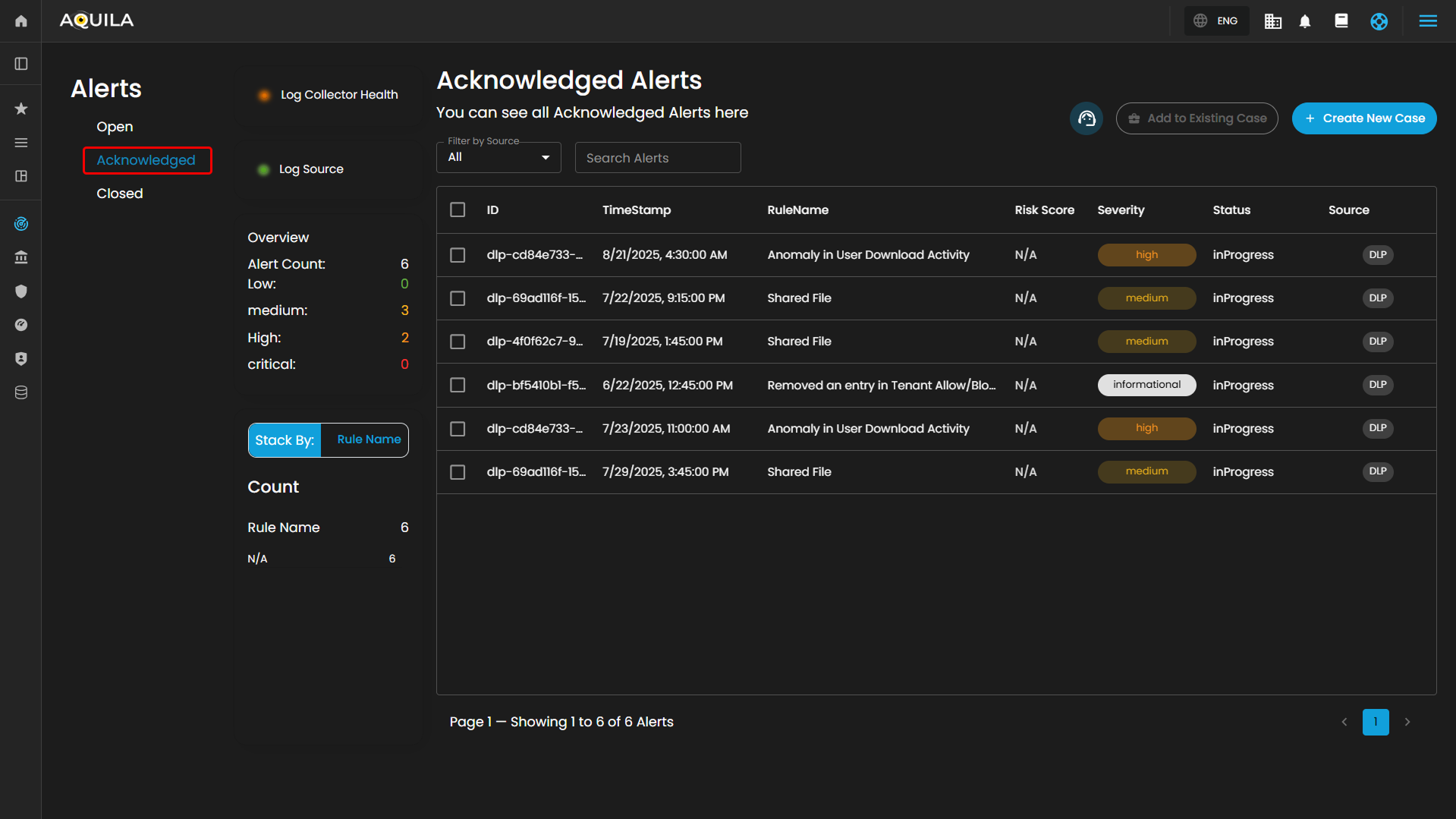
Acknowledged Alerts: Alerts currently in progress and assigned to an analyst for resolution.
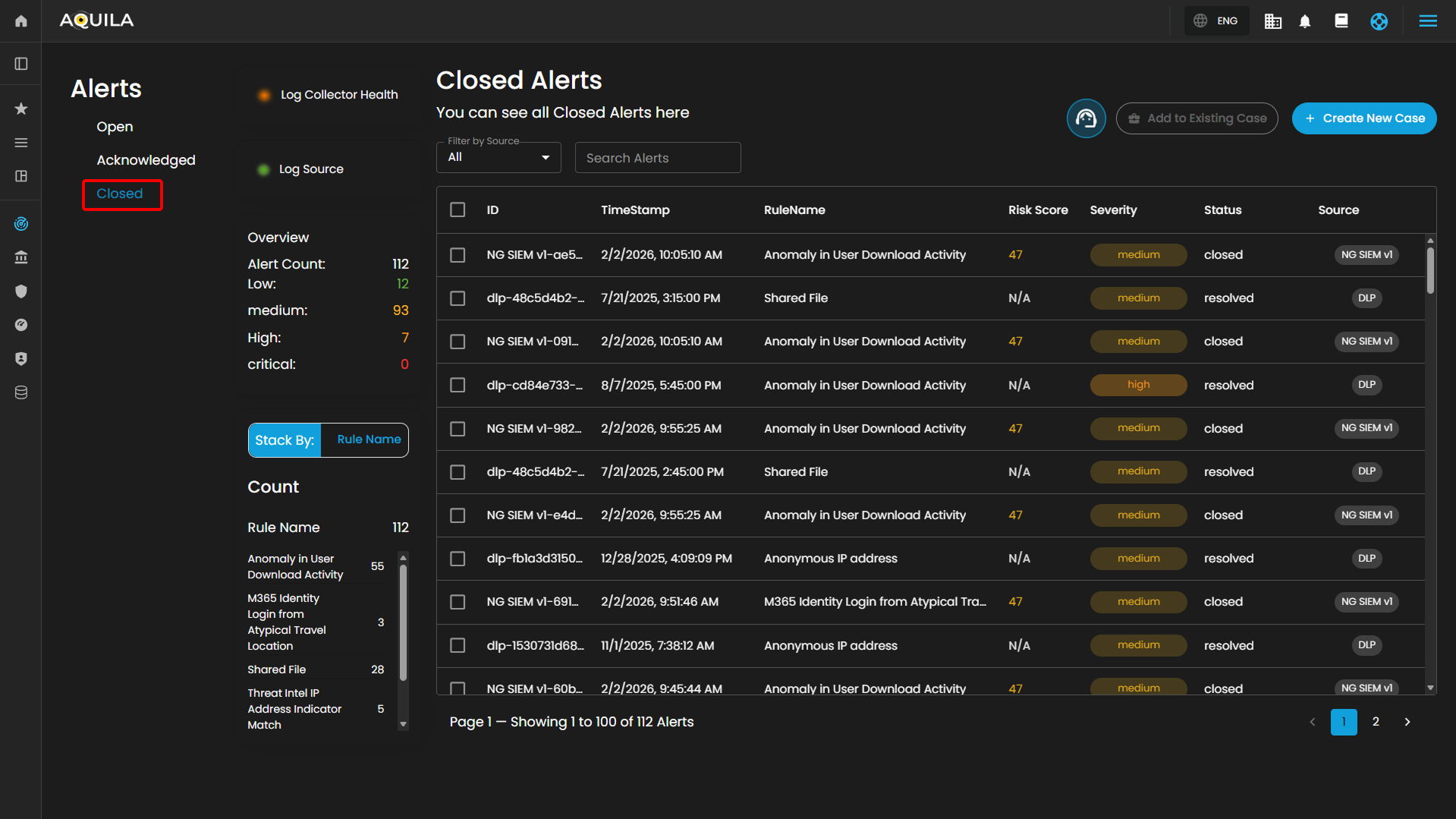
Closed Alerts: Alerts that have been successfully resolved and closed.
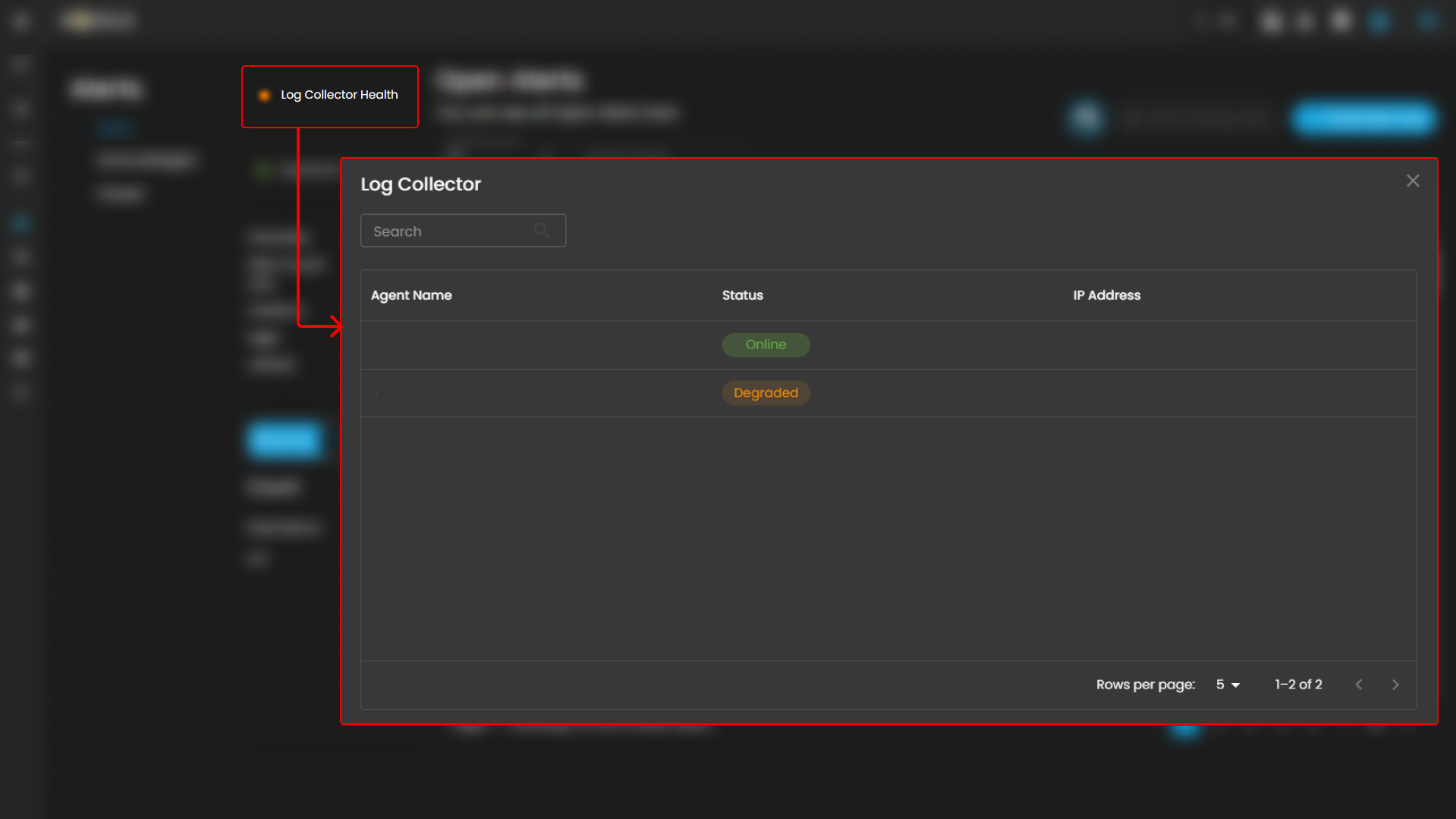
Log Collector Health
Indicates the current status of the log collector, ensuring that logs are being collected and monitored for any suspicious activity.
When you click on it, a small window will appear showing all installed log collectors along with their current status.
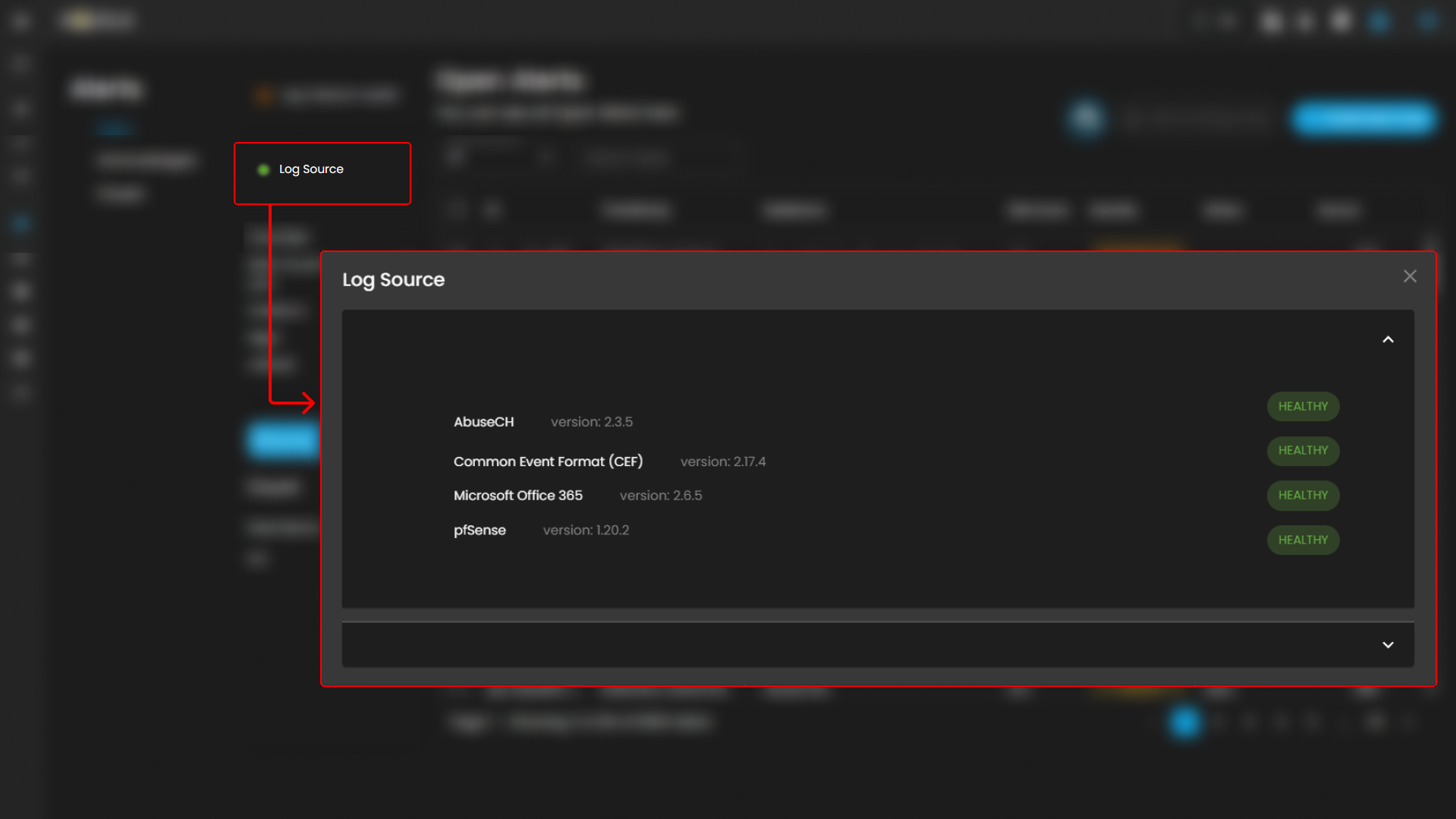
Log Source
These are the various systems, applications, or devices that generate data sent into AQUILA for indexing, storage, and analysis. These sources provide visibility across infrastructure, applications, and security operations.
When selected, a dialog window is displayed showing all installed log collectors. You can switch between collectors to view the integrated log sources associated with each one, along with their respective versions and current status, including whether log ingestion is functioning properly.
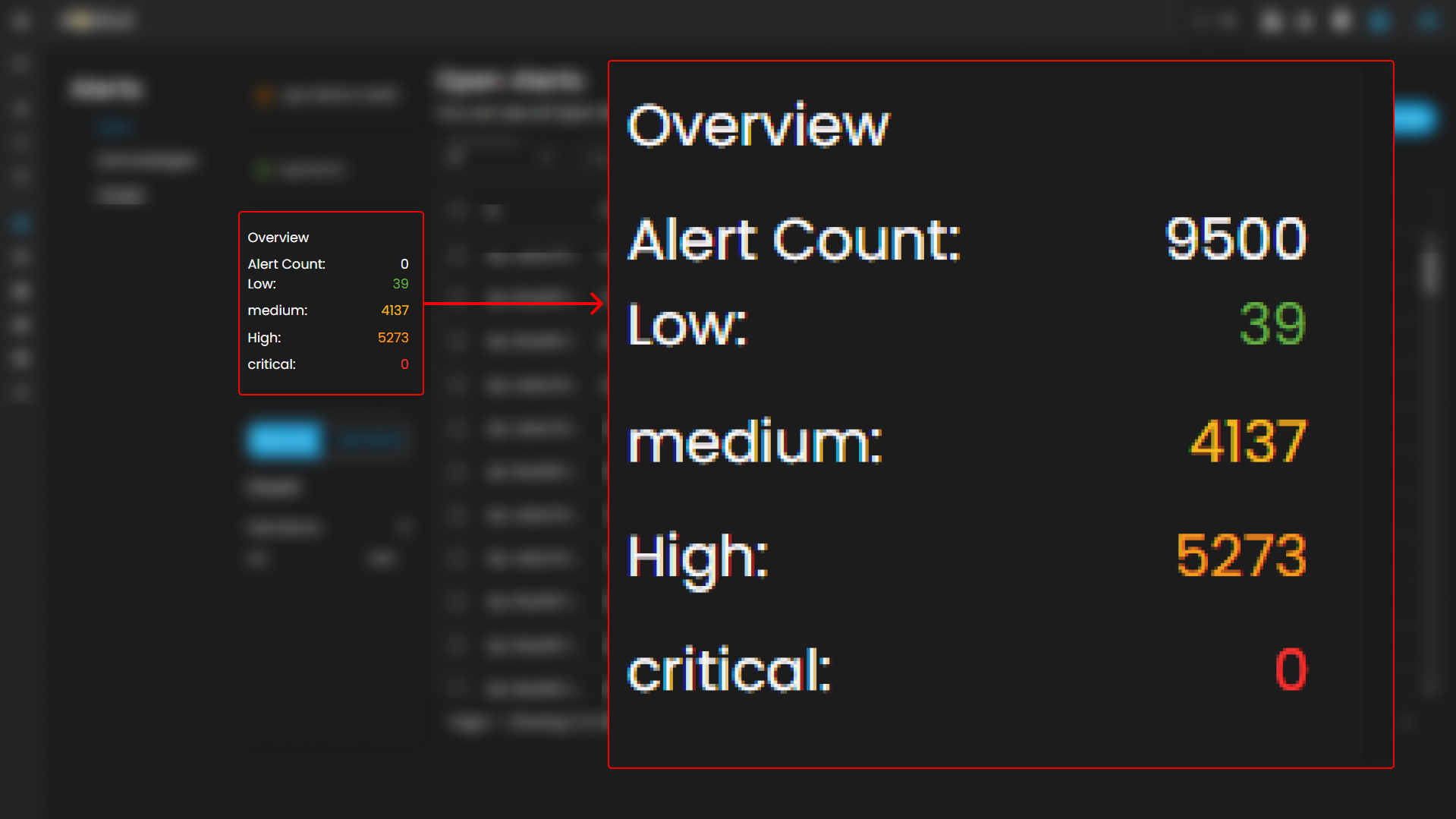
Overview
It provides an overview of alert counts categorized by status type, including the total number of alerts and their distribution across severity levels.
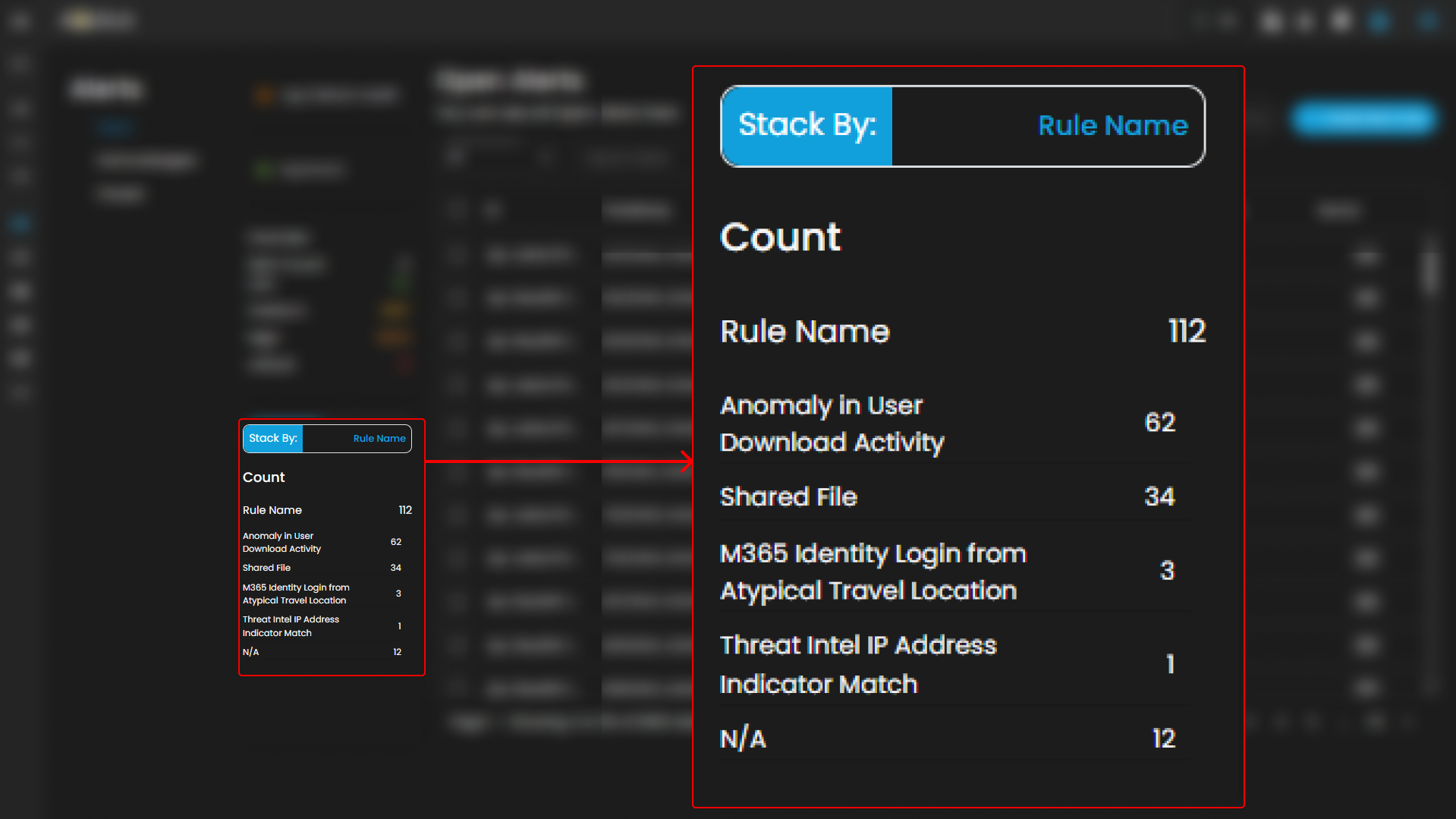
Stack By Rule Name
This view displays a summary of alerts grouped by their corresponding detection rules. At the top of the panel, the total number of alerts is presented. Below this, each rule is listed alongside the count of alerts it has generated. Users can scroll through the list to view additional rules when the number of entries exceeds the visible space. This view enables quick identification of which detection rules are generating the highest volume of alerts, supporting prioritization and investigation activities.
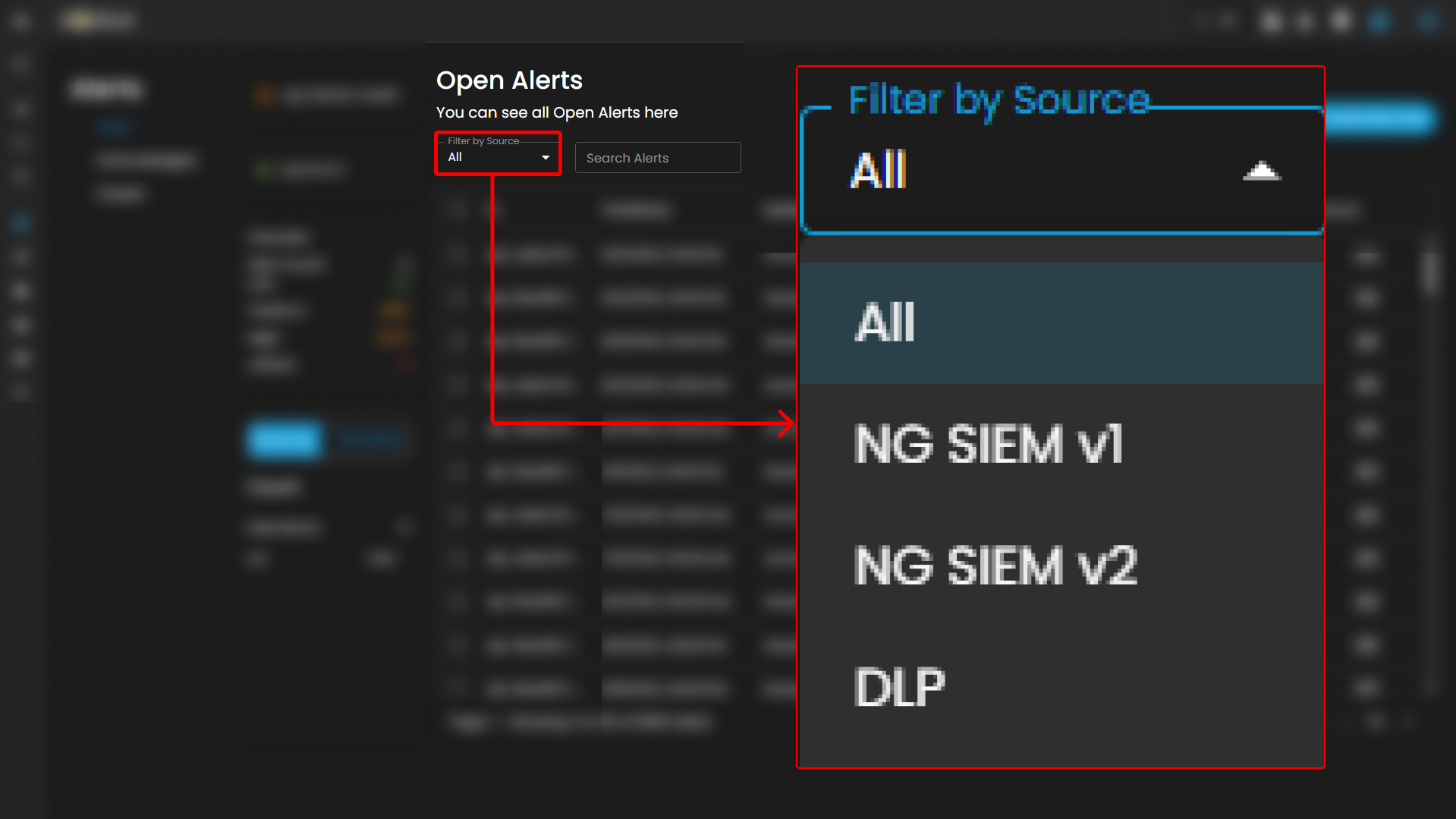
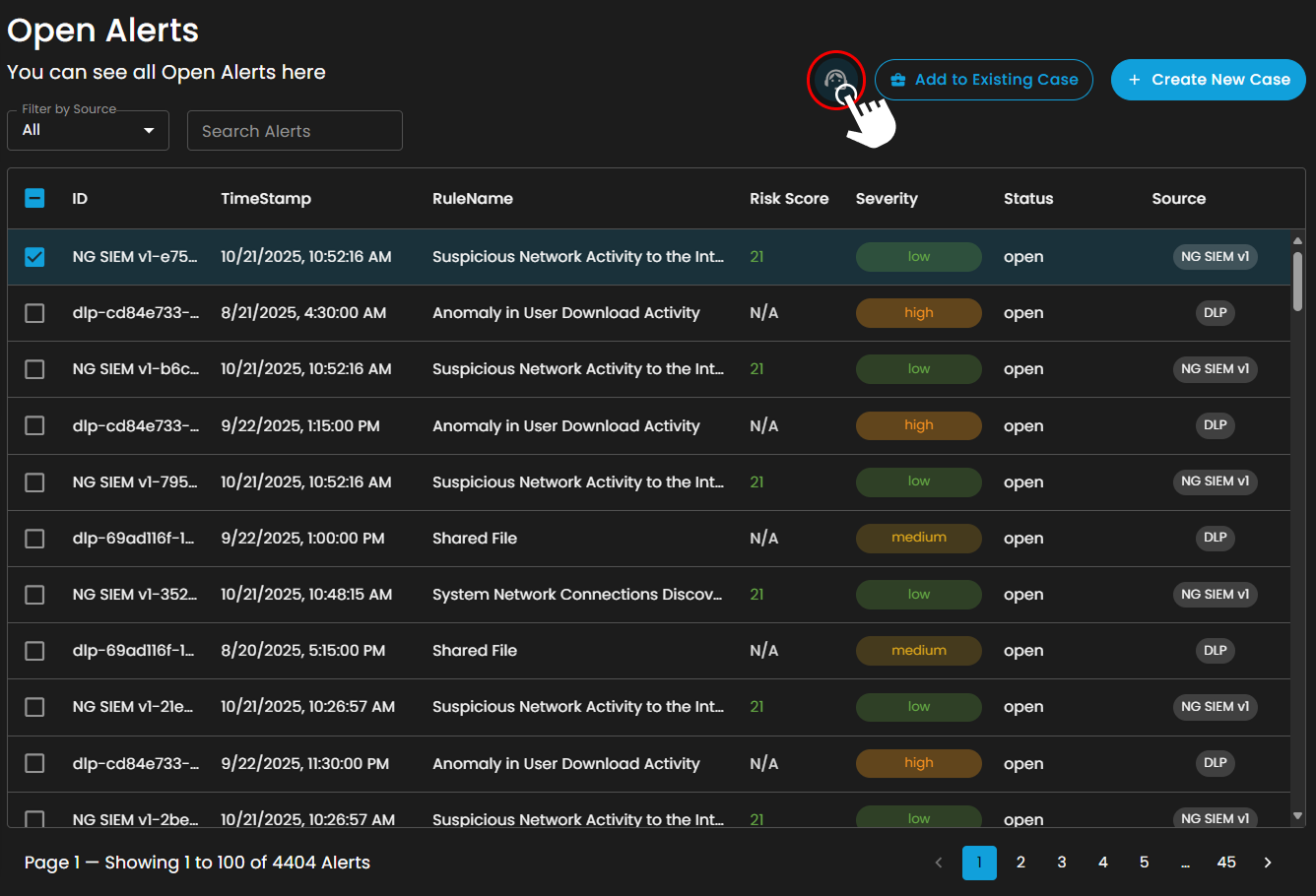
Filter by Source and Search box
Filter by Source: This dropdown menu allows users to filter alerts based on their originating source. Selecting a specific source will limit the displayed alerts to only those generated by the chosen system or log source, while the default All option displays alerts from every available source.
Search Alerts: This text-based search field enables users to query alerts by keywords, rule names, IDs, or other relevant attributes. Entering a search term dynamically filters the alert list, allowing users to quickly identify and focus on alerts of interest.
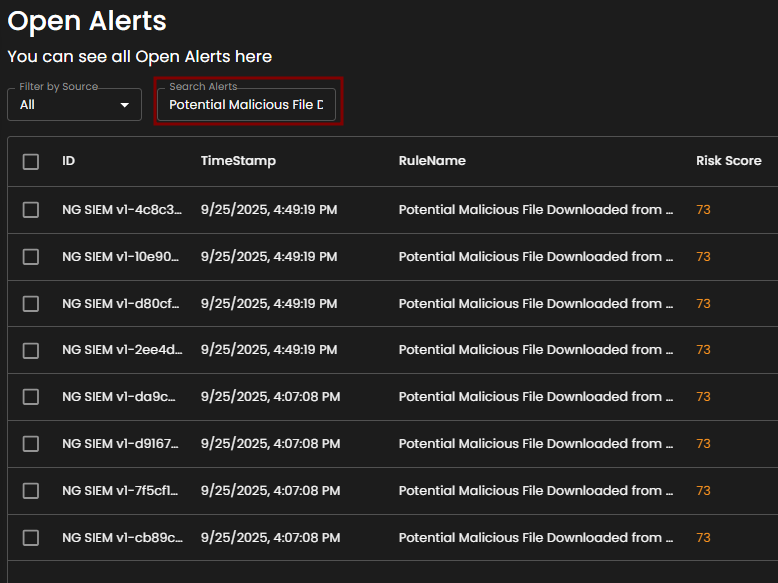
Alerts Information
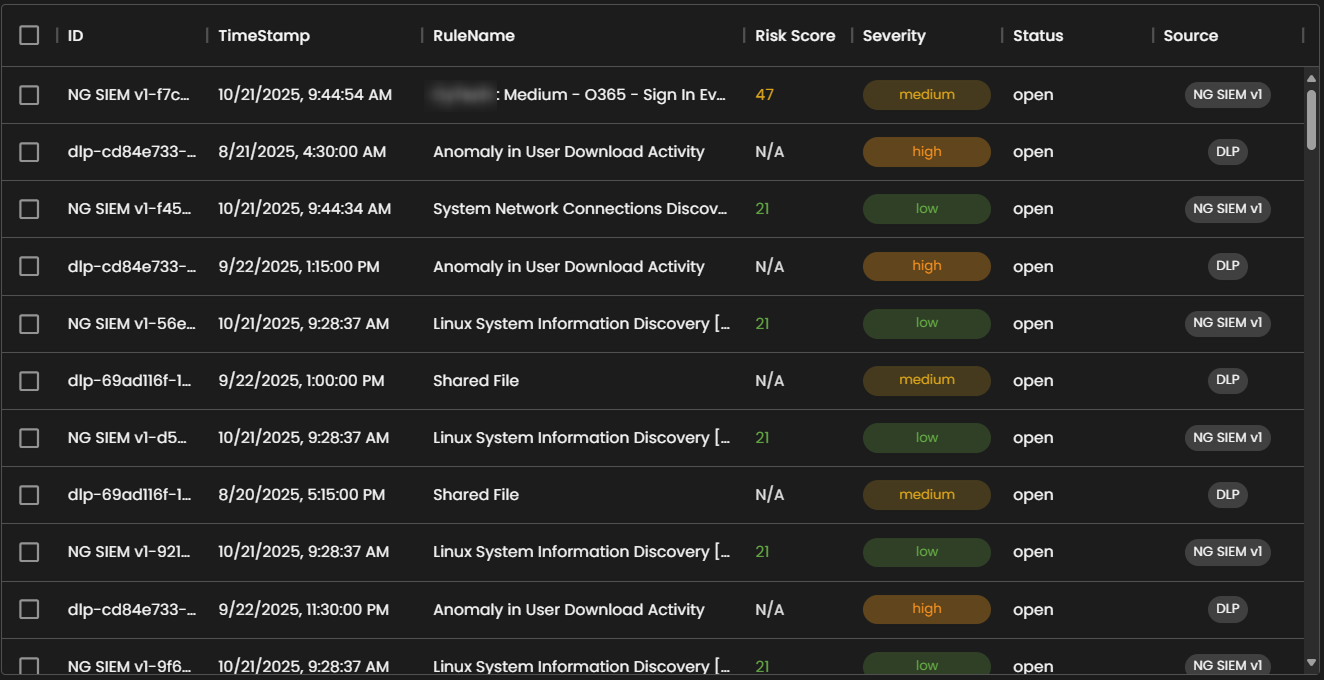
Alerts Table provides a detailed view of all alerts, organized in a tabular format for efficient monitoring and analysis. Each entry contains the following fields:
-
ID: A unique identifier automatically assigned to each alert.
-
Timestamp: The date and time the alert was generated, displayed in a standardized format.
-
Rule Name: The detection rule that triggered the alert, enabling correlation with specific monitoring logic.
-
Risk Score: A numerical value representing the assessed risk level of the alert.
-
Severity: The severity classification (e.g., low, medium, high, critical) that contextualizes the potential impact of the event.
-
Status: The current workflow state of the alert (e.g., open, acknowledged, closed).
-
Source: The originating source of logs that produced the alert.
The table supports pagination to manage larger datasets, with navigation controls located at the bottom of the view. This ensures users can efficiently browse and review alerts when the total number exceeds the displayed entries per page.
Create a Case
Case Creation involves initiating a new incident case when a security alert is detected. This process includes documenting key details about the alert, categorizing and prioritizing the case based on its severity and impact, and tracking all investigation and response activities. By creating a case, security teams can organize and manage the incident comprehensively, ensuring that all related actions and communications are centralized, which facilitates effective resolution and improves overall incident handling.
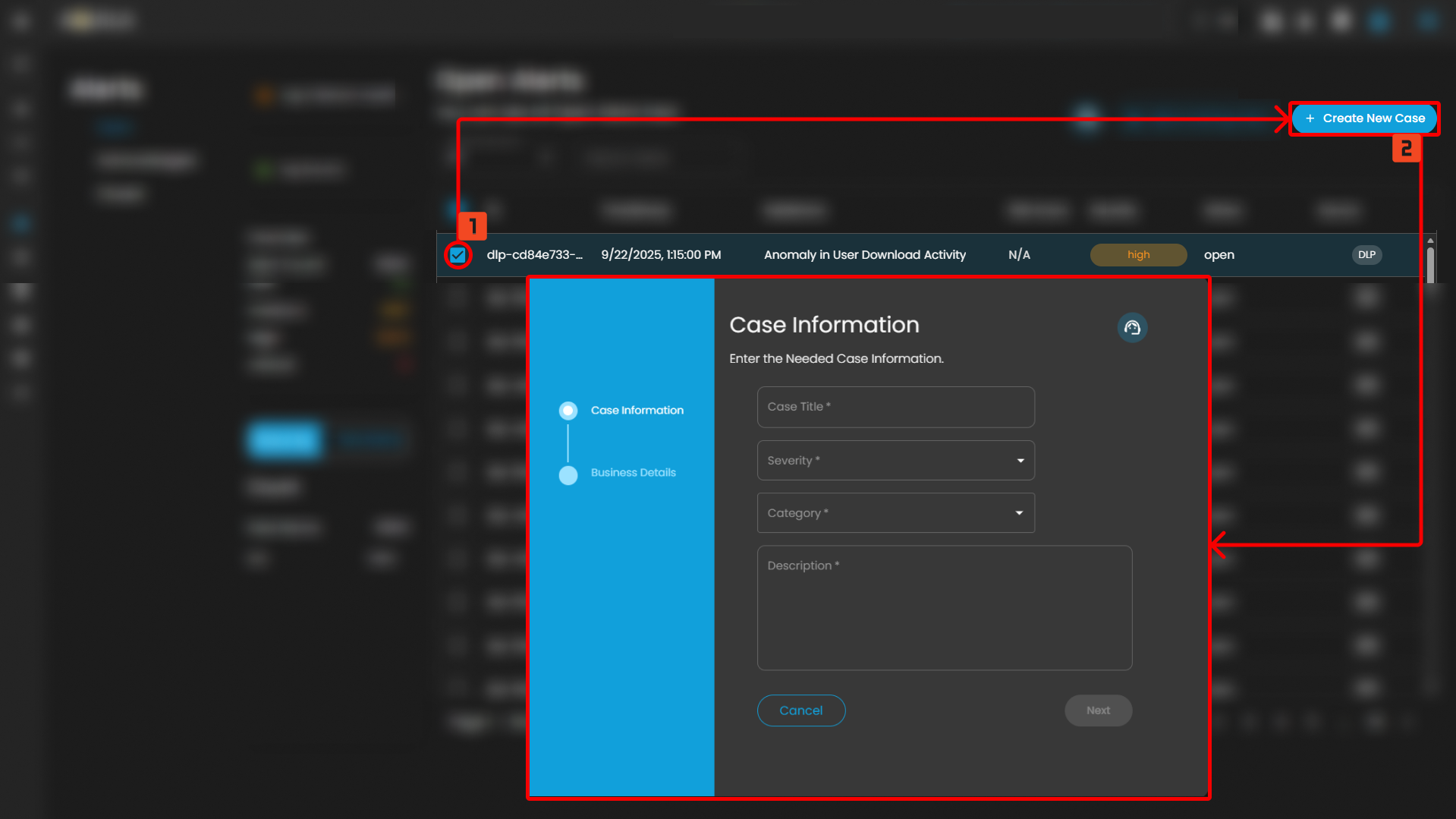
To create a case, you can opt to choose either to create a case from the Alerts Dashboard or the Case Management Dashboard.
To create a case:
- Select an alert
- Click the create new case button as shown below
Doing so will show a modal where information is required to create a case for investigation
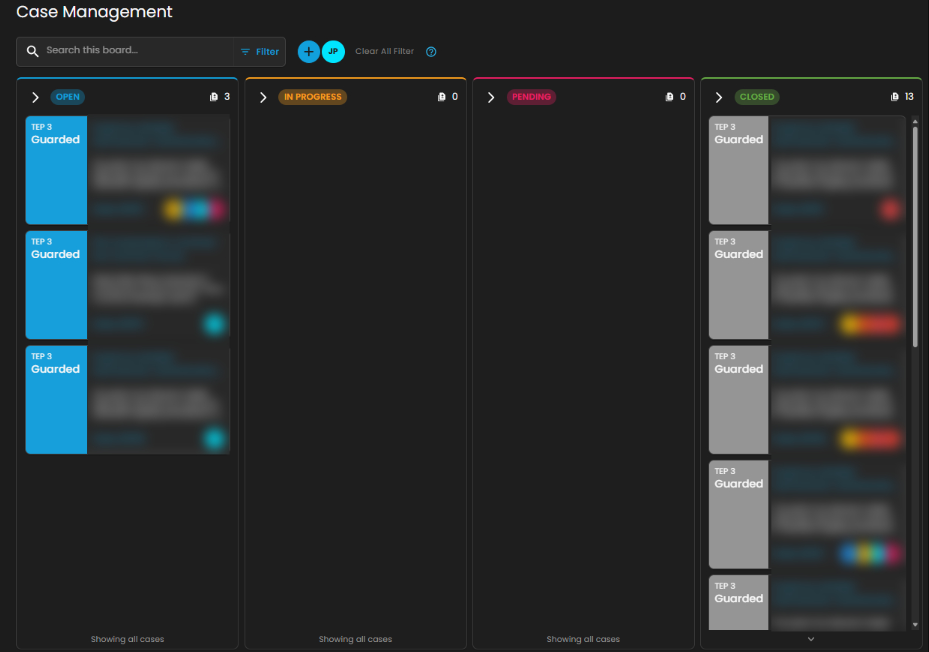
Once a case has been successfully created, it will show in the Case Management Dashboard as shown below.
Add Alerts to an Existing Case
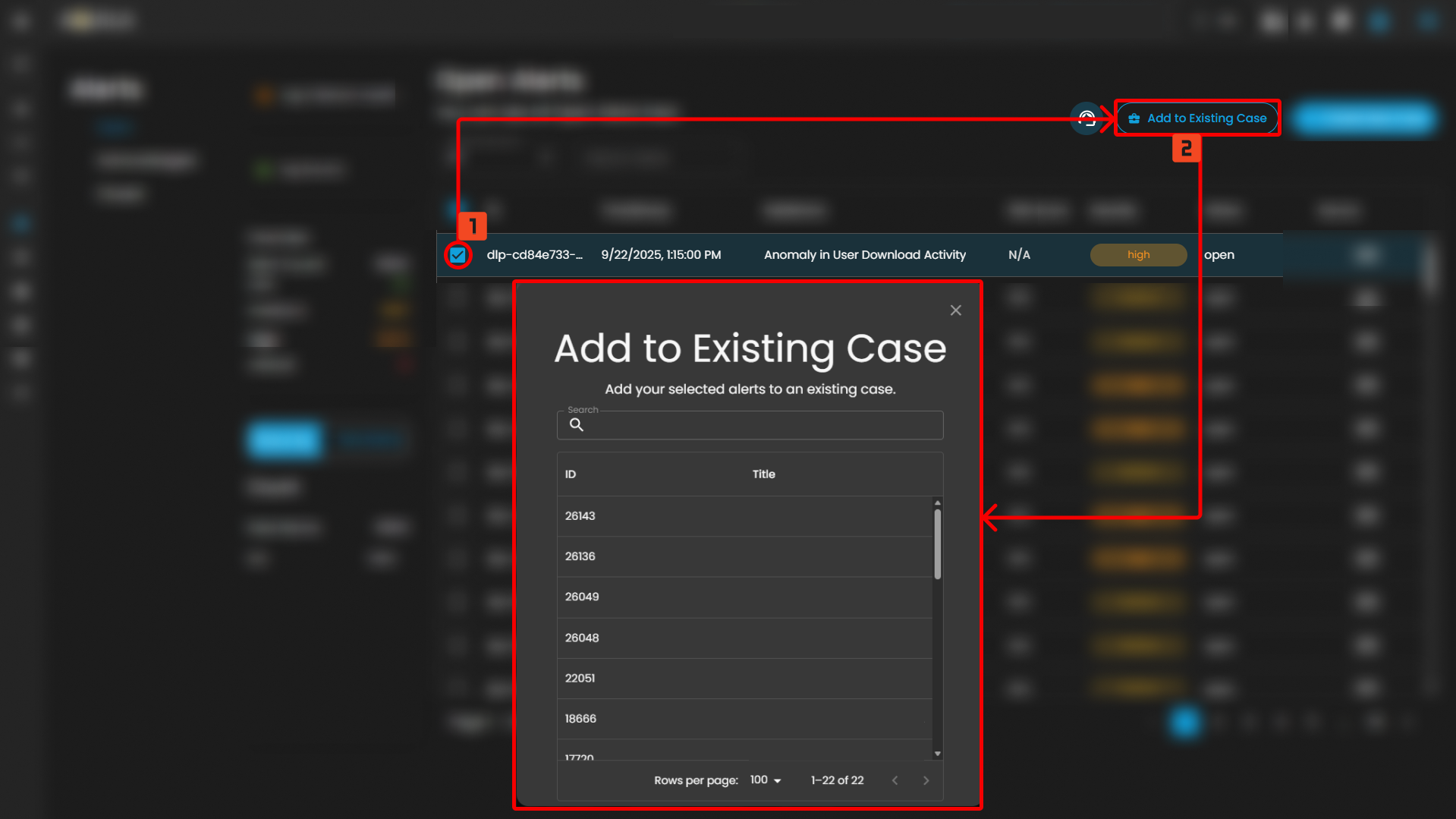
This feature allows security teams to associate a new alert with an ongoing or previously created incident case. By adding a new alert to an existing case, teams can streamline their investigation and response efforts, correlate related data, and avoid duplicating efforts.
Steps to take:
- To add to an existing case, navigate to the Alerts Dashboard
- Select an alert and click the add to existing case button as shown below
- Select which existing case is relevant to the alert to add it as an existing case.
Support Assistance
-
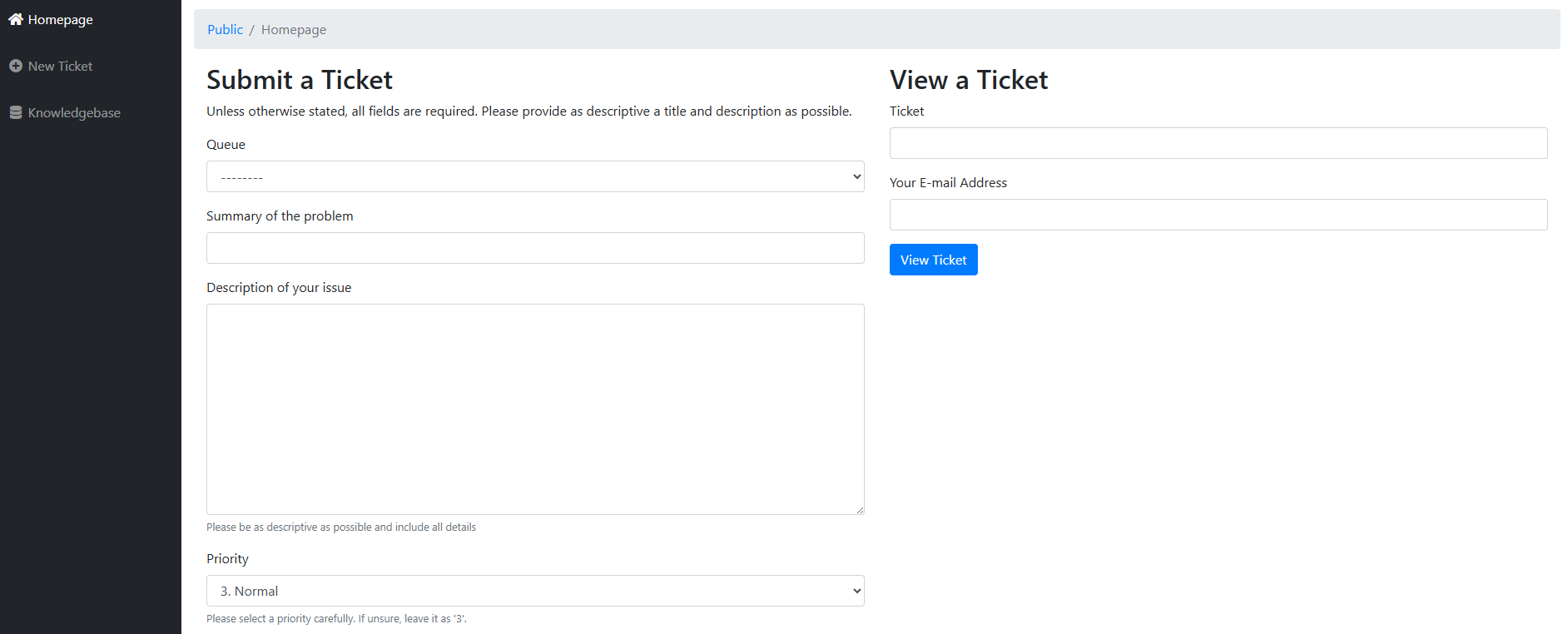
Submit a Request: Clients may create and submit a new support request or error report by providing the necessary details regarding the issue encountered.
-
Search Existing Tickets: Clients can query and review tickets they have previously submitted, allowing them to track the status and resolution progress of ongoing requests.
This feature ensures that users can promptly report errors and access updates on existing support cases without leaving the Alerts interface.
________________________________________________________________________________________________________________________________________________
Cyber Incident Management (CIM): Cases
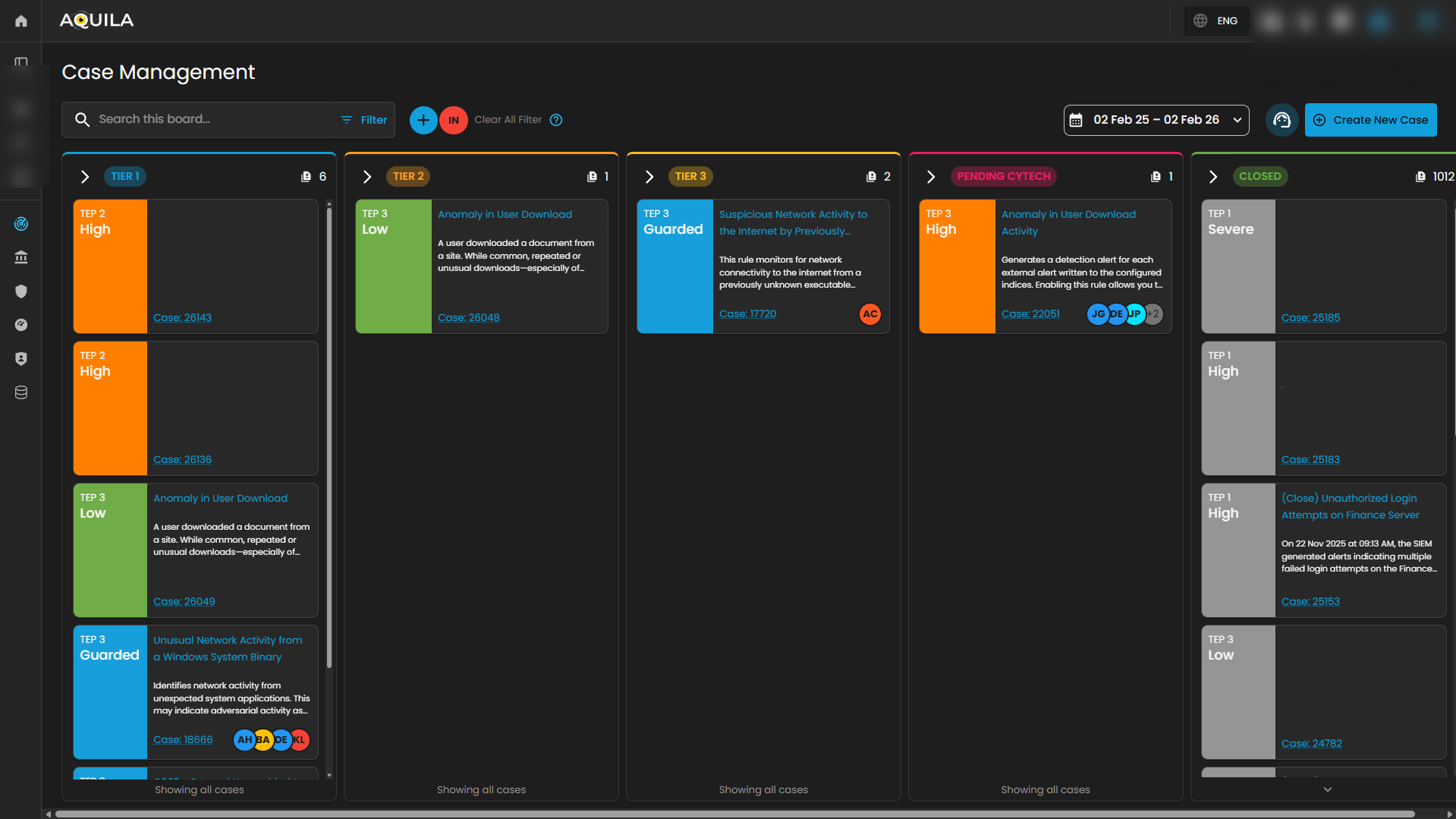
Case Management Dashboard is a tool that provides a comprehensive overview of security incidents. It offers detailed insights into active and past incidents, including their status, severity, and timeline. The dashboard facilitates investigation and response by integrating real-time alerts, threat intelligence, and collaboration features, while also tracking performance metrics and compliance. This centralized approach enhances the efficiency of managing and resolving security incidents, ensuring timely and effective responses to mitigate risks and improve overall security posture.
Workflow Stages
1. Tier 1 – Initial Triage Cases
-
-
SOC Role: Tier 1 Analyst (Junior Analyst / Alert Triage).
-
Purpose: These cases represent low-level alerts or first-line detections that require quick review and initial triage.
-
Activities:
-
Validate whether the alert is a false positive or true positive.
-
Collect basic context (e.g., user, host, timestamp, IP address).
-
Escalate to Tier 2 if suspicious behavior is confirmed.
-
-
Example from Dashboard:
-
O365 – Access Request Created (Low severity).
-
-
Outcome: Often resolved at Tier 1 if clearly benign, otherwise escalated.
-
2. Tier 2 – Investigation Cases
-
-
SOC Role: Tier 2 Analyst (Intermediate / Incident Responder).
-
Purpose: These are guarded alerts requiring deeper investigation and contextual analysis.
-
Activities:
-
Correlate the alert with other logs or events (threat hunting, SIEM searches).
-
Investigate user behavior, process execution, network activity.
-
Assess potential adversary techniques (e.g., MITRE ATT&CK mapping).
-
-
Example from Dashboard:
-
Unusual Network Activity from a Windows System Binary.
-
Attempts to Brute Force Microsoft 365 User Account.
-
-
Outcome: If confirmed malicious, escalated to Tier 3 for containment and response.
-
3. Tier 3 – Advanced Investigation / Threat Containment
-
-
SOC Role: Tier 3 Analyst (Senior Incident Responder / Threat Hunter).
-
Purpose: These are high-complexity or high-risk cases requiring advanced analysis and incident response expertise.
-
Activities:
-
Perform in-depth forensic analysis.
-
Identify persistence, lateral movement, or exfiltration attempts.
-
Contain compromised systems or accounts.
-
Recommend remediation actions (patching, isolating endpoints, resetting credentials).
-
-
Example from Dashboard:
-
Suspicious Network Activity to Internet by Unknown Executable.
-
System Network Connections Discovery.
-
-
Outcome: Leads to confirmed incident reports, escalation to management, or remediation workflows.
-
4. Pending – Escalated to Vendor/Support
-
-
SOC Role: Escalation Analysts / Vendor Support.
-
Purpose: Cases flagged here are awaiting validation or support from the vendor. This stage ensures:
-
Validation of unusual detections.
-
Vendor-side investigation (e.g., signature tuning, false positive confirmation).
-
Guidance from product experts.
-
-
Example from Dashboard:
-
Anomaly in User Download Activity (High severity) pending Client validation.
-
-
Outcome: Case is updated and either closed, tuned, or sent back to SOC for action.
-
5. Closed – Resolved or Dismissed Cases
-
-
SOC Role: Any Tier but validated and approved before closure.
-
Purpose: Contains all cases that are resolved, dismissed as false positives, or remediated.
-
Activities:
-
Document final analysis and resolution steps.
-
Mark case as False Positive, True Positive – Remediated, or Informational.
-
Archive for compliance, auditing, and reporting.
-
-
Outcome: Closes the incident lifecycle. Closed cases can still be reviewed for reporting and lessons learned.
-
Operational Workflow in SOC Terms
-
Detection → Tier 1 triages incoming alerts.
-
Validation → Tier 2 investigates and correlates data.
-
Escalation → Tier 3 performs deep analysis and containment.
-
External Escalation → Pending for vendor validation/support.
-
Closure → Closed with full documentation and resolution notes.
Search and Date Filtering
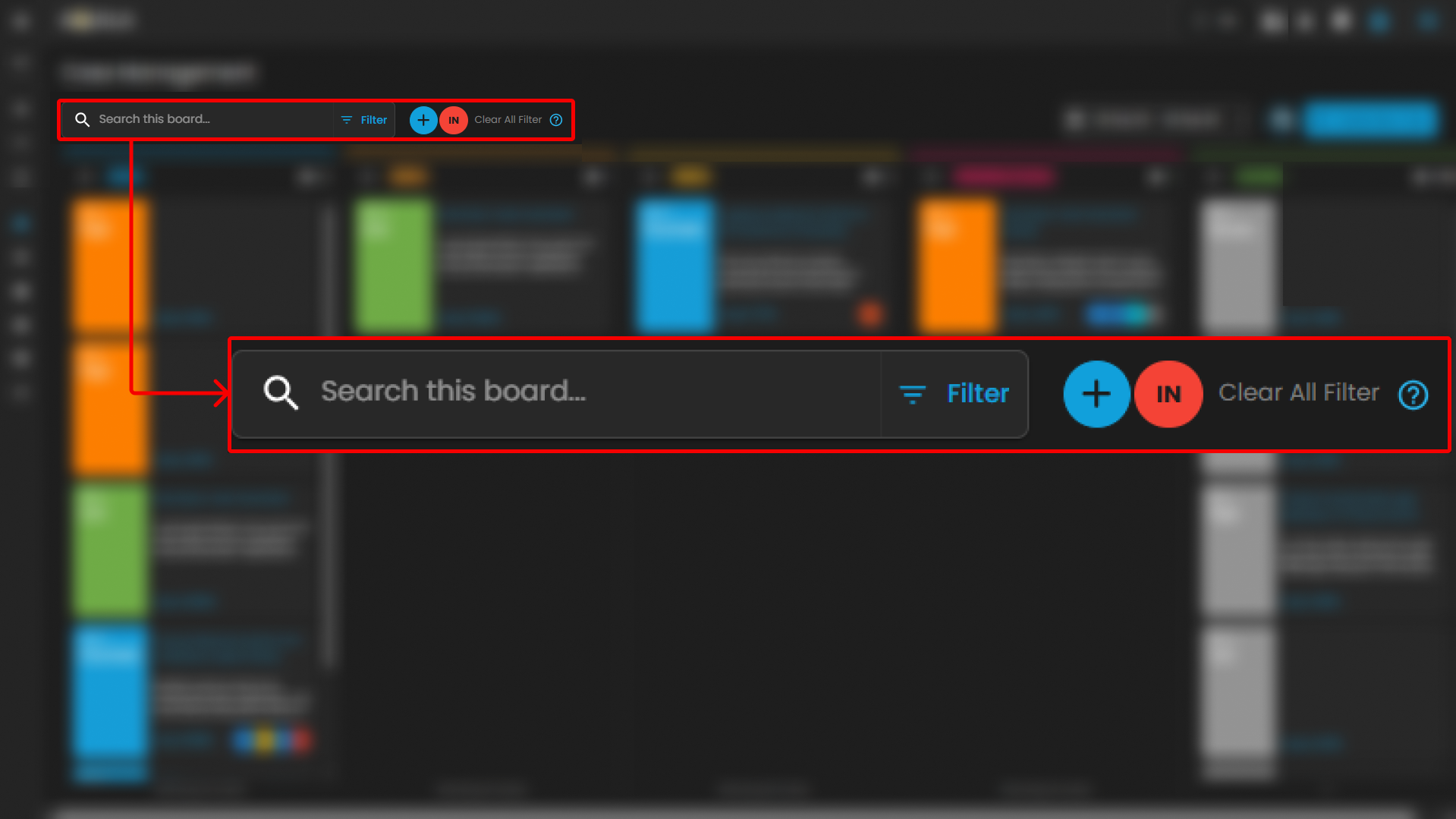
The Case Management interface provides filtering and search capabilities to streamline case navigation and improve analyst efficiency. These functions enable analysts to quickly locate specific cases or limit the view to a defined time range.
Search Bar
-
Location: Positioned at the top-left of the Case Management interface.
-
Purpose: Enables analysts to perform keyword-based searches across all available cases within the board.
-
Functionality:
-
Accepts free-text input such as case IDs, rule names, case titles, or descriptive terms.
-
Returns a filtered set of cases that match the entered criteria.
-
Supports rapid retrieval of specific cases without manual scrolling through case columns.
-
-
Use Case in SOC Operations:
-
Analysts can locate a case associated with a particular user or alert type during triage.
-
Facilitates targeted investigation by narrowing down large datasets to a manageable subset.
-
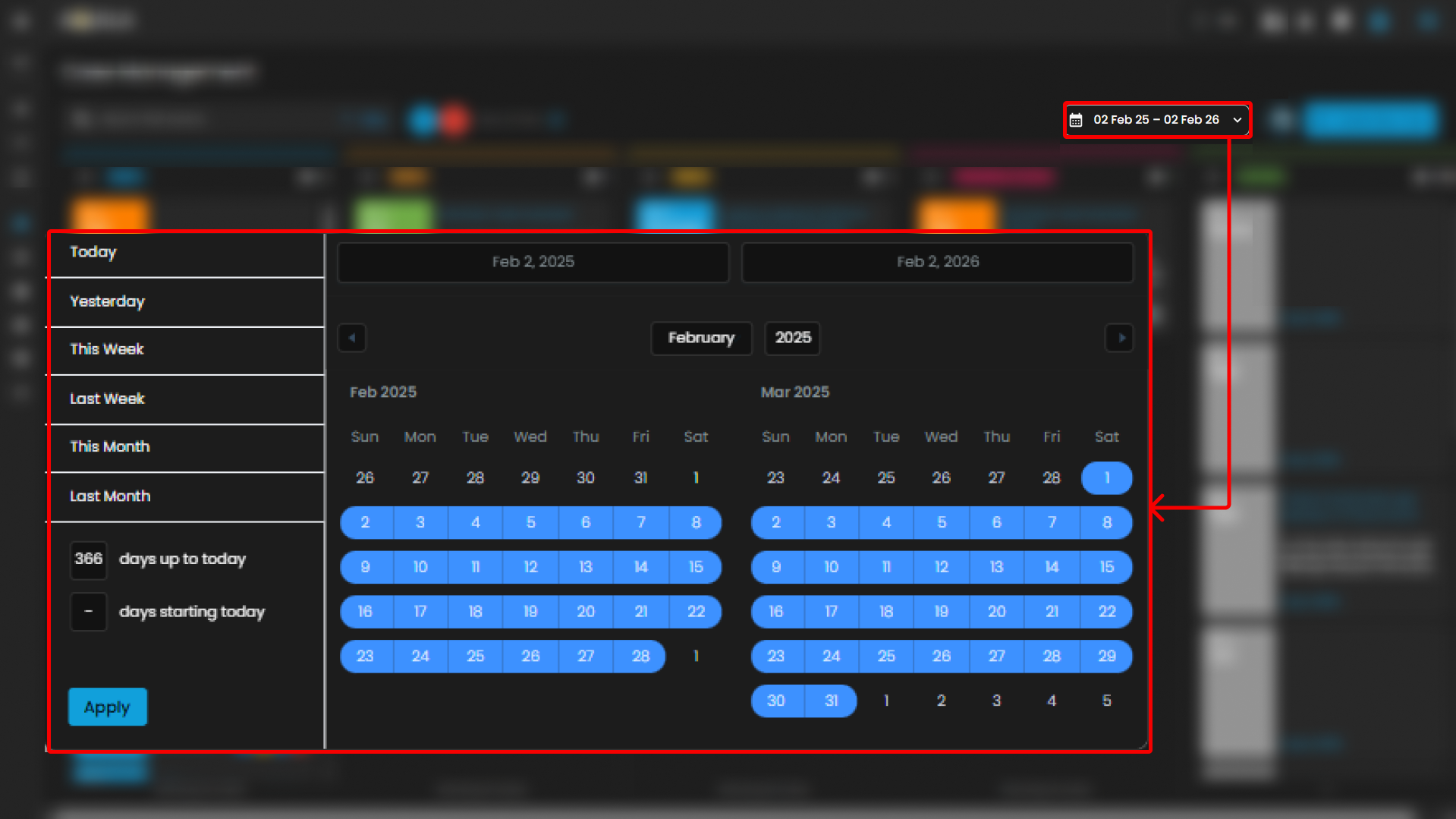
Date Filter
-
Location: Displayed in the top-right section of the Case Management interface, adjacent to the “Create New Case” button.
-
Purpose: Allows analysts to filter cases based on a specified date range.
-
Functionality:
-
Provides a selectable calendar input with predefined and custom ranges (e.g., “01 Jan 24 – 31 Dec 25”).
-
Adjusts the case board to display only cases that fall within the chosen timeframe.
-
Ensures time-specific investigations can be conducted efficiently.
-
-
Use Case in SOC Operations:
-
Supports incident review during a specified monitoring period (e.g., weekly/monthly threat activity reviews).
-
Enables correlation of cases to a known attack campaign or investigation window.
-
Assists with compliance reporting by extracting cases within regulatory audit timelines.
-
Create New Case and Support
The Case Management interface includes two primary action buttons located at the top-right of the screen: Create New Case and Support. These options enable analysts to initiate new investigations and provide clients with direct access to technical support resources when required.
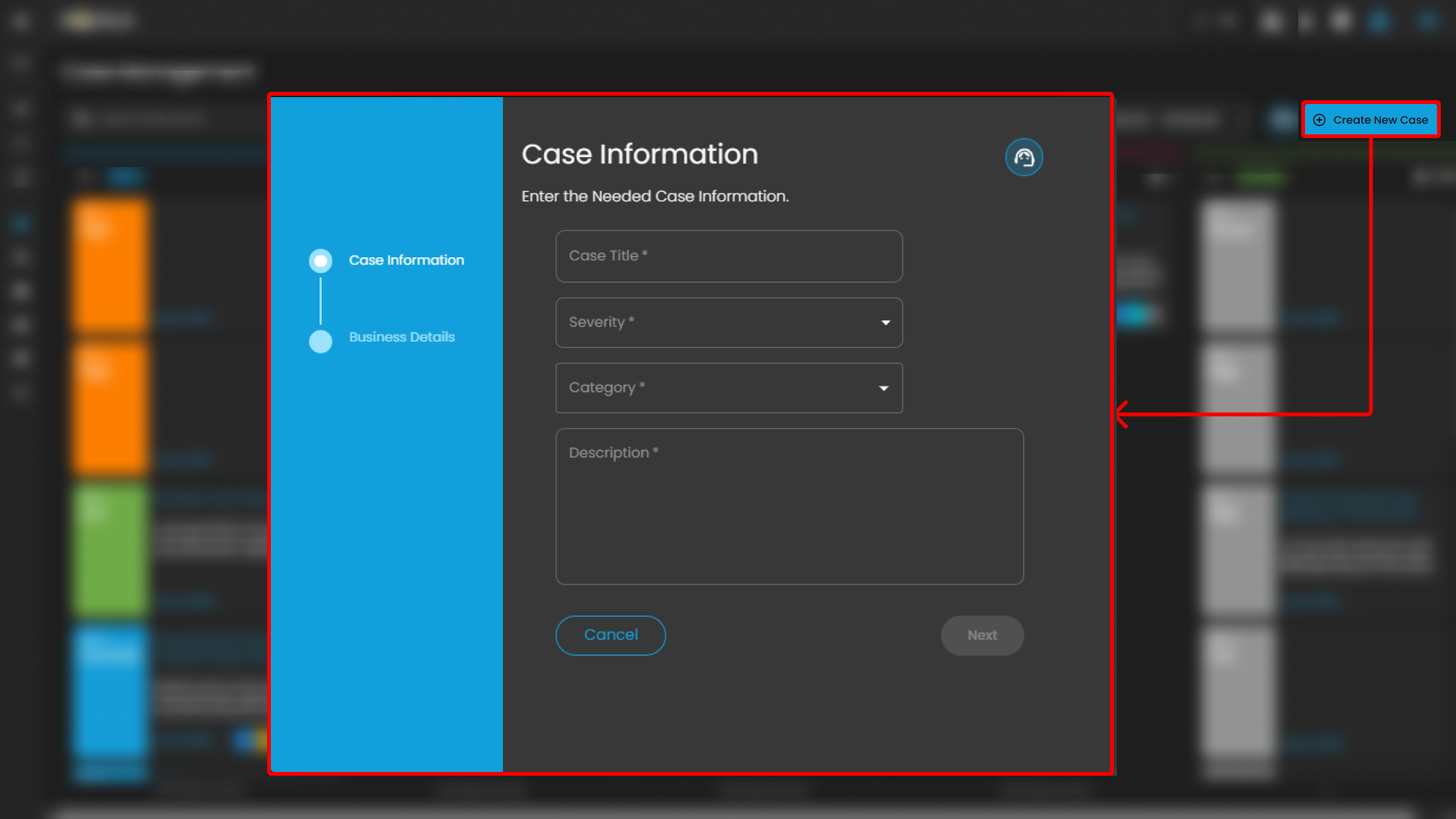
Create New Case
-
Purpose: Enables analysts to manually initiate and document a new security case.
-
Functionality:
-
When selected, the system displays a form where analysts can input case details, including title, description, severity, and assigned users.
-
Once submitted, the new case appears within the appropriate case column (e.g., Tier 1) for tracking and escalation.
-
-
Use Case in SOC Operations:
-
Allows analysts to proactively log incidents that may not have been automatically generated by alerts.
-
Facilitates documentation of investigations that originate from external intelligence sources, manual threat hunting, or analyst observations.
-
Support
-
Purpose: Provides clients with direct access to the support portal for issue resolution and ticket management.
-
Functionality:
-
When selected, the client is redirected to the Support page.
-
The Support page provides two primary options:
-
Submit a New Ticket – Allows clients to report errors, technical issues, or product-related concerns.
-
Search Existing Tickets – Enables clients to view and track the status of tickets they have previously submitted.
-
-
-
Use Case for Clients:
-
Allows clients to escalate platform issues or request assistance directly from support.
-
Provides visibility into both new and ongoing tickets for efficient follow-up.
-
Ensures that clients can maintain continuity of operations by receiving timely support when technical difficulties arise.
-
________________________________________________________________________________________________________________________________________________
Cyber Incident Management (CIM): Data Explorer
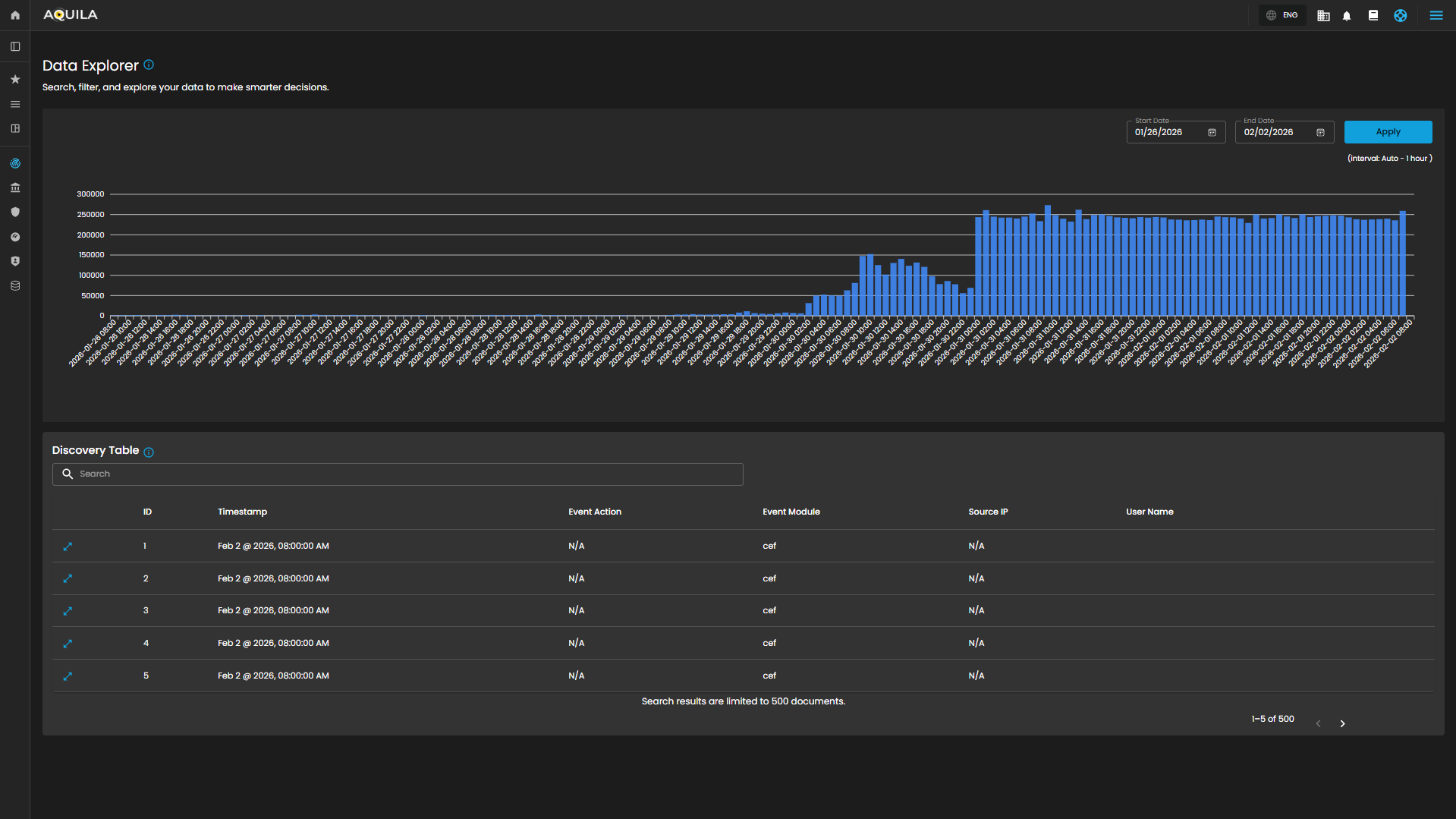
The Data Explorer feature provides a unified view of log ingestion and event details. It combines visual analytics and tabular data to help clients track log volumes, search for specific events, and analyze data patterns over time.
Log Consumption Chart
Displays the volume of logs ingested per hour within a selected timeframe, enabling quick identification of activity spikes, anomalies, and ingestion trends.
Components
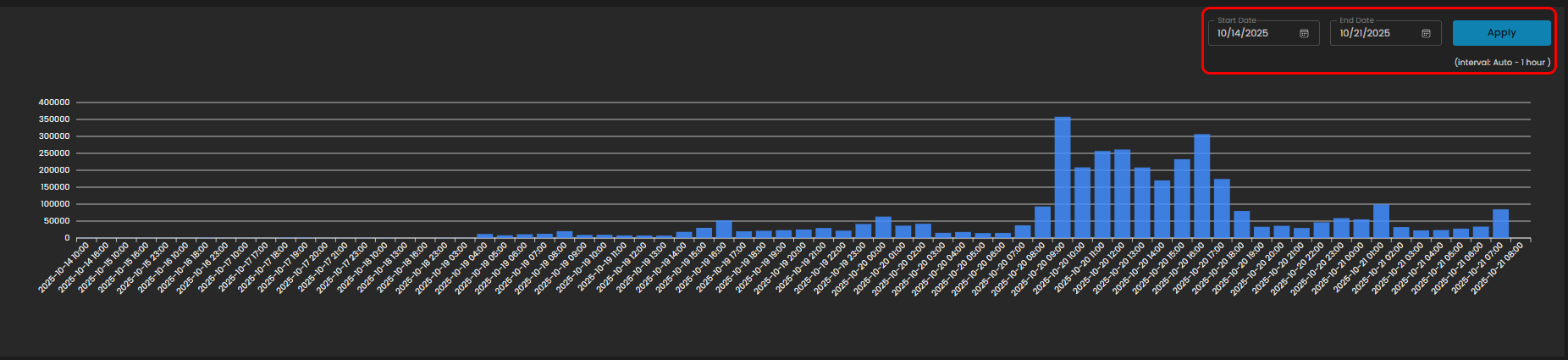
- Date Range Selector
- Start Date
- End Date
- Apply Button: Refreshes the chart according to the selected timeframe.
- Interval Note: (interval: Auto – 1 hour) – data points are grouped per one-hour intervals.
Discovery Table
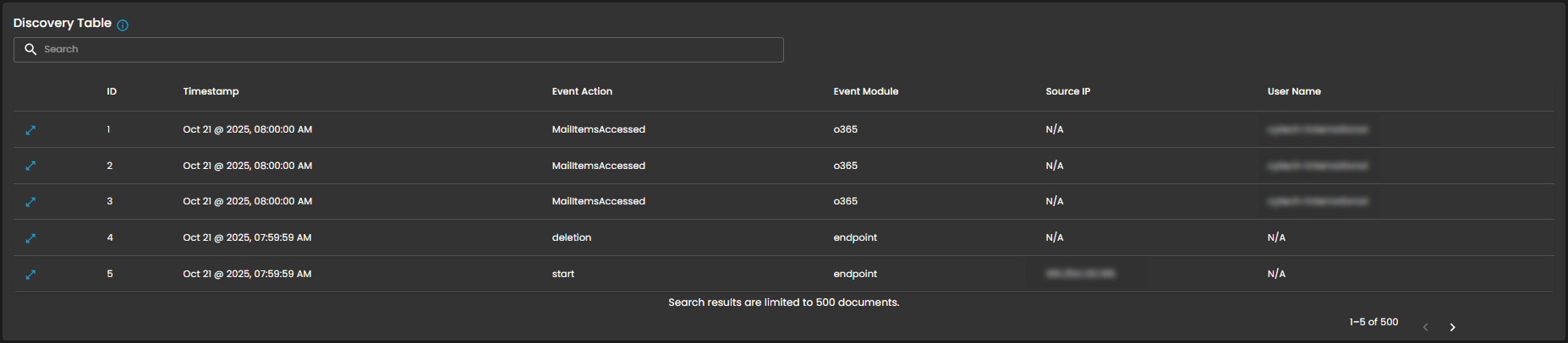
Provides detailed, event-level visibility into ingested logs for analysts. Displays logs that contain comprehensive records of activities and events, enabling analysts to search, filter, and review specific entries for investigation, correlation, and reporting.
Components
- Search Bar: Allows keyword-based filtering across event records.
- Tabular Columns:
-
ID – Unique identifier for each record.
-
Timestamp – Exact date and time the event occurred (e.g., Sep 25, 2025, 07:59:59 AM).
-
Event Action – Action performed within the event (e.g., ListObjects, fork).
-
Event Module – Source module of the event (e.g., aws, endpoint).
-
Source IP – Origin IP of the event.
-
User Name – User associated with the event.
-
Functional Insights
Correlation Between Chart and Table
- The chart provides an aggregated, volume-based overview of logs.
- The discovery table provides granular event details, allowing analysts to trace which specific actions contributed to spikes in log activity.
Analyst Use Case
- Analysts can monitor ingestion volumes, then drill down into specific events for deeper investigation.
- Example: A spike in logs on 09/24/2025 11:00 may be investigated by reviewing the detailed event records in the table.
________________________________________________________________________________________________________________________________________________
Cyber Incident Management (CIM): Reports
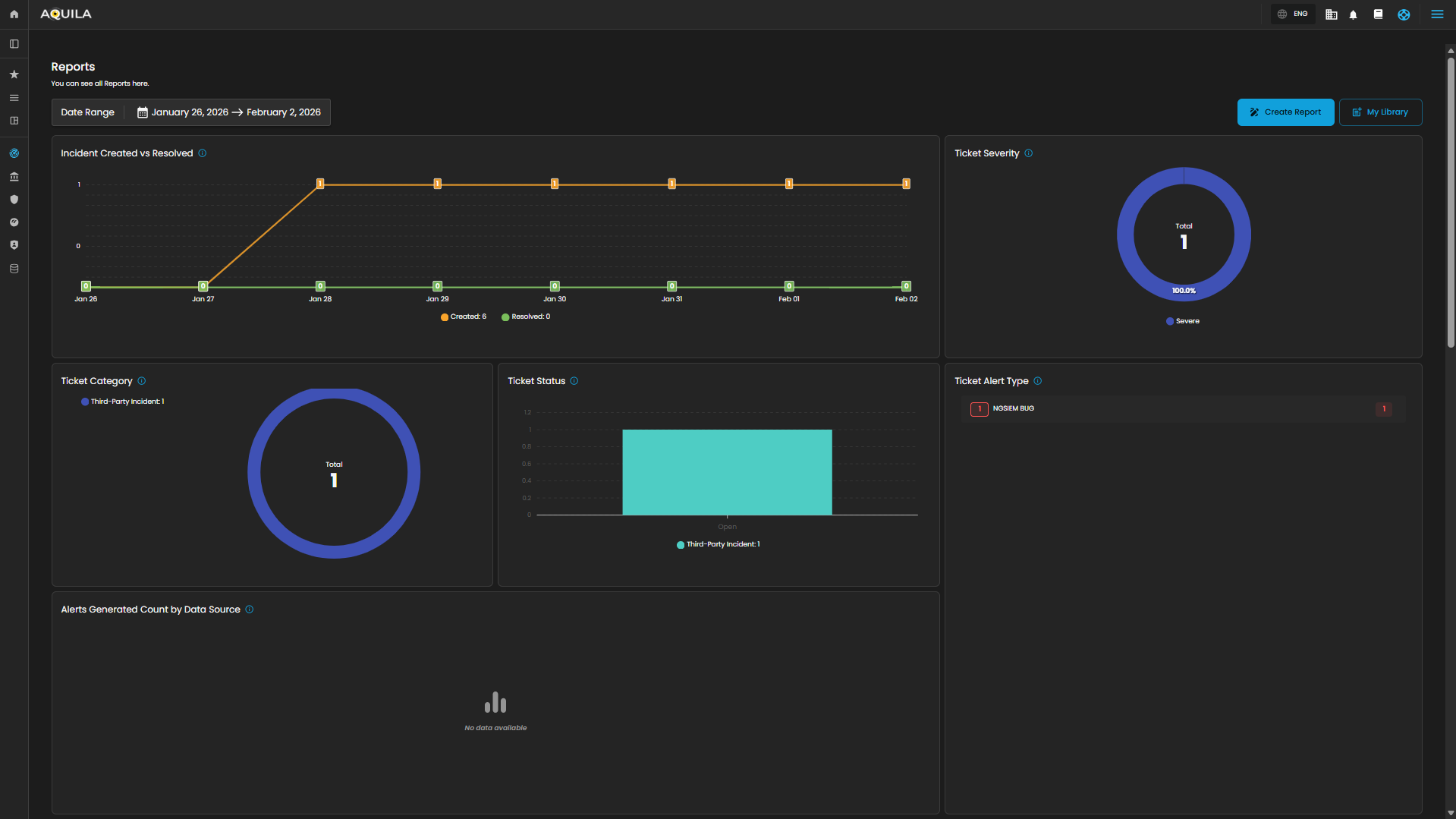
The Reports Dashboard provides a centralized interface for monitoring, analyzing, and reviewing security tickets and alert activity within a defined date range. It consolidates data into visual charts and categorized metrics, enabling analysts to evaluate incident trends, ticket statuses, and alert sources for more effective decision-making.
Date Range Selector
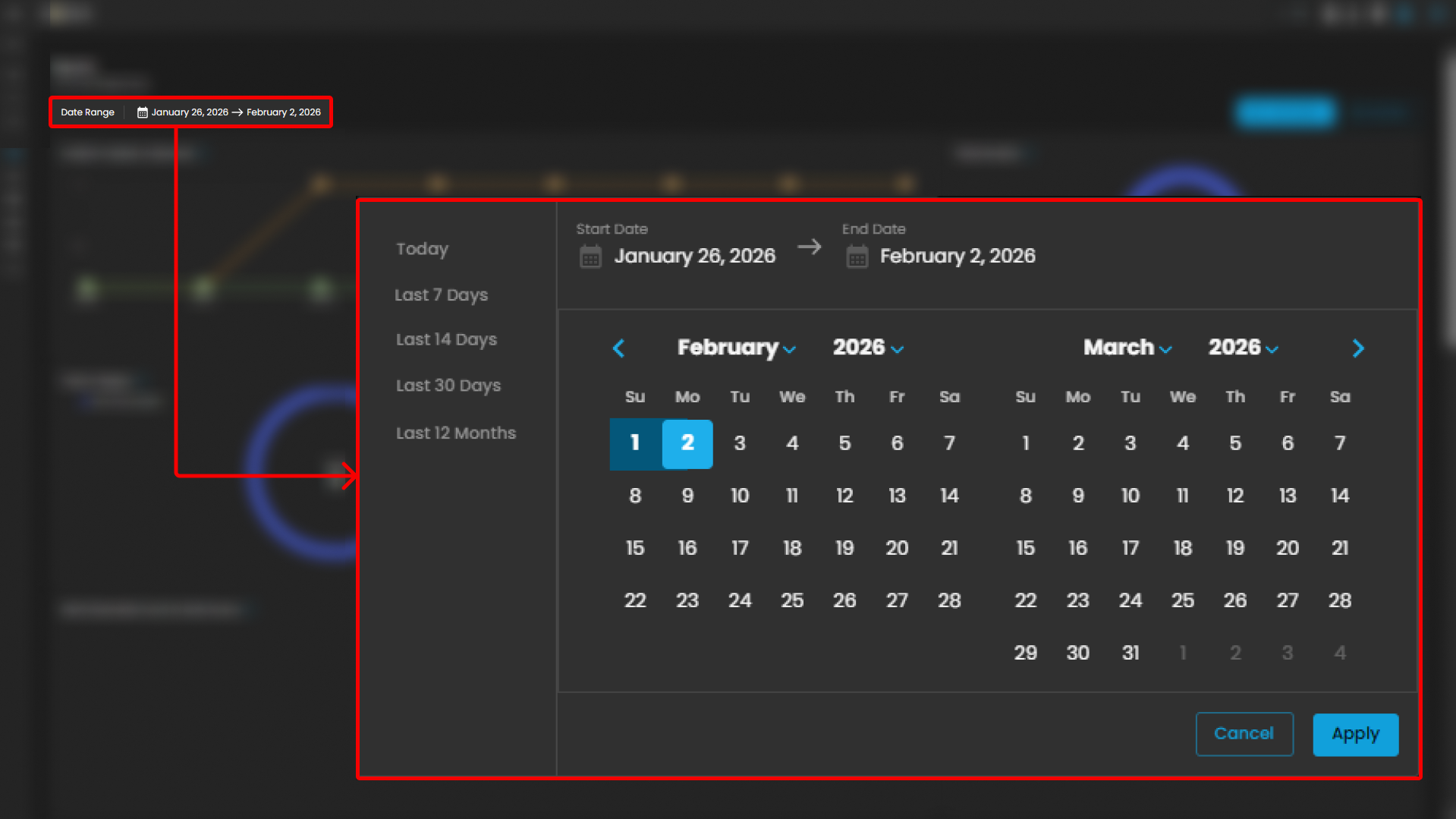
Defines the reporting period for all displayed metrics.
Functionality:
-
When the user clicks on the Date Range field, a calendar pop-up appears.
-
The calendar allows analysts to specify both Start Date and End Date.
-
Predefined quick ranges are available for convenience:
-
Today
-
Last 7 Days
-
Last 14 Days
-
Last 30 Days
-
Last 12 Months
-
-
Users can also select custom ranges directly from the calendar by clicking the desired start and end dates.
-
Once the range is selected, the analyst can either:
-
Apply → Confirm and refresh dashboard data.
-
Cancel → Exit without changes.
-
Operational Insight:
-
Enables analysts to generate time-bound reports for specific investigations (e.g., reviewing alerts during a known phishing campaign window).
-
Quick ranges are useful for standard reporting periods (weekly, monthly, quarterly).
-
Custom ranges support flexibility when investigating incidents that cross standard reporting boundaries.
Incident Created vs Resolved
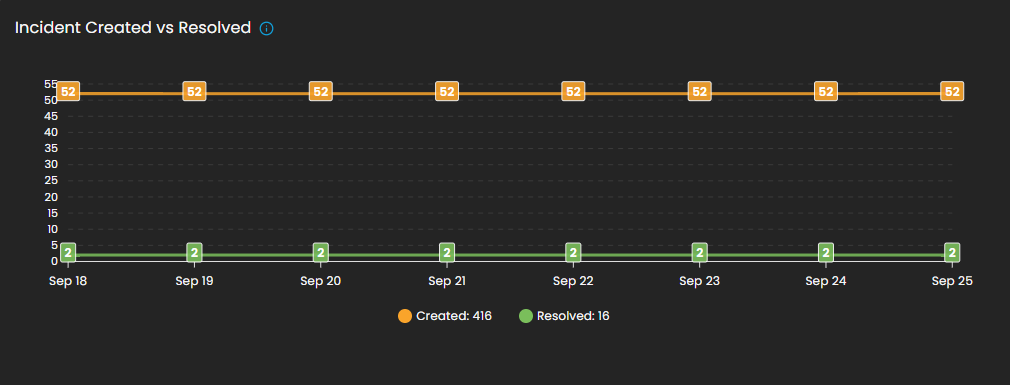
This graph shows the number of incidents created vs. resolved, depending on the selected date timeline.
-
Visualization: Line chart with two metrics:
-
Created (orange line): Total number of incidents raised during the reporting period.
-
Resolved (green line): Total number of incidents successfully closed.
-
-
Purpose: Enables analysts to assess case resolution efficiency compared to incident creation rates.
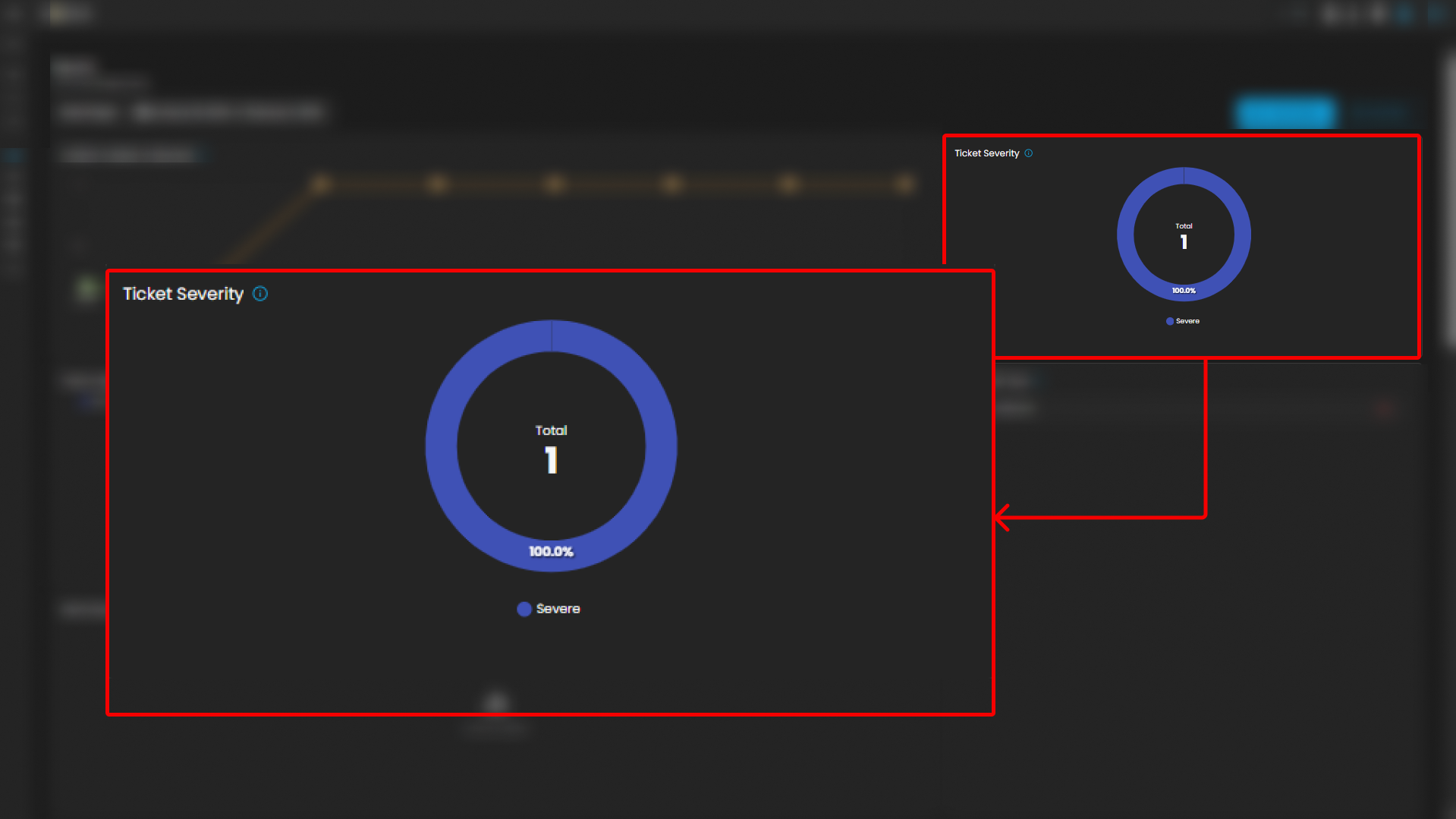
Ticket Severity
This graph displays the distribution of tickets by severity level.
-
Visualization: Donut chart with severity distribution.
-
Categories Displayed:
-
Guarded
-
Low
-
-
Purpose: Summarizes the severity levels of tickets to help analysts prioritize workload.
-
Operational Insight: A higher proportion of “Guarded” severity tickets may signal elevated but manageable risks, requiring proactive monitoring.
Ticket Category
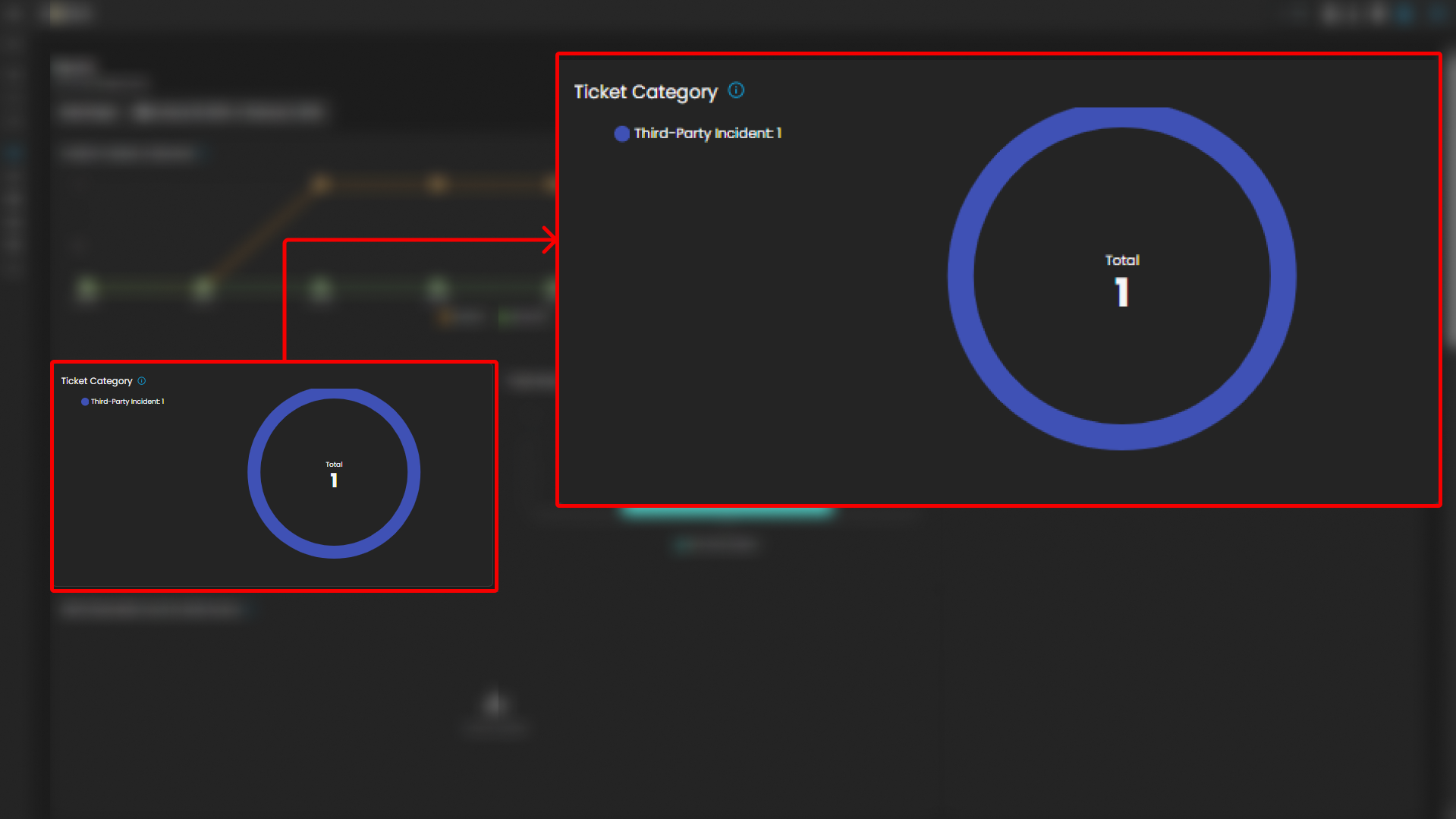
Breaks down tickets based on their assigned category.
-
Visualization: Donut chart displaying distribution across categories.
-
Categories:
-
General
-
Credential Compromise
-
Malicious Email
-
Data Breach
-
Malware
-
-
Purpose: Provides analysts with visibility into the types of threats most frequently encountered.
Ticket Status
This graph visualizes the current status of tickets to track resolution progress.
-
Visualization: Bar chart of ticket states.
-
Statuses Monitored:
-
Open
-
Pending
-
In Progress
-
Closed
-
-
Purpose: Tracks current case lifecycles, supporting workload balancing and resolution monitoring.

Ticket Alert Type
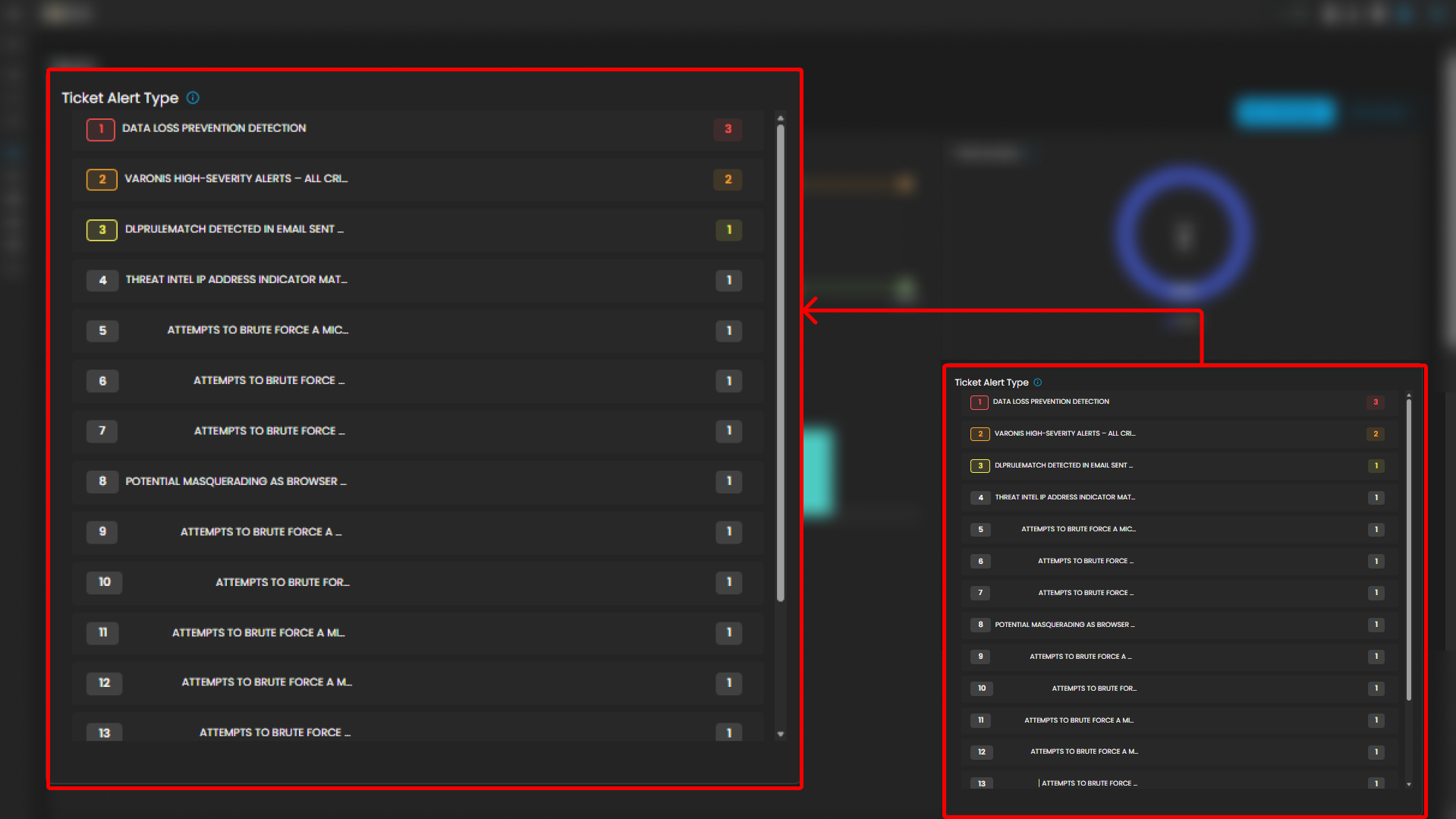
Provides a categorized breakdown of security alerts raised within the system. This helps analysts quickly identify the most frequent or severe types of alerts for prioritization and incident response. The feature also groups tickets by alert type and sorts them based on count, enabling analysts to focus on the most prevalent threats first.
Functionality
-
Each alert type is listed in descending order of volume.
-
A numerical badge beside each type shows the number of tickets generated.
Analyst Use Case
-
Prioritization: Analysts can quickly spot which alert categories are most frequent and critical.
-
Trend Identification: Helps SOC teams track recurring threats, such as repeated port scan attempts or ongoing phishing campaigns.
-
Investigation Focus: Guides where resources should be allocated for further log analysis and incident response.
-
Escalation Decisioning: High-volume or high-severity alert types can be escalated to Tier 2 or Tier 3 SOC analysts.
Alerts Generated Count by Data Source
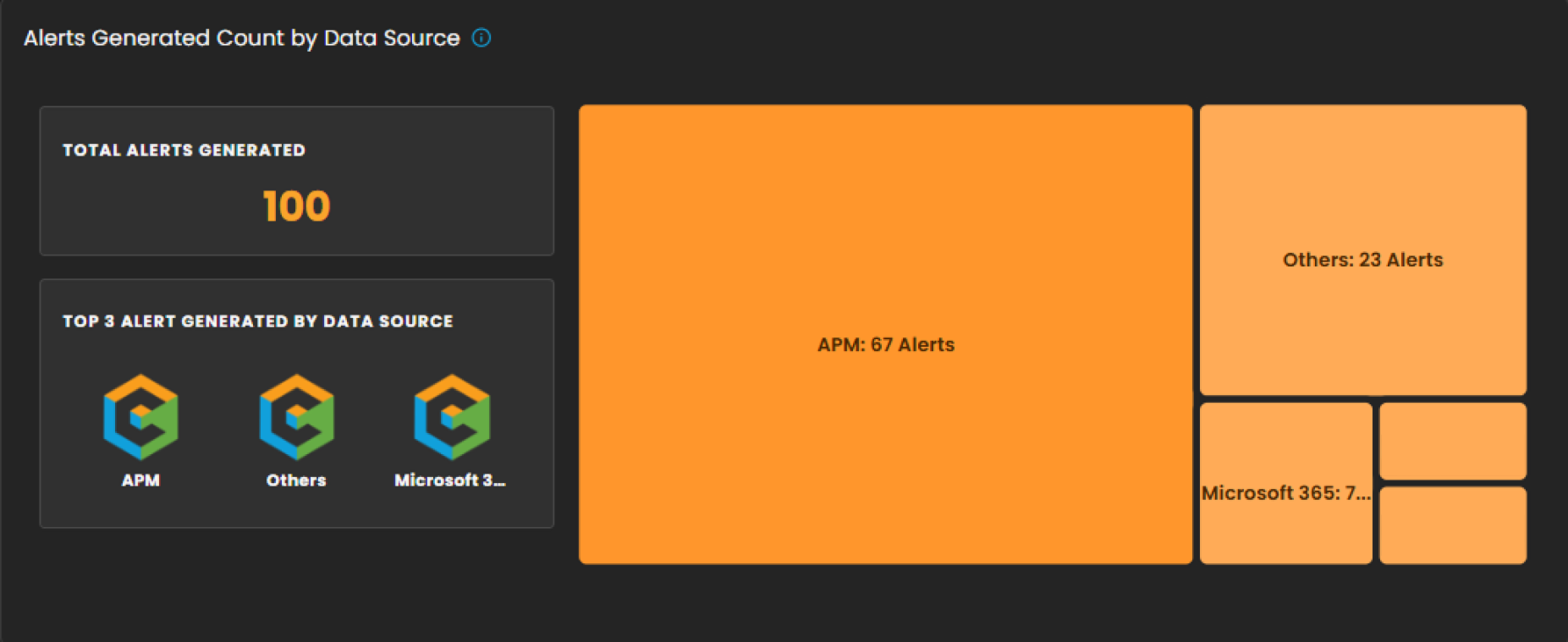
This section provides a breakdown of security alerts based on their originating data sources. It enables analysts to identify which systems or platforms are contributing the highest number of alerts, supporting more targeted investigation and resource allocation.
Components
-
Total Alerts Generated
Displays the overall count of alerts detected within the selected date range. In the example shown, a total of 100 alerts were generated. -
Top 3 Alert Sources
Highlights the three primary data sources that generated the most alerts, allowing analysts to quickly focus on the most active or risky environments. -
Treemap Visualization
Graphically represents the distribution of alerts by data source. Each block corresponds to a data source, with the block size proportional to the alert count.-
Example: APM generated the highest number of alerts (67).
-
Others contributed 23 alerts.
-
Additional sources, including Microsoft 365, Endpoint, and Defender, are shown with smaller proportional segments.
-
Analyst Use Case
-
Prioritize monitoring efforts on high-volume sources such as APM.
-
Identify unusual spikes in alerts from less active sources.
-
Allocate investigative resources efficiently across multiple platforms.
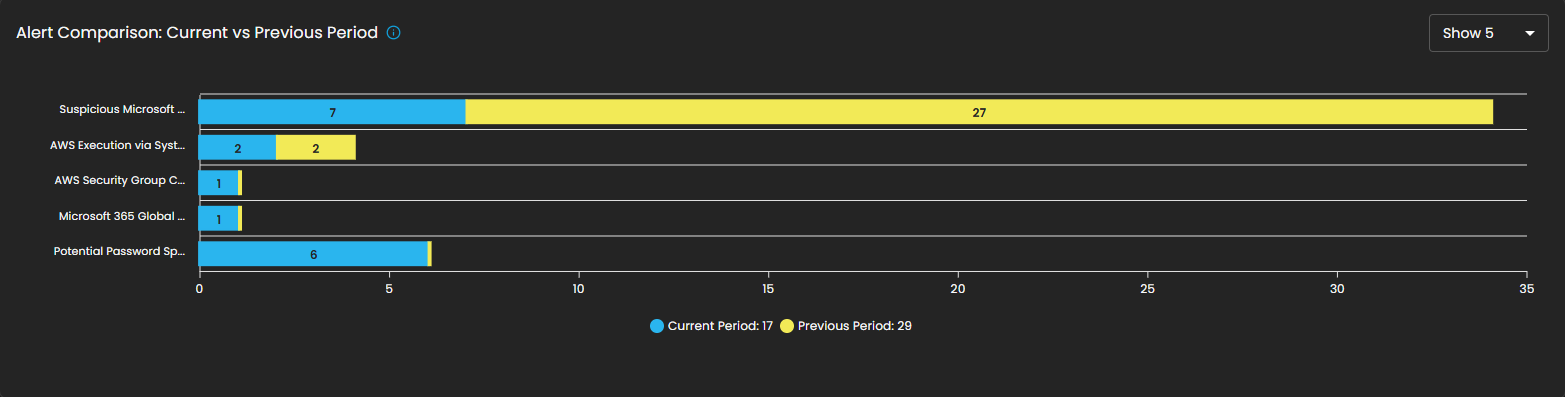
Alert Comparison: Current vs Previous Period
This section provides a comparative analysis of alerts generated during the current reporting period versus the previous period. The comparison highlights change in alert volume for specific alert types, helping analysts identify trends, anomalies, or shifts in the security landscape.
Components
- Bar Chart Visualization
- Each bar represents a specific alert type, segmented into two colors:
- Blue: Alerts generated in the current period.
- Yellow: Alerts generated in the previous period.
- The length of the segments reflects the alert count, allowing quick visual identification of increases or decreases.
- Each bar represents a specific alert type, segmented into two colors:
Analyst Use Case
- Identify reductions in recurring alerts, which may indicate resolved issues or improved security controls.
- Detect emerging threats when new alert types appear or when their frequency increases in the current period.
- Support trend reporting by comparing shifts in alert patterns over time, enabling better resource planning and proactive defense measures.
SLA
Displays Service Level Agreement (SLA) compliance, focusing on key performance metrics such as incident detection time and resolution time. This allows analysts and SOC teams to measure operational efficiency against defined service targets. The absence of data in the graph indicates that no incidents were recorded during the selected time period.
Components
- Graph View
- Timeline chart representing SLA performance over a defined period.
- Tracks detection and resolution trends for visibility into time-based compliance.
- Metrics Panel (Right Side)
- Mean Detect Time:
- Current Value: 01:11:56
- Change Compared to Previous Quarter: 0%
- Mean Resolve Time:
- Current Value: 00:00:00
- Change Compared to Previous Quarter: 0%
- Mean Detect Time:
Analyst Use Case
- Monitor SLA adherence to ensure timely detection and resolution of incidents.
- Identify bottlenecks in the detection-to-resolution cycle.
- Provide operational reporting to stakeholders on SOC performance.
- Ensure compliance with contractual or organizational SLA requirements.

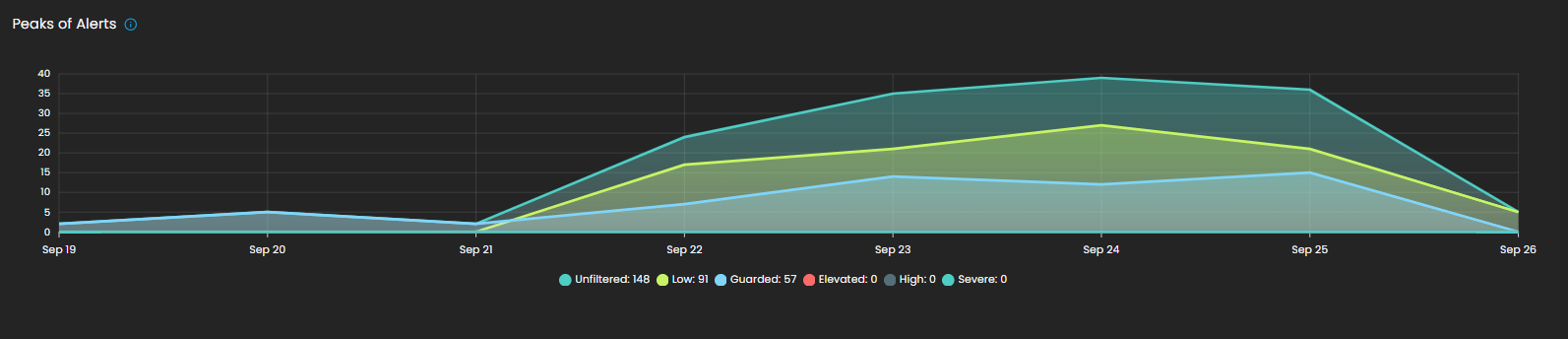
Peaks of Alerts
This visualization highlights time periods with the highest security alert activity. It provides analysts with a temporal view of alert distribution, making it easier to detect spikes, recurring trends, or unusual increases in activity. Alerts are categorized by severity levels such as Unfiltered, Low, Guarded, Elevated, High, and Severe, with corresponding counts shown for each.
By tracking alert peaks over time, this section helps security teams identify periods of heightened risk, allocate resources effectively, and prioritize investigation efforts.
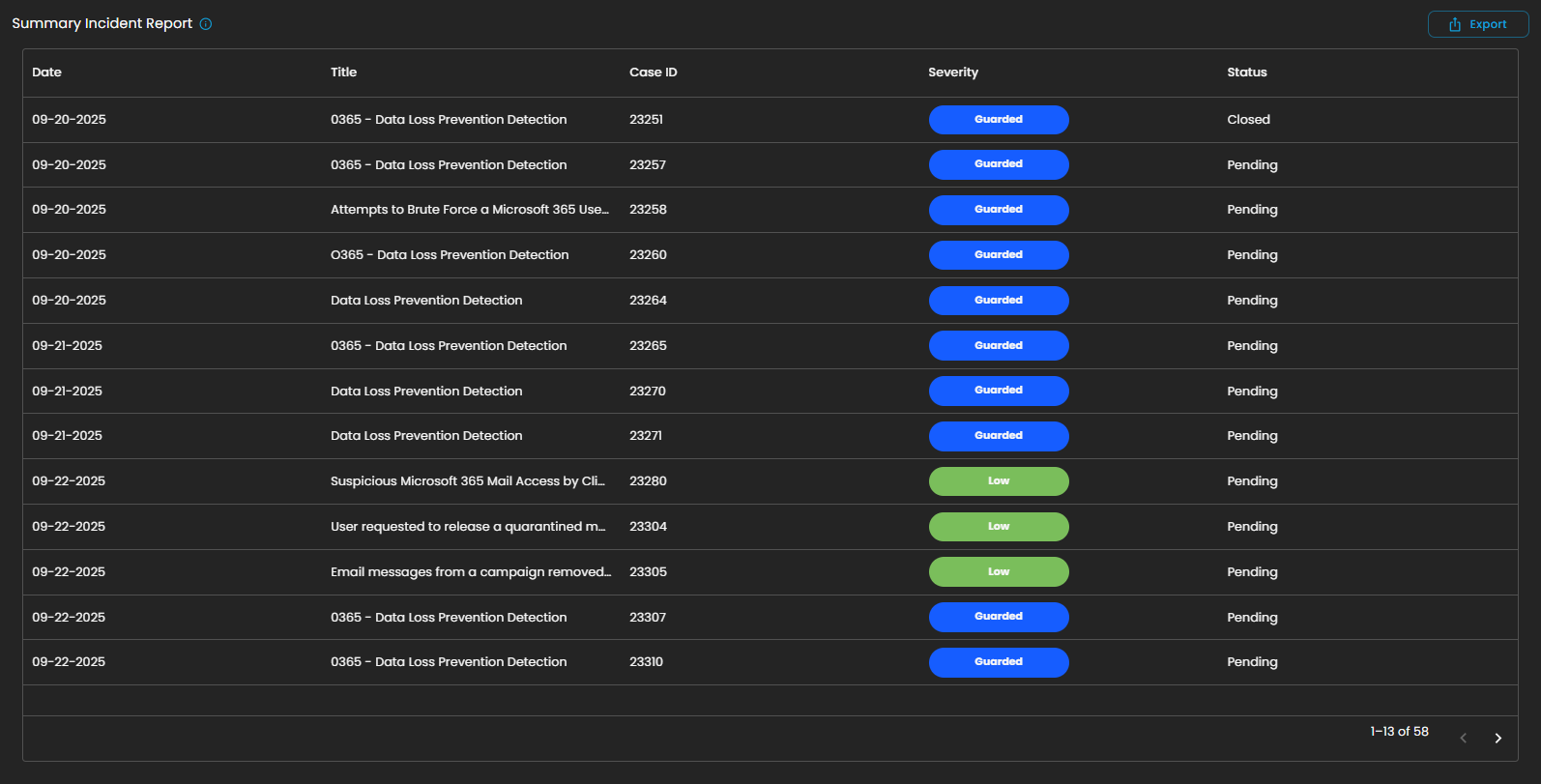
Summary Incident Report
This section displays a detailed list of incidents recorded within the selected date range. Each entry includes the date of occurrence, incident title, case ID, severity level, and current status (e.g., Pending or Closed). Incidents are categorized and color-coded by severity, allowing analysts to quickly assess their criticality and prioritize response efforts.
The report also supports export functionality, enabling users to generate and share incident data for further analysis, auditing, or compliance purposes.
This structured summary ensures that all incidents are systematically tracked and monitored, providing visibility into both ongoing and resolved security events.
Create Report and My Library
The Reports module provides users with the ability to generate and manage analytical outputs for security incidents and operational performance. Within this module, two key functions are available:
-
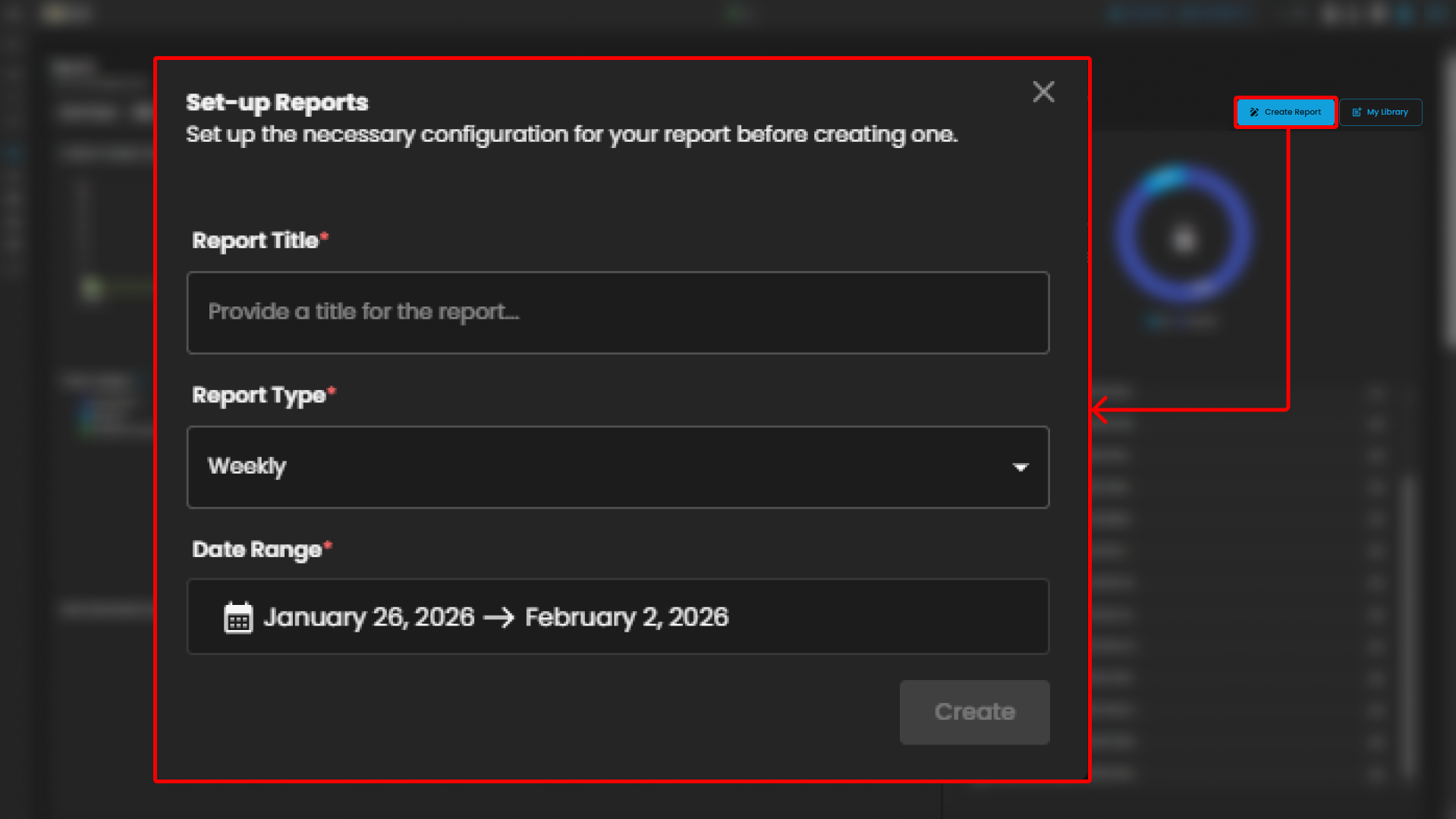
Create Report
The Create Report function allows users to generate customized reports based on selected parameters such as date range, ticket severity, incident category, or status. This feature is designed to provide flexibility in reporting, enabling analysts and stakeholders to extract meaningful insights tailored to their specific needs.
-
My Library
The My Library function serves as a centralized repository where previously generated or saved reports are stored. Users can easily access, review, and manage their collection of reports, ensuring quick retrieval of historical data and consistent tracking of incident trends over time.
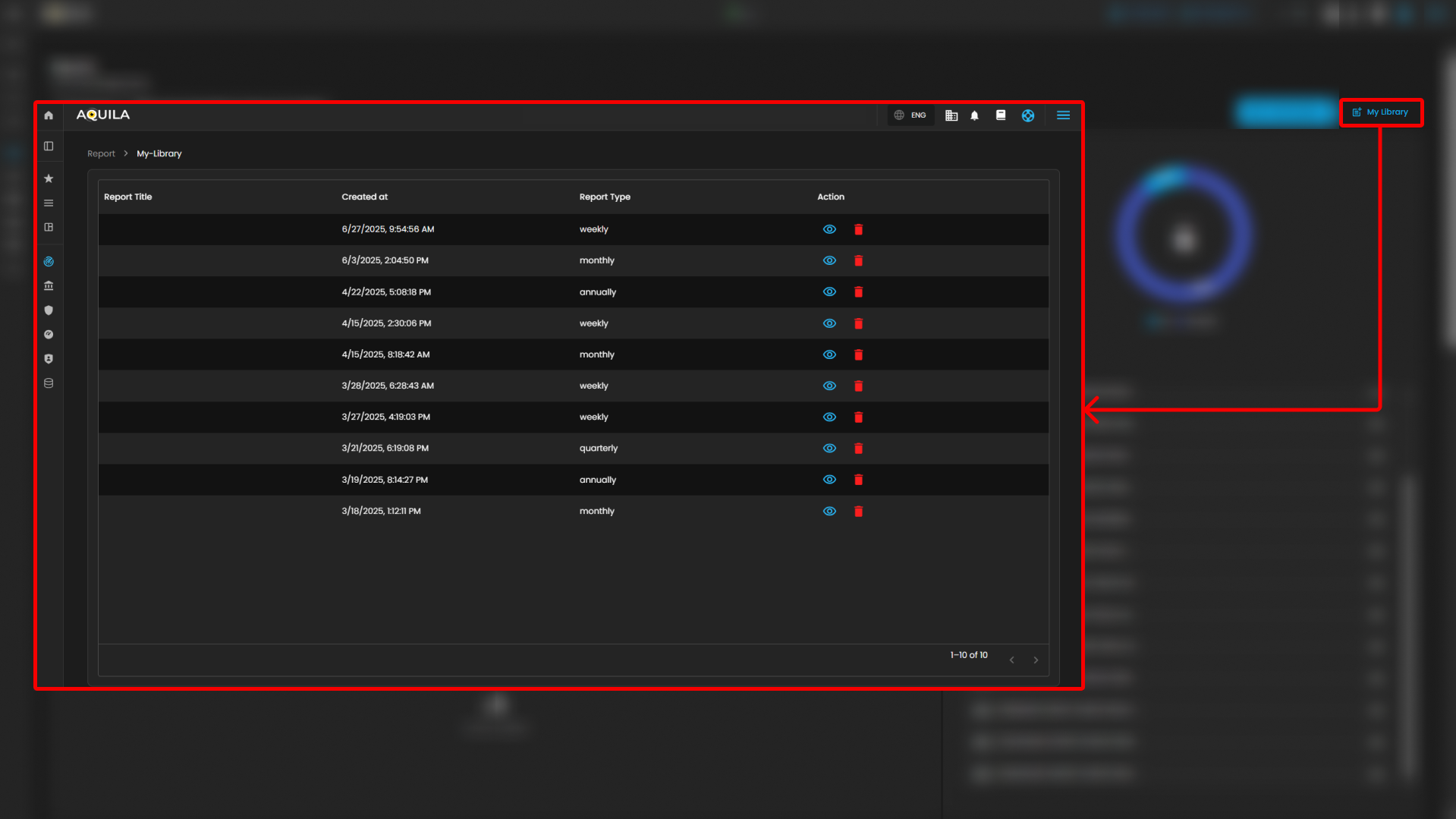
Users can also see more information about the report by pressing the eye icon. In this section, they can "edit the report" or "download" it by pressing the button above. The users can also send it "via email" or "delete" the report.
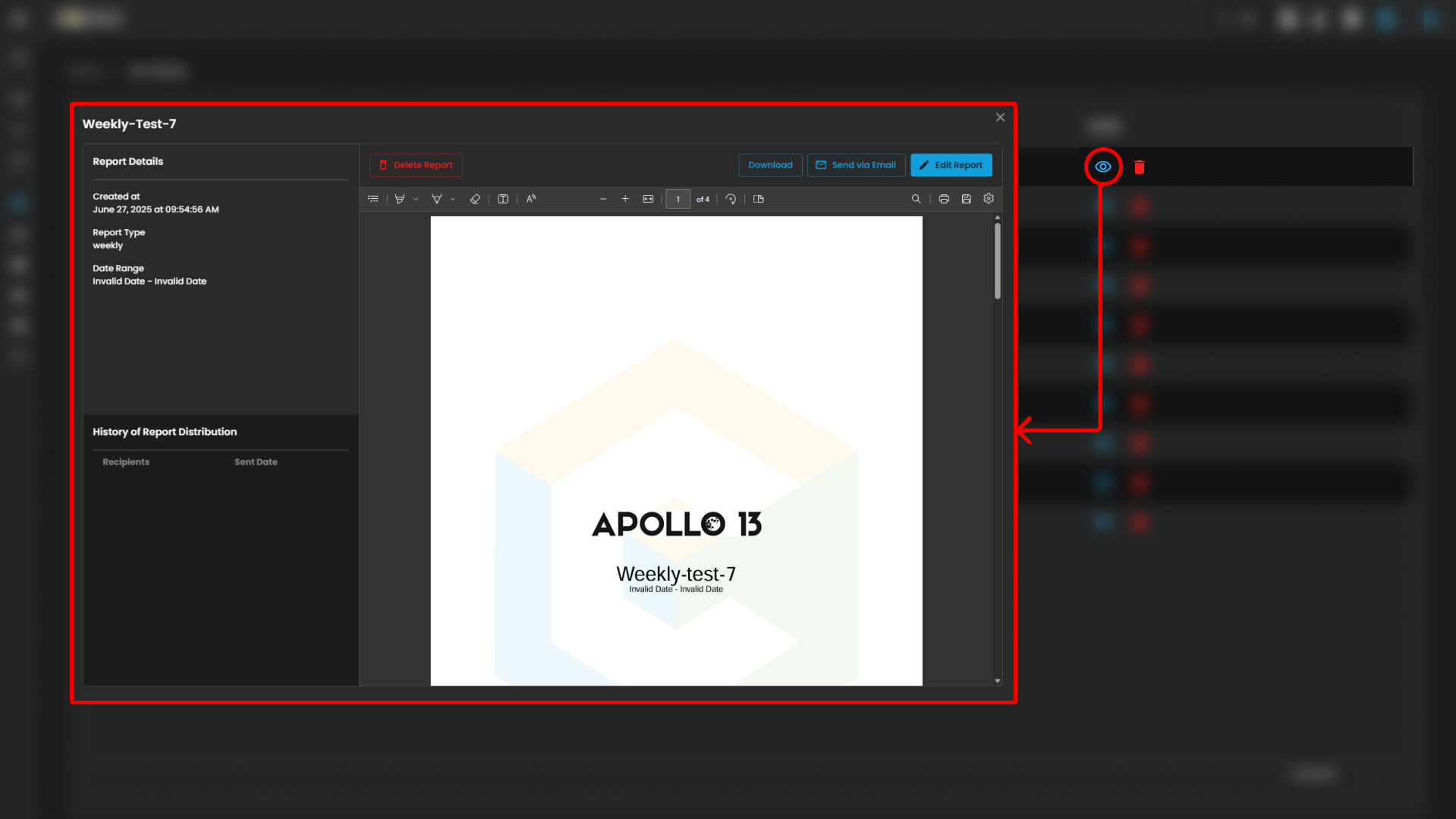
Together, these functions provide both the flexibility to create new reports and the convenience of accessing saved outputs, supporting continuous monitoring, analysis, and decision-making.
________________________________________________________________________________________________________________________________________________
Cyber Incident Management (CIM): Alert Rules
The Alert Rules section provides centralized management of alert rules assigned to various log sources. This module enables administrators and analysts to review, configure, and monitor rules that generate alerts for security and operational events.
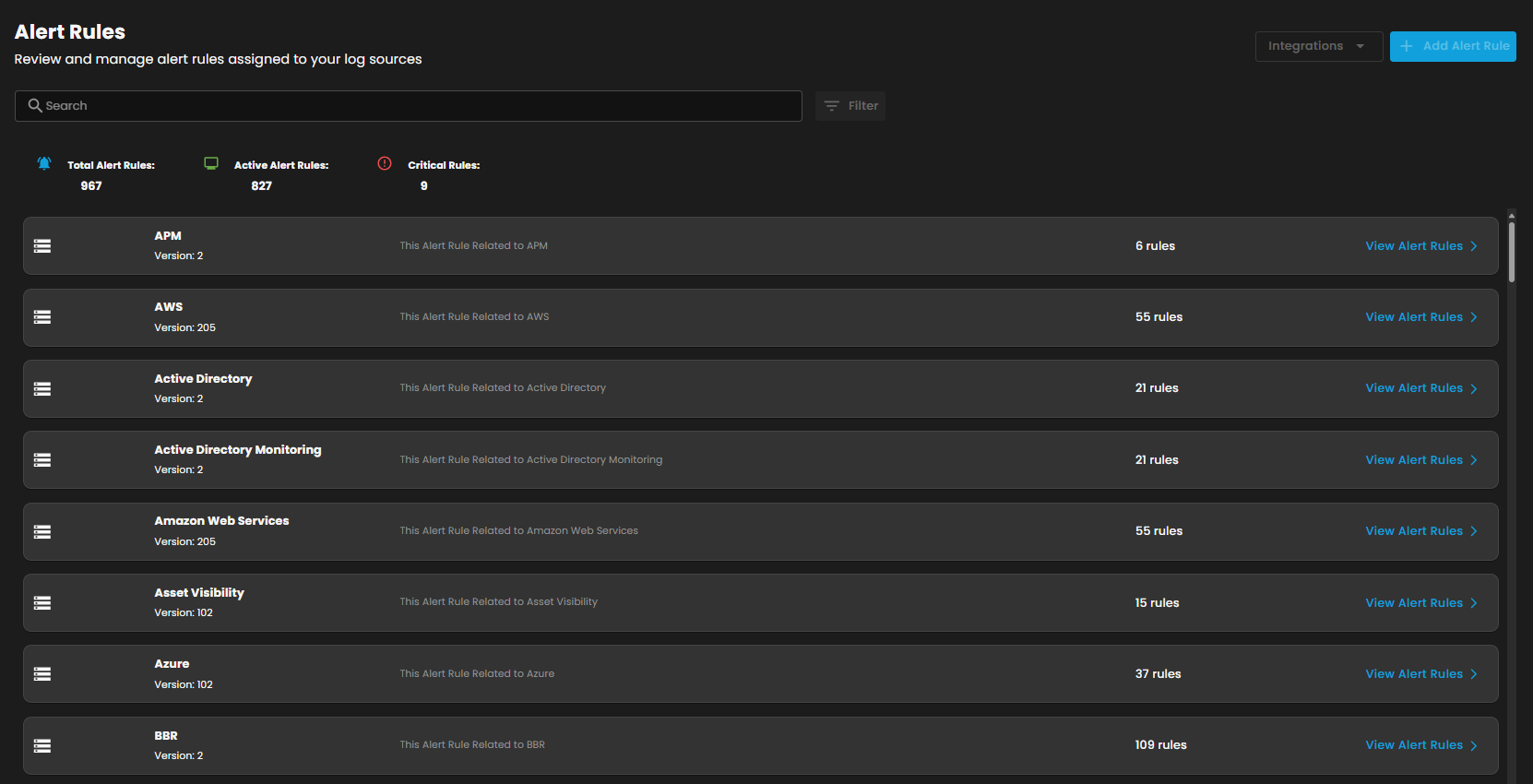
Header Summary
- Total Alert Rules: Displays the total number of alert rules configured in the system.
- Active Alert Rules: Shows the number of rules currently active and monitoring events.
- Critical Rules: Highlights the subset of rules categorized as critical, requiring immediate attention.
Search and Filter
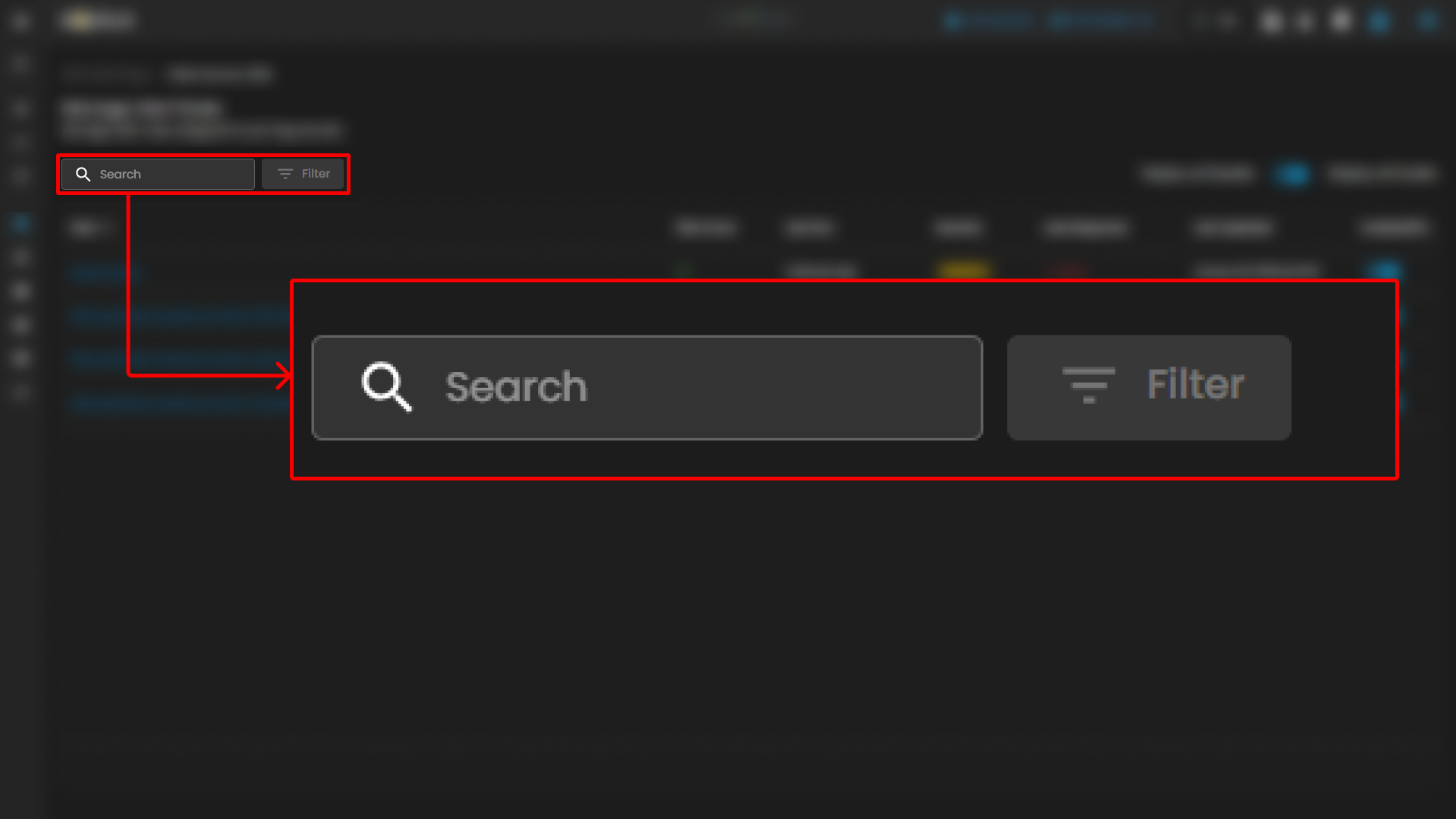
- The Search bar allows users to quickly locate specific alert rules by entering keywords.
- The Filter option enables users to refine results based on categories or parameters, ensuring efficient navigation in environments with a large number of rules.
Integrations (Under Development)
- The Integrations menu provides options for connecting alert rules with integrated platforms or data sources, ensuring seamless rule application across multiple systems.
Add Alert Rule
- The Add Alert Rule button allows users to create new alert rules. These can be customized to monitor specific log sources, event patterns, or security indicators.
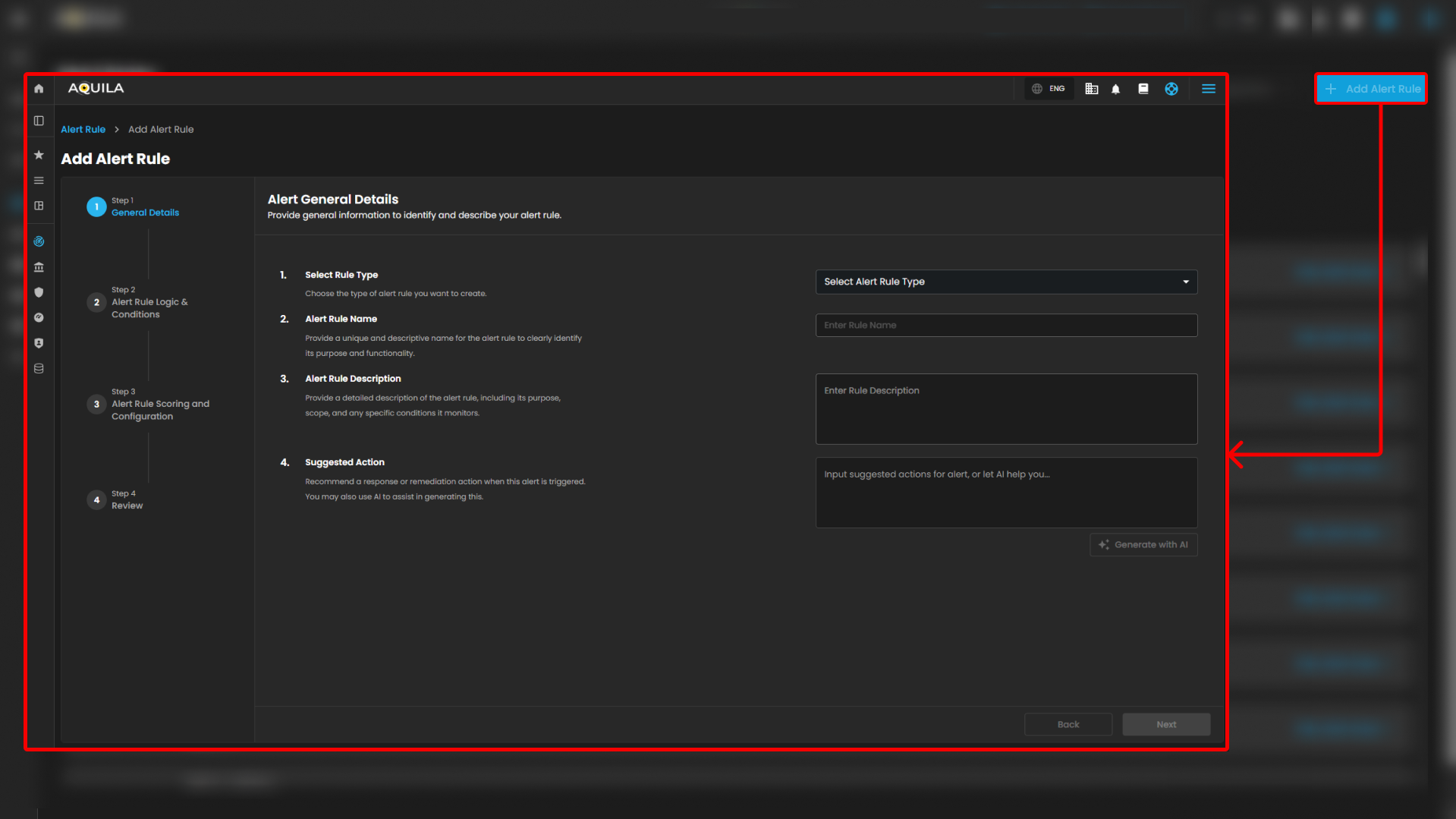
Alert Rule Listings
- Each listed entry represents a log source with its associated rules.
- Details include:
- Name of the log source (e.g., APM, AWS, Active Directory, Azure).
- Version of the rule set applied.
- Rule count indicating the total number of rules assigned to that log source.
- A link to View Alert Rules, which opens the detailed configuration and management interface for that specific source.
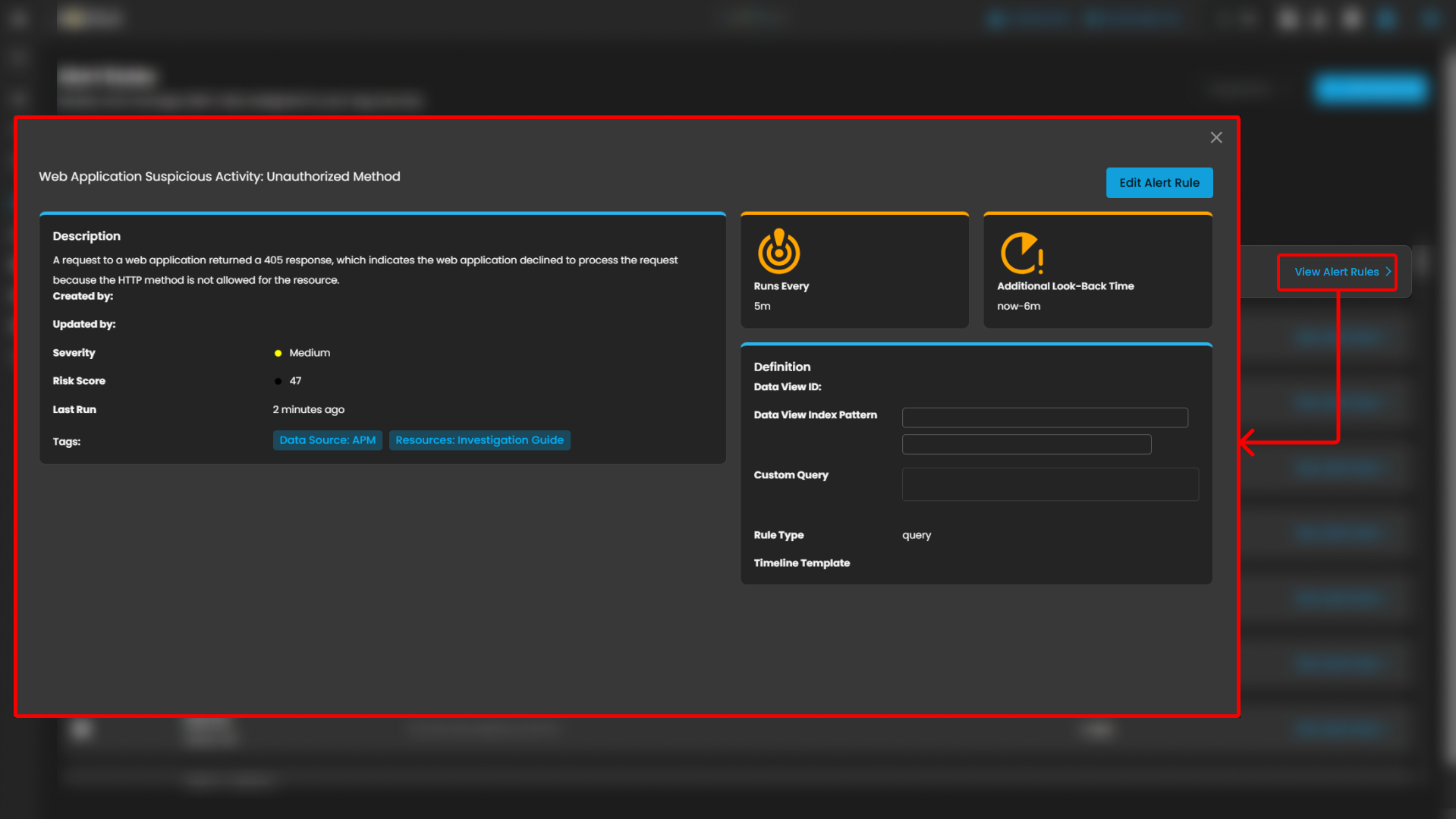
Users can also click the Rule to see more details about the alert rules.
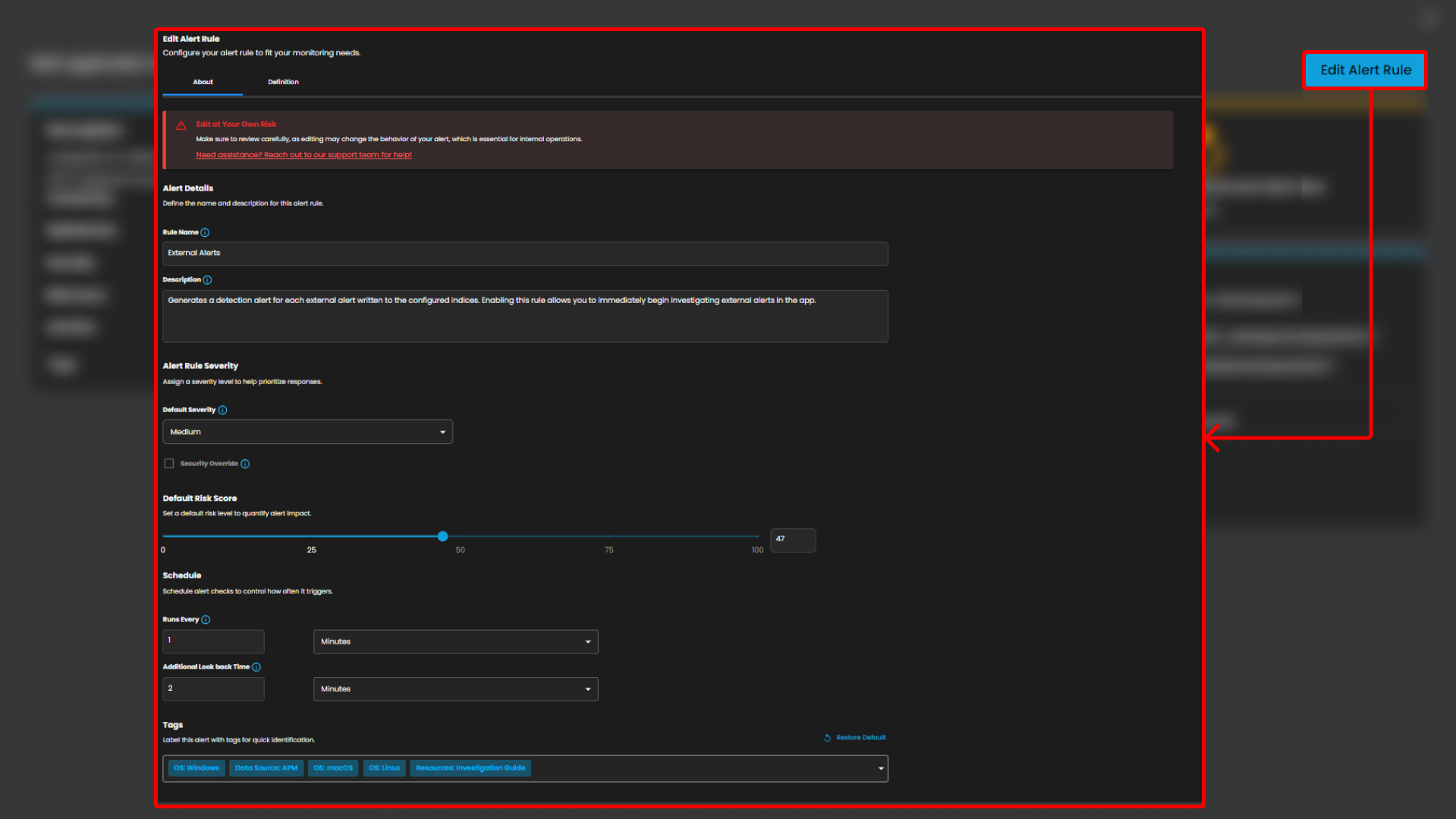
The users can also Edit Alert Rule by pressing the button. In this section they can adjust the time interval and its risk score or change its severity.
Manage Alert Rules
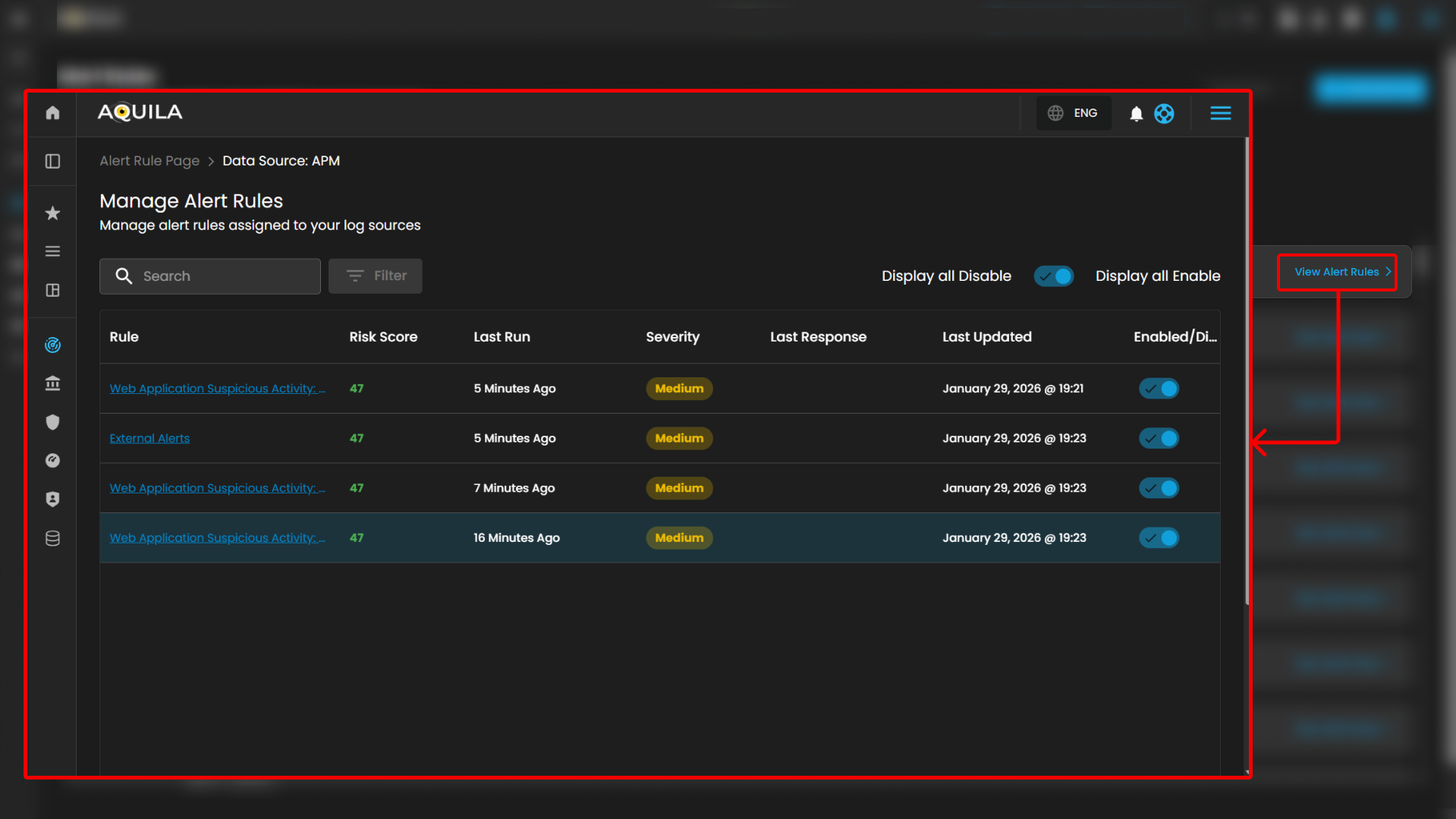
The Manage Alert Rules interface provides administrators with a centralized view and management panel for alert rules assigned to a data source. This page allows users to search, filter, review, enable/disable, and monitor the execution of a specific alert rule.
Search and Filter
- Search Bar: Provides keyword-based searching to quickly locate specific rules.
- Filter Button: Enables refined filtering of rules based on defined criteria such as severity, status, or log type.
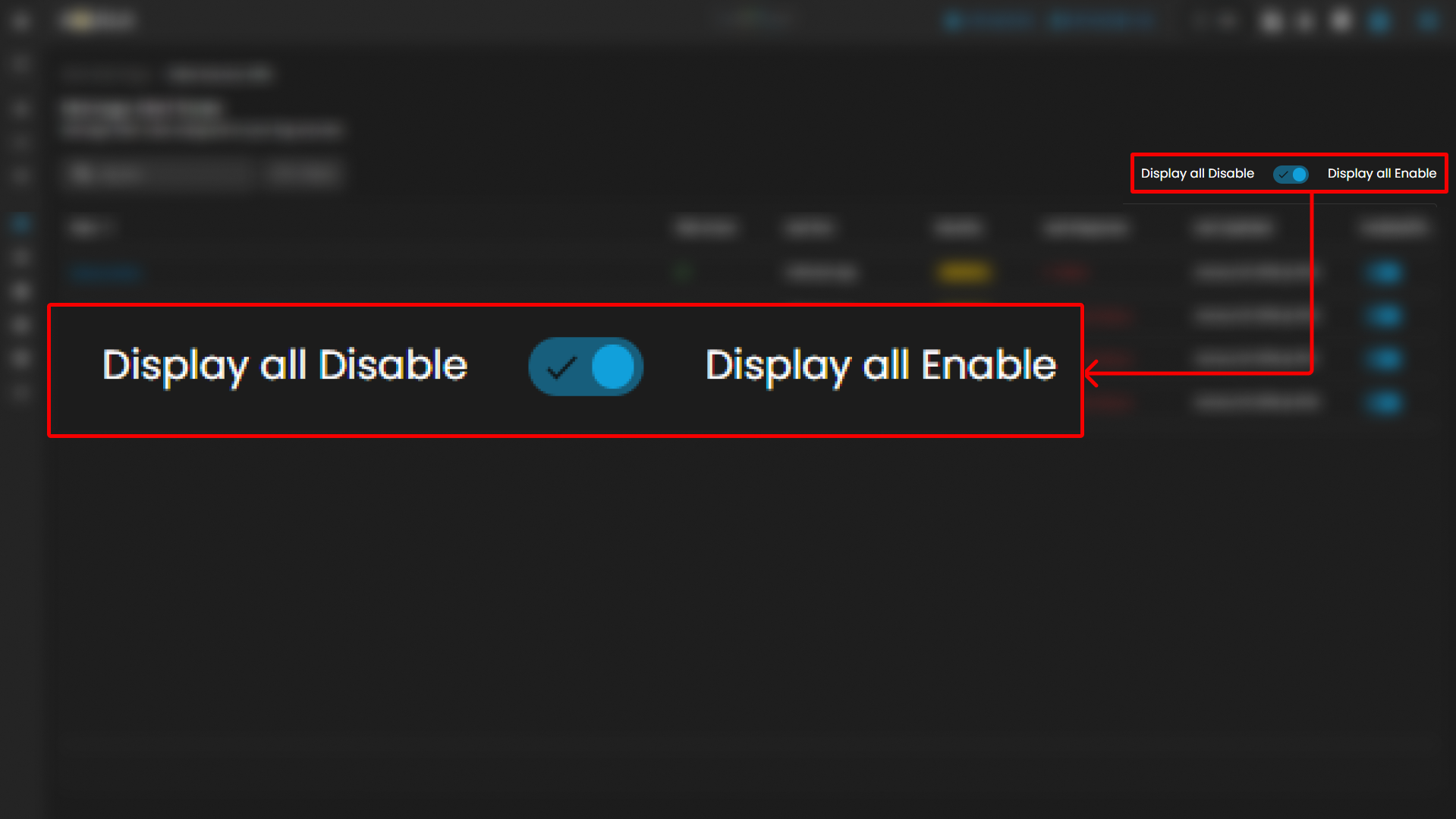
Global Toggle Controls
- Display All Disable: When enabled, this toggle ensures all disabled rules are displayed.
- Display All Enable: When enabled, this toggle ensures all enabled rules are displayed.
- These global options simplify rule visibility management in environments with large numbers of configured alerts.
Rule Table
The central section of the page displays a table containing all AWS alert rules with associated metadata and controls. Each row corresponds to a specific rule, with the following columns:
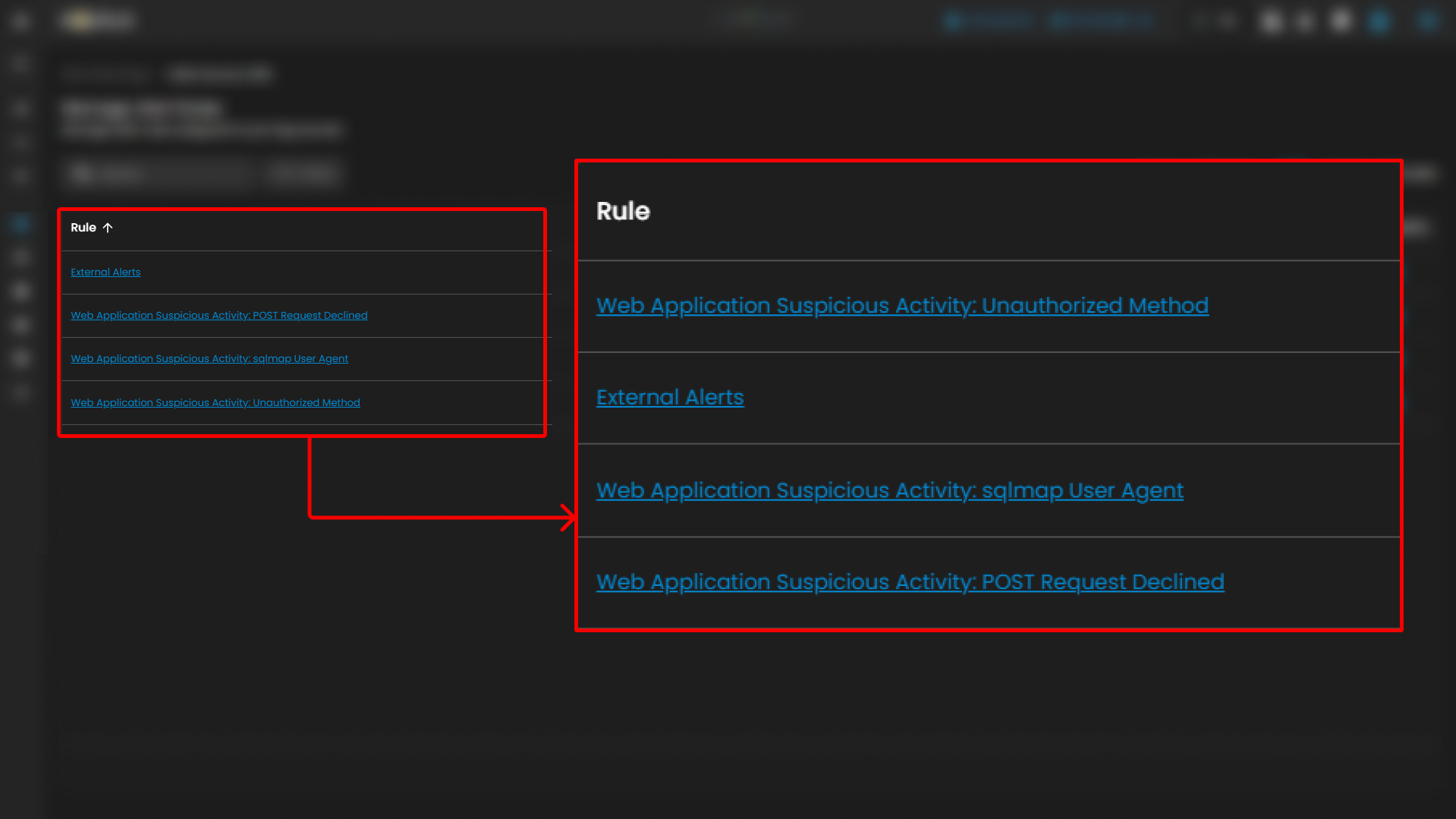
- Rule
- The rule name is hyperlinked, directing the user to the detailed configuration page for that specific rule.
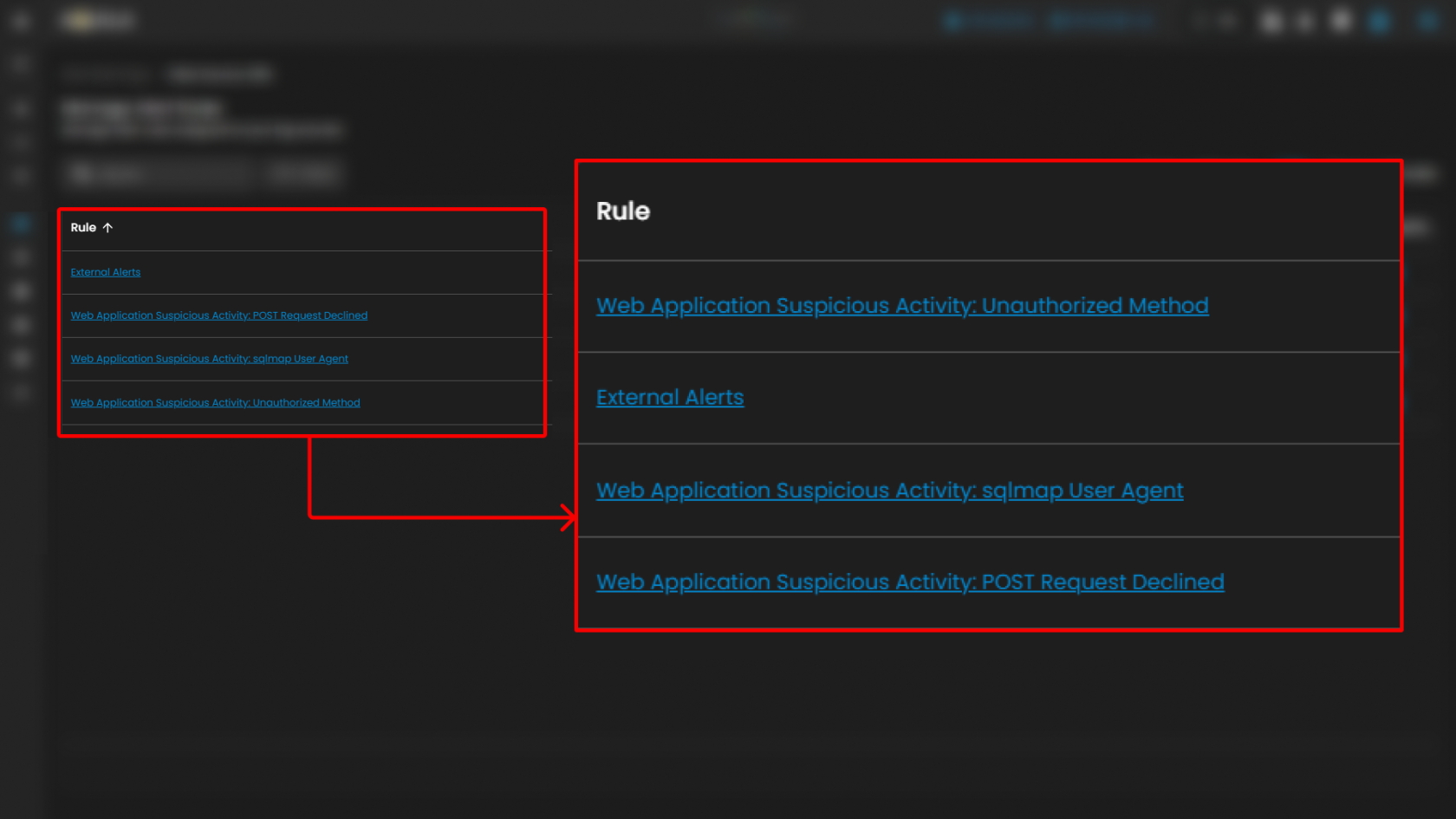
- The rule name is hyperlinked, directing the user to the detailed configuration page for that specific rule.
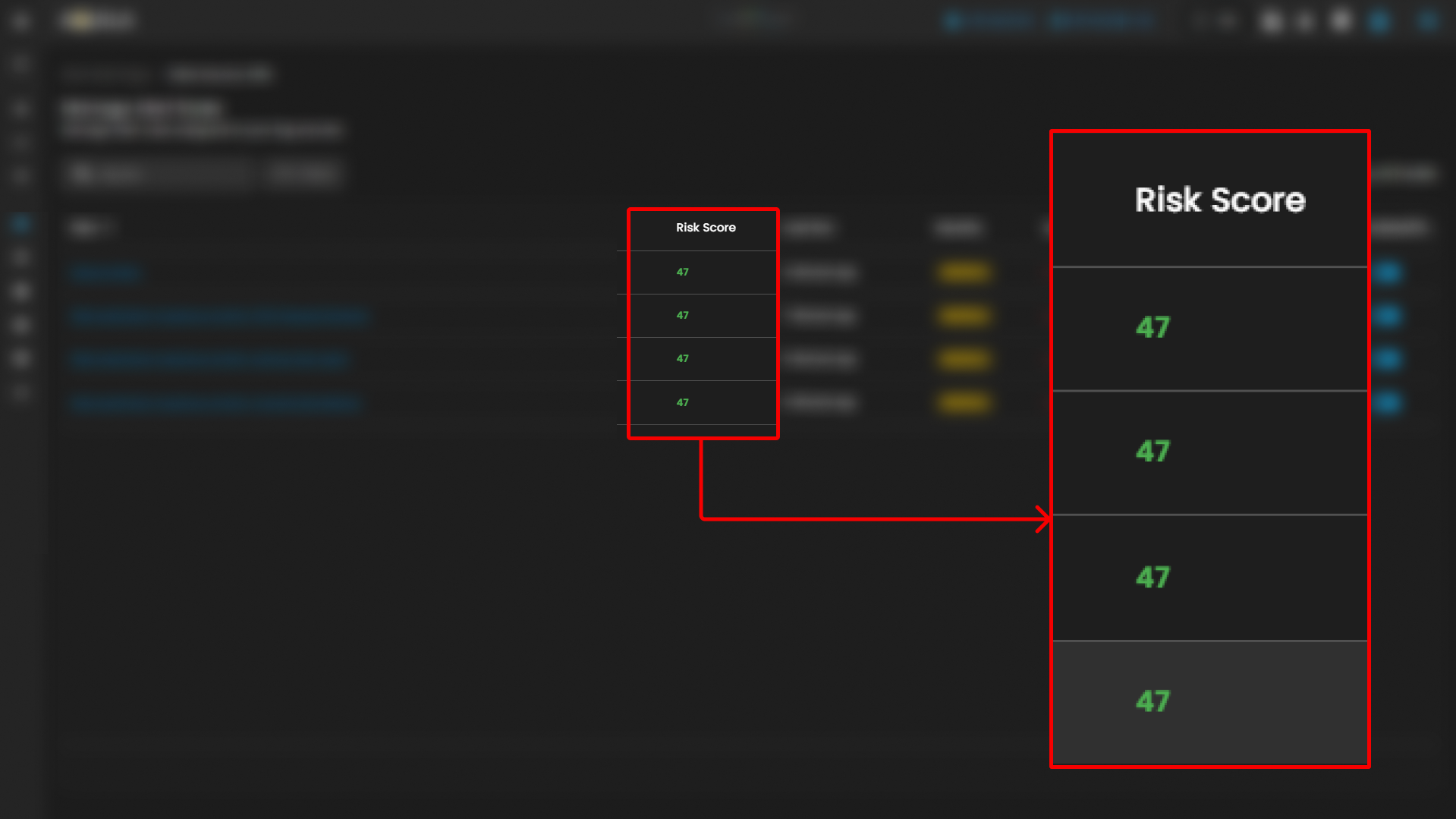
- Risk Score
- Numerical value representing the calculated risk impact of the rule if triggered.
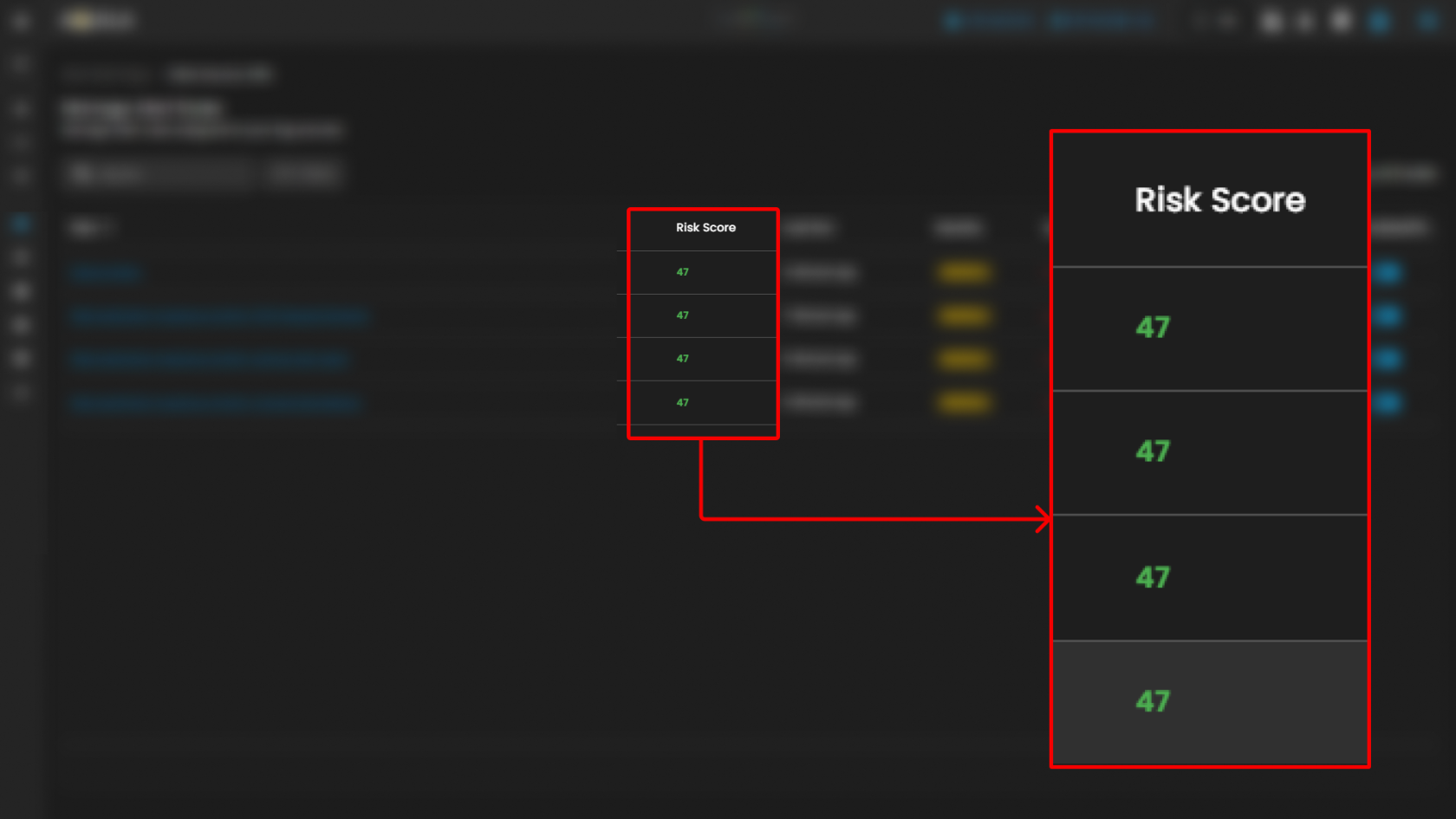
- Numerical value representing the calculated risk impact of the rule if triggered.
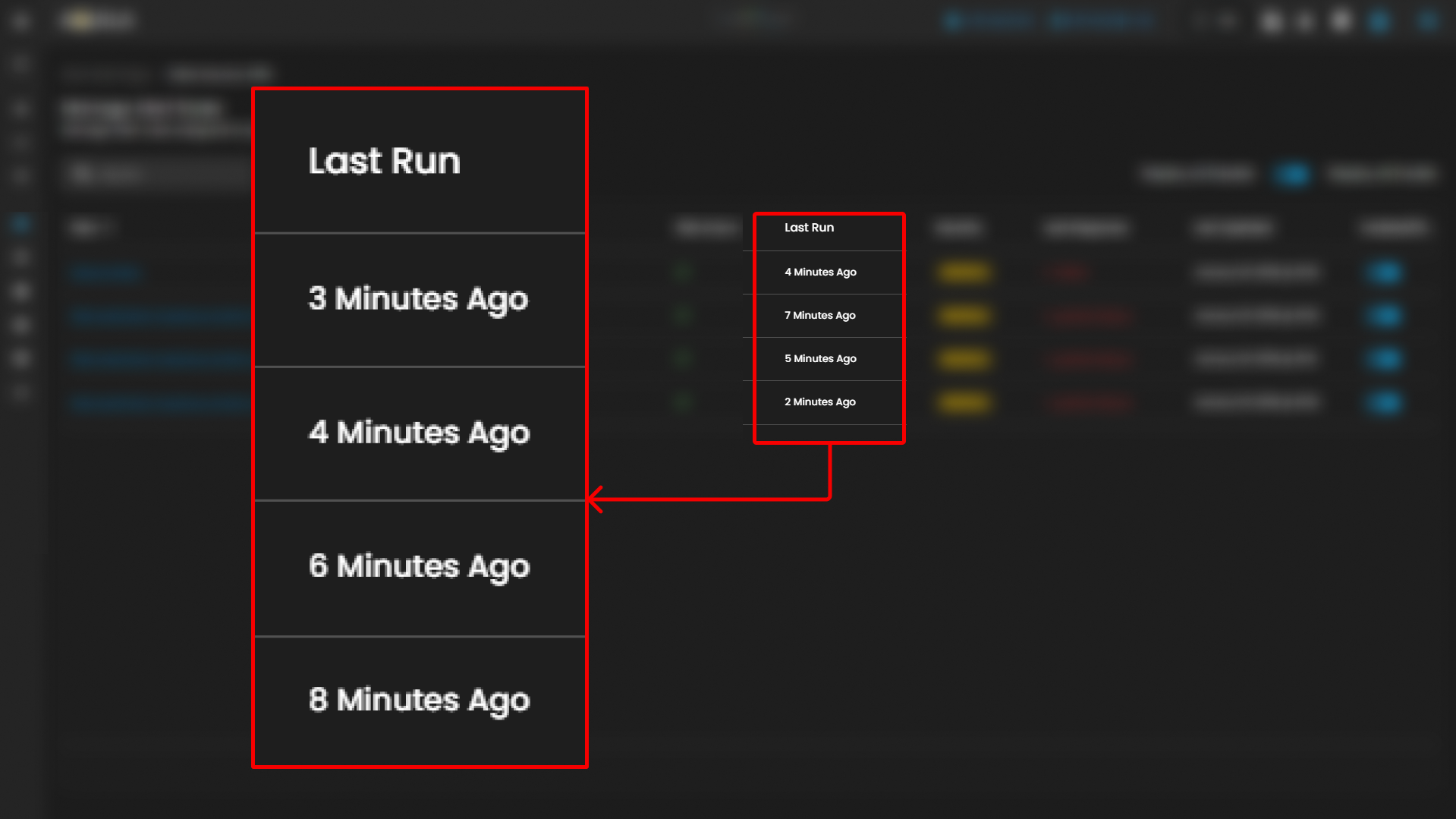
- Last Run
- Displays the most recent execution time of the rule.
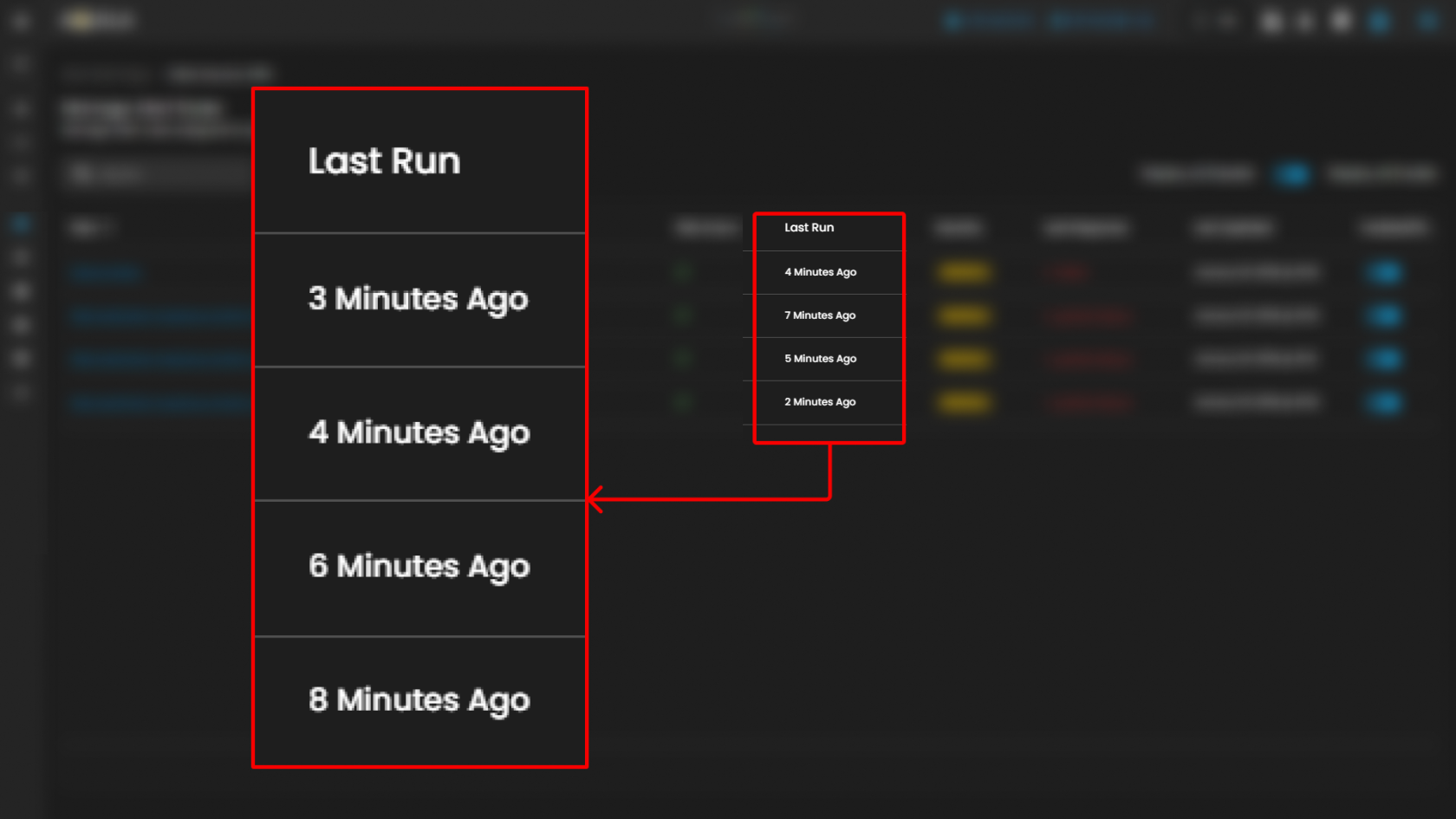
- Displays the most recent execution time of the rule.
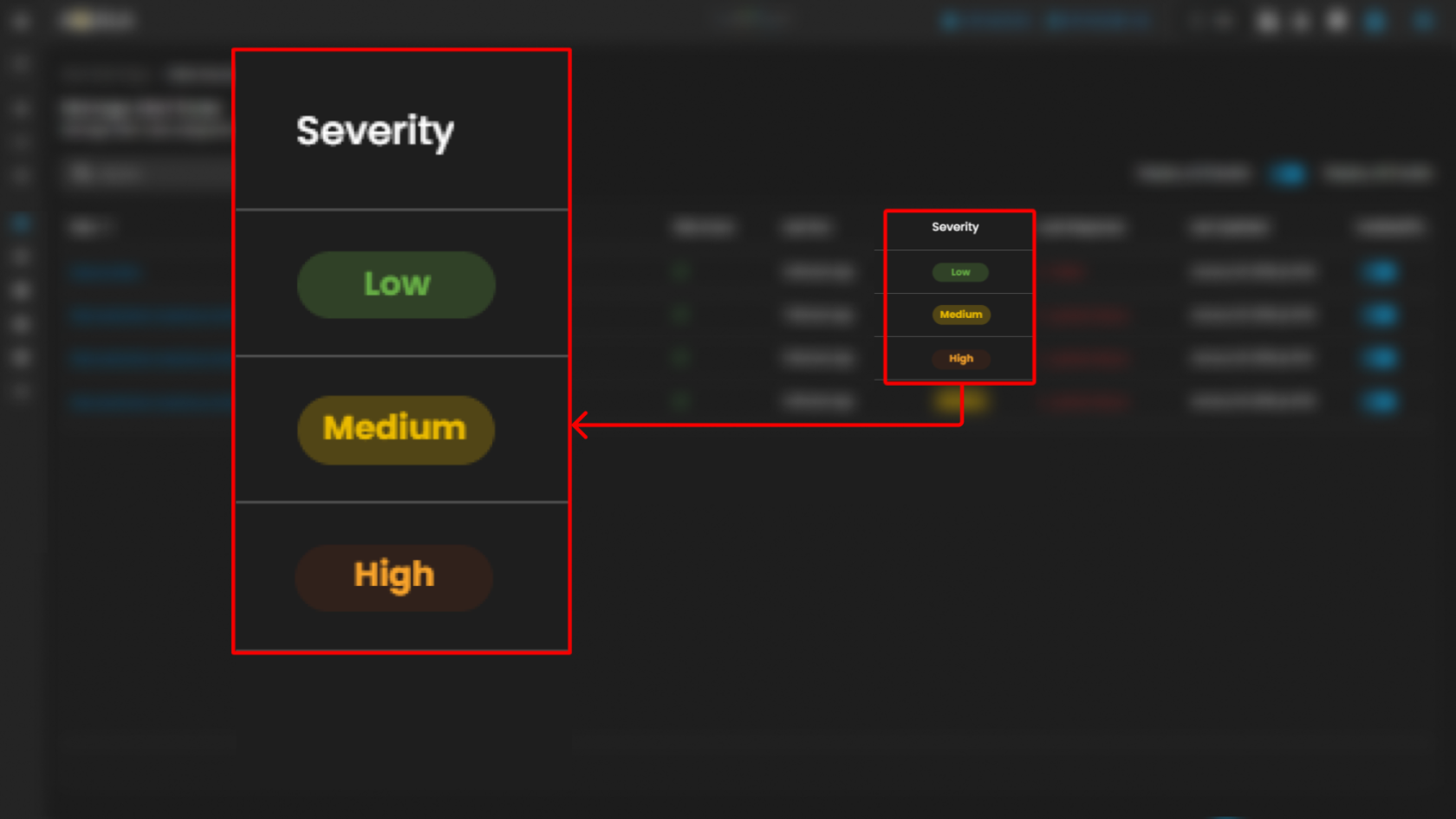
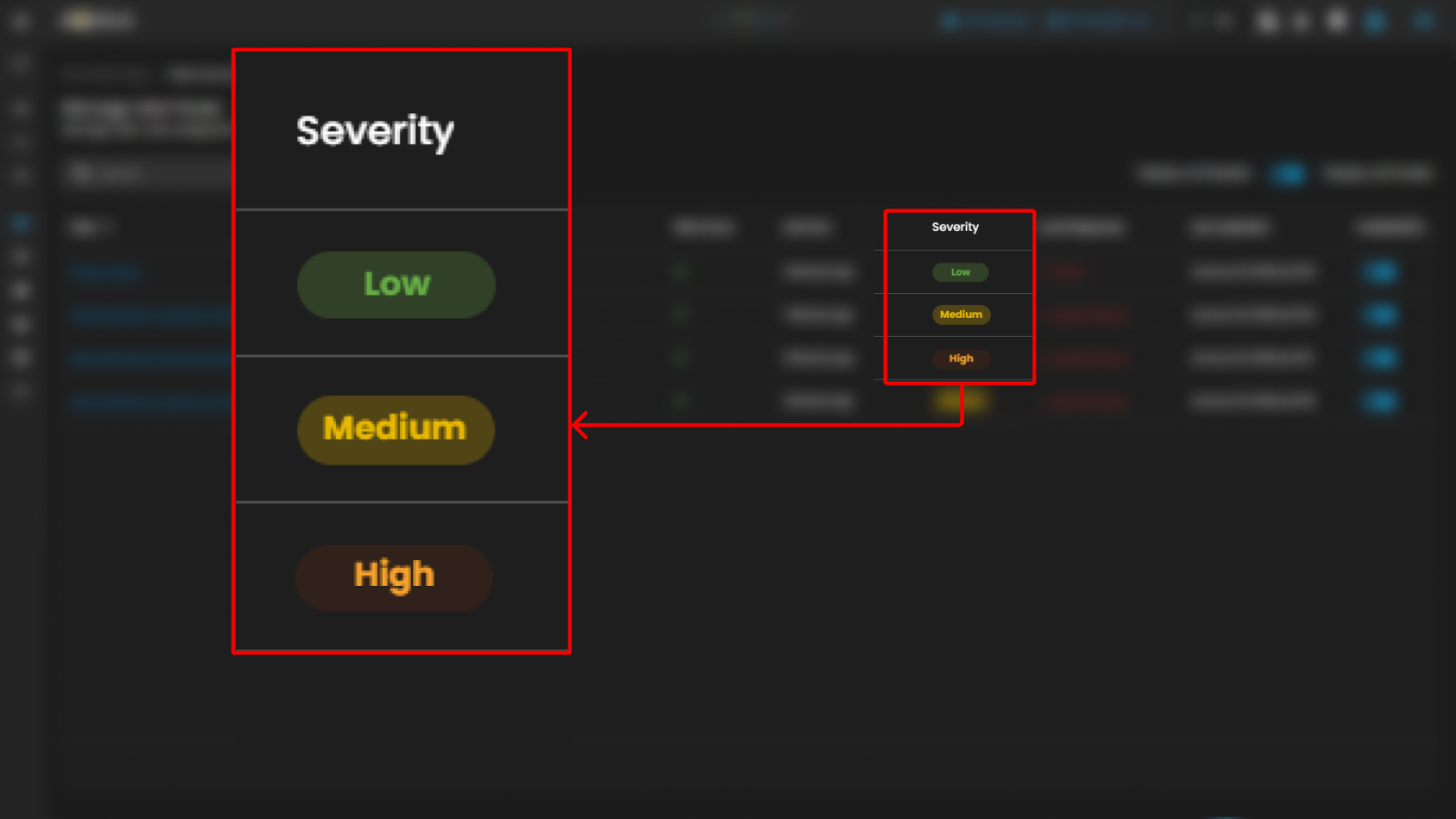
- Severity
- Severity levels include:
- Low (Green)
- Medium (Yellow)
- High (Red)
- Severity levels include:
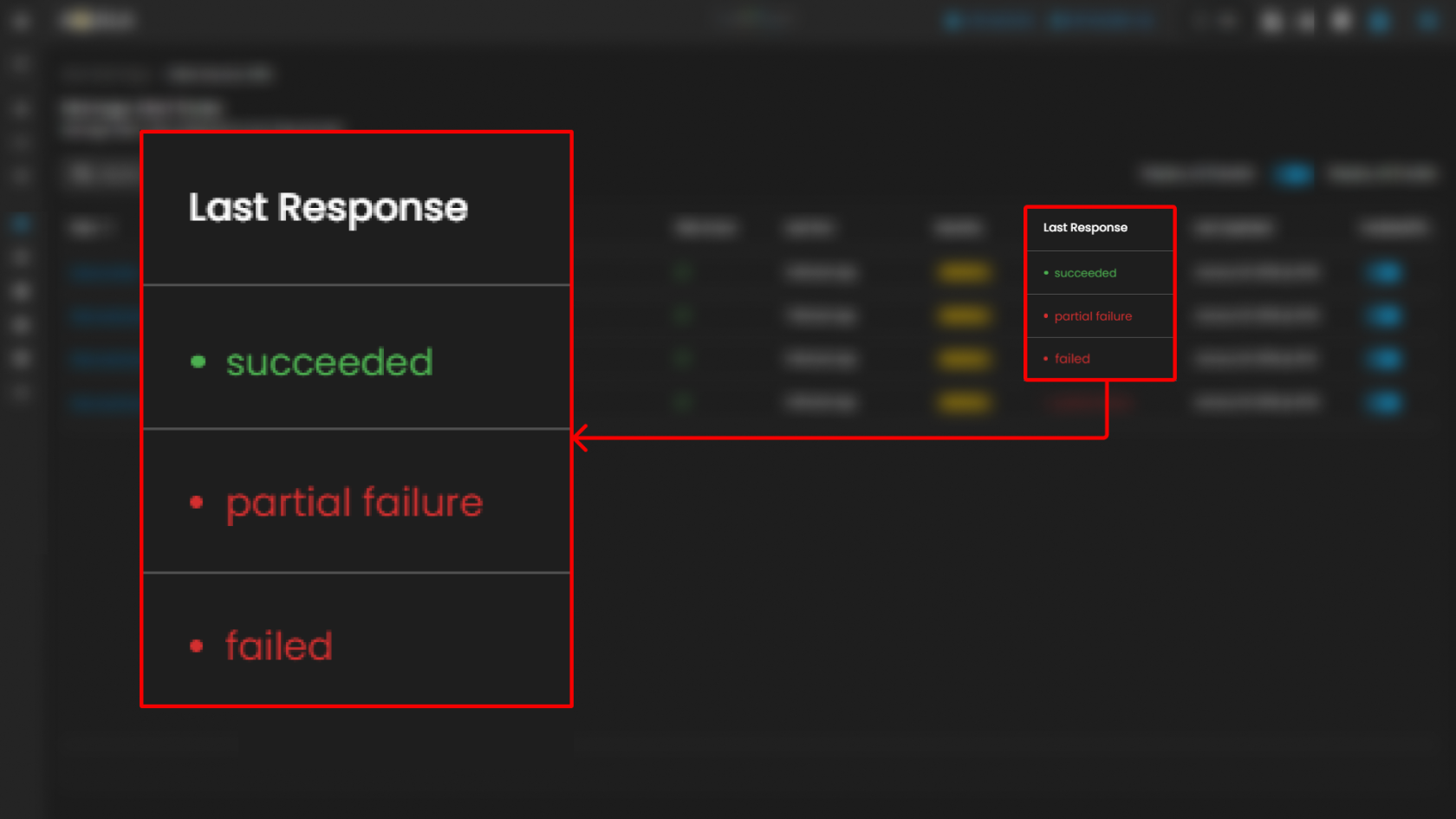
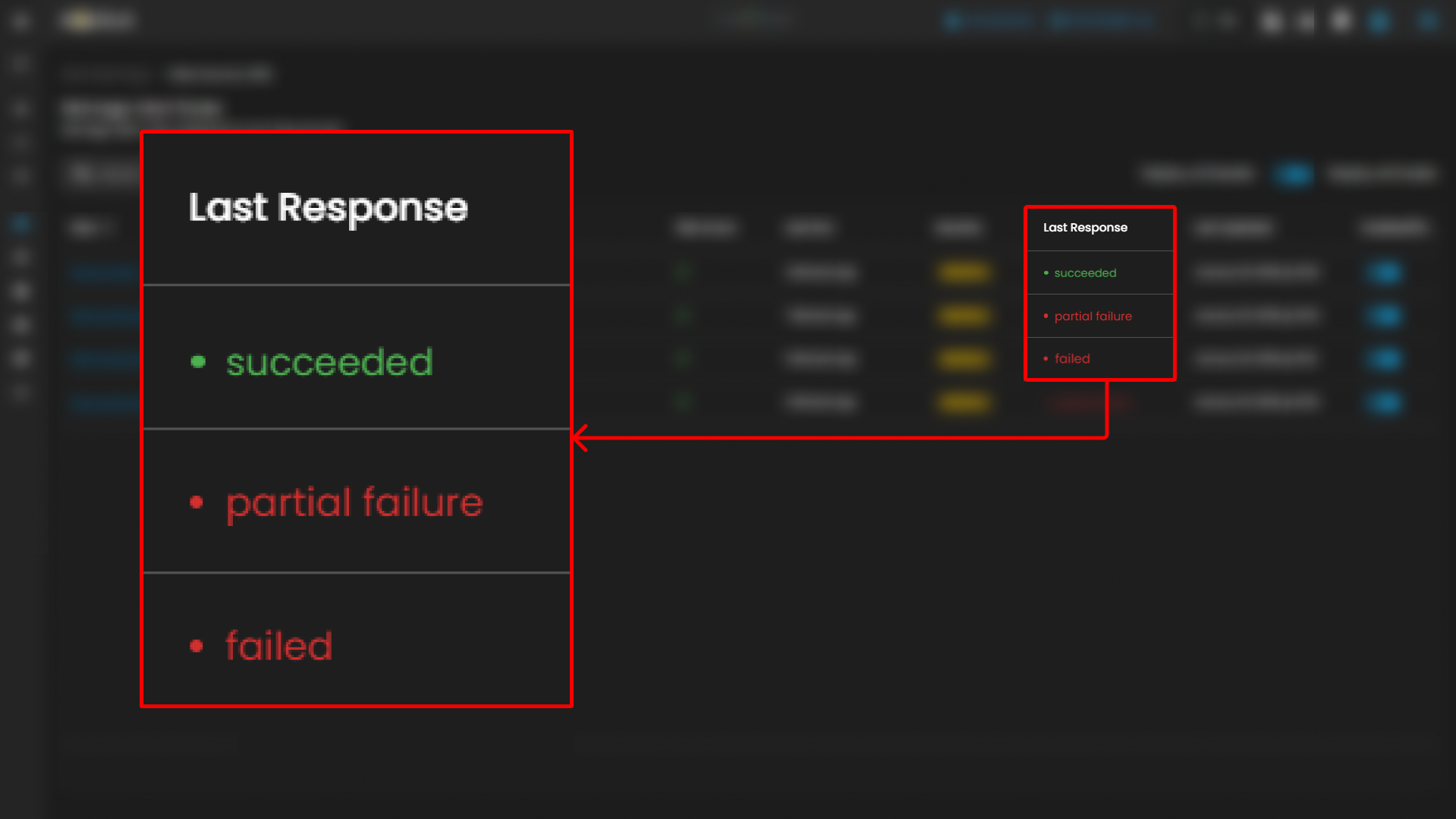
- Last Response
- Shows the outcome of the most recent rule execution.
- Status values include:
- Succeeded (green indicator)
- Potential Failed
- Failed
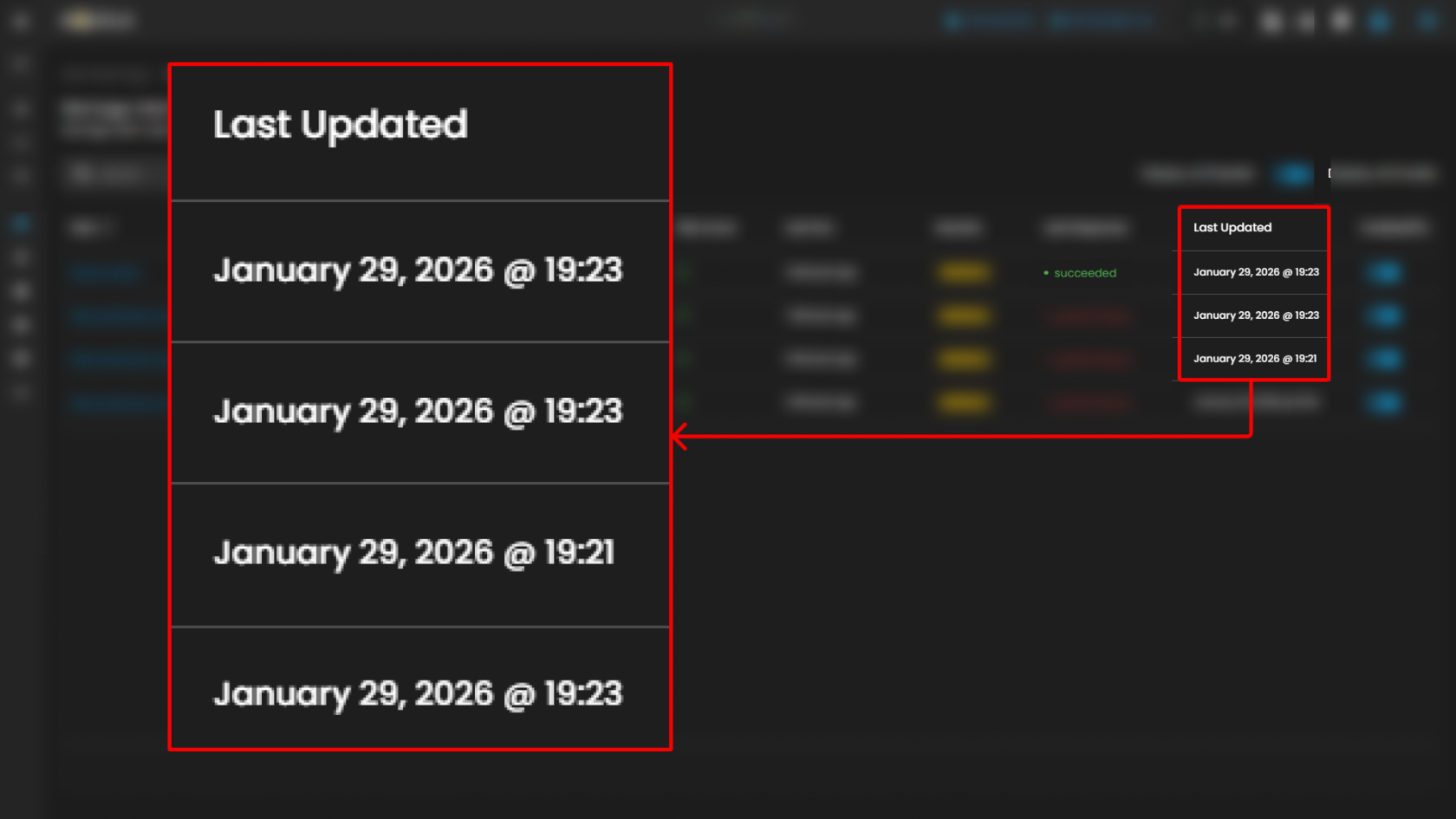
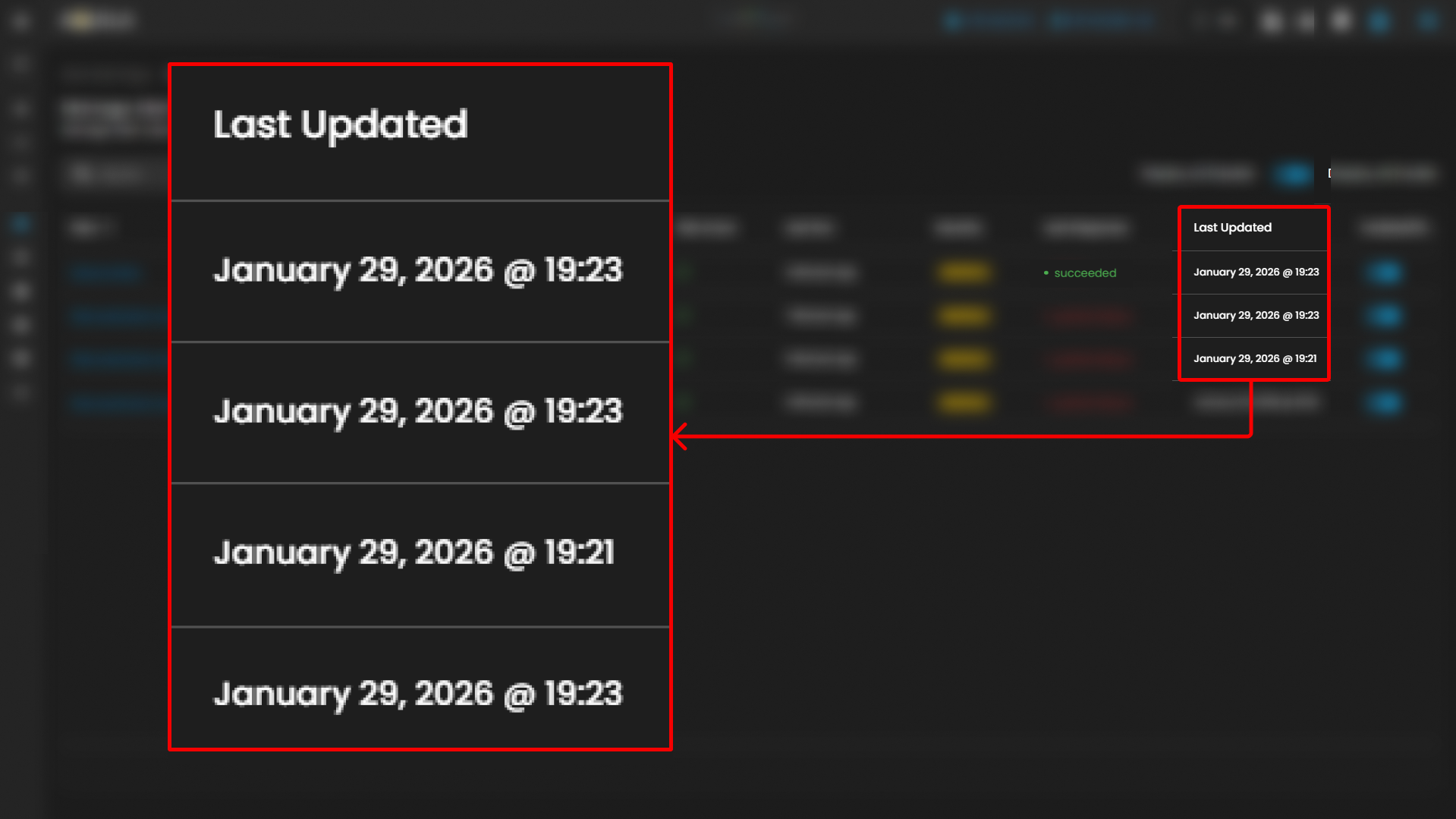
- Last Updated
- Provides the timestamp when the rule was last modified.
- Provides the timestamp when the rule was last modified.
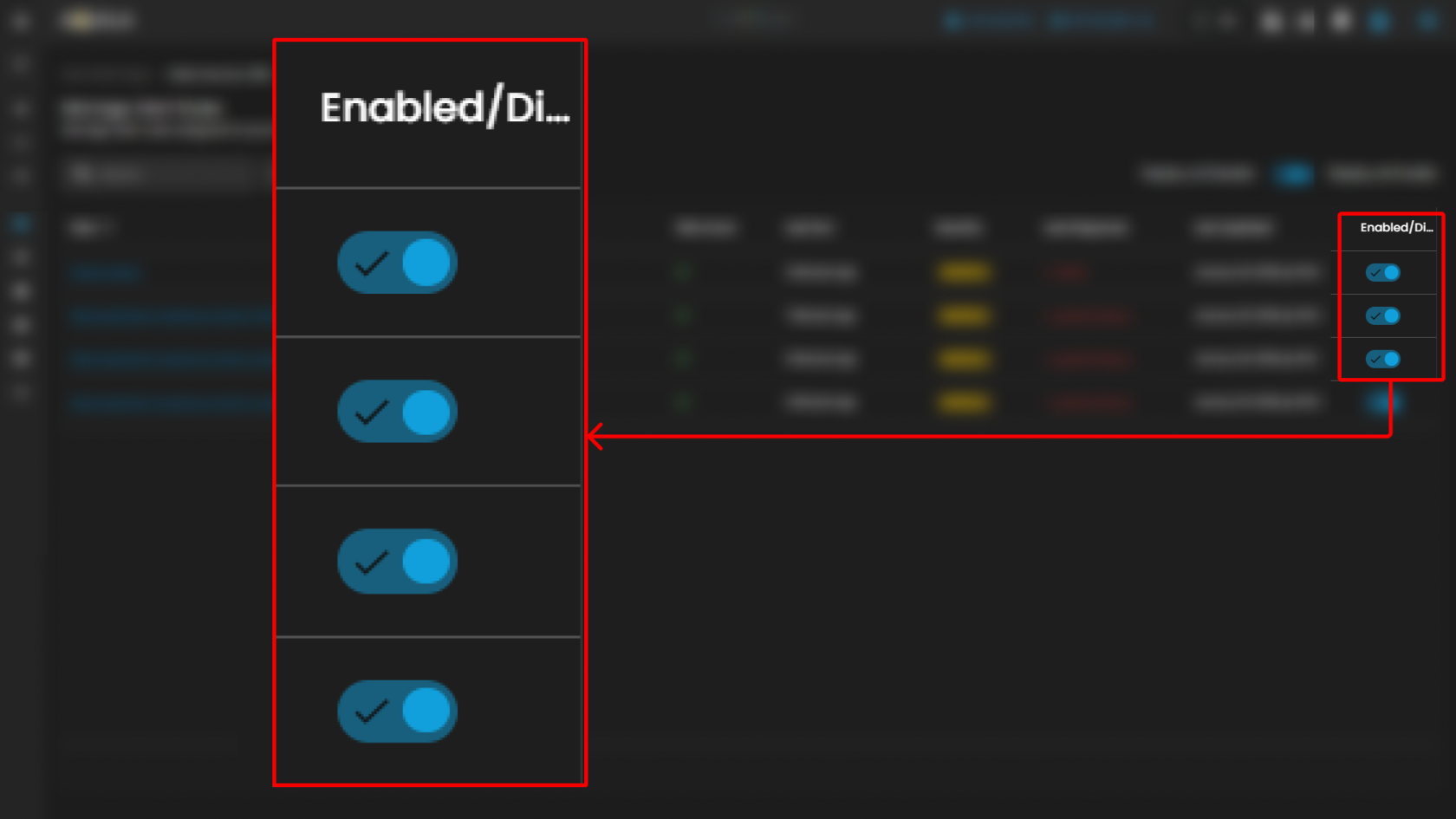
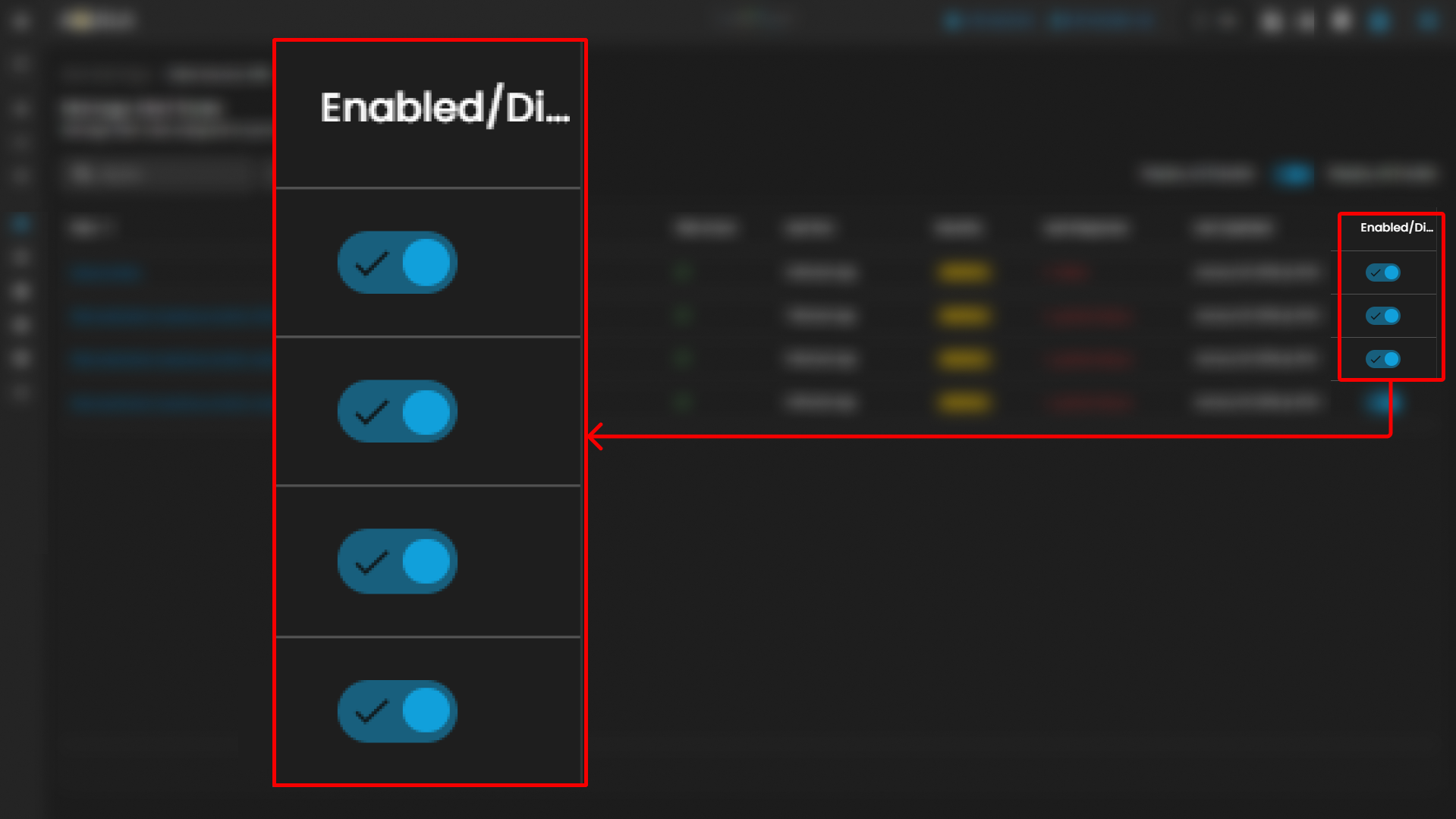
- Enabled/Disabled Toggle
- Each rule has an individual toggle to enable or disable its monitoring function.
- Active (enabled) rules are marked in blue, while disabled rules would appear in gray.
This section ensures visibility into how alerts are defined and enforced across environments. By consolidating rule management, it allows administrators to maintain consistency, identify gaps, and prioritize responses effectively.
________________________________________________________________________________________________________________________________________________
Cyber Incident Management (CIM): Settings
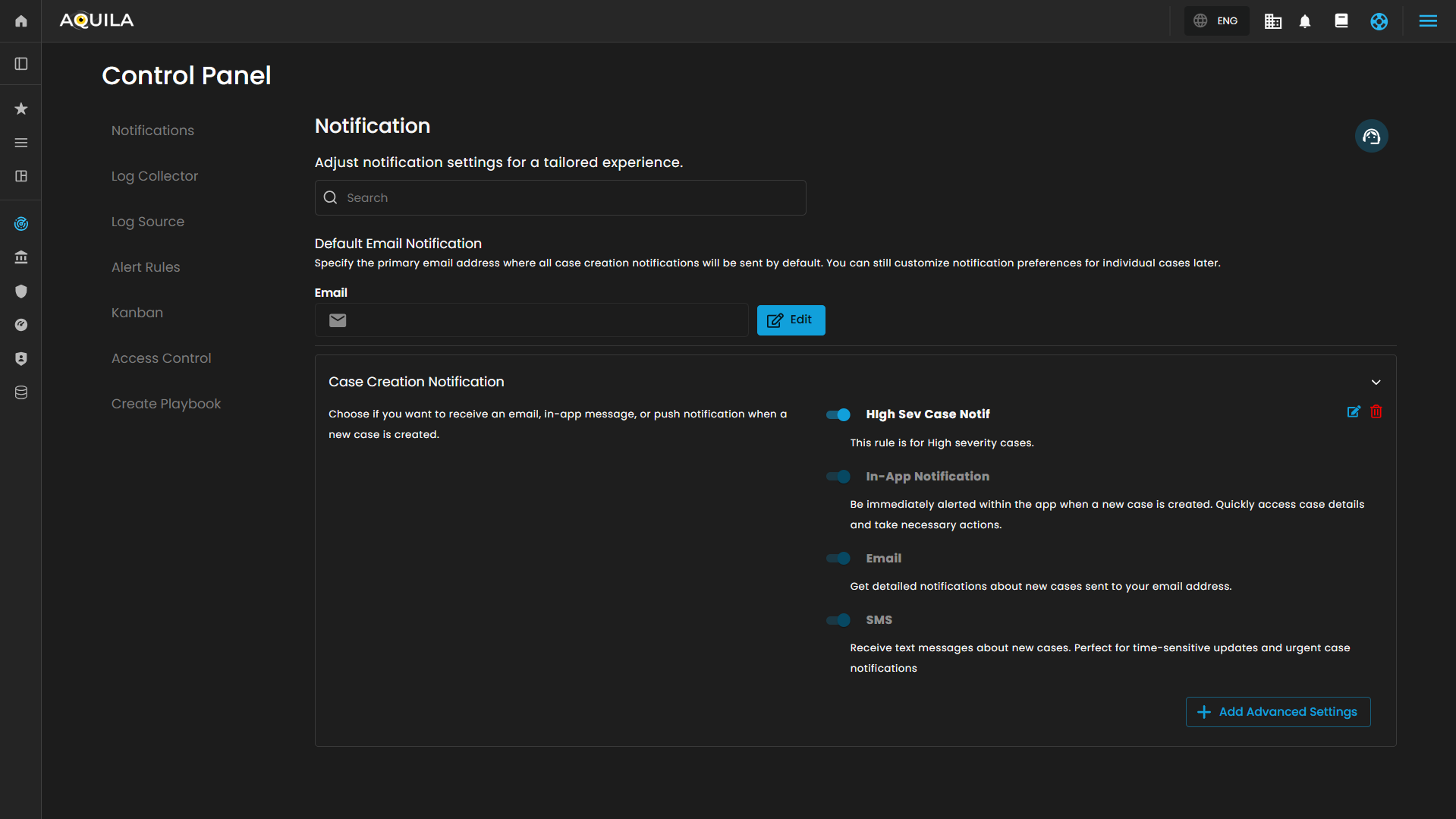
This page allows users to configure and manage notification settings within the CIM (Cyber Intelligence Management) solution. The interface is organized into multiple sections for streamlined navigation and tailored notification management.
Notification
This main section allows for adjustment of general notification settings:
-
Search Bar: A search field to quickly locate specific notification settings or preferences.

- Default Email Notification
-
Description: Specifies the primary email address where all case creation notifications will be sent by default. This setting does not restrict customization for individual case notifications.

-
Email Input Field: Placeholder text "example@domain.com" indicates where the default email address is entered.

-
Edit Button: Allows editing and saving of the default email address for notifications.
-



Case Creation Notification
This sub-section outlines options for notifications when a new case is created:
-
Description: Users can choose notification channels for receiving alerts related to case creation.
- Notification Types:
-
In-App Notification: Alerts are immediately displayed within the application. Users can quickly access new case details and take required actions.

-
Email: Detailed notifications about newly created cases are sent to the designated email address.

-
SMS: Text message alerts are dispatched for new cases. This channel is recommended for time-sensitive and urgent updates.

-
-
Switches: Each notification method has a toggle switch for enabling or disabling the specific notification type.
-
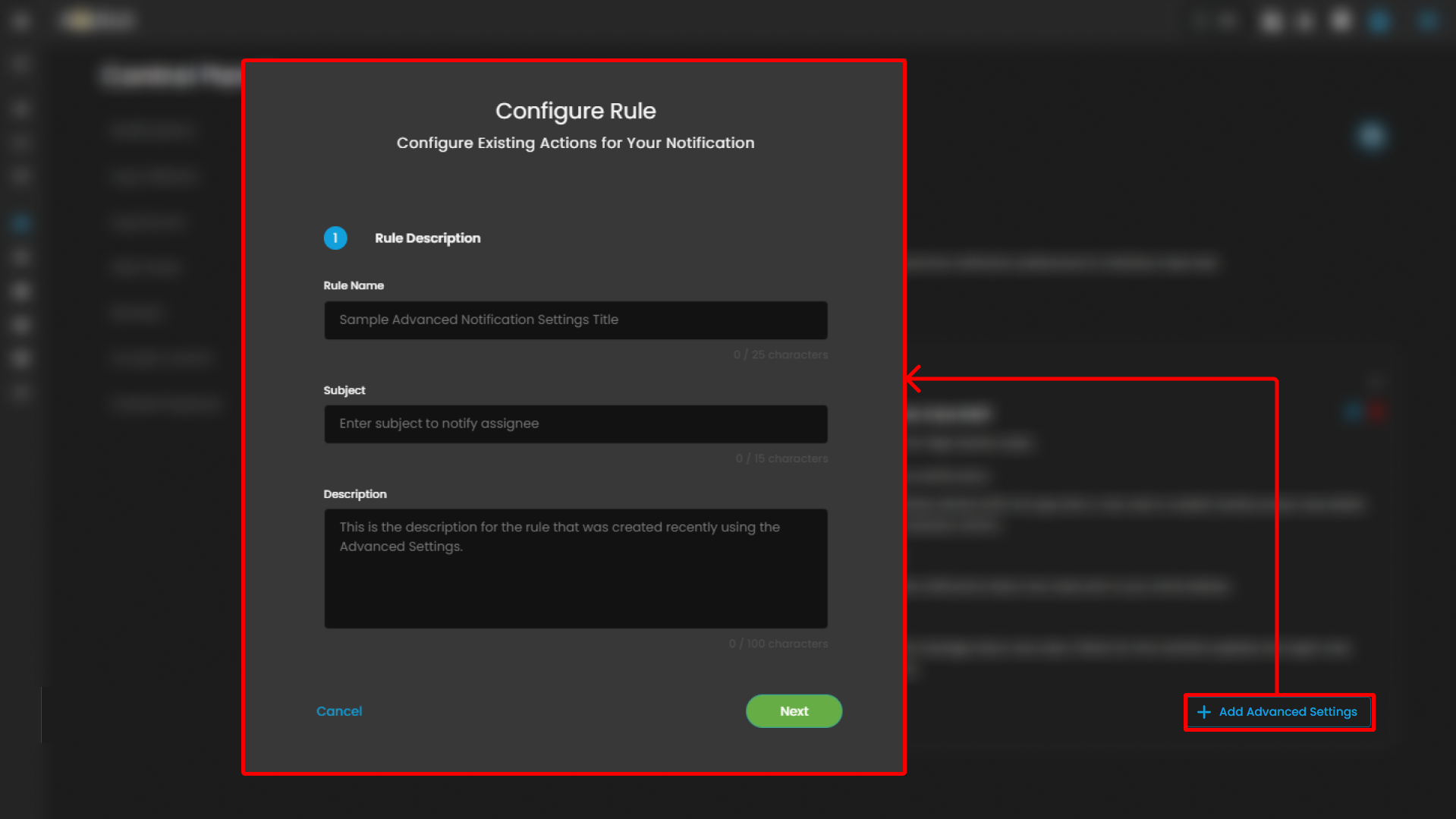
Advanced Settings: A button labeled "Add Advanced Settings" provides access to Configure Rule pop up when clicked.



Notification Action Configuration
This page is used to configure the details for an existing action in a notification rule within the CIM (Cyber Intelligence Management) system. The user is guided through defining core attributes of the notification action, enabling efficient management and customization.
Rule Name
-
Purpose: Enter the specific name for the notification rule. Example given is "Sample Advanced Notification Settings Title".
-
Character Limit: Allows up to 25 characters, shown as a counter.
Subject
-
Purpose: Specify a concise subject line for the notification, intended to notify the assigned recipient.
-
Character Limit: 15 characters, displayed as a counter.
Description
-
Purpose: Provide a detailed description of the rule. This field is for explanatory text supporting clarity on the rule's intent and function.
-
Character Limit: 100 characters, indicated below the field.
Clicking Next will redirect you to the second page of the configuration.
Notification Rule Creation
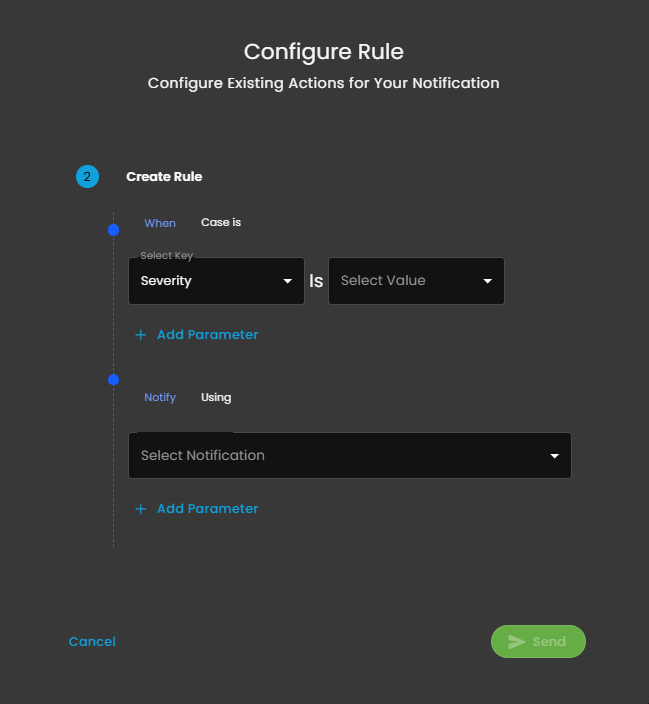
This interface is the second step in the process of configuring actions for a notification rule within the CIM platform. It enables administrators to define the specific conditions under which notifications should be sent, as well as the corresponding notification methods.
Rule Condition Configuration
- When Case is
-
Select Key: Dropdown to choose a case attribute to evaluate; shown as "Severity".
-
Is: Operator for comparison.
-
Select Value: Dropdown to specify the value for the selected key.
-
-
Add Parameter: Option to increase rule complexity by adding additional parameters for multi-conditional logic.
Notification Action Specification
- Notify Using
-
Select Notification: Dropdown list for choosing the desired notification channel (e.g., email, in-app, SMS).
-
-
Add Parameter: Option to customize or refine notification actions with additional parameters.
Support Section
-
Purpose: Provides users with quick access to support resources, assistance, or help documentation related to the Cyber Intelligence Management (CIM) system.
-
Functionality: Typically, clicking this icon would open a support menu, chat widget, or redirect to a help center where users can submit support tickets, search FAQs, or get live assistance.
-
Accessibility: Its prominent placement ensures immediate visibility for users needing assistance without navigating away from the current workspace or settings page.
Log Collector List
The Log Collector List interface provides administrators with a centralized view for managing and monitoring log collectors. This section is part of the Settings for CIM (Cyber Incident Management) module and enables easy configuration, visibility, and operational control of log collectors.
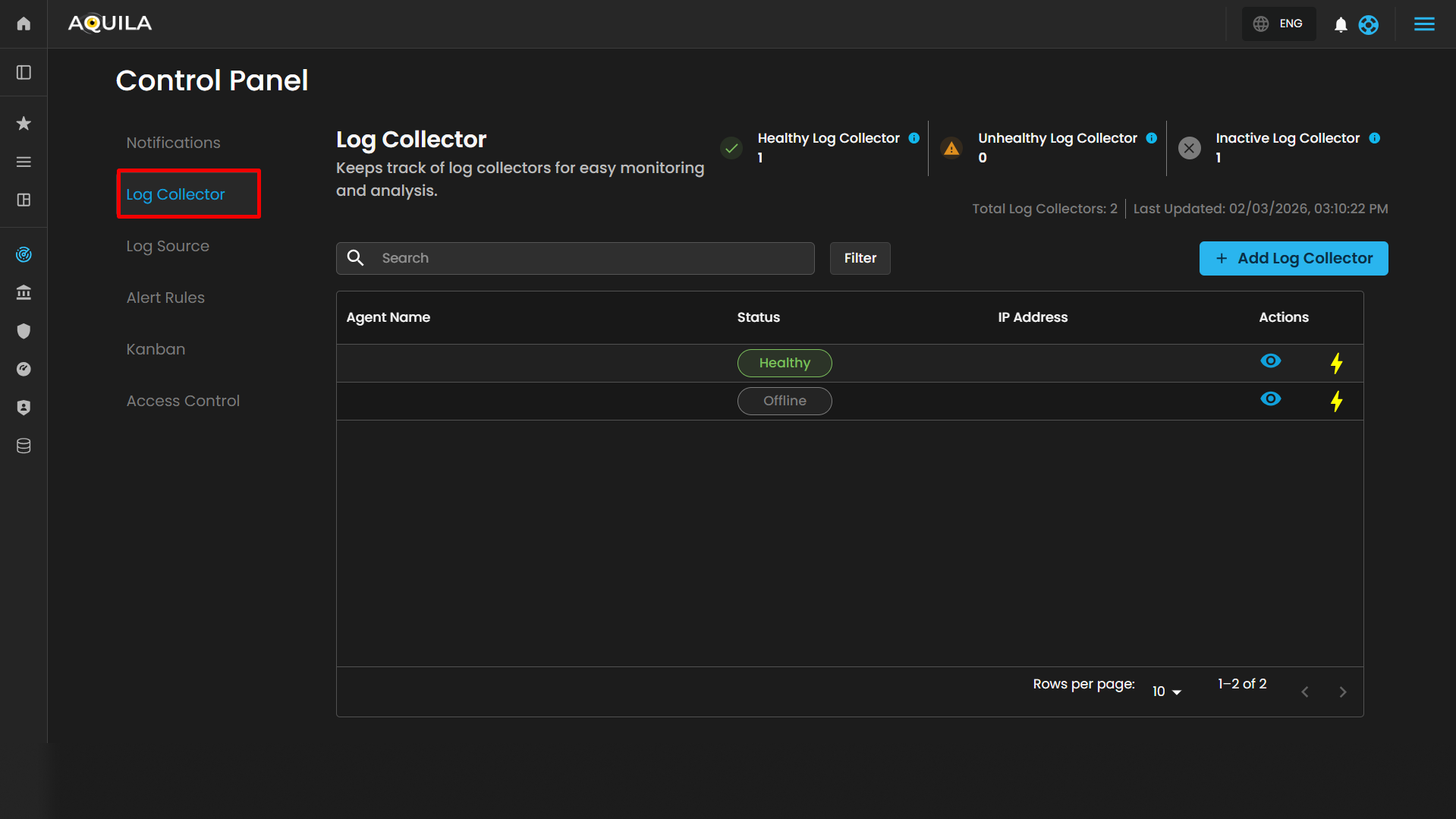
Action Controls
- Add Log Collector (button): Located on the upper-right corner. This allows administrators to register a new log collector agent into the system.
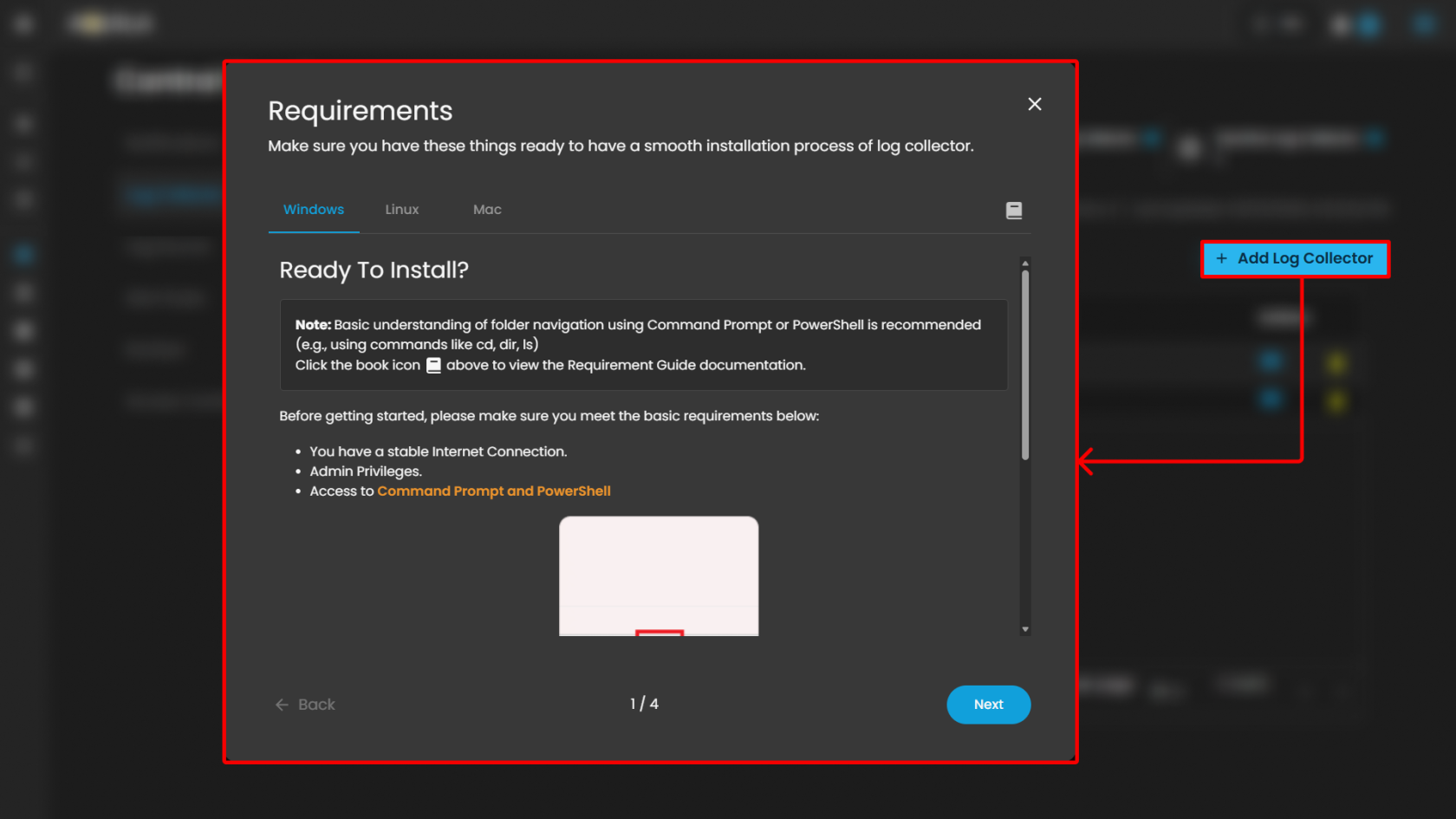
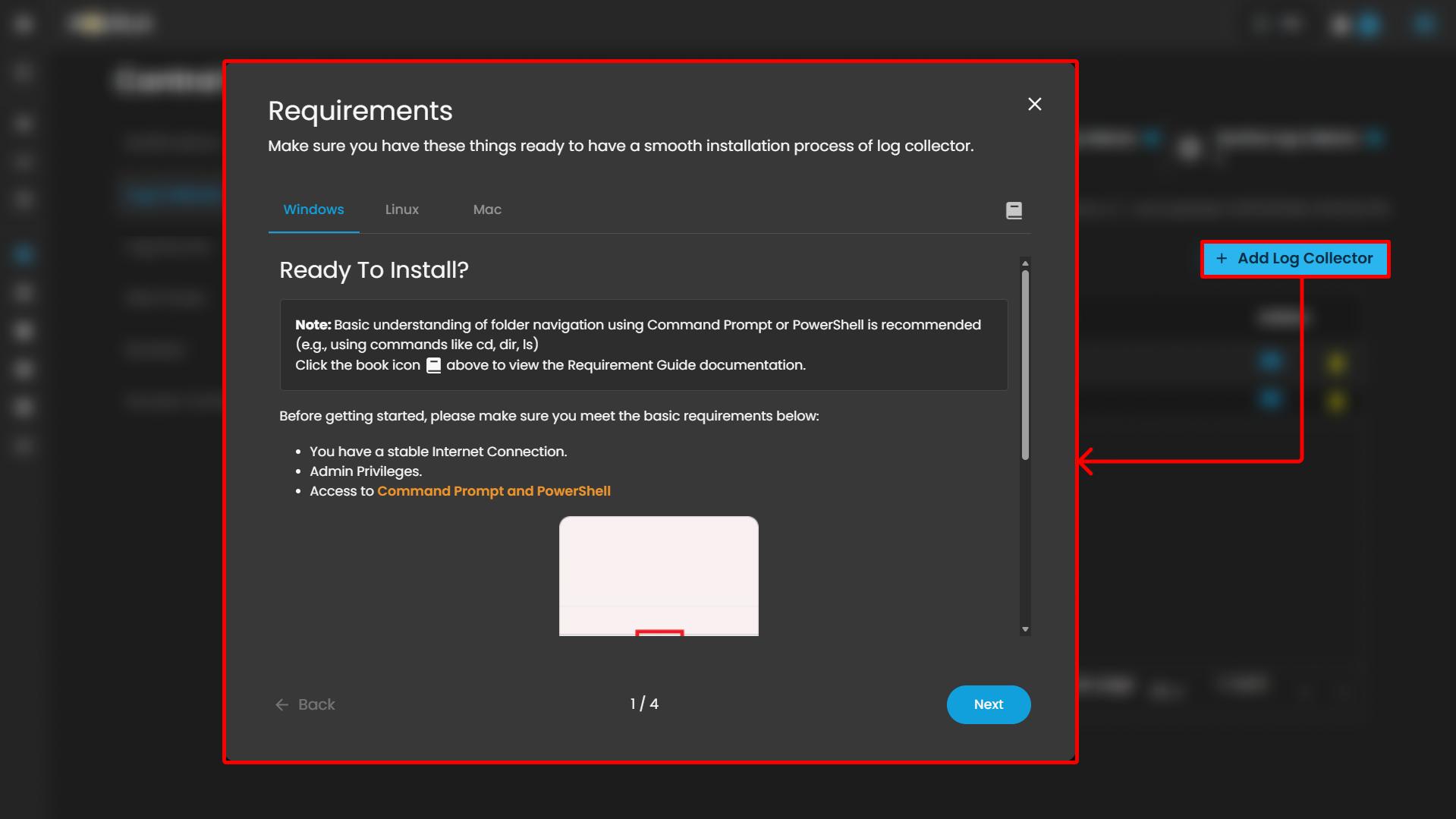
To learn more about "Add Log Collector" please refer to this link.
Windows Log Collector Installation: Log Collector Installa... | AQUILA Documentations
Linux Log Collector Installation: Log Collector Installa... | AQUILA Documentations
Mac Log Collector Installation: Log Collector Installa... | AQUILA Documentations
Log Collector Table
The main section of the page displays a table of log collectors, providing key operational details:
| Column | Description |
| Agent Name |
Displays the name of the log collector agent. Clickable for detailed view. Example: HYDRA-DC. |
| Status | Indicates whether the log collector is currently online or offline. Example: Offline. |
| IP Address |
Shows the network address assigned to the log collector. |
- View Icon: Located on the left side of each row, enabling quick inspection of collector details. When clicking it redirects you to the page where all the log sources was integrated on the specific log collector.
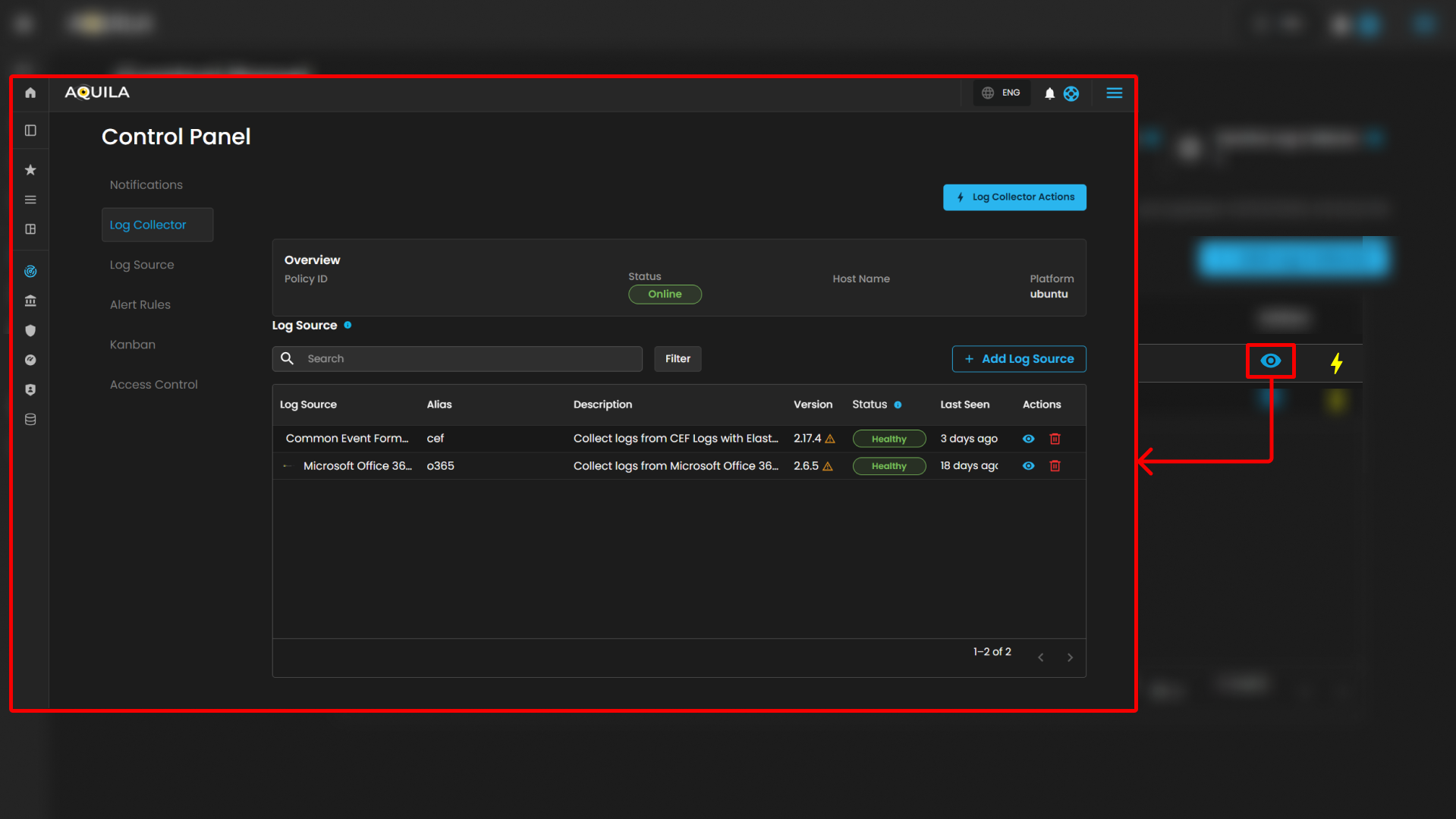
When pressing the "eye icon" in the Log Source, it will show a side bar where it will give more information
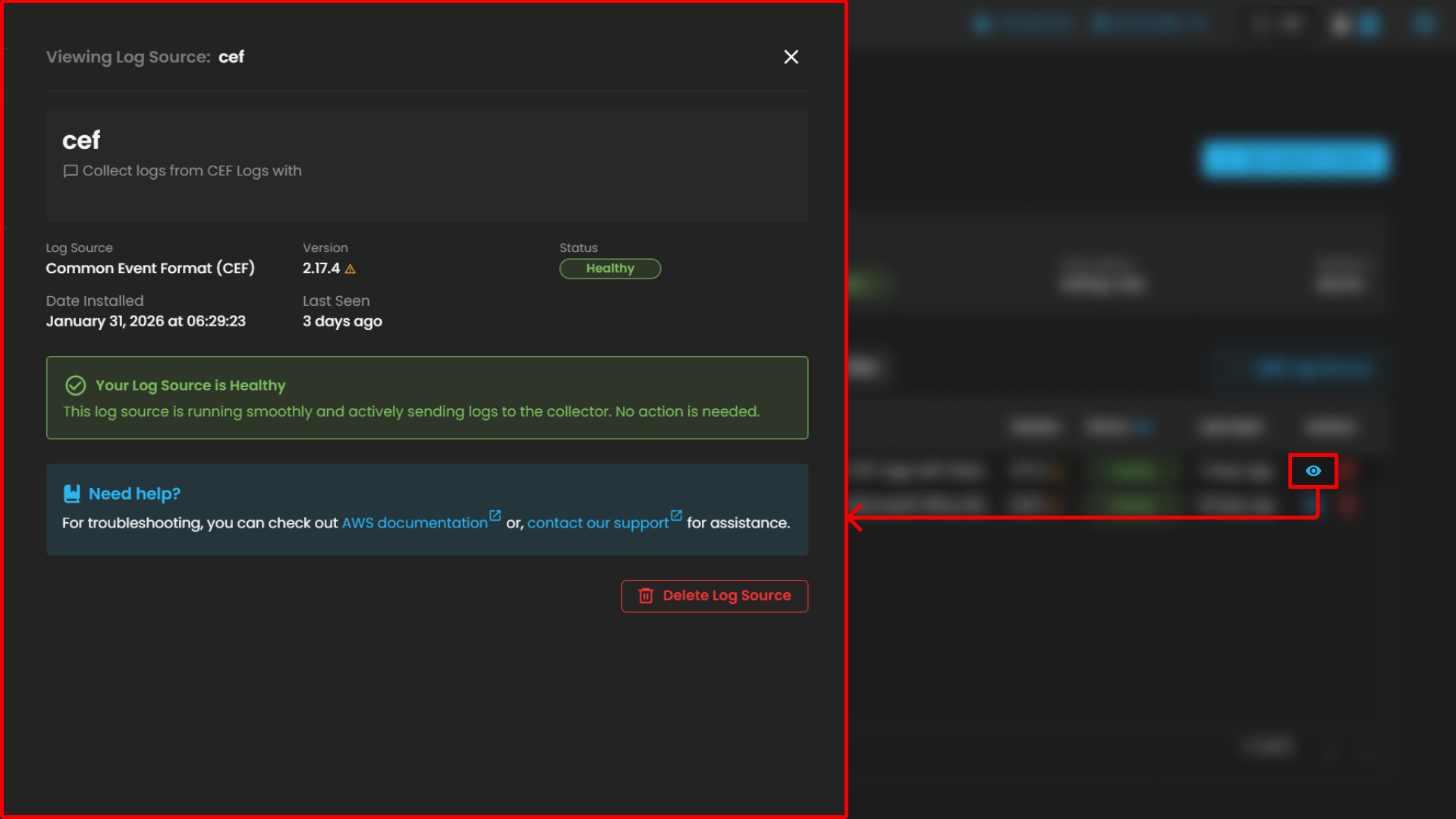
Please refer to this document for troubleshooting: "AWS Integrations | AQUILA Documentations"
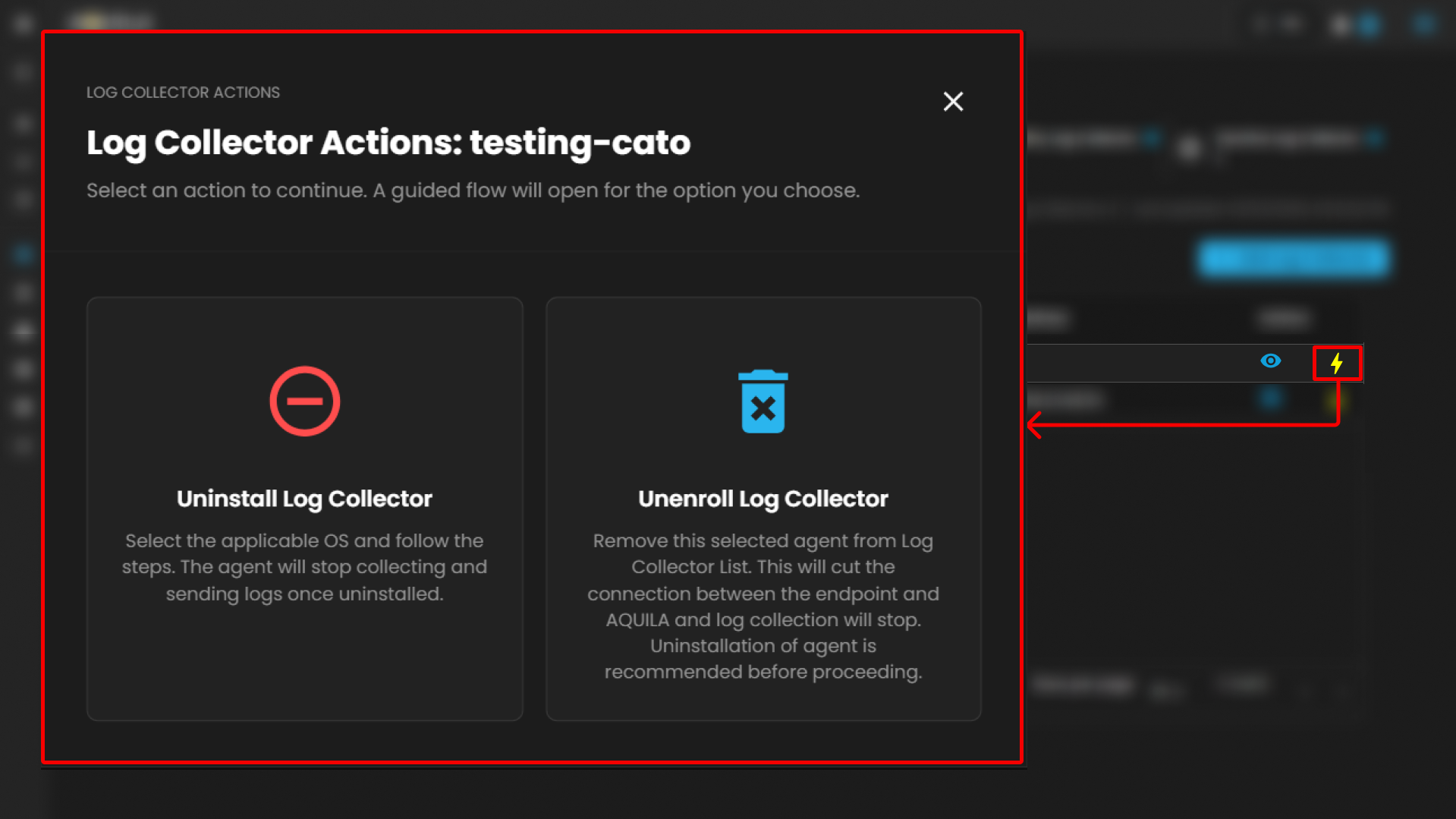
Users can also uninstall their Log Collector or Unenroll it by pressing the "⚡" symbol.
Overview Panel
Located on the left side, the Overview section provides basic collector details:
-
Policy ID – Displays the unique policy identifier assigned to the log collector.
-
Status – Shows whether the collector is online or offline (e.g., Offline).
-
Host Name – Displays the assigned host identifier or network name.
-
Platform – Indicates the operating system platform on which the collector is installed (e.g., Windows).
Additional note: A usage indicator is displayed below, showing the number of log sources currently added relative to the maximum available. Example: 2 out of 254 Log Sources added. A link is provided (Add Log Sources) for extending the configuration.
Integrations Panel
The Integrations section lists available integrations assigned to the collector. Each integration includes details and health indicators.
Support Section
-
Purpose: Provides users with quick access to support resources, assistance, or help documentation related to the Cyber Intelligence Management (CIM) system.
-
Functionality: Typically, clicking this icon would open a support menu, chat widget, or redirect to a help center where users can submit support tickets, search FAQs, or get live assistance.
-
Accessibility: Its prominent placement ensures immediate visibility for users needing assistance without navigating away from the current workspace or settings page.
Log Source
The Log Source section within Settings for CIM provides administrators with a centralized interface for managing available log source integrations. This module enables users to search, review, and add integrations to a Log Agent for log collection and monitoring.
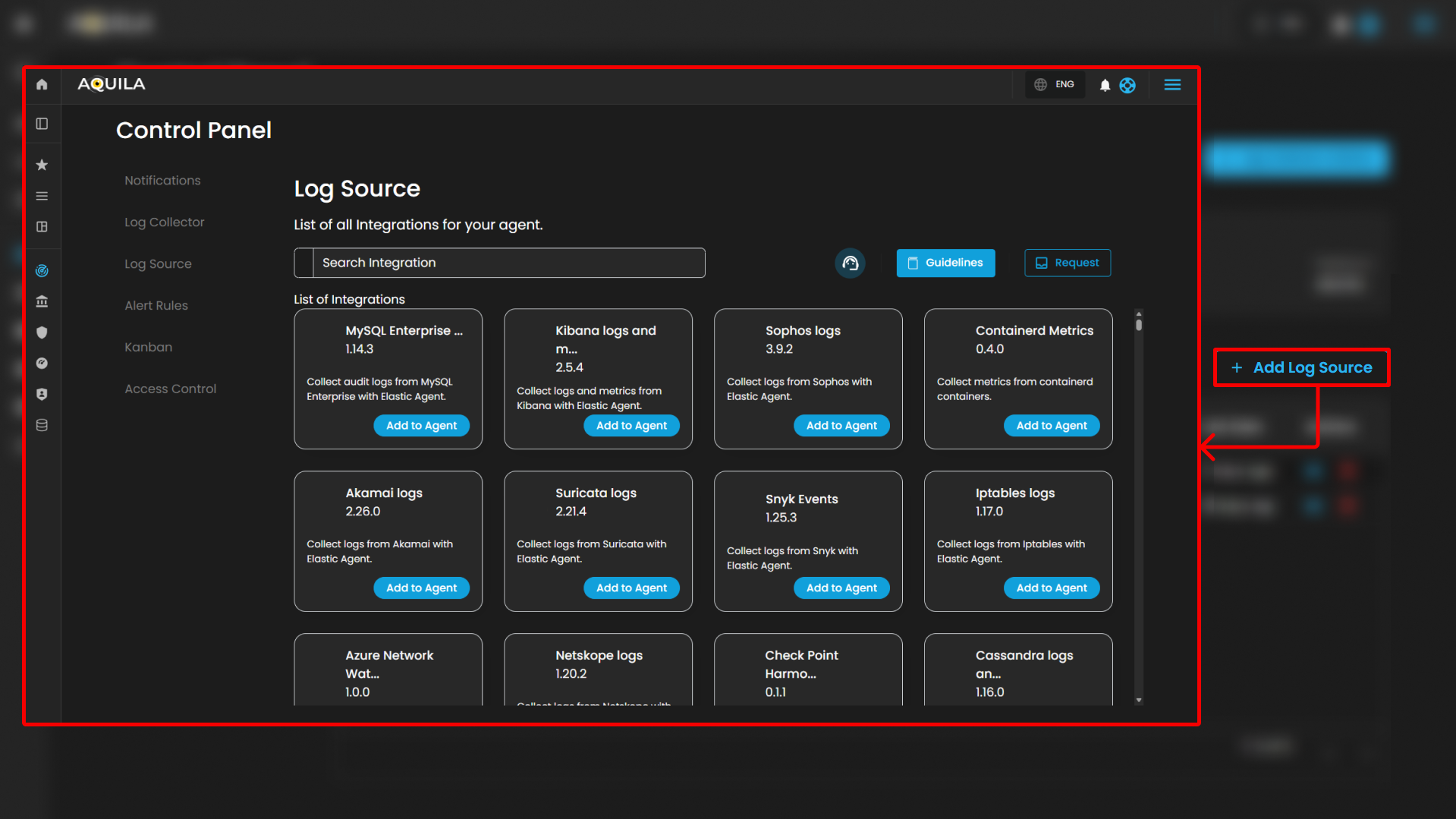
Search and Action Controls
-
Search Integration
-
Enables keyword searches to quickly locate a specific integration by name or capability.

-
-
Guidelines
-
Opens the integration setup documentation and best-practice guidance for configuring integrations with the Log Agent. Use this to review prerequisites, configuration steps, and recommended settings prior to adding an integration.

-


-
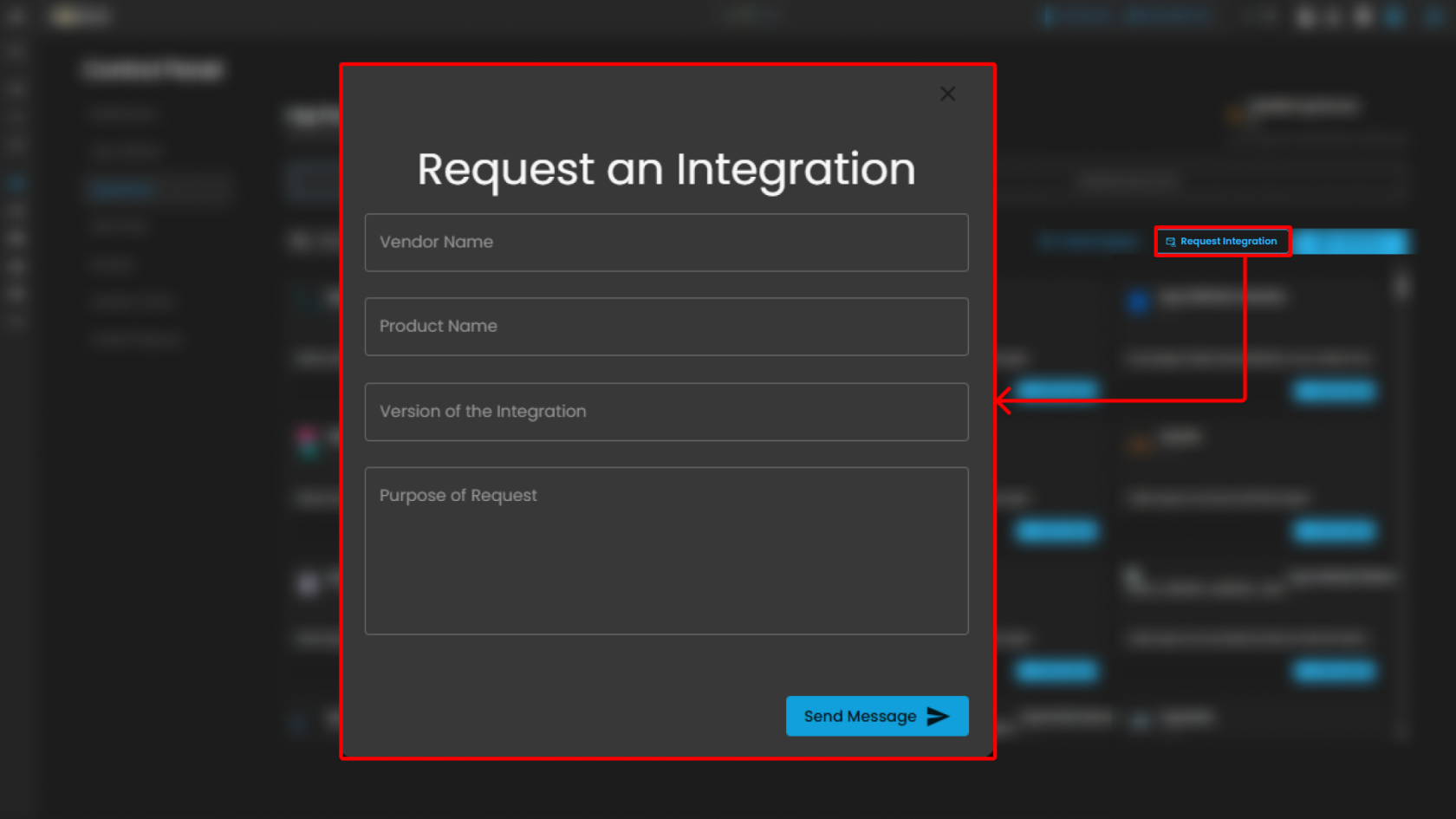
Request
-
Opens a request form or submission workflow to request support for a new integration, report missing functionality, or ask for assistance with an existing integration. This provides a mechanism for users to request extension of available integrations or additional support resources.
-
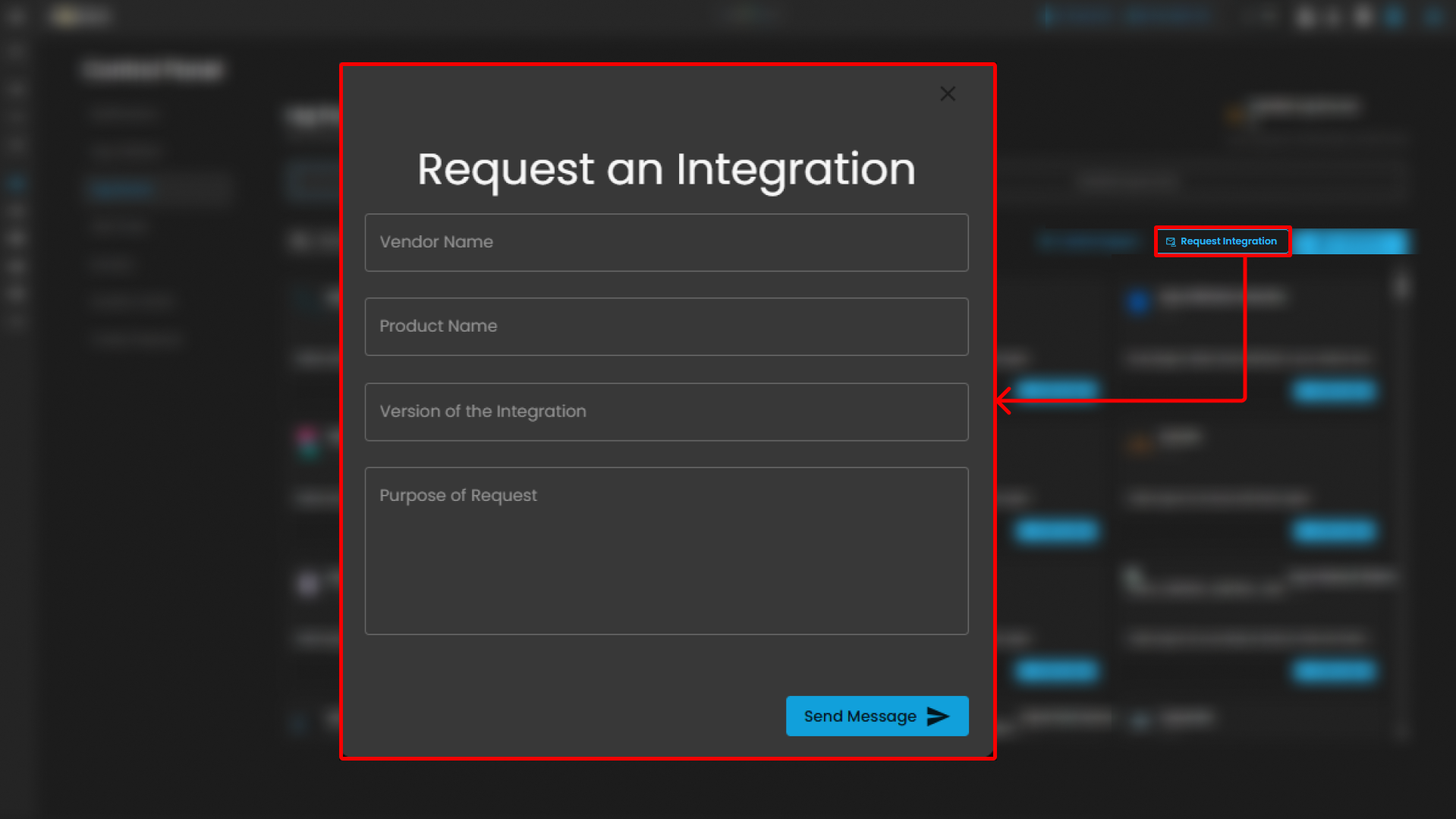
Note: The Guidelines and Request controls are located at the top-right of the page for convenient access while browsing integrations.
List of Integrations
This section displays all available integrations supported by the CIM platform. Each integration card includes:
-
Integration Name & Version – Specifies the log source and its current integration version.
-
Description – Briefly describes the purpose and type of logs collected.
-
Action Button (Add to Agent) – Assigns the integration to a Log Agent for log collection.
Support Section
-
Purpose: Provides users with quick access to support resources, assistance, or help documentation related to the Cyber Intelligence Management (CIM) system.
-
Functionality: Typically, clicking this icon would open a support menu, chat widget, or redirect to a help center where users can submit support tickets, search FAQs, or get live assistance.
-
Accessibility: Its prominent placement ensures immediate visibility for users needing assistance without navigating away from the current workspace or settings page.
Alert Rules
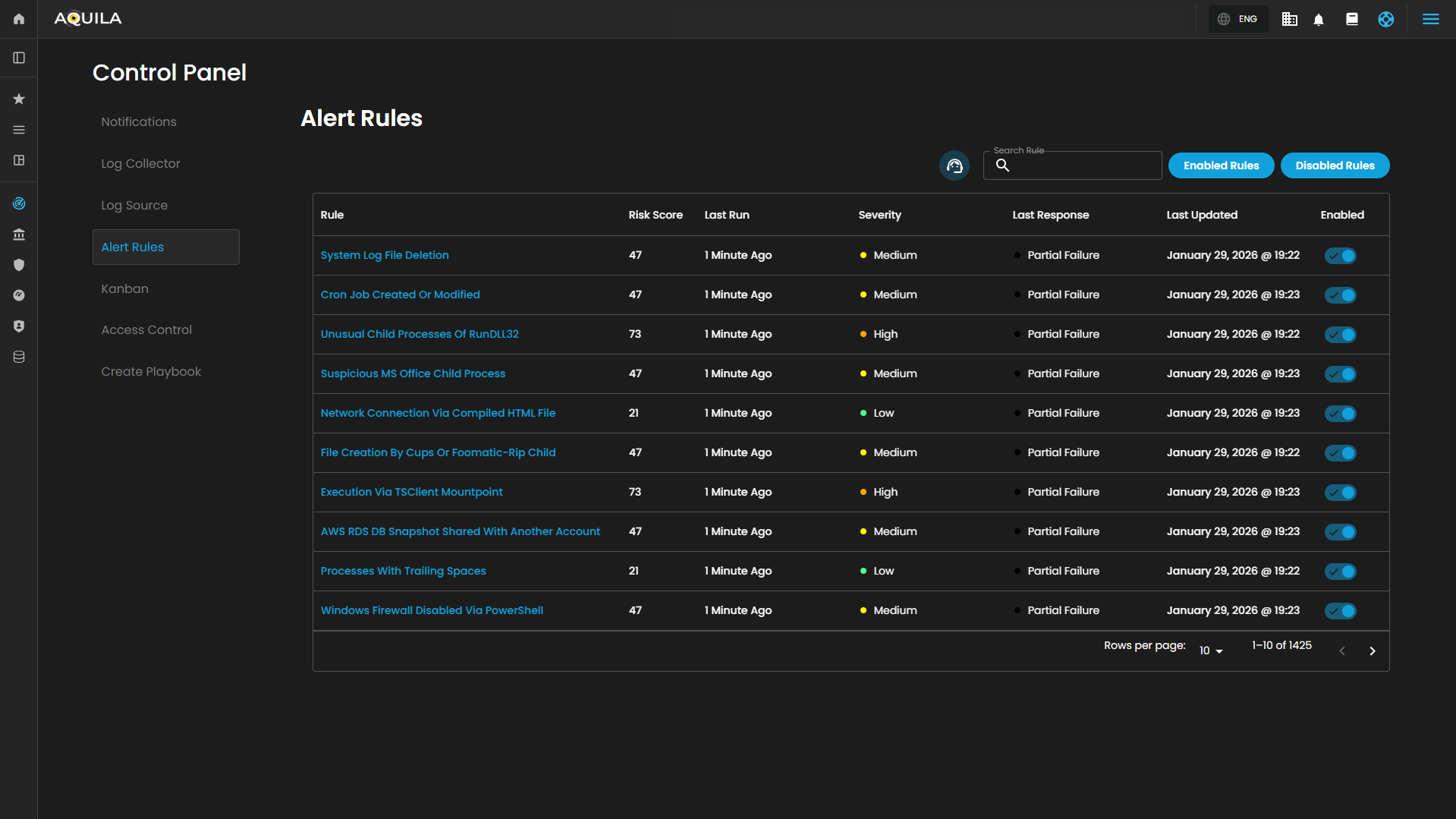
This section of the Security Operations Center (SOC) dashboard presents a summary of active alert rules, providing security personnel with a high-level overview of automated detection mechanisms, their recent execution status, and configured severity levels.
Interactive Controls
The dashboard is equipped with several interactive elements for filtering and searching the alert rules:
-
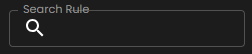
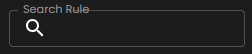
Search Bar: A free-text input field located above the table, allowing operators to quickly find specific rules by name, keyword, or other identifiable attributes.
-
Filter Buttons: A set of toggle buttons, typically found near the search bar, for dynamically filtering the rule set based on their operational state:

-
Enabled Rules: When selected, displays only the alert rules that are currently active (indicated by a ✅ in the
Enabledcolumn). -
Disabled Rules: When selected, would display rules that have been turned off.
-

Summary Table
The core of the dashboard is a tabular interface that lists configured alert rules with the following key metadata:
| Column | Description |
|---|---|
| Rule | The descriptive name of the automated security detection rule. Names often indicate the specific technique or threat being monitored. |
| Risk Score | A numerical value (e.g., 73, 47, 21) associated with each rule, likely representing a relative weight or priority used for overall risk calculation and alert triage. |
| Last Run | A timestamp indicating how long ago each rule was last executed. All displayed rules have run within the last 10 minutes, indicating frequent, near-real-time monitoring. |
| Severity | The assigned impact level of the alert. The dashboard uses a three-tiered classification: High, Medium, and Low. |
| Last Response | The operational status of the rule's most recent execution. The possible states are: • Succeeded: The rule executed without errors. • Partial Failure: The rule executed but encountered issues with a subset of its tasks or data sources. • Failed: The rule execution was unsuccessful. |
| Last Updated | The date the rule's logic or configuration was last modified. |
| Enabled | A status indicator (✅) confirming that the rule is currently active and monitoring for the specified conditions. It will be grayed out and no check mark if disabled. |
Support Section
-
Purpose: Provides users with quick access to support resources, assistance, or help documentation related to the Cyber Intelligence Management (CIM) system.
-
Functionality: Typically, clicking this icon would open a support menu, chat widget, or redirect to a help center where users can submit support tickets, search FAQs, or get live assistance.
-
Accessibility: Its prominent placement ensures immediate visibility for users needing assistance without navigating away from the current workspace or settings page.
These functions collectively enable a dynamic, visual approach to task management, allowing teams to adapt the board to their specific workflows while maintaining oversight of task distribution and progress.
Kanban Settings
The Kanban Settings page provides a user interface for configuring and managing a Kanban board, which is a visual tool for tracking cases across various stages. The Kanban Settings page facilitates the configuration and management of this board, enabling users to customize its structure to suit specific needs, such as those in cybersecurity or technical support.
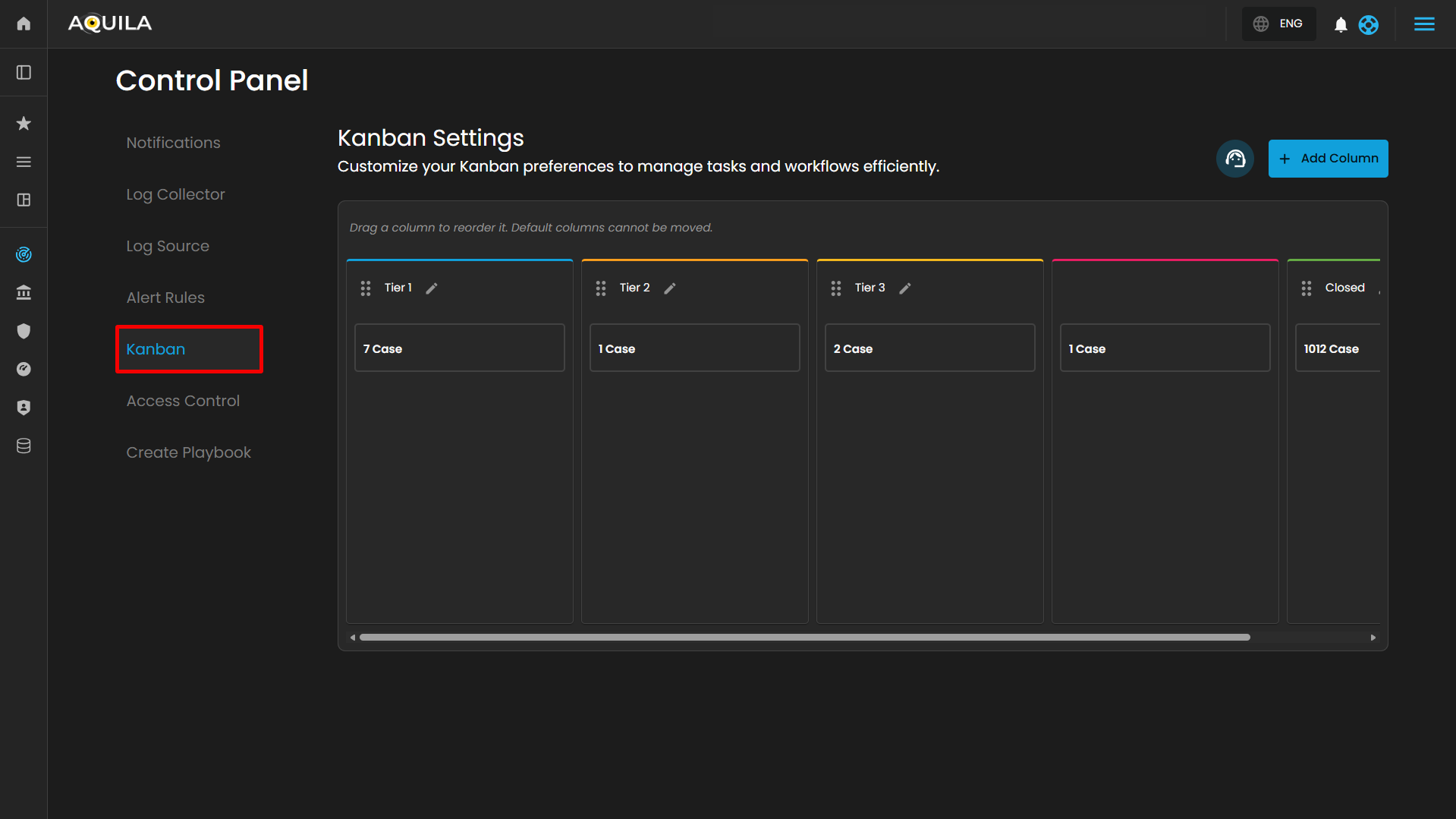
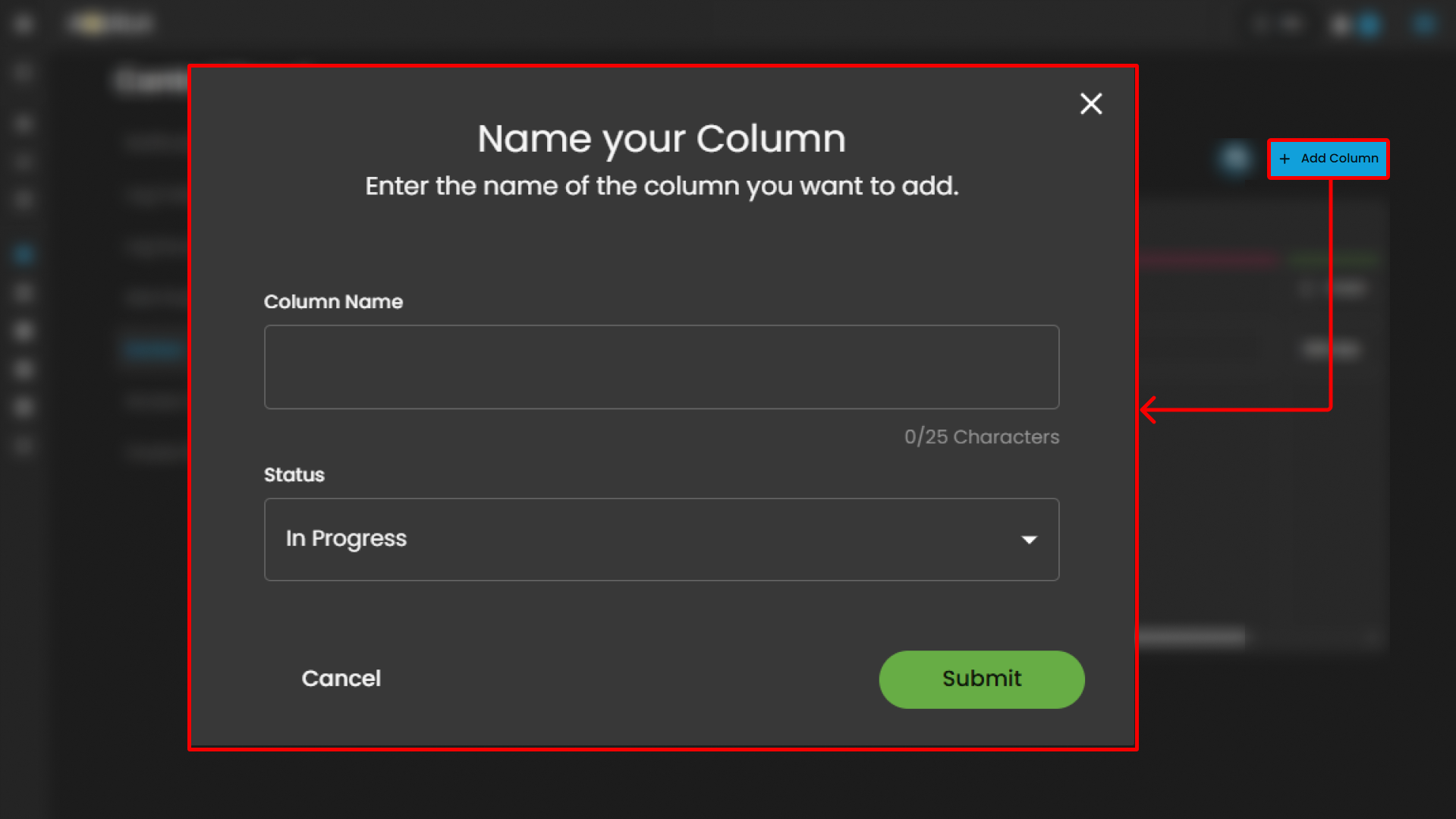
Users can also add new column by pressing the "Add Column" button.
-
Column Configuration:
-
Purpose: Allows users to define and label columns to represent workflow stages.
-
Function: Users can add new columns via the "+ Add Column" button to expand the board with additional stages. This enables tailoring the board to specific processes or team structures.
-
Customization: Columns can be edited (via the pencil icon ✏️) to rename or adjust their purpose, accommodating evolving workflow requirements.
-
-
Task Tracking:
-
Purpose: Displays the number of cases or tasks in each column.
-
Function: Provides a real-time overview of workload distribution across stages, helping teams monitor progress and identify bottlenecks.
-
- Column Reordering:
- Purpose: Facilitates adjustment of the workflow sequence.
- Function: Users can drag and drop columns (using the three-dot handle) to reorder them, optimizing the flow of tasks. Default columns remain fixed, ensuring critical stages (e.g., "Closed") stay in place, while custom columns can be rearranged for flexibility.
- Workflow Management:
- Purpose: Visualizes the progression of tasks from initiation to completion.
- Function: Columns like "Tier 1" and "Tier 2 & 3" suggest a tiered support or escalation process, while "Pending" and "Closed" indicate stages for review and resolution. This structure helps teams manage tasks efficiently across the lifecycle.
- Support Section:
- Purpose: Offers support for clients.
-
Location: To the right of the subtitle, in a subtle gray-blue color.
- Function: Typically, clicking this icon would open a support menu, chat widget, or redirect to a help center where users can submit support tickets, search FAQs, or get live assistance.
Access Control
The Access Control page provides a user interface for managing and enforcing user permissions within a Case Incident Management (CIM) system or similar application. It allows administrators to define and oversee groups based on roles, controlling access to functions and data. This interface appears tailored for security or administrative contexts, such as role-based access control (RBAC) in cybersecurity tools.
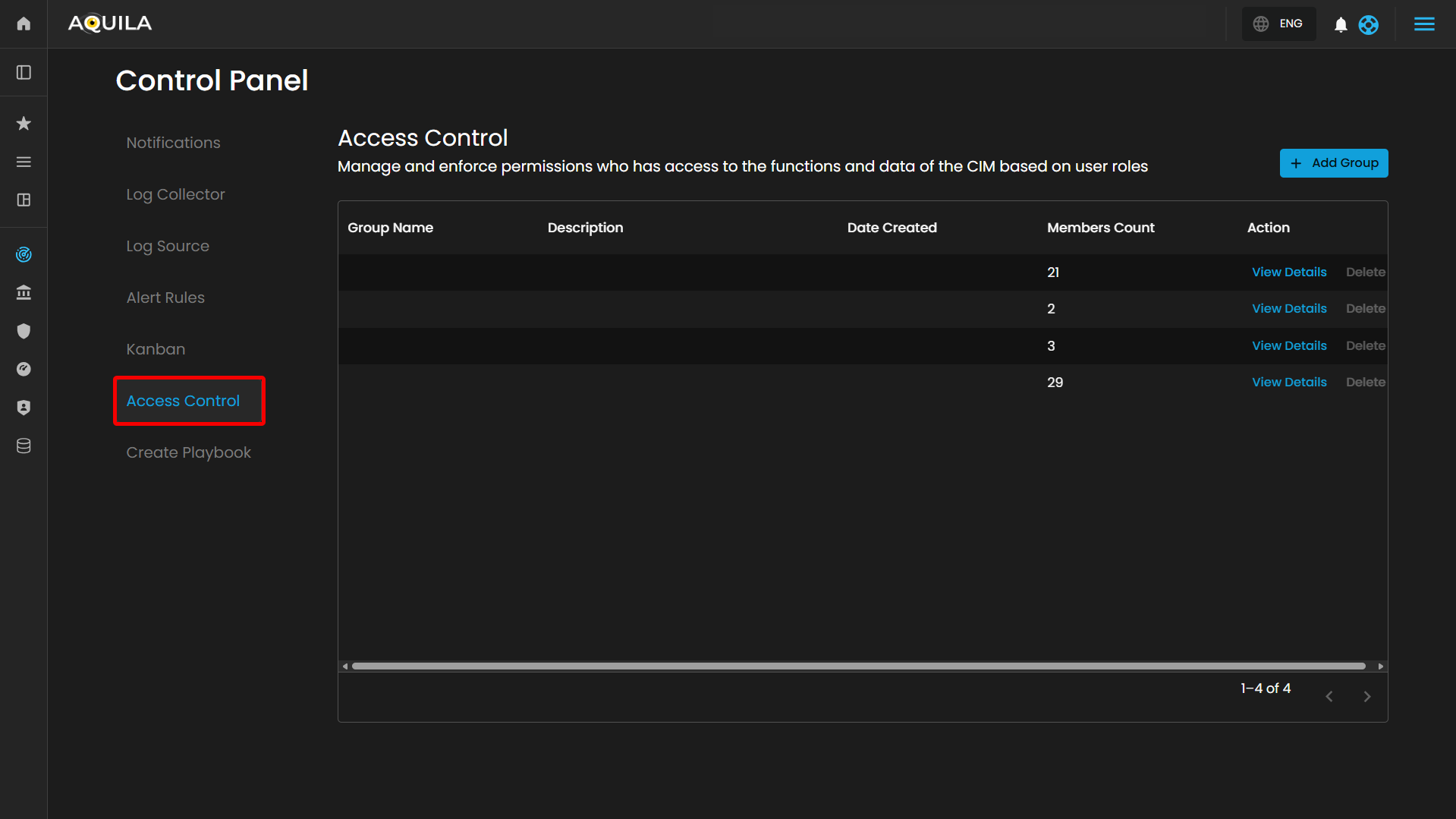
Header Section
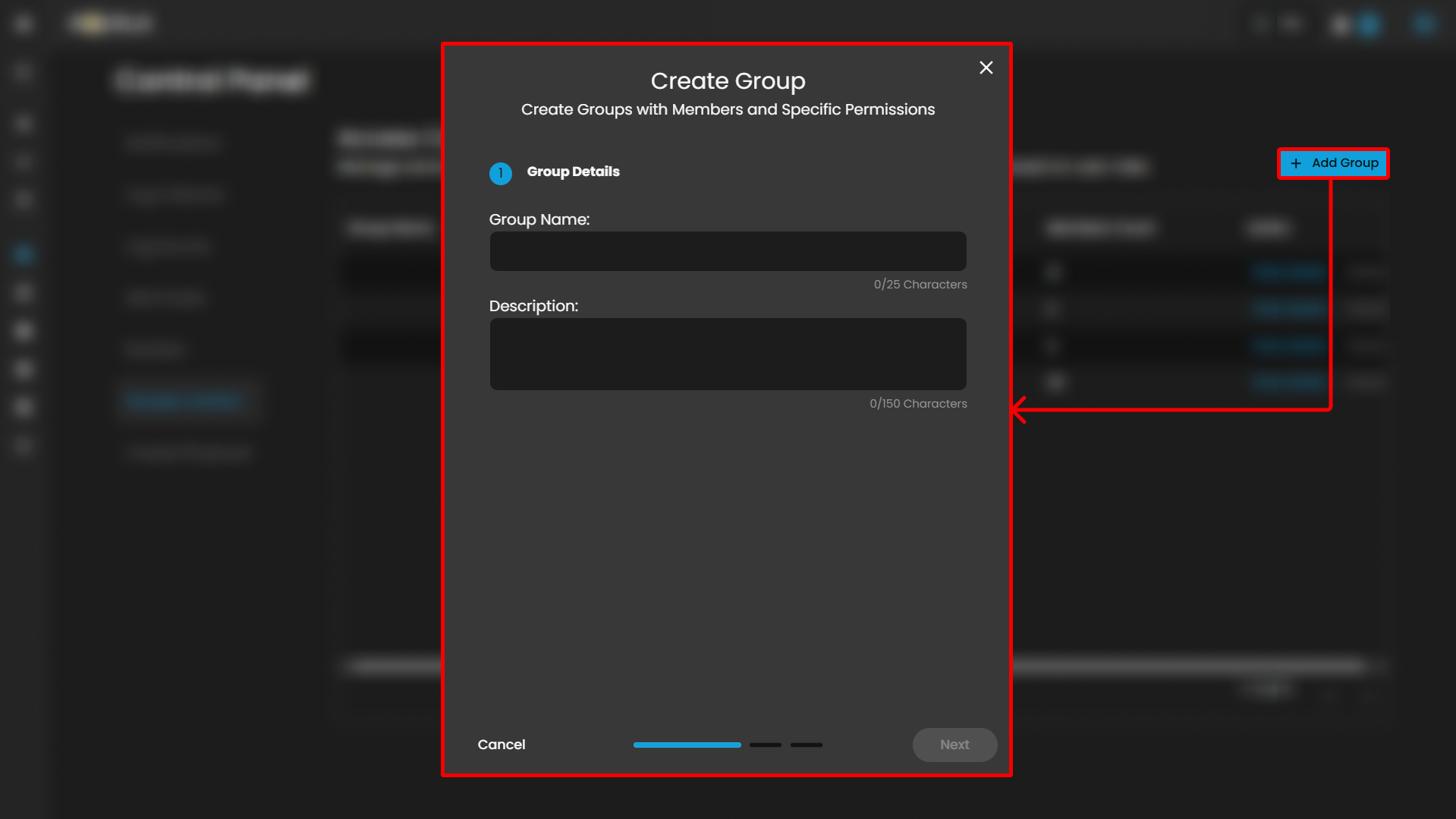
Table Section
- Table Headers:
- Group Name: Lists the name of each user group.
- Description: Provides a brief overview or purpose of the group (blank in the visible row).
- Date Created: Indicates the creation timestamp of the group (blank in the visible row).
- Members Count: Shows the number of users assigned to the group.
- Action: Contains links or buttons for managing the group.
- Action:
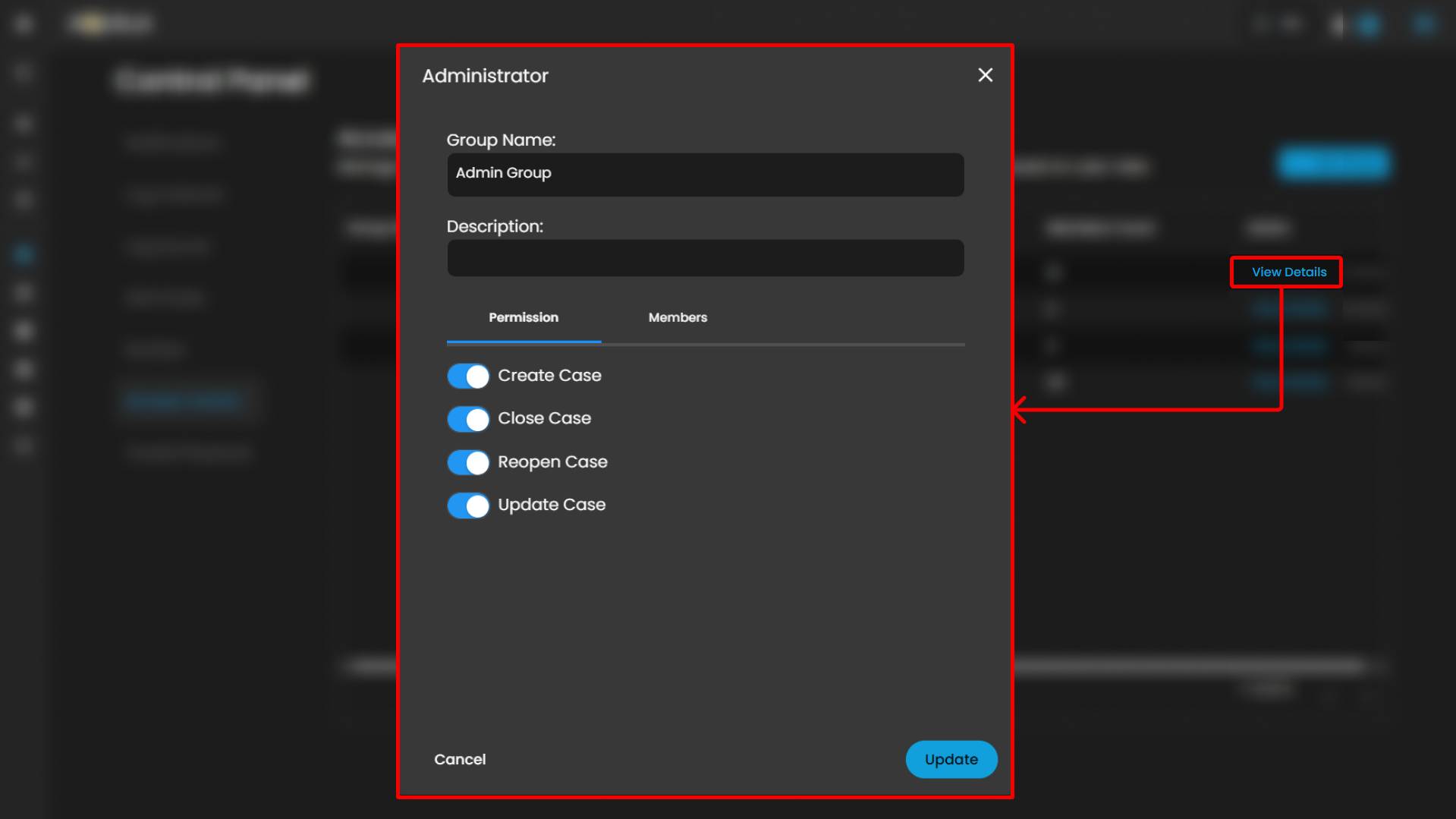
- "View Details" (blue link): Likely opens a detailed view or edit modal for the group.
- "Delete" (gray link): Allows removal of the group.
When clicking the View Details link it will open a pop up that will show the group settings, permissions and members list that you can change and update.
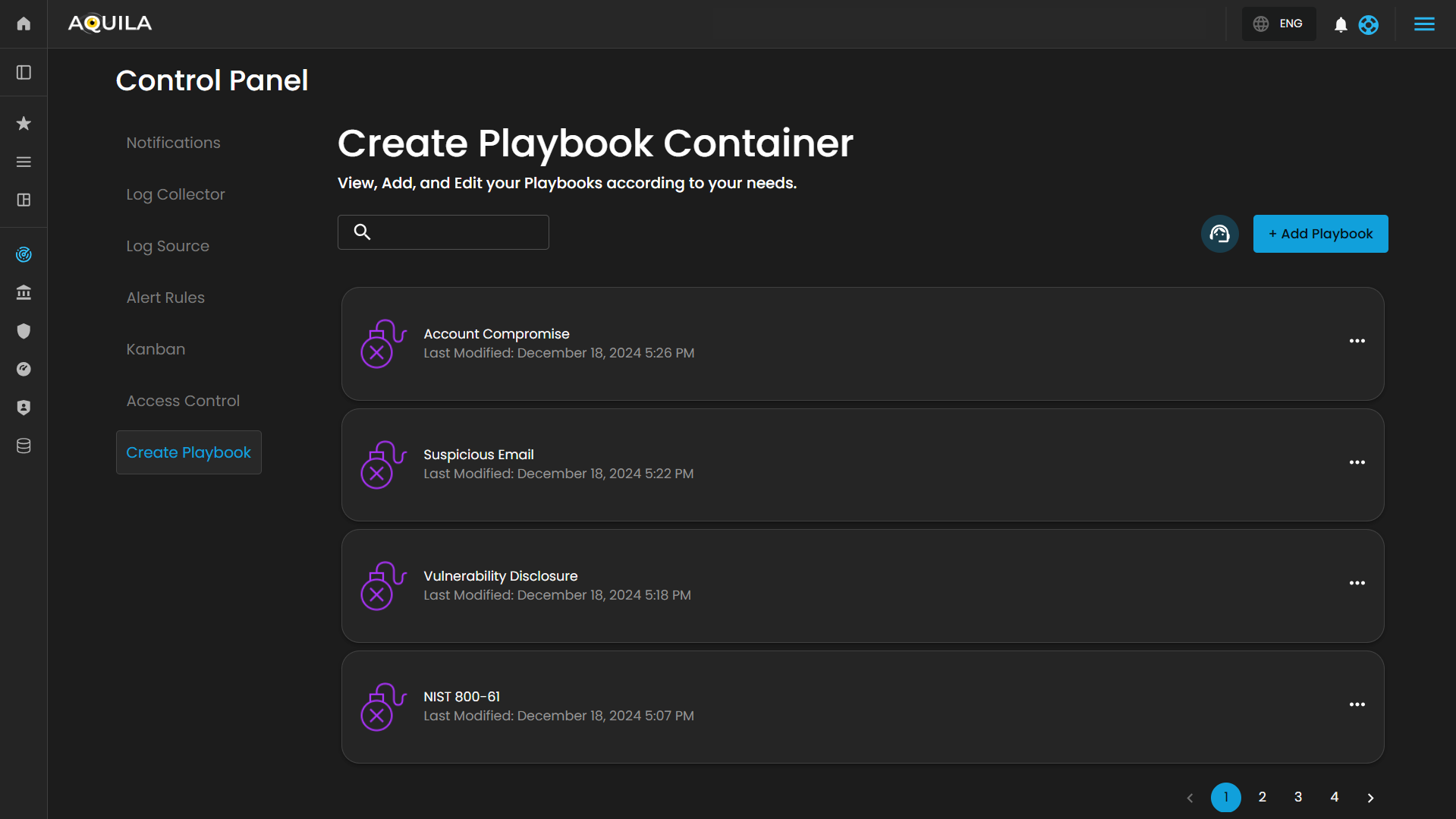
Create Playbook Container
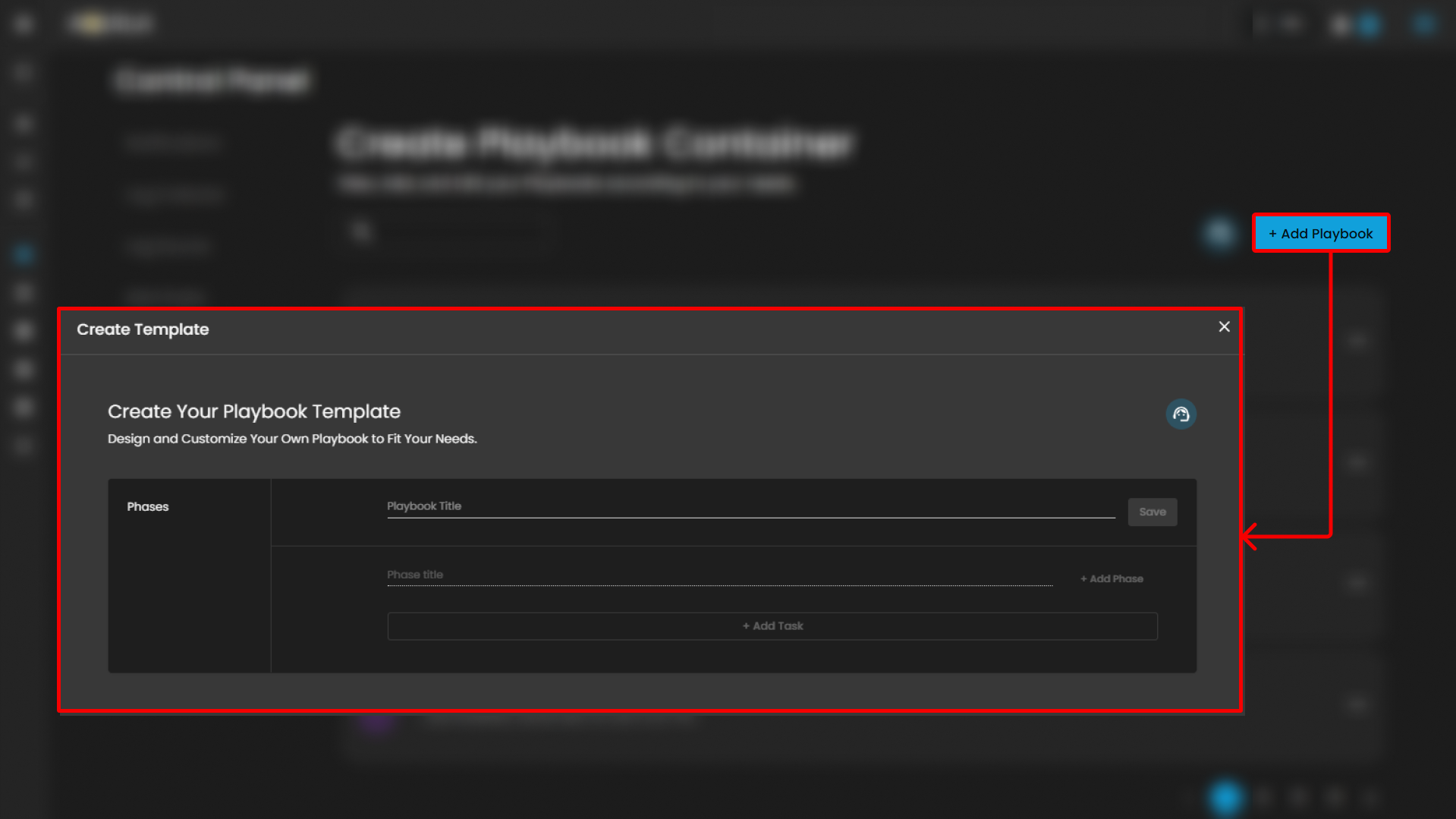
Users can create a new playbook by pressing the "Add Playbook" button.
Conclusion:
Cyber Incident Management is a comprehensive module designed to support the detection, handling, and resolution of cybersecurity incidents. It provides a robust set of tools that enable organizations to efficiently identify threats, coordinate incident response activities, minimize operational and security impact, and ensure timely remediation. The module supports alert ingestion and correlation, incident tracking, root cause analysis, and detailed reporting, allowing security teams to maintain visibility across the entire incident lifecycle. By leveraging automated alerts, structured workflows, and analytical reporting capabilities, Cyber Incident Management enhances situational awareness, improves response efficiency, and strengthens an organization’s overall security posture.
If you need further assistance, kindly contact our support at support@cytechint.com for prompt assistance and guidance.
No comments to display
No comments to display