
Cyber Threat Intelligence (CTI)
Overview:
The CTI (Cyber Threat Intelligence) Module provides real-time insights into emerging threats and vulnerabilities. By analyzing various data sources, including external and internal threat intelligence feeds, the CTI module helps organizations proactively respond to cyber threats, mitigate risks, and enhance overall security posture.
Key Features:
-
Threat Intelligence Aggregation: Collect and analyze threat intelligence from external and internal sources, including dark web monitoring, threat feeds, and past incidents, to identify current threats.
-
Real-Time Threat Detection: Continuously monitor for indicators of compromise (IOCs) such as malware signatures, phishing attempts, and unusual network activity to detect potential threats in real time.
-
Vulnerability Management: Track and assess system vulnerabilities by cross-referencing CVE (Common Vulnerabilities and Exposures) data to prioritize patching and mitigate exploits.
-
Threat Actor Profiling: Gather intelligence on known threat actors, their tactics, techniques, and procedures (TTPs), allowing teams to anticipate and prepare for future attacks.
-
Incident Correlation: Correlate multiple security events to understand attack patterns and potential escalation, helping teams identify high-priority incidents that require immediate attention.
-
Proactive Risk Mitigation: Use threat intelligence data to recommend actions such as blocking malicious IPs, domain names, or email addresses before they impact your environment.

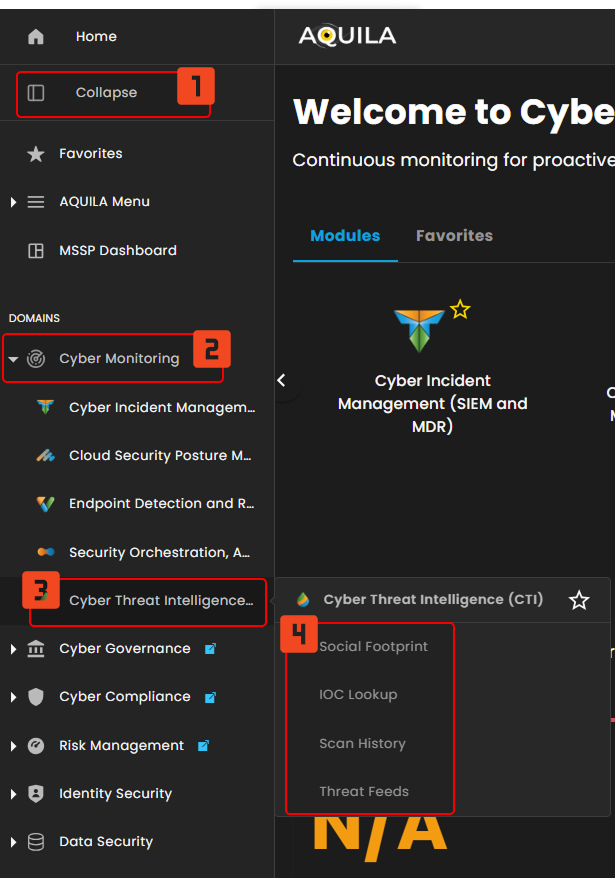
Step 3: Choose Endpoint Detection and Response (CTI).

Step 4: Hover into leftmost panel to view all the CTI sections. This Process is applicable in all navigating into a Module.
Dashboard
The Security Dashboard enables users to monitor and manage security incidents in real time. Key metrics like Incident Status, Automated Playbooks, Response Actions, and Case Prioritization provide an overview of active scans, users involved, and insights into the current status of security incidents.
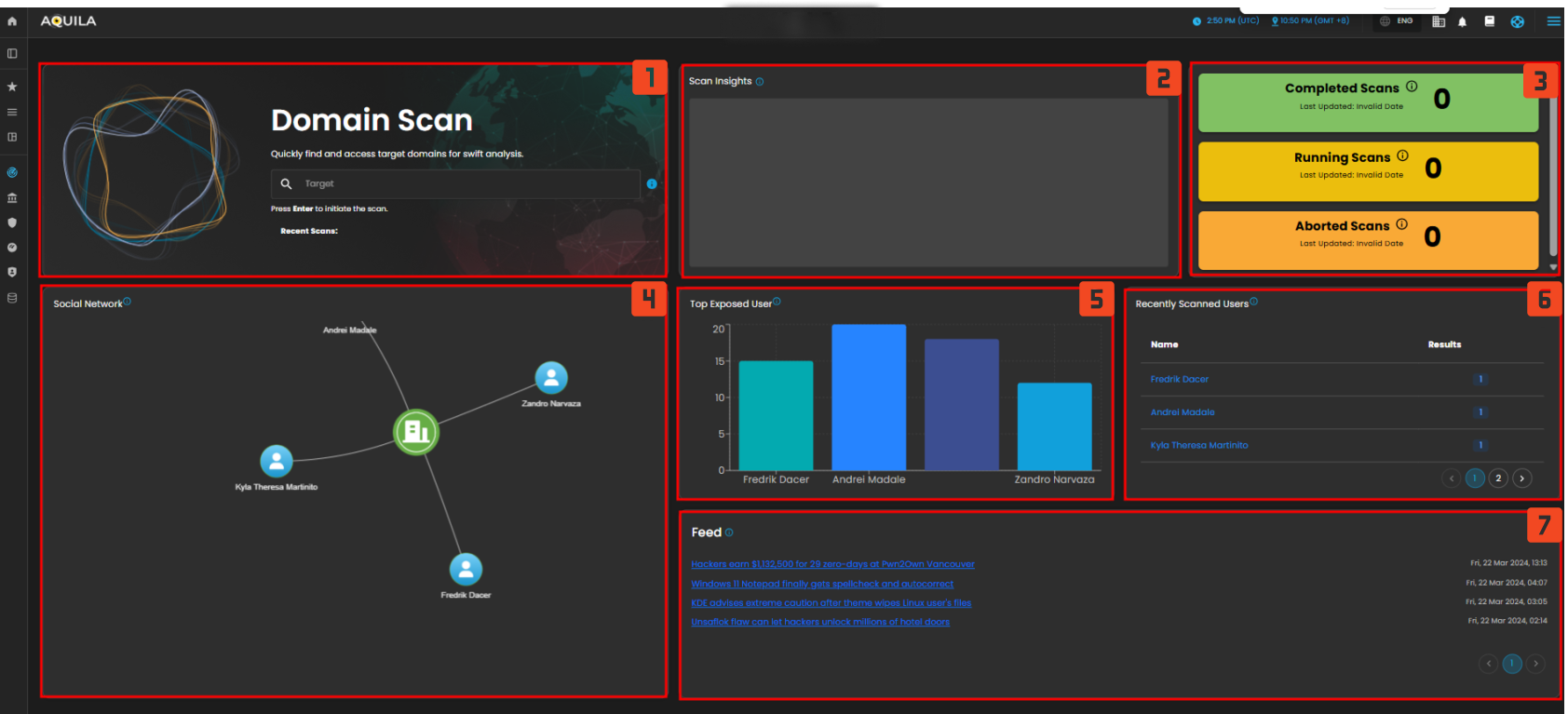
- Domain Scan
- This section allows you to quickly initiate a scan by entering a target domain. It serves as the starting point for scanning systems to identify vulnerabilities or incidents, enabling fast identification and remediation of security risks.
- Scan Status Widgets
- Completed Scans: Displays the number of scans that have finished processing. This metric helps track the success rate of completed scans.
- Running Scans: Shows the number of scans that are currently active. It provides real-time updates of ongoing scan processes.
- Aborted Scans: Indicates how many scans have been interrupted or failed due to errors or other issues, helping to identify problems that may need attention.
- Top Exposed Users
- The "Top Exposed Users" widget highlights users who have the highest exposure in the system, based on the latest domain scan. This feature helps identify individuals or accounts that might be at risk, enabling the security team to take immediate action to mitigate potential threats.
- Visualized through a bar graph comparison of user exposure.
- Social Network
- The Social Network widget visually maps relationships between users in the system. It shows how users are interconnected, offering insights into potential vulnerabilities based on their social connections. By analyzing the network, security teams can identify risks that may not be apparent from individual accounts alone.
- Recently Scanned Users
- This section provides an overview of the users who have recently been scanned. It shows the timestamp of when the scan was conducted, allowing the security team to quickly assess the most recent scan activities and ensure proper monitoring.
- Feed
- This section provides up-to-date news or alerts on relevant security events, vulnerabilities, and threats. It helps keep the security team informed about the latest developments in the field, including new exploits, zero-day vulnerabilities, and advisories from trusted sources.
- Historical Scan Log
- The Historical Scan Log records the past scan activities, showing timestamps for when each scan was initiated. This allows teams to review previous scans, assess their progress, and gather historical context for ongoing monitoring efforts.
Social Footprint
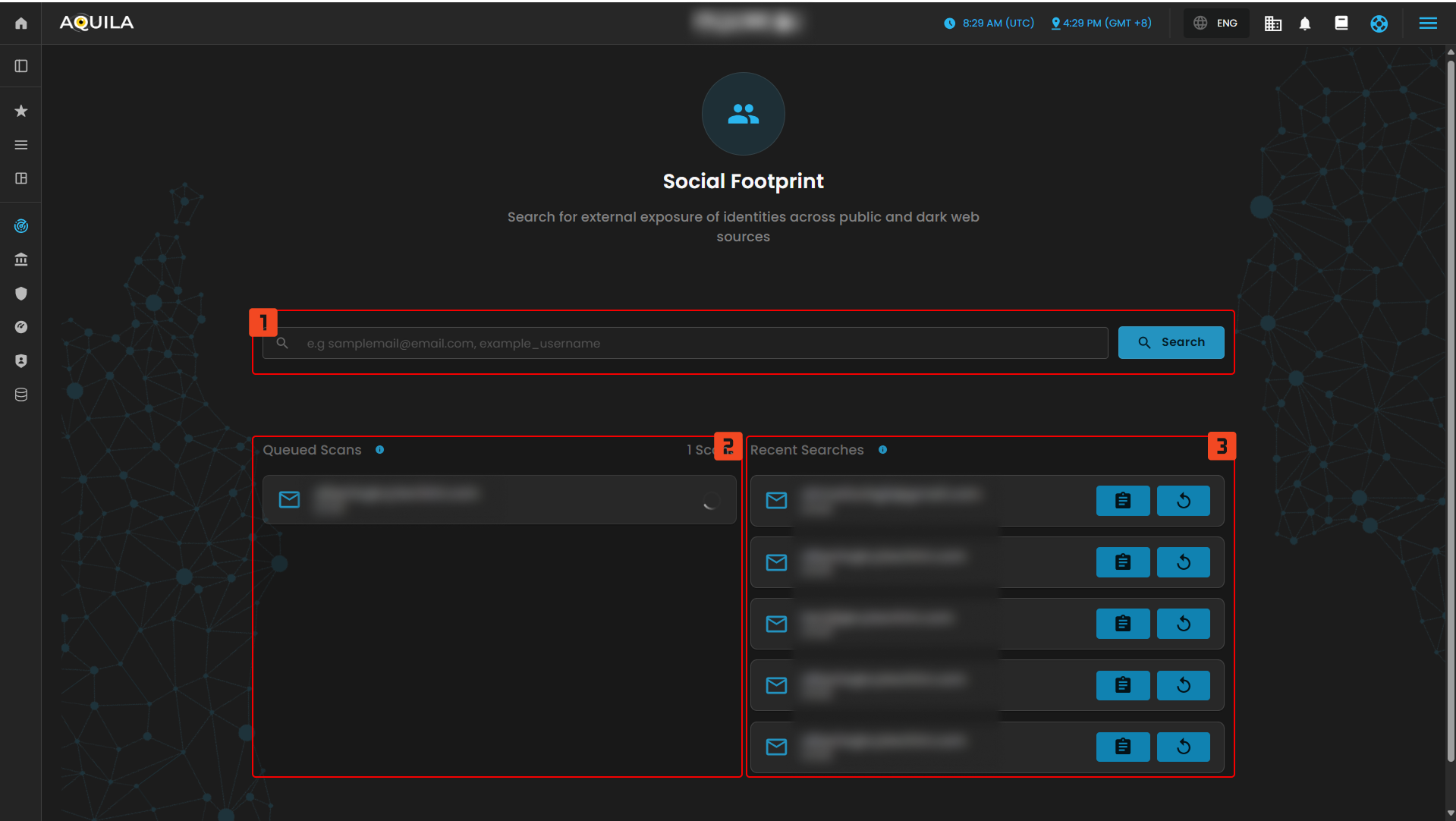
- Search Bar
- This widget allows you to enter specific identities (email addresses, usernames, etc.) to search for their exposure across the web, including social media platforms, forums, and dark web sources. You can enter email addresses or usernames to initiate the search for external exposure.
- Queued Scans
- This section shows the status of any scans that are queued but not yet started. If no scans are in progress, it will notify you to start a new search to begin scanning for exposure.
- Queued Scans: Displays a notification when no scans are in progress or if a new search has been initiated. It will show the progress once a scan starts.
- Recent Searches
- This widget displays a list of the most recent searches performed. It tracks searches by email addresses or usernames, providing a quick reference to past search activities. The section allows you to review, reinitiate, or manage previous search results.
IOC Lookup
The IOC Lookup is designed to help you search and analyze Indicators of Compromise (IOCs) for comprehensive threat intelligence data. By providing insights into IP addresses, domains, URLs, hashes, and other indicators, this tool enables quick identification of potential threats and compromises.
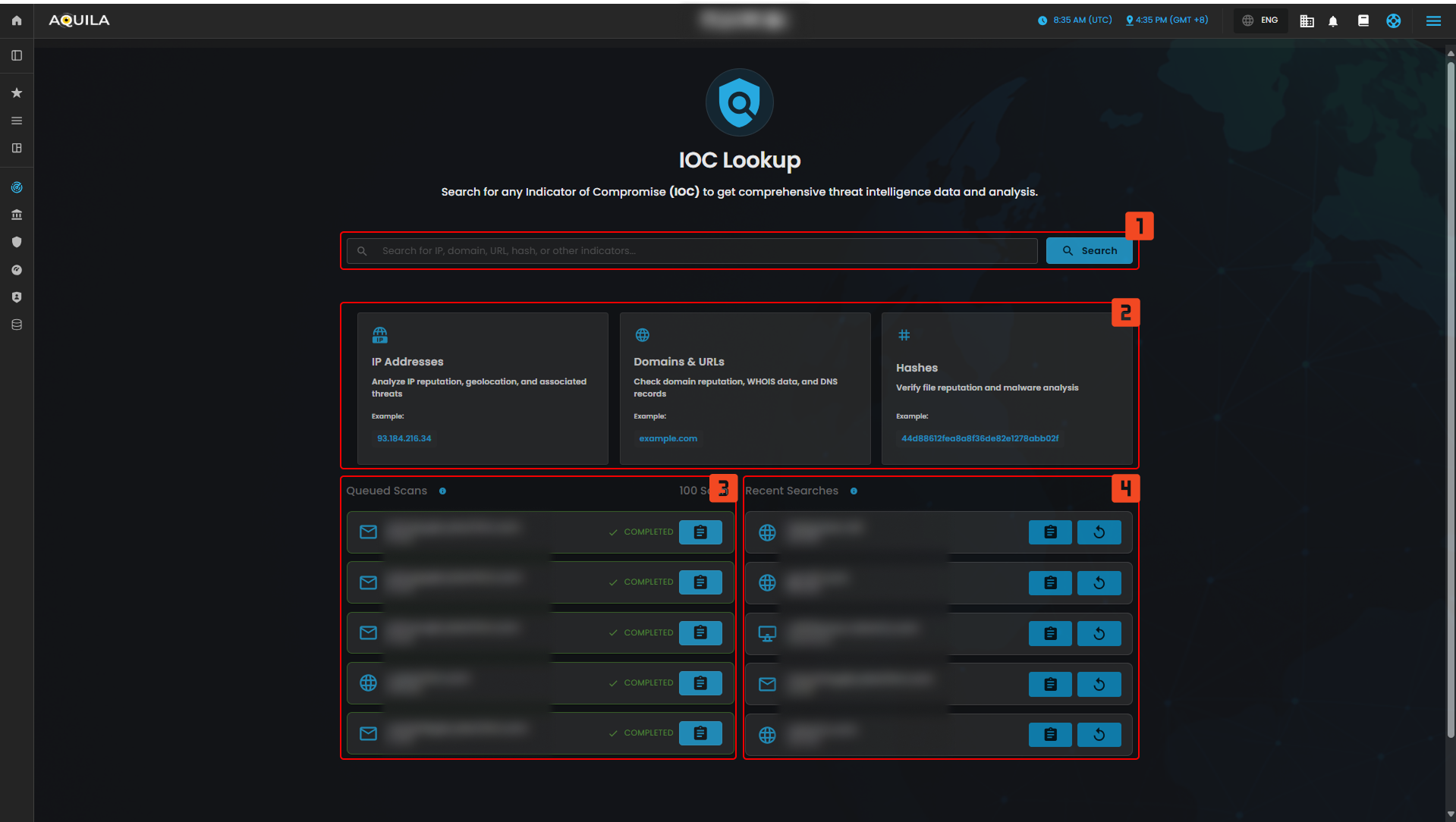
- Search Bar
- This widget allows you to enter various indicators such as IP addresses, domains, URLs, and hashes. The search functionality retrieves relevant threat intelligence data, enabling you to analyze and assess potential threats associated with the provided indicators.
- Indicator Types
- This section provides different categories for conducting IOC lookups. Each category focuses on specific types of indicators that are crucial for understanding potential threats.
- IP Addresses: Search for information on the reputation of IP addresses, including geolocation and associated threat data.
- Domains & URLs: Check domain reputation, WHOIS data, DNS records, and other relevant information to evaluate any potential malicious activity related to a domain or URL.
- Hashes: Verify the reputation of file hashes, checking for any malware associations or malicious activities linked to the provided hash.
- This section provides different categories for conducting IOC lookups. Each category focuses on specific types of indicators that are crucial for understanding potential threats.
- Queued Scans
- This widget displays the status of any scans that are queued but not yet started. If no scans are in progress, it prompts you to start a new search for IOC analysis.
- Queued Scans Overview:
- Lists any IOCs (IP, domain, or hash) that are waiting to be analyzed. You can initiate new scans here to track potential threats.
- Queued Scans Overview:
- This widget displays the status of any scans that are queued but not yet started. If no scans are in progress, it prompts you to start a new search for IOC analysis.
- Recent Searches
- This section shows a list of the most recent IOC lookups performed. It offers quick access to previously searched indicators, allowing for easy reference or reanalysis if needed.
- Recent Searches Overview:
- Displays recent queries for domains, IPs, usernames, and hashes.
- For example, previously searched items include domains like convergeict.com, IPs like 192.168.1.2, and hashes for malware analysis.
- Displays recent queries for domains, IPs, usernames, and hashes.
- Recent Searches Overview:
- This section shows a list of the most recent IOC lookups performed. It offers quick access to previously searched indicators, allowing for easy reference or reanalysis if needed.
Scan History Overview
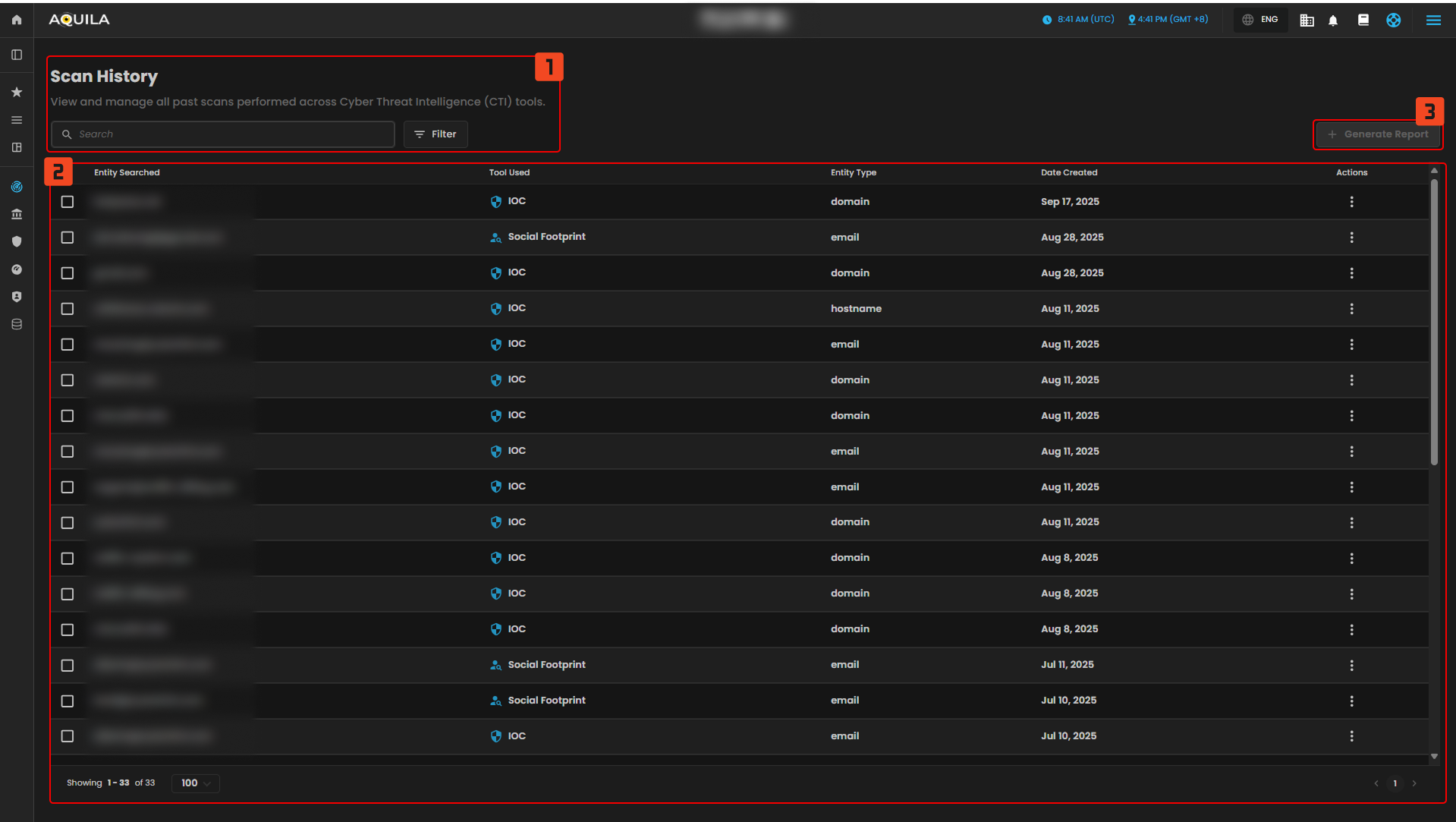
The Scan History widget is designed to display and manage all past scans performed across Cyber Threat Intelligence (CTI) tools. This feature allows for easy review of historical scans related to various entities, such as emails, domains, usernames, and more.
-
Search Bar
-
This bar allows you to enter specific search queries to find past scan records based on entities, tools used, or other search filters. You can search by entity type or any other relevant metadata associated with the scans.
-
-
Recent Scans
-
This section lists all past scans performed across different CTI tools. It provides a quick overview of scans, including:
-
Entity Searched: The name or identifier of the entity that was scanned (e.g., email, domain, username).
-
Tool Used: Indicates which Cyber Threat Intelligence tool was used (e.g., Social Footprint, IOC).
-
Entity Type: The category of the entity being scanned (e.g., email, domain, IP address).
-
Date Created: The date when the scan was performed.
-
-
-
Action Buttons
-
For each listed scan, action buttons (three dots) are available for further management, such as viewing the results, downloading reports, or reinitiating scans.
-
-
Generate Report
-
This button allows users to generate a comprehensive report summarizing selected scans. It's useful for sharing findings or keeping track of the scan history in a formal document.
-
Threat Intelligence Feed
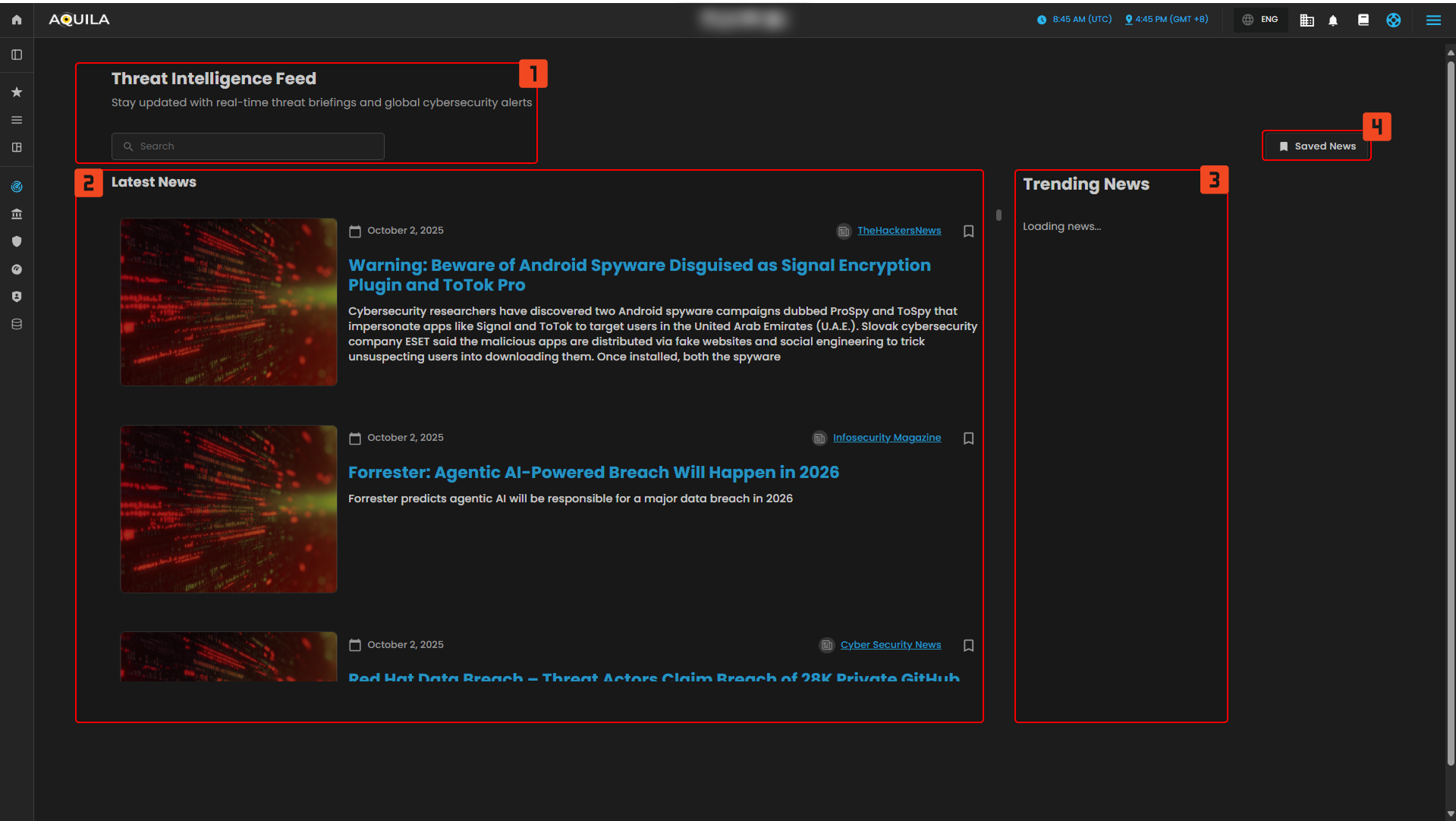
The Threat Intelligence Feed widget is designed to provide real-time cybersecurity news and global threat briefings. It keeps users updated on the latest developments and alerts related to cyber threats, vulnerabilities, and significant cybersecurity incidents.
-
Search Bar
-
The search bar allows users to search for specific topics, articles, or threat intelligence. By entering keywords, you can find related news and updates regarding cybersecurity, vulnerabilities, and other risk-related issues.
-
-
Latest News
-
This section shows a feed of the most recent and relevant cybersecurity news. It includes:
-
News Title: A brief headline that introduces the topic.
-
Date: The publication date of the news item.
-
News Description: A short summary of the article or update, giving users an overview of the topic.
-
Sources: Links to the publication where the news was originally published (e.g., Cyber Security News, DarkReading).
-
-
-
Trending News
-
This section highlights trending cybersecurity news. It is designed to offer up-to-date coverage of ongoing cyber threats, incidents, and alerts that are gaining traction within the cybersecurity community. If the feed isn't loaded, it will notify the user with "Loading news..."
-
-
Saved News
-
The "Saved News" button allows users to access articles or updates that they have bookmarked or saved for later viewing. It serves as a quick access point to revisit important or relevant articles from the feed.
-
If you need further assistance, kindly contact support@cytechint.com for prompt assistance and guidance.
No comments to display
No comments to display