AQUILA - Host Isolation
Overview
Host Isolation Exception allows isolated endpoints to maintain connectivity to specific IP addresses while remaining isolated from the rest of the network. This feature is useful when you need to isolate potentially compromised hosts for security purposes while still allowing them to communicate with specific trusted resources.
Prerequisites
- Administrator permissions
- Access to the Control Panel section
Option 1: Endpoint Detection and Response (EDR) - Endpoints
- Step 1: Log in to CyTech - AQUILA. click here --> usdc.cytechint.io
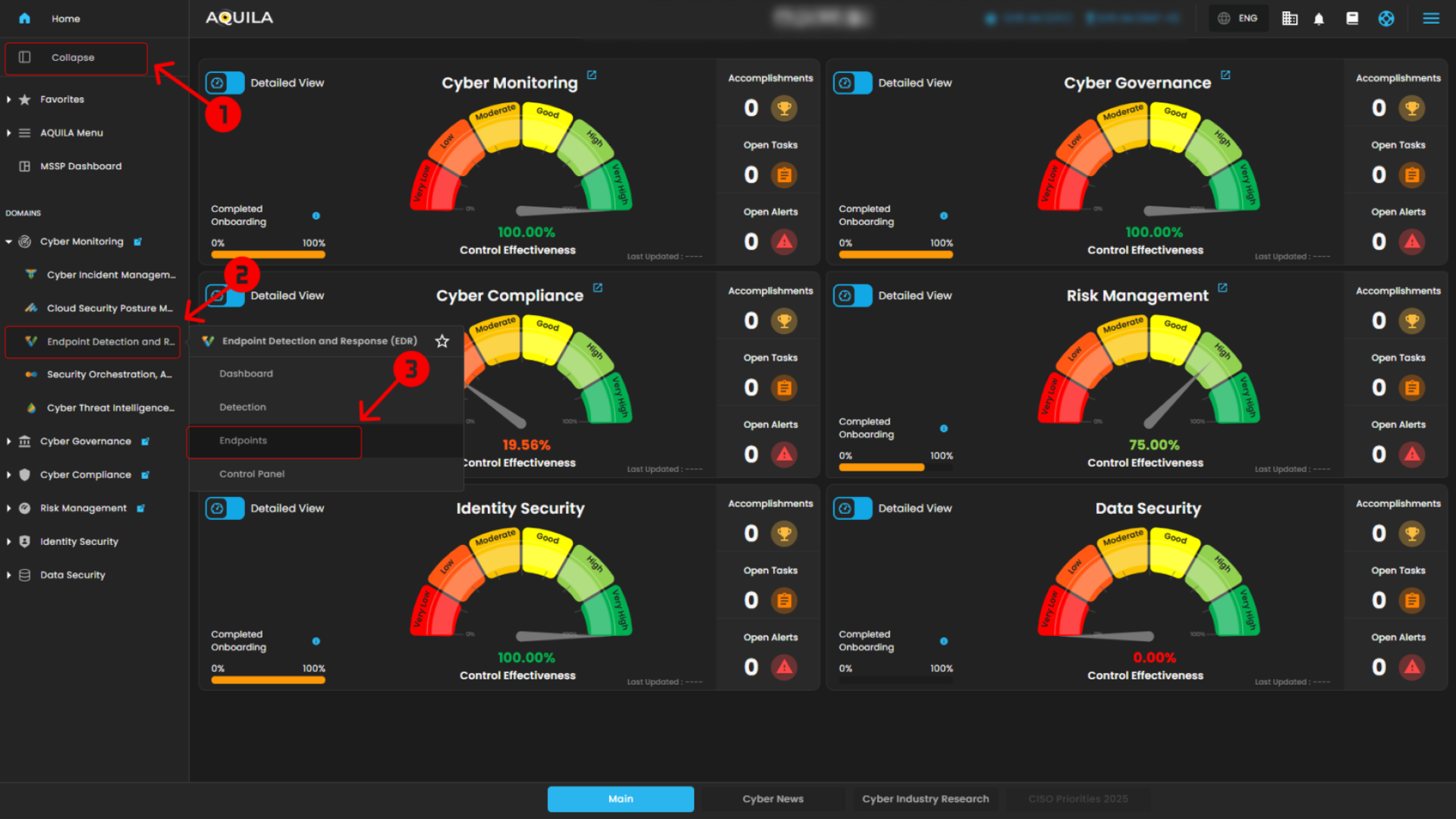
- Step 2: In the left column click Cyber Monitoring -> Endpoint Detection and Response (EDR) -> Dashboard
2. Access the Endpoint Section
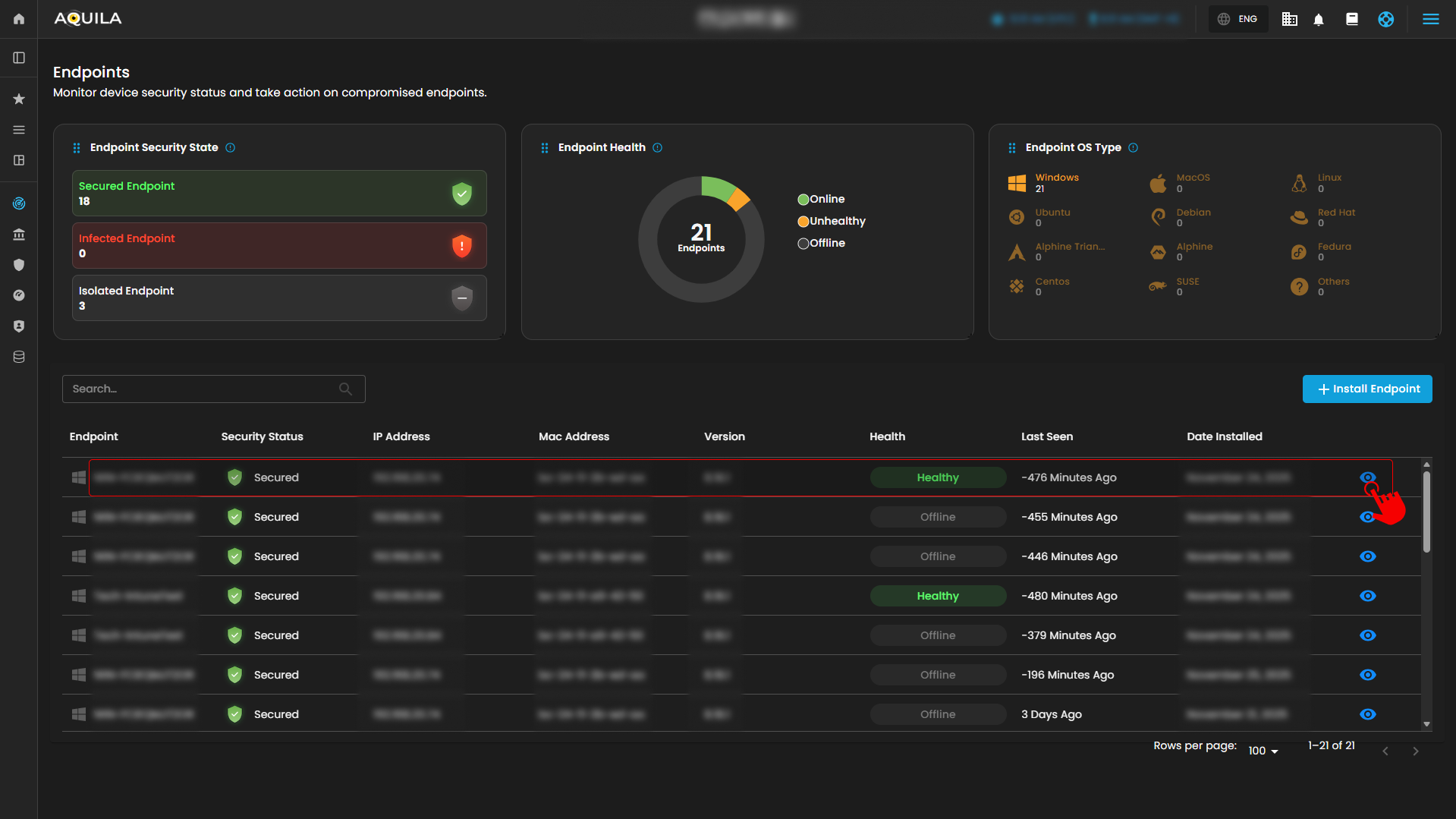
- By pressing the eye icon, it will transfer the user to the Endpoint Section where it shows system details, alert rules, alerts, and events.
3. Isolate Host
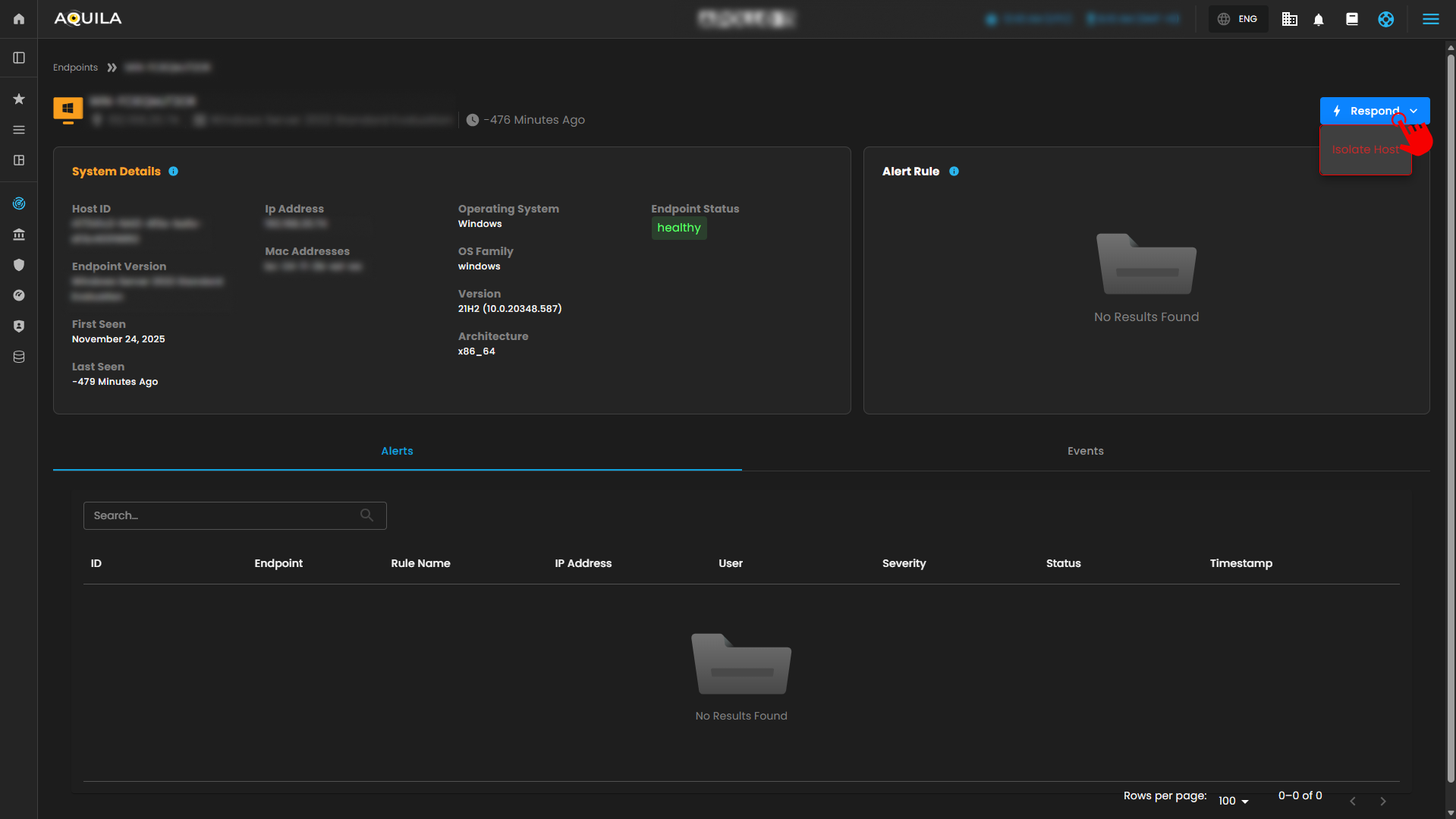
- By Pressing the Respond button, it will show Isolate host where the user can isolate their endpoint or a specific workstation.
4. Isolate Endpoint
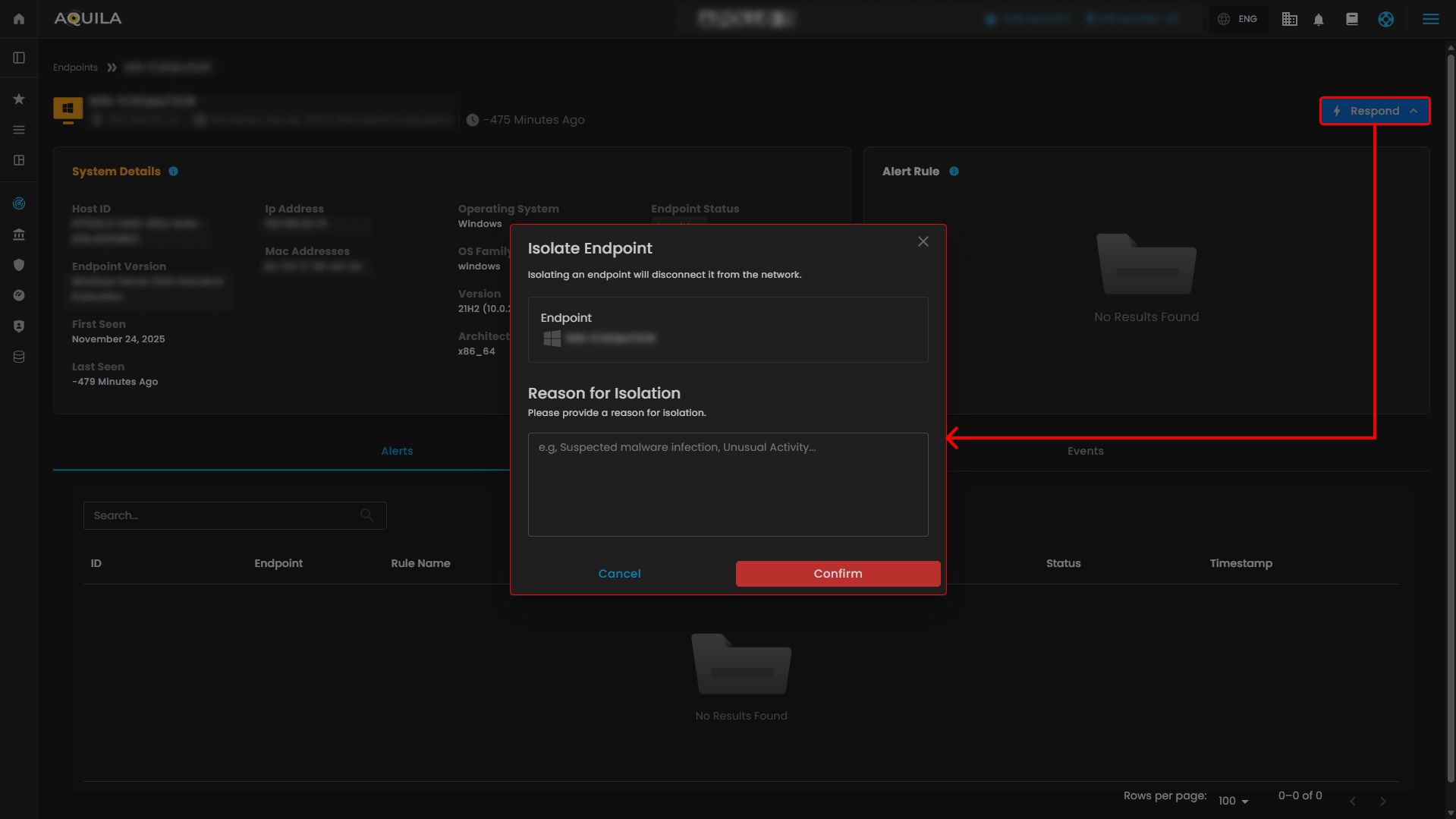
- In this section, the user can disable their endpoint and provide a reason for the isolation.
Option 2: Endpoint Detection and Response (EDR) - Control Panel
1. Navigate to Endpoint Management
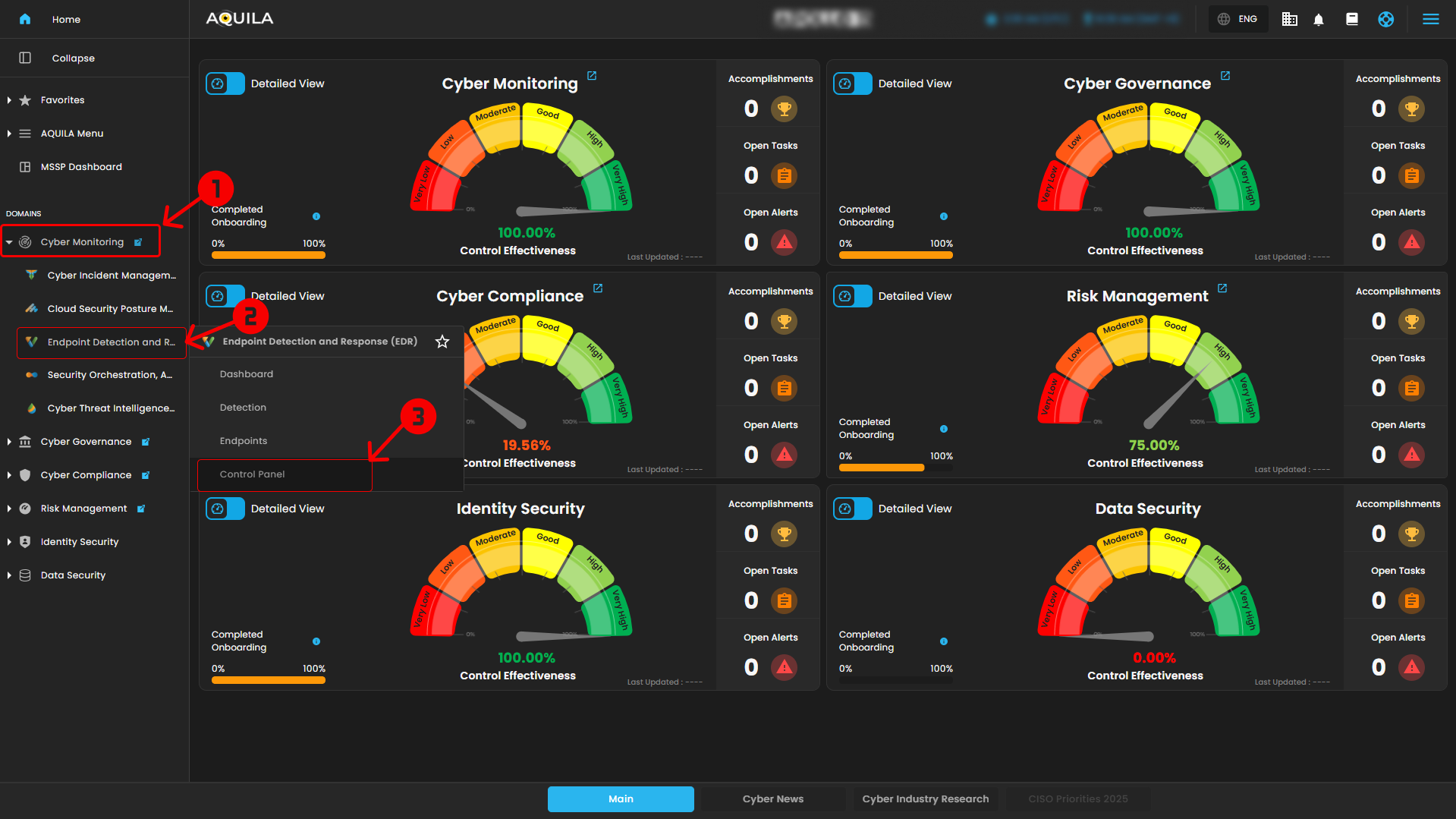
- From the AQUILA main dashboard, locate the left sidebar menu
- Under the DOMAINS section, click on Cyber Monitoring
- Select Endpoint Detection and Response (EDR)
- Click on Control Panel
This will open the endpoint management interface.
2. Access the Manage Endpoints Section
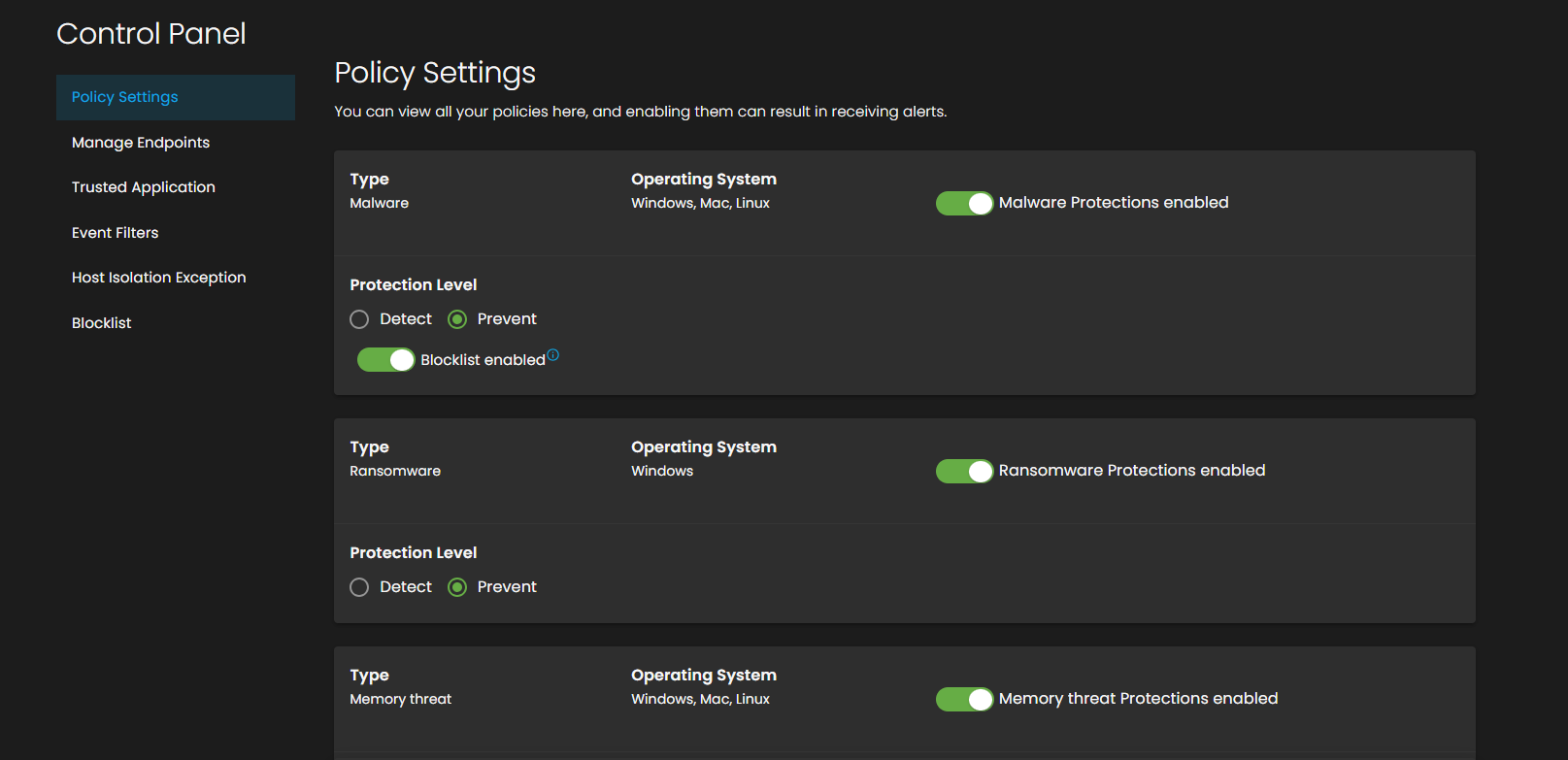
- In the Control Panel, click on Manage Endpoints from the Policy Settings menu.
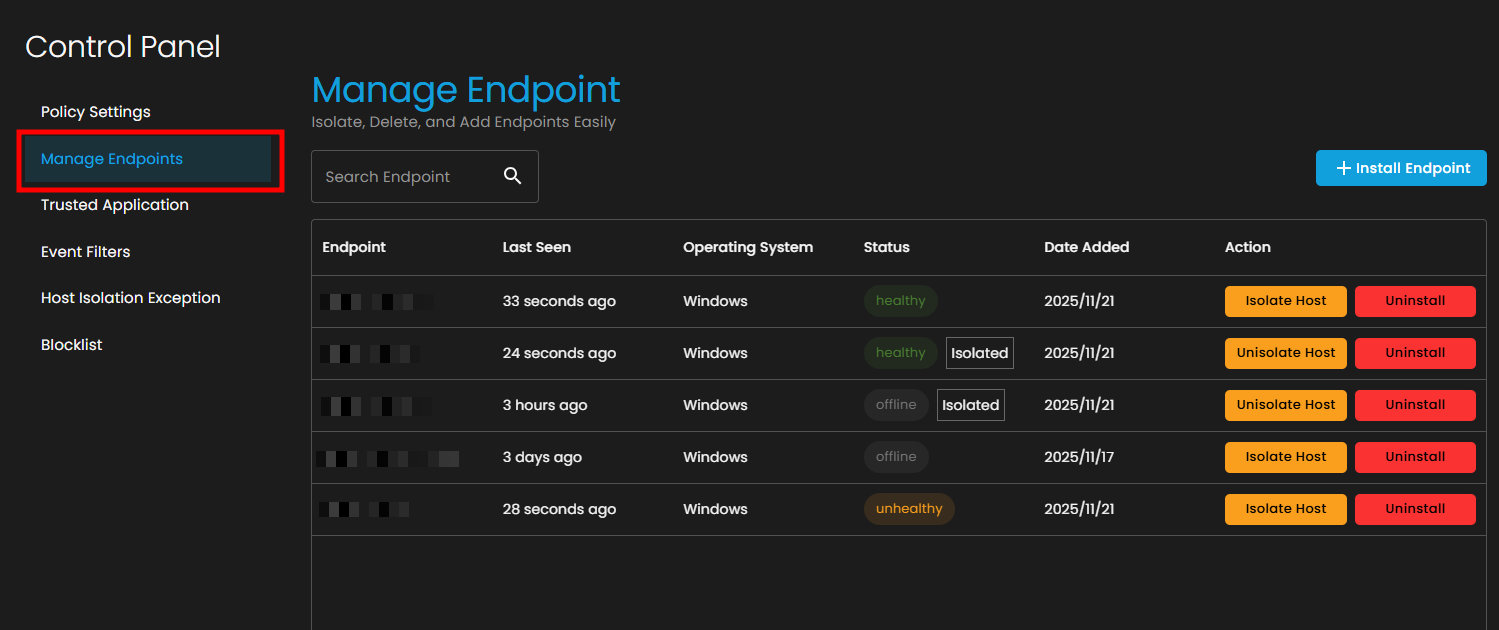
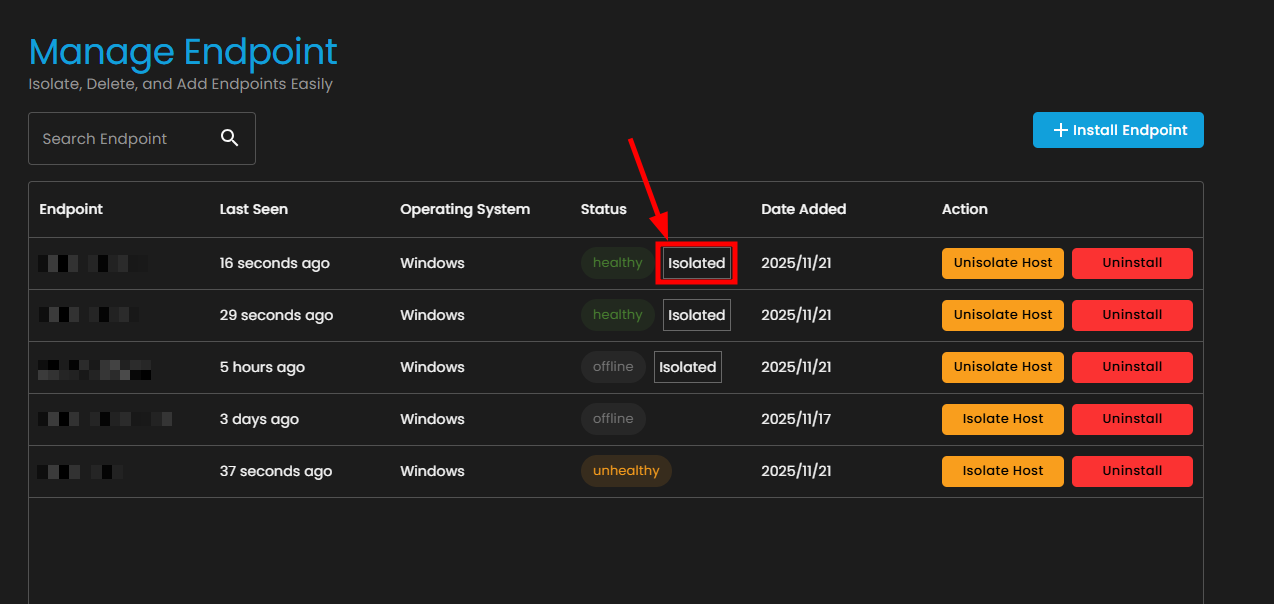
- You'll see a table displaying all registered endpoints with the following information:
- Operating System
- Status (healthy, unhealthy, offline, isolated)
- Date Added
- Available Actions
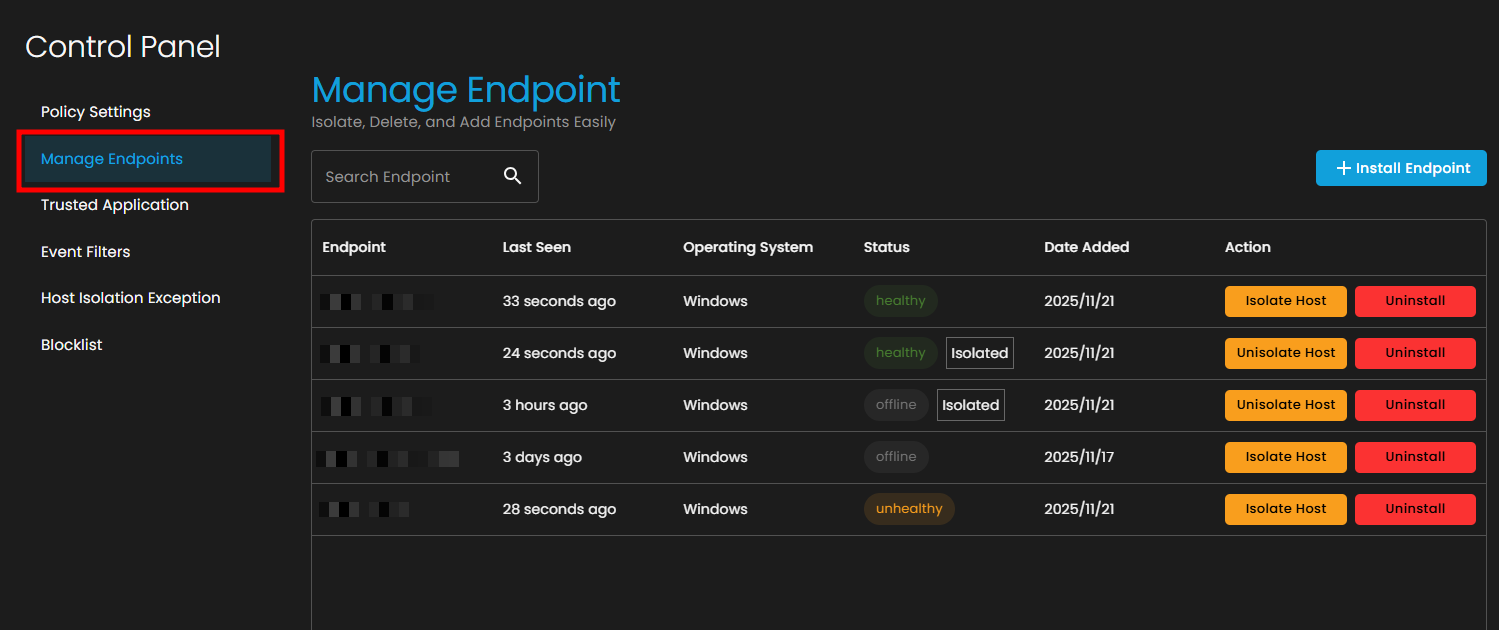
3. Isolate an Endpoint
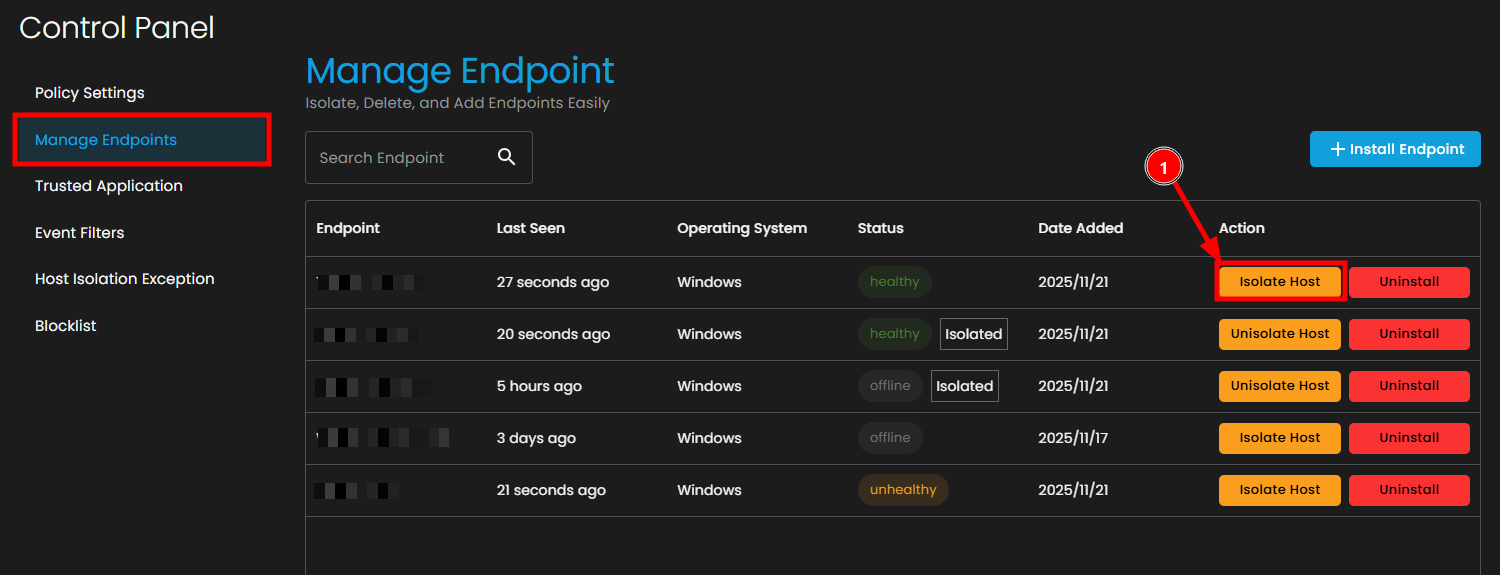
If you need to isolate an endpoint first:
- Locate the target endpoint in the list
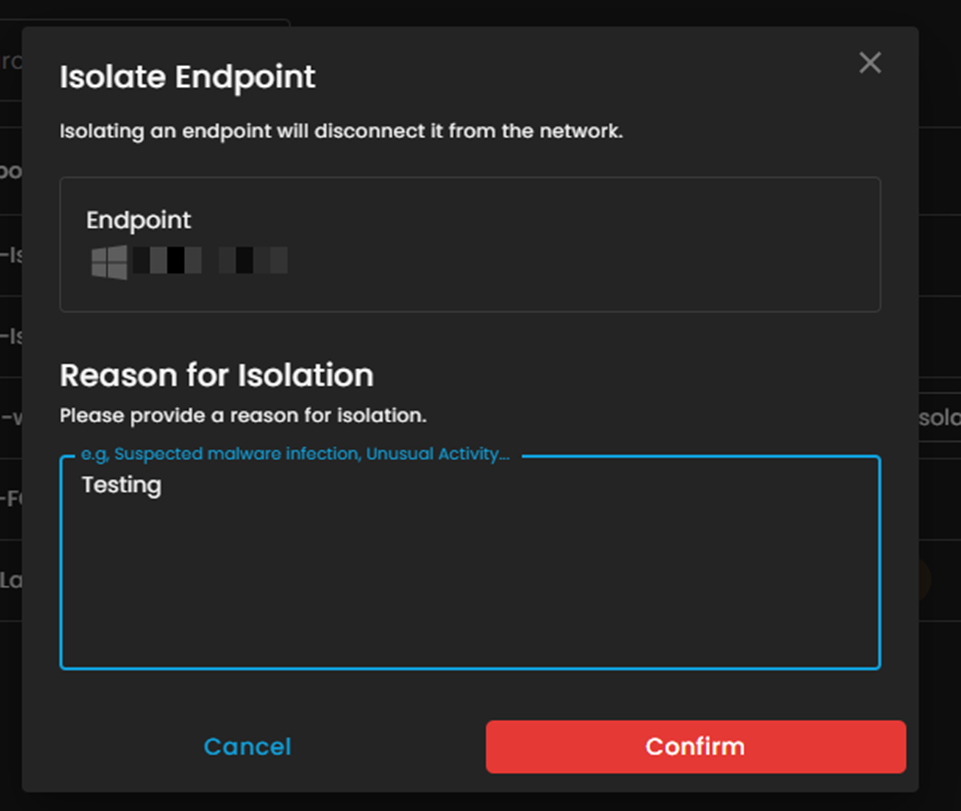
- Click the Isolate Host button in the Action column
- In the "Isolate Endpoint" dialog box:
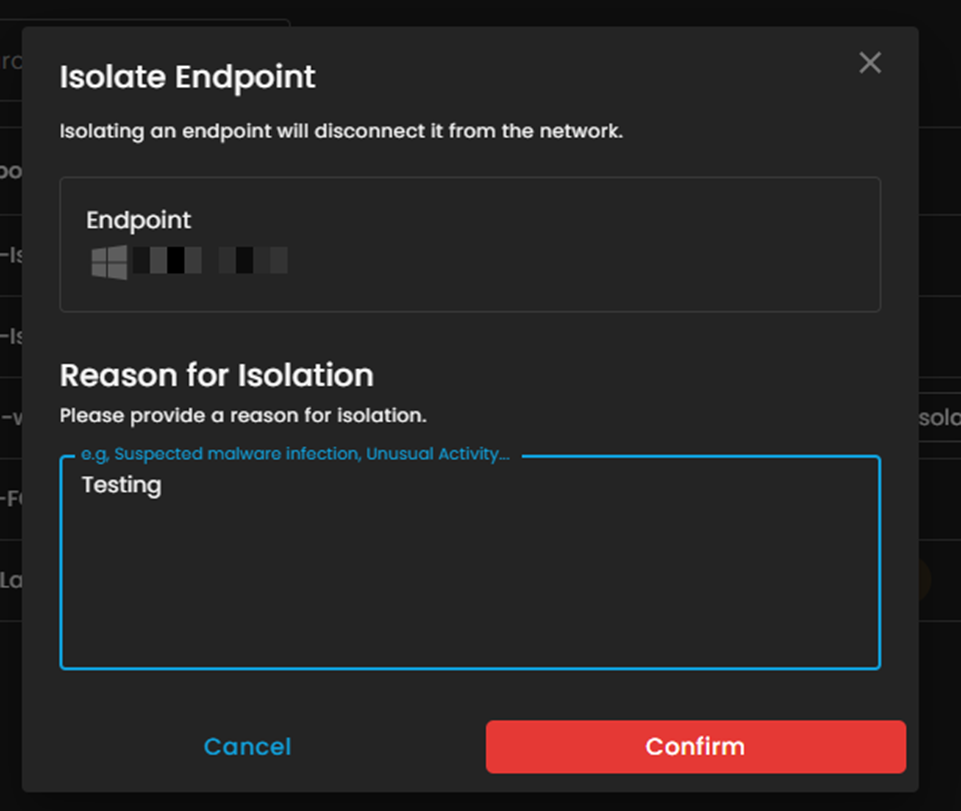
- Click the Confirm button to proceed
- The endpoint status will change to Isolated
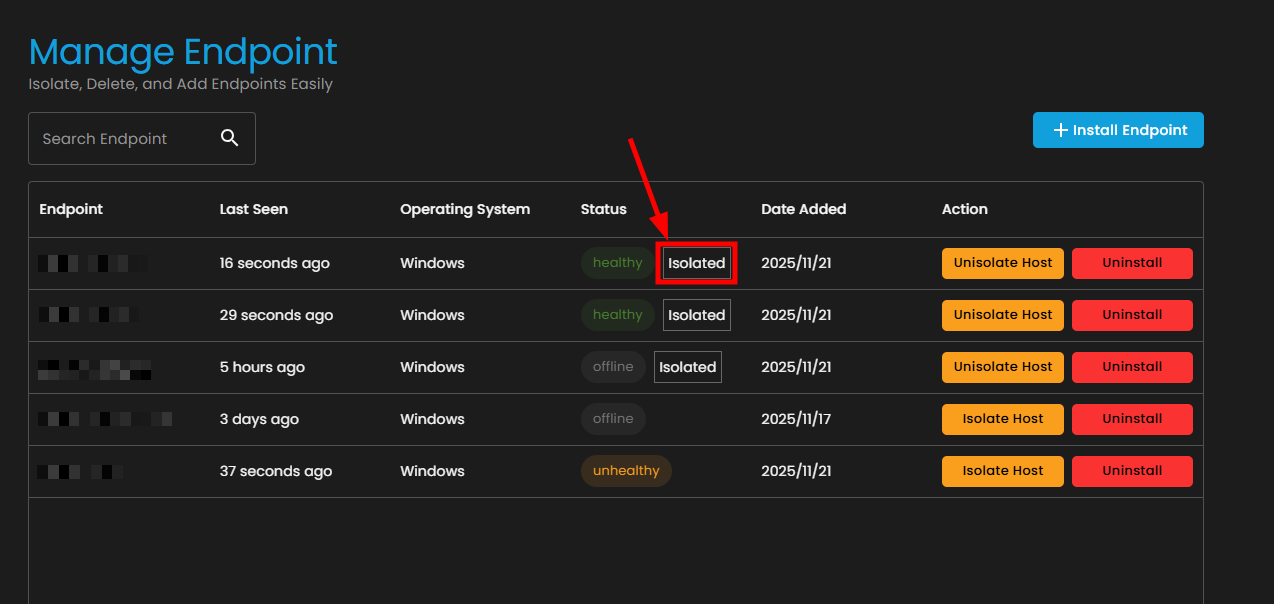
Note: Once isolated, the endpoint will be disconnected from the network and unable to access external resources except those specified in the Host Isolation Exception list.
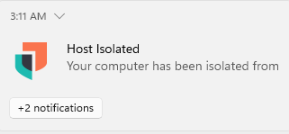
Testing connection status:
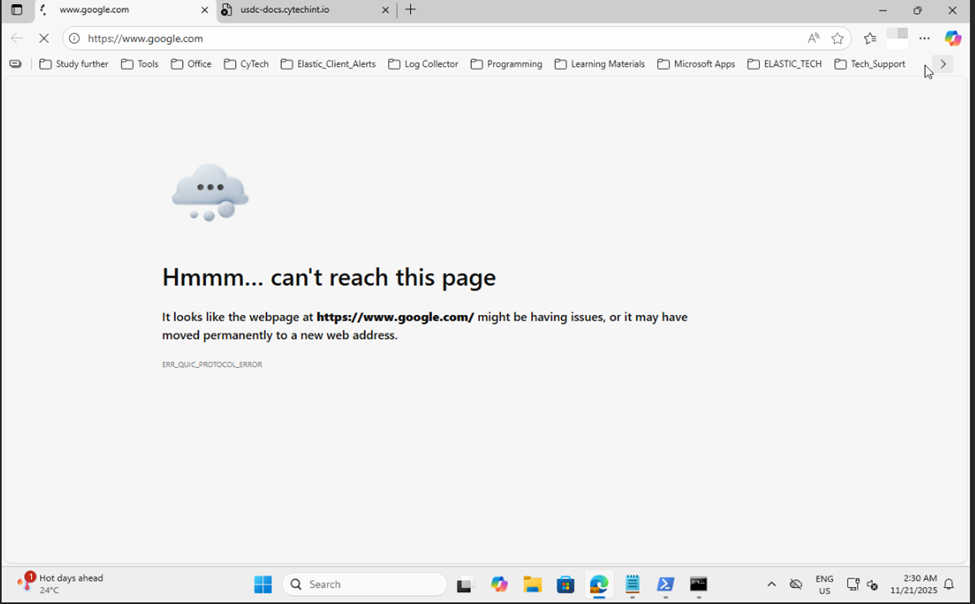
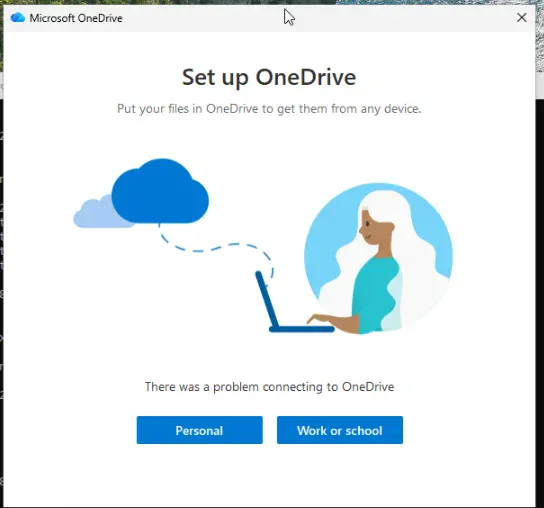
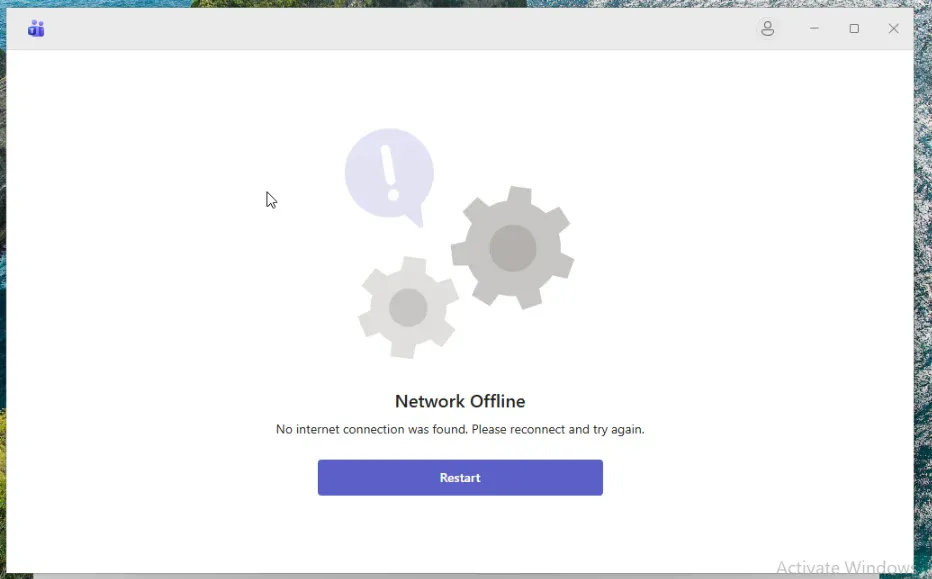
4. Verify Isolation Status
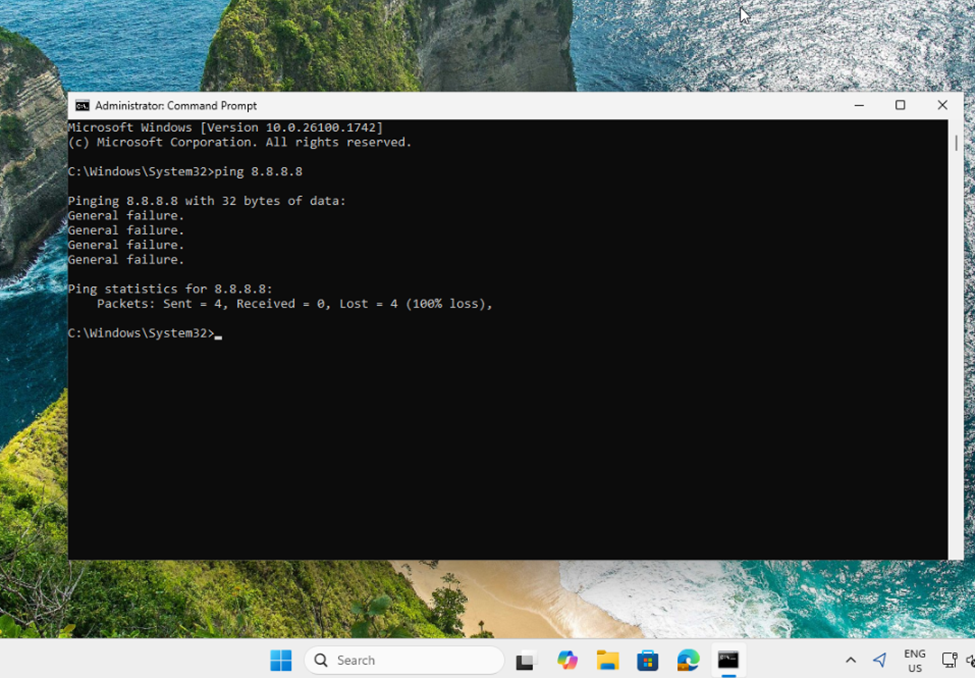
After isolation, you can verify the endpoint's network status:
- Open Command Prompt on the isolated endpoint
- Test connectivity by pinging a public IP address:
- You should see General failure messages, confirming the host is isolated
- The ping statistics should show 100% loss