
CRAM User Guide
Overview

Cyber Risk Assessment Management
To proceed on Onboarding Cyber Risk Assessment Management (CRAM), you should press Get Started button.
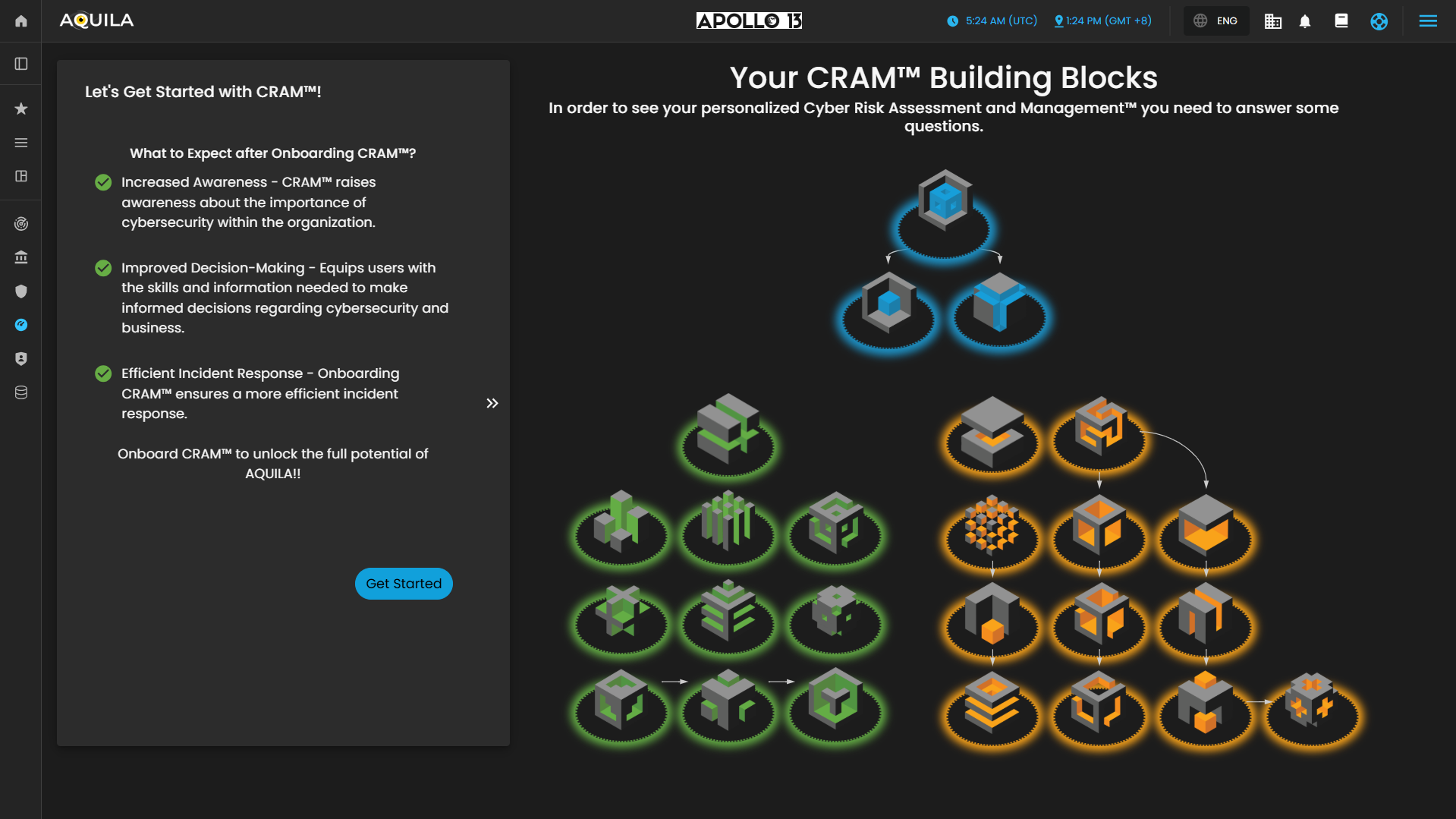
Figure 2. Cyber Security Risk Management - Asset Identification
After pressing the get started you will be directed to this part of the Onboarding. It requires information regarding on the clients Main Business Statement.
Disclaimer: This is not a real company and only made for client's guidance on what to input.
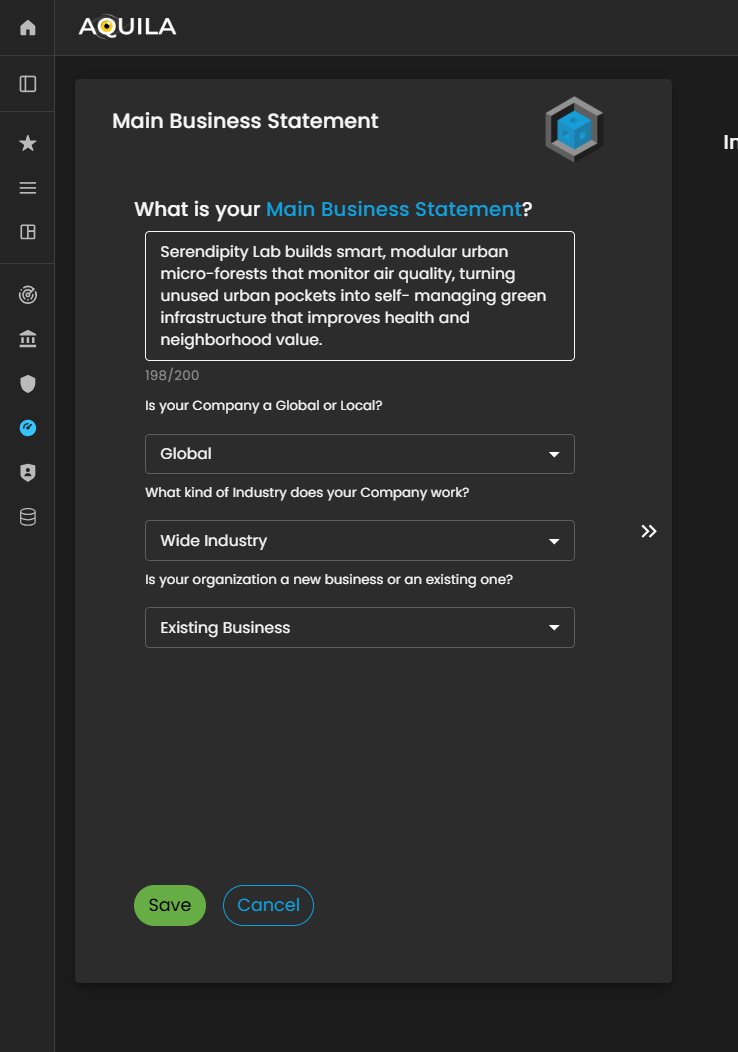
Figure 3. Cyber Security Risk Management - Main Business Statement
After adding the necessary information and pressing save, it will redirect you to this page. The client can edit the information here by pressing the edit to add their business objectives.
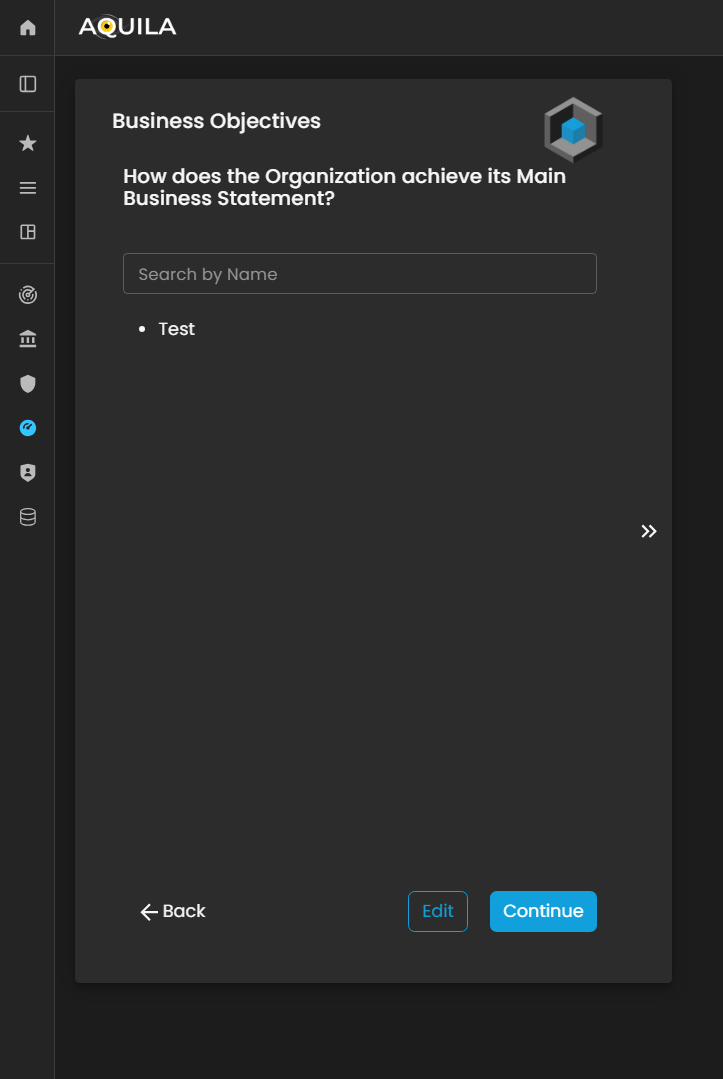
Figure 3. Cyber Security Risk Management - Business Objectives
Here's the edit section of the business objective, where the client can add their business objectives.
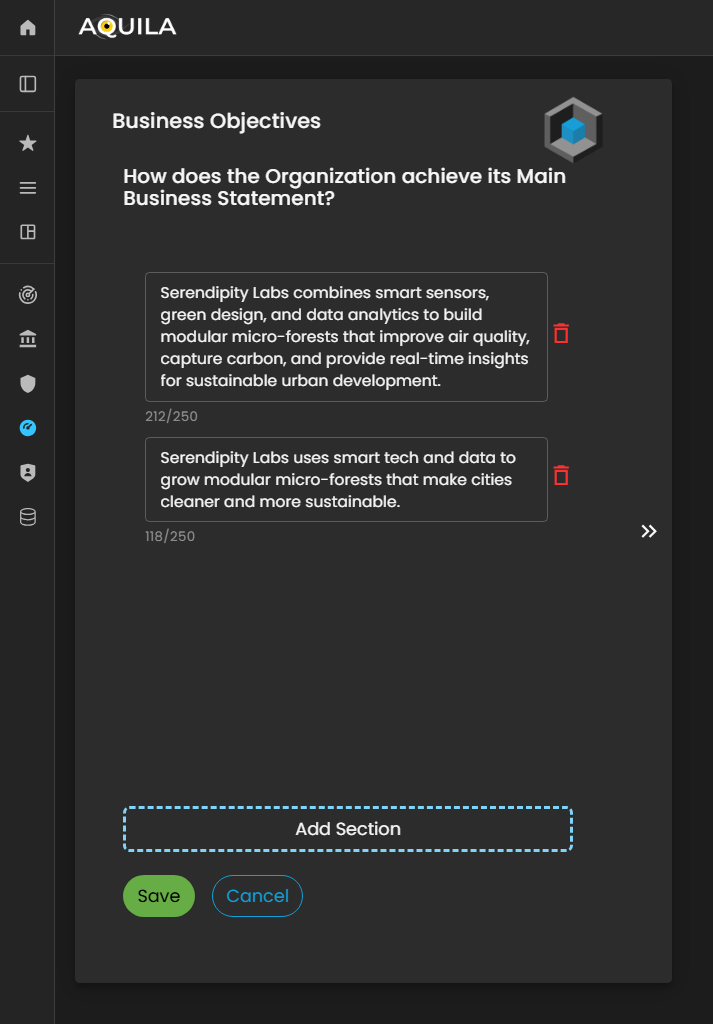
Figure 4. Cyber Security Risk Management - Business Objective / Edit Section
After pressing the save button it will then redirect you to this page about business fundamentals. The client can also edit their business fundamentals and add what aligns to their own fundamentals.
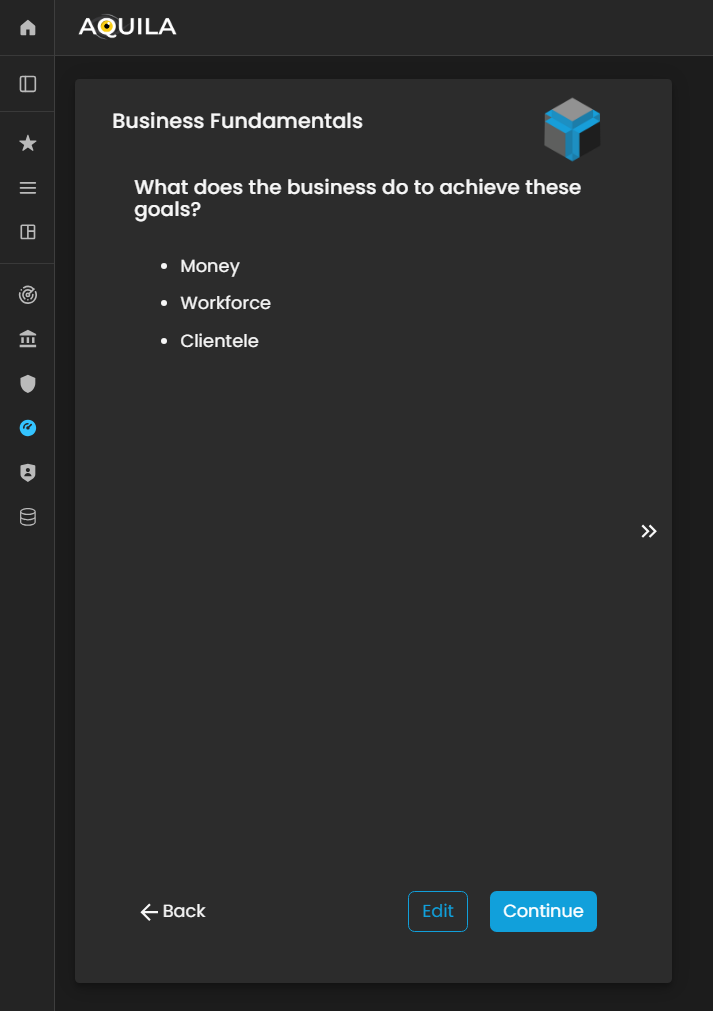
Figure 5. Cyber Security Risk Management - Business Fundamentals
Here's the edit section of business fundamentals.
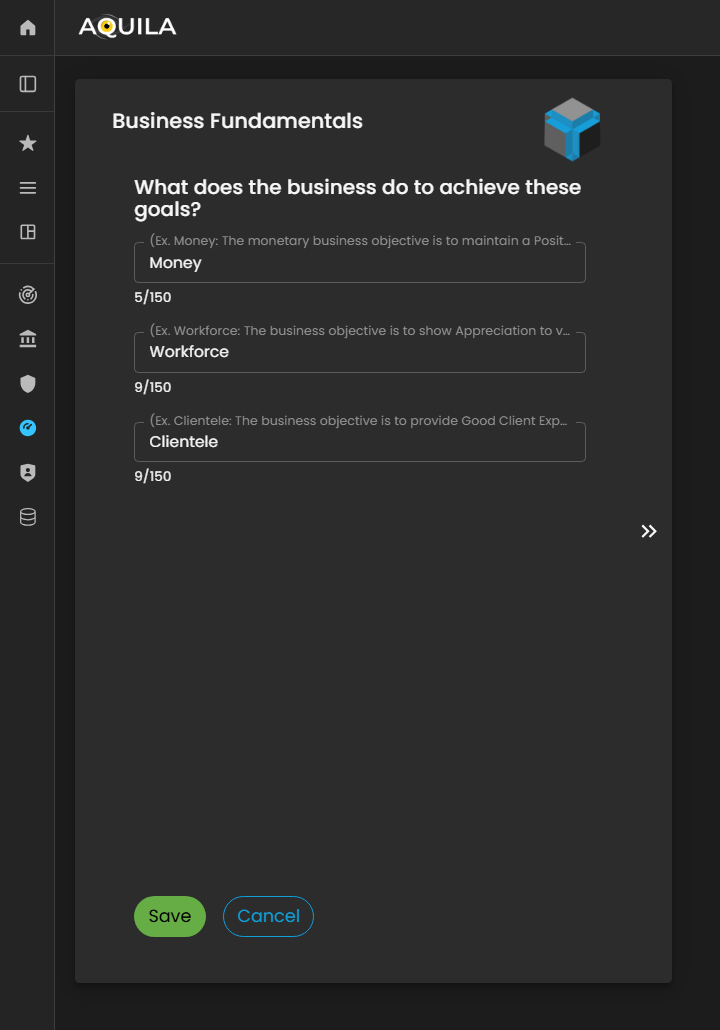
Figure 5. Cyber Security Risk Management - Business Fundamentals / Edit Section
After adding and pressing save it will redirect you to Critical Clientele & Markets. The client
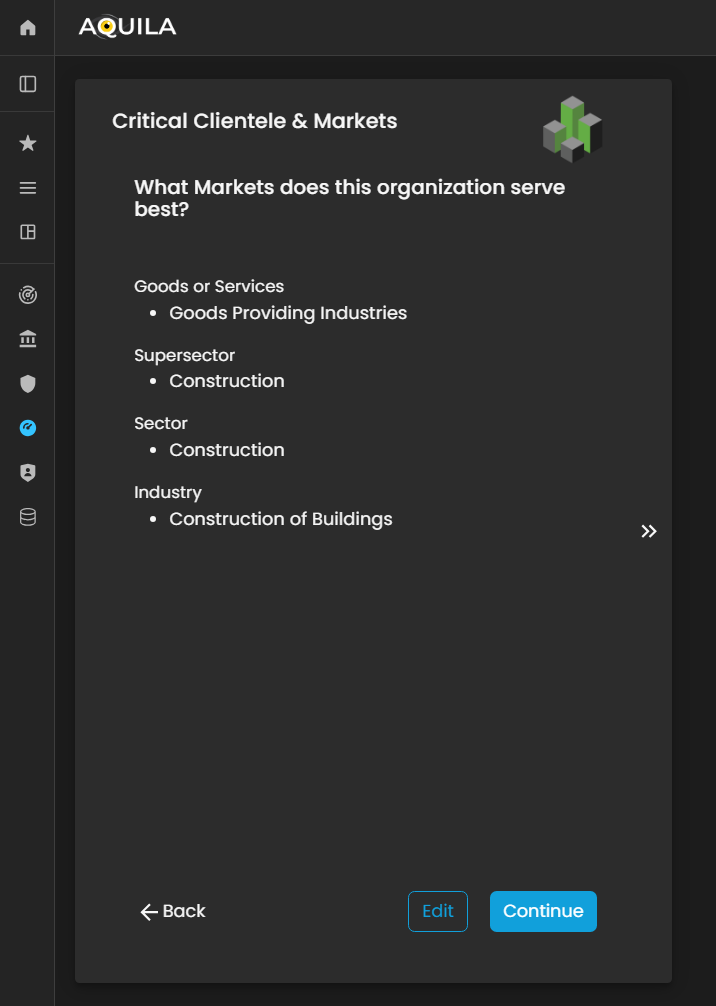
Figure 5. Cyber Security Risk Management - Critical Clientele & Markets
Here is the edit section of the Critical Clientele & Markets to change any necessary information about their goods or services, supersector, sector, and industry.
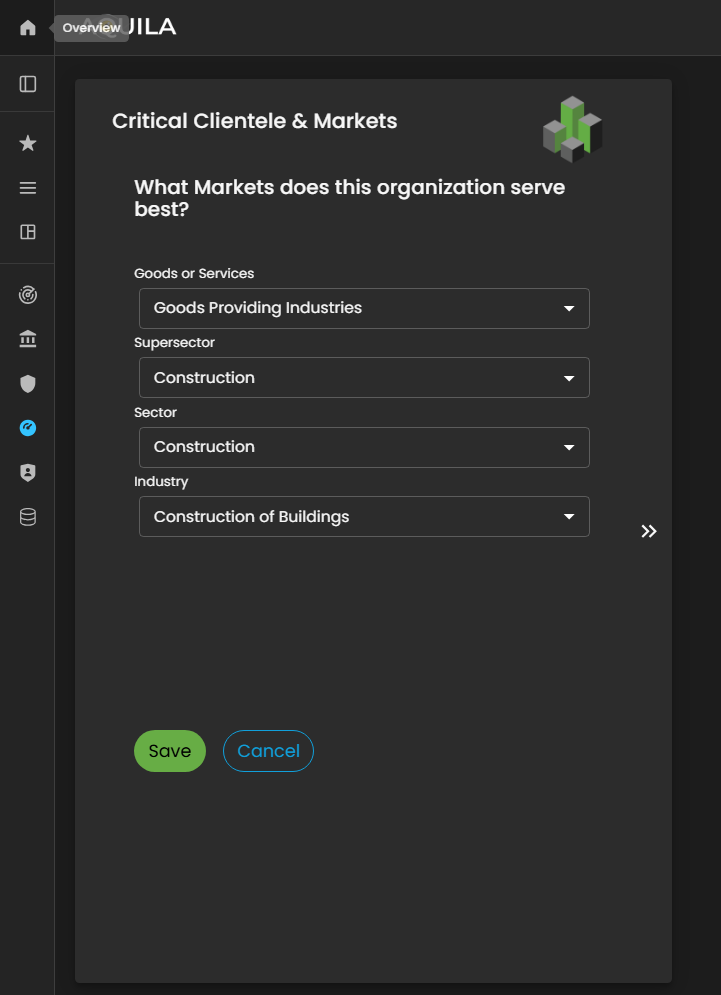
Figure 5. Cyber Security Risk Management - Critical Clientele & Markets / Edit Section
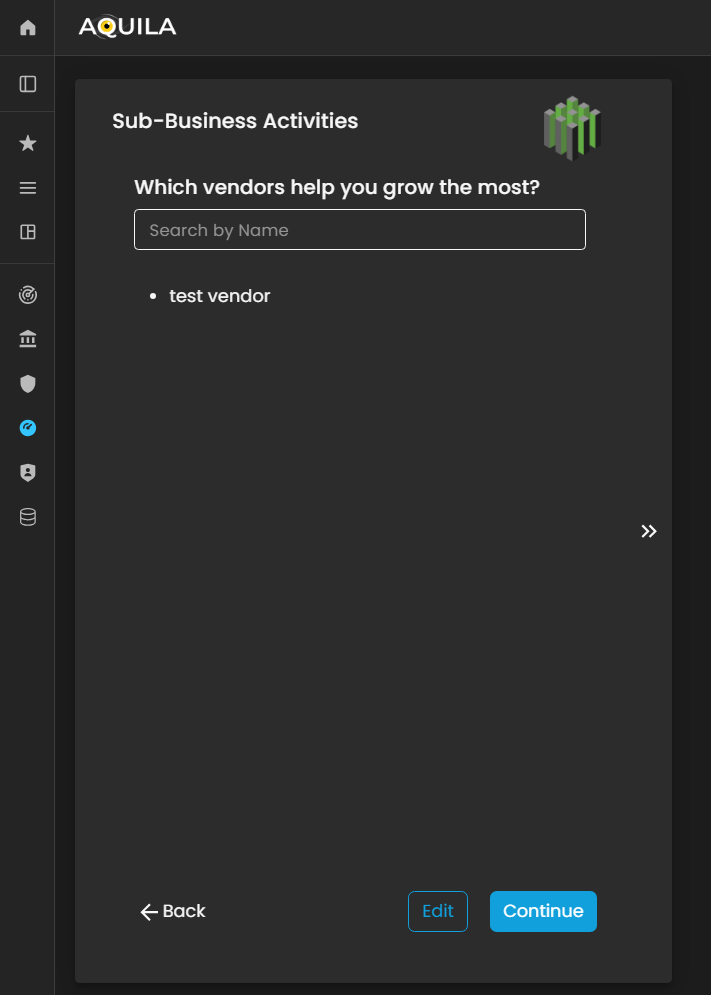
Figure 5. Cyber Security Risk Management - Sub-Business Activities
Here's the edit section of the Sub-Business Activities where you can add vendors that help the client's business grow.
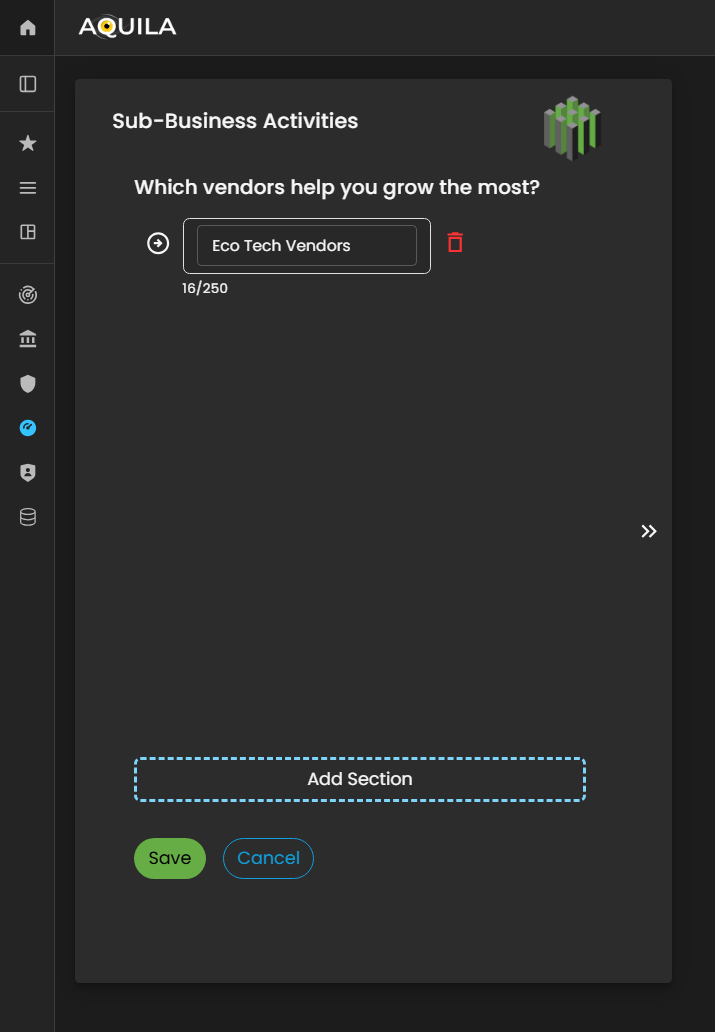
Figure 5. Cyber Security Risk Management - Sub-Business Activities / Edit Section
Then after saving the edit, it will bring the client back to the sub-business activities where they can see their added vendors. Then Press continue to proceed Onboarding the business.
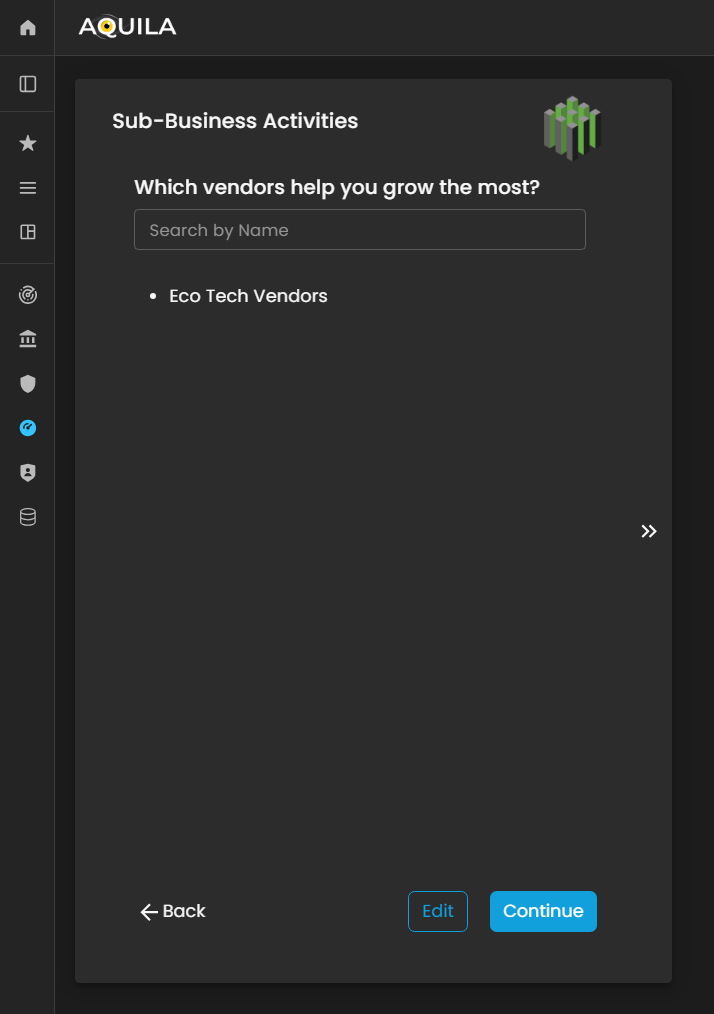
Figure 5. Cyber Security Risk Management - Sub-Business Activities / Edit Section
Business Industry. In this part, the client can put their information on what is the organization best fit into. The client can also edit to add any necessary information about their business industry.

Figure 5. Cyber Security Risk Management - Business Industry
Here is the edit section of the business industry where the client can change any necessary information regarding on their business.
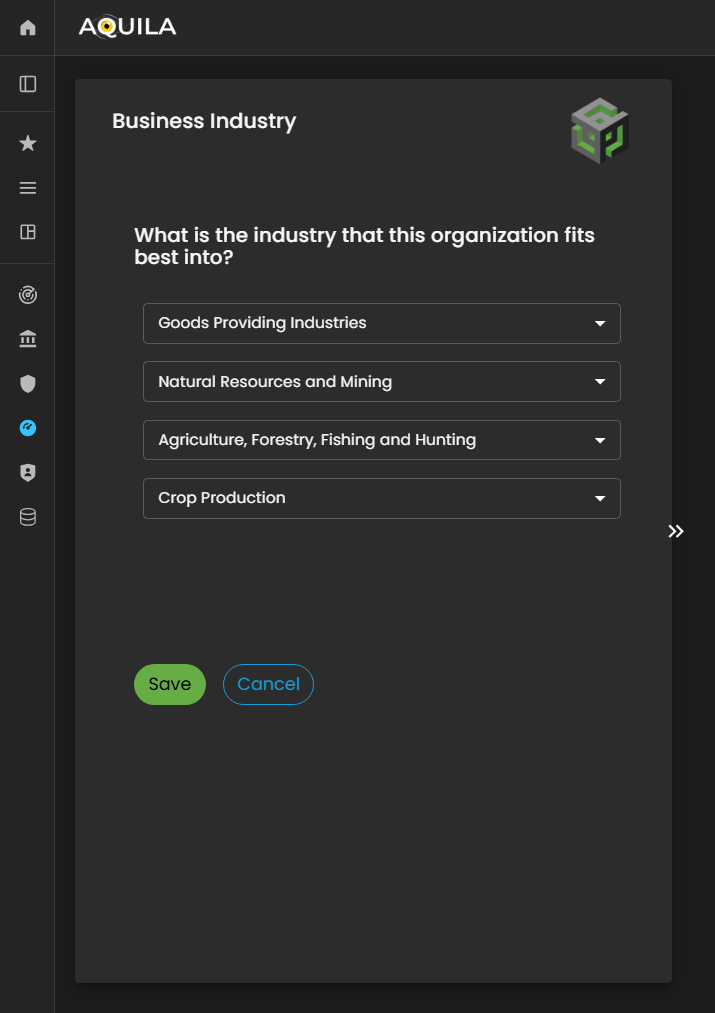
Figure 5: Cyber Security Risk Management - Business Industry / Edit Section
After saving the information for Business Industry, then it will redirect you to the Critical Vendors. There is also an edit function here to add any necessary information regarding on the client business.
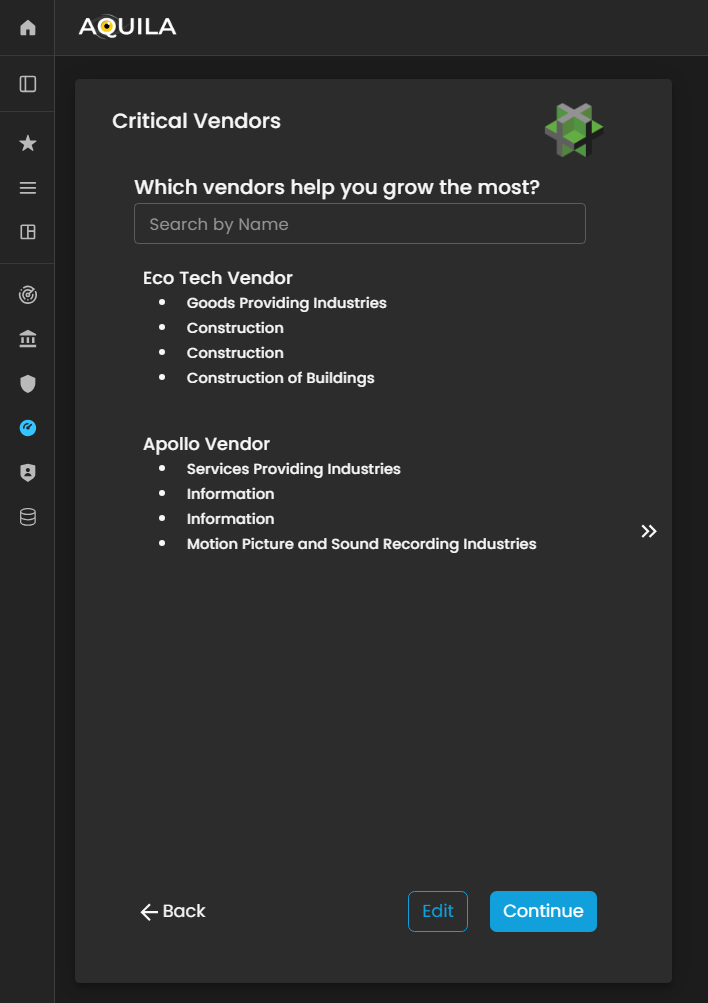
Figure 5: Cyber Security Risk Management - Critical Vendors
After proceeding to Critical Vendors, it will then redirect the client to the Critical Business Partners. Critical Business Partners is for your business partners that shares the same values and investments. The client can add their business partners through the edit button.
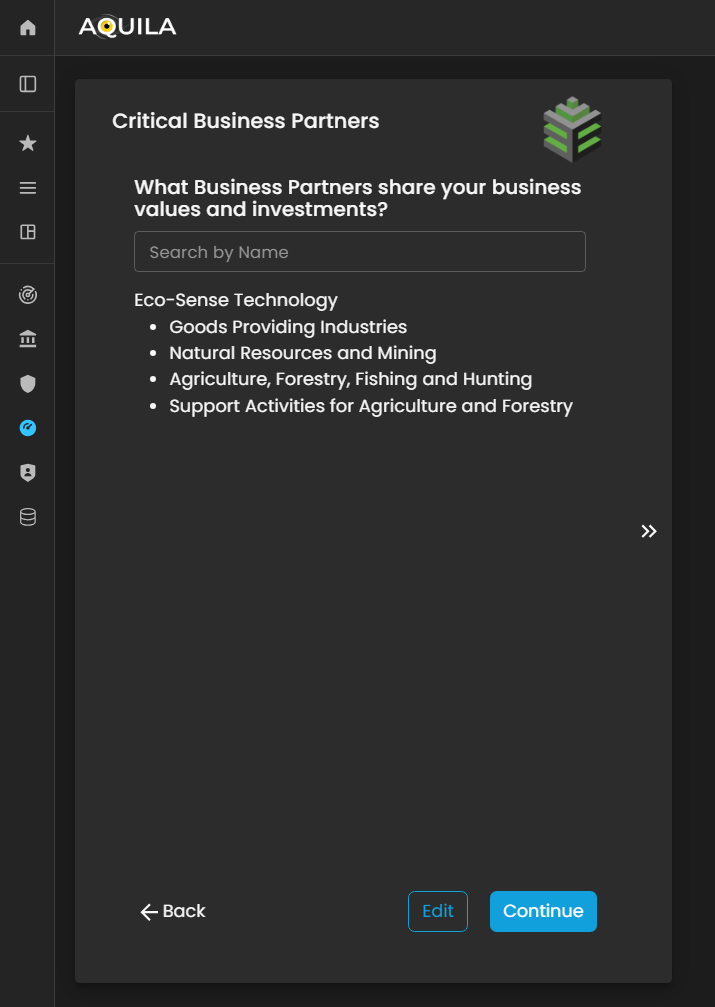
Figure 5: Cyber Security Risk Management - Critical Business Partners
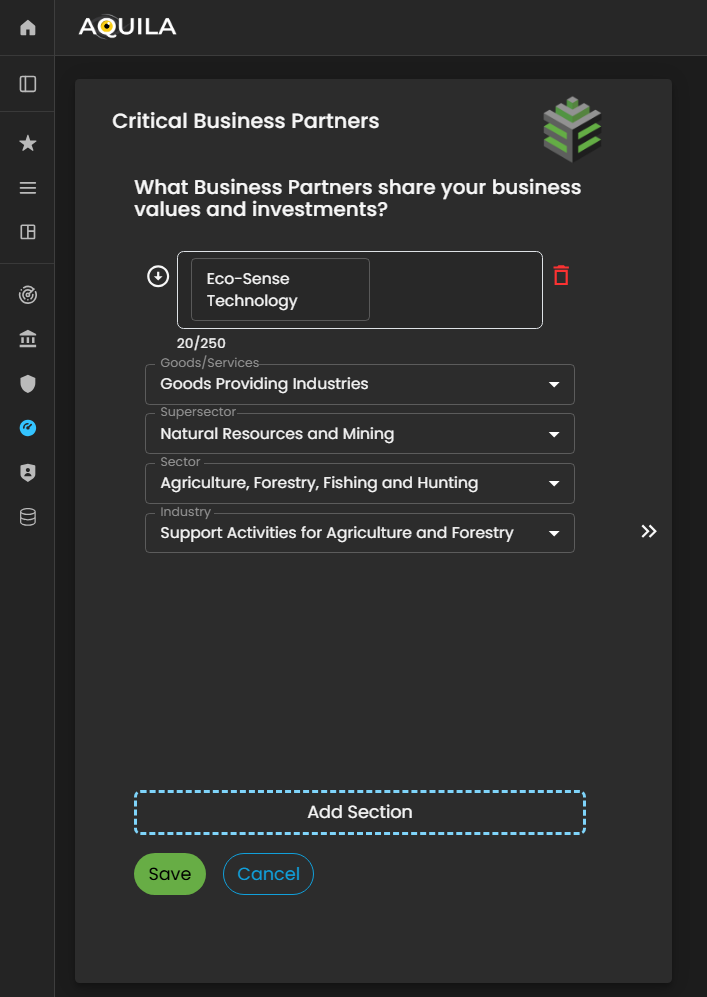
Figure 5: Cyber Security Risk Management - Critical Business Partners / Edit Section
After adding and saving your critical business partners then it will redirect you to proceed in Geographic Locations. Geographic Location is where the client holds their offices.
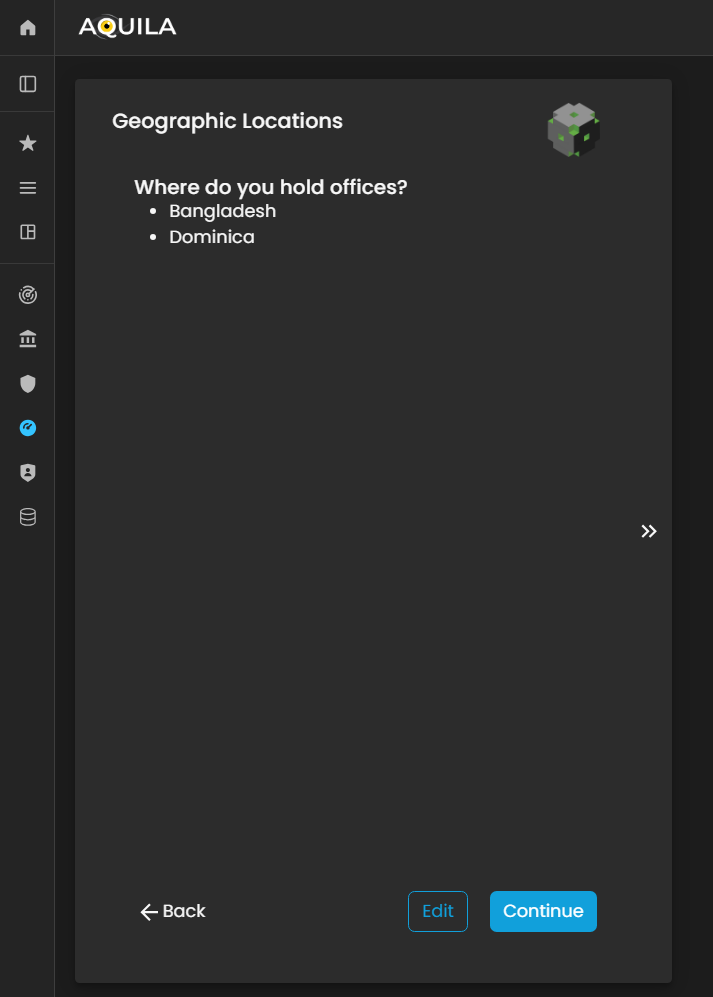
Figure 5: Cyber Security Risk Management - Geographic Location
The client can add their geographic location on the edit section by pressing the arrow key.
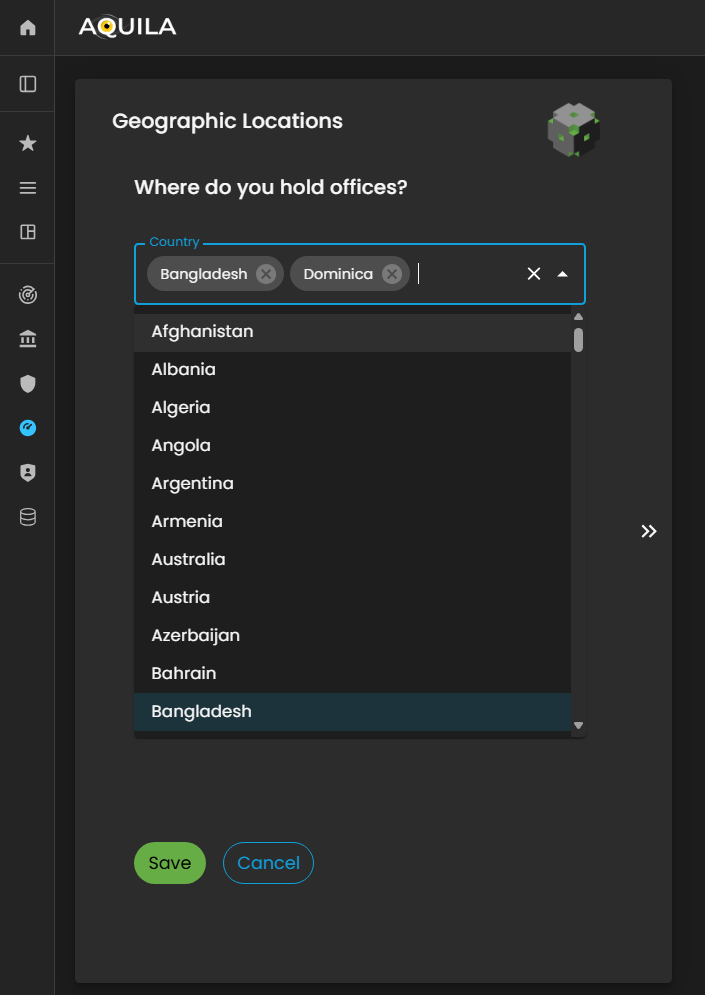
Figure 5: Cyber Security Risk Management - Geographic Location / Edit Section
Critical Business Processes (CBP's)
After saving the Geographic Location of the offices and pressing continue the client will be redirected to this Critical Business Processes (CBP's). Critical Business Processes is the clients' money-making processes. The client can also add their money-making process through edit.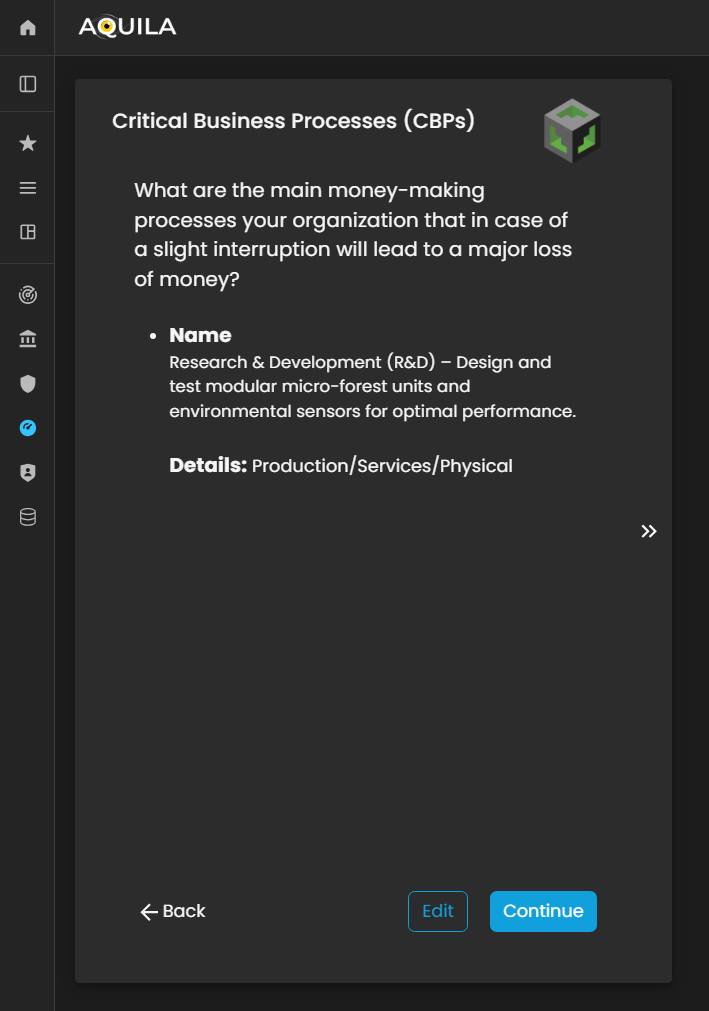
Figure 5: Cyber Security Risk Management - Critical Business Processes (CBP's)
Here in the edit section of Critical Business Processes (CBP's) the client can add their information regarding on their money-making processes. The client can also add what their company do, what they offer and what type of service they do.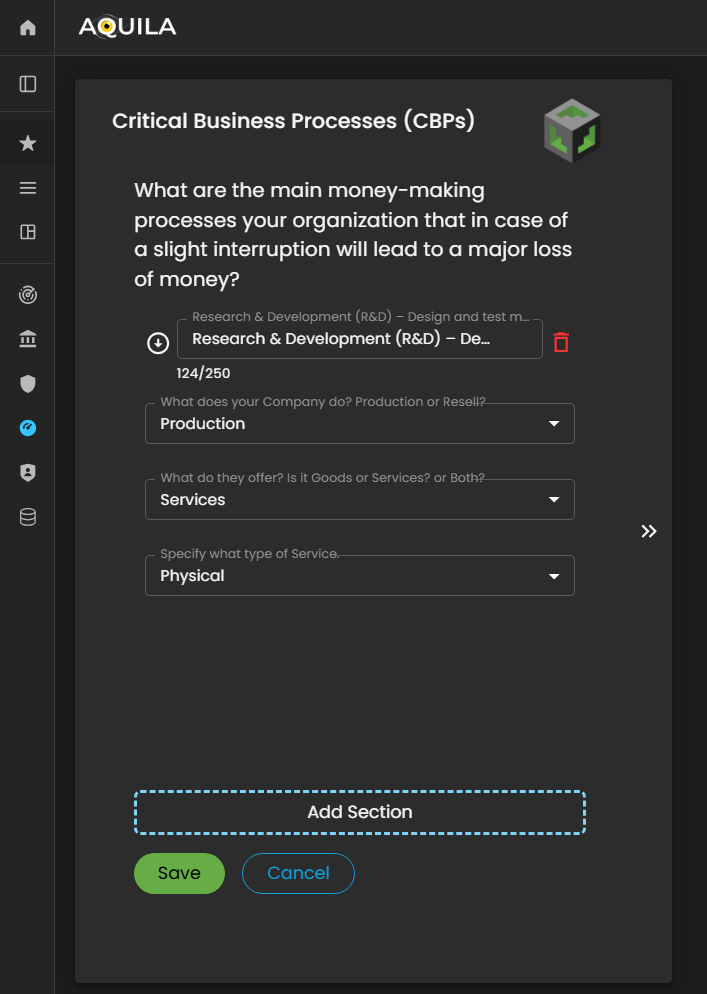
Figure 5: Cyber Security Risk Management - Critical Business Processes (CBP's) / Edit Section
After saving and adding the correct input for CBP's the client will be redirected to the Critical Business Functions (CBF's) section where they can add information on who are the people, processes, and technologies that makes the clients CBP's so successful. The client can add their CBF's through the edit button.
Figure 5: Cyber Security Risk Management - Critical Business Functions (CBF's)
Here is the edit section of the CBF's where the client can add their information about what are the people, processes, or technologies that keeps their business successful. Then after saving the required information, it will then redirect the client back to the Critical Business Function (CBF's) to see if they have put their correct input regarding on their CBF's then after that the client can press continue to proceed.
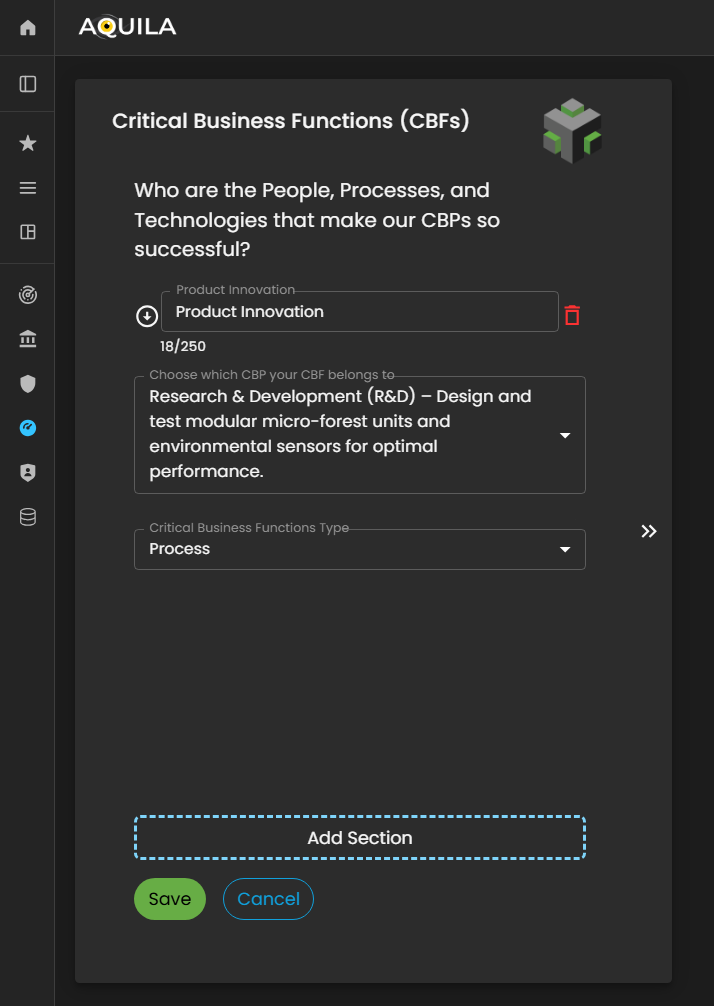
Figure 5: Cyber Security Risk Management - Critical Business Function (CBF's) / Edit Section
Business Vector
Business Vector is about how the clients Critical Business Functions (CBF's) are coming to life.
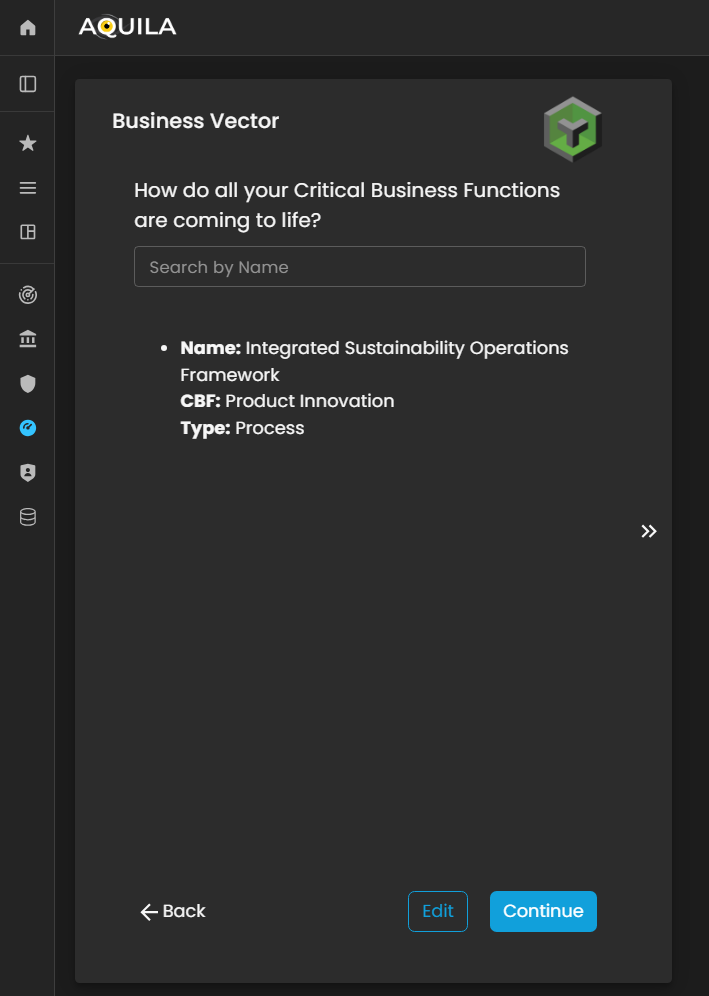
Figure 5: Cyber Security Risk Management - Business Vector
Business Vector edit section where the client can the name and what the client CBF's does your vector belongs.
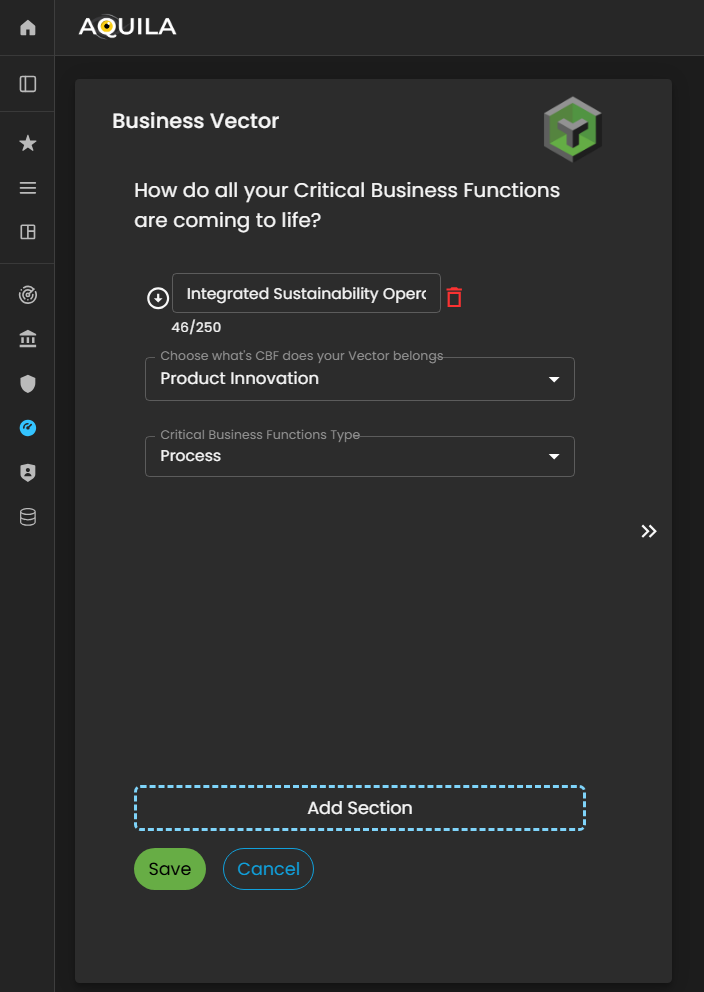
Figure 5: Cyber Security Risk Management - Business Vector / Edit Section
Risk Tolerance
In this section the client can see on which Critical Function can be rank. The client can also switch to Critical Business Function (CBF's) or Critical Business Process (CBP's)
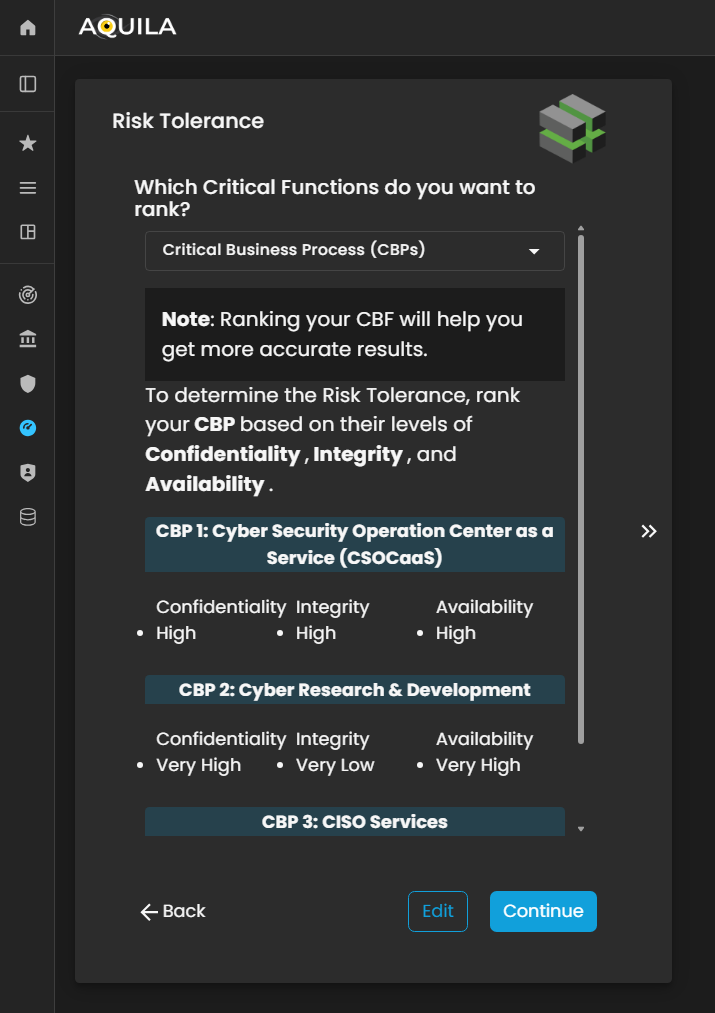
Figure 5: Cyber Security Risk Management - Risk Tolerance
Here's the Risk Tolerance edit section where the client can change their confidentiality, integrity, and availability. Ranking from Very high - to Very Low.
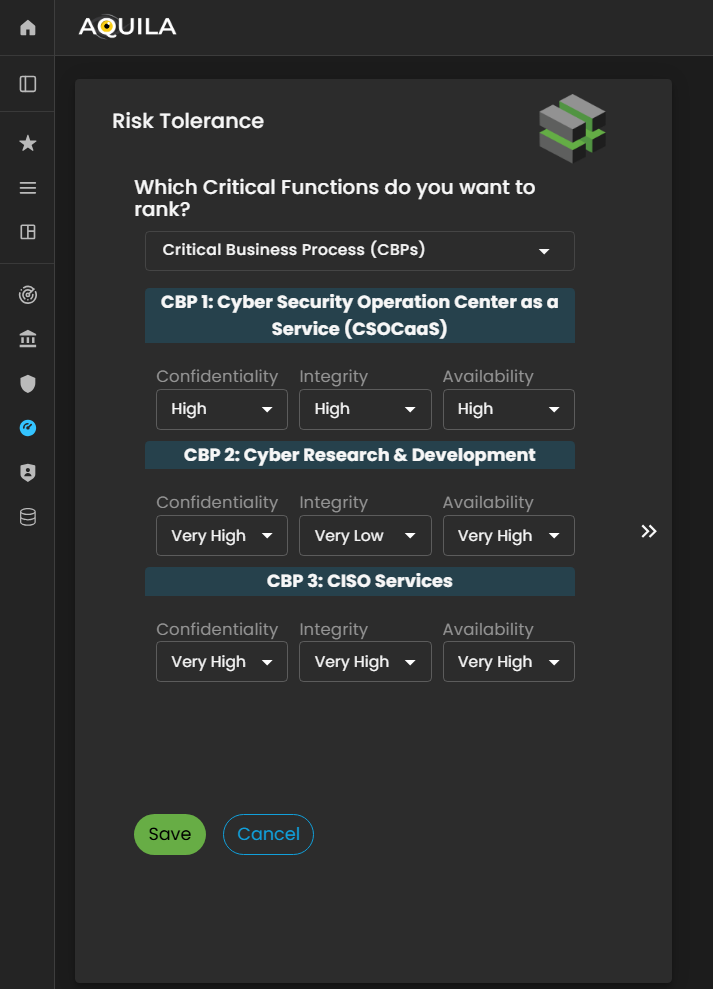
Figure 5: Cyber Security Risk Management - Risk Tolerance / Edit Section
Risk Appetite
In this section after proceeding to Risk Tolerance, Risk Appetite is knowing how well your organization can absorb a cyber-attack by ranking Very high to Very Low. The client can also change their risk appetite through the edit section.

Figure 5: Cyber Security Risk Management - Risk Tolerance
After proceeding to Risk Appetite, the client will be directed to the Cyber Insurance, asking if does your organization have cyber insurance? The client can pick if its Yes or No through the edit button.
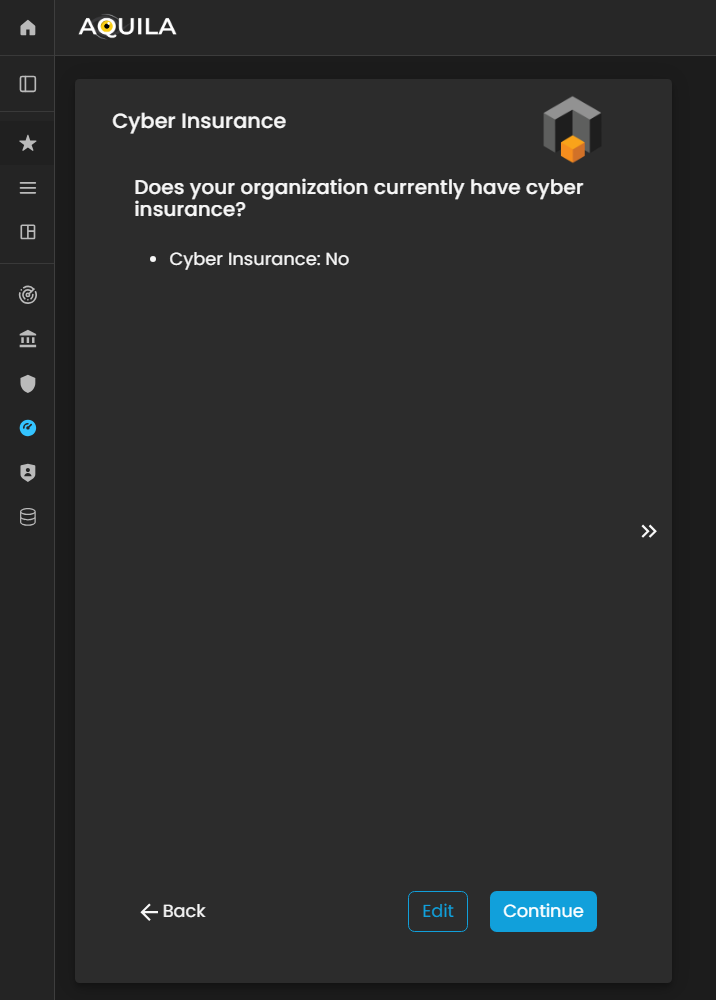
Figure 5: Cyber Security Risk Management - Cyber Insurance
Cyber Privacy Obligation
In this section for Onboarding the client's business, you will be asked 3 questions regarding on the Cyber Privacy Obligations
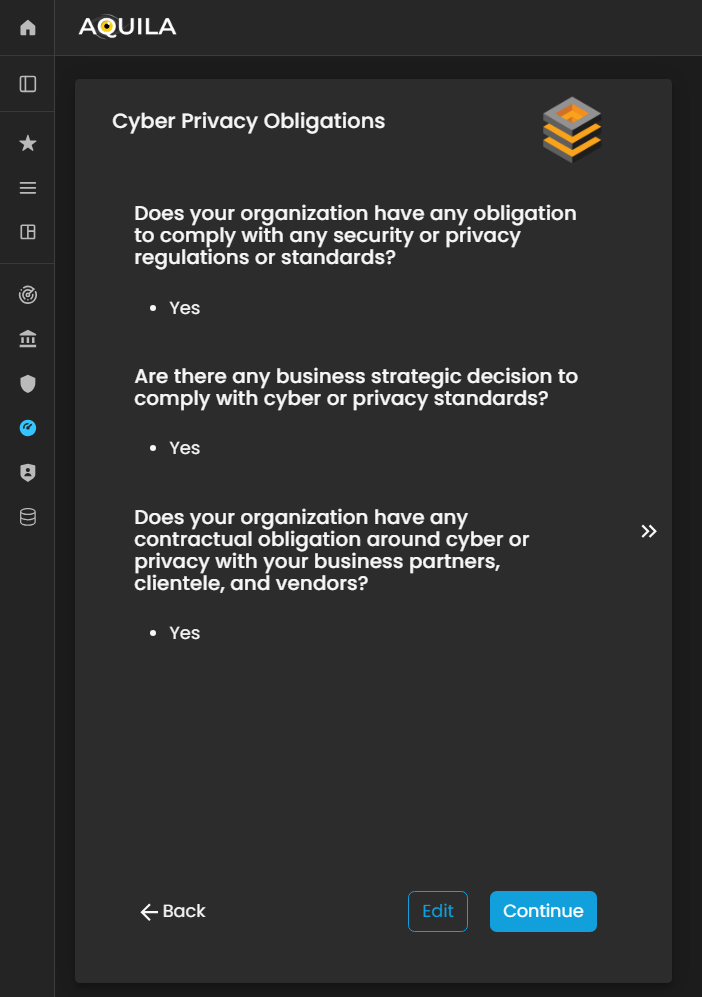
Figure 5: Cyber Security Risk Management - Cyber Privacy Obligations
The client can edit their response to the edit section of Cyber Privacy Obligation by pressing the edit button below.

Figure 5: Cyber Security Risk Management - Cyber Privacy Obligations / Edit Section
Threats
This maps any relevant threats of the organization that may impact the business. The client can add the threats through the edit section by clicking the edit button below.
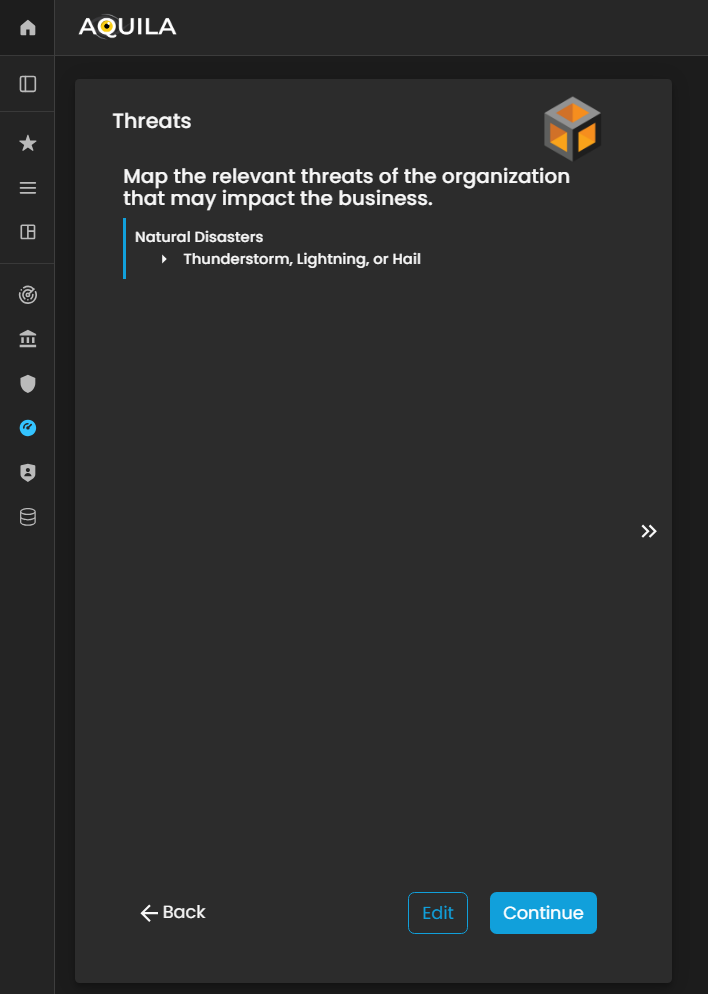
Figure 5: Cyber Security Risk Management - Threats
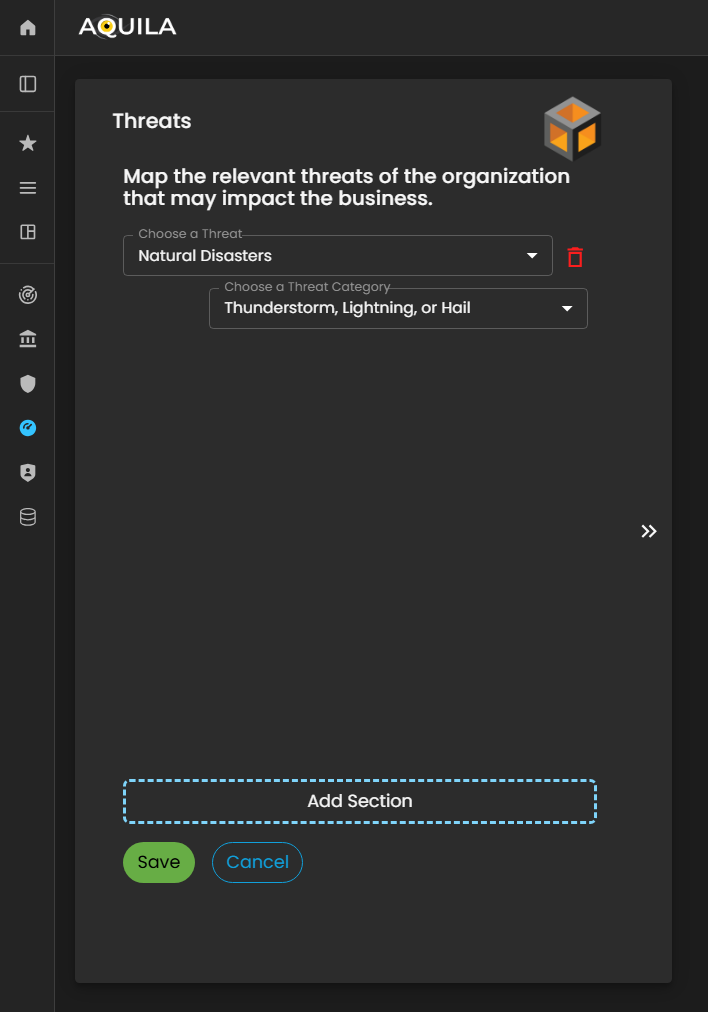
Figure 5: Cyber Security Risk Management - Threats