
NG SIEM – LastPass Integration
Overview
The LastPass Elastic Integration allows the ingestion of data from the LastPass Admin Console for enhanced monitoring and reporting.
This integration collects three main data streams:
These logs help monitor password management activities, access permissions, and user behavior for compliance and auditing purposes.
Prerequisites
Before configuring the integration, ensure that the following components and credentials are available.
LastPass Business Account
A LastPass Business account is required to use this integration.
Free or personal accounts are not supported.
Elastic Stack Requirements
- Elasticsearch – Required to store and index collected data.
- Kibana – Required to visualize and manage data streams.
You can use Elastic Cloud (recommended) or a self-managed Elastic Stack deployment.
API Credentials
Two key credentials are required for Elastic to access the LastPass API:
- Account Number (CID)
- Found in the Admin Console → Dashboard tab.
- Displayed at the top of the page, preceded by the label “Account Number”.

- Provisioning Hash
- Go to Admin Console → Advanced → Enterprise API.
- If no hash exists: click Create provisioning hash → OK.
- If forgotten: click Reset your provisioning hash → OK to generate a new one.
- Important: Resetting invalidates the previous hash, requiring reconfiguration in all connected integrations.
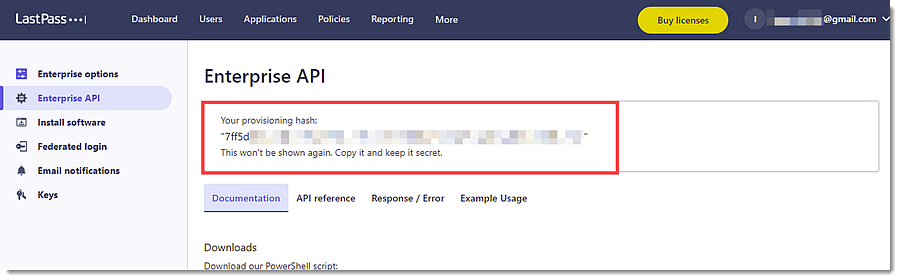


Keep both the CID and Provisioning Hash secure. These credentials grant access to your organization’s LastPass data.
Integration Configuration
1. Access the Integrations Page
2. Input Connection Settings
Under Configure integration, fill in the required fields:
-
Account Number:
- Enter the LastPass Business Account Number (CID) found in your LastPass Admin Console → Dashboard tab, at the top of the page.
-
Provisioning Hash:
- Enter the Provisioning Hash generated in Admin Console → Advanced → Enterprise API. This serves as the API secret used for authentication.
-
URL:
- Default API endpoint for LastPass Enterprise integration. This is automatically pre-filled in most cases.
3. Select Data Streams
Enable the data streams you want to collect. It can be enabled or disable specific data streams based on visibility needs:
4. Save and Deploy
Once all required fields are configured:
- Click Save and continue
- Assign the integration to your Elastic Agent policy
- Confirm deployment
Notes
- The integration only supports LastPass Business accounts via the Enterprise API.
- The Provisioning Hash must be updated in Elastic whenever it is regenerated in LastPass.
- Multifactor authentication may be required to access the Admin Console.
- The LastPass API does not manage pre-configured SSO (Cloud) app groups, these remain outside integration scope.
If you need further assistance, kindly contact support@cytechint.com for prompt assistance and guidance.
No comments to display
No comments to display