
AQUILA - SalesForce Integration Using JWT Authentication
Salesforce requires secure communication protocols for authorization and data exchange between external applications and Salesforce orgs. This involves creating digital certificates, configuring external client apps, and establishing secure authentication methods. OpenSSL provides the cryptographic tools needed to generate private keys and self-signed certificates for secure communication over networks.
Integration Overview
This integration supports secure communication through:
- JWT (JSON Web Token) authentication using digital certificates
- OAuth authentication with external client apps
- Self-signed certificates and keystore management
Organizations can authorize Salesforce CLI commands and establish secure API connections using these authentication methods.
Compatibility
- Supports Salesforce CLI authorization via JWT Bearer Flow
- Compatible with macOS, Linux, and Windows operating systems
- Requires OpenSSL for certificate generation
- Requires Java keytool for keystore conversion (optional)
Installing OpenSSL in your Log Collector
OpenSSL is an open-source software library that provides tools and protocols for secure communication over networks. It helps encrypt data so that information like passwords, credit card numbers, and private messages stay secure when sent over the internet.
Step 1:
In Linux:
Install OpenSSL on your system:
sudo apt install openssl
In Windows:
Download the Installer:
1. Go to the Shining Light Productions page and download the "Win64 OpenSSL Light" EXE installer (current version 3.x is recommended).
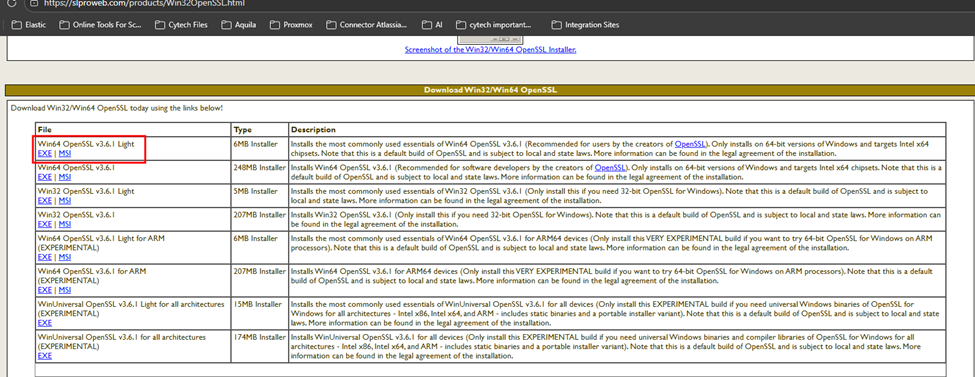
2. Run the Installer: Execute the downloaded file and follow the on-screen instructions.
3. Installation Path: It is generally recommended to install in the default location, typically C:\Program Files\OpenSSL-Win64.
4. Configure System Environment Variable:
Search for "Environment Variables" in the Windows search bar.
Click "Edit the system environment variables".
Click "Environment Variables".
Under "System Variables", find and select Path, then click "Edit".
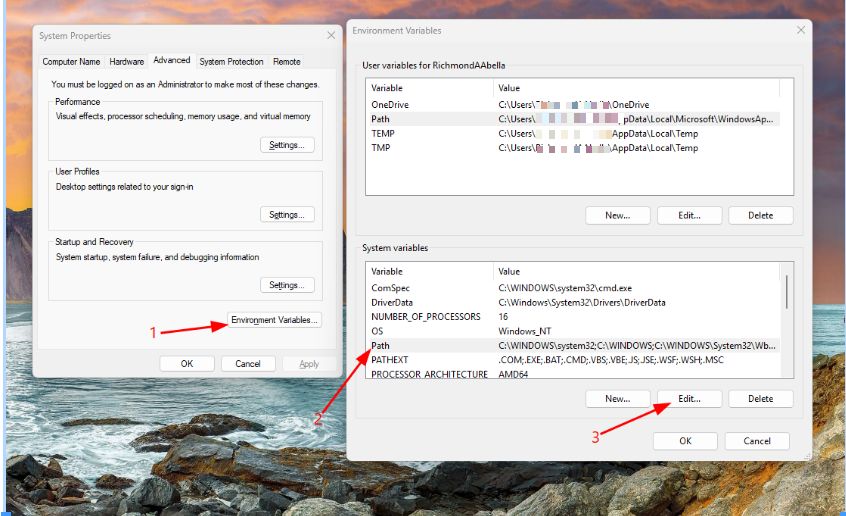
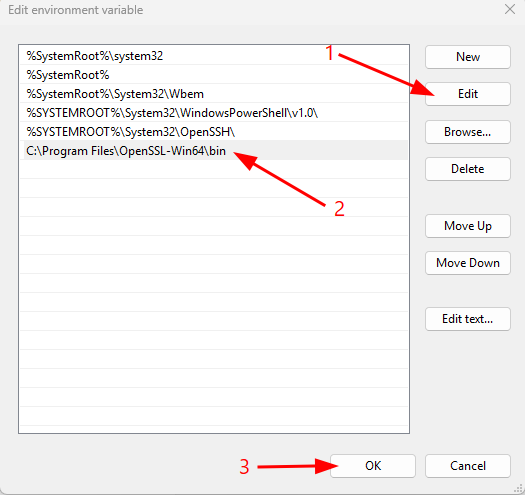
Click "Edit" and add the path to the bin folder, for example: C:\Program Files\OpenSSL-Win64\bin.
Click OK on all windows to save.
Step 2:
Verify OpenSSL installation by running:
- macOS/Linux:
which openssl - Windows:
where openssl

Creating a Private Key and Self-Signed Digital Certificate
A digital certificate and the private key used to sign the certificate are needed to authorize an organization using the org login jwt command. While it is strongly advised to utilize a certificate issued by a certifying authority, you can use OpenSSL to generate a self-signed certificate to get started.
This process produces two files:
- server.key — The private key used when authorizing an org with the
org login jwtcommand - server.crt — The digital certificate uploaded when creating the required external client app
Step 1:
Open a terminal (macOS and Linux) or command prompt (Windows).
Step 2:
Create a directory to hold the generated files and navigate to it:
mkdir /Users/jdoe/JWT
cd /Users/jdoe/JWT
Step 3:
Create a private key and save it as server.key file:
Remember to change "<your password>" to the password of your choice. The password should be the same with the server.pass.key and server.key.
- server.pass.key command
openssl genpkey -aes-256-cbc -algorithm RSA -pass pass:<your password> -out server.pass.key -pkeyopt rsa_keygen_bits:2048
- server.key command
openssl rsa -passin pass:<your password> -in server.pass.key -out server.key
Step 4:
Use the server.key file to create a certificate signing request and save it as server.csr:
openssl req -new -key server.key -out server.csr
When prompted, enter details about your organization. (Optional)
Step 5:
Create a self-signed digital certificate using the server.key and server.csr files:
openssl x509 -req -sha256 -days 365 -in server.csr -signkey server.key -out server.crt
Creating an External Client App in Your Salesforce Organization
Salesforce CLI requires an external client app in the org that you're authorizing. An external client app is a packageable framework that enables a third-party application (Salesforce CLI) to integrate with Salesforce using APIs and security protocols. You must create your own external client app when authorizing the org with the org login jwt command.
Step 1:
Log in to your Salesforce Organization.
Note: If the salesforce dashboard interface is in classic mode change it to lighting mode.
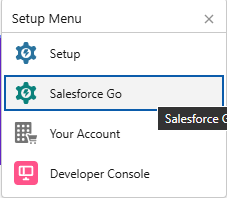
- In the Upper Right Corner click the gear icon.

- Select salesforce go.
Step 2:
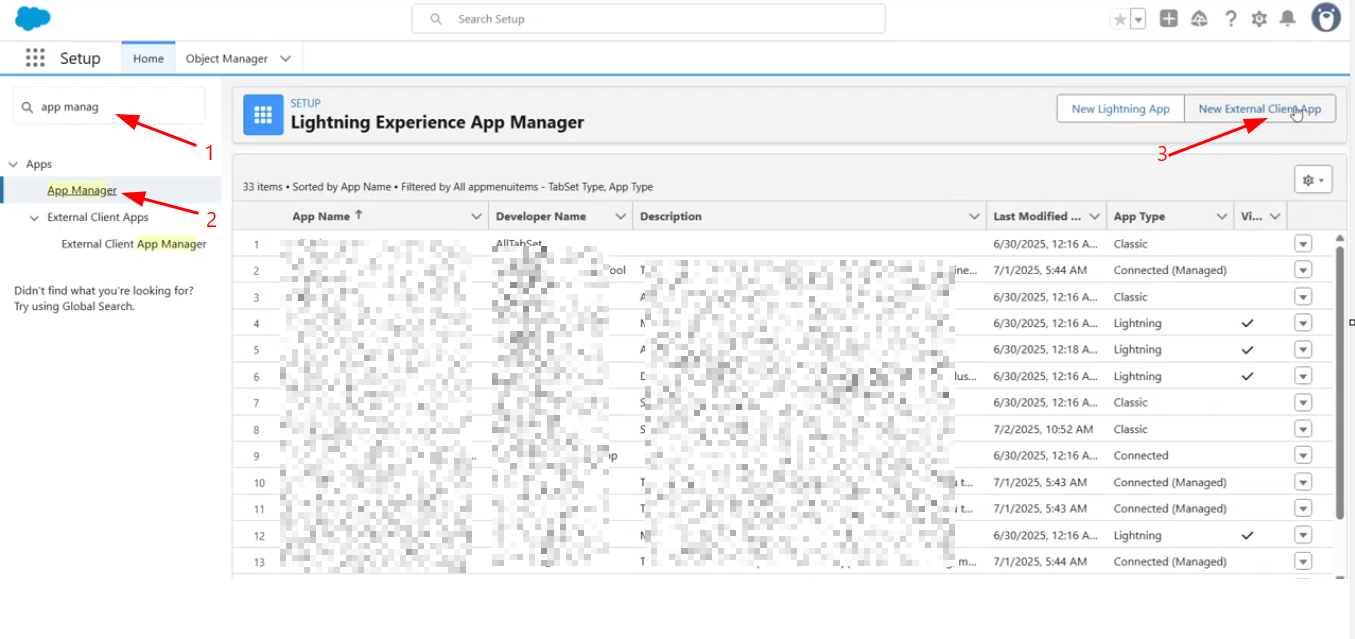
From the Quick Find box in Setup, enter App Manager, then click App Manager.
Step 3:
Click New External Client App.
Step 4:
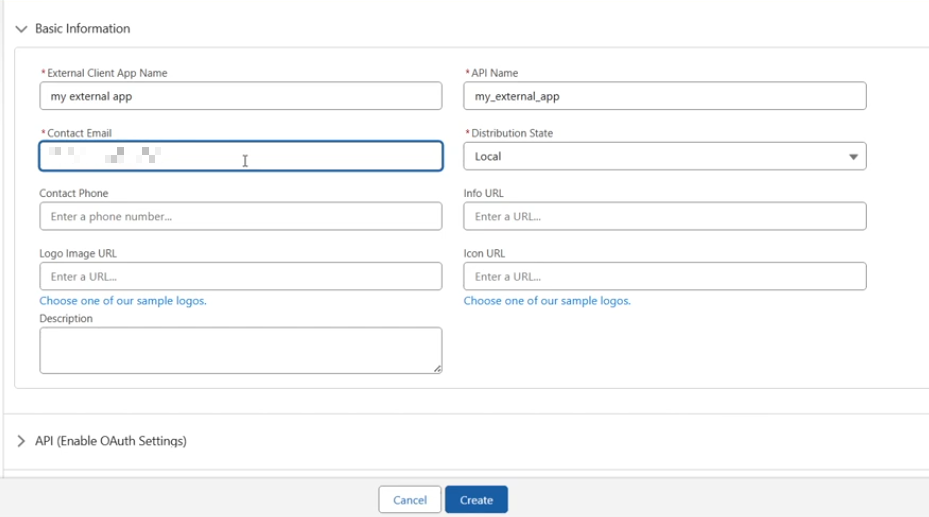
Update the basic information as needed, such as the external client app name and your contact email address.
Note: The email address provided must be valid, as Salesforce will use it to communicate with your team regarding any updates or issues related to your application usage.
Step 5:
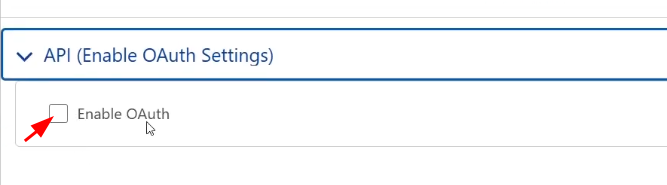
Under API (Enable OAuth Settings), click Enable OAuth.
Step 6:
Under App Settings, in the Callback URL box, enter the URL below:
http://localhost:1717/OauthRedirect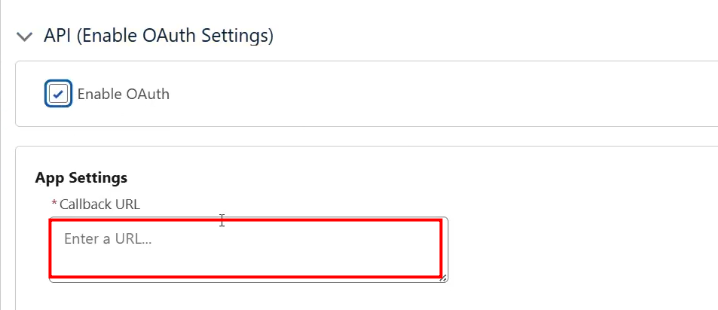
If port 1717 is already in use, specify an available port and update your sfdx-project.json file:
"oauthLocalPort" : "1919"Step 7:
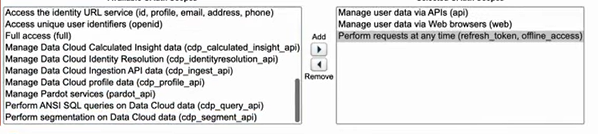
In the OAuth Scopes section, select these scopes:
- Manage user data via APIs (api) - Gives you access to user data.
- Manage user data via Web browsers (web) - Allows an external application to authenticate users and access their Salesforce data through a web-based interface. It enables secure, user-consented access to data within a browser, typically used during OAuth flows.
- Perform requests at any time (refresh_token, offline_access) - Permits you to get an OAuth access token.
Step 8:
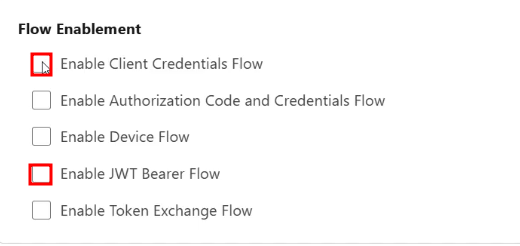
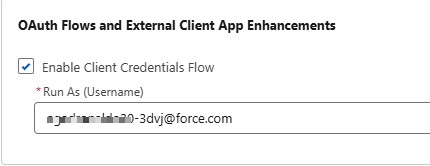
(Required for JWT) In the Flow Enablement section, select Enable Client Credentials Flow and Enable JWT Bearer Flow.
- Enable Client Credentials Flow - Allows your app to exchange its client credentials for an access token. And be able to access the credential Client ID.
- Enable JWT Bearer Flow - A secure, server-to-server authentication method used to integrate external applications with Salesforce without requiring manual user login.
Step 9:
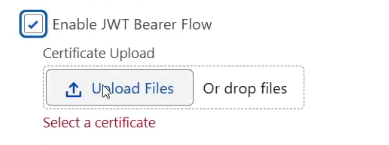
(Required for JWT) Click Upload Files and upload your digital certificate file (server.crt).
Step 10:
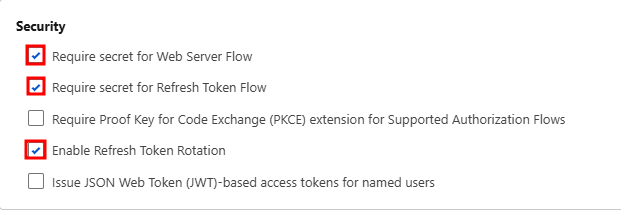
In Security section check the following:
- Require secret for Web Server Flow
- Require secret for Refresh Token Flow
- Enable Refresh Token Rotation
Step 10:11:
Click Create and Edit to configure additional settings.
Step 11:12:
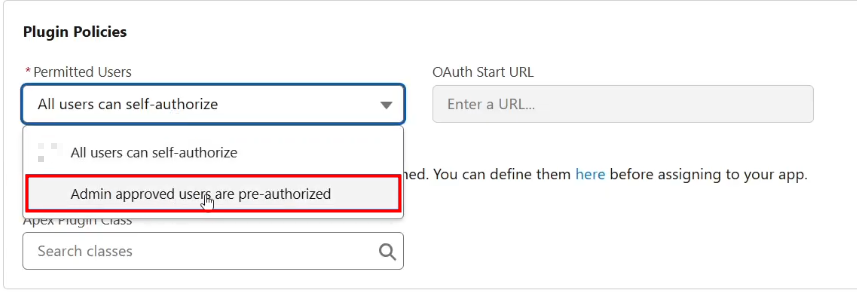
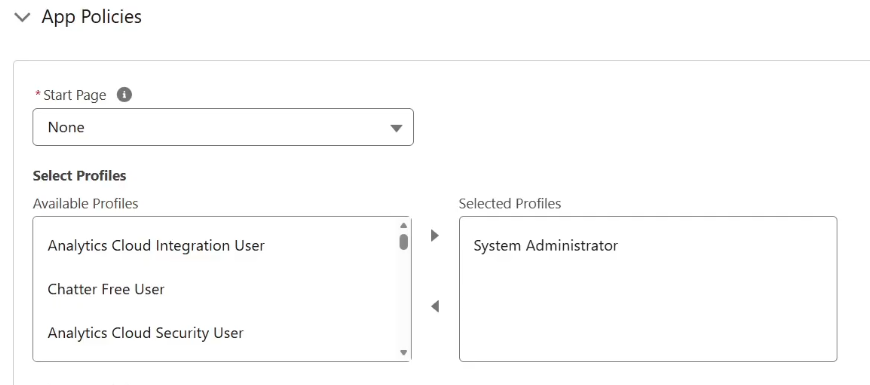
(Required for JWT) Click the Policies tab and configure the following:
- Open OAuth(Open Authorization) Policies
- In the Plugin Policies section, set Permitted Users to Admin approved users are pre-authorized
- Click OK
- In the App Policies section, select the profiles and permission sets that are pre-authorized to use this external client app
Step 13:14:
Step 14:15:
Step 15:16:
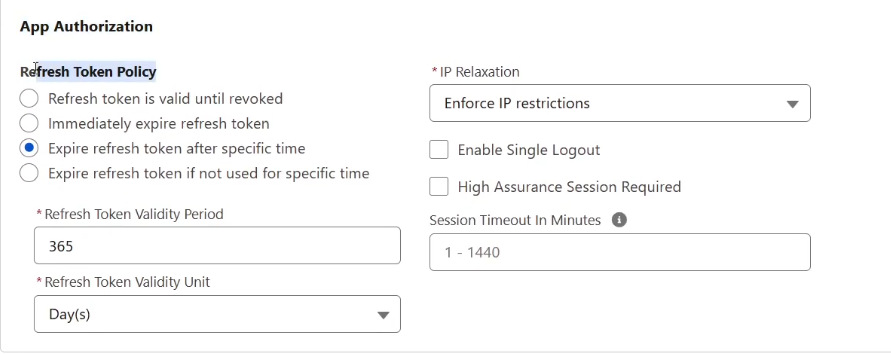
Configure token expiration settings:
- Refresh Token Validity Period: Enter 365
- Refresh Token Validity Unit: Select Day(s)
Step 16:17:
In the Session Timeout in Minutes box, enter 1-5.
Step 17:18:
Click Save.
Your external client app is now ready to use.
How to Find Client ID (Consumer Key)
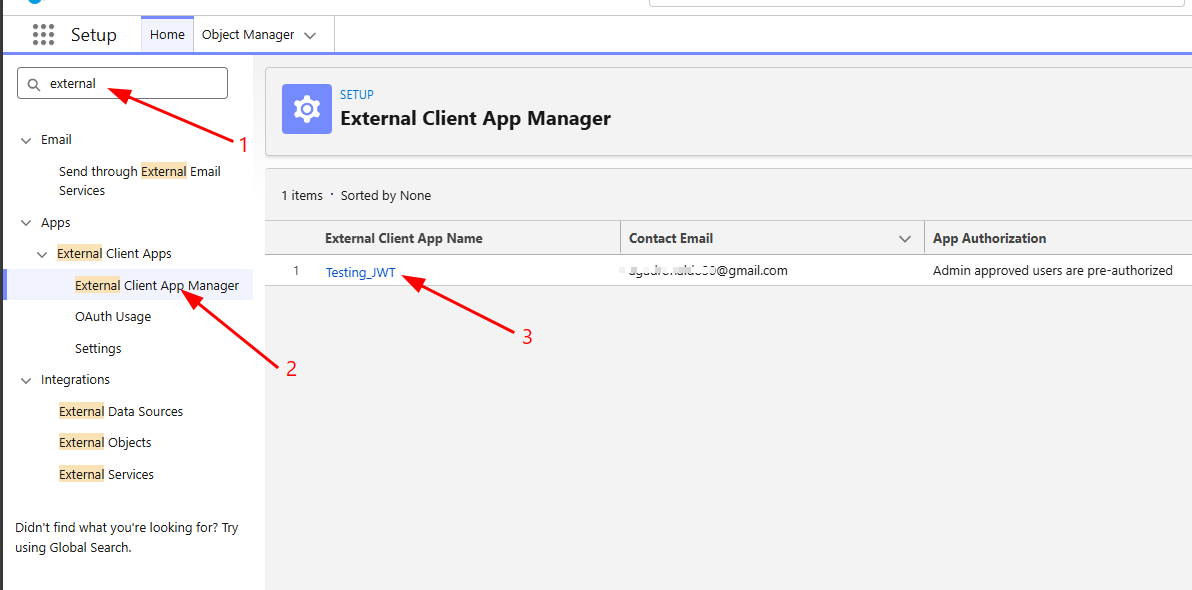
- type external in quick find search bar and click external client app manager
- under External Client App Name locate the app you created earlier and click it.
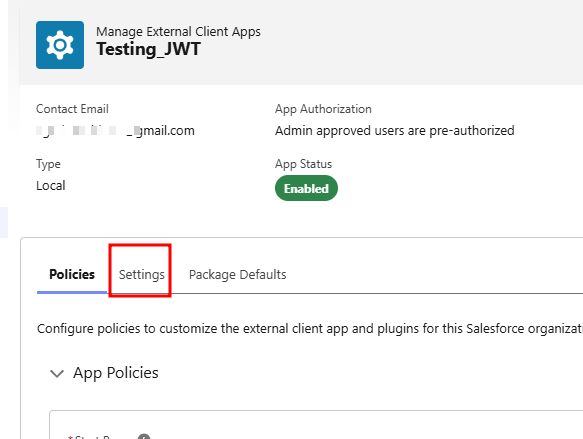
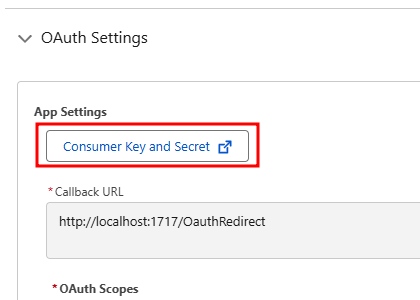
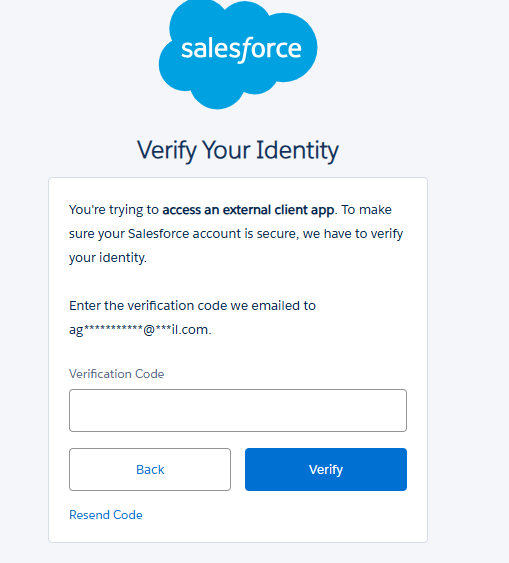
- under settings tab click OAuth Settings then you can the view your client key and client secret after the verification process.
Converting server.crt to JKS Keystore File
To use the certificate with Salesforce, convert it to a Java KeyStore (JKS) format.
Step 1:
Important step to successfully integrate into SIEM
Clone the server.key file and save it as server.pem.
cp server.key server.pemNote: Step 2 - 4 are Optional
Step 2:
Create a PKCS12 keystore file (minimum password length: 6 characters):
openssl pkcs12 -export -in server.crt -inkey server.pem -out keystore.p12Step 3:
Convert the PKCS12 file to JKS format:
keytool -importkeystore -srckeystore keystore.p12 -srcstoretype pkcs12 -destkeystore servercert.jks -deststoretype JKSYou will be prompted to create a password. Remember this password for future use.
Step 4:
Change the default alias (Salesforce doesn't support alias "1"):
keytool -keystore servercert.jks -changealias -alias 1 -destalias <name of certificate>Required fields for JWT Authentication Integration:
-
JWT Authentication Client Key Path (full file folder path of server.pem)- ex: Users/jdoe/JWT/server.pem
-
Username (email address)- example format: ADMIN-3dvj@force.com
-
Client ID (Consumer Key)- example format: 3MVxxxxxtCx.CV6cbh7fSpKs_5iexxxxxxxxxxxxxxxxxxxxxxxxxxxZKBaepcxlJUhO1
-
Instance URL- example format: https://company.my.salesforce.com
Provide this required fields to CyTech Support.
Reference Link:
Create an External Client App in Your Org | Salesforce DX Developer Guide | Salesforce Developers
If you need further assistance, kindly contact our support at support@cytechint.com for prompt assistance and guidance.