
AQUILA - Host Isolation Exception
Overview
Prerequisites
Step By Step Guide
1. Navigate to Endpoint Management
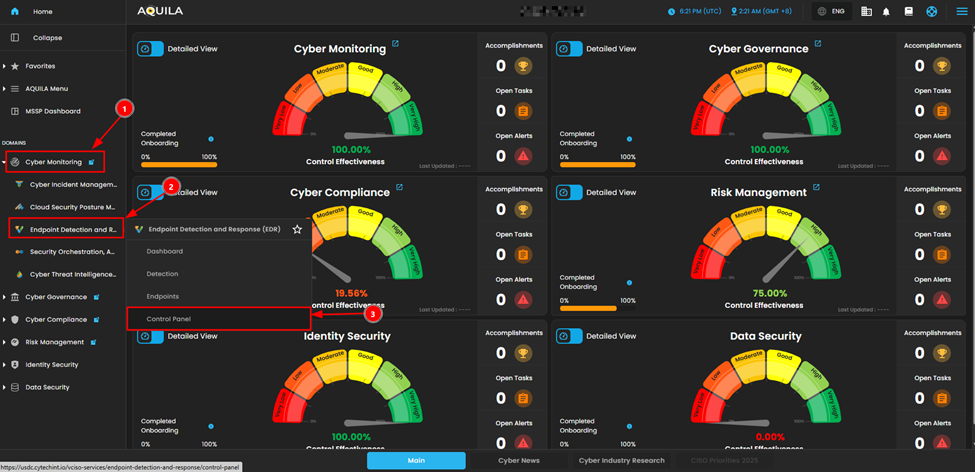
Configure Host Isolation Exception
To allow isolated endpoints to connect to specific IP addresses:
In the Control Panel left sidebar, under Event Filters, click on Host Isolation Exception
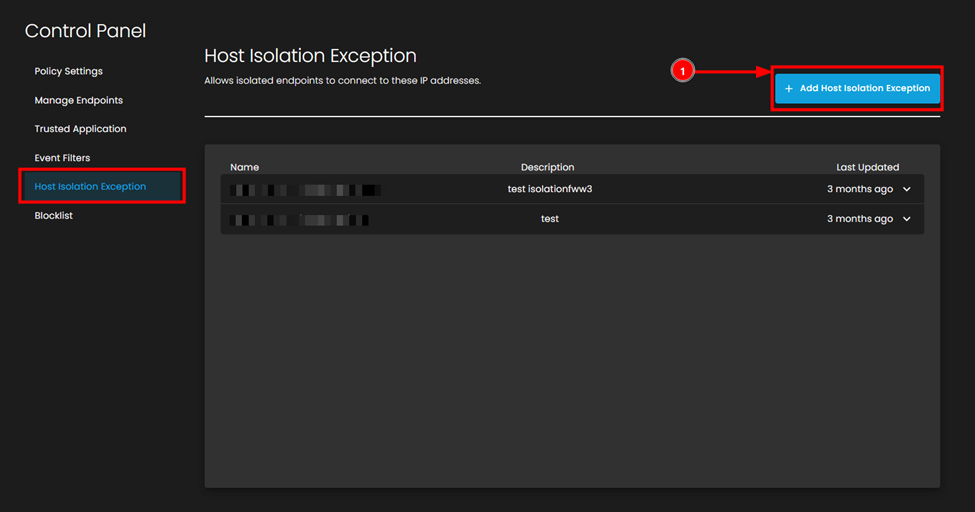
- Click the + Add Host Isolation Exception button (top right, blue button)
- In the "Add Host Isolation Exception" dialog box, fill in the following fields:
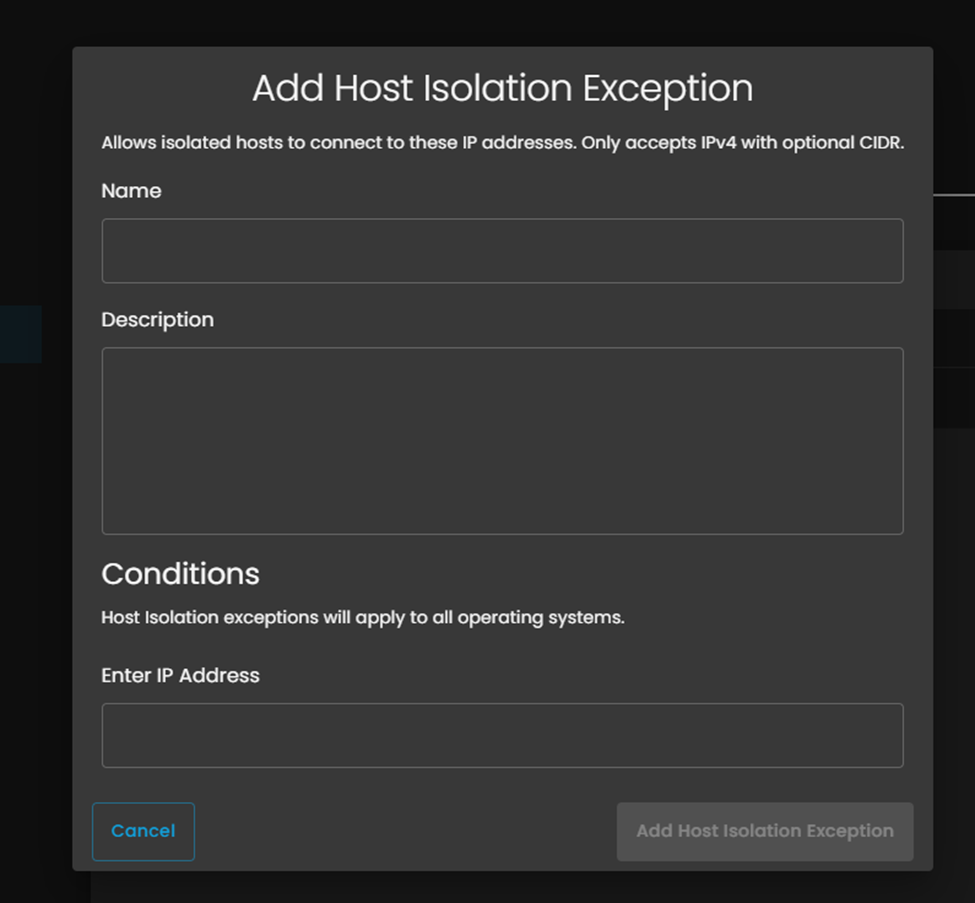
- Enter IP Address:
- Enter the IPv4 address you want to whitelist
- You can only enter one IP address per exception
- Enter the IPv4 address you want to whitelist
- Click the Add Host Isolation Exception button to save
6. Verify the Exception is Active
- Return to the Host Isolation Exception page
- Verify your newly created exception appears in the list
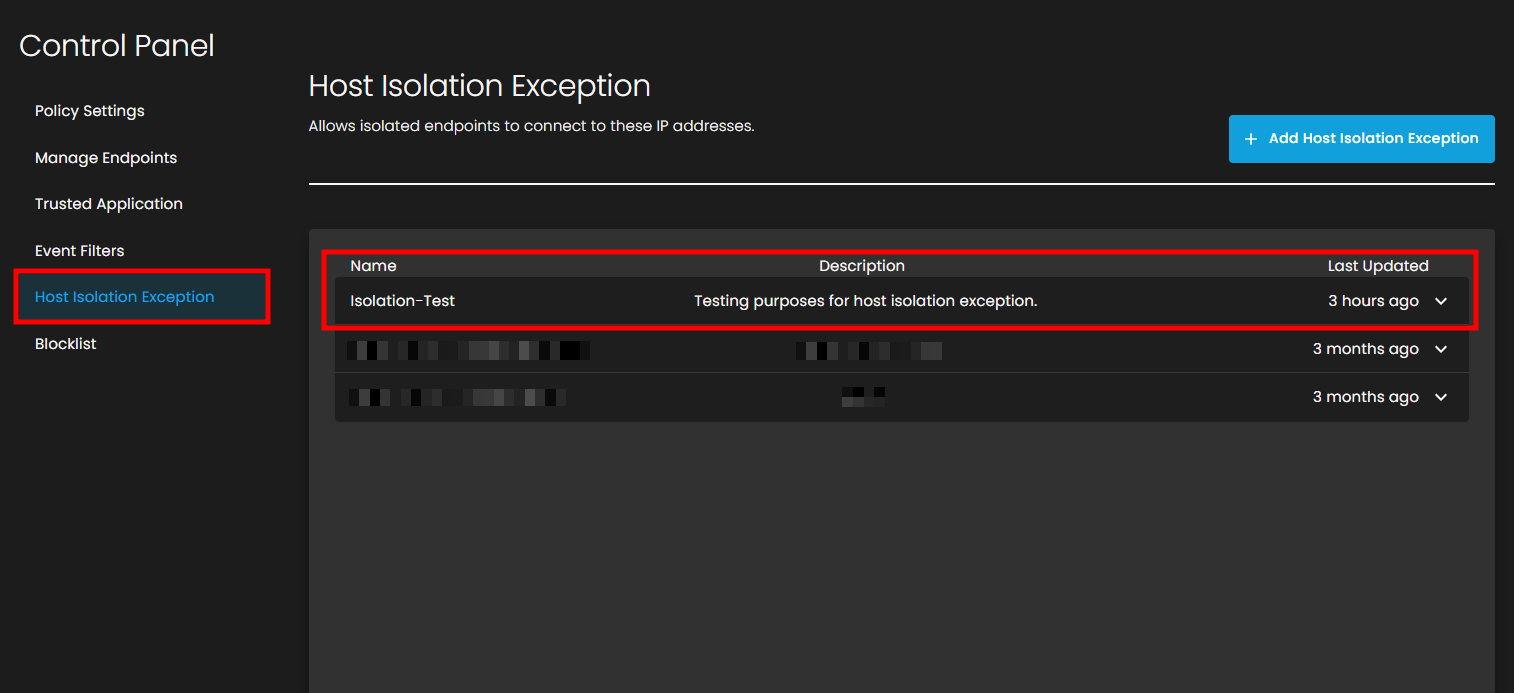
7. Test the Exception
To confirm the exception is working:
- Return to the isolated endpoint
- Open Command Prompt
- Test connectivity to the whitelisted IP address:
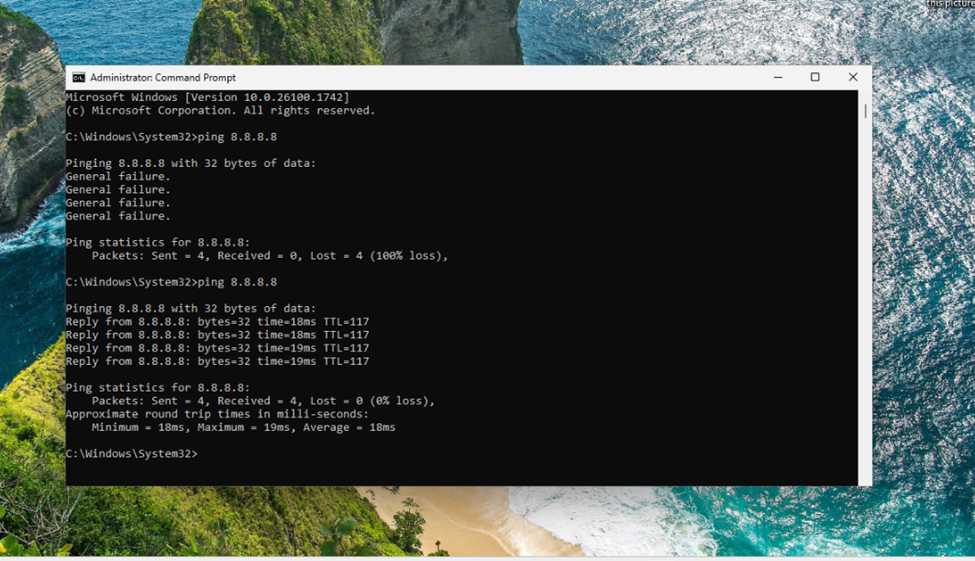
- You should now see successful replies:
- Reply from 8.8.8.8: bytes=32 time=18ms TTL=117
- Ping statistics should show 0% loss with round trip times
This confirms that the isolated endpoint can now communicate with the specified IP address.
8. Unisolate an Endpoint.
When you need to restore full network connectivity:
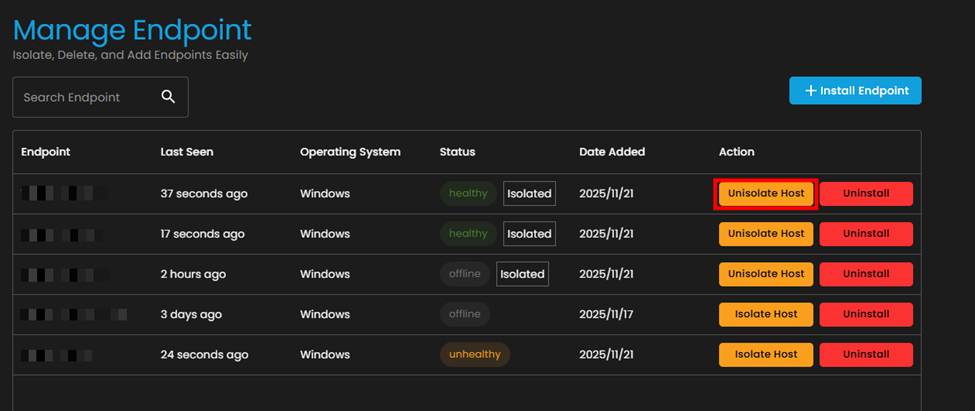
- Click the Unisolate Host button
- In the "Unisolate Endpoint" dialog box:
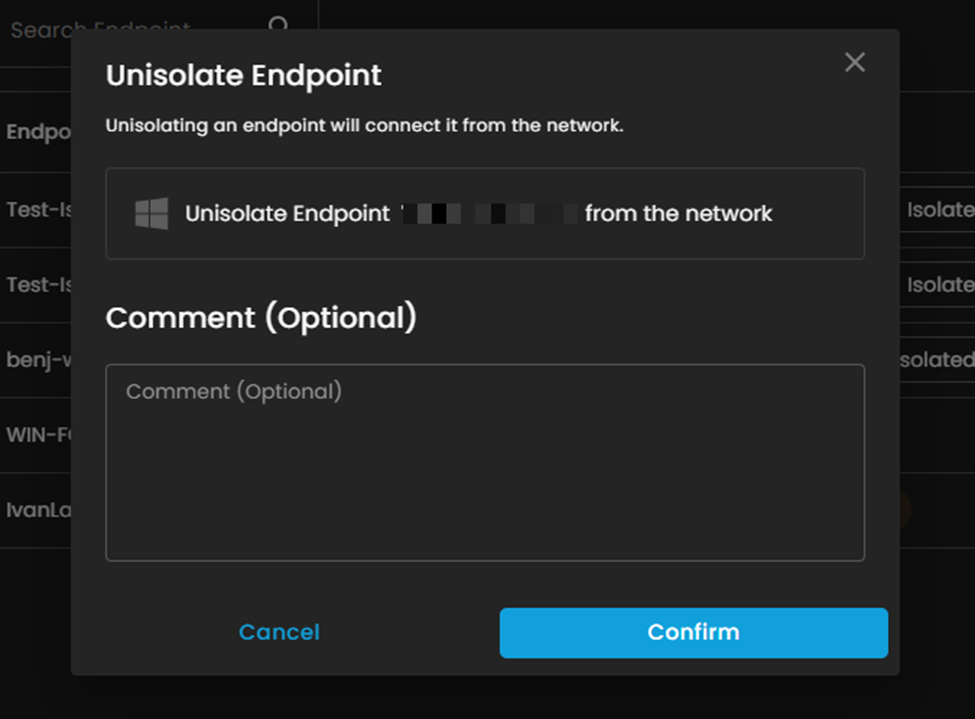
- Click confirm.
- After that it will load while releasing

After refreshing, the endpoint action will go back to Isolate Host after releasing, meaning, the Unisolate is done.