
AQUILA - Google Workspace Gmail Logs (For revision)
Google Workspace Gmail Logs
The integration collects and parses Gmail audit logs data available for reporting in Google Workspace. You must first export Google Workspace logs to Google BigQuery. This involves exporting all activity log events and usage reports to Google BigQuery. Only certain Google Workspace editions support this feature. For more details see About reporting logs and BigQuery(external, opens in a new tab or window). The integration uses the BigQuery API(external, opens in a new tab or window) to query logs from BigQuery.
Requirements
In order to ingest data from the Google BigQuery API, you must:
- Enable BigQuery API if not already
- In the Google Cloud console(external, opens in a new tab or window), navigate to APIs & Services > Library.
- Search for BigQuery API and select it.
- Click Enable.
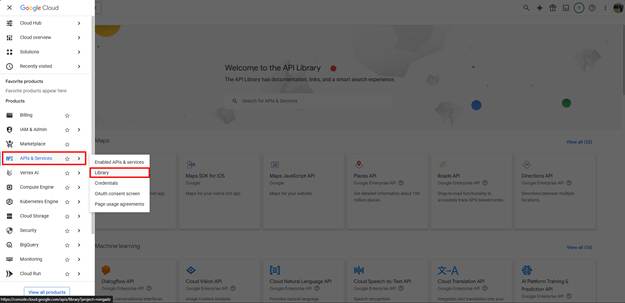
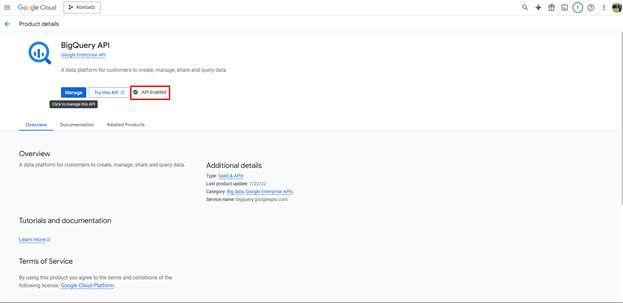
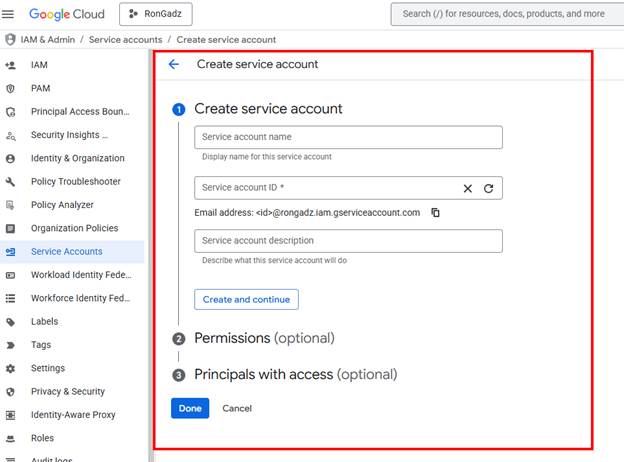
- Create a service account:
- In the Google Cloud console(external, opens in a new tab or window), navigate to APIs & Services > Credentials.
- Click Create Credentials > Service account.
- In the setup:
- Enter a name for the service account.
- Click Create and Continue.
- (Optional) Grant project access.
- Click Continue.
- (Optional) Grant user access.
- Click Done.
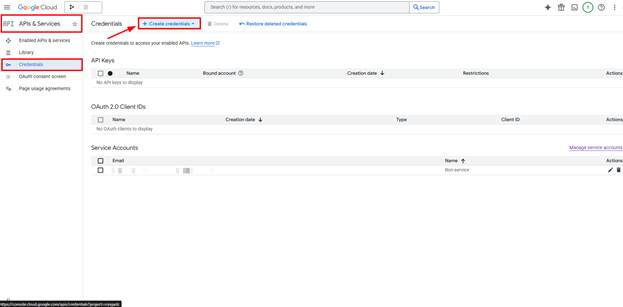
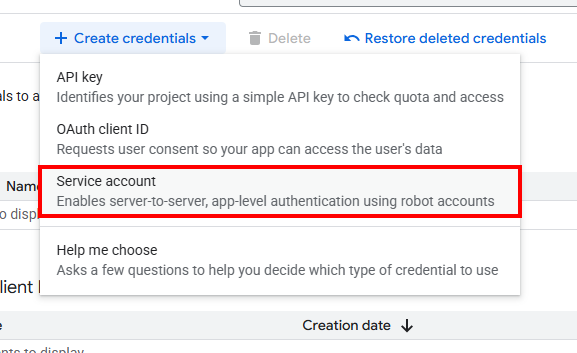
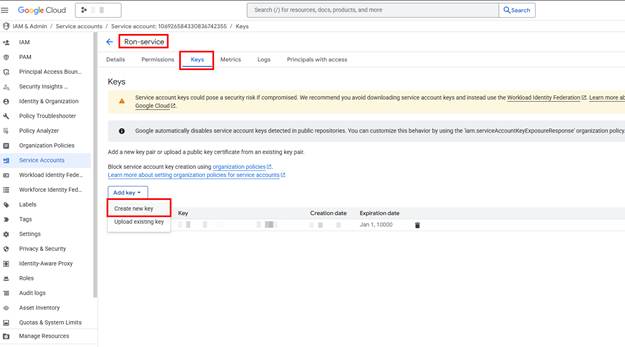
- Generate a JSON Key:
- From the Credentials page, click on the name of your new service account.
- Go to the Keys tab.
- Click Add Key > Create new key.
- Choose JSON format and click Create.
- Save the downloaded JSON key securely.
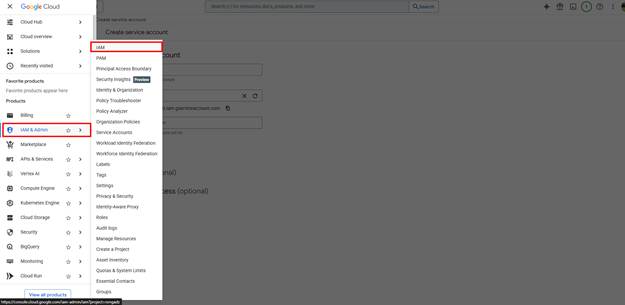
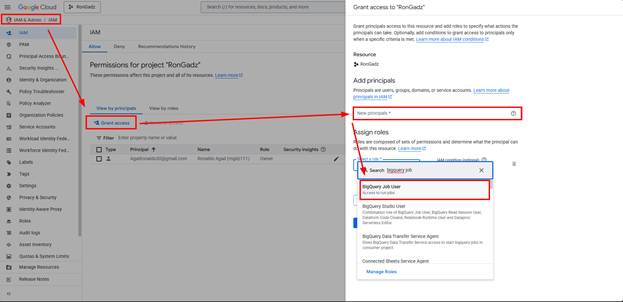
- Grant IAM Role to service account:
- Go to IAM & Admin > IAM in the Cloud Console.
- Click Grant access.
- Paste the service account email in the New principals field.
- Click Select a role, search for and select BigQuery Job User.
- Click Save.
- Set up a BigQuery project for reporting logs
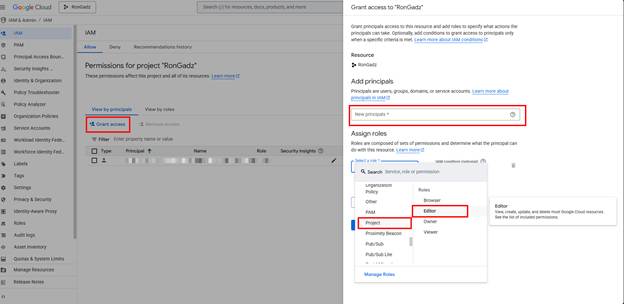
- Go to IAM & Admin page for your project.
- Add a project editor for your project.
- Click Grant access.
- Enter gapps-reports@system.gserviceaccount.com in the New principals field.
- In Select a role, select Project, then Editor.
- Click Save.
- Add a Google Workspace administrator account as a project editor by following the same steps above.
- For more details see Set up a BigQuery project for reporting logs(external, opens in a new tab or window)
- Set up a BigQuery Export configuration:
- Sign in to your Google Admin console(external, opens in a new tab or window) with a super administrator account.
- Navigate to Reporting > Data Integrations (Requires having the Reports administrator privilege).
Education administrators go to Menu Reporting > BigQuery export, which opens the Data integrations page. - Point to the BigQuery Export card and click Edit.
- To activate BigQuery logs, check the Enable Google Workspace data export to Google BigQuery box.
- (Optional) To export sensitive parameters of DLP rules, check the Allow export of sensitive content from DLP rule logs box.
- Under BigQuery project ID, select the project where you want to store the logs.
Choose a project for which gapps-reports@system.gserviceaccount.com has an editor role. - Under New dataset within project, enter the name of the dataset to use for storing the logs in the project.
A new dataset will be created with this name in your BigQuery project. - (Optional) Check the Restrict the dataset to a specific geographic location box > select the location from the menu.
- Click Save.
- For more details see Set up a BigQuery Export configuration(external, opens in a new tab or window).
- Grant Dataset Permissions: (If this step is available to your end kindly follow the instructions but if not just skip.)
- Go to Google Cloud console(external, opens in a new tab or window) and search for BigQuery.
- Click your Google Cloud project on the left pane.
- Locate the dataset, click the three-dot menu > Share > Manage Permissions.
- Click Add principal.
- Paste the service account email in New principals.
- Select BigQuery Data Viewer as the role.
- Click Save.
This integration will make use of the following oauth2 scope:
Once you have downloaded your service account credentials as a JSON file, you are ready to set up your integration for collecting Gmail logs.
NOTE: For Gmail data stream, the default value of "BigQuery API Host" is https://bigquery.googleapis.com. The BigQuery API Host will be used for collecting gmail logs only.