
Cyber Security Risk Management (CSRM)
Overview:
Cyber Security Risk Management (CSRM) is a structured process organizations use to identify, assess, mitigate, and monitor cyber threats and vulnerabilities that could impact their assets, operations, or reputation. It integrates cybersecurity into broader enterprise risk management, treating cyber risks like financial or operational ones. CSRM helps prioritize resources, comply with regulations, and build resilience against evolving threats like ransomware, data breaches, and supply chain attacks.
Key Features:
- Dashboard
-
Delivers a centralized, real-time view of critical risk metrics and statuses, providing a comprehensive overview of ongoing risks, a concise summary of findings, and a detailed impact breakdown (pending integration into CRAM™). This empowers security teams with the insights needed for swift, informed decision-making.
-
- Asset Identification
-
Experience your tailored Cyber Risk Assessment and Management™ (CRAM™), where this module meticulously maps out the assets requiring safeguarding, establishing a robust foundation for risk assessment by laying the essential groundwork for your CRAM™ building blocks.
-
- Asset Inventory
- Maintains a comprehensive, up-to-date catalog of all assets, including hardware, software, and data. It tracks ownership, location, and vulnerabilities, ensuring nothing is overlooked during risk evaluations.
- Assessed Asset
- Focuses on evaluating the security posture of identified assets. This module assesses vulnerabilities, threats, and potential impacts, providing data to prioritize risk mitigation efforts.
- Risk Register
- Serves as a repository for documenting identified risks, including their likelihood, impact, and status. It acts as a single source of truth for tracking and reporting risks across the organization.
- Risk Management
- Enables the development and implementation of strategies to address risks (e.g., avoidance, mitigation, transfer, acceptance). This module supports planning, executing, and monitoring risk treatment plans.
- Task Management
- Assigns, tracks, and manages tasks related to risk mitigation, such as patch updates or employee training. It ensures accountability and timely completion of security actions.
- Geo Location
- Tracks the geographic distribution of assets and risks, identifying location-specific threats (e.g., market cyber resiliency or market vulnerability level). This aids in tailoring security measures to specific areas.
Pre-requisites:
- Access to CyTech - AQUILA
-
Only users assigned the "Owner" or "Admin" role can access the Log Collector installation resources within the platform.
-
Step 1: Log in to CyTech - AQUILA. click here --> usdc.cytechint.io
Step 2: Click on Risk Management
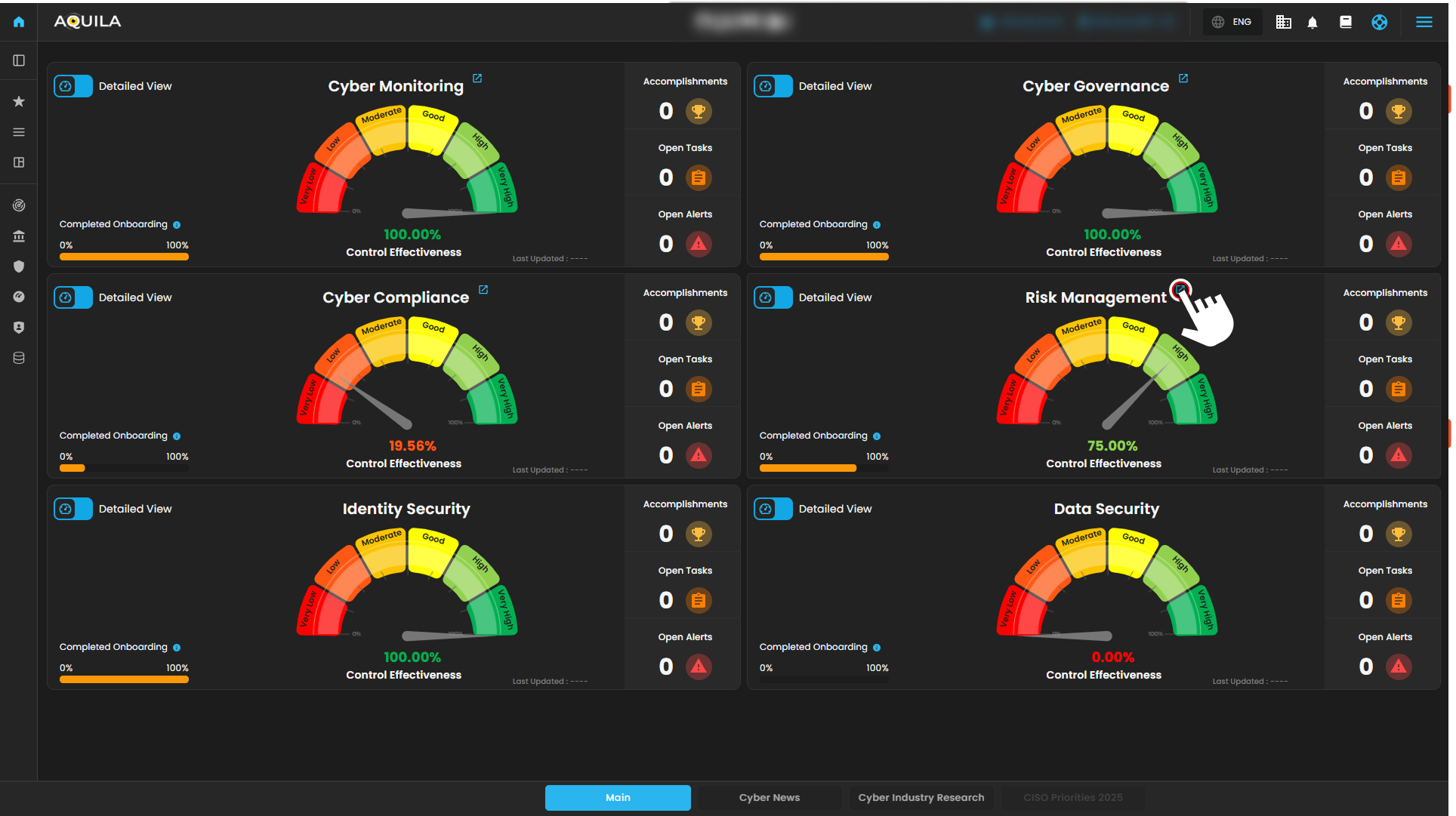
Figure 1. Overview
Step 3: Click on Cyber Security Risk Management (CSRM)
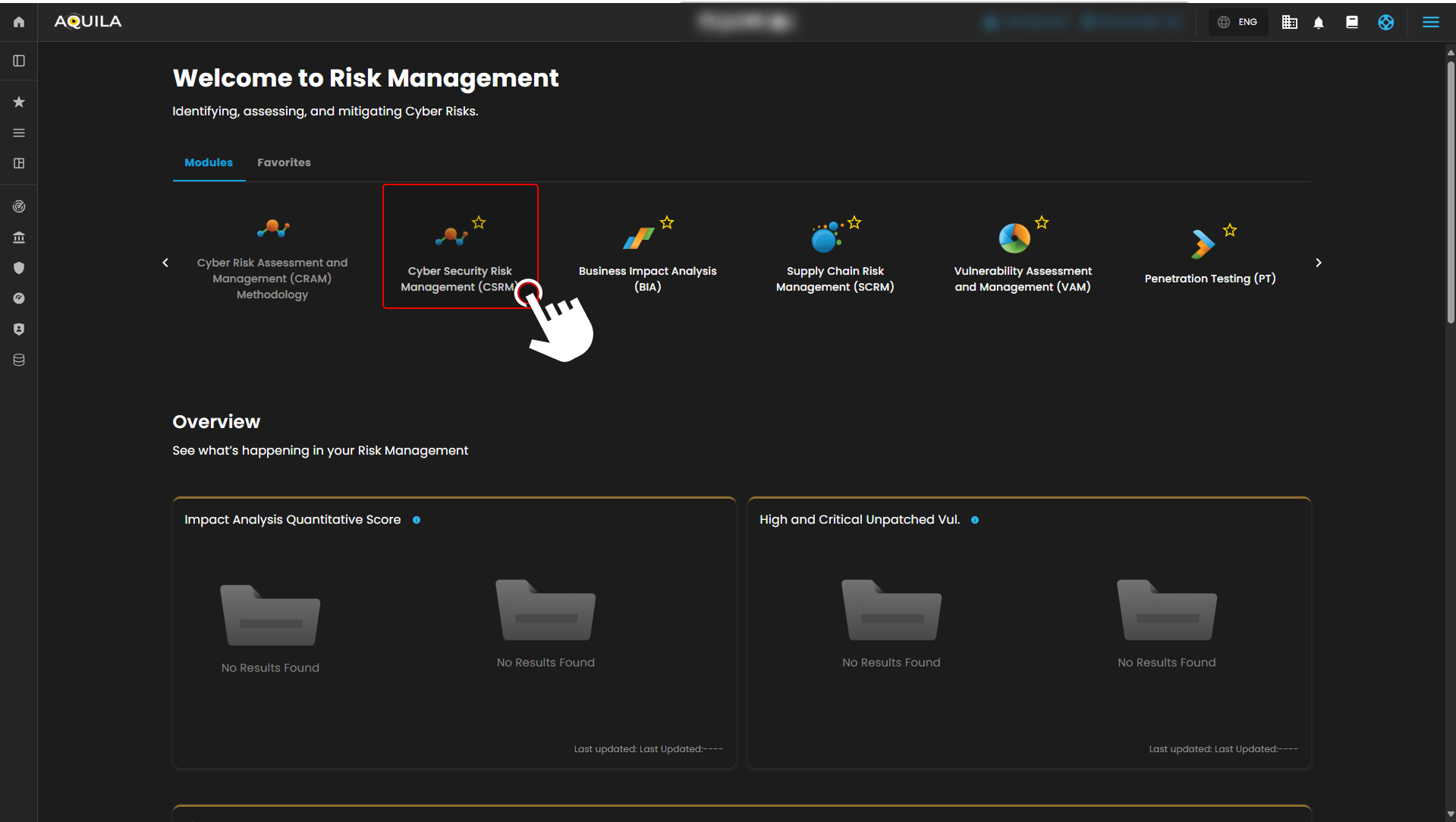
Figure 1.1 Cyber Security Risk Management (CSRM)
Step 4: Full guide on navigation.
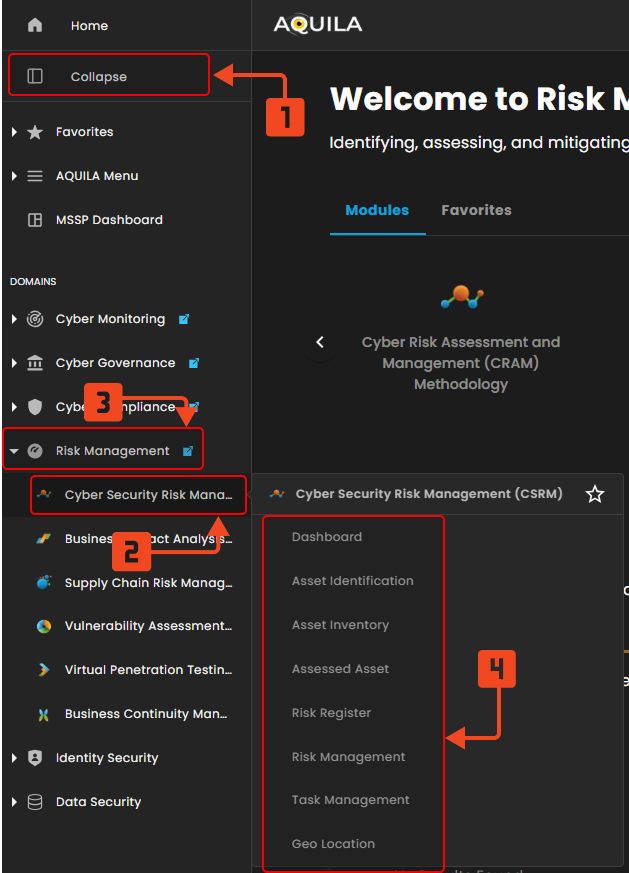
Cyber Security Risk Management (CSRM): Dashboard
The Dashboard page serves as the central hub for visualizing cybersecurity risk metrics and insights within a Cyber Risk Assessment and Management (CRAM™) system. It provides real-time overviews of risk levels, breakdowns, and trends through interactive widgets, charts, and summaries. This interface appears tailored for security teams to monitor risks, identify issues, and facilitate quick decision-making.
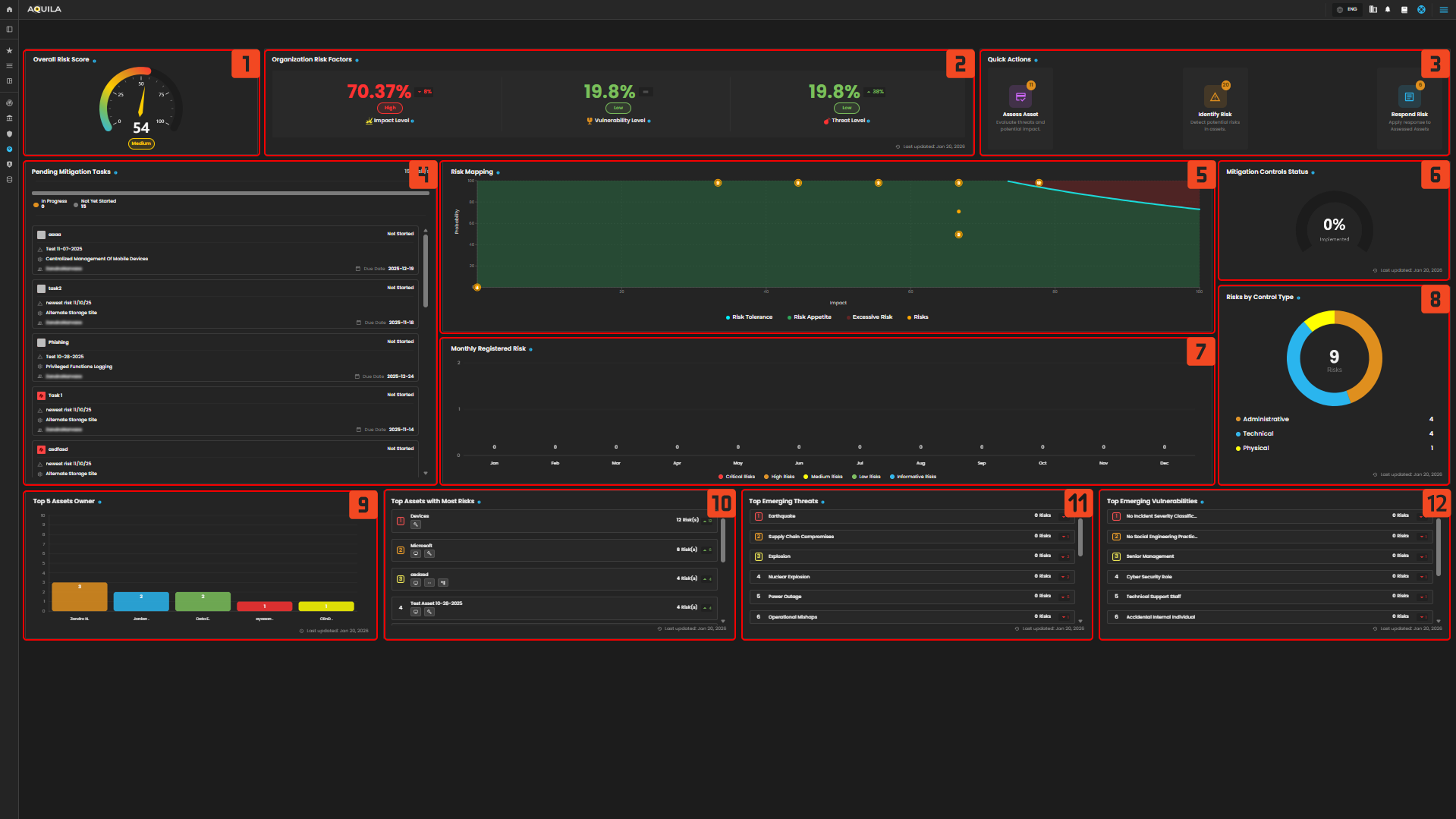
Figure 2 Cyber Security Risk Management (CSRM) - Dashboard
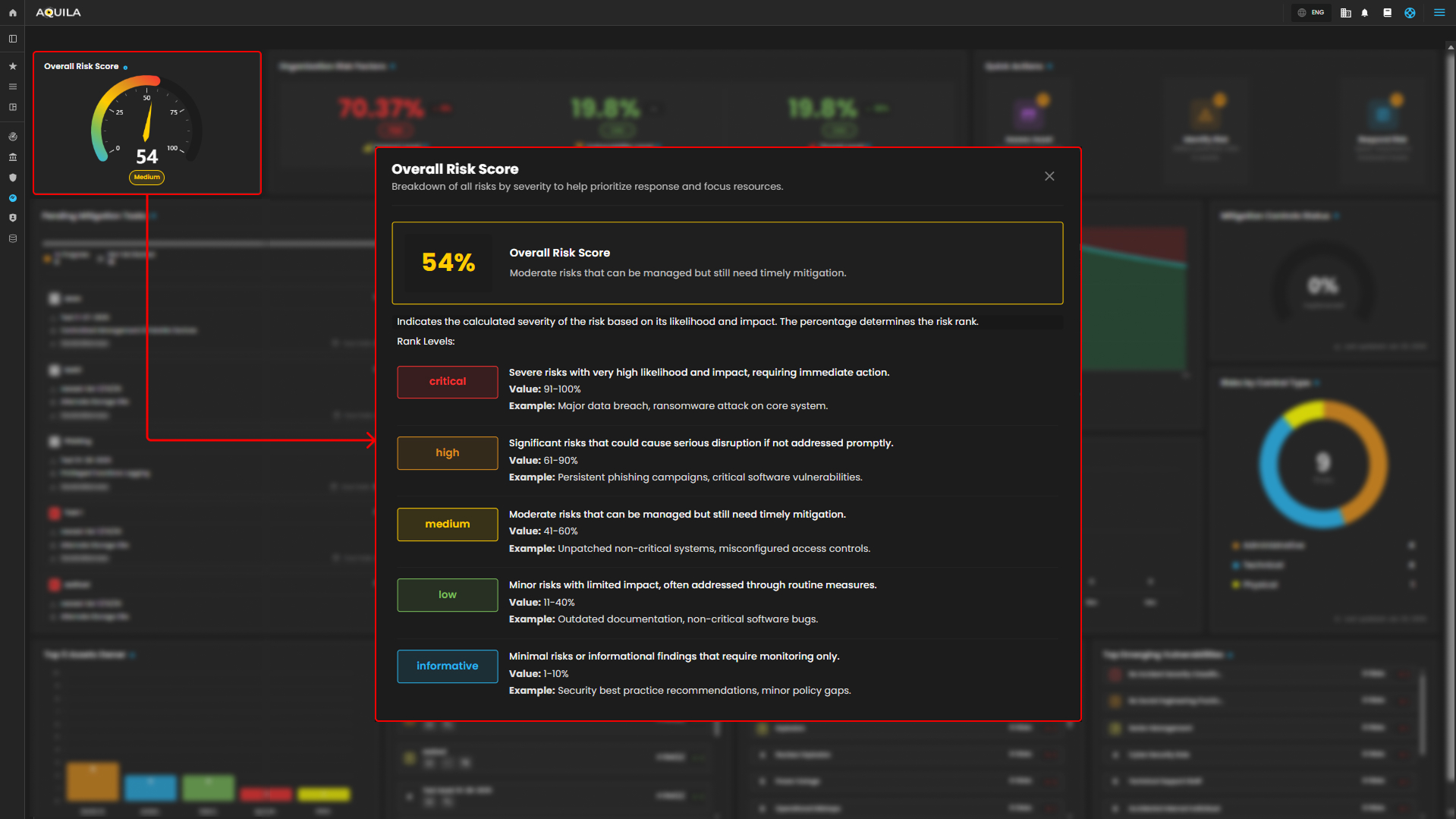
1. Overall Risk Scores - It shows organization exposure level, based on the assessment risk.
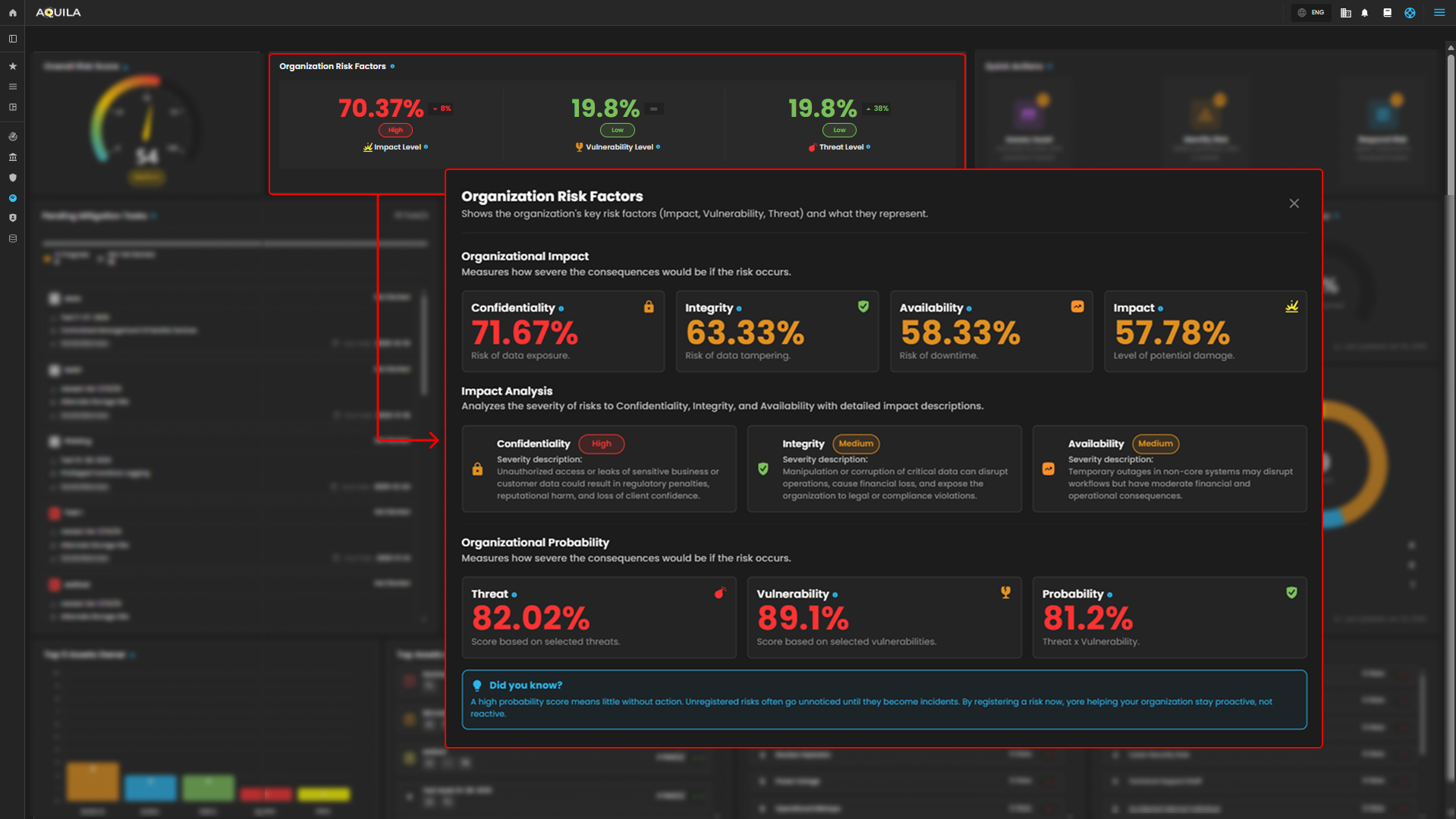
2. Organization Risk Factor - Explains the organization's key factors affecting risk levels — Impact, Threat, and Vulnerability.
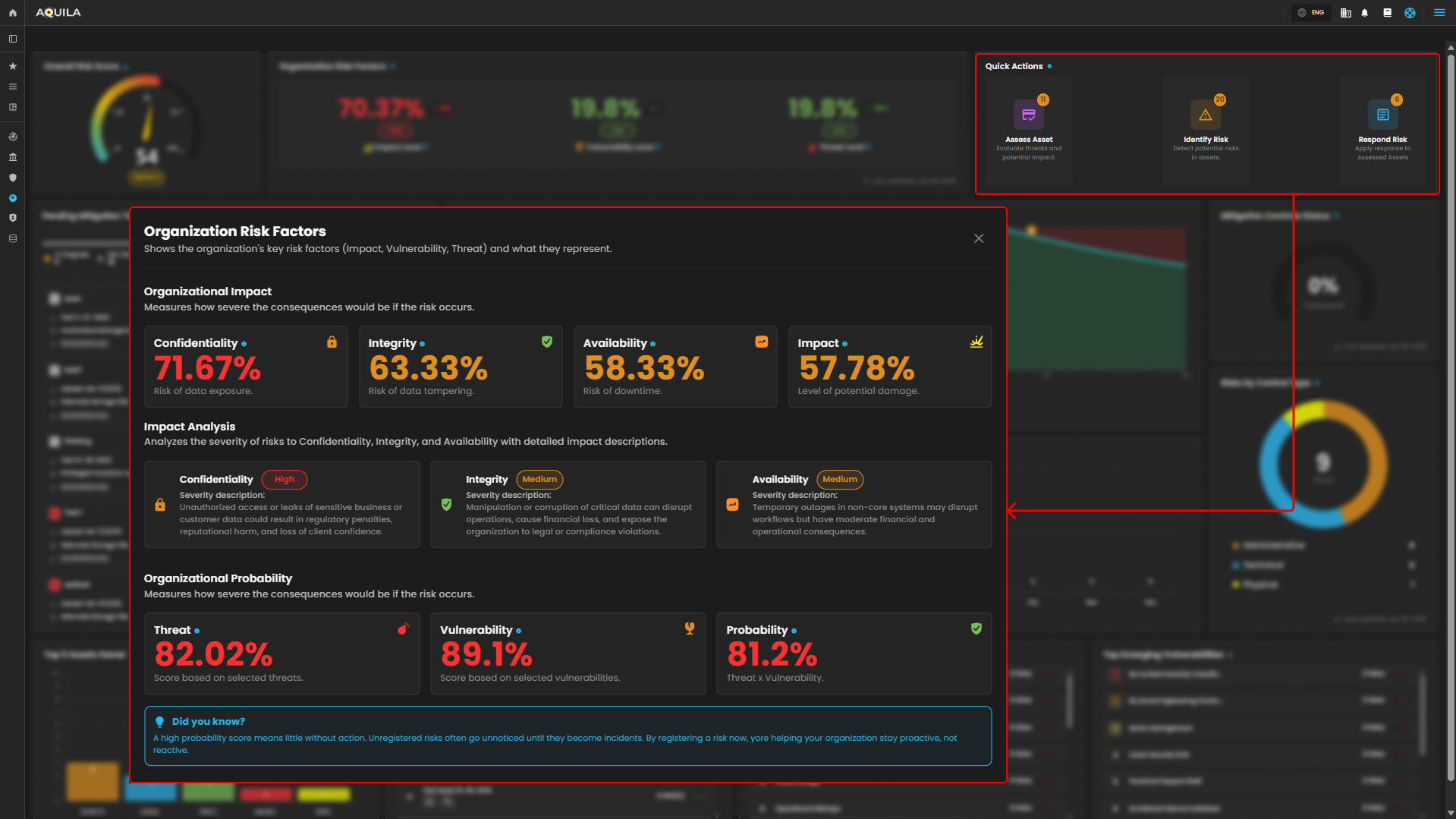
3. Quick Actions - Access shortcuts to identify, assess, and respond to risks.
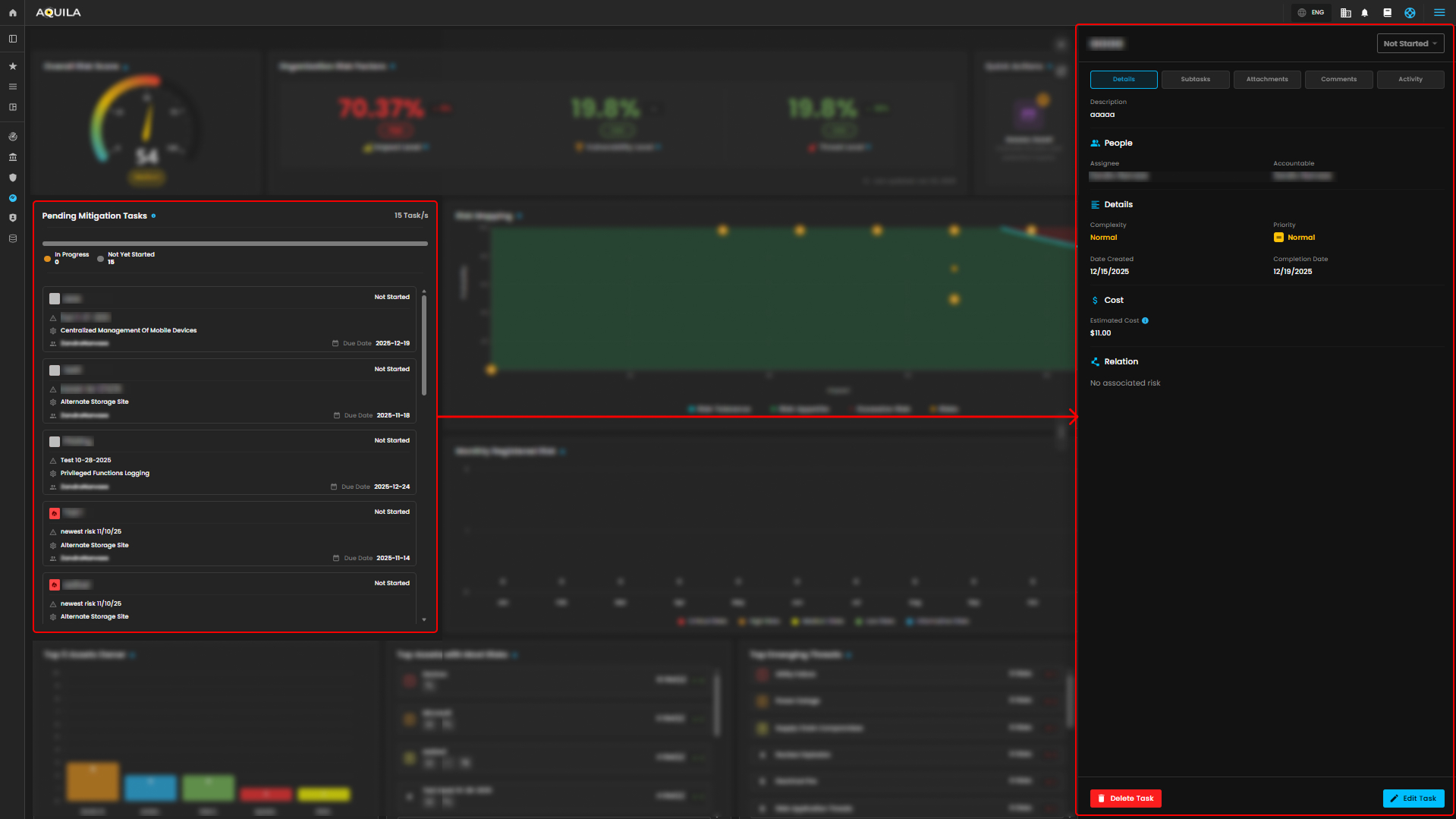
4. Pending Mitigation Task - Access shortcuts to identify, assess, and respond to risks.
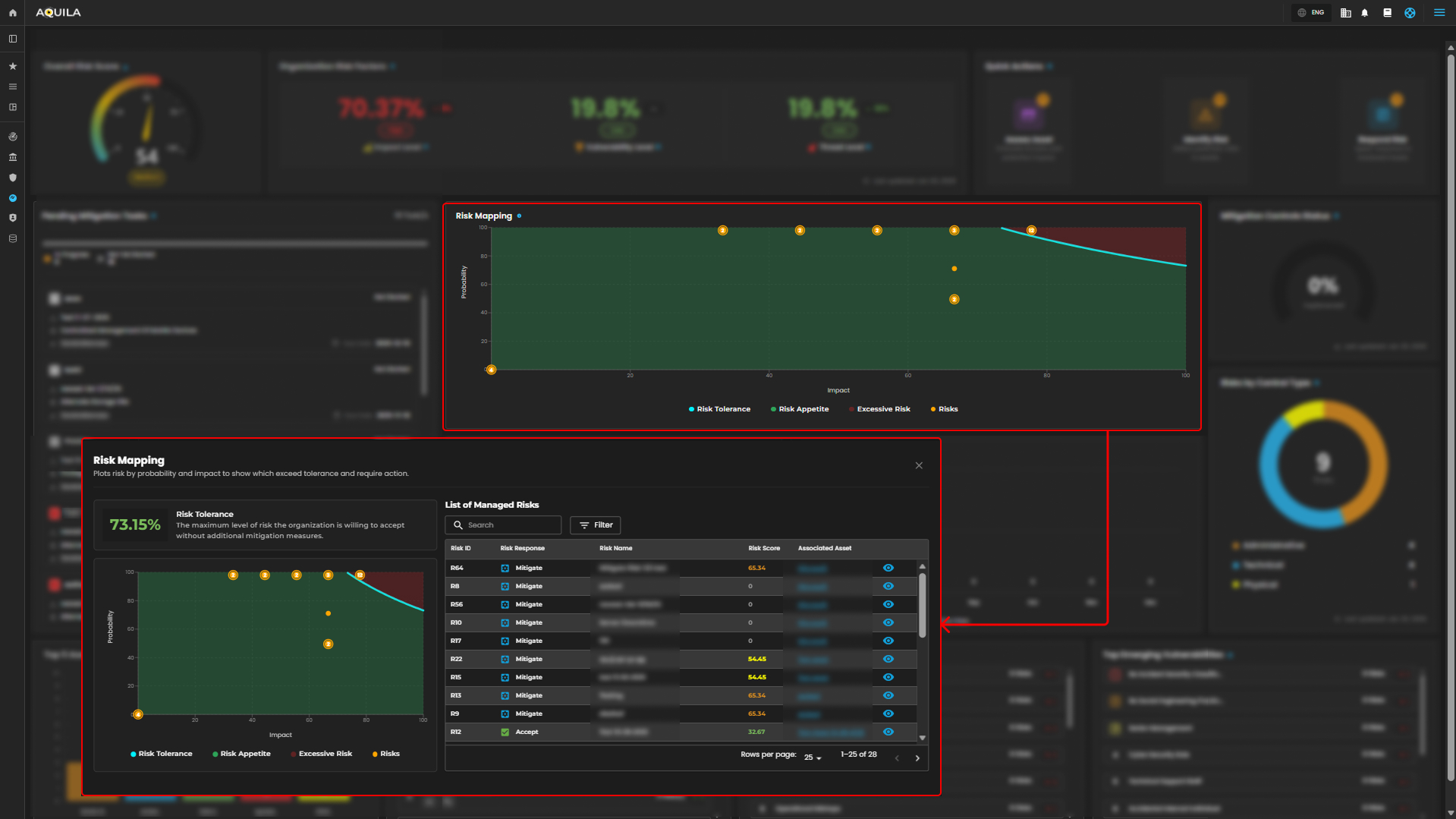
5. Risk Mapping - Visualizes risks based on their probability and impact to determine severity zones.
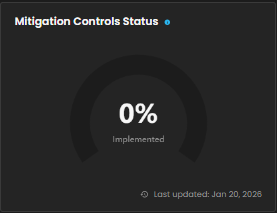
6. Mitigation Control Status - Displays the implementation progress of mitigation controls across the organization.
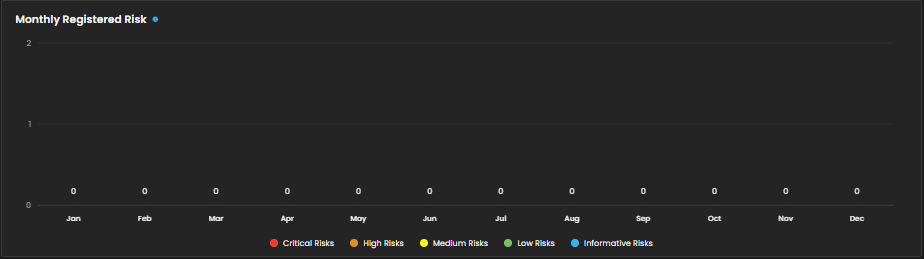
7. Monthly Registered Risk - Tracks newly registered risks each month by severity level.
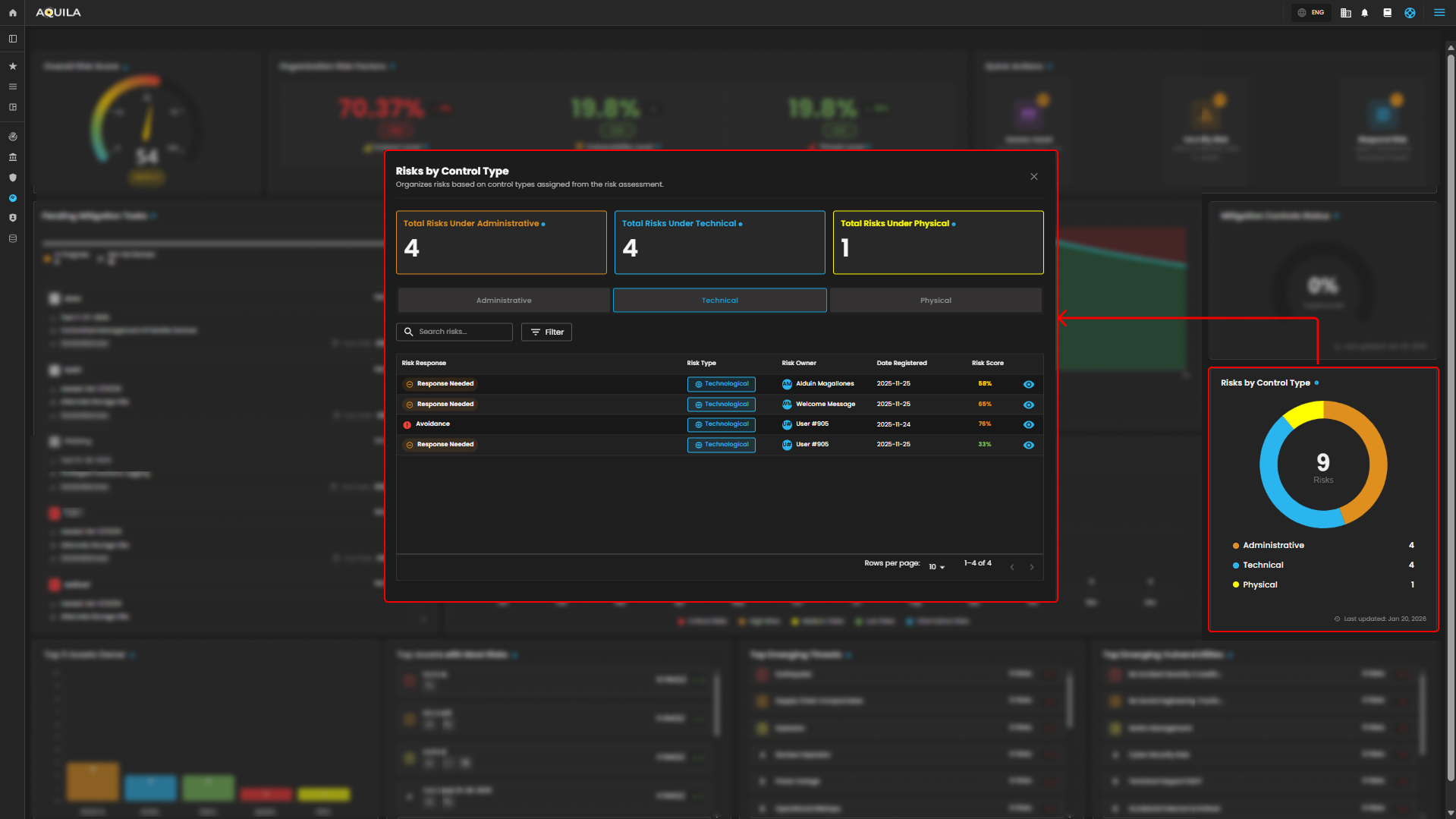
8. Risk by Control Type - Shows the number of risks categorized under Administrative, Technical, or Physical controls.
9. Top 5 Asset Owner - Highlights users with the most assets linked to identified risks.
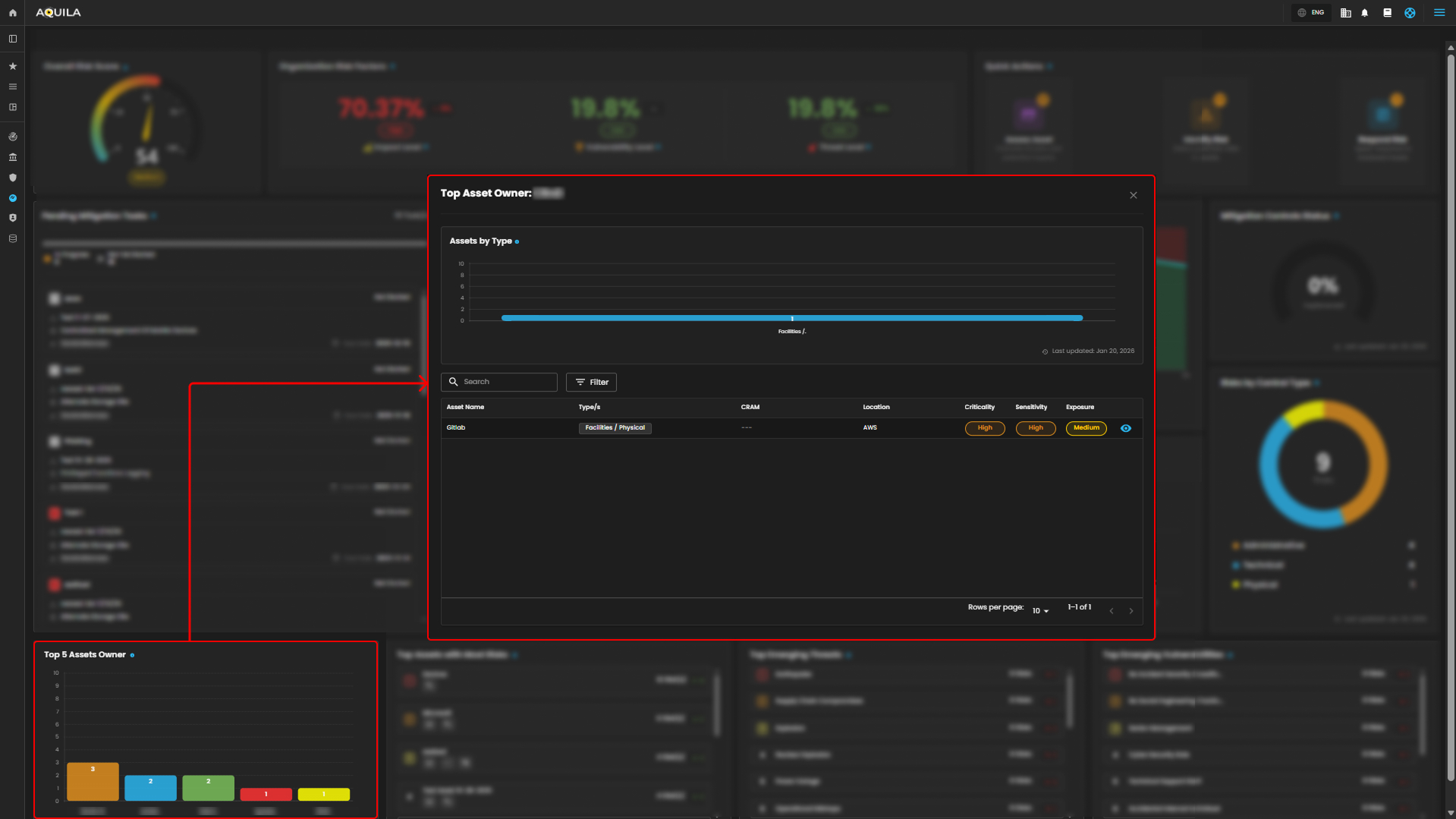
10. Top Asset with Most Risk - Lists assets that have the highest number of associated risks.
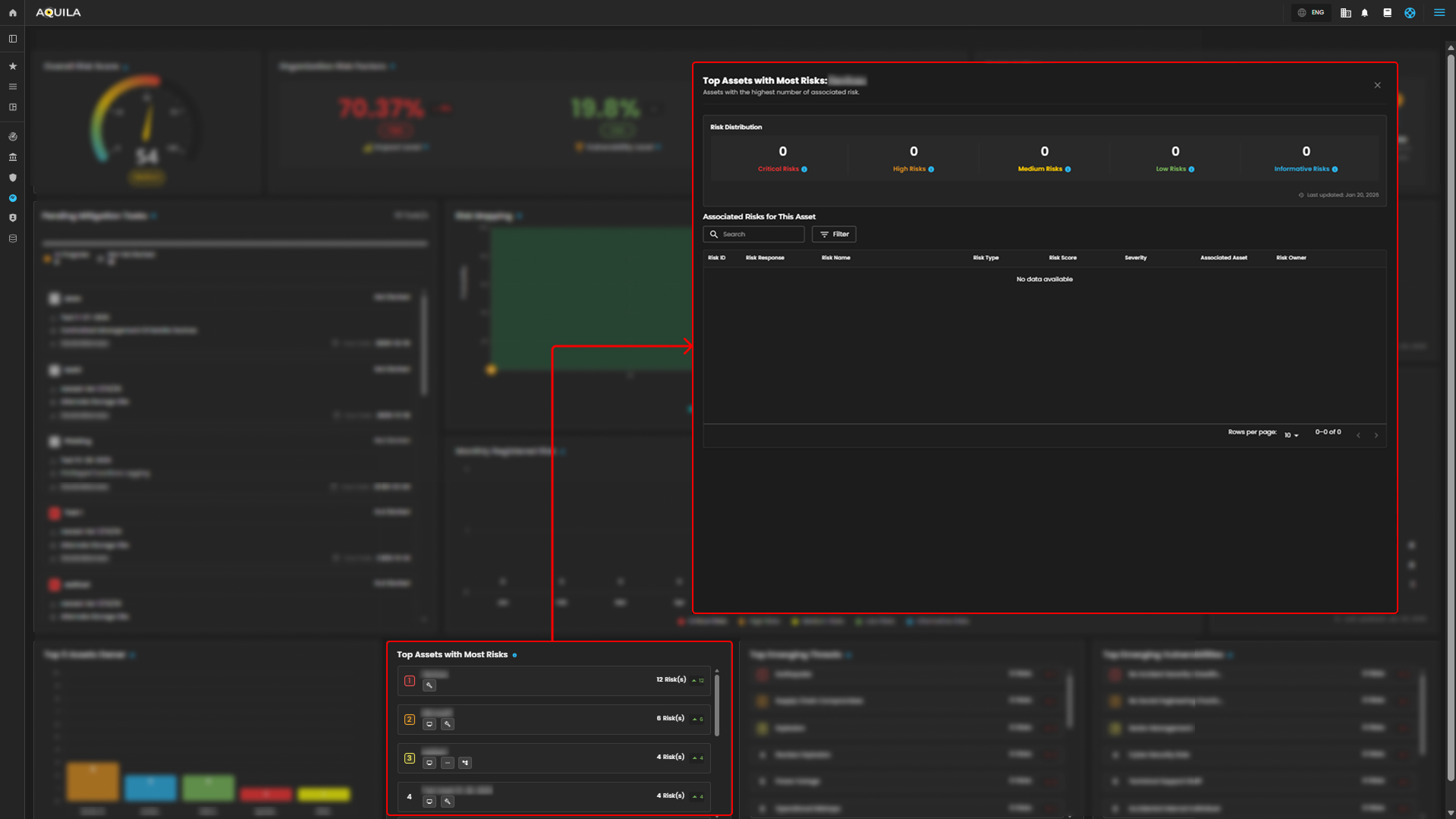
11. Top Emerging Threats - Frequent threats found across multiple risks. Helps identify persistent attack methods.
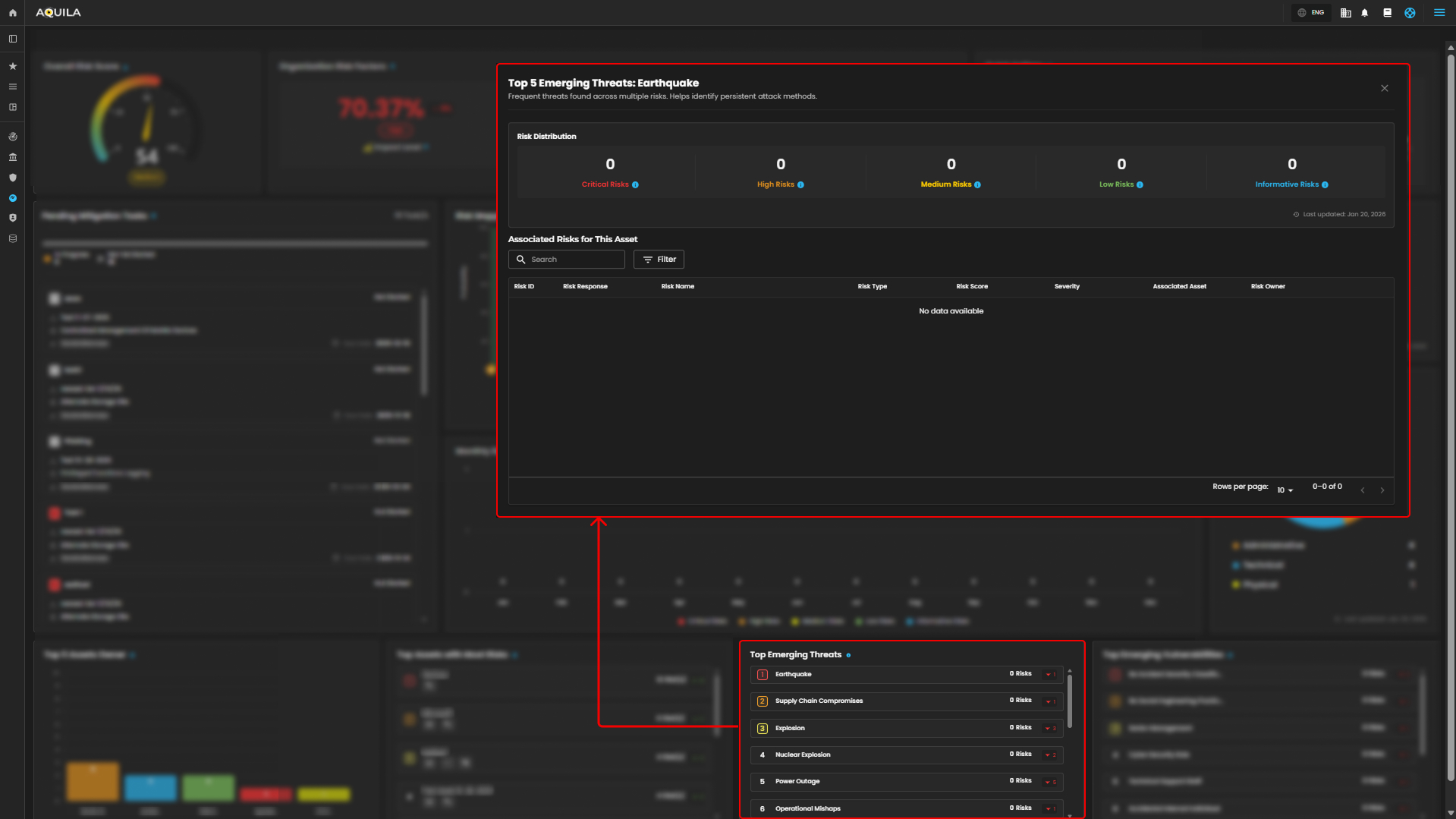
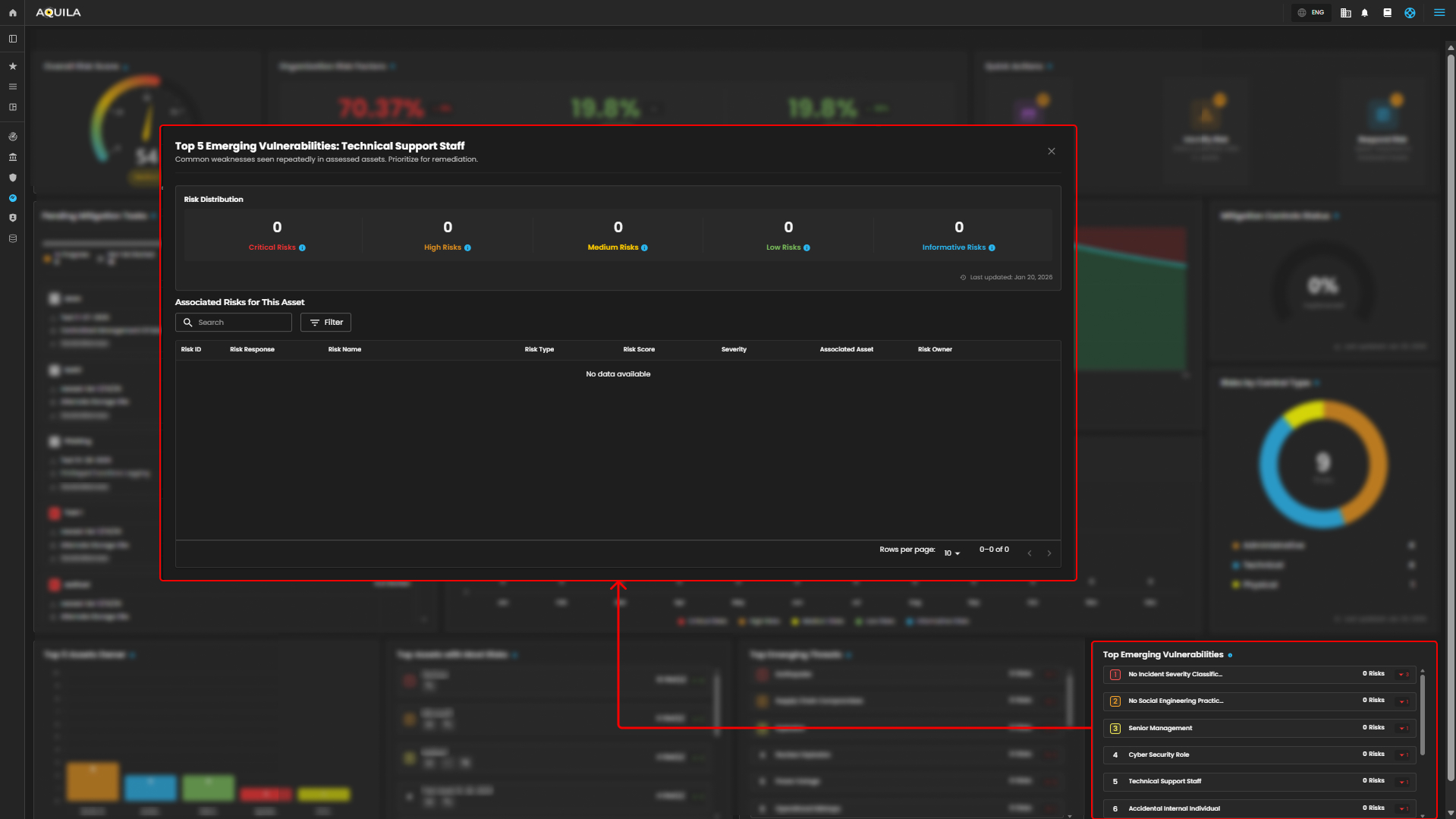
12. Top Emerging Vulnerability - Common weaknesses seen repeatedly in assessed assets.
Cyber Security Risk Management (CSRM): Asset Inventory
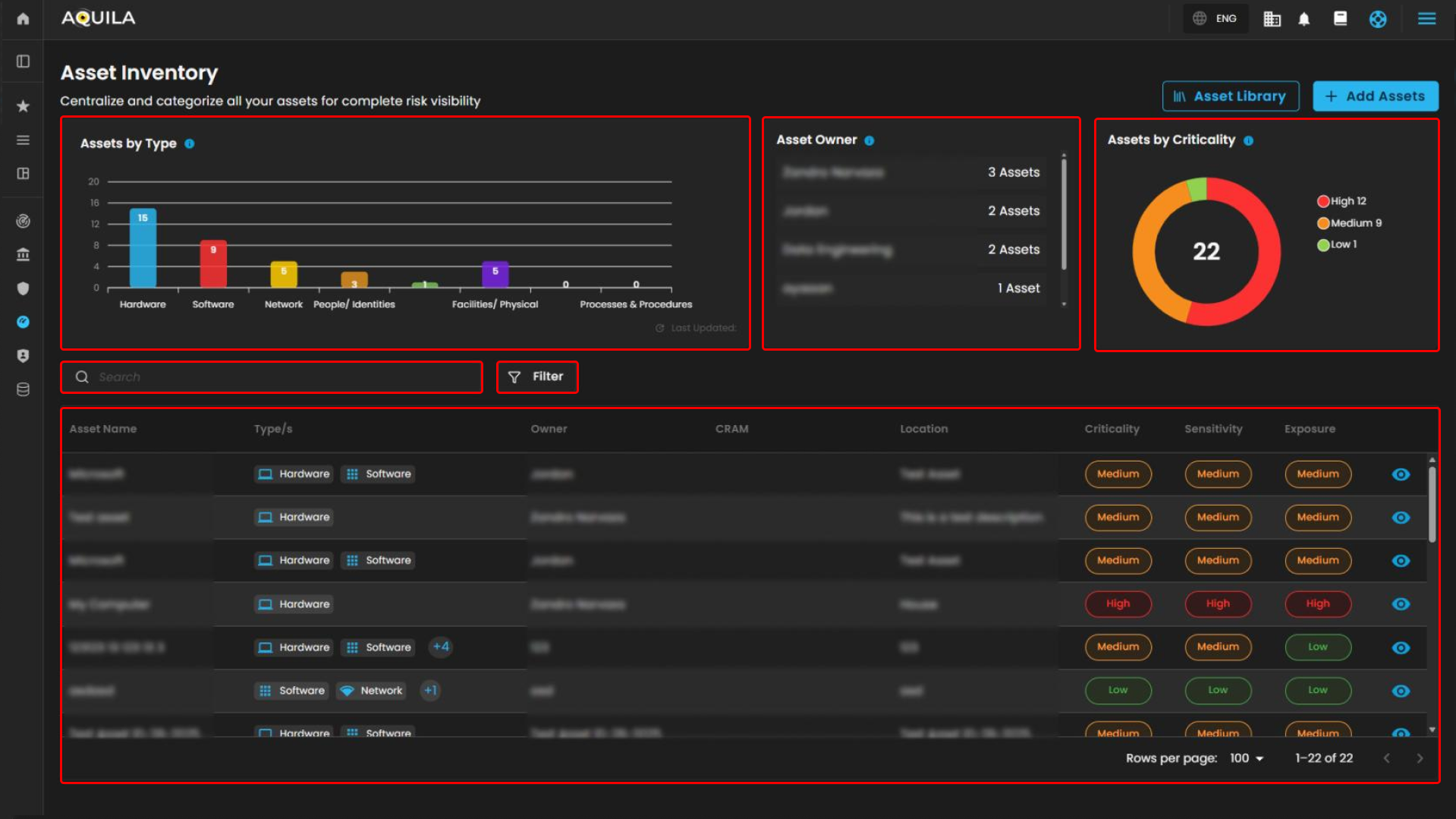
The Asset Inventory page is a central management interface within the Cyber Risk Assessment and Management (CRAM™) system, designed to centralize, categorize, and visualize organizational assets for enhanced risk visibility. This interface supports risk managers, IT teams, and security professionals in tracking assets like hardware, software, and data, enabling proactive identification of vulnerabilities and exposures.
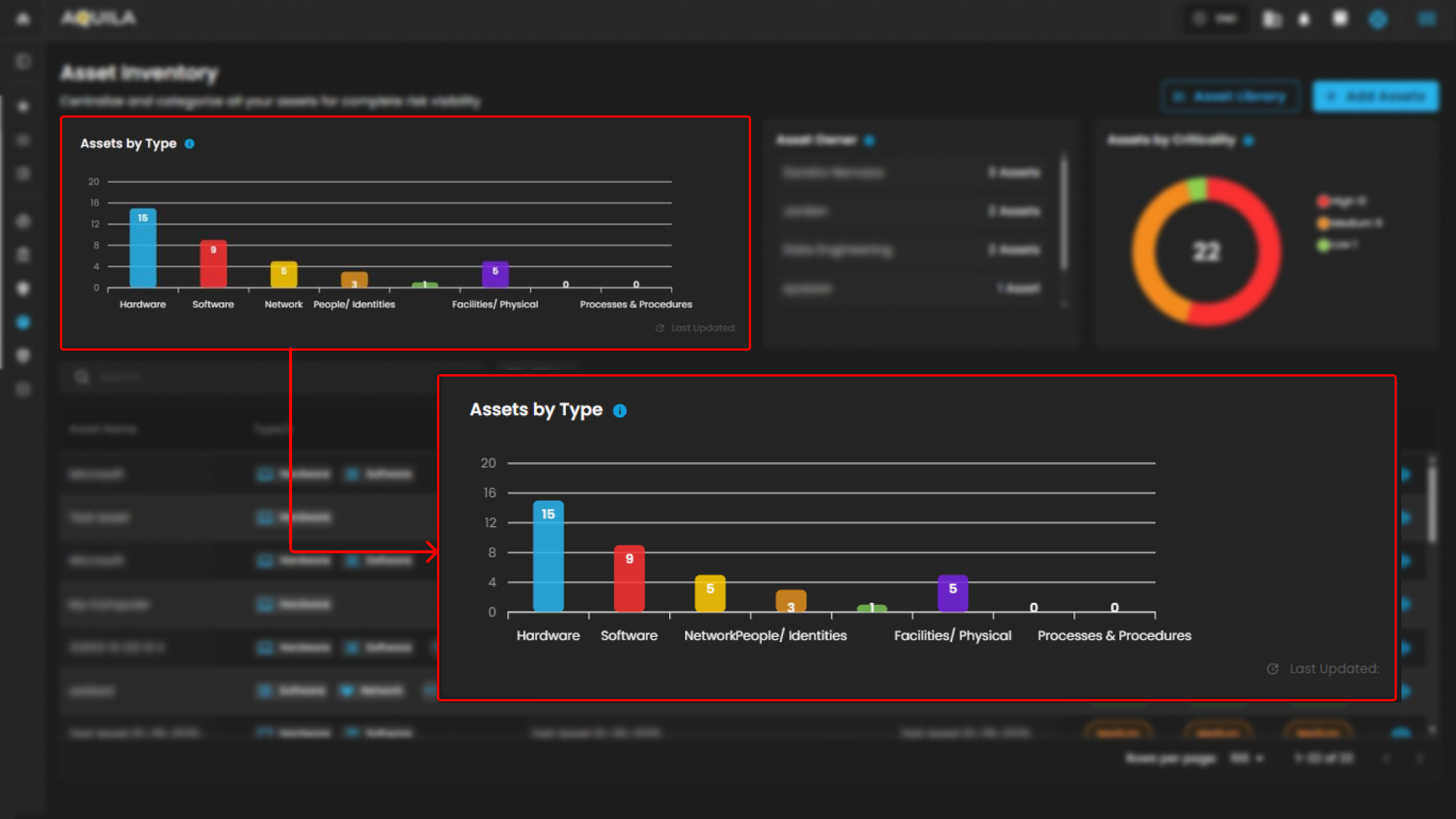
Assets by Type
-
This visualization elegantly presents the distribution of registered assets, meticulously grouped by their type, including hardware, software, networks, people, and more.
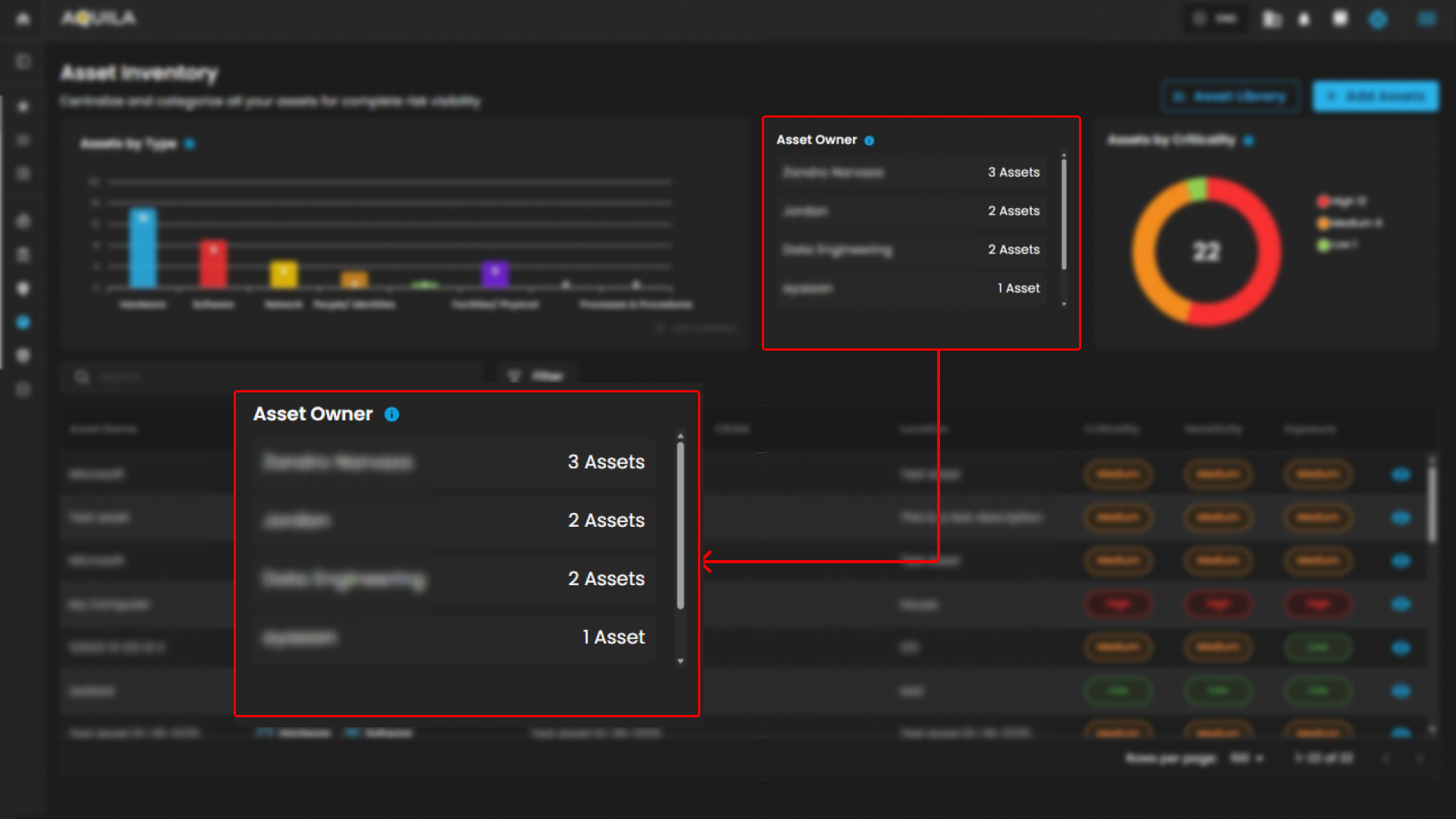
Asset Owner
-
Highlights the user with the highest number of registered assets, offering a valuable tool for identifying key owners across the organization.
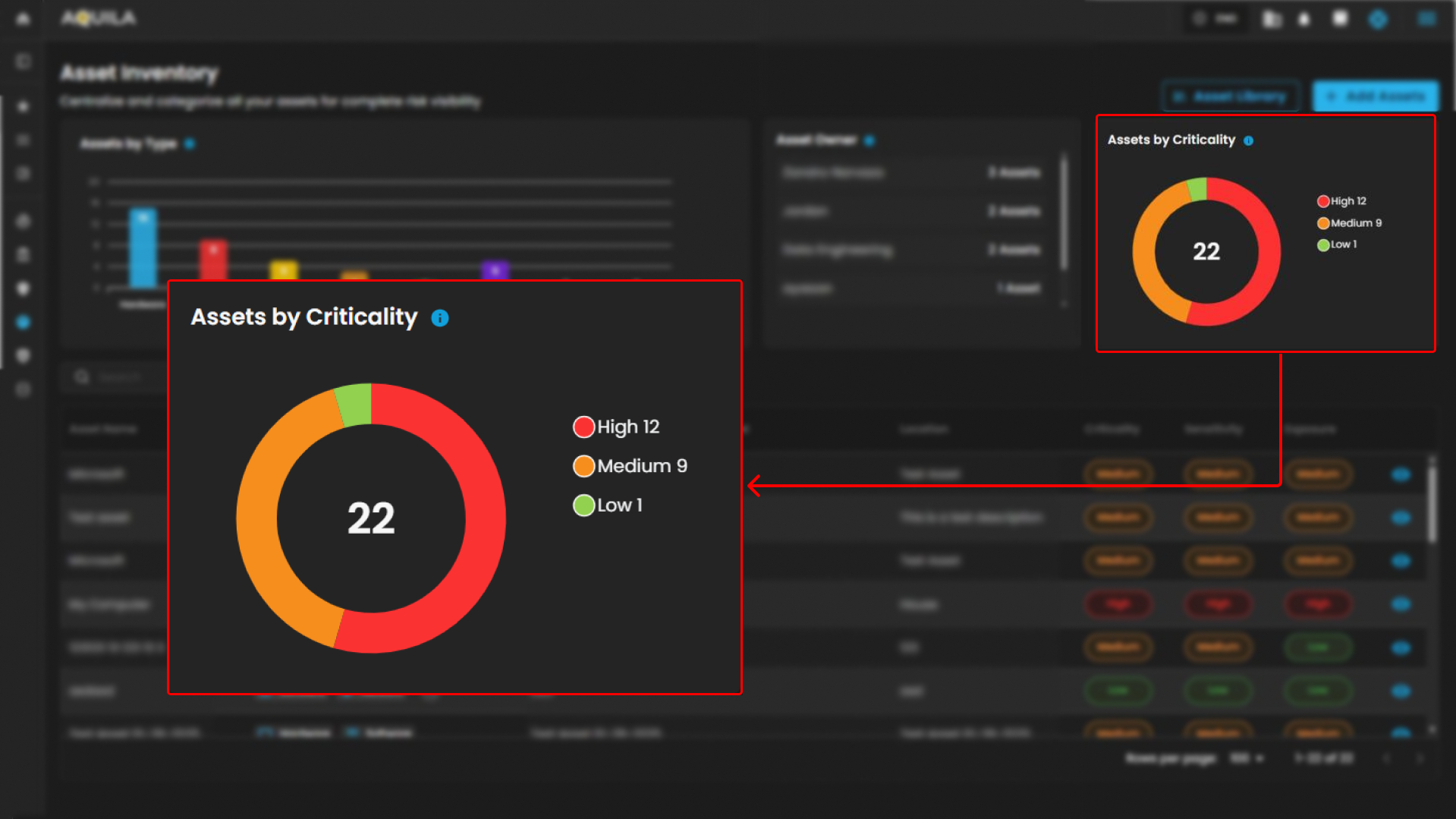
Assets by Criticality
-
Elegantly visualizes assets according to their assigned criticality levels—High, Medium, or Low—serving as a vital tool to prioritize which assets require the utmost protection.
Search and Filter Section
-
Search Bar
-
Allows text-based querying of the asset table for quick navigation.
-
-
Filter Button
-
Opens advanced filtering options for refining the asset list by criteria like type, owner, or criticality.
-
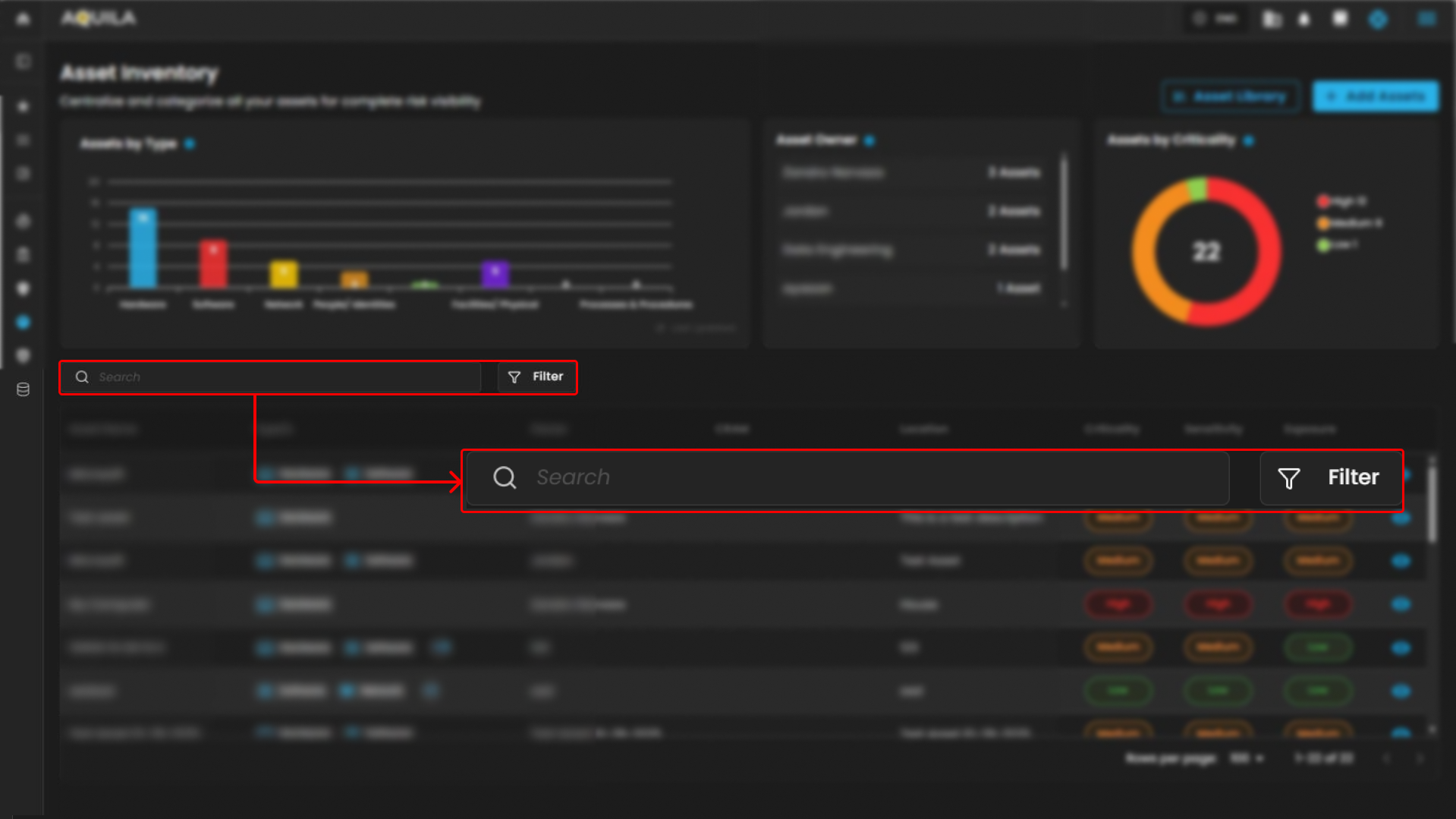
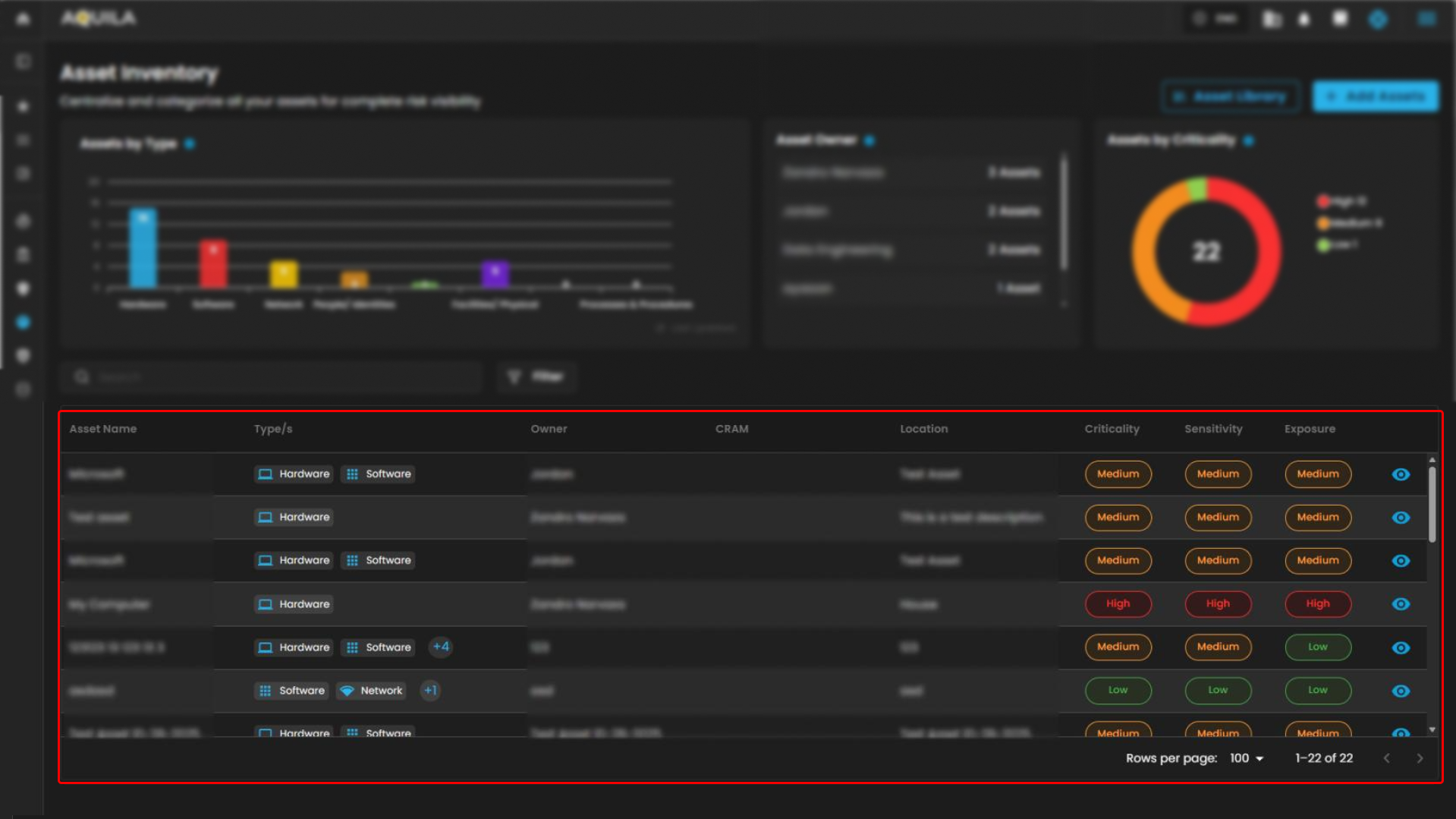
Table Section
- This section contains a tabular display of individual assets, organized in rows with sortable columns.
-
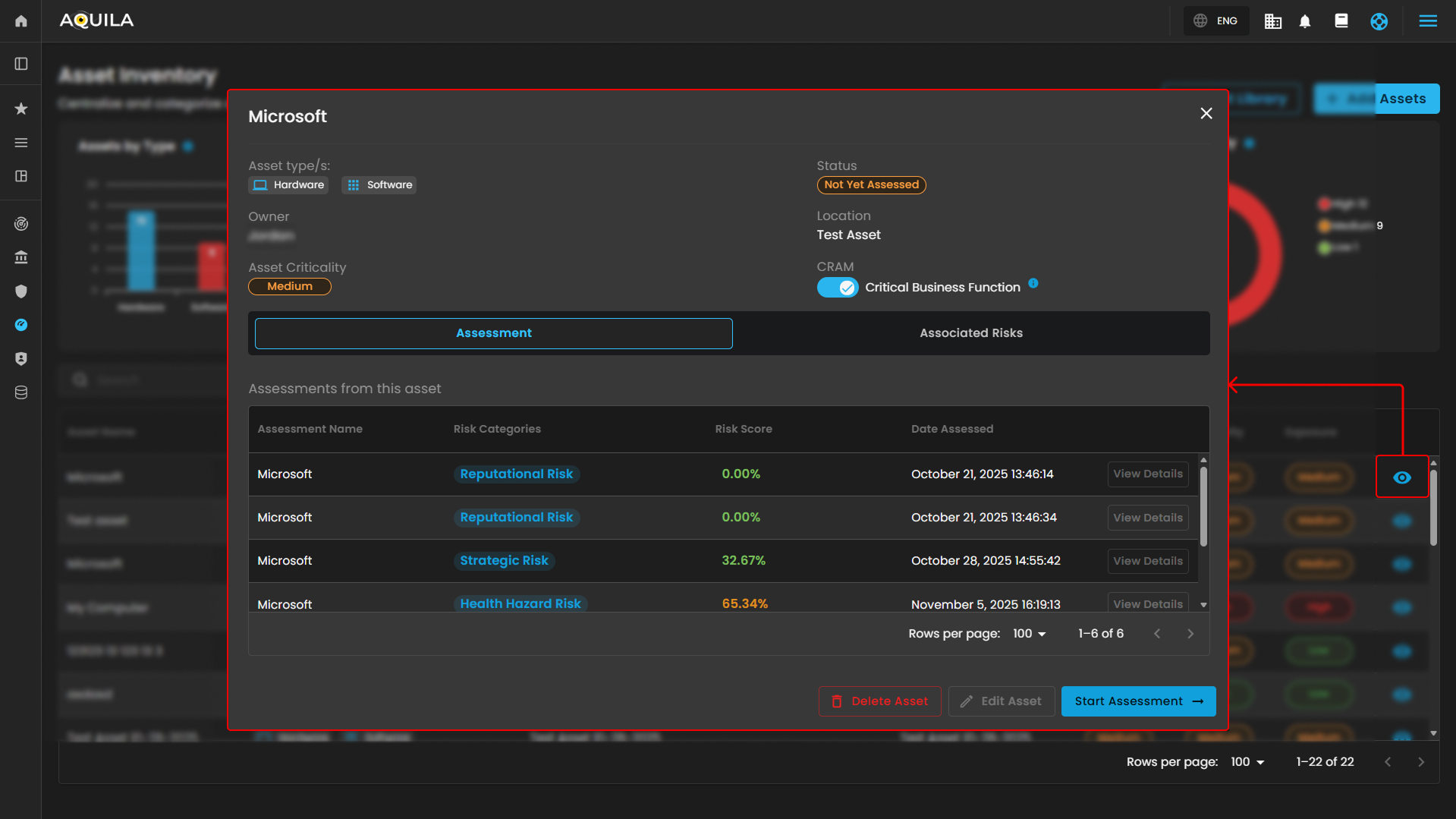
Selecting the eye icon gracefully expands to reveal comprehensive and detailed information.
-
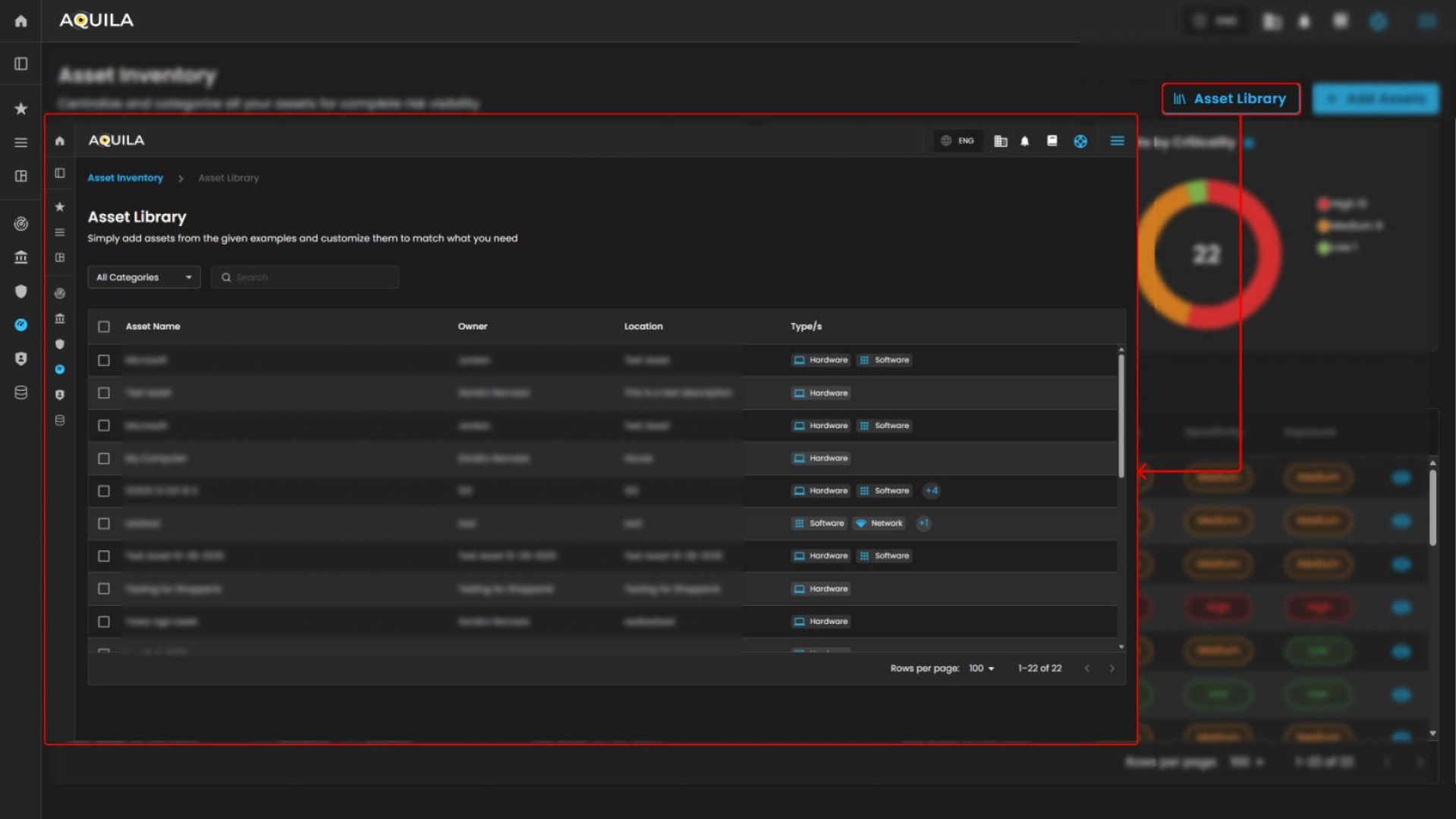
Asset Library
-
It serves as a customizable template repository for users to import and adapt pre-defined asset examples, streamlining the process of populating the asset inventory for risk assessment. This design facilitates quick onboarding by allowing users to select, edit, and integrate example assets like hardware and services, ensuring comprehensive coverage without starting from scratch.
-
-
Add Assets
-
A dedicated input interface within the Asset Inventory module of the Cyber Risk Assessment and Management (CRAM™) system, focused on registering and categorizing new assets to build a comprehensive risk inventory. This interface empowers IT/security teams to systematically document assets, assigning attributes like criticality and sensitivity to facilitate risk analysis.
-
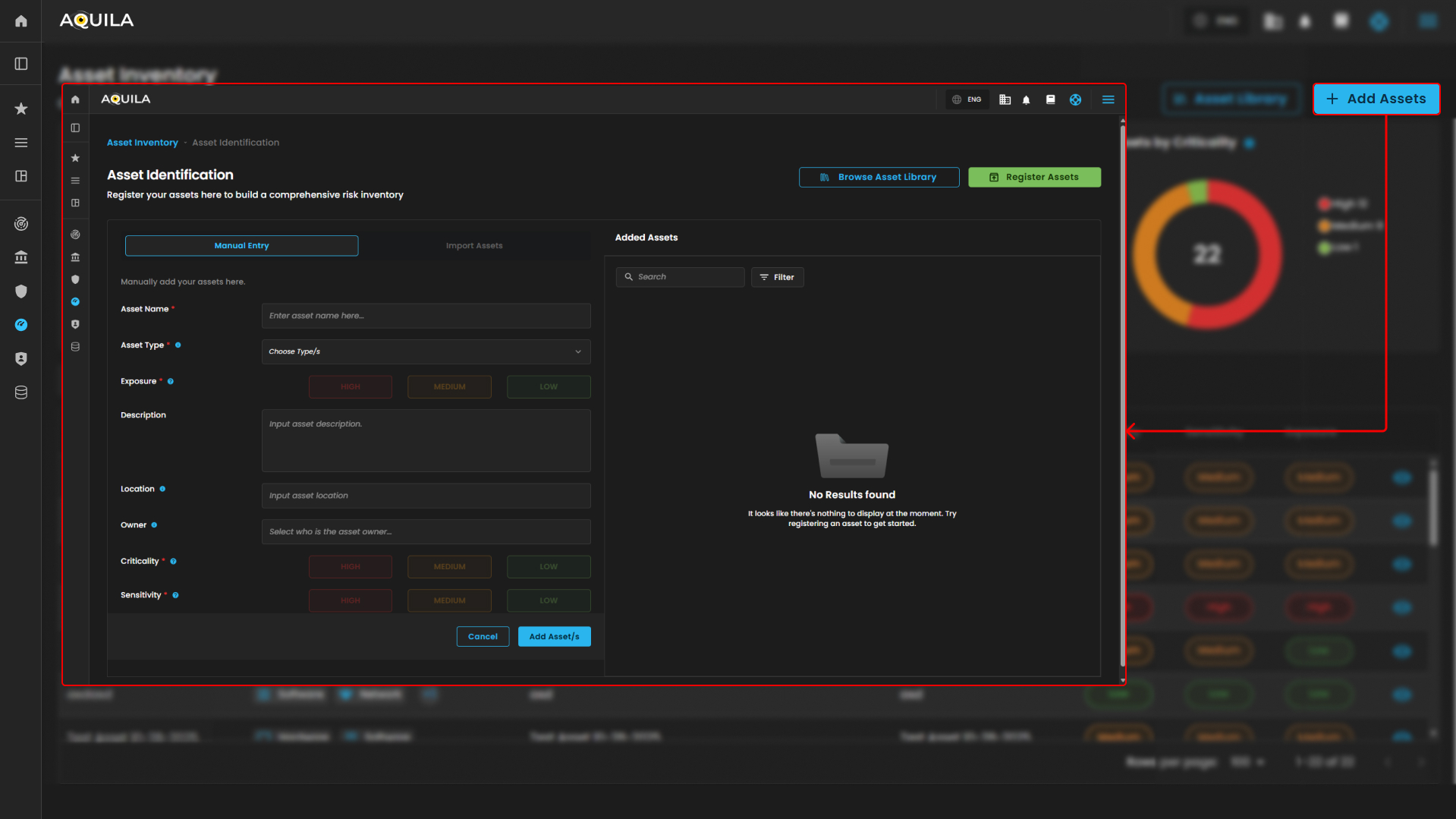
- It has 2 action buttons:
-
Browse Asset Library - Enables users to access pre-defined asset templates for quick import or inspiration.
-
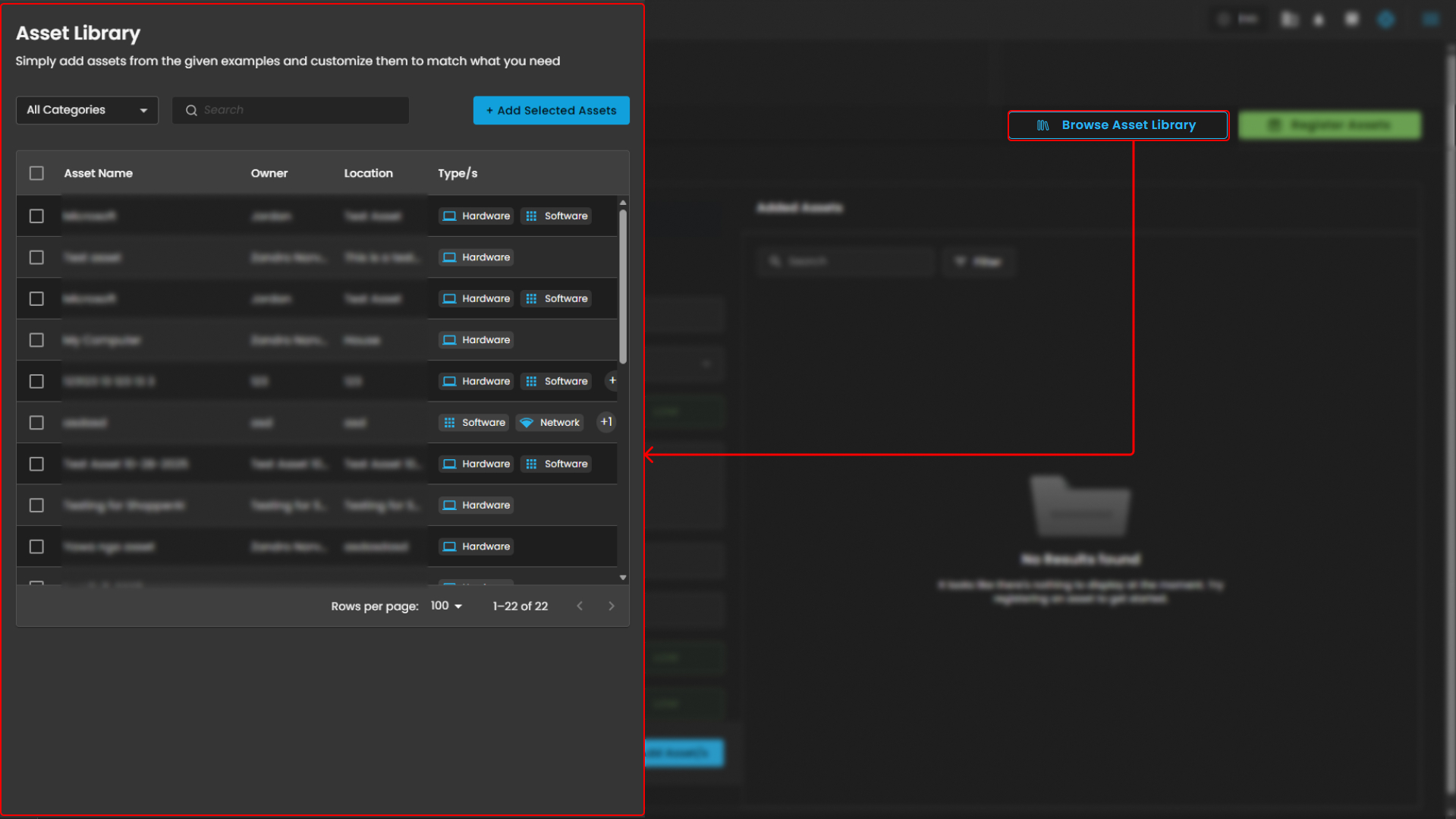
-
-
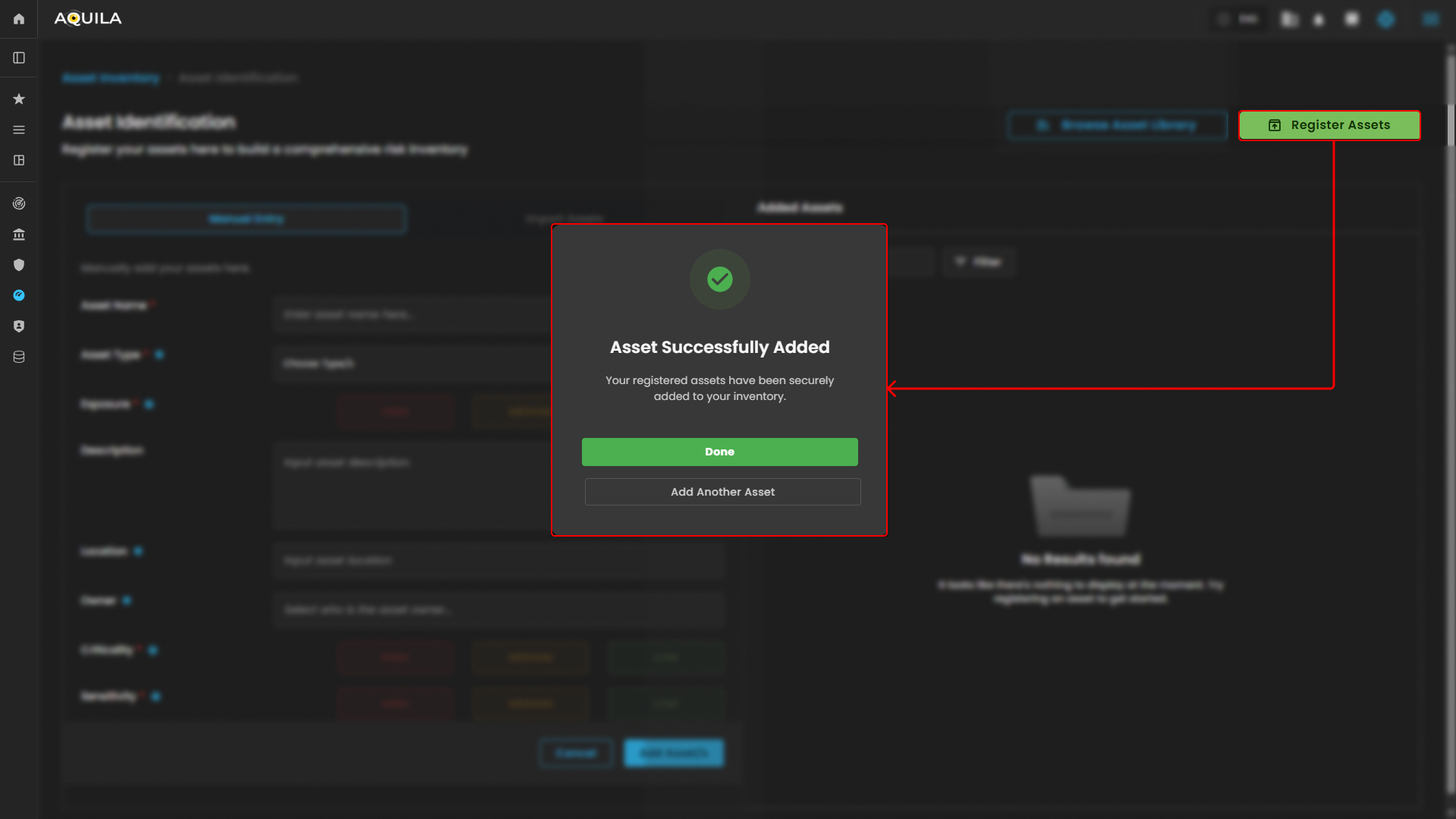
Register Assets - Submits the form to add the entered asset to the inventory.
-
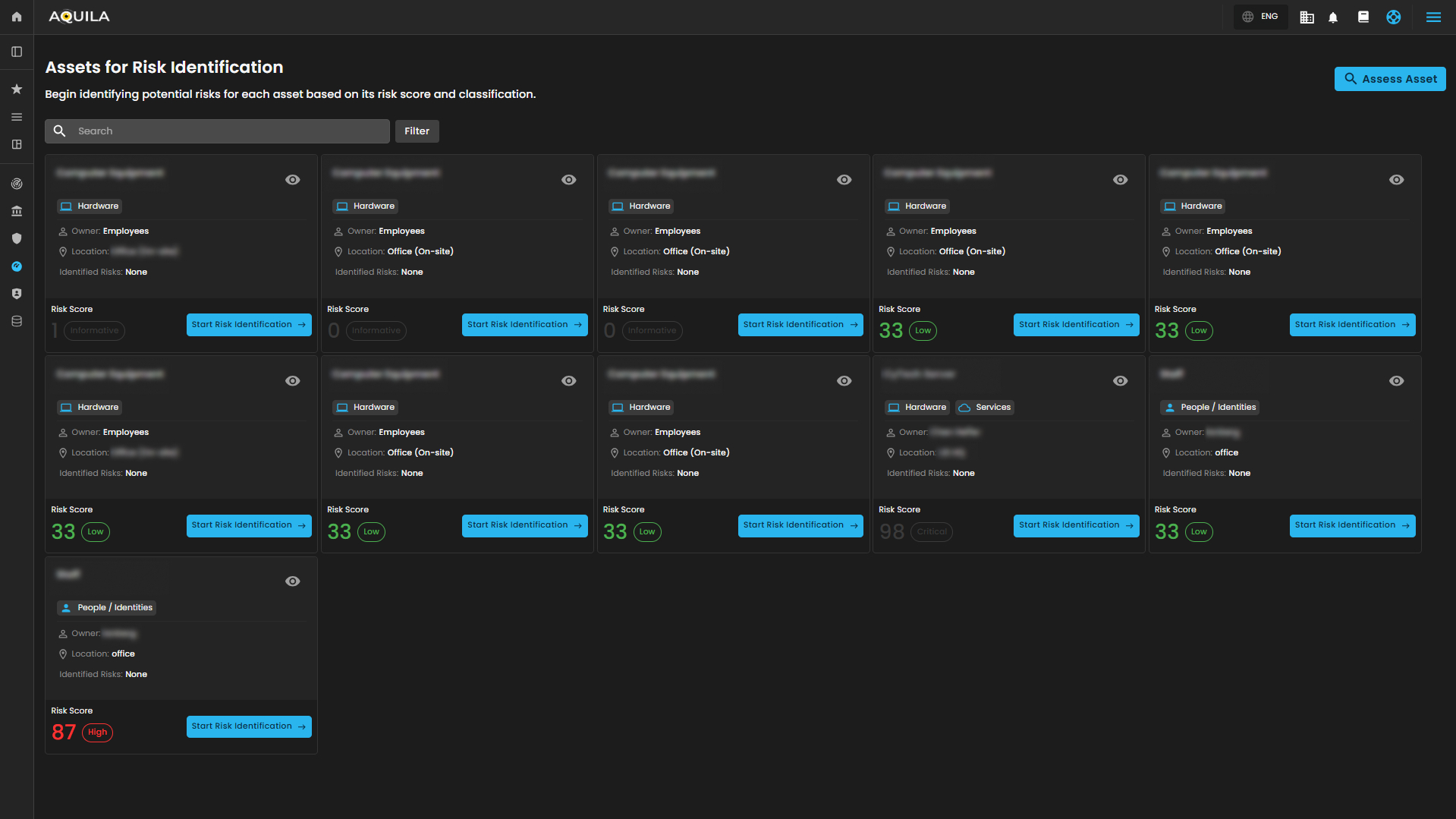
Cyber Security Risk Management (CSRM): Assessed Asset
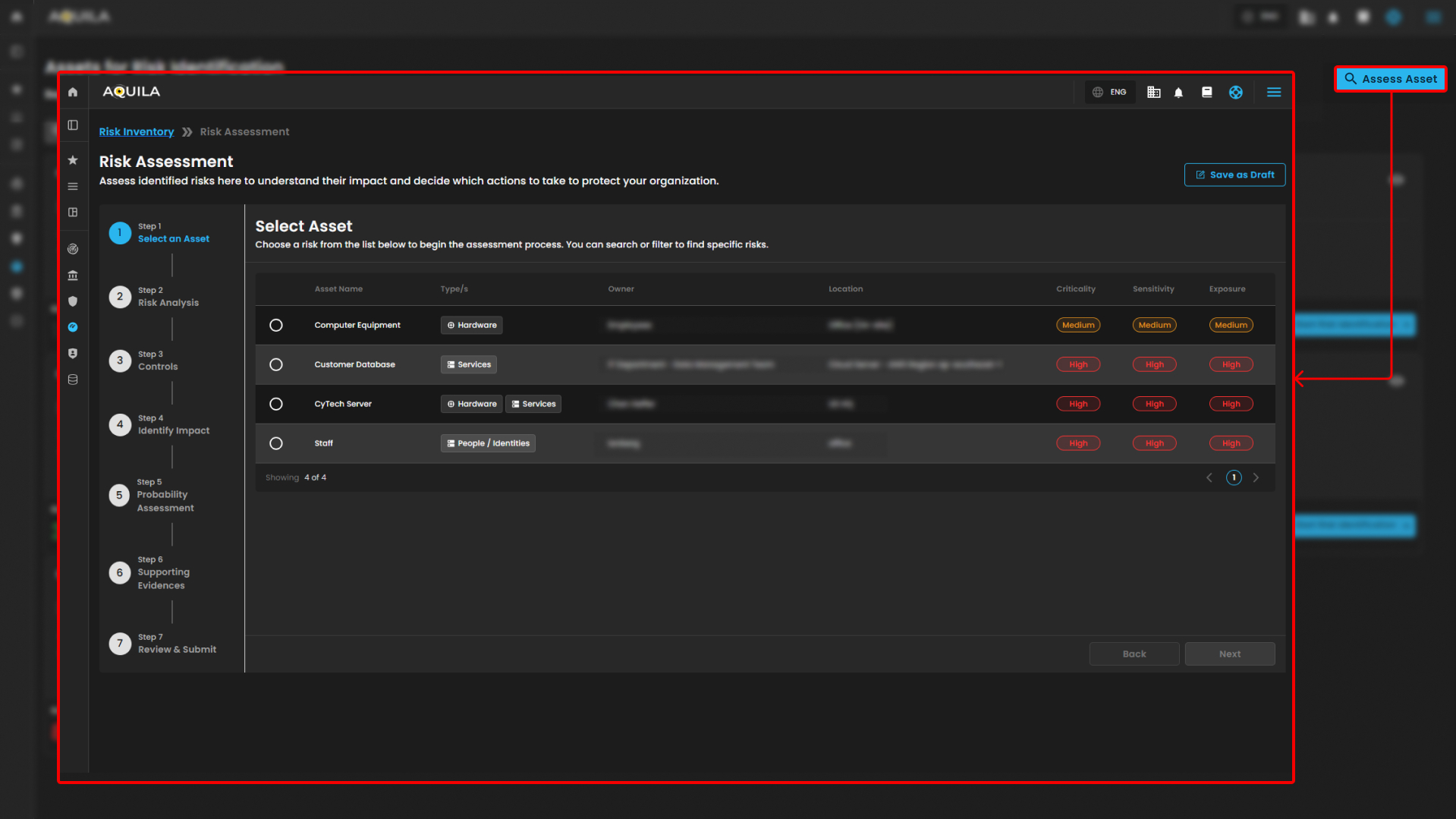
Designed to facilitate the identification, assessment, and classification of potential risks associated with organizational assets (e.g., hardware equipment).
Search and Filter Section
-
Search Bar
-
Allows text-based querying of the asset table for quick navigation.
-
-
Filter Button
-
Opens advanced filtering options for refining the asset list by criteria like type, owner, or criticality.
-
-
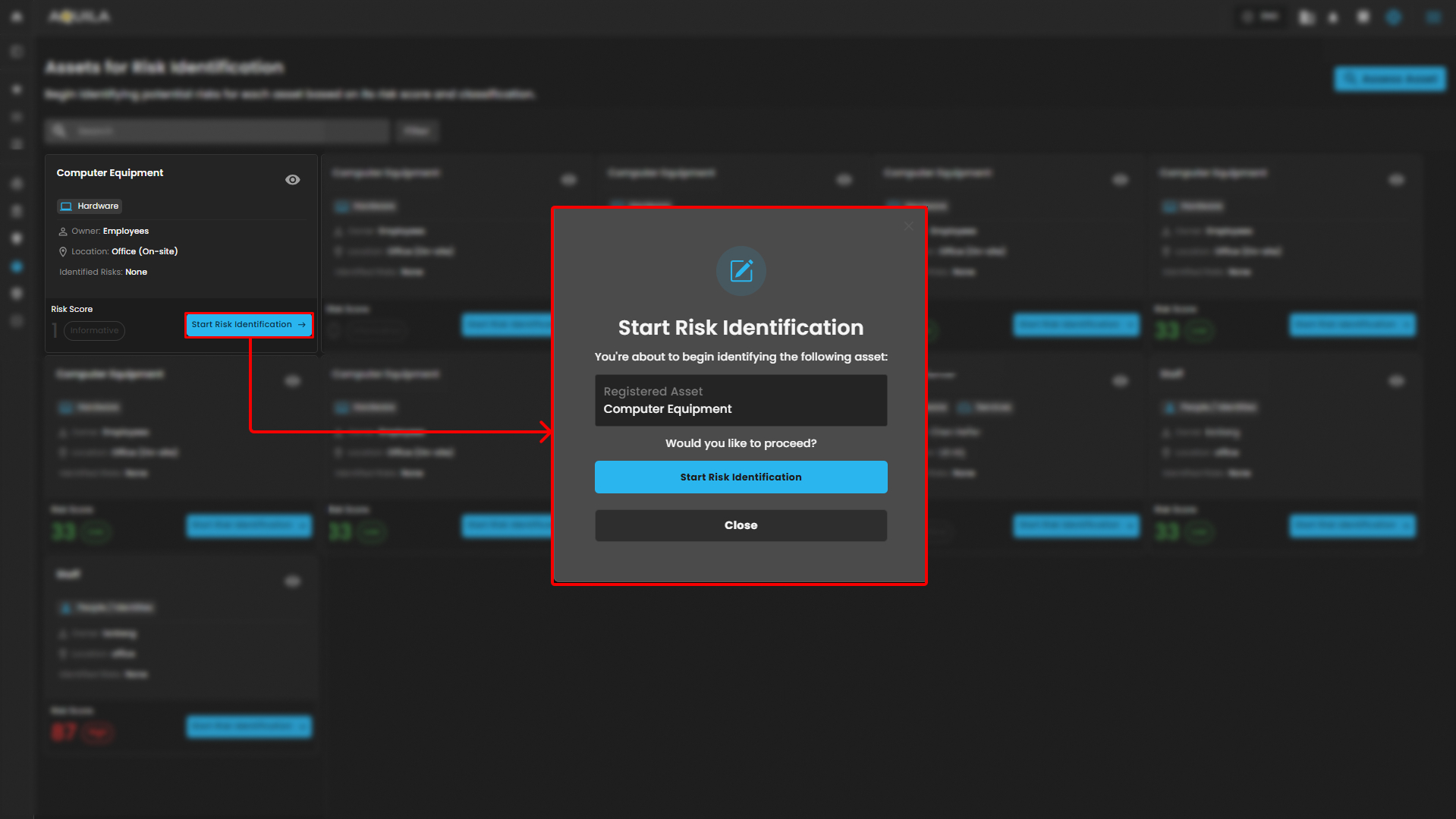
Start Risk Identification
-
This initiates the risk evaluation process for the specific asset.
-
Cyber Security Risk Management (CSRM): Risk Register
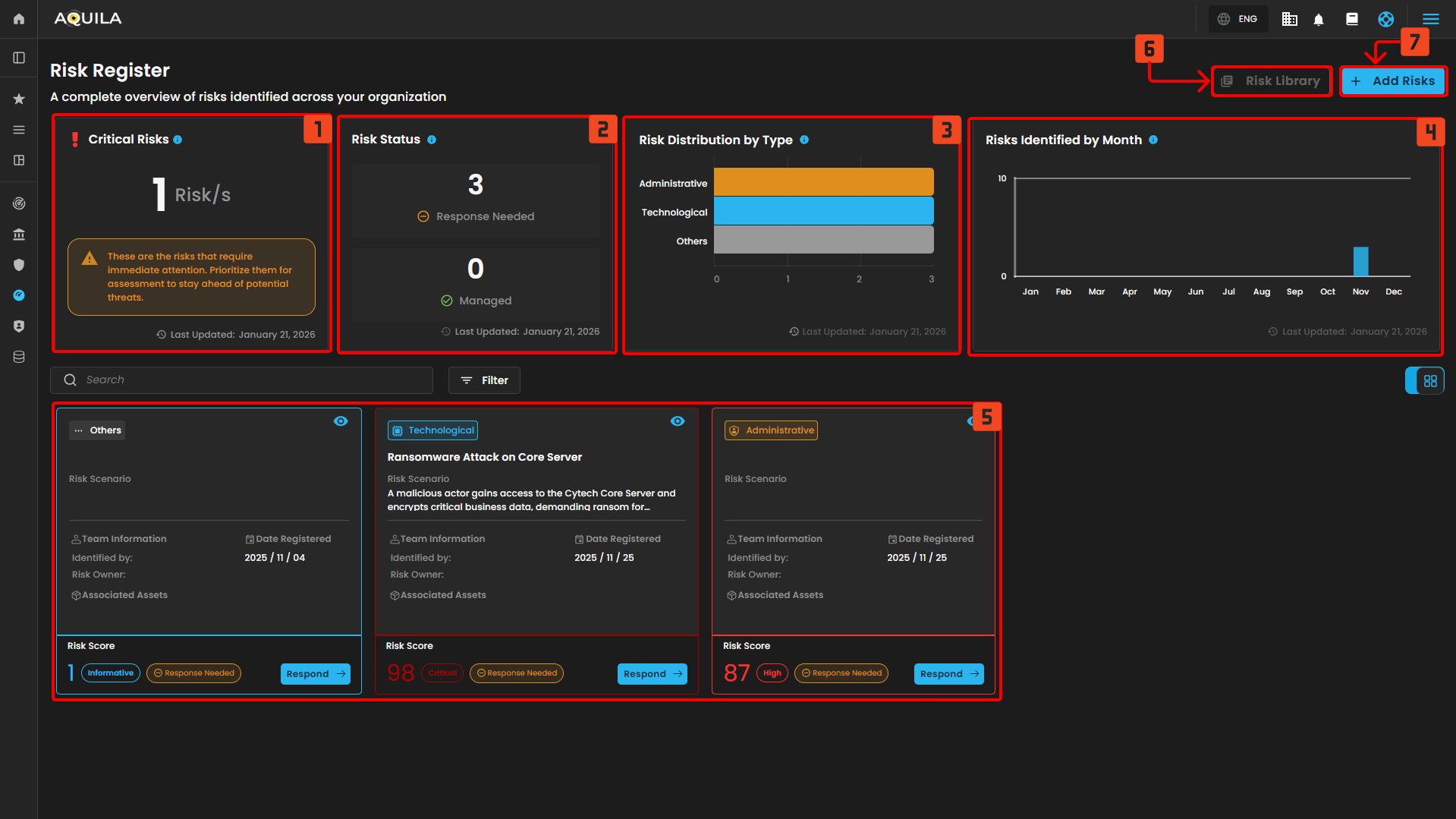
- Critical Risks - Displays the number of risks that require immediate attention based on asset criticality, sensitivity, and exposure.
- Risk Status - Shows how many risks have already been assessed versus those pending assessment.
- Risk Distribution by Type - Breakdown of all registered risks categorized by their type: Administrative, Technological, Physical, or Others.
- Risk Identified by Month - Tracks the number of risks identified across your organization on a monthly basis.
- Risk Logs - Shows the entire logs of the risks
- Risk Library - Added Risks can be found in this section.
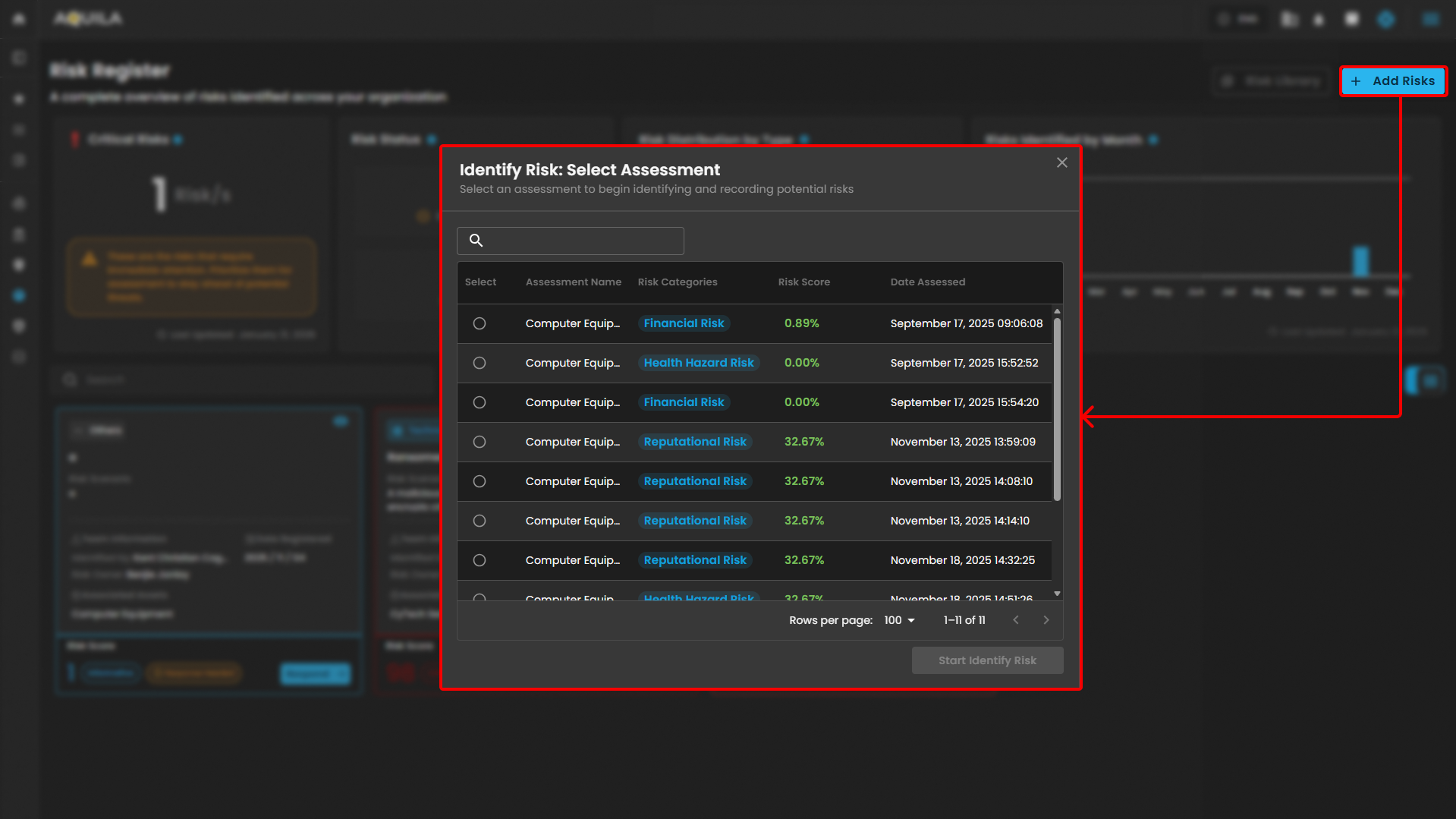
- Add Risks / Risk Identification - Risks can be added in this section to be identified and document.
- Add Risks / Risk Identification
- Risk Identification
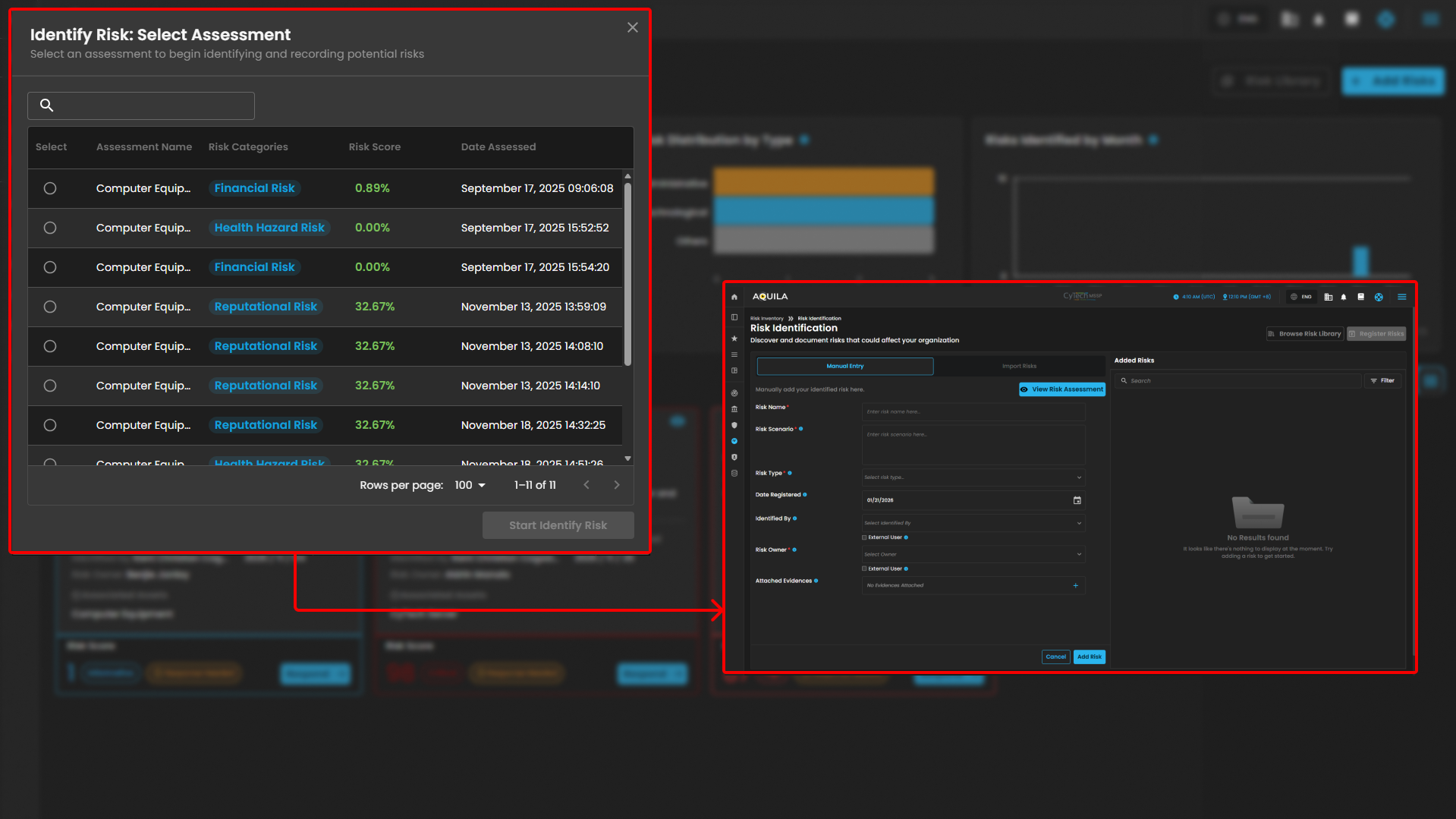
- Risk Identification - in this section you can add and document those risk that could affect your organization
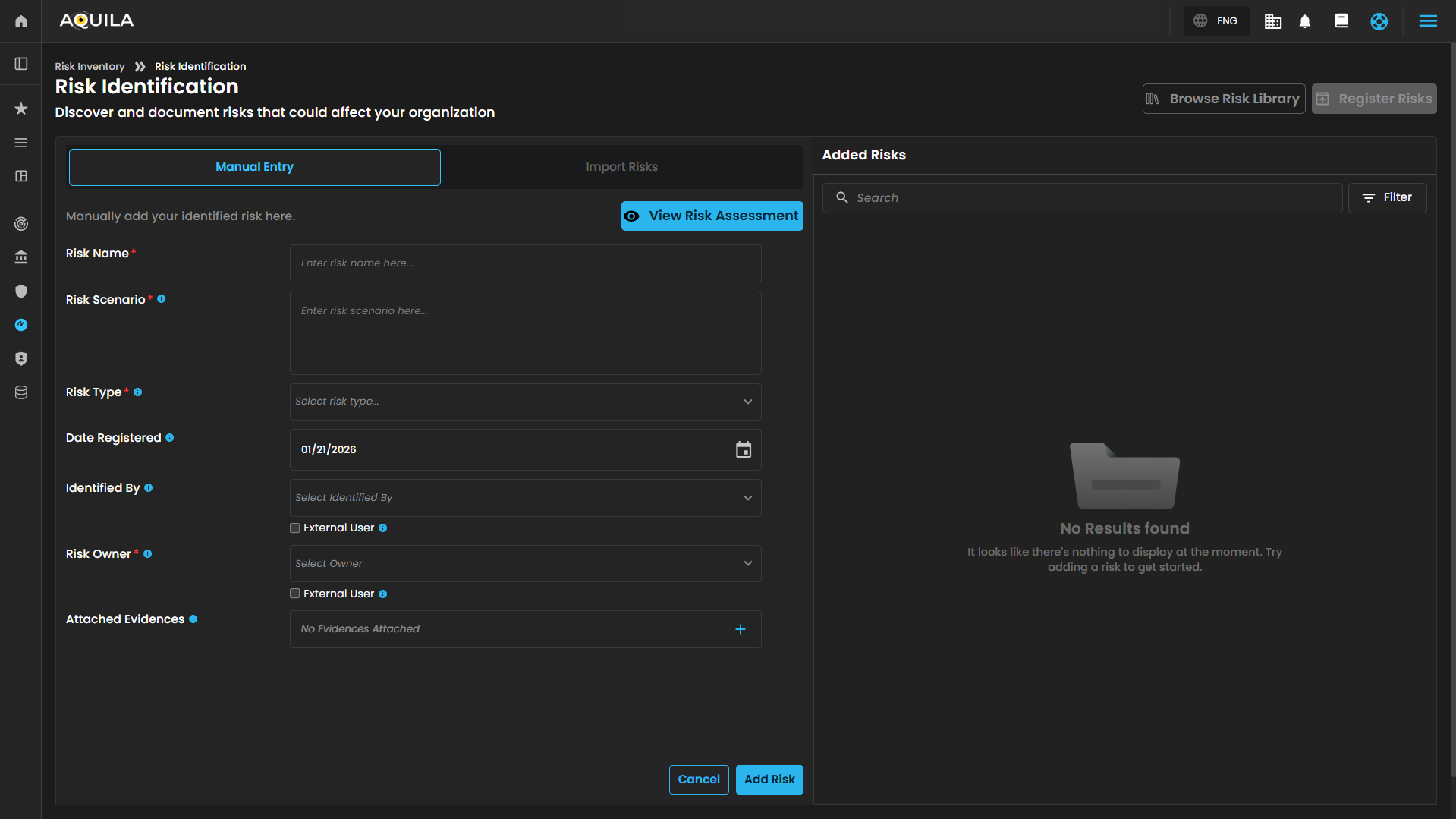
- View Risk Assessment - Overview
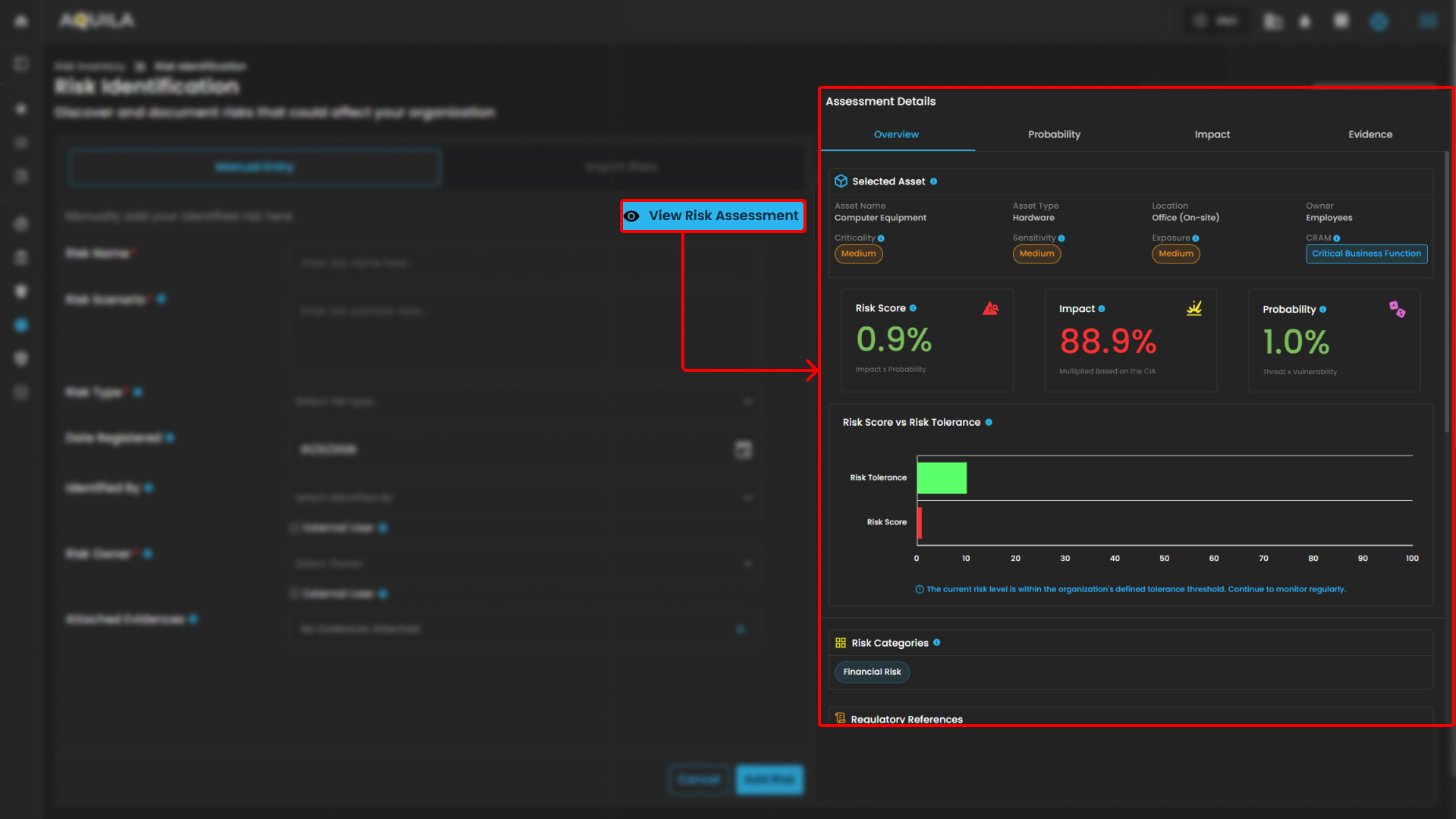
- View Risk Assessment - Probability
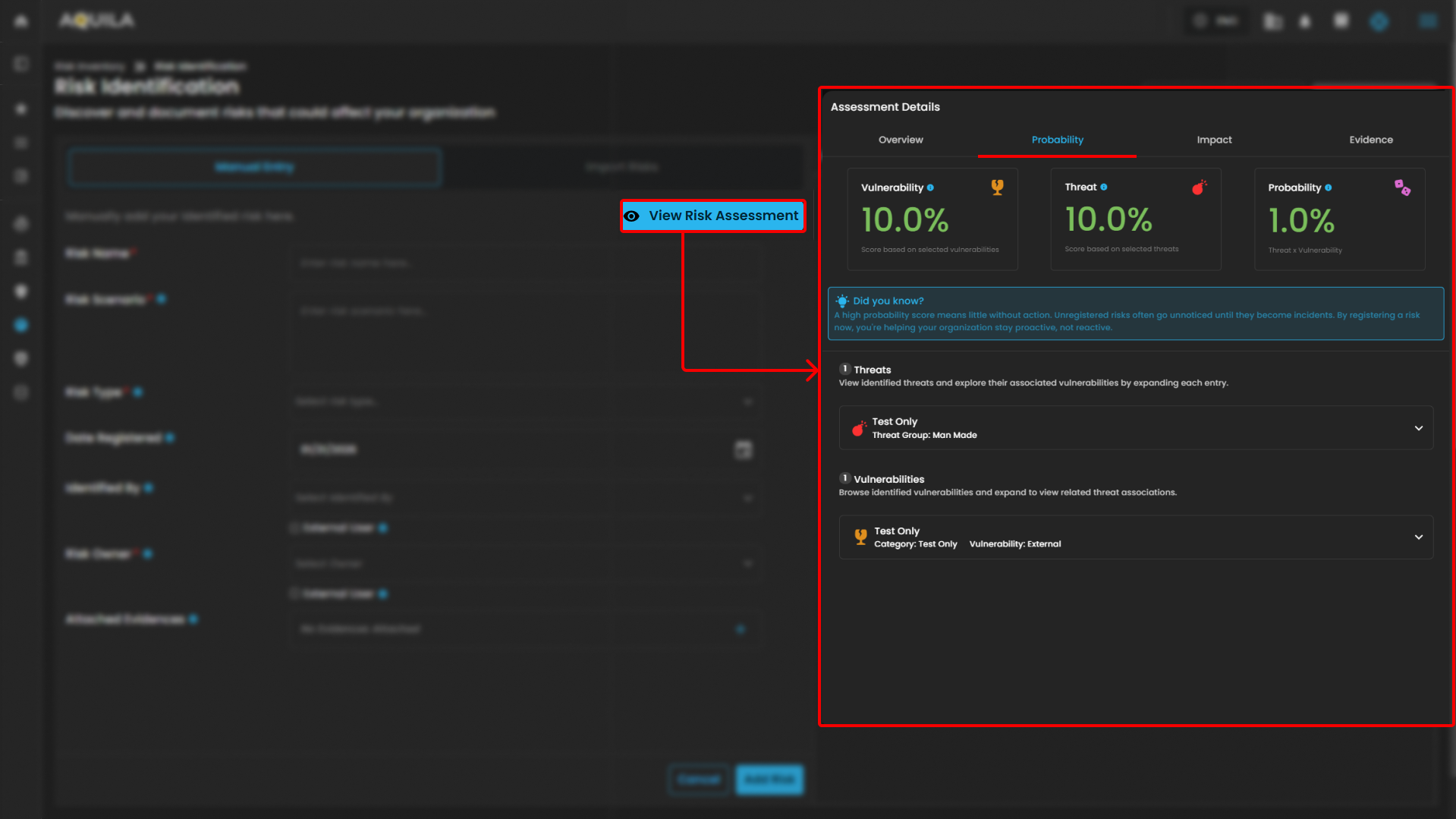
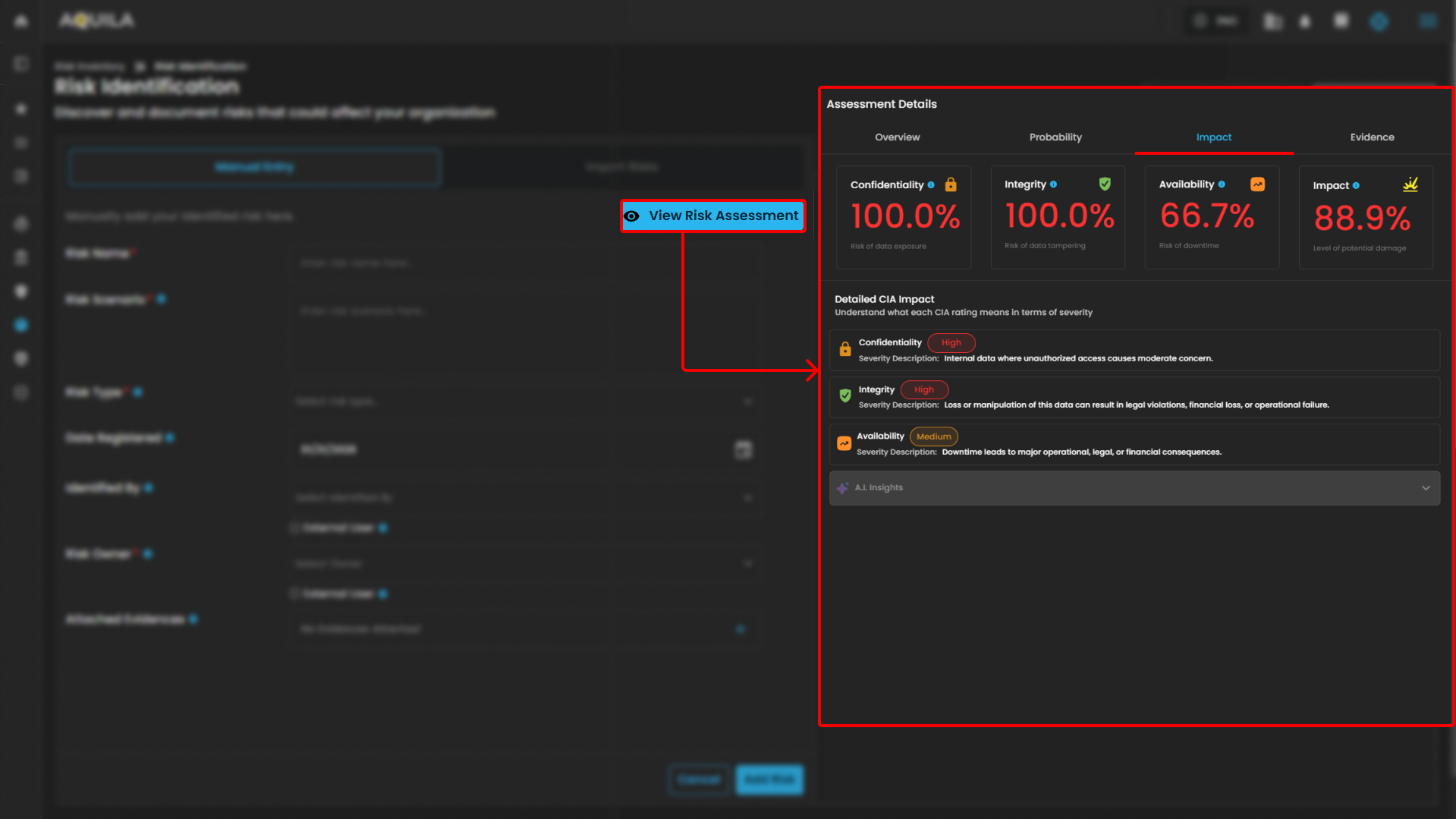
- Assessment Details - Impact
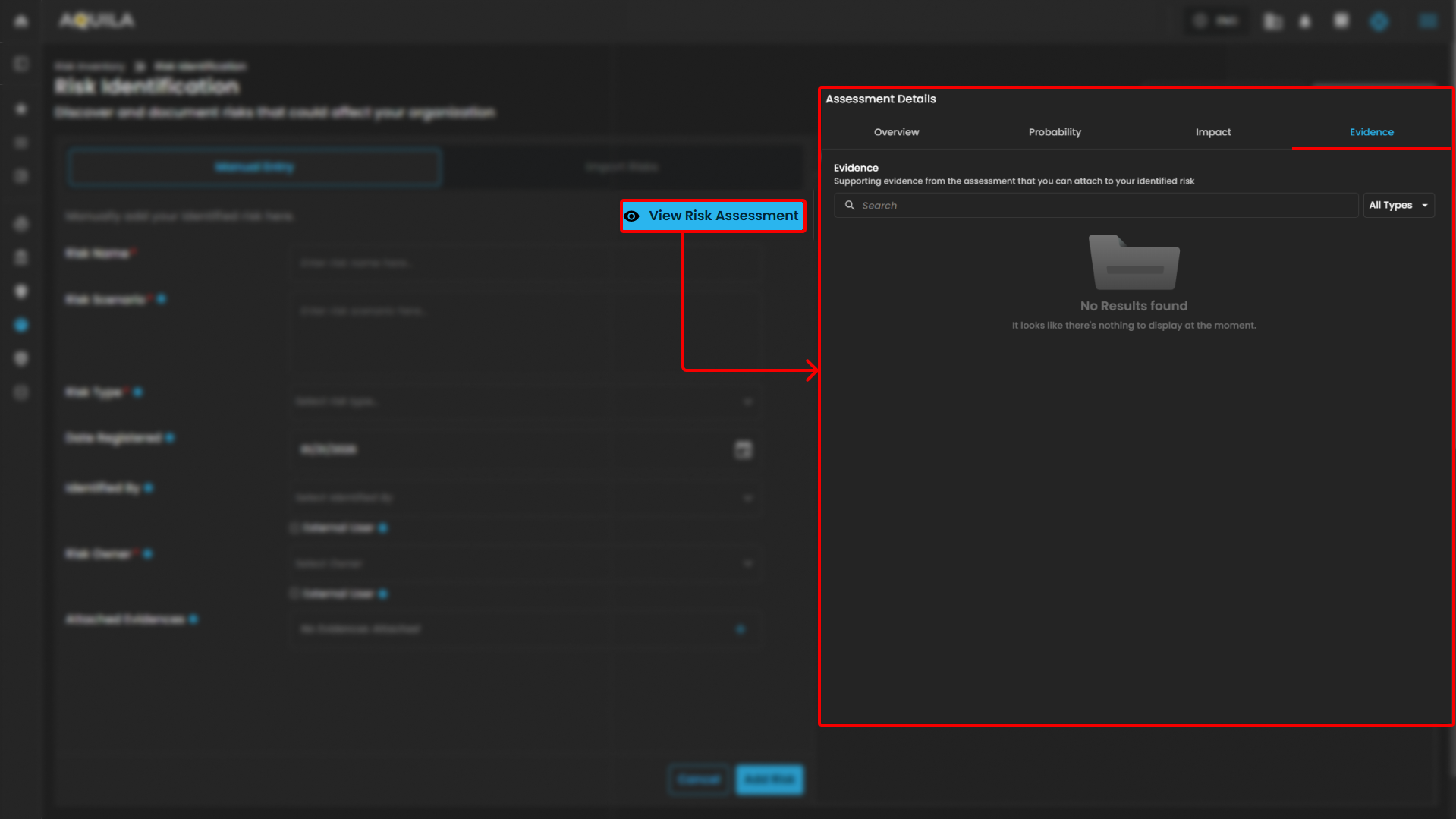
- Assessment Details - Evidence
Cyber Security Risk Management (CSRM): Risk Management
Managed Risk
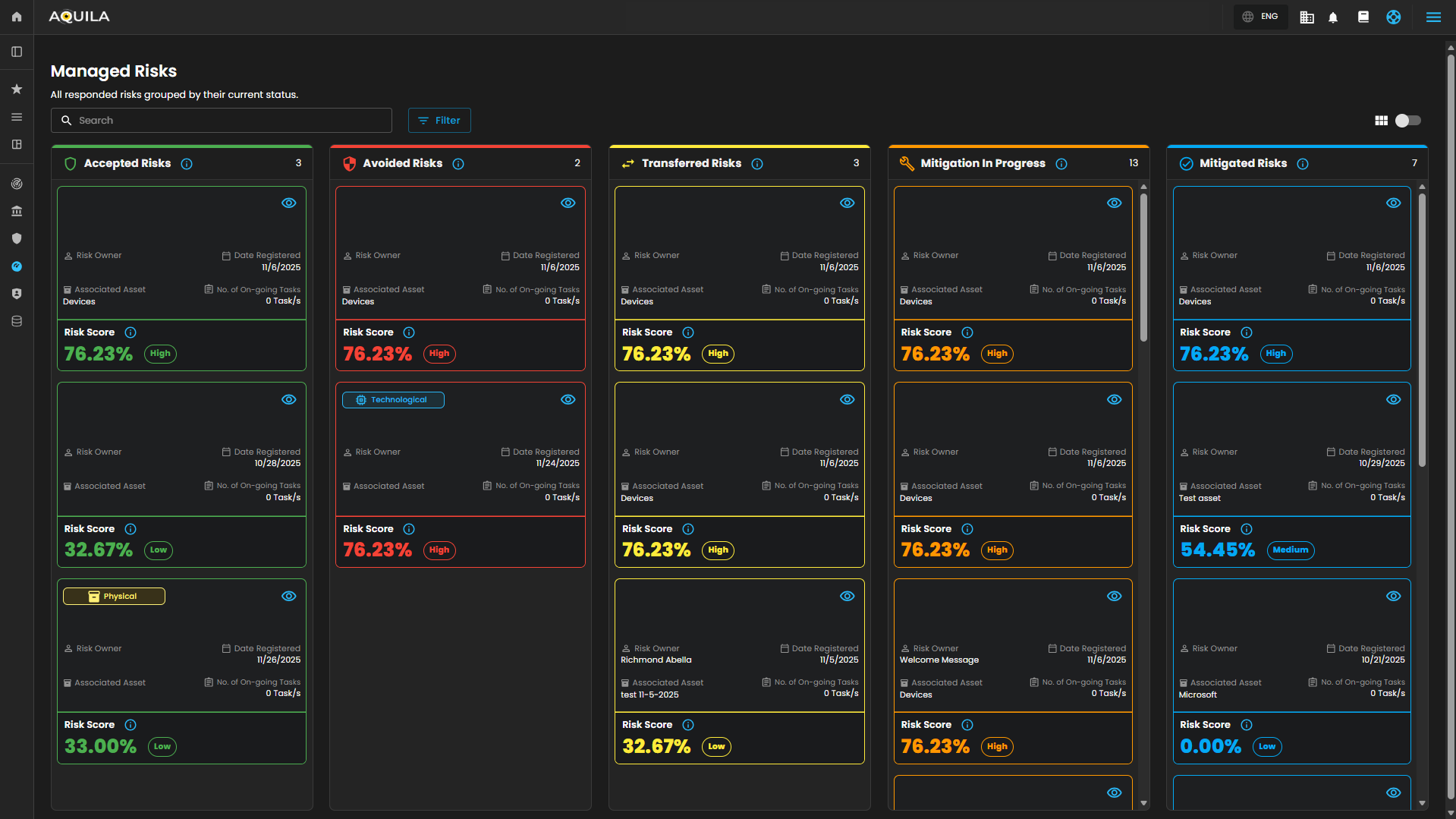
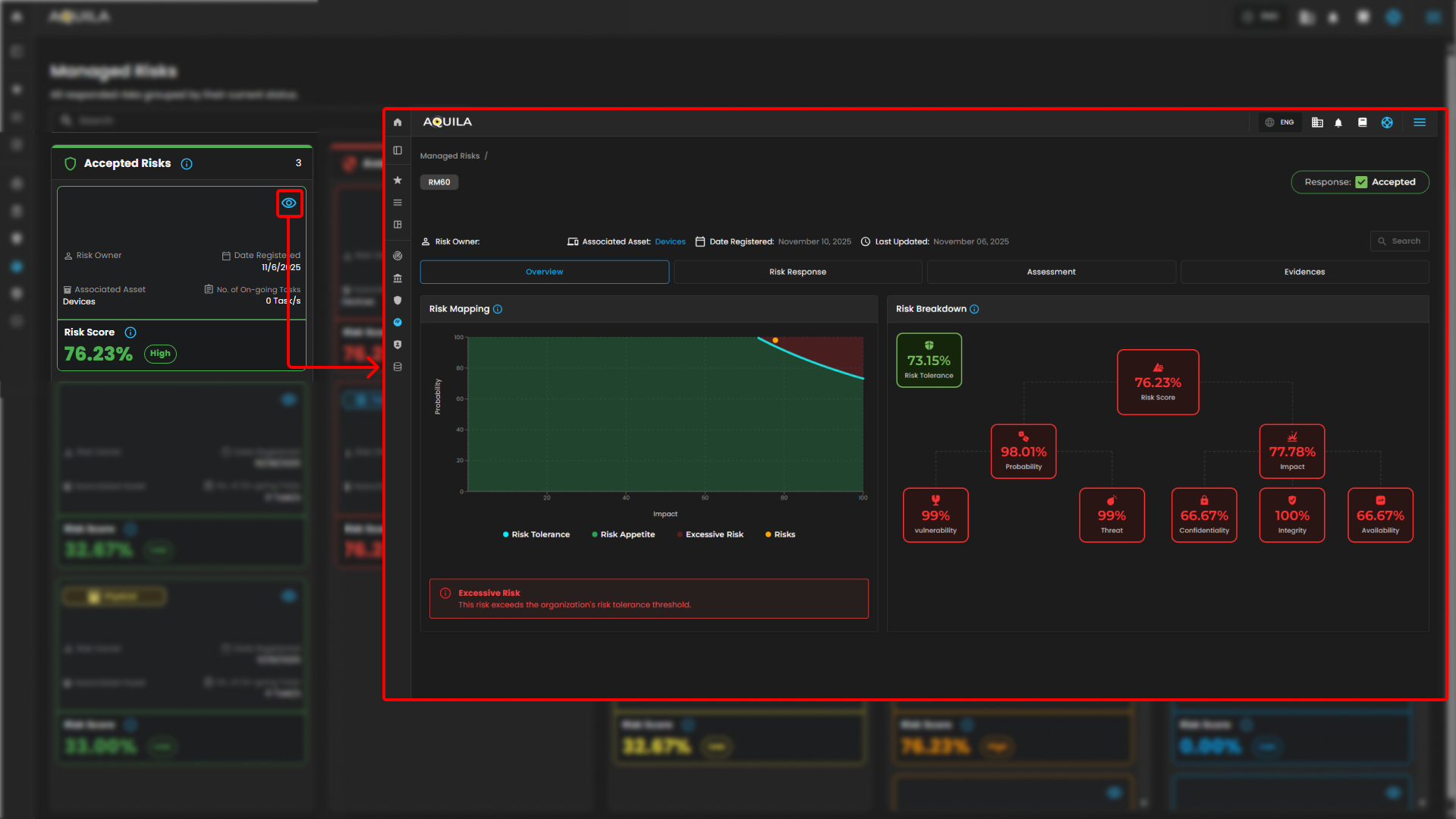
Manage Risk Details - Overview
Manage Risk Details - Risk Response
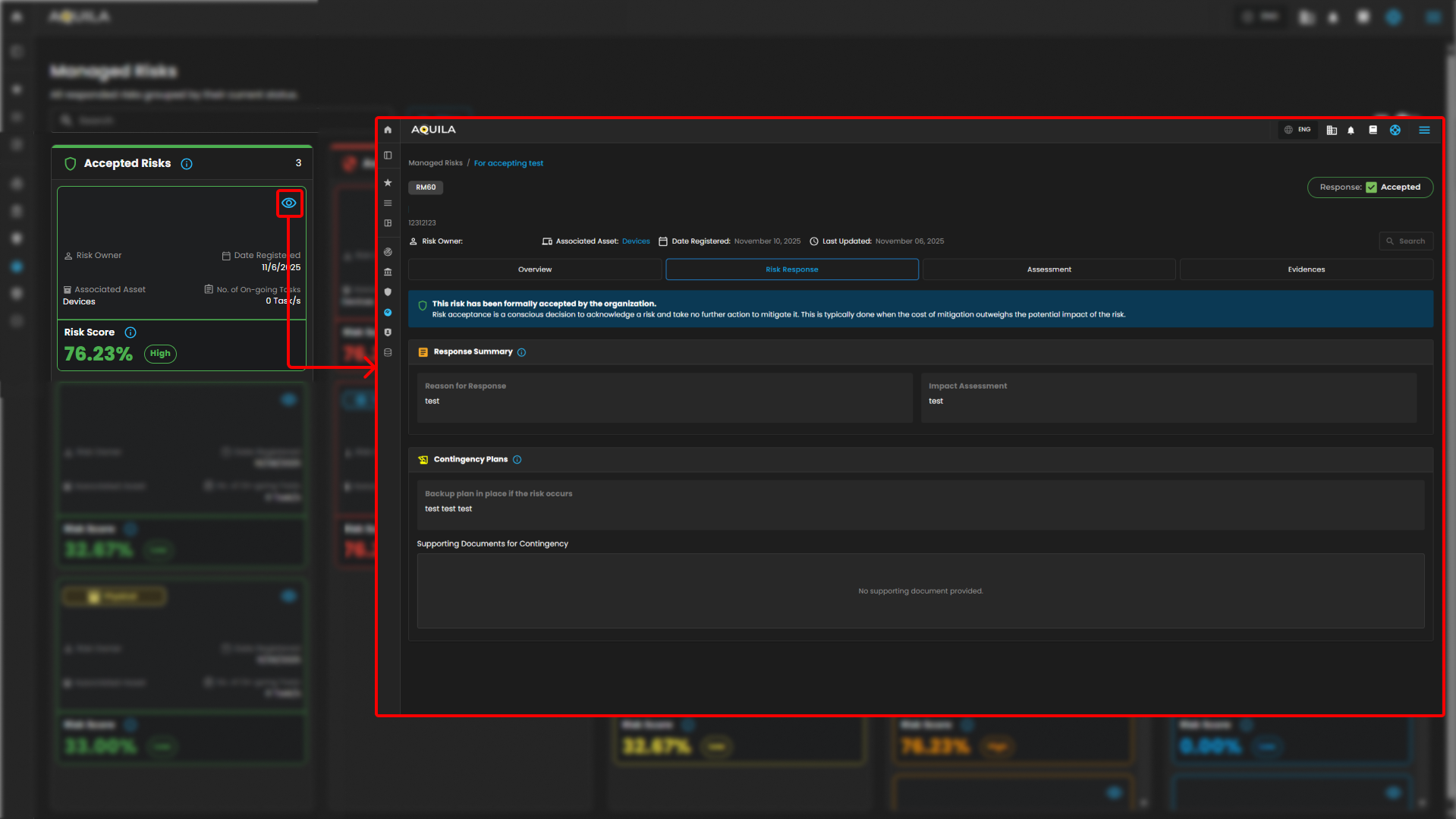
Manage Risk Details - Assessment
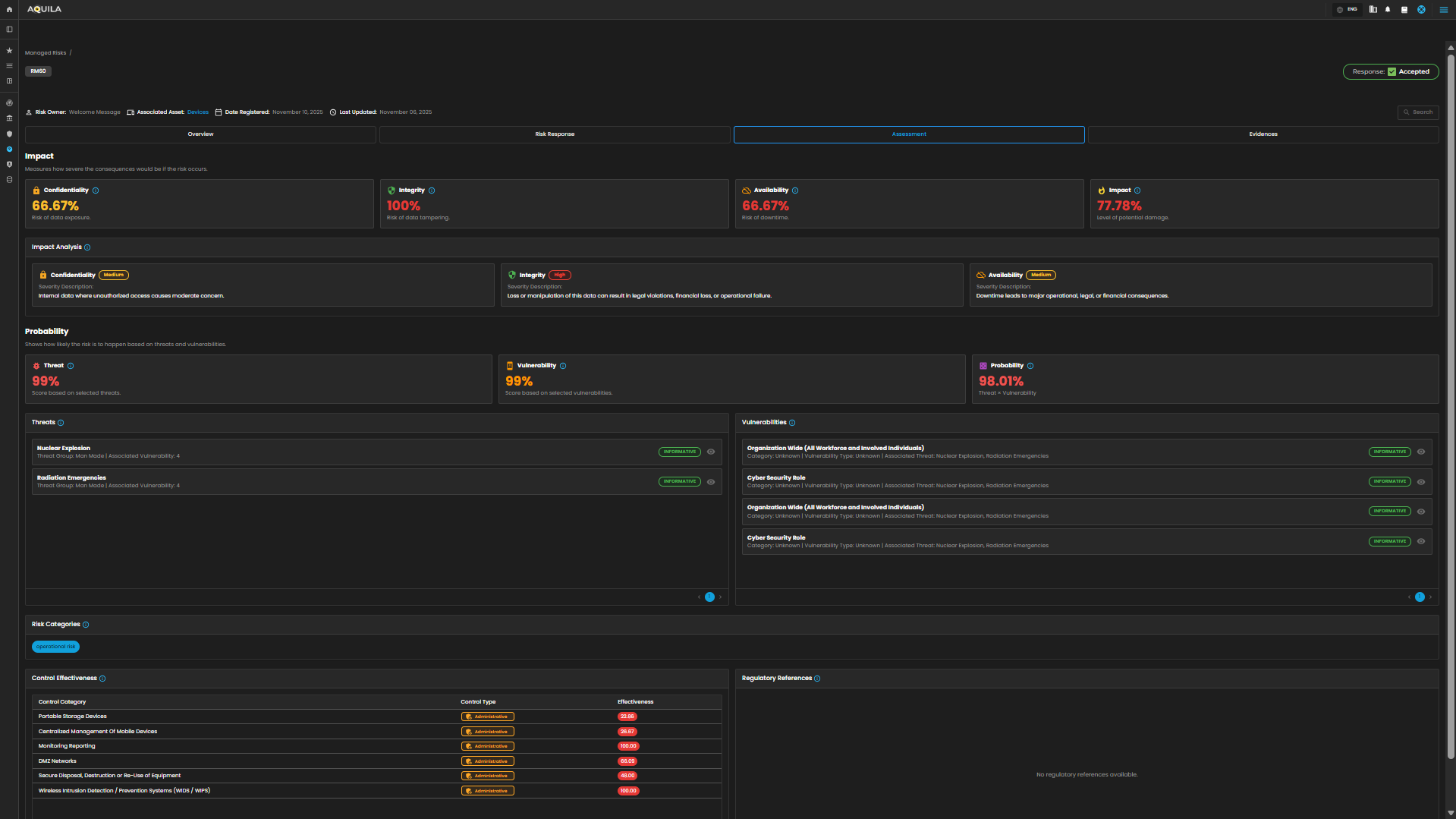
Manage Risk Details - Evidence
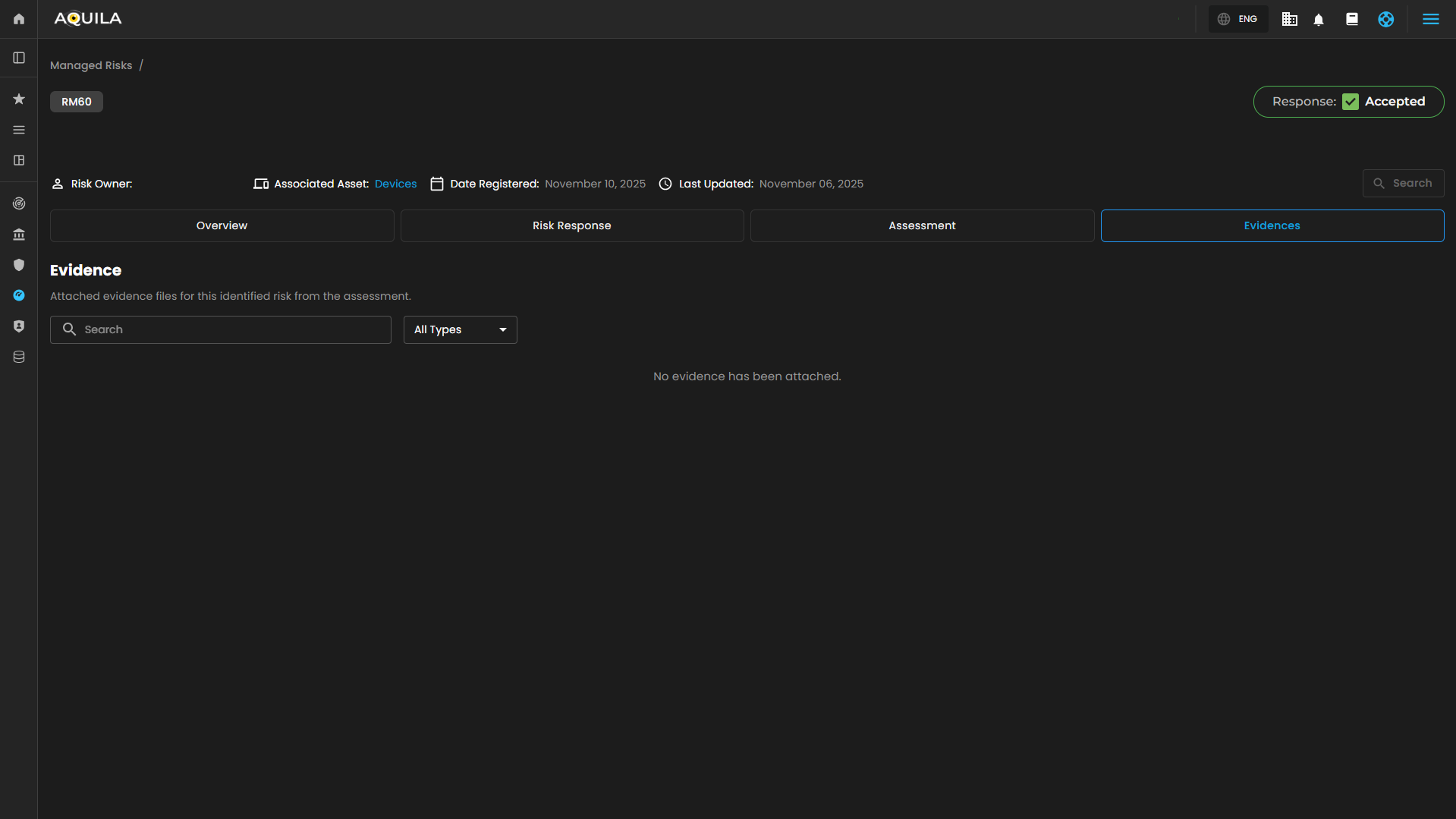
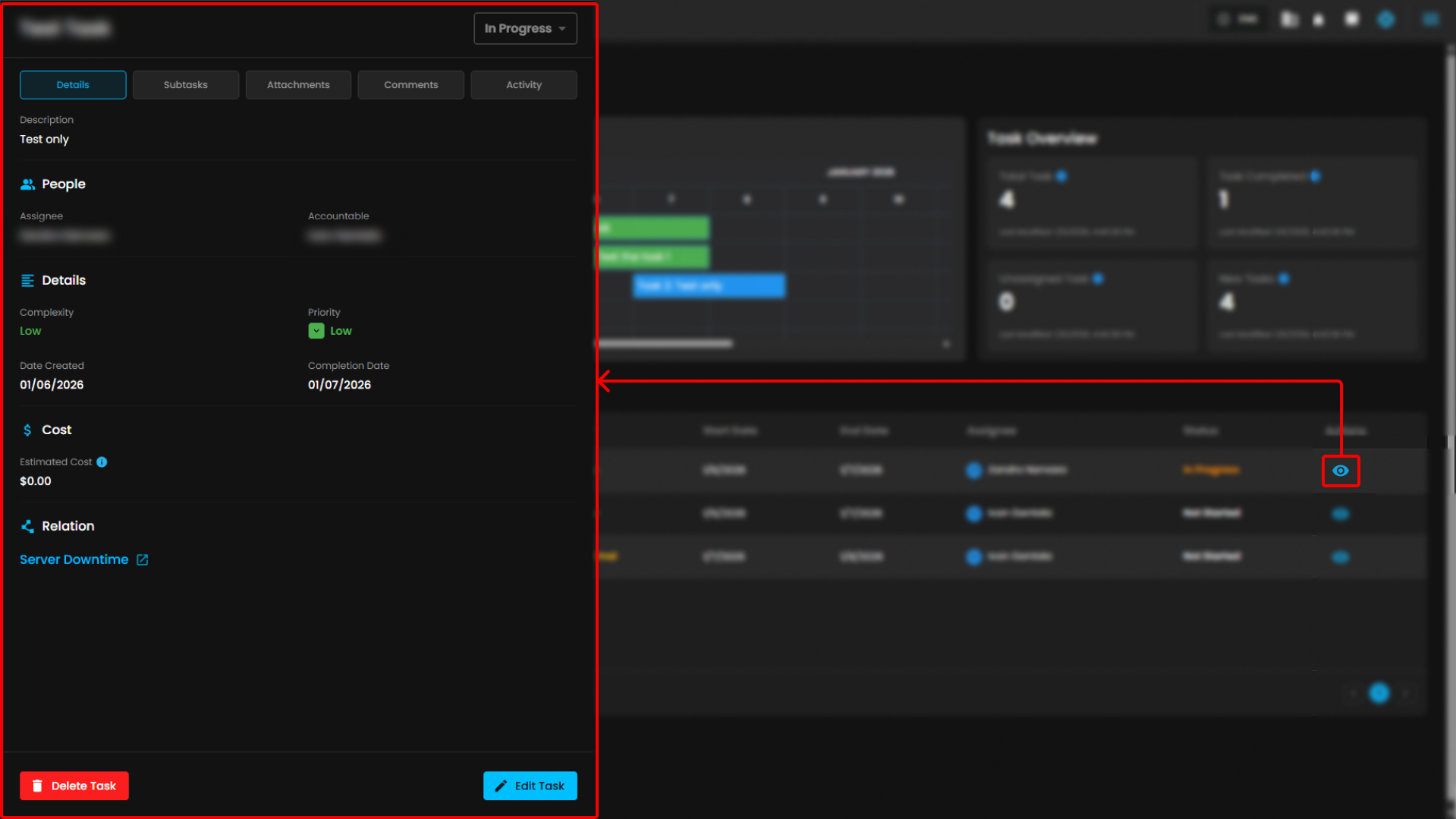
Task Management - In this section the client can manage their task and projects, timeline management, and task overview.
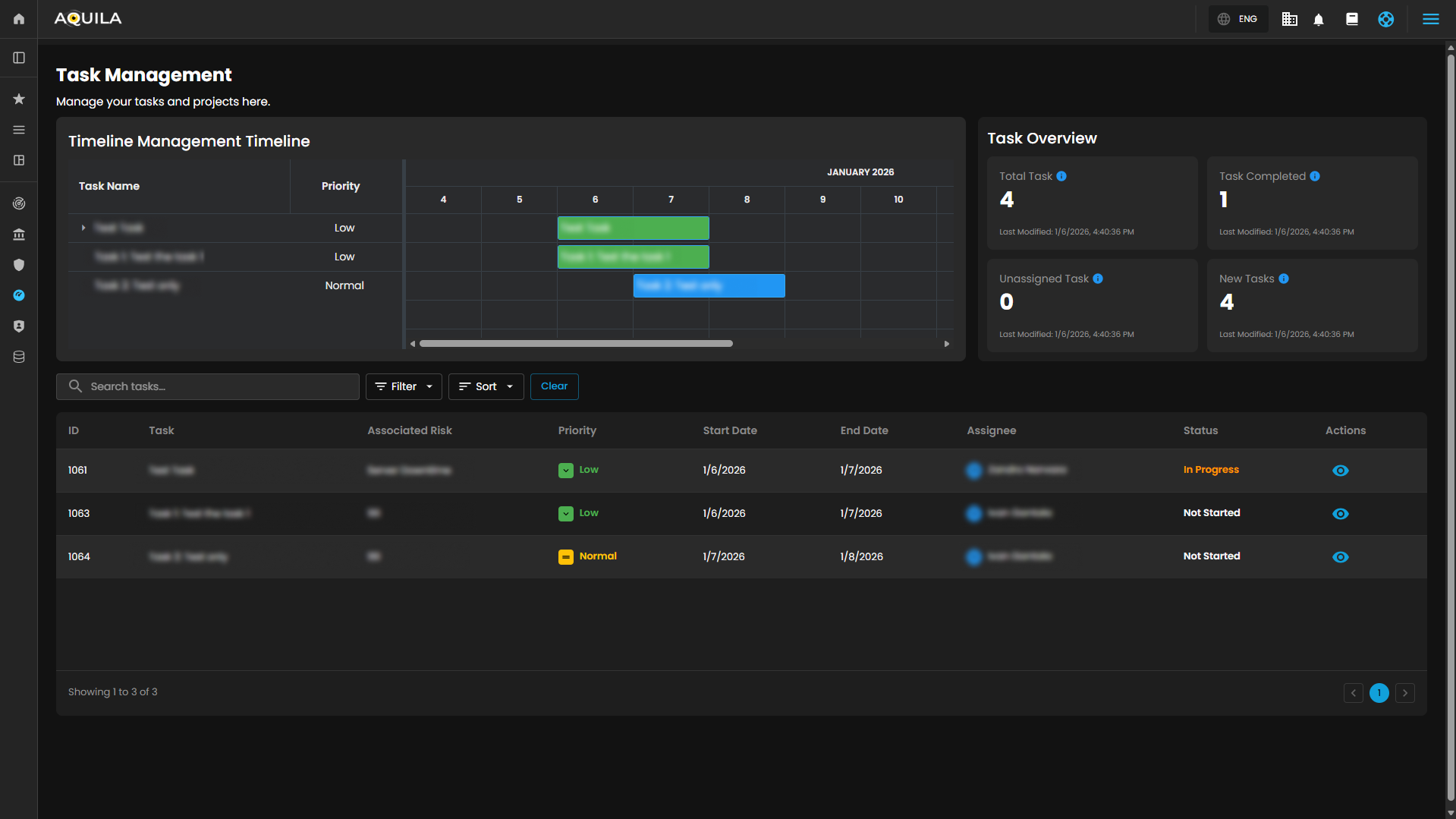
Task Management - Details
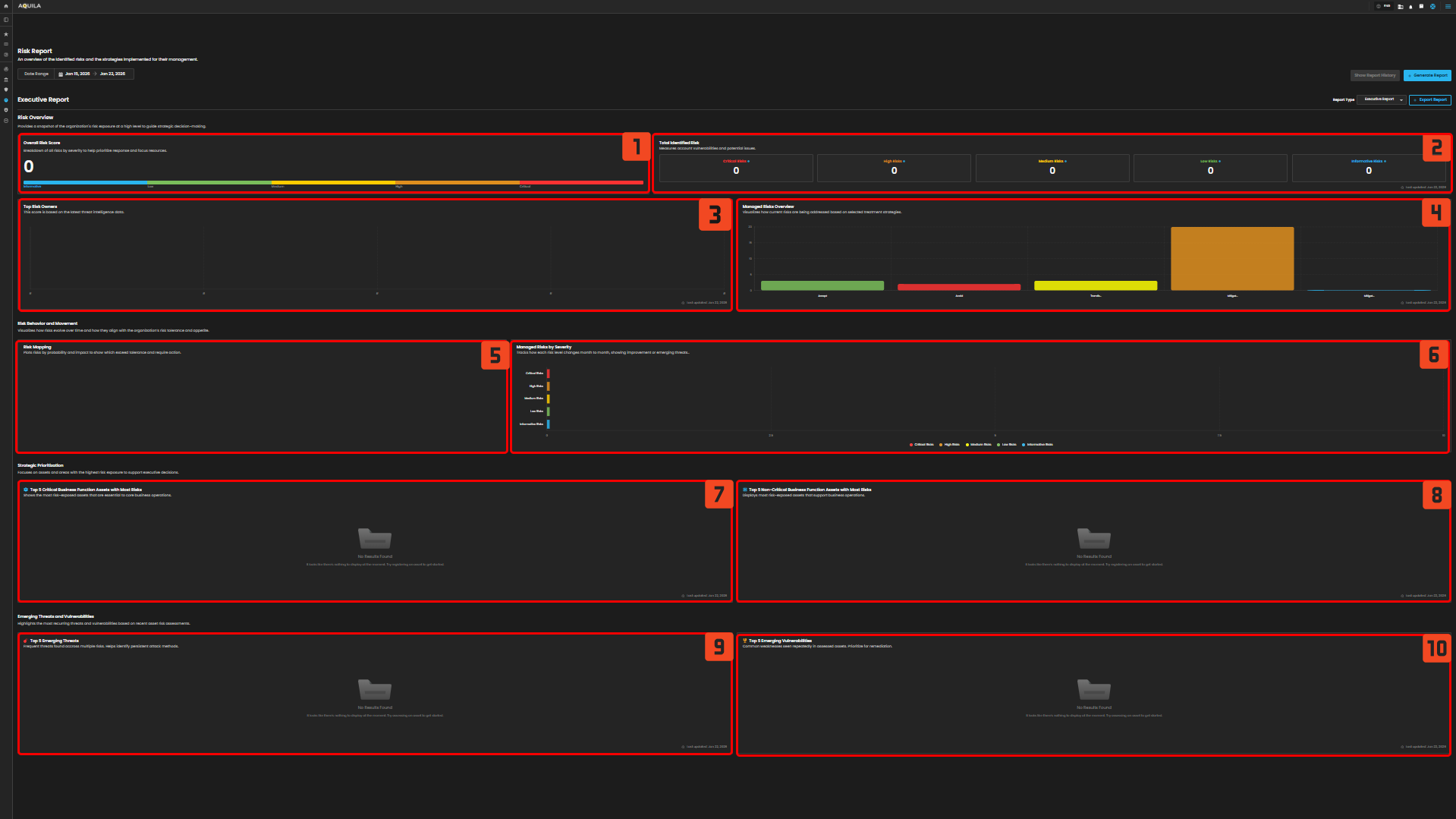
Risk Report - In this section the client can look at the risk and visualize how current risk are being addressed.
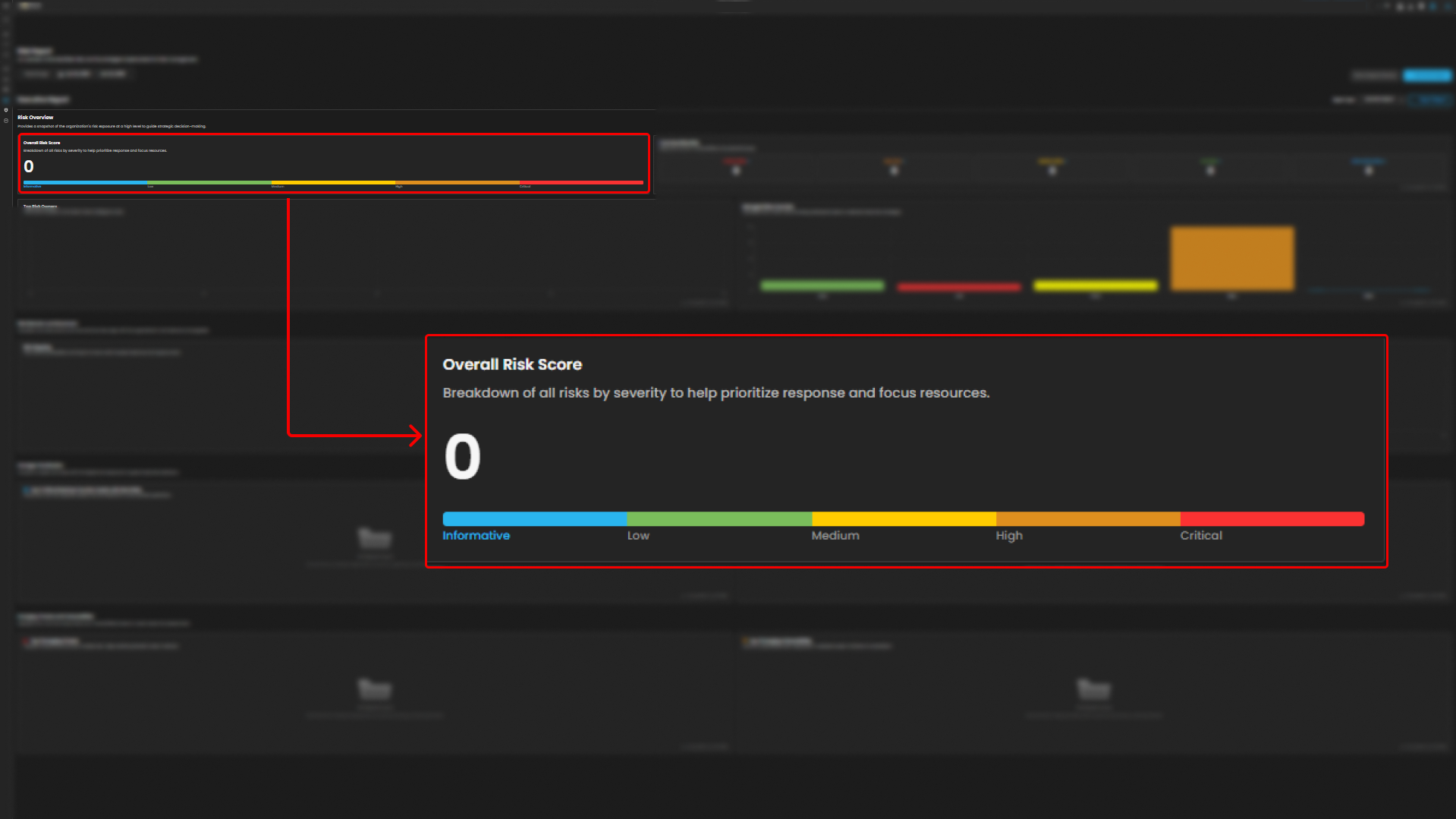
Overall Risk Score - This shows all risk by severity to help priorities and focus on resources.
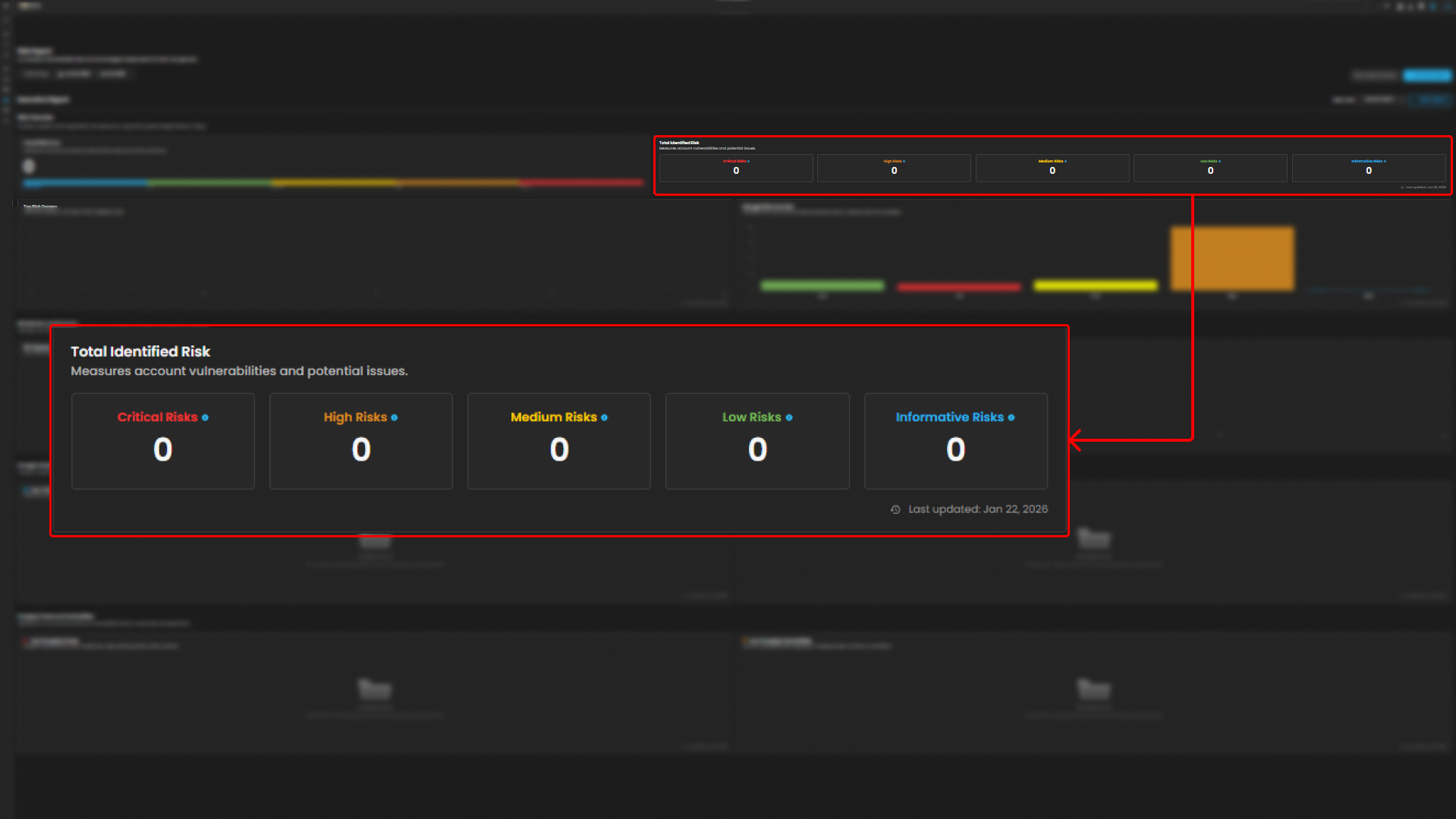
Total Identified Risk - This part measures all vulnerabilities and potential issues, they are categorized into Critical Risk, High Risk, Medium Risks, Low Risks, and Informative Risks.
Top Risk Owners - This shows scores based on the latest threat intelligence data.
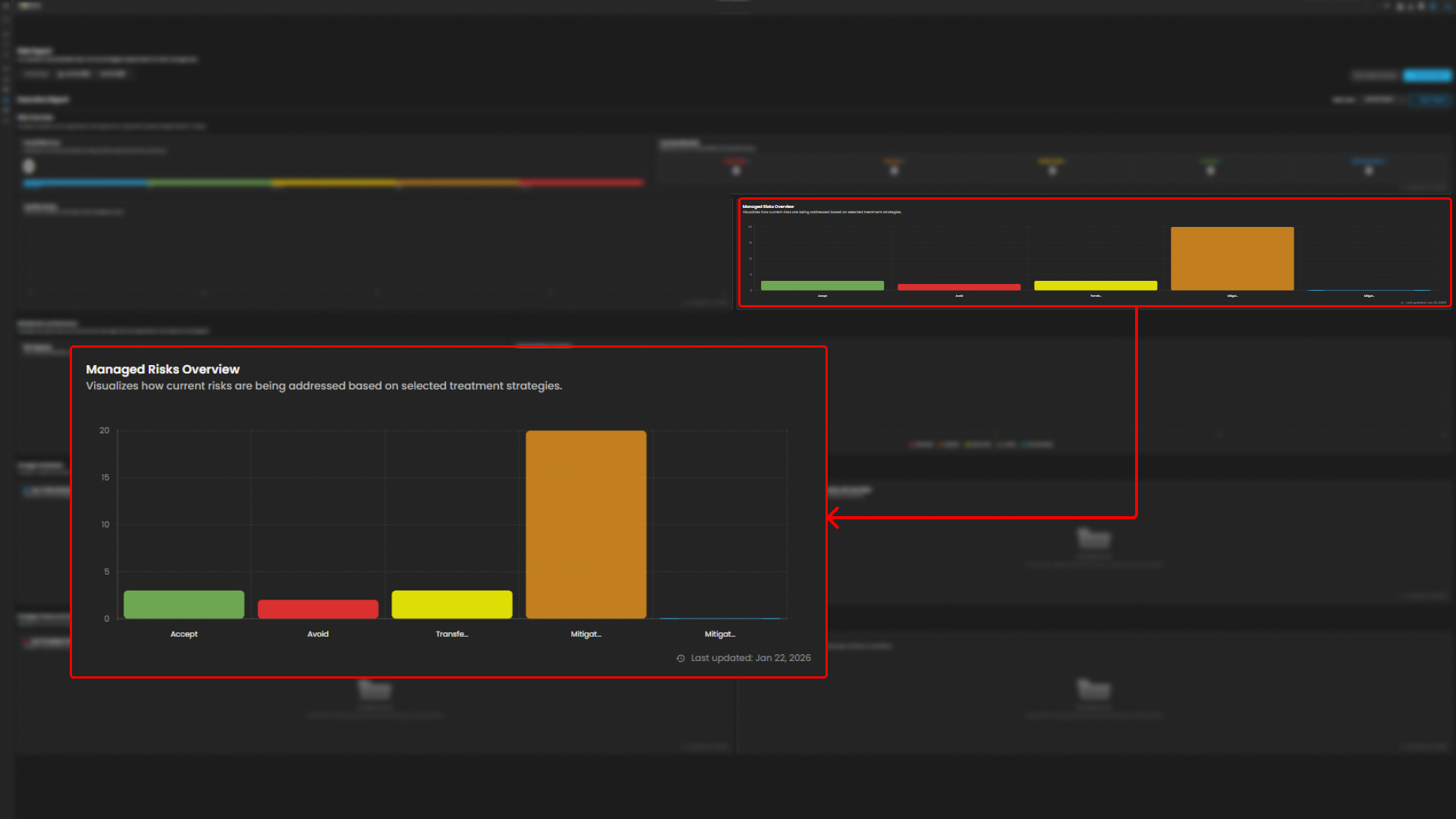
Managed Risk Overview - This visualized current risk that are being addressed.
Risk Mapping - It plot risk by probability and impact to show which exceed tolerance and require action.
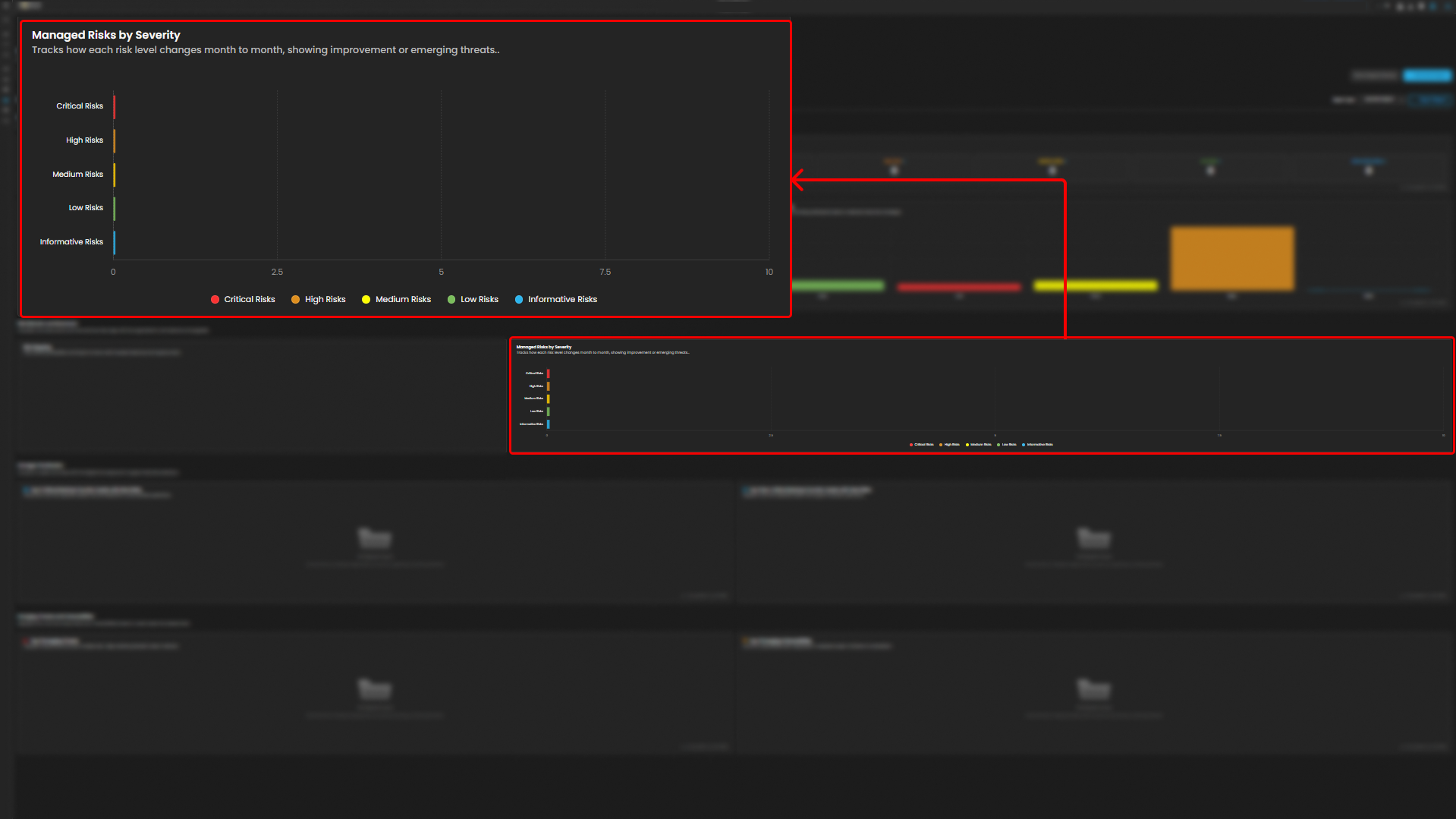
Managed Risk by Severity -
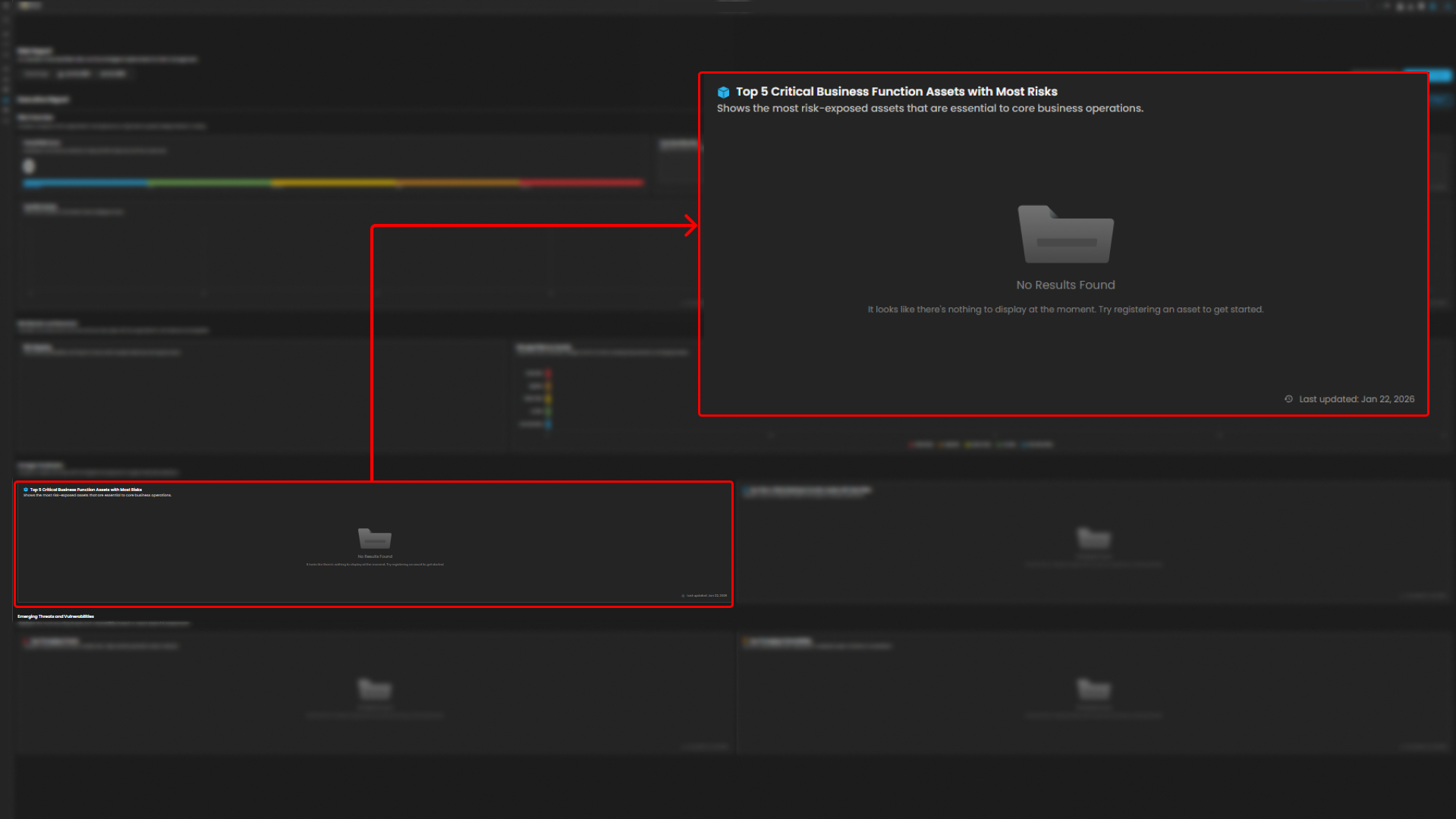
Top 5 Critical Business Function Assets with Most Risk - It shows the most risk-exposed assets that are essential to core business operations.
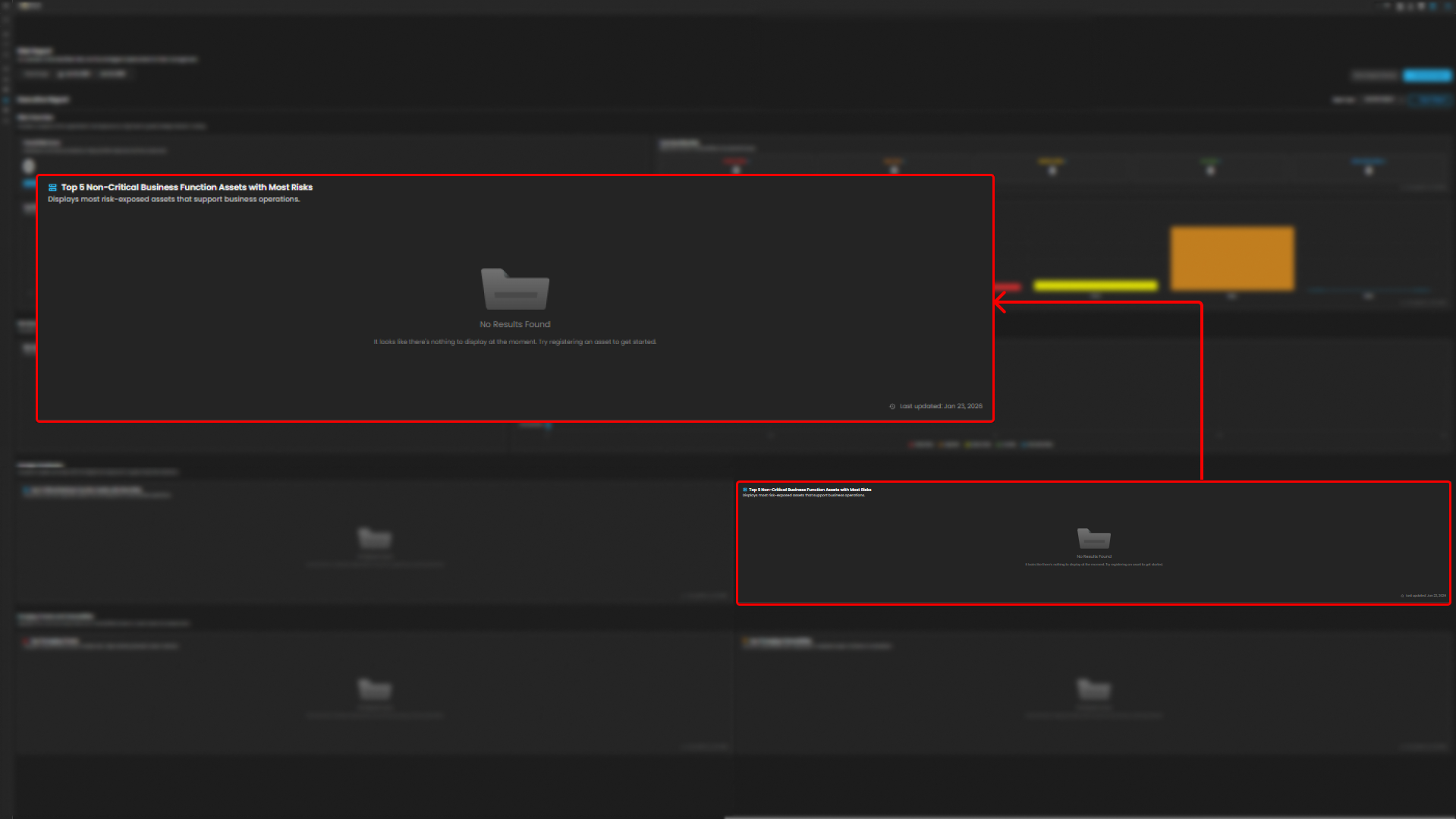
Top 5 non-critical Business Function Assets with Most Risk - In this section the client can see
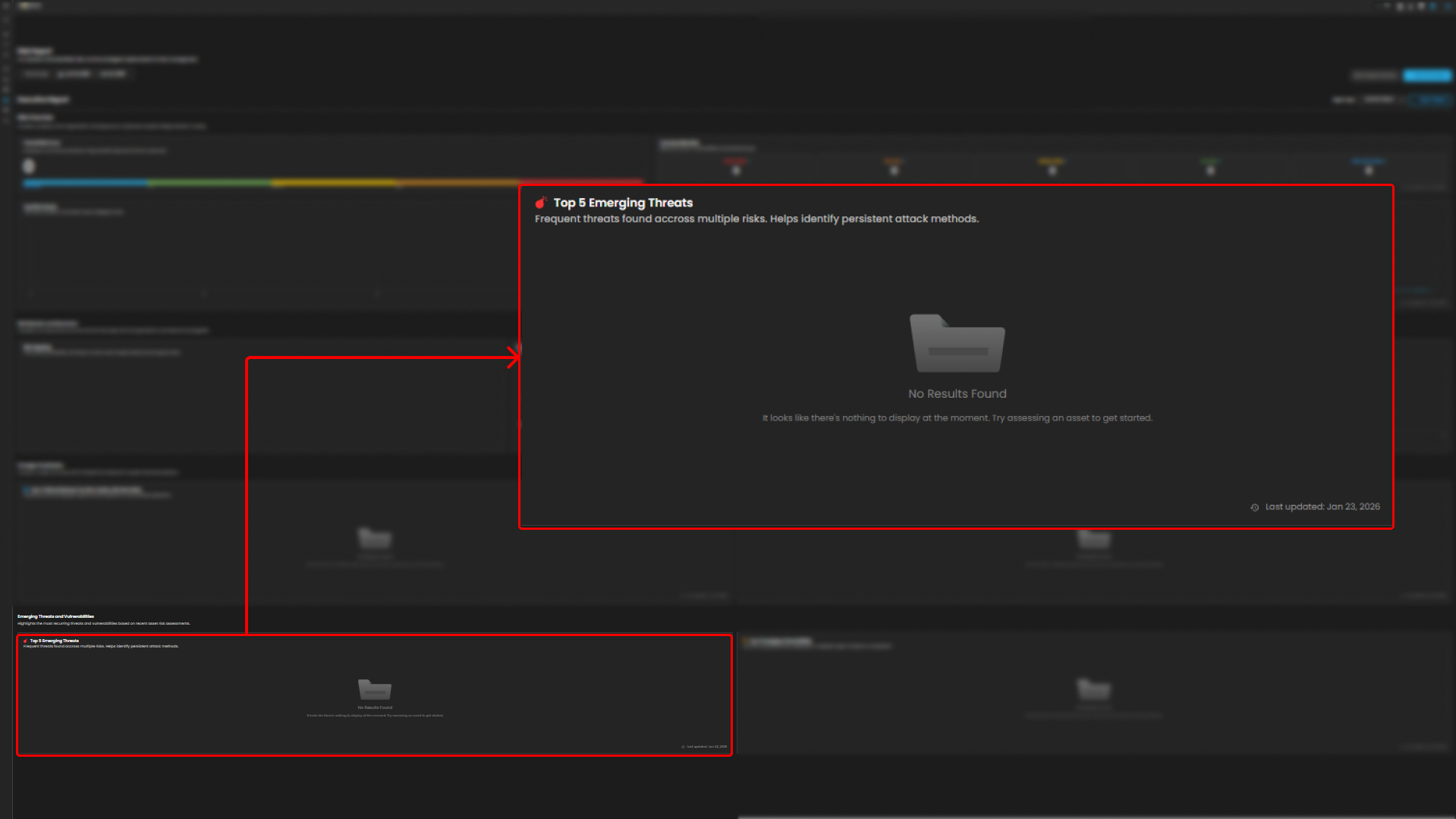
Top 5 Emerging Threats - In this section, it shows top emerging threats, to identify the most persistent attacks.
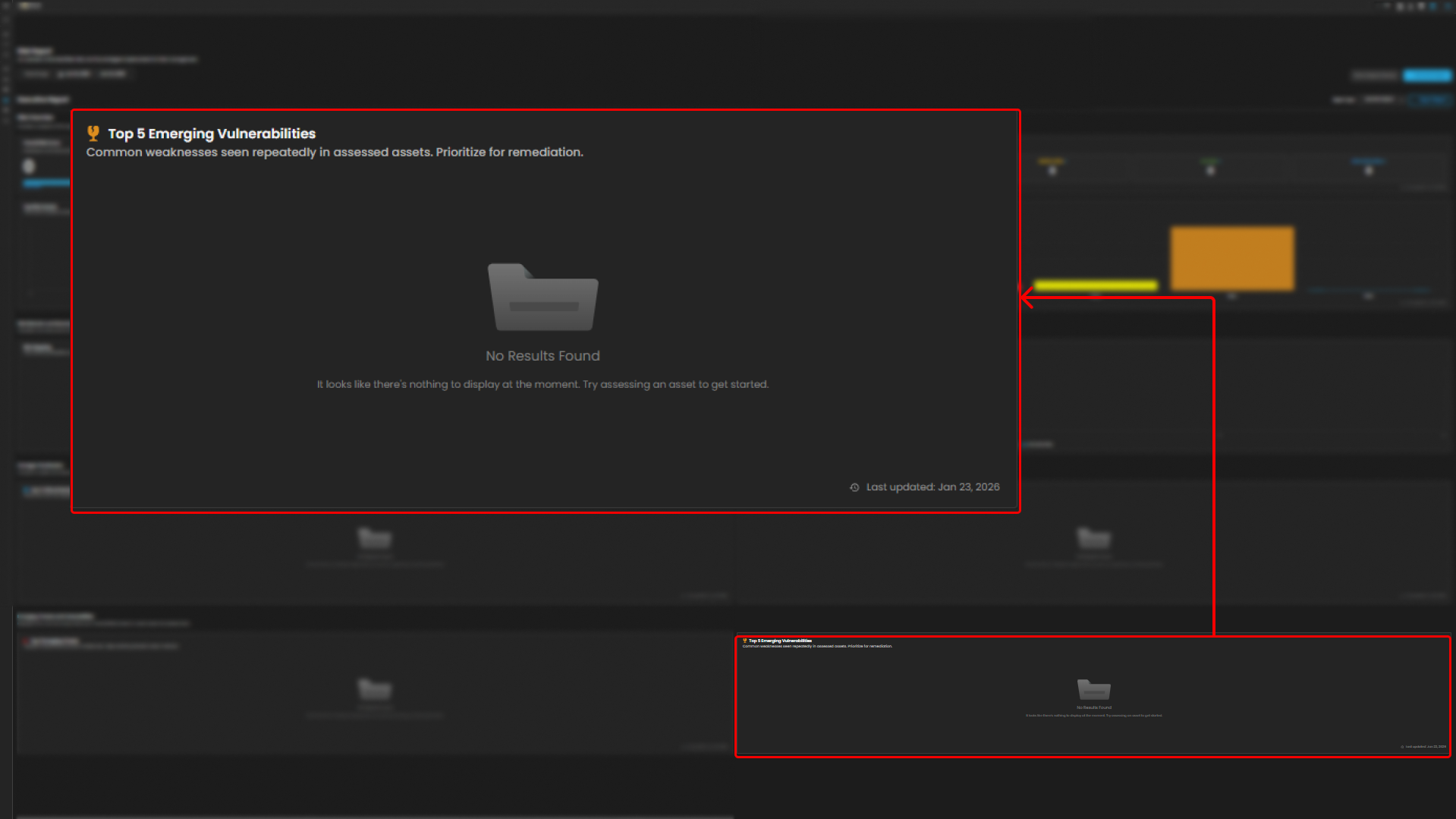
Top 5 Emerging Vulnerabilities - This section shows common vulnerabilities that are repeatedly assed and prioritized for remediation.
If you need further assistance, kindly contact our support at support@cytechint.com for prompt assistance and guidance.