
Business Continuity Management (BCM)
Overview
The Business Continuity Planning (BCP) module in AQUILA provides an easy way to document critical business functions, assess downtime impact, and define recovery needs. It also helps map dependencies, assign team roles, and keep track of contacts. With these tools, users can ensure their organization is prepared for disruptions and can recover operations quickly.
Key Features
-
Document project details such as description, goals, scope, and key milestones.
-
Track Business Continuity Plan (BCP) maturity with visual dashboards and detailed progress views.
-
Perform Business Impact Analysis (BIA) to measure financial, compliance, and operational risks.
-
Define Recovery Time Objectives (RTO) and Recovery Point Objectives (RPO) for downtime and data recovery.
-
Map dependencies across IT systems, facilities, suppliers, people, and processes with backup options.
-
Assign teams and roles using RACI (Responsible, Accountable, Consulted, Informed) for clear accountability.
-
Record both primary and alternate contacts to ensure communication continuity.
-
Add and manage team members with role-based details and disaster declaration authority.
Step 1: Log in to CyTech - AQUILA
Step 2: Click on Risk Management
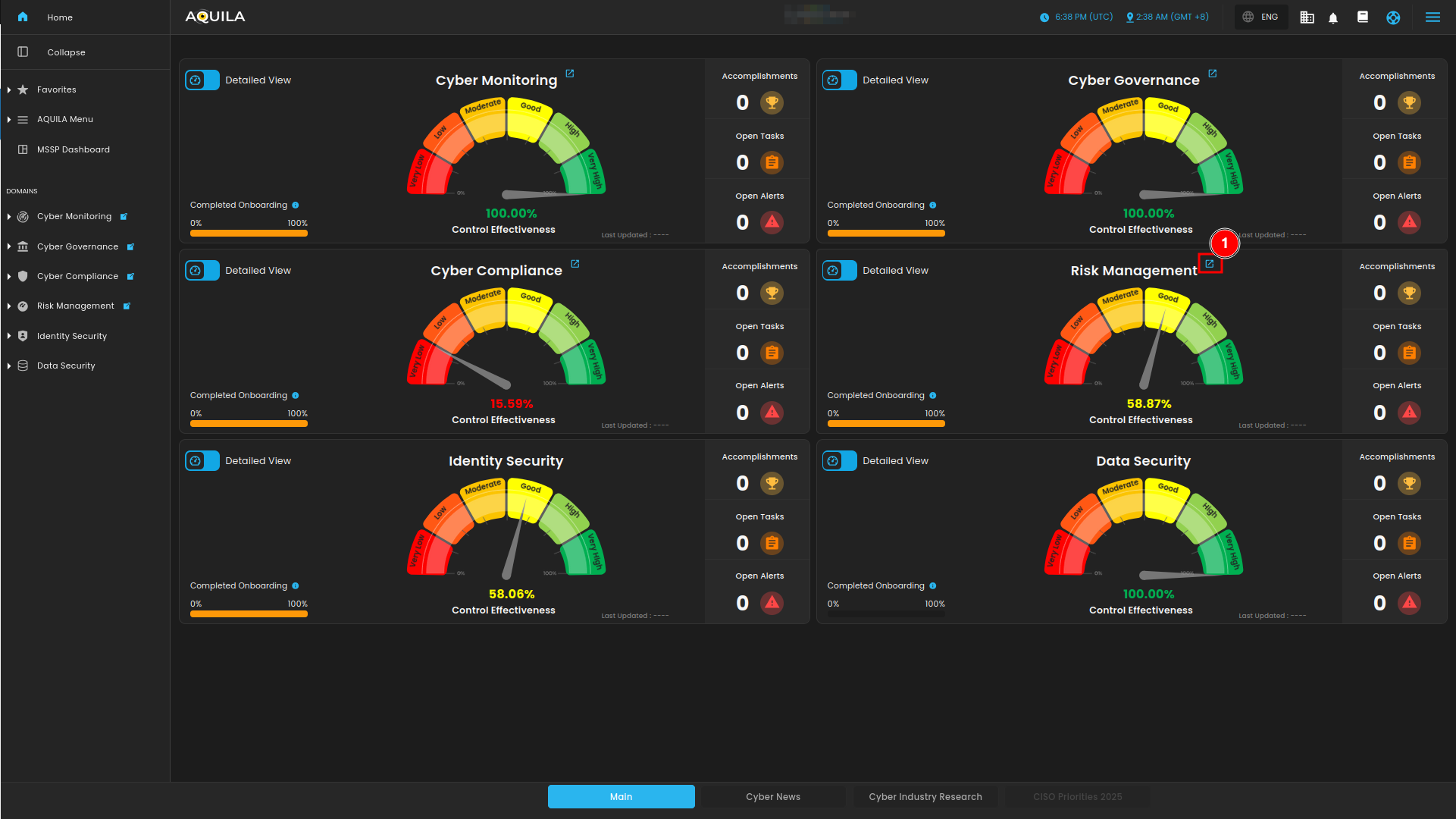
Figure 1. Overview
Step 3: Press the ">" icon and Choose Business Continuity Management (BCM)
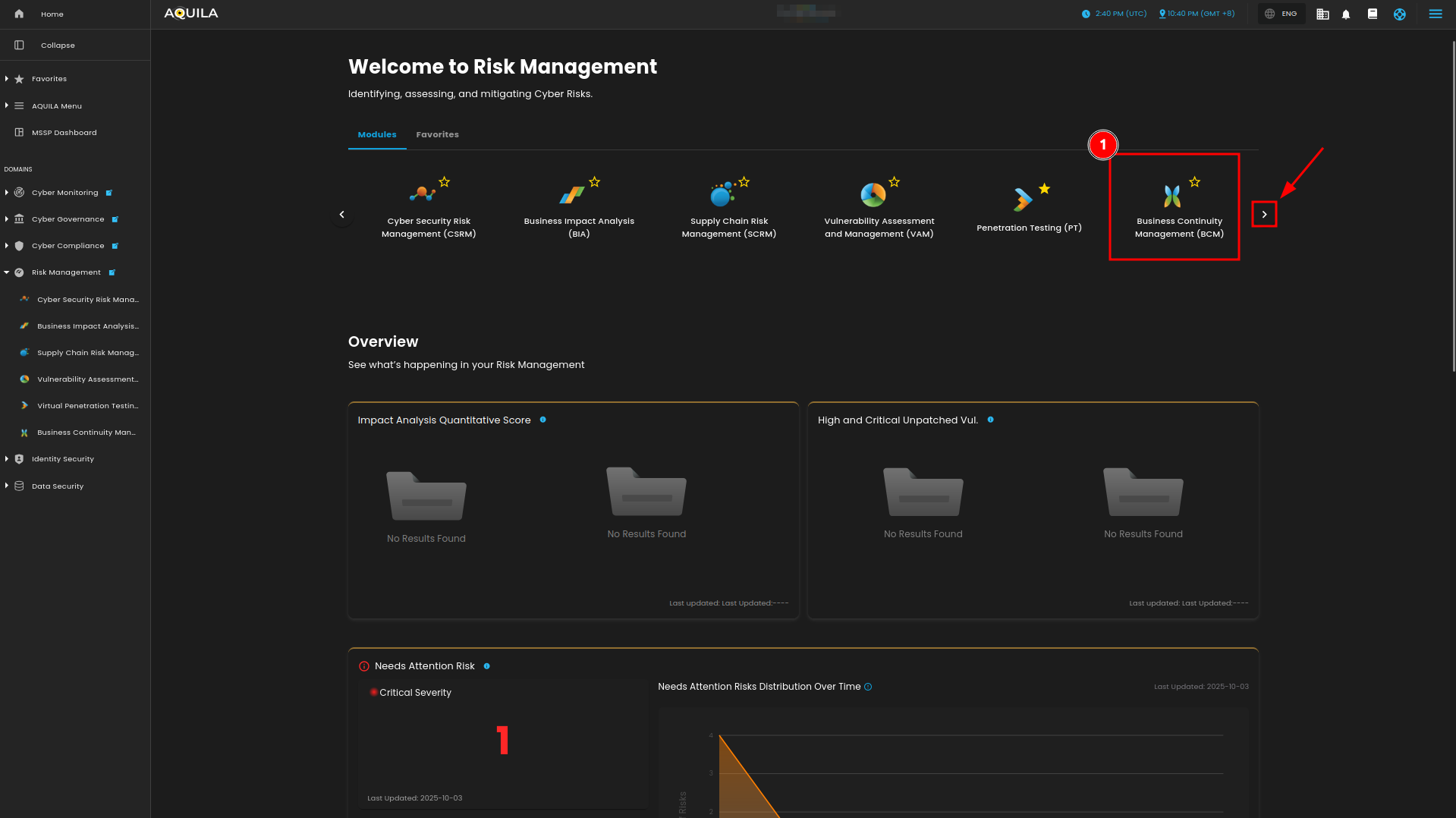
Figure 1.1 Business Continuity Management (BCM)
Step 4: Hover into leftmost panel to view all the Risk Management sections. This Process is applicable in all navigating into a Module.

Figure 1.2 Risk Management Navigation
Project Charter
- The Project Charter section displays key project details, including the project name, manager, sponsor, start and end dates, approve, reviewer, and current status. Projects that are pending evaluation are marked as for review. The user can also see the details of the project charter through the eye icon button.

Figure 2. Project Charter
Create Project Charter
- In this section the user can input the details of the project charter they want to add.
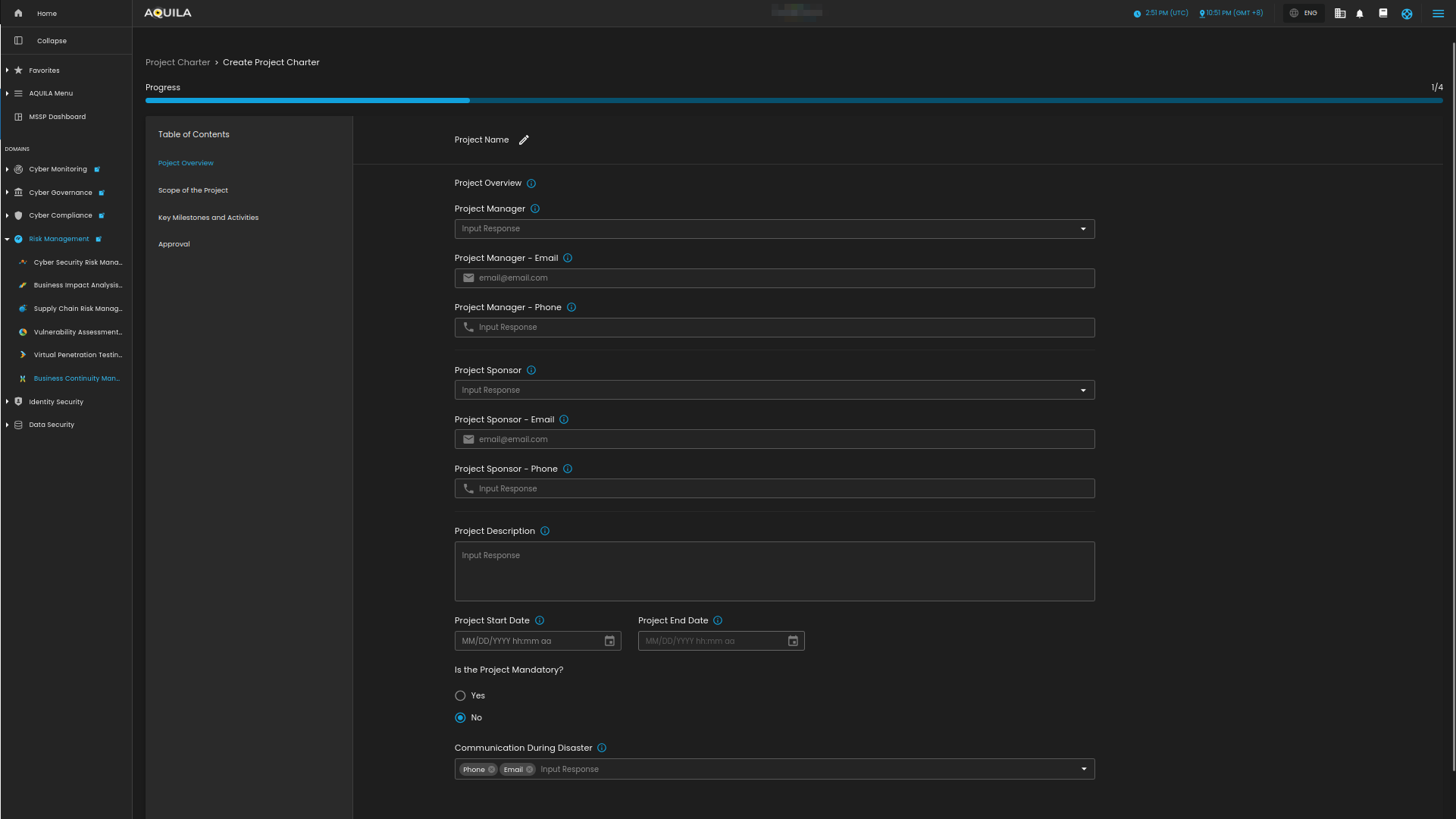
Figure 2.1 Create Project Charter
Business Continuity Plan Pilot
1. Project Details
The Project Details section provides a comprehensive view of a selected project. It includes the Project Description, Goals, and defined In-Scope and Out-of-Scope items. A Project Overview panel lists key information such as the project manager, sponsor, contact details, start and end dates, as well as approval and review assignments. On the right side, the Key Milestones and Activities panel displays a timeline view of project phases, including initiation, planning, training, execution, and closure. Each phase is shown with start and end dates to track progress and scheduling.

Figure 2.2.1 Project Charter - Detail Dashboard
2. Business Continuity Plan Maturity
The BCP Maturity section provides a visual assessment of Business Continuity Plan progress. The Overall BCMS Maturity gauge shows the total maturity percentage, while the Section-by-Section Maturity chart breaks down performance across specific areas, such as scope definition, business impact analysis (BIA), incident response planning, and governance. Below, the Detailed View – Core BCP Maturity panel highlights progress in key areas like defining scope, conducting BIA, creating response plans, and establishing governance, each mapped to ISO 22301 standards. The Detailed View – Additional Requirements panel tracks maturity in supporting areas, including crisis management, BCP testing, and documentation with change management, ensuring a complete evaluation of continuity readiness.

Figure 2.2.2 Project Charter - Business Continuity Plan Maturity
3. Business Continuity Plan Team
The Project Charter Team section lists all members assigned to the project along with their respective roles, team affiliations, responsibilities, and contact information. Each entry displays the primary contact person, their title, and email address, as well as their RACI designation (Responsible, Accountable, Consulted, Informed). To add new participants, select the Add Members button in the upper-right corner. This ensures that all stakeholders are clearly identified and their responsibilities documented within the project.
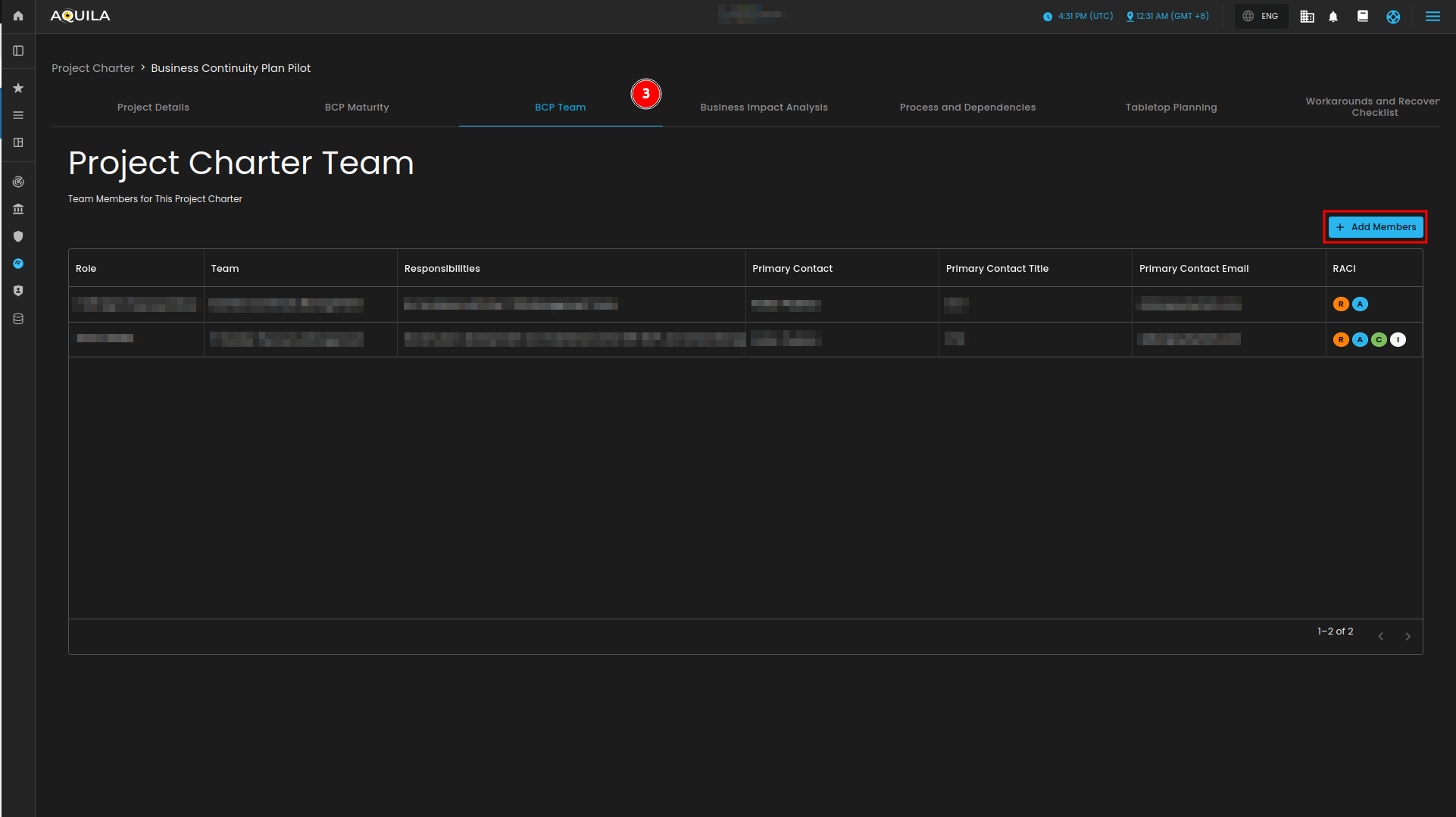
Figure 2.2.3 Project Charter - Business Continuity Management Team
4. Business Impact Analysis
The Business Impact Analysis (BIA) Overview provides insights into how critical business functions are affected by downtime. The Asset section lists key assets with their owners and descriptions, while the Impact Analysis panels display quantified results such as goodwill loss, compliance issues, health and safety risks, and direct financial costs (e.g., revenue loss, productivity impact, operating costs, and penalties). The Total Impact of Downtime Summary consolidates these factors into an overall risk and cost estimate.
Below, the Recovery Objectives Analysis evaluates resilience against disruptions. The RTO (Recovery Time Objective) table compares acceptable and achievable recovery times against actual downtime, highlighting any gaps. Similarly, the RPO (Recovery Point Objective) table assesses data loss tolerances by comparing acceptable and achievable targets with actual data loss. These metrics help identify weaknesses in recovery planning and guide prioritization of business continuity measures.

Figure 2.2.5 Project Charter - Business Impact Analysis
5. Process and Dependencies
The Process and Dependencies section allows users to document and review the essential resources required to sustain business operations. Dependencies are grouped into categories, each showing primary and alternative options for resilience.
- End User Devices – Lists workstations, PCs, and related equipment, with fallback alternatives.
- IT Applications, Data, and Services – Captures critical IT systems, data sources, and services, including contingency measures such as disaster recovery.
- Facility Location and Requirements – Identifies operational sites (e.g., offices, warehouses) and backup facilities.
- Suppliers and External Services – Details third-party vendors and service providers, along with their alternate suppliers.
- People – Records key personnel roles and responsibilities, with designated alternates.
- Additional Process Inputs and Requirements – Tracks supporting inputs such as control lists, tools, or documentation, with offline or backup options.
Each section provides asset details, primary resources, and alternative resources. Pagination controls are available to navigate records efficiently.
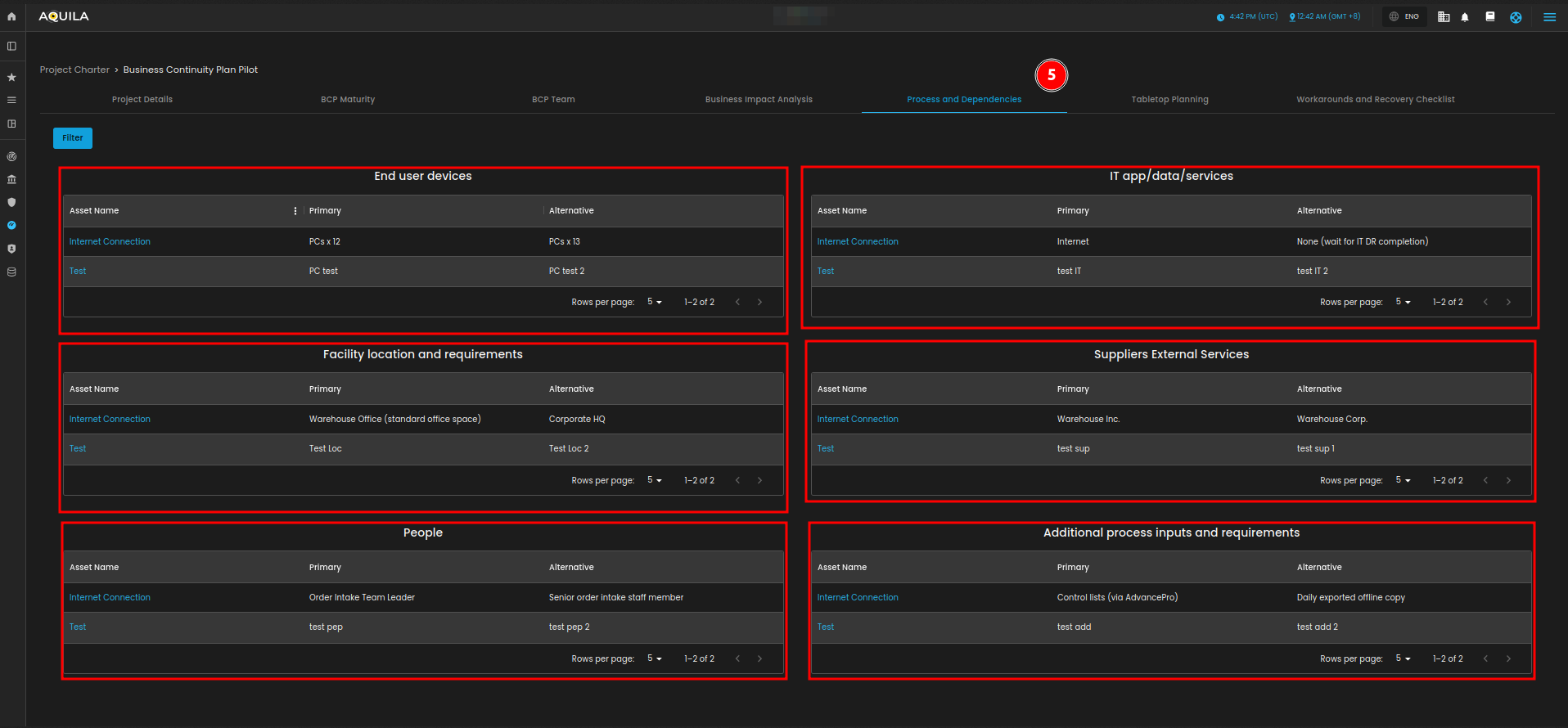
Figure 2.2.6 Project Charter - Process and Dependencies
Business Continuity Teams and Roles
- This section allows users to define and assign roles and responsibilities across different areas that support business continuity and resilience. Each team card provides a description of its function, and users can view team details by selecting View Team.

Figure 3. Business Continuity Teams and Roles
Team Roles
- This section shows the team members of this team, their roles, responsibilities, primary contact, primary contact titles, primary contact email, Responsible. Accountable. Consulted. Informed (RACI). The user can also add a team member through "+ Add Member" button.
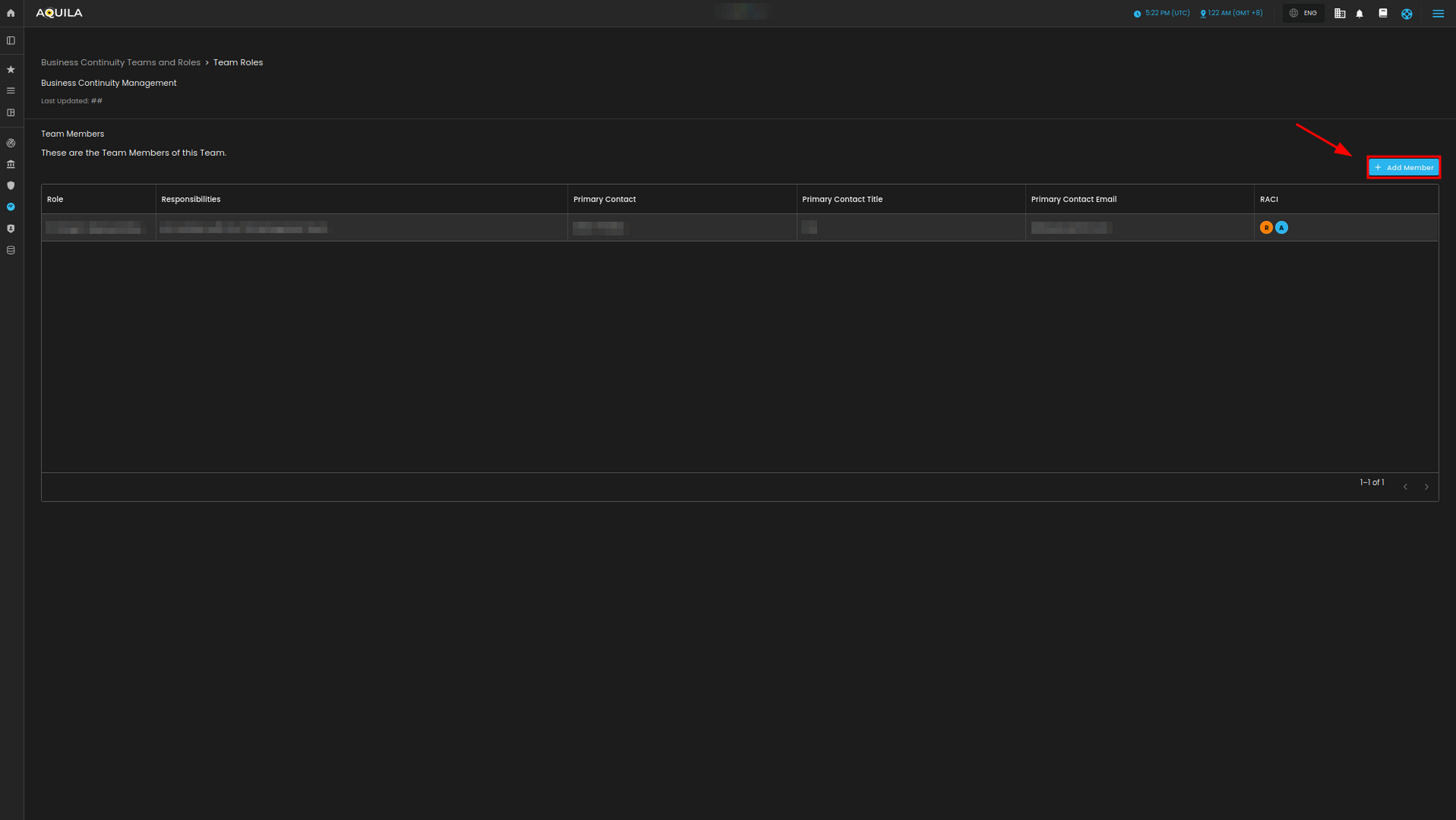
Figure 3.1 Business Continuity Teams and Roles - View Teams
Add Team Member
- The user can add their team members through here and input any necessary information about the new team members.
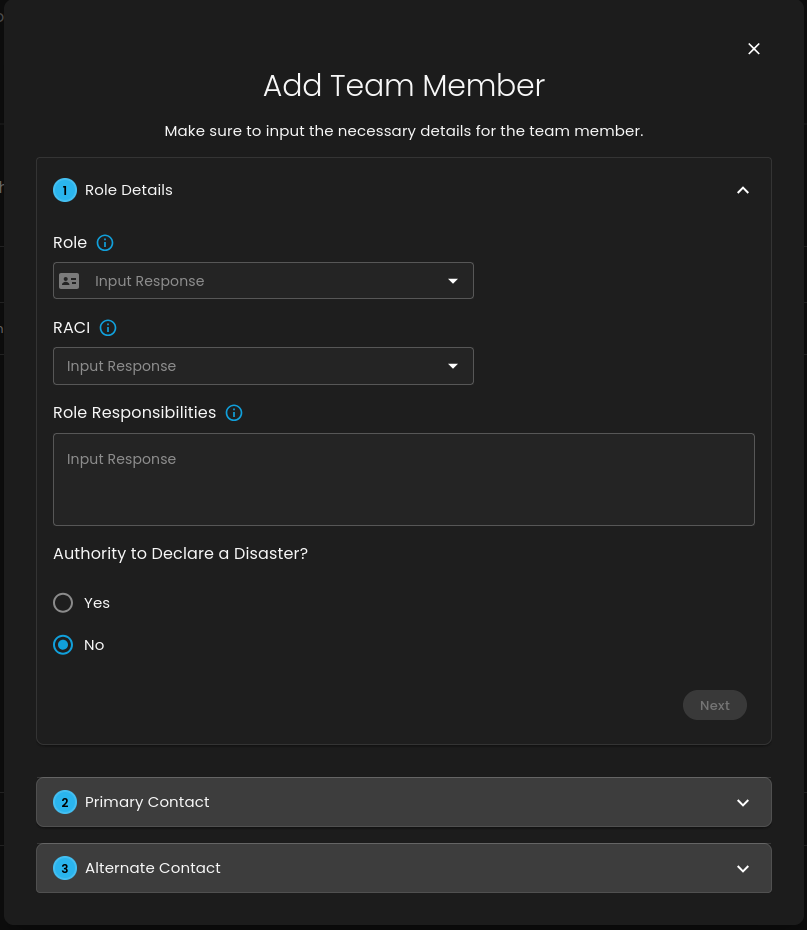
Figure 3.2 Business Continuity Teams and Roles - Add Members
Conclusion
The Business Continuity Management (BCM) module in AQUILA helps you prepare for disruptions by identifying your critical business functions, checking the impact of downtime, and tracking costs or risks. It also lets you set recovery targets (RTO and RPO), map out dependencies like systems, suppliers, people, and facilities, and assign clear team roles with both primary and backup contacts. Altogether, it gives you a straightforward way to make sure your organization can keep running smoothly and recover faster when issues happen.