
Business Continuity Management (BCM)
Overview
Key Features
Step 1:1: Log in to CyTech - AQUILA
Step 2:2: Click on Risk Management
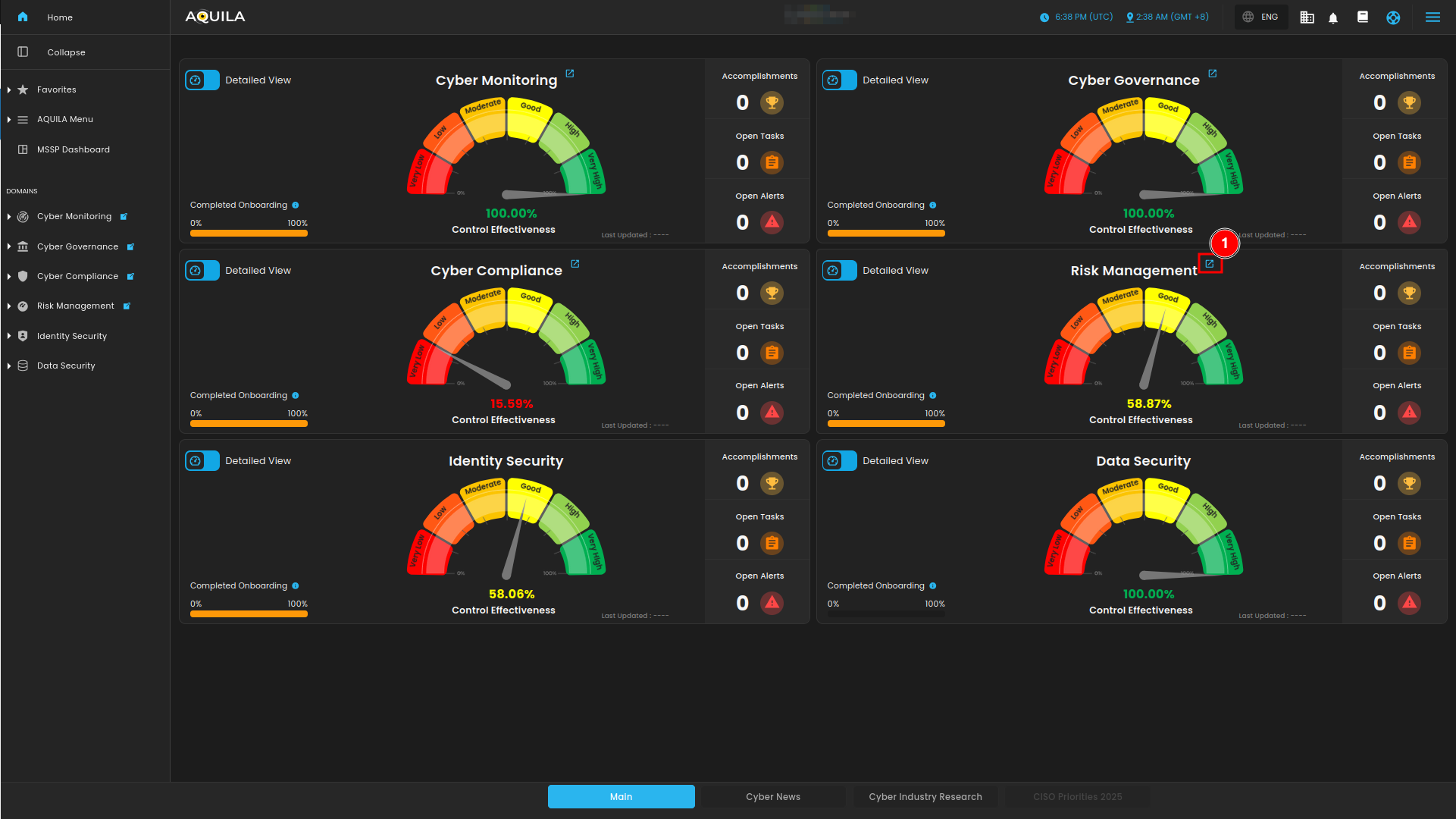
Figure 1. Overview
Step 3: Press the ">" and Choose Business Continuity Management (BCM)
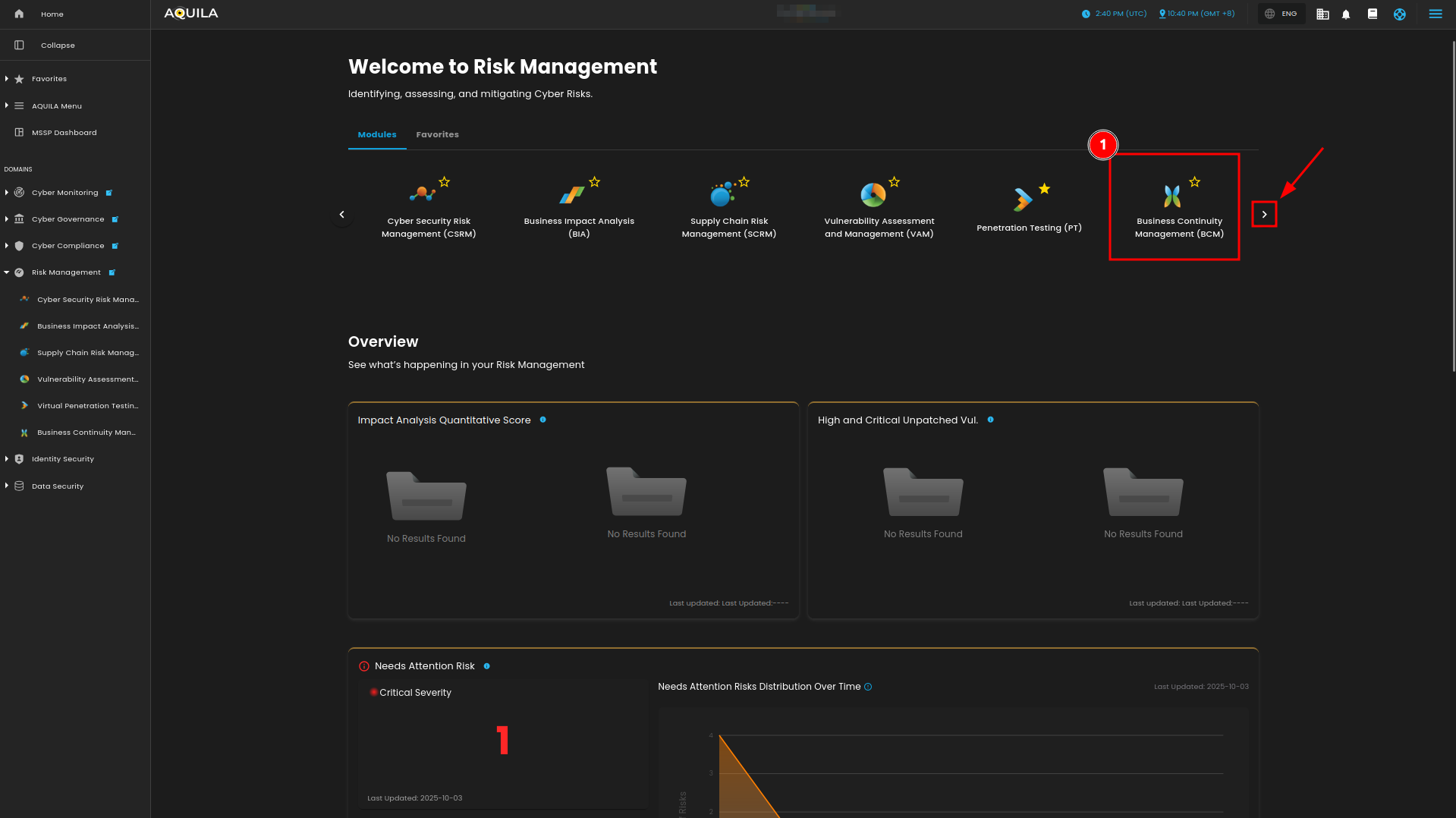
Figure 1.1 Business Continuity Management (BCM)
Step 4: Hover into leftmost panel to view all the Risk Management sections. This Process is applicable in all navigating into a Module.
Dashboard

Figure 1.2 Risk Management Navigation
Project Charter
- This section shows objectives, scope, stakeholders, and key deliverables. You can also press the "Create Project" button to create a new project charter.
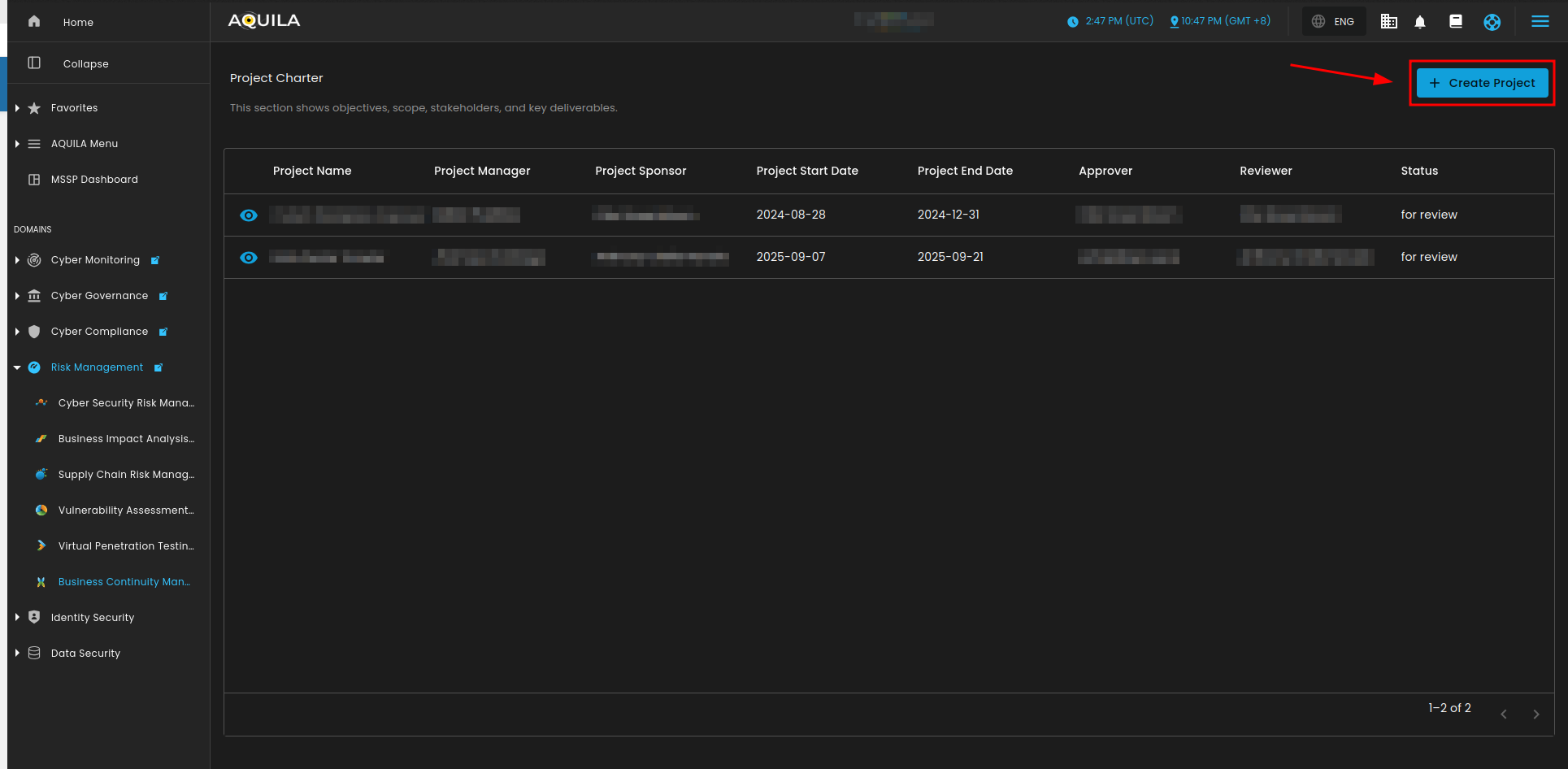
Figure 2. Project Charter
Create Project Charter
- In this section the user can input the details of the project charter they want to add.
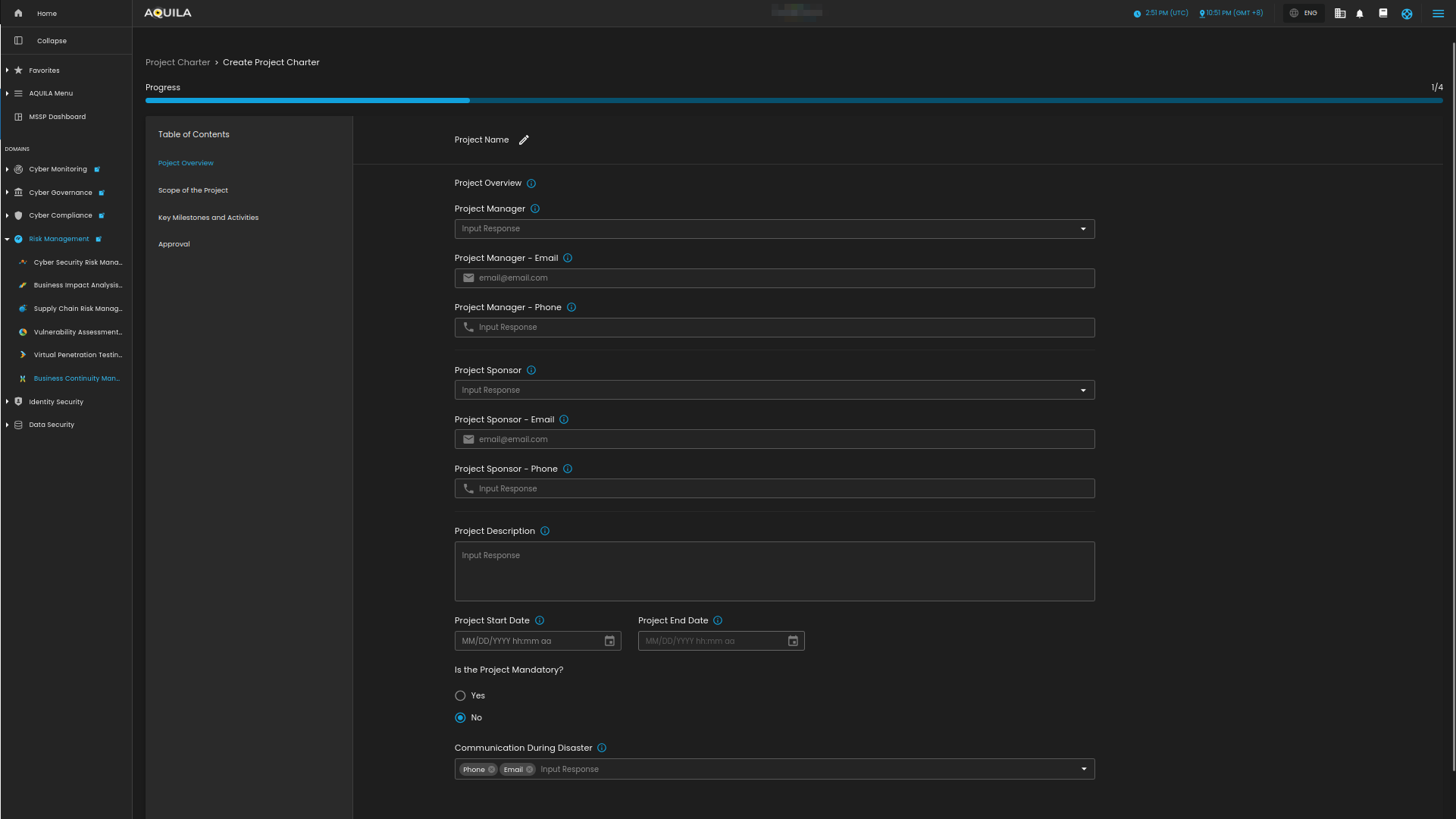
Figure 2.1 Create Project Charter
Business Continuity Teams and Roles
This sub-module shows the teams where roles and responsibilities are assigned that supports business continuity. The user can also press the "View Team" to view specific teams roles.
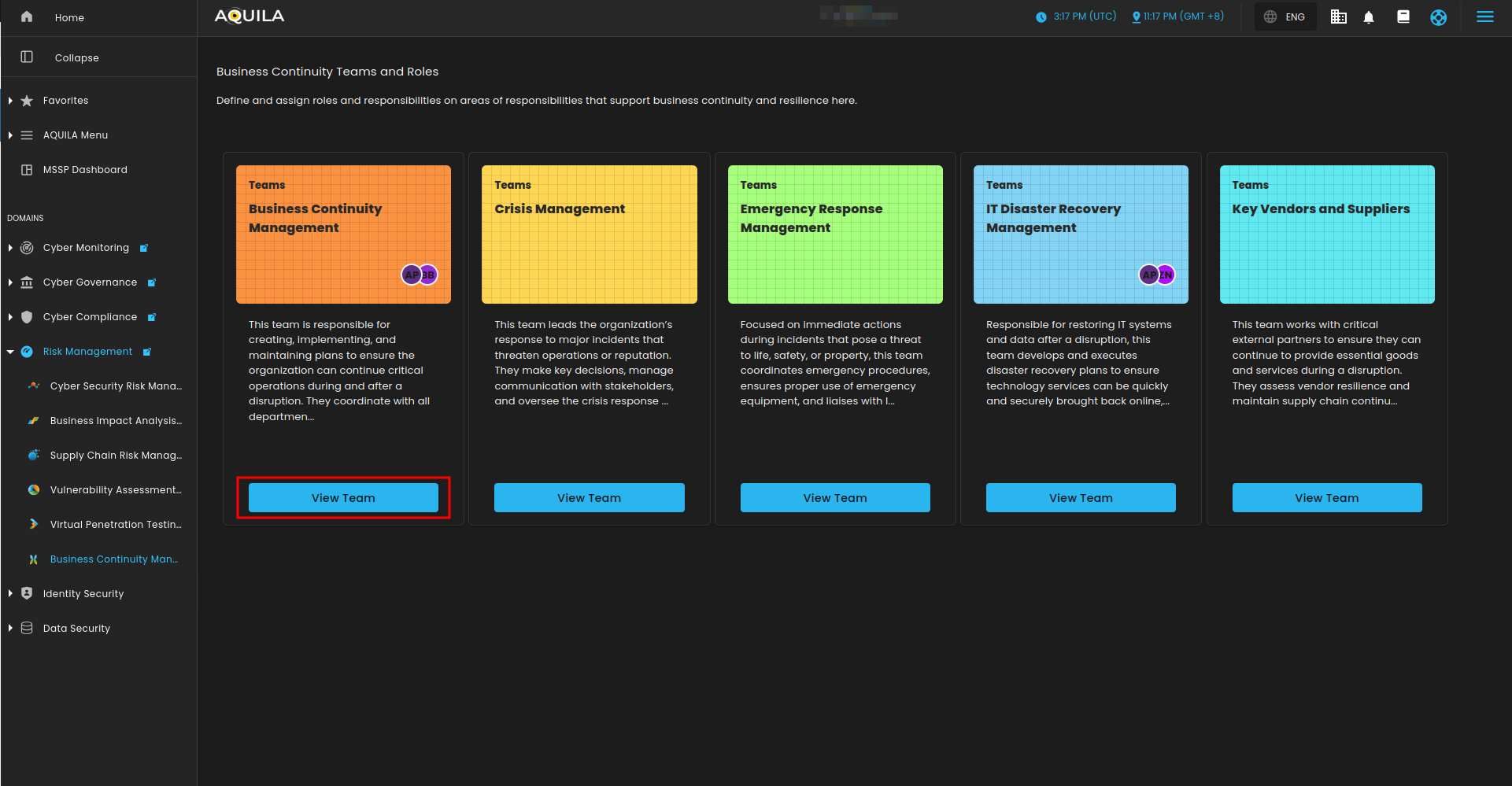
Figure 3. Business Continuity Teams and Roles
Team Roles
This section shows the team members of this team, their roles, responsibilities, primary contact, primary contact titles, primary contact email, RACI.
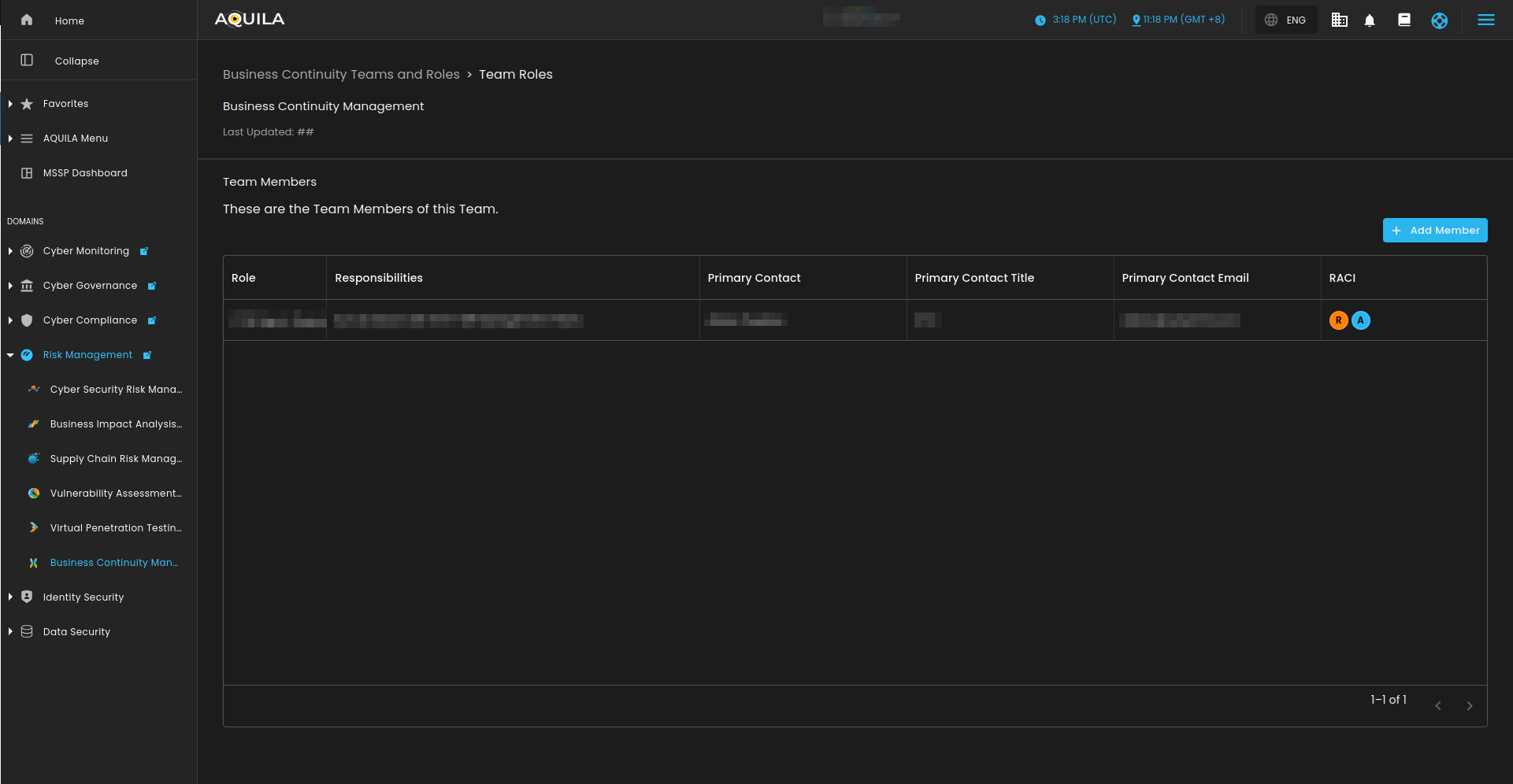
Figure 3.1 Business Continuity Teams and Roles - View Teams
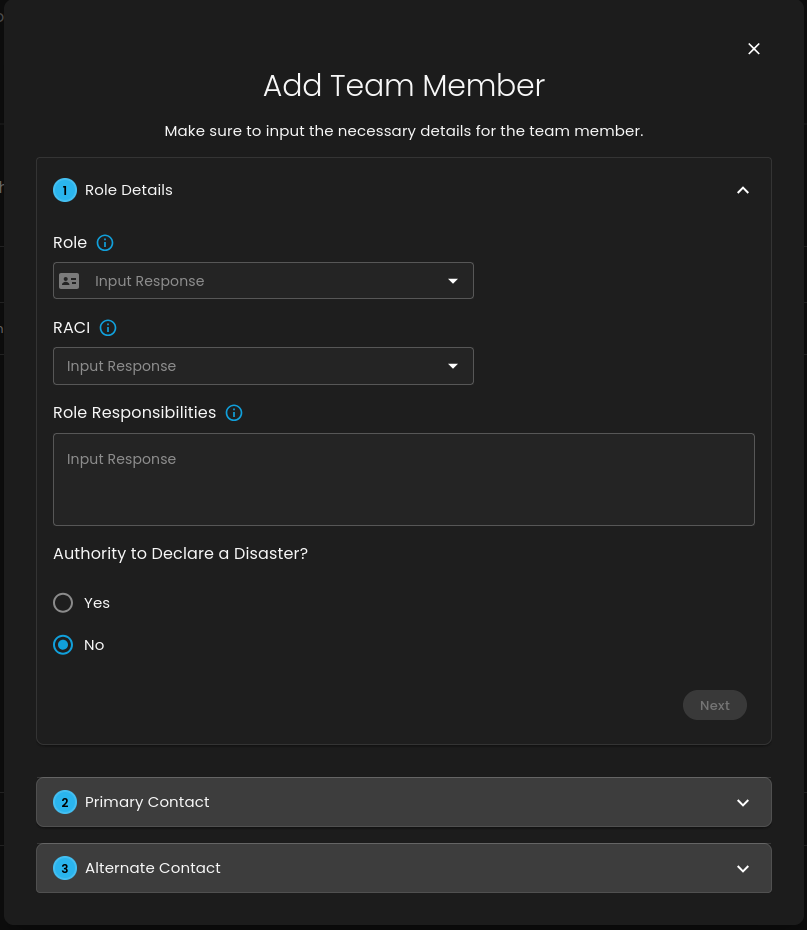
Figure 3.2 Business Continuity Teams and Roles - Add Members