
CyTech AQUILA - Cyber Incident Management (CIM) : Alerts
Introduction
Alerts Dashboard is a tool that provides real-time security alerts and notifications. It provides a unified view of different types of alerts, categorizing them by severity and type, and displays critical details such as the source of the alert, affected assets, and relevant information. This dashboard enables security teams to quickly assess, prioritize, and respond to potential threats by offering comprehensive insights and plays a crucial role in enhancing situational awareness and streamlining the incident response process.
Alerts Status Types
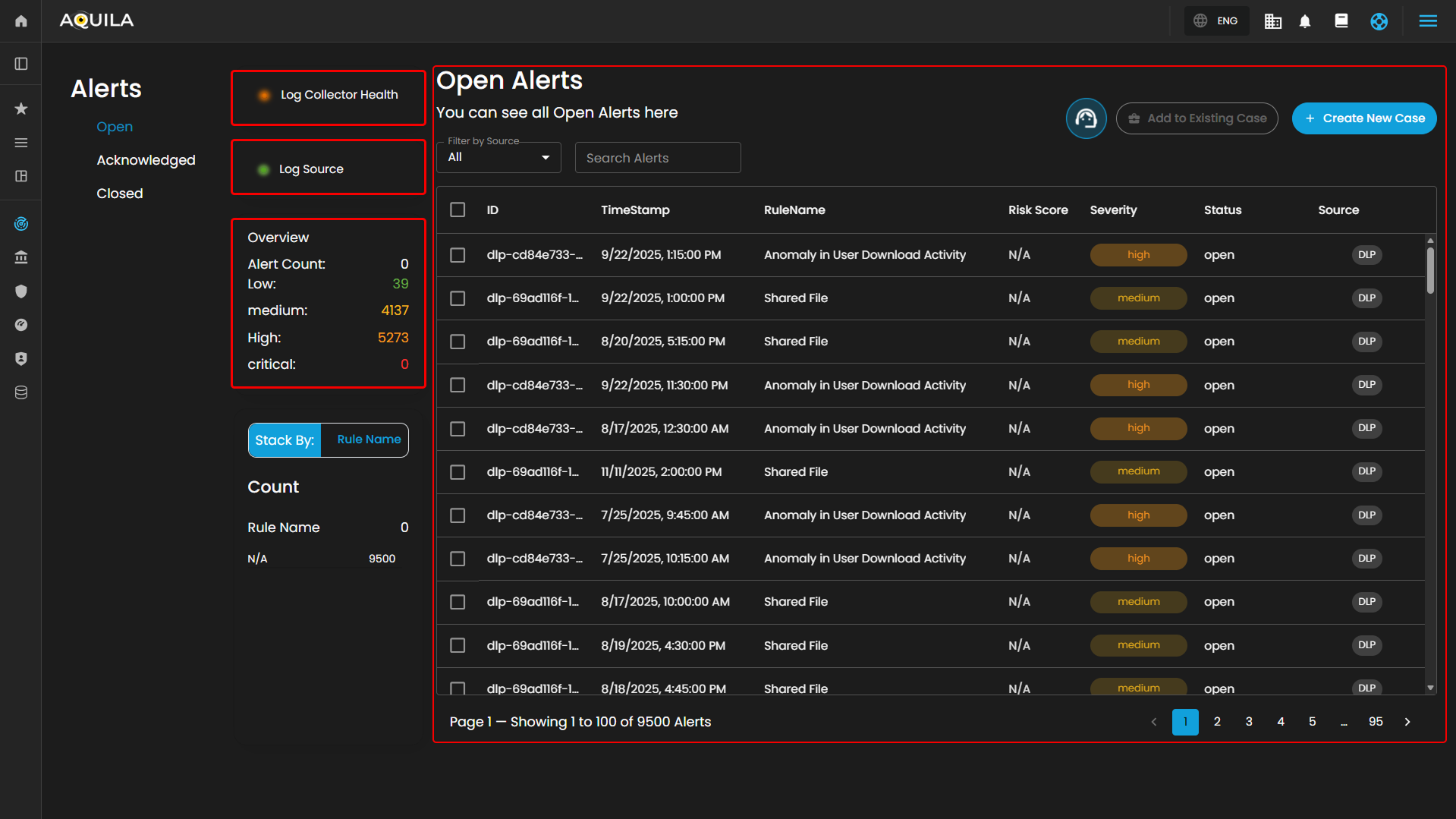
Open Alerts: Alerts awaiting assignment to an analyst for further investigation.
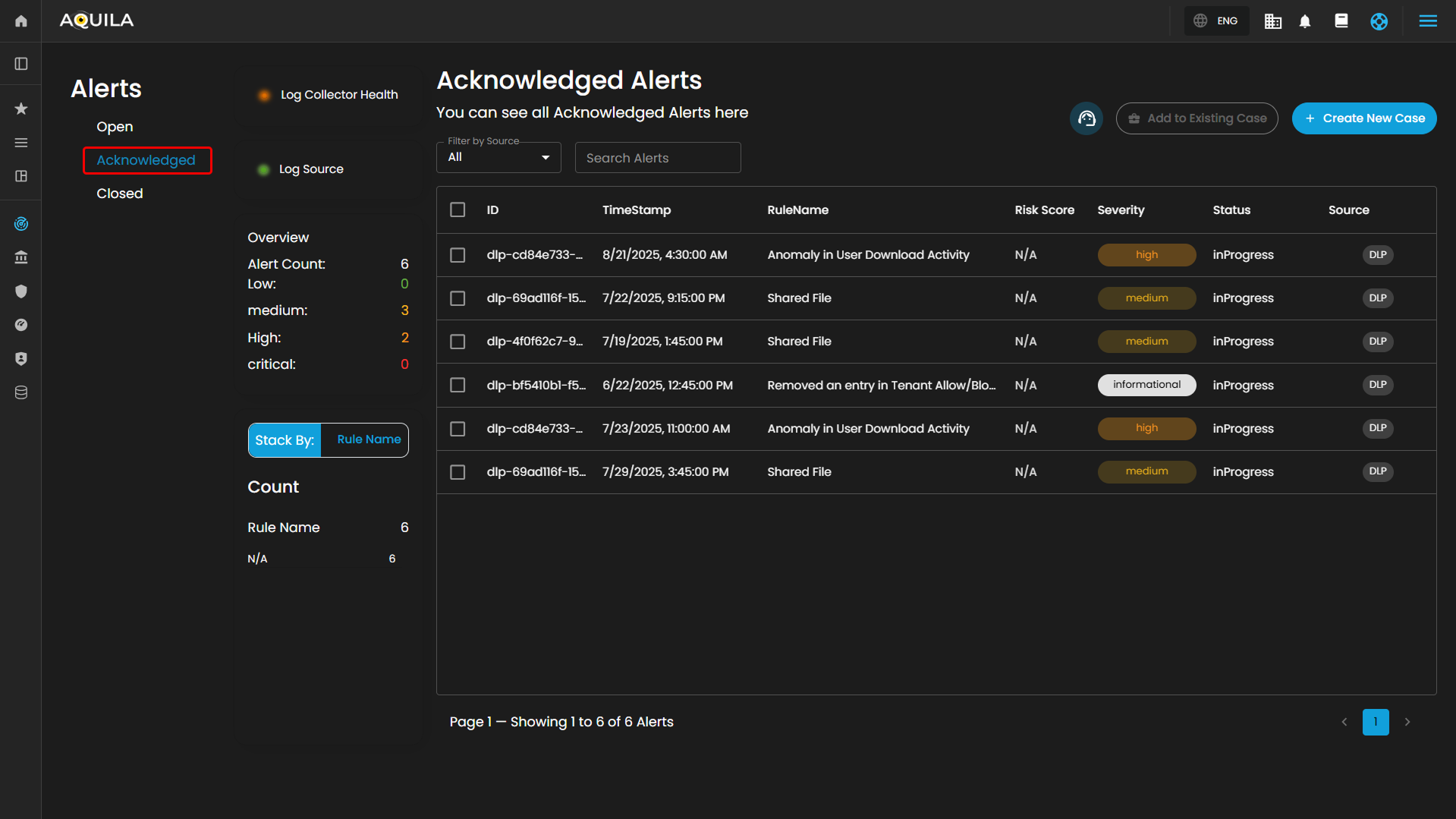
Acknowledged Alerts: Alerts currently in progress and assigned to an analyst for resolution.
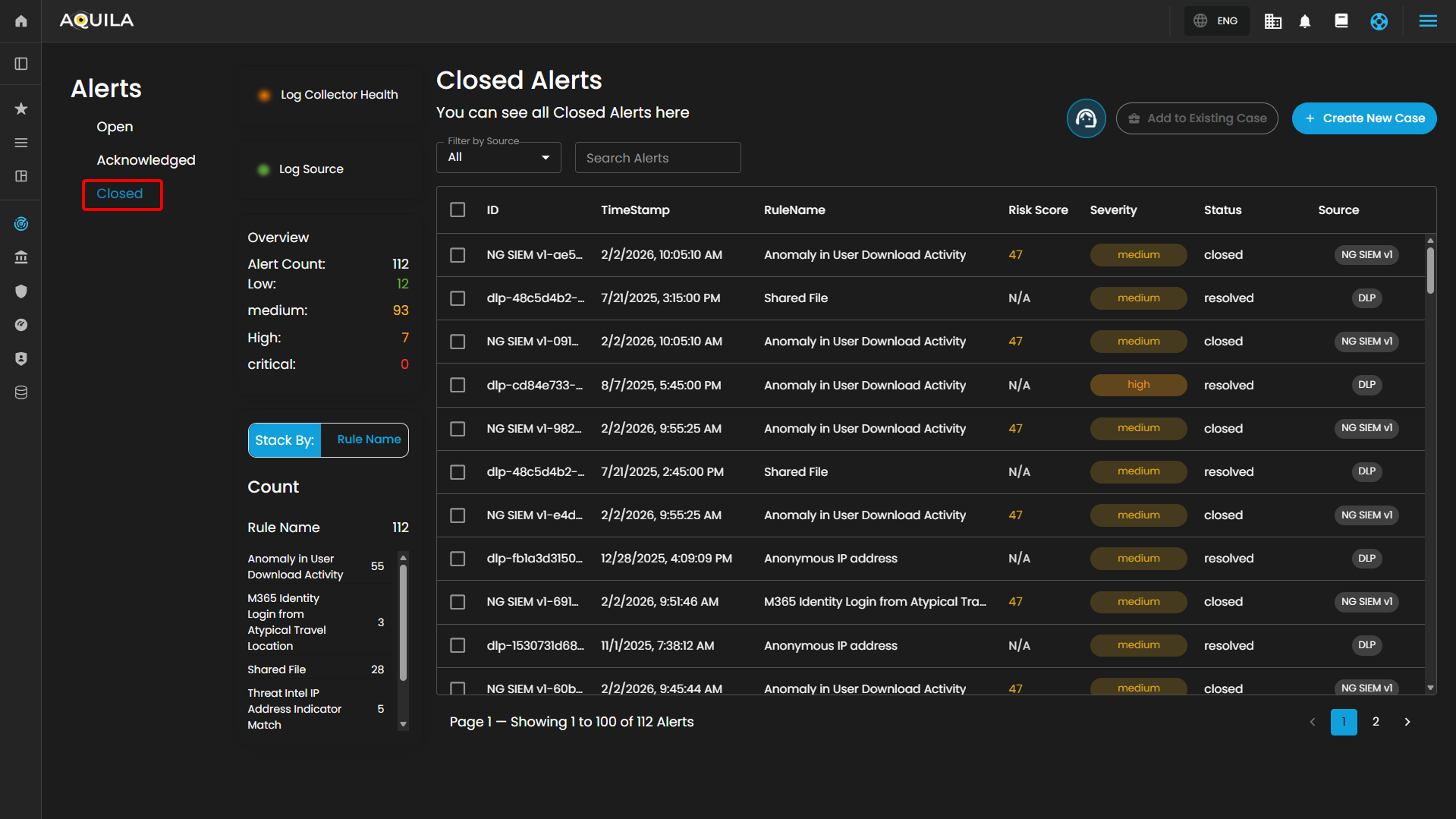
Closed Alerts: Alerts that have been successfully resolved and closed.
Log Collector Health
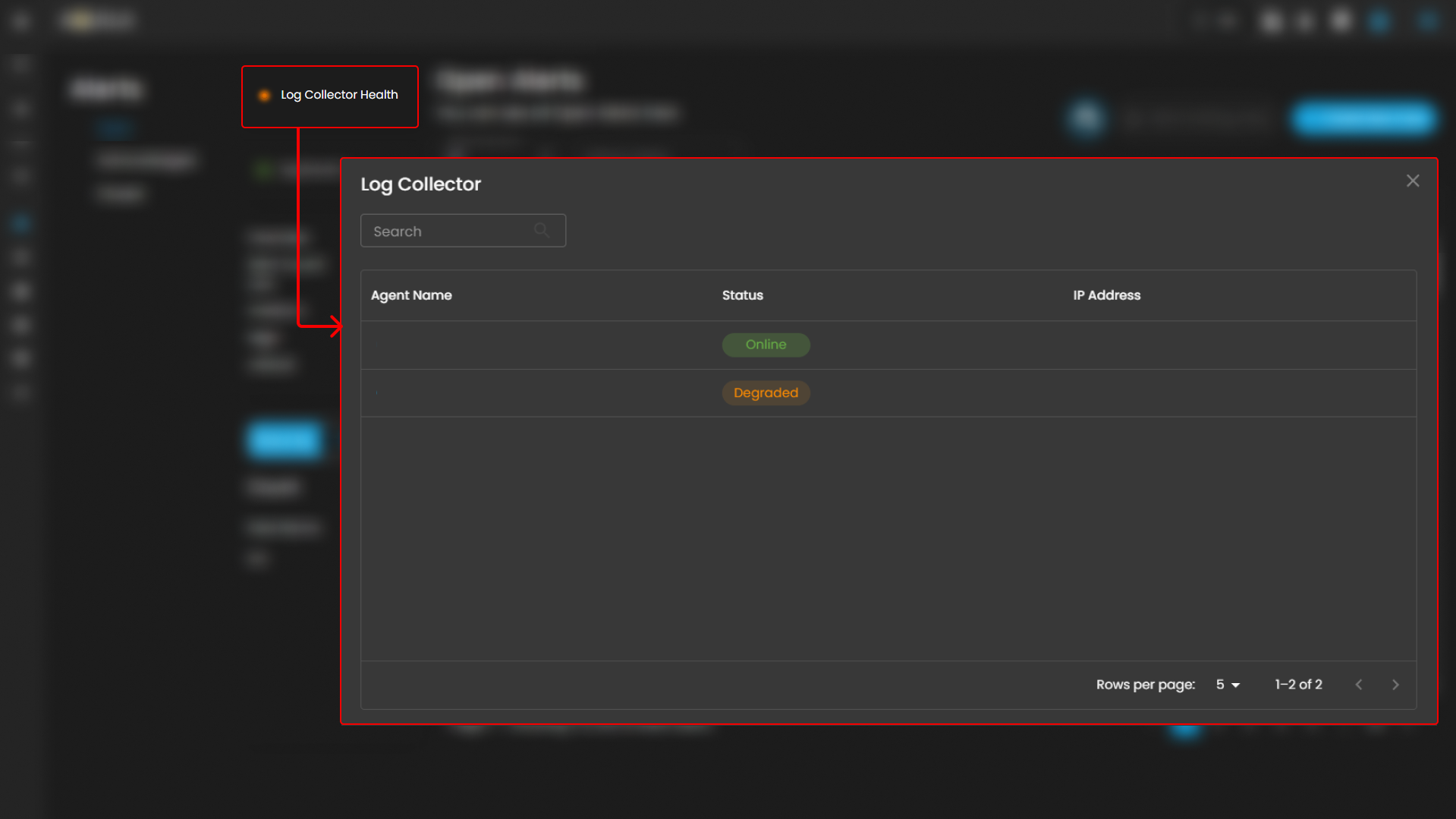
Indicates the current status of the log collector, ensuring that logs are being collected and monitored for any suspicious activity.
When you click on it, a small window will appear showing all installed log collectors along with their current status.
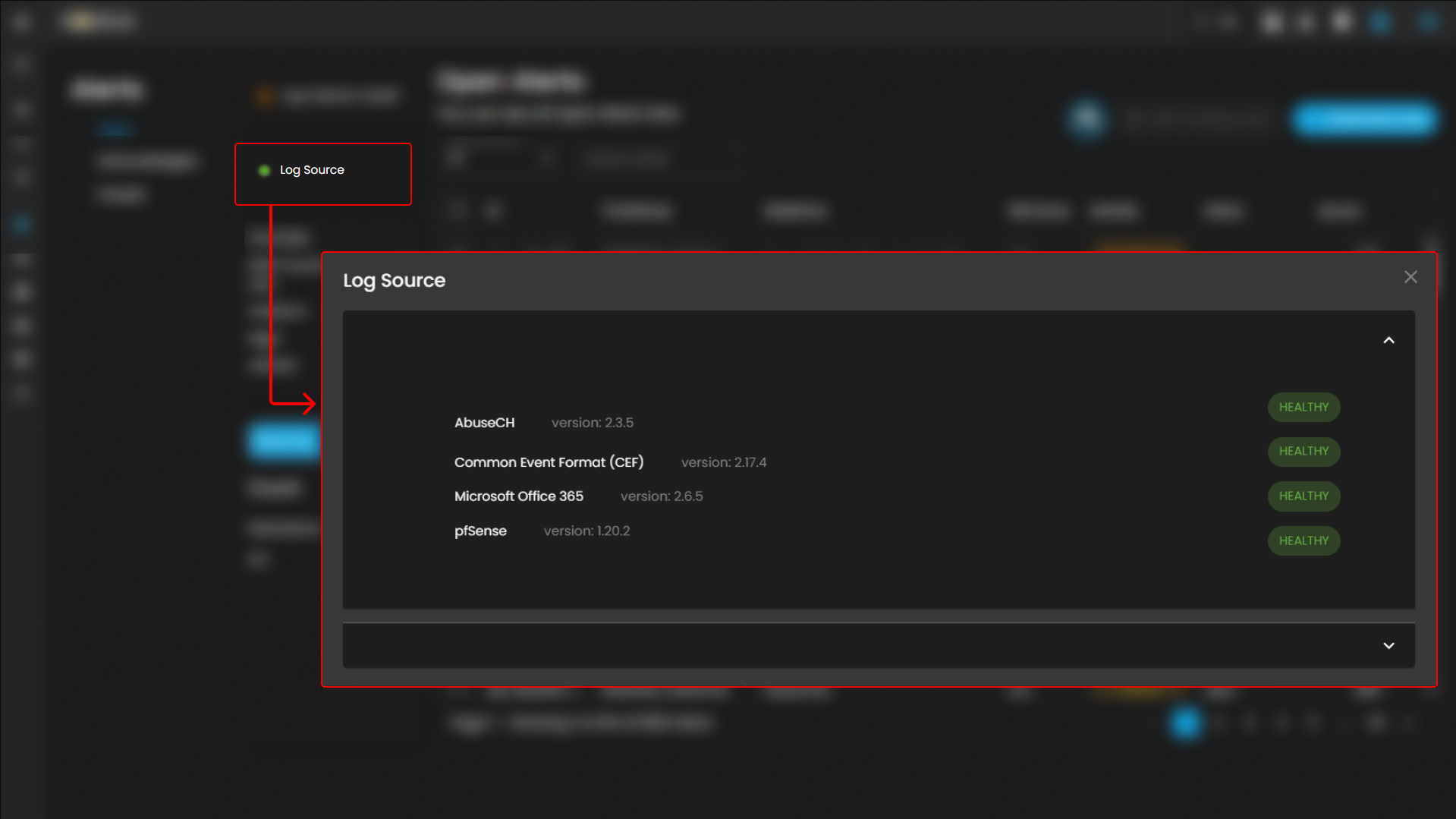
Log Source
These are the various systems, applications, or devices that generate data sent into AQUILA for indexing, storage, and analysis. These sources provide visibility across infrastructure, applications, and security operations.
When selected, a dialog window is displayed showing all installed log collectors. You can switch between collectors to view the integrated log sources associated with each one, along with their respective versions and current status, including whether log ingestion is functioning properly.
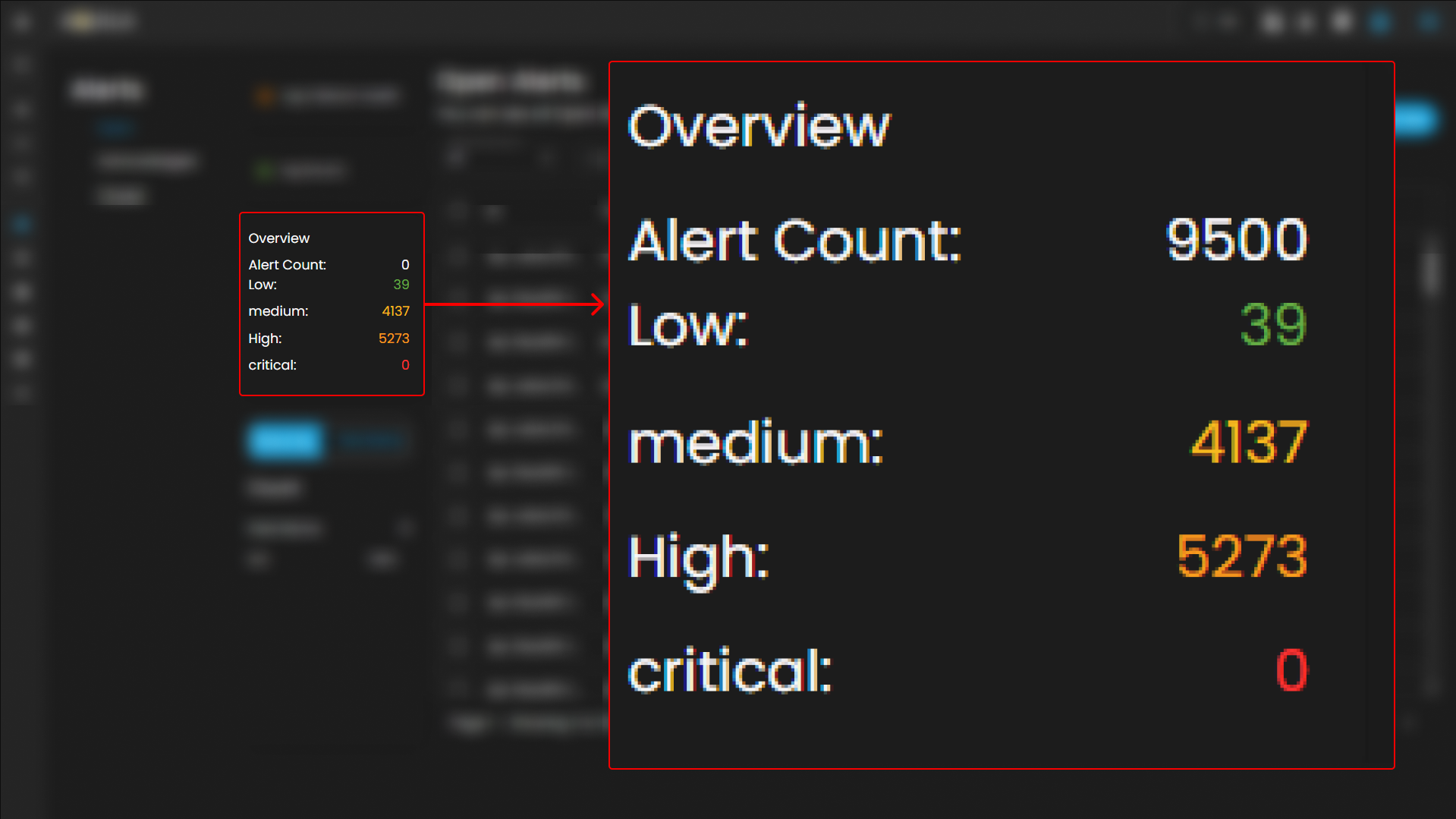
Overview
It provides an overview of alert counts categorized by status type, including the total number of alerts and their distribution across severity levels.
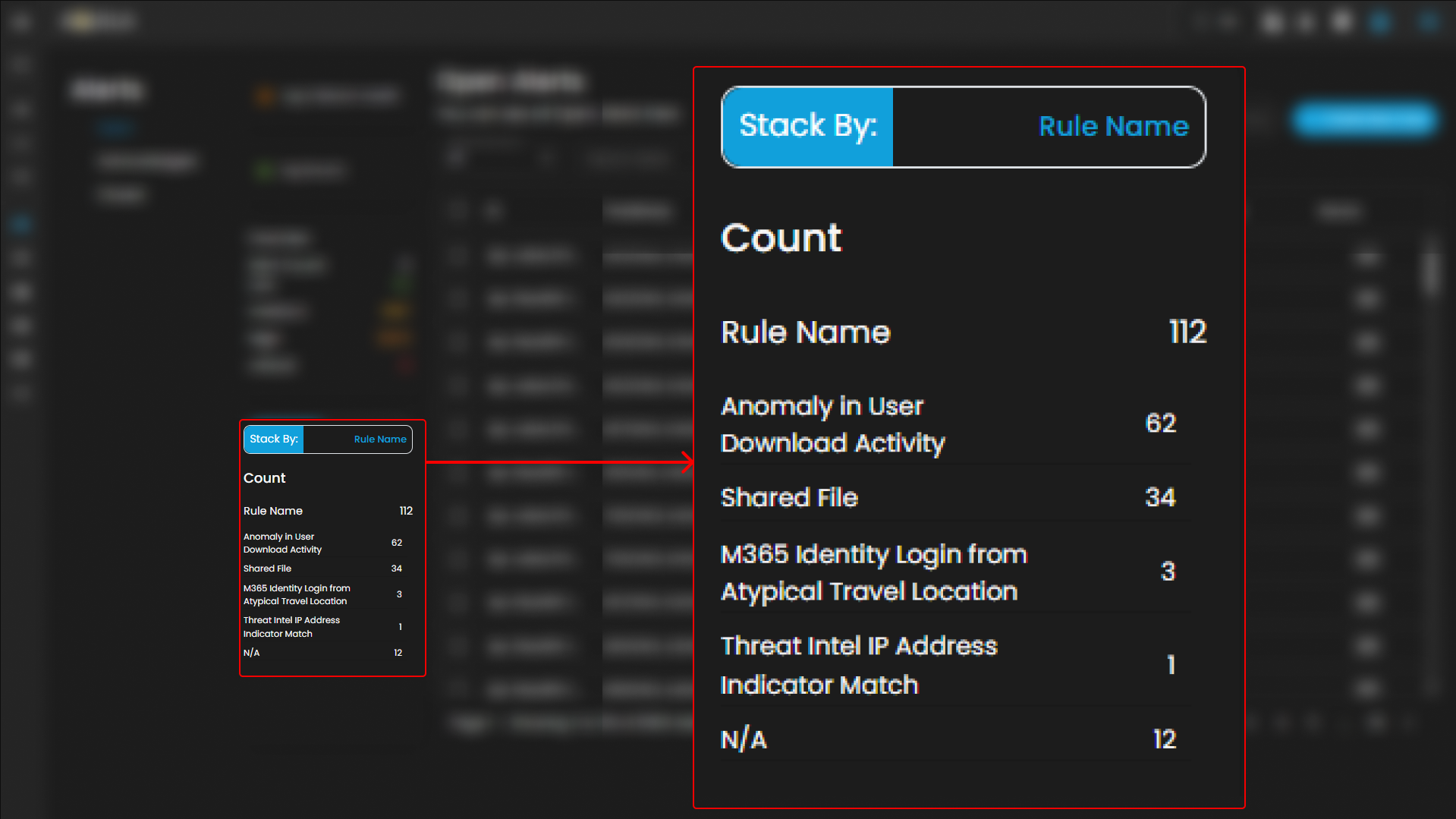
Stack By Rule Name
This view displays a summary of alerts grouped by their corresponding detection rules. At the top of the panel, the total number of alerts is presented. Below this, each rule is listed alongside the count of alerts it has generated. Users can scroll through the list to view additional rules when the number of entries exceeds the visible space. This view enables quick identification of which detection rules are generating the highest volume of alerts, supporting prioritization and investigation activities.
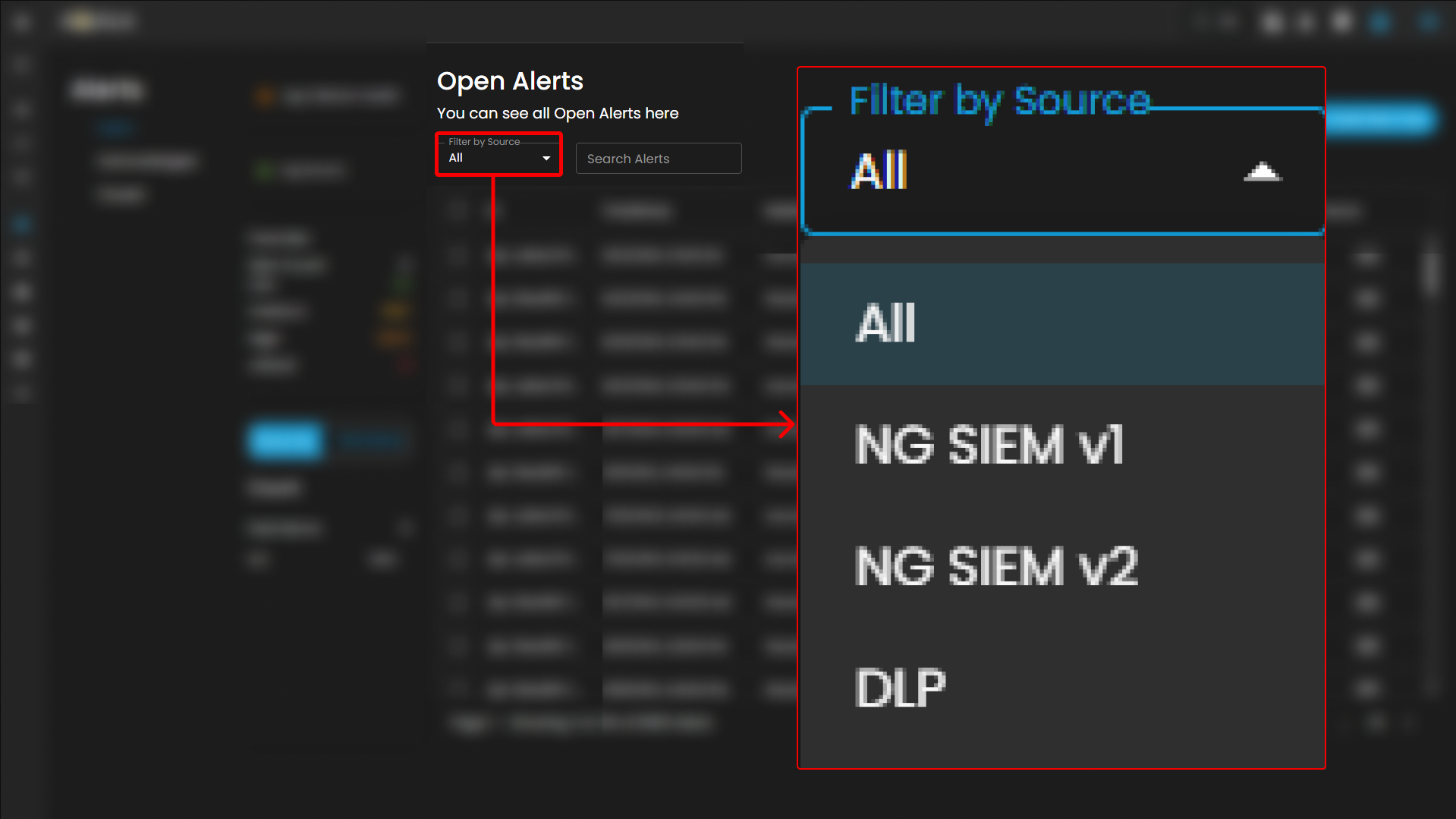
Filter by Source and Search box
Filter by Source: This dropdown menu allows users to filter alerts based on their originating source. Selecting a specific source will limit the displayed alerts to only those generated by the chosen system or log source, while the default All option displays alerts from every available source.
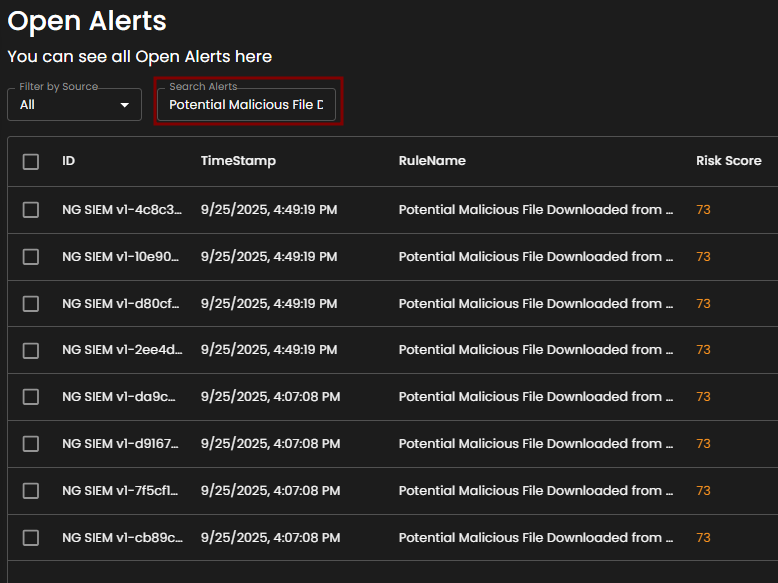
Search Alerts: This text-based search field enables users to query alerts by keywords, rule names, IDs, or other relevant attributes. Entering a search term dynamically filters the alert list, allowing users to quickly identify and focus on alerts of interest.
Alerts Information
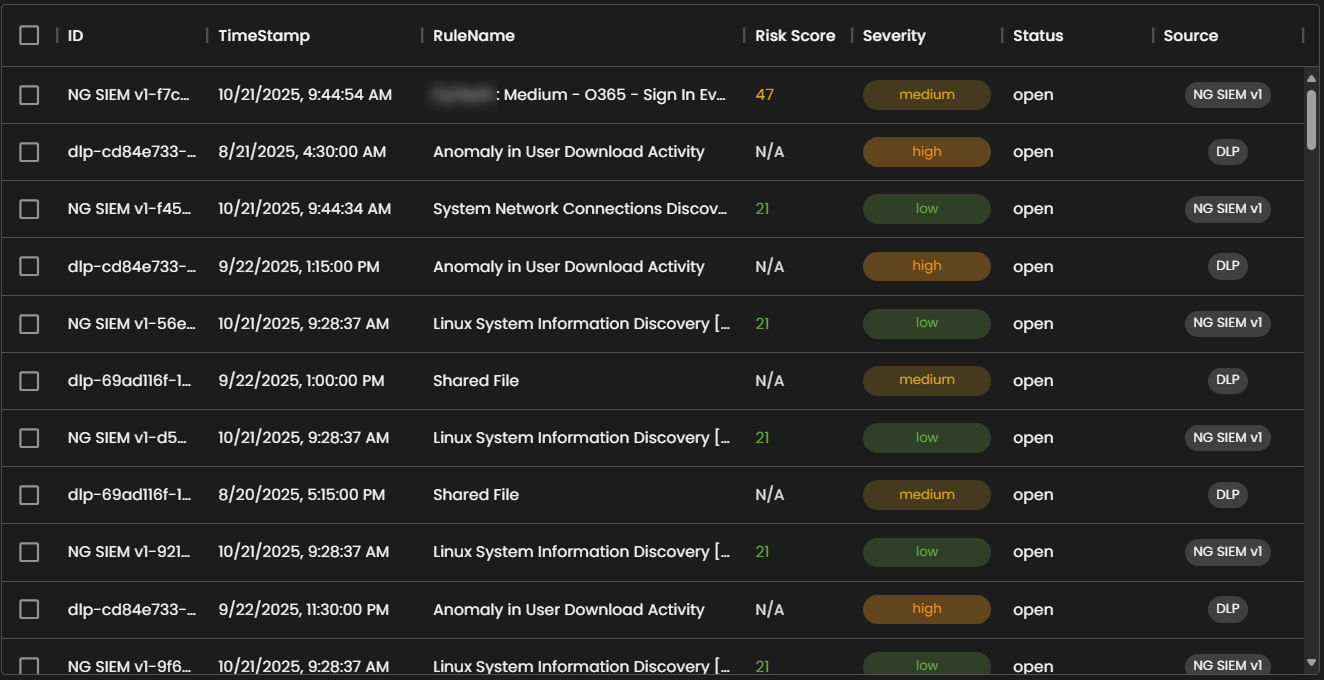
Alerts Table provides a detailed view of all alerts, organized in a tabular format for efficient monitoring and analysis. Each entry contains the following fields:
-
ID: A unique identifier automatically assigned to each alert.
-
Timestamp: The date and time the alert was generated, displayed in a standardized format.
-
Rule Name: The detection rule that triggered the alert, enabling correlation with specific monitoring logic.
-
Risk Score: A numerical value representing the assessed risk level of the alert.
-
Severity: The severity classification (e.g., low, medium, high, critical) that contextualizes the potential impact of the event.
-
Status: The current workflow state of the alert (e.g., open, acknowledged, closed).
-
Source: The originating source of logs that produced the alert.
The table supports pagination to manage larger datasets, with navigation controls located at the bottom of the view. This ensures users can efficiently browse and review alerts when the total number exceeds the displayed entries per page.
Create a Case
Case Creation involves initiating a new incident case when a security alert is detected. This process includes documenting key details about the alert, categorizing and prioritizing the case based on its severity and impact, and tracking all investigation and response activities. By creating a case, security teams can organize and manage the incident comprehensively, ensuring that all related actions and communications are centralized, which facilitates effective resolution and improves overall incident handling.
To create a case, you can opt to choose either to create a case from the Alerts Dashboard or the Case Management Dashboard.
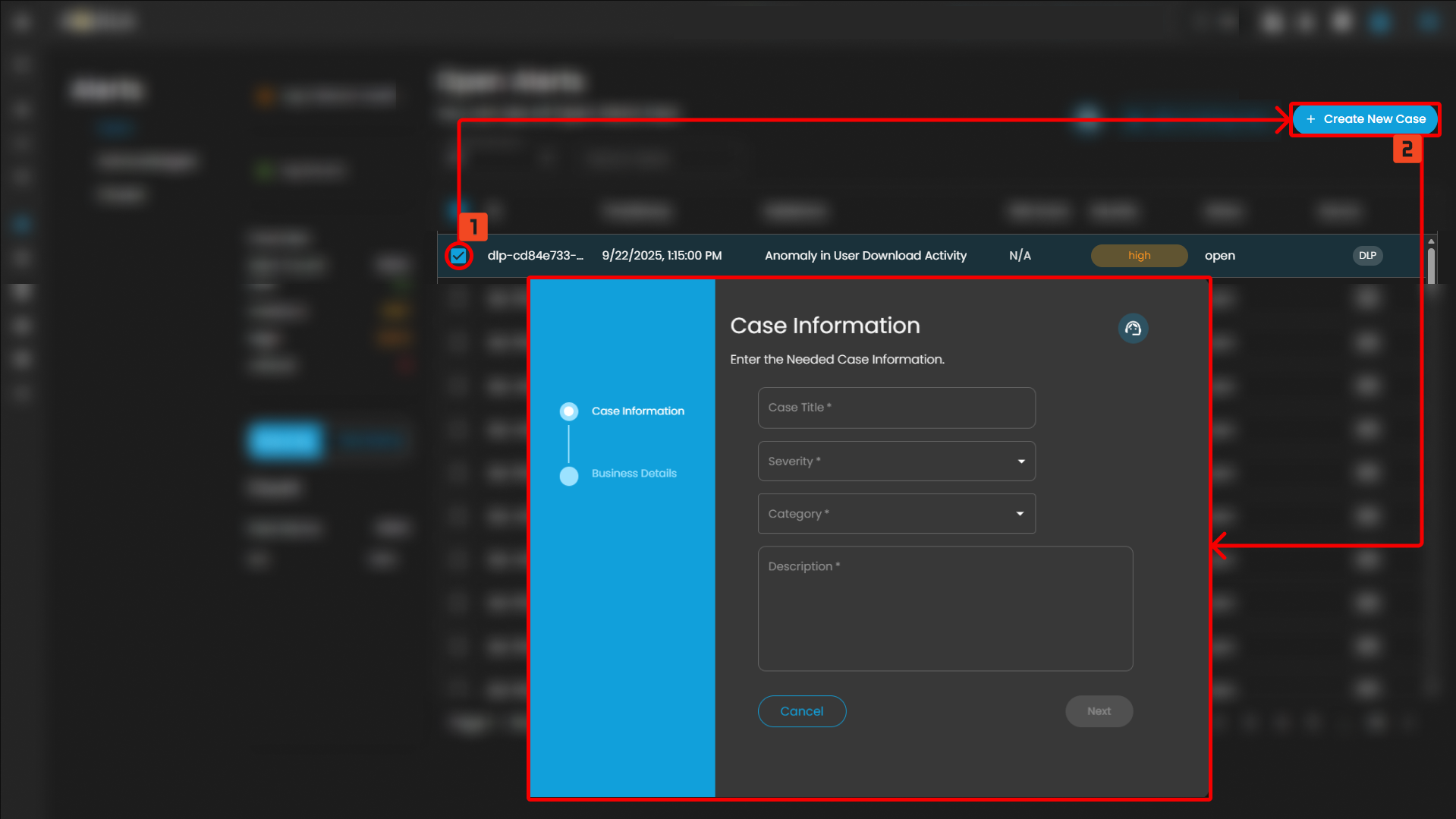
To create a case:
- Select an alert
- Click the create new case button as shown below
Doing so will show a modal where information is required to create a case for investigation
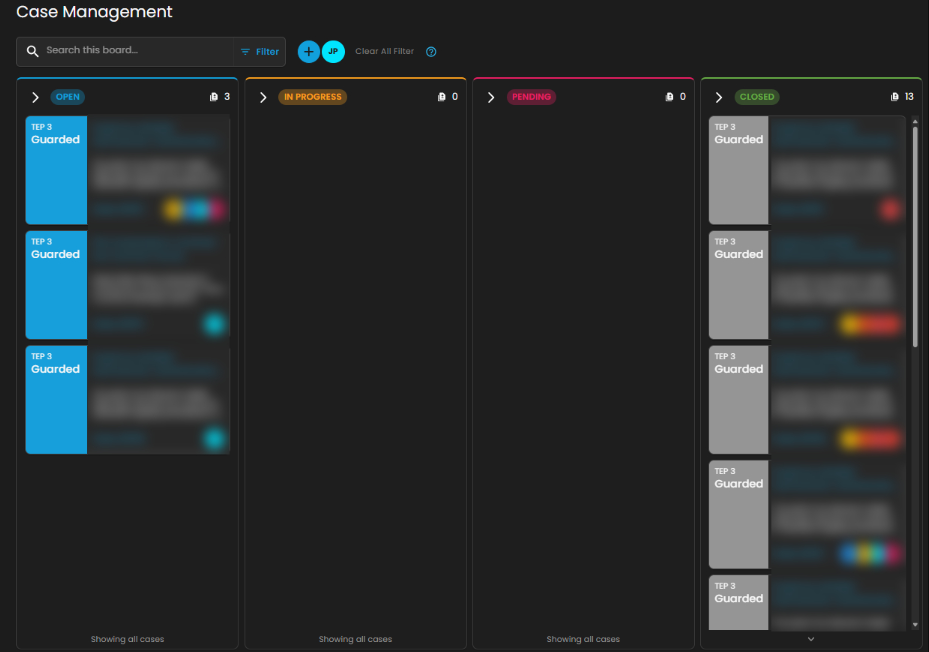
Once a case has been successfully created, it will show in the Case Management Dashboard as shown below.
Add Alerts to an Existing Case
This feature allows security teams to associate a new alert with an ongoing or previously created incident case. By adding a new alert to an existing case, teams can streamline their investigation and response efforts, correlate related data, and avoid duplicating efforts.
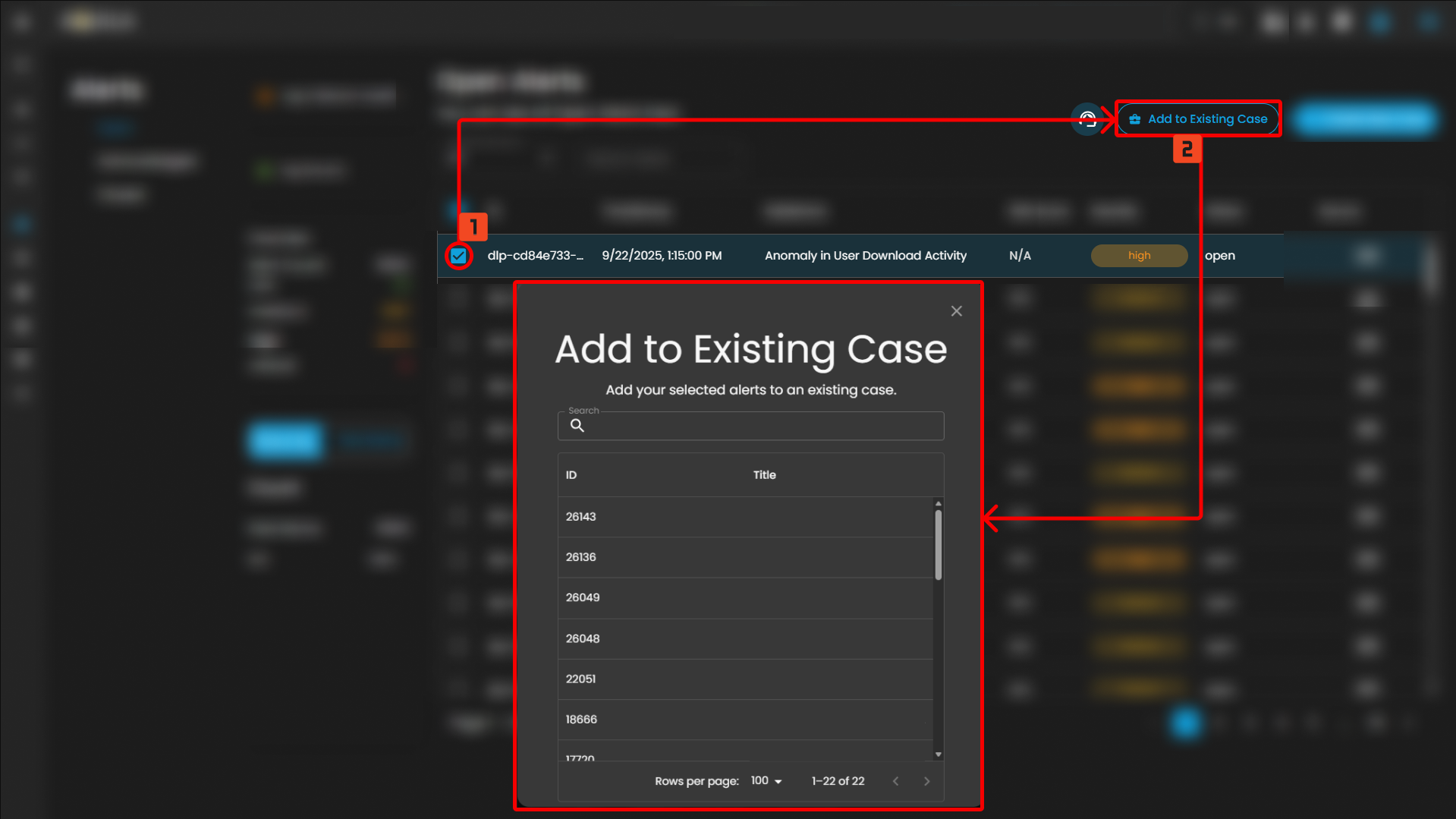
Steps to take:
- To add to an existing case, navigate to the Alerts Dashboard
- Select an alert and click the add to existing case button as shown below
- Select which existing case is relevant to the alert to add it as an existing case.
Support Assistance
-
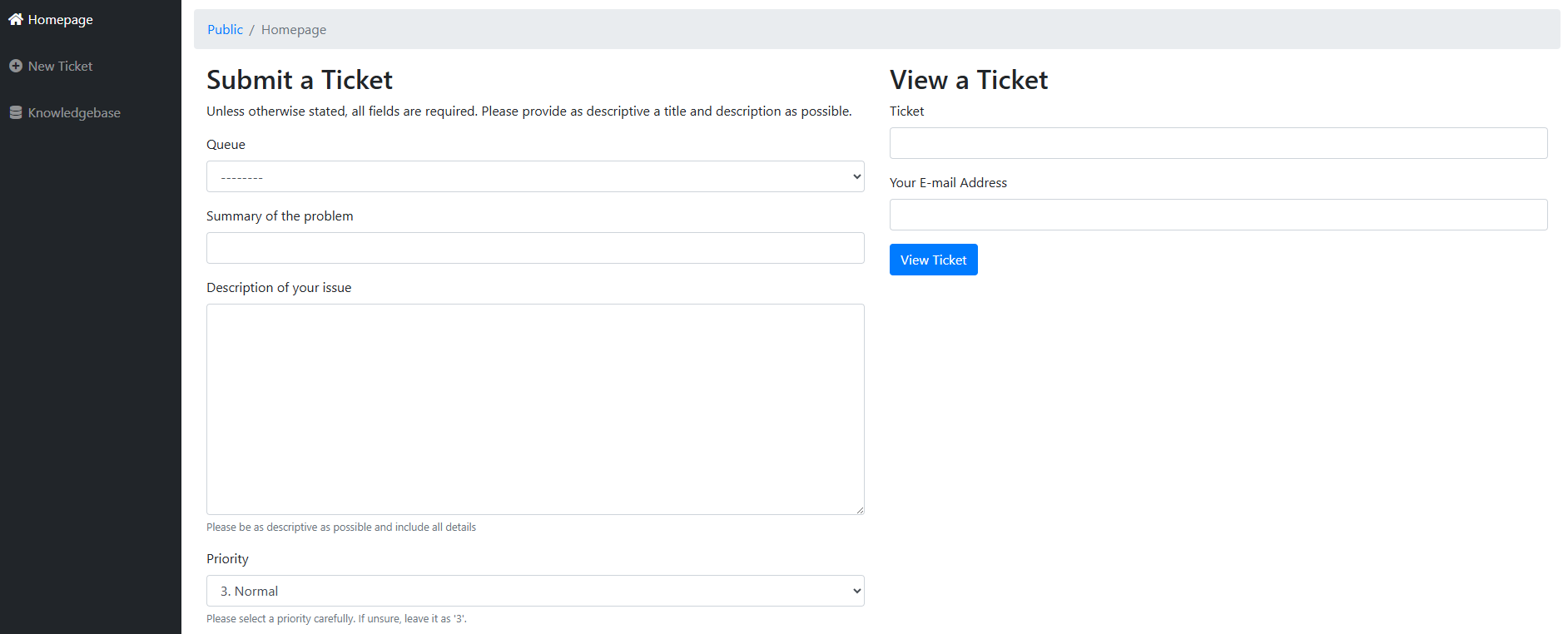
Submit a Request: Clients may create and submit a new support request or error report by providing the necessary details regarding the issue encountered.
-
Search Existing Tickets: Clients can query and review tickets they have previously submitted, allowing them to track the status and resolution progress of ongoing requests.
This feature ensures that users can promptly report errors and access updates on existing support cases without leaving the Alerts interface.
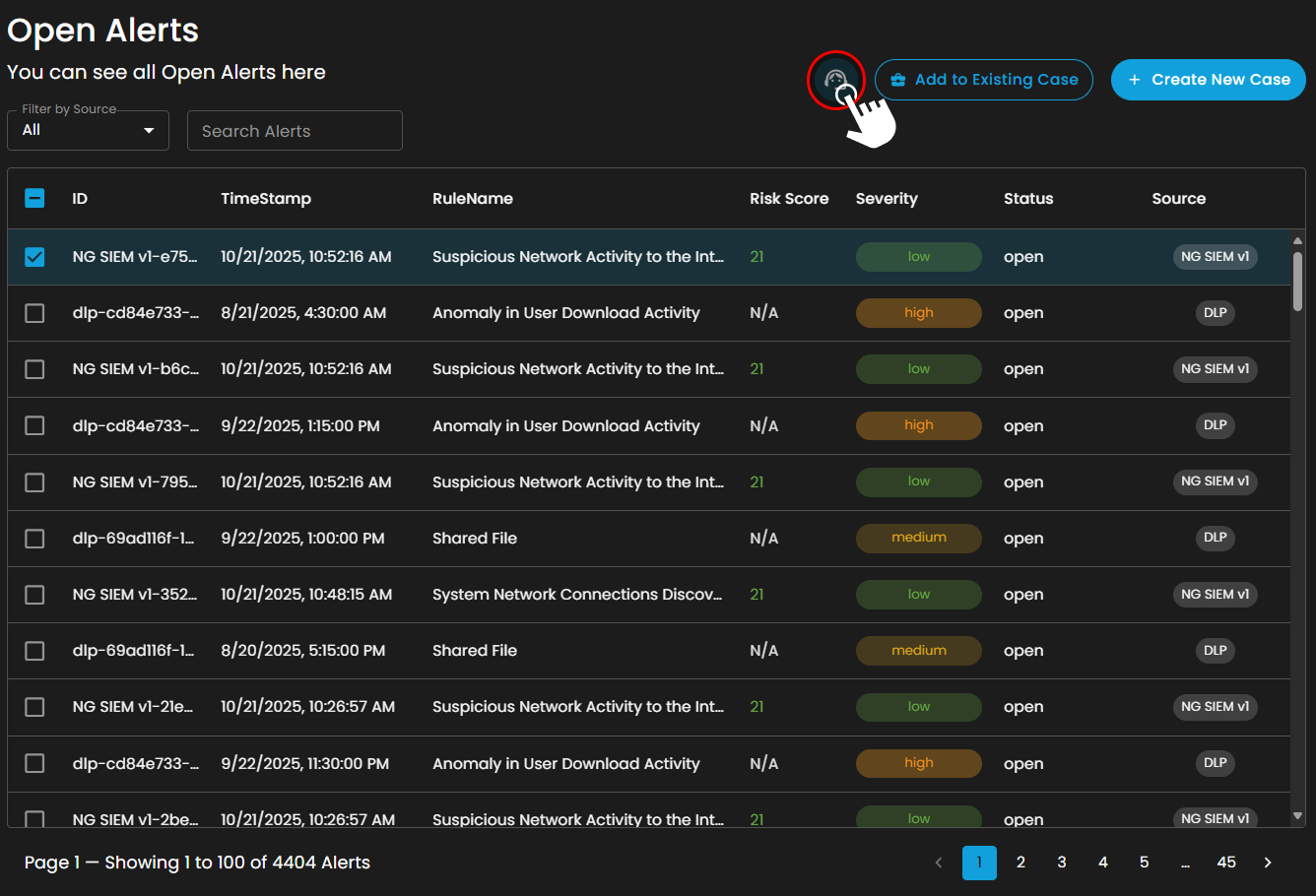
After pressing the icon, it will redirect you to the submit a ticket page where you can submit a ticket and be assisted at your module.
In conclusion, the Cyber Incident Management: Alerts plays a critical role in strengthening organizational security operations by providing a structured and systematic approach to threat detection, analysis, response, and remediation. It enhances real-time monitoring capabilities, streamlines incident classification and escalation processes, and ensures efficient coordination among security teams. By centralizing incident data and enabling faster decision-making, the module reduces response time, minimizes potential impact, and improves overall operational resilience. Ultimately, it reinforces the organization’s cybersecurity posture by ensuring proactive risk mitigation, regulatory compliance, and continuous improvement in incident handling procedures.
Please refer to the document from the previous sub-module: CyTech AQUILA - Cyber Incident Management (CIM): Dashboard
Please refer to the document for the next sub-module: CyTech AQUILA - Cyber Incident Management (CIM): Cases
If you need further assistance, kindly contact our support at support@cytechint.com for prompt assistance and guidance.
No comments to display
No comments to display