
CyTech AQUILA - Unified Compliance Framework (UCB)
Overview
The Unified Compliance Blueprint is a module ofwithin Cyber Compliance that is designed to help security teams monitor the implementation of security controls, track compliance with frameworks, and manage blueprint engagement.
Key Features
- Control Overview
- Framework Overview
- Blueprint Engagement Tracker
- Mapped Control Maturity by Blueprints
- Framework Readiness
- Activity Feed
Step 1: Log in to CyTech - AQUILA
Step 2: Click on Cyber Compliance
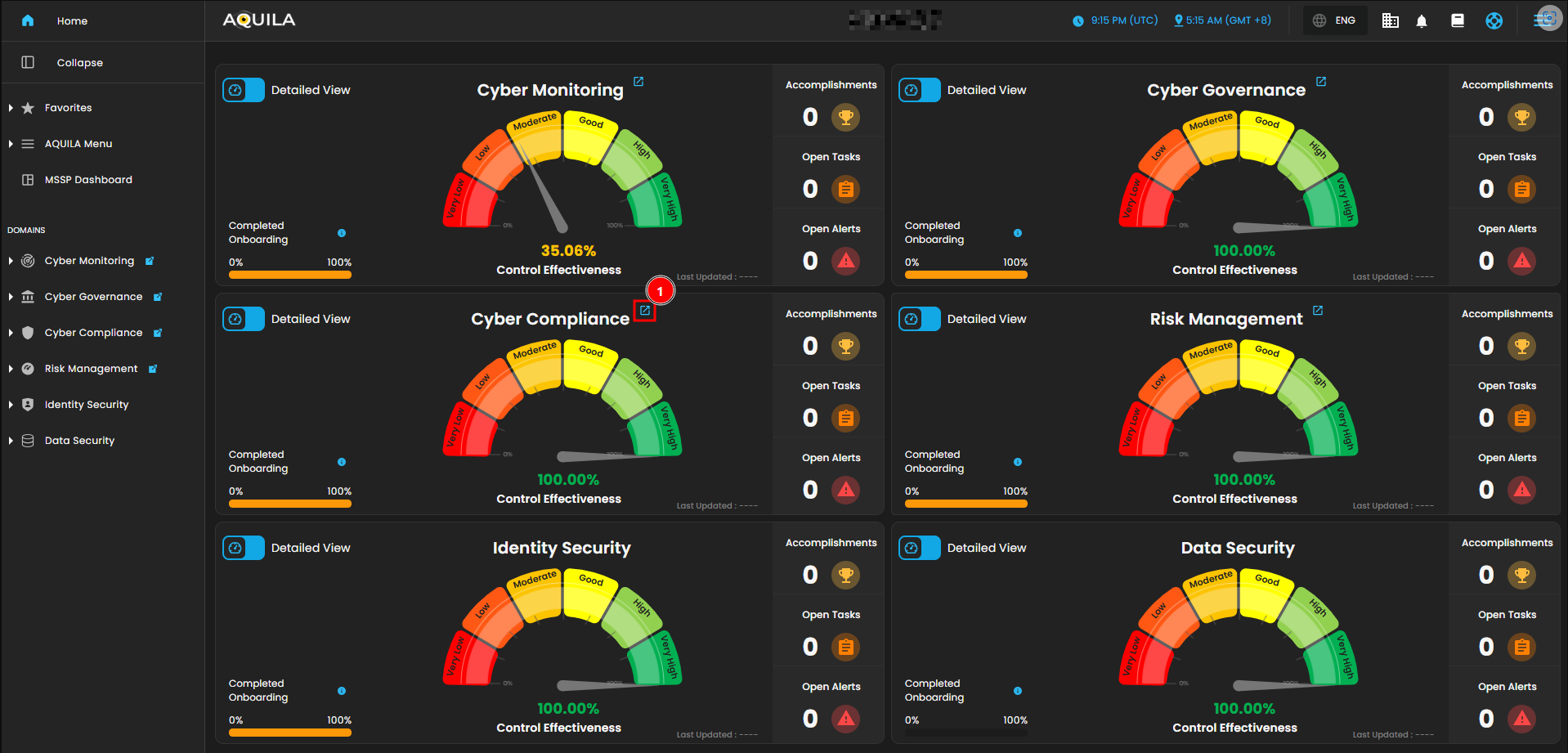
Figure 1. Overview
Step 3: Choose Unified Compliance Framework (UCB)
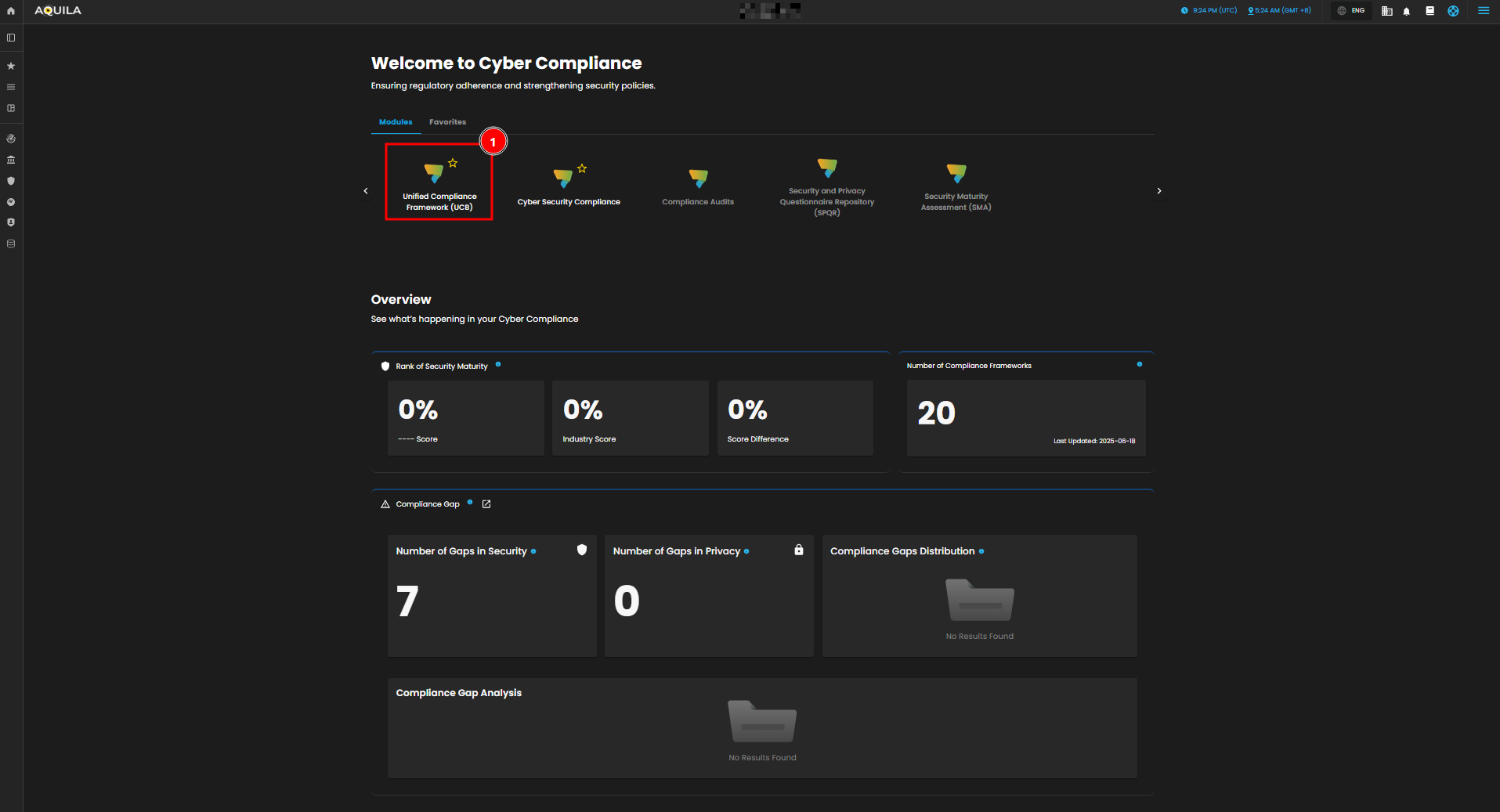
Figure 1.1 Cyber Compliance
Step 4: Hover into leftmost panel to view all the Cyber Compliance sections. This Process is applicable in all navigating into a Module.
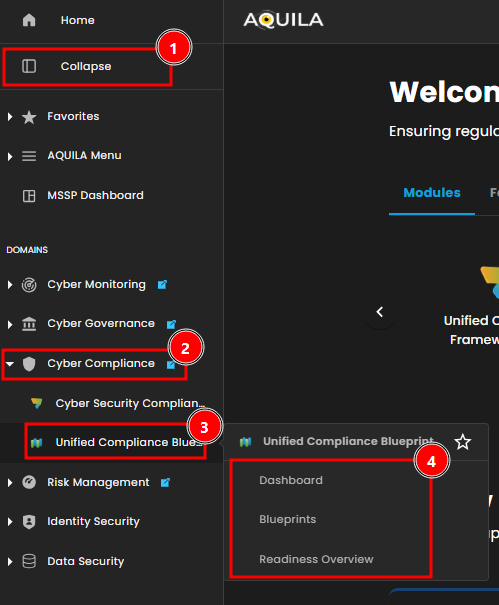
Figure 1.2 Cyber Compliance Navigation
Dashboard
The Unified Compliance Blueprint (UCB) dashboard provides overall view of the blueprints, frameworks and the control overview.
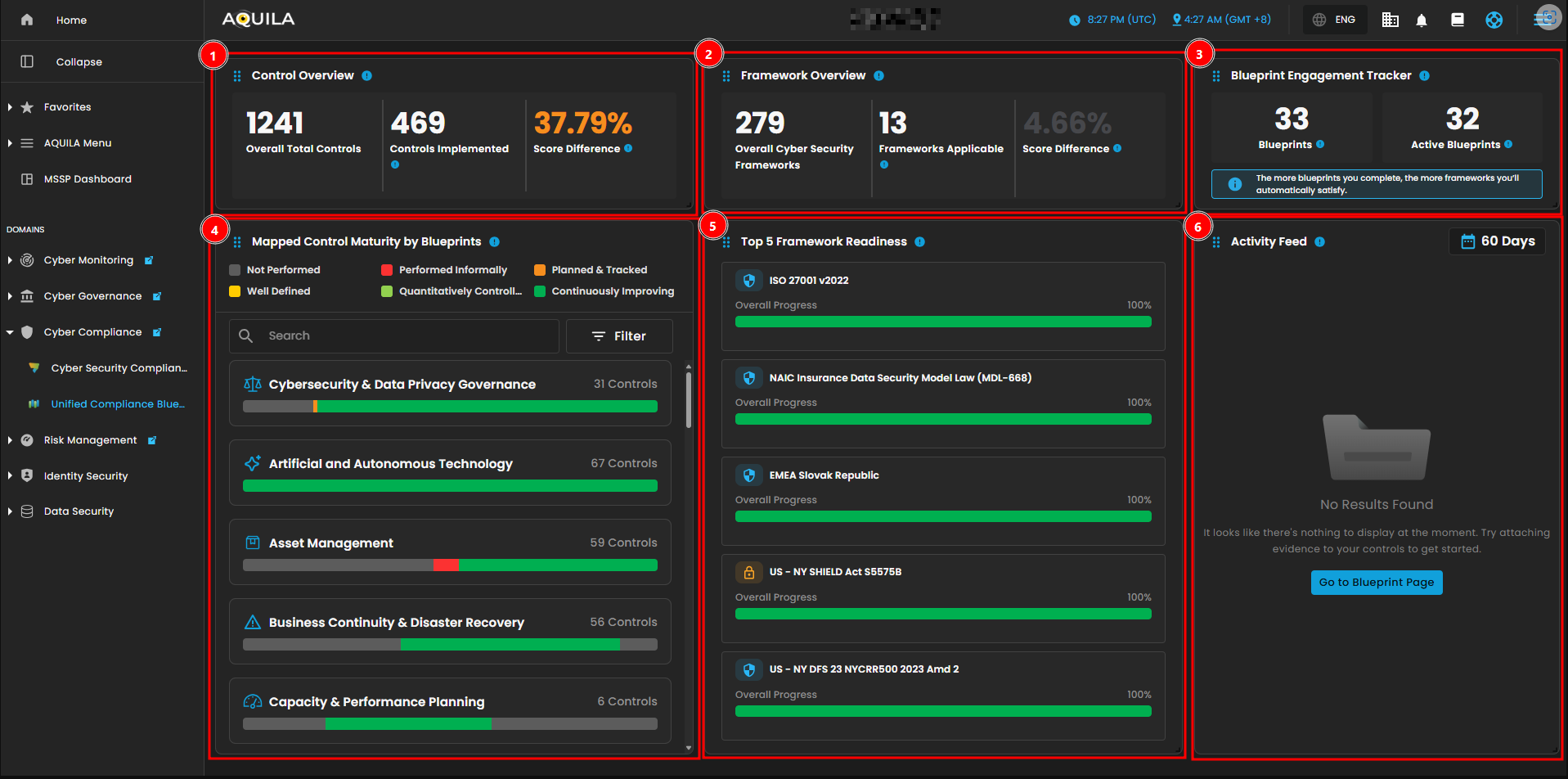
Figure 2. Unified Compliance Blueprint Dashboard
1. Control Overview
ProvidesThe Control Overview provides a high-level viewsnapshot of control implementation status. This widget displaysshows the total number of mapped controls, how many have been implemented, and the improvement over time based on score differences.
-
Controls
ImplementedImplemented:–The number of controls actively implemented, reflectingrealactualactions takenprogress toward meeting compliance requirements. -
Score
DifferenceDifference:– Indicates theThe percentage improvement in overall control maturity or coverage compared to a previous baseline. A higher valuesignifiesindicates betterprogressprogress.in implementing controls.
Clicking the Control Overview opens a detailed window displaying control progress and performance. The eye icon redirects you to the blueprints section related to that control. This window also showshighlights the score difference and includes widgets indicatingshowing the number of controls implemented and those yet to be implemented.
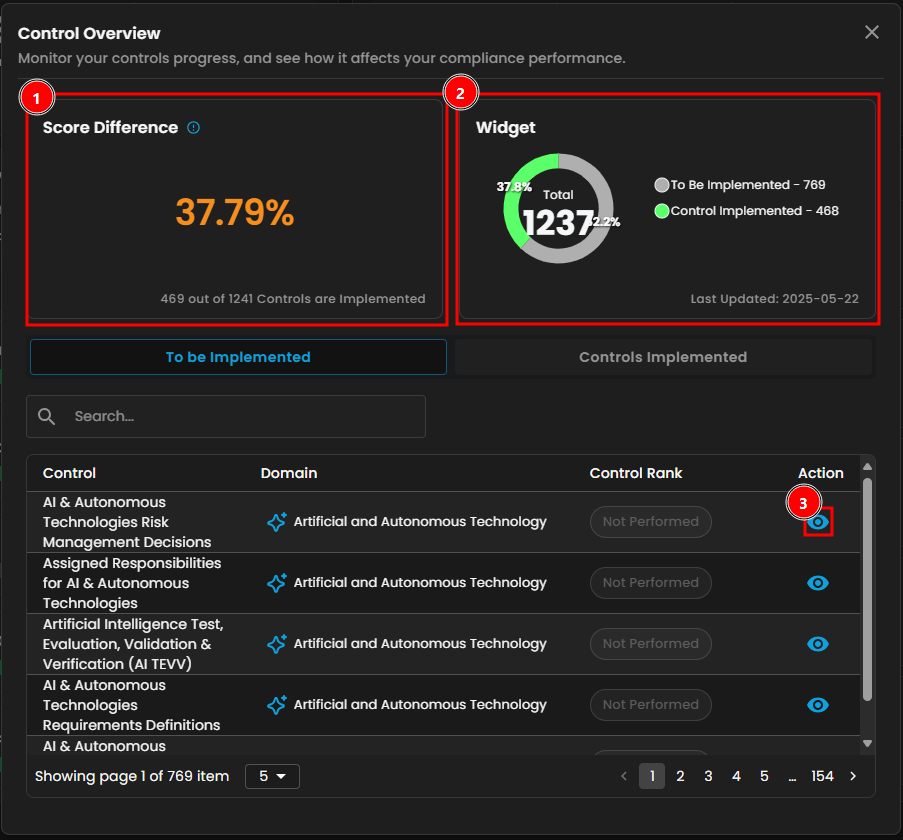
Figure 2.1 Control Overview
Note: Controls Implemented is the same as "To be Implemented", both shows Control, Domains and Control Rank. Clicking the eye icon redirects to this page.
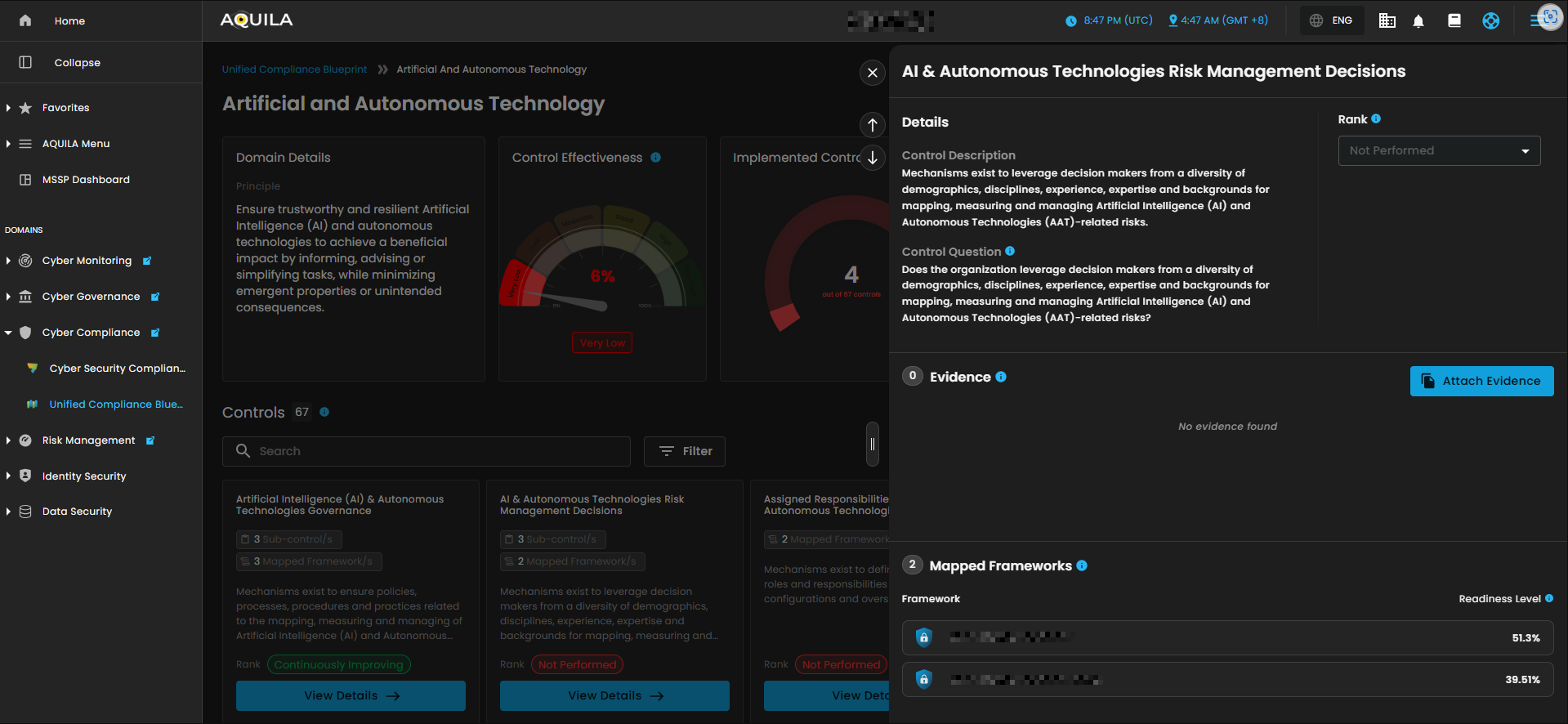
Figure 2.1.2 Control Overview
2. Framework Overview
TracksThe Framework Overview tracks how blueprint efforts translate tointo framework alignment. This widget displays the total number of cybersecurity frameworks in the system, the number applicable to current blueprints, and the progress made.
-
Frameworks
ApplicableApplicable:-These are the cybersecurityCybersecurity frameworks where at least one mapped control has beenimplemented.implemented,This indicatesindicating measurable progress toward framework readiness. -
Score
DifferenceDifference:– Represents theThe improvement in overall framework alignment based on recent blueprint activities. A higher percentageindicatesreflects broader compliance coverage across supported frameworks.
By pressingClicking the Framework Overview,Overview it will showopens a window that tracks implementation progress and measure itsmeasures readiness. This window also showsdisplays the score difference and progressingthe applicable frameworks thatprogressing aretoward applicablecompliance. toAdditionally, the blueprint. Framework alsoit shows how many controls arehave been implemented and notthose yet to be implemented.
Note: The Privacy Framework functions similarly to the Security Framework. It displays the framework, controls implemented, and readiness. The eye icon can also be clicked to access additional details.
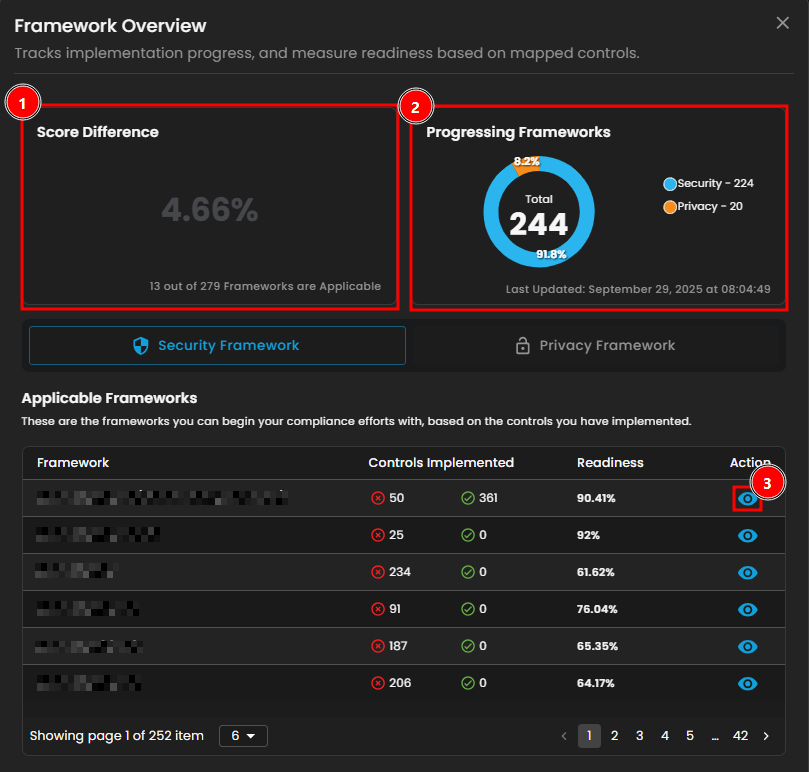
Figure 2.2 Framework Overview
By pressingClicking the eye icon ofnext to a framework,framework it will openopens a window that showsshowing its Readiness checkCheck and the total number of controls ofwithin the framework. The userUsers can alsoexpand extenddetails thefor information of the Progressed ControlControls and Pending ControlControls by pressing the "<" button. UserAdditionally, users can also edit the controls and add a standardstandards for the framework.framework from this window.
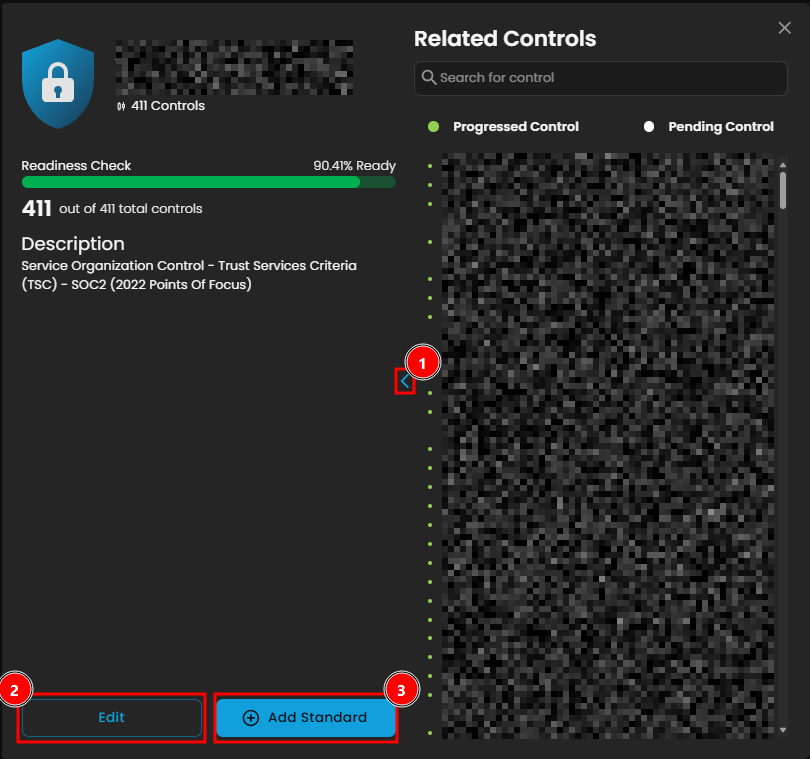
Figure 2.2.1 Framework Overview
3. Blueprint Engagement Tracker
The clientClients can track blueprint efforts and their alignment with frameworks.frameworks Thisusing widgetthis widget. It displays the total number of cybersecurity frameworks in the system, how many are applicable to the current blueprints, and the progress made.
-
BlueprintsBlueprints:– This represents theThe total number of compliance blueprints available in theUCBUnified Compliance Blueprint (UCB) library. These serve as structured guides aligning controls with various cybersecurity frameworks. -
Active
BlueprintsBlueprints:–BlueprintsThesethat areblueprints that have beencurrently engaged with, containing controls that have been implemented or mapped tocurrentongoing complianceprogress.efforts.
ByClicking pressingon theBlueprints blueprints, it will showopens a window aboutshowing Mapped Control Maturity by Blueprints., Thiswhich tracktracks blueprint completion rates and monitormonitors the latest updates of theon client compliance goals. The userUsers can search the blueprints and apply thethree threeavailable filters. PressingClicking theon activeActive blueprintsBlueprints will redirectredirects the client intoto the blueprint module section.
Note: Pressing the active blueprints button in the blueprint engagement tracker shows the same window.
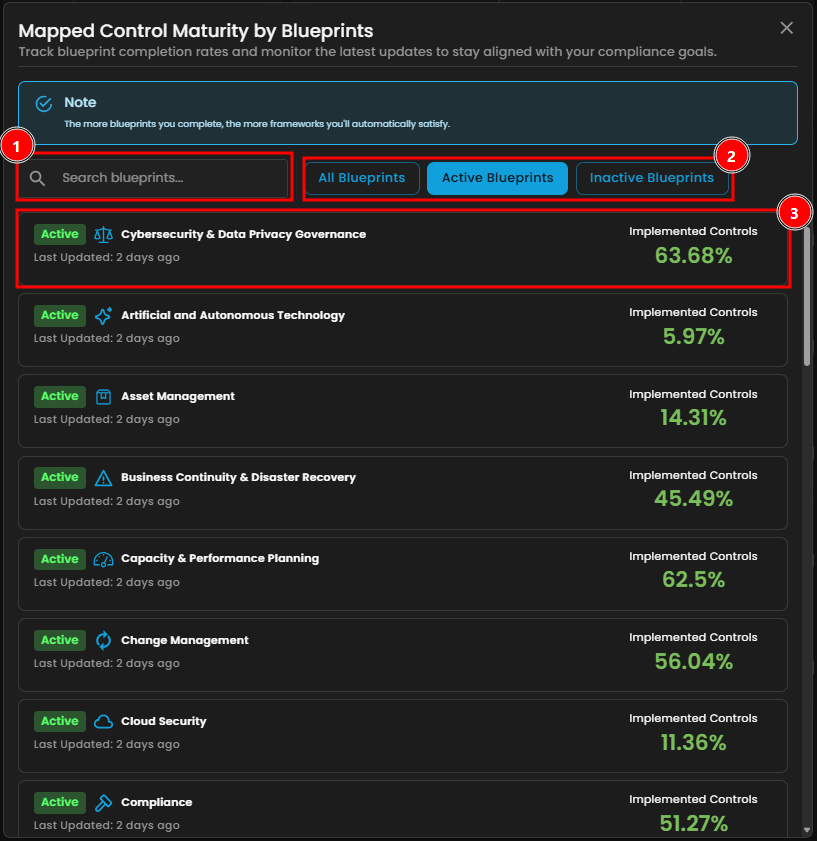
Figure 2.3 Blueprint Engagement Tracker
4. Mapped Control Maturity by Blueprints
Understand the maturity of controls across various blueprint domains. Each bar is color-coded to represent control rankings—from “Not Performed”Performed to “Continuously Improving”Improving—enablingmaking identificationit ofeasy to identify areas requiringthat require attention.
- Not Performed
- Performed Informally
- Planned & Tracked
- Well Defined
- Quantitatively Controlled
- Continuously Improving
- Search 🔍 - The client can search their blueprint
- Filter ᯤ - Blueprint filter
- Filter Options
- Filter by
- Non-Compliant
- Fully Compliant
- Partially Compliant
- Mostly Compliant
- Filter by
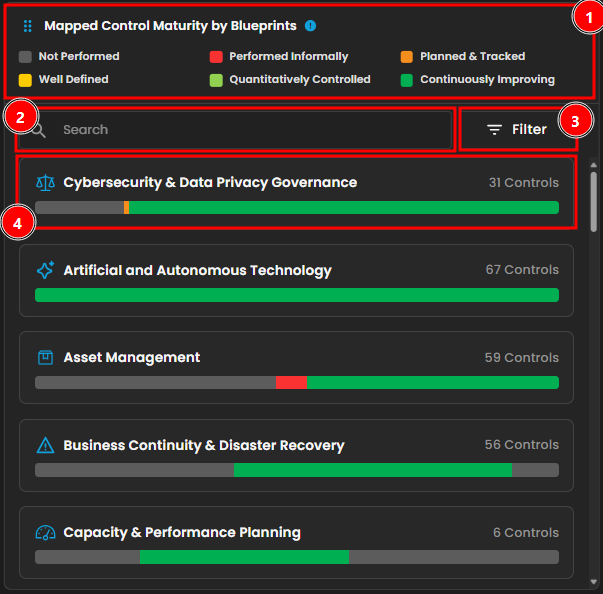
Figure 2.4 Mapped Control Maturity by Blueprints
Clicking a blueprint opens a window displaying the mapped control maturity byfor that blueprint. This view tracks control implementationthe progress and maturity of control implementation within the selected blueprint. Clicking Controls Implemented shows the list of controls that have been implemented. Clicking the eye icon redirects to the blueprint module section.
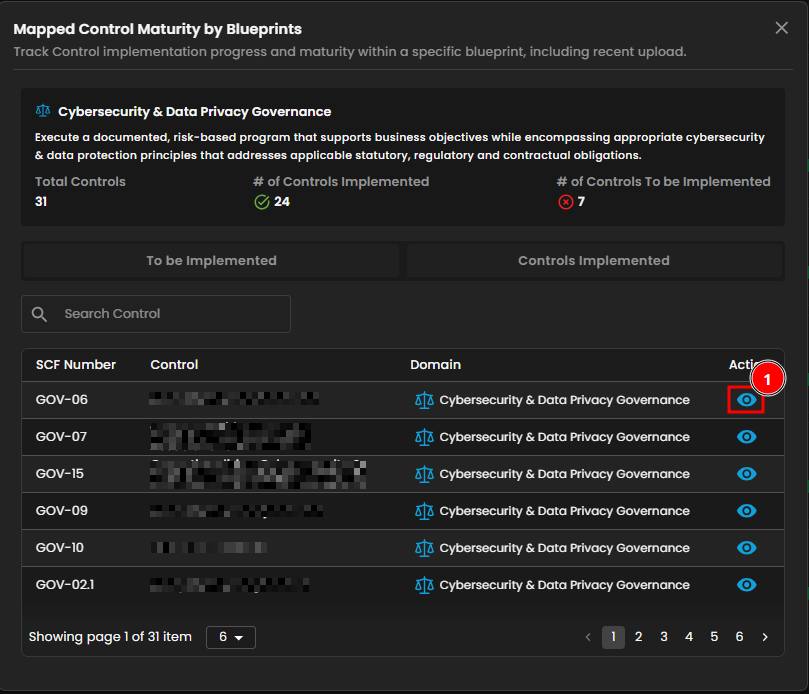
Figure 2.4.1 Mapped Control Maturity by Blueprints
5. Framework Readiness
-
DisplaysThis widget displays the top five frameworksforby readiness,providingoffering a quickassessmentoverview of compliance progress across the most relevant frameworks.This widgetIt shows each framework’s overall completion percentage and highlights recent improvements.ByClicking
Pressingononeaofframeworkthe frameworks, it will openopens a windowthat showsdisplaying its Readinesscheck,Check, ProgressedControlControls, and PendingControl.Controls—similarThis isto thesameviewasshown in Figure 2.3.1 FrameworkOverview.Overview.
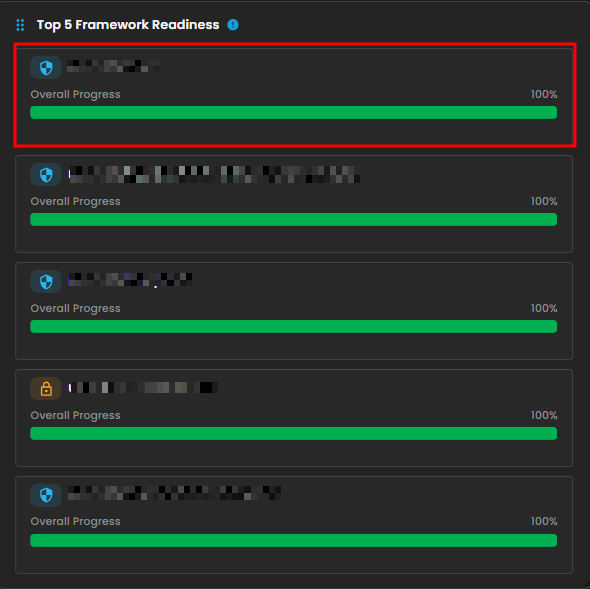
Figure 2.5 Framework Readiness
6. Activity Feed
-
TracksThe Activity Feed tracks recentactions.actions,This feed logsincluding evidence uploads and blueprintactivity,activity.enablingItmonitoringhelpsofmonitor contributions,maintainingmaintain audit trails, andstayingkeep users informed about compliance progress.PressingClicking on the Blueprint Page
will redirectredirects the user to the blueprint sub-module section.
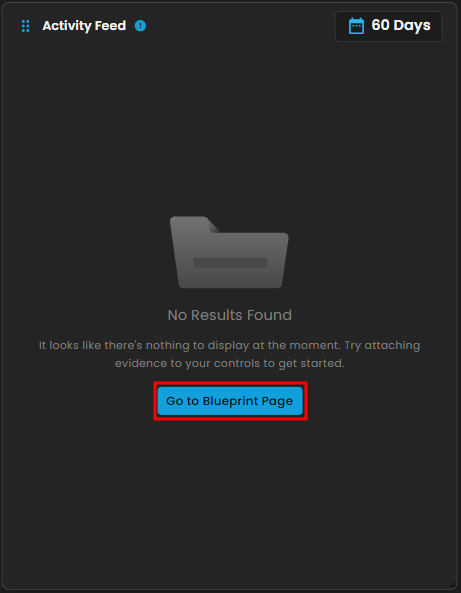
Figure 2.6 Activity Feed
Blueprints
This is where you can monitor your blueprints and ensure compliance with various security standards. The dashboard provides an overview of control effectiveness across different domains, showing the number of implemented controls out of the total available for each domain. You can use the search bar (1) to quickly find specific domains or controls, and the filter drop-down (2) to view blueprints based on their status, such as active or inactive. Each domain card displays a control effectiveness gauge, color-coded to indicate performance levels from “Very Low” to “Good.” By clicking the View Domain button (3), you can dive deeper into detailed progress, assess control maturity, and manage compliance efforts more effectively.
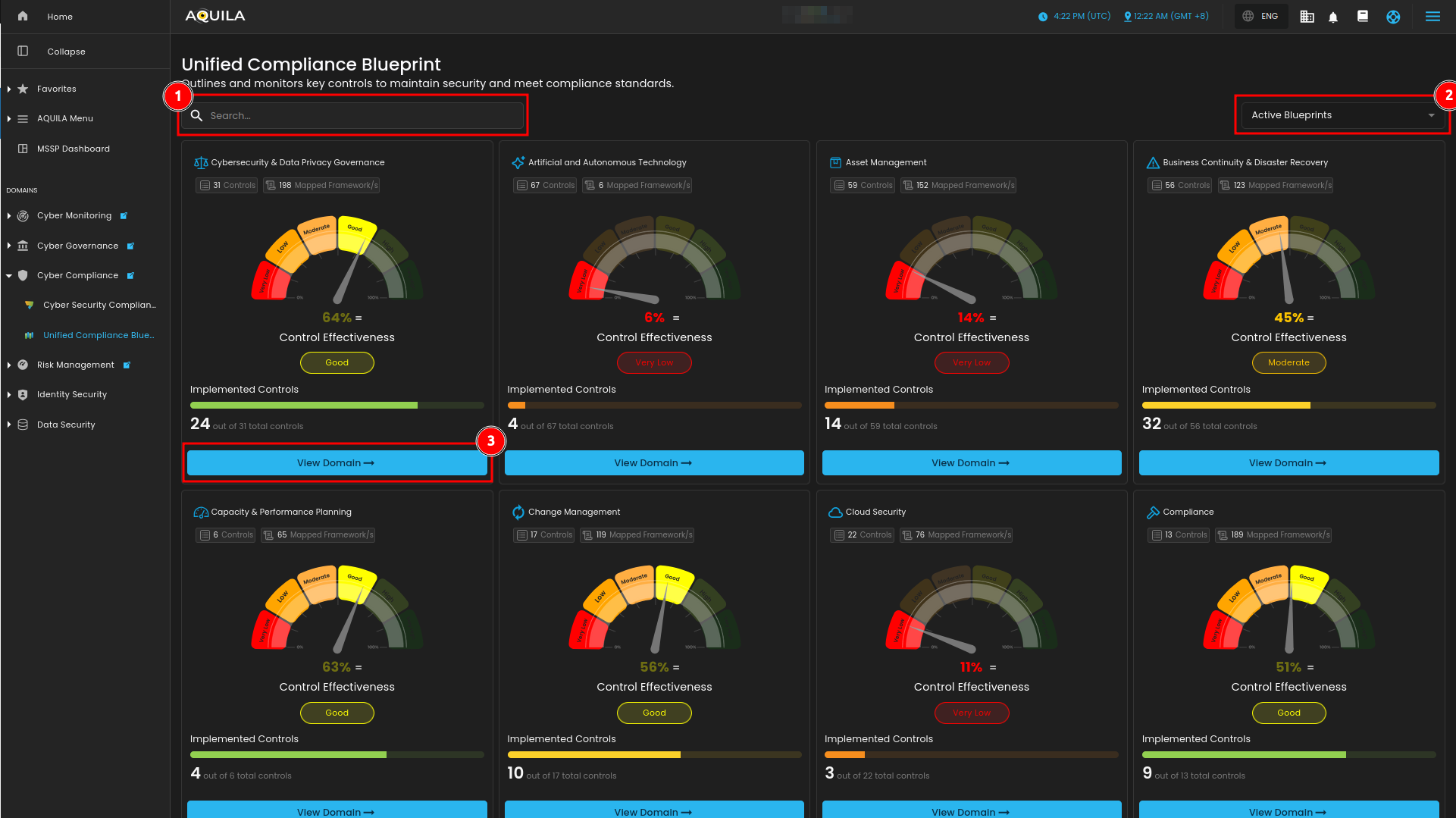
Figure 3. Unified Compliance Blueprint
View Domain
1. Domain Details
OutlinesThis section provides a comprehensive overview of the selected blueprint domain. It includes a description of the domain’s objectives and monitorsthe keyoverall effectiveness of controls, represented by a control effectiveness gauge. You can also see the total number of implemented controls toout maintainof securitythe total available. Additionally, this section displays the distribution of compliance requirements across all sub-domains within the domain, categorized by their status such as Continuously Improving, Quantitatively Controlled, Well Defined, Planned & Tracked, Performed Informally, or Not Performed.
2. Controls
Each control within the domain is listed below with its description and the number of mapped frameworks it applies to. Controls are individual elements that must be addressed to meet compliance standards. Each control also has a maturity rank, reflecting the level of implementation and effectiveness based on the Mapped Control Maturity model.
3. View Details
By clicking the View Details button on any control, users can access more in-depth information, including detailed control descriptions and specific control questions. These questions help determine whether the control is applicable to the organization. Users can also attach evidence to demonstrate compliance. The page shows which frameworks are mapped to this control and how progress on the control contributes to the organization’s readiness score within each framework. This helps track compliance maturity and readiness levels effectively.
Cybersecurity & Data Privacy Governance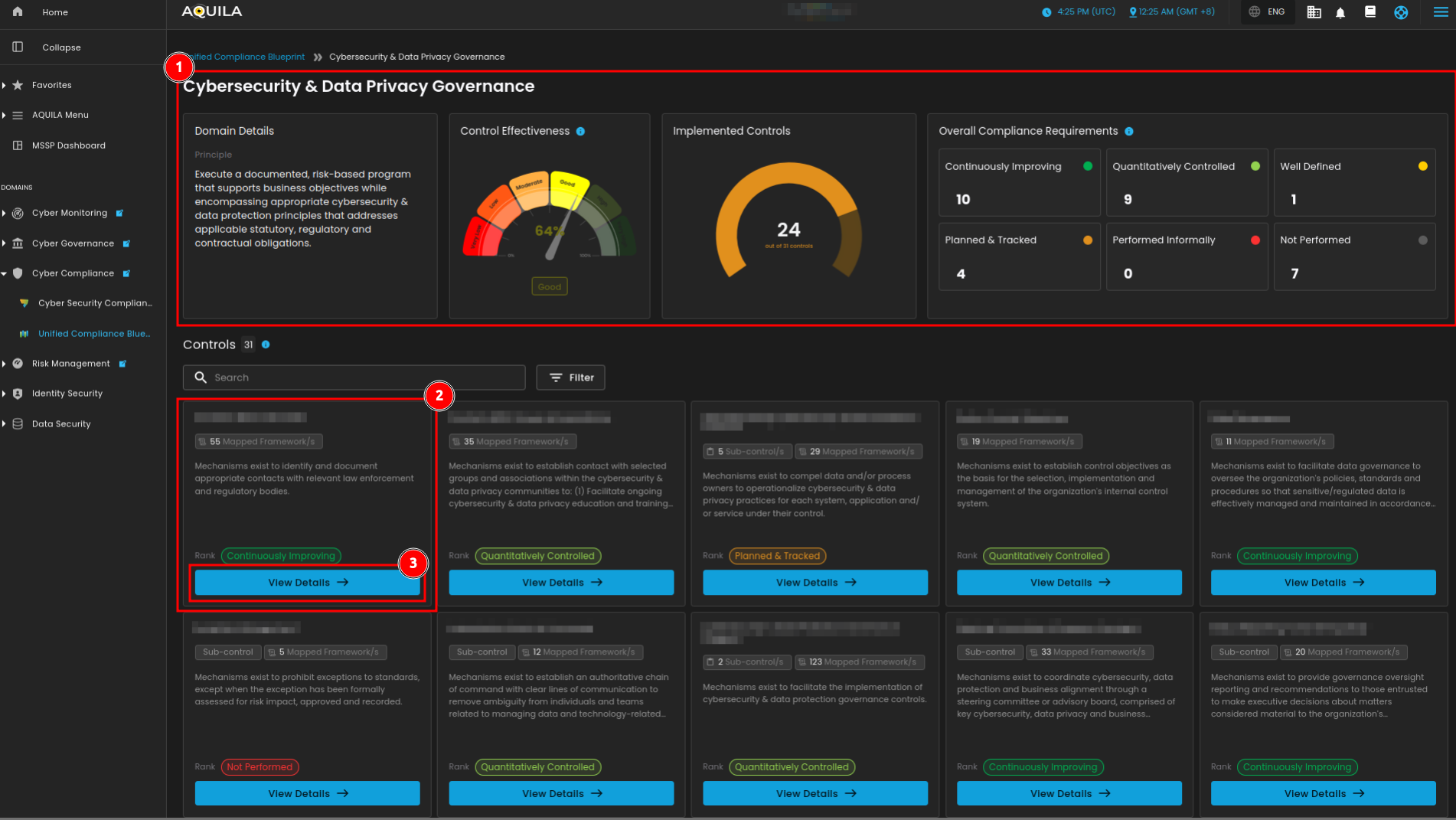
DomainFigure Details3.1 Unified Compliance Blueprint
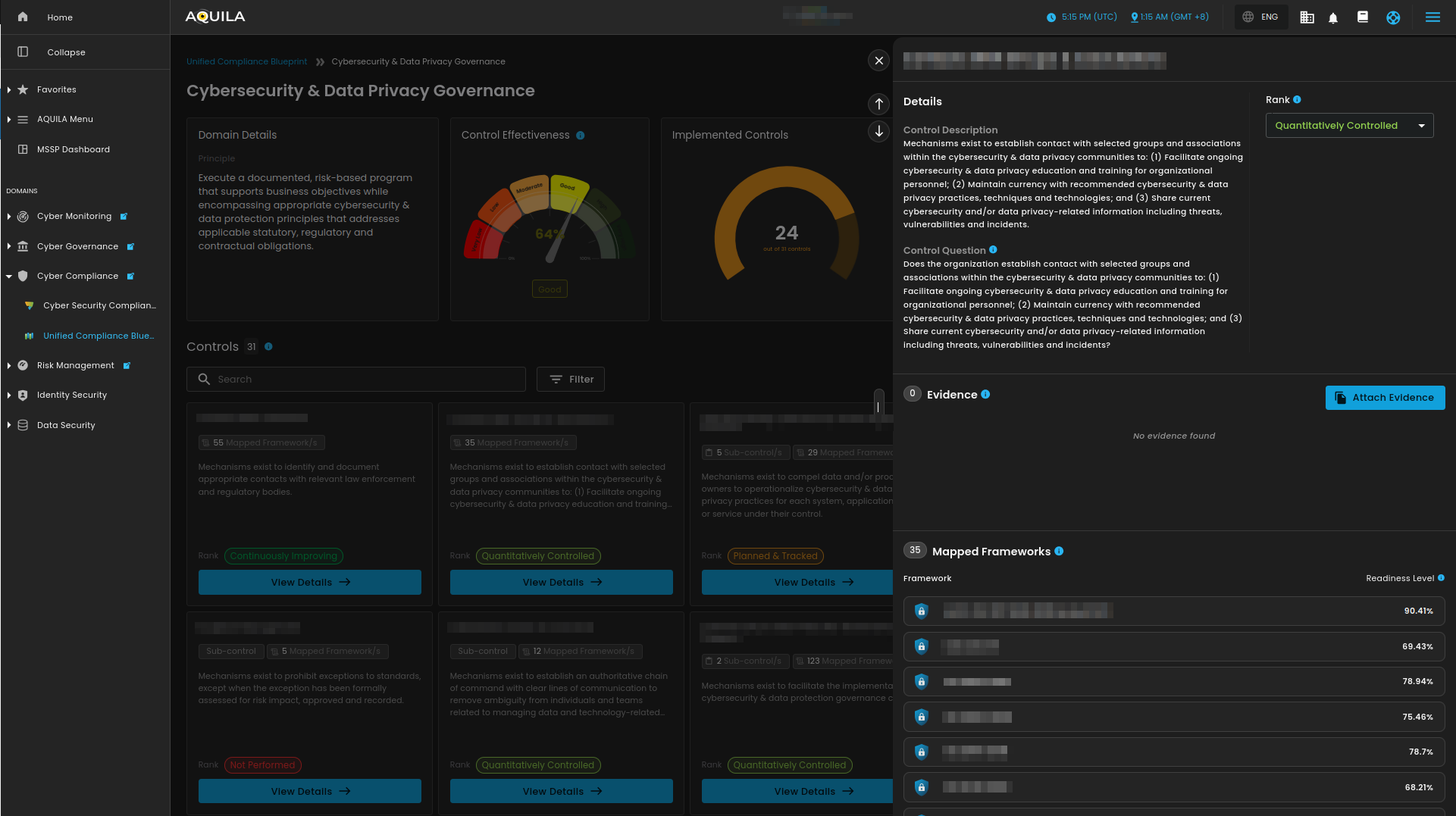
SearchFigure -3.2 SearchUnified forCompliance blueprintsBlueprint
Filters - Shows filters for blueprint
All BlueprintsActive BlueprintsInactive Blueprints
Readiness Overview
ViewThis page shows your progress across selected frameworks and exploreallows core controlsyou to strengthenexplore controls. Pressing the scope."View Details" button will redirect you to the detailed view of the control, as shown in Figure 3.2.
Note: By pressing Highlight Controls will show the user's 100% readiness in their framework. They work the same as Core Controls that redirect you back to the details of the control. Refer to Figure 3.2.
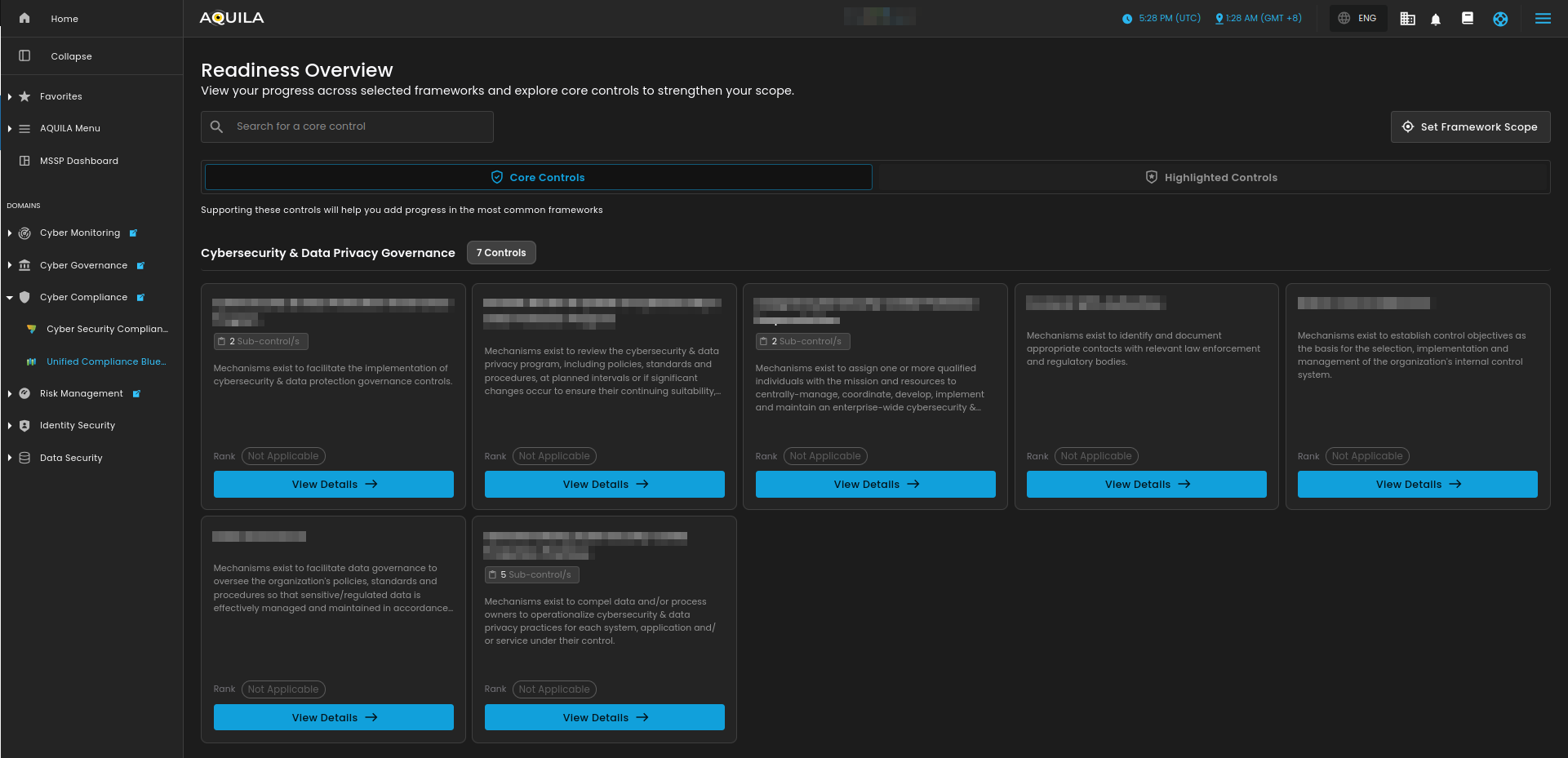
Figure 3.3 Readiness Overview
SearchConclusion
The SearchUnified Compliance Blueprint serves as a central hub for amonitoring coreyour blueprints and frameworks. It enables you to track their performance by assessing control maturity and Highlightedreadiness, Controlensuring effective management and continuous improvement.