
CyTech AQUILA - Unified Compliance Framework
Overview:
The Unified Compliance Blueprint is a module of Cyber Compliance that is designed to help security teams monitor the implementation of security controls, track compliance with frameworks, manage blueprint engagement.
Key Features:
- Control Overview
- Framework Overview
- Blueprint Engagement Tracker
- Mapped Control Maturity by Blueprints
- Framework Readiness
- Activity Feed
Step 1: Log in to CyTech - AQUILA
Step 2: Click on Cyber Compliance
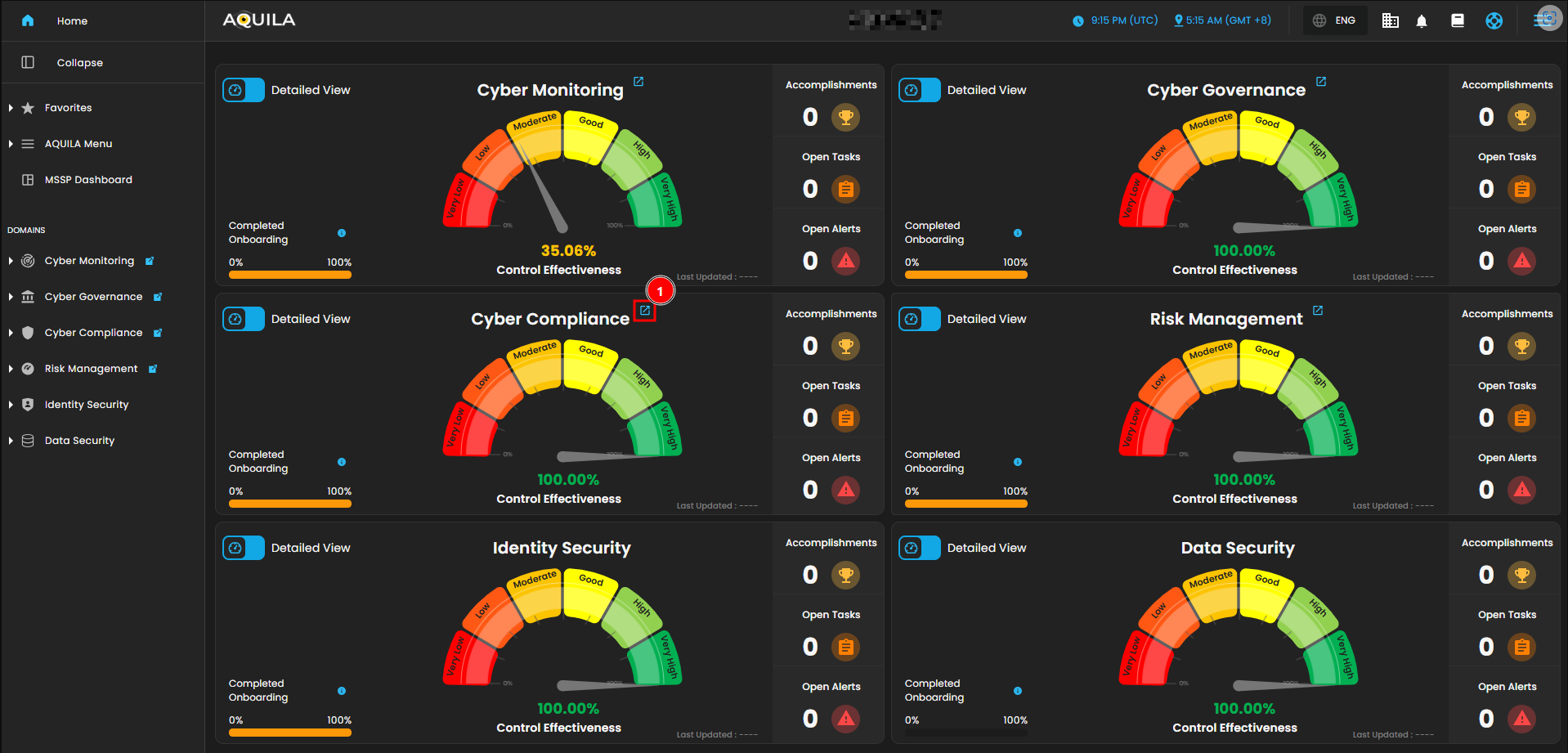
Figure 1. Overview
Step 3: Choose Unified Compliance Framework (UCB)
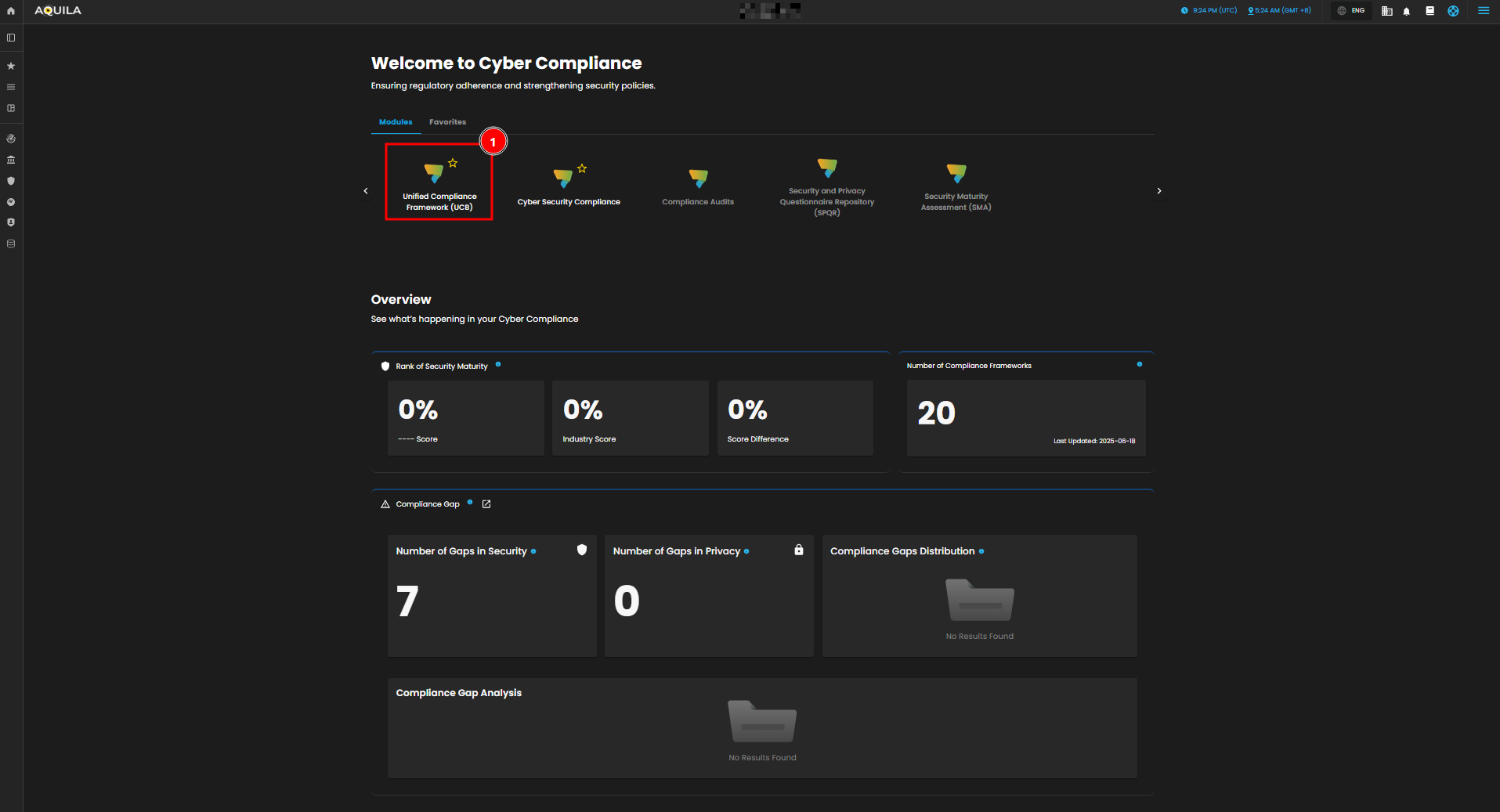
Figure 1.1 Cyber Compliance
Step 4: Hover into leftmost panel to view all the Cyber Compliance sections. This Process is applicable in all navigating into a Module.
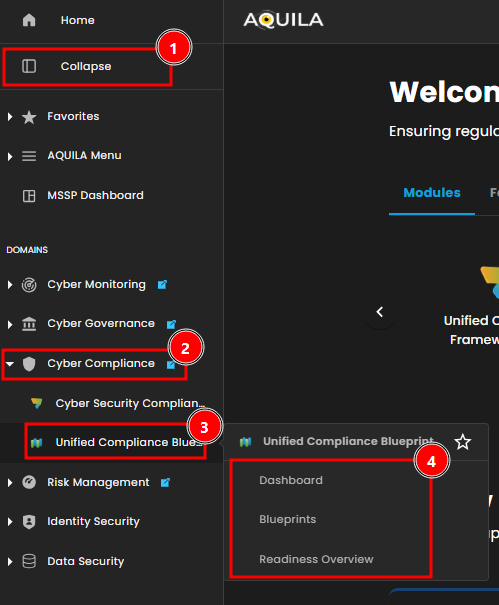
Figure 1.2 Cyber Compliance Navigation
Dashboard
The Unified Compliance Blueprint (UCB) dashboard provides overall view of the blueprints, frameworks and the control overview.
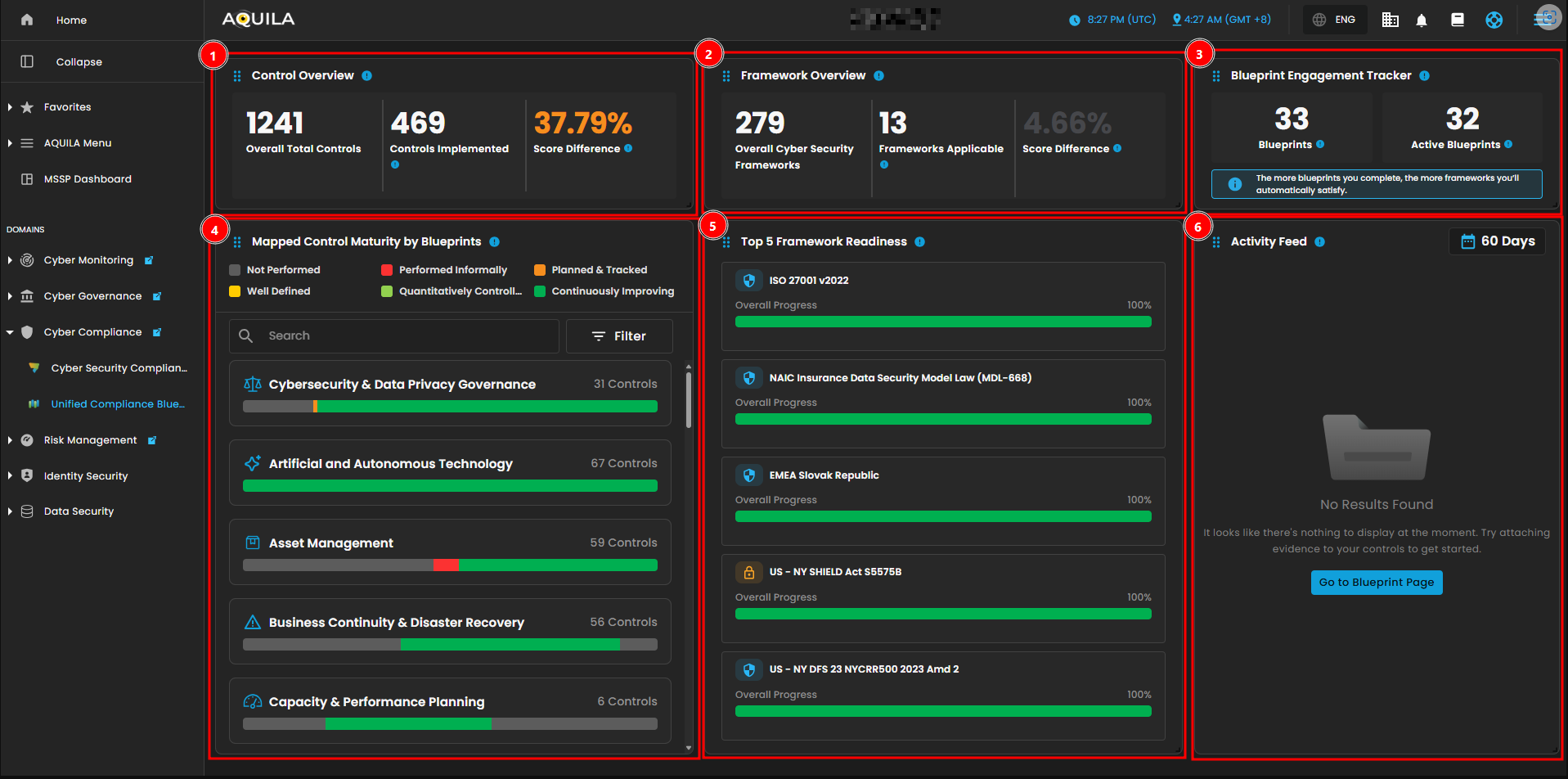
Figure 2. Unified Compliance Blueprint Dashboard
1. Control Overview
Provides a high-level view of control implementation status. This widget displays the total number of mapped controls, how many have been implemented, and improvement over time based on score differences.
-
-
Controls Implemented – The number of controls actively implemented, reflecting real actions taken toward meeting compliance requirements.
Score Difference – Indicates the percentage improvement in overall control maturity or coverage compared to a previous baseline. A higher value signifies better progress in implementing controls.
-
Clicking the Control Overview opens a window displaying control progress and performance. The eye icon redirects to the blueprints section related to that control. This window also shows the score difference and widgets indicating the number of controls implemented and those yet to be implemented.
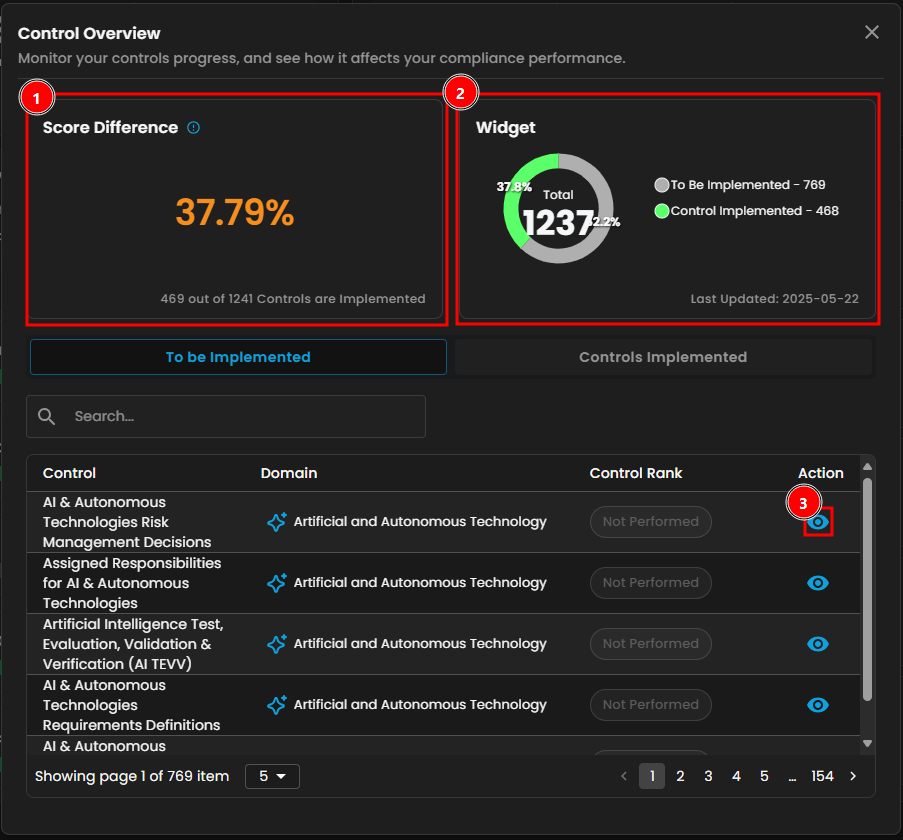
Figure 2.1 Control Overview
Note: Controls Implemented is the same as To be Implemented, both shows Control, Domains and Control Rank.
Clicking the eye icon redirects to this page.
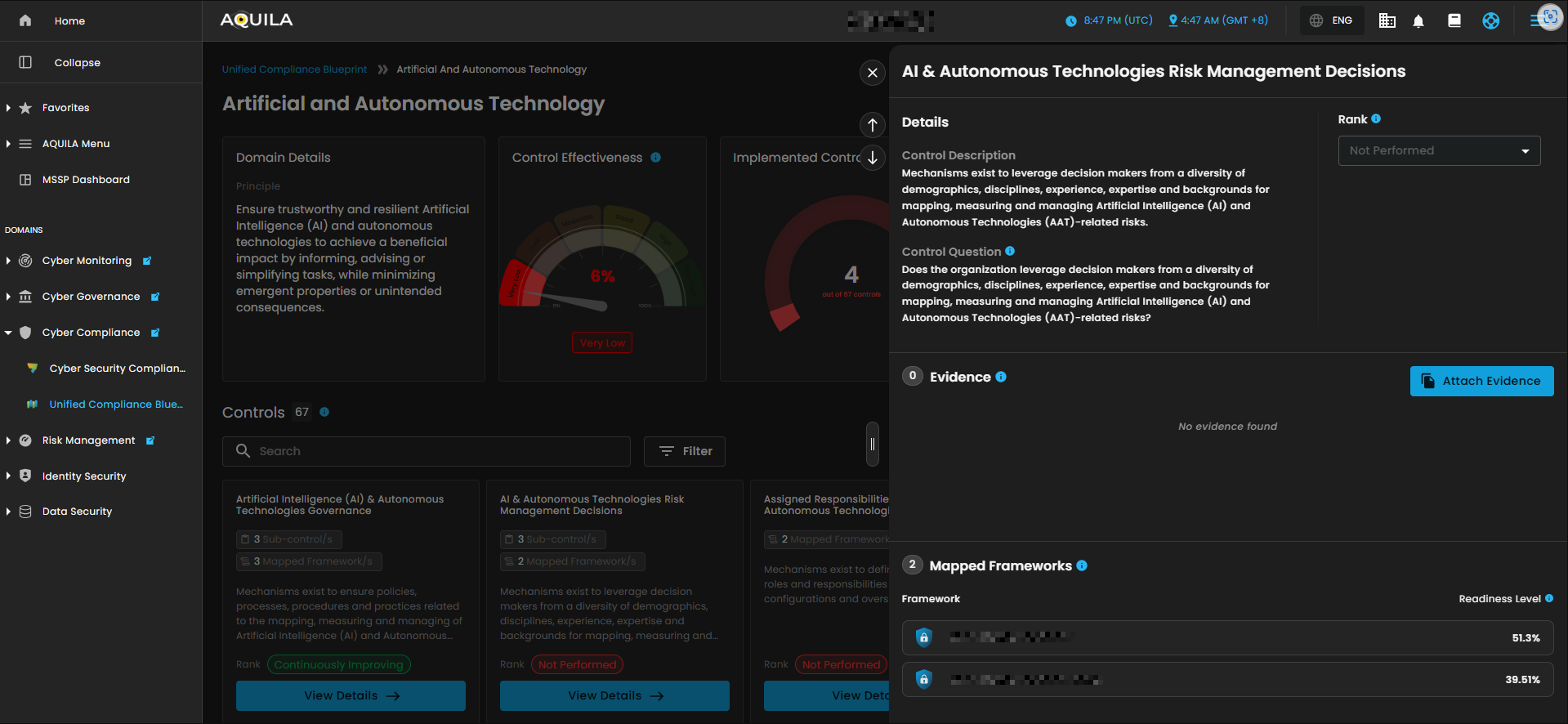
Figure 2.1.2 Control Overview
2. Framework Overview
Tracks how blueprint efforts translate to framework alignment. This widget displays the total cybersecurity frameworks in the system, the number applicable to current blueprints, and the progress made.
-
- Frameworks Applicable - These are the cybersecurity frameworks where at least one mapped control has been implemented. This indicates measurable progress toward framework readiness.
- Score Difference – Represents the improvement in overall framework alignment based on recent blueprint activities. A higher percentage indicates broader compliance coverage across supported frameworks.
By pressing the Framework Overview, it will show a window that tracks implementation progress and measure its readiness. This window also shows the score difference and progressing frameworks that are applicable to the blueprint. Framework also shows how many controls are implemented and not implemented.
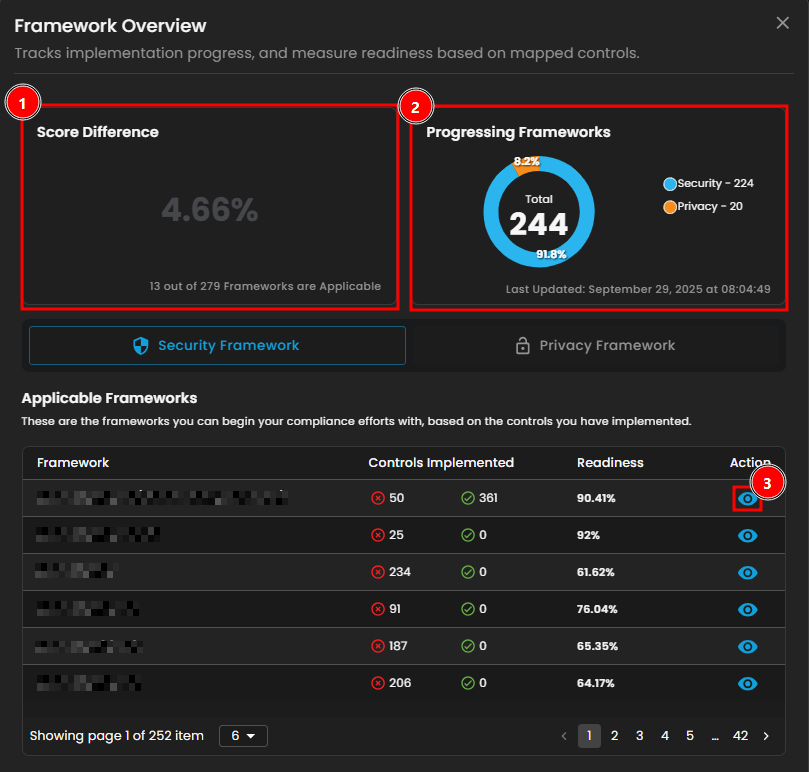
Figure 2.2 Framework Overview
Note: The Privacy Framework functions similarly to the Security Framework. It displays the framework, controls implemented, and readiness. The eye icon can also be clicked to access additional details.
By Pressing the eye icon of a framework, it will open a window that shows its Readiness check, Progressed Control and Pending Control.
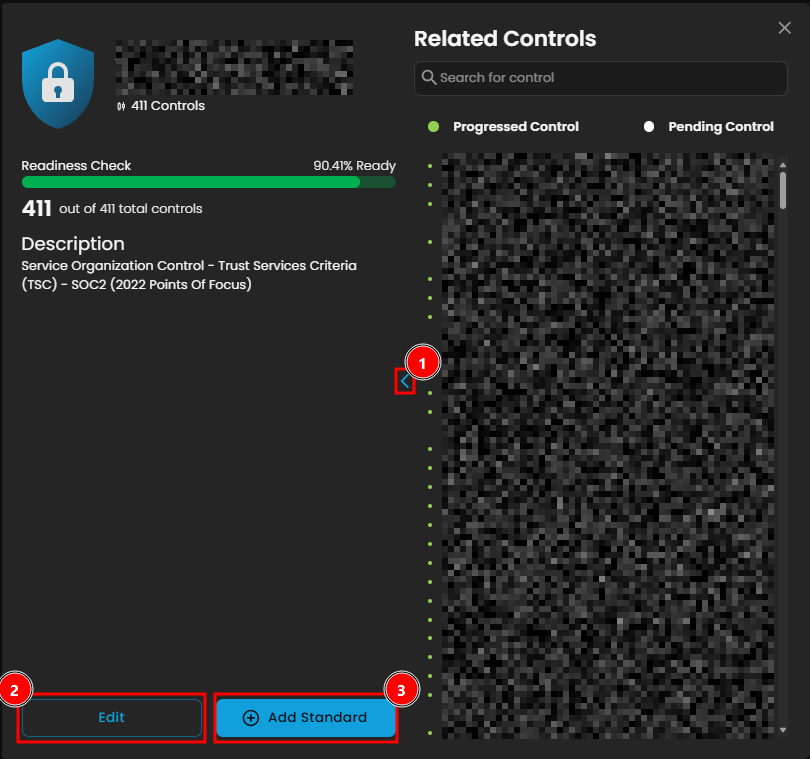
Figure 2.2.1 Framework Overview
Note: This is unfinished because edit can't be accessed.
The user can also edit and add a standard control for this framework in this window.
3. Blueprint Engagement Tracker
The client can track blueprint efforts and their alignment with frameworks. This widget displays the total number of cybersecurity frameworks in the system, how many are applicable to the current blueprints, and the progress made.
-
- Blueprints – This represents the total number of compliance blueprints available in the UCB library. These serve as structured guides aligning controls with various cybersecurity frameworks.
- Blueprints – This represents the total number of compliance blueprints available in the UCB library. These serve as structured guides aligning controls with various cybersecurity frameworks.
By pressing the blueprints, it will show a window about Mapped Control Maturity by Blueprints. This track blueprint completion rates and monitor the latest updates of the client compliance goals. The user can search the blueprints and apply the three filters. Pressing the active blueprints will redirect the client into the blueprint module section.
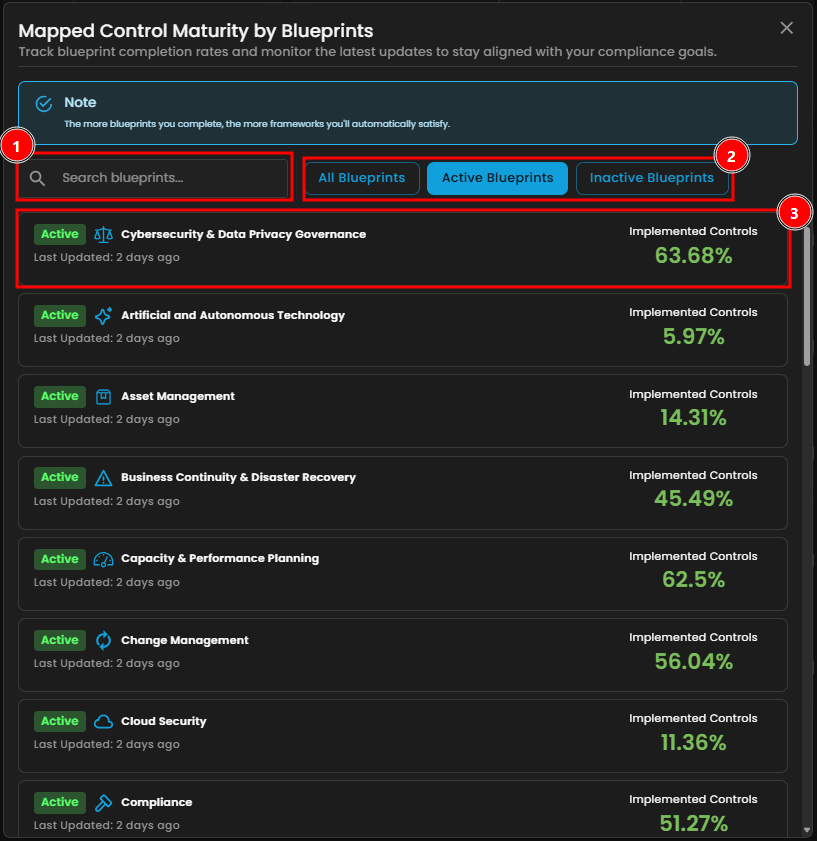
Figure 2.3 Blueprint Engagement Tracker
Note: Pressing the active blueprints button in the blueprint engagement tracker shows the same window.
4. Mapped Control Maturity by Blueprints:
Understand the maturity of controls across various blueprint domains. Each bar is color-coded to represent control rankings—from “Not Performed” to “Continuously Improving”—enabling identification of areas requiring attention.
- Not Performed
- Performed Informally
- Planned & Tracked
- Well Defined
- Quantitatively Controlled
- Continuously Improving
- Search 🔍 - The client can search their blueprint
- Filter ᯤ - Blueprint filter
- Filter Options
- Filter by
- Non-Compliant
- Fully Compliant
- Partially Compliant
- Mostly Compliant
- Filter by
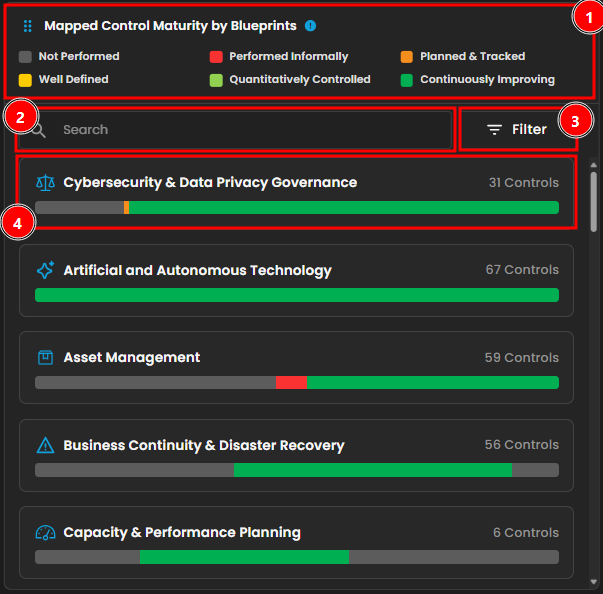
Figure 2.4 Mapped Control Maturity by Blueprints
Clicking a blueprint opens a window displaying mapped control maturity by blueprint. This tracks control implementation progress and maturity within the selected blueprint. Clicking Controls Implemented shows the controls that have been implemented. Clicking the eye icon redirects to the blueprint module section.
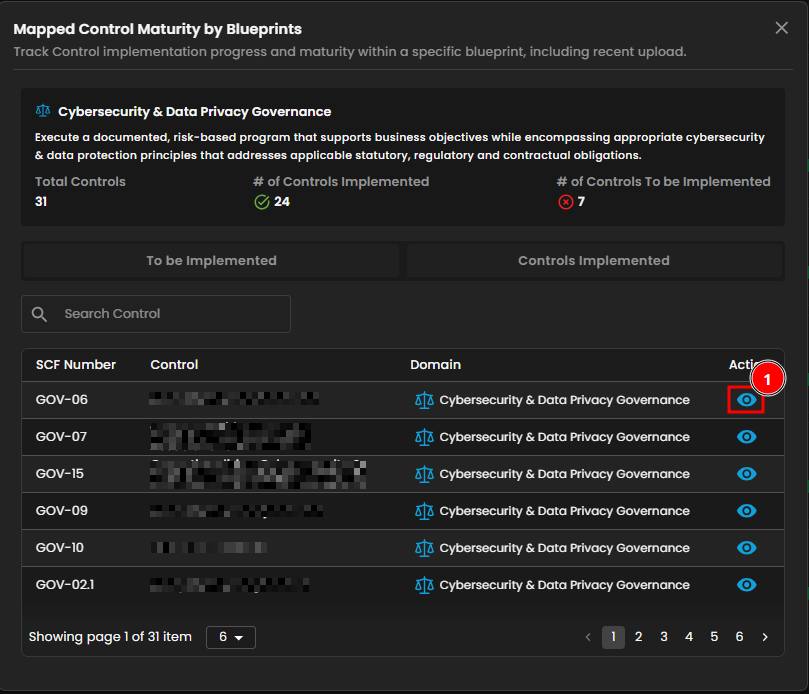
Figure 2.4.1 Mapped Control Maturity by Blueprints
5. Framework Readiness
-
Displays the top five frameworks for readiness, providing a quick assessment of compliance progress across the most relevant frameworks. This widget shows each framework’s overall completion percentage and highlights recent improvements. By Pressing one of the frameworks, it will open a window that shows its Readiness check, Progressed Control and Pending Control. This is the same as Figure 2.3.1 Framework Overview.
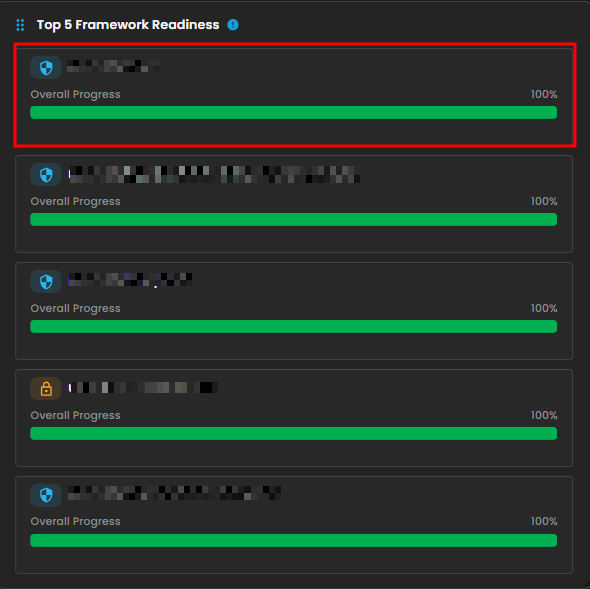
Figure 2.5 Framework Readiness
6. Activity Feed
-
Tracks recent actions. This feed logs evidence uploads and blueprint activity, enabling monitoring of contributions, maintaining audit trails, and staying informed about compliance progress. Pressing the Blueprint Page will redirect the user to the blueprint sub-module section.
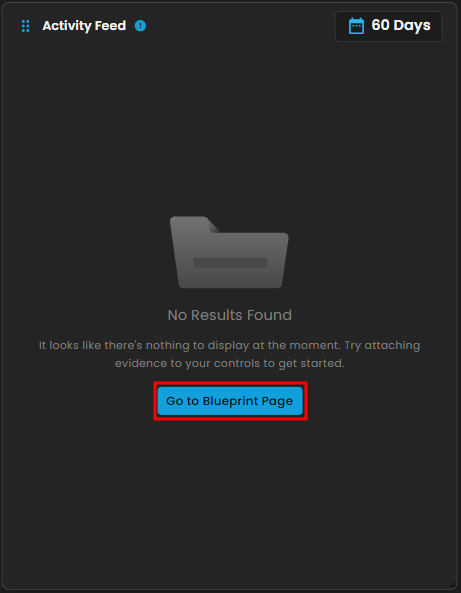
Figure 2.6 Activity Feed
Blueprints
Outlines and monitors key controls to maintain security and meet compliance standards.
Search - Search for blueprints
Filters - Shows filters for blueprint
- All Blueprints
- Active Blueprints
- Inactive Blueprints
Readiness Overview
View progress across selected frameworks and explore core controls to strengthen the scope.
Search - Search for a core control and Highlighted Control