
CyTech AQUILA – Cyber Security Compliance (Module)
Overview:
The purpose of Cyber Security Compliance is to make sure that an organization follows established laws, regulations, and industry standards designed to protect sensitive data and systems.
Key Features:
- Dashboard – Real-time view of overall compliance rate, upcoming audits, critical remediation task, and active framework.
- Manage Compliance – Where you can see the display of all ongoing compliance frameworks.
- Compliance Information- Grid view of multiple compliance and security frameworks.
- Task Management- Calendar-style view that shows the different steps and stages of compliance projects.
Step 1: Log in to CyTech – AQUILA. https://usdc.cytechint.io/
Step 2: Click on Cyber Compliance
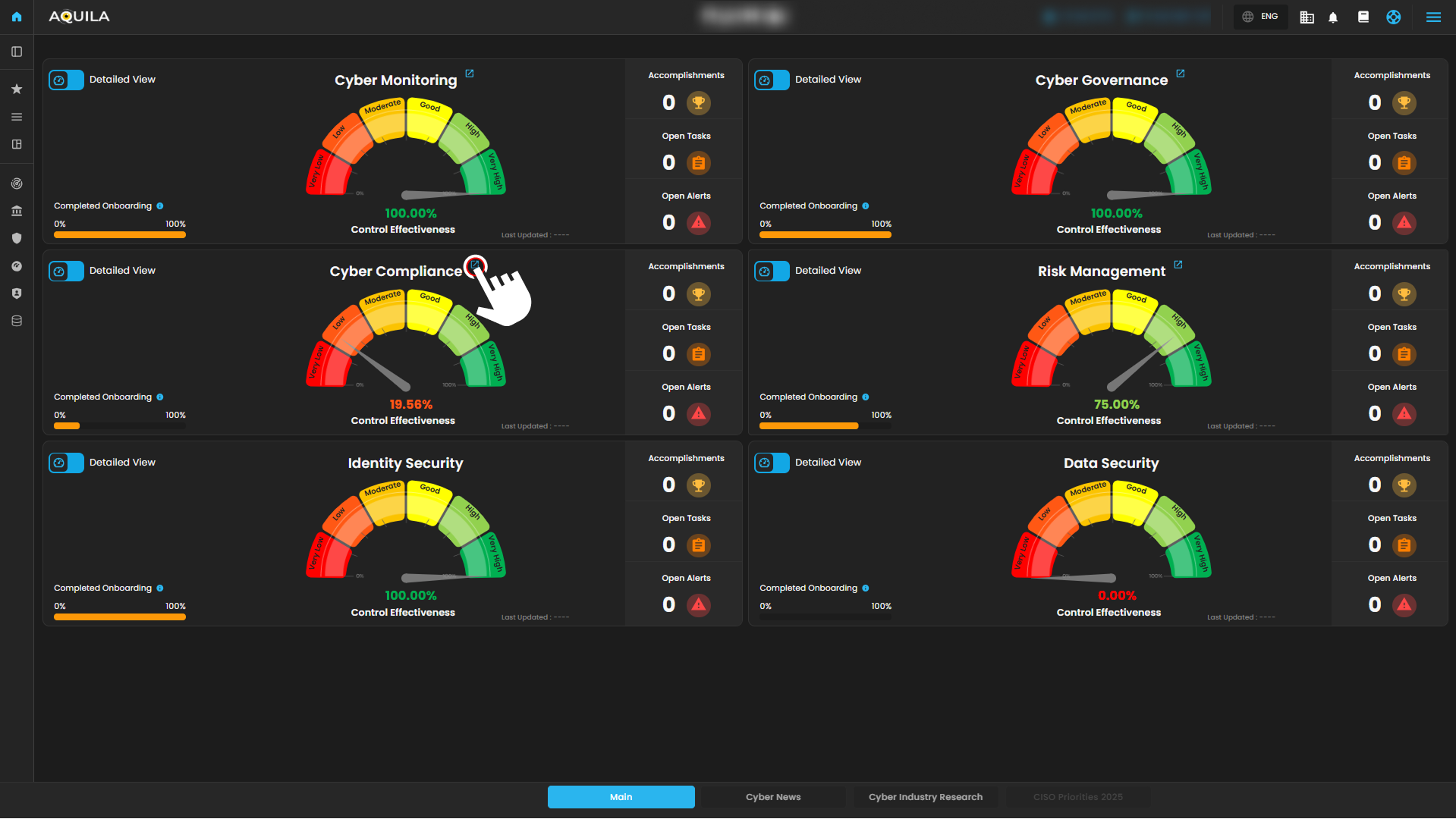
Figure 1 Overview
Step 3: Cyber Security Compliance
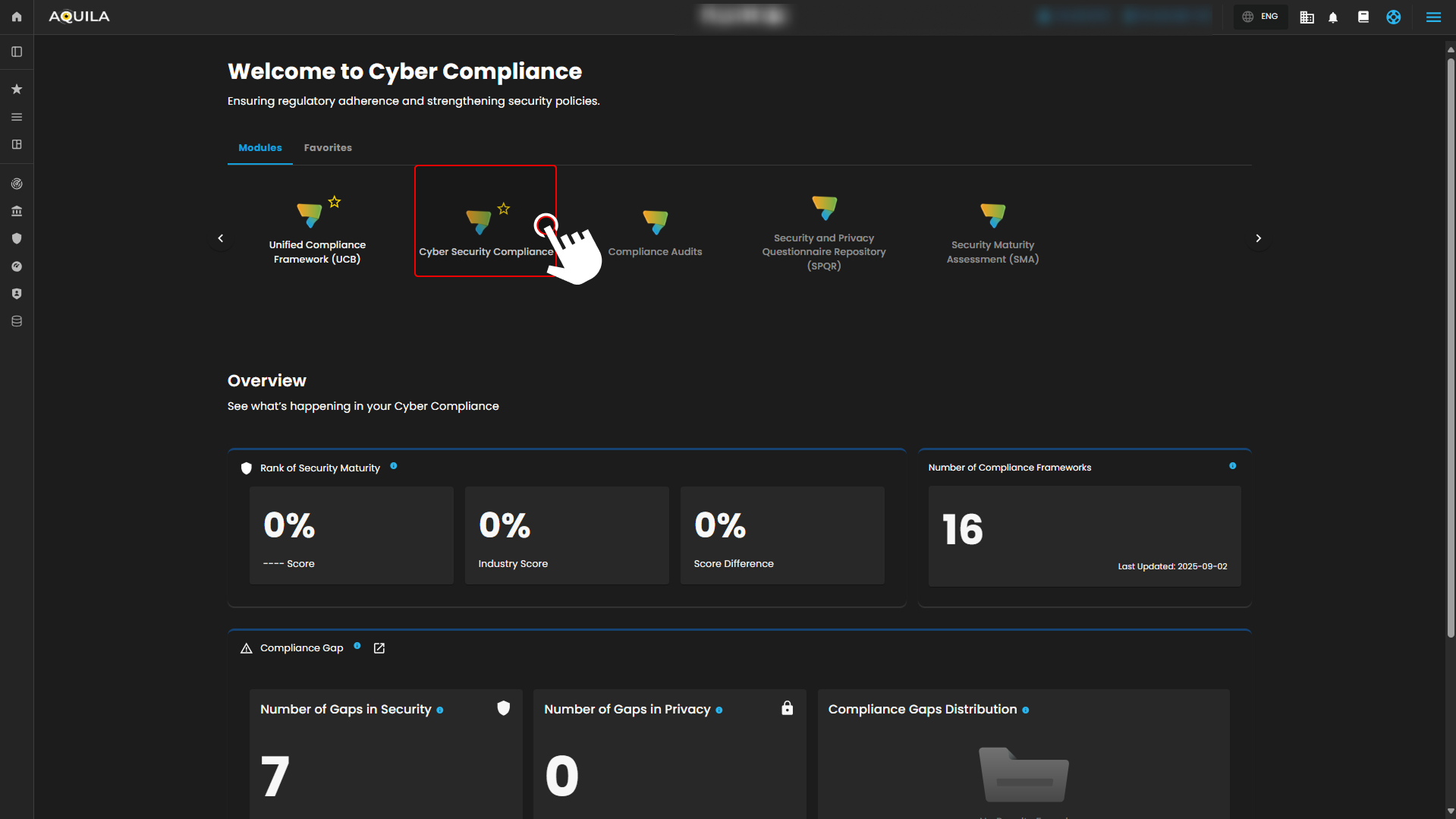
Figure 1.1 Cyber Security Compliance
Step 4:
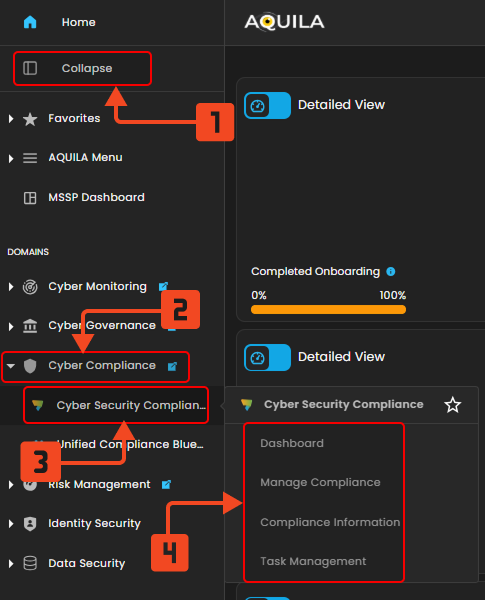
Dashboard (Sub Module) - Cyber Security Compliance (Module)
This Cyber Compliance main dashboard provides a centralized view of compliance health, showing the overall compliance rate, upcoming audits, critical remediation tasks, and an active framework breakdown, giving organizations a quick snapshot of compliance status, priorities, and risks. Including the current audit progress and detailed audit status for each compliance framework in framework audit status.
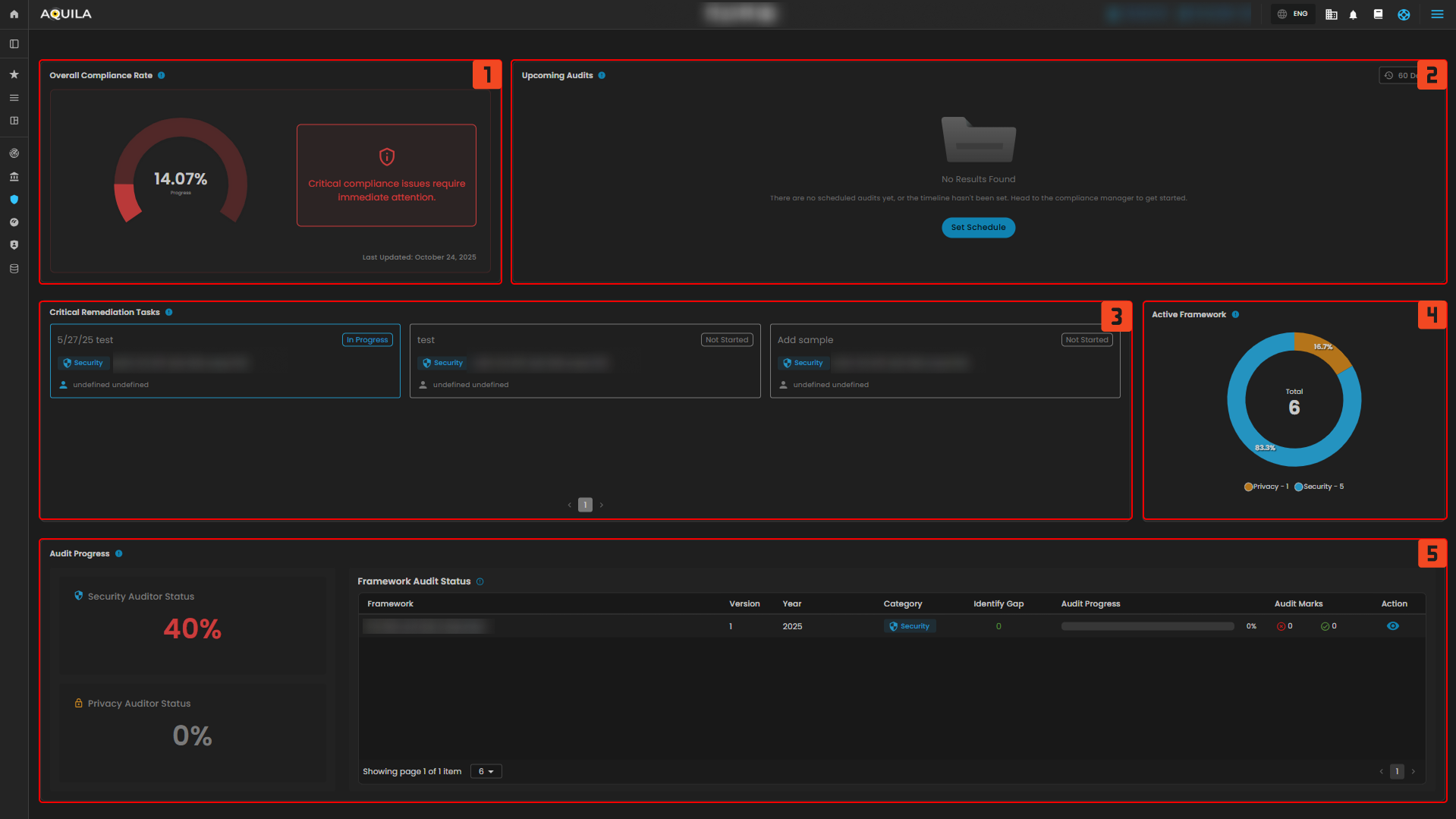
Figure 2 Cyber Security Compliance - Dashboard
1. Overall Compliance Rate
The Overall Compliance Rate is a measure that shows how much of the organization’s compliance requirements across all frameworks have been met.
Upon clicking the Overall Compliance Rate, the dashboard shows a detailed compliance overview, highlighting critical issues that require immediate attention, identifying frameworks that need action, and providing insights into their progress and timeline status.
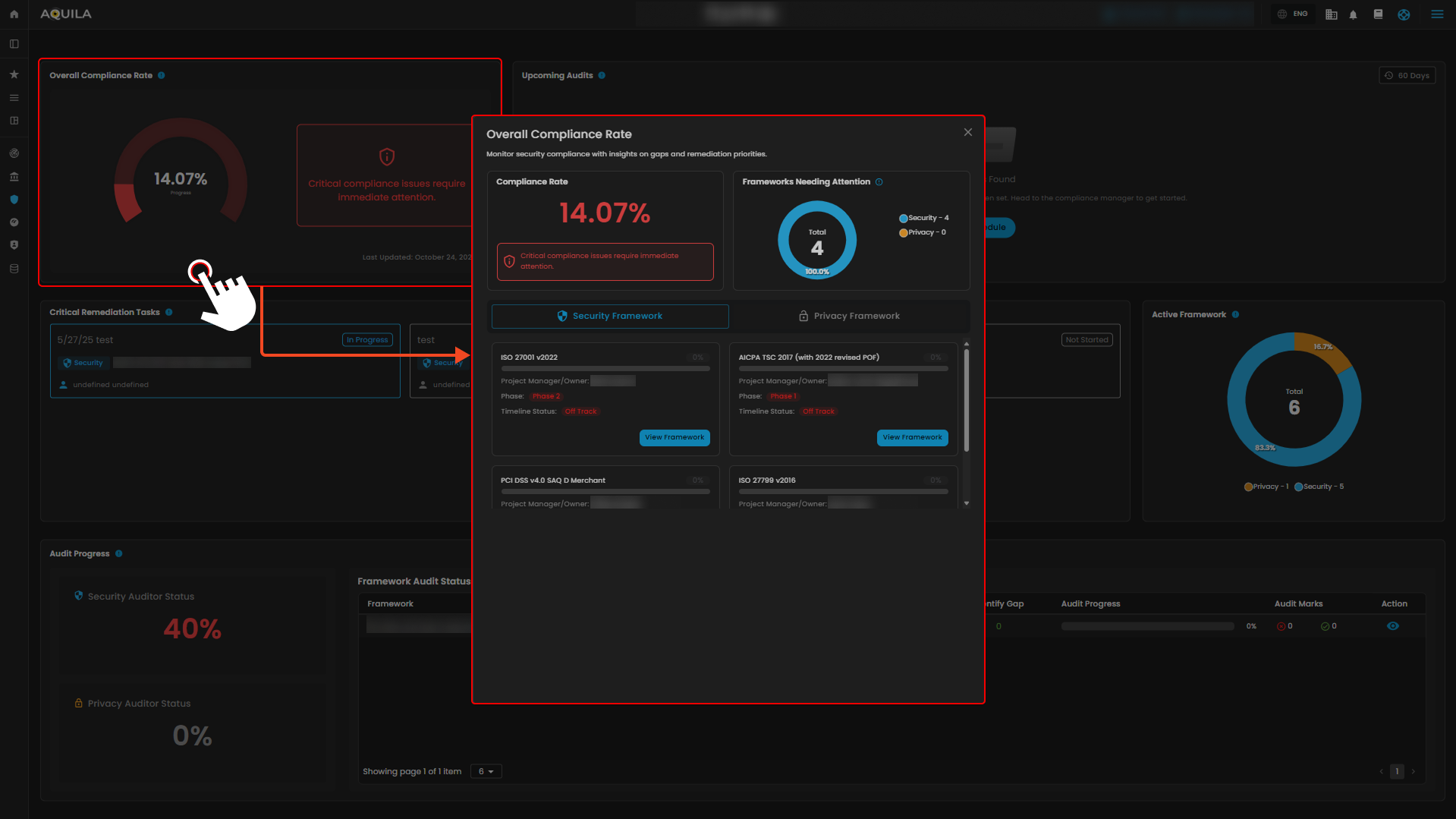
Figure 2.1 Cyber Security Compliance - Dashboard / Overall Compliance Rate
If you click also the “View Framework” you’re taken to a detailed compliance framework dashboard for the ISOs. This page gives you a breakdown of the framework status, and you can generate Gap Analysis Report.
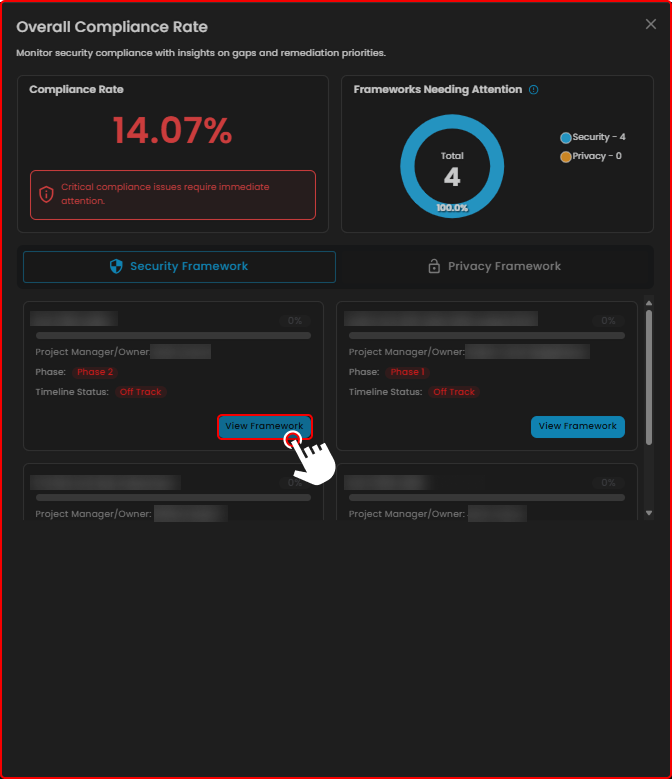
Figure 2.2 Cyber Security Compliance - Dashboard / Overall Compliance Rate
The "View Framework" ISO Tab.
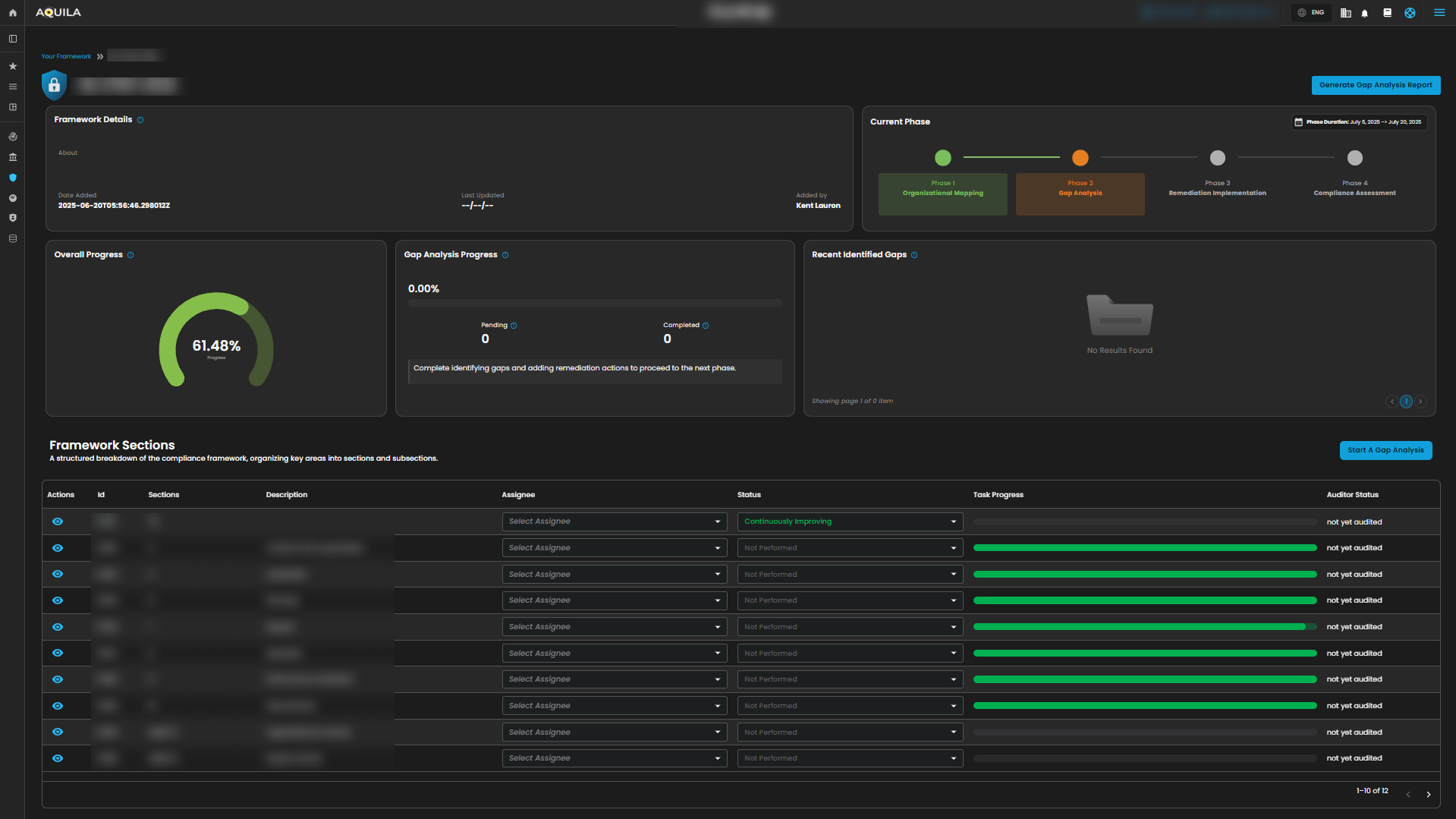
Figure 2.3 Cyber Security Compliance - View Framework ISO Tab
2. Upcoming Audits
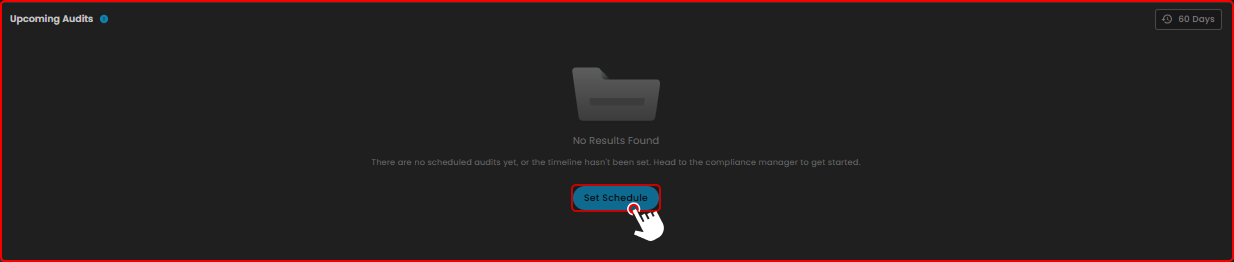
The Upcoming Audits section helps track and prepare for compliance audits by showing scheduled audits within a chosen timeframe.
3. Critical Remediation Task
This Critical Remediation Task shows you the timeline of framework implementation and audits.

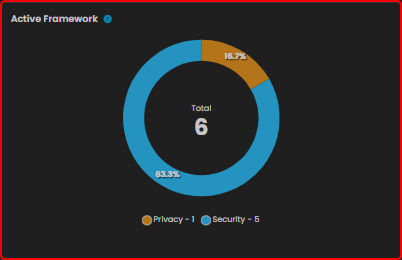
4. Active Framework
This Active Framework shows you the current active frameworks. Based on the timeline date.
5. Audit Progress
The Audit Progress section displays the current audit progress and status. If you click on the Security Auditor Status or Privacy Auditor Status, you’ll be directed to the Overall Auditor’s Status pop-up window, which provides a summary of the auditor’s evaluation.

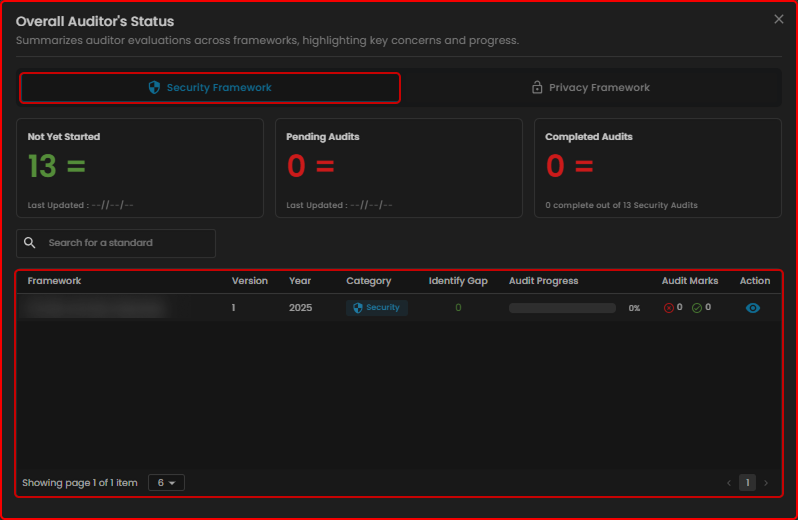
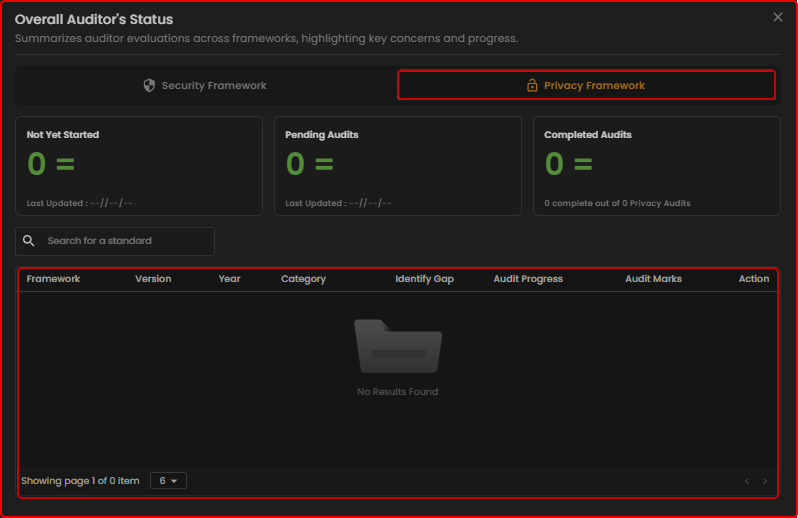
Framework Audit Status
It shows the detailed audit status for each compliance framework.

Manage Compliance (Sub Module) - Cyber Security Compliance (Module)
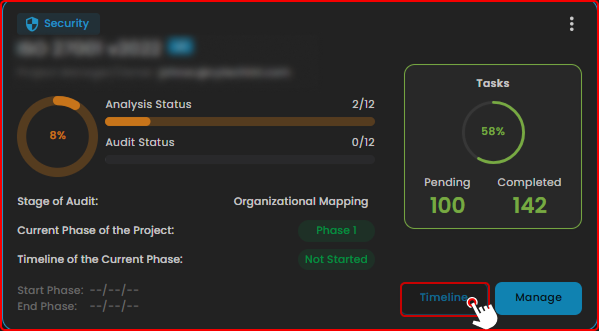
It displays all available frameworks, allowing you to view timelines, manage them, and monitor your active frameworks simultaneously.
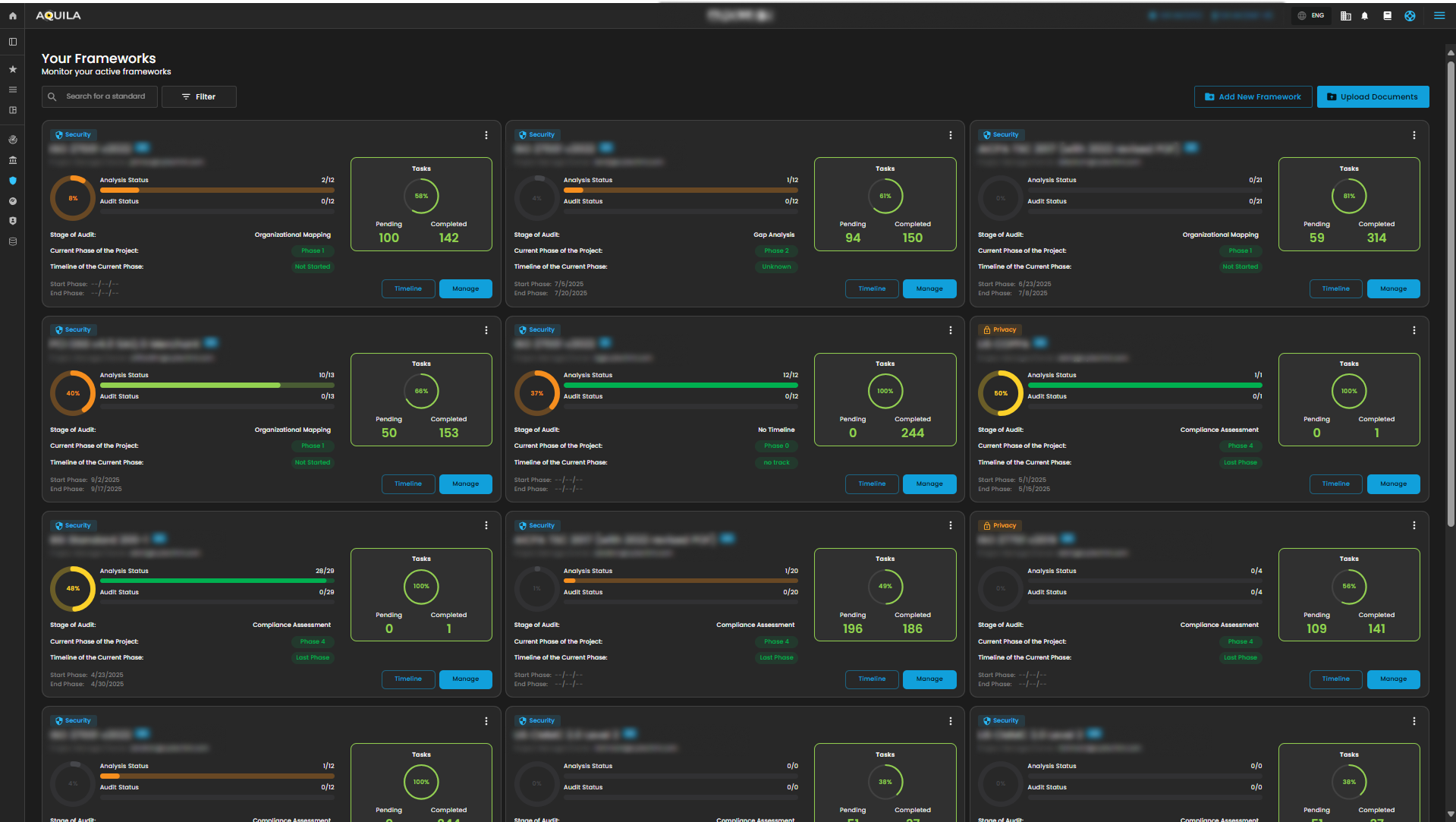
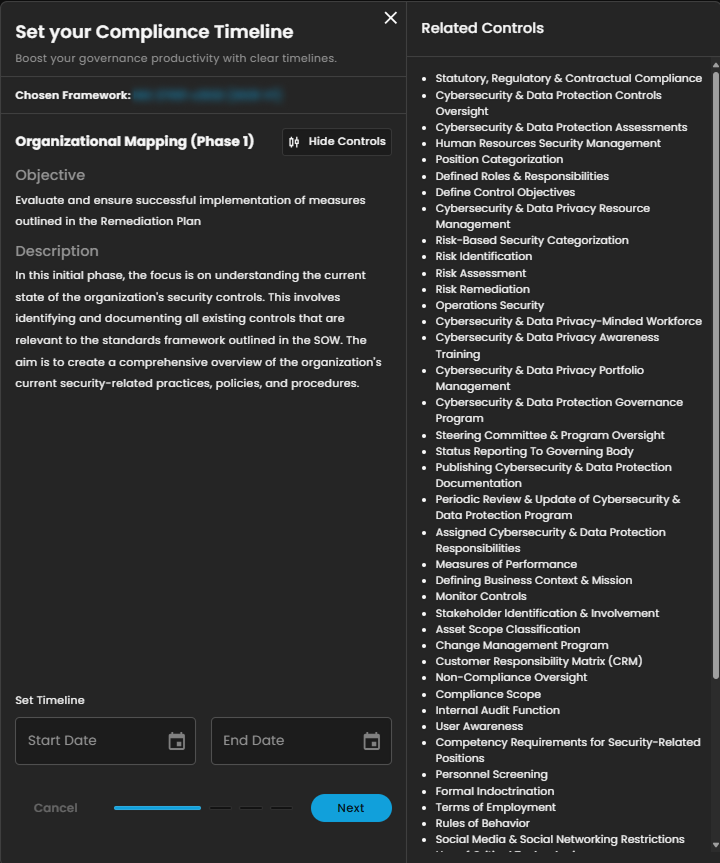
Timeline in Frameworks
This Timeline section is for defining and managing timelines for compliance phases while mapping them to specific controls and tasks.
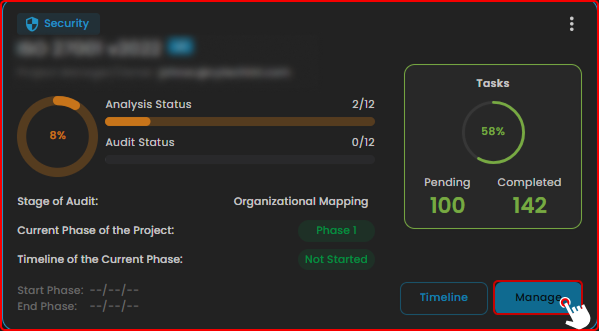
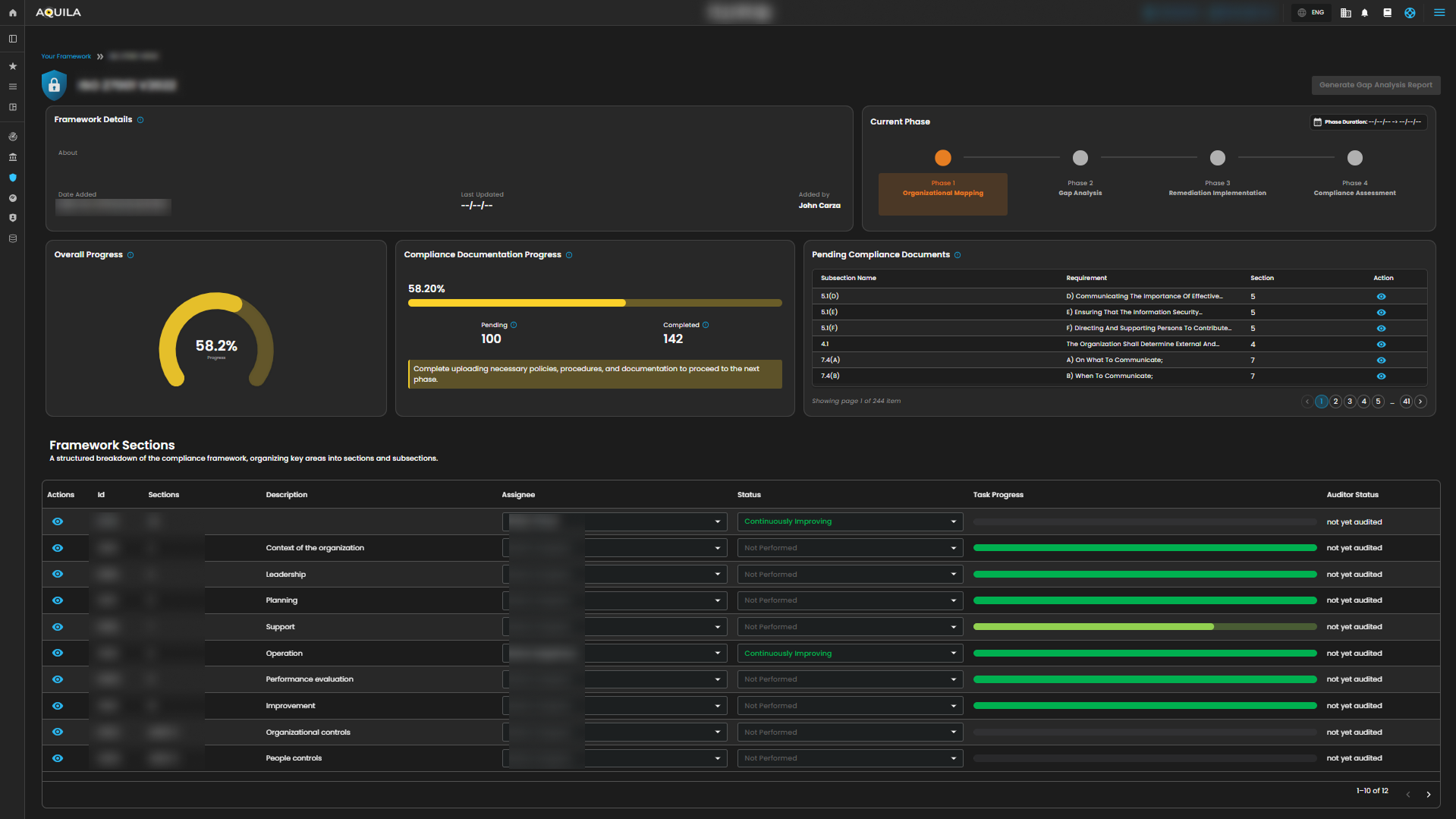
Manage in Frameworks
This Manage section displays the compliance progress overview, current phase in the audit process, and detailed framework sections with task progress and audit status.
1. Search Bar - The search bar allows you to look up and filter different compliance standards or frameworks.

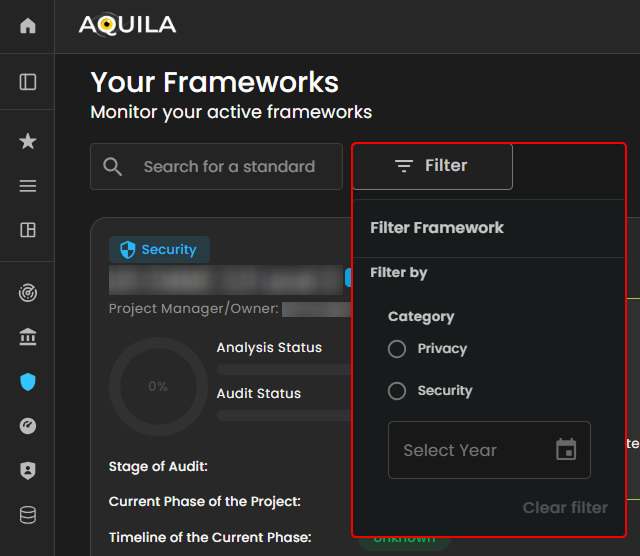
2. Filter/Clear Filter - This filter features allow you to select a category between Privacy and Security, you can select specific year if you want. To remove all applied filters and return to the full normal list just click the Clear filter method.
Add New Framework
This option Add New Framework where you can be able to choose Framework Template, or you will create a new one.

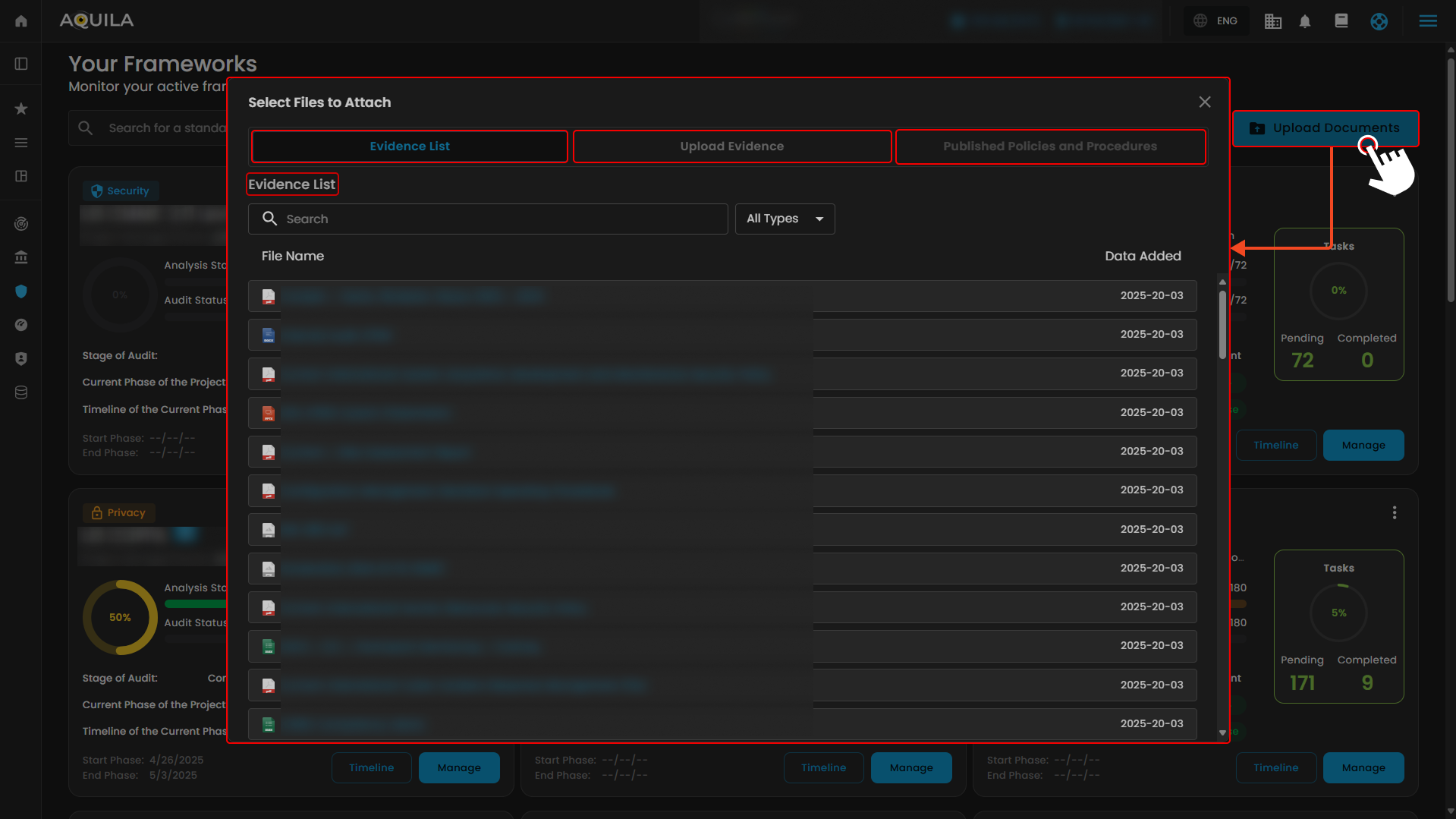
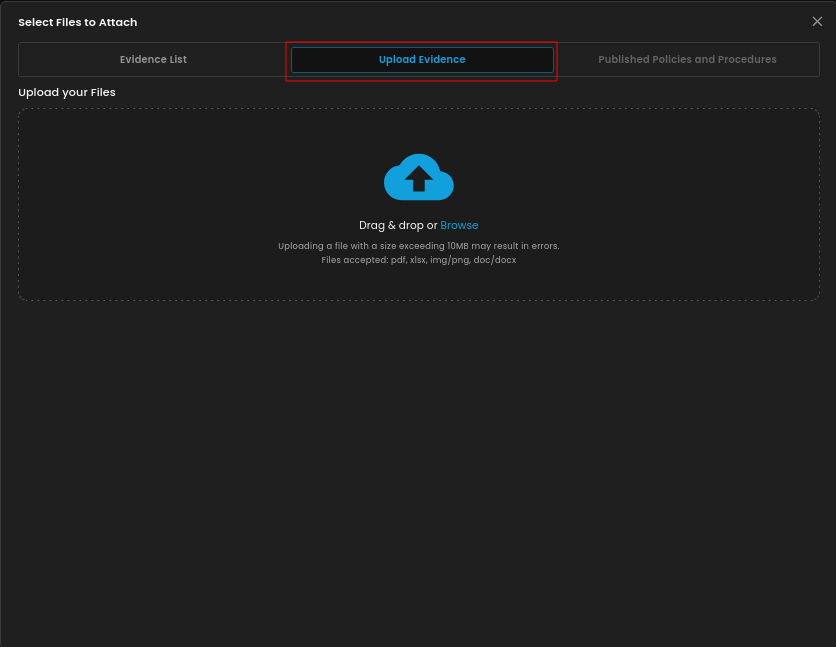
Upload Documents
This option allows you to upload Evidence provided by client, you will also see the uploaded Evidence List where you can search the specific file with all types of documents.
Compliance Information (Sub Module) - Cyber Security Compliance (Module)
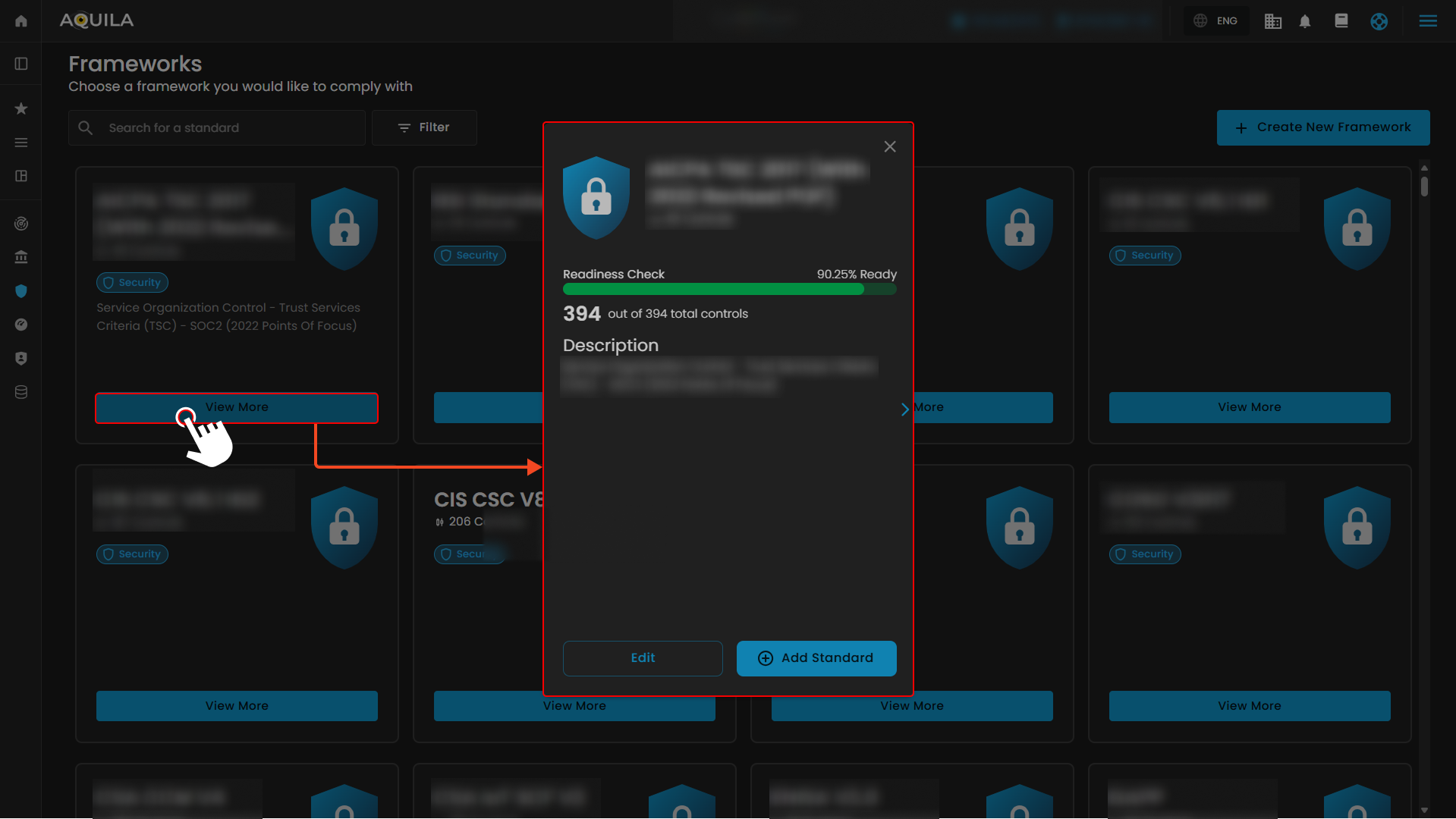
This screen shows a compliance framework library where users can browse, select, and implement different global standards and regulations depending on their organizational needs.
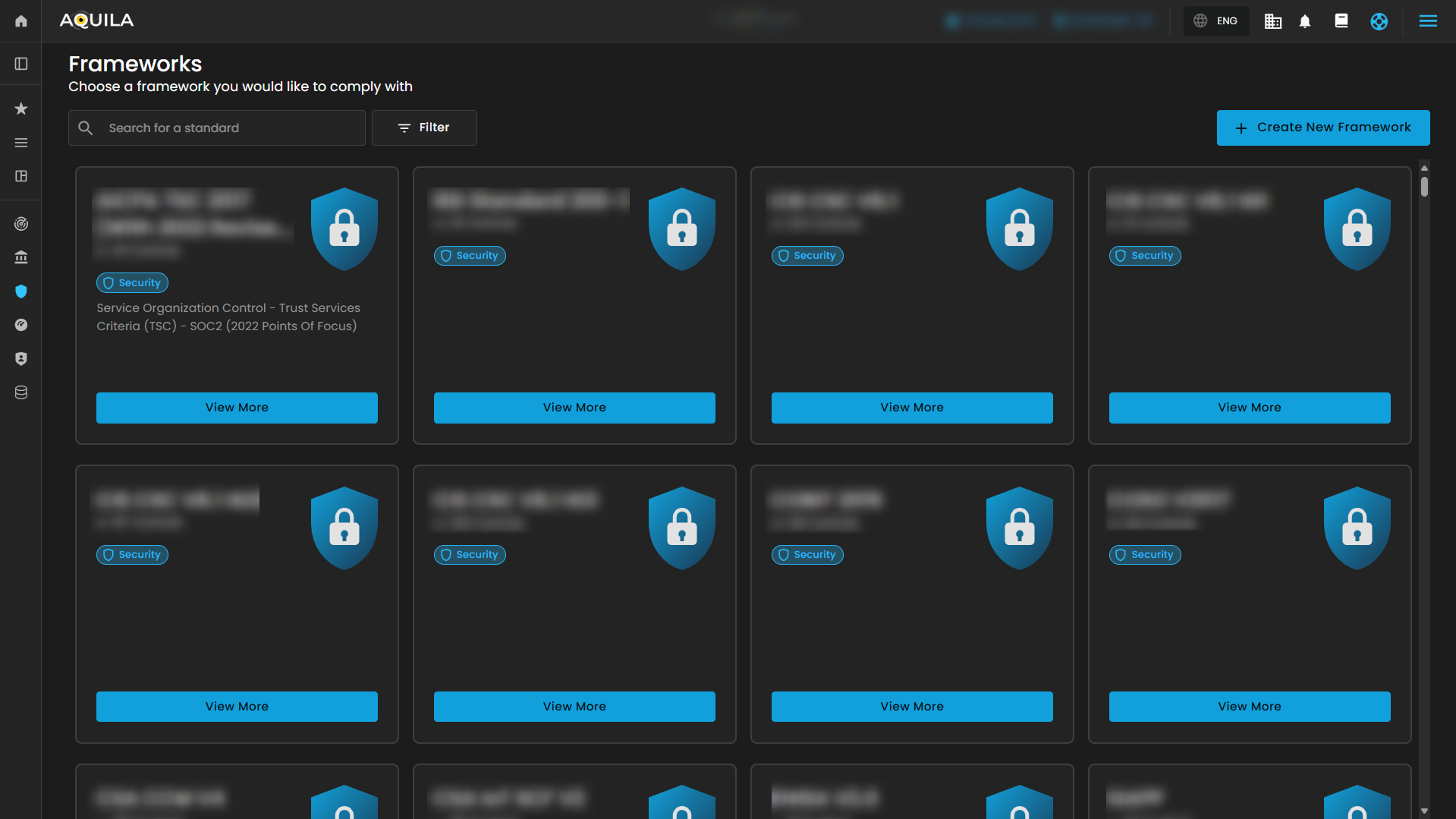
Upon clicking the “View More” it gives you a snapshot of the framework’s name, total controls, readiness progress, and description, along with options to Edit or Add Standard for managing compliance.
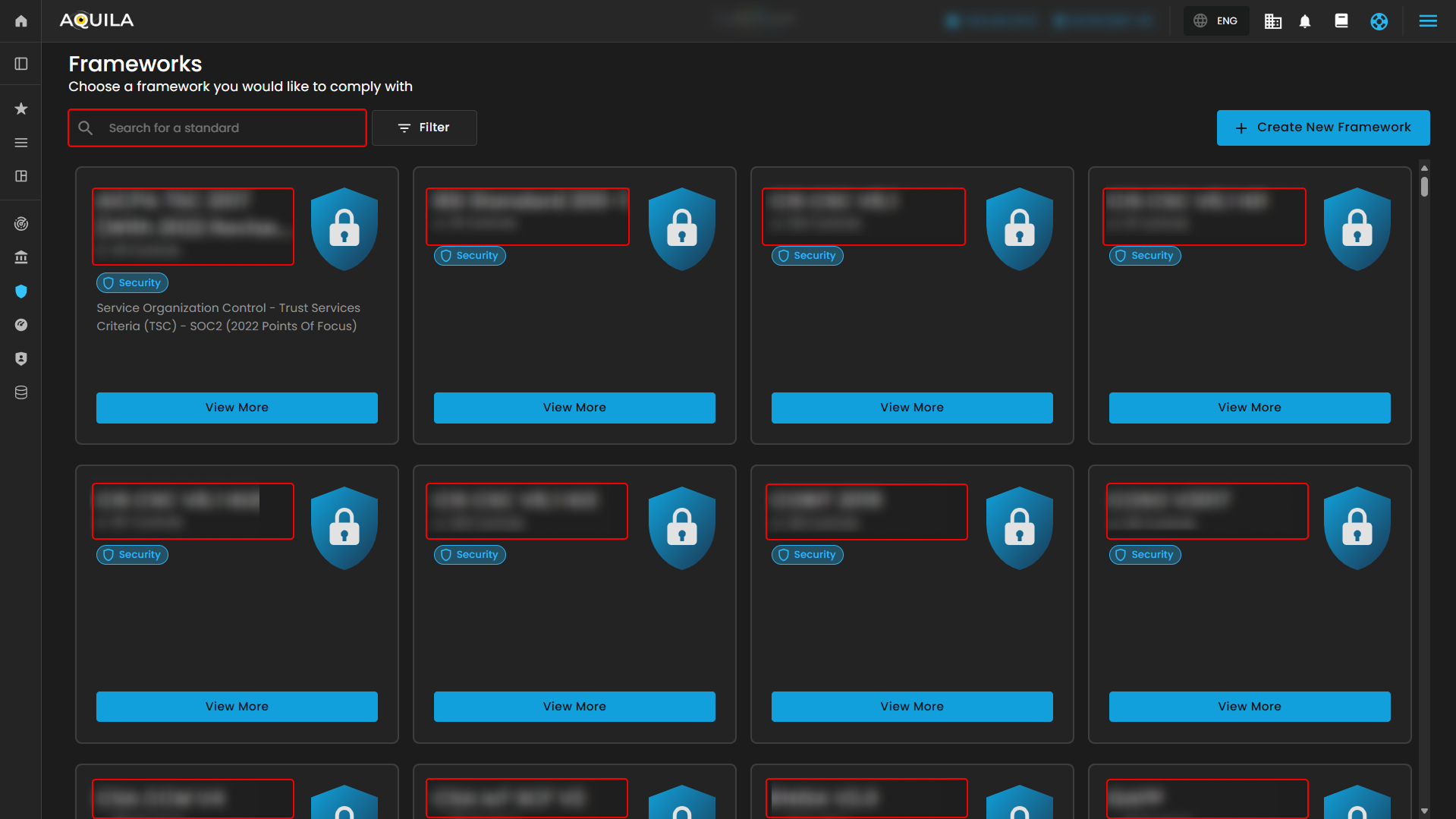
1. Search Bar - The search bar allows you to look up and check the different compliance standards or frameworks.
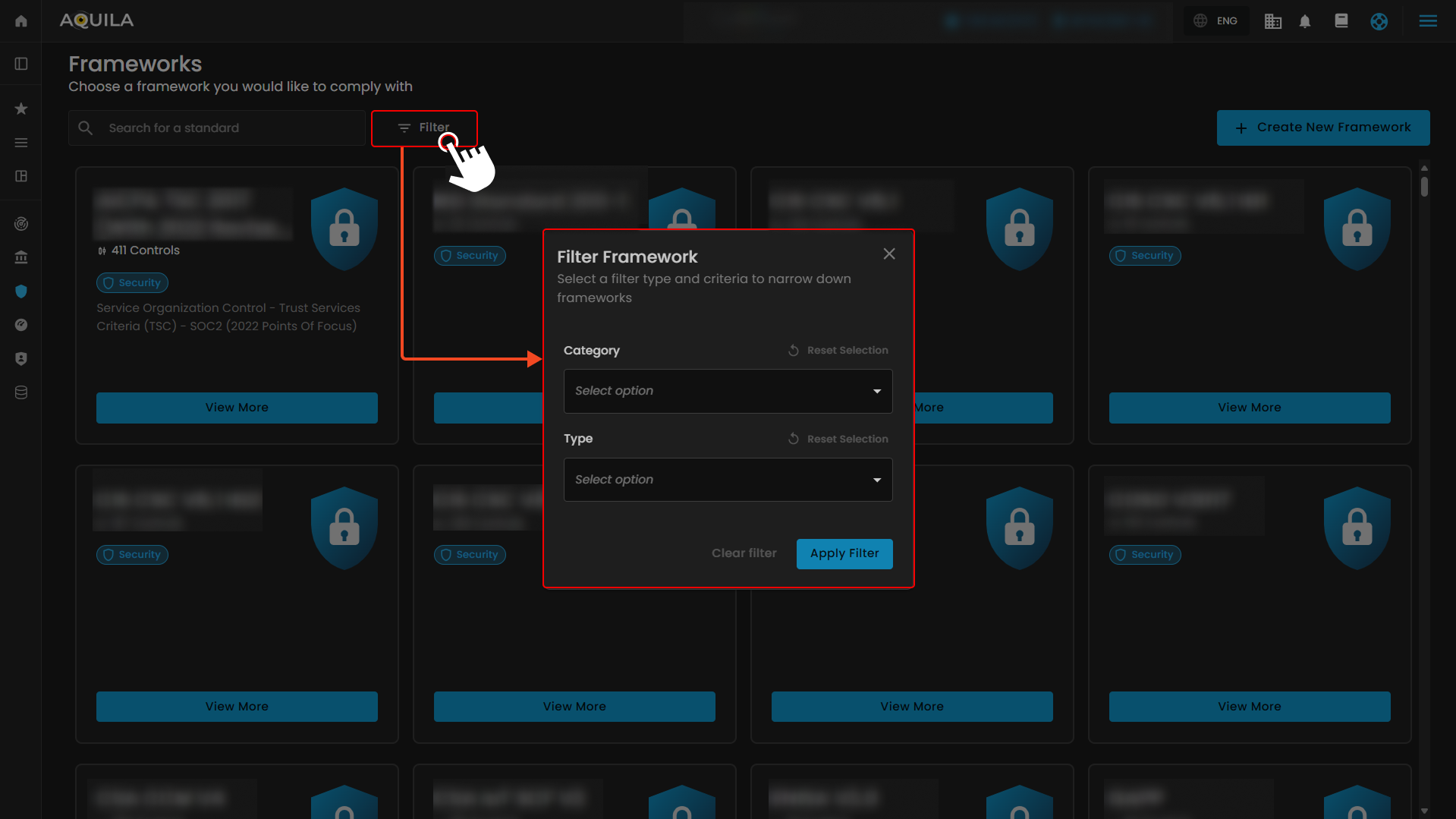
2. Filter/Clear Filter/Apply Filter - The Filter/Clear Filter/Apply Filter allowing you to filter the category and type of the framework you want to use. If you want to remove all the filter and starts on the normal list, just click the Clear filter option, reset selection is another method if you want to reselect again the specific category and type. Apply filter enables you to save those category and type option you select.
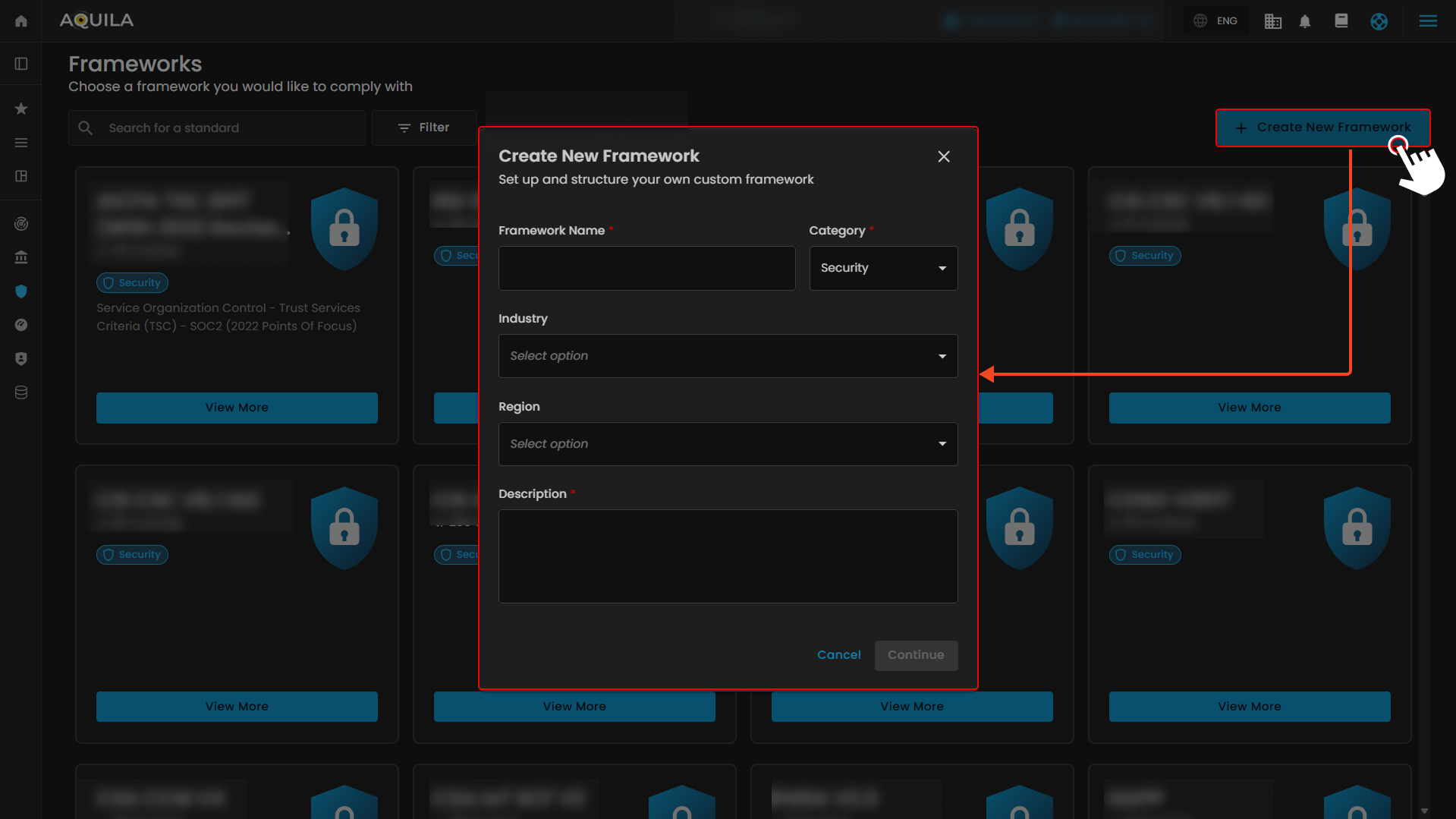
Create New Framework
This Create New Framework section displays a library of compliance frameworks that organizations can choose and create from. Each framework shows its name, category, industry, region, description and a button to create a new framework.
"Task Management (Sub Module)" - Cyber Security Compliance (Module)
The Task Management module allows users to manage their compliance-related activities, projects, and tasks. It provides both a timeline view and task overview metrics to keep track of progress.
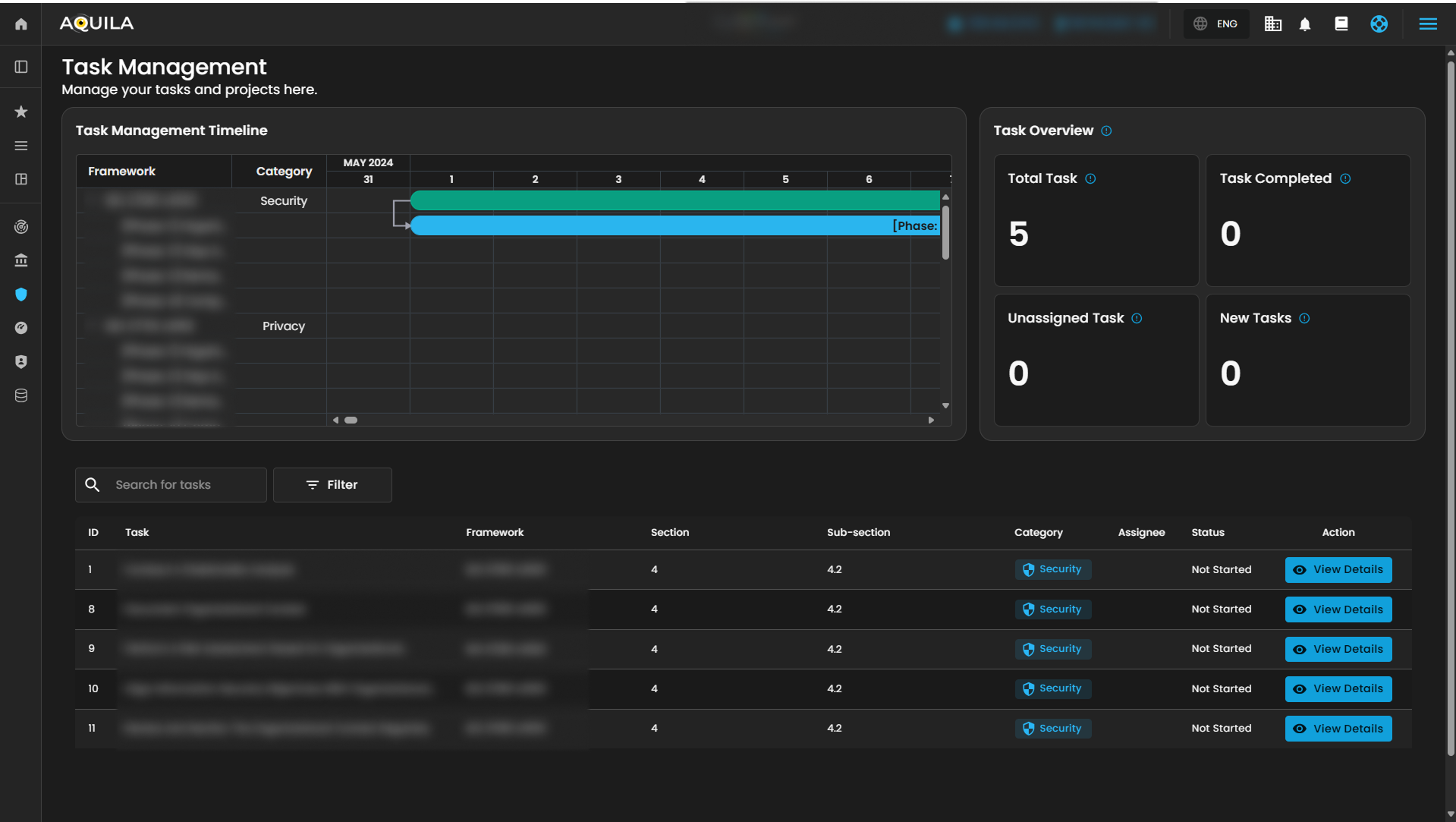
1. Search Bar - The search bar allows you to look up and check the different task name.
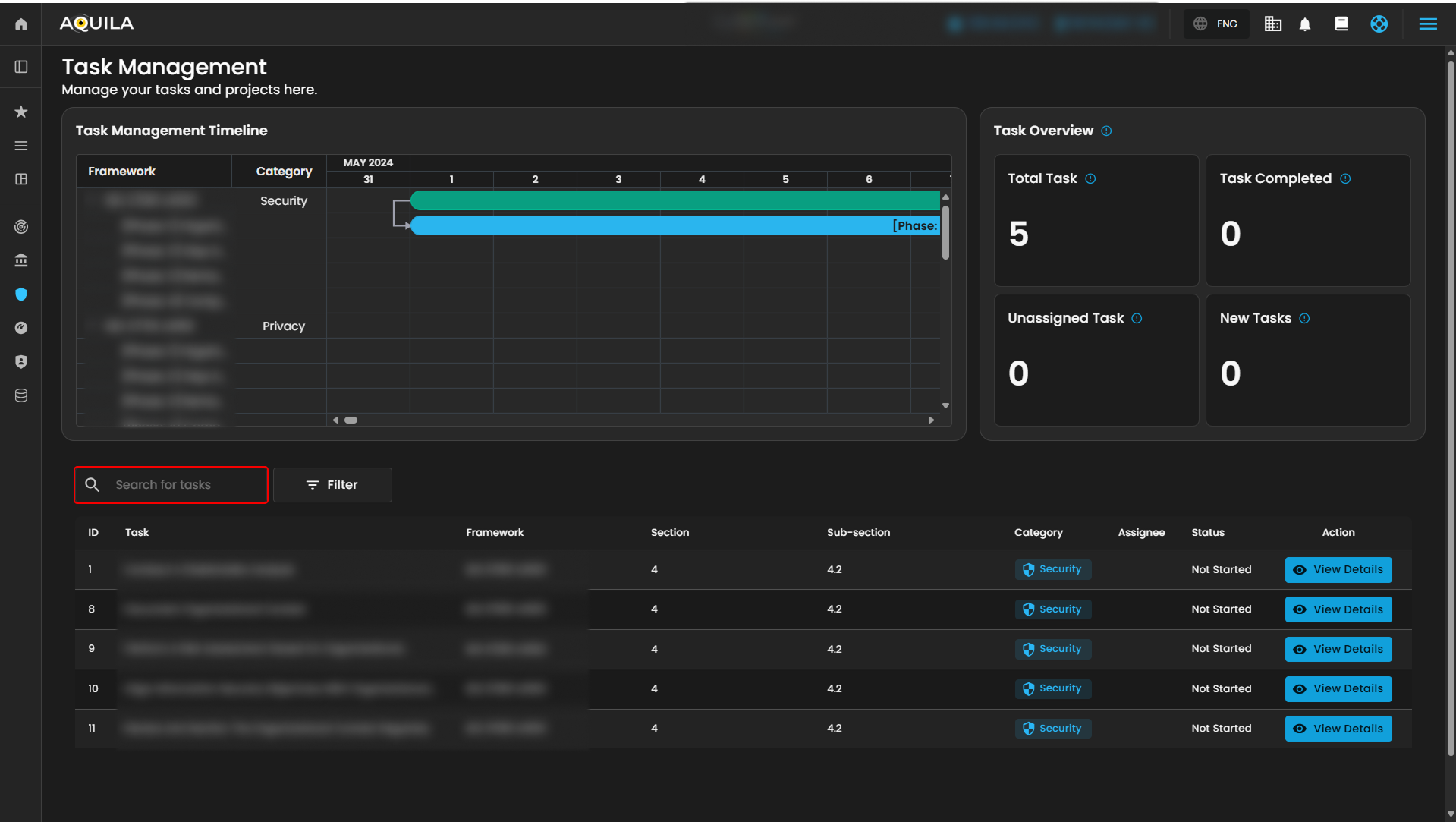
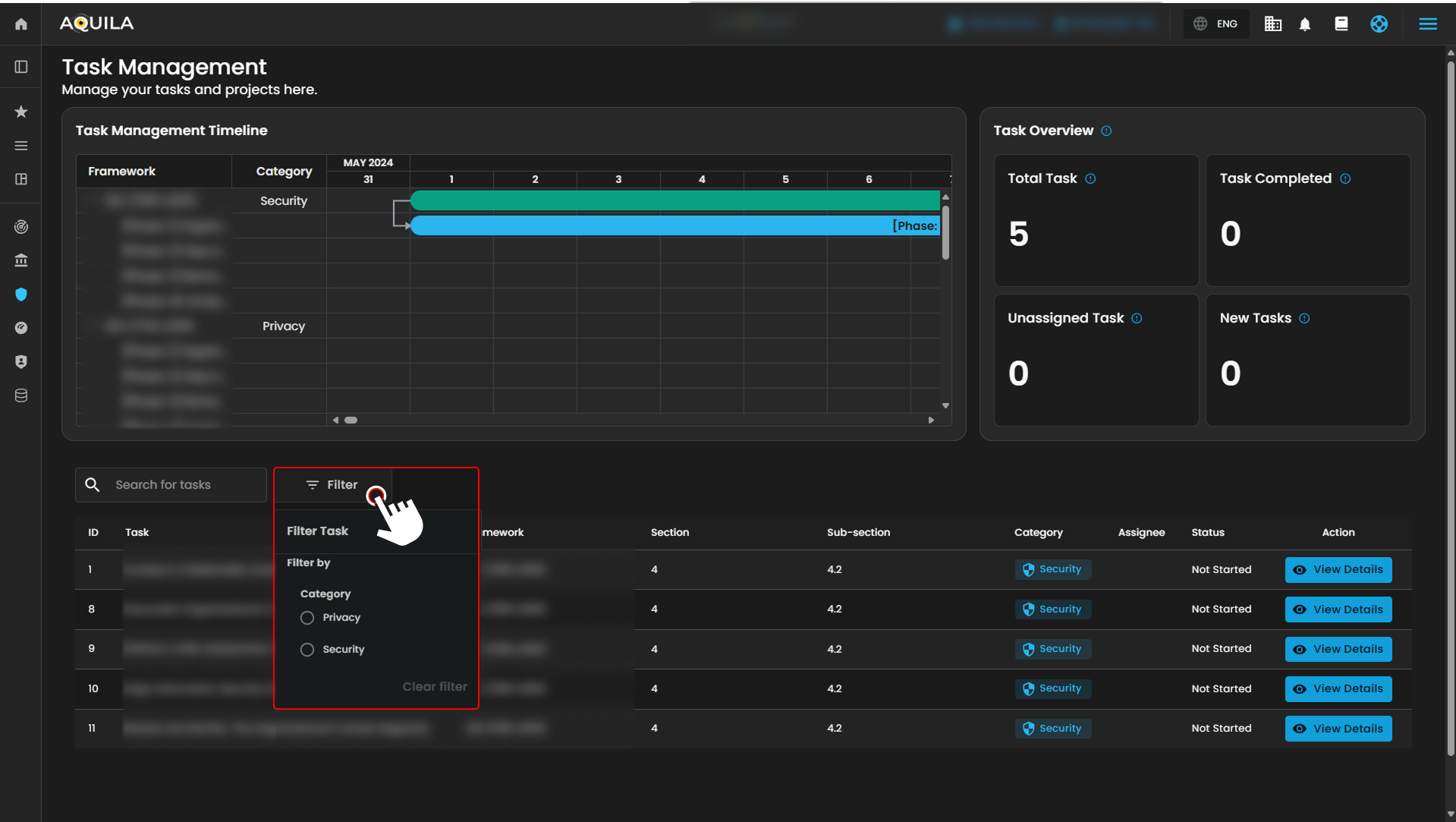
2. Filter/Clear Filter - This filter features allow you to select a category between Privacy and Security, just select one category you want to appear. To remove all applied filters and return to the full normal list just click the Clear filter method.
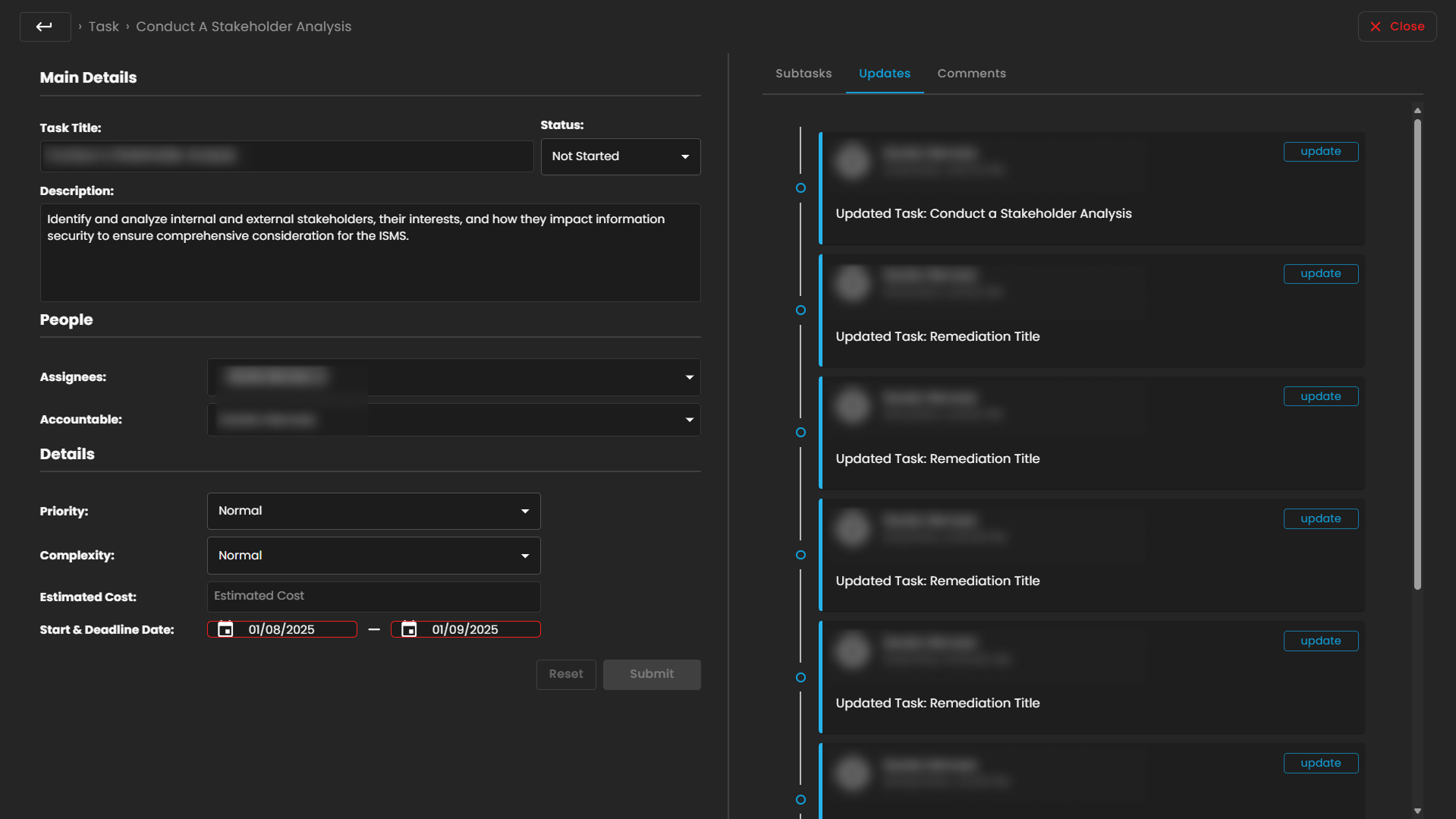
If you click the "View Details" button on Action in Task column you will be taken to Main details of the Task. The Main details section allows users to review and manage specific tasks within the system.
If you need further assistance, kindly contact support@cytechint.com for prompt assistance and guidance.
No comments to display
No comments to display