**To navigate to Supply Chain Risk Management please follow the instructions below:**
This module provides a comprehensive, data-driven view of the organization’s **Supply Chain Risk** exposure. It is structured around key metrics that track vendor risk scores, financial spending, and performance classification. The dashboard is a critical tool for identifying, assessing, and mitigating risks associated with third-party partners, ensuring operational resilience and guiding strategic vendor management decisions.
[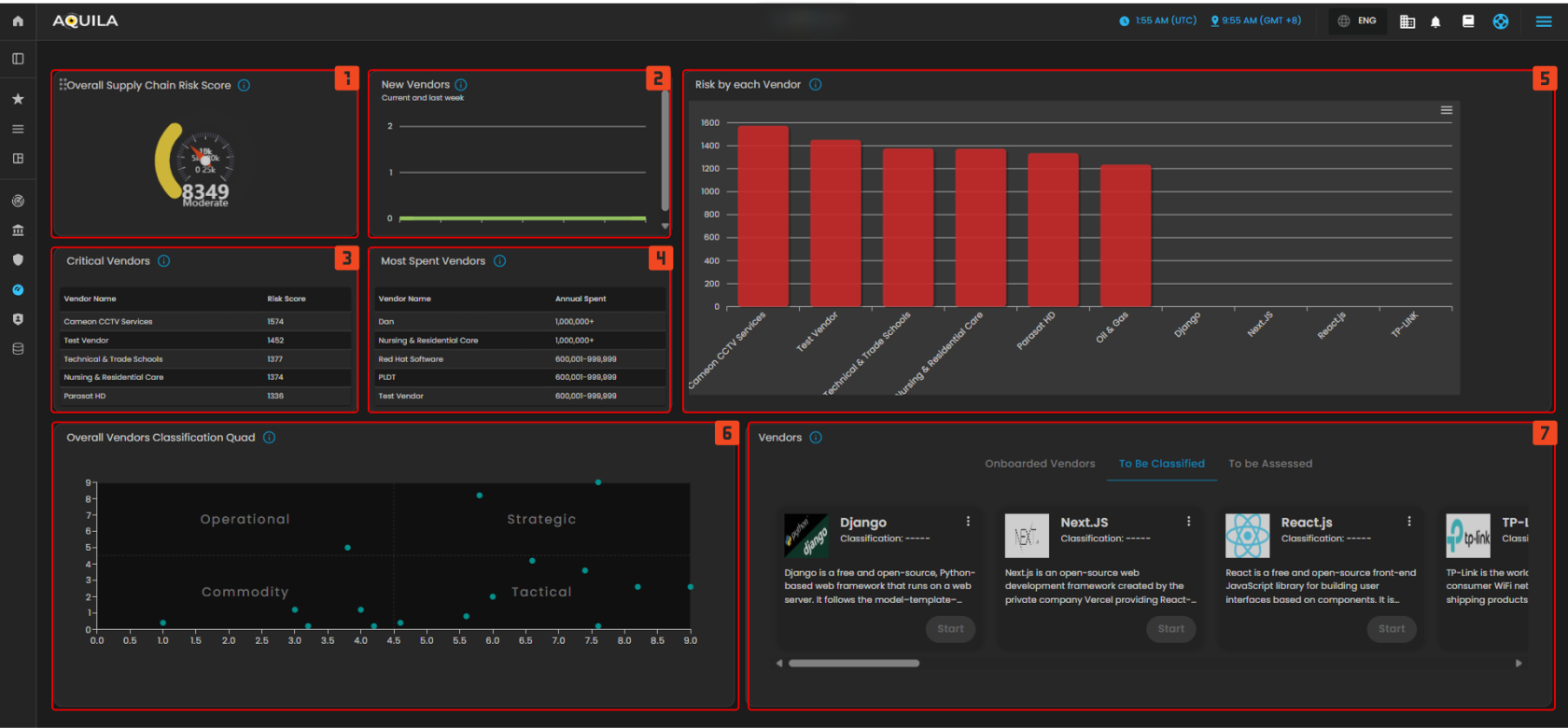](https://cytechint-docs-bookstack.s3.amazonaws.com/uploads/images/gallery/2025-10/Xj5gRBDs3eXP16I0-test-7.png) *Figure 2 Supply Chain Risk Management Dashboard* **1.** This gauge displays the organization's aggregate **risk score** for its entire supply chain, providing a single, current metric to monitor the overall risk posture of all vendors. This score is typically a weighted average of individual vendor risks, allowing stakeholders to quickly assess if the overall exposure is within acceptable limits. **2.** This bar chart tracks the count of **new vendors** added to the supply chain within recent periods, helping monitor growth rate and associated initial risk exposure. A sudden spike in new vendors might indicate a need for increased diligence in the assessment pipeline. **3.** This table lists the vendors with the **highest calculated risk scores**, identifying which partners pose the greatest immediate threat and require priority review and mitigation efforts. This focus ensures resources are directed toward managing the most significant vulnerabilities in the network. **4.** This table lists vendors categorized by the **annual amount of spending**, helping to correlate financial reliance with risk scores for a comprehensive business impact assessment. The data helps identify high-spend, high-risk relationships that could lead to significant operational or financial disruption if compromised. **5.** This large bar chart compares the **risk scores of the top vendors**, providing a clear visual ranking of risk exposure across the main third-party partners. It offers a side-by-side comparison that is essential for benchmarking risk and communicating exposure to leadership. **6.** This scatter plot visualizes all vendors based on two critical dimensions (e.g., strategic importance vs. risk level), placing them into quadrants like **Operational**, **Commodity**, **Tactical**, and **Strategic** for management insight. This mapping is vital for determining the appropriate level of security oversight and contractual rigor for each partnership. **7.** This area displays cards for specific vendors, showing key details, current classification and the progress of their assessment, distinguishing between **Onboarded** and **To Be Assessed**. This section serves as a workflow tool to track the status of due diligence and ongoing monitoring activities for individual partners. [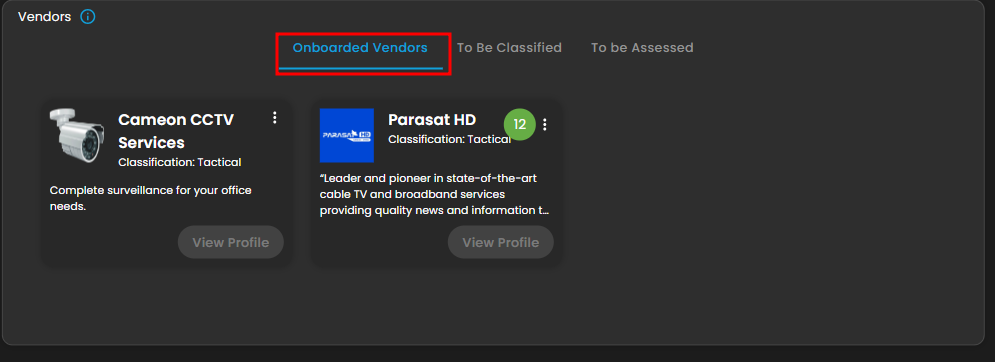](https://cytechint-docs-bookstack.s3.amazonaws.com/uploads/images/gallery/2025-10/rm7dqhEVTUw3q0JA-image.png) *Figure 2.1 Onboarded Vendors* *[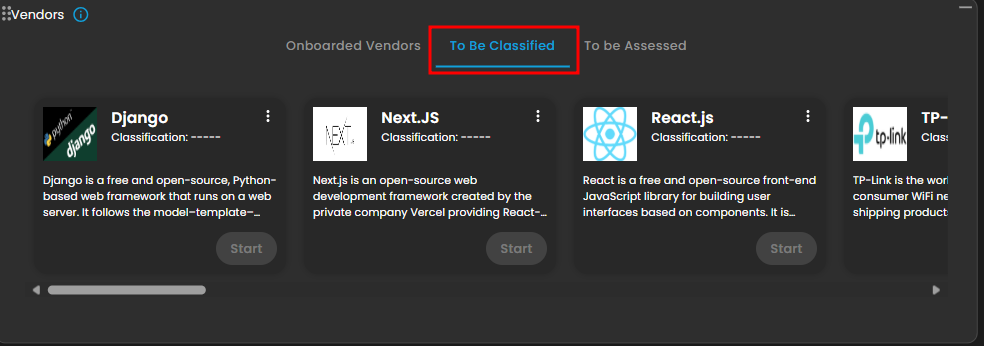](https://cytechint-docs-bookstack.s3.amazonaws.com/uploads/images/gallery/2025-10/oP3rbKFayu7iCDB6-image.png)* *Figure 2.2 To be Classified Vendors* *[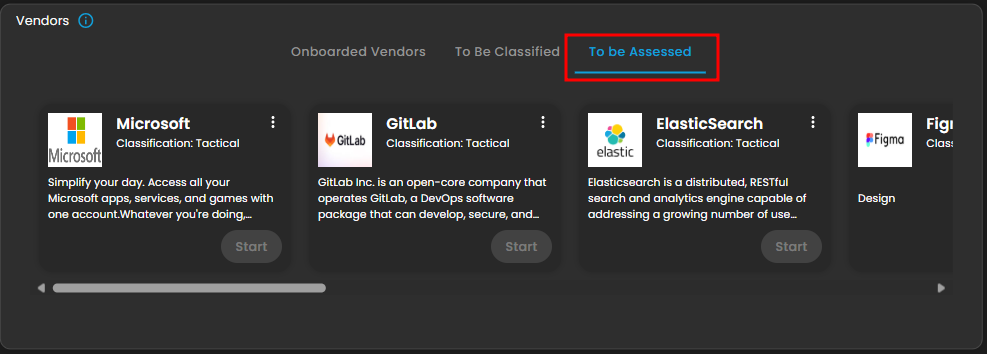](https://cytechint-docs-bookstack.s3.amazonaws.com/uploads/images/gallery/2025-10/CfH4cTC8BaSbQD9S-image.png)* *Figure 2.3 To be Assessed Vendors* #### **Onboarding**This module provides a comprehensive, workflow-based view of the **Onboarding Pipeline**. It manages end-to-end due diligence through three phases—**Classification**, **Assessment**, and **Approval**—to ensure a standardized, risk-aware approach. The dashboard serves as a **single source of truth** for tracking and prioritizing new vendors, accelerating the internal review process, and supporting collaboration among procurement, legal, and security teams.
[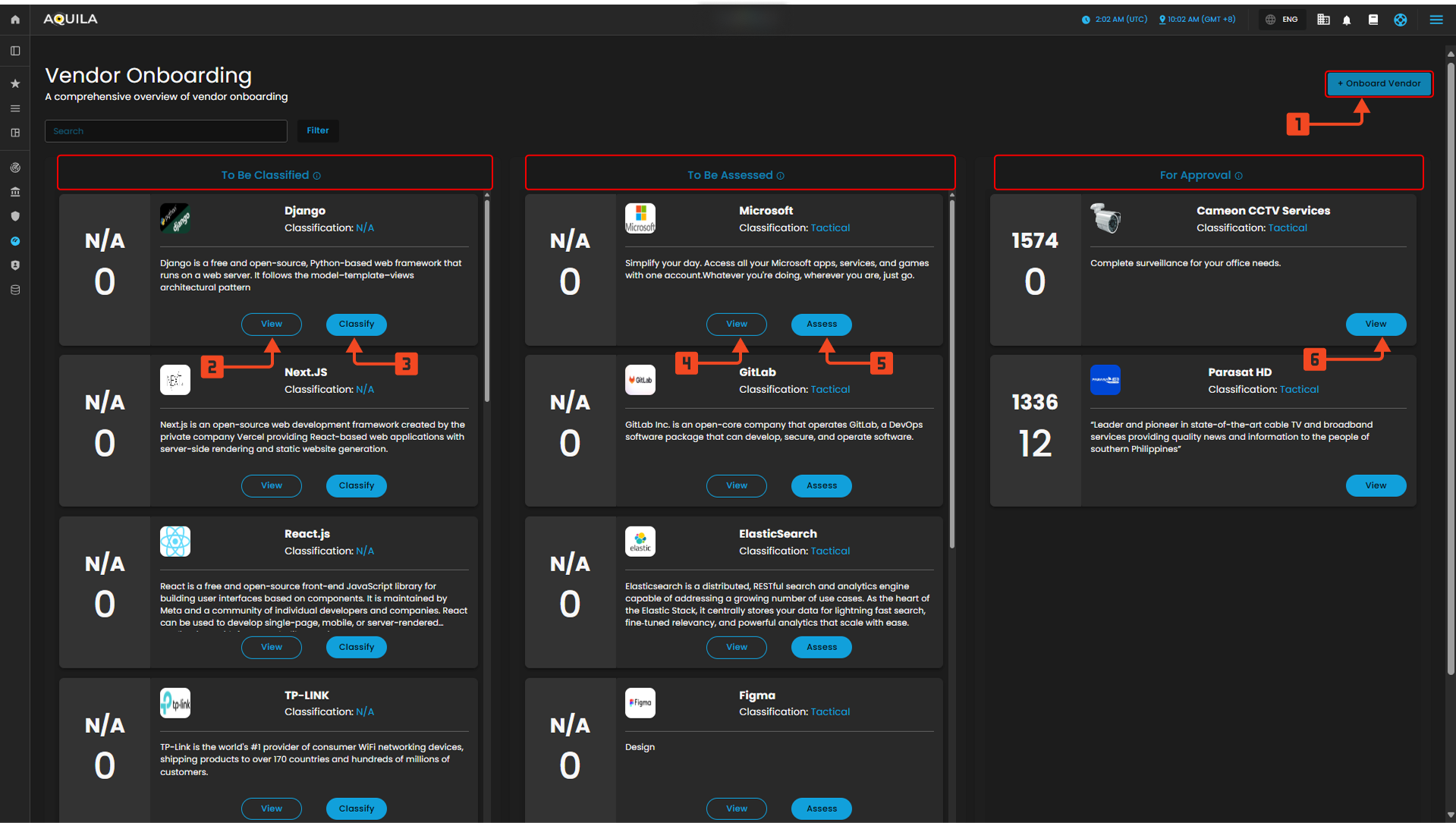](https://cytechint-docs-bookstack.s3.amazonaws.com/uploads/images/gallery/2025-10/vjSxNzBcwiUuobYU-test-9.png) *Figure 3 Onboarding* **Onboard Vendor** **1.** This is the primary call-to-action that initiates the entire workflow, allowing users to **start the onboarding process** for a new third-party partner. Clicking this button typically opens a detailed intake form, gathering essential information like the vendor's legal name, services offered, and initial contact details needed to begin the due diligence process. [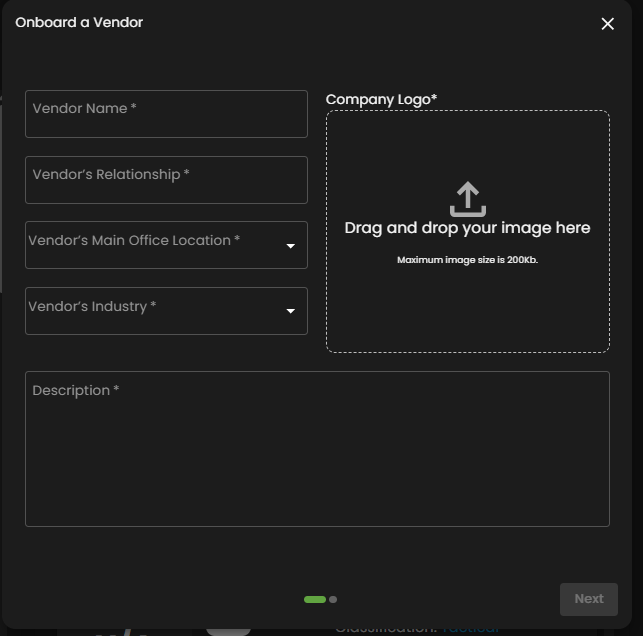](https://cytechint-docs-bookstack.s3.amazonaws.com/uploads/images/gallery/2025-10/RfRsnrQBoL9sLbak-image.png) *Figure 3.1 Onboard Vendor* **To be Classified - View** **2.** This action button allows the user to view the full **profile and documentation** submitted by the new vendor. It provides access to all uploaded contracts, compliance documents, and service descriptions before determining the appropriate risk or classification category. [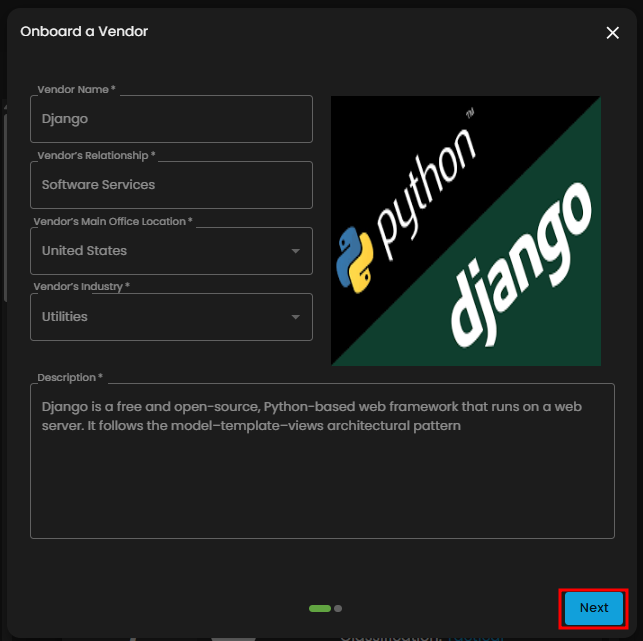](https://cytechint-docs-bookstack.s3.amazonaws.com/uploads/images/gallery/2025-10/iVk9K0MMj64rk8rm-image.png) *Figure 3.2 To be Classified - View - First Page* [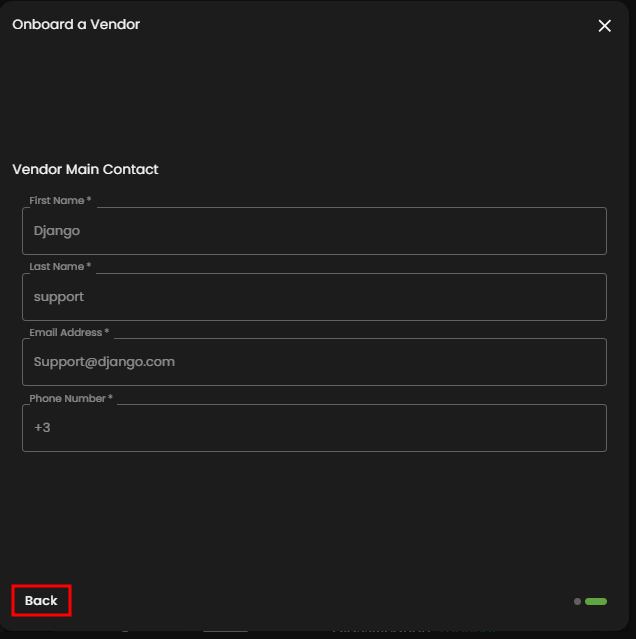](https://cytechint-docs-bookstack.s3.amazonaws.com/uploads/images/gallery/2025-10/mNO2Cj1xBrXOHoLk-image.png) *Figure 3.3 To be Classified - View - Second Page* **To be Classified - Classify** **3.** This critical button advances the vendor to the next stage by allowing the user to assign a preliminary **risk or strategic classification**. This step is crucial as the assigned classification dictates the rigor and scope of the subsequent security assessment. [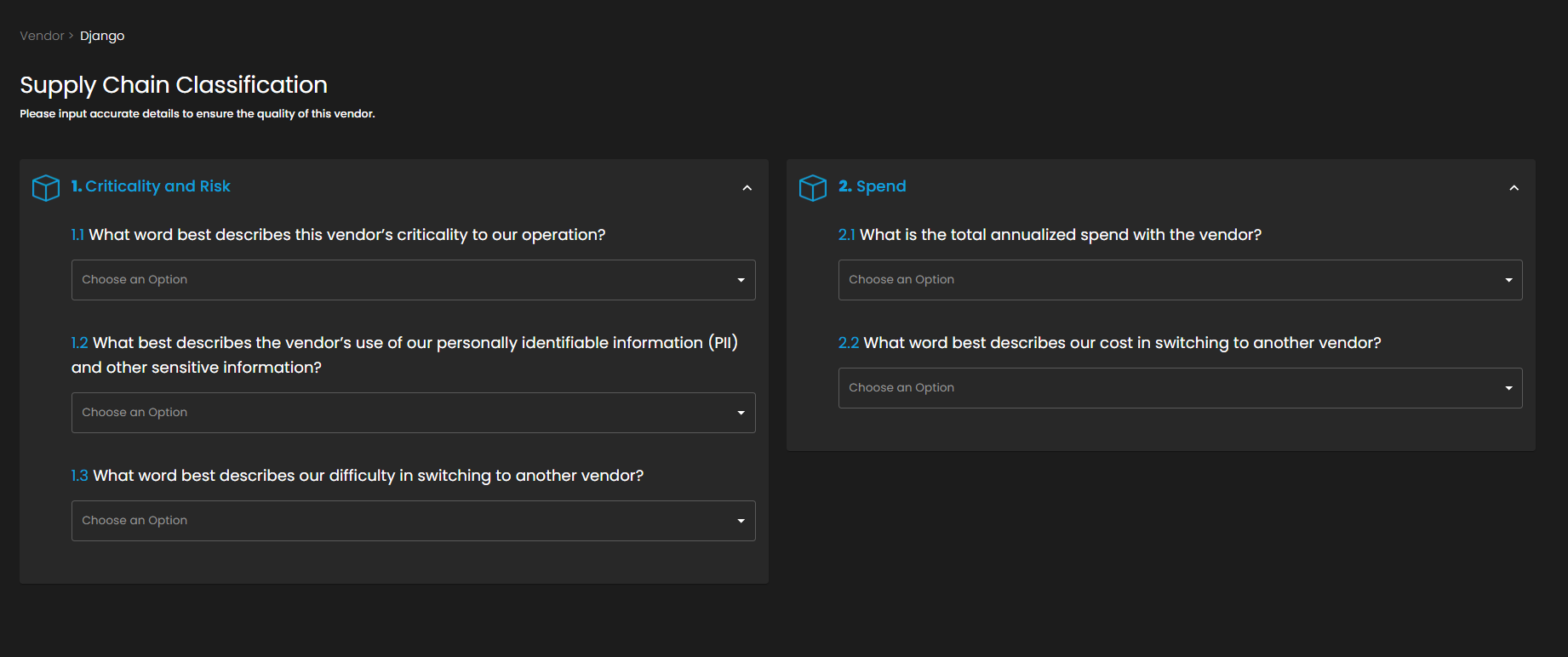](https://cytechint-docs-bookstack.s3.amazonaws.com/uploads/images/gallery/2025-10/VBiajJyLPwxdo0vh-image.png) *Figure 3.4 To be Classified - Classify* **To be Assessed - View** **4.** This button allows the security or procurement team to review the vendor's details, documentation, and the assigned **classification and assessment requirements**. Teams use this view to confirm the necessary questionnaires and compliance checks are aligned with the vendor's risk profile. [](https://cytechint-docs-bookstack.s3.amazonaws.com/uploads/images/gallery/2025-10/Wnv58y08C2UYEBJE-image.png) *Figure 3.5 To be Assessed - View* **To be Assessed - Assess - 7 Pillar Assessment** 5\. This action initiates the formal risk assessment process, which may involve sending questionnaires, reviewing security certifications, or scheduling audits. Completing the assessment moves the vendor to the "For Approval" column, signaling that all necessary security due diligence has been performed. [](https://cytechint-docs-bookstack.s3.amazonaws.com/uploads/images/gallery/2025-10/aRhBJYXQ5ReyUIVq-image.png) *Figure 3.5 To be Assessed - Assess - 7 Pillar Assessment* [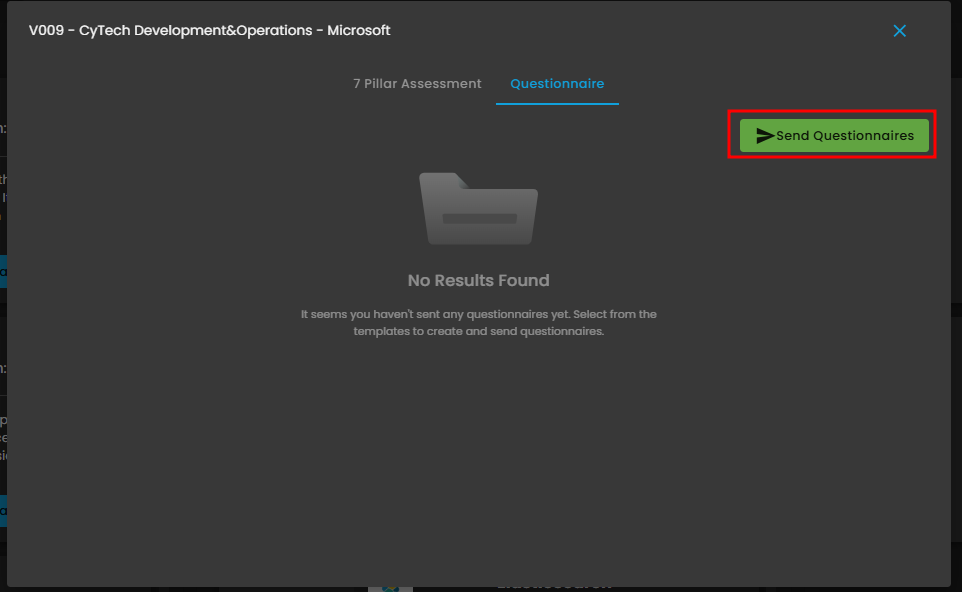](https://cytechint-docs-bookstack.s3.amazonaws.com/uploads/images/gallery/2025-10/qFi7tA3S6loV7Q8U-image.png) *Figure 3.6 To be Assessed Assess - Questionnaire* [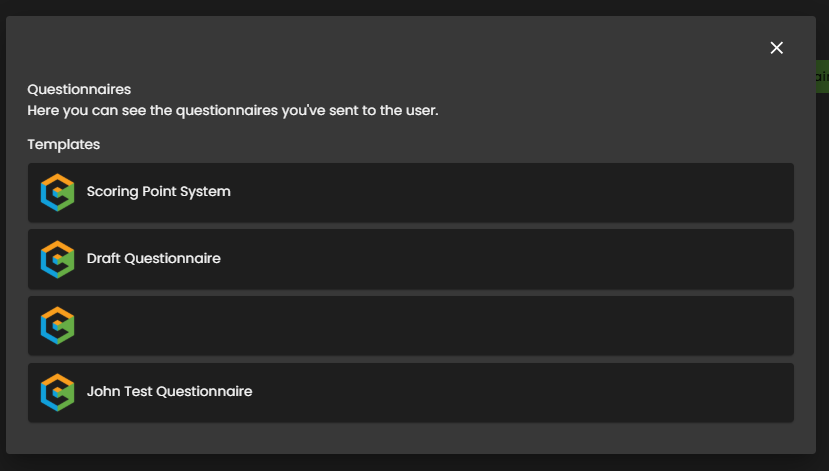](https://cytechint-docs-bookstack.s3.amazonaws.com/uploads/images/gallery/2025-10/BT137mnku1jG0oGH-image.png) *Figure 3.6.1 To be Assessed Assess - Send Questionnaire* **For Approval - View** **6.** This button allows the final approver (e.g., CISO, Head of Procurement) to view the vendor's **full assessment report, risk score, and all associated documentation**. The approver reviews the comprehensive risk summary and mitigation plans before officially signing off on the partnership and activating the vendor in the production environment. [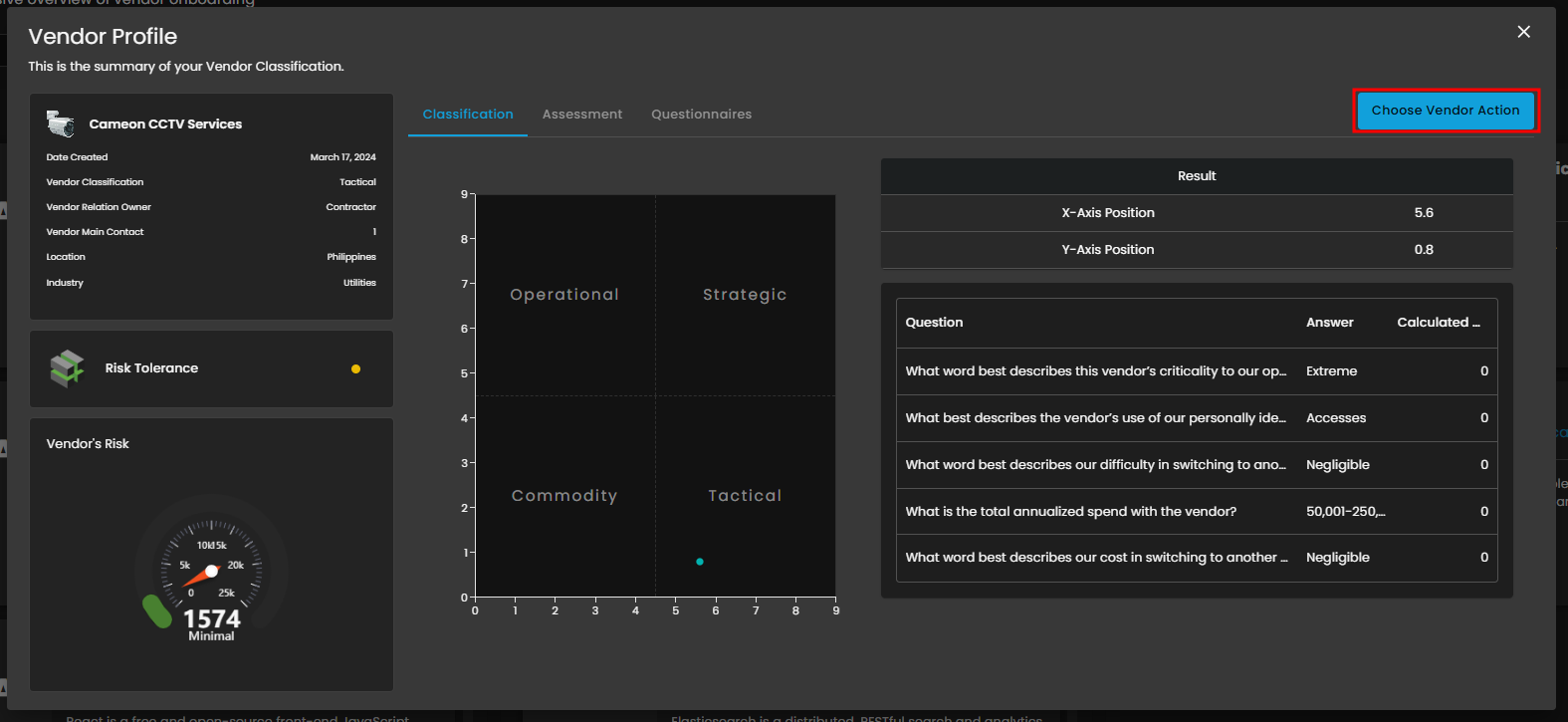](https://cytechint-docs-bookstack.s3.amazonaws.com/uploads/images/gallery/2025-10/AvmSbi6R1ma5OmlY-image.png) *Figure 3.7 For Approval - View* [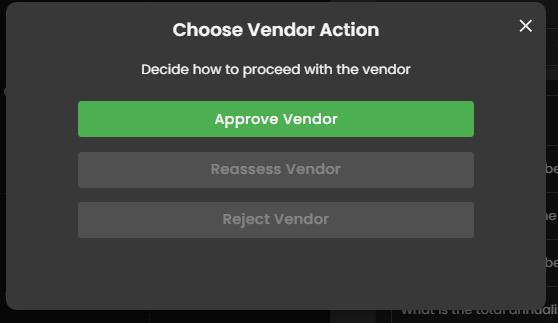](https://cytechint-docs-bookstack.s3.amazonaws.com/uploads/images/gallery/2025-10/QL9Kr2aJYtrxhwUX-image.png) *Figure 3.7.1 Choose Vendor Action* #### **Vendors**This module provides a unified solution for **Supply Chain Risk Management**, integrating both a high-level **Risk Dashboard** and a structured **Vendor Onboarding Pipeline**. The Dashboard tracks aggregate risk scores, vendor classification quadrants, and financial spend to offer continuous monitoring and strategic insight. Simultaneously, the Onboarding Pipeline enforces a standardized due diligence process, guiding new partners through three critical phases—Classification, Assessment, and Approval—to ensure risk is identified, assessed, and mitigated before a vendor is fully adopted.
[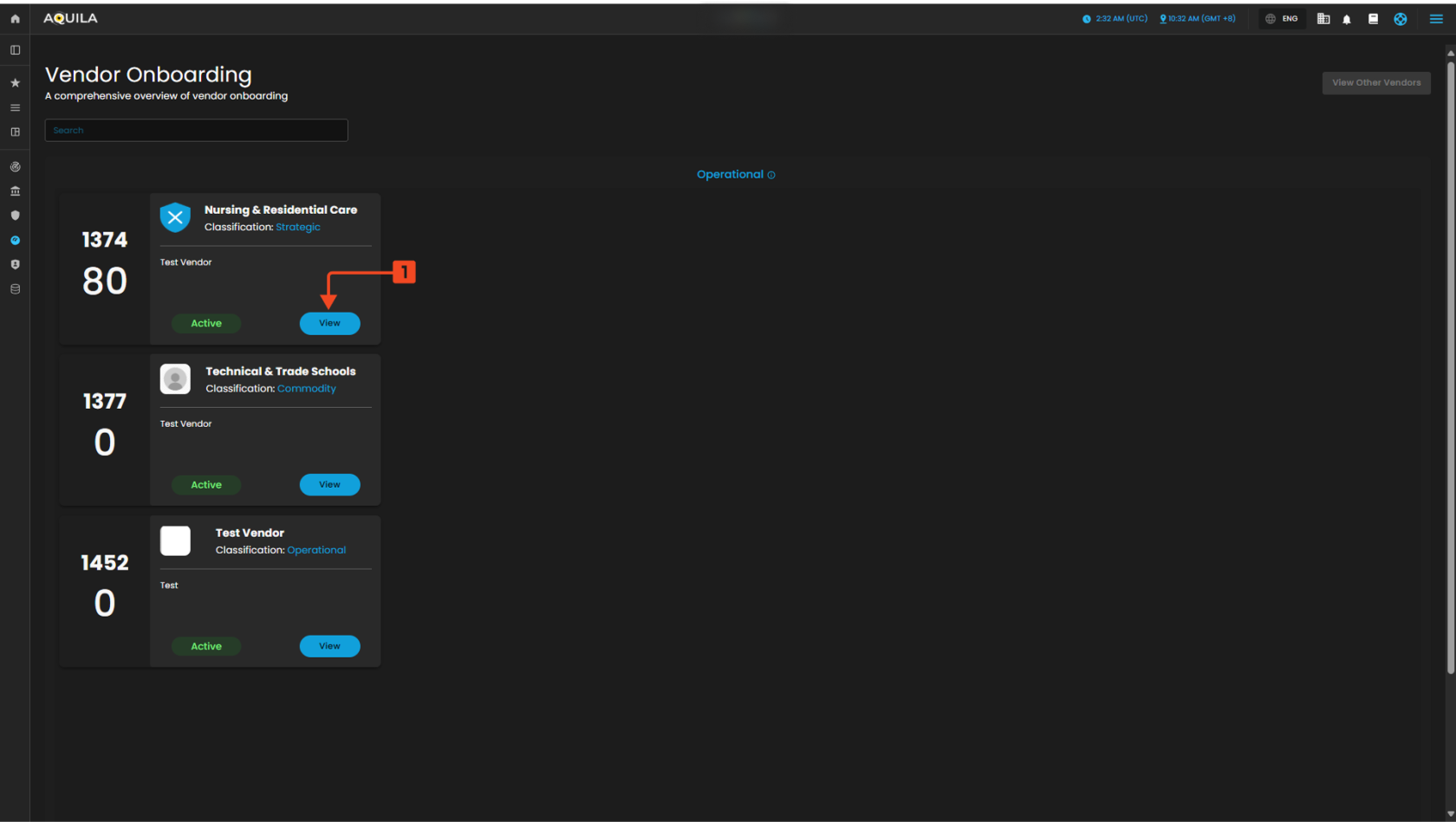](https://cytechint-docs-bookstack.s3.amazonaws.com/uploads/images/gallery/2025-10/Llz2tBFo6Xy2b66w-test-10.png) *Figure 4 Vendors* **View - Classification** This tab is the first step in detailed vendor analysis, immediately displaying the calculated **Vendor's Risk Score**. It uses a matrix to plot the vendor into a strategic quadrant (**Operational, Strategic, Commodity, or Tactical**) based on factors like criticality and spend. The **Classification Questions** table shows the key business inputs that drive this positioning and define the required level of due diligence. [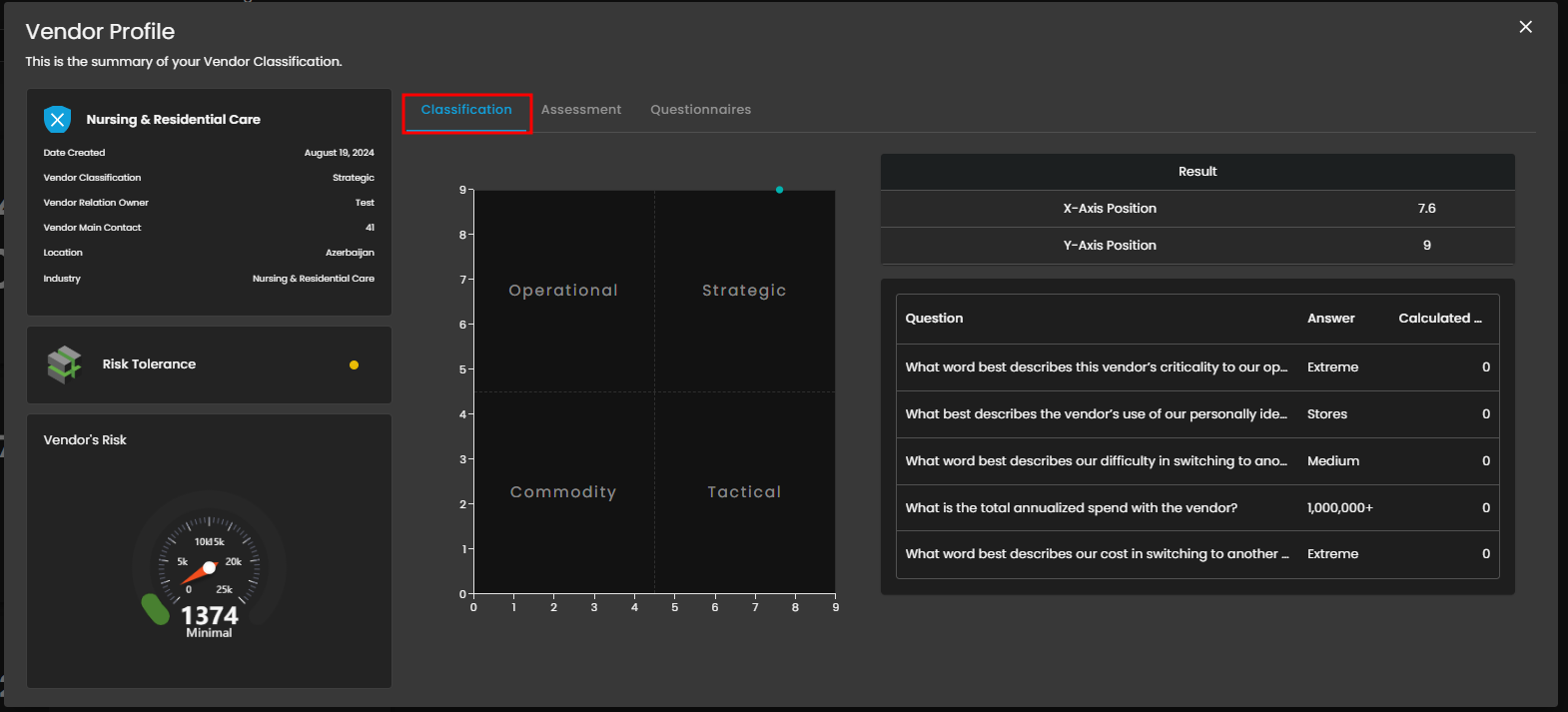](https://cytechint-docs-bookstack.s3.amazonaws.com/uploads/images/gallery/2025-10/HMpJZ2ZOHcAI7hcM-image.png) *Figure 4.1 View - Classification* **View - Assessment** The **Assessment Tab** manages the technical security deep-dive and formal verification of the vendor's security controls. The **7 Pillars of Assessment** bar chart visualizes the completion and scoring status across key security domains. This detailed review ensures the vendor's controls meet organizational standards before approval. [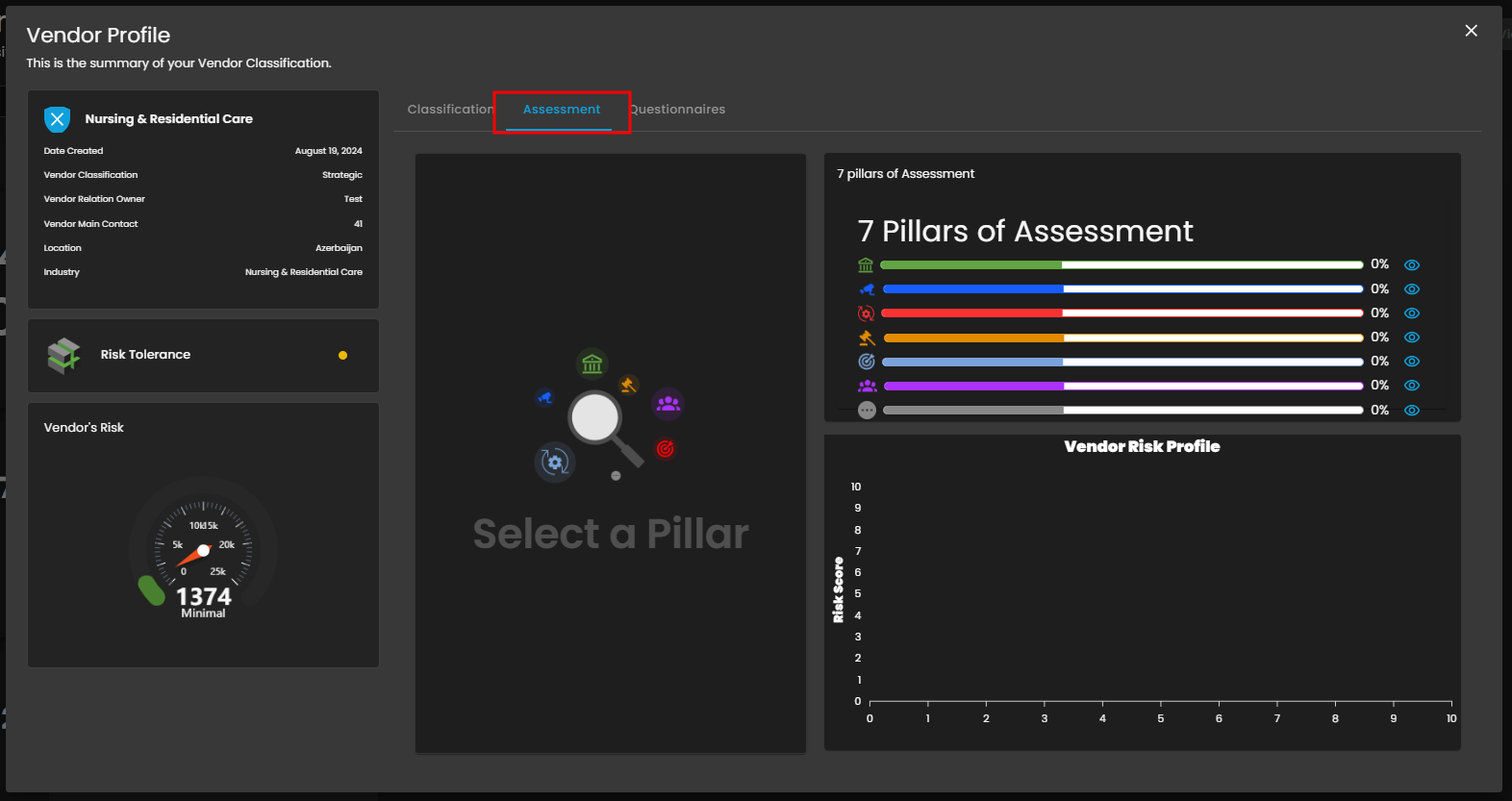](https://cytechint-docs-bookstack.s3.amazonaws.com/uploads/images/gallery/2025-10/nmsZUFcCkG1uv44H-image.png) *Figure 4.2 View - Assessment* **View - Questionnaires** This tab serves as the central hub for managing all vendor-facing questionnaires and assessment documentation. The **Send Questionnaires** button allows users to initiate the process by selecting a pre-configured **Questionnaire Template**. This tool ensures an auditable and consistent method for collecting security evidence and tracking completion status. [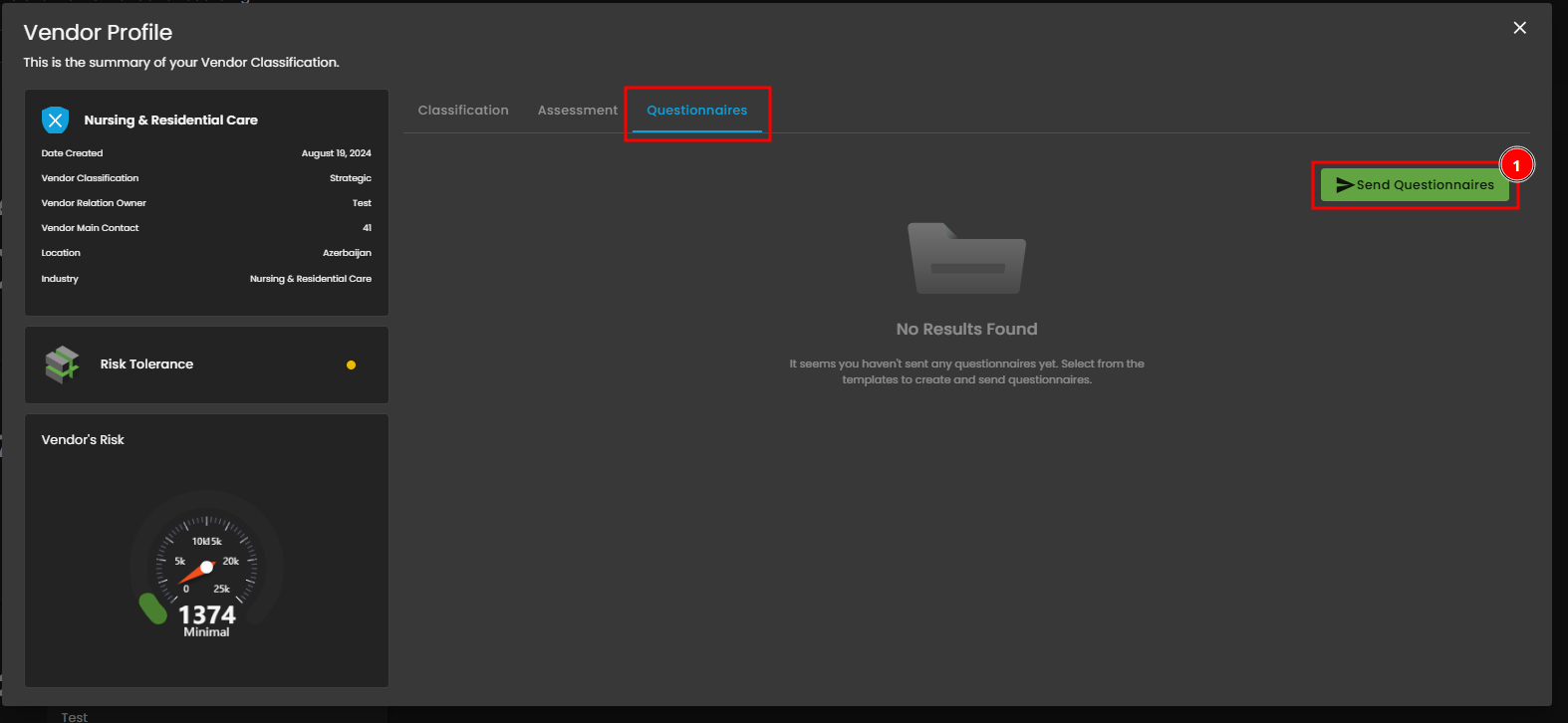](https://cytechint-docs-bookstack.s3.amazonaws.com/uploads/images/gallery/2025-10/h5d7zBrS0TduMnEk-image.png) *Figure 4.3 View - Questionnaires* **View - Questionnaires - Send Questionnaires** This view displays vendors who have completed the pipeline and are now **Active** and managed by the organization. Users can use filters to segment vendors by classification (e.g., **Operational**). Each **Active Vendor Card** provides an immediate summary of their risk score and classification; the **View Button** navigates directly to the full Vendor Profile for detailed review.[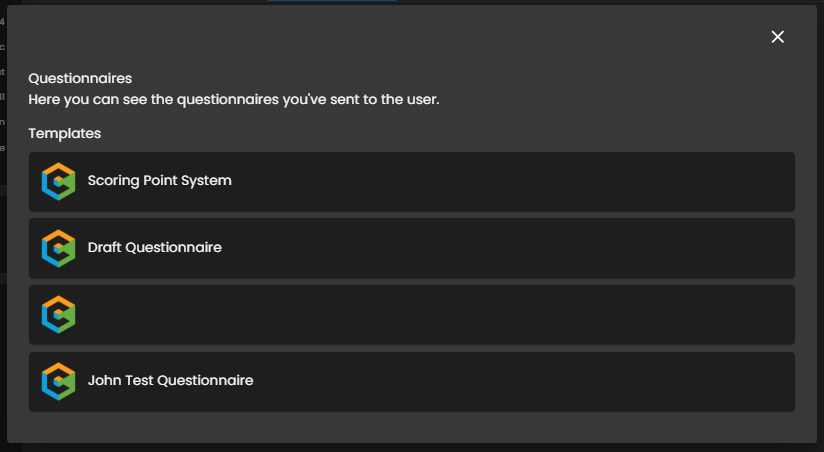](https://cytechint-docs-bookstack.s3.amazonaws.com/uploads/images/gallery/2025-10/DiC6VmjWmWizrjcY-image.png)[ ](https://cytechint-docs-bookstack.s3.amazonaws.com/uploads/images/gallery/2025-10/DiC6VmjWmWizrjcY-image.png) *Figure 4.3.1 View - Questionnaires - Send Questionnaires* *If you need further assistance, kindly contact **support@cytechint.com** for prompt assistance and guidance.* # CyTech AQUILA - Vulnerability Assessment and Management (Module) ##### **Overview:** In **AQUILA**, the **Vulnerability Assessment and Management (VAM)** module is designed to help organizations identify, analyze, prioritize, and remediate security weaknesses across their IT infrastructure. ##### **Key Features:** - **Dashboard -** Provides an overview of the organization’s risk posture, showing vulnerability scores, scan status, severity levels, affected asset types, top CVEs, and most vulnerable assets. - **Scan** - It shows you all currently running scans with percentage to completion and number of severities.**Let’s proceed to navigate the Vulnerability Assessment and Management Module kindly follow the instructions below:**
**Step 1:** Log in to **CyTech** – **AQUILA. [https://usdc.cytechint.io/](https://usdc.cytechint.io/ "AQUILA Website")** **Step 2:** In the left side panel, you can see the list of six (6) domains, kindly choose and click the **Third Party & Supply Chain Risk (Domain)** -> **Vulnerability Assessment and Management** **(Module)** -> **Detection (Sub Module)** [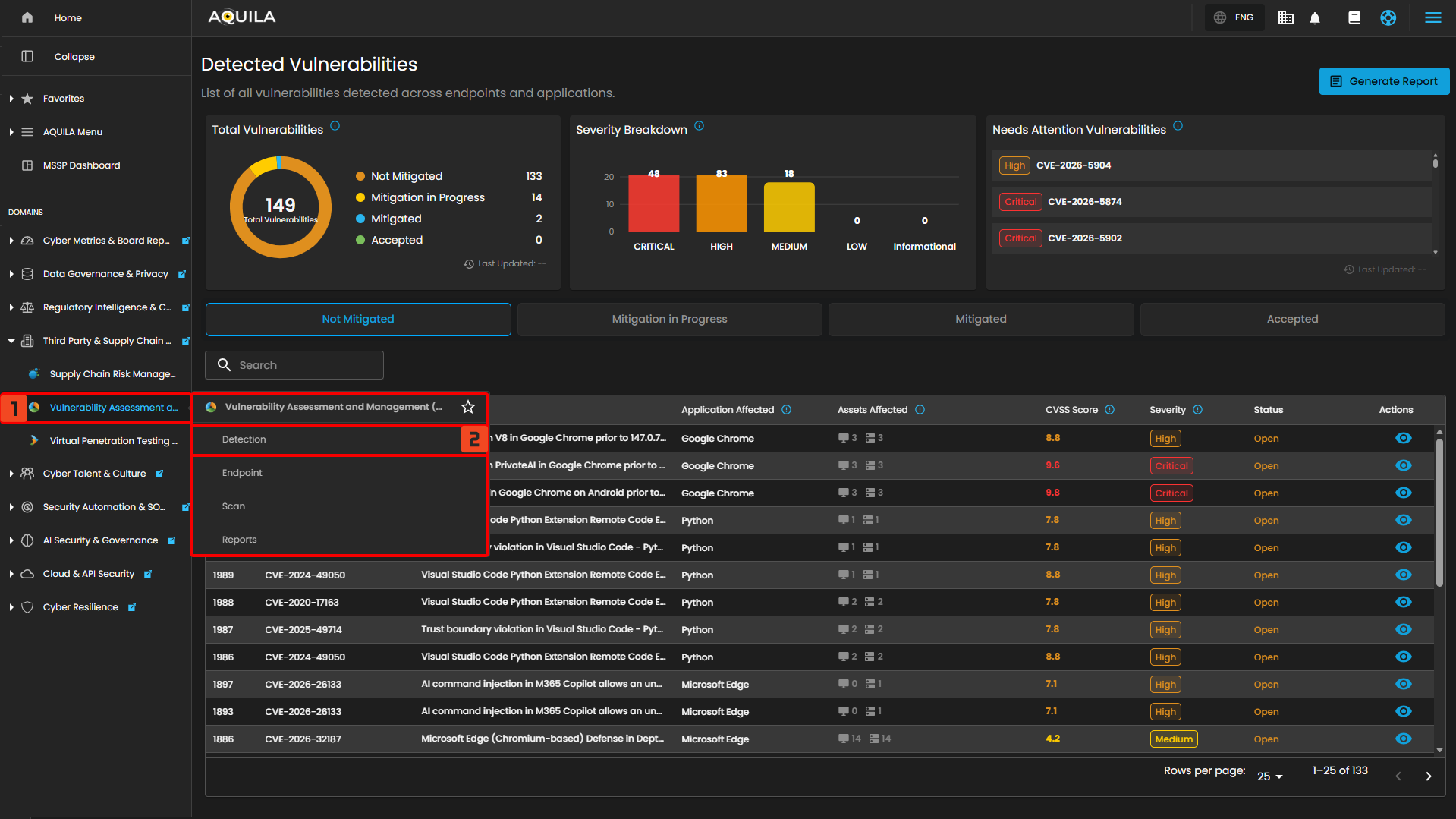](https://cytechint-docs-bookstack.s3.amazonaws.com/uploads/images/gallery/2026-04/dRZho06Ttz820Vzj-hehe-16.png) #### **"Dashboard (Sub-module)" - Vulnerability Assessment and Management (Module)** The **Vulnerability Assessment & Management** **Dashboard** in **AQUILA** provides a centralized view of all **detected vulnerabilities**. It shows the overall **risk score**, **trends**, **severity distribution**, and **affected assets**. Users can **monitor scans**, identify **top vulnerabilities** (**CVEs**), and track the most **at-risk assets**, enabling quicker prioritization and remediation. [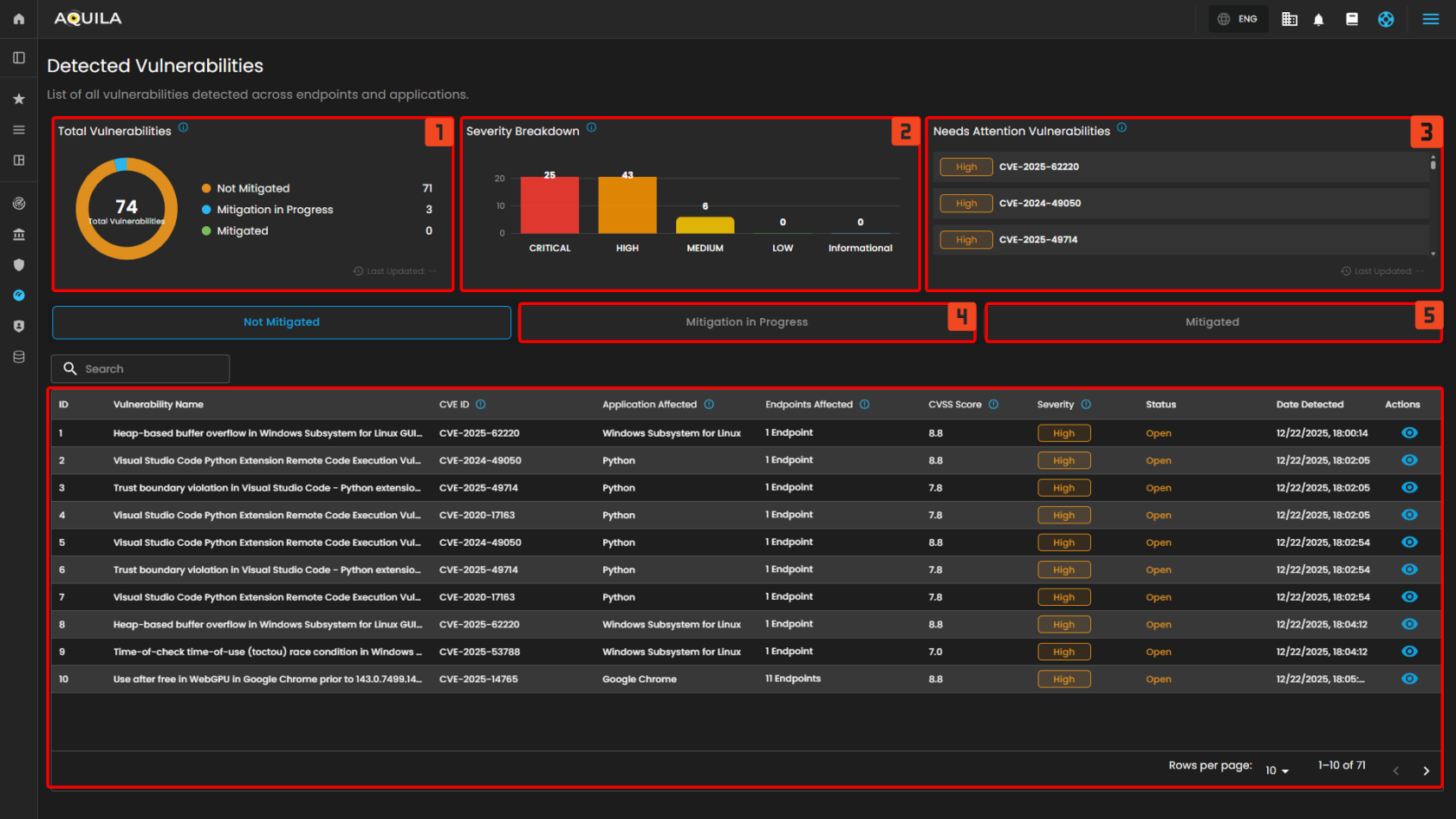](https://cytechint-docs-bookstack.s3.amazonaws.com/uploads/images/gallery/2026-01/kjqgvSRwPVWBDw1L-image.png) #### **Uses of Dashboard Sections** 1. Total Vulnerabilities - Displays the total number of detected vulnerabilities across all endpoints and their current mitigation status. 2. Severity Breakdown - Shows the distribution of vulnerabilities based on their severity levels, helping prioritize remediation efforts. 3. Needs Attention Vulnerabilities - Lists critical or high-severity vulnerabilities that require immediate review or action. 4. Mitigated in Progress - List of the Vulnerabilities and Endpoints that are currently on process of mitigation. 5. Mitigated - List of the Vulnerabilities that are mitigated --- #### **Endpoints** The client can also access the list of their endpoints and how many vulnerabilities are affected; this section can be found below the Detection. [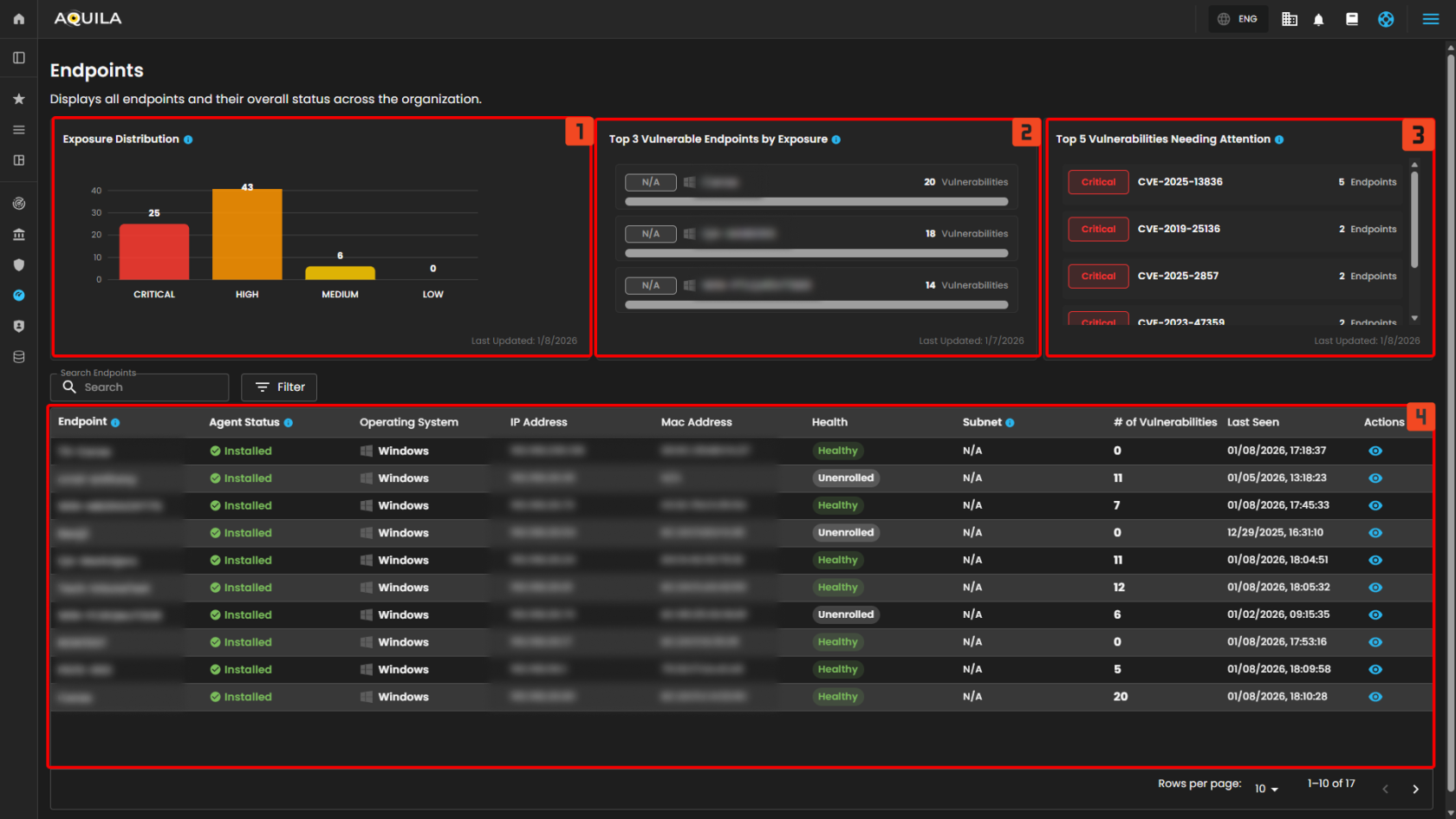](https://cytechint-docs-bookstack.s3.amazonaws.com/uploads/images/gallery/2026-01/aXWAUor9DGjbLdTy-image.png) 1. Exposure Distribution -Shows the number of endpoints based on their current exposure level (Critical, High, Medium, Low). 2. Top 3 Vulnerable Endpoints by Exposure - Displays the three endpoints with the highest number of detected critical and high vulnerabilities, broken down by severity level. 3. Top 5 Vulnerabilities Needing Attention - Lists the vulnerabilities that impact the most endpoints and require immediate action. Prioritizes Critical and High severity. 4. Endpoint list - List of the Endpoints and # of vulnerabilities. --- #### **"Scan (Sub-module)" - Vulnerability Assessment and Management (Module)** The **Running Scans page** in AQUILA shows all ongoing vulnerability scans with progress and severity details. From here, users can search scans, launch new ones, and toggle to view completed scans. The client can also view their scan result by pressing the view button. [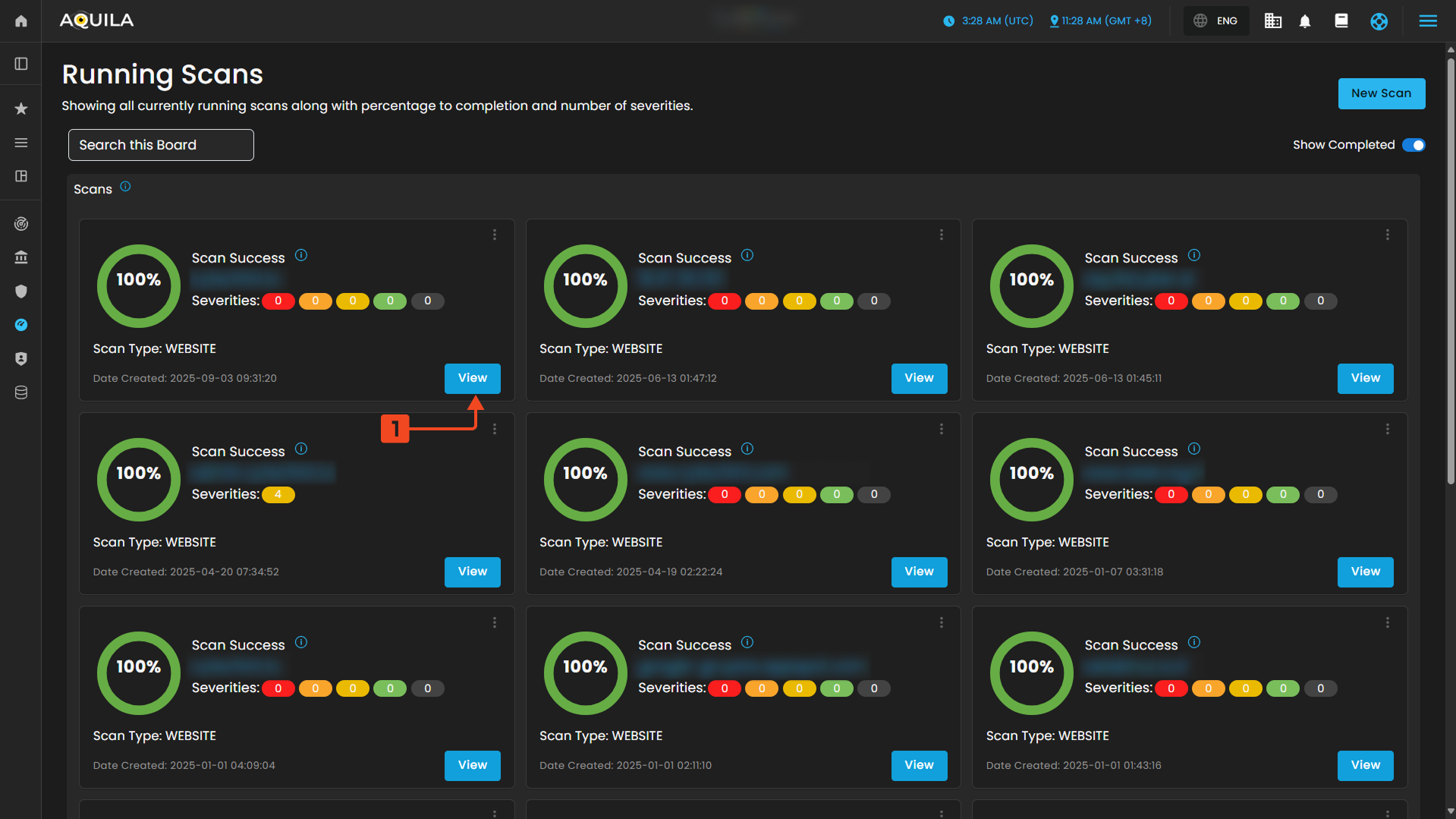](https://cytechint-docs-bookstack.s3.amazonaws.com/uploads/images/gallery/2025-10/kV99hGoocmf3tgMu-test-8.png) > **Search Bar or Search this Board "** - is simply a **filter/search tool** for the scan list displayed in the main panel. [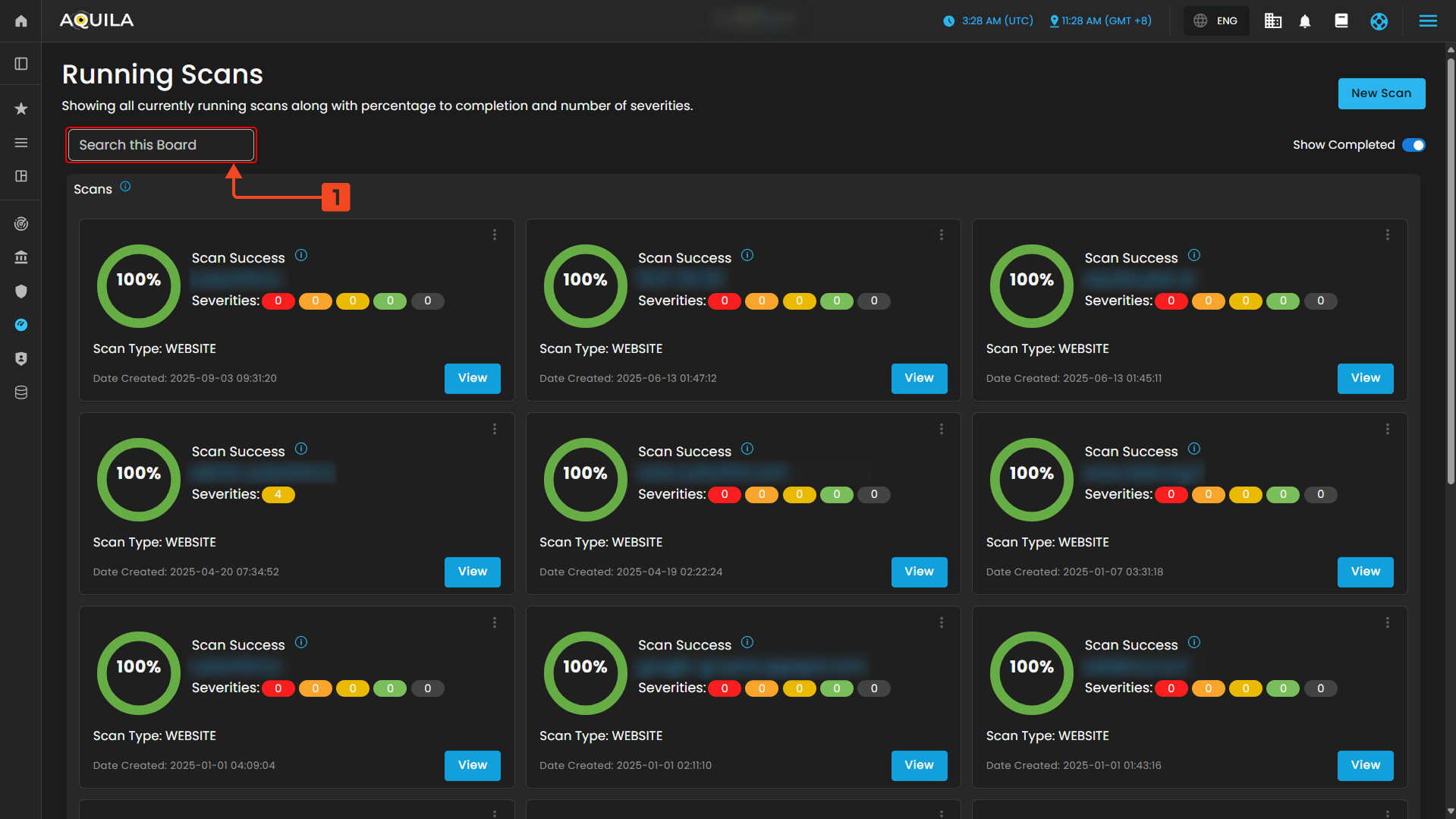](https://cytechint-docs-bookstack.s3.amazonaws.com/uploads/images/gallery/2025-10/sdpNn7IuToZ8yBGo-test-9.png) " **New Scan** " - The **New Scan** lets users choose the type of scan (Quick, Website, Network, or Mobile) depending on the asset being tested, each tailored to identify vulnerabilities and provide security insights. [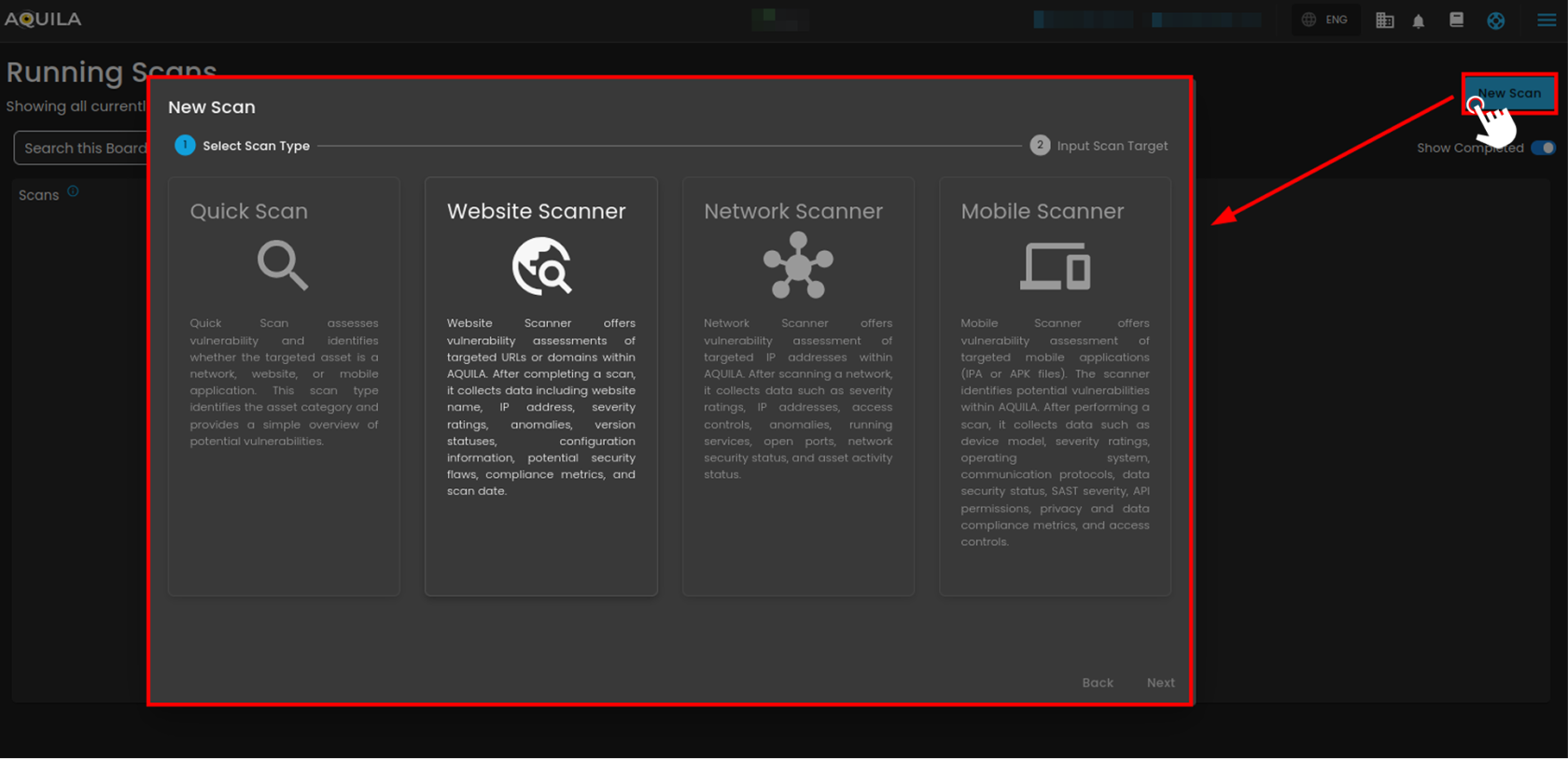](https://cytechint-docs-bookstack.s3.amazonaws.com/uploads/images/gallery/2025-10/qG6y61MzdnLMmc7p-test-10.png) --- #### **Vulnerability Reports - Vulnerability Assessment and Management (Module)** In this section, the client can view, manage and generate report by pressing "**Generate Report**" button [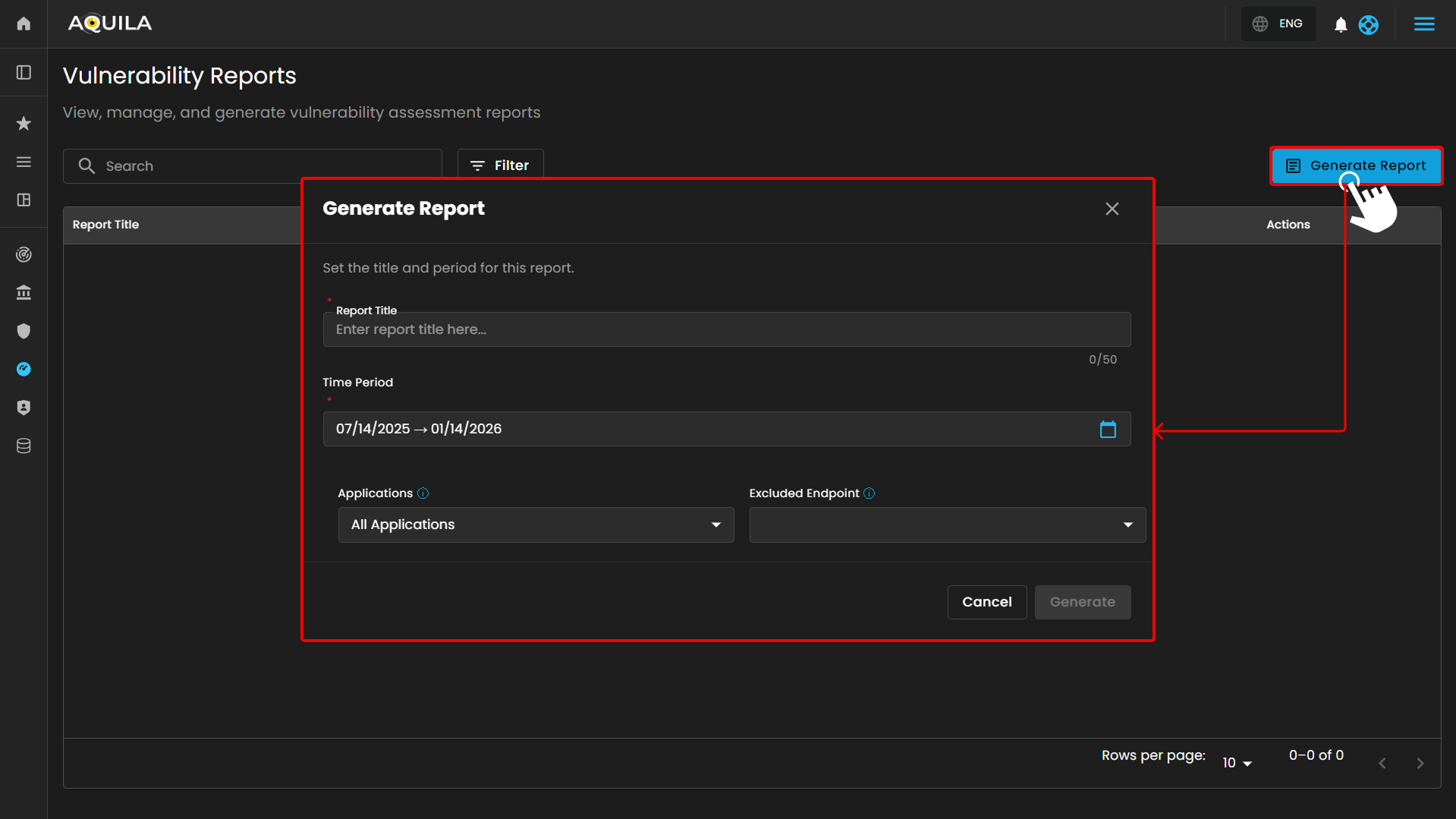](https://cytechint-docs-bookstack.s3.amazonaws.com/uploads/images/gallery/2026-01/5FhLmpJsAzoqUqaf-hehe-6.png) After pressing "**Generate Report**" and filling up the required information it will generate a report summary on the endpoints that are affected by the vulnerability and their CVE's that are related to the vulnerabilities. The client can also press "Download Report" to generate a pdf form of the report. [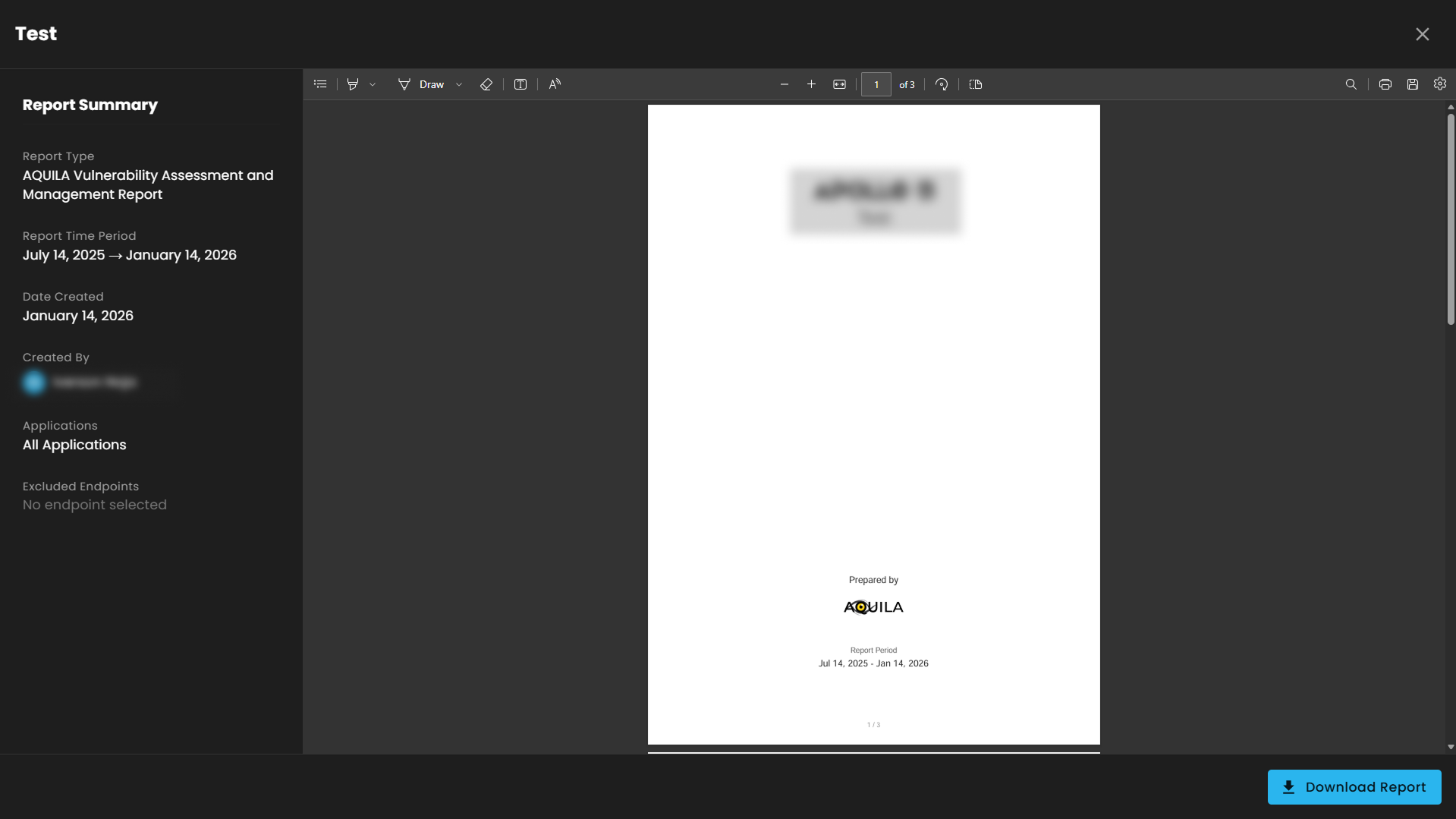](https://cytechint-docs-bookstack.s3.amazonaws.com/uploads/images/gallery/2026-01/qvjdcOrTyh9f84wi-hehe-7.png) *If you need further assistance, kindly contact **support@cytechint.com** for prompt assistance and guidance.* # CyTech AQUILA - Virtual Penetration Testing (VPT) ##### **Overview:** **Virtual penetration** **testing** is a controlled, authorized simulated attack on an organization’s systems that’s performed remotely (often against virtualized, cloud, or networked environments) to discover security weaknesses before malicious actors do. ##### **Key Features:** - **Dashboard -** shows overall asset status, recurring vulnerabilities, trends, and recent scan results. - **Scan -** lets users run different penetration tests, set scope, schedule, and monitor progress. - **Reports -** provide summarized findings with severity, remediation guidance, compliance mapping, and export options.**Let’s proceed to navigate the Virtual Penetration Testing Module kindly follow the instructions below:**
**Step 1:** Log in to **CyTech** – **AQUILA. [https://usdc.cytechint.io/](https://usdc.cytechint.io/ "AQUILA Website")** **Step 2:** In the left side panel, you can see the list of six (6) domains, kindly choose and click the **Third Party & Supply Chain Risk (Domain)** -> **Virtual Penetration Testing (Module)** -> **Dashboard (Sub Module)** [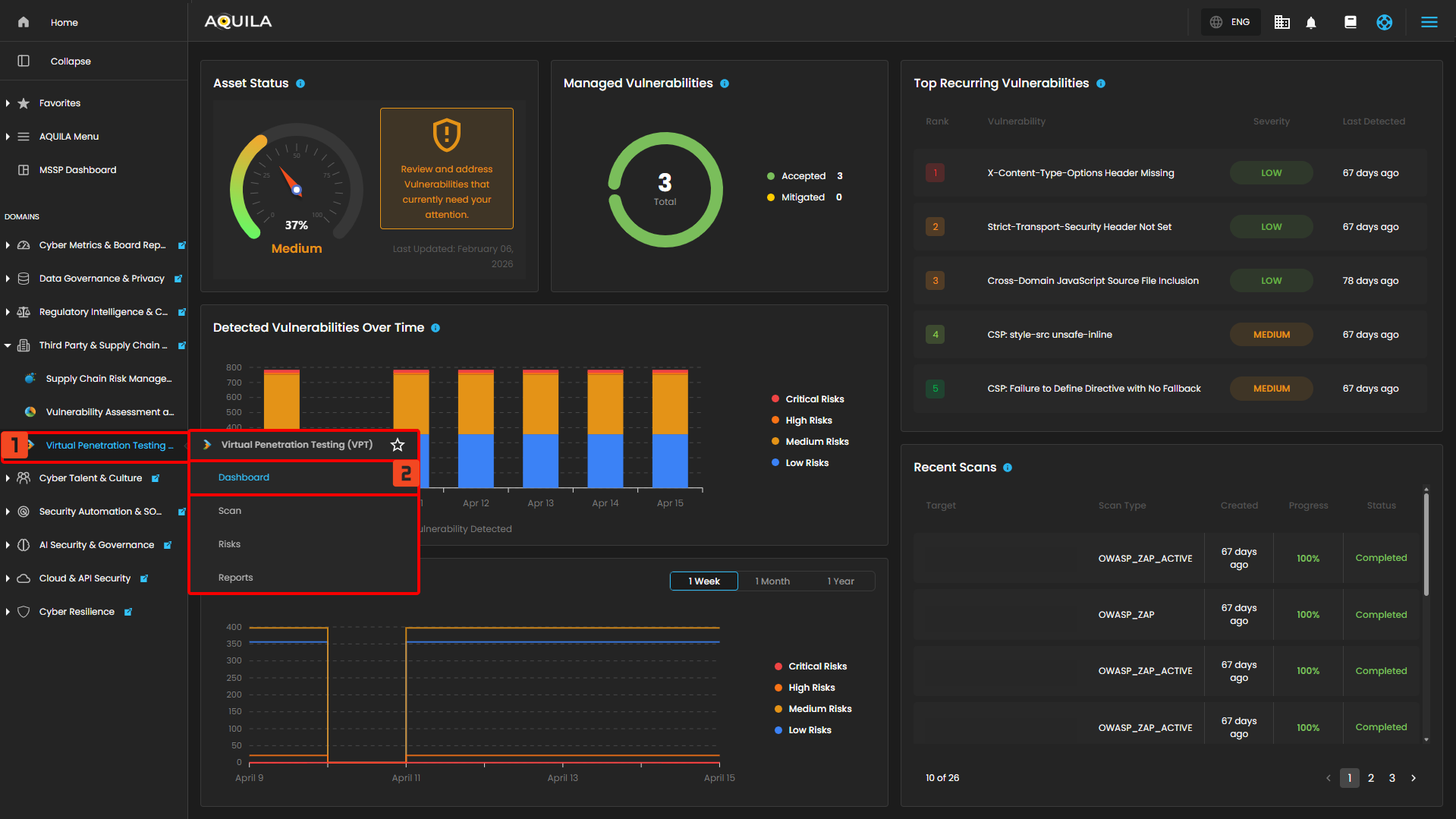](https://cytechint-docs-bookstack.s3.amazonaws.com/uploads/images/gallery/2026-04/3UvRRUKWzB92KHnE-hehe-17.png) #### **"Dashboard (Sub-module)" - Virtual Penetration Testing (Module)** The **Virtual Penetration Testing Dashboard** provides an overview of **asset status**, **highlights top recurring vulnerabilities**, shows trends of **detected** and **open vulnerabilities** over time, and lists **recent scans** with their **progress** and **completion** status. [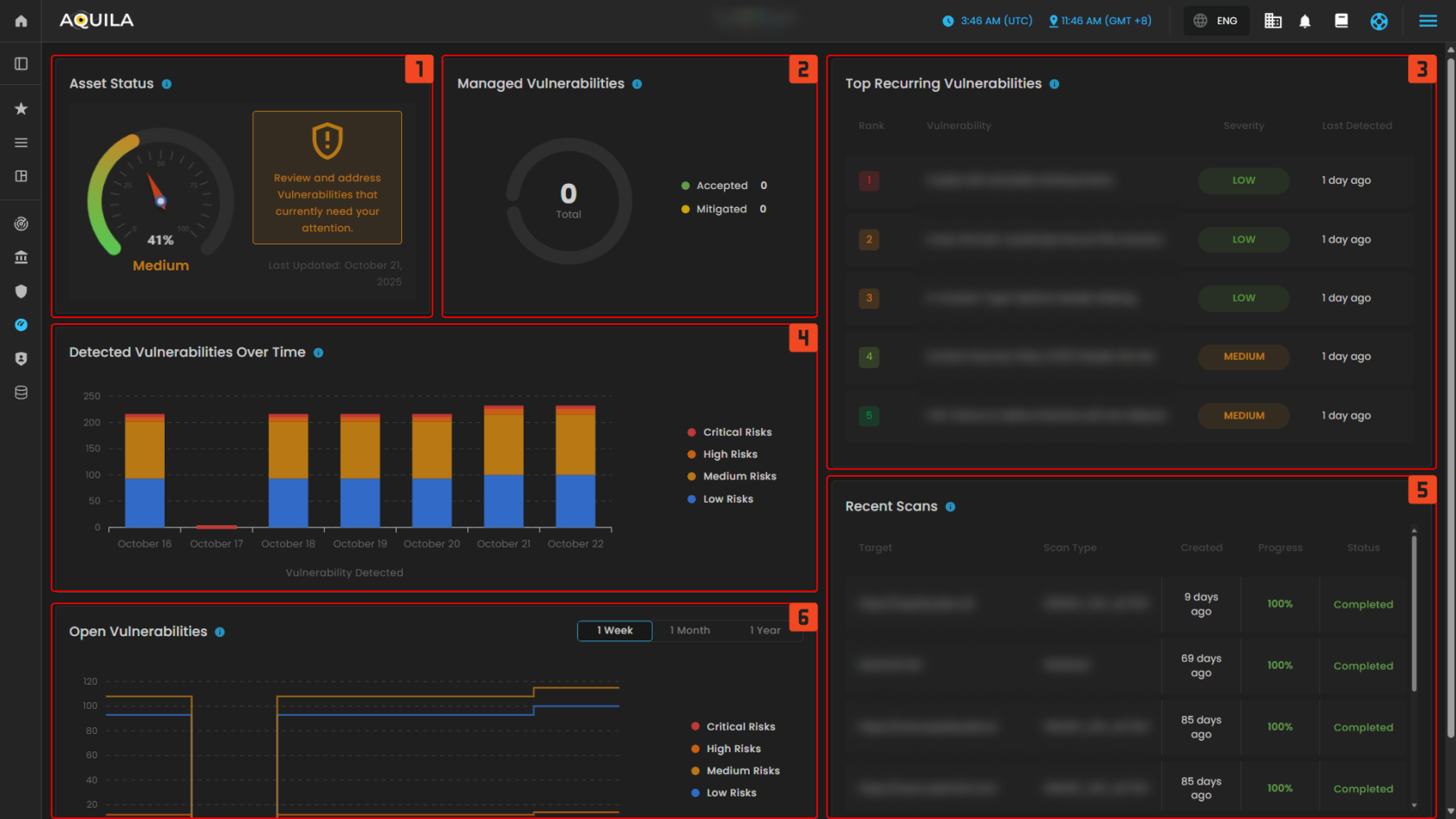](https://cytechint-docs-bookstack.s3.amazonaws.com/uploads/images/gallery/2025-10/8lqDB6ePUnWgvfYb-test-13.png) #### **Uses of Dashb****oard Sections (1–6)** 1. **Asset Status** **-** how's the overall security health with a reminder to review and address vulnerabilities. 2. **Managed Vulnerabilities** **-** displays the total accepted or mitigated issues to track resolved findings. 3. **Top Recurring Vulnerabilities -** lists repeated issues such as CSP misconfigurations and missing cookie attributes, categorized by severity. 4. **Detected Vulnerabilities Over Time -** graph tracks vulnerabilities across recent days, broken down by severity levels. 5. **Recent Scans** **-** table shows the last tests performed, including their targets, scan types, progress, and status. 6. **Open Vulnerabilities** **-** chart provides a line trend of unresolved risks over a selected time frame. **1. Asset Status** This section is the **Asset Status view** for monitoring asset vulnerabilities. It shows the overall asset risk level, the specific target being assessed, and its average risk rating based on scans. A detailed list of detected vulnerabilities is displayed, including the issue name, affected target, severity level, and the scan tool used. It also includes options to search, filter, and navigate through multiple pages of vulnerabilities, giving both a high-level risk score and a detailed breakdown of findings for remediation. [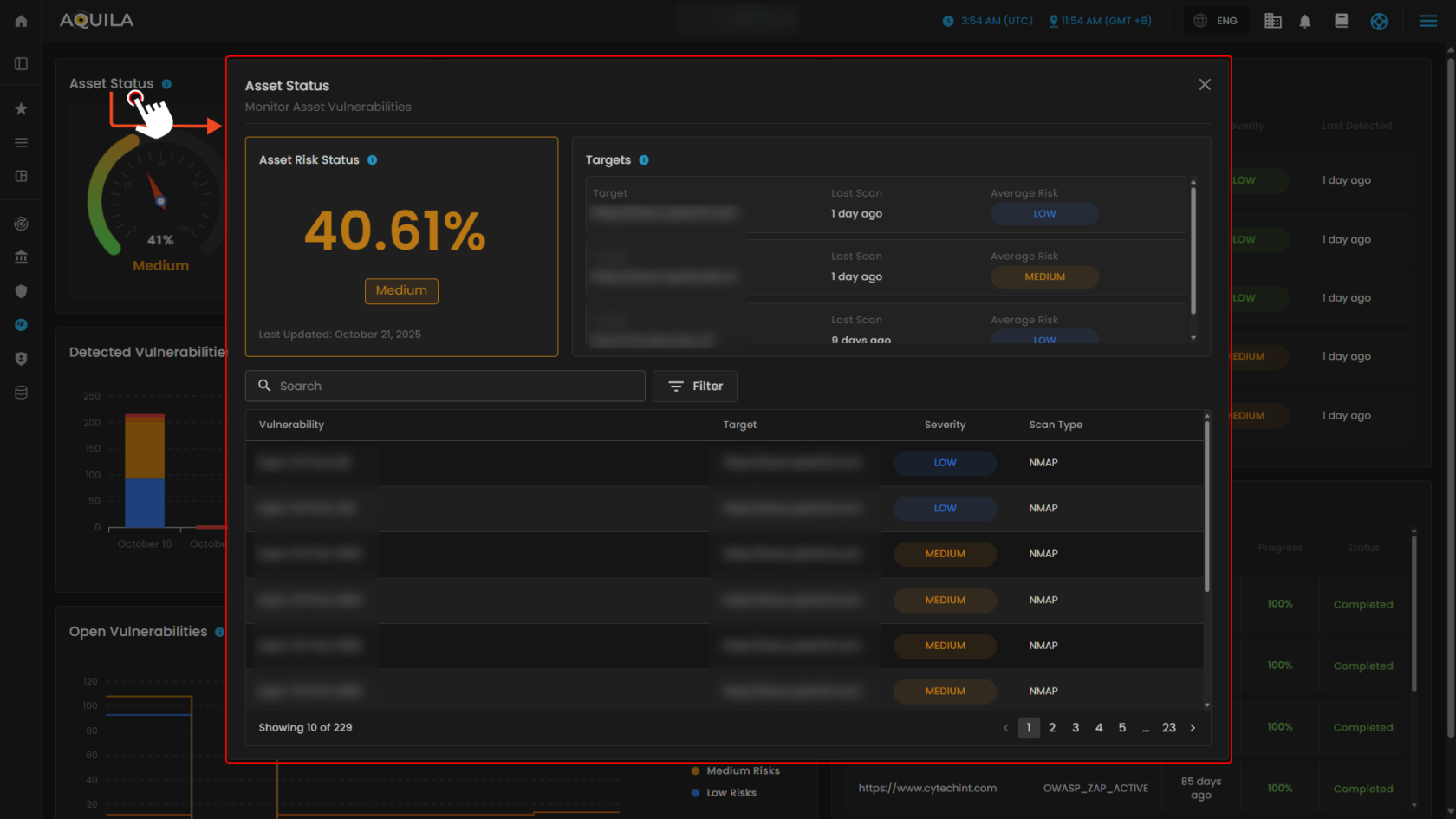](https://cytechint-docs-bookstack.s3.amazonaws.com/uploads/images/gallery/2025-10/cT7Ax6UjtMvhDvbN-test-15.png) **2. Managed Vulnerabilities** This section will show you the risk that were **reviewed** and **accepted** based on organization risk appetite and **mitigated risk**, risks that have been addressed through remediation task. The **search box** in this section is designed to help users quickly locate specific vulnerabilities or scan results. It is paired with a **filter option** that allows narrowing results based on scan type (such as **NMAP,** **OpenVAS, OWASP ZAP,** or **SSLyze**) and selected **targets**. This makes it easier to focus on particular findings, streamline analysis, and avoid manually going through long vulnerability lists. [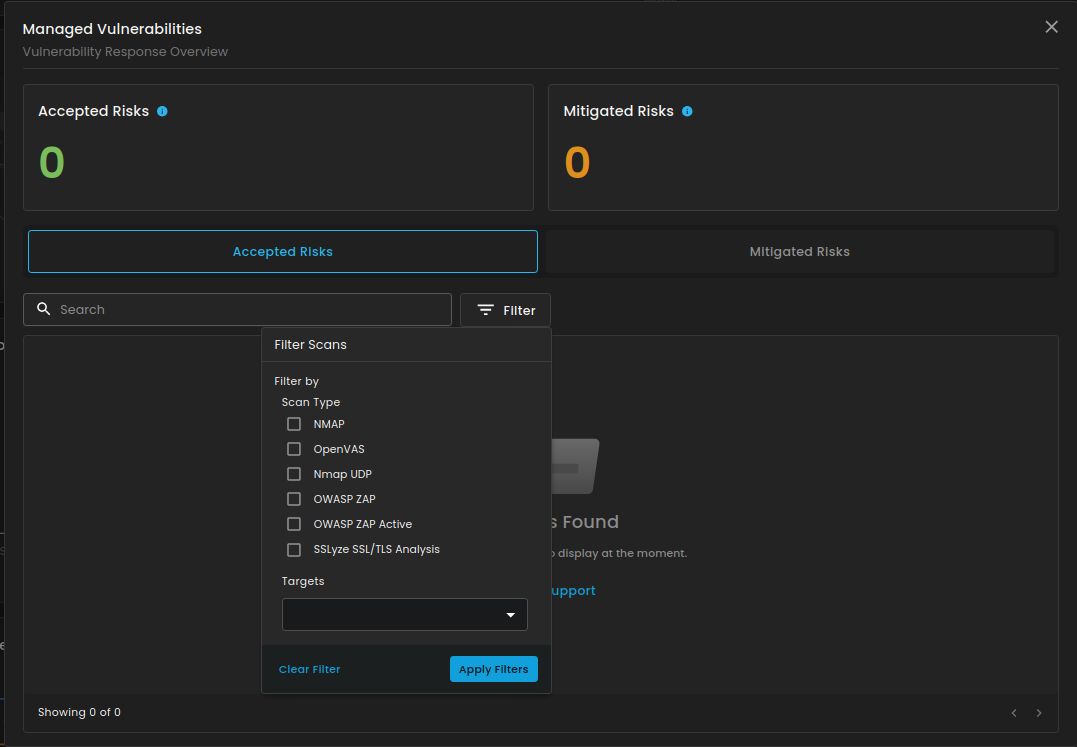](https://cytechint-docs-bookstack.s3.amazonaws.com/uploads/images/gallery/2025-10/iQNaeP2ce0YkjQsH-image.png) **3. Top Recurring Vulnerabilities** This section displays the **top recurring vulnerabilities**, listing repeated security issues along with their severity and the last time they were detected, helping to identify and prioritize persistent risks. [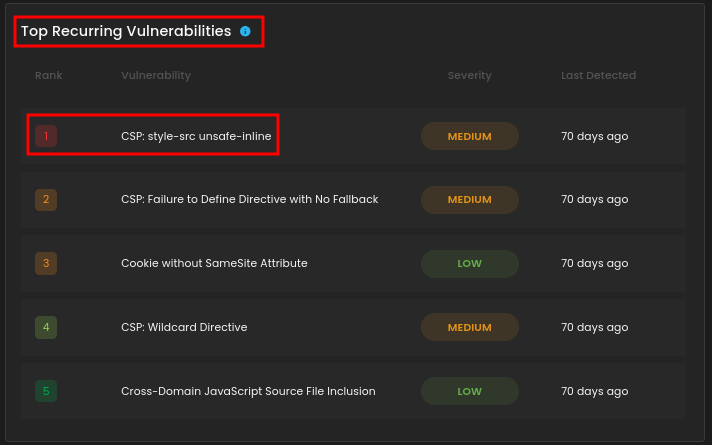](https://cytechint-docs-bookstack.s3.amazonaws.com/uploads/images/gallery/2025-10/oRcE7x3FGmIf4hW1-image.png) [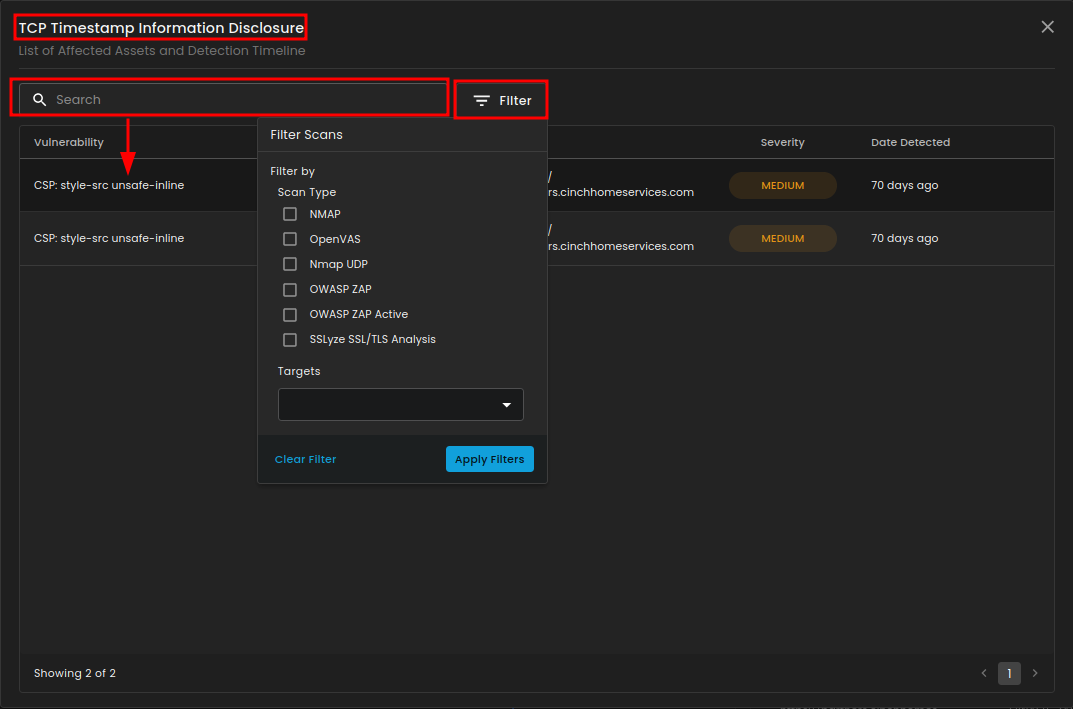](https://cytechint-docs-bookstack.s3.amazonaws.com/uploads/images/gallery/2025-10/kiJn4oTbKBLl7uo9-image.png) **4. **Detected Vulnerabilities Over Time**** This section displays the trend of **detected vulnerabilities over time**, categorized by severity levels such as critical, high, medium, and low risks. It helps visualize how vulnerabilities are distributed and monitored across different dates. [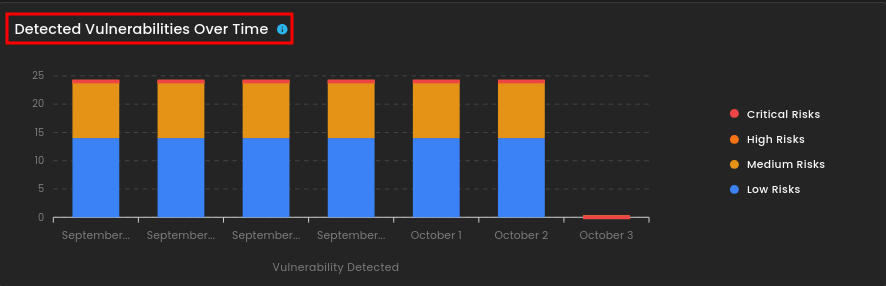](https://cytechint-docs-bookstack.s3.amazonaws.com/uploads/images/gallery/2025-10/VhUkRHNVXXASMSFF-image.png) ****5. Recent Scans**** This section shows the most **recent scans** performed, including the scan type, target, creation date, progress, and status. It helps track completed scans and ensures all tests were successfully executed. [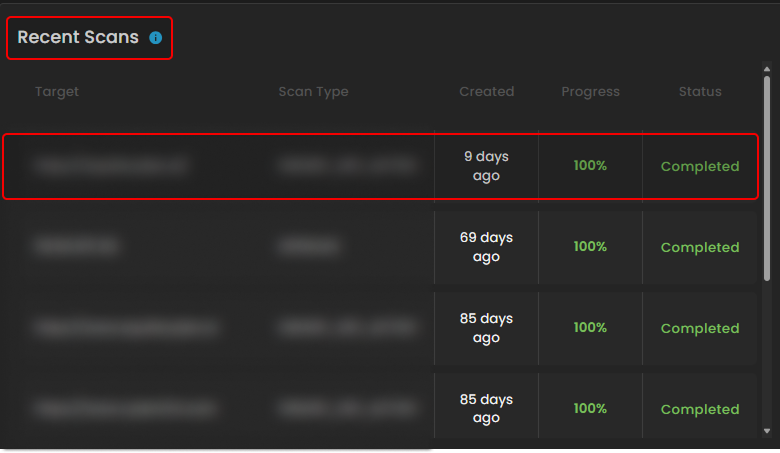](https://cytechint-docs-bookstack.s3.amazonaws.com/uploads/images/gallery/2025-10/U8wZYHJKfFaNs4NB-test-16.png) ****6. Open Vulnerabilities**** This section displays the trend of **open vulnerabilities** over a selected time frame, categorized by severity levels such as critical, high, medium, and low risks. It helps monitor unresolved security issues and track their persistence over time. [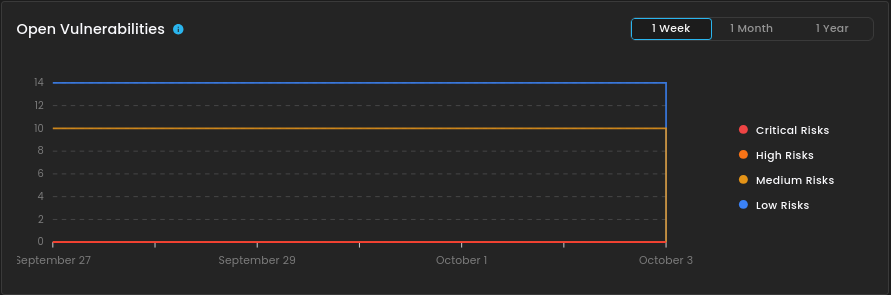](https://cytechint-docs-bookstack.s3.amazonaws.com/uploads/images/gallery/2025-10/91h6wDQFlN5K5Oer-image.png) --- #### **" Scan (Sub-module)" - Virtual Penetration Testing (Module)** This module serves as the **Scans** dashboard, where users can view and manage all security scans in one place. It displays details such as scan type, target, last completed date, recurrence, next run, and current status, along with a risk summary categorized into Critical, High, Medium, and Low. Users can search, filter, or view running scans for easier tracking, and the New Scan button allows quick creation of a new test. [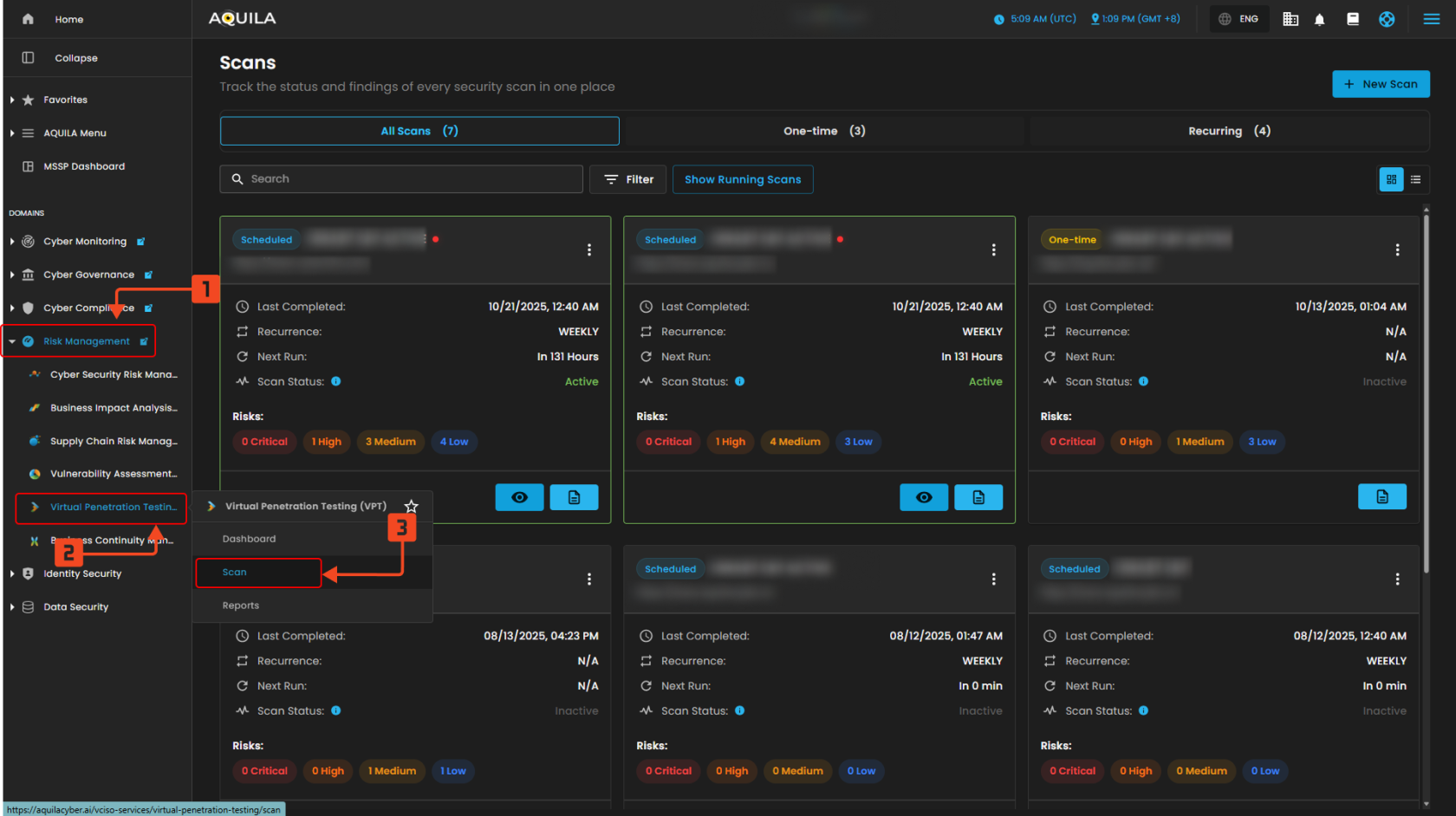](https://cytechint-docs-bookstack.s3.amazonaws.com/uploads/images/gallery/2025-10/1TXRsPQnIdxAp30M-test-17.png) > When you click ***View Report*** on the Scan, a small window titled *View Report* will appear, allowing you to download the file. [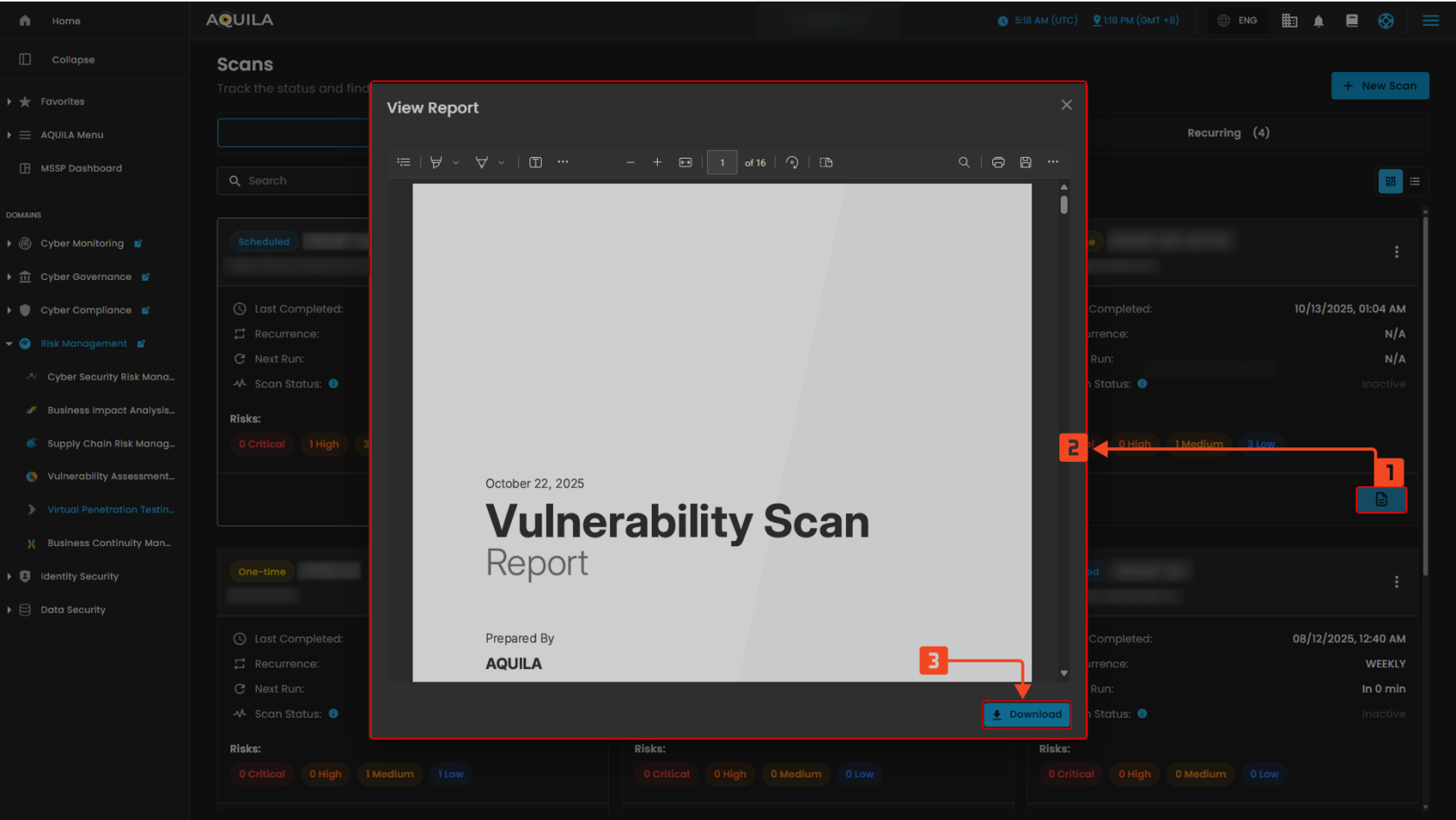](https://cytechint-docs-bookstack.s3.amazonaws.com/uploads/images/gallery/2025-10/SciGD9gRwslFIEQT-test-18.png) #### **New Scan** This **New Scan** section is the first step in creating a new scan, where you select the type of security test to run. You can choose from categories like **Network**, **Web Application**, or **API Penetration Testing**. For **Network Penetration Testing**, options include NMAP (TCP port scan), OpenVAS (vulnerability scan), and Nmap UDP (UDP port scan). A progress bar shows the steps—Select Scans, Select Targets, Configure, and Review—while the Selected Scan counter and navigation buttons help you track and move through the process. [](https://cytechint-docs-bookstack.s3.amazonaws.com/uploads/images/gallery/2025-10/5NypGnYllmf8ER88-test-20.png) > **Network Penetration Testing** [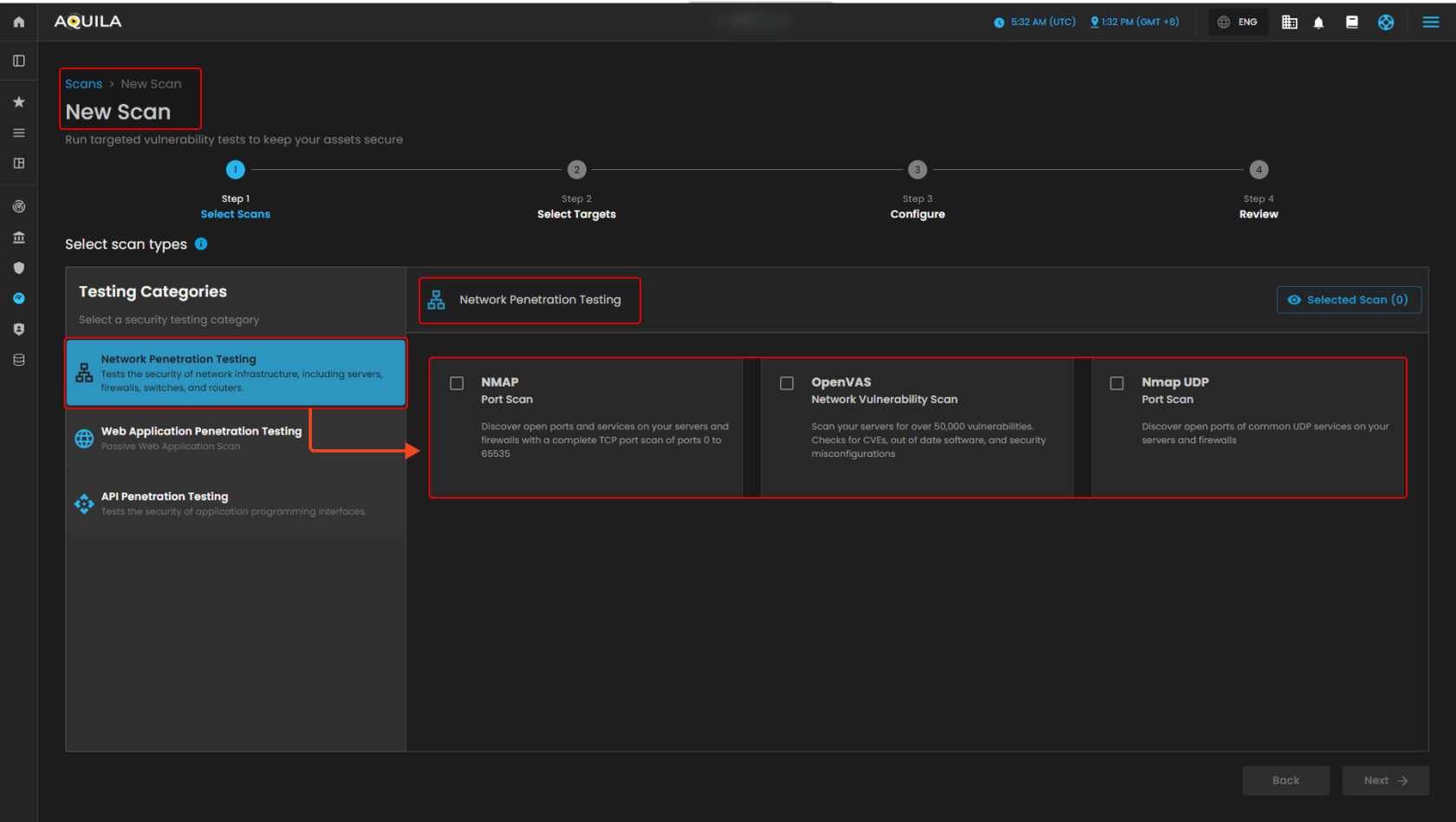](https://cytechint-docs-bookstack.s3.amazonaws.com/uploads/images/gallery/2025-10/LFO98vkOuieOPyvf-test-22.png) > **Web Application Penetration Testing** [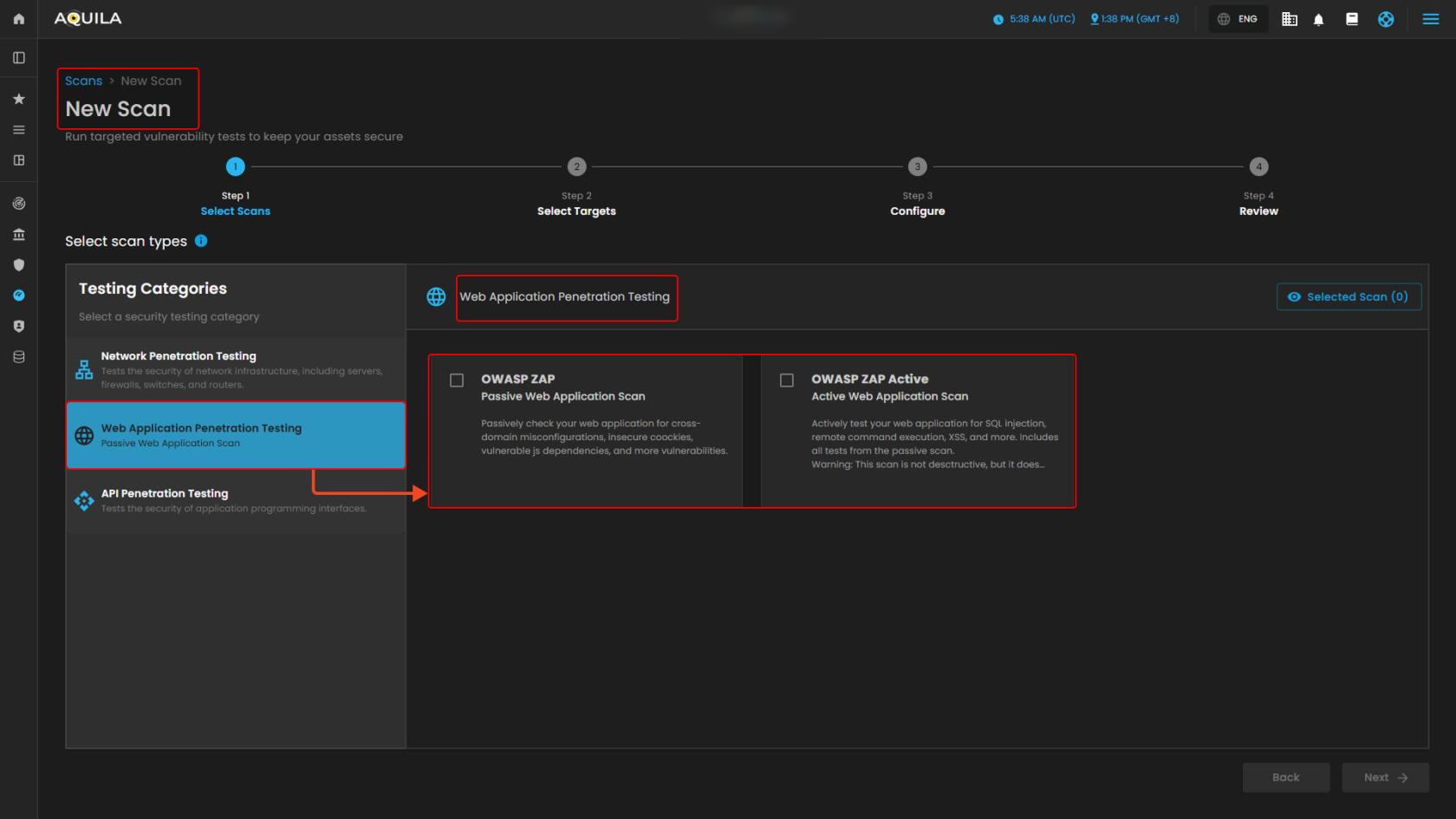](https://cytechint-docs-bookstack.s3.amazonaws.com/uploads/images/gallery/2025-10/rQC7yfvq8h14KYoA-test-23.png) > **API Penetration Testing** [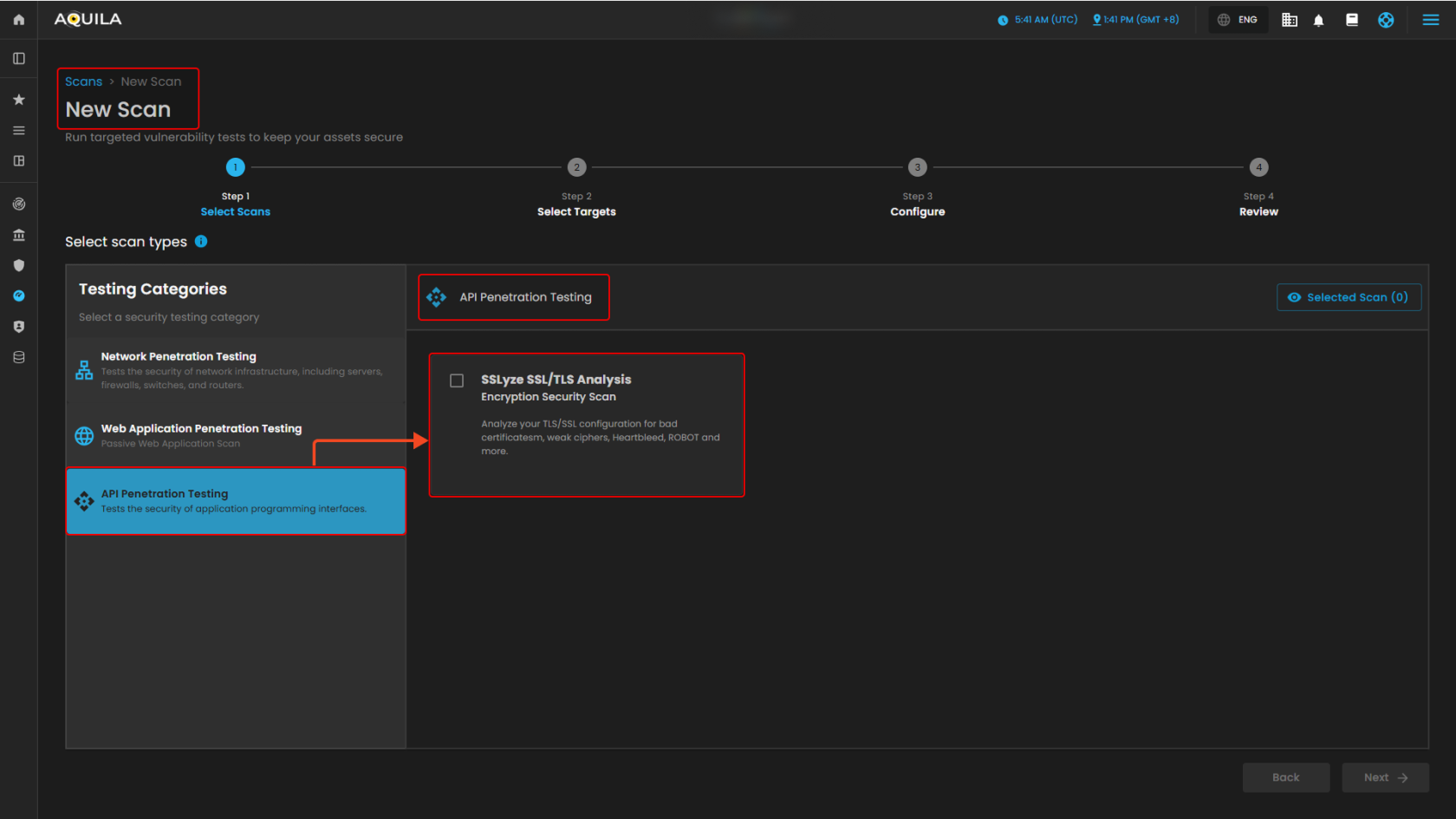](https://cytechint-docs-bookstack.s3.amazonaws.com/uploads/images/gallery/2025-10/bD17aZ3BWtsmXUpn-test-24.png) 1\. **Search Bar** - Allowing you to look specific scans. [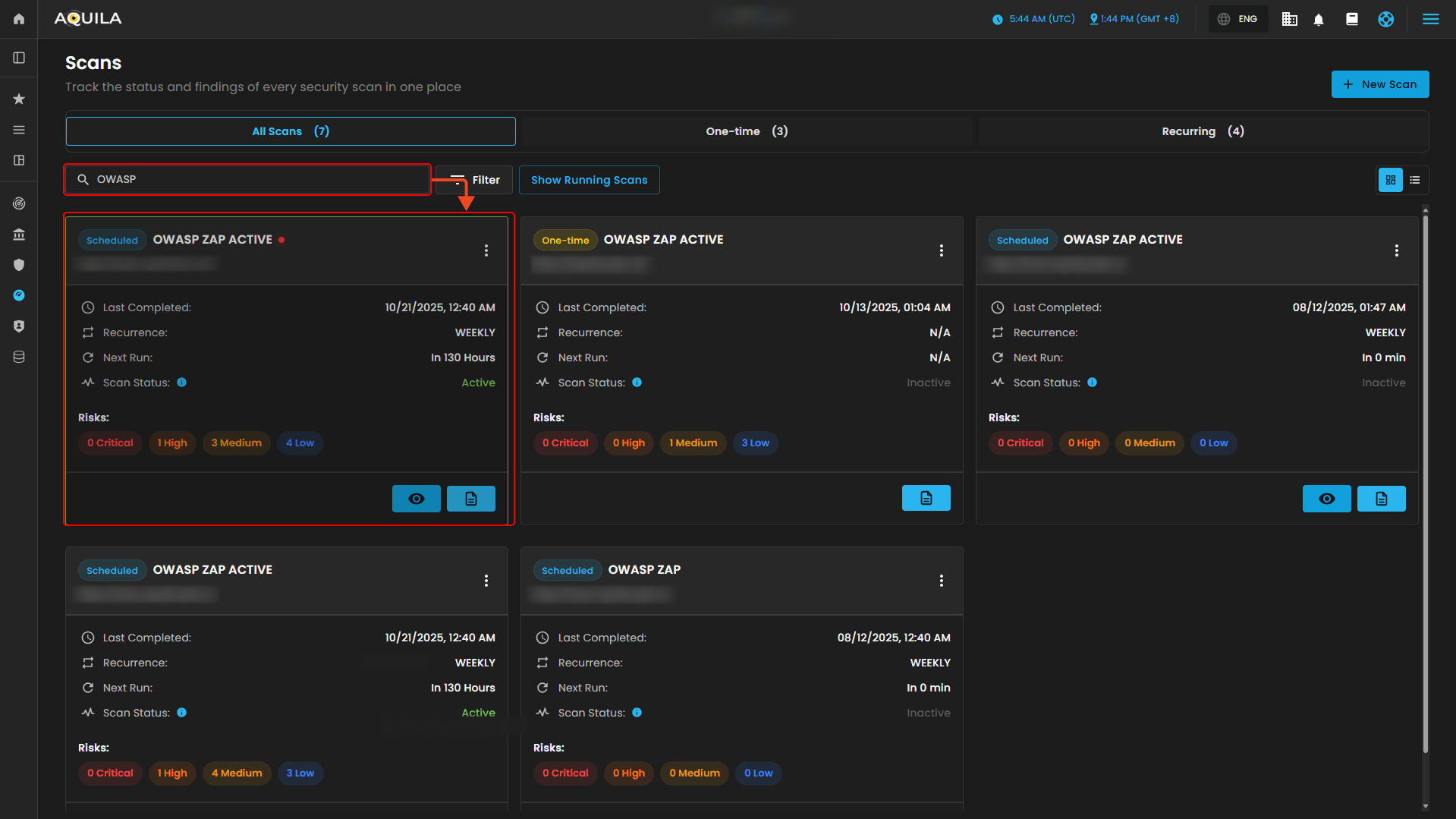](https://cytechint-docs-bookstack.s3.amazonaws.com/uploads/images/gallery/2025-10/d9A7neAwqOwkRB9h-test-26.png) 2\. **Filter -** Allows users to **refine and organize scan results** based on specific criteria. You can filter by **scan type** (e.g., **NMAP, OpenVAS, Nmap UDP, OWASP ZAP, SSLyze**) or by **target URL/domain** to quickly locate relevant scans. The options **Apply Filters** and **Clear Filter** provide flexibility—either narrowing down results to the chosen criteria or resetting the view to show all scans. This makes it easier to manage and review scans without manually searching through the entire list. [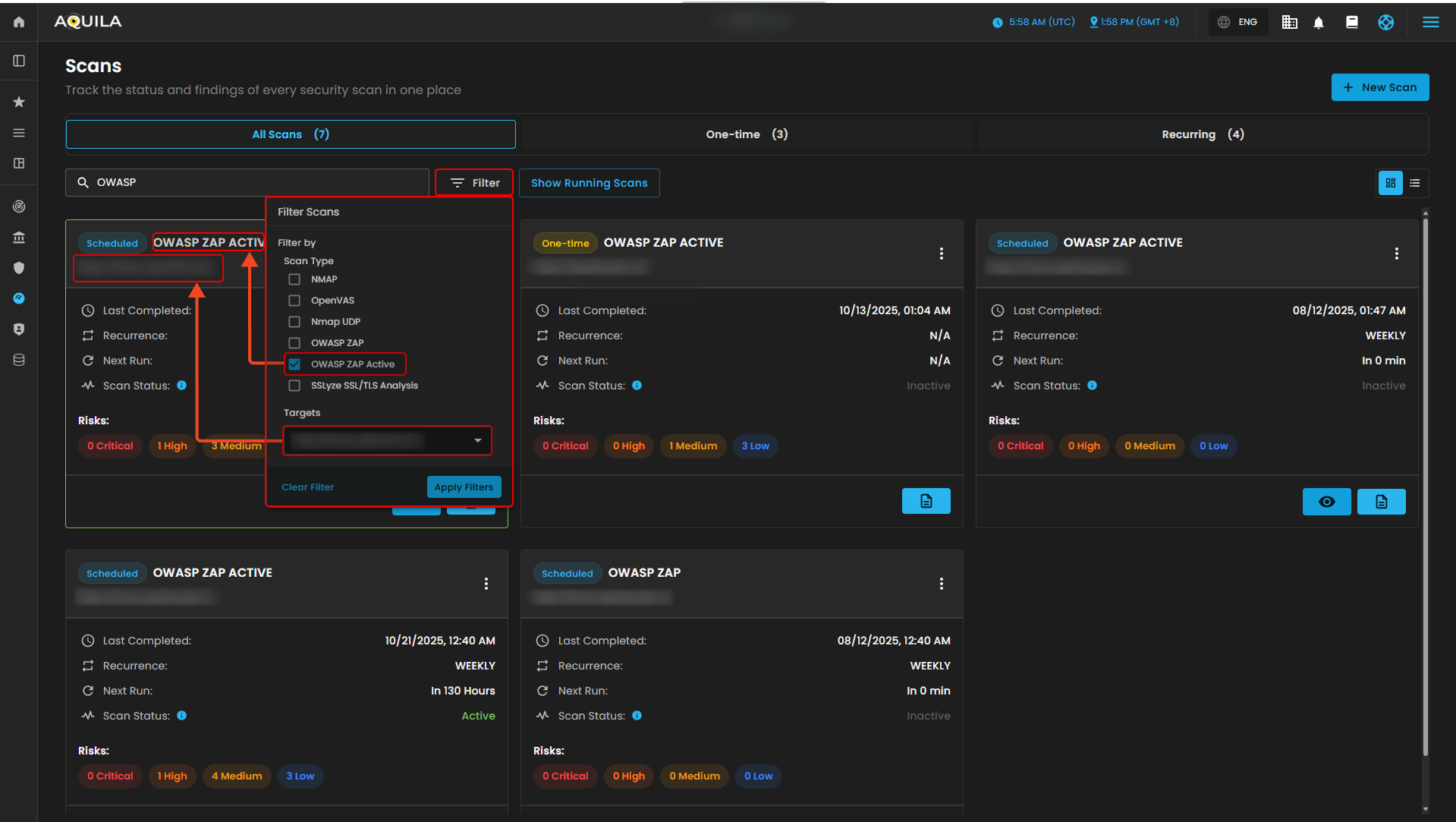](https://cytechint-docs-bookstack.s3.amazonaws.com/uploads/images/gallery/2025-10/TW5RnXqWiTfRxt7N-test-27.png) --- #### **" Reports (Sub-module)" - Virtual Penetration Testing (Module)** This section shows the **Reports Overview** page of the AQUILA platform, presenting a list of completed scans along with details such as the scan type, target URL, last run date, recurrence information, and detected risk levels. [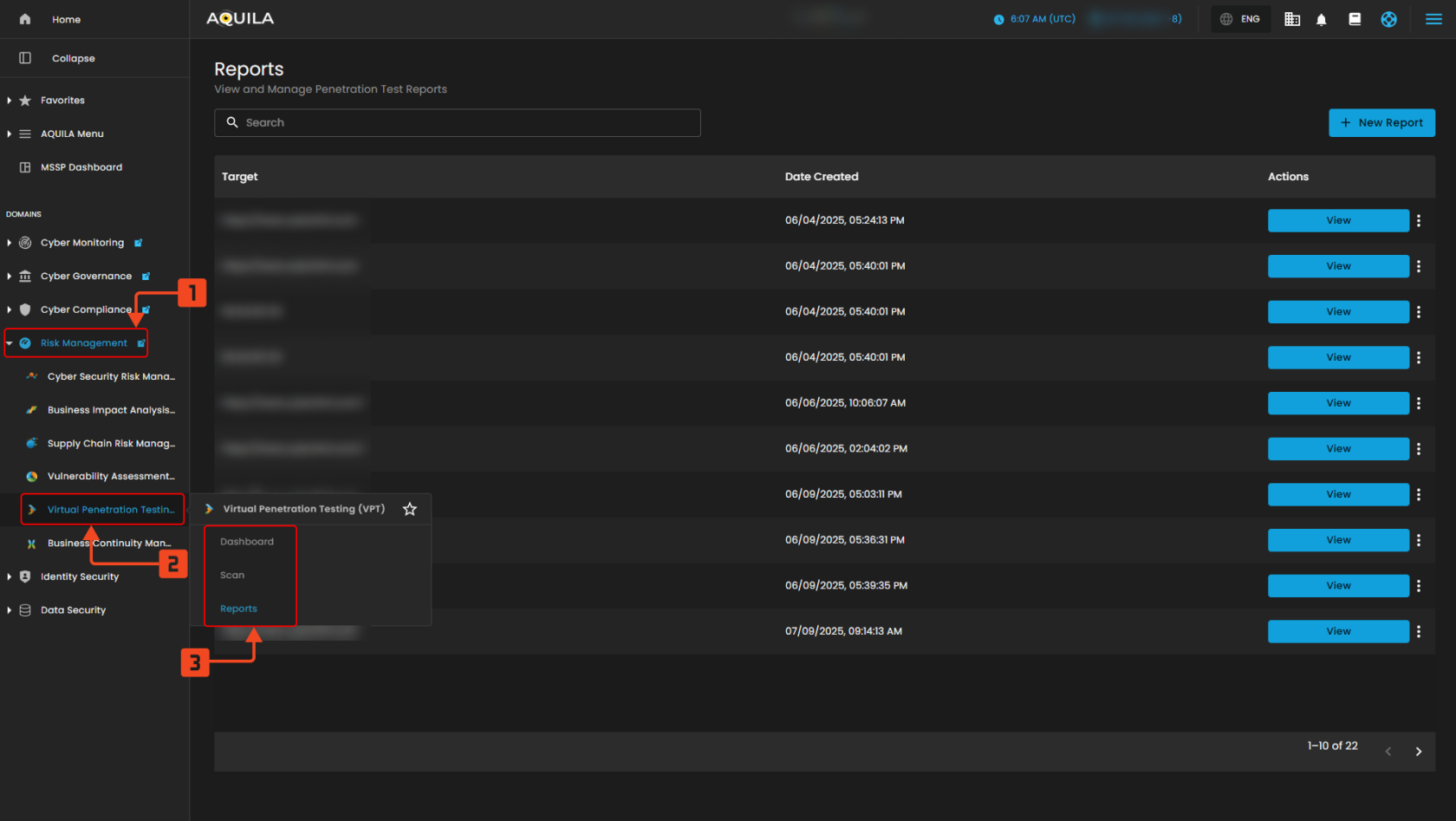](https://cytechint-docs-bookstack.s3.amazonaws.com/uploads/images/gallery/2025-10/SFJ4qwClrf1rt6U9-test-28.png)This section displays the **Reports** list in AQUILA, showing all generated penetration test reports. Each entry includes the **target URL**, the **date the report was created**, and an **Action** button labeled *View* that allows users to open, share report, print and download the detailed results of a specific report.
[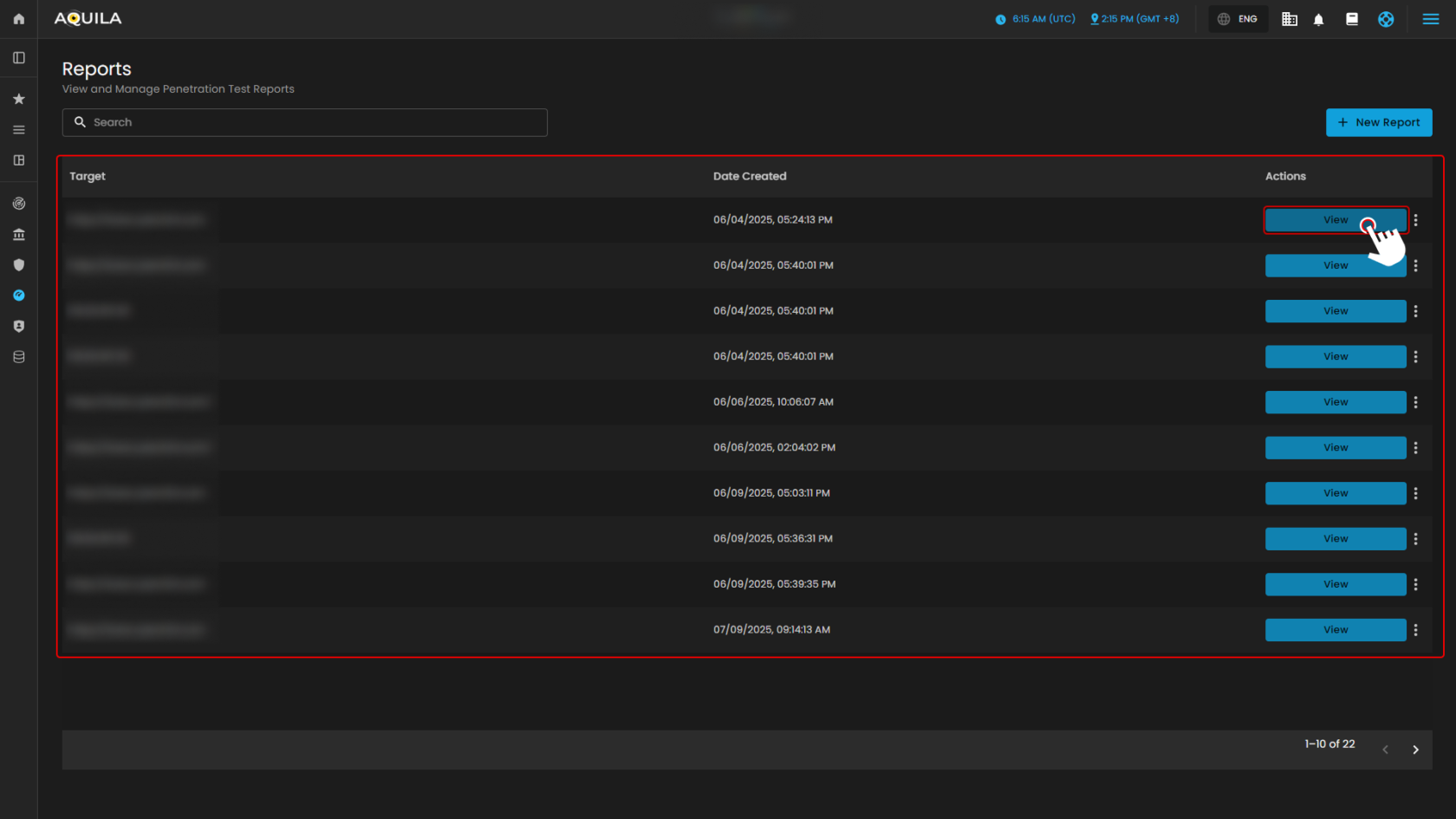](https://cytechint-docs-bookstack.s3.amazonaws.com/uploads/images/gallery/2025-10/idwLKF1UcVM17fBN-test-29.png) [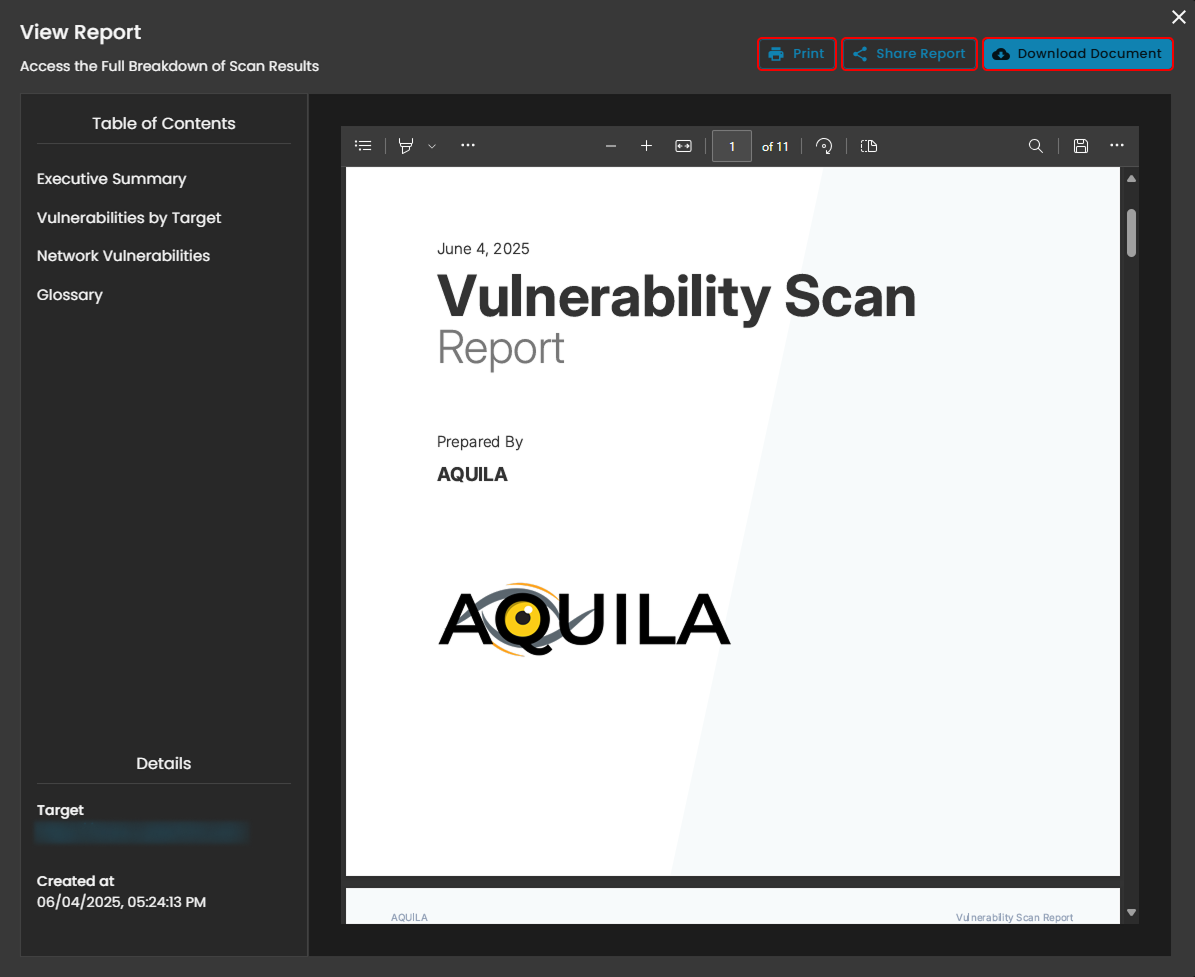](https://cytechint-docs-bookstack.s3.amazonaws.com/uploads/images/gallery/2025-10/zPafPMyaNbBbcCht-test-30.png) 1. New Report This section displays the **Reports module** in the AQUILA platform. It allows users to view and manage penetration test reports. The page lists all available reports with details such as target URLs and creation dates. Users can quickly search for specific reports using the search bar or create a new report using the **“New Report”** button. When creating a new report, users go through a step-by-step process — selecting scanned targets and providing report information before generating the final report. [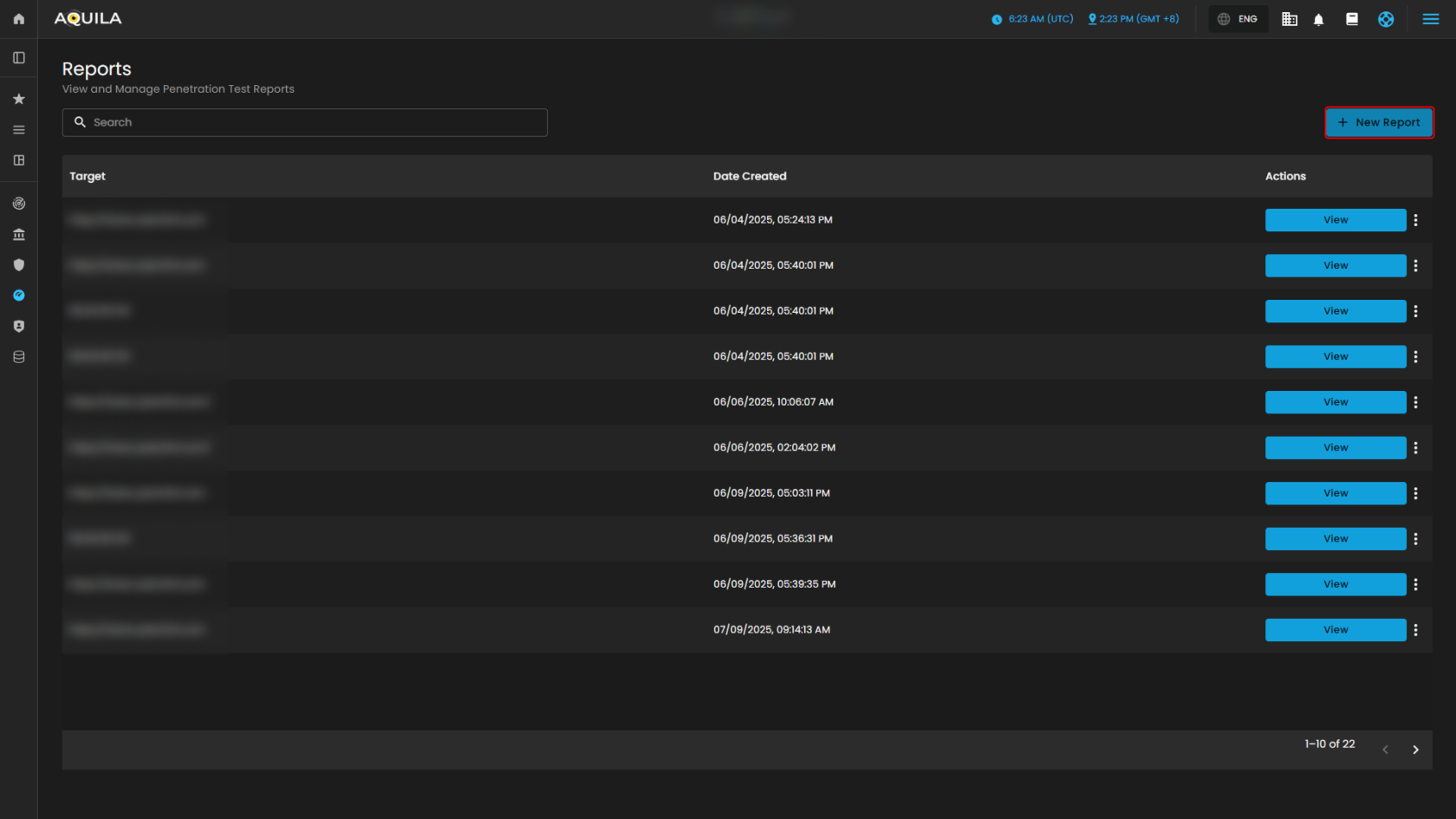](https://cytechint-docs-bookstack.s3.amazonaws.com/uploads/images/gallery/2025-10/tNPscFNNfhRt1OHw-test-31.png) [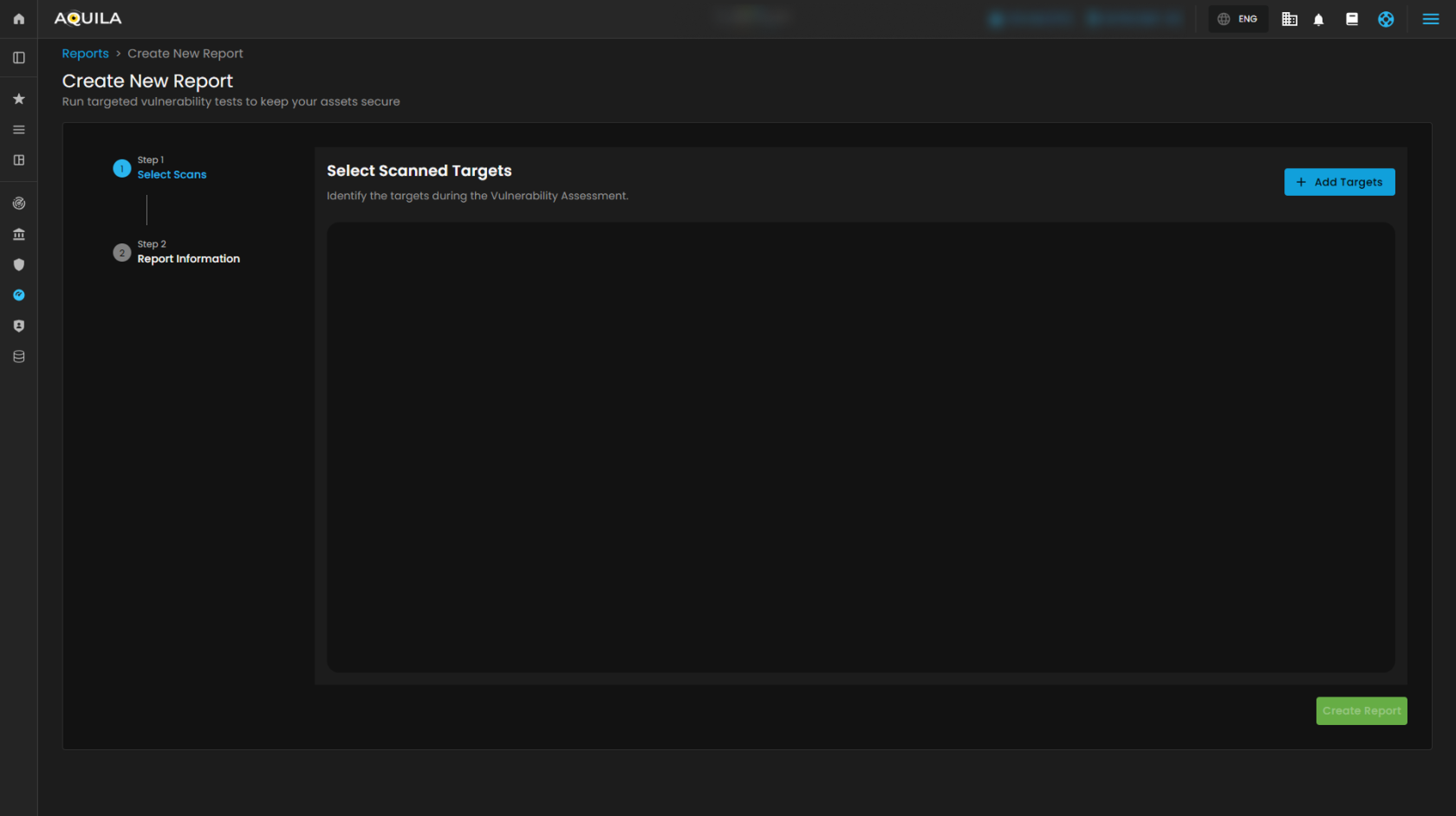](https://cytechint-docs-bookstack.s3.amazonaws.com/uploads/images/gallery/2025-10/WtoWlGwybK9jIi5d-test-32.png) 1.1 Create New Report - "Add Targets" This section lets users select completed scans to include in a report. The search bar helps find specific scans, and users can check targets from the list to include them. After selecting, clicking **Add Target** confirms and adds the chosen scans to the report. [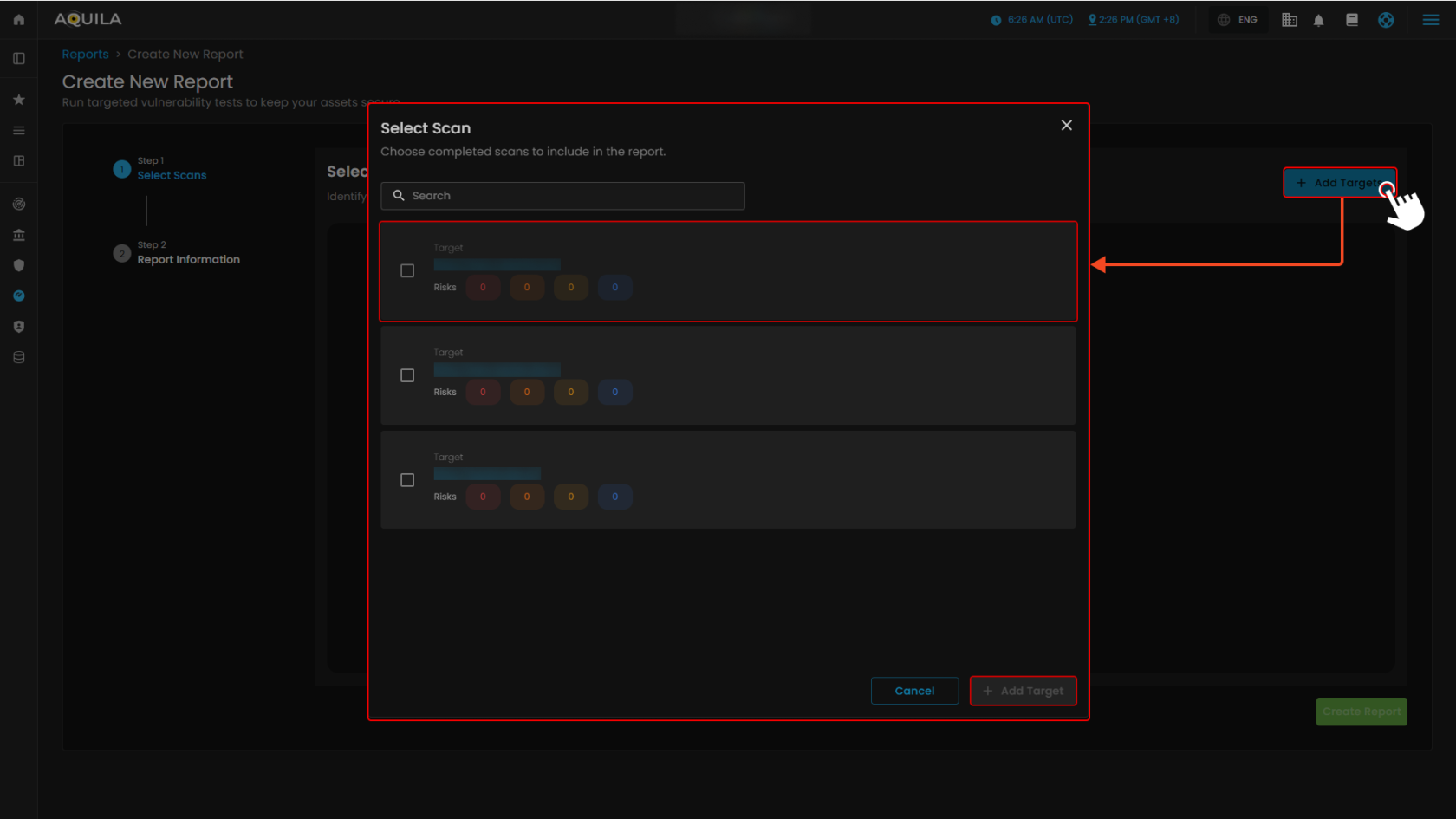](https://cytechint-docs-bookstack.s3.amazonaws.com/uploads/images/gallery/2025-10/U0npfh5lwDoZlYTl-test-33.png) *If you need further assistance, kindly contact **support@cytechint.com** for prompt assistance and guidance. *