# Whitelist in Google Workspacege
### **Whitelisting Simulated Phishing in Google Workspace (Gmail)**
**For Secure Practice Simulation Emails**
This step-by-step guide is intended for **Google Workspace administrators** to allow simulated phishing emails from **Secure Practice** by properly configuring Gmail to recognize and accept messages from specific IP addresses.
> **Note:** You must have an **admin role** in the Google Workspace Admin Console to perform these actions.
---
### **Step 1: Access the Admin Console**
1. Visit [https://admin.google.com](https://admin.google.com/)
2. Sign in using your **administrator account**
---
### **Step 2: Navigate to Gmail Settings**
1. In the left-hand menu, go to:
**Apps** → **Google Workspace** → **Gmail**
2. Under Gmail settings, click on **Spam, Phish and Malware**
[](https://cytechint-docs-bookstack.s3.amazonaws.com/uploads/images/gallery/2025-05/MAdg7TzWA6SuEXGl-image.png)
---
### **Step 3: Add IPs to the Email Allowlist**
1. Click on **Email allowlist**
- **35.153.237.243(Mail Server)**
- **107.22.65.180(Landing Page)**
2. Enter the following IP addresses:
3. Click **Save**
[](https://cytechint-docs-bookstack.s3.amazonaws.com/uploads/images/gallery/2025-05/EHNr7095OZVrXU5Q-image.png)
---
### **Step 4: Configure Inbound Gateway**
This step ensures that Gmail treats the IP addresses above as **internal senders**, preventing SPF or DMARC validation and suppressing warnings to end-users.
1. Scroll down to the **Inbound Gateway** section
2. If not already enabled, click the **Enable** button
3. In the **Gateway IPs** field, enter the same IP addresses listed earlier
4. Optional:
- Enable **Automatic detect external IP**
- **Do not** enable “Reject all mail not from gateway IPs” unless already required—this may block all mail delivery if not properly configured
- Enable **Require TLS for connections**
[](https://cytechint-docs-bookstack.s3.amazonaws.com/uploads/images/gallery/2025-05/0038sCvbVlH5I0NR-image.png)
---
### **Step 5: Configure Message Tagging**
1. Under the **Message Tagging** section:
- Check **"Message is considered spam if the following header regexp matches"**
- Enter a **unique, random string** : fg2jl0ah45oahtTK56SGD23fhk2k
- Check **"Disable Gmail spam evaluation"**
This ensures Gmail skips its spam analysis for messages from the configured IPs.
[](https://cytechint-docs-bookstack.s3.amazonaws.com/uploads/images/gallery/2025-05/jvwcnmC96C1W0GUd-image.png)
---
### **Step 6: Bypass Spam Filters for Trusted Senders**
1. Still under Gmail settings, go to the **Spam** section
2. Click **Configure** to create a spam filter bypass rule
3. Check: **"Bypass spam filters for messages received from addresses or domains"**
4. Click **Create or edit list** and add the following senders:
- slackj.com
- ttrelli.com
- airbnd.cc
- attlassians.com
- eebbey.com
- lastpasss.net
- my1psswords.com
- zooms.cc
5. For flexibility, uncheck **"Authentication required"** for
6. Save the address list and the new spam bypass policy
[](https://cytechint-docs-bookstack.s3.amazonaws.com/uploads/images/gallery/2025-05/ESsyInCwDlu1fTMU-image.png)
---
### **Step 7: Adding Message Header in Compliance**
1. Navigate to the **Compliance** section in the Google Workspace Admin console.
2. Go to the **Content Compliance** subsection.
3. Click **Configure** or **Add Another**, depending on whether a rule has already been added. This will open the **Add Setting** pop-up window.
4. In the **Content compliance** field, provide a clear description for the rule, such as **"CyTech Whitelisting"**.
5. Under **Email messages to affect**, check the **Inbound** box.
6. In the **Expressions** section, click **Add** to open a new pop-up window.
7. In the first drop-down menu, select **Metadata match**.
8. From the **Attribute** drop-down menu, choose **Source IP**.
9. In the **Match type** drop-down menu, select **Source IP is**.
10. In the value field, enter one of CyTech’s IP addresses.
- **35.153.237.243(Mail Server)**
- **107.22.65.180(Landing Page)**
11. In the **Headers** section, check the **Add custom headers** option.
12. Click **Add** in the **Custom headers** field.
13. In the **Header key** field, enter: **X-PHISHTEST**
14. In the **Header value** field, enter: **CYTECH**
15. Click **Save**.
16. Review all configured settings, then click **Save** again to apply the rule.
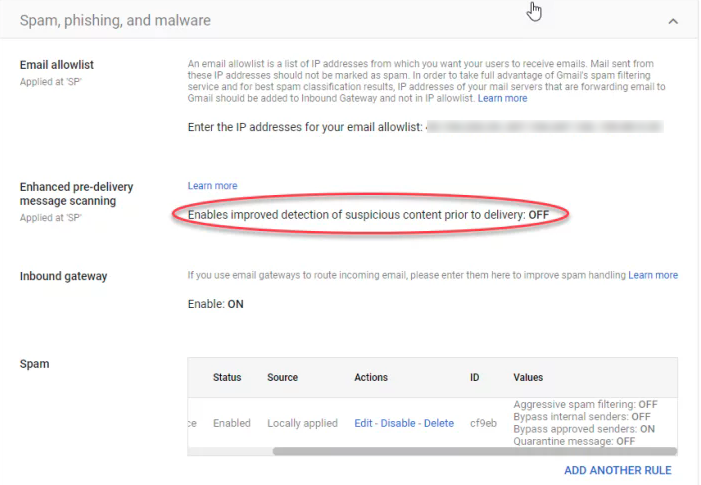
### **Optional: Temporary Adjustment for Quicker Testing**
Google offers a feature called **Enhanced Pre-Delivery Message Scanning**.
While not recommended to disable permanently, you may consider turning it off briefly to speed up testing and configuration validation.
[](https://cytechint-docs-bookstack.s3.amazonaws.com/uploads/images/gallery/2025-05/jkWIar7Ofj3szJ11-image.png)
---
### **Additional Systems in Use?**
If your organization uses other email or security filtering systems, please refer to the [Whitelisting Phishing Overview](https://docs.cytechint.io/books/culture-and-awareness/chapter/whitelisting) and ensure proper bypass configurations are in place across all layers.
---
Reference Documentation Link: *[https://securepractice.co/guides/whitelisting-google](https://securepractice.co/guides/whitelisting-google)*
If you need further assistance, kindly contact our support at **support@cytechint.com** for prompt assistance and guidance.