# SentinelOne Integrations

<span style="color: rgb(0, 0, 0);">The SentinelOne integration collects and parses data from SentinelOne REST APIs. This integration also offers the capability to perform response actions on SentinelOne hosts directly through the Elastic Security interface </span>

#### <span style="color: rgb(53, 152, 219);">**Compatibility**</span>

<span style="color: rgb(0, 0, 0);">This module has been tested against **SentinelOne Management Console API version 2.1**.</span>

#### <span style="color: rgb(53, 152, 219);">**API token**</span>

<span style="color: rgb(0, 0, 0);">To collect data from SentinelOne APIs, you must have an API token. To create an API token, follow these steps:</span>

1. <span style="color: rgb(0, 0, 0);">Log in to the **SentinelOne Management Console** as an **Admin**.</span>

<span style="color: rgb(0, 0, 0);">[![image.png](https://cytechint-docs-bookstack.s3.amazonaws.com/uploads/images/gallery/2024-10/scaled-1680-/vfZNCYpWdneD5rTU-image.png)](https://cytechint-docs-bookstack.s3.amazonaws.com/uploads/images/gallery/2024-10/vfZNCYpWdneD5rTU-image.png)</span>

<span style="color: rgb(0, 0, 0);">2. Navigate to **Logged User Account** from top right panel in the navigation bar.</span>

<span style="color: rgb(0, 0, 0);">3. Click **My User**.</span>

<span style="color: rgb(0, 0, 0);">4. In the API token section, click **Generate**.</span>

<span style="color: rgb(0, 0, 0);">[![image.png](https://cytechint-docs-bookstack.s3.amazonaws.com/uploads/images/gallery/2024-10/scaled-1680-/T2Q4I5N2LudoGmQO-image.png)](https://cytechint-docs-bookstack.s3.amazonaws.com/uploads/images/gallery/2024-10/T2Q4I5N2LudoGmQO-image.png)</span>

<p class="callout info"><span style="color: rgb(0, 0, 0);">The API token generated by the user is time-limited. To rotate a new token, log in with the dedicated admin account.</span></p>

<p class="callout danger">**<span style="color: rgb(0, 0, 0);">Please provide the credenetials to AQUILA Support.</span>**</p>

<span style="color: rgb(0, 0, 0);">1. **SentinelOne console URL** (https://&lt;your-sentinelone-domain&gt;.sentinelone.net<span data-teams="true"><span class="ui-provider ahr ahs iw aht ahu ahv ahw ahx ahy ahz aia aib aic aid aie aif aig aih aii aij aik ail aim ain aio aip aiq air ais ait aiu aiv aiw aix aiy" dir="ltr">, where "Domain" is the domain name of your SentinelOne account.)</span></span></span>

<span style="color: rgb(0, 0, 0);">2. **API token**</span>

#### <span style="color: rgb(53, 152, 219);">**Integrate on AQUILA**</span>

<span style="color: rgb(0, 0, 0);">**1.** Log in to **[CyTech - AQUILA](https://cytechint.io/)**. Choose **Cyber Monitoring** and click the **small arrow icon** to redirect you to the Cyber Monitoring Dashboard.</span>

[![image.png](https://cytechint-docs-bookstack.s3.amazonaws.com/uploads/images/gallery/2025-05/scaled-1680-/QUruqc4qZzjj39A2-image.png)](https://cytechint-docs-bookstack.s3.amazonaws.com/uploads/images/gallery/2025-05/QUruqc4qZzjj39A2-image.png)

<span style="color: rgb(0, 0, 0);">2. In the dashboard, choose **Cyber Incident Management (SIEM and XDR)**.</span>

[![image.png](https://cytechint-docs-bookstack.s3.amazonaws.com/uploads/images/gallery/2025-05/scaled-1680-/i68EMO7YfIStKeyl-image.png)](https://cytechint-docs-bookstack.s3.amazonaws.com/uploads/images/gallery/2025-05/i68EMO7YfIStKeyl-image.png)

<span style="color: rgb(0, 0, 0);">3. Navigate through the leftmost top and click **Cyber Incident Monitoring**.</span>

[![image.png](https://cytechint-docs-bookstack.s3.amazonaws.com/uploads/images/gallery/2025-05/scaled-1680-/KgRo0wYa67PKNCws-image.png)](https://cytechint-docs-bookstack.s3.amazonaws.com/uploads/images/gallery/2025-05/KgRo0wYa67PKNCws-image.png)

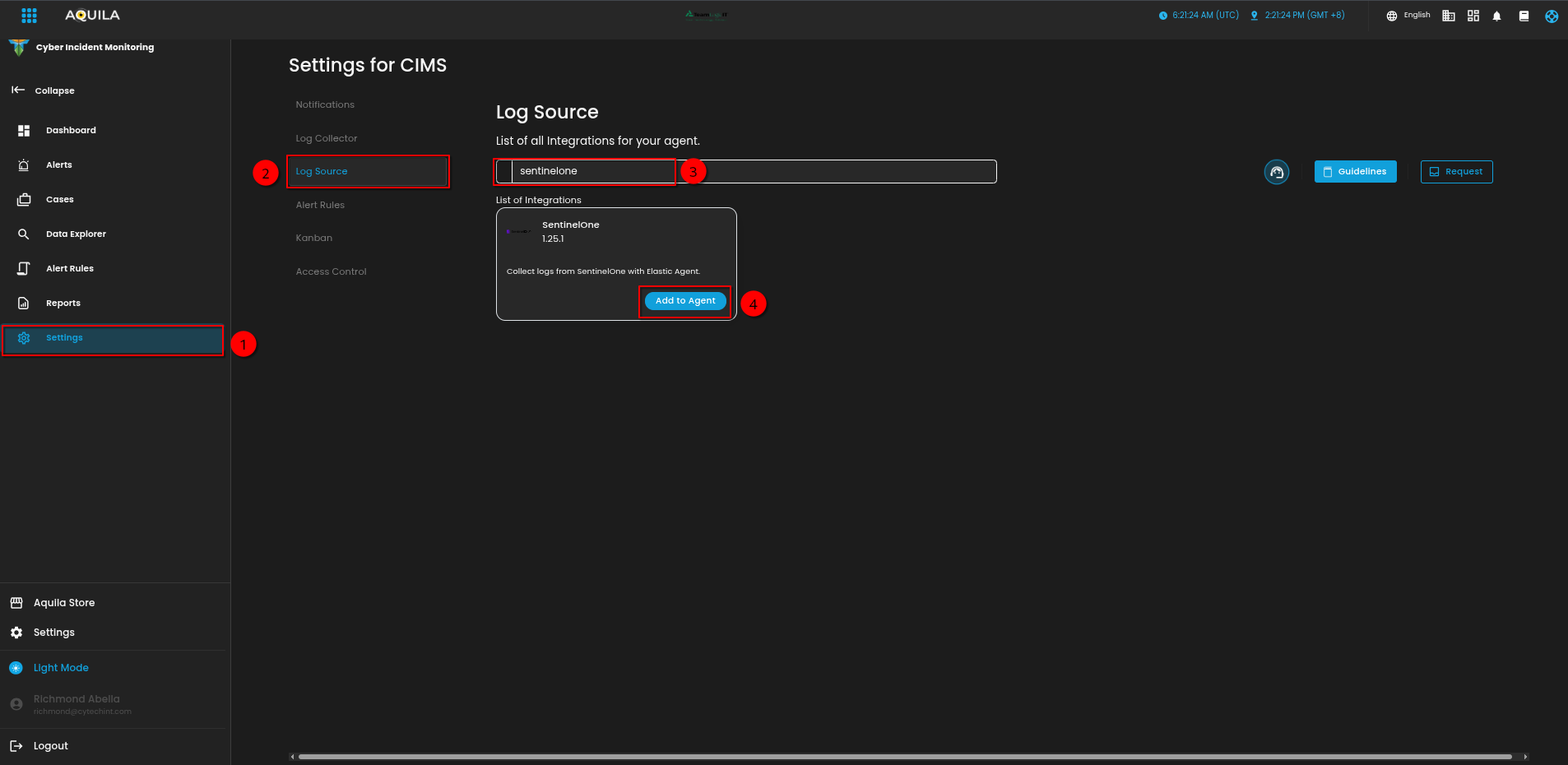
<span style="color: rgb(0, 0, 0);">4. Navigate through **Settings&gt;Log Source&gt;Search Bar&gt;Add to Agent**.</span>

[![image.png](https://cytechint-docs-bookstack.s3.amazonaws.com/uploads/images/gallery/2025-05/scaled-1680-/oe0JNmFK0Jncf3yD-image.png)](https://cytechint-docs-bookstack.s3.amazonaws.com/uploads/images/gallery/2025-05/oe0JNmFK0Jncf3yD-image.png)

<span style="color: rgb(0, 0, 0);">5. Choose your **Log Collector**.</span>

[![image.png](https://cytechint-docs-bookstack.s3.amazonaws.com/uploads/images/gallery/2025-05/scaled-1680-/1VIERSAN80moG8fG-image.png)](https://cytechint-docs-bookstack.s3.amazonaws.com/uploads/images/gallery/2025-05/1VIERSAN80moG8fG-image.png)

<span style="color: rgb(0, 0, 0);">6. In the integration settings follow the instructions given below.</span>

1. <span style="color: rgb(0, 0, 0);">Click the **drop arrow** to display the contents needed for the integration setup.</span>
2. <span style="color: rgb(0, 0, 0);">Provide **SentinelOne Console URL**.</span>
3. <span style="color: rgb(0, 0, 0);">Provide the **API Token**.</span>
4. <span style="color: rgb(0, 0, 0);">Finally, click **Next** to install the log source integration.</span>

[![image.png](https://cytechint-docs-bookstack.s3.amazonaws.com/uploads/images/gallery/2025-05/scaled-1680-/iUdkuG0aq7DTQiaz-image.png)](https://cytechint-docs-bookstack.s3.amazonaws.com/uploads/images/gallery/2025-05/iUdkuG0aq7DTQiaz-image.png)

<span style="color: rgb(0, 0, 0);">7. Wait for the **Successfull** window to display, this will confirm the successfull integration.</span>

[![image.png](https://cytechint-docs-bookstack.s3.amazonaws.com/uploads/images/gallery/2025-05/scaled-1680-/CNFzJRIuFuvZIEdI-image.png)](https://cytechint-docs-bookstack.s3.amazonaws.com/uploads/images/gallery/2025-05/CNFzJRIuFuvZIEdI-image.png)

<span style="color: rgb(0, 0, 0);">*If you need further assistance, kindly contact our support at <span style="color: rgb(53, 152, 219);">**support@cytechint.com**</span> for prompt assistance and guidance.*</span>