# Openssl installation in windows 11
### **What is openssl?**
OpenSSL is a widely used open-source software library designed to provide secure communication over computer networks through encryption and cryptographic techniques. It implements the Secure Sockets Layer (SSL) and Transport Layer Security (TLS) protocols, which help protect sensitive information exchanged between clients and servers. In addition to enabling secure connections, OpenSSL offers a variety of cryptographic functions, including data encryption, decryption, digital signatures, and certificate management. Due to its reliability, flexibility, and broad platform support, OpenSSL has become an essential component in many web servers, applications, and operating systems worldwide.
---
#### **Installing OpenSSL in your Log Collector**
Download the Installer:
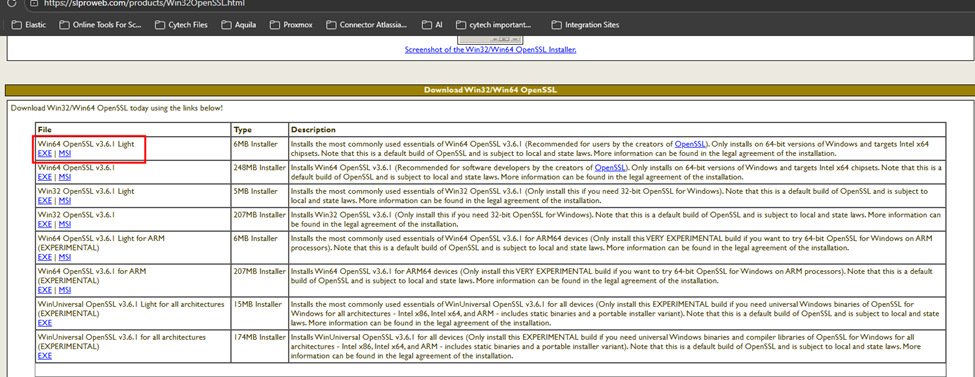
1. Go to the [Shining Light Productions](https://slproweb.com/products/Win32OpenSSL.html "openssl") page and download the "Win64 OpenSSL Light" EXE installer (current version 3.x is recommended).
[](https://cytechint-docs-bookstack.s3.amazonaws.com/uploads/images/gallery/2026-06/KxP2x19Yn5sgxsWh-image.png)
2. Run the Installer: Execute the downloaded file and follow the on-screen instructions.
3. Installation Path: It is generally recommended to install in the default location, typically C:\\Program Files\\OpenSSL-Win64.
4. Configure System Environment Variable:
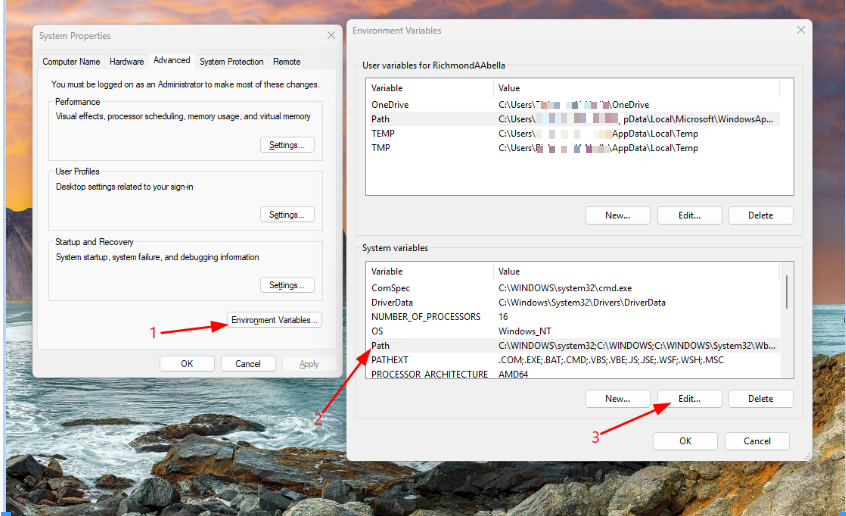
Search for "Environment Variables" in the Windows search bar.
Click "Edit the system environment variables".
Click "Environment Variables".
Under "System Variables", find and select Path, then click "Edit".
[](https://cytechint-docs-bookstack.s3.amazonaws.com/uploads/images/gallery/2026-06/34wik5flOCWndiw8-image.png)
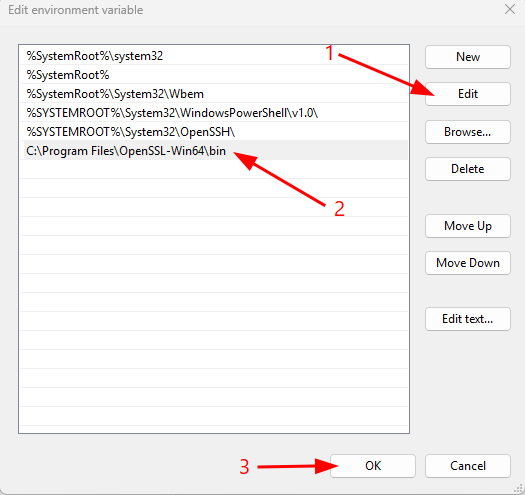
Click "Edit" and add the path to the bin folder, for example: C:\\Program Files\\OpenSSL-Win64\\bin.
Click OK on all windows to save.
[](https://cytechint-docs-bookstack.s3.amazonaws.com/uploads/images/gallery/2026-06/b2StLkSFXyH6waz5-image.png)
**Restart the Machine to take effect the configuration.**
---
*If you need further assistance, kindly contact our support at [**support@cytechint.com**](mailto:support@cytechint.com) for prompt assistance and guidance.*