# ManageEngine
# Log Forwarder
EventLog Analyzer's Syslog Forwarder transmits logs from various sources to a destination server. Logs from syslog devices are forwarded as raw logs, whereas logs from other sources are converted to specific formats such as JSON, RFC 5424, RFC 5424 With Structured Data, and RFC 3164, or a custom format, and then forwarded to the destination server.
## Steps to start forwarding logs
#### Creating a new profile
1. Navigate to **Settings → Admin Settings → Integrations → Log Forwarding**.
2. To add a new forwarder profile, click on Add New Profile on the top right corner of the page.
3. Enter the **Forwarder Name**.
4. Enter the **Destination Server** to which the logs have to be forwarded to.
5. Select the required **Protocol**, either **UDP** or **TCP** from the drop down.
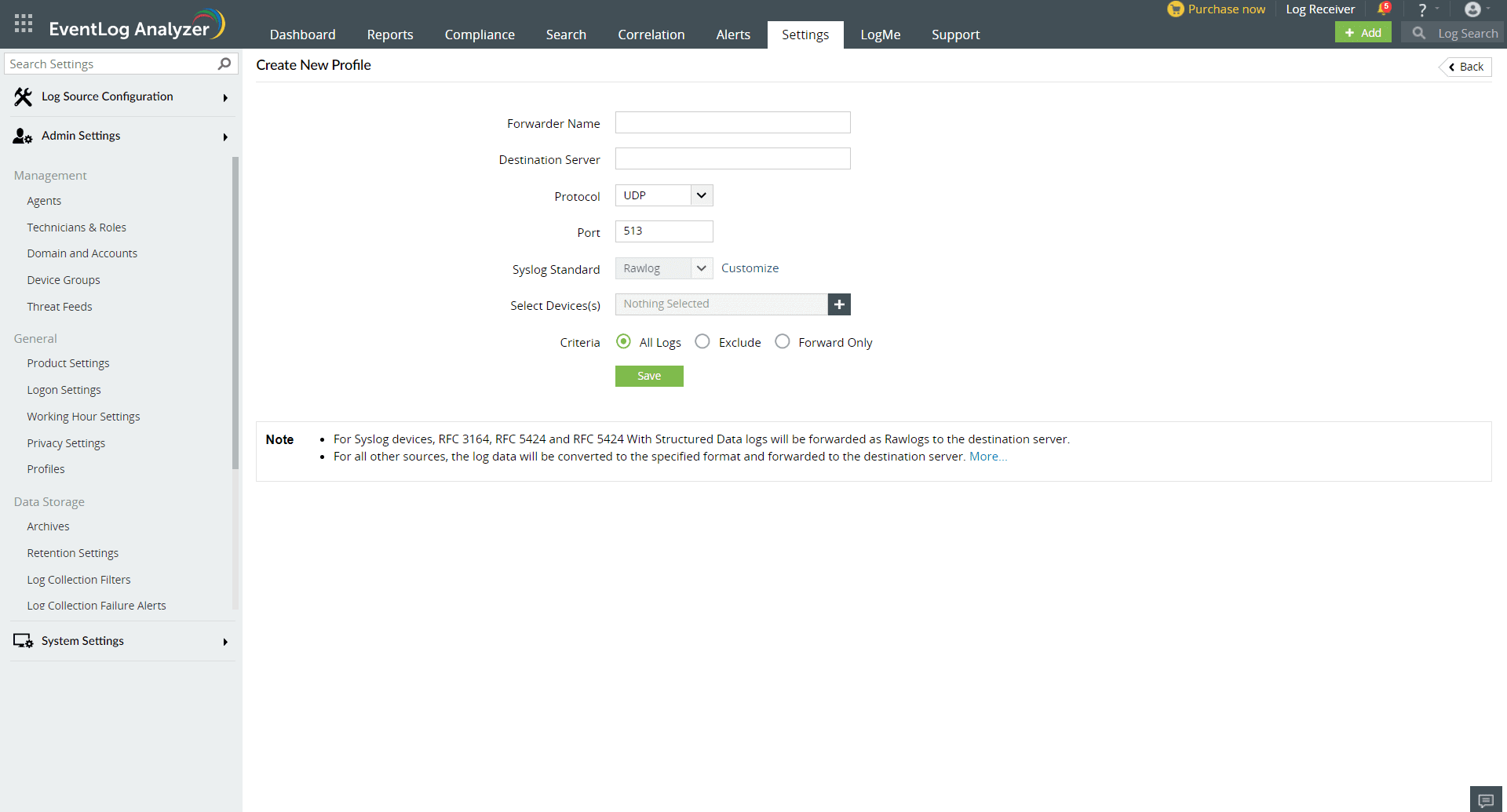
1. Enter the **Port** number. The default port number is 513.
2. Select the required **Syslog Standard** by clicking on **Customize**. The formats include Rawlog, JSON, RFC 5424, RFC 5424 With Structured Data, RFC 3164 and Custom.
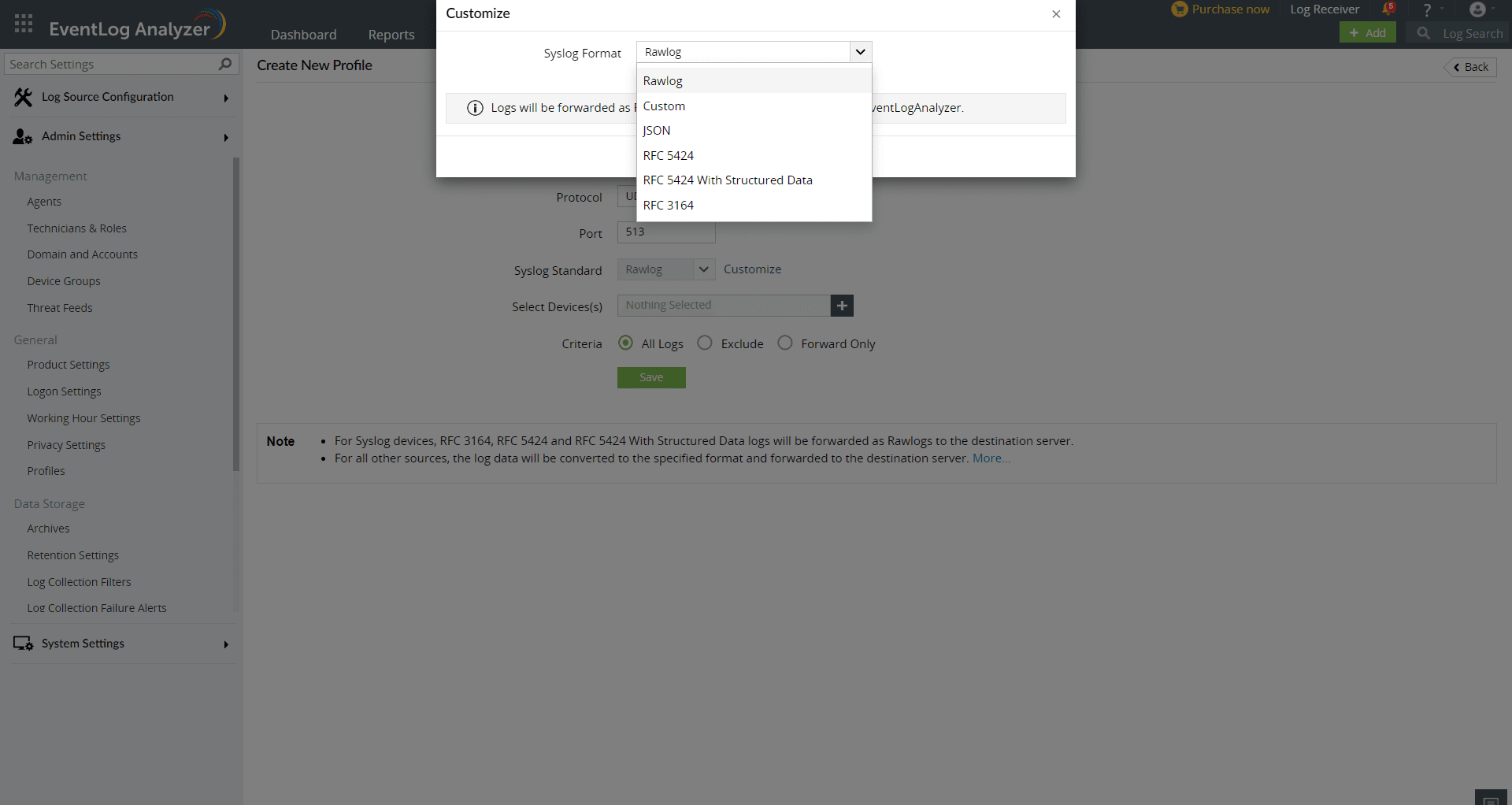
1. Select the required format and click **Save**.
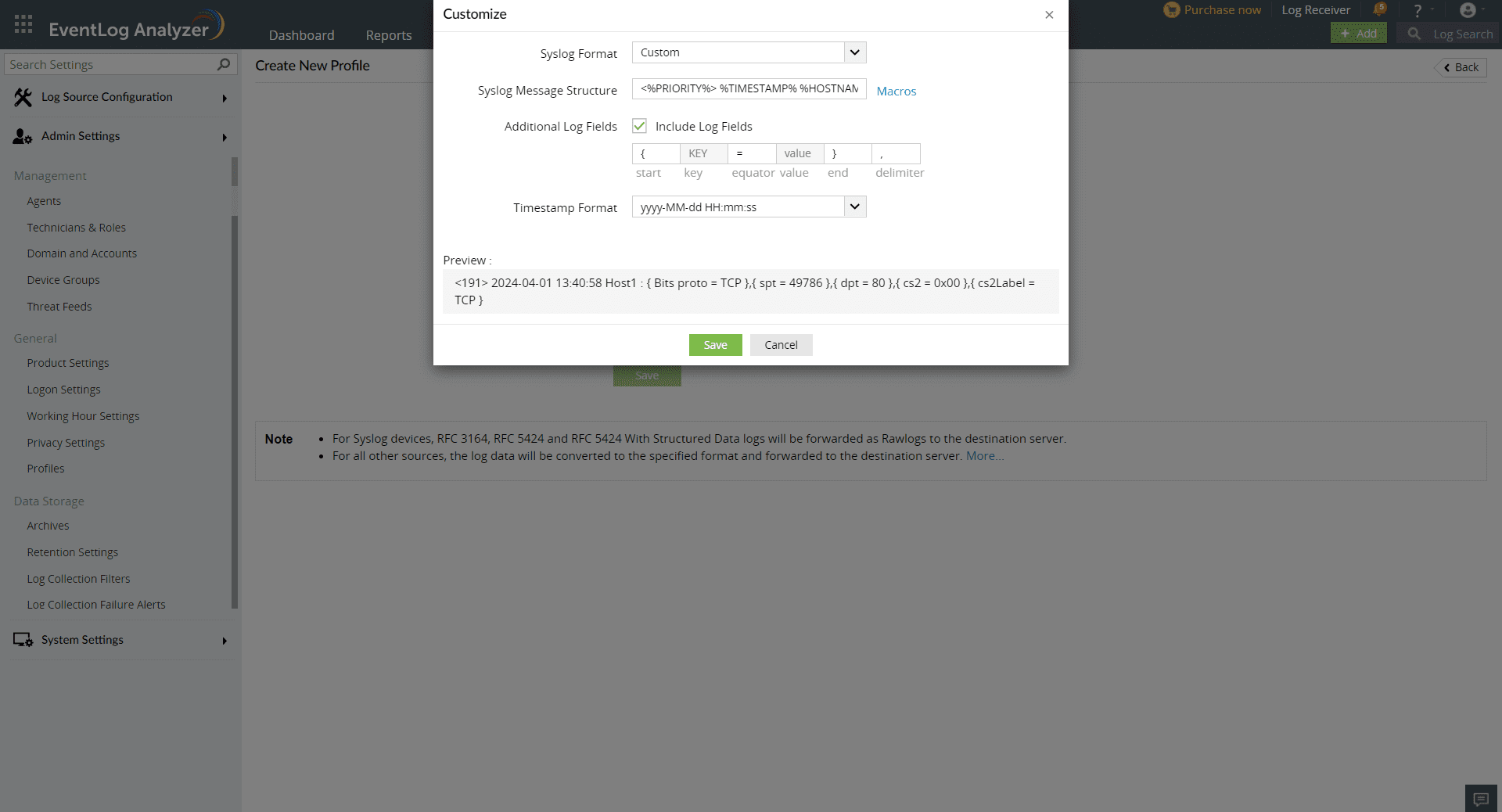
2. To create a custom Syslog Format, select **Custom** from the drop-down.
- Enter the **Syslog Format**.
- Enter the **Syslog Message Structure**.
- Enable **Additional Log Fields**.
- Enter the **Timestamp Format**.
- Click **Save**.
1. Under **Select Devices**, add the source devices from which logs have to be fetched.
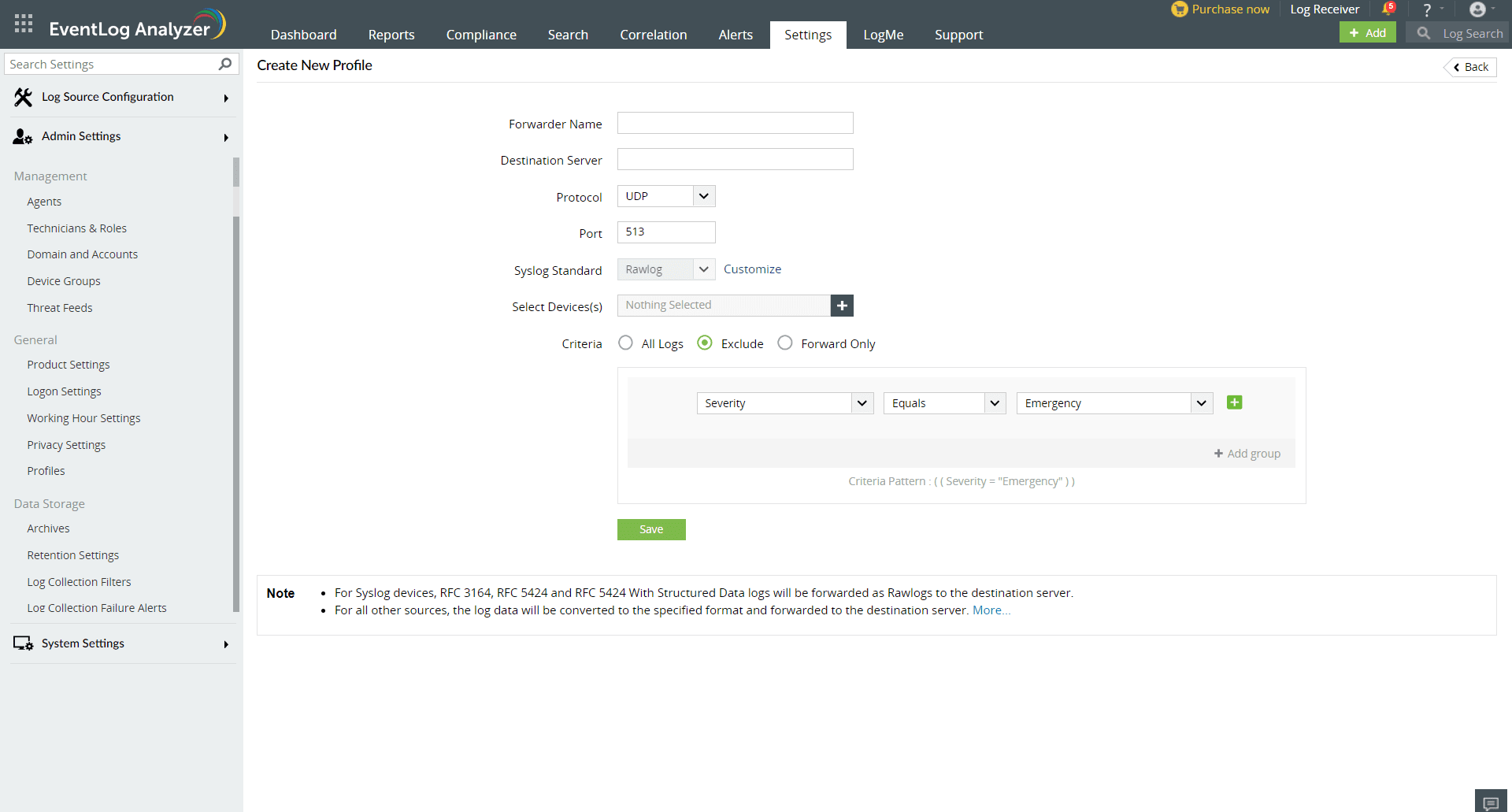
2. Select the required **Criteria**.
- **All logs** - It forwards all incoming logs.
- **Exclude** - It excludes specific logs based on the given criteria before forwarding.
- **Forward Only** - It forwards only specific logs based on the given criteria.
1. Click **Save**.
#### Updating an existing profile
1. Navigate to **Settings → Admin Settings → Integrations → Log Forwarding**.
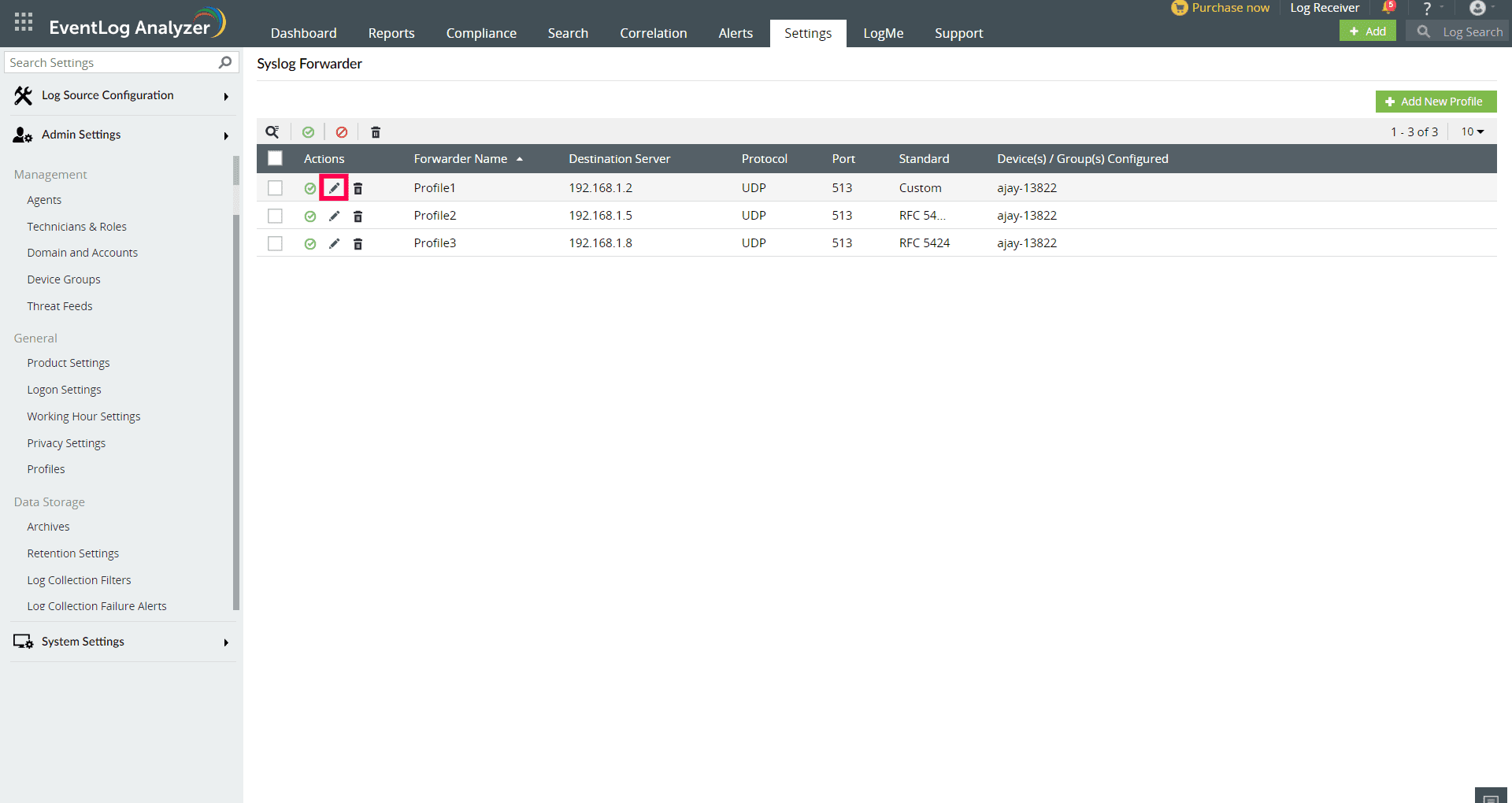
2. Click on the **Update Profile** icon on the profile that has to be updated.
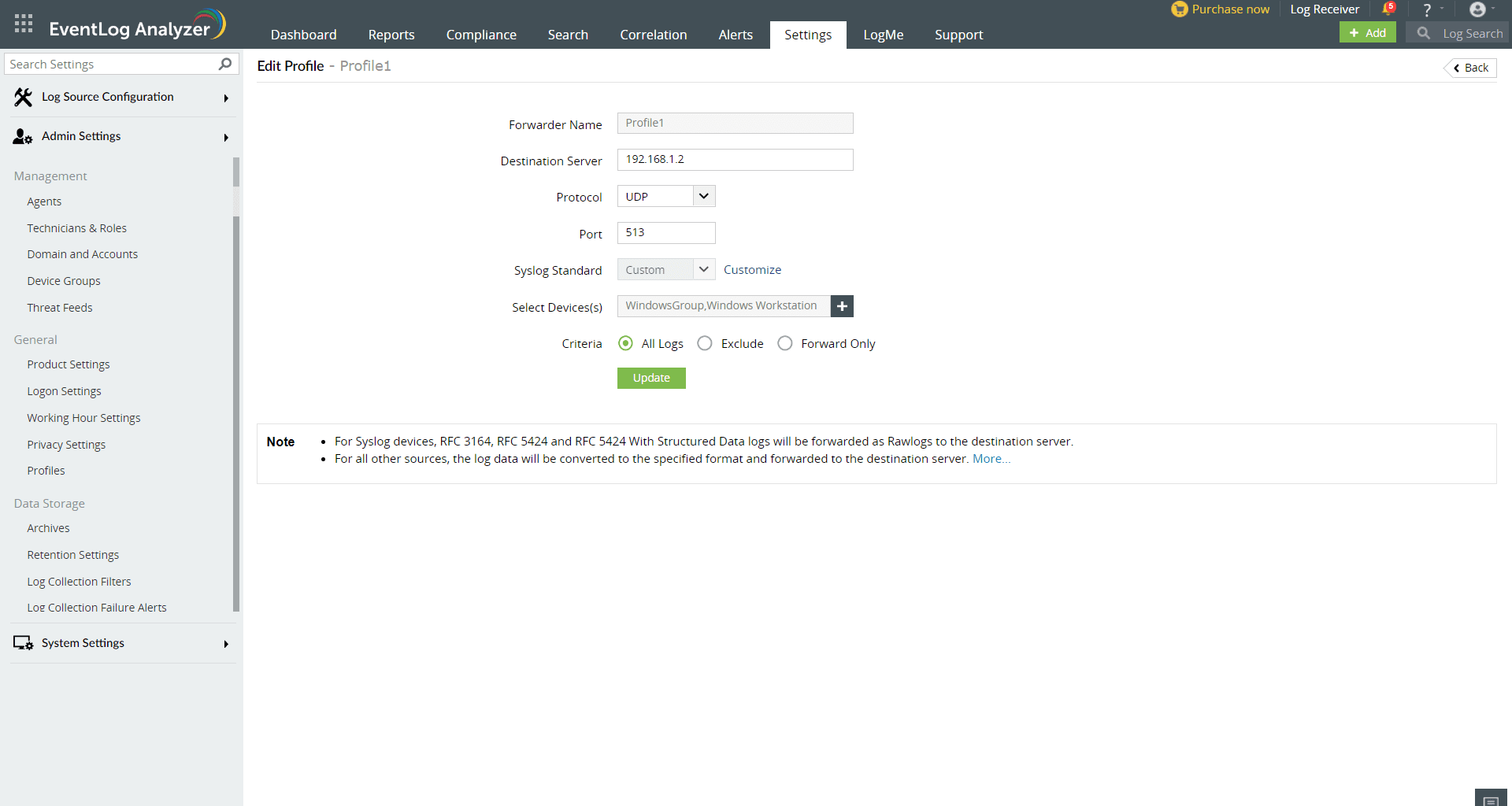
1. The **Forwarder Name** would already exist here.
2. Refer to [steps 4 to 11](https://www.manageengine.com/products/eventlog/help/StandaloneManagedServer-UserGuide/Configurations/log-forwarder.html#step4) under Creating a new profile.
3. Click **Update**.
#### Managing forwarder profiles
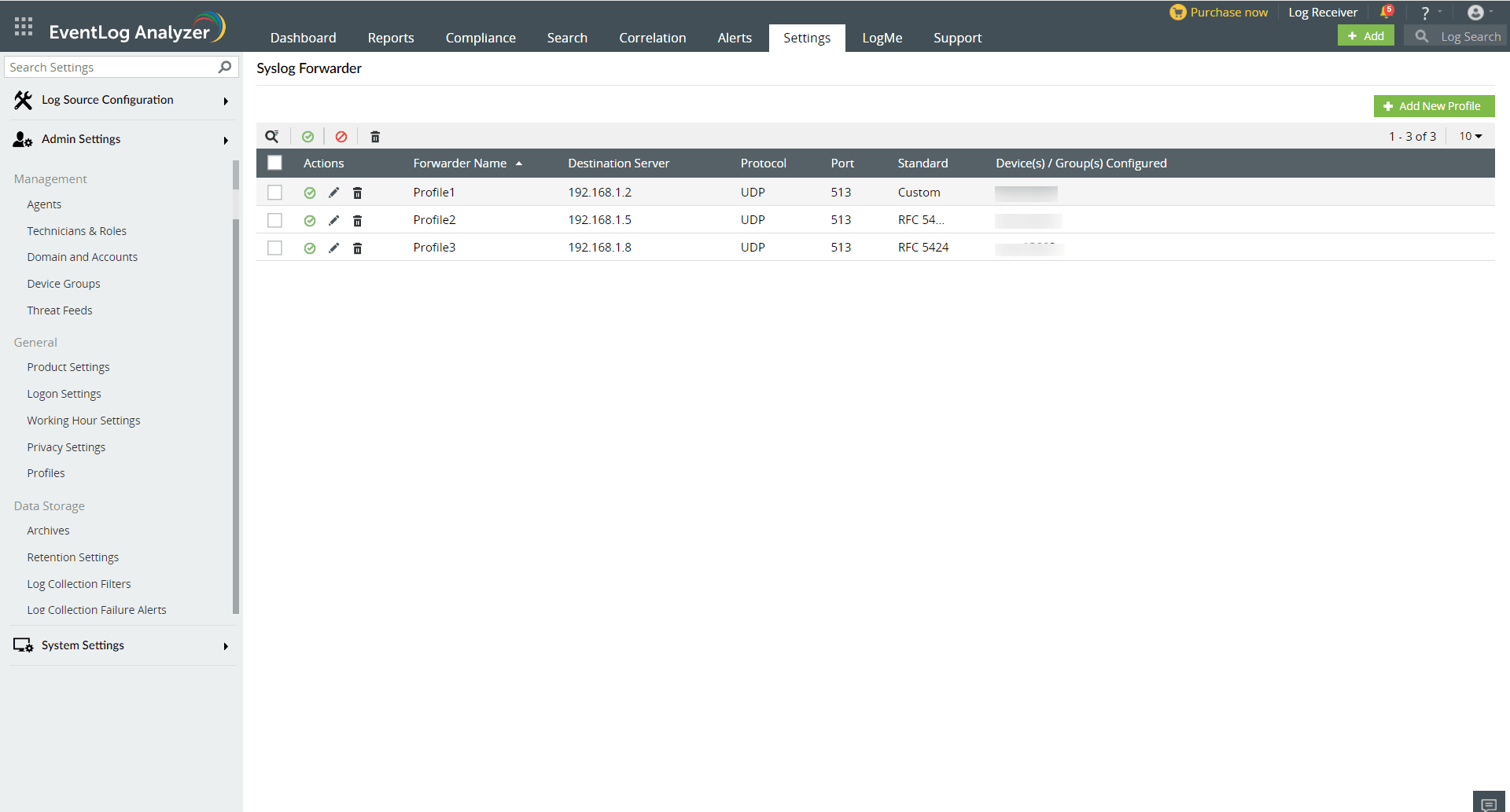
EventLog Analyzer allows you to create up to 5 distinct profiles to enable seamless log forwarding. The profile dashboard allows you to enable, disable, update and delete the forwarder profiles.
Source: *[https://www.manageengine.com/products/eventlog/help/StandaloneManagedServer-UserGuide/Configurations/log-forwarder.html](https://www.manageengine.com/products/eventlog/help/StandaloneManagedServer-UserGuide/Configurations/log-forwarder.html)*
***If you need further assistance, kindly contact our support at support@cytechint.com for prompt assistance and guidance.***