# AQUILA - Salesforce Integration

#### <span style="color: rgb(53, 152, 219);">**Overview**</span>

The Salesforce integration enables you to monitor your Salesforce instance. Salesforce is a customer relationship management (CRM) platform that supports businesses in managing marketing, sales, commerce, service, and IT teams from a unified platform accessible from anywhere.

#### <span style="color: rgb(53, 152, 219);">**Data Streams Logs**</span>

- Salesforce Apex Logs
- Salesforce Login Logs
- Salesforce Logout Logs
- Salesforce SetupAudit Logs

#### <span style="color: rgb(53, 152, 219);">**Configuration**</span>

To configure the Salesforce integration, you need the following information:

- **Create New User Account for the Integration**
- **Salesforce instance URL**
- **Client key and client secret for authentication**
- **Username**
- **Password**
- **Token URL**
- **API version**

#### **<span style="color: rgb(53, 152, 219);">Step 1: Create New User Account</span>**

- Go to **Home** page of **Salesforce** and click **Setup** in the top right menu bar.
- In the left side you will see a **Quick Find** search textbox, type **Users**.
- Click **Users** and it will redirect you to the **Users setup** page.
- Click **New User** button and fill up the form: 
    - First Name
    - Last Name
    - Email
    - Set **User License** to "**Salesforce**"
    - Choose an appropriate **Profile** (see below) 
        - **Profile and Permission Set Configuration**
            - **Create a custom profile** or clone an existing minimal profile: 
                - Clone the **"Standard User"** profile and name it something like **"Log Extraction Service"** or whatever you prefer.
                - Remove unnecessary permissions, keeping only: 
                    - **API Enabled**
                    - **View Setup and Configuration**
                    - **Specific object permissions for logs you need to extract**
            - **Essential permissions** for log extraction: 
                - **API Enabled** - Required for programmatic access
                - **View All Data** - If you need comprehensive log access
                - **Read** access to specific objects containing log data
    - Scroll down to the bottom and **check** the box that says **Generate new password and notify user immediately.**
    - Click **Save**.
- Open the account and set a new password.

Please take note of the **Email Address,** **Username** and **Password** associated with this account, as they will be required during the API and integration setup process.

#### **<span style="color: rgb(53, 152, 219);">Step 2: Salesforce instance URL</span>**

This is the URL of your Salesforce Organization.

- **Salesforce Classic:** Given the example URL <span style="color: rgb(53, 152, 219);">https://na9.salesforce.com/home/home.jsp</span>, the Salesforce Instance URL is extracted as <span style="color: rgb(53, 152, 219);">https://na9.salesforce.com</span>.
- **Salesforce Lightning:** The instance URL is available under your user name in the **View Profile** tab. Use the correct instance URL in case of Salesforce Lightning because it uses <span style="color: rgb(53, 152, 219);">\*.lightning.force.com</span> but the instance URL is <span style="color: rgb(53, 152, 219);">\*.salesforce.com</span>.

<p class="callout info">Ensure the **Instance URL** is noted, as it will be used in both API creation and integration steps.</p>

#### <span style="color: rgb(53, 152, 219);">**Step 3: Client Key and Client Secret for Authentication**</span>

To use this integration, you need to create a new Salesforce Application using OAuth. Follow these steps to create a connected application in Salesforce:

- Log in to **Salesforce** with the user credentials you want to collect data with.
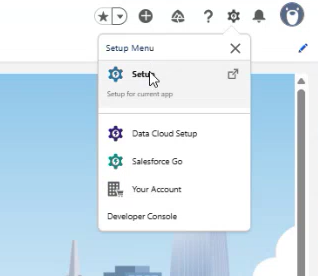
- Click **Setup** in the top right menu bar.
 ![image.png](https://cytechint-docs-bookstack.s3.amazonaws.com/uploads/images/gallery/2025-08/scaled-1680-/QoIVW5iX5eqeV9Z0-image.png)

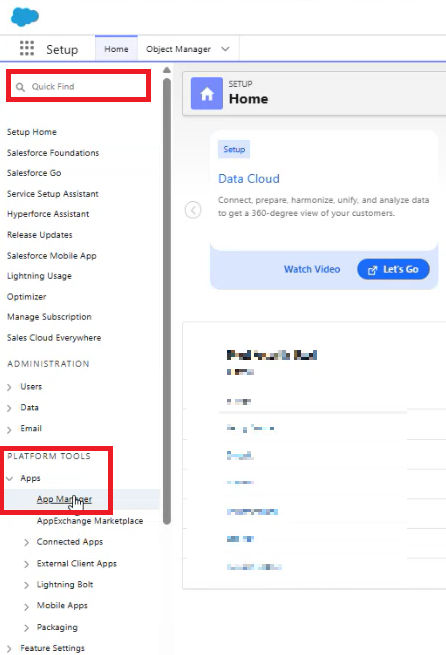
- In the **Quick Find textbox**, search for **App Manager** or you can scroll down to **PLATFORM TOOLS** and select **App Manager.**
 ![Salesforce1.png](https://cytechint-docs-bookstack.s3.amazonaws.com/uploads/images/gallery/2025-08/scaled-1680-/JRiRcKa9Gz5lC8Wd-salesforce1.png)

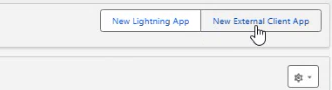
- In the upper right corner, choose the **New External Client App.**
 ![image.png](https://cytechint-docs-bookstack.s3.amazonaws.com/uploads/images/gallery/2025-08/scaled-1680-/1Ywn6j28Wr32yheg-image.png)

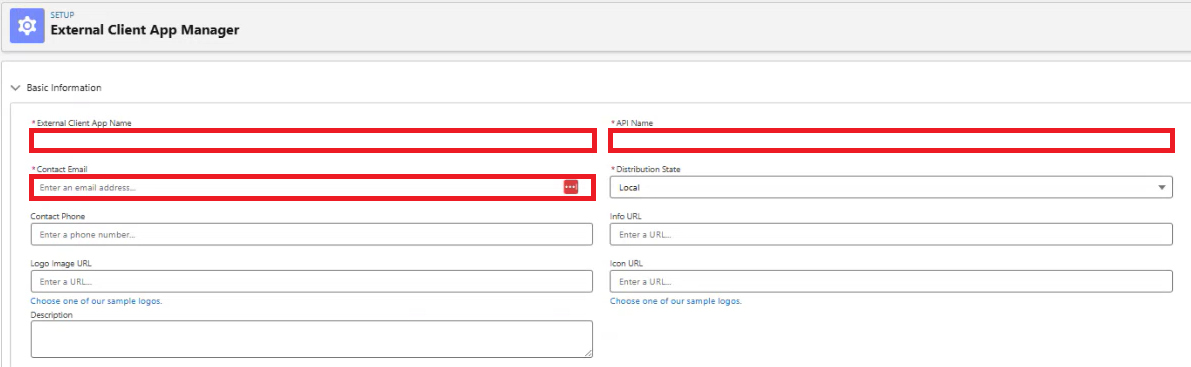
- Provide a name for the connected application. This name will be displayed in the App Manager and on its App Launcher tile.
- Enter the API name. The default is a version of the name without spaces. Only letters, numbers, and underscores are allowed. If the original app name contains any other characters, edit the default name.
- Enter the **email address** of the **new account** you created earlier.
![Salesforce2.png](https://cytechint-docs-bookstack.s3.amazonaws.com/uploads/images/gallery/2025-08/scaled-1680-/kAlzKr6Cx5cE3XYl-salesforce2.png)

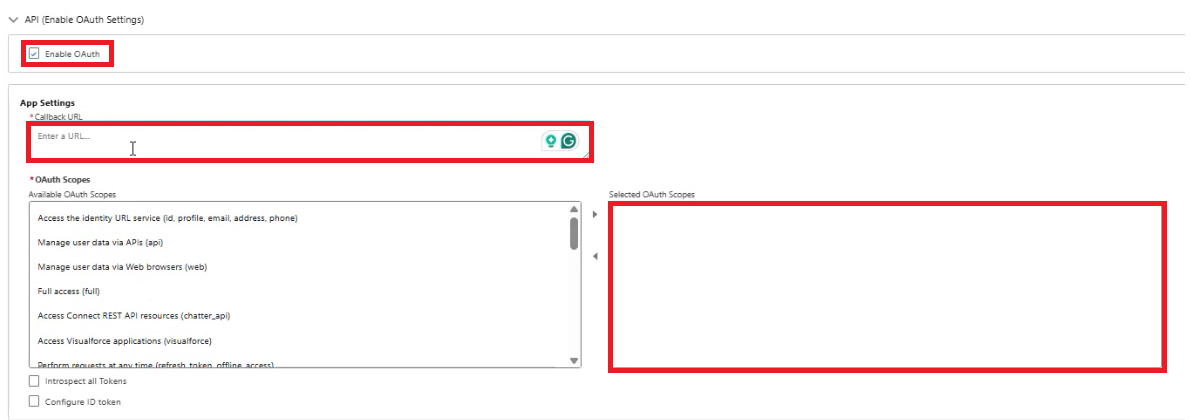
- Under the **API (Enable OAuth Settings)** section, check the box for **Enable OAuth Settings**.
- In the **Callback URL** field, enter the instance URL as specified in **Salesforce instance URL.** Example URL: <span style="color: rgb(53, 152, 219);">https://na9.salesforce.com</span>
- Select the following OAuth scopes to apply to the connected app:
    
    
    - **Manage user data via APIs (api)**
    - **Perform requests at any time (refresh\_token, offline\_access)**
    - (Optional) If you encounter any permission issues during data collection, add the **Full access (full)** scope.
![Salesforce3.png](https://cytechint-docs-bookstack.s3.amazonaws.com/uploads/images/gallery/2025-08/scaled-1680-/CI9AMM1P66ijSHa9-salesforce3.png)

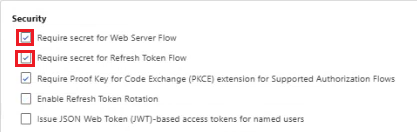
- Select **Require Secret for the Web Server Flow** to require the app's client secret in exchange for an access token.
- Select **Require Secret for Refresh Token Flow** to require the app's client secret in the authorization request of a refresh token and hybrid refresh token flow.
 ![Salesforce4.png](https://cytechint-docs-bookstack.s3.amazonaws.com/uploads/images/gallery/2025-08/scaled-1680-/U3sH6qYPGs9nKXJS-salesforce4.png)

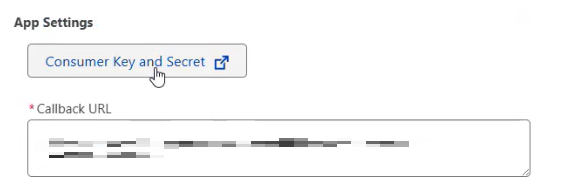
- Then scroll up above the **Callback URL** on the **App Settings** you will see the **Consumer Key and Secret** button, click it.
 ![Salesforce7.png](https://cytechint-docs-bookstack.s3.amazonaws.com/uploads/images/gallery/2025-08/scaled-1680-/6phcALMosjc4PtNu-salesforce7.png)

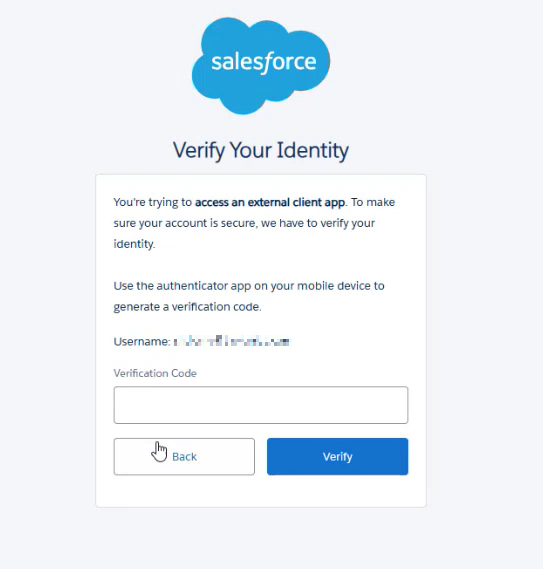
- It will create another tab. Verify the user account by entering the Verification Code.
 ![Salesforce5.png](https://cytechint-docs-bookstack.s3.amazonaws.com/uploads/images/gallery/2025-08/scaled-1680-/5CUisvcTjiFDwwdG-salesforce5.png)

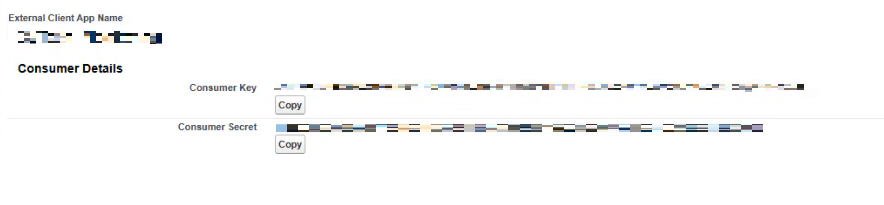
- Copy the `Consumer Key` and `Consumer Secret` from the Consumer Details section. These values should be used as the **Client ID** and **Client Secret**, respectively, in the integration.
![Salesforce6.png](https://cytechint-docs-bookstack.s3.amazonaws.com/uploads/images/gallery/2025-08/scaled-1680-/F9X2W6zDwOupc1Nm-salesforce6.png)

- Close that tab and go back to the **External Client App Manager**. Click **Save**.

#### <span style="color: rgb(53, 152, 219);">**Step 4: Username**</span>

Provide the **Username** of the new account that you created earlier.


#### <span style="color: rgb(53, 152, 219);">**Step 5: Password**</span>

Please provide the **password** you set upon accessing the new account.

<p class="callout info">**Note:**  
When using a Salesforce instance with a security token, append the token directly to your password without spaces or special characters. For example, if your password is **Password** and your security token is **12345** enter: **Pasword12345**</p>

#### <span style="color: rgb(53, 152, 219);">**Step 6: Token URL**</span>

- Use the token URL to obtain authentication tokens for API access.
- For most Salesforce instances, the token URL follows this format: <span style="color: rgb(53, 152, 219);">https://login.salesforce.com/services/oauth2/token</span>.
- If you're using a Salesforce sandbox environment, use <span style="color: rgb(53, 152, 219);">https://test.salesforce.com/services/oauth2/token</span> instead.
- For custom Salesforce domains, replace **login.salesforce.com** with your custom domain name. For example, if your custom domain is <span style="color: rgb(53, 152, 219);">**mycompany.my.salesforce.com**</span>, the token URL becomes **<span style="color: rgb(53, 152, 219);">https://mycompany.my.salesforce.com/services/oauth2/token</span>.** This applies to Sandbox environments as well.
- In the Salesforce integration, we internally append <span style="color: rgb(53, 152, 219);">**/services/oauth2/token**</span> to the URL. Make sure that the URL you provide in the Salesforce integration is the base URL without the **<span style="color: rgb(53, 152, 219);">/services/oauth2/token</span>** part. For example, if your custom domain is <span style="color: rgb(53, 152, 219);">**mycompany.my.salesforce.com**</span>, the complete token URL would be <span style="color: rgb(53, 152, 219);">**https://mycompany.my.salesforce.com/services/oauth2/token**</span>, but the URL you provide in the Salesforce integration should be **<span style="color: rgb(53, 152, 219);">https://mycompany.my.salesforce.com</span>.** In most cases, this is the same as the Salesforce instance URL.

<p class="callout info">**NOTE:** Salesforce Lightning users must use URL with \*.salesforce.com domain (similar to the Salesforce instance URL) instead of \*.lightning.force.com because the Salesforce API does not work with \*.lightning.force.com.</p>

#### <span style="color: rgb(53, 152, 219);">**Step 7: API Version**</span>

To find the API version:

- Go to the search textbox and type **Api Version**. Click the first **Api Version** on the list.

<span style="color: rgb(132, 63, 161);">***Reference**: [https://www.integrate.io/blog/salesforce-rest-api-integration/](https://www.integrate.io/blog/salesforce-rest-api-integration/)*</span>

<p class="callout warning">**Please provide these credentials and send it to CyTech Support:**  
</p>

- **Salesforce instance URL**
- **Client key and client secret for authentication**
- **Username**
- **Password**
- **Token URL**
- **API version**

<span style="color: rgb(132, 63, 161);"> </span>

 *If you need further assistance, kindly contact our support at* <span style="color: rgb(53, 152, 219);">***support@cytechint.com***</span> *for prompt assistance and guidance.*