Note: If the salesforce dashboard interface is in classic mode change it to lighting mode.
- **In the Upper Right Corner click the gear icon.** [](https://cytechint-docs-bookstack.s3.amazonaws.com/uploads/images/gallery/2026-02/Kyqkx6MxXwwySPOm-image.png) - **Select setup.** [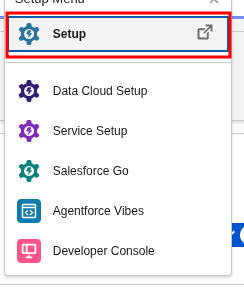](https://cytechint-docs-bookstack.s3.amazonaws.com/uploads/images/gallery/2026-05/W418IIogPqHkBJyB-image.png) To find the base URL and instance URL follow the guide below. - In quick find box, enter my domain then select my domain under Company Settings. - Under My Domain Details copy Current My Domain URL that's your base URL and Instance URL. (Give it to Cytech Support) [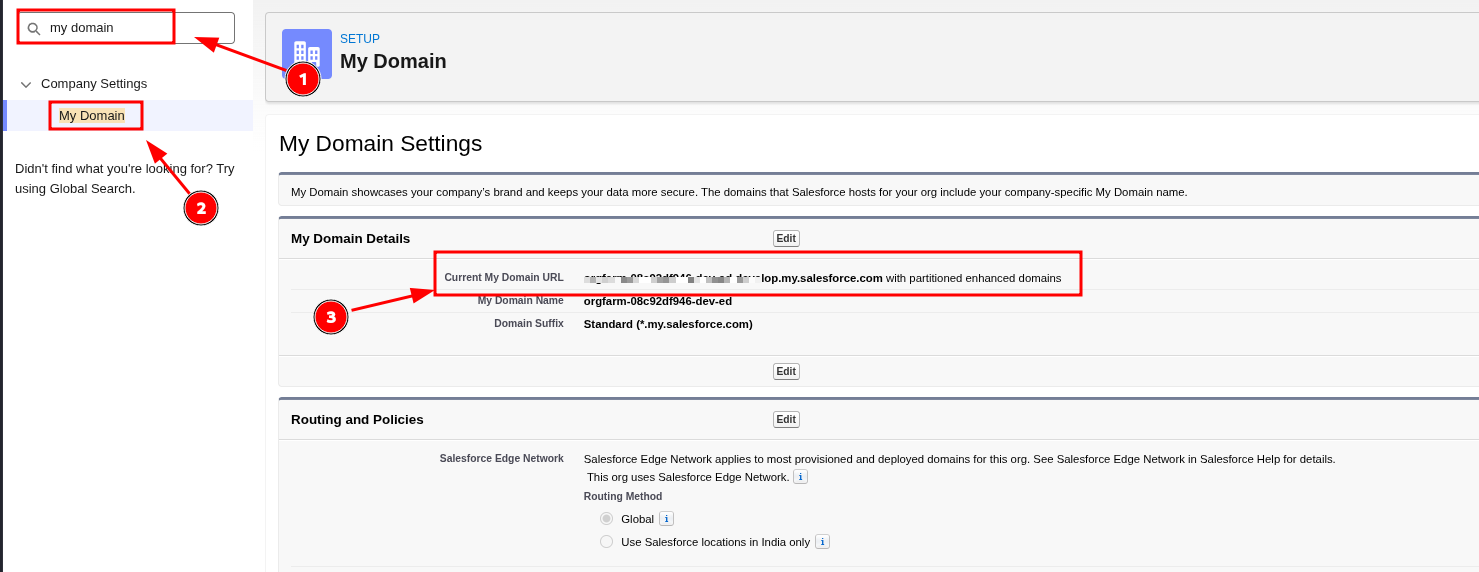](https://cytechint-docs-bookstack.s3.amazonaws.com/uploads/images/gallery/2026-05/m7aiSY2jALXJCs7S-image.png) #### **Creating User** - In Setup, enter Users in the Quick Find box, then select **Users**. - Click **New User**. [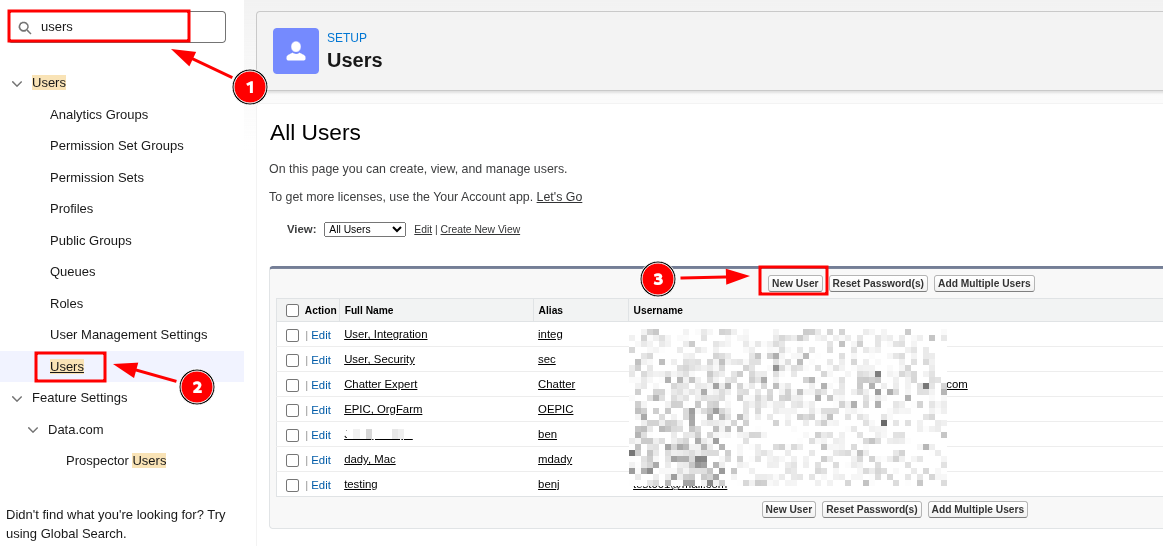](https://cytechint-docs-bookstack.s3.amazonaws.com/uploads/images/gallery/2026-06/MILGpKWiOlMAsQSh-image.png) - Fill out the form, and assign the System Administrator. - Role > None Specified - User License > Salesforce - Profile > System Administrator [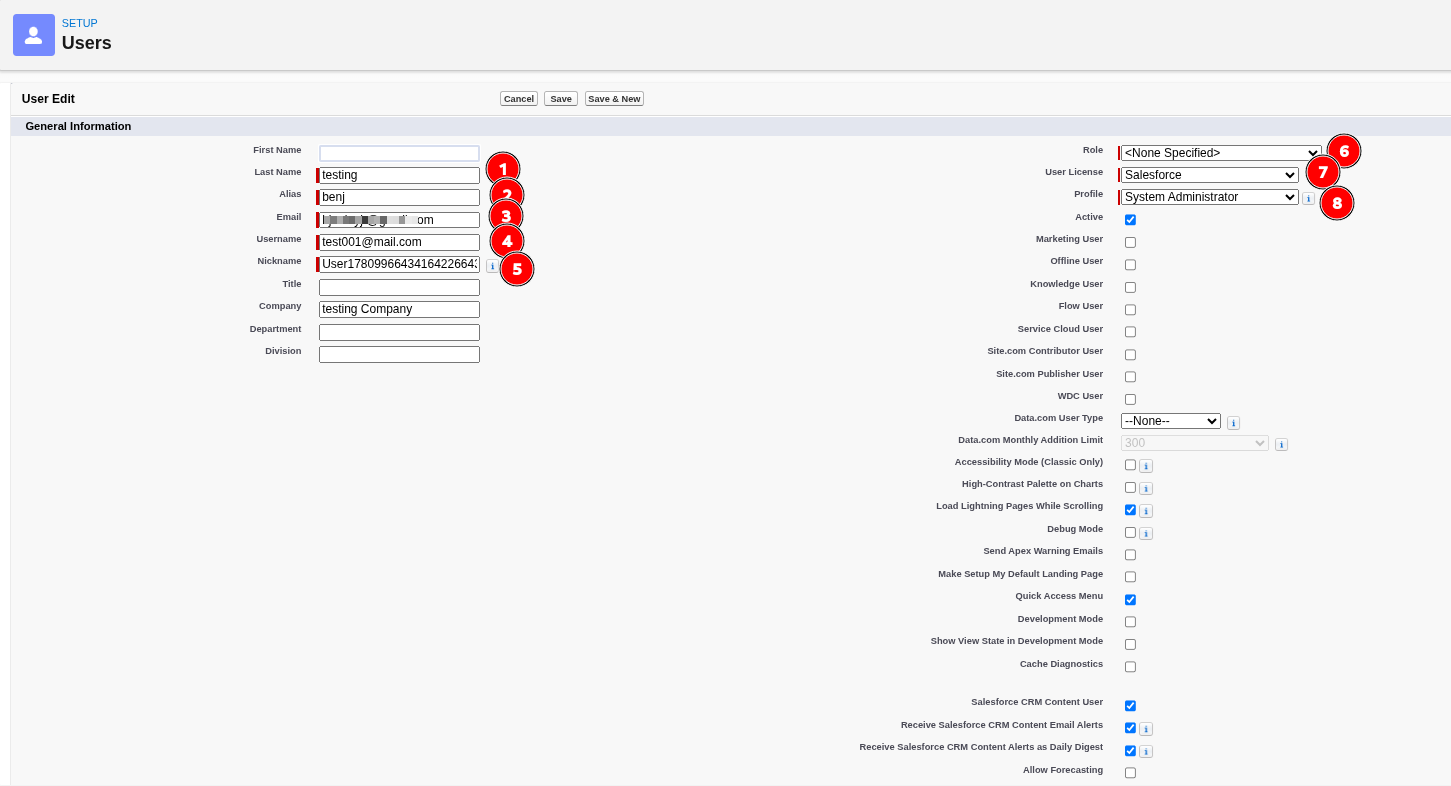](https://cytechint-docs-bookstack.s3.amazonaws.com/uploads/images/gallery/2026-06/mkrP09959VmcLFYj-image.png) - Click **Save**. --- ##### **Enable Allow Access to External Client App Consumer Secret via REST API** **External Client App Setting > Allow Access to External Client App Consumer Secret via REST API** [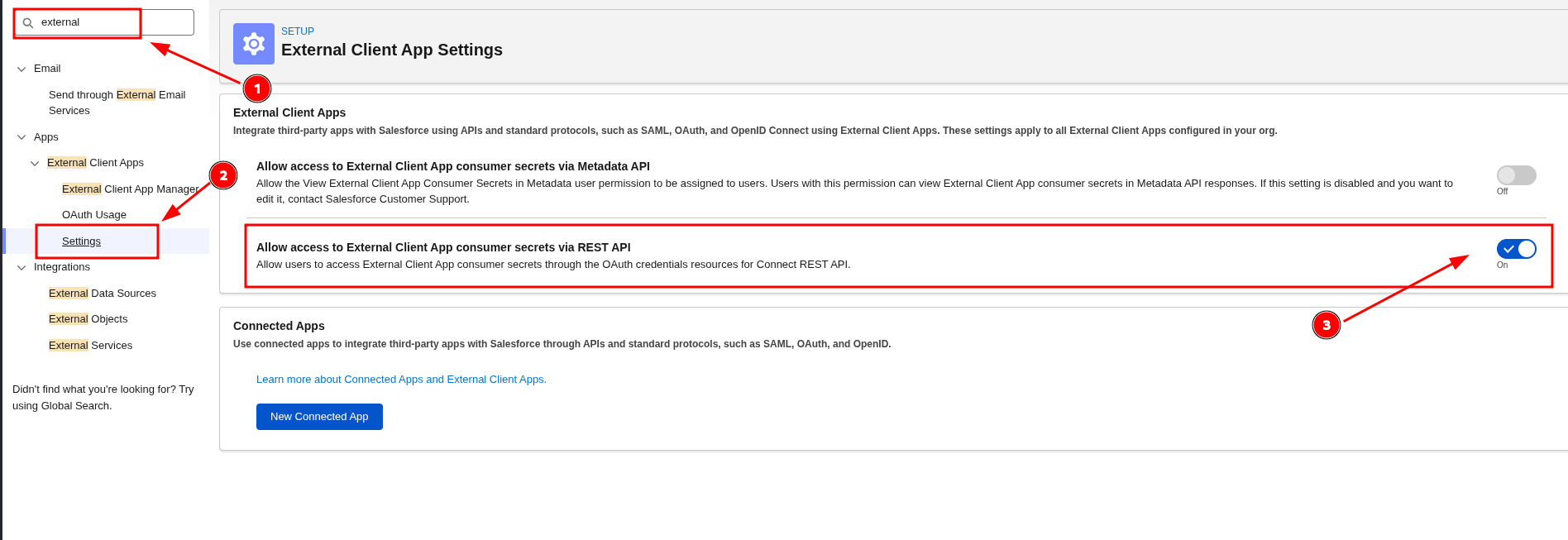](https://cytechint-docs-bookstack.s3.amazonaws.com/uploads/images/gallery/2026-05/W4Jt6m6fQpESM3SS-image.png) ##### **Enable Event log files** **Event Monitoring Settings > Generate event log files** [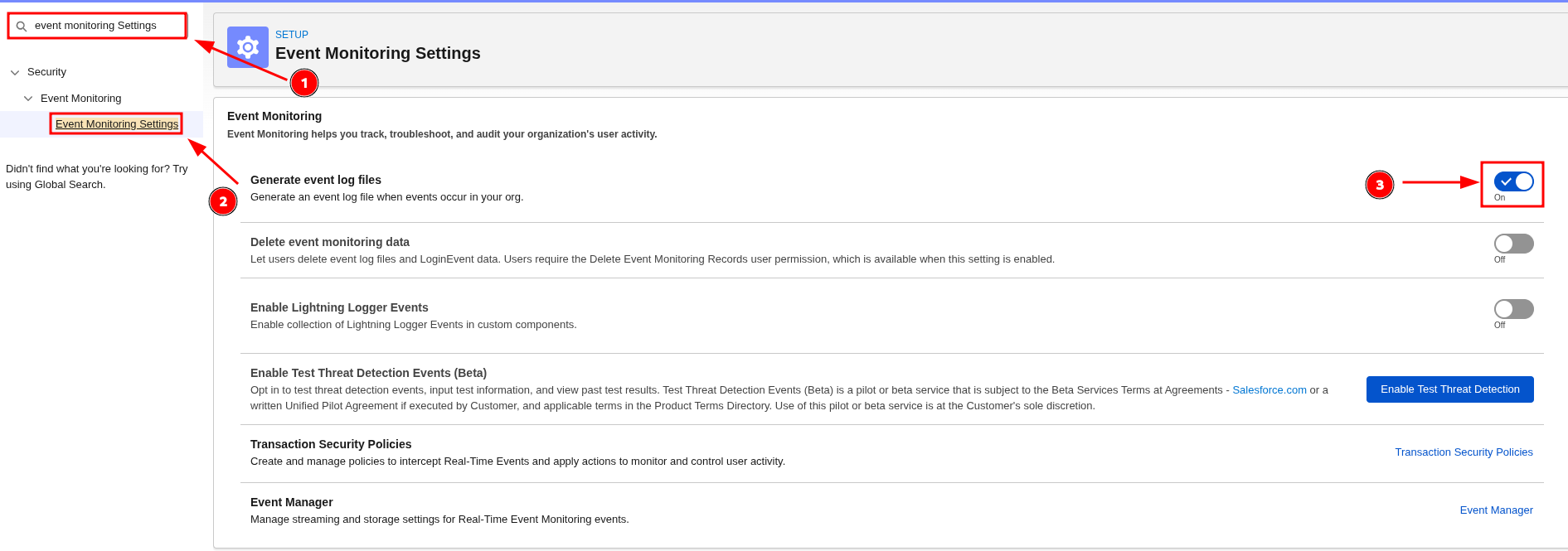](https://cytechint-docs-bookstack.s3.amazonaws.com/uploads/images/gallery/2026-05/u83m9Xo4Q4t80Gbm-image.png) --- ##### **Create A Connected Apps** For security reasons, Salesforce blocks the OAuth 2.0 Username-Password flow by default in recent releases. Prefer the JWT bearer flow. If you must use the Username-Password flow, in `OAuth and OpenID Connect Settings`, select `Allow OAuth Username-Password Flows`. For more information, see the Salesforce release note: [Username-Password OAuth flow blocked by default.](https://help.salesforce.com/s/articleView?id=release-notes.rn_security_username-password_flow_blocked_by_default.htm&language=en_US&release=244&type=5) [](https://cytechint-docs-bookstack.s3.amazonaws.com/uploads/images/gallery/2026-06/VXD6iKeRCEk6htq7-image.png) - Log in to Salesforce (Lightning UI). - From `Setup`, in `Quick Find` enter `External Client Apps` and select `Settings`. Turn on `Allow creation of connected apps`. To create a connected app, select `New Connected App`. [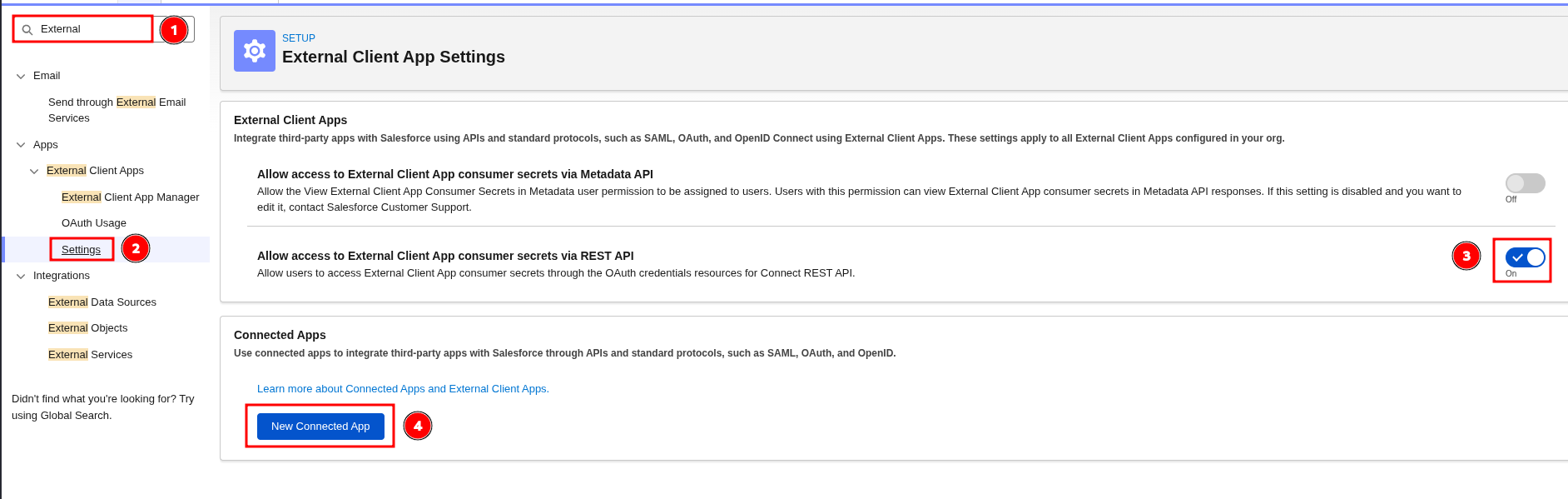](https://cytechint-docs-bookstack.s3.amazonaws.com/uploads/images/gallery/2026-06/k1o1tW0E5LEV58Zy-image.png) - Fill `Basic Information`: `Connected App Name`, `API Name`, `Contact Email`. [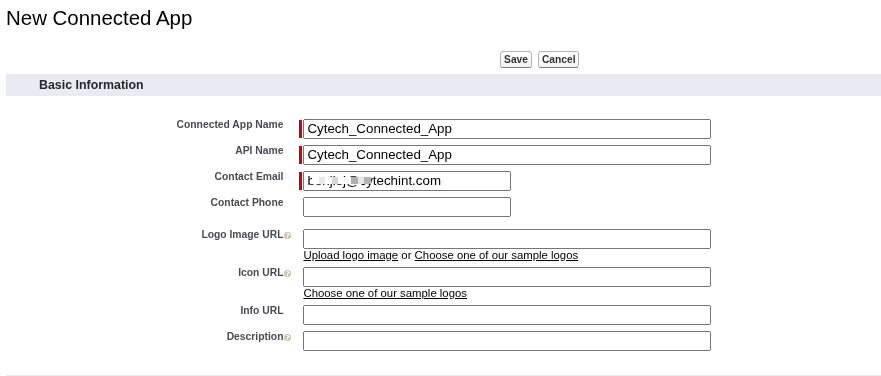](https://cytechint-docs-bookstack.s3.amazonaws.com/uploads/images/gallery/2026-06/IsDNcjY9IF5H6689-image.png) - In `API (Enable OAuth Settings)`, check `Enable OAuth Settings`. - `Callback URL`: - Web apps: your app callback (for example, `https://yourapp.example.com/callback`). - Not used by the JWT or Username-Password flows, but Salesforce requires a value; you can enter your instance URL. - Select OAuth scopes: - `Manage user data via APIs (api)` - `Perform requests at any time (refresh_token, offline_access)` - `Full access (full)` - Enable Client Credentials Flow - Enable Refresh Token Rotation [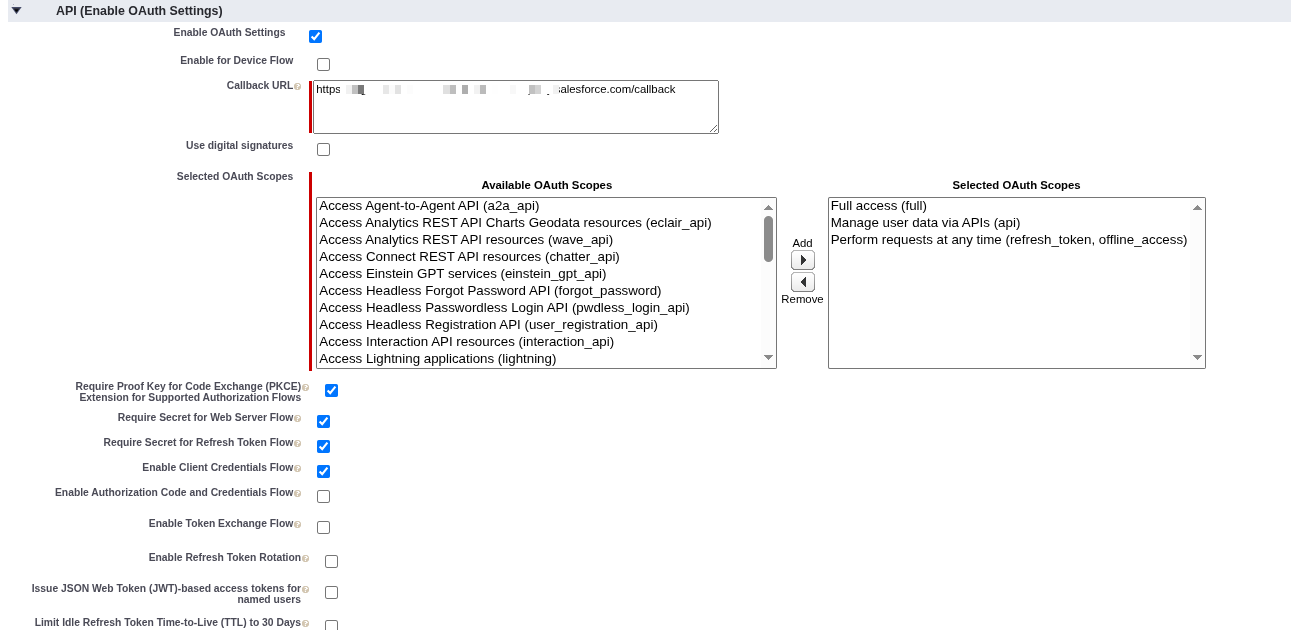](https://cytechint-docs-bookstack.s3.amazonaws.com/uploads/images/gallery/2026-06/xYB3Idafcolwvx4x-image.png) - Click `Save`. It can take up to 10 minutes for the Connected App to propagate. - After saving, open `Manage Consumer Details` to obtain `Consumer Key` and `Consumer Secret`.Manage Consumer Details Appears only once so better to copy consumer key and consumer secret in a safe place.
[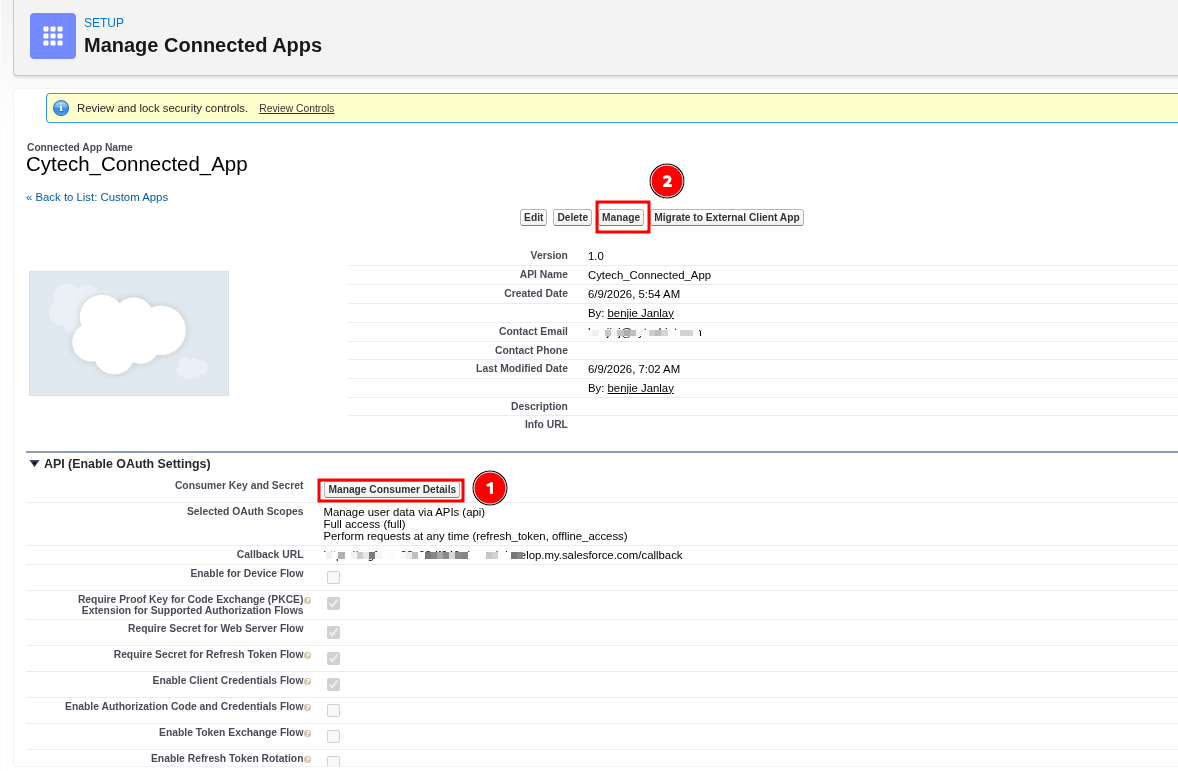](https://cytechint-docs-bookstack.s3.amazonaws.com/uploads/images/gallery/2026-06/Vg0C8iMXaXIy0LRF-image.png) - Then Click Manage to OAuth Policies - Permitted Users > All users may self-authorize - IP Relaxation > Relax IP Restrictions - Refresh Token Policy > Expire refresh token after "365" days [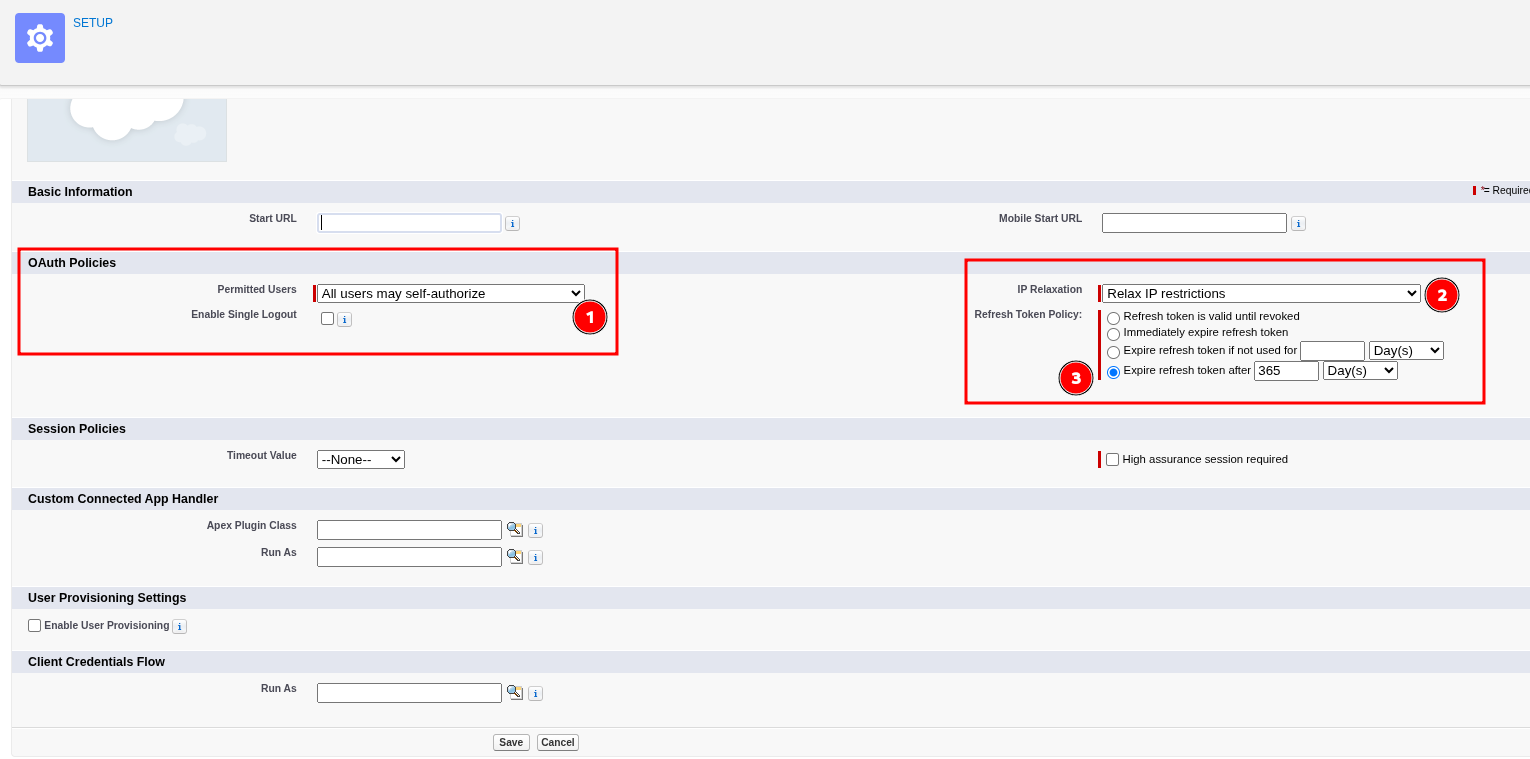](https://cytechint-docs-bookstack.s3.amazonaws.com/uploads/images/gallery/2026-06/zRwgrFo6TSrG2YvC-image.png) --- ##### **Verify if LoginEvent is enable in Quick find > Event Manager > enable all** [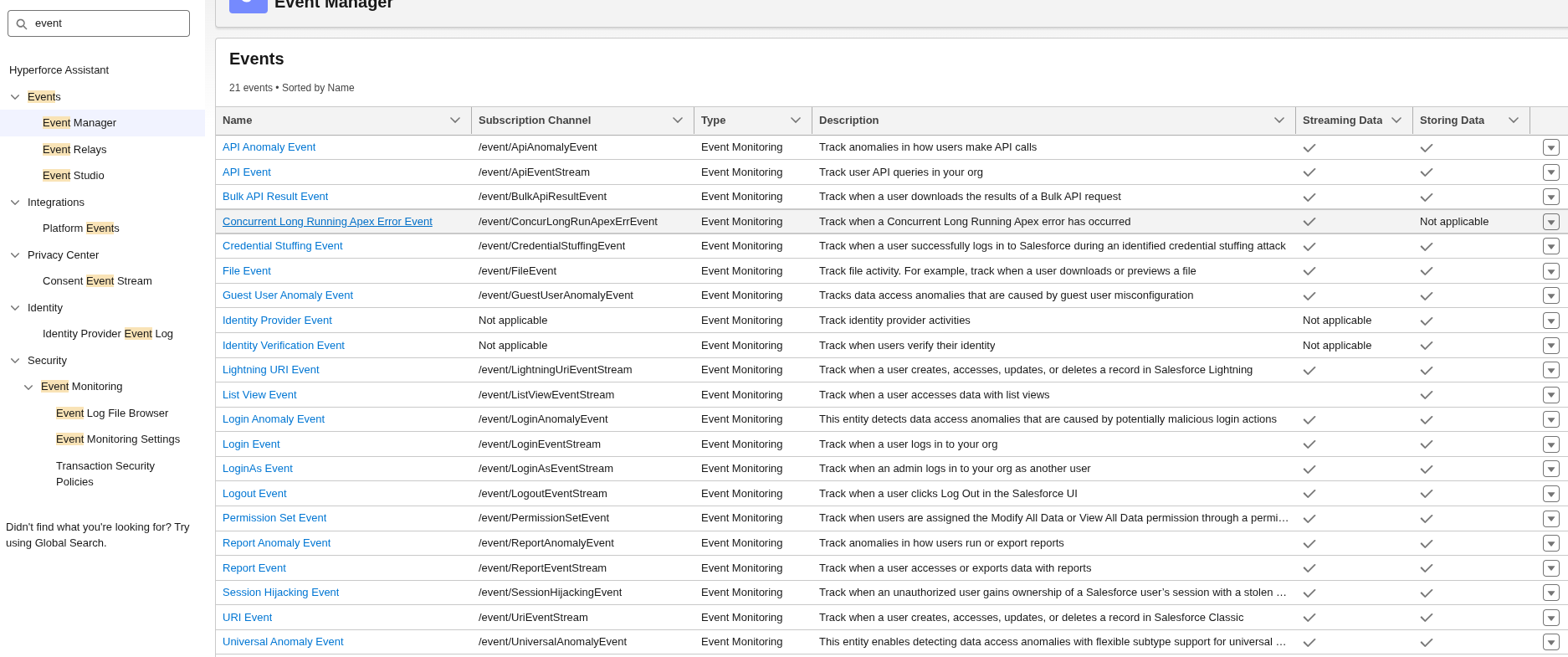](https://cytechint-docs-bookstack.s3.amazonaws.com/uploads/images/gallery/2026-06/c3FO4fC2t5KzJ44w-image.png) --- ##### Provide this to Cytech Support: - **Username** - **Password** - **Consumer Key** - **Consumer Secret** - **Instance URL** --- ***If you need further assistance, kindly contact our support at