# AQUILA - Nginx Integration (Ubuntu or Linux Platform) (OLD)
#### **Overview**
The **Nginx Integration** provides comprehensive monitoring and observability for **Nginx servers**, enabling visibility into both **logs** and **metrics** data. This integration ensures effective tracking of server performance, user activity, and error occurrences, supporting proactive management and troubleshooting of Nginx environments.
It collects two main types of data:
- **Logs** — Capture and record events occurring within the Nginx server. These include access logs (client requests) and error logs (issues encountered during request handling). Log data helps in auditing activities, identifying issues, and analyzing request patterns.
- **Metrics** — Provide real-time performance insights into Nginx server operations. Metrics include details such as the total number of **active client connections**, connection states, request counts, and other performance indicators essential for capacity planning and system optimization.
By utilizing this integration, administrators gain visibility into both operational and performance aspects of Nginx, enabling effective monitoring, troubleshooting, and optimization of web infrastructure.
#### **Prerequisites**
Before setting up the **Nginx Integration**, ensure that the following requirements are met:
1. **Nginx Server Installed and Running**
- A functioning **Nginx server** must be installed on your host system.
- Verify that the Nginx service is active and accessible.
2. **Access Permissions**
- Administrative or root privileges are required to configure log file paths and enable the Nginx status module.
- Read permissions must be granted for Nginx log files (e.g., `access.log` and `error.log`).
3. **Nginx Status Module Enabled**
- The **stub\_status** module should be enabled to allow collection of server metrics such as active connections and request rates.
- Add or verify the following configuration in your Nginx configuration file (usually located in `/etc/nginx/sites-enabled/default.conf`):
```
location /nginx_status {
stub_status on;
access_log off;
allow 127.0.0.1; # restrict access as needed
allow ; # e.g. 192.172.10.0/24
deny all;
}
```
- Restart Nginx after making changes:
```bash
sudo systemctl restart nginx
```
4\. **Network Connectivity**
- Ensure that the system where monitoring is configured can connect to the Nginx host via the appropriate network ports (typically port **80** or **443**).
5\. **Log File Availability**
- Confirm that standard Nginx log files are present in their default or custom locations:
- Access logs: `/var/log/nginx/access.log`
- Error logs: `/var/log/nginx/error.log`
#### **Step 1: Install Log Collector Agent**
On the device where **Nginx Server** is installed, you must also install the **AQUILA Log Collector Agent**. This agent is responsible for collecting the Nginx access and error logs and forwarding them to AQUILA for processing.
Please refer to the official manuals for installing the **AQUILA Log Collector Agent** on different operating systems:
- **Linux:** [Log Collector Installation - Linux Manual](https://docs.cytechint.io/books/log-collector-installations/page/log-collector-installation-linux-manual)
- **Windows:** [Log Collector Installation - Windows Manual](https://docs.cytechint.io/books/log-collector-installations/page/log-collector-installation-windows-manual)
- **Mac:** [Log Collector Installation - Mac Manual](https://docs.cytechint.io/books/log-collector-installations/page/log-collector-installation-mac-manual)
Ensure that after installation, the Log Collector service is running properly.
#### **Step 2: Integrate Nginx on AQUILA**
1. Log in to the **AQUILA** site.
2. Navigate to **Cyber Monitoring → Cyber Incident Management (CIM) → Settings**.
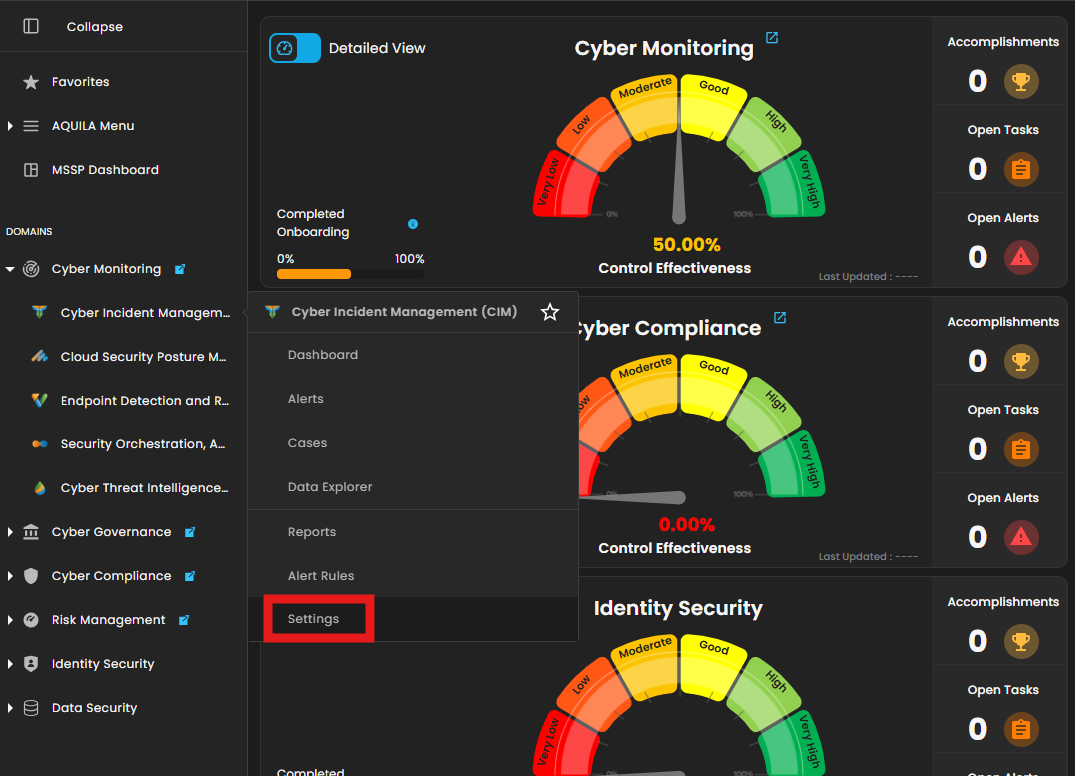
3\. In **Settings for CIM**, go to **Log Source**. In the **Search Integration** textbox, type **"Nginx"** and choose **Nginx logs and metrics** and then click **Add to Agent**.
[](https://cytechint-docs-bookstack.s3.amazonaws.com/uploads/images/gallery/2025-10/7GeNXll3qJ1snfq0-image.png)
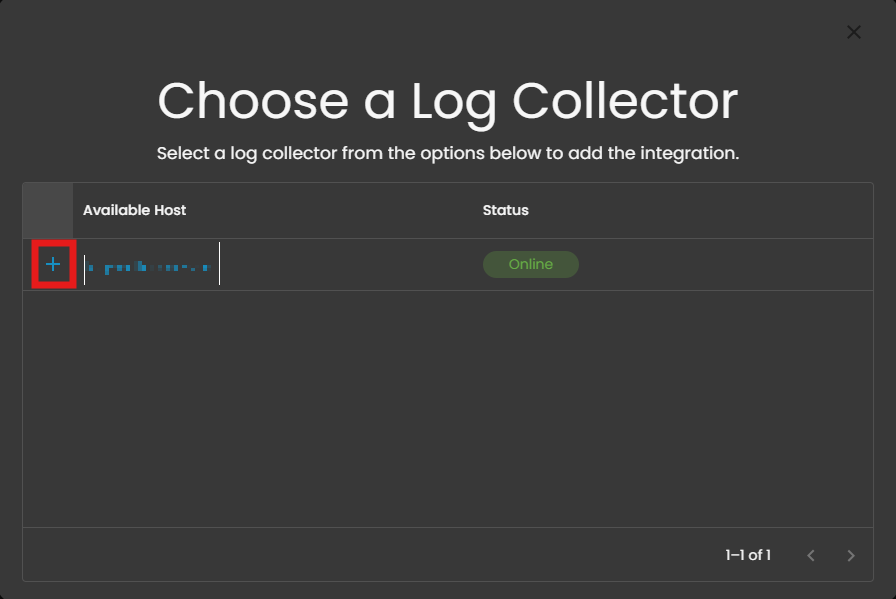
4\. Choose the **Log Collector** that was installed earlier and click the **+** button.
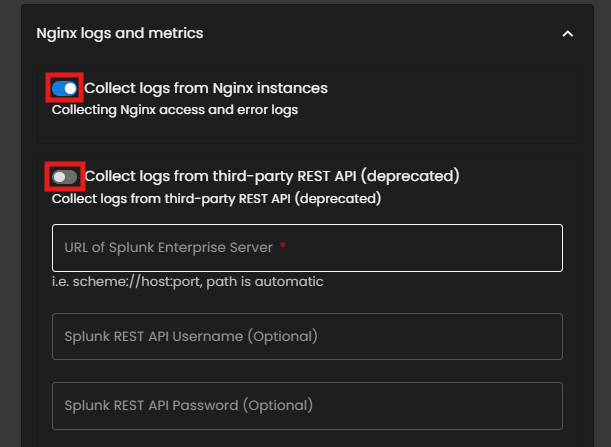
5\. In the **Nginx Logs and Metrics** section, **disable** the option to *Collect logs from third-party REST APIs*, and ensure that *Collect logs from Nginx instances* remains **enabled**.
[](https://cytechint-docs-bookstack.s3.amazonaws.com/uploads/images/gallery/2025-10/ftlm54TN3ND8R5NZ-image.png)
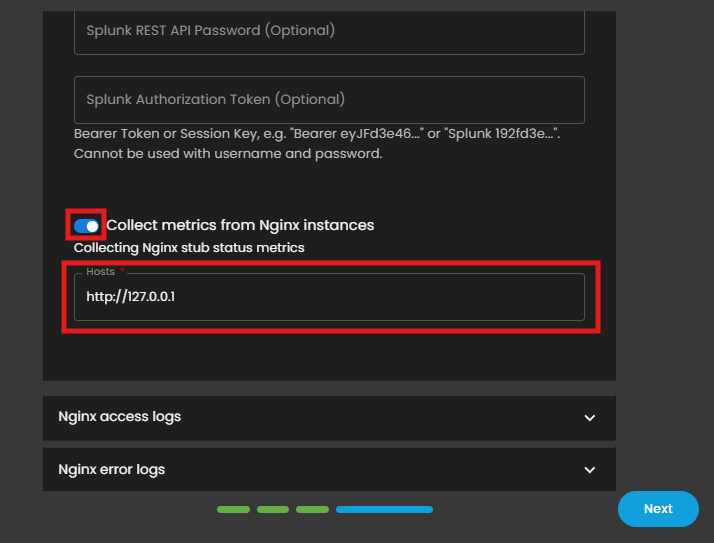
6\. Scroll down and ensure that **Collect metrics from Nginx instances** is **enabled**. In the **Hosts** field, enter the **Loopback IP address** of the device where both the **Nginx Server** and **Log Collector Agent** are installed. By default, this address is **127.0.0.1**, unless it has been modified.
[](https://cytechint-docs-bookstack.s3.amazonaws.com/uploads/images/gallery/2025-10/9Ko1MDgMwsXhEvWV-image.png)
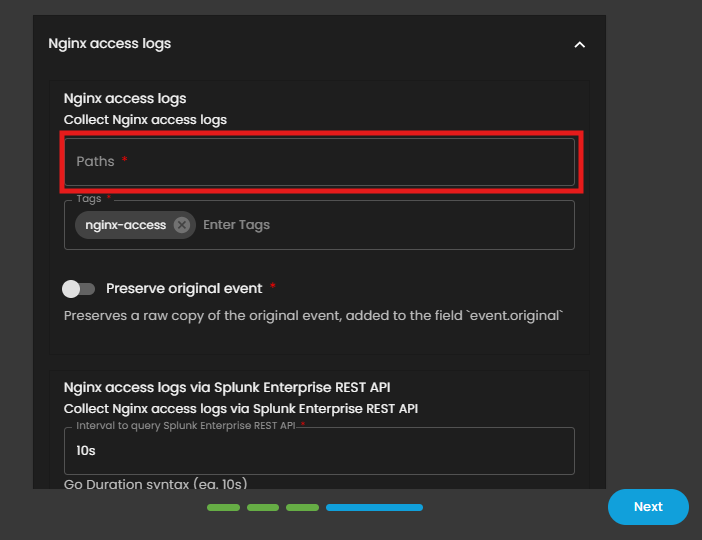
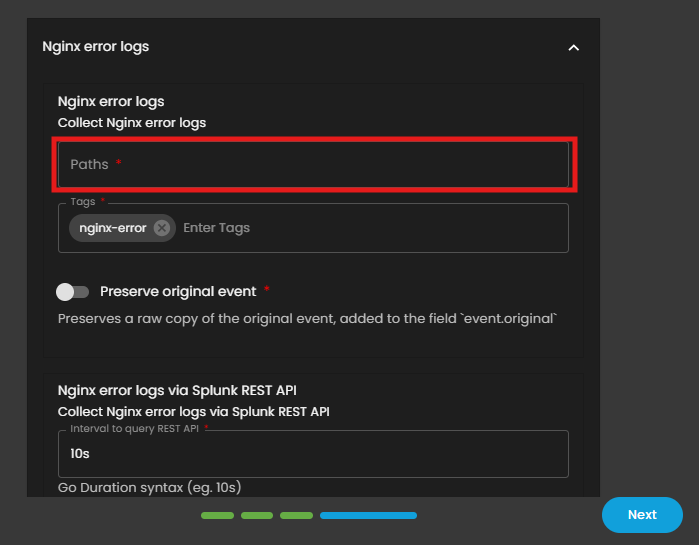
7\. For the following log types, specify the exact file paths:
- **Access Logs:** e.g., `/var/log/nginx/access.log*`
- **Error Logs:** e.g., `/var/log/nginx/error.log*`
**Note:** Ensure that each path ends with an asterisk (`*`) to include all relevant log files.
- Navigate to **Nginx access logs** and **error logs** sections and input the paths.
[](https://cytechint-docs-bookstack.s3.amazonaws.com/uploads/images/gallery/2025-10/p26smGSPZBp0RaHv-image.png)
[](https://cytechint-docs-bookstack.s3.amazonaws.com/uploads/images/gallery/2025-10/QX2cuxPxZIsVhNEo-image.png)
- For the **Tags** configuration, click the text field and select the default options:
- **Access Logs:** `nginx-access`
- **Error Logs:** `nginx-error`
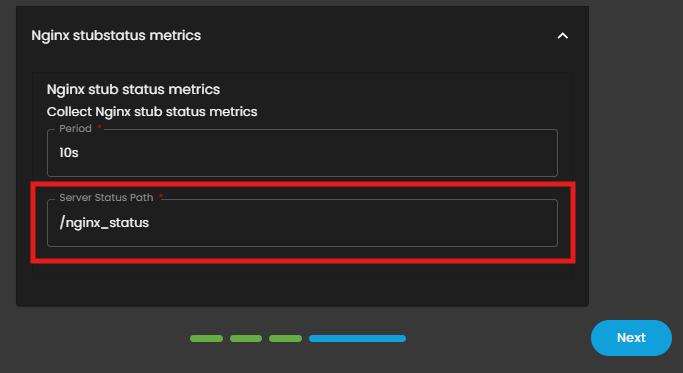
8\. Verify the **Server Status Path** under the **Nginx stubstatus metrics** section. If the path has not been modified, retain the **default value**.
[](https://cytechint-docs-bookstack.s3.amazonaws.com/uploads/images/gallery/2025-10/0XCaVgK6lmjAfZ2B-image.png)
8\. Once all paths and tags have been entered, click **Next** to continue.
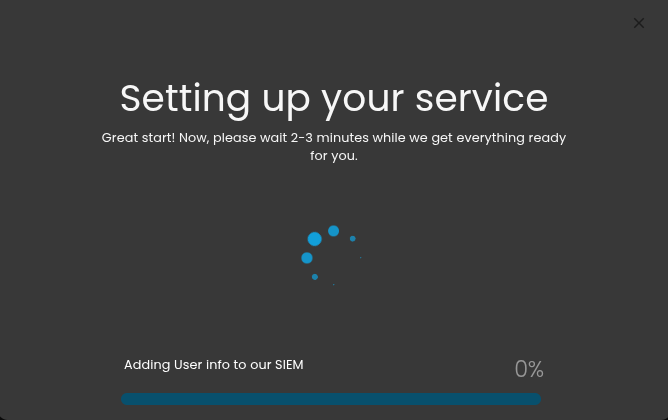
9\. Wait for the **Successful** window to display, this will confirm the successful integration.
*If you need further assistance, kindly contact our support at **support@cytechint.com** for prompt assistance and guidance.*