# AQUILA - Mimecast API v2 Integration

### <span style="color: rgb(53, 152, 219);">**Mimecast Integration Guide**</span>

Integrate **Mimecast** with your security platform via API to collect email threat data, archive logs, DLP events, and other security-related logs for centralized visibility and incident response.

**API 2.0 is the current standard** - It's been generally available for over a year and is what Mimecast recommends for new integrations

#### <span style="color: rgb(53, 152, 219);">**Credentials &amp; API Access Setup (Mimecast API v2)**</span>

Before configuring the integration, prepare your API credentials from the Mimecast Admin Console.

Needed Credentials:

- **API URL**
- **Client ID**
- **Client Secret**

##### **Creating an API 2.0 Application**:

**To create an API 2.0 Application, follow the steps below:**

1. Log in to ***Mimecast Administration Console***
2. Navigate to ***Integrations | API and Platform Integrations***
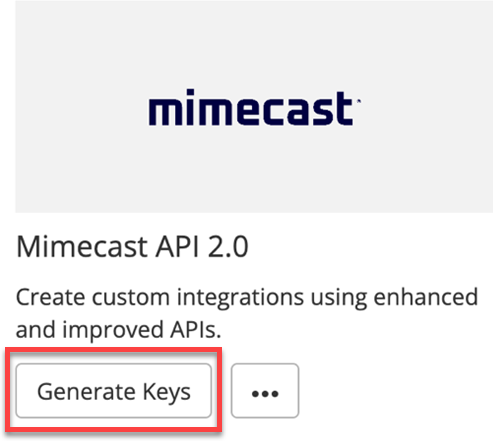
3. Locate the following ***Mimecast API 2.0*** tile and click on ***Generate Keys.***

***[![Mimecast1.png](https://cytechint-docs-bookstack.s3.amazonaws.com/uploads/images/gallery/2025-07/scaled-1680-/rBSxoLyzOZzCIIZV-mimecast1.png)](https://cytechint-docs-bookstack.s3.amazonaws.com/uploads/images/gallery/2025-07/rBSxoLyzOZzCIIZV-mimecast1.png)***
4. <div>After reading the ***Terms &amp; Conditions***, complete the ***I accept*** check box to enable the ***Next*** button to progress onto the next step.</div>
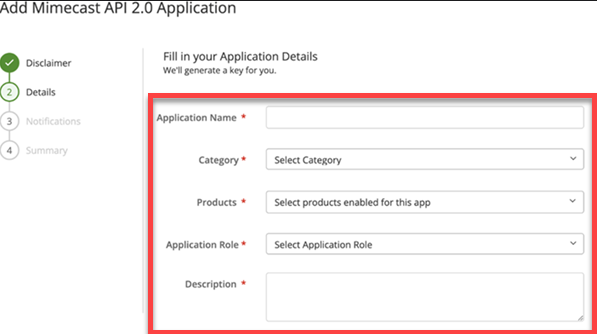
5. <div>Complete the ***Application Details*** section.</div>

[![image.png](https://cytechint-docs-bookstack.s3.amazonaws.com/uploads/images/gallery/2025-07/scaled-1680-/AwHf7pOPYvohGct1-image.png)](https://cytechint-docs-bookstack.s3.amazonaws.com/uploads/images/gallery/2025-07/AwHf7pOPYvohGct1-image.png)

> - We highly recommend creating a dedicated custom role with ***only*** the permissions required for the Application to function.
> - Select the minimum set of Products the App needs to access to function.

6. Should we need to contact you regarding this API application, please provide details for a ***Technical Point of Contact.***

[![image.png](https://cytechint-docs-bookstack.s3.amazonaws.com/uploads/images/gallery/2025-07/scaled-1680-/UoNpggyWtQCY1t4a-image.png)](https://cytechint-docs-bookstack.s3.amazonaws.com/uploads/images/gallery/2025-07/UoNpggyWtQCY1t4a-image.png)
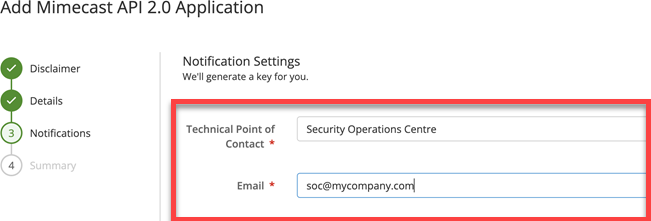
> Mimecast recommends a group rather than an individual contact.

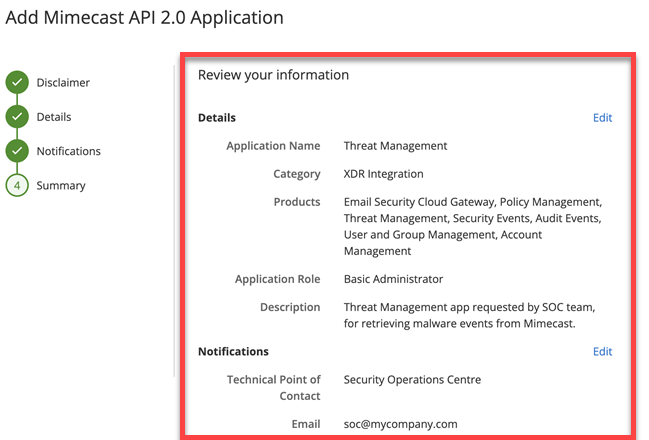
7. Review the Summary information for the API application and click on ***Add*** if you are happy to proceed with creating the application.

[![image.png](https://cytechint-docs-bookstack.s3.amazonaws.com/uploads/images/gallery/2025-07/scaled-1680-/4JKQu1krMKlvDmMq-image.png)](https://cytechint-docs-bookstack.s3.amazonaws.com/uploads/images/gallery/2025-07/4JKQu1krMKlvDmMq-image.png)
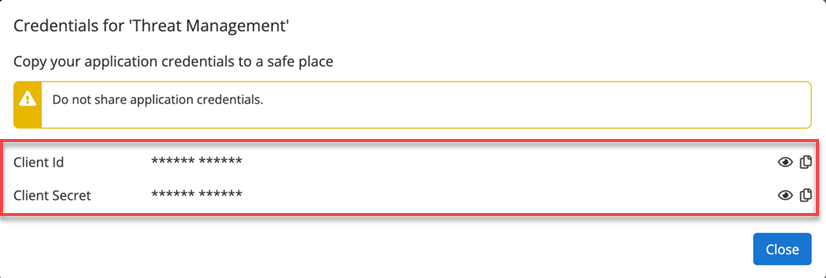
 8. The wizard completes and displays a pop-up window including your Client ID and Client Secret key data, where you can copy and save the credentials for the API application.

[![image.png](https://cytechint-docs-bookstack.s3.amazonaws.com/uploads/images/gallery/2025-07/scaled-1680-/RGHA38BGBhwInynP-image.png)](https://cytechint-docs-bookstack.s3.amazonaws.com/uploads/images/gallery/2025-07/RGHA38BGBhwInynP-image.png)
#### <span style="color: rgb(53, 152, 219);">**Base URL (Mimecast API v2)**</span>

To transition from your current API 1.0 URLs to API 2.0, we provide three API gateway options tailored to fulfill your performance, compliance, and data residency requirements:

- **Global URL**: The global API URL <mark class="code">api.services.mimecast.com</mark> which serves traffic from the nearest instance ensuring reduced latency and enhanced performance.
- **UK Instance URL**: For compliance and data residency requirements, customers can choose to process traffic via the UK instance using the regional URL: <mark class="code">uk-api.services.mimecast.com</mark>. This ensures API traffic is only processed within the UK instance of the Apigee Gateway.
- **US Instance URL**: Similarly, customers with compliance or residency requirements in the US can use <mark class="code">us-api.services.mimecast.com</mark> to process API traffic exclusively through the US instance of the Apigee Gateway.

<div class="_tableContainer_80l1q_1" id="bkmrk-data-stream-permissi"><div class="_tableWrapper_80l1q_14 group flex w-fit flex-col-reverse" tabindex="-1"><table border="1" class="w-fit min-w-(--thread-content-width)" data-end="2931" data-start="2486" style="border-collapse: collapse; border-style: solid; width: 100%; height: 150.234px;"><thead data-end="2560" data-start="2486"><tr data-end="2560" data-start="2486" style="height: 29.7969px;"><th data-col-size="sm" data-end="2514" data-start="2486" style="width: 21.6925%; height: 29.7969px;">Factor</th><th data-col-size="sm" data-end="2560" data-start="2514" style="width: 24.6722%; height: 29.7969px;">Global URL</th><th style="width: 27.056%;">UK Instance URL</th><th style="width: 26.5793%;">US Instance URL</th></tr></thead><tbody data-end="2931" data-start="2636"><tr data-end="2709" data-start="2636" style="height: 30.1094px;"><td data-col-size="sm" data-end="2663" data-start="2636" style="width: 21.6925%; height: 30.1094px;">URL Details</td><td data-col-size="sm" data-end="2709" data-start="2663" style="width: 24.6722%; height: 30.1094px;">api.services.mimecast.com</td><td style="width: 27.056%;">uk-api.services.mimecast.com</td><td style="width: 26.5793%;">us-api.services.mimecast.com</td></tr><tr data-end="2783" data-start="2710" style="height: 30.1094px;"><td data-col-size="sm" data-end="2737" data-start="2710" style="width: 21.6925%; height: 30.1094px;">Availability</td><td style="width: 24.6722%;">✅Auto failover for high uptime</td><td style="width: 27.056%;">![](https://developer.services.mimecast.com/files/api-overview-warning.png?v=1752047380000) No failover - requests fail if UK instance is down</td><td style="width: 26.5793%;">![](https://developer.services.mimecast.com/files/api-overview-warning.png?v=1752047380000) No failover - requests fail if US instance is down</td></tr></tbody></table>

</div></div><div class="_tableContainer_80l1q_1" id="bkmrk-data-stream-required"></div>#### <span style="color: rgb(53, 152, 219);">**Aquila Integration Configuration**</span>

##### **AQUILA – Mimecast Integration**

**1.** Log in to AQUILA click here - **[CyTech - AQUILA](https://cytechint.io/)**. Choose **Cyber Monitoring -&gt; Cyber Incident Management (CIM) -&gt; Settings**.

![image.png](https://cytechint-docs-bookstack.s3.amazonaws.com/uploads/images/gallery/2025-07/scaled-1680-/ADhvXH5PXr7DLcsb-image.png)

2\. Navigate through **Log Source -&gt; Search Bar (Search the Source to Add) -&gt; Add to Agent**.

![image.png](https://cytechint-docs-bookstack.s3.amazonaws.com/uploads/images/gallery/2025-07/scaled-1680-/CekkCjyu80NlCNMQ-image.png)

3\. Choose your **Log Collector**. *(If you not yet installed your **Log Collector** please refer to this link -* [**Log Collector** **Installation.**](https://docs.cytechint.io/books/log-collector-installations))

![image.png](https://cytechint-docs-bookstack.s3.amazonaws.com/uploads/images/gallery/2025-07/scaled-1680-/Z8PeeZ0paI1PLBNl-image.png)

**4. In the integration settings follow the instructions given below.**

- Click the **drop-down arrow** to display the contents needed for the integration setup.

![image.png](https://cytechint-docs-bookstack.s3.amazonaws.com/uploads/images/gallery/2025-07/scaled-1680-/lFaQpLYUxG6MNlQK-image.png)

- Upon clicking the drop-down arrow, disable the **v1 API.**

![image.png](https://cytechint-docs-bookstack.s3.amazonaws.com/uploads/images/gallery/2025-07/scaled-1680-/3Z9UT3lv6GH8s0AI-image.png)

- This integration we will use the **v2 API**. Input the required Fields: **Client ID, Client Secret** and API URL (Mimecast API v2 base URL).**

![image.png](https://cytechint-docs-bookstack.s3.amazonaws.com/uploads/images/gallery/2025-07/scaled-1680-/gHykOx2Hwy2oMSo1-image.png)

- Click the drop-down arrow on all the other fields**.**

**![image.png](https://cytechint-docs-bookstack.s3.amazonaws.com/uploads/images/gallery/2025-07/scaled-1680-/S6oYCbJbgOwdxc8Z-image.png)**

- Click the Tags text field and add the 2 examples**.**

![image.png](https://cytechint-docs-bookstack.s3.amazonaws.com/uploads/images/gallery/2025-07/scaled-1680-/gTGMPDPdQe400Kl5-image.png)

![image.png](https://cytechint-docs-bookstack.s3.amazonaws.com/uploads/images/gallery/2025-07/scaled-1680-/kXdZtBmkvQYpieow-image.png)

- Finally, click **Next** to install the log source integration.

![image.png](https://cytechint-docs-bookstack.s3.amazonaws.com/uploads/images/gallery/2025-07/scaled-1680-/4jbMGaSlHzY6UCmv-image.png)

5\. Wait for the **Successful** window to display, this will confirm the successful integration.

![image.png](https://cytechint-docs-bookstack.s3.amazonaws.com/uploads/images/gallery/2025-05/scaled-1680-/CNFzJRIuFuvZIEdI-image.png)

**Reference Links:**

[**API &amp; Integrations - Managing API 2.0 for Cloud Gateway**](https://mimecastsupport.zendesk.com/hc/en-us/articles/34000360548755-API-Integrations-Managing-API-2-0-for-Cloud-Gateway#h_01JK62GWQ91FX2VPS7EWE3M9RX)

[**Update Base URL**](https://developer.services.mimecast.com/api-1-0-to-2-0-migration-guide)

*If you need further assistance, kindly contact our support at* ***support@cytechint.com*** *for prompt assistance and guidance.*