# AQUILA - GitLab Integration
**Purpose**
This document explains, in a clear and practical way, how to locate **GitLab log files** on the host (or in **Kubernetes**), confirm access, and connect those logs to **AQUILA**. It covers common GitLab installation types (**Omnibus/Linux** package, **self‑compiled**, and **Helm** chart deployments) and troubleshooting tips.
**Audience**
This guide is written for system administrators, DevOps engineers, and security/observability operators who will configure log collection from **GitLab** into **AQUILA**.
**Assumptions & prerequisites**
- You have administrative access to the **GitLab** host(s) or **Kubernetes** cluster where GitLab runs.
- You have access to AQUILA site.
- Basic familiarity with **Linux shell commands** and **Kubernetes** (`kubectl`) for **Helm** deployments.
**Step 1: Overview of required GitLab logs**
The following GitLab logs are commonly consumed by security/observability platforms. Confirm their presence on the host (or in the pods) before configuring **AQUILA**. If you moved any files to different paths, provide the updated absolute paths to **AQUILA**.
- **api\_json.log**
- Linux package (Omnibus) installations: `/var/log/gitlab/gitlab-rails/api_json.log`
- Self‑compiled installations: `/home/git/gitlab/log/api_json.log`
- Helm chart (Kubernetes): Webservice pods, `subcomponent="api_json"`.
- **application\_json.log**
- Linux package: `/var/log/gitlab/gitlab-rails/application_json.log`
- Self‑compiled: `/home/git/gitlab/log/application_json.log`
- Helm chart: Sidekiq and Webservice pods, `subcomponent="application_json"`.
- **audit\_json.log**
- Linux package: `/var/log/gitlab/gitlab-rails/audit_json.log`
- Self‑compiled: `/home/git/gitlab/log/audit_json.log`
- Helm chart: Sidekiq and Webservice pods, `subcomponent="audit_json"`.
- **auth\_json.log**
- Linux package: `/var/log/gitlab/gitlab-rails/auth_json.log`
- Self‑compiled: `/home/git/gitlab/log/auth_json.log`
- Helm chart: Sidekiq and Webservice pods, `subcomponent="auth_json"`.
- **Pages logs**
- Linux package: `/var/log/gitlab/gitlab-pages/current`.
- **production\_json.log**
- Linux package: `/var/log/gitlab/gitlab-rails/production_json.log`
- Self‑compiled: `/home/git/gitlab/log/production_json.log`
- Helm chart: Webservice pods, `subcomponent="production_json"`.
- **Sidekiq logs**
- Linux package: `/var/log/gitlab/sidekiq/current`
- Self‑compiled: `/home/git/gitlab/log/sidekiq.log`
> If you have moved or renamed any of the above logs, please add the new absolute path(s) to the **Changed Paths** table in the Appendix below before proceeding.
**Step 2: Install Log Collector Agent**
On the device where **GitLab** is installed, you must also install the **AQUILA Log Collector Agent**. This agent is responsible for collecting the GitLab logs and forwarding them to AQUILA for processing.
Please refer to the official manuals for installing the **AQUILA Log Collector Agent** on different operating systems:
- **Linux:** [Log Collector Installation - Linux Manual](https://docs.cytechint.io/books/log-collector-installations/page/log-collector-installation-linux-manual)
- **Windows:** [Log Collector Installation - Windows Manual](https://docs.cytechint.io/books/log-collector-installations/page/log-collector-installation-windows-manual)
- **Mac:** [Log Collector Installation - Mac Manual](https://docs.cytechint.io/books/log-collector-installations/page/log-collector-installation-mac-manual)
Ensure that after installation, the Log Collector service is running properly.
**Step 3: Integrate GitLab on AQUILA**
1. Log in to the **AQUILA** site.
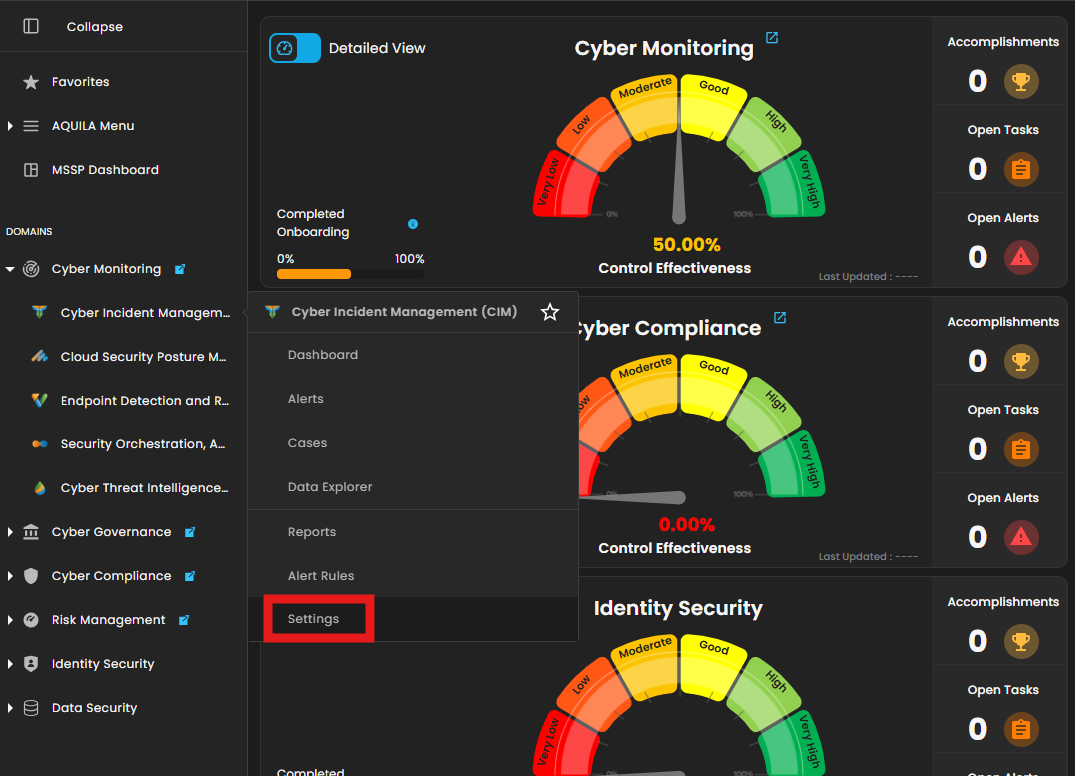
2. Navigate to **Cyber Monitoring → Cyber Incident Management (CIM) → Settings**.
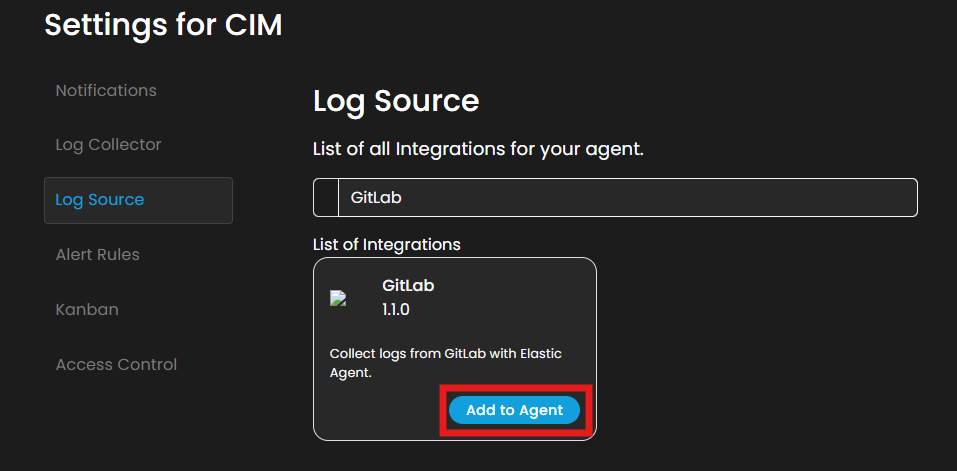
3\. In **Settings for CIM**, go to **Log Source**. In the **Search Integration** textbox, type **"GitLab"** and click **Add to Agent**.
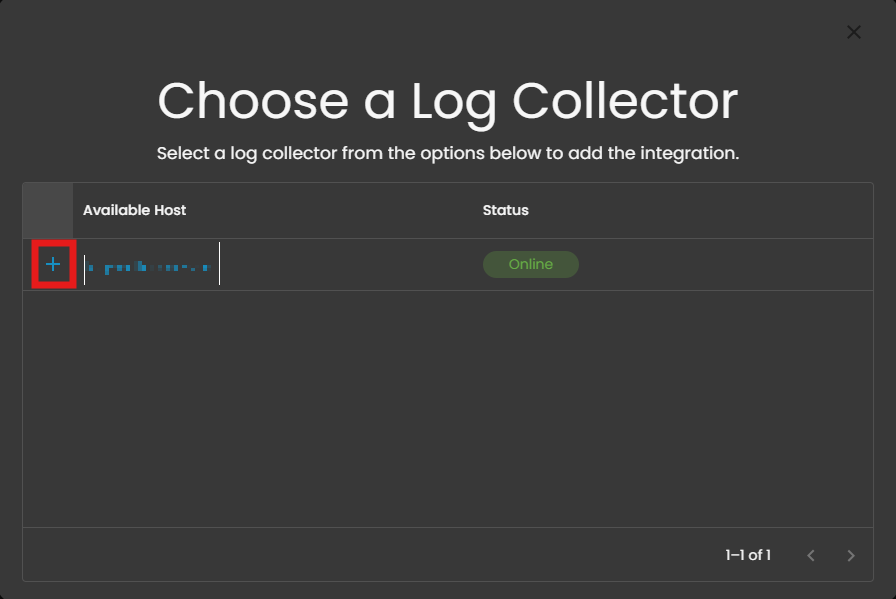
4\. Choose a **Log Collector** and click the **+** button.
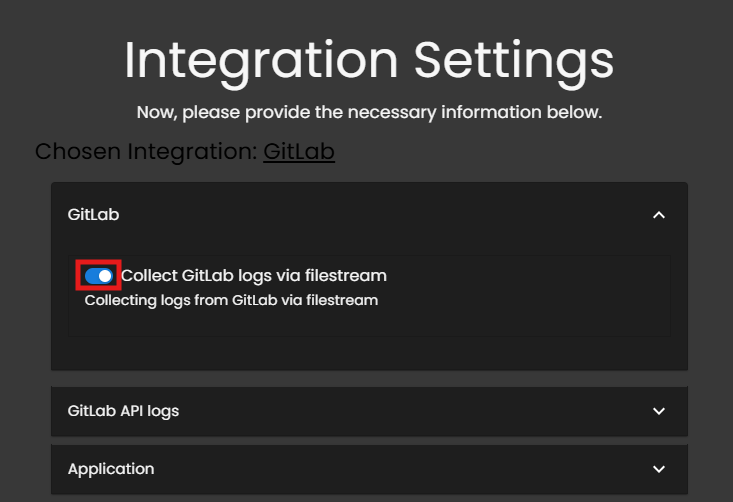
5\. In the **GitLab** section, select the radio button **Collect GitLab logs via filestream**.
6\. For the following logs, enter the specific paths gathered earlier:
1. - **GitLab API logs** (ex. /var/log/gitlab/gitlab-rails/api\_json.log)
- **Application logs** (ex. /var/log/gitlab/gitlab-rails/application\_json.log)
- **Audit logs** (ex. /var/log/gitlab/gitlab-rails/audit\_json.log)
- **Auth logs** (ex. /var/log/gitlab/gitlab-rails/auth\_json.log)
- **GitLab Pages logs** (ex. /var/log/gitlab/gitlab-pages/current)
- **GitLab Production logs** (ex. /var/log/gitlab/gitlab-rails/production\_json.log)
- **GitLab Sidekiq logs** (ex. /var/log/gitlab/sidekiq/current)
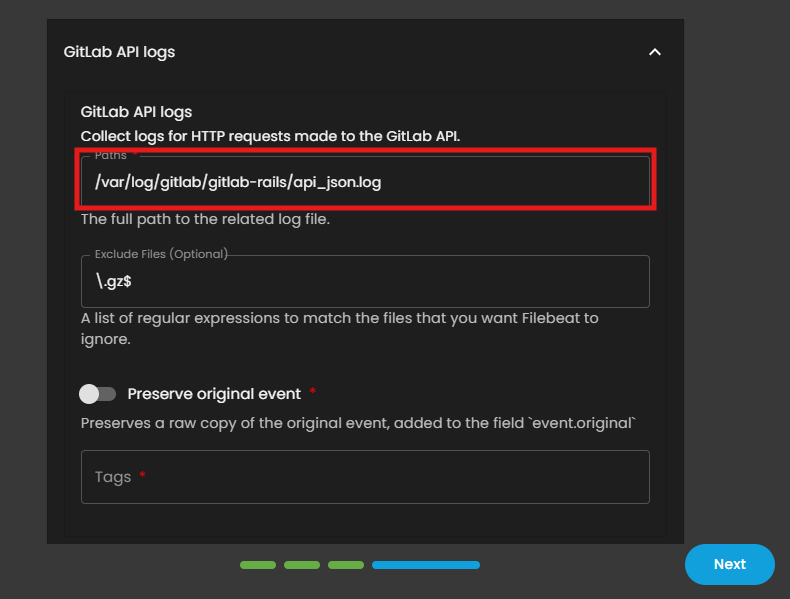
7\. In the **Tags** field, click the textbox and include all provided tags.
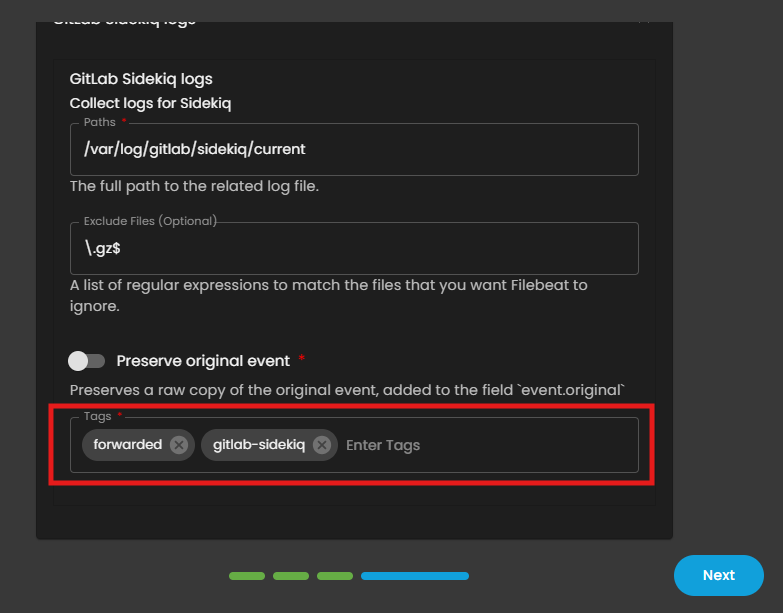
8\. Once all paths and tags have been entered, click **Next** to continue.
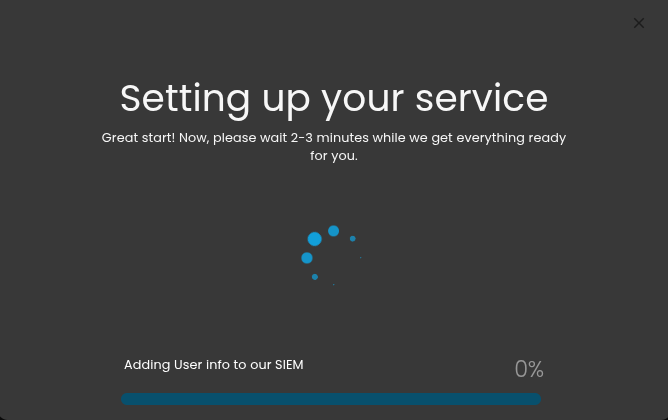
9\. Wait for the **Successful** window to display, this will confirm the successful integration.
*If you need further assistance, kindly contact our support at **support@cytechint.com** for prompt assistance and guidance.*