# AQUILA CSPM - AWS Integration

#### [](https://www.elastic.co/guide/en/security/current/cspm-get-started.html#cspm-overview)**<span style="color: rgb(53, 152, 219);">Overview</span>**

<span style="color: rgb(0, 0, 0);">This page explains how to get started monitoring the security posture of your cloud assets using the Cloud Security Posture Management (CSPM) feature.</span>

<div class="book" id="bkmrk-find%C2%A0integrations%C2%A0in" lang="en"><div class="section"></div></div>#### [](https://www.elastic.co/guide/en/security/current/cspm-get-started.html#cspm-set-up-cloud-access-section)**<span style="color: rgb(53, 152, 219);">Set up cloud account access</span>**

<span style="color: rgb(0, 0, 0);">The CSPM integration requires access to AWS’s built-in [`SecurityAudit` IAM policy](https://docs.aws.amazon.com/IAM/latest/UserGuide/access_policies_job-functions.html#jf_security-auditor) in order to discover and evaluate resources in your cloud account. To provide access we need:</span>

<div class="book" id="bkmrk-default-instance-rol" lang="en"><div class="section"><div class="ulist itemizedlist">- <span style="color: rgb(0, 0, 0);">**IAM Role**</span>
- <span style="color: rgb(0, 0, 0);">**[Direct access keys](https://www.elastic.co/guide/en/security/current/cspm-get-started.html#cspm-use-keys-directly "Option 2 - Direct access keys")**</span>

</div></div></div>#### [](https://www.elastic.co/guide/en/security/current/cspm-get-started.html#cspm-use-instance-role)<span style="color: rgb(53, 152, 219);">**Create IAM User**</span>

<span style="color: rgb(0, 0, 0);">Follow AWS’s [IAM roles for Amazon EC2](https://docs.aws.amazon.com/AWSEC2/latest/UserGuide/iam-roles-for-amazon-ec2.html) documentation to create an IAM role using the IAM console, which automatically generates an instance profile.</span>

<div class="book" id="bkmrk-create-an-iam-role%3A-" lang="en"><div class="section"><div class="olist orderedlist">1. <span style="color: rgb(0, 0, 0);">Create an IAM role:</span>
    
    <div class="olist orderedlist">
    1. <span style="color: rgb(0, 0, 0);">In AWS, go to your IAM dashboard. Click <span class="strong strong">**Roles**</span>, then <span class="strong strong">**Create role**</span>.</span>
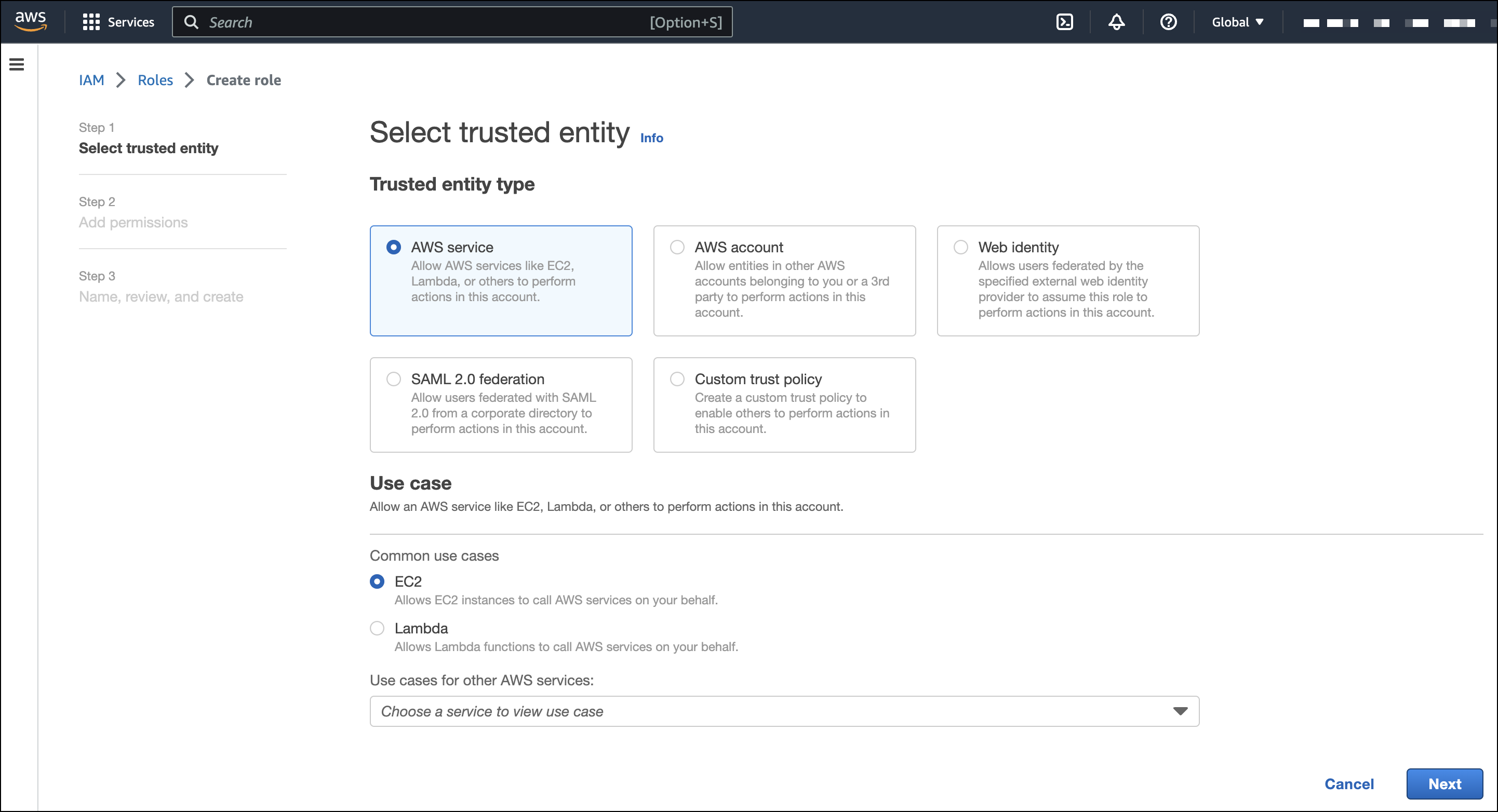
    2. <span style="color: rgb(0, 0, 0);">On the <span class="strong strong">**Select trusted entity**</span> page, under <span class="strong strong">**Trusted entity type**</span>, select <span class="strong strong">**AWS service**</span>.</span>
    3. <span style="color: rgb(0, 0, 0);">Under <span class="strong strong">**Use case**</span>, select <span class="strong strong">**EC2**</span>. Click <span class="strong strong">**Next**</span>.</span>
        
        <div class="imageblock"><div class="content">![The Select trusted entity screen in AWS](https://www.elastic.co/guide/en/security/current/images/cspm-aws-auth-1.png)</div></div>
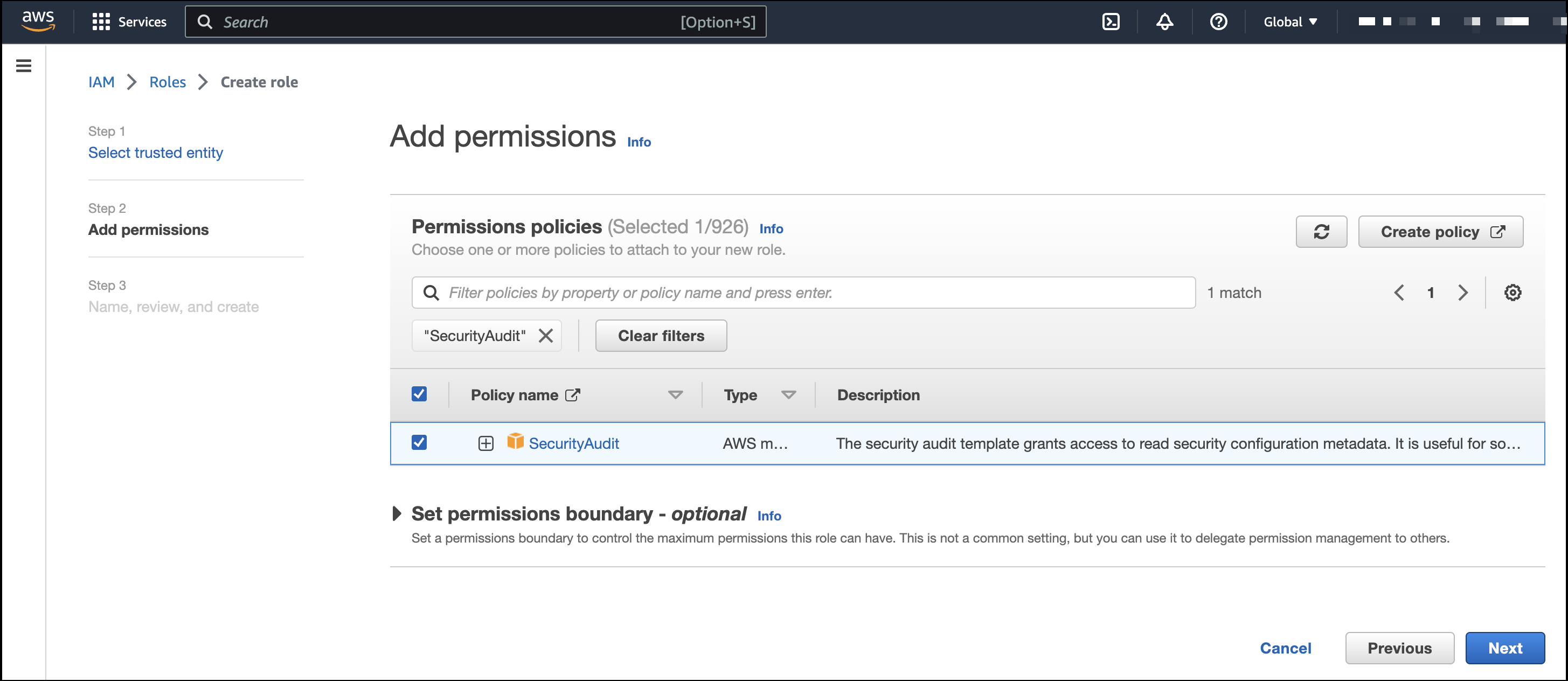
    4. <span style="color: rgb(0, 0, 0);">On the <span class="strong strong">**Add permissions**</span> page, search for and select `SecurityAudit`. Click <span class="strong strong">**Next**</span>.</span>
        
        <div class="imageblock"><div class="content">![The Add permissions screen in AWS](https://www.elastic.co/guide/en/security/current/images/cspm-aws-auth-2.png)</div></div>
    5. <span style="color: rgb(0, 0, 0);">On the <span class="strong strong">**Name, review, and create**</span> page, name your role, then click <span class="strong strong">**Create role**</span>.</span>
    
    </div>
2. <span style="color: rgb(0, 0, 0);">Attach your new IAM role to an EC2 instance:</span>
    
    <div class="olist orderedlist">
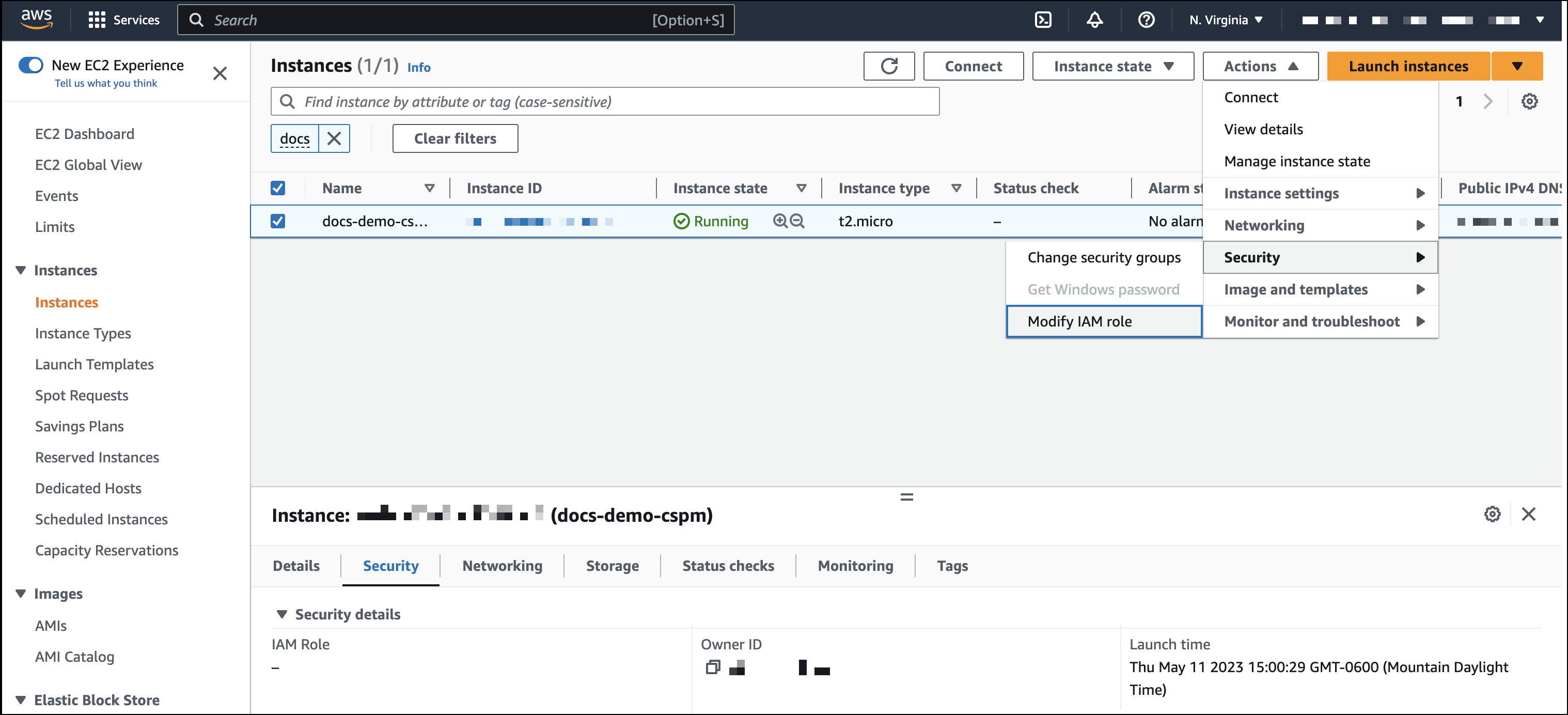
    1. <span style="color: rgb(0, 0, 0);">In AWS, select an EC2 instance.</span>
    2. <span style="color: rgb(0, 0, 0);">Select <span class="strong strong">**Actions &gt; Security &gt; Modify IAM role**</span>.</span>
        
        <div class="imageblock"><div class="content">![The EC2 page in AWS](https://www.elastic.co/guide/en/security/current/images/cspm-aws-auth-3.png)</div></div>
    3. <span style="color: rgb(0, 0, 0);">On the <span class="strong strong">**Modify IAM role**</span> page, search for and select your new IAM role.</span>
    4. <span style="color: rgb(0, 0, 0);">Click <span class="strong strong">**Update IAM role**</span>.</span>
    
    </div>

</div></div></div>#### [](https://www.elastic.co/guide/en/security/current/cspm-get-started.html#cspm-use-keys-directly)<span style="color: rgb(53, 152, 219);">**Create Direct access keys**</span>

<span style="color: rgb(0, 0, 0);">Access keys are long-term credentials for an IAM user or AWS account root user. To use access keys as credentials, you must provide the `Access key ID` and the `Secret Access Key`. After you provide credentials, [finish manual setup](https://www.elastic.co/guide/en/security/current/cspm-get-started.html#cspm-finish-manual "Finish manual setup").</span>

<span style="color: rgb(0, 0, 0);">For more details, refer to [Access Keys and Secret Access Keys](https://docs.aws.amazon.com/general/latest/gr/aws-sec-cred-types.html).</span>

<div class="book" id="bkmrk-access-key-id%3A-the-f" lang="en"><div class="section"><div class="ulist itemizedlist">- <span style="color: rgb(0, 0, 0);">`Access key ID`: The first part of the access key.</span>
- <span style="color: rgb(0, 0, 0);">`Secret Access Key`: The second part of the access key.</span>

</div></div></div>*source: <span style="color: rgb(53, 152, 219);">https://www.elastic.co/guide/en/security/current/cspm-get-started.html</span>*

<p class="callout danger">**<span class="TextRun SCXW124724174 BCX0" data-contrast="none" lang="EN-US" xml:lang="EN-US"><span class="NormalTextRun SCXW124724174 BCX0">Please provide the following information to </span><span class="NormalTextRun SpellingErrorV2Themed SCXW124724174 BCX0">CyTech Support</span><span class="NormalTextRun SCXW124724174 BCX0">:</span></span><span class="EOP SCXW124724174 BCX0" data-ccp-props="{"134233117":false,"134233118":false,"335551550":0,"335551620":0,"335559738":240,"335559739":240}"> </span>**</p>

<div class="ListContainerWrapper SCXW124724174 BCX0" id="bkmrk-project-id%C2%A0---the-pr">- **Access key ID**
- **Secret Access Key**

</div>#### <span style="color: rgb(53, 152, 219);">**How to integrate to AQUILA CSPM Module**</span>

##### <span style="color: rgb(53, 152, 219);">**Pre-requisites**</span>

1. <span style="color: rgb(0, 0, 0);">**Access to CyTech - AQUILA**</span>
    - <span style="color: rgb(0, 0, 0);">Only users assigned the **"Owner"** or **"Admin"** role can access the Log Collector installation resources within the platform.</span>

<p class="callout success">**To navigate to CSPM Module please follow the instructions below:**</p>

<div class="x_elementToProof" id="bkmrk-step1%3A-log-in-to-cyt">**<span style="color: rgb(0, 0, 0);">Step 1: Log in to CyTech - AQUILA. Click here --&gt;</span> [AQUILACYBER.ai](https://aquilacyber.ai/overview-v3/dashboard/maindashboard)**</div><div class="x_elementToProof" id="bkmrk-step2%3A-click-on-cybe"><span style="color: rgb(0, 0, 0);">**Step 2: Click on Cyber Monitoring.**</span></div>[![image.png](https://cytechint-docs-bookstack.s3.amazonaws.com/uploads/images/gallery/2025-06/scaled-1680-/hItzqzN09q61CMZZ-image.png)](https://cytechint-docs-bookstack.s3.amazonaws.com/uploads/images/gallery/2025-06/hItzqzN09q61CMZZ-image.png)

<span class="TextRun SCXW124724174 BCX0" data-contrast="none" lang="EN-US" style="color: rgb(0, 0, 0);" xml:lang="EN-US"><span class="NormalTextRun SCXW124724174 BCX0">**Step 3: Choose Cloud Security Posture Management (CSPM).**</span></span>

[![image.png](https://cytechint-docs-bookstack.s3.amazonaws.com/uploads/images/gallery/2025-06/scaled-1680-/EbsP1Kz74gmIWnyZ-image.png)](https://cytechint-docs-bookstack.s3.amazonaws.com/uploads/images/gallery/2025-06/EbsP1Kz74gmIWnyZ-image.png)

<span style="color: rgb(0, 0, 0);">**Step 4: Click the "Let's Go" or "Onboard CSPM" icon to launch installation window.**</span>

[![image.png](https://cytechint-docs-bookstack.s3.amazonaws.com/uploads/images/gallery/2025-06/scaled-1680-/h53Z6TJIUeSrsoc5-image.png)](https://cytechint-docs-bookstack.s3.amazonaws.com/uploads/images/gallery/2025-06/h53Z6TJIUeSrsoc5-image.png)

<span style="color: rgb(0, 0, 0);">**Step 5: Click "Let's go" to start the integration process.**</span>

[![image.png](https://cytechint-docs-bookstack.s3.amazonaws.com/uploads/images/gallery/2025-06/scaled-1680-/7DPNcbHQ3TI5nSmY-image.png)](https://cytechint-docs-bookstack.s3.amazonaws.com/uploads/images/gallery/2025-06/7DPNcbHQ3TI5nSmY-image.png)

<span style="color: rgb(0, 0, 0);">**Step 6: Choose your log collector. If you haven't installed a log collector yet choose "New Log Collector" click here --&gt;**</span> [Log Collector Installation](https://docs.cytechint.io/books/log-collector-installations). <span style="color: rgb(0, 0, 0);">**If you have already have an existing log collector choose "Current Log Collector" and click "Next".**</span>

[![image.png](https://cytechint-docs-bookstack.s3.amazonaws.com/uploads/images/gallery/2025-06/scaled-1680-/YmaKgMpQPUBQOutG-image.png)](https://cytechint-docs-bookstack.s3.amazonaws.com/uploads/images/gallery/2025-06/YmaKgMpQPUBQOutG-image.png)

<span style="color: rgb(0, 0, 0);">**Step 7: Click "Next" if the requirements are met.**</span>

[![image.png](https://cytechint-docs-bookstack.s3.amazonaws.com/uploads/images/gallery/2025-06/scaled-1680-/9XREDs3GMrovq966-image.png)](https://cytechint-docs-bookstack.s3.amazonaws.com/uploads/images/gallery/2025-06/9XREDs3GMrovq966-image.png)

<span style="color: rgb(0, 0, 0);">**Step 8: Choose your current log collector. This will collect the logs coming from your log sources.**</span>

[![image.png](https://cytechint-docs-bookstack.s3.amazonaws.com/uploads/images/gallery/2025-06/scaled-1680-/6JtsLkQBByfBwsLN-image.png)](https://cytechint-docs-bookstack.s3.amazonaws.com/uploads/images/gallery/2025-06/6JtsLkQBByfBwsLN-image.png)

<span style="color: rgb(0, 0, 0);">**Step 9: Choose Amazon Web Services and click "Next" to proceed.**</span>

[![image.png](https://cytechint-docs-bookstack.s3.amazonaws.com/uploads/images/gallery/2025-06/scaled-1680-/tnsMSyjrIYJJrPQC-image.png)](https://cytechint-docs-bookstack.s3.amazonaws.com/uploads/images/gallery/2025-06/tnsMSyjrIYJJrPQC-image.png)

<span style="color: rgb(0, 0, 0);">**Step 10: Input all the required credentials from the previous AWS configurations and click "Next" to initiate the integration process. Wait for couple of minutes until a success window shows up.**</span>

[![image.png](https://cytechint-docs-bookstack.s3.amazonaws.com/uploads/images/gallery/2025-06/scaled-1680-/W3Utk1FQhuv2qKTK-image.png)](https://cytechint-docs-bookstack.s3.amazonaws.com/uploads/images/gallery/2025-06/W3Utk1FQhuv2qKTK-image.png)

<p class="callout info"><span class="TextRun SCXW124724174 BCX0" data-contrast="none" lang="EN-US" xml:lang="EN-US"><span class="NormalTextRun SCXW124724174 BCX0">**<span style="color: rgb(224, 62, 45);">Please refer to this manual for the full guidelines of our CSPM Module. *click here--&gt;*</span> [CyTech - AQUILA CSPM Manual ](https://docs.cytechint.io/books/log-collector-installations/page/cytech-aquila-cloud-security-posture-management-cspm-module)**</span></span></p>

[](https://www.elastic.co/guide/en/security/current/cspm-get-started.html#cspm-finish-manual)

<span class="EOP SCXW124724174 BCX0" data-ccp-props="{"134233117":false,"134233118":false,"335551550":0,"335551620":0,"335559738":240,"335559739":240}">*If you need further assistance, kindly contact our support at **[support@cytechint.com](mailto:info@cytechint.com)** for prompt assistance and guidance.*</span>