# Log Collector Installation - Windows Manual
#### **Log Collector Installation in CyTech - Aquila**
This guide outlines the step-by-step process for deploying the **Elastic Agent** as a log collector within the **CyTech - Aquila** environment. Following these instructions will establish a secure and automated mechanism for log collection and management, enabling centralized visibility and analysis critical to cybersecurity operations.
#### **Pre-requisites**
1. **Access to CyTech - Aquila**
- Only users assigned the **"Owner"** or **"Admin"** role can access the Log Collector installation resources within the platform.
2. **Dedicated Virtual Machine for Log Collector Deployment**
- **Dedicated Unit**: It is recommended to use a separate, dedicated VM exclusively for the Log Collector to prevent resource contention and ensure stable performance.
- **Virtual Machine (VM) Preferred**: Deploying the Log Collector on a VM offers greater flexibility, scalability, and easier maintenance compared to physical hardware.
- **Always Online**: The virtual machine must remain continuously online to ensure uninterrupted log collection from all integrated sources.
For the full Log Collector Hardware Requirements Guide, please refer to this link: [Log Collector Hardware Requirements Guide](https://docs.cytechint.io/books/log-collector-installations/page/log-collector-hardware-requirements-guide "Log Collector Hardware Requirements Guide")
##### **Steps to Add Log Collector**
Please follow the steps below to add a Log Collector using Windows Environment.
1. Log in to **CyTech - AQUILA**. Click here: **[AQUILACYBER.AI](https://aquilacyber.ai/)**
- Click **Collapse** to view side panel. Then navigate through **Domains>Cyber Monitoring>Cyber Incident Management (CIM)>Settings**.
[](https://cytechint-docs-bookstack.s3.amazonaws.com/uploads/images/gallery/2025-06/hmguGlhuEq3VHpnb-image.png)
2. Navigate to the Log Collector section and click the '**Add Log Collector**' button to launch the installation interface.
[](https://cytechint-docs-bookstack.s3.amazonaws.com/uploads/images/gallery/2025-06/sPXPArzmE35GPM7i-image.png)
3. Once the installation window display is shown, thoroughly review the **System Requirements** specific to your operating system to ensure compatibility and avoid installation or runtime issues. Verifying these prerequisites is essential before proceeding with deployment. Then click "**Next**".
You can also refer to our documentation manuals for Log Collector Installations Guidelines: [https://docs.cytechint.io/books/log-collector-installations](https://docs.cytechint.io/books/log-collector-installations "https://docs.cytechint.io/books/log-collector-installations")
[](https://cytechint-docs-bookstack.s3.amazonaws.com/uploads/images/gallery/2025-05/4651RxjfXk7UmqGj-image.png)
5. From the options, select the "**Manual**" installation option. Then click "**Next**".
[](https://cytechint-docs-bookstack.s3.amazonaws.com/uploads/images/gallery/2025-05/9zadBjhTVstIdIng-image.png)
6. Carefully follow the instructions for the Manual Installation. **Copy the commands** provided on the installation page and execute them sequentially to ensure successful execution. These commands are required to complete the log collector installation in the subsequent steps.
[](https://cytechint-docs-bookstack.s3.amazonaws.com/uploads/images/gallery/2025-05/j95N9TRIRDmIfEXS-image.png)
7. In your dedicated environment for your Log Collector, open the **Windows Powershell** and run as **Administrator**.
[](https://cytechint-docs-bookstack.s3.amazonaws.com/uploads/images/gallery/2025-05/AR9a0aG0RFUFRhIb-image.png)
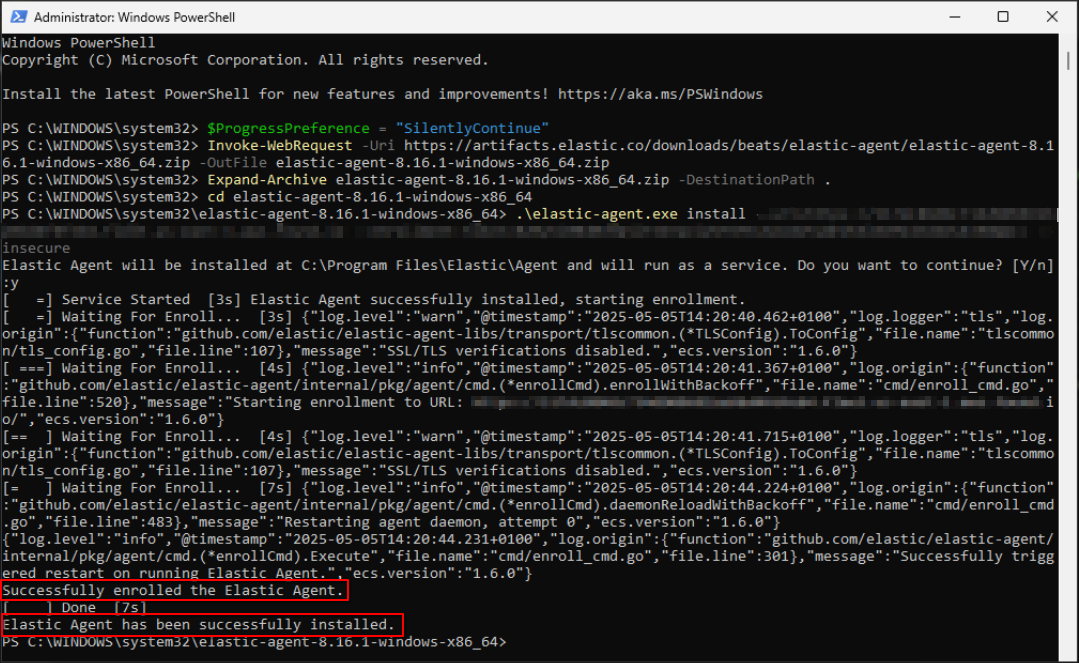
8. Execute the commands displayed in Step 6 as shown in the installation manual. Once the commands are executed successfully, you should see an output similar to the example shown in the image below. Go back to Cytech - Aquila to finish manual installation.
[](https://cytechint-docs-bookstack.s3.amazonaws.com/uploads/images/gallery/2025-05/ItyEDcd3n9c47yvj-image.png)
9. Before you can proceed to the final installation set-up make sure you check off each steps required. Then you can click "**Next**".
[](https://cytechint-docs-bookstack.s3.amazonaws.com/uploads/images/gallery/2025-05/58H9qGBjRXydEDHz-image.png)
10. Allow 3–5 minutes for the Log Collector Agent to complete registration and report its "**Online"** status to the fleet server, indicating a successful installation.
[](https://cytechint-docs-bookstack.s3.amazonaws.com/uploads/images/gallery/2025-05/TTRWWmIEFyFUHjvd-image.png)
11. This step confirms the successful installation and enrollment of the Log Collector Agent with the fleet server. The interface will display the Log Collector host name and the user who performed the installation. Click "**Continue"** to complete the setup process.
[](https://cytechint-docs-bookstack.s3.amazonaws.com/uploads/images/gallery/2025-05/JLbWSv4fLy4c1DCC-image.png)
12. Also you can verify successful installation by going to **Cyber Incident Monitoring>Settings>Log Collector**.
- In the Log Collector List, you can see all the log collector installed. You can also view the Log Collector details such us: **Agent Name, Status and IP address**.
[](https://cytechint-docs-bookstack.s3.amazonaws.com/uploads/images/gallery/2025-04/E17yVLWccJaInPG1-image.png)
*\*\*\*If you encounter **Log Collector Setup Failed**. Please click "Retry" and carefully go gack to Steps 5 or 6. You can also try "**Manual**" installation. If issues persist please contact our technical support at **** for prompt assistance and guidance.*
[](https://cytechint-docs-bookstack.s3.amazonaws.com/uploads/images/gallery/2025-05/CkFgS42mbX7Wxkbp-image.png)
*If you need further assistance, kindly contact our technical support at **** for prompt assistance and guidance.*