# Log Collector Installations

Set up and configure the AQUILA Log Collector with ease to ensure accurate and secure log collection across all your sources. Whether deployed in an agent-based or agentless environment, AQUILA helps you centralize data, enhance visibility, and simplify troubleshooting. Get your Log Collector running smoothly and start making smarter, data-driven security decisions.

# Log Collector Installation - Onboarding "Let's Go" (OLD)

#### <span style="color: rgb(53, 152, 219);">**Log Collector Installation in CyTech - AQUILA**</span>

<span style="color: rgb(0, 0, 0);">This guide outlines the step-by-step process for deploying the **Elastic Agent** as a log collector within the **CyTech - AQUILA** environment. Following these instructions will establish a secure and automated mechanism for log collection and management, enabling centralized visibility and analysis critical to cybersecurity operations.</span>

#### <span style="color: rgb(53, 152, 219);">**Pre-requisites**</span>

1. <span style="color: rgb(0, 0, 0);">**Access to CyTech - AQUILA**</span>
    - <span style="color: rgb(0, 0, 0);">Only users assigned the **"Owner"** or **"Admin"** role can access the Log Collector installation resources within the platform.</span>
2. <span style="color: rgb(0, 0, 0);">**Dedicated Virtual Machine for Log Collector Deployment**</span>
    - <span style="color: rgb(0, 0, 0);">**Dedicated Unit**: It is recommended to use a separate, dedicated VM exclusively for the Log Collector to prevent resource contention and ensure stable performance.</span>
    - <span style="color: rgb(0, 0, 0);">**Virtual Machine (VM) Preferred**: Deploying the Log Collector on a VM offers greater flexibility, scalability, and easier maintenance compared to physical hardware.</span>
    - <span style="color: rgb(0, 0, 0);">**Always Online**: The virtual machine must remain continuously online to ensure uninterrupted log collection from all integrated sources.</span>

<p class="callout info"><span style="color: rgb(0, 0, 0);">For the full Log Collector Hardware Requirements Guide, please refer to this link:<span style="color: rgb(224, 62, 45);"> [Log Collector Hardware Requirements Guide](https://docs.cytechint.io/books/log-collector-installations/page/log-collector-hardware-requirements-guide "Log Collector Hardware Requirements Guide")</span></span></p>

##### **Steps to Add Log Collector**

<span style="color: rgb(0, 0, 0);">Please follow the steps below to add a Log Collector using Windows Environment.</span>

1. <span style="color: rgb(0, 0, 0);">Log in to **CyTech - AQUILA**. Click here: **[AQUILACYBER.AI](https://aquilacyber.ai/)**</span>

- <span style="color: rgb(0, 0, 0);">Click **Collapse** to view side panel. Then navigate through **Domains&gt;Cyber Monitoring&gt;Cyber Incident Management (CIM)&gt;Dashboard**.</span>

[![image.png](https://cytechint-docs-bookstack.s3.amazonaws.com/uploads/images/gallery/2025-06/scaled-1680-/7XSNFwzpOYPFH9L4-image.png)](https://cytechint-docs-bookstack.s3.amazonaws.com/uploads/images/gallery/2025-06/7XSNFwzpOYPFH9L4-image.png)

<span style="color: rgb(0, 0, 0);">2. In the **Cyber Incident Management (CIM) Dashboard**, scroll to the bottom and click the "**<span style="color: rgb(53, 152, 219);">Let’s Go</span>"** button to initiate the Log Collector installation interface.</span>

[![image.png](https://cytechint-docs-bookstack.s3.amazonaws.com/uploads/images/gallery/2025-06/scaled-1680-/YB0Y07lltzhWSdy8-image.png)](https://cytechint-docs-bookstack.s3.amazonaws.com/uploads/images/gallery/2025-06/YB0Y07lltzhWSdy8-image.png)

<span style="color: rgb(0, 0, 0);">3. Once the installation window display is shown, click "<span style="color: rgb(53, 152, 219);">**Next**</span>" to proceed.</span>

[![image.png](https://cytechint-docs-bookstack.s3.amazonaws.com/uploads/images/gallery/2025-04/scaled-1680-/fv6BrPkUqqVpruL3-image.png)](https://cytechint-docs-bookstack.s3.amazonaws.com/uploads/images/gallery/2025-04/fv6BrPkUqqVpruL3-image.png)

<div ccp_infra_copy_id="" ccp_infra_timestamp="1730881565624" ccp_infra_user_hash="1723791988" ccp_infra_version="3" data-ccp-timestamp="1730881565624" id="bkmrk-4.-carefully-review-"><span style="color: rgb(0, 0, 0);">4. Thoroughly review the **System Requirements** specific to your operating system to ensure compatibility and avoid installation or runtime issues. Verifying these prerequisites is essential before proceeding with deployment. Then click "<span style="color: rgb(53, 152, 219);">**Next**</span>".</span></div><p class="callout info"><span style="color: rgb(0, 0, 0);">You can also refer to our documentation manuals for Log Collector Installations Guidelines:<span style="color: rgb(224, 62, 45);"> </span></span><span style="color: rgb(224, 62, 45);">[https://docs.cytechint.io/books/log-collector-installations](https://docs.cytechint.io/books/log-collector-installations "https://docs.cytechint.io/books/log-collector-installations")</span></p>

[![image.png](https://cytechint-docs-bookstack.s3.amazonaws.com/uploads/images/gallery/2025-04/scaled-1680-/cMFarJ014TLfykzx-image.png)](https://cytechint-docs-bookstack.s3.amazonaws.com/uploads/images/gallery/2025-04/cMFarJ014TLfykzx-image.png)

<span style="color: rgb(0, 0, 0);">5. From the options, select the "<span style="color: rgb(53, 152, 219);">**Automatic**</span>" installation option. Then click "<span style="color: rgb(53, 152, 219);">**Next**</span>".</span>

[![image.png](https://cytechint-docs-bookstack.s3.amazonaws.com/uploads/images/gallery/2025-05/scaled-1680-/AQSi4pI6aMzhgE5U-image.png)](https://cytechint-docs-bookstack.s3.amazonaws.com/uploads/images/gallery/2025-05/AQSi4pI6aMzhgE5U-image.png)

<div ccp_infra_copy_id="" ccp_infra_timestamp="1730881819587" ccp_infra_user_hash="1723791988" ccp_infra_version="3" data-ccp-timestamp="1730881819587" id="bkmrk-6.-carefully-follow-"><span style="color: rgb(0, 0, 0);">6.</span> <span style="color: rgb(0, 0, 0);">Carefully follow the instructions for the Automatic Installation.</span></div><span style="color: rgb(0, 0, 0);">6a. Download the Windows Installer.</span>

<div ccp_infra_copy_id="" ccp_infra_timestamp="1730881819587" ccp_infra_user_hash="1723791988" ccp_infra_version="3" data-ccp-timestamp="1730881819587" id="bkmrk-click-on-the-%22downlo">- <span style="color: rgb(0, 0, 0);">Click on the **"<span style="color: rgb(53, 152, 219);">Download Installer</span>"** button to download the Windows MSI Package for Elastic Agent. </span>
- <span style="color: rgb(0, 0, 0);">The URL can also be found on</span> [https://artifacts.elastic.co/downloads/beats/elastic-agent/elastic-agent-8.15.1-windows-x86\_64.msi](https://artifacts.elastic.co/downloads/beats/elastic-agent/elastic-agent-8.15.1-windows-x86_64.msi)

</div>[![image.png](https://cytechint-docs-bookstack.s3.amazonaws.com/uploads/images/gallery/2025-05/scaled-1680-/m7BWhjfRdH8ohzjK-image.png)](https://cytechint-docs-bookstack.s3.amazonaws.com/uploads/images/gallery/2025-05/m7BWhjfRdH8ohzjK-image.png)

<span style="color: rgb(0, 0, 0);">6b. Ensure that the Elastic Agent file is located in your Downloads folder before proceeding.</span>

[![image.png](https://cytechint-docs-bookstack.s3.amazonaws.com/uploads/images/gallery/2025-05/scaled-1680-/vpK02FpDmidLAKOC-image.png)](https://cytechint-docs-bookstack.s3.amazonaws.com/uploads/images/gallery/2025-05/vpK02FpDmidLAKOC-image.png)

<span style="color: rgb(0, 0, 0);">6c. **Copy the commands** provided on the installation page and execute them sequentially to ensure successful execution. These commands are required to complete the log collector installation in the subsequent steps.</span>

[![image.png](https://cytechint-docs-bookstack.s3.amazonaws.com/uploads/images/gallery/2025-05/scaled-1680-/sowVOCRDTrgJf7bk-image.png)](https://cytechint-docs-bookstack.s3.amazonaws.com/uploads/images/gallery/2025-05/sowVOCRDTrgJf7bk-image.png)

<span style="color: rgb(0, 0, 0);">7. In your dedicated environment for your Log Collector, open the **Command Prompt** and run as **Administrator**.</span>

[![image.png](https://cytechint-docs-bookstack.s3.amazonaws.com/uploads/images/gallery/2025-04/scaled-1680-/IvL5O3f5LMaWdvfC-image.png)](https://cytechint-docs-bookstack.s3.amazonaws.com/uploads/images/gallery/2025-04/IvL5O3f5LMaWdvfC-image.png)

<div ccp_infra_copy_id="" ccp_infra_timestamp="1730882195141" ccp_infra_user_hash="1723791988" ccp_infra_version="3" data-ccp-timestamp="1730882195141" id="bkmrk-8.-execute-the-comma"><span style="color: rgb(0, 0, 0);">8. Execute the commands displayed in **Figure 6b** as shown in the manual.</span></div><div ccp_infra_copy_id="" ccp_infra_timestamp="1730882195141" ccp_infra_user_hash="1723791988" ccp_infra_version="3" data-ccp-timestamp="1730882195141" id="bkmrk-for-example-%28elastic">- <span style="color: rgb(0, 0, 0);">For example (elastic-agent-&lt;VERSION&gt;-windows-x86\_64.msi INSTALLARGS="--url=&lt;URL&gt; --enrollment-token=&lt;TOKEN&gt;").</span>
- <span style="color: rgb(0, 0, 0);">Once the commands are executed successfully, you should see an output similar to the example shown in the image below.</span>

</div>[![image.png](https://cytechint-docs-bookstack.s3.amazonaws.com/uploads/images/gallery/2025-05/scaled-1680-/AUgMFbn3c2qfPKWG-image.png)](https://cytechint-docs-bookstack.s3.amazonaws.com/uploads/images/gallery/2025-05/AUgMFbn3c2qfPKWG-image.png)

<span style="color: rgb(0, 0, 0);">8a. **The Elastic Agent installation window will appear.** Check the **“I accept the terms in the license agreement”** box, then click **Install**.</span>  
<span style="color: rgb(0, 0, 0);">Wait for the installation to complete, and then click **Finish**.</span>

<span style="color: rgb(0, 0, 0);">[![image.png](https://cytechint-docs-bookstack.s3.amazonaws.com/uploads/images/gallery/2025-05/scaled-1680-/8ti6ZlQXsr638myL-image.png)](https://cytechint-docs-bookstack.s3.amazonaws.com/uploads/images/gallery/2025-05/8ti6ZlQXsr638myL-image.png)[![image.png](https://cytechint-docs-bookstack.s3.amazonaws.com/uploads/images/gallery/2025-05/scaled-1680-/zS08rBb67HeWDdyj-image.png)](https://cytechint-docs-bookstack.s3.amazonaws.com/uploads/images/gallery/2025-05/zS08rBb67HeWDdyj-image.png)</span>

<span style="color: rgb(0, 0, 0);">9. Before proceeding with the final installation setup, ensure all required steps have been completed by clicking the check box. Once confirmed, click “**Next**” to continue.</span>

[![image.png](https://cytechint-docs-bookstack.s3.amazonaws.com/uploads/images/gallery/2025-05/scaled-1680-/KKTS2UmY4cynKBqc-image.png)](https://cytechint-docs-bookstack.s3.amazonaws.com/uploads/images/gallery/2025-05/KKTS2UmY4cynKBqc-image.png)

<span style="color: rgb(0, 0, 0);">10. Allow 3–5 minutes for the Log Collector Agent to complete registration and report its "**<span style="color: rgb(45, 194, 107);">Online</span>"** status to the fleet server, indicating a successful installation.</span>

[![image.png](https://cytechint-docs-bookstack.s3.amazonaws.com/uploads/images/gallery/2025-04/scaled-1680-/vXy84bmBUjBhNmPg-image.png)](https://cytechint-docs-bookstack.s3.amazonaws.com/uploads/images/gallery/2025-04/vXy84bmBUjBhNmPg-image.png)

<span style="color: rgb(0, 0, 0);">11. This step confirms the successful installation and enrollment of the Log Collector Agent with the fleet server. The interface will display the Log Collector host name and the user who performed the installation. Click "**<span style="color: rgb(53, 152, 219);">Continue</span>"** to complete the setup process.</span>

[![image.png](https://cytechint-docs-bookstack.s3.amazonaws.com/uploads/images/gallery/2025-04/scaled-1680-/QV0YRCuqiPqQjtAr-image.png)](https://cytechint-docs-bookstack.s3.amazonaws.com/uploads/images/gallery/2025-04/QV0YRCuqiPqQjtAr-image.png)

<span style="color: rgb(0, 0, 0);">12. Also you can verify successful installation by going to **Cyber Incident Monitoring&gt;Settings&gt;Log Collector**.</span>

- <span style="color: rgb(0, 0, 0);">In the Log Collector List, you can see all the log collector installed. You can also view the Log Collector details such us: **Agent Name, Status and IP address**.</span>

[![image.png](https://cytechint-docs-bookstack.s3.amazonaws.com/uploads/images/gallery/2025-04/scaled-1680-/E17yVLWccJaInPG1-image.png)](https://cytechint-docs-bookstack.s3.amazonaws.com/uploads/images/gallery/2025-04/E17yVLWccJaInPG1-image.png)

<p class="callout warning">*\*\*\*If you encounter <span style="color: rgb(224, 62, 45);">**Log Collector Setup Failed**</span>. Please click "Retry" and carefully go gack to Steps 5 or 6. You can also try "**Manual**" installation. If issues persist please contact our technical support at **<support@cytechint.com>** for prompt assistance and guidance.*</p>

[![image.png](https://cytechint-docs-bookstack.s3.amazonaws.com/uploads/images/gallery/2025-04/scaled-1680-/uEYotwkAJTB5YZKK-image.png)](https://cytechint-docs-bookstack.s3.amazonaws.com/uploads/images/gallery/2025-04/uEYotwkAJTB5YZKK-image.png)

 *If you need further assistance, kindly contact our technical support at **<support@cytechint.com>** for prompt assistance and guidance.*

# Log Collector Installation - Windows Automatic (OLD)

#### <span style="color: rgb(53, 152, 219);"> **Log Collector Installation in CyTech - Aquila**</span>

<span style="color: rgb(0, 0, 0);">This guide outlines the step-by-step process for deploying the **Elastic Agent** as a log collector within the **CyTech - Aquila** environment. Following these instructions will establish a secure and automated mechanism for log collection and management, enabling centralized visibility and analysis critical to cybersecurity operations.</span>

#### <span style="color: rgb(53, 152, 219);">**Pre-requisites**</span>

1. <span style="color: rgb(0, 0, 0);">**Access to CyTech - Aquila**</span>
    - <span style="color: rgb(0, 0, 0);">Only users assigned the **"Owner"** or **"Admin"** role can access the Log Collector installation resources within the platform.</span>
2. <span style="color: rgb(0, 0, 0);">**Dedicated Virtual Machine for Log Collector Deployment**</span>
    - <span style="color: rgb(0, 0, 0);">**Dedicated Unit**: It is recommended to use a separate, dedicated VM exclusively for the Log Collector to prevent resource contention and ensure stable performance.</span>
    - <span style="color: rgb(0, 0, 0);">**Virtual Machine (VM) Preferred**: Deploying the Log Collector on a VM offers greater flexibility, scalability, and easier maintenance compared to physical hardware.</span>
    - <span style="color: rgb(0, 0, 0);">**Always Online**: The virtual machine must remain continuously online to ensure uninterrupted log collection from all integrated sources.</span>

<p class="callout info"><span style="color: rgb(0, 0, 0);">For the full Log Collector Hardware Requirements Guide, please refer to this link:<span style="color: rgb(224, 62, 45);"> [Log Collector Hardware Requirements Guide](https://docs.cytechint.io/books/log-collector-installations/page/log-collector-hardware-requirements-guide "Log Collector Hardware Requirements Guide")</span></span></p>

##### **Steps to Add Log Collector**

<span style="color: rgb(0, 0, 0);">Please follow the steps below to add a Log Collector using Windows Environment.</span>

<span style="color: rgb(0, 0, 0);">1. Log in to AQUILA click here - <span style="color: rgb(53, 152, 219);">**[CyTech - AQUILA](https://cytechint.io/)**</span>. Choose **Cyber Monitoring** and click the **small arrow icon** to redirect you to the Cyber Monitoring Dashboard.</span>

<span style="color: rgb(0, 0, 0);">[![image.png](https://cytechint-docs-bookstack.s3.amazonaws.com/uploads/images/gallery/2025-05/scaled-1680-/QUruqc4qZzjj39A2-image.png)](https://cytechint-docs-bookstack.s3.amazonaws.com/uploads/images/gallery/2025-05/QUruqc4qZzjj39A2-image.png)</span>

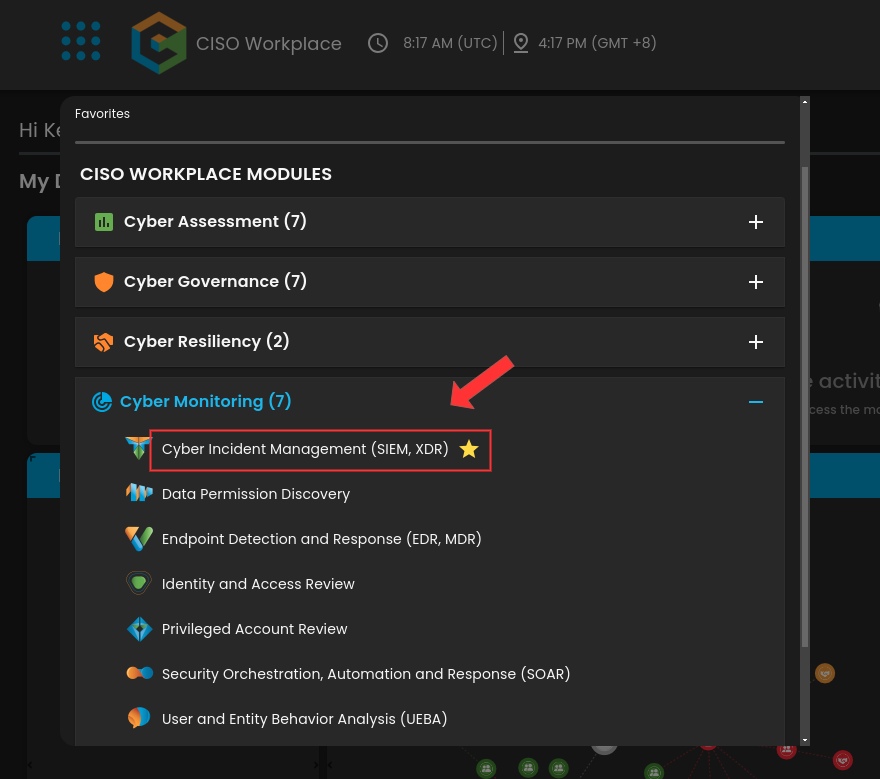
<span style="color: rgb(0, 0, 0);">2. In the dashboard, choose **Cyber Incident Management (SIEM and XDR)**.</span>

<span style="color: rgb(0, 0, 0);">[![image.png](https://cytechint-docs-bookstack.s3.amazonaws.com/uploads/images/gallery/2025-05/scaled-1680-/i68EMO7YfIStKeyl-image.png)](https://cytechint-docs-bookstack.s3.amazonaws.com/uploads/images/gallery/2025-05/i68EMO7YfIStKeyl-image.png)</span>

<span style="color: rgb(0, 0, 0);">3. Navigate through the leftmost top and click **Cyber Incident Monitoring**.</span>

<span style="color: rgb(0, 0, 0);">[![image.png](https://cytechint-docs-bookstack.s3.amazonaws.com/uploads/images/gallery/2025-05/scaled-1680-/KgRo0wYa67PKNCws-image.png)](https://cytechint-docs-bookstack.s3.amazonaws.com/uploads/images/gallery/2025-05/KgRo0wYa67PKNCws-image.png)</span>

<span style="color: rgb(0, 0, 0);">3. Navigate to the Log Collector section and click the '</span>**Add Log Collector**<span style="color: rgb(0, 0, 0);">' button to launch the installation interface.</span>

[![image.png](https://cytechint-docs-bookstack.s3.amazonaws.com/uploads/images/gallery/2025-05/scaled-1680-/wjGyuwkD02sNX5JG-image.png)](https://cytechint-docs-bookstack.s3.amazonaws.com/uploads/images/gallery/2025-05/wjGyuwkD02sNX5JG-image.png)

<div ccp_infra_copy_id="" ccp_infra_timestamp="1730881565624" ccp_infra_user_hash="1723791988" ccp_infra_version="3" data-ccp-timestamp="1730881565624" id="bkmrk-4.-carefully-review-"><span style="color: rgb(0, 0, 0);">4. Once the installation window display is shown, thoroughly review the System Requirements specific to your operating system to ensure compatibility and avoid installation or runtime issues. Verifying these prerequisites is essential before proceeding with deployment. Then click '**Next**'.</span></div><p class="callout info">You can also refer to our documentation manuals for Log Collector Installations Guidelines: [https://docs.cytechint.io/books/log-collector-installations](https://docs.cytechint.io/books/log-collector-installations "https://docs.cytechint.io/books/log-collector-installations")</p>

[![image.png](https://cytechint-docs-bookstack.s3.amazonaws.com/uploads/images/gallery/2025-05/scaled-1680-/4651RxjfXk7UmqGj-image.png)](https://cytechint-docs-bookstack.s3.amazonaws.com/uploads/images/gallery/2025-05/4651RxjfXk7UmqGj-image.png)

<span style="color: rgb(0, 0, 0);">5. From the options, select the '**Automatic'** installation option. Then click '**Next'**.</span>

[![image.png](https://cytechint-docs-bookstack.s3.amazonaws.com/uploads/images/gallery/2025-05/scaled-1680-/AQSi4pI6aMzhgE5U-image.png)](https://cytechint-docs-bookstack.s3.amazonaws.com/uploads/images/gallery/2025-05/AQSi4pI6aMzhgE5U-image.png)

<div ccp_infra_copy_id="" ccp_infra_timestamp="1730881819587" ccp_infra_user_hash="1723791988" ccp_infra_version="3" data-ccp-timestamp="1730881819587" id="bkmrk-6.-carefully-follow-"><span style="color: rgb(0, 0, 0);">6.</span> <span style="color: rgb(0, 0, 0);">Carefully follow the instructions for the Automatic Installation.</span></div><span style="color: rgb(0, 0, 0);">6a. Download the Windows Installer.</span>

<div ccp_infra_copy_id="" ccp_infra_timestamp="1730881819587" ccp_infra_user_hash="1723791988" ccp_infra_version="3" data-ccp-timestamp="1730881819587" id="bkmrk-click-on-the-%22downlo">- <span style="color: rgb(0, 0, 0);">Click on the **"<span style="color: rgb(53, 152, 219);">Download Installer</span>"** button to download the Windows MSI Package for Elastic Agent. </span>
- <span style="color: rgb(0, 0, 0);">The URL can also be found on</span> [https://artifacts.elastic.co/downloads/beats/elastic-agent/elastic-agent-8.15.1-windows-x86\_64.msi](https://artifacts.elastic.co/downloads/beats/elastic-agent/elastic-agent-8.15.1-windows-x86_64.msi)

</div>[![image.png](https://cytechint-docs-bookstack.s3.amazonaws.com/uploads/images/gallery/2025-05/scaled-1680-/m7BWhjfRdH8ohzjK-image.png)](https://cytechint-docs-bookstack.s3.amazonaws.com/uploads/images/gallery/2025-05/m7BWhjfRdH8ohzjK-image.png)

<span style="color: rgb(0, 0, 0);">6b. Ensure that the Elastic Agent file is located in your Downloads folder before proceeding.</span>

[![image.png](https://cytechint-docs-bookstack.s3.amazonaws.com/uploads/images/gallery/2025-05/scaled-1680-/vpK02FpDmidLAKOC-image.png)](https://cytechint-docs-bookstack.s3.amazonaws.com/uploads/images/gallery/2025-05/vpK02FpDmidLAKOC-image.png)

<span style="color: rgb(0, 0, 0);">6c. **Copy the commands** provided on the installation page and execute them sequentially to ensure successful execution. These commands are required to complete the log collector installation in the subsequent steps.</span>

[![image.png](https://cytechint-docs-bookstack.s3.amazonaws.com/uploads/images/gallery/2025-05/scaled-1680-/sowVOCRDTrgJf7bk-image.png)](https://cytechint-docs-bookstack.s3.amazonaws.com/uploads/images/gallery/2025-05/sowVOCRDTrgJf7bk-image.png)

<span style="color: rgb(0, 0, 0);">7. In your dedicated environment for your Log Collector, open the **Command Prompt** and run as **Administrator**.</span>

[![image.png](https://cytechint-docs-bookstack.s3.amazonaws.com/uploads/images/gallery/2025-04/scaled-1680-/IvL5O3f5LMaWdvfC-image.png)](https://cytechint-docs-bookstack.s3.amazonaws.com/uploads/images/gallery/2025-04/IvL5O3f5LMaWdvfC-image.png)

<div ccp_infra_copy_id="" ccp_infra_timestamp="1730882195141" ccp_infra_user_hash="1723791988" ccp_infra_version="3" data-ccp-timestamp="1730882195141" id="bkmrk-8.-execute-the-comma"><span style="color: rgb(0, 0, 0);">8. Execute the commands displayed in **Figure 6b** as shown in the manual.</span></div><div ccp_infra_copy_id="" ccp_infra_timestamp="1730882195141" ccp_infra_user_hash="1723791988" ccp_infra_version="3" data-ccp-timestamp="1730882195141" id="bkmrk-for-example-%28elastic">- <span style="color: rgb(0, 0, 0);">For example (elastic-agent-&lt;VERSION&gt;-windows-x86\_64.msi INSTALLARGS="--url=&lt;URL&gt; --enrollment-token=&lt;TOKEN&gt;").</span>
- <span style="color: rgb(0, 0, 0);">Once the commands are executed successfully, you should see an output similar to the example shown in the image below.</span>

</div>[![image.png](https://cytechint-docs-bookstack.s3.amazonaws.com/uploads/images/gallery/2025-05/scaled-1680-/AUgMFbn3c2qfPKWG-image.png)](https://cytechint-docs-bookstack.s3.amazonaws.com/uploads/images/gallery/2025-05/AUgMFbn3c2qfPKWG-image.png)

<span style="color: rgb(0, 0, 0);">8a. **The Elastic Agent installation window will appear.** Check the **“I accept the terms in the license agreement”** box, then click **Install**.</span>  
<span style="color: rgb(0, 0, 0);">Wait for the installation to complete, and then click **Finish**.</span>

<span style="color: rgb(0, 0, 0);">[![image.png](https://cytechint-docs-bookstack.s3.amazonaws.com/uploads/images/gallery/2025-05/scaled-1680-/8ti6ZlQXsr638myL-image.png)](https://cytechint-docs-bookstack.s3.amazonaws.com/uploads/images/gallery/2025-05/8ti6ZlQXsr638myL-image.png)[![image.png](https://cytechint-docs-bookstack.s3.amazonaws.com/uploads/images/gallery/2025-05/scaled-1680-/zS08rBb67HeWDdyj-image.png)](https://cytechint-docs-bookstack.s3.amazonaws.com/uploads/images/gallery/2025-05/zS08rBb67HeWDdyj-image.png)</span>

<span style="color: rgb(0, 0, 0);">9. Before proceeding with the final installation setup, ensure all required steps have been completed by clicking the check box. Once confirmed, click “**Next**” to continue.</span>

[![image.png](https://cytechint-docs-bookstack.s3.amazonaws.com/uploads/images/gallery/2025-05/scaled-1680-/KKTS2UmY4cynKBqc-image.png)](https://cytechint-docs-bookstack.s3.amazonaws.com/uploads/images/gallery/2025-05/KKTS2UmY4cynKBqc-image.png)

<span style="color: rgb(0, 0, 0);">10. Allow 3–5 minutes for the Log Collector Agent to complete registration and report its "**<span style="color: rgb(45, 194, 107);">Online</span>"** status to the fleet server, indicating a successful installation.</span>

[![image.png](https://cytechint-docs-bookstack.s3.amazonaws.com/uploads/images/gallery/2025-05/scaled-1680-/TTRWWmIEFyFUHjvd-image.png)](https://cytechint-docs-bookstack.s3.amazonaws.com/uploads/images/gallery/2025-05/TTRWWmIEFyFUHjvd-image.png)

<span style="color: rgb(0, 0, 0);">11. This step confirms the successful installation and enrollment of the Log Collector Agent with the fleet server. The interface will display the Log Collector host name and the user who performed the installation. Click "**<span style="color: rgb(53, 152, 219);">Continue</span>"** to complete the setup process.</span>

[![image.png](https://cytechint-docs-bookstack.s3.amazonaws.com/uploads/images/gallery/2025-05/scaled-1680-/JLbWSv4fLy4c1DCC-image.png)](https://cytechint-docs-bookstack.s3.amazonaws.com/uploads/images/gallery/2025-05/JLbWSv4fLy4c1DCC-image.png)

<span style="color: rgb(0, 0, 0);">12. Also you can verify successful installation by going to **Cyber Incident Monitoring&gt;Settings&gt;Log Collector**.</span>

- <span style="color: rgb(0, 0, 0);">In the Log Collector List, you can see all the log collector installed. You can also view the Log Collector details such us: **Agent Name, Status and IP address**.</span>

[![image.png](https://cytechint-docs-bookstack.s3.amazonaws.com/uploads/images/gallery/2025-04/scaled-1680-/E17yVLWccJaInPG1-image.png)](https://cytechint-docs-bookstack.s3.amazonaws.com/uploads/images/gallery/2025-04/E17yVLWccJaInPG1-image.png)

<p class="callout warning">*\*\*\*If you encounter <span style="color: rgb(224, 62, 45);">**Log Collector Setup Failed**</span>. Please click "Retry" and carefully go gack to Steps 5 or 6. You can also try "**Manual**" installation. If issues persist please contact our technical support at **<support@cytechint.com>** for prompt assistance and guidance.*</p>

[![image.png](https://cytechint-docs-bookstack.s3.amazonaws.com/uploads/images/gallery/2025-05/scaled-1680-/CkFgS42mbX7Wxkbp-image.png)](https://cytechint-docs-bookstack.s3.amazonaws.com/uploads/images/gallery/2025-05/CkFgS42mbX7Wxkbp-image.png)

 *If you need further assistance, kindly contact our technical support at **<support@cytechint.com>** for prompt assistance and guidance.*

# Log Collector Installation - Windows Manual

#### <span style="color: rgb(0, 0, 0);">**Log Collector Installation in CyTech - Aquila**</span>

<span style="color: rgb(0, 0, 0);">This guide outlines the step-by-step process for deploying the **Elastic Agent** as a log collector within the **CyTech - Aquila** environment. Following these instructions will establish a secure and automated mechanism for log collection and management, enabling centralized visibility and analysis critical to cybersecurity operations.</span>

#### <span style="color: rgb(0, 0, 0);">**Pre-requisites**</span>

1. <span style="color: rgb(0, 0, 0);">**Access to CyTech - Aquila**</span>
    - <span style="color: rgb(0, 0, 0);">Only users assigned the **"Owner"** or **"Admin"** role can access the Log Collector installation resources within the platform.</span>
2. <span style="color: rgb(0, 0, 0);">**Dedicated Virtual Machine for Log Collector Deployment**</span>
    - <span style="color: rgb(0, 0, 0);">**Dedicated Unit**: It is recommended to use a separate, dedicated VM exclusively for the Log Collector to prevent resource contention and ensure stable performance.</span>
    - <span style="color: rgb(0, 0, 0);">**Virtual Machine (VM) Preferred**: Deploying the Log Collector on a VM offers greater flexibility, scalability, and easier maintenance compared to physical hardware.</span>
    - <span style="color: rgb(0, 0, 0);">**Always Online**: The virtual machine must remain continuously online to ensure uninterrupted log collection from all integrated sources.</span>

<p class="callout info">For the full Log Collector Hardware Requirements Guide, please refer to this link: [Log Collector Hardware Requirements Guide](https://docs.cytechint.io/books/log-collector-installations/page/log-collector-hardware-requirements-guide "Log Collector Hardware Requirements Guide")</p>

##### <span style="color: rgb(0, 0, 0);">**Steps to Add Log Collector**</span>

<span style="color: rgb(0, 0, 0);">Please follow the steps below to add a Log Collector using Windows Environment.</span>

1. <span style="color: rgb(0, 0, 0);">Log in to **CyTech - AQUILA**. Click here:</span> **[AQUILACYBER.AI](https://aquilacyber.ai/)**

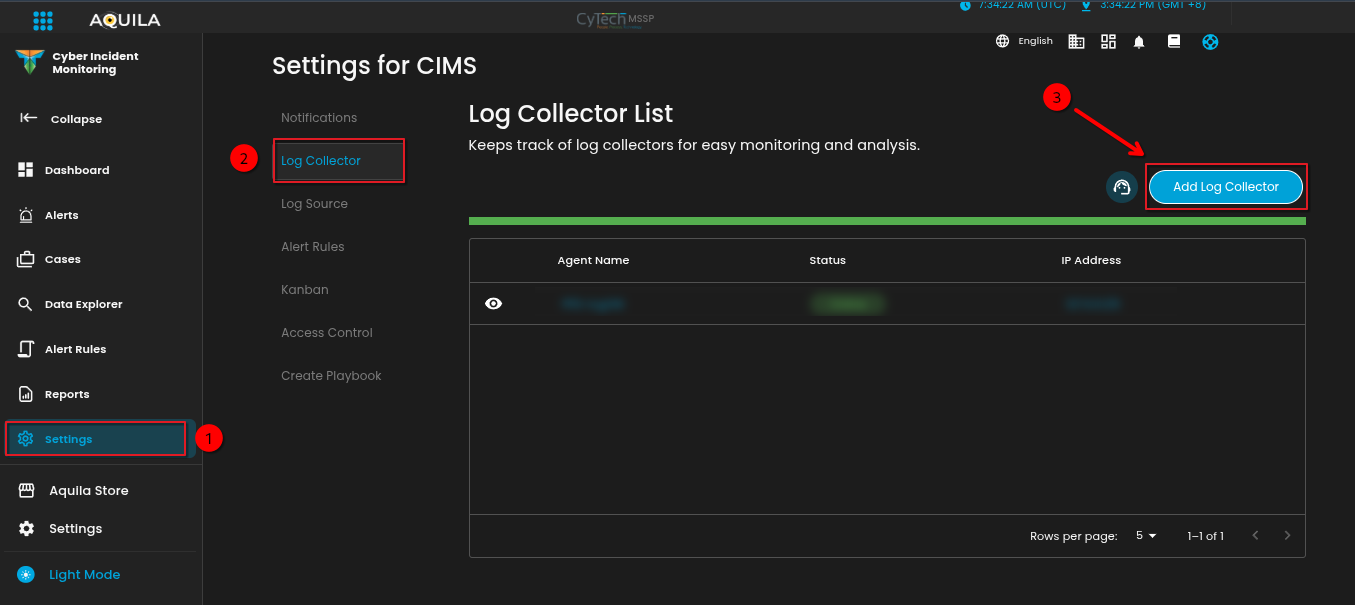
- <span style="color: rgb(0, 0, 0);">Click **Collapse** to view side panel. Then navigate through **Domains&gt;Cyber Monitoring&gt;Cyber Incident Management (CIM)&gt;Settings**.</span>

[![image.png](https://cytechint-docs-bookstack.s3.amazonaws.com/uploads/images/gallery/2025-06/scaled-1680-/hmguGlhuEq3VHpnb-image.png)](https://cytechint-docs-bookstack.s3.amazonaws.com/uploads/images/gallery/2025-06/hmguGlhuEq3VHpnb-image.png)

<span style="color: rgb(0, 0, 0);">2. Navigate to the Log Collector section and click the '**Add Log Collector**' button to launch the installation interface.</span>

[![image.png](https://cytechint-docs-bookstack.s3.amazonaws.com/uploads/images/gallery/2025-06/scaled-1680-/sPXPArzmE35GPM7i-image.png)](https://cytechint-docs-bookstack.s3.amazonaws.com/uploads/images/gallery/2025-06/sPXPArzmE35GPM7i-image.png)

<span style="color: rgb(0, 0, 0);">3. Once the installation window display is shown, thoroughly review the **System Requirements** specific to your operating system to ensure compatibility and avoid installation or runtime issues. Verifying these prerequisites is essential before proceeding with deployment. Then click "**Next**".</span>


<p class="callout info">You can also refer to our documentation manuals for Log Collector Installations Guidelines: [https://docs.cytechint.io/books/log-collector-installations](https://docs.cytechint.io/books/log-collector-installations "https://docs.cytechint.io/books/log-collector-installations")</p>

[![image.png](https://cytechint-docs-bookstack.s3.amazonaws.com/uploads/images/gallery/2025-05/scaled-1680-/4651RxjfXk7UmqGj-image.png)](https://cytechint-docs-bookstack.s3.amazonaws.com/uploads/images/gallery/2025-05/4651RxjfXk7UmqGj-image.png)

<span style="color: rgb(0, 0, 0);">5. From the options, select the "**Manual**" installation option. Then click "**Next**".</span>

[![image.png](https://cytechint-docs-bookstack.s3.amazonaws.com/uploads/images/gallery/2025-05/scaled-1680-/9zadBjhTVstIdIng-image.png)](https://cytechint-docs-bookstack.s3.amazonaws.com/uploads/images/gallery/2025-05/9zadBjhTVstIdIng-image.png)

<div ccp_infra_copy_id="" ccp_infra_timestamp="1730881819587" ccp_infra_user_hash="1723791988" ccp_infra_version="3" data-ccp-timestamp="1730881819587" id="bkmrk-6.-carefully-follow-"><span style="color: rgb(0, 0, 0);">6. Carefully follow the instructions for the Manual Installation. **Copy the commands** provided on the installation page and execute them sequentially to ensure successful execution. These commands are required to complete the log collector installation in the subsequent steps.</span></div>[![image.png](https://cytechint-docs-bookstack.s3.amazonaws.com/uploads/images/gallery/2025-05/scaled-1680-/j95N9TRIRDmIfEXS-image.png)](https://cytechint-docs-bookstack.s3.amazonaws.com/uploads/images/gallery/2025-05/j95N9TRIRDmIfEXS-image.png)

<span style="color: rgb(0, 0, 0);">7. In your dedicated environment for your Log Collector, open the **Windows Powershell** and run as **Administrator**.</span>

[![image.png](https://cytechint-docs-bookstack.s3.amazonaws.com/uploads/images/gallery/2025-05/scaled-1680-/AR9a0aG0RFUFRhIb-image.png)](https://cytechint-docs-bookstack.s3.amazonaws.com/uploads/images/gallery/2025-05/AR9a0aG0RFUFRhIb-image.png)

<div ccp_infra_copy_id="" ccp_infra_timestamp="1730882195141" ccp_infra_user_hash="1723791988" ccp_infra_version="3" data-ccp-timestamp="1730882195141" id="bkmrk-8.-execute-the-comma"><span style="color: rgb(0, 0, 0);">8. Execute the commands displayed in Step 6 as shown in the installation manual. Once the commands are executed successfully, you should see an output similar to the example shown in the image below. Go back to Cytech - Aquila to finish manual installation.</span>  
</div>[![image.png](https://cytechint-docs-bookstack.s3.amazonaws.com/uploads/images/gallery/2025-05/scaled-1680-/ItyEDcd3n9c47yvj-image.png)](https://cytechint-docs-bookstack.s3.amazonaws.com/uploads/images/gallery/2025-05/ItyEDcd3n9c47yvj-image.png)

<span style="color: rgb(0, 0, 0);">9. Before you can proceed to the final installation set-up make sure you check off each steps required. Then you can click "**Next**".</span>

[![image.png](https://cytechint-docs-bookstack.s3.amazonaws.com/uploads/images/gallery/2025-05/scaled-1680-/58H9qGBjRXydEDHz-image.png)](https://cytechint-docs-bookstack.s3.amazonaws.com/uploads/images/gallery/2025-05/58H9qGBjRXydEDHz-image.png)

<span style="color: rgb(0, 0, 0);">10. Allow 3–5 minutes for the Log Collector Agent to complete registration and report its "**Online"** status to the fleet server, indicating a successful installation.</span>

[![image.png](https://cytechint-docs-bookstack.s3.amazonaws.com/uploads/images/gallery/2025-05/scaled-1680-/TTRWWmIEFyFUHjvd-image.png)](https://cytechint-docs-bookstack.s3.amazonaws.com/uploads/images/gallery/2025-05/TTRWWmIEFyFUHjvd-image.png)

<span style="color: rgb(0, 0, 0);">11. This step confirms the successful installation and enrollment of the Log Collector Agent with the fleet server. The interface will display the Log Collector host name and the user who performed the installation. Click "**Continue"** to complete the setup process.</span>

[![image.png](https://cytechint-docs-bookstack.s3.amazonaws.com/uploads/images/gallery/2025-05/scaled-1680-/JLbWSv4fLy4c1DCC-image.png)](https://cytechint-docs-bookstack.s3.amazonaws.com/uploads/images/gallery/2025-05/JLbWSv4fLy4c1DCC-image.png)

<span style="color: rgb(0, 0, 0);">12. Also you can verify successful installation by going to **Cyber Incident Monitoring&gt;Settings&gt;Log Collector**.</span>

- <span style="color: rgb(0, 0, 0);">In the Log Collector List, you can see all the log collector installed. You can also view the Log Collector details such us: **Agent Name, Status and IP address**.</span>

[![image.png](https://cytechint-docs-bookstack.s3.amazonaws.com/uploads/images/gallery/2025-04/scaled-1680-/E17yVLWccJaInPG1-image.png)](https://cytechint-docs-bookstack.s3.amazonaws.com/uploads/images/gallery/2025-04/E17yVLWccJaInPG1-image.png)

<p class="callout warning">*\*\*\*If you encounter **Log Collector Setup Failed**. Please click "Retry" and carefully go gack to Steps 5 or 6. You can also try "**Manual**" installation. If issues persist please contact our technical support at **<support@cytechint.com>** for prompt assistance and guidance.*</p>

[![image.png](https://cytechint-docs-bookstack.s3.amazonaws.com/uploads/images/gallery/2025-05/scaled-1680-/CkFgS42mbX7Wxkbp-image.png)](https://cytechint-docs-bookstack.s3.amazonaws.com/uploads/images/gallery/2025-05/CkFgS42mbX7Wxkbp-image.png)

 *If you need further assistance, kindly contact our technical support at **<support@cytechint.com>** for prompt assistance and guidance.*

# Restart Log Collector Agent - Windows

<p class="callout info">**<span style="color: rgb(0, 0, 0);">Brief Description</span>**  
**<span style="color: rgb(0, 0, 0);">The Log Collector Agent is a single, unified tool that simplifies adding monitoring capabilities to your</span>**  
**<span style="color: rgb(0, 0, 0);">systems. It can collect various data types, including logs, metrics, and security</span>**  
**<span style="color: rgb(0, 0, 0);">information, from your hosts.</span>**</p>

<p class="callout success">  
<span style="color: rgb(0, 0, 0);">Locating Log Collector Agent Service</span>  
<span style="color: rgb(0, 0, 0);">1.Task Manager</span>  
<span style="color: rgb(0, 0, 0);">Open Task Manager, press Win + Q or use Windows search for searching “Task Manager”</span></p>

<span style="color: rgb(0, 0, 0);">[![image.png](https://cytechint-docs-bookstack.s3.amazonaws.com/uploads/images/gallery/2025-05/scaled-1680-/28Kes96XIgS756qt-image.png)](https://cytechint-docs-bookstack.s3.amazonaws.com/uploads/images/gallery/2025-05/28Kes96XIgS756qt-image.png)</span>

<p class="callout success"><span style="color: rgb(0, 0, 0);">After opening the Task Manager, locate and press the Services button on the Left side of the Task</span>  
<span style="color: rgb(0, 0, 0);">Manager. </span><span style="color: rgb(0, 0, 0);">At the uppermost of the Task Manager, there will be a search bar to filter and search the Services in</span>  
<span style="color: rgb(0, 0, 0);">your System. Just type elastic agent.</span></p>

<span style="color: rgb(0, 0, 0);">[![image.png](https://cytechint-docs-bookstack.s3.amazonaws.com/uploads/images/gallery/2025-05/scaled-1680-/EHGbish7aA3QwxyI-image.png)](https://cytechint-docs-bookstack.s3.amazonaws.com/uploads/images/gallery/2025-05/EHGbish7aA3QwxyI-image.png)</span>

<p class="callout success"><span style="color: rgb(0, 0, 0);">After filtering the Services, you will notice two Elastic Services, choose only the “Elastic Agent”</span>  
<span style="color: rgb(0, 0, 0);">service. To restart the service, use the right click on your mouse to “restart” the service.</span></p>

<span style="color: rgb(0, 0, 0);">[![image.png](https://cytechint-docs-bookstack.s3.amazonaws.com/uploads/images/gallery/2025-05/scaled-1680-/8BbCnpylr8dABKki-image.png)](https://cytechint-docs-bookstack.s3.amazonaws.com/uploads/images/gallery/2025-05/8BbCnpylr8dABKki-image.png)</span>

# Log Collector Installation - Linux Manual

#### <span style="color: rgb(0, 0, 0);">**Log Collector Installation in CyTech - AQUILA**</span>

<span style="color: rgb(0, 0, 0);">This guide outlines the step-by-step process for deploying the **Elastic Agent** as a log collector within the **CyTech - AQUILA** environment. Following these instructions will establish a secure and automated mechanism for log collection and management, enabling centralized visibility and analysis critical to cybersecurity operations.</span>

#### <span style="color: rgb(0, 0, 0);">**Pre-requisites**</span>

1. <span style="color: rgb(0, 0, 0);">**Access to CyTech - AQUILA**</span>
    - <span style="color: rgb(0, 0, 0);">Only users assigned the **"Owner"** or **"Admin"** role can access the Log Collector installation resources within the platform.</span>
2. <span style="color: rgb(0, 0, 0);">**Dedicated Virtual Machine for Log Collector Deployment**</span>
    - <span style="color: rgb(0, 0, 0);">**Dedicated Unit**: It is recommended to use a separate, dedicated VM exclusively for the Log Collector to prevent resource contention and ensure stable performance.</span>
    - <span style="color: rgb(0, 0, 0);">**Virtual Machine (VM) Preferred**: Deploying the Log Collector on a VM offers greater flexibility, scalability, and easier maintenance compared to physical hardware.</span>
    - <span style="color: rgb(0, 0, 0);">**Always Online**: The virtual machine must remain continuously online to ensure uninterrupted log collection from all integrated sources.</span>

<p class="callout info">For the full Log Collector Hardware Requirements Guide, please refer to this link: [Log Collector Hardware Requirements Guide](https://docs.cytechint.io/books/log-collector-installations/page/log-collector-hardware-requirements-guide "Log Collector Hardware Requirements Guide")</p>

##### <span style="color: rgb(0, 0, 0);">**Steps to Add Log Collector**</span>

<span style="color: rgb(0, 0, 0);">Please follow the steps below to add a Log Collector using Linux Environment.</span>

1. <span style="color: rgb(0, 0, 0);">Log in to **CyTech - AQUILA**. Click here:</span> **[usdc.cytechint.io](https://usdc.cytechint.io/)**

- <span style="color: rgb(0, 0, 0);">Click **Collapse** to view side panel. Then navigate through **Domains&gt;Cyber Monitoring&gt;Cyber Incident Management (CIM)&gt;Settings**.</span>

[![image.png](https://cytechint-docs-bookstack.s3.amazonaws.com/uploads/images/gallery/2025-06/scaled-1680-/7YXKou38EqMVz9Wg-image.png)](https://cytechint-docs-bookstack.s3.amazonaws.com/uploads/images/gallery/2025-06/7YXKou38EqMVz9Wg-image.png)

<span style="color: rgb(0, 0, 0);">2. Navigate to the Log Collector section and click the '**Add Log Collector**' button to launch the installation interface.</span>

[![image.png](https://cytechint-docs-bookstack.s3.amazonaws.com/uploads/images/gallery/2025-06/scaled-1680-/HG4f71ZaFwULUkR2-image.png)](https://cytechint-docs-bookstack.s3.amazonaws.com/uploads/images/gallery/2025-06/HG4f71ZaFwULUkR2-image.png)

<div ccp_infra_copy_id="" ccp_infra_timestamp="1730881565624" ccp_infra_user_hash="1723791988" ccp_infra_version="3" data-ccp-timestamp="1730881565624" id="bkmrk-4.-carefully-review-"><span style="color: rgb(0, 0, 0);">3. Once the installation window display is shown, thoroughly review the **System Requirements** specific to your operating system to ensure compatibility and avoid installation or runtime issues. Verifying these prerequisites is essential before proceeding with deployment. Then click "**Next**".</span></div><p class="callout info">You can also refer to our documentation manuals for Log Collector Installations Guidelines: [https://docs.cytechint.io/books/log-collector-installations](https://docs.cytechint.io/books/log-collector-installations "https://docs.cytechint.io/books/log-collector-installations")</p>

[![image.png](https://cytechint-docs-bookstack.s3.amazonaws.com/uploads/images/gallery/2025-05/scaled-1680-/FjQzqzzkCCW9OUxP-image.png)](https://cytechint-docs-bookstack.s3.amazonaws.com/uploads/images/gallery/2025-05/FjQzqzzkCCW9OUxP-image.png)

<span style="color: rgb(0, 0, 0);">4. From the options, select the "**Manual**" installation option. Then click "**Next**".</span>

[![image.png](https://cytechint-docs-bookstack.s3.amazonaws.com/uploads/images/gallery/2025-05/scaled-1680-/9zadBjhTVstIdIng-image.png)](https://cytechint-docs-bookstack.s3.amazonaws.com/uploads/images/gallery/2025-05/9zadBjhTVstIdIng-image.png)

<div ccp_infra_copy_id="" ccp_infra_timestamp="1730881819587" ccp_infra_user_hash="1723791988" ccp_infra_version="3" data-ccp-timestamp="1730881819587" id="bkmrk-6.-carefully-follow-"><span style="color: rgb(0, 0, 0);">5. Carefully follow the instructions for the Manual Installation.</span></div><div ccp_infra_copy_id="" ccp_infra_timestamp="1730881819587" ccp_infra_user_hash="1723791988" ccp_infra_version="3" data-ccp-timestamp="1730881819587" id="bkmrk-linux-distributions-">- <span style="color: rgb(0, 0, 0);">**Linux Distributions** - choose versions of the Linux operating system.</span>
- <span style="color: rgb(0, 0, 0);">**Choose CPU Architecture**</span>
    - <span style="color: rgb(0, 0, 0);">x86\_64 Architecture: Intel and AMD, x86\_64 is an extension of the x86 architecture, providing 64-bit computing capabilities.</span>
    - <span style="color: rgb(0, 0, 0);">aarch64 Architecture: ARM architecture, specifically Apple's custom-designed ARM-based processors known as Apple Silicon (M1, M1 Pro, M1 Max, M1 Ultra, and M2 chips).</span>
- <span style="color: rgb(0, 0, 0);">**Copy the commands** provided on the installation page and execute them sequentially to ensure successful execution. These commands are required to complete the log collector installation in the subsequent steps.</span>

</div>[![image.png](https://cytechint-docs-bookstack.s3.amazonaws.com/uploads/images/gallery/2025-05/scaled-1680-/igudP8pf6j3W6wBQ-image.png)](https://cytechint-docs-bookstack.s3.amazonaws.com/uploads/images/gallery/2025-05/igudP8pf6j3W6wBQ-image.png)

<span style="color: rgb(0, 0, 0);">6. In your dedicated environment for your Log Collector, open the **Terminal** and provided you have **root privilege.** </span><span style="color: rgb(0, 0, 0);">Execute the commands displayed in Step 6 as shown in the installation manual. Once the commands are executed successfully, you should see an output similar to the example shown in the image below. Go back to **Cytech - Aquila** to finish manual installation.</span>

[![image.png](https://cytechint-docs-bookstack.s3.amazonaws.com/uploads/images/gallery/2025-05/scaled-1680-/cQcLxiVuou0JWiai-image.png)](https://cytechint-docs-bookstack.s3.amazonaws.com/uploads/images/gallery/2025-05/cQcLxiVuou0JWiai-image.png)

<span style="color: rgb(0, 0, 0);">7. Before you can proceed to the final installation set-up make sure you check off each steps required. Then you can click "**Next**".</span>

[![image.png](https://cytechint-docs-bookstack.s3.amazonaws.com/uploads/images/gallery/2025-05/scaled-1680-/4UtNgcpZLktWNZCq-image.png)](https://cytechint-docs-bookstack.s3.amazonaws.com/uploads/images/gallery/2025-05/4UtNgcpZLktWNZCq-image.png)

<span style="color: rgb(0, 0, 0);">8. Allow 3–5 minutes for the Log Collector Agent to complete registration and report its "**Online"** status to the fleet server, indicating a successful installation.</span>

[![image.png](https://cytechint-docs-bookstack.s3.amazonaws.com/uploads/images/gallery/2025-05/scaled-1680-/TTRWWmIEFyFUHjvd-image.png)](https://cytechint-docs-bookstack.s3.amazonaws.com/uploads/images/gallery/2025-05/TTRWWmIEFyFUHjvd-image.png)

<span style="color: rgb(0, 0, 0);">9. This step confirms the successful installation and enrollment of the Log Collector Agent with the fleet server. The interface will display the Log Collector host name and the user who performed the installation. Click "**Continue"** to complete the setup process.</span>

[![image.png](https://cytechint-docs-bookstack.s3.amazonaws.com/uploads/images/gallery/2025-05/scaled-1680-/JLbWSv4fLy4c1DCC-image.png)](https://cytechint-docs-bookstack.s3.amazonaws.com/uploads/images/gallery/2025-05/JLbWSv4fLy4c1DCC-image.png)

<span style="color: rgb(0, 0, 0);">10. Also you can verify successful installation by going to **Cyber Incident Monitoring&gt;Settings&gt;Log Collector**.</span>

- <span style="color: rgb(0, 0, 0);">In the Log Collector List, you can see all the log collector installed. You can also view the Log Collector details such us: **Agent Name, Status and IP address**.</span>

[![image.png](https://cytechint-docs-bookstack.s3.amazonaws.com/uploads/images/gallery/2025-04/scaled-1680-/E17yVLWccJaInPG1-image.png)](https://cytechint-docs-bookstack.s3.amazonaws.com/uploads/images/gallery/2025-04/E17yVLWccJaInPG1-image.png)

<p class="callout warning">*\*\*\*If you encounter **Log Collector Setup Failed**. Please click "Retry" and carefully go gack to Steps 5 or 6. You can also try "**Manual**" installation. If issues persist please contact our technical support at **<support@cytechint.com>** for prompt assistance and guidance.*</p>

[![image.png](https://cytechint-docs-bookstack.s3.amazonaws.com/uploads/images/gallery/2025-05/scaled-1680-/CkFgS42mbX7Wxkbp-image.png)](https://cytechint-docs-bookstack.s3.amazonaws.com/uploads/images/gallery/2025-05/CkFgS42mbX7Wxkbp-image.png)

 *If you need further assistance, kindly contact our technical support at **<support@cytechint.com>** for prompt assistance and guidance.*

# Log Collector Installation - Mac Manual

#### <span style="color: rgb(0, 0, 0);">**Log Collector Installation in CyTech - Aquila**</span>

<span style="color: rgb(0, 0, 0);">This guide outlines the step-by-step process for deploying the **Elastic Agent** as a log collector within the **CyTech - Aquila** environment. Following these instructions will establish a secure and automated mechanism for log collection and management, enabling centralized visibility and analysis critical to cybersecurity operations.</span>

#### <span style="color: rgb(0, 0, 0);">**Pre-requisites**</span>

1. <span style="color: rgb(0, 0, 0);">**Access to CyTech - Aquila**</span>
    - <span style="color: rgb(0, 0, 0);">Only users assigned the **"Owner"** or **"Admin"** role can access the Log Collector installation resources within the platform.</span>
2. <span style="color: rgb(0, 0, 0);">**Dedicated Virtual Machine for Log Collector Deployment**</span>
    - <span style="color: rgb(0, 0, 0);">**Dedicated Unit**: It is recommended to use a separate, dedicated VM exclusively for the Log Collector to prevent resource contention and ensure stable performance.</span>
    - <span style="color: rgb(0, 0, 0);">**Virtual Machine (VM) Preferred**: Deploying the Log Collector on a VM offers greater flexibility, scalability, and easier maintenance compared to physical hardware.</span>
    - <span style="color: rgb(0, 0, 0);">**Always Online**: The virtual machine must remain continuously online to ensure uninterrupted log collection from all integrated sources.</span>

<p class="callout info">For the full Log Collector Hardware Requirements Guide, please refer to this link: [Log Collector Hardware Requirements Guide](https://docs.cytechint.io/books/log-collector-installations/page/log-collector-hardware-requirements-guide "Log Collector Hardware Requirements Guide")</p>

##### <span style="color: rgb(0, 0, 0);">**Steps to Add Log Collector**</span>

<span style="color: rgb(0, 0, 0);">Please follow the steps below to add a Log Collector using macOS Environment.</span>

1. <span style="color: rgb(0, 0, 0);">Log in to **CyTech - AQUILA**. Click here:</span> **[AQUILACYBER.AI](https://aquilacyber.ai/)**

- <span style="color: rgb(0, 0, 0);">Click **Collapse** to view side panel. Then navigate through **Domains&gt;Cyber Monitoring&gt;Cyber Incident Management (CIM)&gt;Settings**.</span>

[![image.png](https://cytechint-docs-bookstack.s3.amazonaws.com/uploads/images/gallery/2025-06/scaled-1680-/hmguGlhuEq3VHpnb-image.png)](https://cytechint-docs-bookstack.s3.amazonaws.com/uploads/images/gallery/2025-06/hmguGlhuEq3VHpnb-image.png)

<span style="color: rgb(0, 0, 0);">2. Navigate to the Log Collector section and click the '**Add Log Collector**' button to launch the installation interface.</span>

[![image.png](https://cytechint-docs-bookstack.s3.amazonaws.com/uploads/images/gallery/2025-06/scaled-1680-/sPXPArzmE35GPM7i-image.png)](https://cytechint-docs-bookstack.s3.amazonaws.com/uploads/images/gallery/2025-06/sPXPArzmE35GPM7i-image.png)

<div ccp_infra_copy_id="" ccp_infra_timestamp="1730881565624" ccp_infra_user_hash="1723791988" ccp_infra_version="3" data-ccp-timestamp="1730881565624" id="bkmrk-4.-carefully-review-"><span style="color: rgb(0, 0, 0);">3. Once the installation window display is shown, thoroughly review the **System Requirements** specific to your operating system to ensure compatibility and avoid installation or runtime issues. Verifying these prerequisites is essential before proceeding with deployment. Then click "**Next**".</span></div><p class="callout info">You can also refer to our documentation manuals for Log Collector Installations Guidelines: [https://docs.cytechint.io/books/log-collector-installations](https://docs.cytechint.io/books/log-collector-installations "https://docs.cytechint.io/books/log-collector-installations")</p>

[![image.png](https://cytechint-docs-bookstack.s3.amazonaws.com/uploads/images/gallery/2025-05/scaled-1680-/bD1EXdFeE5UvHV7F-image.png)](https://cytechint-docs-bookstack.s3.amazonaws.com/uploads/images/gallery/2025-05/bD1EXdFeE5UvHV7F-image.png)

<span style="color: rgb(0, 0, 0);">4. From the options, select the "**Manual**" installation option. Then click "**Next**".</span>

[![image.png](https://cytechint-docs-bookstack.s3.amazonaws.com/uploads/images/gallery/2025-05/scaled-1680-/9zadBjhTVstIdIng-image.png)](https://cytechint-docs-bookstack.s3.amazonaws.com/uploads/images/gallery/2025-05/9zadBjhTVstIdIng-image.png)

<div ccp_infra_copy_id="" ccp_infra_timestamp="1730881819587" ccp_infra_user_hash="1723791988" ccp_infra_version="3" data-ccp-timestamp="1730881819587" id="bkmrk-6.-carefully-follow-"><span style="color: rgb(0, 0, 0);">5. Carefully follow the instructions for the Manual Installation.</span></div><div ccp_infra_copy_id="" ccp_infra_timestamp="1730881819587" ccp_infra_user_hash="1723791988" ccp_infra_version="3" data-ccp-timestamp="1730881819587" id="bkmrk-choose-cpu-architect">- <span style="color: rgb(0, 0, 0);">**Choose CPU Architecture**</span>
    - <span style="color: rgb(0, 0, 0);">x86\_64 Architecture: Intel and AMD, x86\_64 is an extension of the x86 architecture, providing 64-bit computing capabilities.</span>
    - <span style="color: rgb(0, 0, 0);">aarch64 Architecture: ARM architecture, specifically Apple's custom-designed ARM-based processors known as Apple Silicon (M1, M1 Pro, M1 Max, M1 Ultra, and M2 chips).</span>
- <span style="color: rgb(0, 0, 0);">**Copy the commands** provided on the installation page and execute them sequentially to ensure successful execution. These commands are required to complete the log collector installation in the subsequent steps.</span>

</div>[![image.png](https://cytechint-docs-bookstack.s3.amazonaws.com/uploads/images/gallery/2025-05/scaled-1680-/VaKJ1UiIc7L2o0zD-image.png)](https://cytechint-docs-bookstack.s3.amazonaws.com/uploads/images/gallery/2025-05/VaKJ1UiIc7L2o0zD-image.png)

<span style="color: rgb(0, 0, 0);">6. In your dedicated environment for your Log Collector, open the **Terminal** and provided you have **root privilege**.</span><span style="color: rgb(0, 0, 0);"> Execute the commands displayed in Step 6 as shown in the installation manual. Once the commands are executed successfully, you should see an output similar to the example shown in the image below. Go back to **Cytech - Aquila** to finish manual installation.</span>

[![image.png](https://cytechint-docs-bookstack.s3.amazonaws.com/uploads/images/gallery/2025-05/scaled-1680-/QhYM9Kqm8MTvEqCF-image.png)](https://cytechint-docs-bookstack.s3.amazonaws.com/uploads/images/gallery/2025-05/QhYM9Kqm8MTvEqCF-image.png)

<span style="color: rgb(0, 0, 0);">7. Before you can proceed to the final installation set-up make sure you check off each steps required. Then you can click "**Next**".</span>

[![image.png](https://cytechint-docs-bookstack.s3.amazonaws.com/uploads/images/gallery/2025-05/scaled-1680-/r0Oez5DQV7OKeK9j-image.png)](https://cytechint-docs-bookstack.s3.amazonaws.com/uploads/images/gallery/2025-05/r0Oez5DQV7OKeK9j-image.png)

<span style="color: rgb(0, 0, 0);">8. Allow 3–5 minutes for the Log Collector Agent to complete registration and report its "**Online"** status to the fleet server, indicating a successful installation.</span>

[![image.png](https://cytechint-docs-bookstack.s3.amazonaws.com/uploads/images/gallery/2025-05/scaled-1680-/TTRWWmIEFyFUHjvd-image.png)](https://cytechint-docs-bookstack.s3.amazonaws.com/uploads/images/gallery/2025-05/TTRWWmIEFyFUHjvd-image.png)

<span style="color: rgb(0, 0, 0);">9. This step confirms the successful installation and enrollment of the Log Collector Agent with the fleet server. The interface will display the Log Collector host name and the user who performed the installation. Click "**Continue"** to complete the setup process.</span>

[![image.png](https://cytechint-docs-bookstack.s3.amazonaws.com/uploads/images/gallery/2025-05/scaled-1680-/JLbWSv4fLy4c1DCC-image.png)](https://cytechint-docs-bookstack.s3.amazonaws.com/uploads/images/gallery/2025-05/JLbWSv4fLy4c1DCC-image.png)

<span style="color: rgb(0, 0, 0);">10. Also you can verify successful installation by going to **Cyber Incident Monitoring&gt;Settings&gt;Log Collector**.</span>

- <span style="color: rgb(0, 0, 0);">In the Log Collector List, you can see all the log collector installed. You can also view the Log Collector details such us: **Agent Name, Status and IP address**.</span>

[![image.png](https://cytechint-docs-bookstack.s3.amazonaws.com/uploads/images/gallery/2025-04/scaled-1680-/E17yVLWccJaInPG1-image.png)](https://cytechint-docs-bookstack.s3.amazonaws.com/uploads/images/gallery/2025-04/E17yVLWccJaInPG1-image.png)

<p class="callout warning">*\*\*\*If you encounter **Log Collector Setup Failed**. Please click "Retry" and carefully go gack to Steps 5 or 6. You can also try "**Manual**" installation. If issues persist please contact our technical support at **<support@cytechint.com>** for prompt assistance and guidance.*</p>

[![image.png](https://cytechint-docs-bookstack.s3.amazonaws.com/uploads/images/gallery/2025-05/scaled-1680-/CkFgS42mbX7Wxkbp-image.png)](https://cytechint-docs-bookstack.s3.amazonaws.com/uploads/images/gallery/2025-05/CkFgS42mbX7Wxkbp-image.png)

 *If you need further assistance, kindly contact our technical support at **<support@cytechint.com>** for prompt assistance and guidance.*

# Log Collector Hardware Requirements Guide

##### <span style="color: rgb(0, 0, 0);">**What is a Log Collector?**</span>

<span style="color: rgb(0, 0, 0);">A log collector is a tool or software component designed to gather log data from various sources within an IT environment, including servers, applications, network devices, and other infrastructure components. The primary purpose is to centralize log data for analysis, monitoring, and troubleshooting.</span>

##### <span style="color: rgb(0, 0, 0);">**Key Considerations**</span>

- <span style="color: rgb(0, 0, 0);">**Always Online**: The log collector should be online at all times to ensure continuous collection of logs from various sources.</span>
- <span style="color: rgb(0, 0, 0);">**Dedicated Unit**: It's best to use a separate or dedicated unit for the log collector to avoid interference with other systems.</span>
- <span style="color: rgb(0, 0, 0);">**Virtual Machine (VM)**: Preferably, the log collector should be set up as a virtual machine for flexibility and ease of management.</span>
- <span style="color: rgb(0, 0, 0);">**High Availability**: Consider implementing redundancy to prevent log collection disruption during maintenance or failures.</span>
- <span style="color: rgb(0, 0, 0);">**Geographical Distribution**: For global organizations, consider deploying regional log collectors to minimize network latency and bandwidth usage.</span>

##### <span style="color: rgb(0, 0, 0);">**Hardware Requirements**</span>

<span style="color: rgb(0, 0, 0);">**When setting up a log collector (such as Logstash) to handle multiple log sources, consider the following hardware specifications:**</span>

##### **<span style="color: rgb(0, 0, 0);">CPU</span>**

- <span style="color: rgb(0, 0, 0);">**Minimum**: 4 CPU cores</span>
- <span style="color: rgb(0, 0, 0);">**Optimal**: 4-8 CPU cores with 2GHz+ on each core</span>
- <span style="color: rgb(0, 0, 0);">**Enterprise-level**: 8-16 cores for high-volume environments (10,000+ events per second)</span>
- <span style="color: rgb(0, 0, 0);">**Note**: Logstash is CPU-intensive, especially when processing complex pipelines with multiple filters</span>
- <span style="color: rgb(0, 0, 0);">**Scaling factor**: Add approximately 1-2 cores for every additional 5,000 events per second</span>

##### **<span style="color: rgb(0, 0, 0);">Memory (RAM)</span>**

- <span style="color: rgb(0, 0, 0);">**Minimum**: 8 GB RAM</span>
- <span style="color: rgb(0, 0, 0);">**Optimal**: 16 GB RAM or more</span>
- <span style="color: rgb(0, 0, 0);">**Enterprise-level**: 32-64 GB for high-volume environments</span>
- <span style="color: rgb(0, 0, 0);">**Note**: Additional memory may be required when processing large volumes of data or using memory-intensive filters</span>
- <span style="color: rgb(0, 0, 0);">**JVM considerations**: If using Java-based collectors, allocate 50-70% of system memory to the JVM heap</span>

##### <span style="color: rgb(0, 0, 0);">**Storage**</span>

- <span style="color: rgb(0, 0, 0);">**Minimum**: 100 GB disk space</span>
- <span style="color: rgb(0, 0, 0);">**Optimal**: 500 GB to 1 TB of disk space</span>
- <span style="color: rgb(0, 0, 0);">**Enterprise-level**: 2-4 TB with RAID configuration for high availability</span>
- <span style="color: rgb(0, 0, 0);">**Recommendation**: Fast disks (SSD) for better performance, especially if using persistent queues</span>
- <span style="color: rgb(0, 0, 0);">**IOPS requirements**: At least 3,000 IOPS for high-volume environments</span>
- <span style="color: rgb(0, 0, 0);">**Temp storage**: Additional 20-30% space for temporary file storage and buffer overflow protection</span>
- <span style="color: rgb(0, 0, 0);">**Note**: Storage requirements depend on log volume and retention policies</span>

##### <span style="color: rgb(0, 0, 0);">**Network**</span>

- <span style="color: rgb(0, 0, 0);">**Requirement**: One or more reliable network adapters</span>
- <span style="color: rgb(0, 0, 0);">**Bandwidth**: At least 1 Gbps for medium-sized environments</span>
- <span style="color: rgb(0, 0, 0);">**Enterprise-level**: 10 Gbps networking for high-volume environments</span>
- <span style="color: rgb(0, 0, 0);">**Redundancy**: Dual NICs configured for failover</span>
- <span style="color: rgb(0, 0, 0);">**Note**: Ensure your network can handle the data throughput from all log sources</span>
- <span style="color: rgb(0, 0, 0);">**Network isolation**: Consider a dedicated VLAN for log collection traffic</span>

##### <span style="color: rgb(0, 0, 0);">**Operating System**</span>

- <span style="color: rgb(0, 0, 0);">**Compatible with**: Linux distributions such as Red Hat Enterprise Linux (RHEL), CentOS, or Ubuntu</span>
- <span style="color: rgb(0, 0, 0);">**Windows support**: Windows Server 2016 or later if using Windows-based collectors</span>
- <span style="color: rgb(0, 0, 0);">**Virtualization**: VMware ESXi, Hyper-V, or KVM for virtualized environments</span>
- <span style="color: rgb(0, 0, 0);">**Note**: Ensure your OS is up-to-date and compatible with your log collector software</span>
- <span style="color: rgb(0, 0, 0);">**Kernel parameters**: Adjust file descriptor limits and network buffer sizes for optimal performance</span>

##### **<span style="color: rgb(0, 0, 0);">Additional Software Requirements</span>**

- <span style="color: rgb(0, 0, 0);">**Java**: If using Logstash, it runs on the Java Virtual Machine (JVM). Recent Logstash versions include a bundled JDK.</span>
- <span style="color: rgb(0, 0, 0);">**Database**: Some log collectors require a database backend (PostgreSQL, MongoDB) for metadata storage</span>
- <span style="color: rgb(0, 0, 0);">**Container support**: Docker or Kubernetes for containerized deployments</span>
- <span style="color: rgb(0, 0, 0);">**Monitoring tools**: Prometheus, Grafana, or similar for monitoring collector performance</span>

##### <span style="color: rgb(0, 0, 0);">**Performance Considerations**</span>

- <span style="color: rgb(0, 0, 0);">**Log volume**: Calculate expected events per second (EPS) and size per event</span>
- <span style="color: rgb(0, 0, 0);">**Parsing complexity**: Complex regex and transformation operations require more CPU</span>
- <span style="color: rgb(0, 0, 0);">**Queue sizing**: Memory queues vs. persistent queues (disk-based) affect performance and durability</span>
- <span style="color: rgb(0, 0, 0);">**Batching**: Adjust batch sizes for optimal throughput (typically 125-1000 events per batch)</span>
- <span style="color: rgb(0, 0, 0);">**Pipeline workers**: Configure parallel processing based on available CPU cores</span>
- <span style="color: rgb(0, 0, 0);">**Compression**: Enable compression for network transfer to reduce bandwidth requirements</span>
- <span style="color: rgb(0, 0, 0);">**Buffer sizing**: Configure adequate buffer sizes to handle traffic spikes</span>

##### <span style="color: rgb(0, 0, 0);">**Benefits of Proper Hardware Configuration**</span>

- <span style="color: rgb(0, 0, 0);">**Centralized Logging**: A single log collector simplifies monitoring and analyzing logs from different sources.</span>
- <span style="color: rgb(0, 0, 0);">**Improved Security**: Continuous log collection helps in identifying and responding to security incidents promptly.</span>
- <span style="color: rgb(0, 0, 0);">**Enhanced Performance**: Using a dedicated unit or VM ensures that the log collector operates efficiently without affecting other systems.</span>
- <span style="color: rgb(0, 0, 0);">**Regulatory Compliance**: Proper log collection infrastructure helps meet compliance requirements (GDPR, HIPAA, PCI DSS).</span>
- <span style="color: rgb(0, 0, 0);">**Operational Intelligence**: Enables better decision-making through comprehensive visibility into system operations.</span>

##### **<span style="color: rgb(0, 0, 0);">Additional Considerations</span>**

- <span style="color: rgb(0, 0, 0);">**Load Testing**: Before finalizing your hardware setup, conduct load testing to simulate the expected log volume and identify potential bottlenecks.</span>
- <span style="color: rgb(0, 0, 0);">**Scalability**: Plan for growth by choosing hardware that can be easily upgraded or by deploying log collectors in a distributed setup.</span>
- <span style="color: rgb(0, 0, 0);">**Capacity Planning**: Forecast log growth over time and plan for hardware upgrades accordingly.</span>
- <span style="color: rgb(0, 0, 0);">**Backup Strategy**: Implement regular backups of log collector configuration and critical data.</span>
- <span style="color: rgb(0, 0, 0);">**Disaster Recovery**: Plan for quick recovery in case of collector failure.</span>
- <span style="color: rgb(0, 0, 0);">**Security Hardening**: Apply security best practices to protect the log collector itself.</span>
- <span style="color: rgb(0, 0, 0);">**Monitoring**: Implement monitoring of the log collector's health and performance.</span>
- <span style="color: rgb(0, 0, 0);">**Alerting**: Set up alerts for collector-related issues like queue saturation or processing delays.</span>

##### <span style="color: rgb(0, 0, 0);">**Architecture Patterns**</span>

### <span style="color: rgb(53, 152, 219);">Tiered Collection</span>

- <span style="color: rgb(0, 0, 0);">**Edge collectors**: Lightweight collectors at source locations</span>
- <span style="color: rgb(0, 0, 0);">**Aggregation layer**: Midtier collectors that receive data from edge collectors</span>
- <span style="color: rgb(0, 0, 0);">**Central storage**: Final destination for processed logs</span>

### <span style="color: rgb(53, 152, 219);">Load Balancing</span>

- <span style="color: rgb(0, 0, 0);">**Distributed intake**: Multiple intake nodes behind a load balancer</span>
- <span style="color: rgb(0, 0, 0);">**Shared processing**: Distribute processing load across multiple worker nodes</span>
- <span style="color: rgb(0, 0, 0);">**Clustered storage**: Distributed storage backend for log data</span>

### <span style="color: rgb(53, 152, 219);">Specialized Processing</span>

- <span style="color: rgb(0, 0, 0);">**Pre-processors**: Dedicated nodes for initial parsing and filtering</span>
- <span style="color: rgb(0, 0, 0);">**Enrichment nodes**: Add context and metadata to logs</span>
- <span style="color: rgb(0, 0, 0);">**Analytics nodes**: Specialized hardware for complex analysis operations</span>

<span style="color: rgb(0, 0, 0);">*<span class="TextRun SCXW71272603 BCX0" data-contrast="auto" lang="EN-US" xml:lang="EN-US"><span class="NormalTextRun SCXW71272603 BCX0">If you need further </span><span class="NormalTextRun SCXW71272603 BCX0">assistance</span><span class="NormalTextRun SCXW71272603 BCX0">, kindly contact our support at </span></span><span style="color: rgb(53, 152, 219);">**<span class="TextRun SCXW71272603 BCX0" data-contrast="none" lang="EN-US" xml:lang="EN-US"><span class="NormalTextRun SCXW71272603 BCX0">support@cytechint.com</span></span>**</span><span class="TextRun SCXW71272603 BCX0" data-contrast="auto" lang="EN-US" xml:lang="EN-US"><span class="NormalTextRun SCXW71272603 BCX0"> for prompt </span><span class="NormalTextRun SCXW71272603 BCX0">assistance</span><span class="NormalTextRun SCXW71272603 BCX0"> and guidance.</span></span><span class="EOP SCXW71272603 BCX0" data-ccp-props="{}"></span>*</span>

# Log Collector - Common Questions

#### **Common Questions**

> <span style="color: rgb(224, 62, 45);">**Is it difficult to set up a log collector?**</span>

<p class="callout success">Basic setup is moderately complex. Most organizations can get started in a few days with some IT expertise, though fine-tuning takes longer.</p>

> <span style="color: rgb(224, 62, 45);">**How much will this cost?**</span>

<p class="callout success">A basic setup can be achieved with a mid-range server cost, but costs vary based on your specific needs and whether you use physical or virtual servers.</p>

> <span style="color: rgb(224, 62, 45);">**Can I use a regular computer?**</span>

<p class="callout success">For very small businesses, a decent desktop computer could work initially, but most organizations should use server-grade equipment for reliability.</p>

> <span style="color: rgb(224, 62, 45);">**How do I know if I need more powerful hardware?**</span>

<p class="callout success">If your log collector becomes slow, loses messages, or crashes occasionally, you likely need to upgrade.</p>

> <span style="color: rgb(224, 62, 45);">**What happens if my log collector stops working?**</span>

<p class="callout success">If your log collector goes offline, you'll stop gathering important information and might miss critical events. Consider having a backup system ready.</p>

> <span style="color: rgb(224, 62, 45);">**How long should I keep logs?**</span>

<p class="callout success">This depends on your industry and compliance requirements. Most businesses keep logs for 30-90 days, while some regulated industries require 1-7 years of retention.</p>

> <span style="color: rgb(224, 62, 45);">**Do I need a dedicated IT person to manage this?**</span>

<p class="callout success">Not necessarily, but you do need someone comfortable with basic IT concepts. For smaller businesses, this might be a part-time responsibility or could be outsourced.</p>

> <span style="color: rgb(224, 62, 45);">**Can I use cloud services instead of my own hardware?**</span>

<p class="callout success">Yes, many cloud providers offer log collection services. This can reduce hardware costs but may increase ongoing operational expenses.</p>

> <span style="color: rgb(224, 62, 45);">**How do I protect sensitive information in logs?**</span>

<p class="callout success">Your log collection software should have features to mask or encrypt sensitive data like credit card numbers or personal information.</p>

> <span style="color: rgb(224, 62, 45);">**Will collecting logs slow down my other systems?**</span>

<p class="callout success">A properly configured log collector should have minimal impact on your other systems. It's designed to quietly gather information without disrupting operations.</p>

> <span style="color: rgb(224, 62, 45);">**How much maintenance does a log collector need?**</span>

<p class="callout success">Regular maintenance includes checking storage space, updating software, and occasionally reviewing collection rules. Plan for a few hours each month.</p>

> <span style="color: rgb(224, 62, 45);">**Can I collect logs from remote locations or branch offices?**</span>

<p class="callout success">Yes, but you'll need to ensure good network connectivity. For multiple locations, you might want smaller collectors at each site feeding into a central system.</p>

> <span style="color: rgb(224, 62, 45);">**What if I have too many logs to review?**</span>

<p class="callout success">Most log collectors include tools to filter, search, and alert on important events so you don't need to manually review everything.</p>

> <span style="color: rgb(224, 62, 45);">**How do I know what to collect?**</span>

<p class="callout success">Start with security-relevant systems (firewalls, servers) and critical business applications. You can expand collection as needed.</p>

<span style="color: rgb(0, 0, 0);">*<span class="TextRun SCXW71272603 BCX0" data-contrast="auto" lang="EN-US" xml:lang="EN-US"><span class="NormalTextRun SCXW71272603 BCX0">If you need further </span><span class="NormalTextRun SCXW71272603 BCX0">assistance</span><span class="NormalTextRun SCXW71272603 BCX0">, kindly contact our support at </span></span><span style="color: rgb(53, 152, 219);">**<span class="TextRun SCXW71272603 BCX0" data-contrast="none" lang="EN-US" xml:lang="EN-US"><span class="NormalTextRun SCXW71272603 BCX0">support@cytechint.com</span></span>**</span><span class="TextRun SCXW71272603 BCX0" data-contrast="auto" lang="EN-US" xml:lang="EN-US"><span class="NormalTextRun SCXW71272603 BCX0"> for prompt </span><span class="NormalTextRun SCXW71272603 BCX0">assistance</span><span class="NormalTextRun SCXW71272603 BCX0"> and guidance.</span></span><span class="EOP SCXW71272603 BCX0" data-ccp-props="{}"></span>*</span>

# What is a Log Source?

##### **What is a Log Source?**

A log source refers to any system, application, or device that generates log data. Logs are records of events that occur within these systems, and they provide valuable information for monitoring, troubleshooting, and analyzing the performance and security of IT environments. Here’s a more detailed explanation of what constitutes a log source:

1. <p class="callout info">**Types of Log Sources**:</p>
    
    
    - **Servers**: Operating systems on servers generate logs related to system events, security, and application performance.
    - **Applications**: Software applications produce logs that capture user activities, errors, and other operational details.
    - **Network Devices**: Routers, switches, and firewalls generate logs that provide insights into network traffic and security events.
    - **Databases**: Database management systems log queries, transactions, and access patterns.
    - **Cloud Services**: Cloud platforms and services generate logs that track usage, performance, and security events.
    - **Containers and Orchestration Platforms**: Tools like Docker and Kubernetes produce logs related to container lifecycle events and orchestration activities.
2. <p class="callout info">**Log Data Content**:</p>
    
    
    - **Timestamps**: Indicate when an event occurred.
    - **Severity Levels**: Classify the importance or urgency of an event (e.g., info, warning, error).
    - **Event Messages**: Describe the event or action that took place.
    - **Source Identifiers**: Identify the origin of the log entry, such as the application name or IP address.
3. <p class="callout info">**Purpose of Logs**:</p>
    
    
    - **Monitoring**: Continuously track the health and performance of systems and applications.
    - **Troubleshooting**: Diagnose and resolve issues by analyzing error messages and event sequences.
    - **Security**: Detect and investigate security incidents by reviewing access logs and anomaly patterns.
    - **Compliance**: Maintain records for auditing and compliance with regulatory requirements.
4. <p class="callout info">**Log Collection and Management**:</p>
    
    
    - Logs are typically collected and managed using tools like Elastic's Filebeat, Logstash, and Elasticsearch, which help aggregate, process, and analyze log data from various sources.
    - Configuring log sources involves specifying which logs to collect, how to format them, and where to send them for storage and analysis.

<p class="callout success">**Log sources can come from a wide variety of platforms, devices, and applications. Here’s a more detailed look at specific examples of log sources across different categories:**</p>

1. **Operating Systems**:
    
    
    - **Windows**: Event logs such as Application, Security, and System logs.
    - **Linux/Unix**: Syslog, auth.log, dmesg, and application-specific logs.
    - **macOS**: System logs and application logs accessible via the Console app.
2. **Applications**:
    
    
    - **Web Servers**: Apache HTTP Server and Nginx access and error logs.
    - **Application Servers**: Tomcat, JBoss, and WebSphere logs.
    - **Database Systems**: MySQL, PostgreSQL, Oracle, and SQL Server logs.
3. **Network Devices**:
    
    
    - **Routers and Switches**: Cisco IOS logs, Juniper logs.
    - **Firewalls**: Palo Alto Networks, Fortinet, and Check Point logs.
    - **Load Balancers**: F5 BIG-IP, HAProxy logs.
4. **Security Devices**:
    
    
    - **Intrusion Detection Systems (IDS)**: Snort, Suricata logs.
    - **Security Information and Event Management (SIEM)**: Logs from platforms like Splunk, IBM QRadar.
5. **Cloud Services**:
    
    
    - **AWS**: CloudTrail, CloudWatch logs.
    - **Microsoft Azure**: Azure Monitor logs, Activity logs.
    - **Google Cloud Platform (GCP)**: Stackdriver logs.
6. **Containers and Orchestration Platforms**:
    
    
    - **Docker**: Container logs accessible via Docker CLI.
    - **Kubernetes**: Pod logs, kubelet logs, and cluster events.
7. **IoT Devices**:
    
    
    - **Smart Home Devices**: Logs from devices like smart thermostats, cameras.
    - **Industrial IoT**: Logs from sensors and controllers in manufacturing environments.
8. **End-User Devices**:
    
    
    - **Desktops and Laptops**: System and application logs from Windows, macOS, and Linux.
    - **Mobile Devices**: Logs from Android and iOS applications.
9. **Business Applications**:
    
    
    - **ERP Systems**: SAP, Oracle ERP logs.
    - **CRM Systems**: Salesforce, Microsoft Dynamics logs.
10. **Collaboration Tools**:
    
    
    - **Email Servers**: Microsoft Exchange, Postfix logs.
    - **Communication Platforms**: Slack, Microsoft Teams logs.

<p class="callout info">These log sources provide a wealth of information that can be used for monitoring, troubleshooting, and securing IT environments. Elastic's tools like Filebeat and Logstash can be configured to collect and process logs from these diverse sources, enabling centralized analysis and visualization in Elasticsearch and Kibana.</p>

<span style="color: rgb(0, 0, 0);">*<span class="TextRun SCXW71272603 BCX0" data-contrast="auto" lang="EN-US" xml:lang="EN-US"><span class="NormalTextRun SCXW71272603 BCX0">If you need further </span><span class="NormalTextRun SCXW71272603 BCX0">assistance</span><span class="NormalTextRun SCXW71272603 BCX0">, kindly contact our support at </span></span><span style="color: rgb(53, 152, 219);">**<span class="TextRun SCXW71272603 BCX0" data-contrast="none" lang="EN-US" xml:lang="EN-US"><span class="NormalTextRun SCXW71272603 BCX0">support@cytechint.com</span></span>**</span><span class="TextRun SCXW71272603 BCX0" data-contrast="auto" lang="EN-US" xml:lang="EN-US"><span class="NormalTextRun SCXW71272603 BCX0"> for prompt </span><span class="NormalTextRun SCXW71272603 BCX0">assistance</span><span class="NormalTextRun SCXW71272603 BCX0"> and guidance.</span></span><span class="EOP SCXW71272603 BCX0" data-ccp-props="{}"></span>*</span>

# Log Sources vs. Log Collectors

### **<span style="color: rgb(53, 152, 219);">Log Sources vs. Log Collectors</span>**

<p class="callout info">**Log Sources**:</p>

<div class="euiPanel euiPanel--primary euiPanel--paddingSmall chatbot-response-content css-czgn4v-euiPanel-grow-m-s-primary" id="bkmrk-definition%3A-log-sour"><div class="euiText euiMarkdownFormat css-1oxwsog-euiText-s-euiTextColor-default-euiMarkdownFormat-s-default">- **Definition**: Log sources are the origin points where log data is generated. These can be operating systems, applications, network devices, cloud services, and more.
- **Examples**: Windows Event Logs, Apache Web Server logs, Cisco Router logs, AWS CloudTrail logs, Docker container logs.
- **Purpose**: Log sources provide raw data about events occurring within systems, applications, and devices. This data is crucial for monitoring, troubleshooting, security analysis, and compliance.

</div></div><p class="callout info">**Log Collectors**:</p>

<div class="euiPanel euiPanel--primary euiPanel--paddingSmall chatbot-response-content css-czgn4v-euiPanel-grow-m-s-primary" id="bkmrk-definition%3A-log-coll"><div class="euiText euiMarkdownFormat css-1oxwsog-euiText-s-euiTextColor-default-euiMarkdownFormat-s-default">- **Definition**: Log collectors are tools or agents that gather log data from various log sources and forward it to a centralized location for processing and analysis.
- **Examples**: Elastic's Filebeat, Logstash, Fluentd, Splunk Universal Forwarder.
- **Purpose**: Log collectors are responsible for aggregating logs from multiple sources, transforming or enriching the data if necessary, and sending it to a storage or analysis platform like Elasticsearch. They help ensure that log data is efficiently collected and made available for further processing.

</div></div>### **<span style="color: rgb(53, 152, 219);">Contrast</span>**

<p class="callout info">**Functionality**:</p>

<div class="euiPanel euiPanel--primary euiPanel--paddingSmall chatbot-response-content css-czgn4v-euiPanel-grow-m-s-primary" id="bkmrk-log-sources%3A-generat"><div class="euiText euiMarkdownFormat css-1oxwsog-euiText-s-euiTextColor-default-euiMarkdownFormat-s-default">- - **Log Sources**: Generate log data based on events and activities within systems and applications.
    - **Log Collectors**: Focus on gathering, processing, and forwarding log data from log sources to a centralized system.

</div></div><p class="callout info">**Location**:</p>

<div class="euiPanel euiPanel--primary euiPanel--paddingSmall chatbot-response-content css-czgn4v-euiPanel-grow-m-s-primary" id="bkmrk-log-sources%3A-reside-"><div class="euiText euiMarkdownFormat css-1oxwsog-euiText-s-euiTextColor-default-euiMarkdownFormat-s-default">- - **Log Sources**: Reside on the systems or devices where events occur (e.g., servers, network devices).
    - **Log Collectors**: Can be installed on the same systems as log sources or operate remotely to collect logs from multiple sources.

</div></div><p class="callout info">**Data Handling**:</p>

<div class="euiPanel euiPanel--primary euiPanel--paddingSmall chatbot-response-content css-czgn4v-euiPanel-grow-m-s-primary" id="bkmrk-log-sources%3A-produce"><div class="euiText euiMarkdownFormat css-1oxwsog-euiText-s-euiTextColor-default-euiMarkdownFormat-s-default">- - **Log Sources**: Produce raw log data that may be unstructured or semi-structured.
    - **Log Collectors**: Often include capabilities to parse, filter, and format log data, making it suitable for analysis.

</div></div><p class="callout info">**Integration**:</p>

<div class="euiPanel euiPanel--primary euiPanel--paddingSmall chatbot-response-content css-czgn4v-euiPanel-grow-m-s-primary" id="bkmrk-log-sources%3A-require"><div class="euiText euiMarkdownFormat css-1oxwsog-euiText-s-euiTextColor-default-euiMarkdownFormat-s-default">- - **Log Sources**: Require configuration to ensure logs are accessible and properly formatted for collection.
    - **Log Collectors**: Need to be configured to connect to log sources, define data processing rules, and specify destinations for log data.

</div></div><p class="callout info">**Role in Monitoring**:</p>

<div class="euiPanel euiPanel--primary euiPanel--paddingSmall chatbot-response-content css-czgn4v-euiPanel-grow-m-s-primary" id="bkmrk-log-sources%3A-provide"><div class="euiText euiMarkdownFormat css-1oxwsog-euiText-s-euiTextColor-default-euiMarkdownFormat-s-default">- - **Log Sources**: Provide the foundational data needed for monitoring and analysis.
    - **Log Collectors**: Enable efficient data collection and integration into monitoring and analysis platforms, facilitating real-time insights.

</div></div>##### Example in Elastic Stack

In the Elastic Stack, Filebeat acts as a log collector that can be configured to collect logs from various sources like web servers, databases, and cloud services. It forwards these logs to Logstash or directly to Elasticsearch for indexing and analysis. Logstash can further process and enrich the data before sending it to Elasticsearch, where Kibana can be used to visualize and analyze the logs.

Source link:  *[Elastic Observability documentation<svg aria-hidden="true" class="euiIcon css-130qrpp-euiIcon-s" height="16" role="presentation" viewbox="0 0 16 16" width="16" xmlns="http://www.w3.org/2000/svg"><path d="M13 8.5a.5.5 0 1 1 1 0V12a2 2 0 0 1-2 2H4a2 2 0 0 1-2-2V4a2 2 0 0 1 2-2h3.5a.5.5 0 0 1 0 1H4a1 1 0 0 0-1 1v8a1 1 0 0 0 1 1h8a1 1 0 0 0 1-1V8.5Zm-5.12.339a.5.5 0 1 1-.706-.707L13.305 2H10.5a.5.5 0 1 1 0-1H14a1 1 0 0 1 1 1v3.5a.5.5 0 1 1-1 0V2.72L7.88 8.838Z"></path></svg><span class="css-gb1zbv-euiScreenReaderOnly">(external, opens in a new tab or window)</span>](https://www.elastic.co/guide/en/observability/current/index.html).  
  
  
<span style="color: rgb(0, 0, 0);"><span class="TextRun SCXW71272603 BCX0" data-contrast="auto" lang="EN-US" xml:lang="EN-US"><span class="NormalTextRun SCXW71272603 BCX0">If you need further </span><span class="NormalTextRun SCXW71272603 BCX0">assistance</span><span class="NormalTextRun SCXW71272603 BCX0">, kindly contact our support at </span></span><span style="color: rgb(53, 152, 219);">**<span class="TextRun SCXW71272603 BCX0" data-contrast="none" lang="EN-US" xml:lang="EN-US"><span class="NormalTextRun SCXW71272603 BCX0">support@cytechint.com</span></span>**</span><span class="TextRun SCXW71272603 BCX0" data-contrast="auto" lang="EN-US" xml:lang="EN-US"><span class="NormalTextRun SCXW71272603 BCX0"> for prompt </span><span class="NormalTextRun SCXW71272603 BCX0">assistance</span><span class="NormalTextRun SCXW71272603 BCX0"> and guidance.</span></span><span class="EOP SCXW71272603 BCX0" data-ccp-props="{}"> </span></span>*

# Log Collector Installation - Ciso Workplace(old)

Please follow the steps below to manually add a Log Collector using Windows Environment.

##### **<span style="color: rgb(0, 0, 0);">Step 1:</span>** Log in to your <span style="color: rgb(0, 0, 0);"><span style="color: rgb(35, 111, 161);">**CISO Workplace**</span> </span>and click the <span style="color: rgb(35, 111, 161);">**rectangular dots**</span>.

[![1.png](https://cytechint-docs-bookstack.s3.amazonaws.com/uploads/images/gallery/2025-02/scaled-1680-/wJL4wLpE6d1slXnu-1.png)](https://cytechint-docs-bookstack.s3.amazonaws.com/uploads/images/gallery/2025-02/wJL4wLpE6d1slXnu-1.png)

##### <span style="color: rgb(53, 152, 219);">**<span style="color: rgb(0, 0, 0);">Step 2:</span>** </span>Click "<span style="color: rgb(35, 111, 161);">**Cyber Monitoring**</span>".

##### <span style="color: rgb(0, 0, 0);">**Step 3:** </span>Go to "<span style="color: rgb(35, 111, 161);">**Cyber Incident Management (SIEM and XDR)**</span>".

[![2.png](https://cytechint-docs-bookstack.s3.amazonaws.com/uploads/images/gallery/2025-02/scaled-1680-/kARzXTLOMBt0C6gx-2.png)](https://cytechint-docs-bookstack.s3.amazonaws.com/uploads/images/gallery/2025-02/kARzXTLOMBt0C6gx-2.png)

##### **Step 4:** Go to "<span style="color: rgb(35, 111, 161);">**Settings**</span>".

[![3.png](https://cytechint-docs-bookstack.s3.amazonaws.com/uploads/images/gallery/2025-02/scaled-1680-/fC0w94OLkgIT1CvO-3.png)](https://cytechint-docs-bookstack.s3.amazonaws.com/uploads/images/gallery/2025-02/fC0w94OLkgIT1CvO-3.png)

##### <span style="color: rgb(0, 0, 0);">**Step 5:**</span> Go to "<span style="color: rgb(35, 111, 161);">**Log Collector**</span>".

##### <span style="color: rgb(0, 0, 0);">**Step 6:** </span>Click "<span style="color: rgb(35, 111, 161);">**Add Log Collector**</span>".

[![4.png](https://cytechint-docs-bookstack.s3.amazonaws.com/uploads/images/gallery/2025-02/scaled-1680-/SUUJwngemYoG6qRi-4.png)](https://cytechint-docs-bookstack.s3.amazonaws.com/uploads/images/gallery/2025-02/SUUJwngemYoG6qRi-4.png)

##### <span style="color: rgb(0, 0, 0);">**Step 7:**</span> A pop window will show. <span style="color: rgb(35, 111, 161);">**Add a description**</span> that can easily identify the Log Collector.

##### <span style="color: rgb(0, 0, 0);">**Step 8:** </span>Click "<span style="color: rgb(35, 111, 161);">**Submit**</span>".

[![5.png](https://cytechint-docs-bookstack.s3.amazonaws.com/uploads/images/gallery/2025-02/scaled-1680-/F6wyqdU8G7pk5Epc-5.png)](https://cytechint-docs-bookstack.s3.amazonaws.com/uploads/images/gallery/2025-02/F6wyqdU8G7pk5Epc-5.png)

##### <span style="color: rgb(0, 0, 0);">**Step 9:**</span> After proceeding to the next page. Click on the "<span style="color: rgb(35, 111, 161);">**Windows**</span>" panel to display the windows command needed for installing the Elastic Agent.

##### <span style="color: rgb(0, 0, 0);">**Step 10:** </span>Take <span style="color: rgb(186, 55, 42);">**NOTE**</span> of the commands. You will need it in Step 12.

[![6.png](https://cytechint-docs-bookstack.s3.amazonaws.com/uploads/images/gallery/2025-02/scaled-1680-/A87zPBaeNwfwygHH-6.png)](https://cytechint-docs-bookstack.s3.amazonaws.com/uploads/images/gallery/2025-02/A87zPBaeNwfwygHH-6.png)

##### <span style="color: rgb(0, 0, 0);">**Step 11:** </span>Go to your Windows Environment and <span style="color: rgb(35, 111, 161);">**Run PowerShell as Administrator**</span>.

[![7.png](https://cytechint-docs-bookstack.s3.amazonaws.com/uploads/images/gallery/2025-02/scaled-1680-/4RfFWvugy6F62ldI-7.png)](https://cytechint-docs-bookstack.s3.amazonaws.com/uploads/images/gallery/2025-02/4RfFWvugy6F62ldI-7.png)

##### <span style="color: rgb(0, 0, 0);">**Step 12:** </span><span style="color: rgb(35, 111, 161);">**Copy and Paste**</span> the command from Step 10. Make sure to copy it correctly. <span style="color: rgb(186, 55, 42);">**Individually execute the commands**</span> in PowerShell CLI to avoid unexpected errors. Some commands will take time executing. So, wait for it to process. A successful executions of the commands results in new line as shown in the image.

##### When prompt "Elastic Agent will be installed at ....", just type "<span style="color: rgb(186, 55, 42);">Y</span>" to proceed with the installation.

##### <span style="color: rgb(0, 0, 0);">**Step 13:** </span>After installing the Elastic Agent, you will see a "<span style="color: rgb(35, 111, 161);">**Successfully enrolled the Elastic Agent**</span>" and "<span style="color: rgb(35, 111, 161);">**Elastic Agent has been successfully installed**</span>".

[![Adding Log Collector.png](https://cytechint-docs-bookstack.s3.amazonaws.com/uploads/images/gallery/2025-02/scaled-1680-/YvZwifNvXeFjPiFR-adding-log-collector.png)](https://cytechint-docs-bookstack.s3.amazonaws.com/uploads/images/gallery/2025-02/YvZwifNvXeFjPiFR-adding-log-collector.png)

##### <span style="color: rgb(0, 0, 0);">**Step 14:** </span>Go to back to <span style="color: rgb(35, 111, 161);">**CISO Workplace**</span> and proceed with the installation.

##### Just click "<span style="color: rgb(35, 111, 161);">**Next**</span>" to proceed.

[![9.png](https://cytechint-docs-bookstack.s3.amazonaws.com/uploads/images/gallery/2025-02/scaled-1680-/m68gj2SnVstLhxgB-9.png)](https://cytechint-docs-bookstack.s3.amazonaws.com/uploads/images/gallery/2025-02/m68gj2SnVstLhxgB-9.png)

##### <span style="color: rgb(0, 0, 0);">**Step 15:** </span>After proceeding in the next page. It will show "<span style="color: rgb(35, 111, 161);">**Checking Agent**</span>" and "<span style="color: rgb(35, 111, 161);">**Successfully added:\_\_\_**</span>". An Agent Name will show with its corresponding IP Address and Status. You should have the same output in the picture below. Showing a successful installation of the Elastic Agent and a successful addition in CISO Workplace.

##### Click "<span style="color: rgb(35, 111, 161);">**Next**</span>" to proceed in final steps.

[![10.png](https://cytechint-docs-bookstack.s3.amazonaws.com/uploads/images/gallery/2025-02/scaled-1680-/8ukZwMj6UlRmXXzC-10.png)](https://cytechint-docs-bookstack.s3.amazonaws.com/uploads/images/gallery/2025-02/8ukZwMj6UlRmXXzC-10.png)

##### <span style="color: rgb(0, 0, 0);">**Step 16:** </span>These shows an overall success of the installation.

##### Click "<span style="color: rgb(35, 111, 161);">**Explore Now**</span>" to finish set up.

[![11.png](https://cytechint-docs-bookstack.s3.amazonaws.com/uploads/images/gallery/2025-02/scaled-1680-/PaeWvKvyjET1XaZE-11.png)](https://cytechint-docs-bookstack.s3.amazonaws.com/uploads/images/gallery/2025-02/PaeWvKvyjET1XaZE-11.png)

##### <span style="color: rgb(0, 0, 0);">**Step 17:** </span> In the<span style="color: rgb(35, 111, 161);"> **Log Collector List**</span> you can view the recent Log Collector installed with its Agent Name, Status, IP Address and an API Key.

##### These also shows the current Log Collectors installed in your CISO Workplace.

[![12.png](https://cytechint-docs-bookstack.s3.amazonaws.com/uploads/images/gallery/2025-02/scaled-1680-/HNpuVZacjA6qgrw9-12.png)](https://cytechint-docs-bookstack.s3.amazonaws.com/uploads/images/gallery/2025-02/HNpuVZacjA6qgrw9-12.png)

<span style="color: rgb(0, 0, 0);">*<span class="TextRun SCXW71272603 BCX0" data-contrast="auto" lang="EN-US" xml:lang="EN-US"><span class="NormalTextRun SCXW71272603 BCX0">If you need further </span><span class="NormalTextRun SCXW71272603 BCX0">assistance</span><span class="NormalTextRun SCXW71272603 BCX0">, kindly contact our support at </span></span><span style="color: rgb(53, 152, 219);">**<span class="TextRun SCXW71272603 BCX0" data-contrast="none" lang="EN-US" xml:lang="EN-US"><span class="NormalTextRun SCXW71272603 BCX0">support@cytechint.com</span></span>**</span><span class="TextRun SCXW71272603 BCX0" data-contrast="auto" lang="EN-US" xml:lang="EN-US"><span class="NormalTextRun SCXW71272603 BCX0"> for prompt </span><span class="NormalTextRun SCXW71272603 BCX0">assistance</span><span class="NormalTextRun SCXW71272603 BCX0"> and guidance.</span></span><span class="EOP SCXW71272603 BCX0" data-ccp-props="{}"></span>*</span>

# Log Collector Installation Old - Windows

#### **Log Collector Installation in CISO Workplace**

This guide provides step-by-step instructions for installing the Elastic Agent as a log collector in the CISO Workplace environment. By following these steps, you’ll set up a secure, automated method for gathering and managing system logs, enabling centralized monitoring and analysis essential for cybersecurity operations.

##### **Pre-requisites:**

- Access to CISO Workplace (Only users with "Owner" or "Admin" role are able to access the Log Collector Installation information).

##### **Steps to Add Log Collector**  


1\. Go to the CIM Module.

<div drawio-diagram="1769"><img src="https://cytechint-docs-bookstack.s3.amazonaws.com/uploads/images/drawio/2024-11/BBp7x6YhSmUt32dO-drawing-30-1730881214.png" alt=""/></div>

2\. In the CIM Dashboard, click on the button that says "Let's Go". This will then display the Windows log collector installation.

[![image.png](https://cytechint-docs-bookstack.s3.amazonaws.com/uploads/images/gallery/2024-11/scaled-1680-/5Q1ryeTb5wANyXKn-image.png)](https://cytechint-docs-bookstack.s3.amazonaws.com/uploads/images/gallery/2024-11/5Q1ryeTb5wANyXKn-image.png)

3\. Once the installation display is shown, click next to proceed.

<div ccp_infra_copy_id="" ccp_infra_timestamp="1730881565624" ccp_infra_user_hash="1723791988" ccp_infra_version="3" data-ccp-timestamp="1730881565624" id="bkmrk--3">![](https://cytechint-docs-bookstack.s3.amazonaws.com/uploads/images/gallery/2024-11/1z9ufS7c8EcEorjm-embedded-image-tyuruc2r.png)</div><div ccp_infra_copy_id="" ccp_infra_timestamp="1730881565624" ccp_infra_user_hash="1723791988" ccp_infra_version="3" data-ccp-timestamp="1730881565624" id="bkmrk-4.-carefully-review-">4. Carefully review the system requirements for your operating system to ensure compatibility and prevent potential issues during installation or usage. It is important to verify these prerequisites before proceeding.</div>[![image.png](https://cytechint-docs-bookstack.s3.amazonaws.com/uploads/images/gallery/2024-11/scaled-1680-/cbFz7qFNP6EGR4c1-image.png)](https://cytechint-docs-bookstack.s3.amazonaws.com/uploads/images/gallery/2024-11/cbFz7qFNP6EGR4c1-image.png)

5\. From the options, select the Automatic installation option.

<div ccp_infra_copy_id="" ccp_infra_timestamp="1730881819587" ccp_infra_user_hash="1723791988" ccp_infra_version="3" data-ccp-timestamp="1730881819587" id="bkmrk--5">![](https://cytechint-docs-bookstack.s3.amazonaws.com/uploads/images/gallery/2024-11/ryU2RF56Oifes30q-embedded-image-tjqvmgjw.png)</div><div ccp_infra_copy_id="" ccp_infra_timestamp="1730881819587" ccp_infra_user_hash="1723791988" ccp_infra_version="3" data-ccp-timestamp="1730881819587" id="bkmrk-6.-carefully-follow-">6. Carefully follow the instructions for the automatic installation.</div>6a. **Download the Windows Installer**

<div ccp_infra_copy_id="" ccp_infra_timestamp="1730881819587" ccp_infra_user_hash="1723791988" ccp_infra_version="3" data-ccp-timestamp="1730881819587" id="bkmrk-click-on-the-%22downlo">- Click on the **"Download Installer"** button to download the Windows MSI Package for Elastic Agent.
- The URL can also be found on [https://artifacts.elastic.co/downloads/beats/elastic-agent/elastic-agent-8.15.1-windows-x86\_64.msi](https://artifacts.elastic.co/downloads/beats/elastic-agent/elastic-agent-8.15.1-windows-x86_64.msi)

</div>6b. Copy the command displayed on the installation page. You will need this command to complete the installation process for the log collector in the next steps.

[![image.png](https://cytechint-docs-bookstack.s3.amazonaws.com/uploads/images/gallery/2024-11/scaled-1680-/DCNh3iJZPtzAN5OA-image.png)](https://cytechint-docs-bookstack.s3.amazonaws.com/uploads/images/gallery/2024-11/DCNh3iJZPtzAN5OA-image.png)

7\. Open the Command Prompt and run as Administrator.

<div ccp_infra_copy_id="" ccp_infra_timestamp="1730882195141" ccp_infra_user_hash="1723791988" ccp_infra_version="3" data-ccp-timestamp="1730882195141" id="bkmrk--7">![](https://cytechint-docs-bookstack.s3.amazonaws.com/uploads/images/gallery/2024-11/z5FQsOeeXxZU30eC-embedded-image-xyvnpwia.png)</div><div ccp_infra_copy_id="" ccp_infra_timestamp="1730882195141" ccp_infra_user_hash="1723791988" ccp_infra_version="3" data-ccp-timestamp="1730882195141" id="bkmrk-8.-execute-the-comma">8. Execute the command displayed in **Figure 6b** as shown in the manual.</div><div ccp_infra_copy_id="" ccp_infra_timestamp="1730882195141" ccp_infra_user_hash="1723791988" ccp_infra_version="3" data-ccp-timestamp="1730882195141" id="bkmrk-for-example-%28elastic">For example (elastic-agent-&lt;VERSION&gt;-windows-x86_64.msi INSTALLARGS="--url=&lt;URL&gt; --enrollment-token=&lt;TOKEN&gt;").</div>[![image.png](https://cytechint-docs-bookstack.s3.amazonaws.com/uploads/images/gallery/2024-11/scaled-1680-/Rt6IkauOIW2gGqs5-image.png)](https://cytechint-docs-bookstack.s3.amazonaws.com/uploads/images/gallery/2024-11/Rt6IkauOIW2gGqs5-image.png)

*If you need further assistance, kindly contact our support at <support@cytechint.com> for prompt assistance and guidance.*

# CyTech AQUILA - Cloud Security Posture Management (CSPM) Module

##### <span style="color: rgb(53, 152, 219);">**Overview:**</span>

<span style="color: rgb(0, 0, 0);">CSPM helps secure your cloud infrastructure by discovering and evaluating cloud services (e.g., storage, compute, IAM) against CIS benchmarks to identify and remediate configuration risks that may affect data confidentiality, integrity, and availability.</span>

##### <span style="color: rgb(53, 152, 219);">**Key Features:**</span>

- <span style="color: rgb(0, 0, 0);">**Cloud Provider Support:** Compatible with **AWS**, **GCP**, and **Microsoft Azure**.</span>
- <span style="color: rgb(0, 0, 0);">**Evaluation Frequency:** Resources are evaluated every **24 hours** using **read-only credentials**.</span>
- <span style="color: rgb(0, 0, 0);">**Findings &amp; Dashboards:**</span>
    
    
    - <span style="color: rgb(0, 0, 0);">High-level insights in the **Cloud Security Posture dashboard**.</span>
    - <span style="color: rgb(0, 0, 0);">Detailed findings available on the **Findings page**.</span>

#### <span style="color: rgb(53, 152, 219);">**Pre-requisites**</span>

1. <span style="color: rgb(0, 0, 0);">**Access to CyTech - AQUILA**</span>
    - <span style="color: rgb(0, 0, 0);">Only users assigned the **"Owner"** or **"Admin"** role can access the Log Collector installation resources within the platform.</span>

<p class="callout success"><span style="color: rgb(53, 152, 219);">**To navigate to CSPM Module please follow the instructions below:**</span></p>

<div class="x_elementToProof" id="bkmrk-step1%3A-log-in-to-cyt"><span style="color: rgb(0, 0, 0);">**Step 1: Log in to CyTech - AQUILA.** *click here --&gt;* **[AQUILACYBER.ai](https://aquilacyber.ai/overview-v3/dashboard/maindashboard)**</span></div><div class="x_elementToProof" id="bkmrk-step2%3A-click-on-cybe"><span style="color: rgb(0, 0, 0);">**Step 2: Click on Cyber Monitoring.**</span></div><div class="x_elementToProof" id="bkmrk-step3%3A-choose-cloud-"></div>[![image.png](https://cytechint-docs-bookstack.s3.amazonaws.com/uploads/images/gallery/2025-06/scaled-1680-/hItzqzN09q61CMZZ-image.png)](https://cytechint-docs-bookstack.s3.amazonaws.com/uploads/images/gallery/2025-06/hItzqzN09q61CMZZ-image.png)

<span style="color: rgb(0, 0, 0);">**Step 3: Choose Cloud Security Posture Management (CSPM).**</span>

[![image.png](https://cytechint-docs-bookstack.s3.amazonaws.com/uploads/images/gallery/2025-06/scaled-1680-/EbsP1Kz74gmIWnyZ-image.png)](https://cytechint-docs-bookstack.s3.amazonaws.com/uploads/images/gallery/2025-06/EbsP1Kz74gmIWnyZ-image.png)

<span style="color: rgb(0, 0, 0);">**Step 4: Hover into leftmost panel to view all the CSPM sections.**</span>

[![image.png](https://cytechint-docs-bookstack.s3.amazonaws.com/uploads/images/gallery/2025-06/scaled-1680-/OnYEkjFfdJf6Wwa1-image.png)](https://cytechint-docs-bookstack.s3.amazonaws.com/uploads/images/gallery/2025-06/OnYEkjFfdJf6Wwa1-image.png)

<p class="callout success"><span style="color: rgb(53, 152, 219);">**Here in the CSPM Dashboard you can view all the evaluations. Such as Account Evaluated, Compliance Score, Compliance by Center in Internet Security (CIS), Findings and Posture Trends.**</span></p>

[![image.png](https://cytechint-docs-bookstack.s3.amazonaws.com/uploads/images/gallery/2025-06/scaled-1680-/qsJld2Z5MscJl0q9-image.png)](https://cytechint-docs-bookstack.s3.amazonaws.com/uploads/images/gallery/2025-06/qsJld2Z5MscJl0q9-image.png)

1. <span style="color: rgb(0, 0, 0);">**Account Evaluated:**</span>
    - <span style="color: rgb(0, 0, 0);">This refers to the specific cloud accounts that have been assessed for security compliance. An "account" in this context typically represents a collection of cloud resources under a single administrative domain within a cloud service provider (e.g., an AWS account, an Azure subscription). Evaluating an account involves checking its resources and configurations against security benchmarks.</span>
2. **<span style="color: rgb(0, 0, 0);">Compliance Score:</span>**
    - <span style="color: rgb(0, 0, 0);">The compliance score is a metric that indicates how well a cloud account or resource adheres to predefined security benchmarks, such as those set by the Center for Internet Security (CIS). It is usually expressed as a percentage, with a higher score indicating better compliance. This score helps organizations quickly assess their security posture and identify areas needing improvement.</span>
3. **<span style="color: rgb(0, 0, 0);">Compliance by Center for Internet Security (CIS):</span>**
    
    
    - <span style="color: rgb(0, 0, 0);">This refers to the evaluation of cloud resources against the security guidelines and best practices defined by the CIS benchmarks. These benchmarks provide a set of controls and recommendations to secure cloud environments. Compliance by CIS helps organizations ensure their configurations align with industry standards for security.</span>
4. **<span style="color: rgb(0, 0, 0);">Findings:</span>**
    - <span style="color: rgb(0, 0, 0);">Findings are the results of the security assessments conducted by the CSPM module. They detail specific issues or misconfigurations identified during the evaluation process. Each finding typically includes information about the affected resource, the nature of the issue, its severity, and recommended remediation steps.</span>
5. **<span style="color: rgb(0, 0, 0);">Posture Trends:</span>**
    - <span style="color: rgb(0, 0, 0);">Posture trends refer to the analysis of changes in security posture over time. This involves tracking improvements or regressions in compliance scores and findings. Understanding posture trends helps organizations identify patterns, measure the effectiveness of their security initiatives, and make informed decisions about future security strategies.</span>

<p class="callout success"><span style="color: rgb(53, 152, 219);">**In the Findings Dashboard - it shows you all the detailed misconfigurations evaluated by our CSPM Module. Here you view the Result, Resource ID, Resource Name, Resource Type, Rule Number, Rule Name, CIS Section, Last Checked and Cloud.**</span></p>

[![image.png](https://cytechint-docs-bookstack.s3.amazonaws.com/uploads/images/gallery/2025-06/scaled-1680-/6mvMs6rru4pGH50g-image.png)](https://cytechint-docs-bookstack.s3.amazonaws.com/uploads/images/gallery/2025-06/6mvMs6rru4pGH50g-image.png)

##### <span style="color: rgb(0, 0, 0);">**Misconfigurations**</span>

<span style="color: rgb(0, 0, 0);">This section gives an overview of all misconfiguration findings detected from cloud integrations across AWS, GCP, and Azure.</span>

---

##### <span style="color: rgb(0, 0, 0);">**Overall Resolve Findings**</span>

<span style="color: rgb(0, 0, 0);">Displays the percentage of resolved vs. unresolved misconfigurations. It includes a progress bar and a warning message urging users to follow remediation steps to maintain cloud security.</span>

---

##### <span style="color: rgb(0, 0, 0);">**All Results Tab**</span>

<span style="color: rgb(0, 0, 0);">Lists all misconfiguration findings from all cloud providers in one consolidated view.</span>

---

##### <span style="color: rgb(0, 0, 0);">**Amazon AWS Tab**</span>

<span style="color: rgb(0, 0, 0);">Filters the findings to only show results from Amazon Web Services (AWS).</span>

---

##### <span style="color: rgb(0, 0, 0);">**Google Cloud Platform Tab**</span>

<span style="color: rgb(0, 0, 0);">Shows findings that pertain exclusively to GCP (Google Cloud Platform) assets.</span>

---

##### <span style="color: rgb(0, 0, 0);">**Azure Tab**</span>

<span style="color: rgb(0, 0, 0);">Filters results to display only Azure-related misconfiguration findings.</span>

---

##### <span style="color: rgb(0, 0, 0);">**Search &amp; Filter Function**</span>

- <span style="color: rgb(0, 0, 0);">**Search Bar**: Quickly locate specific misconfiguration results by keyword.</span>
- <span style="color: rgb(0, 0, 0);">**Filter Button**: Apply advanced filters (e.g., cloud type, severity, category) to narrow down the displayed results.</span>

---


<div id="bkmrk--12"></div>1. <span style="color: rgb(0, 0, 0);">**<span class="TextRun SCXW229061559 BCX0" data-contrast="auto" lang="EN-US" xml:lang="EN-US"><span class="NormalTextRun SCXW229061559 BCX0">Result:</span></span>** </span>
    - <span class="TextRun SCXW229061559 BCX0" data-contrast="auto" lang="EN-US" style="color: rgb(0, 0, 0);" xml:lang="EN-US"><span class="NormalTextRun SCXW229061559 BCX0">The result </span><span class="NormalTextRun SCXW229061559 BCX0">indicates</span><span class="NormalTextRun SCXW229061559 BCX0"> the outcome of a security assessment for a specific rule or check. It typically shows whether the resource passed or failed the evaluation based on compliance with the security benchmark.</span></span>
2. **<span class="NormalTextRun SCXW229061559 BCX0" style="color: rgb(0, 0, 0);">Resource ID:</span>**
    - <span style="color: rgb(0, 0, 0);"><span class="TextRun SCXW229061559 BCX0" data-contrast="auto" lang="EN-US" xml:lang="EN-US"><span class="NormalTextRun SCXW229061559 BCX0">This is a unique identifier assigned to a specific cloud resource within an account. The Resource ID helps in precisely </span><span class="NormalTextRun SCXW229061559 BCX0">identifying</span><span class="NormalTextRun SCXW229061559 BCX0"> and referencing the resource in security assessments and reports.</span></span> </span>
3. **<span class="NormalTextRun SCXW229061559 BCX0" style="color: rgb(0, 0, 0);">Resource Name:</span>**
    - <span style="color: rgb(0, 0, 0);"><span class="NormalTextRun SCXW229061559 BCX0">The resource name is the human-readable name assigned to a cloud resource. It helps users easily </span><span class="NormalTextRun SCXW229061559 BCX0">identify</span><span class="NormalTextRun SCXW229061559 BCX0"> and manage resources within their cloud environment.</span></span>
4. <span style="color: rgb(0, 0, 0);"><span class="NormalTextRun SCXW229061559 BCX0"> **Resource Type:**</span> </span>
    - <span style="color: rgb(0, 0, 0);"><span class="NormalTextRun SCXW229061559 BCX0">This refers to the category or kind of cloud resource being evaluated, such as a virtual machine, storage bucket, database instance, etc. Understanding the resource type is crucial for applying the correct security checks and benchmarks.</span> </span>
5. <span style="color: rgb(0, 0, 0);">**<span class="NormalTextRun SCXW229061559 BCX0">Rule Number:</span>** </span>
    - <span style="color: rgb(0, 0, 0);"><span class="NormalTextRun SCXW229061559 BCX0">The rule number is a unique identifier for a specific security rule or check within a benchmark. It helps users quickly reference and </span><span class="NormalTextRun SCXW229061559 BCX0">locate</span><span class="NormalTextRun SCXW229061559 BCX0"> the </span><span class="NormalTextRun ContextualSpellingAndGrammarErrorV2Themed SCXW229061559 BCX0">rule</span><span class="NormalTextRun SCXW229061559 BCX0"> in documentation or reports.</span> </span>
6. <span style="color: rgb(0, 0, 0);">**<span class="NormalTextRun SCXW229061559 BCX0">Rule Name:</span>** </span>
    - <span style="color: rgb(0, 0, 0);"><span class="NormalTextRun SCXW229061559 BCX0">The rule name provides a descriptive title for a security rule or check. It summarizes the purpose or focuses of the rule, such as "Ensure encryption is enabled for storage buckets."</span> </span>
7. <span style="color: rgb(0, 0, 0);"><span class="NormalTextRun SCXW229061559 BCX0"> **CIS Section:**</span> </span>
    - <span style="color: rgb(0, 0, 0);"><span class="NormalTextRun SCXW229061559 BCX0">CIS Sections refer to categories of security best practices defined by the Center for Internet Security (CIS) benchmarks. These sections group related security controls and guidelines that help ensure cloud resources are configured securely.</span> </span>
8. **<span class="NormalTextRun SCXW229061559 BCX0" style="color: rgb(0, 0, 0);">Last Checked:</span>**
    - <span style="color: rgb(0, 0, 0);"><span class="NormalTextRun SCXW229061559 BCX0">This </span><span class="NormalTextRun SCXW229061559 BCX0">indicates</span><span class="NormalTextRun SCXW229061559 BCX0"> the most recent time when a particular resource or configuration was assessed for compliance with security benchmarks. It helps users understand how up to date the security posture information is.</span></span>
9. **<span class="NormalTextRun SCXW229061559 BCX0" style="color: rgb(0, 0, 0);">Cloud:</span>**
    - <span style="color: rgb(0, 0, 0);"><span class="NormalTextRun SCXW229061559 BCX0">In CSPM, "Cloud" refers to the specific cloud service provider or environment being assessed. This could include platforms like AWS, Azure, or Google Cloud. The CSPM module evaluates resources within these cloud environments against security benchmarks.</span><span class="EOP SCXW229061559 BCX0" data-ccp-props="{"134233118":false,"335559685":0,"335559739":0}"> </span></span>

<p class="callout success"><span style="color: rgb(53, 152, 219);">**By clicking each of the misconfigurations [![image.png](https://cytechint-docs-bookstack.s3.amazonaws.com/uploads/images/gallery/2025-06/scaled-1680-/3jGSao8KjNrrIgU6-image.png)](https://cytechint-docs-bookstack.s3.amazonaws.com/uploads/images/gallery/2025-06/3jGSao8KjNrrIgU6-image.png)** </span><span style="color: rgb(53, 152, 219);">**, it will show you all the details such as Evidence, Remediation and Rule Info.**</span></p>

[![image.png](https://cytechint-docs-bookstack.s3.amazonaws.com/uploads/images/gallery/2025-06/scaled-1680-/XbsmEwa3lvqkMUk7-image.png)](https://cytechint-docs-bookstack.s3.amazonaws.com/uploads/images/gallery/2025-06/XbsmEwa3lvqkMUk7-image.png)

<p class="callout success">**<span style="color: rgb(53, 152, 219);">In the evidence tab, it will give you the details of information that supports the misconfiguration.</span>**</p>

[![image.png](https://cytechint-docs-bookstack.s3.amazonaws.com/uploads/images/gallery/2025-06/scaled-1680-/jBNHCX3wZOLcTuKK-image.png)](https://cytechint-docs-bookstack.s3.amazonaws.com/uploads/images/gallery/2025-06/jBNHCX3wZOLcTuKK-image.png)

<p class="callout success"><span style="color: rgb(53, 152, 219);">**Remediation tab shows all the needed instructions to resolved the misconfigurations and you can also "Add a Task" function.**</span></p>

[![image.png](https://cytechint-docs-bookstack.s3.amazonaws.com/uploads/images/gallery/2025-06/scaled-1680-/I8WVSarXlqrJt86X-image.png)](https://cytechint-docs-bookstack.s3.amazonaws.com/uploads/images/gallery/2025-06/I8WVSarXlqrJt86X-image.png)

<p class="callout success"><span style="color: rgb(53, 152, 219);">**Rule info tab shows the full details such as Description, Rationale, and References.**</span></p>

[![image.png](https://cytechint-docs-bookstack.s3.amazonaws.com/uploads/images/gallery/2025-06/scaled-1680-/GUGjXE9K3bNNrPbM-image.png)](https://cytechint-docs-bookstack.s3.amazonaws.com/uploads/images/gallery/2025-06/GUGjXE9K3bNNrPbM-image.png)

<p class="callout success">**<span style="color: rgb(53, 152, 219);">Task Management Section- Displays all tasks created to mitigate identified vulnerabilities from cloud security findings.</span>**</p>

[![image.png](https://cytechint-docs-bookstack.s3.amazonaws.com/uploads/images/gallery/2025-06/scaled-1680-/AwNyFxJ64Iqt7c9t-image.png)](https://cytechint-docs-bookstack.s3.amazonaws.com/uploads/images/gallery/2025-06/AwNyFxJ64Iqt7c9t-image.png)

<div class="x_elementToProof" id="bkmrk--18">---

</div>##### <span style="color: rgb(0, 0, 0);">**Summary Cards**</span>

<div class="x_elementToProof" id="bkmrk-total-tasks%3A-the-ove">- <span style="color: rgb(0, 0, 0);">**Total Tasks**: The overall number of tasks created.</span>
- <span style="color: rgb(0, 0, 0);">**Task Completed**: Number of tasks successfully resolved.</span>
- <span style="color: rgb(0, 0, 0);">**Unassigned Task**: Tasks not yet assigned to any user.</span>
- <span style="color: rgb(0, 0, 0);">**New Tasks**: Recently added tasks not yet started or in progress.</span>

---

</div>##### <span style="color: rgb(0, 0, 0);">**Search &amp; Filter Function**</span>

<div class="x_elementToProof" id="bkmrk-search-bar%3A-allows-q">- <span style="color: rgb(0, 0, 0);">**Search Bar**: Allows quick lookup of specific tasks by keyword.</span>
- <span style="color: rgb(0, 0, 0);">**Filter Button**: Opens advanced filtering options (e.g., severity, assignee, status).</span>

---

</div>##### <span style="color: rgb(0, 0, 0);">**Task Table**</span>

<span style="color: rgb(0, 0, 0);">Displays task details including:</span>

<div class="x_elementToProof" id="bkmrk-id%3A-unique-identifie">- <span style="color: rgb(0, 0, 0);">**ID**: Unique identifier for each task</span>
- <span style="color: rgb(0, 0, 0);">**Task Name**</span>
- <span style="color: rgb(0, 0, 0);">**Relation**: Link to associated misconfiguration or finding</span>
- <span style="color: rgb(0, 0, 0);">**Severity**: Impact level of the issue</span>
- <span style="color: rgb(0, 0, 0);">**Assignee**: Person responsible for the task</span>
- <span style="color: rgb(0, 0, 0);">**Status**: Current progress (e.g., new, in progress, completed)</span>
- <span style="color: rgb(0, 0, 0);">**Start/End Date, Created At**: Timeline info for tracking progress</span>
- <span style="color: rgb(0, 0, 0);">**Actions**: Manage or update the task</span>

</div><p class="callout success"><span style="color: rgb(53, 152, 219);">**<span class="TextRun SCXW45827853 BCX0" data-contrast="none" lang="EN-US" xml:lang="EN-US"><span class="NormalTextRun SCXW45827853 BCX0">Reports Section navigate through the leftmost button as highlighted in the image. </span></span><span class="EOP SCXW45827853 BCX0" data-ccp-props="{"134233117":false,"134233118":false,"335551550":0,"335551620":0,"335559738":0,"335559739":0}"> </span>**</span></p>

[![image.png](https://cytechint-docs-bookstack.s3.amazonaws.com/uploads/images/gallery/2025-06/scaled-1680-/FhhqxZqqRrz1Tgcs-image.png)](https://cytechint-docs-bookstack.s3.amazonaws.com/uploads/images/gallery/2025-06/FhhqxZqqRrz1Tgcs-image.png)

<span style="color: rgb(0, 0, 0);"><span class="TextRun SCXW45827853 BCX0" data-contrast="none" lang="EN-US" xml:lang="EN-US"><span class="NormalTextRun SCXW45827853 BCX0">**Step1:** By clicking the box icon's drop-down button, it will show options to display desired findings.</span></span> </span>

<span style="color: rgb(0, 0, 0);"><span class="TextRun SCXW45827853 BCX0" data-contrast="none" lang="EN-US" xml:lang="EN-US"><span class="NormalTextRun SCXW45827853 BCX0">**Step2:** Choose desired output.</span></span><span class="EOP SCXW45827853 BCX0" data-ccp-props="{"134233117":false,"134233118":false,"335551550":0,"335551620":0,"335559738":0,"335559739":0}"> </span></span>

<div class="x_elementToProof" id="bkmrk-all%3A-this-typically-"><div id="bkmrk-all%3A-this-typically--1"><div class="x_elementToProof"><div class="ListContainerWrapper SCXW45827853 BCX0">1. **<span class="TextRun SCXW45827853 BCX0" data-contrast="none" lang="EN-US" style="color: rgb(0, 0, 0);" xml:lang="EN-US"><span class="NormalTextRun SpellingErrorV2Themed SCXW45827853 BCX0">All:</span></span>**
    
    
    - <span style="color: rgb(0, 0, 0);"><span class="TextRun SCXW45827853 BCX0" data-contrast="none" lang="EN-US" xml:lang="EN-US"><span class="NormalTextRun SpellingErrorV2Themed SCXW45827853 BCX0">This</span><span class="NormalTextRun SCXW45827853 BCX0"> typically refers to a view or filter option that allows users to see all available data or findings within the CSPM module. It provides a comprehensive overview of all security posture assessments and findings across different cloud resources and configurations.</span></span> </span>
2. <span style="color: rgb(0, 0, 0);">**<span class="TextRun SCXW45827853 BCX0" data-contrast="none" lang="EN-US" xml:lang="EN-US"><span class="NormalTextRun SCXW45827853 BCX0">CIS </span><span class="NormalTextRun SpellingErrorV2Themed SCXW45827853 BCX0">Section:</span></span>**</span>
    
    
    - <span style="color: rgb(0, 0, 0);"><span class="TextRun SCXW45827853 BCX0" data-contrast="none" lang="EN-US" xml:lang="EN-US"><span class="NormalTextRun SpellingErrorV2Themed SCXW45827853 BCX0">CIS</span><span class="NormalTextRun SCXW45827853 BCX0"> (Center for Internet Security) Sections refer to categories of security best practices defined by the CIS benchmarks. These sections group related security controls and guidelines that help ensure cloud resources are configured securely. In CSPM, findings are often categorized by CIS sections to help users </span><span class="NormalTextRun SCXW45827853 BCX0">identify</span><span class="NormalTextRun SCXW45827853 BCX0"> which areas of their cloud environment are least compliant with these best practices.</span></span> </span>
3. <span style="color: rgb(0, 0, 0);">**<span class="TextRun SCXW45827853 BCX0" data-contrast="none" lang="EN-US" xml:lang="EN-US"><span class="NormalTextRun SCXW45827853 BCX0">Last </span><span class="NormalTextRun SpellingErrorV2Themed SCXW45827853 BCX0">Checked:</span></span>**</span>
    
    
    - <span style="color: rgb(0, 0, 0);"><span class="TextRun SCXW45827853 BCX0" data-contrast="none" lang="EN-US" xml:lang="EN-US"><span class="NormalTextRun SpellingErrorV2Themed SCXW45827853 BCX0">This</span> <span class="NormalTextRun SCXW45827853 BCX0">indicates</span><span class="NormalTextRun SCXW45827853 BCX0"> the most recent time when a particular resource or configuration was assessed for compliance with security benchmarks. It helps users understand how up to date the security posture information is and whether any recent changes might not yet be reflected in the findings.</span></span> </span>
4. <span style="color: rgb(0, 0, 0);">**<span class="TextRun SCXW45827853 BCX0" data-contrast="none" lang="EN-US" xml:lang="EN-US"><span class="NormalTextRun SpellingErrorV2Themed SCXW45827853 BCX0">Cloud:</span></span>**</span>
    
    
    - <span style="color: rgb(0, 0, 0);"><span class="TextRun SCXW45827853 BCX0" data-contrast="none" lang="EN-US" xml:lang="EN-US"><span class="NormalTextRun SpellingErrorV2Themed SCXW45827853 BCX0">In</span><span class="NormalTextRun SCXW45827853 BCX0"> CSPM, "Cloud" refers to the specific cloud service provider or environment being assessed. This could include platforms like AWS, Azure, or Google Cloud. The CSPM module evaluates resources within these cloud environments against security benchmarks to </span><span class="NormalTextRun SCXW45827853 BCX0">identify</span><span class="NormalTextRun SCXW45827853 BCX0"> potential misconfigurations or vulnerabilities.</span></span><span class="EOP SCXW45827853 BCX0" data-ccp-props="{"134233117":false,"134233118":false,"335551550":0,"335551620":0,"335559738":0,"335559739":0}"> </span></span>

</div></div></div></div>**<span style="color: rgb(0, 0, 0);"><span class="TextRun SCXW45827853 BCX0" data-contrast="none" lang="EN-US" xml:lang="EN-US"><span class="NormalTextRun SCXW45827853 BCX0">Step 3:</span></span><span class="EOP SCXW45827853 BCX0" data-ccp-props="{"134233117":false,"134233118":false,"335551550":0,"335551620":0,"335559738":240,"335559739":240}"> </span></span>**

<div class="x_elementToProof" id="bkmrk-export-reports%3A-this"><div><div class="x_elementToProof"><div class="ListContainerWrapper SCXW45827853 BCX0">1. **<span class="TextRun SCXW45827853 BCX0" data-contrast="none" lang="EN-US" style="color: rgb(0, 0, 0);" xml:lang="EN-US"><span class="NormalTextRun SCXW45827853 BCX0">Export </span><span class="NormalTextRun SpellingErrorV2Themed SCXW45827853 BCX0">Reports:</span></span>**
    
    
    - <span style="color: rgb(0, 0, 0);"><span class="TextRun SCXW45827853 BCX0" data-contrast="none" lang="EN-US" xml:lang="EN-US"><span class="NormalTextRun SpellingErrorV2Themed SCXW45827853 BCX0">This</span><span class="NormalTextRun SCXW45827853 BCX0"> feature allows users to generate and download reports of their security posture findings. Exporting reports can be useful for sharing with stakeholders, conducting audits, or </span><span class="NormalTextRun SCXW45827853 BCX0">maintaining</span><span class="NormalTextRun SCXW45827853 BCX0"> records for compliance purposes. Reports typically include details of the findings, affected resources, and recommendations for remediation.</span></span><span class="EOP SCXW45827853 BCX0" data-ccp-props="{"134233117":false,"134233118":false,"335551550":0,"335551620":0,"335559738":0,"335559739":0}"> </span></span>

</div></div></div></div>[![image.png](https://cytechint-docs-bookstack.s3.amazonaws.com/uploads/images/gallery/2025-06/scaled-1680-/22XbJAOXZRoU880L-image.png)](https://cytechint-docs-bookstack.s3.amazonaws.com/uploads/images/gallery/2025-06/22XbJAOXZRoU880L-image.png)

<div class="x_elementToProof" id="bkmrk--21"><div id="bkmrk--22"><div class="x_elementToProof"><div class="ListContainerWrapper SCXW45827853 BCX0">  
</div></div></div><div class="ListContainerWrapper SCXW45827853 BCX0" id="bkmrk--23"></div></div><div class="x_elementToProof" id="bkmrk--24"></div><div id="bkmrk--25"><div class="x_elementToProof">  
</div></div><div class="x_elementToProof" id="bkmrk--26"></div><div class="x_elementToProof" id="bkmrk--27"></div><div class="x_elementToProof" id="bkmrk-if-you-need-further-"> *<span style="color: rgb(0, 0, 0);"> If you need further assistance, kindly contact our support at <span style="color: rgb(53, 152, 219);">**[support@cytechint.com](mailto:info@cytechint.com)**</span> for prompt assistance and guidance.</span>*</div>

# Troubleshooting Log Collector Installation Issues

<p class="callout info">**<span style="font-size: medium;">STEP 1: Identify Your Log Collector</span>**</p>

Determine which Elastic component you're using for log collection:

- **Filebeat** – Lightweight shipper for forwarding logs.
- **Logstash** – Powerful pipeline for data transformation.
- **Elastic Agent** – Unified agent that supports multiple integrations.

<p class="callout info"><span style="font-size: medium;">**STEP 2: Check the official Manual** </span>  
Elastic maintains official installation and configuration guides:</p>

- **Filebeat:**  
    [https://www.elastic.co/guide/en/beats/filebeat/current/filebeat-installation.html](https://www.elastic.co/guide/en/beats/filebeat/current/filebeat-installation.html)
- **Logstash:**  
    [https://www.elastic.co/guide/en/logstash/current/installing-logstash.html](https://www.elastic.co/guide/en/logstash/current/installing-logstash.html)
- **Elastic Agent:**  
    [https://www.elastic.co/guide/en/fleet/current/elastic-agent-installation.html](https://www.elastic.co/guide/en/fleet/current/elastic-agent-installation.html)

<p class="callout info"><span style="font-size: medium;">STEP 3: Verify System Pre-requisites</span></p>

**Ensure the following:**

- Supported OS and architecture (Linux/Windows/macOS).
- Network connectivity to Elasticsearch/Fleet.
- Correct file and directory permissions.
- Required system dependencies installed

<p class="callout info"><span style="font-size: medium;">**STEP 4: Perform a Clean Installation**</span></p>