# AQUILA - Endpoint Detection and Response (EDR) Manual Installation
Endpoint Detection and Response (EDR), is a cybersecurity technology that focuses on detecting, investigating, and responding to suspicious activities and threats on endpoints, such as workstations, laptops, and servers. EDR solutions provide visibility into endpoint activities and help security teams identify and mitigate potential threats before they can cause significant harm.
#### **Pre-requisites**
1. **Access to CyTech - AQUILA**
- Only users assigned the **"Owner"** or **"Admin"** role can access the Log Collector installation resources within the platform.
##### **Steps to Add AQUILA EDR**
Please follow the steps below to add a Log Collector using Windows Environment.
1. Log in to **CyTech - AQUILA**. Click here: **[usdc.cytechint.io](https://usdc.cytechint.io/)**
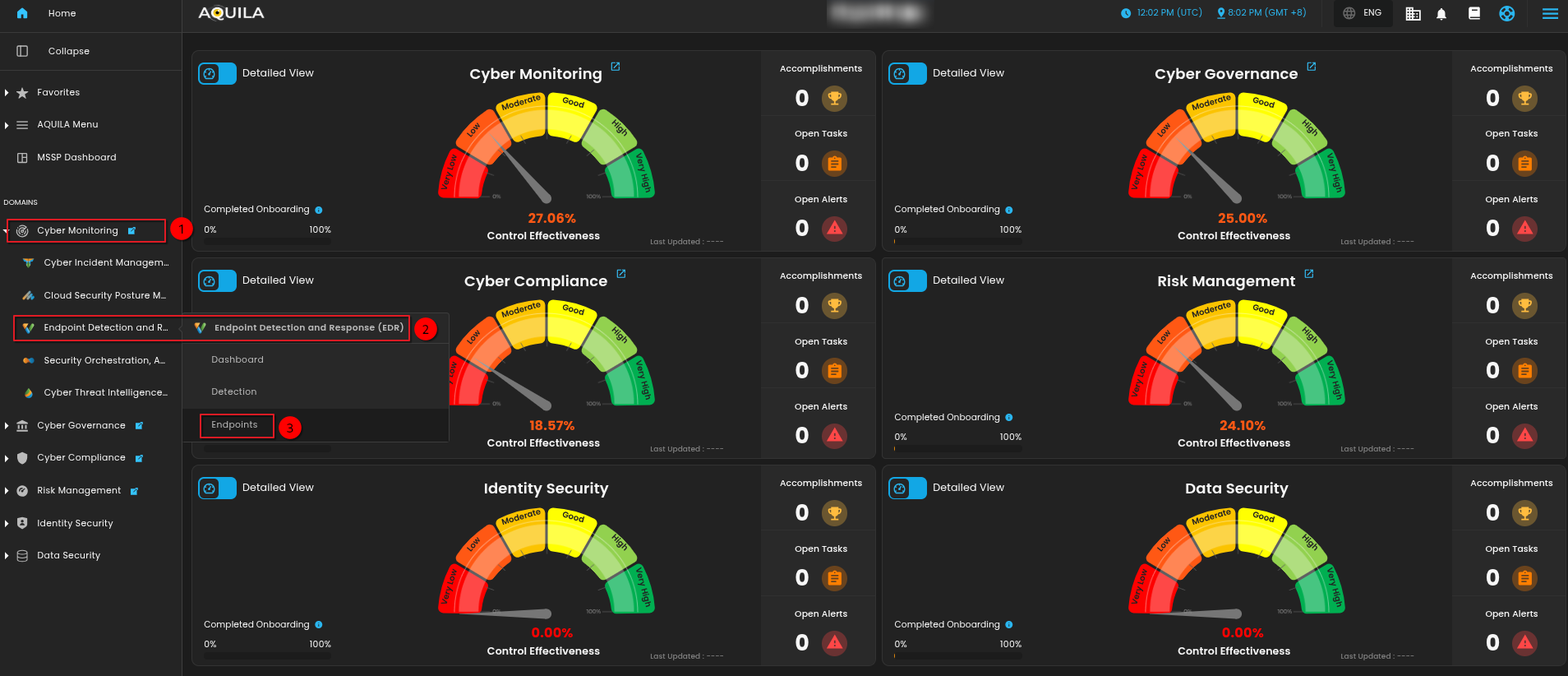
- Click **Collapse** to view side panel. Then navigate through **Domains>Cyber Monitoring>Endpoint Detection and Response>Endpoints**.
[](https://cytechint-docs-bookstack.s3.amazonaws.com/uploads/images/gallery/2025-07/Xmx63tsP8PUH0kv2-image.png)
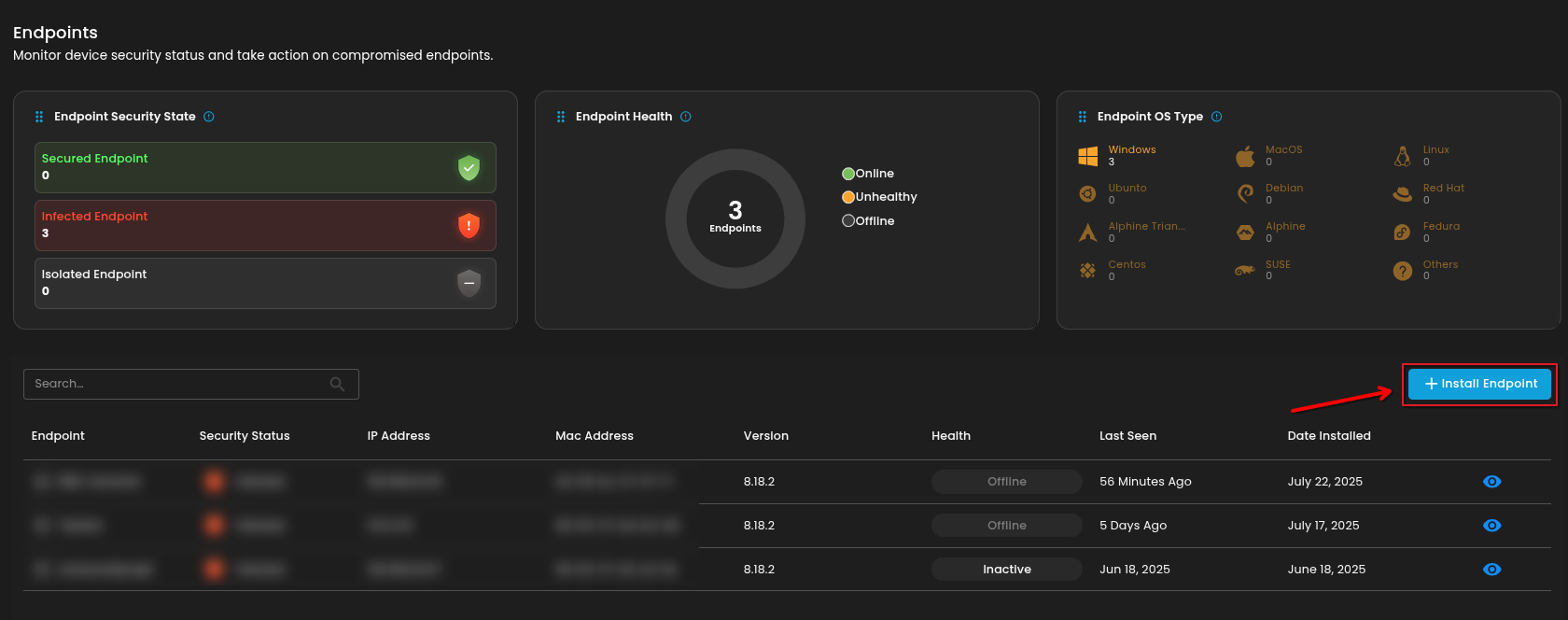
2. Click "**Install Endpoint**" to start installation window.
[](https://cytechint-docs-bookstack.s3.amazonaws.com/uploads/images/gallery/2025-07/o9deWEuXrGE5DcRS-image.png)
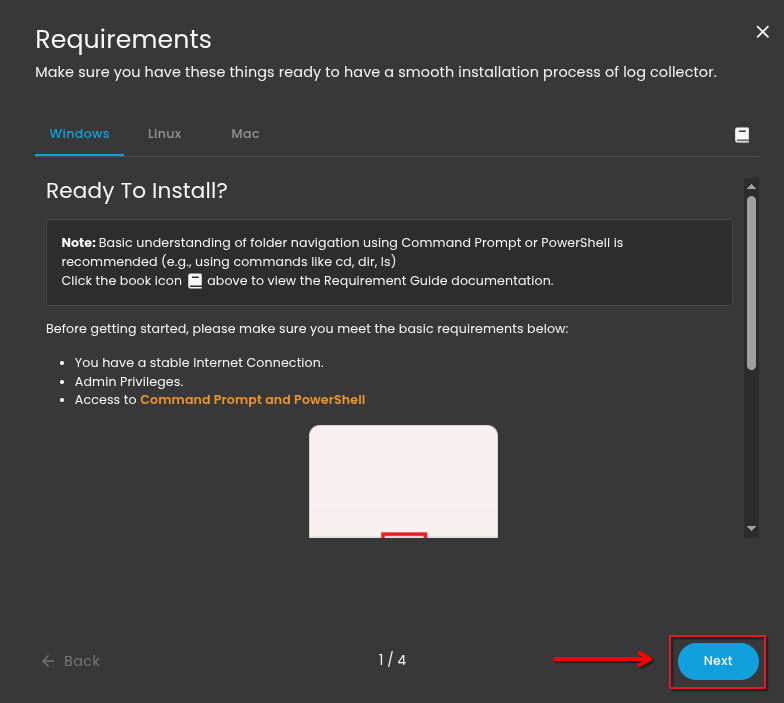
**3. Review the needed requirements for each Operating Systems and click "Next".**
[](https://cytechint-docs-bookstack.s3.amazonaws.com/uploads/images/gallery/2025-07/AOuYvfw9b8bLCyiY-image.png)
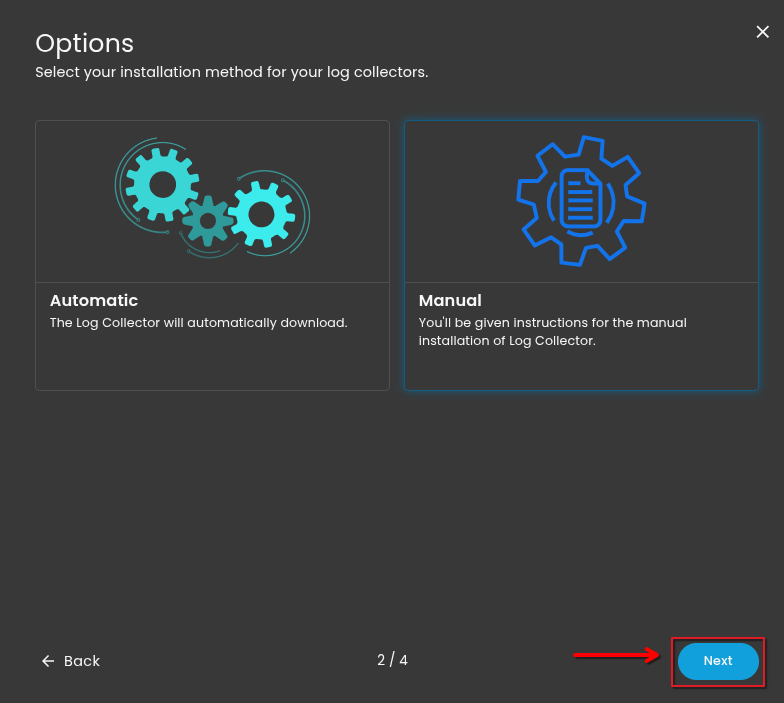
**4. Choose "Manual" installation and click "Next".**
[](https://cytechint-docs-bookstack.s3.amazonaws.com/uploads/images/gallery/2025-07/BMPMRx6YhDsC6DPk-image.png)
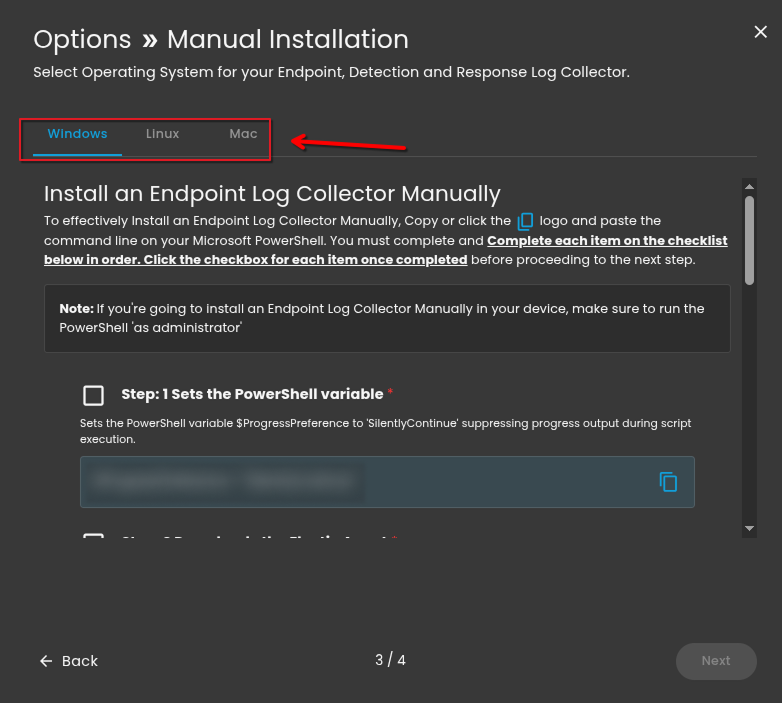
**5. Choose the correct Operating System for your endpoint. After choosing the type of your Operating System, the commands will display below needed for installing the EDR agent.**
[](https://cytechint-docs-bookstack.s3.amazonaws.com/uploads/images/gallery/2025-10/5TQRbKuqkMENbfHy-test-6.png)
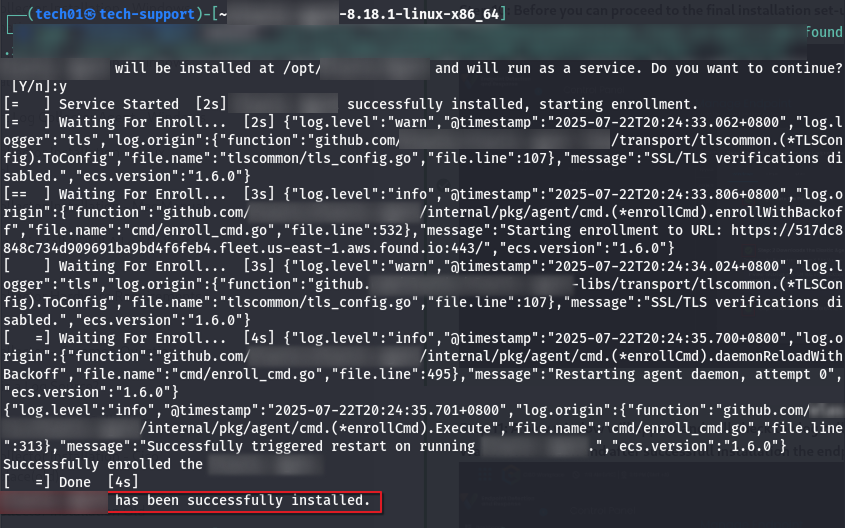
**6. Execute the command in your Endpoint environment using PowerShell or terminal under admin privilege. Once the commands are executed successfully, you should see an output similar to the example shown in the image below. Go back to Cytech - Aquila to finish manual installation.**
[](https://cytechint-docs-bookstack.s3.amazonaws.com/uploads/images/gallery/2025-10/2gTVNHsrJ79xZuVy-test-4.png)
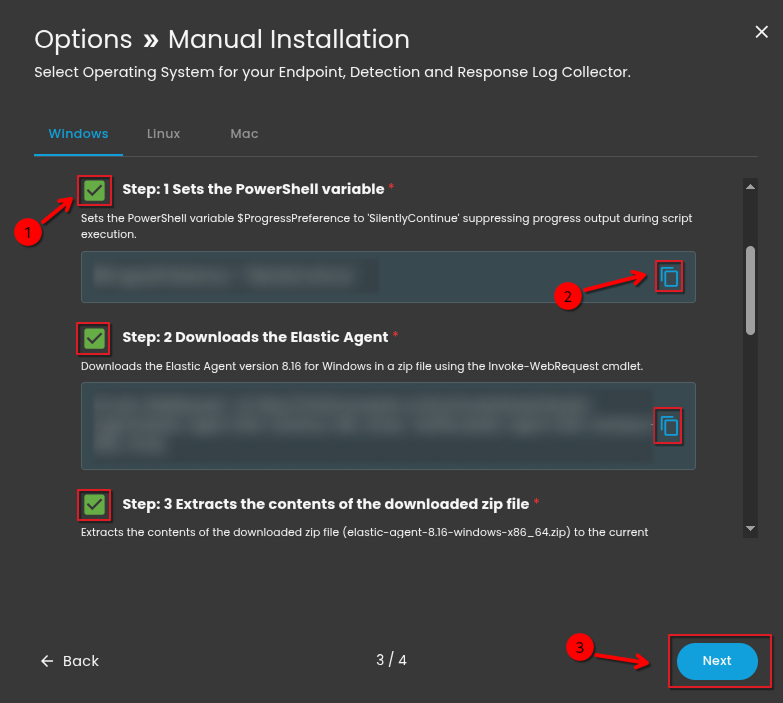
7. **Before you can proceed to the final installation set-up make sure you check off each steps required. Then you can click "Next".**
[](https://cytechint-docs-bookstack.s3.amazonaws.com/uploads/images/gallery/2025-10/bl08VYo9NUwR97kr-test-5.png)
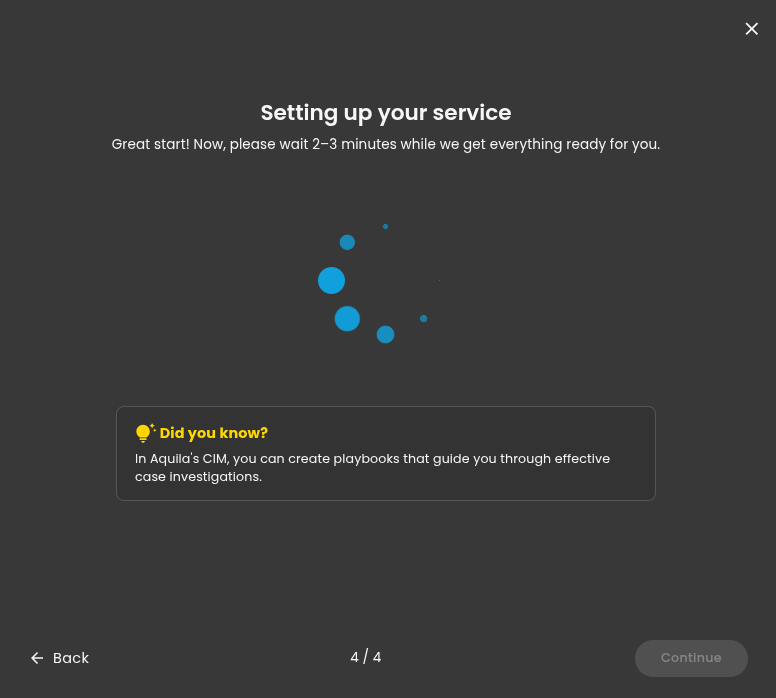
8. **A new window will appear and will check the log collector status and update the latest installation of EDR agent. Wait for it to finish and after successful installation the endpoint will displayed in the dashboard.**
[](https://cytechint-docs-bookstack.s3.amazonaws.com/uploads/images/gallery/2025-07/D2CsxzzQdp5L2Z6z-image.png)
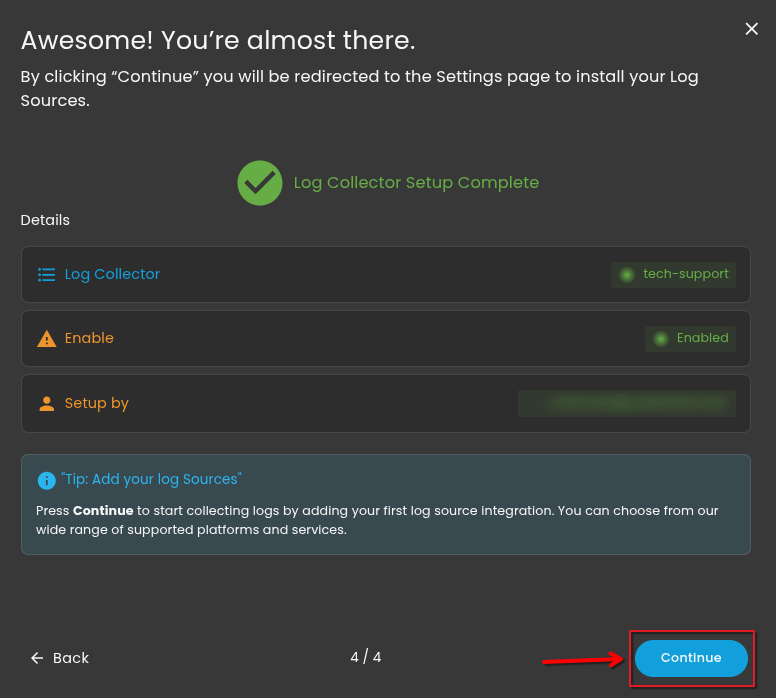
**9. This step confirms the successful installation and enrollment of the EDR Agent with the fleet server.**
[](https://cytechint-docs-bookstack.s3.amazonaws.com/uploads/images/gallery/2025-07/jeJm6W66tXfIKCxC-image.png)
*\*\*\*If you encounter **Log Collector Setup Failed**. Please click "Retry" and carefully go back to Step 5 or 6. You can also try "**Manual**" installation. If issues persist, please contact our technical support at **** for prompt assistance and guidance.*
[](https://cytechint-docs-bookstack.s3.amazonaws.com/uploads/images/gallery/2025-04/uEYotwkAJTB5YZKK-image.png)
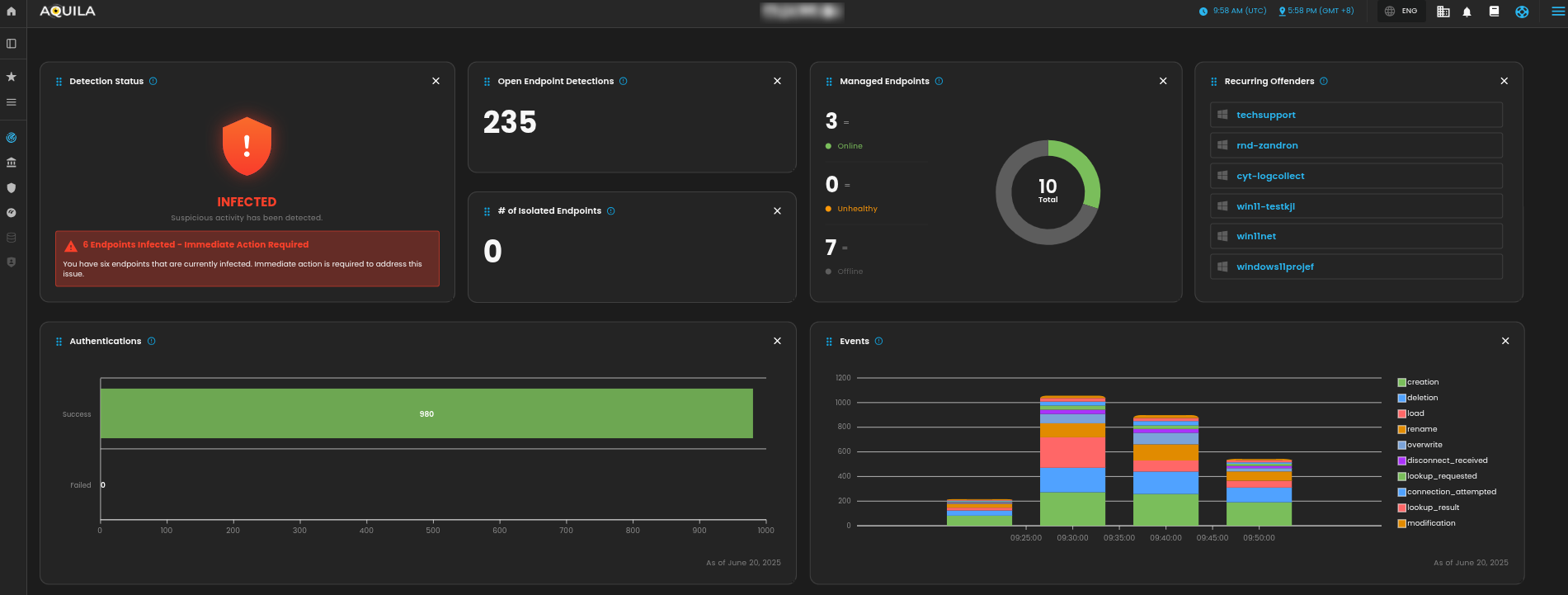
For a more detailed report and in-depth analysis, navigate to **CyTech - AQUILA > Cyber Monitoring > Endpoint Detection and Response (EDR)**. This section provides comprehensive visibility into endpoint activity, detection timelines, threat classifications, and response actions to support advanced threat analysis and incident investigation.
[](https://cytechint-docs-bookstack.s3.amazonaws.com/uploads/images/gallery/2025-06/JTplpsqWMr83Ufbi-image.png)
[](https://cytechint-docs-bookstack.s3.amazonaws.com/uploads/images/gallery/2025-06/jWMnSkzvcm89lb8x-image.png)
[](https://cytechint-docs-bookstack.s3.amazonaws.com/uploads/images/gallery/2025-06/YIdIVQT0fcq3P8IZ-image.png)
*If you need further assistance, kindly contact our technical support at **** for prompt assistance and guidance.*