# AQUILA EDR Mass Deployment Via Microsoft Intune (EXE)
#### Overview
This guide explains how to install an Endpoint Detection & Response (EDR) solution on all devices managed through **Microsoft Intune**. The process ensures consistent protection across your organization’s endpoints by using Intune’s **Endpoint security policies** and **app deployment** features.
##### **Prerequisites**
Before beginning, confirm the following:
- You have **Global Administrator** or **Intune Administrator** rights in Microsoft 365.
- Devices are already **enrolled and compliant** in Microsoft Intune.
- You have the **installer package ( IntuneWin format)** for your chosen EDR solution.
---
#### **Step 1:** Prepare the EDR Installer
1. Obtain the official EDR installation package (MSI) from AQUILA
2. If the installer is not in **.intunewin** format, convert it using the **Microsoft Win32 Content Prep Tool**.
**Download tool:** *[GitHub - microsoft/Microsoft-Win32-Content-Prep-Tool: A tool to wrap Win32 App and then it can be uploaded to Intune](https://github.com/Microsoft/Microsoft-Win32-Content-Prep-Tool)*
##### **Steps for preparing an Installer for Intune (.intunewin format)**
##### **Download the Packaging Tool**
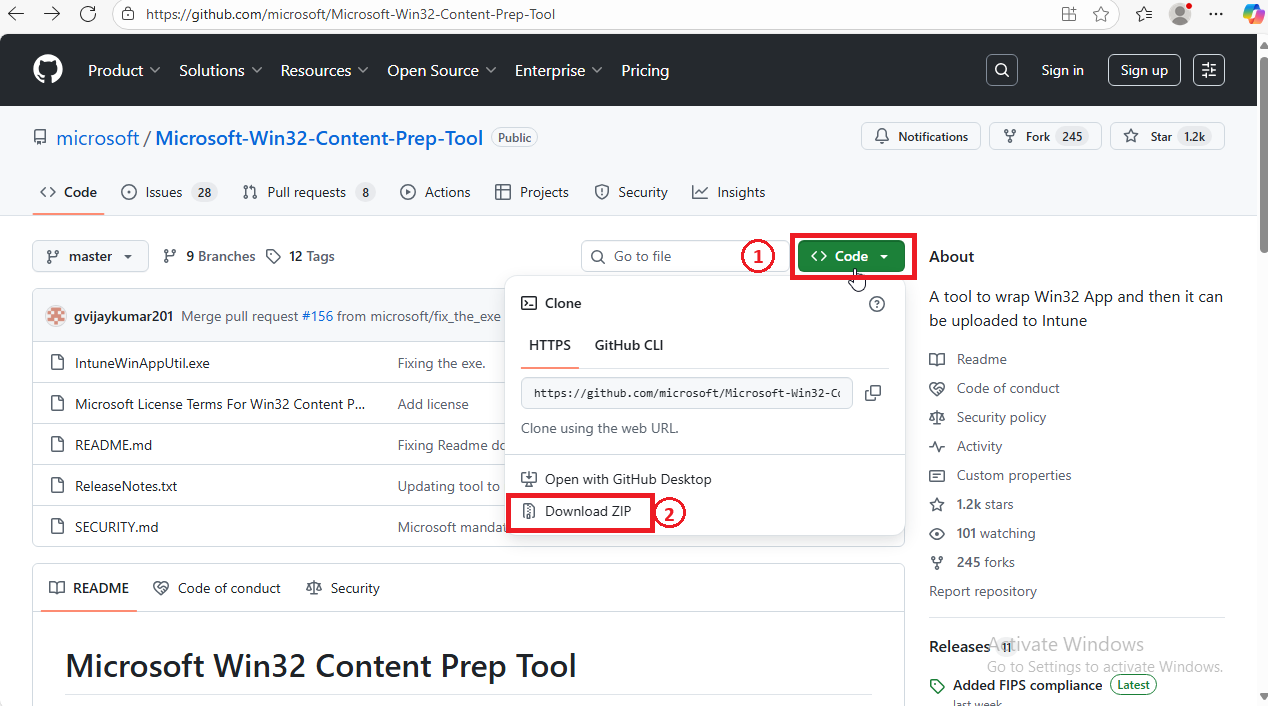
**1.** Go to Microsoft’s official download page: [Win32 Content Prep Tool (GitHub)](https://github.com/Microsoft/Microsoft-Win32-Content-Prep-Tool)
**2.** Download the ZIP file to your computer.
[](https://cytechint-docs-bookstack.s3.amazonaws.com/uploads/images/gallery/2025-08/vf2TWtQ9a4ZcqcHl-screenshot-2025-08-22-071813.png)
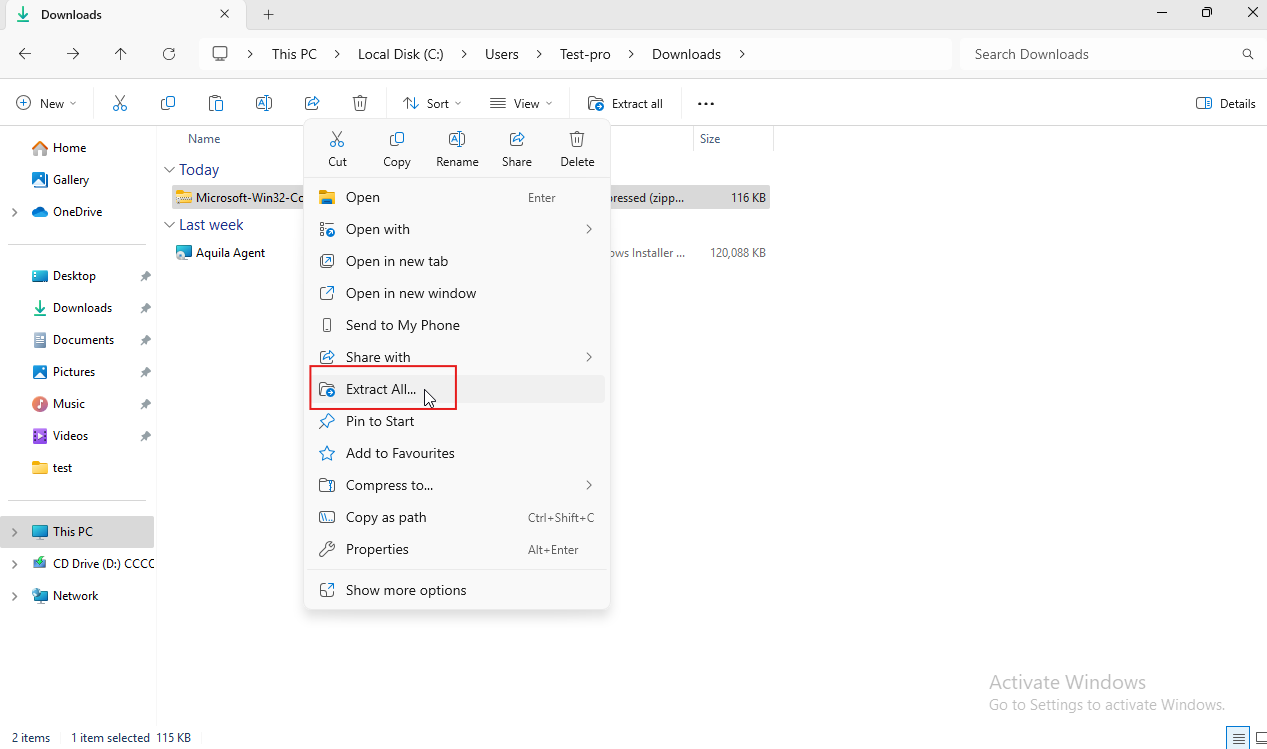
**3.** Right-click the ZIP → **Extract All…**
[](https://cytechint-docs-bookstack.s3.amazonaws.com/uploads/images/gallery/2025-08/A7GEVVKwW17NiQAR-image.png)
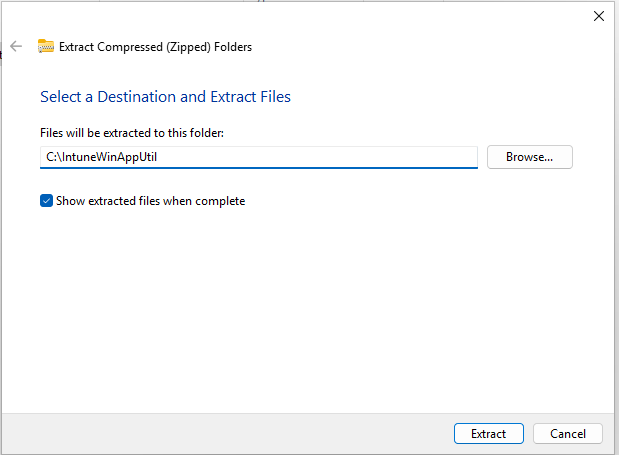
**4.** Choose a location (for example: `C:\IntuneWinAppUtil`).
[](https://cytechint-docs-bookstack.s3.amazonaws.com/uploads/images/gallery/2025-08/N4XTo51op2F0kOEy-image.png)
##### **Prepare Your Installer Files**
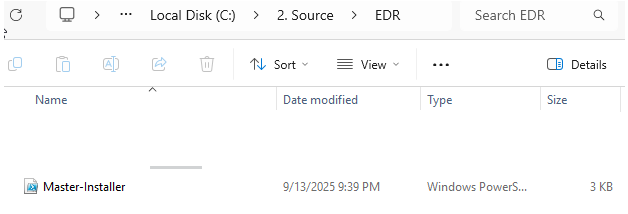
1. 1. 1. Create a folder for your installer, for example:
- `C:\2. Source\EDR`
2. Place the Master installer inside that folder. Place also here the script files.
- Master-Installer.ps1
[](https://cytechint-docs-bookstack.s3.amazonaws.com/uploads/images/gallery/2025-10/TJTR3ObxlY2rtQDl-image.png)
3. Create another empty folder where the packaged file will be saved, for example:
- `C:\3. Output`
##### **Run the Packaging Tool**
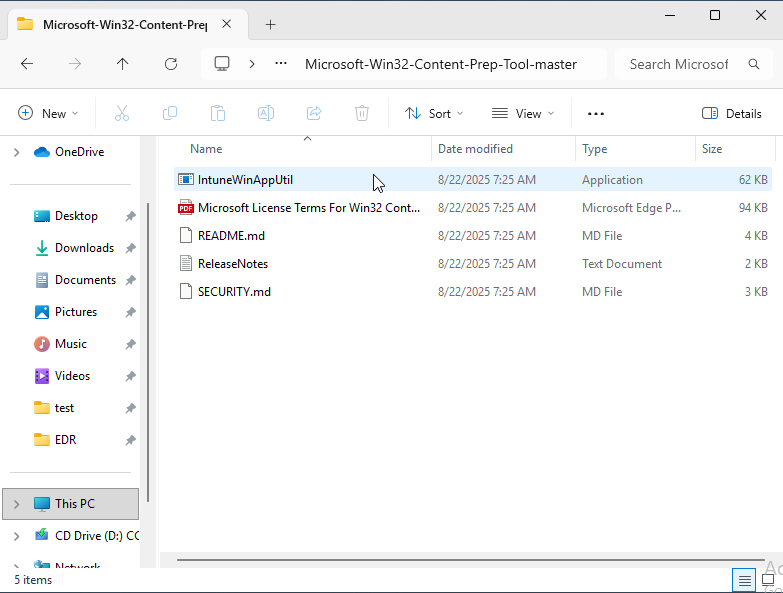
**1.** Go to the folder where you extracted the tool and run it
[](https://cytechint-docs-bookstack.s3.amazonaws.com/uploads/images/gallery/2025-09/wVL1CbpxDAGWx3u0-image.png)
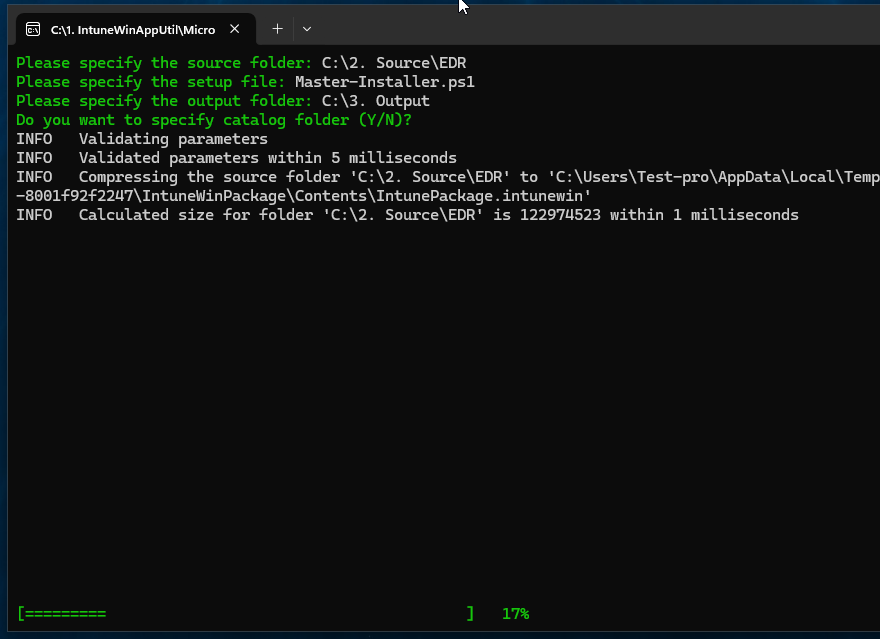
**2.** The tool will ask you a few questions. Enter the following:
- **Source folder:** type the path to your installer folder. Click the path and copy. (e.g., `C:\Source\EDR`).
[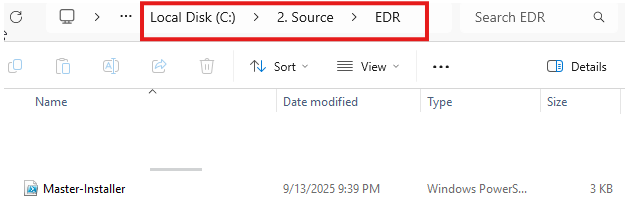](https://cytechint-docs-bookstack.s3.amazonaws.com/uploads/images/gallery/2025-10/ec2QK4YmhMYFz2oY-image.png)
- **Setup file:** type the name of the Master Script and include its file type (e.g., Master-Installer.ps1).
[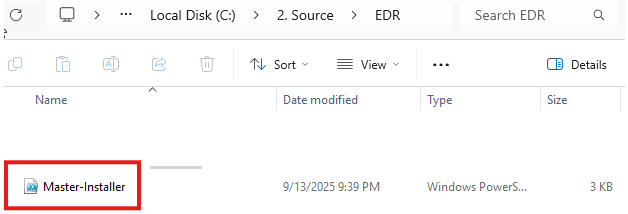](https://cytechint-docs-bookstack.s3.amazonaws.com/uploads/images/gallery/2025-10/j0pKsZmHWtG3egCI-image.png)
- **Output folder:** type the path to your empty folder. Click the path and copy. (e.g., `C:\3. Output`).
[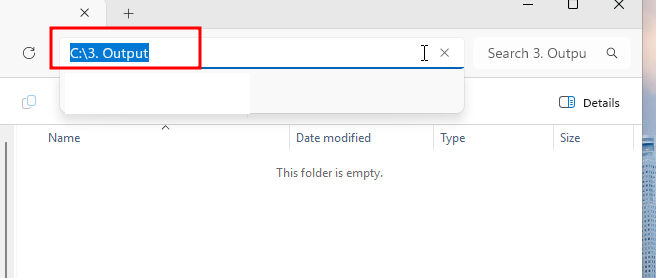](https://cytechint-docs-bookstack.s3.amazonaws.com/uploads/images/gallery/2025-10/MSrEZidvVFbs149C-image.png)
- **Catalog folder:** just press **Enter** to skip.
[](https://cytechint-docs-bookstack.s3.amazonaws.com/uploads/images/gallery/2025-09/3T4HQqmQkyslWX1Z-image.png)
##### **Check the Result**
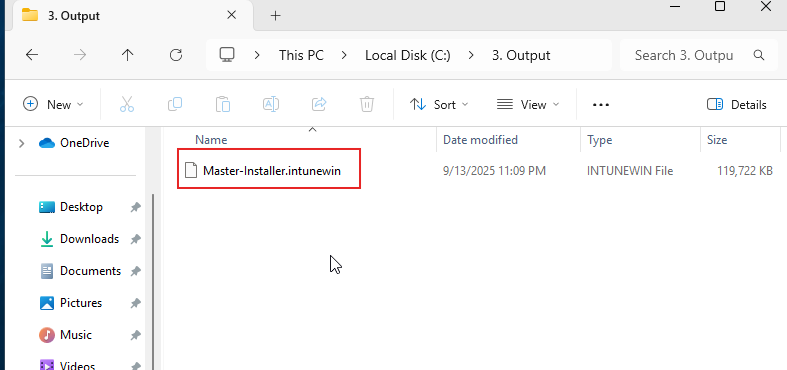
- - - Open your output folder (`C:\Output`).
- You should now see a file ending in `.intunewin`, for example:
- This is the file you’ll upload into Microsoft Intune.
- [](https://cytechint-docs-bookstack.s3.amazonaws.com/uploads/images/gallery/2025-09/IKy4NkD1KJqwfLsB-image.png)
#### **Step 2:** Add the EDR App to Intune
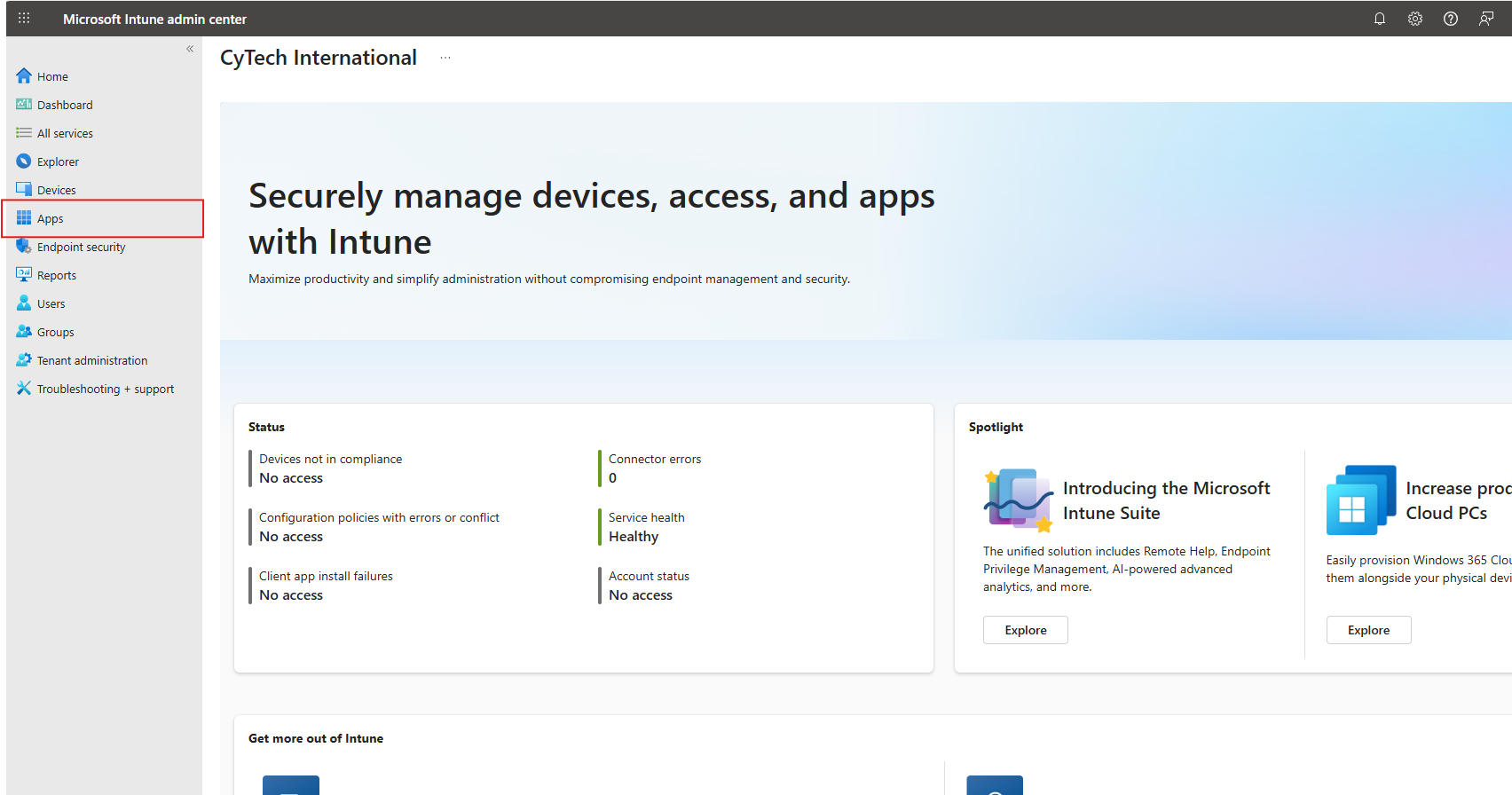
Sign in to the **Microsoft Intune admin center →** [*https://intune.microsoft.com*](https://intune.microsoft.com)
- Go to **Apps**.
[](https://cytechint-docs-bookstack.s3.amazonaws.com/uploads/images/gallery/2025-08/yIpb67juZajlUanr-image.png)
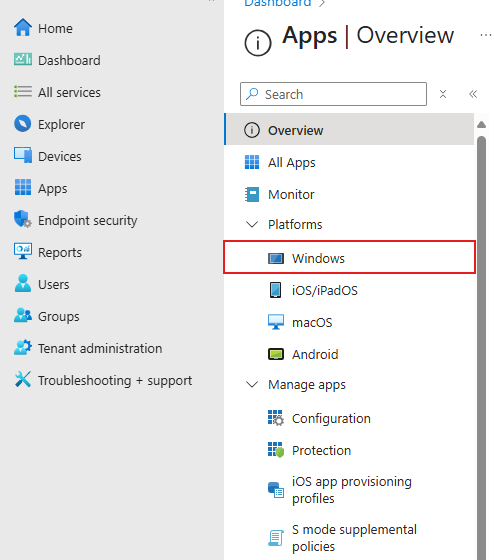
- **Windows App**
[](https://cytechint-docs-bookstack.s3.amazonaws.com/uploads/images/gallery/2025-09/fmMlT8j92Gq5FGIB-image.png)
- **Add**
[](https://cytechint-docs-bookstack.s3.amazonaws.com/uploads/images/gallery/2025-09/NtZLizgHyNfzQCfU-image.png)
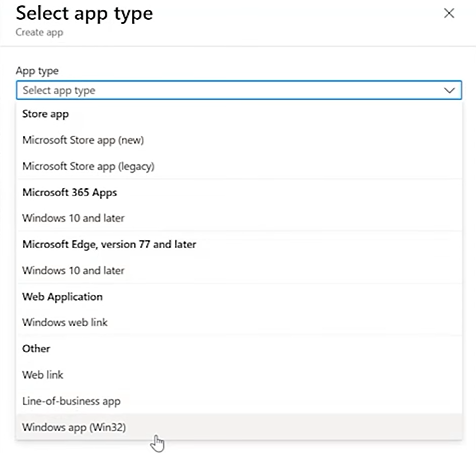
**1. Select the app type:**
- - **Windows app (Win32)** for most EDR installers.
[](https://cytechint-docs-bookstack.s3.amazonaws.com/uploads/images/gallery/2025-09/kY1w792bYX8srp7X-image.png)
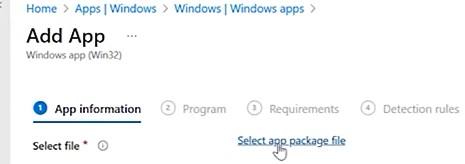
**2. Upload** the prepared installer package.
- **Find and upload** the **.intune** file on the **Output** folder from earlier.
[](https://cytechint-docs-bookstack.s3.amazonaws.com/uploads/images/gallery/2025-09/olV1Maxtg4j0cTXQ-image.png)
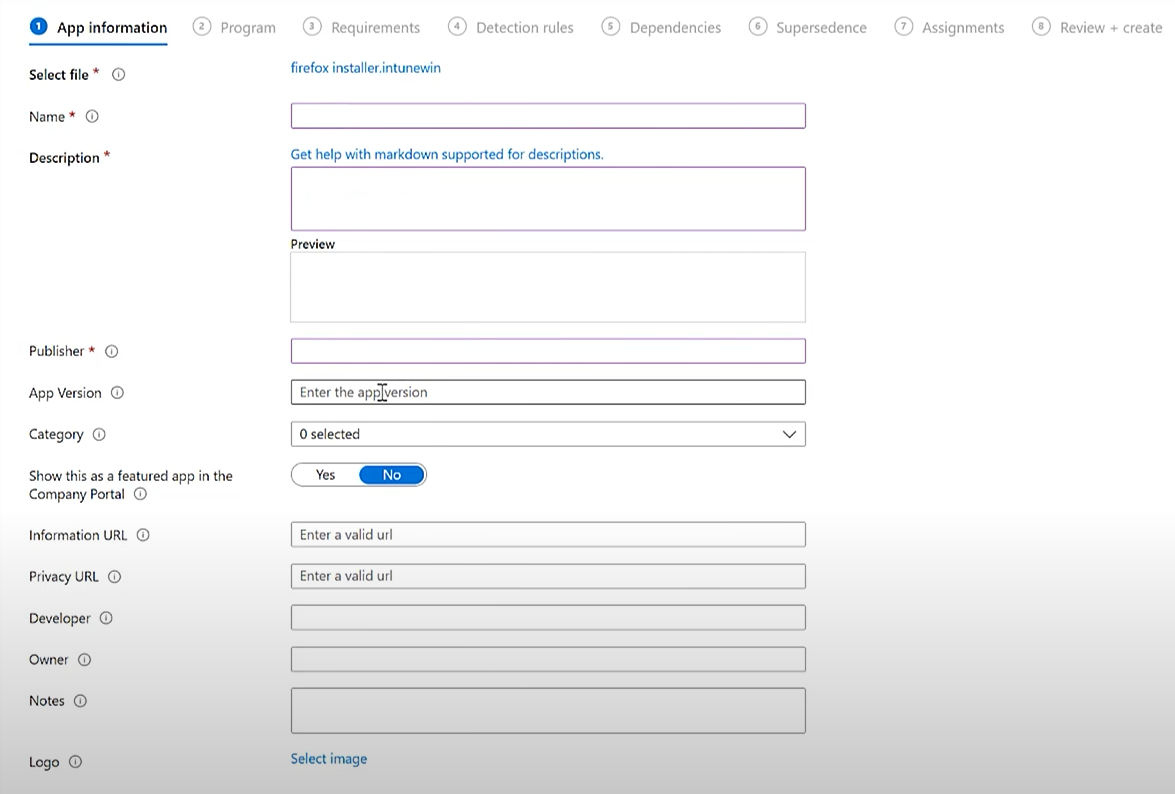
**3.** Configure **App Information**: name, description, publisher.
[](https://cytechint-docs-bookstack.s3.amazonaws.com/uploads/images/gallery/2025-09/FYVEKXpdD576ynCa-image.png)
**4.** Set **Program Install/Uninstall Commands**.[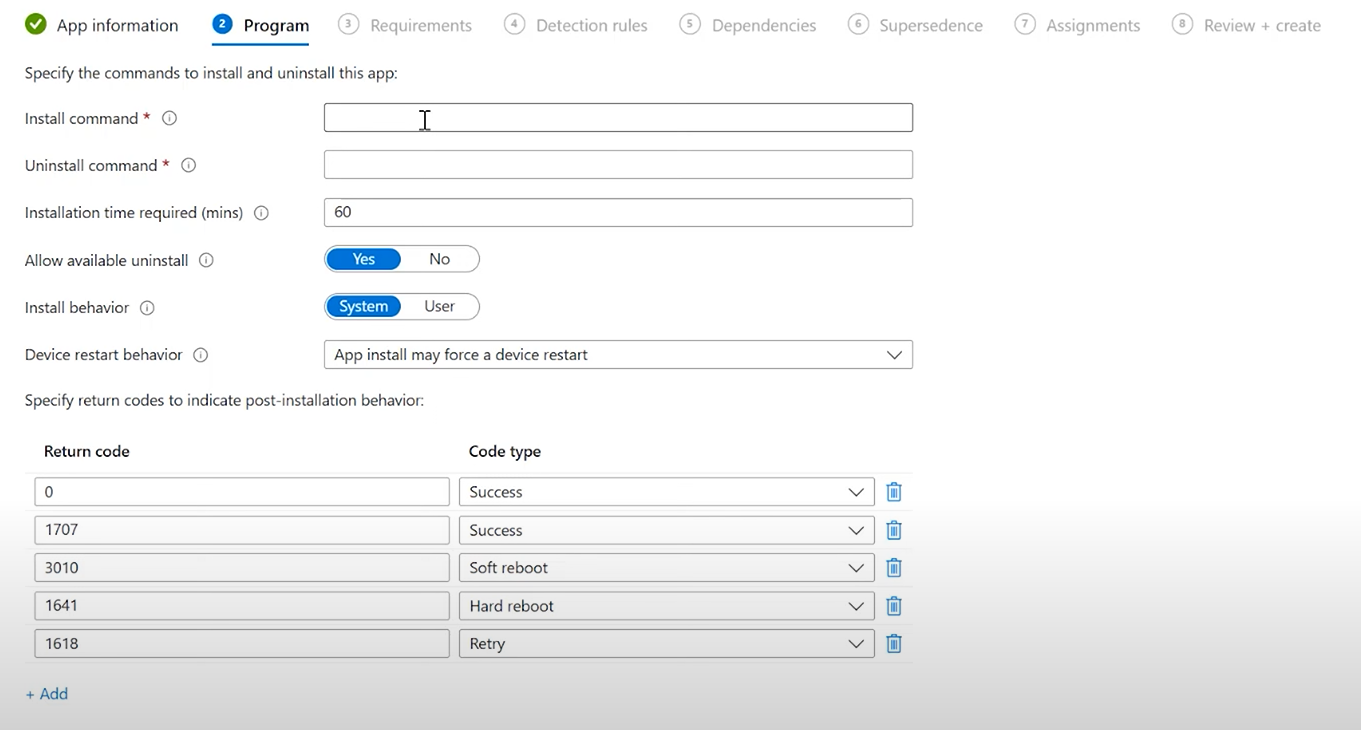](https://cytechint-docs-bookstack.s3.amazonaws.com/uploads/images/gallery/2025-09/YrBO0kSJBlWnTq7J-image.png)
- **Install Command:**
```javascript
powershell.exe -ExecutionPolicy Bypass -File .\Master-Installer.ps1
```
- **Uninstall command:**
**-Open the PowerShell as Administrator.**
**-Get** the **Product Code of Aquila Agent** by running this command on **PowerShell.**
```javascript
$msiPath = "C:\Path\To\Aquila Agent.msi"
$installer = New-Object -ComObject WindowsInstaller.Installer
$database = $installer.OpenDatabase($msiPath, 0)
$view = $database.OpenView("SELECT Value FROM Property WHERE Property='ProductCode'")
$view.Execute()
$record = $view.Fetch()
$record.StringData(1)
```
**[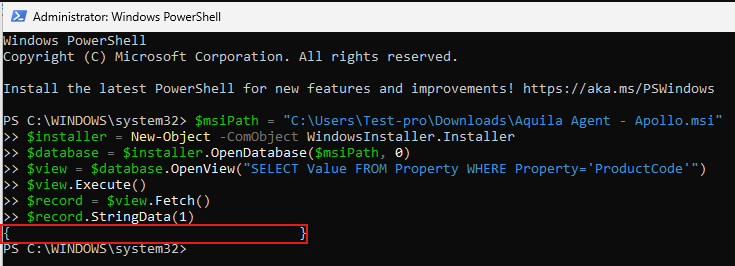](https://cytechint-docs-bookstack.s3.amazonaws.com/uploads/images/gallery/2025-10/XO7IMODwu2MoaoRv-image.png)**
- **For Example,** this is now your **Uninstall Command:**
```
msiexec /x "{Product Code}" /quiet /norestart
```
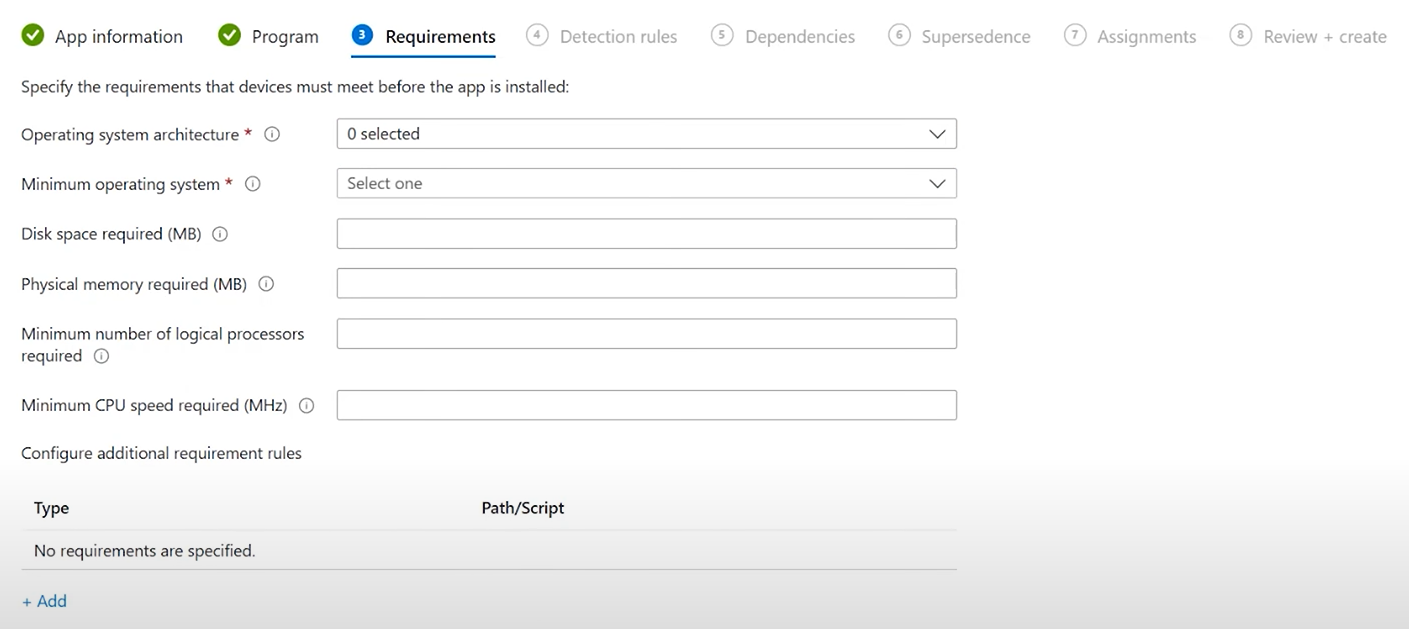
**5.** Under **Requirements**, select OS architecture and minimum version.
[](https://cytechint-docs-bookstack.s3.amazonaws.com/uploads/images/gallery/2025-09/xQp8cCziCuoN9W7D-image.png)
**6.** Add **Detection Rules** to confirm successful installation. [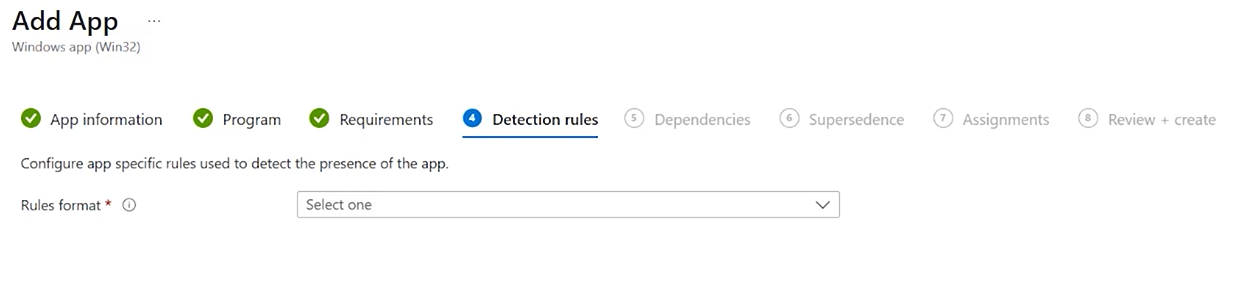](https://cytechint-docs-bookstack.s3.amazonaws.com/uploads/images/gallery/2025-09/2vwtRCFnCuaXVnTA-image.png)
[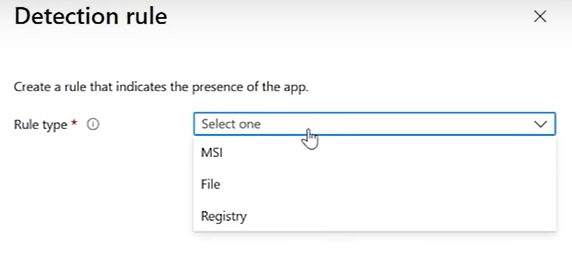](https://cytechint-docs-bookstack.s3.amazonaws.com/uploads/images/gallery/2025-09/xLcQU6ZlYRixzj4a-image.png)
**Option A: MSI Product Code** (recommended if you know it)
- Rule type: **MSI**
- MSI product code: `{Aquila Agent Product code}` (Please refer to **4.** on how to get the Aquila Agent Product Code:)
**Option B: File exists**
- Rule type: **File**
- Path: `C:\Program Files\Aquila Agent`
- File or folder: `Aquila Agent.exe`
- Detection method: File or folder exists
**Option C: Registry key**
- Rule type: **Registry**
- Path: `Computer\HKEY_LOCAL_MACHINE\SOFTWARE\WOW6432Node\Microsoft\Windows\CurrentVersion\Uninstall\"{Aquila Product Code}"`
- This is how to get the **Aquila Product Code**.
- This is now the path to input: "`Computer\HKEY_LOCAL_MACHINE\SOFTWARE\WOW6432Node\Microsoft\Windows\CurrentVersion\Uninstall\"{Product Key}"`[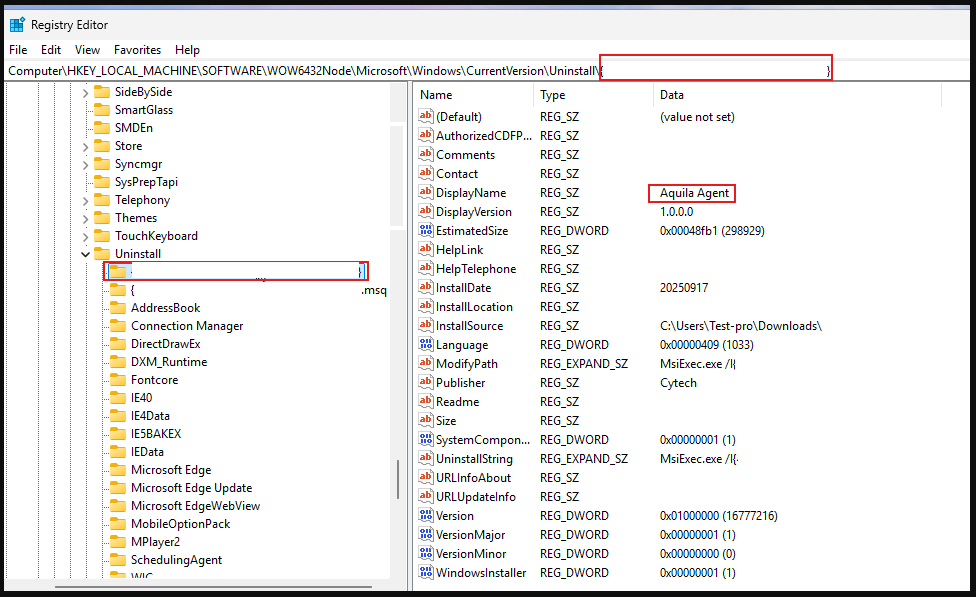](https://cytechint-docs-bookstack.s3.amazonaws.com/uploads/images/gallery/2025-10/TAaIfb7ZTZhUMRD1-image.png)
- Value: `DisplayName` → check exists or equals “Aquila Agent”
**7.** Set **Dependencies**
[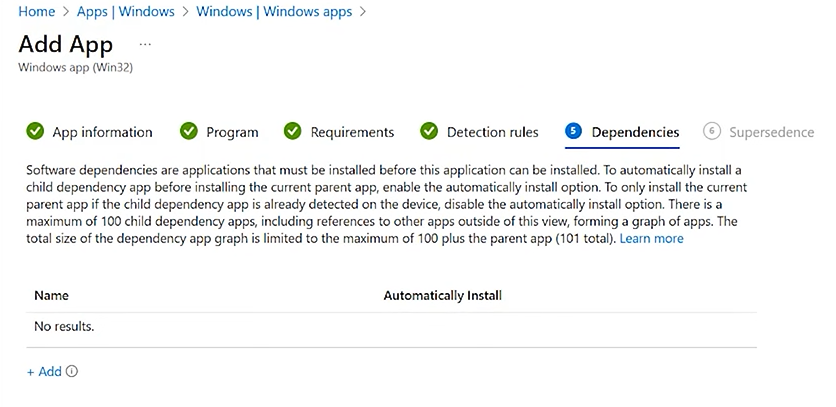](https://cytechint-docs-bookstack.s3.amazonaws.com/uploads/images/gallery/2025-09/Uff6l88VBWKeEqqC-image.png)
**8. Supersedence**
[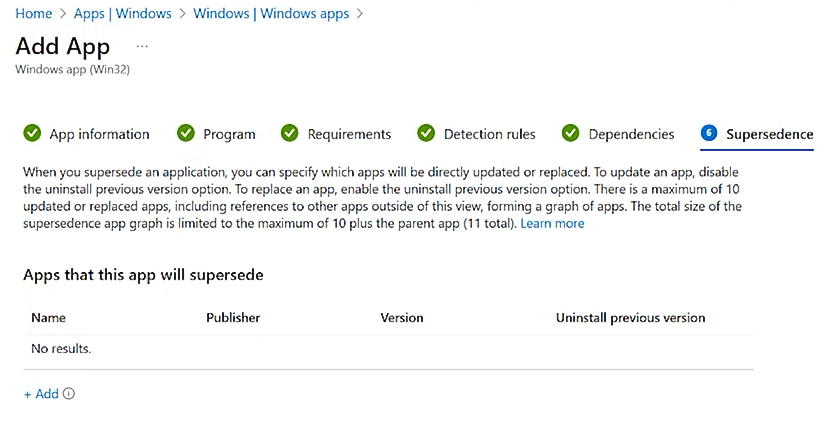](https://cytechint-docs-bookstack.s3.amazonaws.com/uploads/images/gallery/2025-09/eTmT8J0MXa7g5JzP-image.png)
**9. Assignments**
- **Required**
- Intune **automatically installs the app** on targeted devices.
- Perfect for your Elastic/Aquila Agent deployment.
- **Available for enrolled devices**
- Users can see the app in **Company Portal** and install it manually.
- Good for optional apps or testing.
- **Uninstall**
- Used if you want to remove the app from certain groups.
[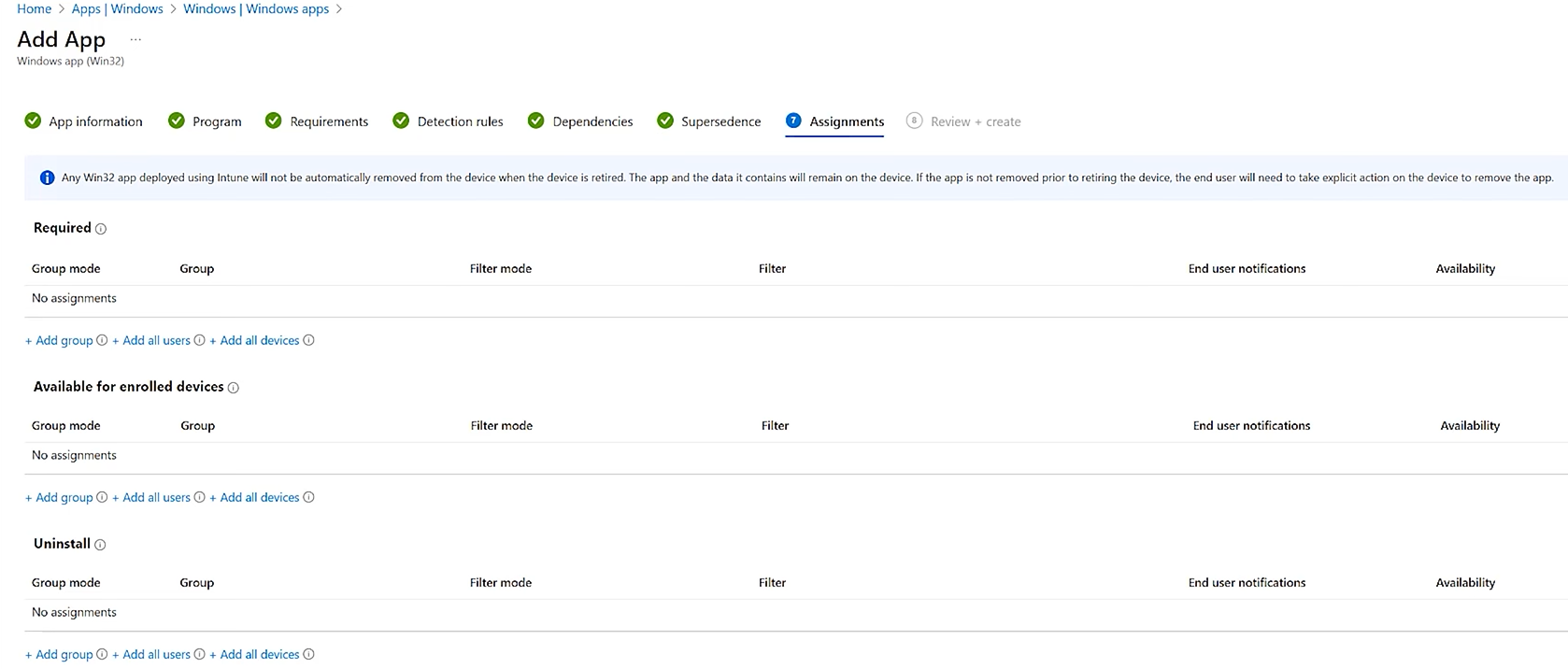](https://cytechint-docs-bookstack.s3.amazonaws.com/uploads/images/gallery/2025-09/sdobB43dVOh79F83-image.png)
**10. Review + Create**
[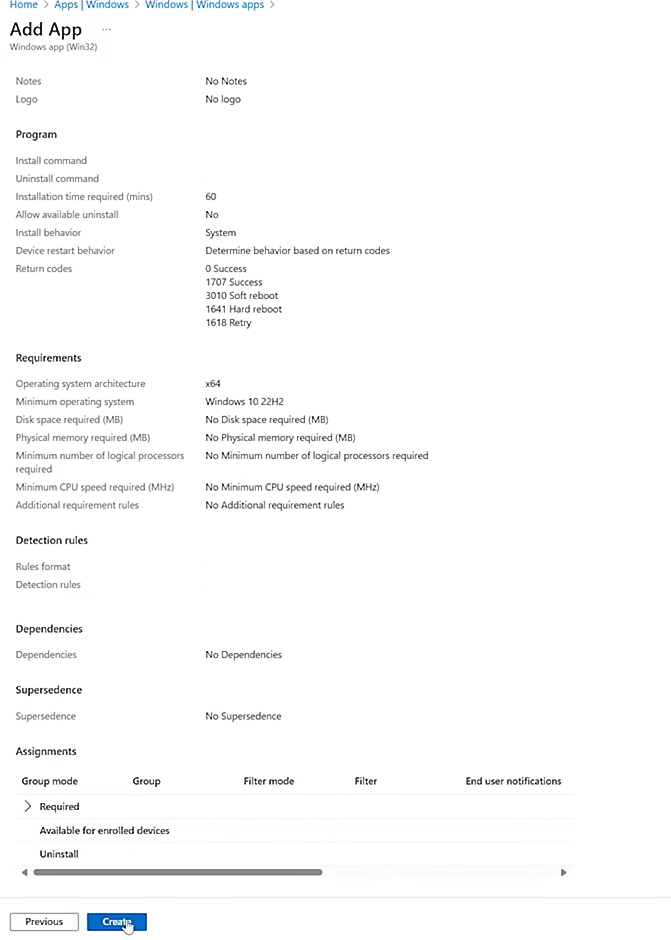](https://cytechint-docs-bookstack.s3.amazonaws.com/uploads/images/gallery/2025-09/gULZwc2D3aQkBzwn-image.png)
**Step 3:** Monitor Deployment
1. In the Intune admin center, go to **Apps** → select your EDR app.
2. Check **Device install status** to confirm successful installations.
[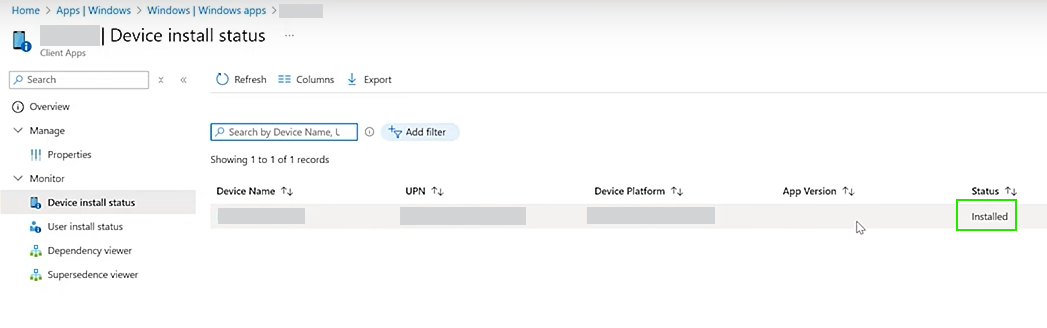](https://cytechint-docs-bookstack.s3.amazonaws.com/uploads/images/gallery/2025-09/ZRUrJq5IDzQ8WLmg-image.png)
*If you need further assistance, kindly contact our technical support at **** for prompt assistance and guidance.*