AQUILA Deployment Guide: EDR Installation via AD GPO with Scheduled Task
Introduction
This guide provides a step-by-step process to deploy the Aquila EDR Agent across multiple Windows endpoints using Group Policy Objects (GPO) with a Scheduled Task. This method ensures automated, consistent deployment across the organization while maintaining centralized logging and verification.
Scope & Audience
This document is intended for:
-
System Administrators responsible for endpoint security deployment.
-
IT Operations Teams managing Active Directory and GPO configurations.
-
Security Engineers who need visibility into EDR installation and validation.
The guide assumes a working knowledge of Active Directory, Group Policy Management Console (GPMC), and basic PowerShell scripting.
Pre-requisites
-
Administrator access to the Windows Server.
-
A valid copy of the Aquila Agent EXE installer.
-
The provided Install-EDRAgent.ps1 PowerShell deployment script.
-
Active Directory domain with client computers joined.
Step 1: Log in to the Windows Server
-
Sign in with an Administrator account to ensure you have the required permissions.
-
Confirm you can access Active Directory Users and Computers (ADUC) and Group Policy Management.
Step 2: Prepare Deployment Folders
On the server, create the following directories in the system drive (C:\):
-
C:\Script → Stores the PowerShell script (
Install-EDRAgent.ps1) -
C:\EXE → Stores the installer (
AquilaAgent.exe) -
C:\Logs → Stores deployment logs from each client computer
- C:\ZIP → Stores the EDR zip file
Or you can choose where the folder and files will be placed just take note of the advanced shared path on each

Step 3: Configure Folder Sharing and Permissions
-
Right-click the folder → Properties → Sharing tab → Advanced Sharing.
-
Check Share this folder.
-
Click Permissions:
-
Remove Everyone (optional).
-
Add Domain Computers → grant Read.
-
-
Click OK → Apply.
-
Go to Security (NTFS Permissions) → Edit:
-
Ensure Domain Computers have:
-
✔ Read & Execute
-
✔ List Folder Contents
-
✔ Read
-
-
-
Right-click the folder → Properties → Sharing → Advanced Sharing.
-
Check Share this folder.
-
Click Permissions:
-
Add Domain Computers → grant Read.
-
-
Click OK → Apply.
-
Go to Security (NTFS Permissions) → Edit:
-
Ensure Domain Computers have:
-
✔ Read & Execute
-
✔ List Folder Contents
-
✔ Read
-
-


-
Right-click the folder → Properties → Sharing → Advanced Sharing.
-
Check Share this folder.
-
Click Permissions:
-
Add Domain Computers → grant Change (or Full Control).
-
-
Click OK → Apply.
-
Go to Security (NTFS Permissions) → Edit:
-
Ensure Domain Computers have:
-
✔ Modify
-
✔ Read & Execute
-
✔ List Folder Contents
-
✔ Write
-
-


Important Note:
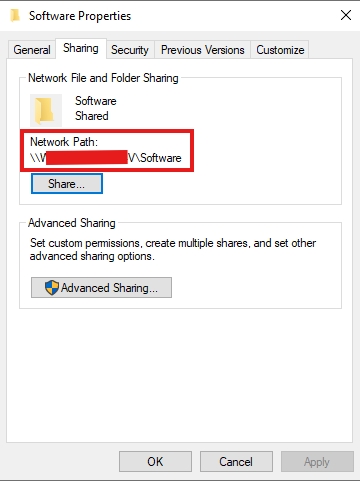
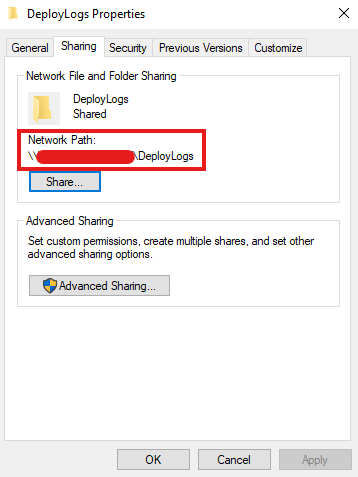
After all permissions have been configured, please take note of the network paths for each folder:
-
Script →
\\YourServerHostNameHere\Script -
Software →
\\YourServerHostNameHere\Software - DeployLogs →
\\YourServerHostNameHere\DeployLogs
(Replace YourServerHostNameHere with the actual hostname or FQDN of your server.)
Script:

Software:
DeployLogs:
These UNC paths will be required when:
-
Configuring the GPO Scheduled Task (Action Tab) to point to the PowerShell script.
-
Editing the script to reference the correct server hostname in your environment.
Step 4: Place the Required Files
The following deployment files are provided by our team and must be placed in the correct folders:
-
Copy Aquila Agent.msi to
C:\Software. -
Copy DeployEDR.ps1 to
C:\Script.
Step 5: Open Group Policy Management
-
On your Windows Server, open Group Policy Management (
gpmc.msc). -
Decide which Organizational Unit (OU) contains the computers you want to deploy the EDR to.
-
Example:
WorkstationsOU orServersOU.
-
Step 6: Create a New GPO for Deployment
-
Right-click the target OU → select Create a GPO in this domain, and Link it here.
-
Name the GPO clearly, e.g., EDR Deployment – Aquila Agent.
-
Right-click the new GPO → select Edit.
Step 7: Configure the Scheduled Task (to Run the Script)
Inside the GPO Editor:
General Tab
-
Name:
Deploy EDR – Aquila Agent -
Description: Runs the deployment script to install Aquila Agent.
- Action: Create
-
Security Options:
- When running the task textbox, type NT AUTHORITY\SYSTEM
- (This runs the task as the SYSTEM account — full local privileges; no password needed.)
- (This runs the task as the SYSTEM account — full local privileges; no password needed.)
-
Check Run whether user is logged on or not.
-
Check Run with highest privileges.
- Configure for: Select
Windows®️ 7, Windows Server™ 2008R2(or choose whichever fits in your organization).
- When running the task textbox, type NT AUTHORITY\SYSTEM
Triggers Tab
-
Click New →
-
Begin the task: At Startup (ensures every reboot attempt deployment).
-
Alternatively: At Logon (runs when any user logs in).
-
-
Check Enabled → OK.
Actions Tab
-
Click New →
-
Action: Start a program.
-
Program/script:
powershell.exe -
Add arguments:
-ExecutionPolicy Bypass -File "\\YourServerHostNameHere\Script\DeployEDR.ps1" -
(Replace YourServerHostNameHere with the actual hostname or FQDN of your server.)
- Click Ok.
-
Settings Tab
-
Check: Allow task to be run on demand.
-
Check: If the task fails, restart every 1 hour, up to 3 times.
-
Check: Stop the task if it runs longer than X hours (e.g., 2 hours).
Click OK to save the Scheduled Task.
Step 8: Edit the Script Before Testing
Before running any tests, update the script with the correct server hostname.
Example Configuration Block
Before editing:
# Configuration Block

$MsiPath = "\\YourServerHostNameHere\Software\Aquila Agent.msi"

$CentralLogShare = "\\YourServerHostNameHere\DeployLogs"
After editing (example if hostname = SRV-DC01):
# Configuration Block

$MsiPath = "\\SRV-DC01\Software\Aquila Agent.msi"

$CentralLogShare = "\\SRV-DC01\DeployLogs"
💡 Tip: If you are unsure of the server hostname:
-
Open Command Prompt.
-
Run:
-
Copy the displayed hostname and use it in the script.

Step 9: Force GPO Update on Clients (Testing First)
Before rolling out to production, always test the GPO deployment on a small set of test machines (e.g., lab devices or a pilot group). This ensures the script, permissions, and scheduled task all work as expected.
To apply the new GPO immediately on a test client machine:
-
Open Command Prompt as Administrator (Run as Admin).
-
Run:
gpupdate /force
⚠️ Note: Running
gpupdatewithout admin rights only refreshes user policies. Since this deployment is a computer policy, it must be executed in an elevated (Administrator) Command Prompt.
Step 10: Verify Scheduled Task on Clients
After forcing the GPO, confirm that the scheduled task has been created.
-
On the client computer, open Task Scheduler (taskschd.msc) as Administrator.
-
⚠️ Running without admin rights may prevent you from seeing the scheduled task.
-
-
Navigate to Task Scheduler Library.
-
Locate and verify that the task “Deploy EDR – Aquila Agent” exists.
-
Confirm the task is configured to:
-
Run under the SYSTEM account.
-
Trigger At Startup or At Logon (depending on your configuration).
-
Run with highest privileges.
-
- Alternatively, reboot the test client to automatically trigger the scheduled task.
Step 11: Verify EDR Installation and Logs
-
On the client machine, open Programs and Features (or run
appwiz.cpl) → confirm that Aquila Agent is listed as installed. -
Review deployment logs stored in:
\\YourServer\DeployLogs-
Each client machine writes its installation results to this shared log folder.
-
Logs will indicate whether the deployment was successful or if there were errors.
-
⚠️ If you encounter errors in the logs (for example, a misconfiguration in the script or hostname issues), please email the log files to our support team at support@cytechint.com for further assistance.
Final Note - Customization Support
If you already have an existing folder structure for hosting the .msi installer or the deployment script on your AD server, please email us at support@cytechint.com.
Our team can provide a tailor-made version of the script to match your environment and ensure smooth deployment.
Troubleshooting Tips
|
Issue |
Possible Cause |
Resolution |
|---|---|---|
|
Task not created on client |
GPO not applied |
Run |
|
MSI installation fails (Exit Code 1) |
Wrong path or missing installer |
Verify |
|
Logs not generated |
Wrong |
Ensure DeployLogs share is accessible to Domain Computers. |
|
gpupdate has no effect |
Not run as Administrator |
Re-run |
|
Script doesn’t execute |
Execution policy blocking |
Ensure |
If you need further assistance, kindly contact our support at support@cytechint.com for prompt assistance and guidance.