# AQUILA Agent Mass Deployment Manual (MSI Package)

## <span style="color: rgb(53, 152, 219);">Overview</span>

<span style="color: rgb(0, 0, 0);">This document provides a step-by-step guide for deploying the **AQUILA Agent** across Windows endpoints using **Microsoft Intune** with an **MSI installer**. The goal of this deployment is to ensure consistent, secure, and scalable installation of the AQUILA Agent to support SOC monitoring, endpoint visibility, and response capabilities.</span>

<span style="color: rgb(0, 0, 0);">This guide is intended for:</span>

- <span style="color: rgb(0, 0, 0);">SOC Engineers</span>
- <span style="color: rgb(0, 0, 0);">IT Administrators</span>
- <span style="color: rgb(0, 0, 0);">Endpoint &amp; Security Operations Teams</span>

<div contenteditable="false" id="bkmrk-">---

</div>## <span style="color: rgb(53, 152, 219);">Deployment Objectives</span>

<span style="color: rgb(0, 0, 0);">By following this guide, you will:</span>

- <span style="color: rgb(0, 0, 0);">Deploy AQUILA Agent at scale using Intune</span>
- <span style="color: rgb(0, 0, 0);">Ensure silent, unattended installation</span>
- <span style="color: rgb(0, 0, 0);">Reduce manual endpoint interaction</span>
- <span style="color: rgb(0, 0, 0);">Maintain consistent agent configuration across environments</span>
- <span style="color: rgb(0, 0, 0);">Improve SOC visibility and endpoint telemetry</span>

<div contenteditable="false" id="bkmrk--1">---

</div>## <span style="color: rgb(53, 152, 219);">Prerequisites</span>

<span style="color: rgb(0, 0, 0);">Before proceeding, ensure the following requirements are met:</span>

##### <span style="color: rgb(0, 0, 0);">Microsoft Intune</span>

- <span style="color: rgb(0, 0, 0);">Microsoft Intune is configured and accessible</span>
- <span style="color: rgb(0, 0, 0);">Administrator permissions to create and assign apps</span>

##### <span style="color: rgb(0, 0, 0);">Endpoint Requirements</span>

- <span style="color: rgb(0, 0, 0);">Supported Windows OS (Windows 10 / Windows 11 / Windows Server – if applicable)</span>
- <span style="color: rgb(0, 0, 0);">Devices enrolled in Microsoft Intune</span>
- <span style="color: rgb(0, 0, 0);">Stable internet connectivity</span>

##### <span style="color: rgb(0, 0, 0);">Installer Requirements</span>

- <span style="color: rgb(0, 0, 0);">AQUILA Agent **MSI installer** (latest approved build)</span>
- <span style="color: rgb(0, 0, 0);">MSI file accessible from your local machine</span>

<div contenteditable="false" id="bkmrk--2">---

</div>## <span style="color: rgb(53, 152, 219);">Deployment Method Summary</span>

<table id="bkmrk-item-value-deploymen"><tbody><tr><th><span style="color: rgb(0, 0, 0);">Item</span></th><th><span style="color: rgb(0, 0, 0);">Value</span></th></tr><tr><td><span style="color: rgb(0, 0, 0);">Deployment Tool</span></td><td><span style="color: rgb(0, 0, 0);">Microsoft Intune</span></td></tr><tr><td><span style="color: rgb(0, 0, 0);">Installer Type</span></td><td><span style="color: rgb(0, 0, 0);">MSI</span></td></tr><tr><td><span style="color: rgb(0, 0, 0);">Installation Mode</span></td><td><span style="color: rgb(0, 0, 0);">Silent / Unattended</span></td></tr><tr><td><span style="color: rgb(0, 0, 0);">User Interaction</span></td><td><span style="color: rgb(0, 0, 0);">None</span></td></tr><tr><td><span style="color: rgb(0, 0, 0);">Deployment Scope</span></td><td><span style="color: rgb(0, 0, 0);">Device-based (recommended)</span></td></tr></tbody></table>

<div contenteditable="false" id="bkmrk--3">---

</div>## <span style="color: rgb(53, 152, 219);">Step-by-Step Deployment Instructions</span>

#### <span style="color: rgb(0, 0, 0);">Step 1: Log in to Microsoft Intune Admin Center</span>

1. <span style="color: rgb(0, 0, 0);">Navigate to<span style="color: rgb(224, 62, 45);"> <a style="color: rgb(224, 62, 45);">**https://intune.microsoft.com**</a></span></span>
2. <span style="color: rgb(0, 0, 0);">Sign in using an account with Intune administrative privileges</span>

<div contenteditable="false" id="bkmrk--4">---

</div>#### <span style="color: rgb(0, 0, 0);">Step 2: Create a New Application</span>

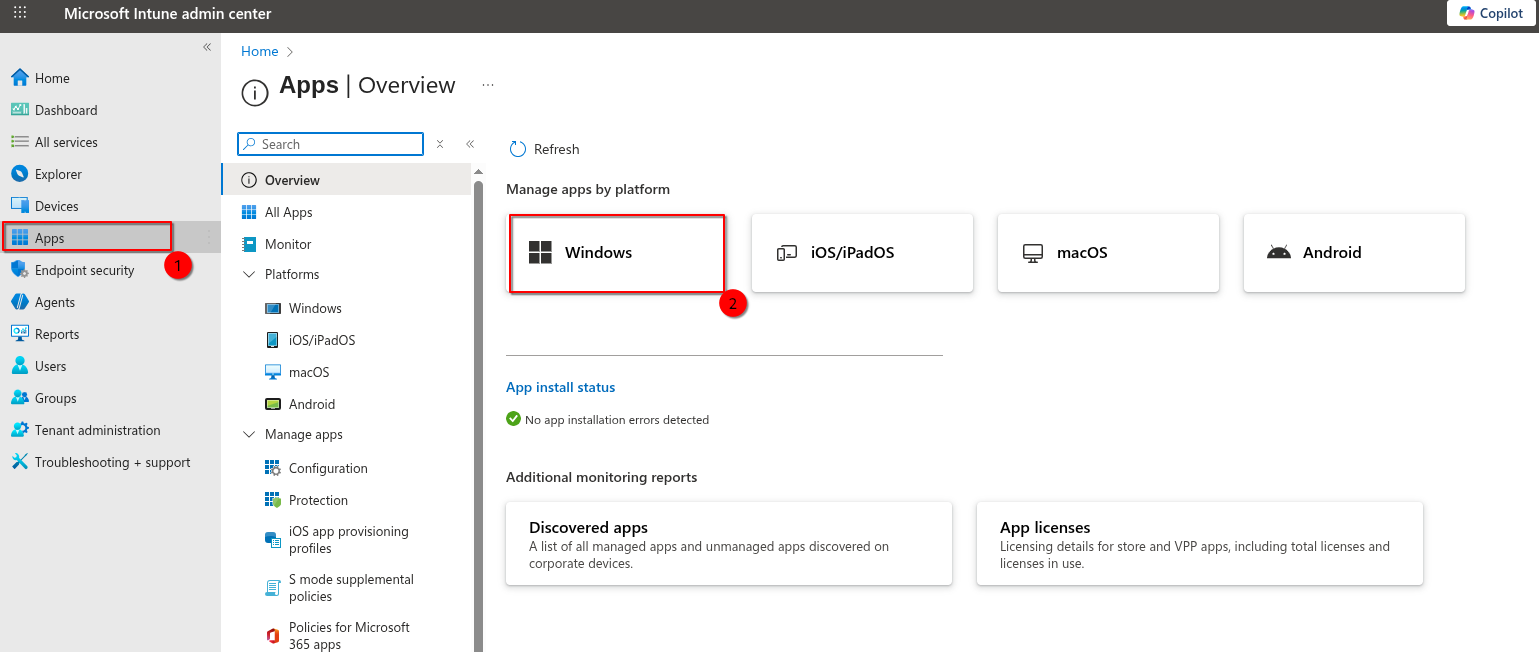
1. <span style="color: rgb(0, 0, 0);">Go to **Apps** → **Windows**</span>
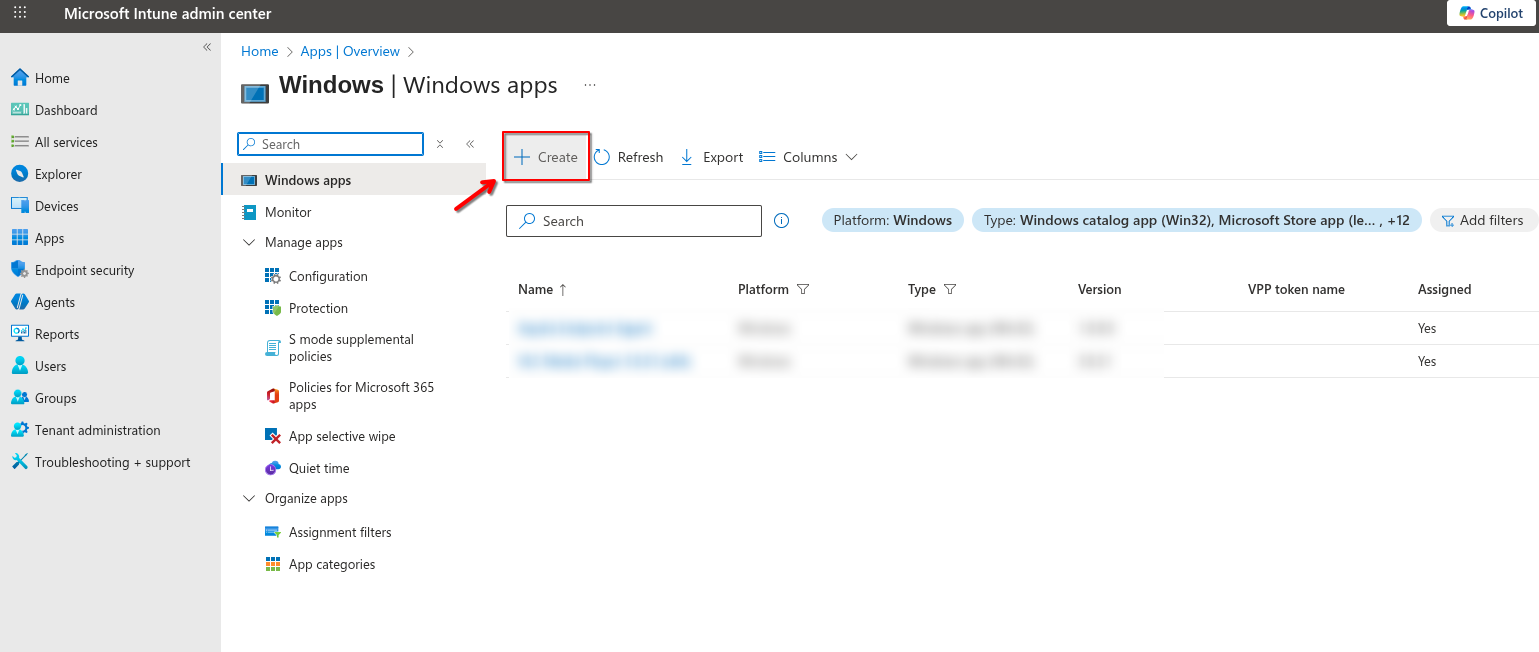
2. <span style="color: rgb(0, 0, 0);">Click **Create**</span>
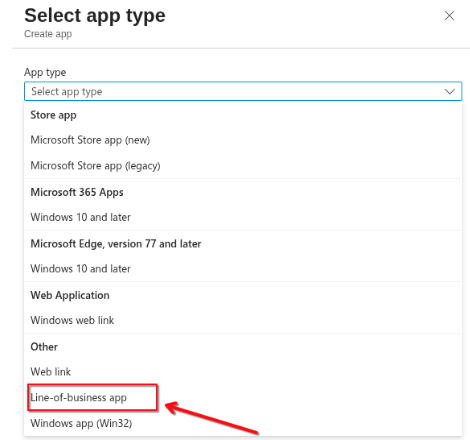
3. <span style="color: rgb(0, 0, 0);">Under *App type*, select **Line-of-business app**</span>
4. <span style="color: rgb(0, 0, 0);">Click **Select**</span>

<span style="color: rgb(0, 0, 0);">**[![image.png](https://cytechint-docs-bookstack.s3.amazonaws.com/uploads/images/gallery/2026-01/scaled-1680-/WtogstlUJp6Vf1EM-image.png)](https://cytechint-docs-bookstack.s3.amazonaws.com/uploads/images/gallery/2026-01/WtogstlUJp6Vf1EM-image.png)**</span>

<span style="color: rgb(0, 0, 0);">**[![image.png](https://cytechint-docs-bookstack.s3.amazonaws.com/uploads/images/gallery/2026-01/scaled-1680-/WxpkL0tGJxXadGrR-image.png)](https://cytechint-docs-bookstack.s3.amazonaws.com/uploads/images/gallery/2026-01/WxpkL0tGJxXadGrR-image.png)**</span>

[![image.png](https://cytechint-docs-bookstack.s3.amazonaws.com/uploads/images/gallery/2026-01/scaled-1680-/QqhfN40uX9DrG1Hs-image.png)](https://cytechint-docs-bookstack.s3.amazonaws.com/uploads/images/gallery/2026-01/QqhfN40uX9DrG1Hs-image.png)

<div contenteditable="false" id="bkmrk--8">---

</div>#### <span style="color: rgb(0, 0, 0);">Step 3: Upload AQUILA Agent MSI</span>

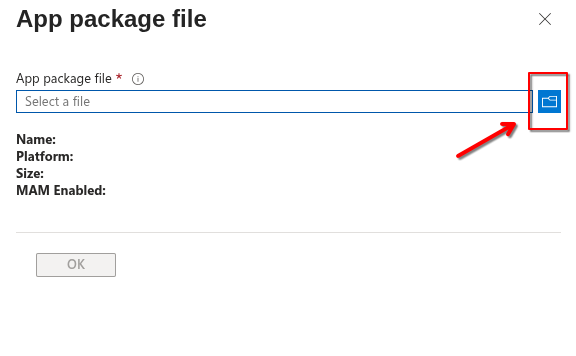
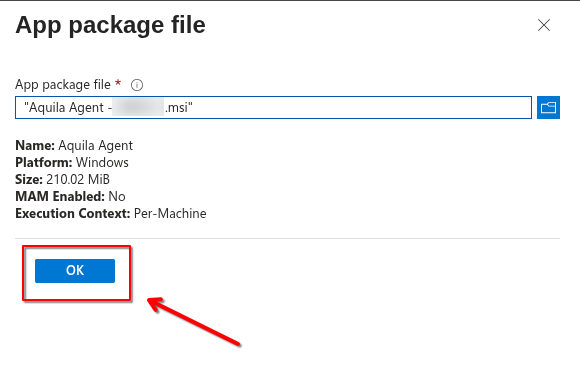
1. <span style="color: rgb(0, 0, 0);">Click **Select app package file**</span>
2. <span style="color: rgb(0, 0, 0);">Upload the **AQUILA Agent MSI installer**</span>
3. <span style="color: rgb(0, 0, 0);">Click **OK**</span>

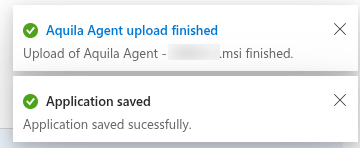
<span style="color: rgb(0, 0, 0);">Intune will automatically extract MSI metadata (Product Code, Version, Publisher).</span>

<span style="color: rgb(0, 0, 0);">[![image.png](https://cytechint-docs-bookstack.s3.amazonaws.com/uploads/images/gallery/2026-01/scaled-1680-/Au25Ez5NMRmwwbgT-image.png)](https://cytechint-docs-bookstack.s3.amazonaws.com/uploads/images/gallery/2026-01/Au25Ez5NMRmwwbgT-image.png)[![image.png](https://cytechint-docs-bookstack.s3.amazonaws.com/uploads/images/gallery/2026-01/scaled-1680-/5n3UcA0RvtvbmLjl-image.png)](https://cytechint-docs-bookstack.s3.amazonaws.com/uploads/images/gallery/2026-01/5n3UcA0RvtvbmLjl-image.png)</span>
<div contenteditable="false" id="bkmrk--10">---

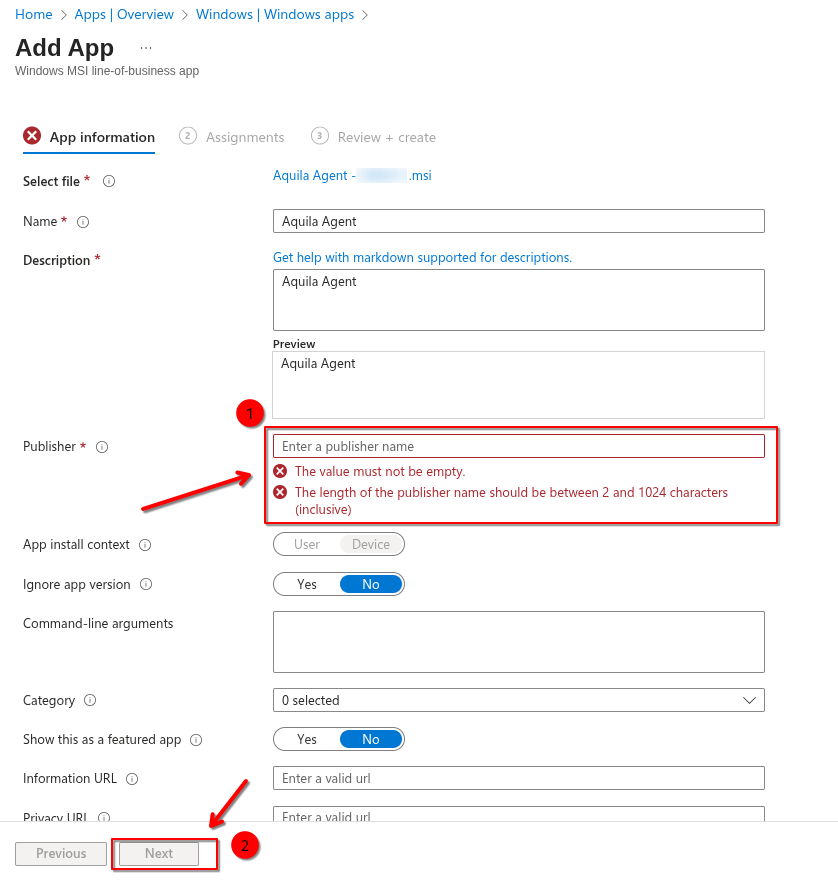
</div>#### <span style="color: rgb(0, 0, 0);">Step 4: Configure App Information</span>

1. <span style="color: rgb(0, 0, 0);">**Name**: AQUILA Agent</span>
2. <span style="color: rgb(0, 0, 0);">**Description**: Endpoint Security Agent for SOC Monitoring (EDR, VDR, DLP)</span>
3. <span style="color: rgb(0, 0, 0);">**Publisher**: AQUILA Security</span>
4. <span style="color: rgb(0, 0, 0);">**Category**: Security</span>
5. <span style="color: rgb(0, 0, 0);">(Optional) Upload a logo</span>
6. <span style="color: rgb(0, 0, 0);">Click **Next**</span>

<span style="color: rgb(0, 0, 0);">**[![image.png](https://cytechint-docs-bookstack.s3.amazonaws.com/uploads/images/gallery/2026-01/scaled-1680-/IJ8vNsRqoM13LZzv-image.png)](https://cytechint-docs-bookstack.s3.amazonaws.com/uploads/images/gallery/2026-01/IJ8vNsRqoM13LZzv-image.png)**</span>

<div contenteditable="false" id="bkmrk--12">---

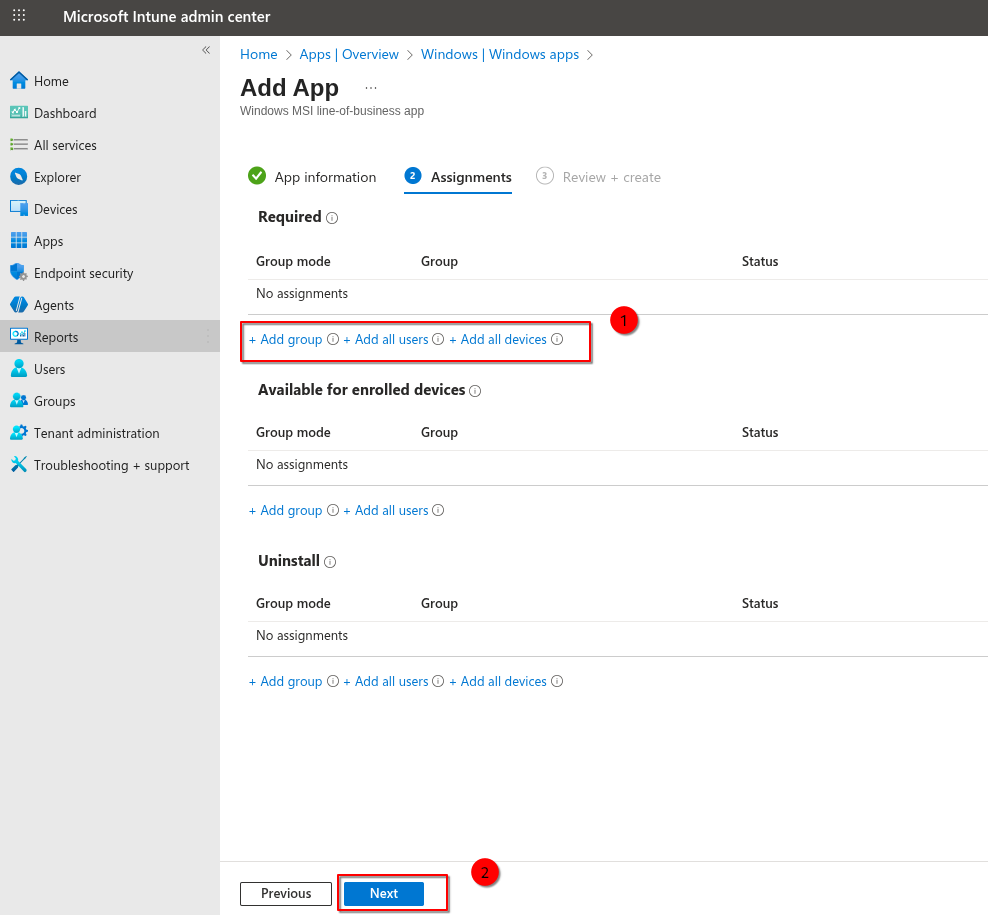
</div>#### <span style="color: rgb(0, 0, 0);">Step 5: Assign the Application</span>

1. <span style="color: rgb(0, 0, 0);">Under **Assignments**:</span>
    
    
    - <span style="color: rgb(0, 0, 0);">Add **Required** assignment to device or user groups</span>
    - <span style="color: rgb(0, 0, 0);">Recommended: **Device groups**</span>
2. <span style="color: rgb(0, 0, 0);">Select the target group(s)</span>

<span style="color: rgb(0, 0, 0);">Click **Next** </span>

##### <span style="color: rgb(224, 62, 45);">**Best Practices**</span>

- <span style="color: rgb(0, 0, 0);">Deploy to a **pilot group** before full rollout</span>
- <span style="color: rgb(0, 0, 0);">Use **Supersedence** to upgrade older versions</span>
- <span style="color: rgb(0, 0, 0);">Monitor installation status regularly</span>
- <span style="color: rgb(0, 0, 0);">Coordinate deployment windows with SOC teams</span>

<span style="color: rgb(0, 0, 0);">[![image.png](https://cytechint-docs-bookstack.s3.amazonaws.com/uploads/images/gallery/2026-01/scaled-1680-/jvNrFk4qaAzyiNrP-image.png)](https://cytechint-docs-bookstack.s3.amazonaws.com/uploads/images/gallery/2026-01/jvNrFk4qaAzyiNrP-image.png)</span>

<div contenteditable="false" id="bkmrk--14">---

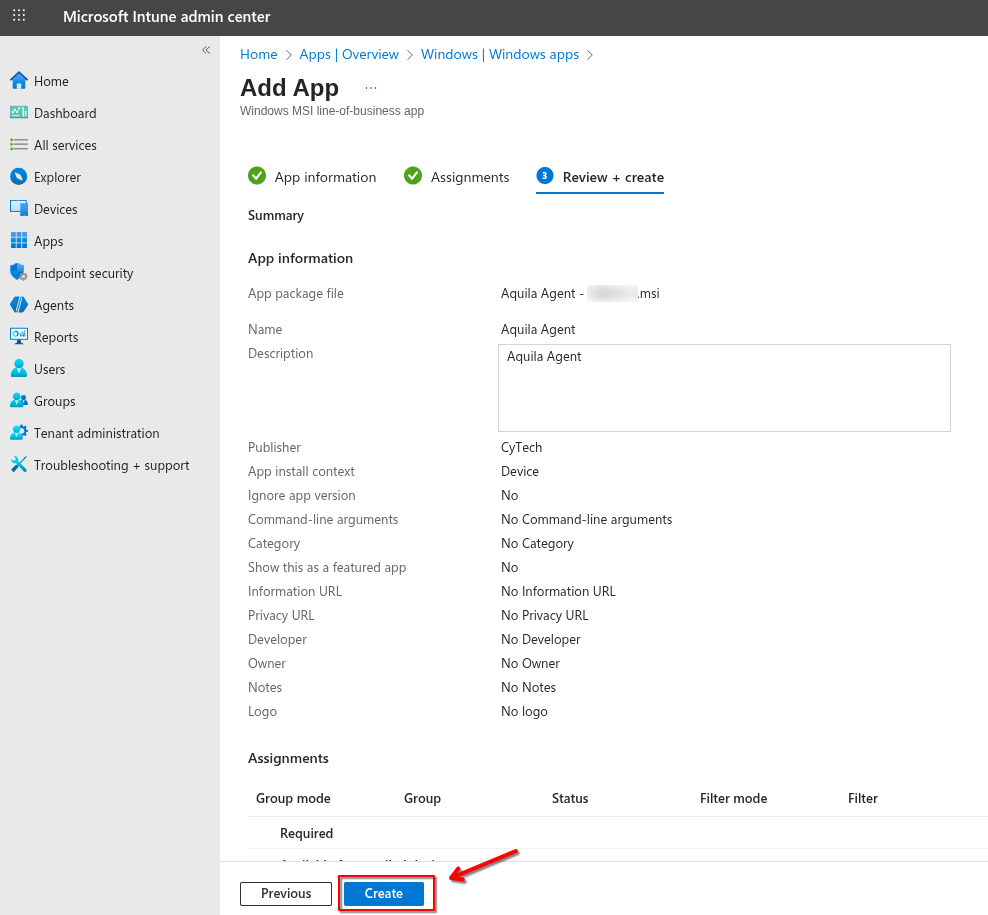
</div>#### <span style="color: rgb(0, 0, 0);">Step 6: Review and Create</span>

1. <span style="color: rgb(0, 0, 0);">Review all configuration settings</span>
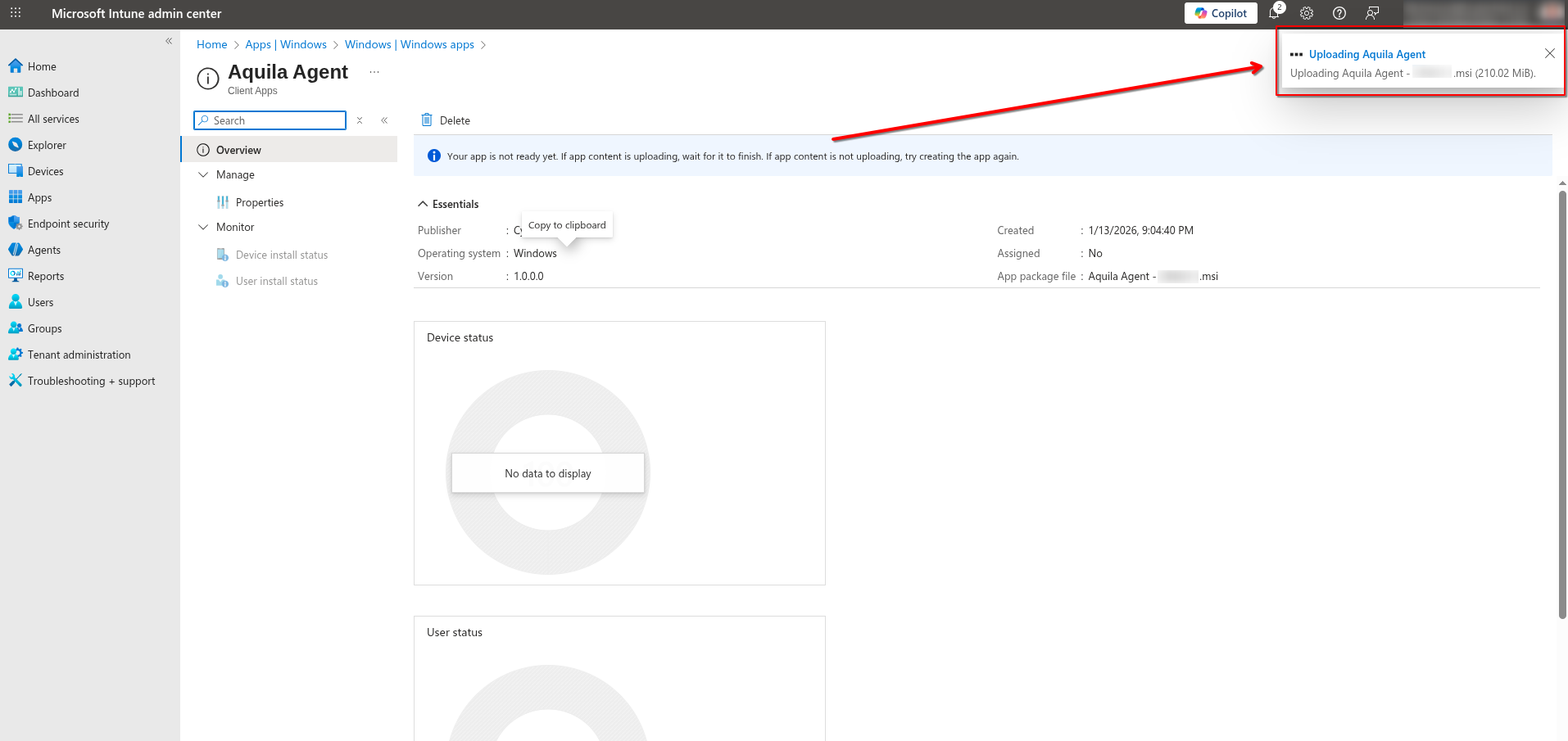
2. <span style="color: rgb(0, 0, 0);">Click **Create**</span>

<span style="color: rgb(0, 0, 0);">Deployment will begin automatically based on Intune sync intervals.</span>

<span style="color: rgb(0, 0, 0);">[![image.png](https://cytechint-docs-bookstack.s3.amazonaws.com/uploads/images/gallery/2026-01/scaled-1680-/oCK26YTOPb4YqTBB-image.png)](https://cytechint-docs-bookstack.s3.amazonaws.com/uploads/images/gallery/2026-01/oCK26YTOPb4YqTBB-image.png)</span>

<div contenteditable="false" id="bkmrk--16">---

</div>## <span style="color: rgb(53, 152, 219);">Post-Deployment Validation</span>

#### <span style="color: rgb(0, 0, 0);">Intune Validation</span>

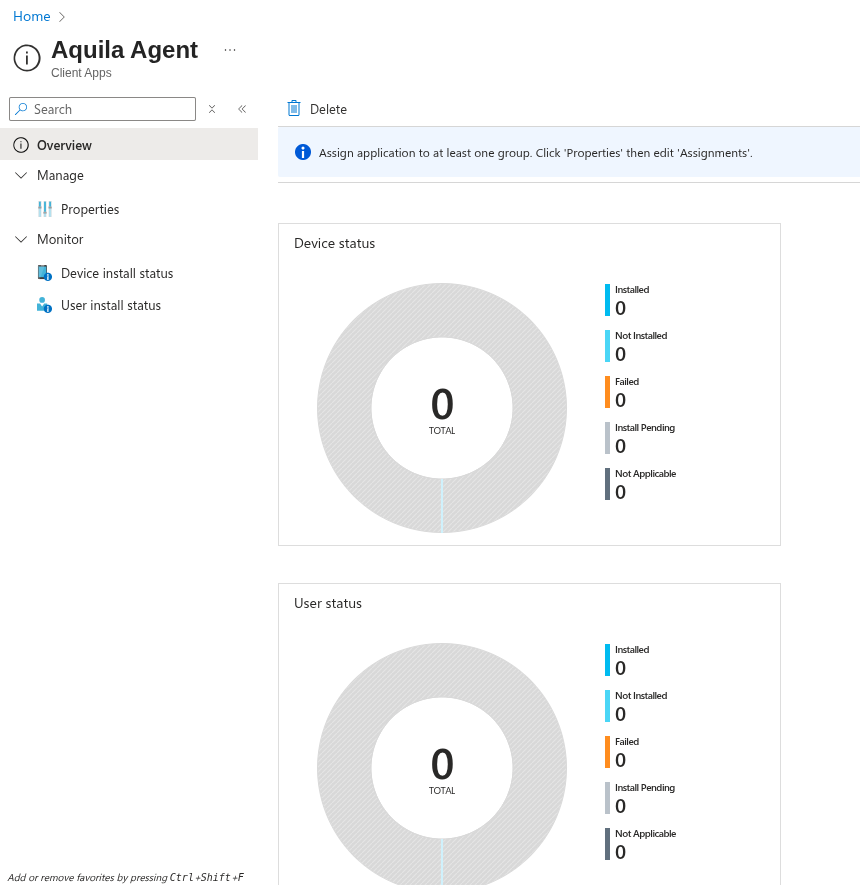
- <span style="color: rgb(0, 0, 0);">Navigate to **Apps** → **Windows** → **AQUILA Agent**</span>
- <span style="color: rgb(0, 0, 0);">Check **Device install status**</span>
- <span style="color: rgb(0, 0, 0);">Confirm successful installations</span>

<span style="color: rgb(0, 0, 0);">[![image.png](https://cytechint-docs-bookstack.s3.amazonaws.com/uploads/images/gallery/2026-01/scaled-1680-/bovu3EAc8SWXfsHe-image.png)](https://cytechint-docs-bookstack.s3.amazonaws.com/uploads/images/gallery/2026-01/bovu3EAc8SWXfsHe-image.png)</span>

<span style="color: rgb(0, 0, 0);">[![image.png](https://cytechint-docs-bookstack.s3.amazonaws.com/uploads/images/gallery/2026-01/scaled-1680-/eGdrEkZrfDONu3bc-image.png)](https://cytechint-docs-bookstack.s3.amazonaws.com/uploads/images/gallery/2026-01/eGdrEkZrfDONu3bc-image.png)</span>

<span style="color: rgb(0, 0, 0);">[![image.png](https://cytechint-docs-bookstack.s3.amazonaws.com/uploads/images/gallery/2026-01/scaled-1680-/Iom1PypiVsD8Ygu9-image.png)](https://cytechint-docs-bookstack.s3.amazonaws.com/uploads/images/gallery/2026-01/Iom1PypiVsD8Ygu9-image.png)</span>

#### <span style="color: rgb(0, 0, 0);">Endpoint Validation</span>

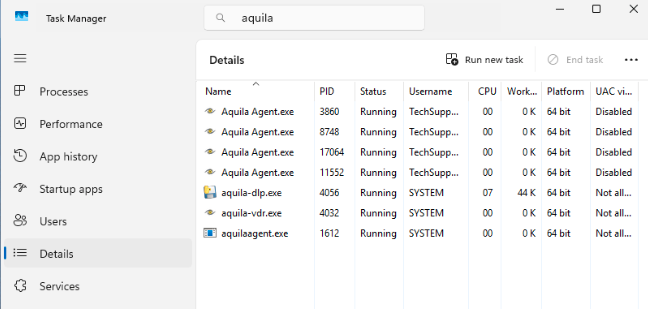
- <span style="color: rgb(0, 0, 0);">Verify AQUILA Agent service is running</span>
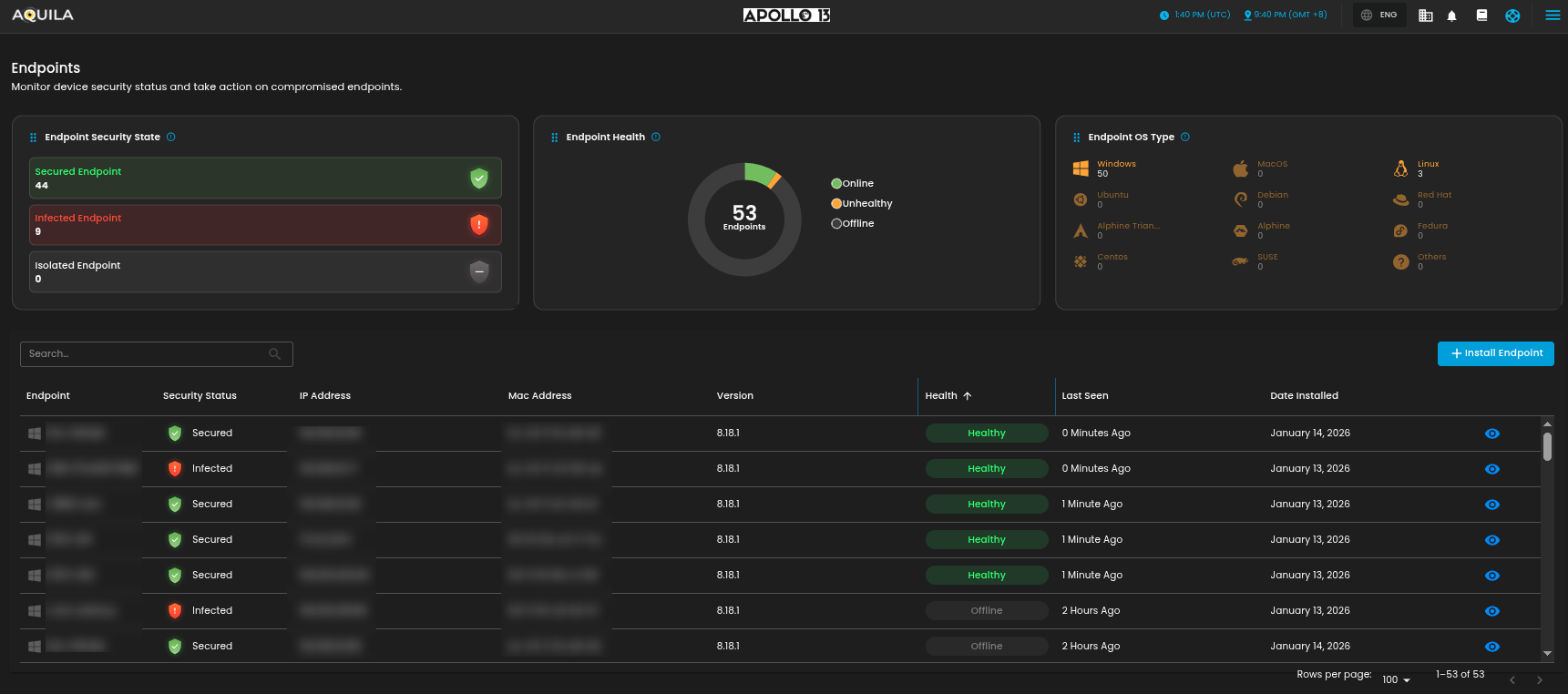
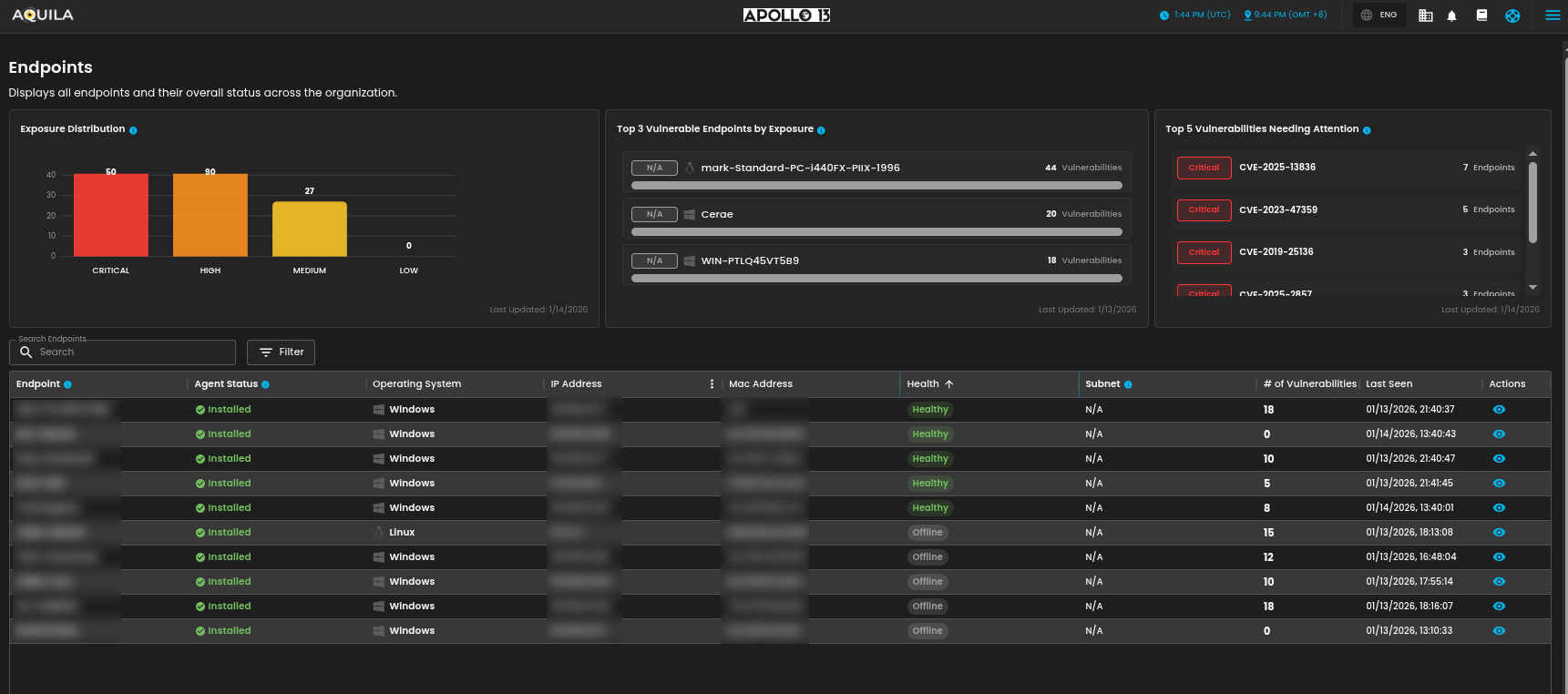
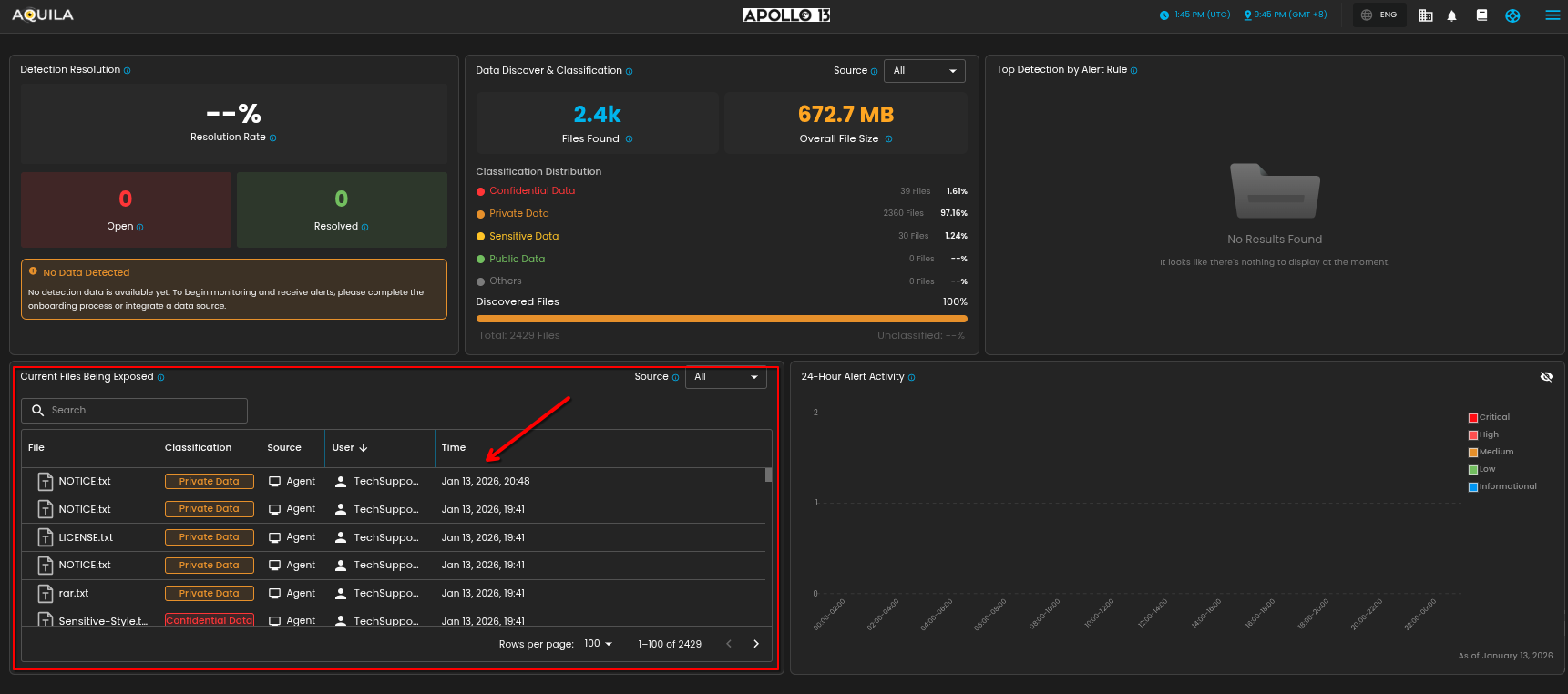
- <span style="color: rgb(0, 0, 0);">Confirm endpoint appears in AQUILA backend / SOC dashboard</span>

[![image.png](https://cytechint-docs-bookstack.s3.amazonaws.com/uploads/images/gallery/2026-01/scaled-1680-/N13Zdnwobcg2aKJ5-image.png)](https://cytechint-docs-bookstack.s3.amazonaws.com/uploads/images/gallery/2026-01/N13Zdnwobcg2aKJ5-image.png)

<p class="callout info"><span style="color: rgb(0, 0, 0);">**Cyber Monitoring &gt; Endpoint Detection and Response (EDR) &gt; Endpoints**</span></p>

[![image.png](https://cytechint-docs-bookstack.s3.amazonaws.com/uploads/images/gallery/2026-01/scaled-1680-/o3uD6f1Wn54n8t7a-image.png)](https://cytechint-docs-bookstack.s3.amazonaws.com/uploads/images/gallery/2026-01/o3uD6f1Wn54n8t7a-image.png)

<p class="callout info">**<span style="color: rgb(0, 0, 0);">Risk Management &gt; Vulnerability Assessment and Management (VAM) &gt; Endpoint</span>**</p>

[![image.png](https://cytechint-docs-bookstack.s3.amazonaws.com/uploads/images/gallery/2026-01/scaled-1680-/xGiaix2aahMIwiM2-image.png)](https://cytechint-docs-bookstack.s3.amazonaws.com/uploads/images/gallery/2026-01/xGiaix2aahMIwiM2-image.png)

<p class="callout info"><span style="color: rgb(0, 0, 0);">**Data Security &gt; <span aria-label="Data Loss Prevention (DLP)" class="MuiTypography-root MuiTypography-caption css-1e6hoy4">Data Loss Prevention (DLP) &gt; Dashboard</span>**</span></p>

[![image.png](https://cytechint-docs-bookstack.s3.amazonaws.com/uploads/images/gallery/2026-01/scaled-1680-/1xPRwj3huJQ9KEaH-image.png)](https://cytechint-docs-bookstack.s3.amazonaws.com/uploads/images/gallery/2026-01/1xPRwj3huJQ9KEaH-image.png)

<div contenteditable="false" id="bkmrk--24">---

</div>## <span style="color: rgb(53, 152, 219);">Troubleshooting</span>

<table id="bkmrk-issue-recommendation"><tbody><tr><td><span style="color: rgb(0, 0, 0);">Issue</span></td><td><span style="color: rgb(0, 0, 0);">Recommendation</span></td></tr><tr><td><span style="color: rgb(0, 0, 0);">Installation failed</span></td><td><span style="color: rgb(0, 0, 0);">Check Intune error codes and logs</span></td></tr><tr><td><span style="color: rgb(0, 0, 0);">Agent not visible in backend</span></td><td><span style="color: rgb(0, 0, 0);">Verify internet access and enrollment</span></td></tr><tr><td><span style="color: rgb(0, 0, 0);">Multiple versions installed</span></td><td><span style="color: rgb(0, 0, 0);">Ensure old versions are uninstalled or superseded</span></td></tr><tr><td><span style="color: rgb(0, 0, 0);">Defender/UAC prompt</span></td><td><span style="color: rgb(0, 0, 0);">Expected if CA signing is still in progress</span></td></tr></tbody></table>

<div contenteditable="false" id="bkmrk--25">---

</div>## <span style="color: rgb(53, 152, 219);">Summary</span>

<span style="color: rgb(0, 0, 0);">Deploying the AQUILA Agent via Microsoft Intune using an MSI installer provides a reliable, scalable, and secure method for enterprise-wide endpoint onboarding. This approach minimizes manual effort, improves deployment consistency, and ensures endpoints are quickly integrated into SOC monitoring workflows.</span>

<span style="color: rgb(0, 0, 0);">For questions, validation support, or deployment assistance, please contact the SOC(<span style="color: rgb(224, 62, 45);">**csoc@cytechint.com**</span>)or AQUILA support team(<span style="color: rgb(224, 62, 45);">**aquilasupport@cytechint.com.sg**</span>).</span>